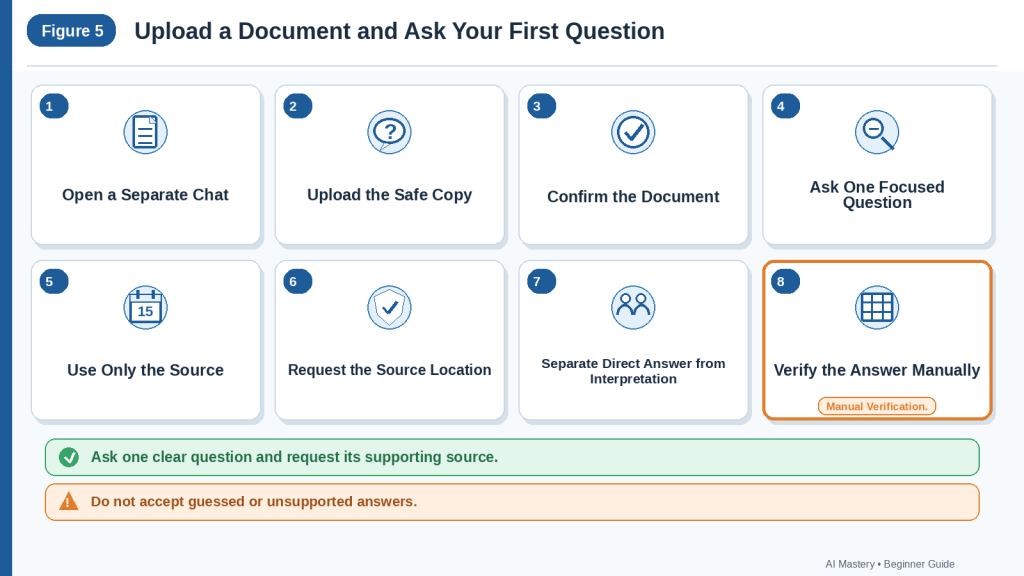
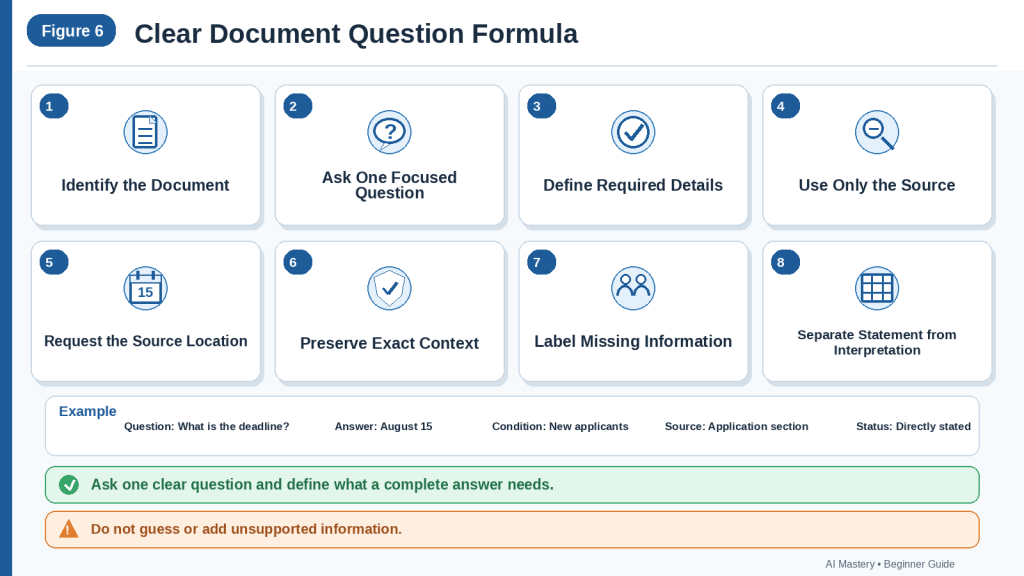
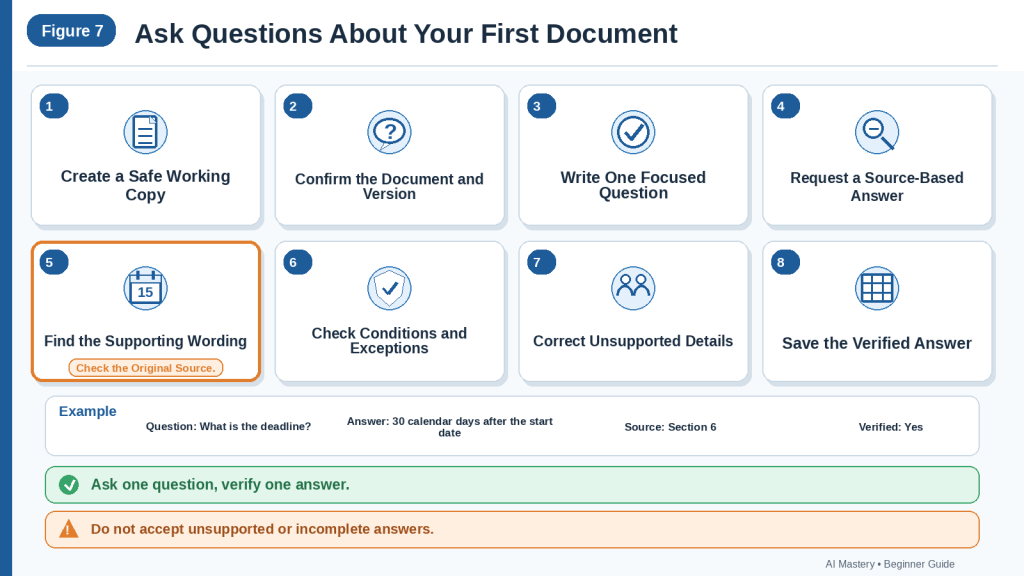
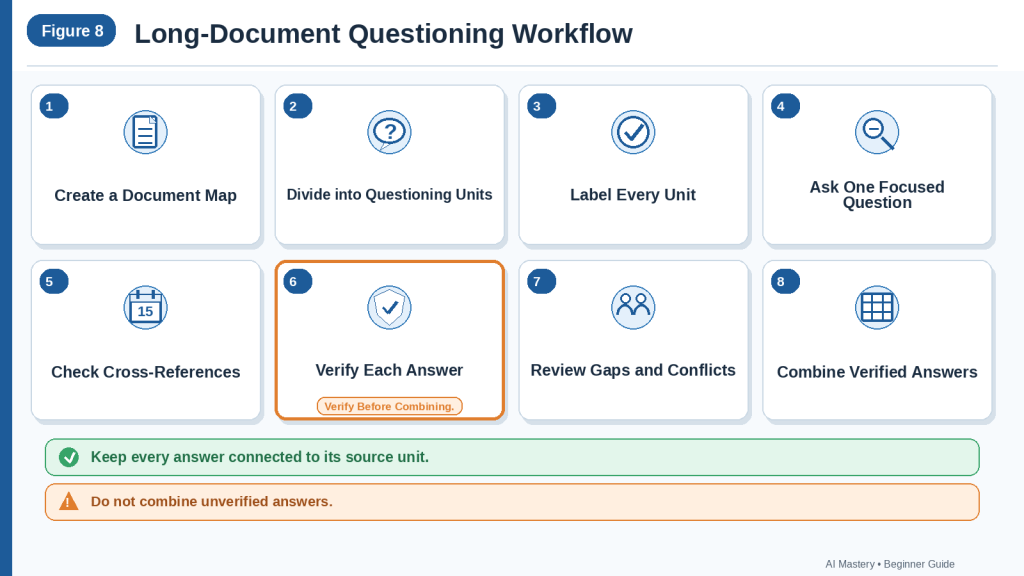
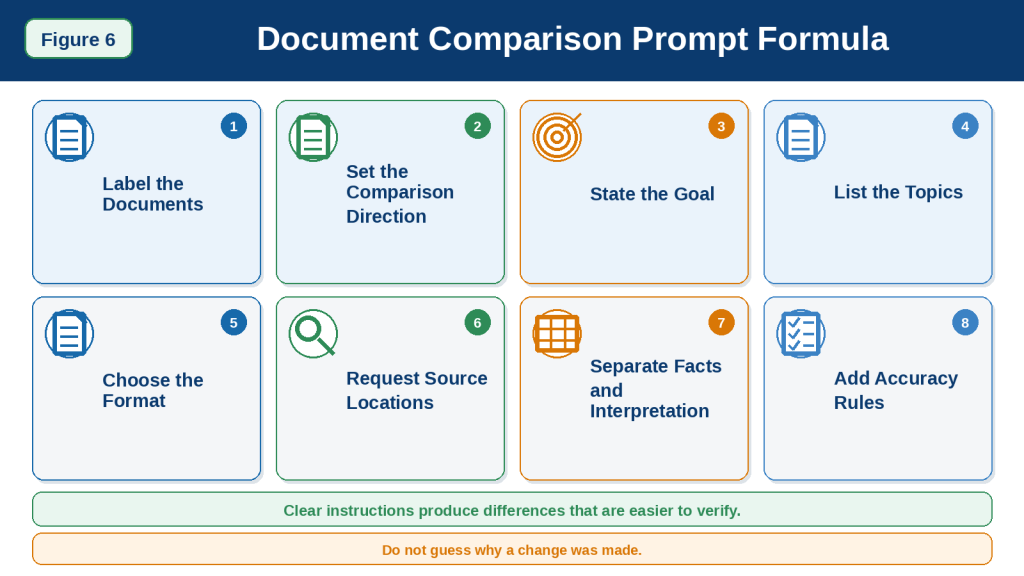
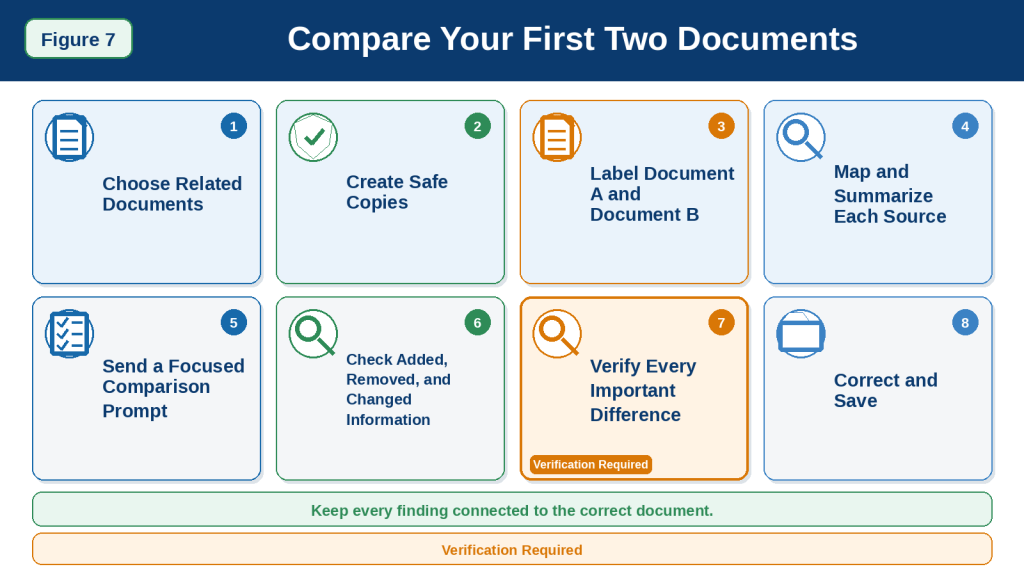
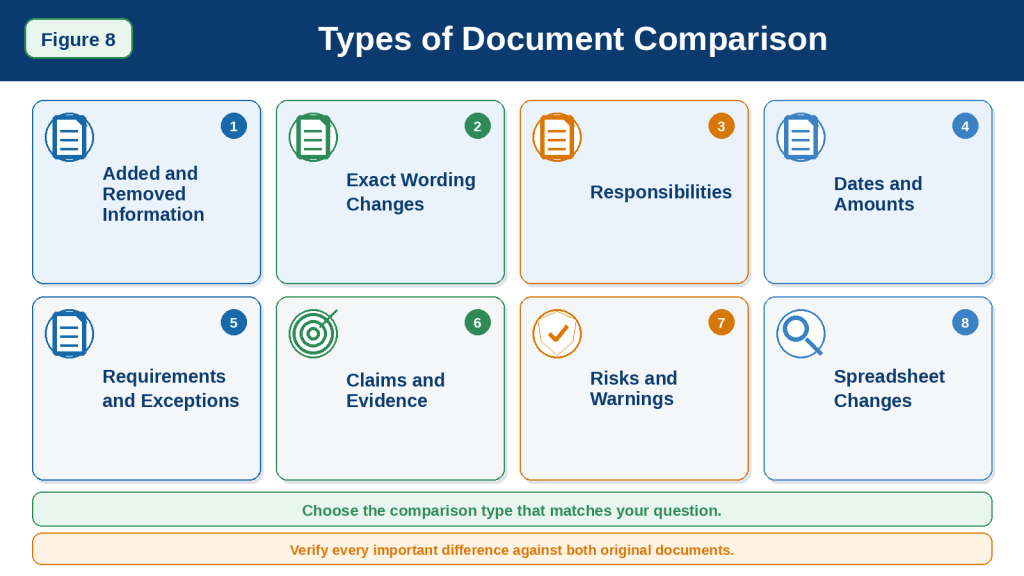
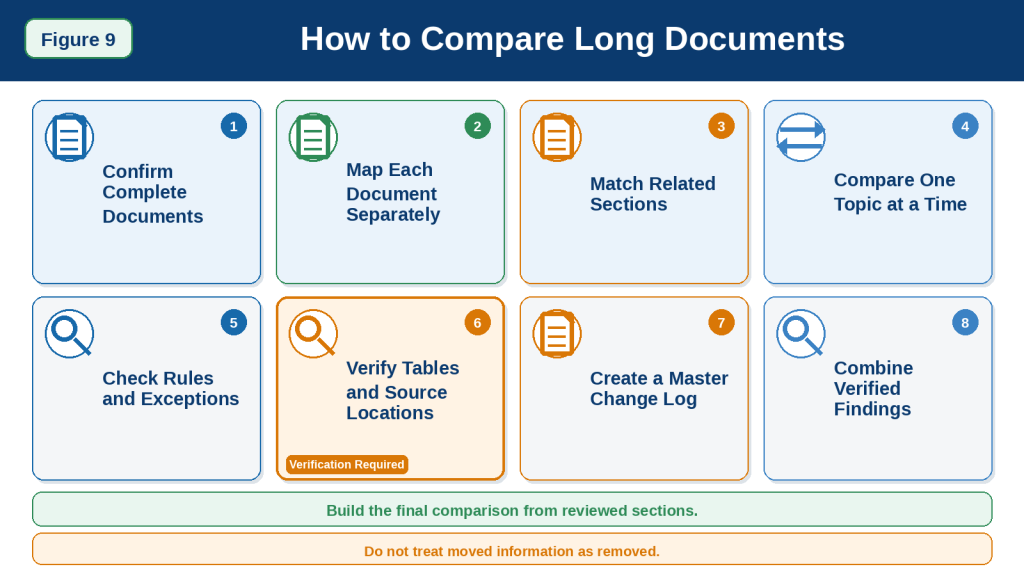
Estimated reading time: 12–15 minutes Last updated: August 15, 2026
Introduction
A daily plan helps you decide what needs to be done, what should be done first, and how much time you may need for each task. For beginners, the difficult part is often not making a list—it is turning a long or confusing list into a realistic plan.
ChatGPT can help you organize your day by taking the tasks you provide and arranging them into a clearer schedule. You can tell ChatGPT what you need to do, when you are available, which tasks are most important, and whether you want breaks included.
For example, instead of simply writing:
“Pay bills, make two phone calls, work on my website, buy groceries, and exercise.”
you could ask ChatGPT:
“Help me create a realistic daily plan from 9:00 a.m. to 5:00 p.m. I need to pay bills, make two phone calls, work on my website for two hours, buy groceries, and exercise for 30 minutes. Include breaks and put the most important tasks first.”
Clear and specific instructions generally help ChatGPT produce more useful responses. OpenAI recommends clearly describing the task, providing relevant context, and refining the prompt when necessary.
ChatGPT can suggest a plan, but it does not know everything about your day unless you tell it. You should review the result and adjust times, priorities, travel time, appointments, health needs, family responsibilities, and other personal circumstances before following the schedule.
In this guide, you will learn how to give ChatGPT the information it needs, create a practical daily plan, adjust that plan when circumstances change, and avoid common planning mistakes.
Before You Start
You do not need special technical skills to create a daily plan with ChatGPT. You mainly need a clear idea of what you want to accomplish and enough information about your available time.
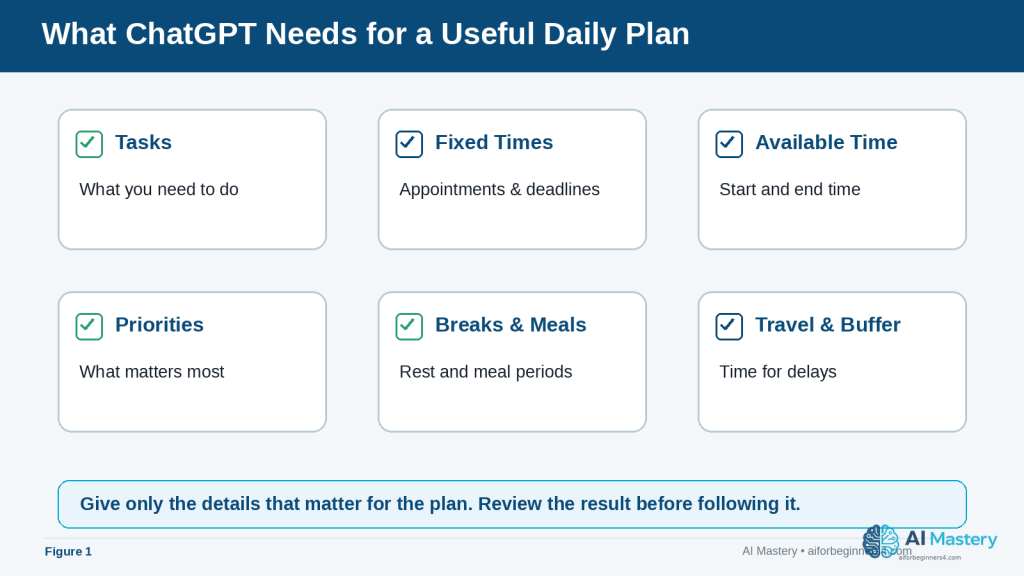
Before asking ChatGPT to organize your day, prepare:
· The tasks you need to complete
· Any fixed appointments or deadlines
· The approximate time you have available
· Your most important tasks
· Tasks that can wait until another day
· Breaks, meals, travel time, or other commitments you want included
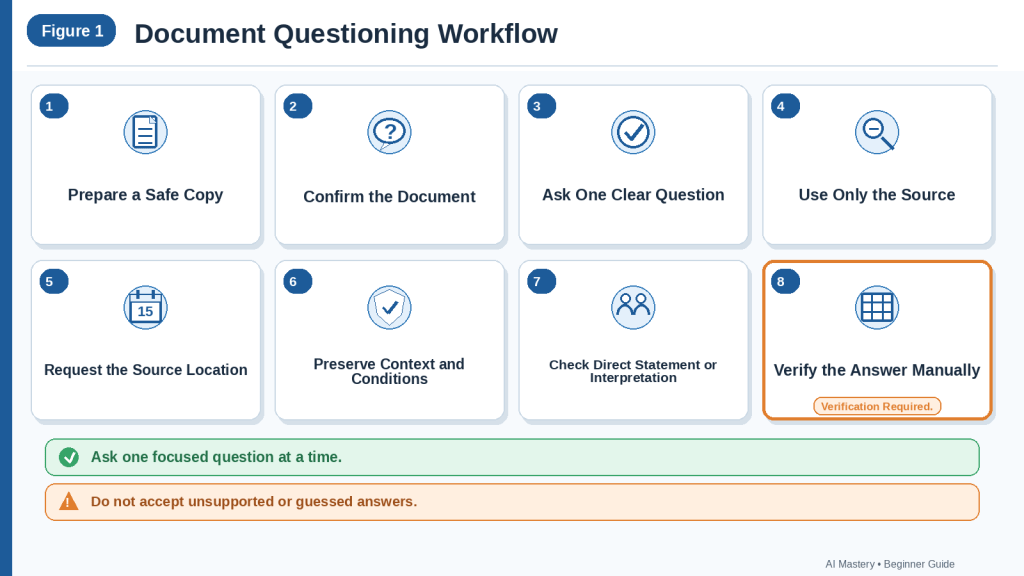
Figure 1. A useful daily plan starts with tasks, fixed times, available time, priorities, breaks, meals, travel, and buffer time.
Explanation: Providing the information that affects the schedule gives ChatGPT a better basis for organizing the day while keeping unnecessary personal details out of the prompt.
The more useful context you provide, the easier it is for ChatGPT to produce a plan that fits your situation. OpenAI recommends using clear, specific prompts and providing enough context for ChatGPT to understand the request.
Protect Your Personal Information
You may need to provide some personal context when planning your day, but avoid entering unnecessary sensitive information.
For example, instead of writing:
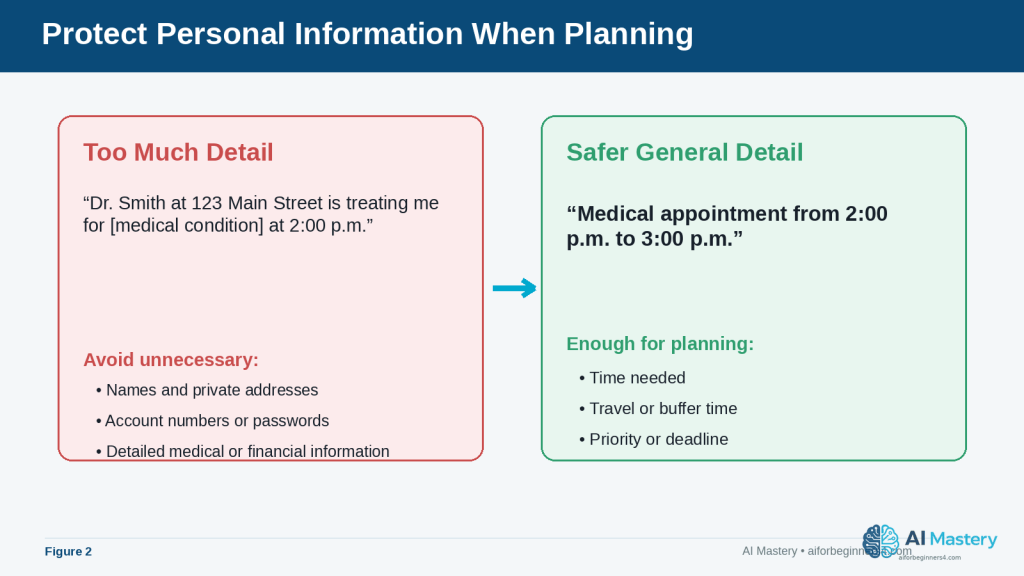
“Dr. Smith at 123 Main Street is treating me for [medical condition] at 2:00 p.m.”
you could simply write:
“Medical appointment from 2:00 p.m. to 3:00 p.m.”
ChatGPT only needs the information required to organize the schedule.
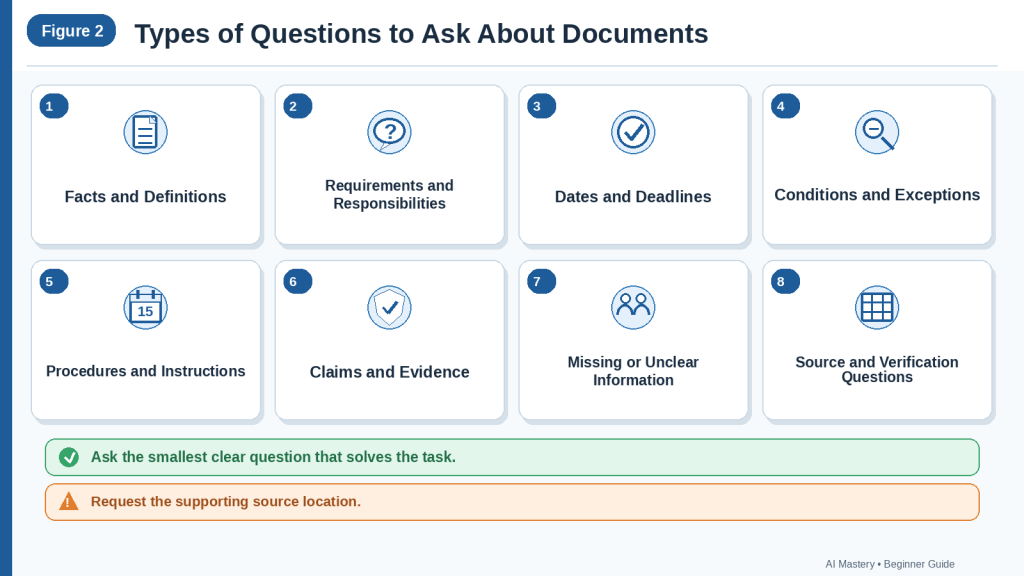
Figure 2. Share only the personal information that is necessary for planning, and use general descriptions when specific details are not needed.
Explanation: A time and general appointment label are often enough for scheduling. Names, addresses, passwords, account numbers, or sensitive details usually add risk without improving the plan.
ChatGPT also provides Data Controls that let users manage how their conversations may be used to improve OpenAI’s models. These settings can change over time, so readers should check the current options in ChatGPT’s Settings > Data Controls when privacy settings are important to them.
Do Not Expect ChatGPT to Know Your Entire Schedule
ChatGPT should not be treated as automatically knowing every appointment, responsibility, deadline, or change in your day.
Tell it the information that matters for the plan.
For example:
“Create my plan from 8:00 a.m. to 6:00 p.m. I have an appointment from 11:00 a.m. to noon and need 30 minutes of travel time before and after it.”
This is much more useful than simply asking:
“Plan my day.”
ChatGPT may also use saved memories or information from previous conversations when relevant settings are enabled, but you should still provide important current-day information rather than assuming it will be remembered correctly. OpenAI allows users to review, change, or turn off memory features in ChatGPT settings.
Reality: ChatGPT can help organize your information, but you remain responsible for checking the schedule and deciding whether the suggested plan is practical and appropriate for your day.
What You’ll Learn
By the end of this guide, you will know how to:
· Give ChatGPT the information it needs to help organize your day.
· Turn an unordered task list into a clearer daily schedule.
· Tell ChatGPT which tasks are most important.
· Add appointments, breaks, meals, travel time, and other fixed commitments.
· Estimate how much time to allow for different tasks.
· Ask ChatGPT to make a busy schedule more realistic.
· Adjust your plan when something unexpected happens.
· Create reusable prompts for morning planning.
· Use ChatGPT Scheduled Tasks for suitable reminders and recurring tasks when the feature is available.
· Review AI-generated schedules for mistakes or unrealistic assumptions.
· Protect unnecessary personal or sensitive information when using AI for planning.
You will also learn when ChatGPT is useful for daily planning and when you should rely on a calendar, reminder app, task manager, or your own judgment instead.
The goal is not to let AI control your day. The goal is to use ChatGPT as an organizing assistant that helps you turn your priorities into a plan you can review and change.
How ChatGPT Can Help You Plan Your Day
ChatGPT can take a simple list of tasks and help turn it into a more organized plan. This is useful when you know what you need to do but are unsure what to do first or how to fit everything into the time available.
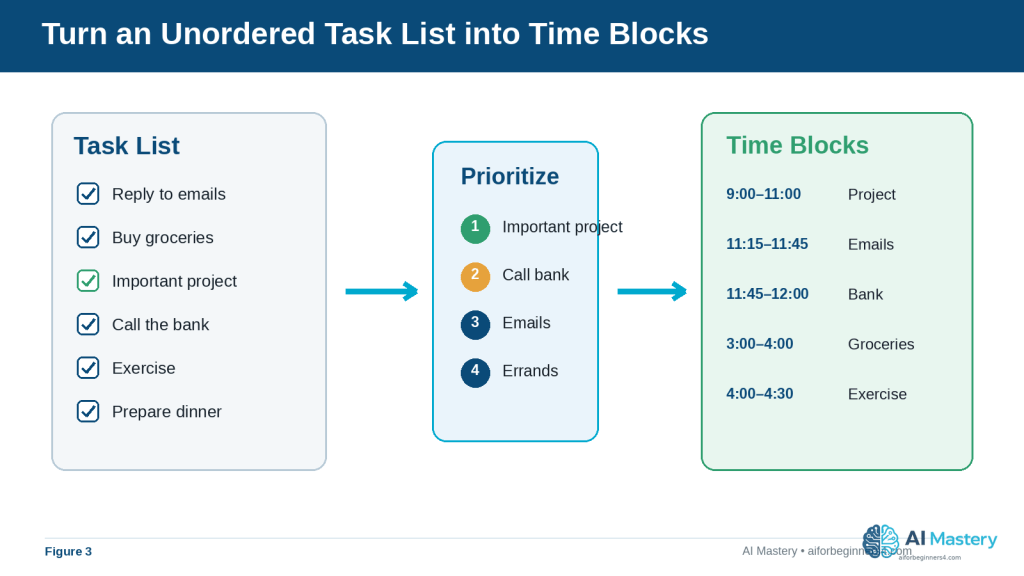
For example, you might start with this unordered list:
· Reply to emails
· Buy groceries
· Work on an important project
· Call the bank
· Exercise
· Prepare dinner
ChatGPT can help group these tasks, suggest an order, and assign approximate time blocks.
Prioritize Important Tasks
You can tell ChatGPT which tasks are urgent or important.
For example:
“Help me organize these tasks for today. Working on my project is the highest priority. Calling the bank must be done before 4:00 p.m. The other tasks are flexible.”
This gives ChatGPT more useful information than simply providing a task list.
Create Time Blocks
A time block is a period reserved for a particular activity.
For example:
· 9:00–10:30 a.m. — Important project
· 10:30–10:45 a.m. — Break
· 10:45–11:15 a.m. — Emails
· 11:15–11:30 a.m. — Call the bank
Time blocks can make a long list feel easier to manage because each task has a suggested place in the day.
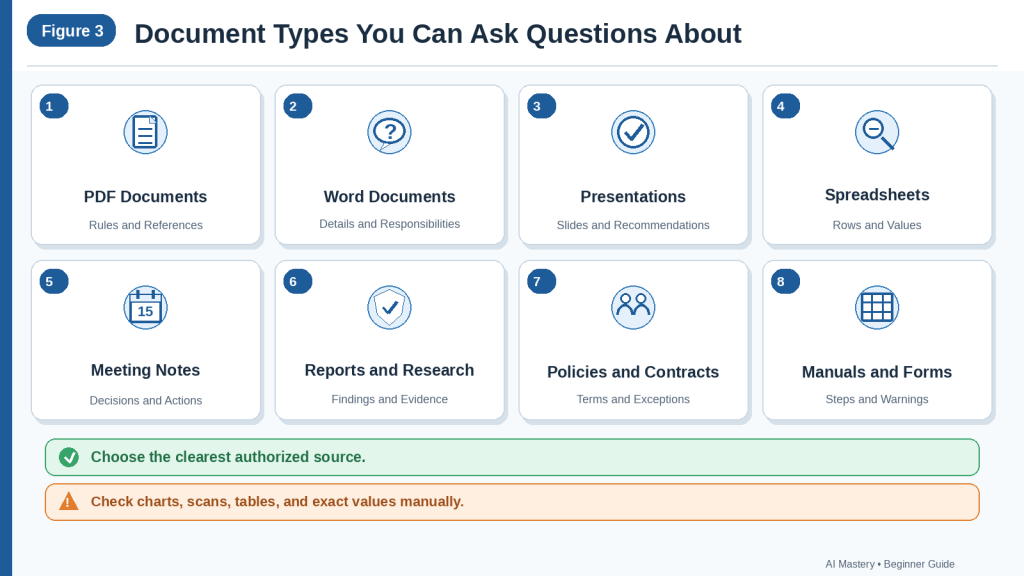
Figure 3. ChatGPT can help turn an unordered task list into priorities and suggested time blocks.
Explanation: The schedule becomes easier to scan when important work is identified first and each activity receives a realistic place in the day.
Include Breaks and Buffer Time
A plan that fills every minute of the day is usually difficult to follow.
You can ask ChatGPT to include:
· Short breaks
· Lunch or meal periods
· Travel time
· Extra time between appointments
· Buffer time for unexpected delays
For example:
“Create a schedule from 9:00 a.m. to 5:00 p.m. Include a 15-minute break in the morning, a one-hour lunch, and at least 15 minutes of free time between major tasks.”
Break Large Tasks into Smaller Steps
A task such as “work on my website” may be too broad to schedule effectively.
ChatGPT can help divide it into smaller actions, such as:
· Review the article draft
· Prepare images
· Add the article to WordPress
· Check links
· Preview the page
· Publish or save the draft
Smaller tasks make it easier to estimate the time required and see what progress you have made.
Adjust the Plan When Your Day Changes
Daily plans often change.
If an appointment runs late or an unexpected task appears, you can give ChatGPT the updated information.
For example:
“My appointment took one hour longer than expected. It is now 2:00 p.m. I still need to finish my project, buy groceries, and exercise. Reorganize the rest of my day without making the schedule too busy.”
ChatGPT can then suggest a revised plan.
Reality: A ChatGPT schedule is a suggestion, not a fixed timetable. Task durations may be inaccurate, unexpected events can occur, and some priorities require your own judgment. Review the plan and change anything that does not fit your real circumstances.
Step-by-Step: Create a Daily Plan with ChatGPT
You can create a useful daily plan with ChatGPT by giving it your tasks, available time, priorities, and fixed commitments.
Step 1: Write Down Everything You Need to Do
Start by listing the tasks you want to complete.
For example:
· Answer important emails
· Work on a website article
· Call the bank
· Buy groceries
· Exercise
· Prepare dinner
Do not worry about putting them in the correct order yet.
Step 2: Add Your Available Time
Tell ChatGPT when your day begins and when you want your planned activities to end.
For example:
“Plan my tasks between 9:00 a.m. and 6:00 p.m.”
This gives ChatGPT a clear time window to work with.
Step 3: Add Fixed Appointments
Next, include anything that already has a set time.
For example:
“I have an appointment from 1:00 p.m. to 2:00 p.m. and need 30 minutes of travel time before and after it.”
Fixed commitments should normally be added before flexible tasks because they cannot easily be moved.
Step 4: Identify Your Priorities
Tell ChatGPT which tasks are most important.
For example:
“My website article is my highest-priority task today. I also need to call the bank before 4:00 p.m.”
This helps ChatGPT avoid giving equal importance to every item.
Step 5: Ask for Breaks and Realistic Time Blocks
You can ask ChatGPT not to overload the schedule.
For example:
“Include lunch, two short breaks, and some buffer time between major tasks. Do not schedule every minute.”
This can make the plan easier to follow.
Step 6: Send the Complete Prompt
A complete beginner-friendly prompt could look like this:
“Help me create a realistic daily plan from 9:00 a.m. to 6:00 p.m. I need to answer important emails, work on my website article for about two hours, call the bank before 4:00 p.m., buy groceries, exercise for 30 minutes, and prepare dinner. I have an appointment from 1:00 p.m. to 2:00 p.m. and need 30 minutes of travel time before and after it. My website article is the highest priority. Include lunch, short breaks, and some buffer time. Do not make the schedule too busy.”
Step 7: Review the Suggested Schedule
Read the plan carefully before using it.
Check:
· Are the most important tasks scheduled early enough?
· Are appointments placed at the correct times?
· Is enough travel time included?
· Are task durations realistic?
· Are there enough breaks?
· Is the day too crowded?
· Is anything important missing?
If something looks wrong, tell ChatGPT what needs to change.
Step 8: Ask ChatGPT to Revise It
You do not need to accept the first version.
For example:
“Move grocery shopping to later in the afternoon, give me another 30 minutes for the website article, and add a longer break after my appointment.”
ChatGPT can then create a revised version.
How to Avoid This Mistake: Do not ask ChatGPT to plan your day using only a short instruction such as “Organize my day” when you have important deadlines or fixed appointments. Include enough detail for the plan to reflect your actual situation.
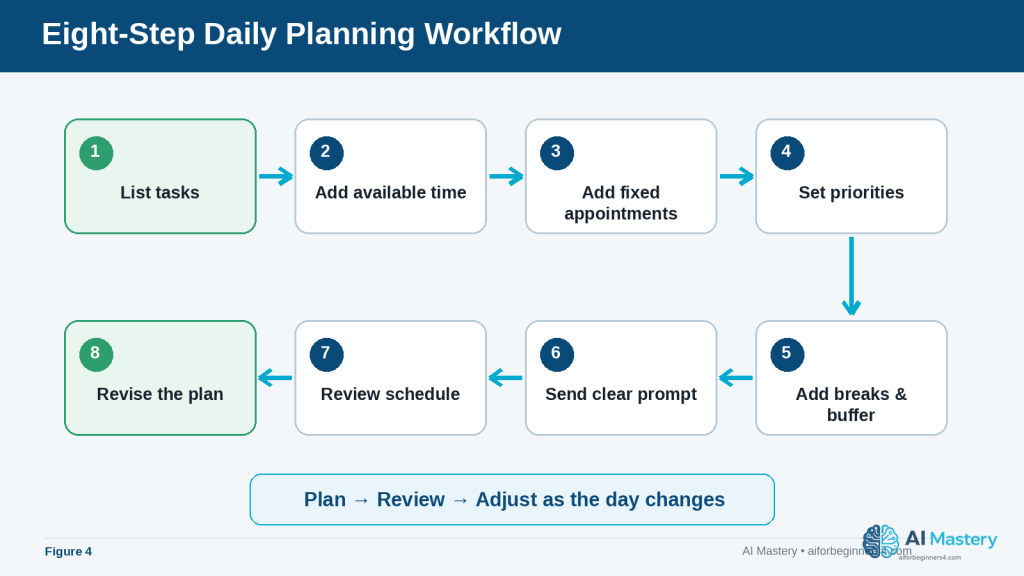
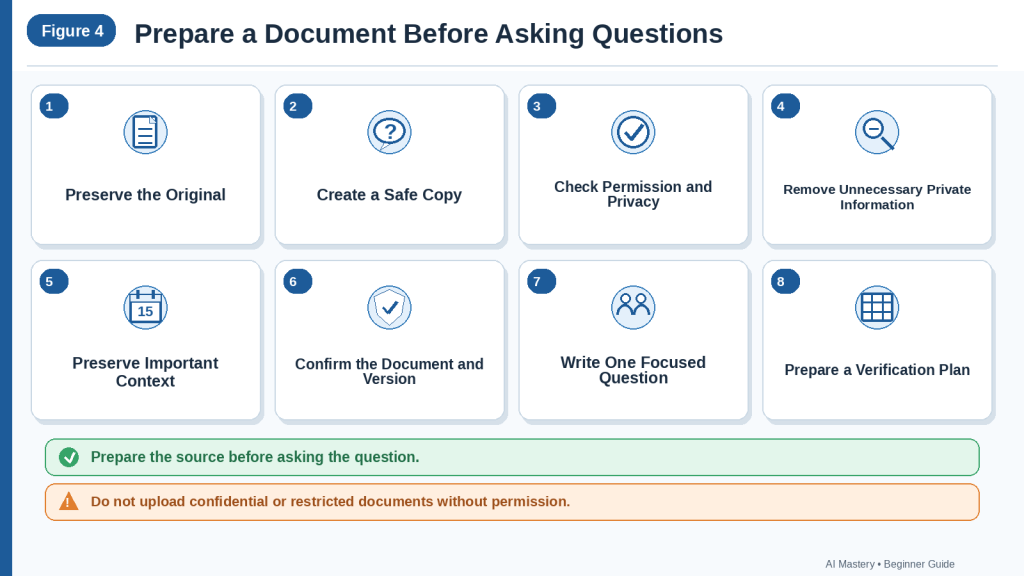
Figure 4. An eight-step workflow moves from listing tasks through creating, reviewing, and revising the daily plan.
Explanation: Using the same sequence each day makes it easier to remember fixed commitments, priorities, breaks, and the final review before following the schedule.
Useful ChatGPT Prompts for Daily Planning
Once you understand the basic process, you can save time by reusing simple prompts and changing only the details that matter for that day.
Basic Daily Planning Prompt
“Help me create a realistic plan for today from 9:00 a.m. to 5:00 p.m. My tasks are: [insert tasks]. My most important task is [insert priority]. Include lunch, short breaks, and some buffer time.”
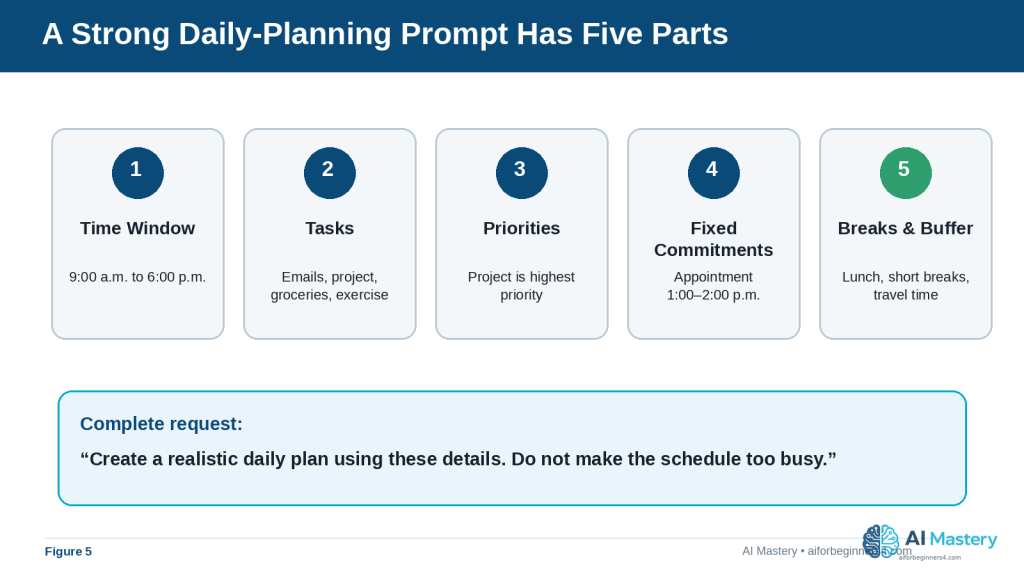
Figure 5. A strong daily-planning prompt combines the time window, tasks, priorities, fixed commitments, and breaks or buffer time.
Explanation: These five pieces of context reduce ambiguity and make the first suggested schedule easier to review and revise.
Prompt for a Busy Day
“I have too many tasks today. Help me decide what should be done today, what can wait, and what should be removed from the schedule. My available time is [insert hours]. These are my tasks: [insert tasks].”
This type of prompt can be useful when your list is longer than the time available.
Prompt for Prioritizing Tasks
“Organize these tasks into high, medium, and low priority. Explain briefly why each task belongs in that group. Then create a realistic schedule for the high-priority tasks first.”
You should still review the suggested priorities because ChatGPT may not understand the real consequences of delaying a task unless you explain them.
Prompt for Planning Around Appointments
“Create my daily schedule around these fixed appointments: [insert appointments and times]. I also need to complete these flexible tasks: [insert tasks]. Include travel time and breaks.”
Prompt for a Short Work Session
“I have only two hours available. Help me choose the most useful tasks from this list and create a focused two-hour plan: [insert tasks]. Include one short break.”
This can be helpful when you have limited time and cannot complete everything.
Prompt for Breaking Down a Large Task
“I need to complete this task: [describe task]. Break it into small, manageable steps and estimate a reasonable amount of time for each step. Then place the steps into my daily schedule.”
Time estimates from ChatGPT are only suggestions. Adjust them if you know a task normally takes you longer or shorter.
Prompt for Replanning After an Interruption
“My original plan has changed. It is now [time]. I still need to complete these tasks: [insert remaining tasks]. My new available time ends at [time]. Reorganize the rest of my day and remove lower-priority tasks if necessary.”
Prompt for an End-of-Day Review
“At the end of the day, help me review what I completed, what I did not finish, and what should move to tomorrow. Here is what happened today: [insert summary].”
This can help you learn whether you regularly schedule too much or underestimate how long certain activities take.
Final Check Before Using Any Prompt: Replace the example information with your actual tasks, times, and priorities. Avoid including unnecessary sensitive personal information.
Practical Example: Turn a Busy Task List into a Realistic Day
Suppose you have the following tasks:
· Work on an important project for two hours
· Reply to emails
· Call the insurance company before 4:00 p.m.
· Buy groceries
· Exercise for 30 minutes
· Prepare dinner
· Attend an appointment from 1:00 p.m. to 2:00 p.m.
· Allow 30 minutes of travel time before and after the appointment
You could give ChatGPT this prompt:
“Create a realistic daily plan from 9:00 a.m. to 6:00 p.m. My highest-priority task is working on my project for two hours. I also need to reply to emails, call the insurance company before 4:00 p.m., buy groceries, exercise for 30 minutes, and prepare dinner. I have an appointment from 1:00 p.m. to 2:00 p.m. and need 30 minutes of travel time before and after it. Include lunch, short breaks, and some buffer time. Do not make the schedule too crowded.”
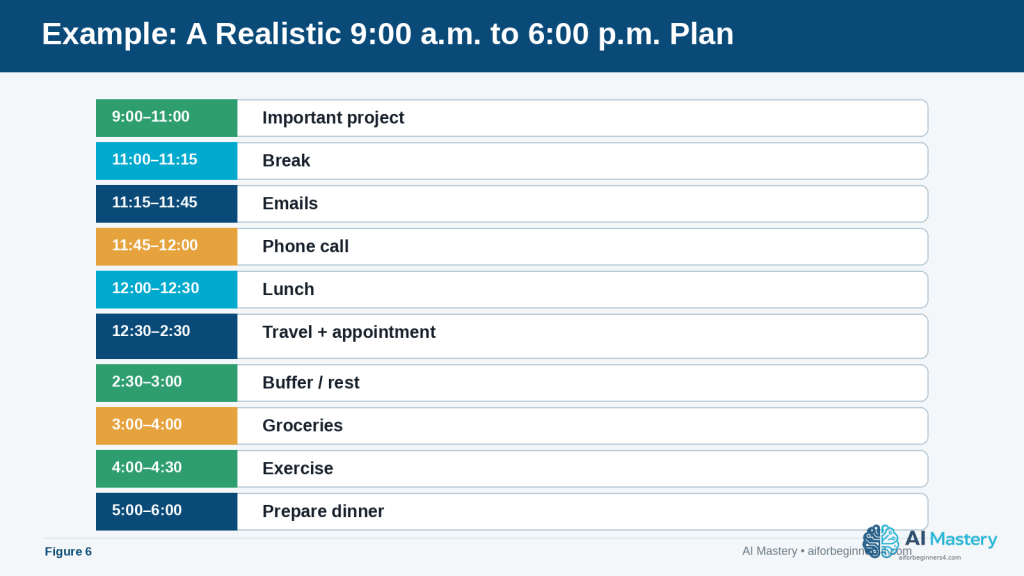
A reasonable plan might look like this:
· 9:00–11:00 a.m. — Work on the important project
· 11:00–11:15 a.m. — Short break
· 11:15–11:45 a.m. — Reply to important emails
· 11:45 a.m.–12:00 p.m. — Call the insurance company
· 12:00–12:30 p.m. — Lunch
· 12:30–1:00 p.m. — Travel to appointment
· 1:00–2:00 p.m. — Appointment
· 2:00–2:30 p.m. — Travel home
· 2:30–3:00 p.m. — Buffer time or rest
· 3:00–4:00 p.m. — Grocery shopping
· 4:00–4:30 p.m. — Exercise
· 4:30–5:00 p.m. — Free time or unfinished tasks
· 5:00–6:00 p.m. — Prepare dinner
Why This Plan Works
The most important task is scheduled early, when there is less risk that later interruptions will push it aside.
The phone call is scheduled before its deadline.
The fixed appointment and travel time are protected.
Breaks and buffer time are included instead of filling every minute.
Flexible tasks such as grocery shopping and exercise are placed around the fixed commitments.
How to Improve the Plan
If the suggested schedule does not fit your real situation, tell ChatGPT exactly what needs to change.
For example:
“I need one hour for grocery shopping plus 20 minutes of driving. Move exercise to the evening and give me another 30 minutes for emails.”
ChatGPT can then revise the plan using the new information.
Reality: Even a well-organized AI-generated schedule can become unrealistic if tasks take longer than expected. Treat the plan as a flexible guide and update it when your day changes.
Figure 6. A realistic daily plan protects priority work, fixed appointments, travel time, meals, breaks, and buffer time.
Explanation: The example leaves some flexibility instead of filling every minute, which makes it easier to adjust when real activities take longer than expected.
Benefits of Using ChatGPT for Daily Planning
ChatGPT can be useful when you already know what you need to do but want help turning your ideas into a clearer plan.
Helps You Organize a Long Task List
A long list can feel difficult to manage. ChatGPT can help group tasks, identify priorities, and place them into a suggested order.
Instead of looking at ten unrelated tasks, you can see them arranged into a more structured day.
Helps You Decide What to Do First
When several tasks seem important, ChatGPT can help compare them using information you provide about:
· Deadlines
· Importance
· Time required
· Fixed appointments
· Dependencies between tasks
· Tasks that can be postponed
You still make the final decision about what matters most.
Saves Planning Time
Creating a schedule manually can take time, especially when several appointments and tasks need to fit together.
ChatGPT can quickly suggest a first version that you can then review and adjust.
Makes It Easier to Reorganize Your Day
If something changes, you do not have to rebuild the entire plan yourself.
You can tell ChatGPT what happened and ask it to reorganize the remaining tasks.
For example:
“My appointment finished one hour late. It is now 3:00 p.m. Please reorganize my remaining tasks between 3:00 p.m. and 7:00 p.m.”
Helps Break Large Tasks into Smaller Steps
Large tasks can be easier to start when they are divided into smaller actions.
For example, instead of:
“Work on website”
ChatGPT could help turn it into:
· Review the article
· Prepare images
· Upload the article
· Add links
· Preview the page
· Make corrections
This can make progress easier to see and manage.
Can Help You Build a Consistent Routine
You can reuse the same basic planning prompt each morning and change only the tasks, appointments, and priorities.
Over time, you may also notice which activities regularly take longer than expected. You can then adjust future plans to make them more realistic.
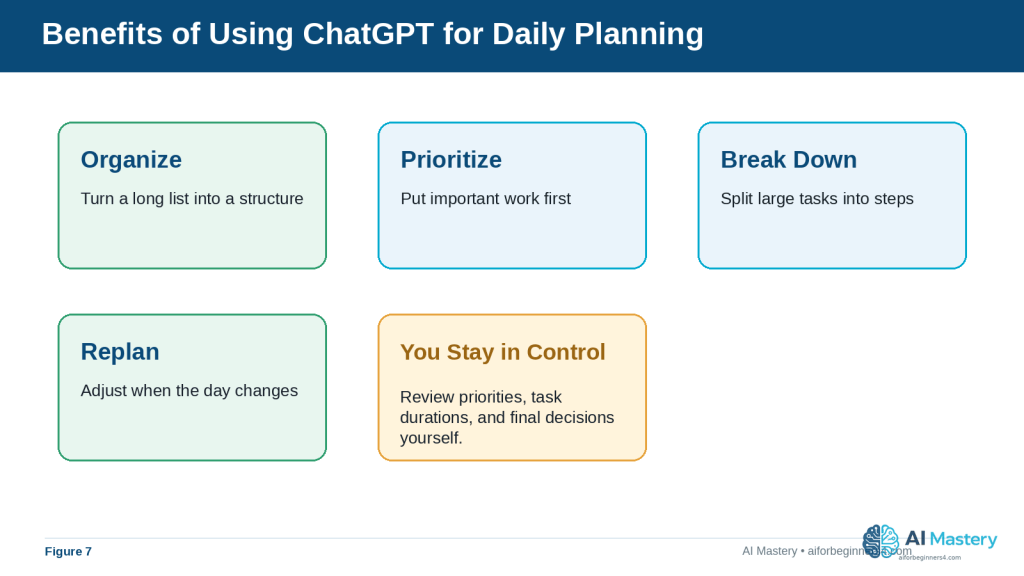
Benefit: ChatGPT is most useful as a flexible planning assistant. It can help organize information and suggest a schedule while leaving you in control of the final decisions.
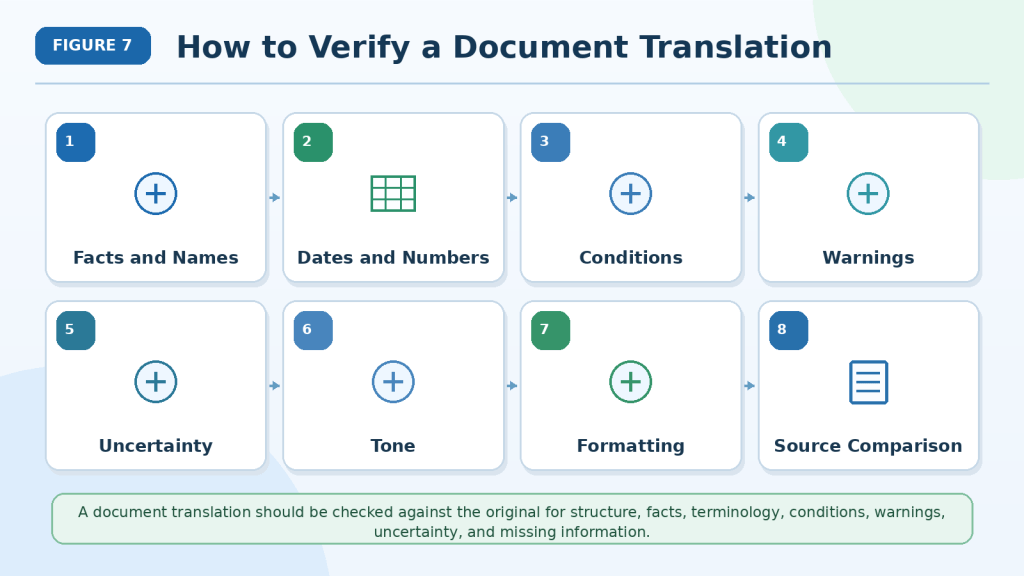
Figure 7. ChatGPT can help organize, prioritize, break down, replan, and reuse daily-planning routines.
Explanation: These benefits are most useful when the suggested plan remains subject to your own judgment about priorities, time, and real-world constraints.
Limitations and Common Mistakes
ChatGPT can help organize a day, but it does not automatically know whether a schedule is realistic for your personal situation. Understanding its limitations can help you use it more effectively.
Limitation: Time Estimates May Be Inaccurate
ChatGPT may suggest that a task will take 30 minutes when it normally takes you an hour.
This can happen because the AI does not know your working speed, experience, travel conditions, or how complicated the task really is.
How to Reduce This Limitation: Tell ChatGPT how long similar tasks usually take you.
For example:
“Email usually takes me about 45 minutes, grocery shopping takes 90 minutes including travel, and I need at least two hours for my project.”
Limitation: ChatGPT Does Not Know Every Important Detail
A schedule may look good but still be unsuitable because ChatGPT was not told about:
· Travel time
· Family responsibilities
· Business hours
· Deadlines
· Energy levels
· Meal times
· Accessibility needs
· Other personal commitments
How to Reduce This Limitation: Include the details that genuinely affect your schedule without sharing unnecessary private information.
Limitation: Plans Can Become Outdated Quickly
An unexpected phone call, traffic delay, urgent task, or appointment change can make the original plan impractical.
How to Reduce This Limitation: Treat the schedule as flexible. Give ChatGPT the new situation and ask it to reorganize the remaining time.
Common Mistake: Scheduling Too Many Tasks
A long task list does not mean everything needs to be completed in one day.
Trying to fit too much into the schedule can leave little room for delays and make the plan difficult to follow.
How to Avoid This Mistake: Ask ChatGPT to separate tasks into:
· Must do today
· Should do today if time allows
· Can wait until another day
Common Mistake: Giving Every Task the Same Priority
Answering an unimportant email may appear beside an urgent deadline even though the two tasks are not equally important.
How to Avoid This Mistake: Tell ChatGPT which tasks have deadlines, which are essential, and which can be postponed.
Common Mistake: Forgetting Travel and Transition Time
Moving from one activity to another often takes time.
For example, a one-hour appointment may require:
· Time to prepare
· Travel to the appointment
· Waiting time
· Travel home
How to Avoid This Mistake: Include realistic transition and travel time when describing your day.
Common Mistake: Following the AI Schedule Without Reviewing It
ChatGPT may misunderstand a task, place something at an inconvenient time, or produce a schedule that looks organized but is not practical.
How to Avoid This Mistake: Read the entire schedule before using it. Check times, priorities, appointments, breaks, and deadlines.
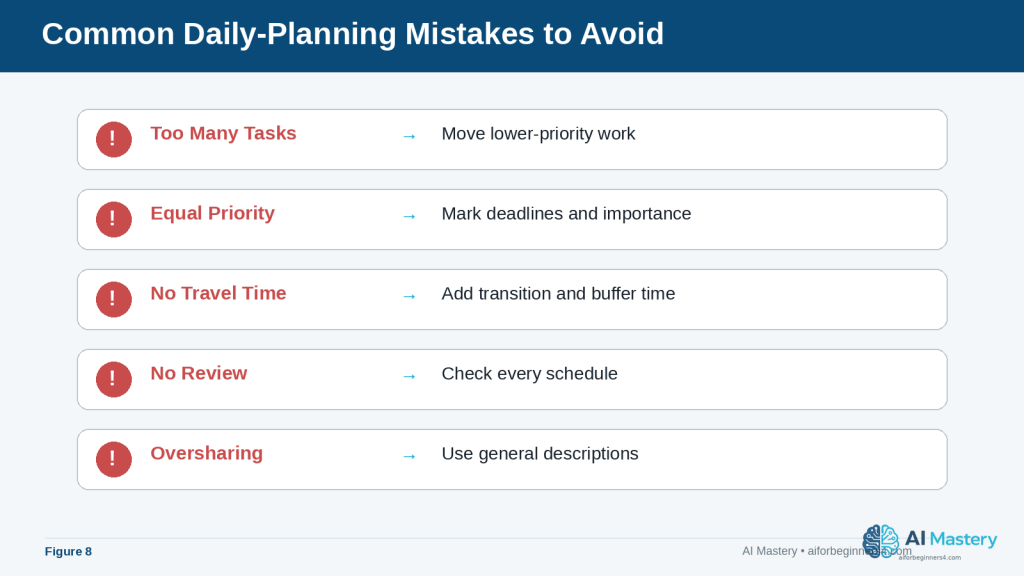
Common Mistake: Sharing More Personal Information Than Necessary
A daily schedule can contain sensitive information about appointments, locations, family members, work, or finances.
How to Avoid This Mistake: Use general descriptions whenever detailed personal information is not necessary.
For example, “appointment at 2:00 p.m.” is often enough. You usually do not need to include the person’s name, address, account information, or reason for the appointment.
Reality: The best daily plan is not necessarily the most detailed one. A useful plan should be realistic, flexible, easy to understand, and simple enough to follow.
Figure 8. Common planning mistakes include scheduling too much, ignoring priorities or travel time, skipping review, and sharing unnecessary private information.
Explanation: A quick mistake check can prevent a neat-looking schedule from becoming unrealistic, inconvenient, or unnecessarily revealing.
Common Myths About Using ChatGPT for Daily Planning
Daily planning with AI is useful, but beginners can easily expect more from ChatGPT than it is designed to provide.
Myth 1: ChatGPT Will Automatically Know Everything I Need to Do
ChatGPT does not automatically know every appointment, deadline, errand, family responsibility, or priority in your day.
Reality: You need to provide the important information that affects the schedule.
A better prompt is:
“Plan my day from 9:00 a.m. to 5:00 p.m. I have an appointment at 1:00 p.m., need one hour of travel time, and must complete my report before 4:00 p.m.”
Myth 2: The First Schedule ChatGPT Creates Will Be Perfect
The first response may be helpful, but it may also contain unrealistic task durations, too many activities, or inconvenient timing.
Reality: Daily planning usually works better as a conversation. Review the first plan, explain what does not work, and ask ChatGPT to revise it.
For example:
“Give me more time for the project and remove the least important afternoon task.”
Myth 3: ChatGPT Can Decide What Is Most Important for Me
ChatGPT can help compare priorities, but it does not fully understand the personal consequences of every decision.
Reality: You should decide which responsibilities, deadlines, appointments, and personal needs are most important.
Tell ChatGPT your priorities instead of expecting it to determine them without enough context.
Myth 4: A Detailed Schedule Is Always Better
A schedule divided into very small time blocks can look organized but become difficult to follow.
Reality: Some people work better with broader blocks such as:
· Morning — Important project
· Early afternoon — Appointments and errands
· Late afternoon — Emails and smaller tasks
· Evening — Personal time
The best level of detail depends on how you prefer to work.
Myth 5: If I Miss One Task, the Whole Plan Has Failed
Daily schedules often change because real life is unpredictable.
Reality: A missed or delayed task does not mean the plan was useless. Update the remaining tasks and create a revised schedule.
For example:
“It is now 3:30 p.m. I did not finish my morning project. Help me reorganize the rest of the day and move anything nonessential to tomorrow.”
Myth 6: ChatGPT Cannot Remind Me About Tasks
ChatGPT is mainly useful for helping you plan and organize your day, but some users can also use Scheduled Tasks to receive reminders and have ChatGPT perform certain tasks later.
For example, you may be able to ask: “Remind me tomorrow morning to call the insurance company.” Or: “Every weekday morning, remind me to review my daily priorities.”
Reality: ChatGPT Scheduled Tasks can support one-time and recurring tasks, reminders, daily briefings, and monitoring. Availability and active-task limits depend on the current ChatGPT plan and may change over time. For important commitments, use the planning system that is most reliable for you and confirm that the task and notifications were created correctly.
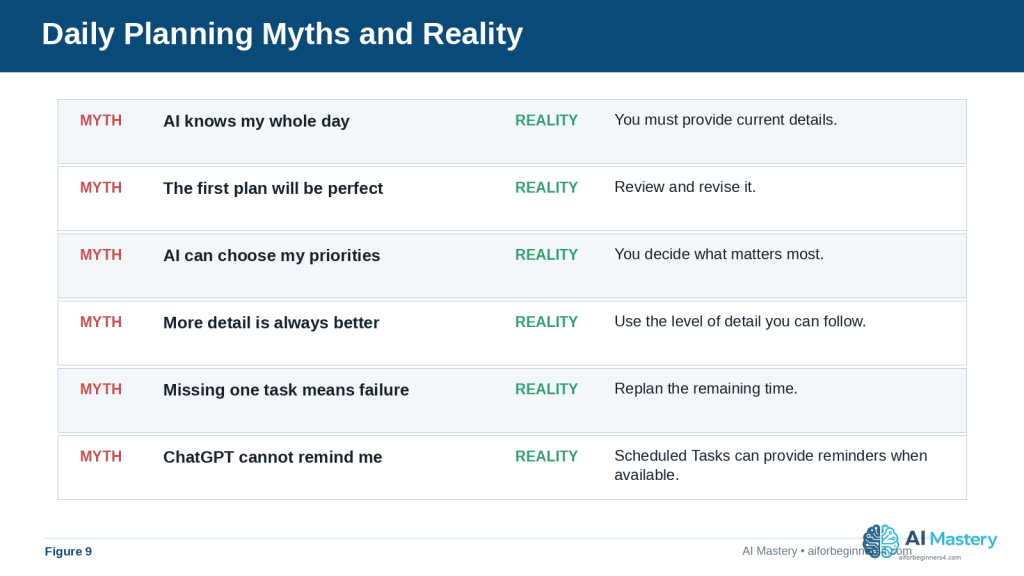
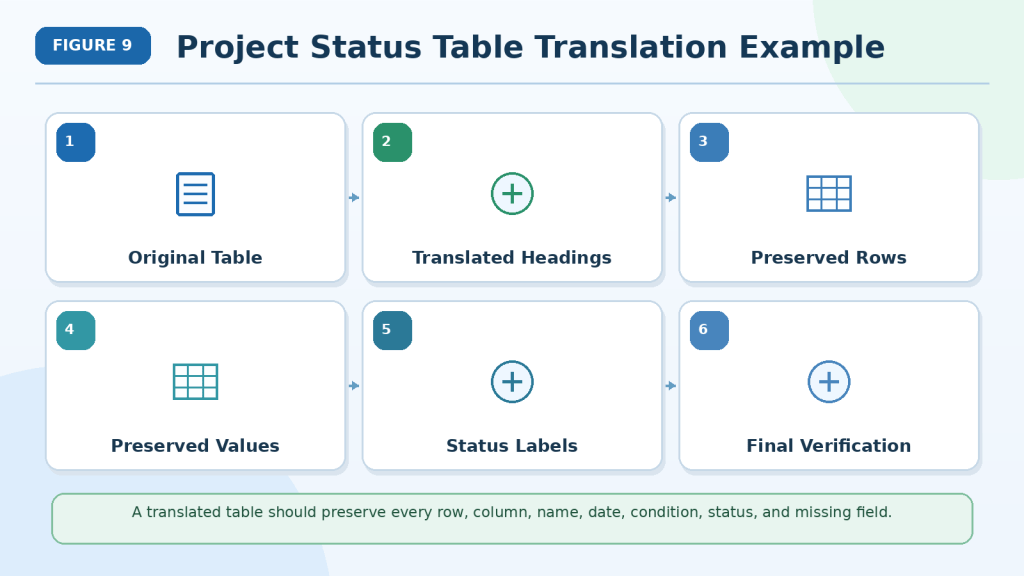
Figure 9. Daily-planning myths can create unrealistic expectations about what ChatGPT knows, decides, remembers, or schedules automatically.
Explanation: The reality is more practical: provide current details, make your own priority decisions, review the result, replan when needed, and use Scheduled Tasks when available for suitable reminders.
When to Use ChatGPT, a Calendar, or a Task Manager
ChatGPT can help you think through your day, but it is not always the best tool for every planning job. Different tools are useful for different purposes.
Use ChatGPT for Planning and Organizing
ChatGPT is especially useful when you need help:
· Turning a long task list into a manageable plan
· Deciding what to do first
· Breaking a large task into smaller steps
· Creating time blocks
· Reorganizing your day after plans change
· Comparing different ways to use your available time
For example, you might ask:
“I have six tasks but only four hours. Help me decide what to complete today and what should move to tomorrow.”
Use a Calendar for Fixed Appointments
A calendar is usually better for events that happen at a specific date and time, such as:
· Medical appointments
· Meetings
· Classes
· Travel
· School events
· Important deadlines
Calendars can also provide notifications or reminders, depending on the app and settings you use.
Use ChatGPT Scheduled Tasks or Reminder Tools for Things You Must Not Forget
When Scheduled Tasks are available for your account, ChatGPT can create one-time or recurring reminders and can also check for changes and notify you when there is a meaningful update. A calendar or dedicated reminder app may still be preferable for important appointments or obligations you want to manage in one place.
· Make a phone call
· Take something with you
· Pay a bill
· Submit a form
· Leave for an appointment
Important: Always confirm that a scheduled task or reminder was created successfully and that the notification settings you need are enabled. Do not rely on memory alone for important commitments.
Use a Task Manager for Ongoing Projects
A task-management app can be useful when work extends over several days or weeks.
For example, a project such as “Publish a new website article” may contain several separate tasks:
· Finish the draft
· Review facts
· Prepare images
· Add the article to WordPress
· Check links
· Preview the page
· Publish
A task manager can help you keep track of what is finished and what still needs attention.
Use the Tools Together
You do not have to choose only one system.
A practical workflow could be:
1. Keep fixed appointments in your calendar.
2. Keep longer projects and unfinished work in a task list.
3. Give ChatGPT the tasks and appointments that matter for today.
4. Ask ChatGPT to suggest a realistic daily plan.
5. Add important time-sensitive items to ChatGPT Scheduled Tasks, your calendar, or another reliable reminder system when appropriate.
6. Review the plan during the day and adjust it when circumstances change.
Reality: ChatGPT can help with planning and, when Scheduled Tasks are available, some reminders and recurring work. Calendars and task managers can still be better for fixed appointments and longer projects. Use the tools together when that makes your system easier to manage.
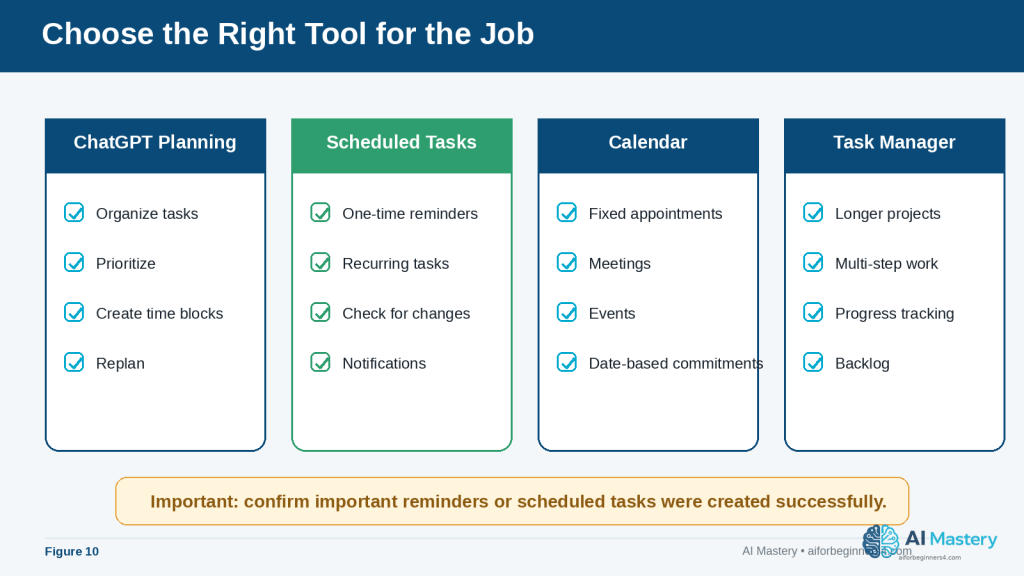
Figure 10. ChatGPT planning, Scheduled Tasks, calendars, and task managers each serve different planning needs.
Explanation: Using each tool for the work it handles best can make a planning system clearer and more reliable than trying to force every responsibility into one tool.
How to Make Your Daily Plan More Realistic
A schedule can look neat on the screen and still be difficult to follow in real life. A realistic plan should leave enough time for delays, interruptions, breaks, and tasks that take longer than expected.
Start with Fewer Priorities
Instead of treating every task as equally important, identify the few things that matter most.
For example:
“My three most important tasks today are finishing my report, calling the bank, and attending my appointment. Everything else is optional.”
This helps ChatGPT build the schedule around the tasks that should not be missed.
Be Realistic About Task Duration
If you already know how long something normally takes, tell ChatGPT.
For example:
“I usually need about 90 minutes to review an article, not 30 minutes.”
Your own experience is often more reliable than an AI-generated estimate.
Add Buffer Time
Buffer time is extra unscheduled time placed between activities.
It can help when:
· A phone call takes longer than expected
· Traffic delays your trip
· A website or computer problem slows you down
· An appointment starts late
· You need a short rest before beginning the next task
For example:
“Leave at least 15 minutes of buffer time between major activities.”
Avoid Filling Every Minute
A schedule from 9:00 a.m. to 5:00 p.m. does not need eight hours of scheduled activity.
Leaving some open time can make the plan easier to follow and reduce the need to reorganize everything after one delay.
You could ask:
“Use only about 75% of my available time and leave the rest open for delays or unexpected tasks.”
The exact percentage is not important. The goal is simply to avoid creating an overly crowded plan.
Consider Your Energy, Not Just Your Available Time
Some tasks require more concentration than others.
If you work better on difficult tasks in the morning, tell ChatGPT:
“Schedule my most demanding work before lunch and leave easier administrative tasks for the afternoon.”
If you prefer a different routine, describe that instead.
ChatGPT should adapt to your preferences rather than assuming everyone works best at the same time.
Separate Must-Do Tasks from Optional Tasks
A useful daily plan can include two levels:
· Must do today: Tasks with important deadlines or consequences
· If time allows: Useful tasks that can move to another day
For example:
“Create my plan with a main schedule and a separate ‘if time allows’ list.”
This prevents lower-priority work from crowding out essential tasks.
Replan Instead of Trying to Catch Up
If the day falls behind, trying to complete every delayed task can make the remaining schedule unrealistic.
Instead, you can tell ChatGPT:
“It is now 4:00 p.m. I am 90 minutes behind. Keep only the essential tasks for today and move the rest to tomorrow.”
This can be more practical than compressing every remaining activity into a smaller amount of time.
Final Tip for Realistic Planning: Build your schedule around your real available time, priorities, and working habits—not around the largest number of tasks you can fit onto a page.
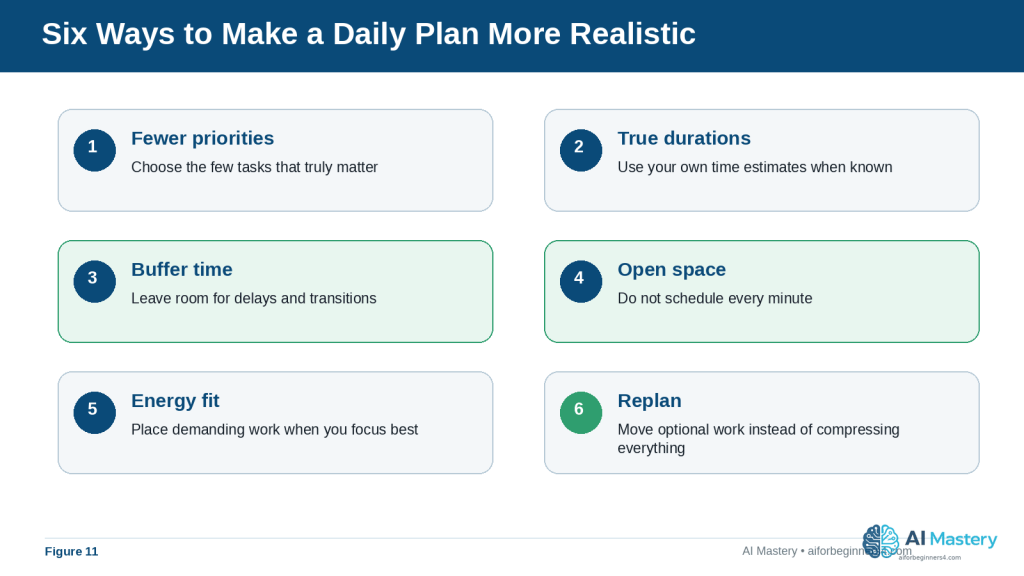
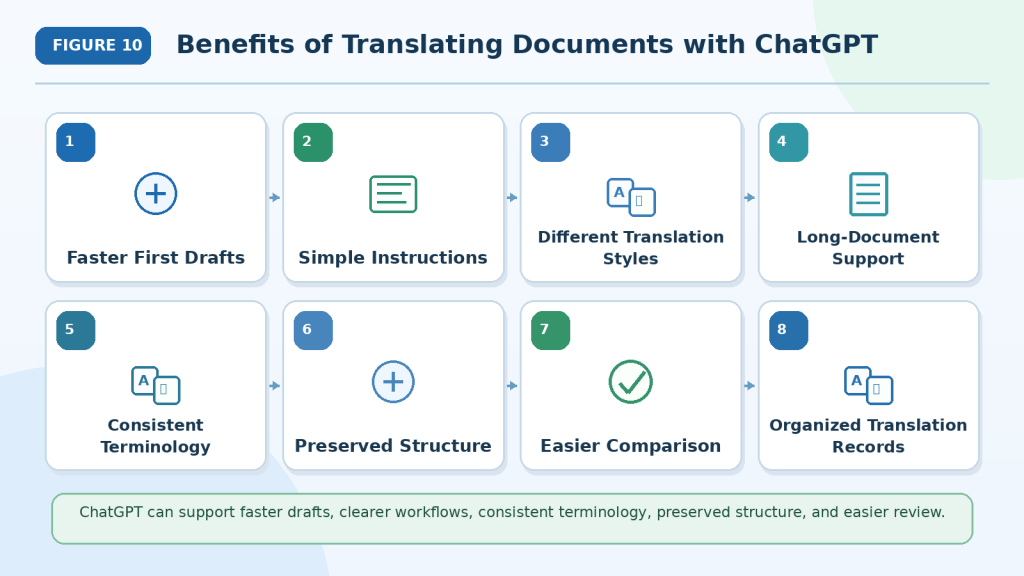
Figure 11. Realistic planning uses fewer priorities, honest time estimates, buffer time, open space, energy awareness, and replanning.
Explanation: These adjustments help the schedule match the way the day actually works instead of creating an overfilled timetable that quickly becomes outdated.
Frequently Asked Questions
Can ChatGPT create my entire daily schedule for me?
Yes. You can give ChatGPT your tasks, appointments, available hours, priorities, and preferred break times, and it can suggest a complete schedule.
You should still review the result before following it. ChatGPT may estimate task duration incorrectly or misunderstand which activities matter most.
Do I need to give ChatGPT exact times for every task?
No. Exact times are most useful for fixed commitments such as appointments, meetings, or deadlines.
For flexible tasks, you can simply tell ChatGPT approximately how long they take or let it suggest a time block.
For example:
“I need about two hours for my project sometime before 3:00 p.m.”
Can ChatGPT help if I have too many tasks?
Yes. You can ask it to separate your tasks into:
· Must do today
· Should do today
· Can wait until later
You can also ask it to remove lower-priority activities when your available time is limited.
Can I change the schedule after ChatGPT creates it?
Yes. You can continue the same conversation and explain what changed.
For example:
“My morning appointment was cancelled. Use the extra hour for my project and move grocery shopping earlier.”
ChatGPT can then suggest an updated schedule.
Can ChatGPT plan more than one day?
Yes. You can ask it to organize several days or an entire week.
However, longer plans usually contain more assumptions and are more likely to change. Review each day as it approaches rather than assuming the original weekly schedule will remain suitable.
Can ChatGPT remind me when it is time to do a task?
Yes, when Scheduled Tasks are available for your account. ChatGPT can create one-time and recurring tasks and send notifications. For important appointments or deadlines, confirm that the task was created correctly, make sure the notification settings you need are enabled, and consider keeping the commitment in a calendar or another reliable reminder system as well.
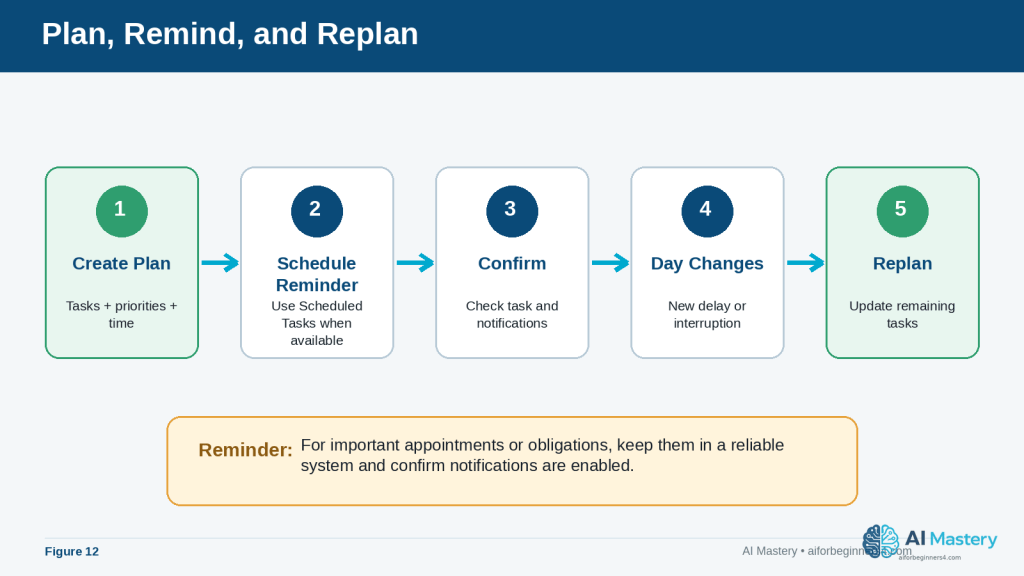
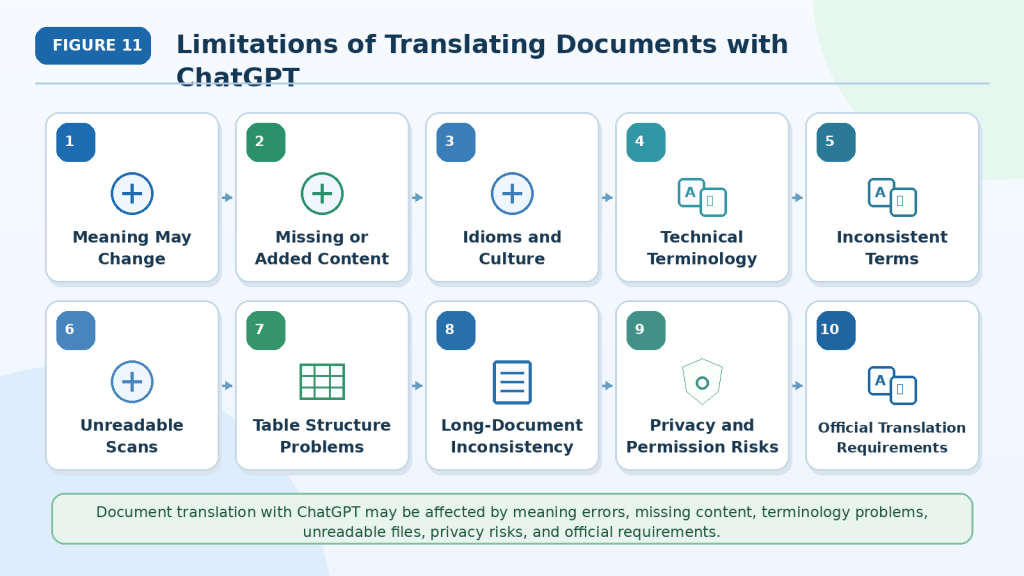
Figure 12. A practical workflow can combine daily planning, Scheduled Tasks, notification checks, and replanning when circumstances change.
Explanation: Scheduled reminders can support the plan, but important commitments still need confirmation and a reliable backup system when appropriate.
Should I enter private information when creating my plan?
Only provide information that is necessary for the planning task.
For example, “appointment from 2:00 p.m. to 3:00 p.m.” may be enough. You normally do not need to provide account numbers, detailed medical information, private addresses, passwords, or other unnecessary sensitive information.
Is an AI-generated daily plan always accurate?
No. ChatGPT can misunderstand instructions, underestimate how long activities take, or create a schedule that does not match your real circumstances.
Always check the plan before relying on it.
Can I reuse the same daily-planning prompt?
Yes. A reusable prompt can make daily planning faster.
You can save a simple template such as:
“Create a realistic plan for today from [start time] to [end time]. My fixed commitments are [appointments]. My tasks are [tasks]. My three highest priorities are [priorities]. Include meals, breaks, and buffer time. Put unfinished optional tasks in a separate list.”
Then replace the bracketed information each day.
Key Takeaways
ChatGPT can make daily planning easier by helping you turn an unorganized list of tasks into a clearer and more realistic schedule.
Remember these main points:
· Start by listing the tasks you actually need to complete.
· Tell ChatGPT your available start and end times.
· Add fixed appointments, deadlines, travel time, meals, and other commitments.
· Identify your highest-priority tasks instead of treating everything as equally important.
· Give realistic estimates when you already know how long tasks usually take.
· Ask ChatGPT to include breaks and buffer time rather than filling every minute.
· Break large projects into smaller, manageable steps.
· Review every AI-generated schedule before using it.
· Reorganize the plan when unexpected events change your day.
· Move lower-priority tasks to another day when there is not enough time.
· Avoid sharing unnecessary sensitive or private information.
· Use ChatGPT Scheduled Tasks, calendars, reminders, and task managers together when each tool is better suited to a particular job.
The purpose of daily planning with ChatGPT is not to create a perfect timetable. It is to help you make clearer decisions about what deserves your time and create a plan that you can adjust as the day changes.
Final Tip
Start with a simple daily-planning prompt rather than trying to create a complicated system immediately.
For example:
“Help me plan today from 9:00 a.m. to 5:00 p.m. My most important tasks are [tasks]. My fixed appointments are [appointments]. Include breaks and leave some extra time for delays.”
Use the plan for a few days and notice what works and what does not. If you regularly need more time for certain tasks, tell ChatGPT. If you prefer difficult work in the morning or need longer breaks, include that information too.
A useful daily plan should gradually become more realistic because it reflects how you actually spend your time.
The best use of ChatGPT is not to let it control your schedule. Use it to help organize your choices, then make the final decisions yourself.
Continue Learning
After you learn how to create a daily plan with ChatGPT, the next step is to use AI for other everyday productivity tasks.
These articles build on the same basic principle used in daily planning: give the AI clear information, review its suggestions carefully, and keep the final decisions under your control.
Sources and References
The following official OpenAI resources were reviewed for this guide. ChatGPT features, menus, Scheduled Tasks, privacy controls, memory, limits, and availability can change, so readers should check current official information when first using a feature, after changing plans or settings, when receiving an important update notice, and periodically.
· OpenAI Help Center — Data Controls FAQ: Explains ChatGPT Data Controls, including model-improvement choices, Temporary Chat, data export, and related privacy settings.
· OpenAI Help Center — Memory FAQ: Explains how ChatGPT memory can use helpful context when enabled and how users can review, change, or turn memory off.
· OpenAI Help Center — What Is ChatGPT: FAQ: Describes ChatGPT as an AI assistant for everyday tasks including planning, writing, studying, coding, and working with files and images.
These sources support the ChatGPT-specific prompting, privacy, memory, Scheduled Tasks, and capability information used in this article. The scheduling examples and productivity suggestions are educational examples rather than guarantees that a particular schedule will work for every reader.
Featured image.A beginner compares ChatGPT and Claude for common AI tasks.
Introduction
ChatGPT and Claude are two widely used general-purpose AI assistants. Both can explain ideas, write and edit text, search the web, analyze files, work with data, help with code, and support continuing projects. Their core abilities overlap, but the surrounding tools, plan structures, file workflows, visual features, coding products, and customization systems differ.
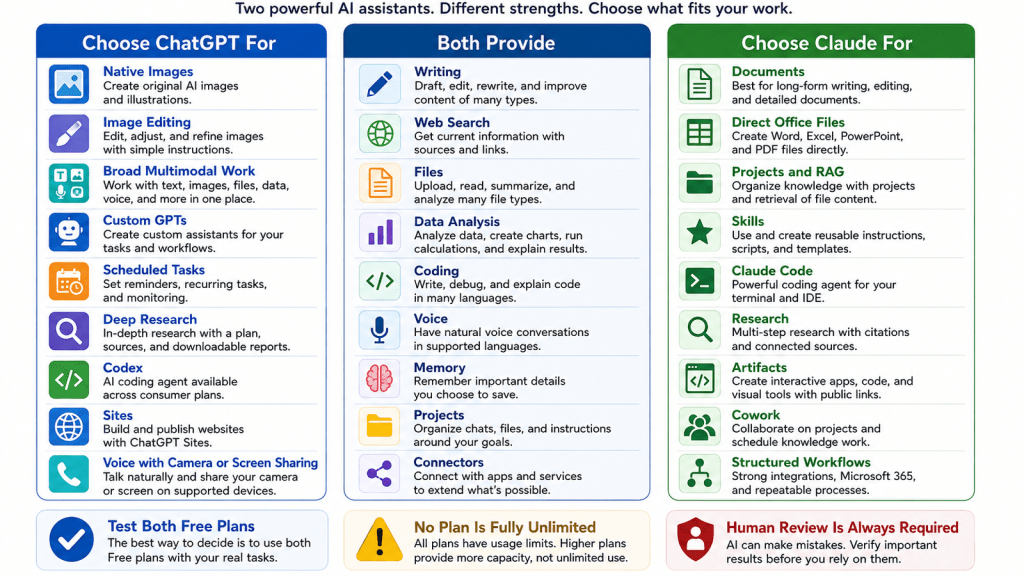
ChatGPT is generally the broader multimedia workspace. It combines conversation with native image generation and editing, voice, web research, data analysis, custom GPTs, Codex, Projects, scheduled tasks, Work, and Sites. Claude is generally more document- and workflow-centred. It combines conversation with direct office-file creation, Projects and retrieval, Skills, Claude Code, Artifacts, Research, Design, Microsoft 365 integrations, and Cowork.
There is no permanent winner. The better assistant is the one that supports your real tasks, fits your existing applications, provides enough capacity, and requires the least correction after human review.
What You Will Learn
• How ChatGPT and Claude compare for writing, documents, research, coding, images, voice, projects, and custom workflows.
• How their Free, standard paid, and higher-capacity plans differ.
• Which assistant may suit different types of users.
• How to test both services fairly before paying.
• What limitations, privacy risks, and accuracy problems to expect.
ChatGPT vs Claude at a Glance
Area
ChatGPT
Claude
General emphasis
Broad multimodal and creative workspace
Document-, coding-, and knowledge-work-centred workspace
Free access
Yes; includes a broad set of limited tools
Yes; includes core chat, files, search, projects, Skills, and Artifacts subject to limits
Standard paid plan
Plus: US$20 monthly
Pro: US$20 monthly or US$200 annually in the United States
Lower-cost paid tier
Go: US$8 monthly in the United States, with localized prices in some markets
No directly equivalent tier between Free and Pro
Higher-capacity plans
Pro: US$200 monthly
Max 5x: US$100; Max 20x: US$200 monthly
Native image generation
Yes
No comparable photo or illustration generator
Office-file creation
Available through ChatGPT Work and supported tools
Direct DOCX, XLSX, PPTX, PDF, and PNG creation
Dedicated coding agent
Codex, included across ChatGPT plans with plan-dependent access
Claude Code, included with Pro and Max
Research
Search and Deep Research
Web Search and Research
Custom workflows
Projects, custom GPTs, plugins, apps, Tasks
Projects, Skills, plugins, connectors, Cowork
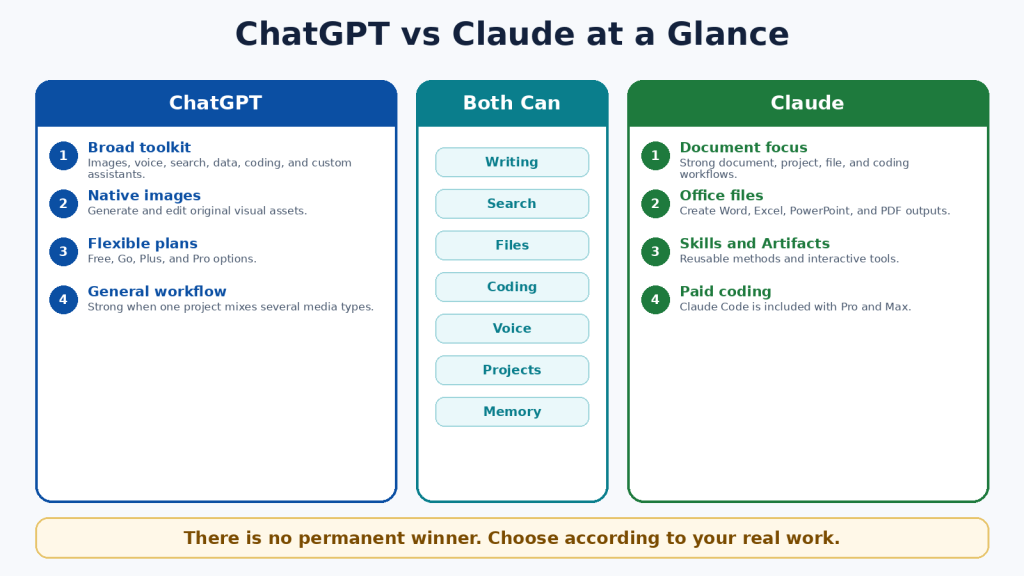
Figure 1.A high-level comparison of the two assistants.
Explanation: ChatGPT provides a broad set of creative and multimodal tools, while Claude emphasizes documents, file creation, coding, and repeatable knowledge workflows.
What Is ChatGPT?
ChatGPT is OpenAI’s conversational AI product. It can answer questions, explain concepts, draft and revise text, analyze files and data, search the web, create and edit images, conduct voice conversations, help with code, and organize continuing work inside Projects.
Main ChatGPT Tools
• ChatGPT Search for current web information with citations.
• Deep Research for multi-source investigations and documented reports.
• ChatGPT Images for native image generation and editing.
• Data analysis for spreadsheets, calculations, tables, charts, and code-backed work.
• Projects for related chats, files, and instructions.
• Custom GPTs for named task-specific assistants on eligible paid plans.
• Codex for software development across desktop, command-line, IDE, web, and cloud workflows.
• ChatGPT Work for longer research and finished documents, spreadsheets, presentations, reports, and Sites.
ChatGPT is particularly useful when one workflow combines several media types. A publisher, for example, can research an article, draft it, analyze a spreadsheet, generate a featured image, create an infographic, and prepare a website deliverable in the same product environment.
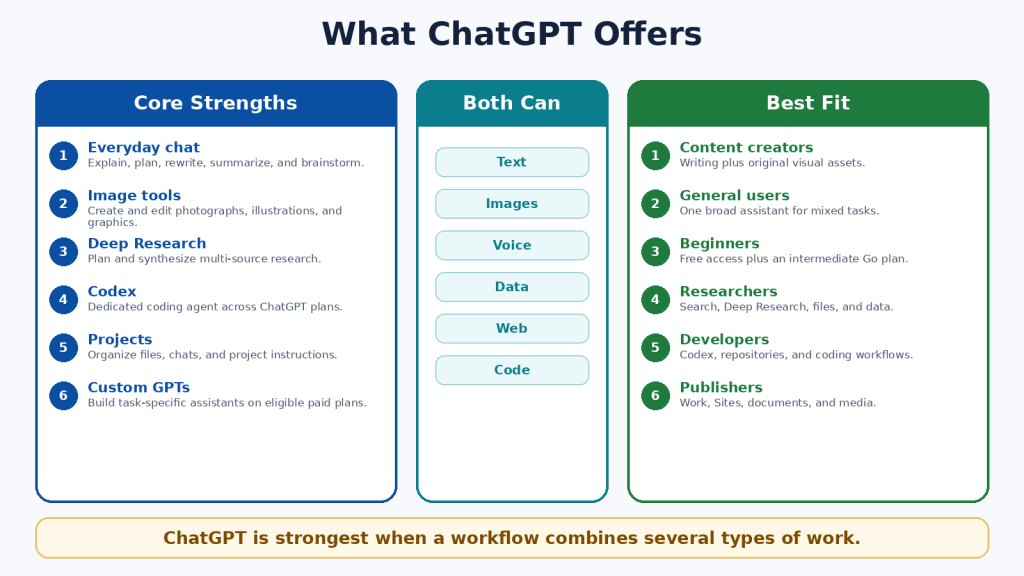
Figure 2.Major ChatGPT capabilities and suitable user groups.
Explanation: ChatGPT is a broad general-purpose assistant whose distinctive advantages include native images, custom GPTs, Codex, Deep Research, Work, and Sites.
What Is Claude?
Claude is Anthropic’s conversational AI product. It can write and edit, analyze files, search the web, conduct Research, create office files, use Projects and retrieval, run code, support voice conversations, and work through specialized products such as Claude Code, Artifacts, Design, Skills, connectors, and Cowork.
Main Claude Tools
• Claude Projects for continuing work with instructions and reference knowledge.
• Retrieval-Augmented Generation for larger project knowledge collections.
• Direct creation of Word, Excel, PowerPoint, PDF, chart, and code files.
• Claude Skills for reusable instructions, templates, examples, and optional scripts.
• Claude Code for terminal, IDE, and repository workflows on Pro and Max.
• Claude Research for multi-stage investigations across the web and connected context.
• Claude Artifacts for interactive tools, code, diagrams, visualizations, and shareable applications.
• Claude Cowork for agentic knowledge work and scheduled workflows.
Claude is particularly useful when the centre of the workflow is a document collection, structured office files, a software repository, or a repeatable professional process.
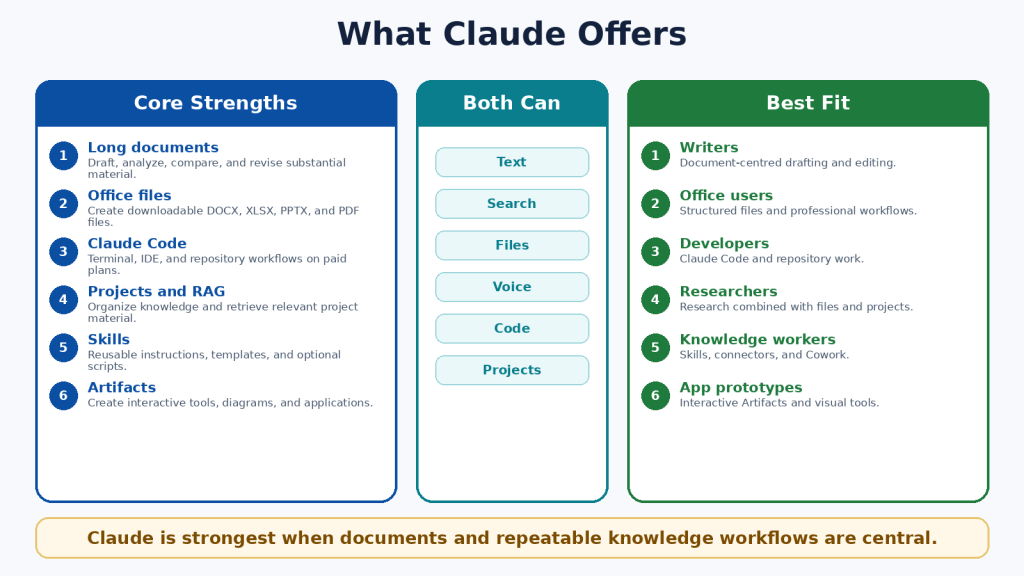
Figure 3.Major Claude capabilities and suitable user groups.
Explanation: Claude combines long-form document work with direct file creation, project retrieval, Skills, Claude Code, Artifacts, Research, and Cowork.
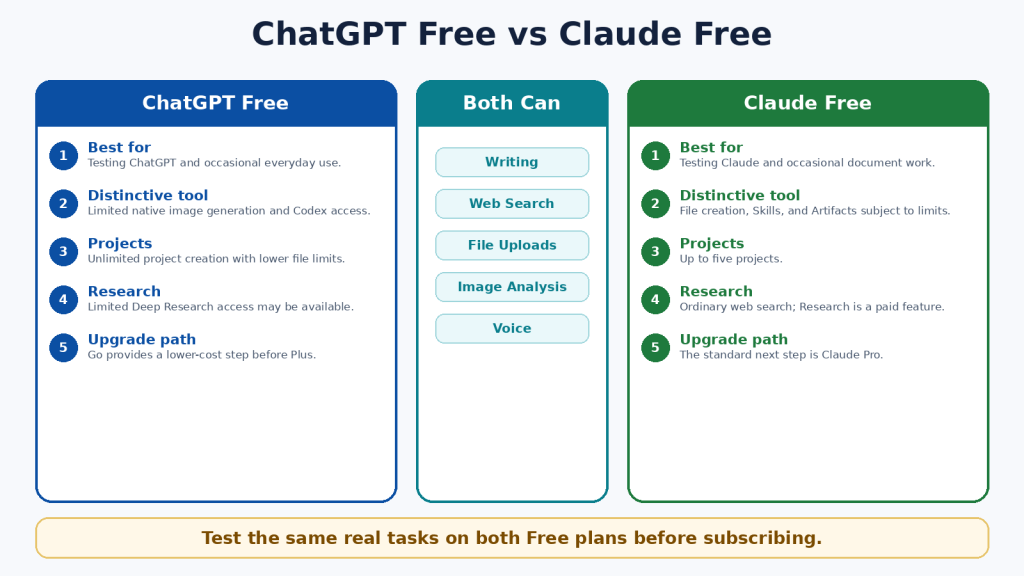
ChatGPT Free vs Claude Free
Both Free plans are useful for learning and occasional work. They should be the starting point for most beginners. Free access is limited, and the available model, message, file, image, coding, and research allowances can change according to demand and product updates.
Area
ChatGPT Free
Claude Free
Best use
Testing ChatGPT and broad everyday tasks
Testing Claude and document-centred tasks
Projects
Unlimited number; five files per project
Up to five projects
Native images
Limited image generation and editing
No comparable native image generation
Coding agent
Codex access is included across plans, with smaller Free limits
Dedicated Claude Code is not included in the individual Free plan
Research
Search and limited Deep Research availability
Web Search; Research is a paid feature
Upgrade path
Go or Plus
Pro
A Free-plan comparison should use the same prompts, files, source requirements, and output length. One good response is not enough; test several tasks that represent your normal work.
Figure 4.A practical comparison of the two Free plans.
Explanation: Both Free plans support useful everyday work. ChatGPT has a broader multimedia and coding entry point, while Claude provides a strong introduction to documents, file creation, Skills, Projects, and Artifacts.
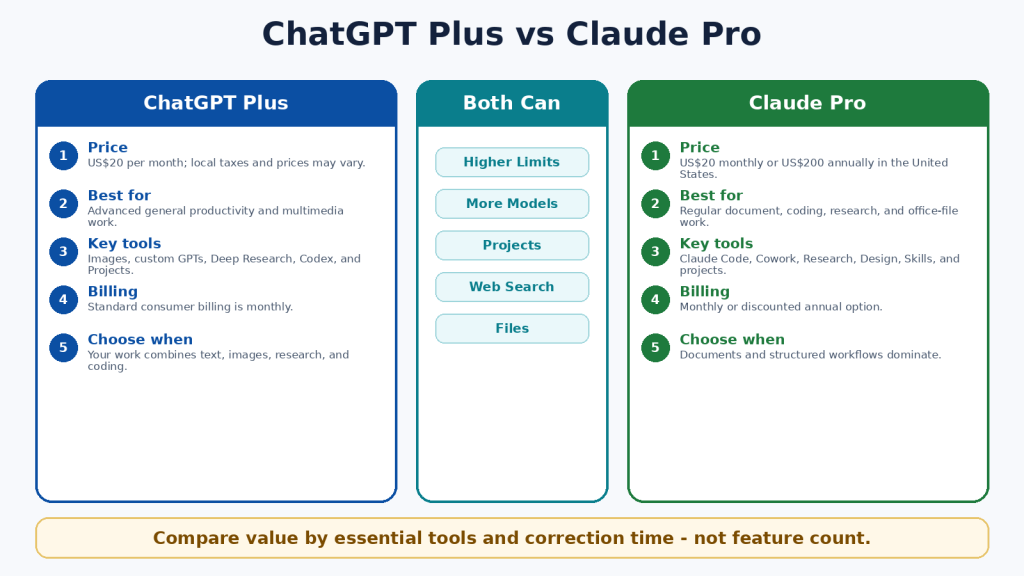
ChatGPT Plus vs Claude Pro
ChatGPT Plus and Claude Pro are the closest standard paid individual plans. Each costs US$20 monthly in the United States. Claude Pro also offers a US$200 annual option. Actual prices can differ because of currency, tax, region, promotions, or mobile-store billing.
Area
ChatGPT Plus
Claude Pro
Standard US price
US$20 monthly
US$20 monthly or US$200 annually
Main emphasis
Advanced general productivity and multimodal creation
Documents, coding, projects, files, and structured workflows
Distinctive tools
Native images, custom GPTs, Deep Research, Codex, Tasks, Work
Claude Code, Cowork, Research, Design, Skills, direct office-file creation
Best for
Users combining text, images, voice, research, data, and coding
Users centred on documents, repositories, office files, and repeatable processes
Unlimited?
No; model and tool limits apply
No; session, weekly, model, and feature limits can apply
The best value is not determined by the number of listed features. It is determined by whether the plan contains the few tools you actually need, saves meaningful time, and remains available during your normal workload.
Figure 5.ChatGPT Plus and Claude Pro compared at the standard paid level.
Explanation: Both standard plans provide more access than Free. ChatGPT Plus is stronger for broad multimodal creation; Claude Pro is stronger for document, coding, file, and structured-workflow use.
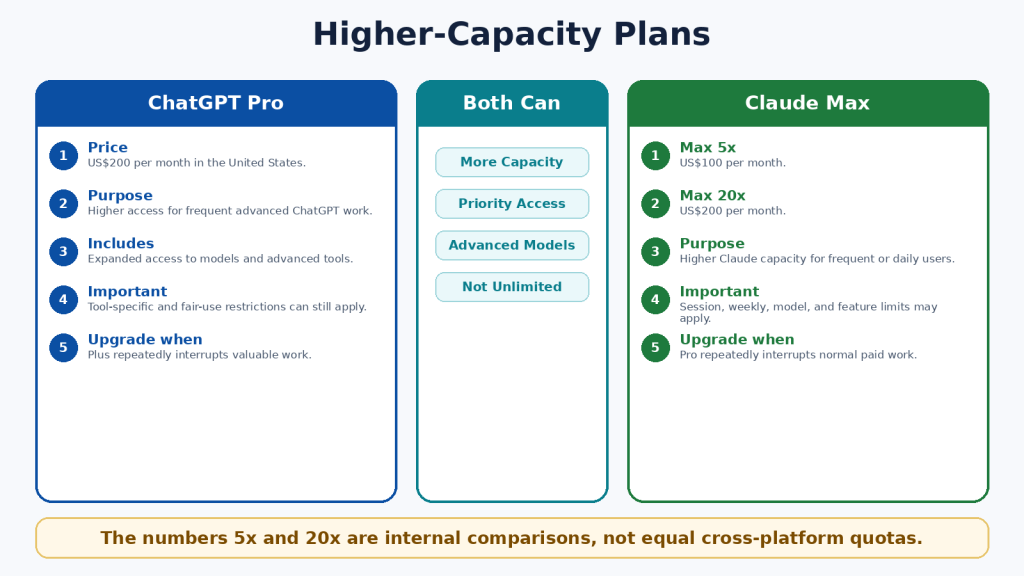
ChatGPT Pro vs Claude Max
Higher-capacity plans are designed for frequent users who repeatedly reach the standard plan’s limits. ChatGPT Pro is US$200 monthly in the United States. Claude Max is available as Max 5x for US$100 monthly and Max 20x for US$200 monthly.
The 5x and 20x labels compare Claude Max with Claude Pro capacity per session. They do not create a direct measurement against ChatGPT, and they do not promise five or twenty times better answers. Both companies can apply model-specific, feature-specific, safety, and fair-use restrictions.
• Start with the standard paid plan.
• Record which feature or limit interrupts you.
• Measure several normal weeks rather than one unusually large day.
• Upgrade only when interruptions affect valuable work.
• Downgrade when the extra capacity is no longer needed.
Figure 6.Higher-capacity individual plans and their intended purpose.
Explanation: Higher plans provide more access, not guaranteed accuracy or unrestricted use. The correct tier depends on measured workload.
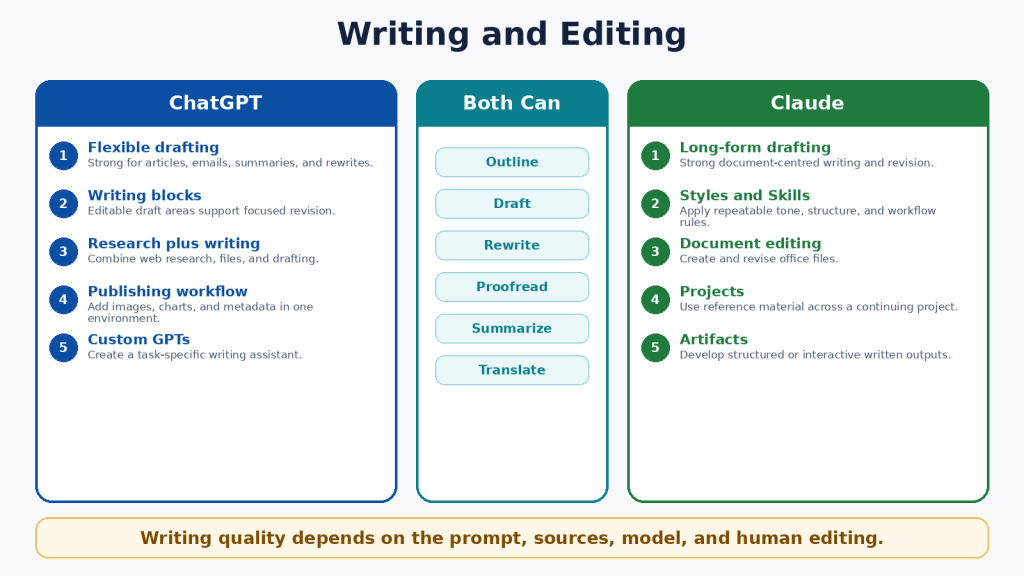
ChatGPT vs Claude for Writing and Editing
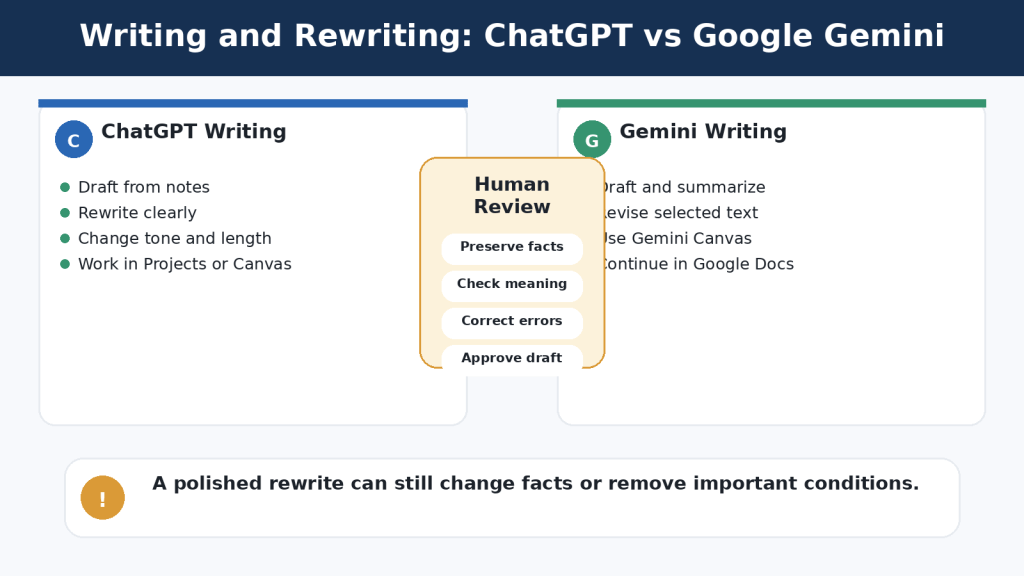
Both assistants can brainstorm, outline, draft, rewrite, shorten, expand, proofread, summarize, translate, and adapt text for different audiences. Writing quality depends heavily on the instructions, source material, selected model, desired length, and human editing.
When ChatGPT May Be Better
• The writing project also requires original images, data, charts, voice, or web research.
• You want to create a custom GPT for a named writing workflow.
• You need scheduled reminders or monitoring connected to publishing work.
• The final deliverable will be created through ChatGPT Work or a Site.
When Claude May Be Better
• The work is long-form and document-centred.
• You want to use project knowledge, Styles, or Skills for a repeatable writing method.
• You need a downloadable Word, PowerPoint, Excel, or PDF deliverable.
• The writing must remain closely connected to a large reference collection.
A Fair Writing Test
Give both assistants the same source material and the same request. Specify the audience, tone, length, headings, examples, required facts, and prohibited claims. Compare factual accuracy, organization, repetition, tone, revision reliability, and the amount of human editing required.
Figure 7.Writing and editing strengths of ChatGPT and Claude.
Explanation: Both can produce strong writing. ChatGPT is well suited to multimedia publishing, while Claude is well suited to long-form document workflows and repeatable writing methods.
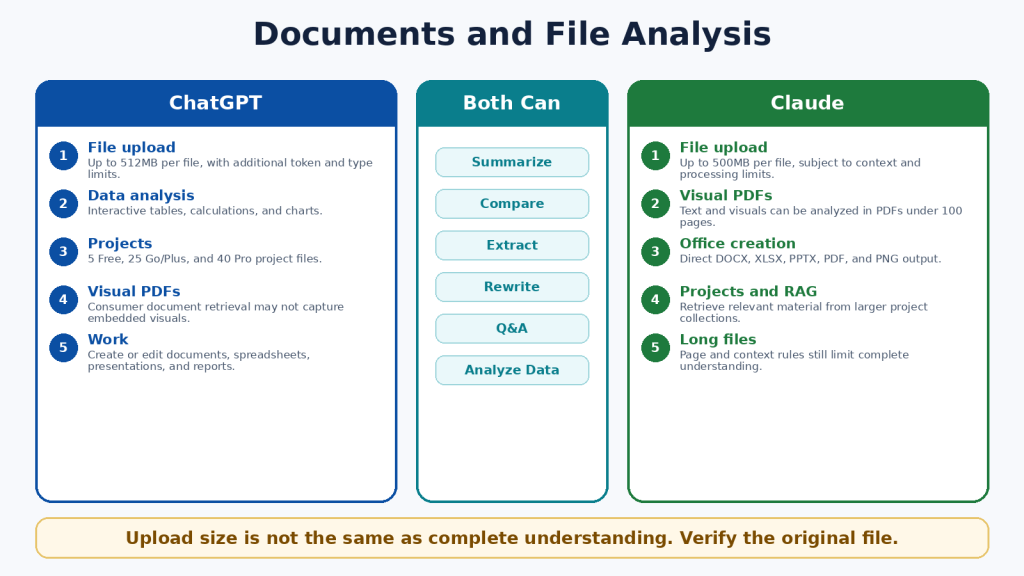
ChatGPT vs Claude for Documents and File Analysis
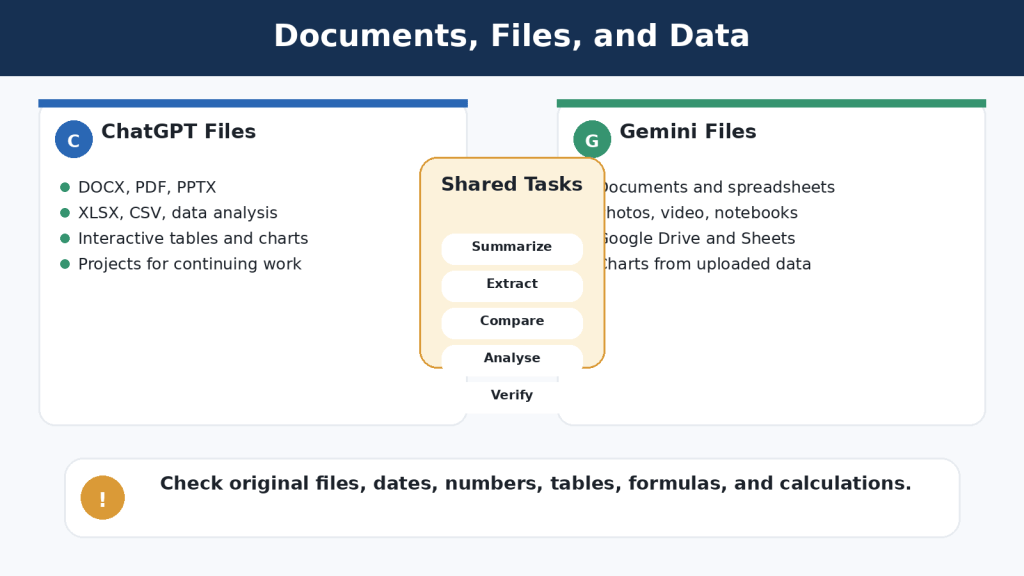
Both assistants can summarize, compare, extract, rewrite, classify, answer questions about files, and analyze structured data. File size, file type, context, page count, visual content, and plan limits all affect the result.
Area
ChatGPT
Claude
Common formats
DOCX, PDF, PPTX, XLSX, XLS, CSV, TSV, TXT, and other supported types
PDF, DOCX, CSV, TXT, HTML, ODT, RTF, EPUB, JSON, XLSX, images, and other supported types
Maximum ordinary file size
512MB per file; text and document files also have a two-million-token cap
500MB per file, subject to context and processing limits
Project file limits
Free 5; Go/Plus 25; Pro 40
No simple fixed paid-project count; file, context, and retrieval limits apply
Visual PDFs
Consumer document retrieval may not interpret every embedded visual
Text and visuals can be analyzed in PDFs under 100 pages
Office-file creation
Available through ChatGPT Work and supported tools
Direct creation of DOCX, XLSX, PPTX, PDF, and PNG files
Spreadsheet work
Interactive tables, code-backed analysis, calculations, and charts
Code execution, calculations, visualizations, and downloadable office files
Important File Limitations
• A large upload limit does not guarantee that every page is active in the model context.
• Scanned pages can contain OCR errors.
• Complex tables, tracked changes, comments, macros, and embedded media may be missed.
• A supported extension does not guarantee perfect compatibility.
• Generated files must be opened and tested in the software you will actually use.
Safer Document Prompt
Use a prompt such as: “Answer only from the uploaded files. Cite the filename, page, and section for every important statement. State ‘Not found’ when the answer is absent. Separate exact quotations from interpretation.”
Figure 8.Document and file-analysis differences.
Explanation: ChatGPT provides strong data analysis and broad file workflows. Claude provides visual analysis for eligible shorter PDFs and direct creation of standard office files. Both require verification against the original.
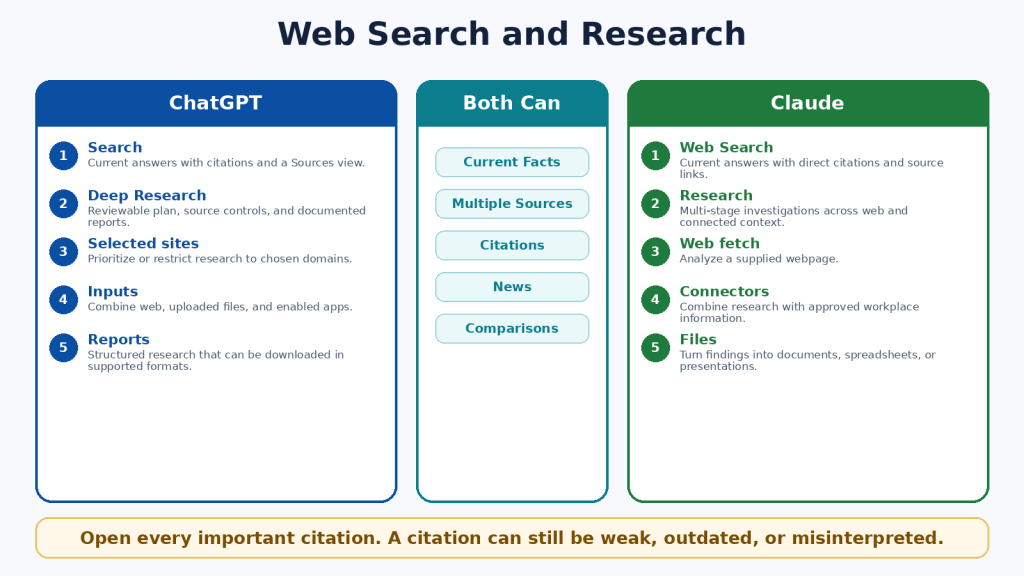
ChatGPT vs Claude for Web Search and Research
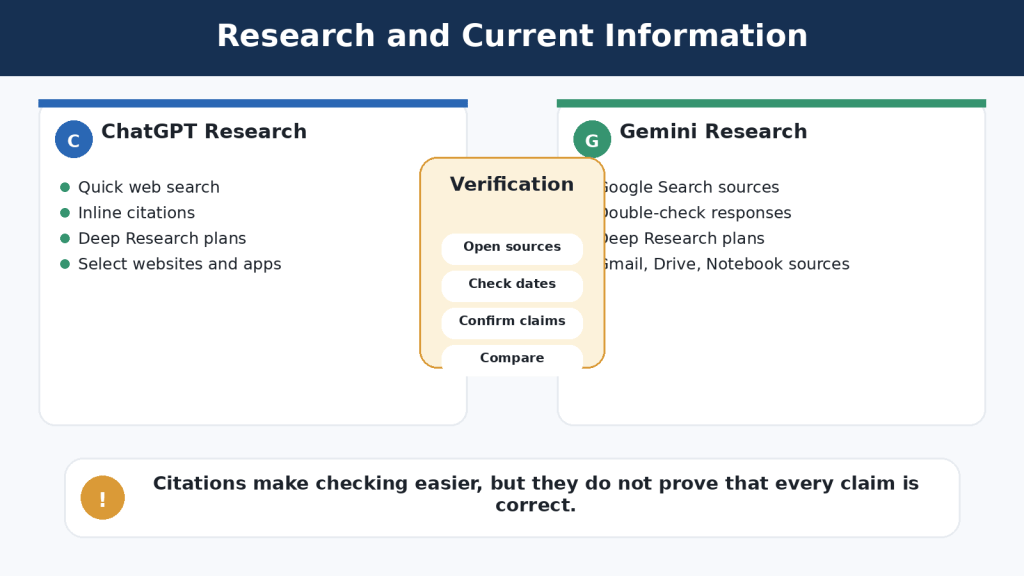
Ordinary web search is appropriate for quick current questions. Deeper research tools are appropriate when a question requires several searches, source comparison, uploaded files, connected data, and a structured report.
ChatGPT Search and Deep Research
• Search can provide current answers with citations and a Sources view.
• Deep Research can propose a plan, search several sources, use selected sites, and combine web information with uploaded files and enabled applications.
• Research reports can include headings, tables, citations, source links, and supported downloads.
Claude Web Search and Research
• Web Search provides current answers with citations and source links.
• Research performs multi-stage investigation across the web and eligible connected context.
• Claude can use the findings to create documents, spreadsheets, presentations, PDFs, or Artifacts.
Research Safety
• Prioritize official and primary sources.
• Open every important citation.
• Distinguish the date an event happened from the date an article was published.
• Identify disagreements instead of forcing one conclusion.
• Use qualified professional advice for legal, medical, financial, immigration, and safety decisions.
Figure 9.Web search and deeper research compared.
Explanation: ChatGPT emphasizes a visible research plan and source controls. Claude emphasizes conversational multi-stage research connected to documents and workplace context.
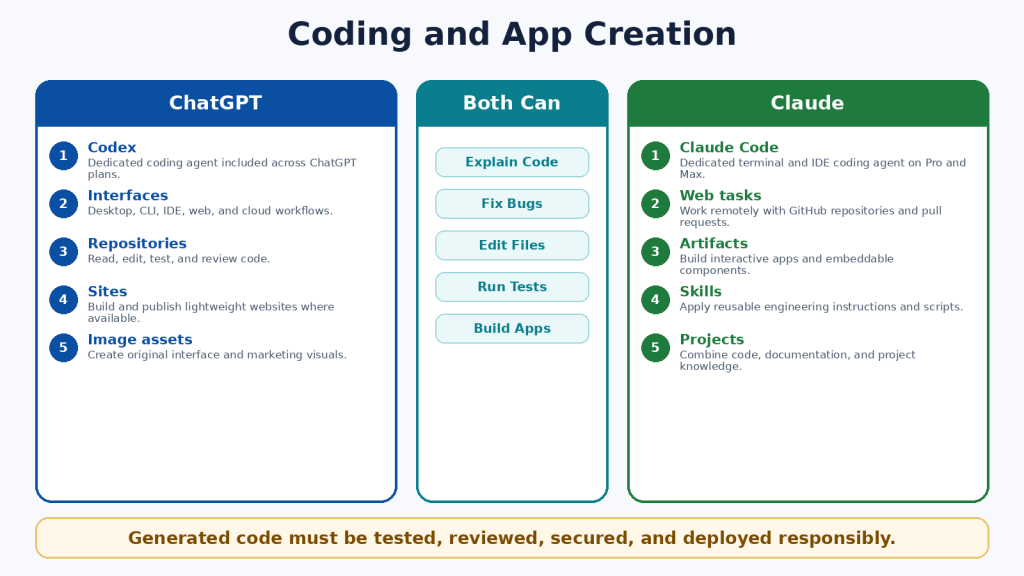
ChatGPT vs Claude for Coding and App Creation
Both assistants can explain code, create files, debug errors, write tests, refactor repositories, run commands, and help build applications. Their dedicated coding agents are Codex and Claude Code.
Area
ChatGPT
Claude
Dedicated agent
Codex
Claude Code
Individual availability
Included across ChatGPT plans with plan-dependent limits
Included with Claude Pro and Max
Interfaces
Desktop, CLI, IDE, web, and remote workflows
Terminal, supported IDEs, and web-based repository workflows
Repository work
Read, edit, test, review, and delegate tasks
Read, edit, test, create branches, and prepare pull requests
Lightweight apps
ChatGPT Sites where available
Claude Artifacts and interactive tools
API billing
Separate from ChatGPT subscriptions
Separate from Claude subscriptions
Coding Safety Checklist
1. Use version control and create a backup.
2. Work on a separate branch.
3. Ask for a plan before major changes.
4. Review every changed file.
5. Run tests and test invalid inputs.
6. Protect secrets and production credentials.
7. Scan dependencies and obtain security review for important systems.
Code that runs once can still be insecure, inaccessible, slow, or incorrect at the edges. A coding agent is a development tool, not a substitute for engineering responsibility.
Figure 10.Coding agents and app-creation workflows.
Explanation: Codex has a beginner access advantage because it is included across ChatGPT plans. Claude Code provides a strong paid terminal, IDE, and repository workflow.
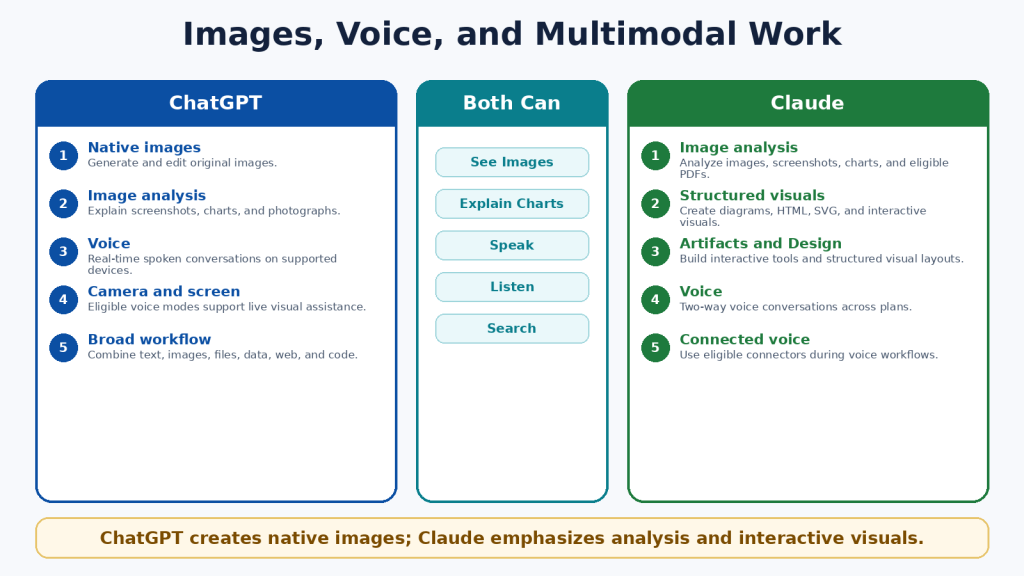
ChatGPT vs Claude for Images, Voice, and Multimodal Work
Multimodal AI works with more than typed text. Both assistants can analyze images, screenshots, charts, documents, web sources, and spoken prompts. The clearest difference is that ChatGPT can natively generate and edit photographs, illustrations, and graphics, while Claude focuses on image analysis, diagrams, HTML, SVG, structured visuals, Design, and Artifacts.
ChatGPT Advantages
• Native image generation and editing.
• Different aspect ratios for featured images, social posts, and presentations.
• Image analysis for screenshots, charts, and photographs.
• Real-time voice on supported devices.
• Eligible camera and screen-sharing assistance.
Claude Advantages
• Image and chart analysis.
• Interactive diagrams, HTML, SVG, and custom visual explanations.
• Artifacts and Design for structured or interactive outputs.
• Two-way voice across plans.
• Voice workflows that can use eligible connected tools.
Privacy Warning
Images, audio, video, and shared screens can reveal faces, notifications, addresses, financial details, family information, account names, and background conversations. Crop images, hide notifications, stop sharing before entering passwords, and review current retention and model-improvement settings.
Figure 11.Image, voice, and multimodal differences.
Explanation: ChatGPT is the clear choice for native image creation and editing. Claude is distinctive for structured and interactive visuals, document-based images, and connected voice workflows.
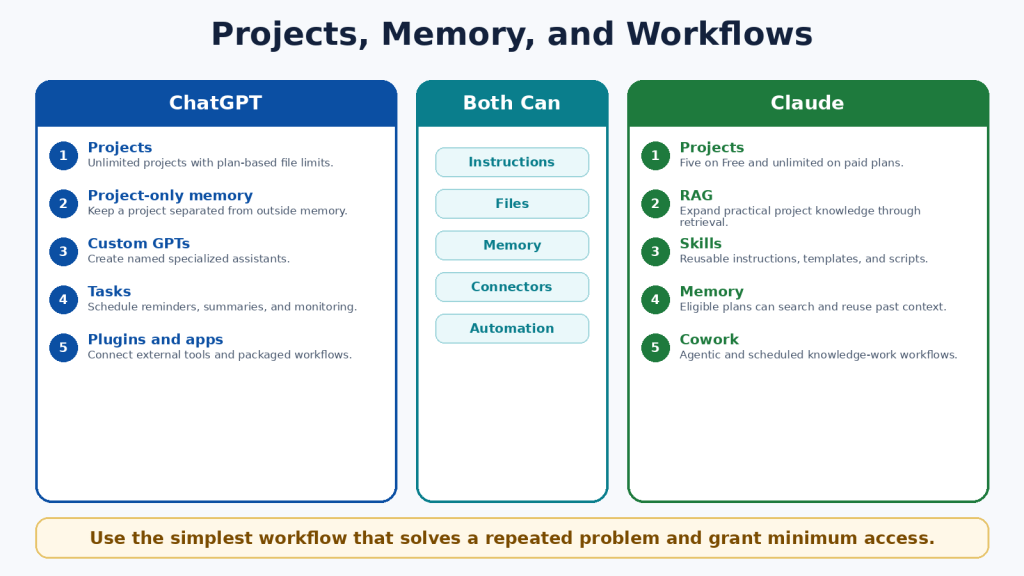
ChatGPT vs Claude for Projects, Memory, and Custom Workflows
Projects, memory, instructions, custom assistants, Skills, plugins, connectors, and scheduled tools help users repeat work without restating every requirement. These terms are not interchangeable.
Area
ChatGPT
Claude
Projects
Unlimited; file limits depend on the plan
Five on Free and unlimited on paid plans
Project isolation
Project-only memory is available when selected at creation
Project knowledge and eligible memory remain organized by project context
Custom assistant
Custom GPT
No exact equivalent; combine Projects, Skills, Styles, and plugins
Reusable method
ChatGPT Skills are mainly available in supported workspace, Codex, and API contexts
Claude Skills are available as reusable instructions, templates, and optional scripts
Scheduling
Scheduled Tasks for reminders, summaries, and monitoring
Scheduled Cowork tasks for recurring knowledge work
External tools
Plugins and apps
Plugins, connectors, and desktop extensions
Least-Access Principle
• Connect only the account required for the task.
• Use read-only access when possible.
• Review every requested permission.
• Remove unused plugins and connectors.
• Pause outdated scheduled tasks.
• Keep authoritative records outside AI memory.
Memory is convenient but not a permanent archive. It can omit details, preserve outdated information, or apply context incorrectly. Store approved facts, final documents, dates, and decisions in your own records.
Figure 12.Projects, memory, and workflow tools.
Explanation: ChatGPT emphasizes unlimited projects, project-only memory, custom GPTs, plugins, and scheduled tasks. Claude emphasizes project retrieval, Skills, plugins, Claude Code, and Cowork.
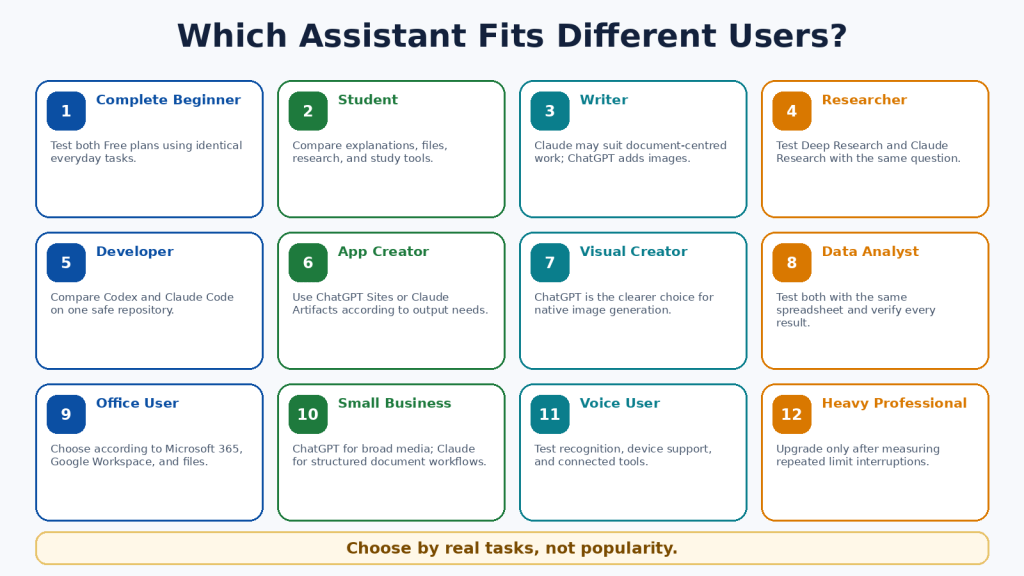
ChatGPT vs Claude for Different Types of Users
User
Suggested Start
Reason
Complete beginner
Test both Free plans
Real tasks provide better evidence than rankings.
Student
Both
Compare explanations, files, study tools, and research.
Writer or blogger
Claude for documents; ChatGPT for text plus images
The publishing workflow determines the better fit.
Researcher
Both
Compare source control, citation accuracy, and connected data.
Developer
Codex or Claude Code
Test on the same safe repository.
Visual creator
ChatGPT
Native image generation and editing are decisive.
Office-file user
Claude may be preferable
Direct office-file creation and Microsoft 365 workflows.
Small business
Depends on daily work
ChatGPT for broad media; Claude for structured knowledge work.
Heavy professional
Measure before upgrading
High-capacity plans are justified by repeated interruptions.
Accessibility needs should be tested with the actual device, browser, microphone, screen reader, keyboard, and file format. A feature list cannot show whether the complete workflow is accessible for one person.
Figure 13.Suggested starting points for different user groups.
Explanation: Different users value different capabilities. The better assistant depends on the actual work, device, integrations, budget, and editing burden.
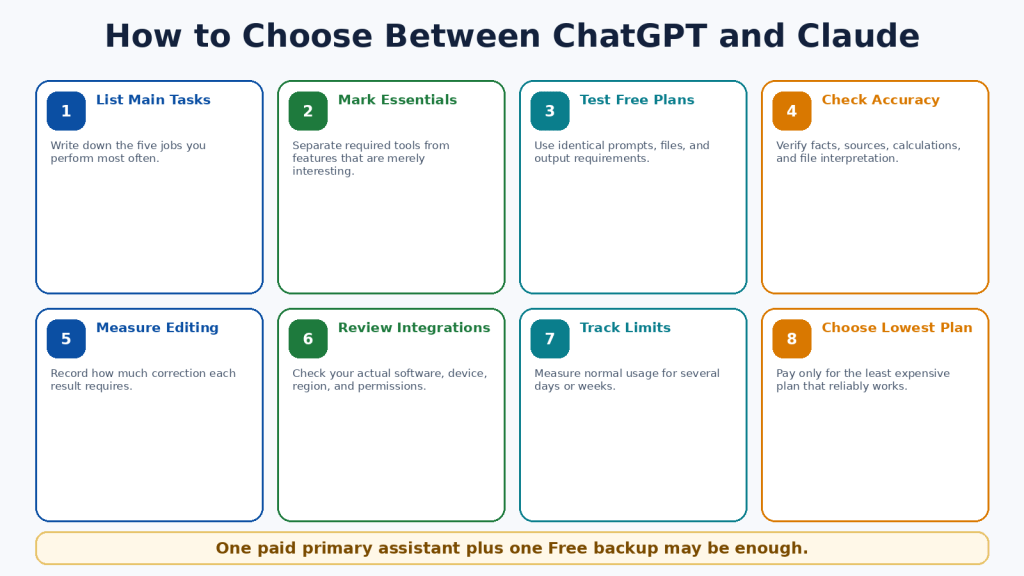
How to Choose Between ChatGPT and Claude
1. List the five tasks you perform most often.
2. Mark the features that are essential rather than merely interesting.
3. Test both Free plans using identical prompts and files.
4. Check facts, citations, calculations, code, and file interpretation.
5. Record how much editing each result requires.
6. Check compatibility with your actual applications, device, region, and account permissions.
7. Measure usage limits during several normal days or weeks.
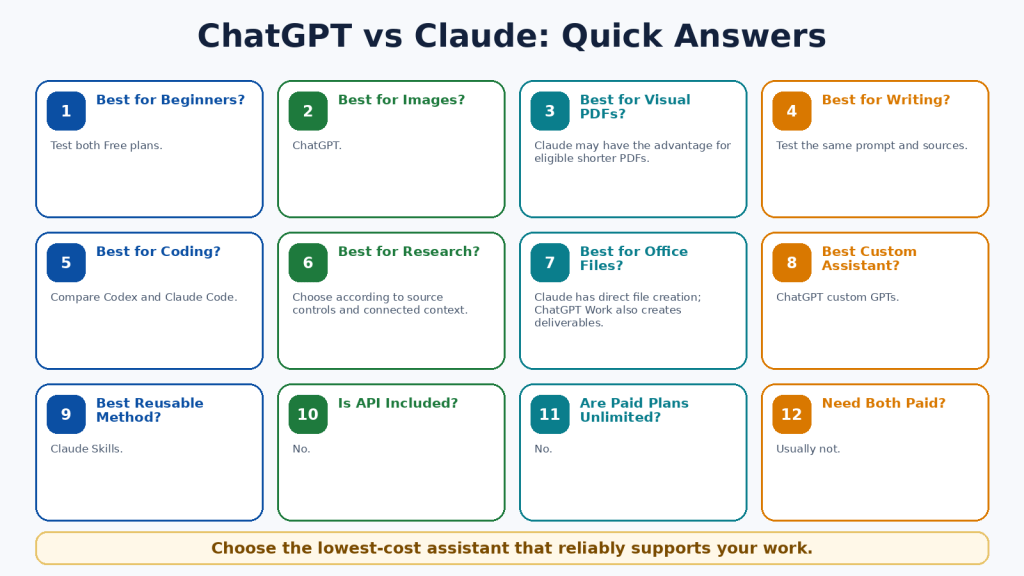
8. Choose the lowest-cost plan that reliably supports the work.
Simple Decision Rule
• Choose ChatGPT when native images, broad multimodal work, custom GPTs, scheduled tasks, Codex, Deep Research, Work, or Sites are essential.
• Choose Claude when documents, direct office files, project retrieval, Skills, Claude Code, Research, Artifacts, Microsoft 365, or Cowork are essential.
• Use both Free plans when the answer remains unclear.
• For many users, one paid primary assistant and one Free secondary assistant are sufficient.
Figure 14.An eight-step decision process.
Explanation: A fair choice begins with real tasks and ends with the lowest-cost plan that works consistently.
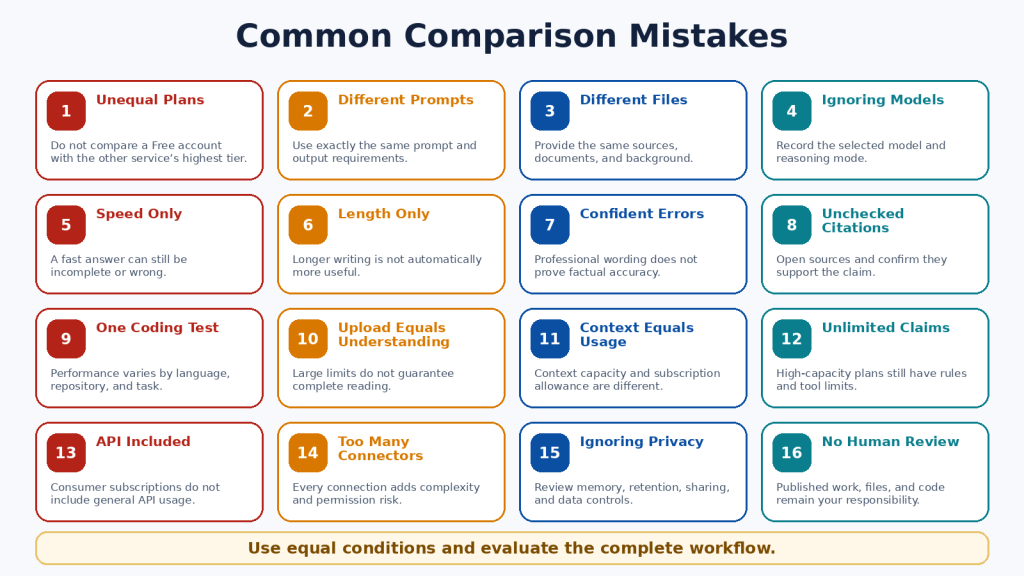
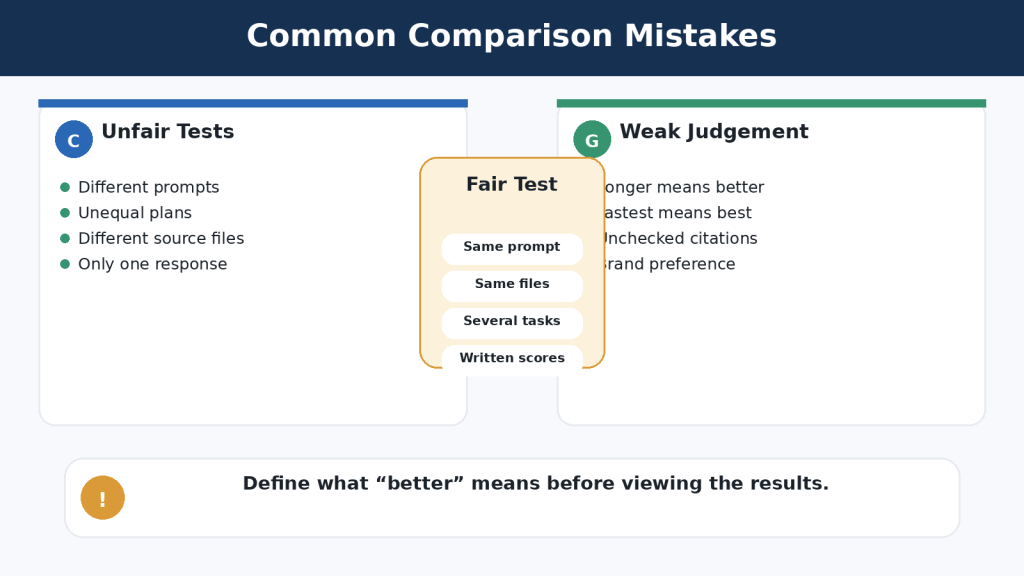
Common ChatGPT vs Claude Comparison Mistakes
• Declaring one permanent winner from one response.
• Comparing different plans, models, prompts, files, or source requirements.
• Treating speed, length, confidence, or citations as proof of quality.
• Comparing a native image with a diagram as though they were the same output.
• Assuming a large upload limit means complete understanding.
• Confusing context size with subscription usage.
• Assuming “5x,” “20x,” or “unlimited” mean equal or unrestricted use.
• Upgrading after one unusually large task.
• Assuming a consumer subscription includes API usage.
• Installing too many plugins or connectors.
• Ignoring regional, device, privacy, and retention differences.
• Publishing text, files, images, or code without human review.
The fairest comparison uses equivalent plans, comparable models, identical prompts, the same source material, the same output requirements, and a consistent verification checklist. Measure the time required to reach an approved final result, not merely the time to receive the first answer.
Figure 15.Sixteen common comparison errors.
Explanation: Unfair tests often measure different plans, prompts, files, models, or tools. Equal conditions and verified outcomes provide more useful evidence.
Limitations of ChatGPT and Claude
Neither assistant is completely accurate, unlimited, private for every purpose, or able to complete important work safely without supervision.
Shared Limitations
• Incorrect information, invented citations, and outdated claims.
• Misinterpretation of web sources and uploaded files.
• Context and usage limits.
• Visual, OCR, calculation, and formatting errors.
• Insecure or incomplete code.
• Prompt injection and unintended actions through connected tools.
• Incomplete or outdated memory.
• Privacy, retention, and sharing risks.
• Regional and device differences.
• Service interruptions and capacity errors.
How to Reduce Risk
1. Use authoritative sources and open important citations.
2. Upload only necessary information.
3. Remove private details and review data controls.
4. Use version control, backups, and separate branches for code.
5. Open generated files and test formulas, links, and formatting.
6. Grant the minimum external permissions.
7. Confirm every email, calendar, publishing, or account action in the destination system.
8. Consult a qualified professional for high-stakes decisions.
Figure 16.Shared limitations and safety risks.
Explanation: Both services can make factual, file, visual, coding, privacy, and action errors. The user remains responsible for verification and final decisions.
Frequently Asked Questions
1. Are ChatGPT and Claude free?
Yes. Both provide Free individual plans with usage and tool limits.
2. Which is better for beginners?
Test both Free plans with the same everyday tasks. Choose the service that is clearer, more accurate, and easier to correct.
3. Which is better for writing?
Neither is guaranteed to win. Claude may suit long document workflows; ChatGPT may suit writing combined with images and broader publishing tools.
4. Which is better for images?
ChatGPT, because it can natively generate and edit photographs, illustrations, and graphics.
5. Can Claude analyze images?
Yes. Claude can analyze uploaded images and eligible PDF visuals and can create diagrams, HTML, SVG, and interactive visuals.
6. Which is better for PDFs?
Claude may have an advantage for eligible PDFs under 100 pages containing important embedded visuals. Both can analyze text-based PDFs.
7. Which is better for office files?
Claude provides direct creation of DOCX, XLSX, PPTX, and PDF files. ChatGPT Work can also create and edit documents, spreadsheets, and presentations.
8. Which is better for coding?
Test Codex and Claude Code on the same repository. Codex is included across ChatGPT plans; Claude Code is included with Claude Pro and Max.
9. Which is better for research?
ChatGPT offers strong research planning and source controls; Claude integrates Research closely with projects, files, and connectors.
10. Can I use both?
Yes. One paid primary assistant and one Free backup is often practical.
11. Do I need both paid?
Usually not. Pay for the service containing the essential paid-only capability you use regularly.
12. Are paid plans unlimited?
No. Model, feature, session, weekly, safety, and fair-use restrictions may apply.
13. Is API usage included?
No. OpenAI API and Claude Platform billing are separate from consumer subscriptions.
14. Are they private?
Both provide controls, but no consumer service should automatically receive every confidential file. Review retention, memory, training, connectors, and workplace rules.
15. Can they replace a professional?
No. Use them for general information and preparation, then consult a qualified professional for high-stakes decisions.
Figure 17.Quick answers to common comparison questions.
Explanation: The answer depends on the user’s required tools, files, research, coding, media, integrations, limits, and budget.
Key Takeaways
• ChatGPT is the broader native multimedia and creative workspace.
• Claude is the stronger document-, project-, file-, coding-, and structured-workflow environment.
• ChatGPT is the clear choice for native image generation and editing.
• Claude has distinctive strengths in direct office-file creation, Skills, Claude Code, project retrieval, Artifacts, and Cowork.
• Both provide capable writing, search, research, files, coding, voice, projects, and memory.
• Both can make serious mistakes and reach limits.
• The standard US paid comparison is ChatGPT Plus versus Claude Pro at US$20 monthly.
• Higher-capacity plans should follow measured need, not curiosity.
• General API billing is separate from consumer subscriptions.
• Most beginners should test both Free plans and use one paid primary assistant only when necessary.
Figure 18.The most important differences and shared capabilities.
Explanation: ChatGPT is strongest for broad multimodal creation. Claude is strongest for document-centred and repeatable knowledge work. Both require human review.
Conclusion
ChatGPT and Claude can both help beginners write, learn, research, analyze files, work with data, code, speak with an AI assistant, and organize continuing projects. The main difference is not whether one can write a paragraph or answer a question. It is the surrounding workflow.
Choose ChatGPT when native images, broad multimodal tools, custom GPTs, scheduled tasks, Codex, Deep Research, Work, or Sites directly support your most frequent work. Choose Claude when documents, direct office-file creation, project retrieval, Skills, Claude Code, Research, Artifacts, Microsoft 365, or Cowork directly support your most frequent work.
Choose both Free plans when you remain uncertain. The most economical arrangement for many people is one paid primary assistant and one Free secondary assistant for comparison and independent checking.
ChatGPT and Claude are tools rather than replacements for human knowledge, judgment, professional responsibility, or creativity. The best assistant is the one that reliably completes your real work, requires fewer corrections, fits your applications, protects information appropriately, and creates more value than it costs.
In WordPress, link each title only after confirming that the related article is published and that its permanent URL is correct.
Sources and References
Product facts in this article were reviewed against official OpenAI and Anthropic documentation on August 5, 2026. Prices, limits, models, tools, and regional availability can change. Recheck important information before publishing or purchasing.
ChatGPT and Google Gemini are both generative AI assistants. They can respond to written or spoken instructions, explain subjects, draft and revise content, summarize information, analyse supported files, create images, and help with everyday planning. They are developed by different companies and organize their tools in different ways.
A prompt is the question, instruction, or request you give to an AI assistant. For example: “Explain cloud storage to a complete beginner using one everyday comparison.” You do not need programming experience to use either service.
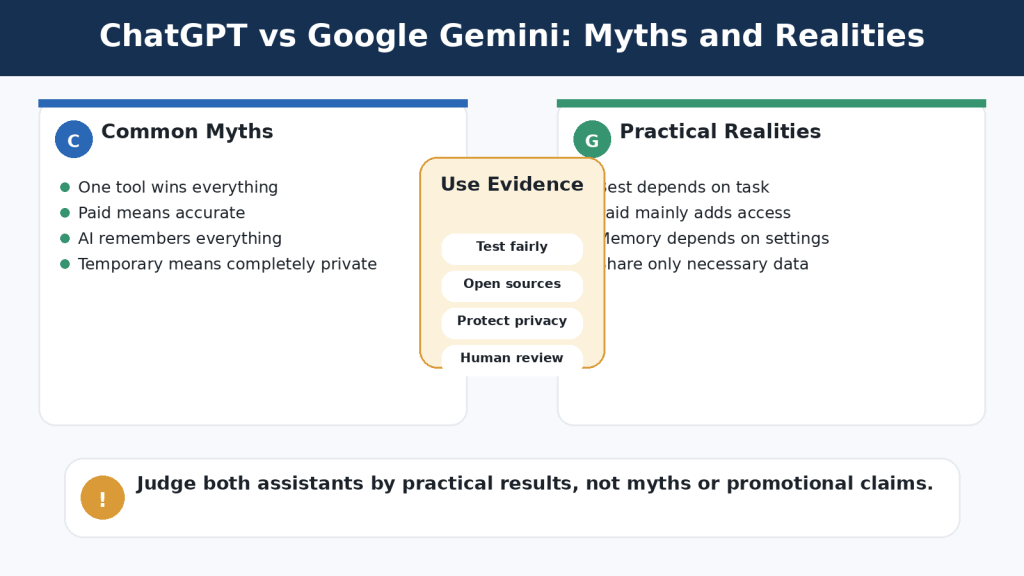
Important: Features, model names, limits, privacy controls, and plan benefits can change. This comparison was reviewed against official OpenAI and Google information on August 4, 2026. Recheck official information before paying for a plan or depending on a specific feature.
What You Need
• An internet connection and supported browser or mobile device
• An OpenAI account for saved ChatGPT work and account features
• A Google Account for saved Gemini work and connected Google features
• Several low-risk tasks that you can test in both assistants
• Permission to use any document, image, email, or other information you provide
• A simple scoring method for accuracy, clarity, instruction following, workflow fit, and correction time
What You’ll Learn
• The main similarities and differences between ChatGPT and Google Gemini
• Which assistant may fit writing, research, files, images, voice, and continuing projects
• How custom GPTs compare with Gemini Gems
• How ChatGPT apps compare with Gemini Connected Apps
• What free and paid access means for beginners
• How privacy, temporary chats, activity, memory, and connected services differ
• How to test both assistants fairly before choosing one
Introduction
ChatGPT and Google Gemini overlap in many everyday tasks. Either assistant may help you write an email, explain a difficult idea, summarize a report, create a checklist, analyse a spreadsheet, generate an image, search for current information, or conduct a voice conversation.
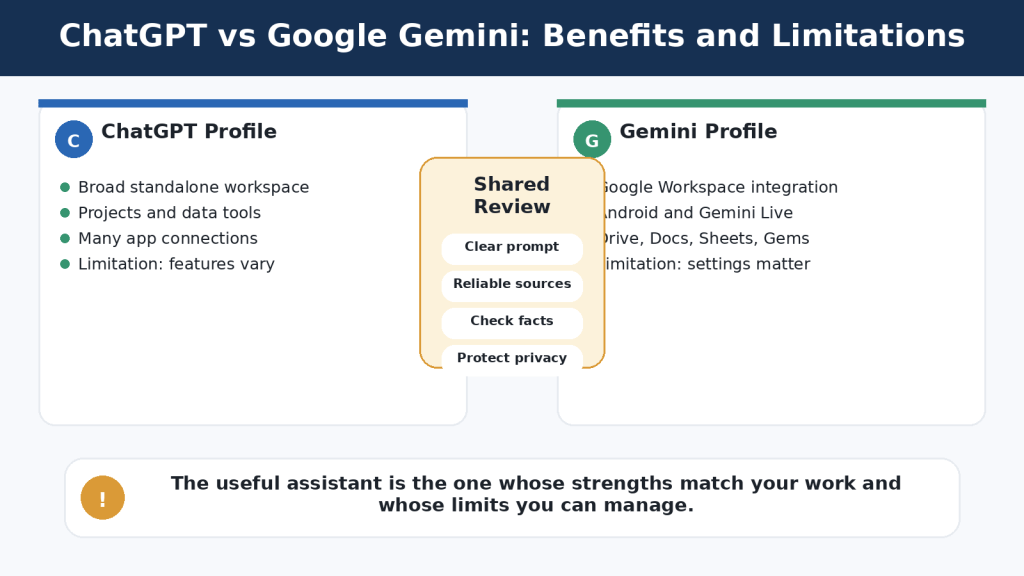
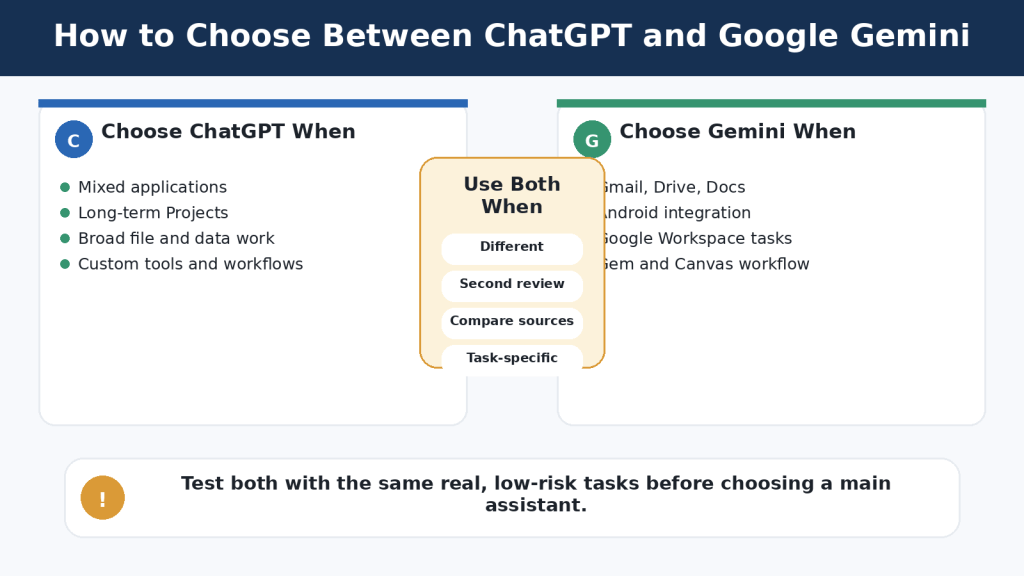
The useful question is not “Which assistant wins?” A better question is “Which assistant fits this task, this account, and this workflow?” A person who works mainly in Gmail, Google Drive, Google Docs, Google Calendar, and Android may value Gemini’s close Google integration. A person who wants a broad workspace for Projects, files, data analysis, images, research, custom GPTs, and apps from several providers may prefer ChatGPT.
Reality: Both assistants can produce polished answers that are incomplete or wrong. Neither should be treated as an unquestioned source of truth.
Projects group chats, instructions, files, and context
Gems, Canvas, Drive, conversations, and Workspace tools work together
Custom assistants
Custom GPTs with instructions, knowledge, and selected tools
Gems with reusable instructions and supported knowledge
Connected work
Apps from multiple supported providers
Strong Google Workspace and Android connections
Research
Search and Deep Research with selectable sources
Google Search and Deep Research with Google-connected sources
Best fit
Broad or mixed-service workflow
Google-centred workflow
Accuracy
Requires human verification
Requires human verification
The table shows tendencies, not permanent rules. Account type, device, country, settings, model access, and ongoing product updates can change the experience.
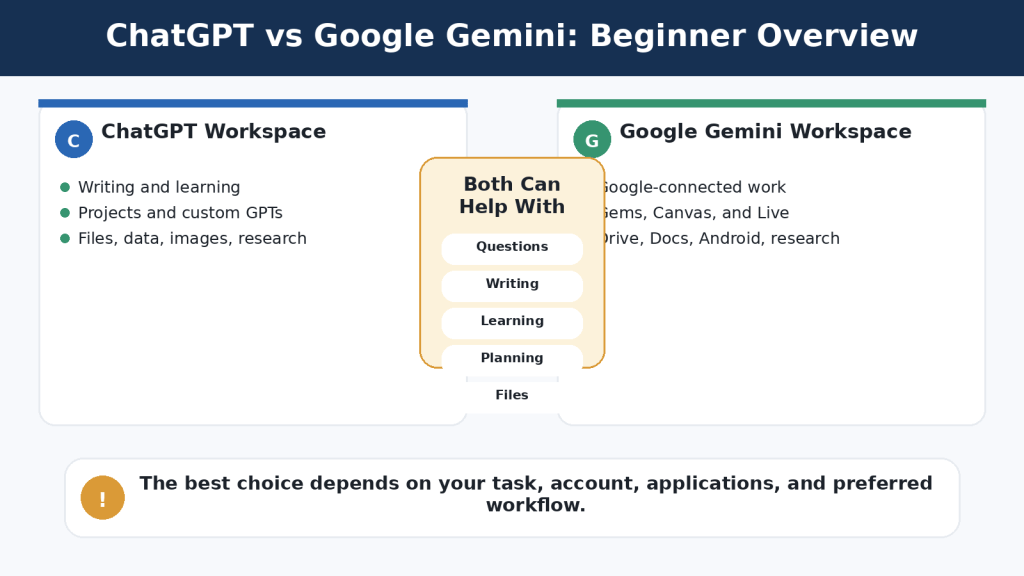
Figure 1. ChatGPT and Google Gemini share many core capabilities but organize tools, connections, and continuing work differently.
Explanation: The best assistant depends on the user’s tasks, account, applications, and preferred way of organizing work.
Which Is Easier for Beginners?
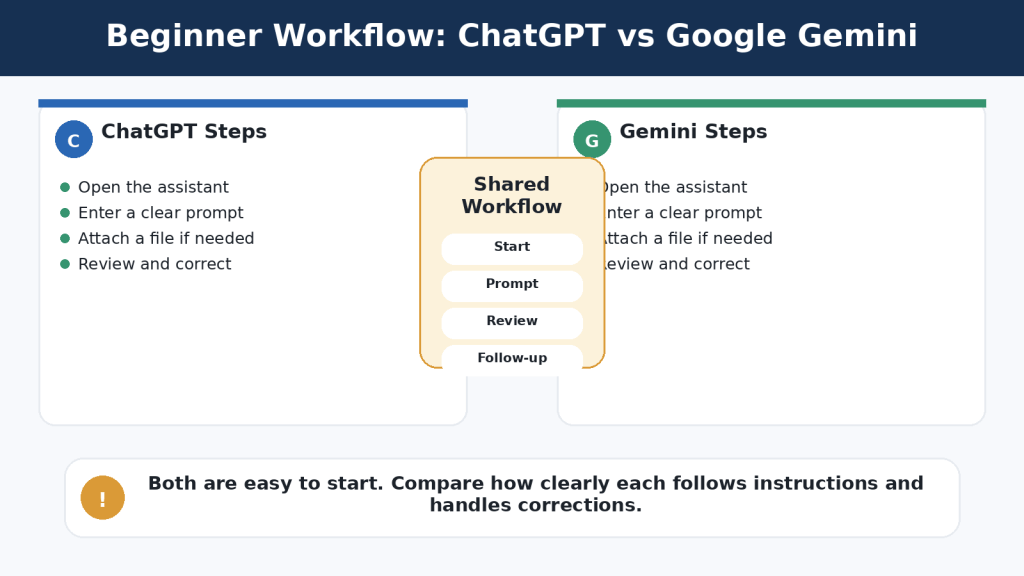
Both assistants use a familiar conversation format. You enter a prompt, review the response, and continue with a follow-up question or correction. Most beginners can start without understanding AI models or technical settings.
Basic ChatGPT Workflow
1. Open ChatGPT and sign in when you want saved work.
2. Start a new conversation or open the relevant Project.
3. Enter a clear prompt.
4. Attach a supported file or image when necessary.
5. Review the answer for facts, omissions, and instruction following.
6. Ask a focused follow-up, such as “Correct only the second paragraph.”
Basic Gemini Workflow
1. Open Gemini and sign in to the correct Google Account.
2. Start a new conversation.
3. Enter a clear prompt.
4. Add a supported file, Drive item, or image when needed and available.
5. Review the answer and any listed sources.
6. Continue with a correction or a request for a different format.
ChatGPT may feel simpler when you want a standalone AI workspace. Gemini may feel simpler when you already use a Google Account, Google Drive, Google Docs, or Android. Ease of use is personal and depends heavily on familiarity.
Beginner Tip: Ignore most advanced controls during your first few sessions. Practise ordinary prompts, review the responses, and learn how to request one correction at a time.
Figure 2. Both assistants use a similar beginner workflow: open the service, enter a prompt, add material when needed, review the response, and continue with corrections.
Explanation: The easier assistant is usually the one that requires fewer extra steps for the applications and tasks the user already performs.
Which Is Better for Writing and Rewriting?
Both assistants can brainstorm, outline, draft, rewrite, simplify, summarize, proofread, and change tone. A fair writing comparison uses the same source text, audience, length, structure, and factual requirements.
Where ChatGPT May Fit
• Writing and revision inside a general ChatGPT workspace
• Long-term content work organized in Projects
• Combining writing with files, research, data, images, and other apps
• Using custom GPTs for repeated article or communication rules
• Working outside a Google Docs-centred process
Where Gemini May Fit
• Drafts and source files already stored in Google Drive
• Continued editing in Google Docs
• Longer work developed in Gemini Canvas
• Reusable writing rules saved in a Gem
• Google Workspace assistance provided through an eligible account
Use this test prompt in both tools: “Rewrite this paragraph for complete beginners. Preserve every fact, name, date, number, and warning. Explain technical terms. Do not add information that is not in the original.”
Common Mistake: Choosing the longer or more confident draft. A shorter draft may follow the instructions more accurately.
How to Avoid This Mistake: Compare the result sentence by sentence with the original. Check whether the assistant changed a fact, removed a condition, or added an unsupported example.
Figure 3. ChatGPT and Google Gemini can both draft and revise writing, but every rewritten version must be checked against the original.
Explanation: A polished revision can still change meaning, remove conditions, or add unsupported information.
Which Is Better for Research and Current Information?
Both assistants can retrieve current web information and prepare deeper, multi-source reports. ChatGPT Search is intended for quick current questions with links. ChatGPT Deep Research supports a proposed research plan, uploaded files, selected websites, and enabled apps. Gemini can provide sources connected with Google Search, and Gemini Deep Research can use Google Search plus selected uploaded or connected sources such as Gmail, Drive, and NotebookLM when available.
Quick Search vs Deep Research
Use Quick Search When
Use Deep Research When
You need a recent fact or short answer
The task requires several stages and many sources
You want a few useful links
You need a structured report with citations
Time is limited
You must compare competing claims or documents
The question is narrow
You need a research plan and source controls
Citations are not proof. Open important links, confirm the publisher and date, and check that the source supports the complete claim. Compare important conclusions with other authoritative sources.
Reality: Neither assistant replaces careful research. Both can accelerate discovery and organization, but the user remains responsible for evaluating evidence.
Figure 4. Both assistants support quick web searches and deeper multi-source research, but their source connections and workflow controls differ.
Explanation: Citations help verification, but users must still open sources, check dates, and confirm that the evidence supports each important claim.
Which Is Better for Documents, Files, Spreadsheets, and Data?
ChatGPT supports common document, spreadsheet, presentation, text, and image formats. OpenAI describes file uploads as useful for synthesis, extracting information, comparing documents, analysing spreadsheets, and creating visualizations. ChatGPT can also use data-analysis tools for calculations, tables, and charts.
Gemini can accept documents, spreadsheets, NotebookLM notebooks, photographs, videos, code folders, and other supported files. Google describes file uploads as useful for answers, summaries, insights, and charts. Google Drive and Google Sheets connections may reduce downloading and re-uploading when the source already belongs in Google Workspace.
Fair File Test
1. Use the same short, non-sensitive document in both assistants.
2. Ask for a summary containing purpose, requirements, dates, exceptions, warnings, and unanswered questions.
3. Ask five factual questions whose answers you can verify.
4. Extract selected information into a table.
5. Use the same small spreadsheet and request one calculation and one chart.
6. Check every result against the original files.
Common Mistake: Assuming that a successful upload means every page, table, image, or worksheet was interpreted correctly.
How to Reduce This Limitation: Ask questions with known answers, use clear filenames, upload only the approved version, and verify dates, numbers, formulas, filters, and chart scales.
Figure 5. ChatGPT and Google Gemini can both analyse documents and data, while their workflow differences involve data tools and connected file ecosystems.
Explanation: Uploaded-file answers must be checked against the original files because either assistant can omit, misread, or incorrectly summarize information.
Which Is Better for Images and Visual Work?
Both assistants can create images from written prompts, edit uploaded images, and analyse photographs or screenshots. Results vary by prompt, model, account, image complexity, and current product rollout.
What to Compare
• Composition and aspect ratio
• Subject placement and usable open space
• Spelling and readable text
• Correct object counts and natural anatomy
• Consistency across revisions
• Whether requested elements remain unchanged
• Permissions, licensing, disclosure, and accessibility
ChatGPT may feel convenient when image work belongs to the same Project or conversation as the article, sources, captions, and revisions. Gemini may feel convenient when visual work belongs in a Google-centred workflow or uses several uploaded references.
Reality: An attractive AI image is not evidence that an event happened, and it is not automatically suitable for publication.
Figure 6. ChatGPT and Google Gemini can both create, edit, and analyse images, but every result needs visual, permission, and accessibility checks.
Explanation: The better image assistant is the one that follows the prompt accurately and requires the least corrective work for the user’s normal visual tasks.
Which Is Better for Voice Conversations and Mobile Use?
ChatGPT Voice and Gemini Live both support natural spoken conversations and interruptions. ChatGPT Voice works as part of ChatGPT conversations across supported mobile and desktop experiences. Gemini Live is closely connected with supported mobile devices and has particular value for eligible Android users.
• Use voice for learning, brainstorming, presentation practice, or hands-free questions
• Review transcripts because speech recognition can be wrong
• Stop camera or screen sharing before opening private information
• Obtain permission when other people may be recorded
• Do not rely on voice output for emergency, medical, legal, or safety-critical instructions
ChatGPT may fit users who want spoken and written work in the same ChatGPT conversation or Project. Gemini may fit users who want an Android-centred assistant connected with supported Google services and device functions.
Figure 7. ChatGPT Voice and Gemini Live support natural spoken conversations, while Gemini places particular emphasis on Android and Google-device integration.
Explanation: The better voice assistant depends on speech recognition, interruption handling, transcript usefulness, privacy controls, and the user’s normal devices.
Which Is Better for Custom Assistants and Ongoing Projects?
ChatGPT custom GPTs and Gemini Gems save reusable instructions and supported reference material. They are useful when the same tone, audience, process, or checklist is needed repeatedly. They are not separately trained experts and can still overlook instructions or use files incorrectly.
Custom GPTs
• Reusable instructions and conversation starters
• Knowledge files
• Selected capabilities such as search, images, data analysis, Canvas, apps, or actions when available
• Testing and updating through the GPT editor
• Use inside the broader ChatGPT ecosystem
Gemini Gems
• Reusable instructions
• Knowledge from uploaded files, Google Drive, or supported Notebook sources
• Use in Gemini web and mobile experiences
• Possible appearance in supported Google Workspace side panels
• Convenience when reference files remain in Google Drive
Ongoing Work
ChatGPT Projects provide a clear workspace that groups related chats, files, and project instructions. Gemini distributes continuing work across Gems, Canvas, conversations, Drive, Docs, and other Workspace tools. The better arrangement depends on where the source files and final work already live.
Figure 8. Custom GPTs and Gemini Gems save reusable instructions and knowledge, while ongoing project work is organized differently in each ecosystem.
Explanation: ChatGPT Projects keep related chats, files, and instructions together; Gemini users may combine Gems, Canvas, Drive, and Workspace applications.
Which Is Better for Connected Apps and Productivity?
ChatGPT apps can connect the assistant with supported external services for search, reference, Deep Research, synchronization, interactive experiences, and approved write actions. Availability and permissions vary by app, plan, region, and workspace.
Gemini Connected Apps are closely designed around Google services. Depending on eligibility and settings, Gemini may work with Gmail, Drive, Docs, Calendar, Keep, Tasks, Android functions, and other supported services.
Comparison Area
ChatGPT Apps
Gemini Connected Apps
Main approach
Several supported providers and app types
Google-centred services and devices
Email and files
May connect with Gmail, Outlook, Drive, OneDrive, Dropbox, and others
Close connection with Gmail, Drive, Docs, and related Google services
Actions
Some apps can create or update information with permission controls
Selected Calendar, Tasks, Keep, and device actions may be available
Best fit
Mixed-application workflow
Google Workspace and Android workflow
Connected access does not guarantee that the assistant retrieves the newest or correct item. Open the original email, file, or event before acting.
Beginner Tip: Connect one low-risk service first. Keep confirmation enabled for important external actions and disconnect services you no longer need.
Figure 9. ChatGPT can connect with a wider range of supported services, while Google Gemini provides particularly close integration with Google Workspace and Android.
Explanation: Connections can save time, but users should grant minimum access, verify retrieved information, and confirm important actions.
Free vs Paid Plans: Do Beginners Need a Subscription?
Both services provide free access. For many beginners, free access is sufficient for learning prompts, asking ordinary questions, drafting short text, testing files, creating occasional images, and trying available research or voice features.
Paid plans mainly provide higher limits, more model access, additional tools, or bundled benefits. They do not guarantee accurate answers or unlimited use.
Decision
ChatGPT
Google Gemini
Start here
Free
No Google AI plan / free access
Lower paid option
Go where available
Google AI Plus where available
Typical individual upgrade
Plus
Google AI Pro
Highest individual tier
Pro
Google AI Ultra
Organization options
Business, Enterprise, education-related plans
Google Workspace and organizational offerings
Upgrade Only When You Can Name the Problem
• Free limits repeatedly interrupt useful work
• A required feature is unavailable in the free account
• You regularly upload or analyse files
• You conduct frequent Deep Research
• You create many images or use voice heavily
• The added access saves measurable time and fits the budget
Check the official local pricing page before subscribing. Plan names, storage, limits, taxes, promotions, app-store billing, and cancellation methods can change.
Figure 10. Both assistants offer free and paid access, but beginners should upgrade only after identifying a repeated limit or required feature.
Explanation: Paid access provides more capacity or tools; the choice should be based on actual use, local terms, and total value.
Which Is Better for Privacy and Data Controls?
Neither assistant is a private vault. Both process prompts, files, images, voice, and connected-app information to provide requested features. Privacy depends on account type, data controls, memory, activity, files, connected services, device permissions, and deletion practices.
ChatGPT Personal Controls
• Improve the model for everyone can be turned off while ordinary chats remain in history
• Temporary Chats do not appear in normal history, do not create ordinary memories, and are not used to improve models; they may be retained for up to 30 days for safety
• Memory and personalization can be reviewed or turned off
• Library files, Projects, GPT knowledge, apps, shared links, and chats may require separate deletion checks
Gemini Personal Controls
• Keep Activity controls whether new chats appear in Gemini Apps Activity and whether they may be used to improve models
• Temporary Chats are retained with the account for 72 hours to provide the service and support safety and are not used to train Google AI models
• Turning off Keep Activity can make many Google Connected Apps unavailable
• Memory, saved information, Live settings, connected apps, public links, and other Google-service data require separate review
Temporary Chat reduces certain forms of history, training, memory, or retention. It does not make passwords, banking information, medical records, private emails, confidential contracts, or children’s personal information suitable for casual submission.
How to Reduce This Limitation: Use the minimum-data rule. Provide only what the assistant genuinely needs, remove names and identifying details, and use an approved organizational account for workplace information.
Figure 11. ChatGPT and Google Gemini provide privacy controls, but model-improvement, activity, temporary-chat, memory, and connected-service settings work differently.
Explanation: The safest practice is to remove unnecessary personal or confidential information before it reaches either assistant.
Main Benefits and Limitations
Area
ChatGPT
Google Gemini
Main strength
Broad standalone workspace
Close Google and Android integration
Writing
Conversation, Canvas, Projects, custom GPTs
Canvas, Docs, Gems, Workspace
Files and data
Broad file and code-supported data tools
Convenient use with Drive, Docs, and Sheets
Research
Search, Deep Research, files, apps, selected sites
Google Search, Deep Research, Google-connected sources
Voice
Integrated with ChatGPT conversations
Gemini Live and Android integration
Main limitation
Features vary; long work needs organization; connections may need setup
Features depend on settings; biggest advantages require Google services
Shared limitation
Can be confidently wrong
Can be confidently wrong
ChatGPT’s independence from one productivity ecosystem can be a benefit for mixed workflows and a limitation for users who already do everything in Google. Gemini’s Google-centred design can be a benefit for Workspace and Android users and less valuable for Microsoft, Apple, local-file, or mixed-system workflows.
Reality: Neither assistant consistently has fewer limitations. The important limitation is the one that interferes with your real task.
Figure 12. ChatGPT provides a broad standalone workspace, while Google Gemini offers particularly close Google and Android integration; both share accuracy and privacy limitations.
Explanation: Choose according to real tasks, verifiable results, privacy requirements, and the amount of correction needed.
Which Assistant Should You Choose?
Choose ChatGPT When
• You want one broad AI workspace for writing, files, data, research, images, and voice
• You need Projects containing several chats, files, and instructions
• You work across Google, Microsoft, Dropbox, Notion, GitHub, or other systems
• You need custom GPT capabilities or specific ChatGPT apps
• ChatGPT consistently requires fewer corrections for your tasks
Choose Google Gemini When
• Your email and files are mainly in Gmail and Google Drive
• You finish work in Google Docs or Google Sheets
• You want close Android and Gemini Live integration
• You value Google-connected research or productivity features
• Gemini consistently requires fewer corrections for your tasks
Use Both When
• One assistant handles long-term organization and the other handles a connected task
• You want to compare research sources or possible omissions
• One tool produces better visuals for a particular subject
• One assistant reviews a draft produced by the other
Agreement between two AI assistants is not independent verification. Both may repeat the same error or use similar weak sources.
Seven Questions to Decide
1. Where are my files stored?
2. Which applications do I use every day?
3. What are my five most common AI tasks?
4. Do I need a long-term project workspace?
5. Which mobile device and operating system do I use?
6. Which assistant requires fewer corrections?
7. What privacy, workplace, or school rules apply?
Figure 13. The best assistant depends on files, applications, devices, common tasks, privacy requirements, and correction effort.
Explanation: A fair comparison uses identical prompts and source material and measures practical workflow results.
Common Mistakes When Comparing ChatGPT and Google Gemini
Using different prompts
Copy and paste the same complete prompt into both assistants.
Comparing unequal plans
Compare free with free or similar paid levels and record the selected model.
Using different files
Use identical approved files, images, and background information.
Judging one response
Test several realistic examples and include follow-up corrections.
Assuming longer is better
Score accuracy, relevance, clarity, and instruction following separately from length.
Choosing the fastest answer
Measure total time to a verified final result, including human review.
Trusting polished language
Check factual accuracy separately from grammar and formatting.
Counting citations without opening them
Confirm publisher, date, context, and exact support.
Uploading private information
Use fictional, public, or carefully cleaned material.
Comparing unused features
Give greater weight to the five tasks you actually perform.
Evaluation Area
ChatGPT Score
Gemini Score
Accuracy
1-5
1-5
Clarity
1-5
1-5
Instruction following
1-5
1-5
Source quality
1-5
1-5
File handling
1-5
1-5
Ease of correction
1-5
1-5
Privacy controls
1-5
1-5
Workflow fit
1-5
1-5
Human-review time
1-5
1-5
Overall usefulness
1-5
1-5
Figure 14. A fair comparison uses the same prompts, files, account conditions, tasks, follow-up corrections, and scoring standards.
Explanation: Unequal conditions can make one assistant appear better even when the test itself is unbalanced.
Common Myths and Realities
Myth
Reality
One assistant is best at everything
Performance depends on the task, prompt, tools, account, and user.
ChatGPT is only for writing
It also supports research, files, data, images, voice, Projects, GPTs, and apps.
Gemini is only Google Search
It also supports files, images, voice, Deep Research, Canvas, Gems, and connected work.
Paid plans guarantee accuracy
Paid plans mainly expand access, limits, and bundled benefits.
Citations prove the answer
Sources must be opened and checked.
Agreement proves accuracy
Both assistants can repeat the same mistake.
AI remembers everything
Context depends on chats, memory, files, Projects, Gems, and settings.
Temporary Chat makes confidential information safe
It reduces certain data uses but is not a secure vault.
Connected apps provide unlimited access
Access depends on permissions and supported actions.
Custom assistants are experts
They remain fallible AI configurations.
Free plans are useless
Free access is normally the best place to begin testing.
You must choose only one
Different tools can suit different tasks.
Figure 15. Common assumptions can lead to unfair comparisons, privacy mistakes, unnecessary subscriptions, and overconfidence.
Explanation: Judge both assistants through balanced testing, reliable sources, privacy-aware use, and careful human review.
Frequently Asked Questions
1. Is ChatGPT or Google Gemini better overall?
Neither is better for every user. ChatGPT often suits broad or mixed-service work; Gemini often suits Google-centred work.
2. Which is easier for complete beginners?
Both are easy to start. Familiar accounts, applications, and devices usually matter more than small interface differences.
3. Can I use both for free?
Yes. Limits and available features vary and can change.
4. Do beginners need a paid plan?
Usually not. Upgrade only when a repeated limit or missing feature prevents useful work.
5. Which is better for Gmail, Drive, and Docs?
Gemini is normally the more natural first test because these services belong to the Google ecosystem. ChatGPT can also connect to supported Google services through apps.
6. Which is better for long-term projects?
ChatGPT Projects provide a clear single workspace. Gemini users may combine Gems, Canvas, Drive, Docs, and conversations.
7. Can both analyse uploaded files?
Yes, subject to supported formats and limits. Verify important answers against the original file.
8. Can both find current information?
Yes, using available search or research features. Open and verify sources.
9. Which gives more accurate answers?
Neither is consistently more accurate across every subject and task.
10. Can I use one to check the other?
Yes, but two matching AI answers are not proof. Use authoritative sources as the final check.
11. Which is better for privacy?
Neither automatically. Use the approved account, minimum necessary data, suitable settings, and careful deletion practices.
12. Does Temporary Chat make confidential information safe?
No. It changes specific history, memory, training, or retention behaviour but does not create a secure vault.
13. Can both use voice and images?
Yes, with account, device, and usage conditions. Test both in your normal environment.
14. Can I switch later?
Yes. Preserve prompts, source files, approved drafts, project rules, permissions, and publishing records outside the assistant.
Key Takeaways
• Neither assistant is best at everything. Results depend on task, prompt, source material, model, account, and review process.
• ChatGPT is well suited to broad, organized AI work with Projects, files, data tools, custom GPTs, research, images, voice, and apps from several providers.
• Google Gemini is especially useful in Google-centred workflows involving Gmail, Drive, Docs, Calendar, Android, Gems, Canvas, and Gemini Live.
• Both can write, research, analyse files, create images, and converse by voice; all important output requires human review.
• Paid plans provide more access or bundled benefits, not guaranteed accuracy.
• Privacy requires more than one setting. Activity, memory, files, connected apps, device permissions, and deletion all matter.
• A fair comparison uses the same prompts, files, access level, corrections, scoring method, and test date.
• Preserve original files, approved versions, prompts, permissions, licences, and publishing records outside the AI conversation.
Final Thoughts
ChatGPT may be the better fit when you want a broad standalone workspace for continuing projects and work across several services. Google Gemini may be the better fit when your daily work is centred on Google Workspace and Android. Many users will benefit from selecting one main assistant and keeping the other available for tasks where it performs better.
Final Tip: Begin with both free versions and complete a seven-day comparison using ordinary, low-risk tasks. Measure accuracy, clarity, instruction following, source quality, ease of correction, workflow fit, privacy controls, and total time to an approved result.
• Article 033 — Google Gemini for Beginners: Complete Guide (2026)
• Article 035 — How to Use Google Gemini: Beginner Step-by-Step Guide (2026)
• Article 037 — How to Upload and Analyze Documents with Google Gemini: Beginner Guide (2026)
• Article 041 — How to Use Gems in Google Gemini: Beginner Guide (2026)
• Article 042 — How to Use Canvas in Google Gemini for Writing and Projects (2026)
• Article 022 — How to Summarize Documents with ChatGPT: Beginner Guide (2026)
Sources and References
Sources reviewed: August 4, 2026. Features and policies may change. Recheck the relevant official page when enabling an important feature, changing plans, connecting an application, or submitting sensitive material.
This article provides general educational guidance. It does not replace legal, medical, financial, cybersecurity, engineering, privacy, or other professional advice.
Before using ChatGPT to help format a document, it is useful to understand how document uploads, analysis, rewriting, proofreading, and verification work.
These guides explain how to inspect a document, identify important content, correct language, compare versions, and preserve the original meaning.
Formatting should improve how information is organized and displayed without changing:
Facts
Names
Dates
Numbers
Responsibilities
Deadlines
Warnings
Conditions
Exceptions
Limitations
Technical terminology
Approved wording
Uncertainty
For example:
Original instruction:
Employees must submit the completed inspection form before the end of the current shift.
A formatting change may place the instruction in a numbered step, put it under a clearer heading, or bold the deadline.
It should not change the sentence to:
Employees should submit the form soon.
The changed version weakens must, removes completed inspection form, and replaces the exact deadline with the unclear word soon.
Formatting changes presentation. It should not silently change meaning.
What You’ll Learn
In this beginner guide, you will learn how to:
Plan a clear document structure.
Organize content with H1, H2, and H3 headings.
Format paragraphs for easier reading.
Choose between numbered lists and bullets.
Format warnings, notes, examples, and quotations.
Organize comparison information in tables.
Format figures, captions, explanations, links, and references.
Create a reusable document style guide.
Preserve approved wording while changing the layout.
Format a long document one section at a time.
Prepare content for WordPress and SoftMaker TextMaker.
Review formatting suggestions before applying them.
Compare a formatted document with its original version.
Check accessibility and logical reading order.
Protect private, confidential, and copyrighted information.
Verify the final layout before publishing or sharing it.
Save the original file, formatting plan, and approved version.
By the end of this guide, you should be able to use ChatGPT to plan and review document formatting while preserving the document’s content and meaning.
Introduction
A document can contain accurate information but still be difficult to read when its layout is unclear or inconsistent.
Common formatting problems include:
Missing headings
Incorrect heading levels
Long blocks of text
Ordered steps presented as ordinary paragraphs
Unordered information incorrectly numbered
Uneven paragraph spacing
Confusing tables
Misplaced warnings
Incorrect figure numbering
Captions separated from images
Links that do not describe their destination
References presented inconsistently
Formatting helps readers understand how information is organized.
What Is Document Formatting?
Document formatting is the process of organizing and presenting information so that it is clear, consistent, and easier to use.
Formatting may include:
Headings
Paragraph breaks
Numbered lists
Bullet lists
Tables
Bold or italic text
Quotations
Figure captions
Links
References
Fonts
Alignment
Spacing
Margins
Page breaks
Formatting changes the presentation of information. It does not automatically correct the writing or verify the facts.
How ChatGPT Can Help
ChatGPT can help you:
Create a document outline.
Identify possible heading levels.
Separate long paragraphs.
Convert ordered instructions into numbered steps.
Convert unordered information into bullets.
Suggest a table structure.
Standardize labels and captions.
Create a formatting style guide.
Review formatting consistency.
Compare the formatted version with the original.
Prepare content for WordPress or a DOCX document.
For example, this unformatted text:
Prepare the document. Remove private information. Upload the correct file. Review the result.
may be organized as:
1. Prepare the document.
2. Remove private information.
3. Upload the correct file.
4. Review the result.
A numbered list is suitable because the actions follow an order.
Employees must inspect the equipment before each shift. They must report visible damage to the supervisor.
Formatting change:
1. Inspect the equipment before each shift.
2. Report visible damage to the supervisor.
Incorrect wording change:
Employees should inspect the equipment regularly and report serious problems when necessary.
The incorrect version changes must to should, before each shift to regularly, visible damage to serious problems, and the exact reporting requirement.
ChatGPT Does Not Control Every Final Layout Detail
ChatGPT can organize content and describe formatting, but the final appearance depends on the program where the document is used.
WordPress
SoftMaker TextMaker
Microsoft Word
Google Docs
PDF software
The final program controls details such as:
Exact font appearance
Margins
Indentation
Page breaks
Table width
Image placement
Theme styles
Mobile display
The formatted document must therefore be checked in its destination program.
Basic Document-Formatting Process
1. Keep the original document.
2. Identify the purpose and audience.
3. Review the existing structure.
4. Create a formatting plan.
5. Define heading, paragraph, list, table, and figure rules.
6. Protect approved wording and important facts.
7. Format one test section.
8. Review and approve the result.
9. Continue one section at a time.
10. Compare the formatted version with the original.
11. Check accessibility and reading order.
12. Preview the final layout.
13. Save the approved version separately.
ChatGPT can support this process, but the responsible person must approve the final document.
Figure 1. A controlled formatting workflow improves document organization while preserving the original content and meaning.
Figure 1 shows a controlled formatting workflow. The process begins with the original document, a clear plan, protected content, and one test section before the complete layout is reviewed and saved.
Types of Document Formatting You Can Request
ChatGPT can help with several kinds of formatting.
Heading Formatting
A common heading structure is:
H1 for the document title
H2 for main sections
H3 for subsections
In WordPress.com, the post or page title is normally assigned H1 automatically, so the first heading inside the article is usually H2.
Identify which lines should use H1, H2, or H3. Preserve the heading wording and list proposed changes before applying them.
Paragraph Formatting
ChatGPT can identify:
Paragraphs that contain several ideas
Paragraphs that are too long
Related paragraphs that may belong together
Abrupt transitions
Repeated information
Suggest where long paragraphs should be divided. Preserve every sentence and its original order.
Numbered Lists
Use numbers when:
The order matters.
One action depends on another.
The reader must follow a process.
1. Upload the document.
2. Review the formatting plan.
3. Approve the changes.
4. Save the final version.
Bullet Lists
Use bullets when:
The order does not matter.
The items are examples, options, benefits, or limitations.
Each item has equal importance.
The WordPress List block can display numbered or bulleted lists.
Table Formatting
Tables can help compare:
Features
Responsibilities
Dates
Original and formatted content
Formatting rules
Review status
Use tables for data relationships, not decoration.
Warning and Note Formatting
Useful labels include:
Warning
Important
Note
Tip
Reality
How to Avoid This Mistake
How to Reduce This Limitation
A mandatory warning should not be formatted as an optional tip.
Quotation Formatting
“The application may be approved after the supporting documents are reviewed.”
Do not silently correct or paraphrase quoted wording.
Figure and Caption Formatting
For AI Mastery figures:
Number figures continuously.
Use article-numbered filenames.
Place each figure after the approved paragraph.
Add descriptive alt text.
Place the caption directly below the figure.
Use a period after the figure number.
Place the explanation directly below the caption.
Link Formatting
Use descriptive links such as:
ChatGPT Data Controls FAQ
W3C Headings Tutorial
How to Analyze Documents with ChatGPT
Avoid:
Click here
Read more
Website
Reference Formatting
References should use one consistent structure.
Official source title
Publisher or organization
Link
Date when relevant
Source-review date
Consistent punctuation
Do not invent missing source information.
Font and Text-Style Formatting
For AI Mastery DOCX files:
Use Arial 12-point body text.
Keep headings and body paragraphs left-aligned.
Use bold for approved labels.
Avoid decorative fonts.
Avoid excessive bold or italic text.
Page-Layout Formatting
Page size
Margins
Orientation
Headers
Footers
Page numbers
Page breaks
These details must be applied and checked in the final document program.
WordPress Formatting
WordPress content is built with blocks. Heading, List, Table, Image, and Quote blocks can be added with the block inserter or slash commands.
PDF Preparation
Before exporting a PDF, check:
Page size
Margins
Fonts
Tables
Image quality
Captions
Links
Page breaks
Reading order
Accessibility settings
Reality: The correct format depends on the purpose of the information and the program where the document will be used.
Figure 2. Different document elements require different formatting, including headings, paragraphs, lists, tables, captions, links, and page-layout settings.
Figure 2 shows that different information requires different formatting. Ordered actions use numbered steps, unordered information uses bullets, and comparisons may be clearer in a table.
What You Need Before Formatting a Document
Before formatting begins, prepare the file, the formatting rules, and the final destination.
The Correct File
Confirm that you are using the intended version.
An early draft
A proofread copy
A reviewed version
An approved version
A publication copy
Create a separate formatting copy, such as:
article-032-formatting-copy-july-2026.docx
Do not overwrite the original.
A Complete and Readable Document
Check that the file contains:
All pages and sections
Complete paragraphs
Complete lists
Readable tables
Correct figures
Captions
Links
References
Mark unreadable content as [Unclear in the source] rather than asking ChatGPT to guess.
The Purpose and Audience
Tell ChatGPT what the document is meant to do, who will read it, and whether it will be read online, printed, or both.
This is a beginner-friendly WordPress tutorial for adults with little technical experience.
The Final Program
WordPress
SoftMaker TextMaker
Microsoft Word
Google Docs
PDF
Print
The same formatting may display differently in each program.
A Document Outline
1. Title
2. Introduction
3. Main sections
4. Subsections
5. Examples
6. Warnings or limitations
7. Frequently asked questions
8. Key takeaways
9. Sources and references
For AI Mastery articles, also record:
Article number
Figure numbers
Figure placements
Captions
Explanations
Internal-link locations
A Style Guide
Element
Approved Format
Article title
H1
Main sections
H2
Subsections
H3
Body text
Arial 12-point in DOCX
Alignment
Left
Ordered instructions
Numbered list
Unordered information
Bullet list
Important labels
Bold
Figure captions
“Figure X.”
Spelling
Canadian English
Protected Content
Tell ChatGPT not to change:
Names
Dates
Numbers
Responsibilities
Deadlines
Ordered steps
Warnings
Conditions
Exceptions
Limitations
Quotations
Technical terms
Links
References
Uncertainty
Change the formatting only. Do not rewrite, shorten, summarize, correct, remove, or add information.
Privacy and Permission
Before uploading, inspect:
Main text
Tables
Comments
Tracked changes
Headers and footers
Images
File names
Document properties
Remove unnecessary private information and confirm permission to upload, format, share, and publish the document.
A Test Section
Begin with one section containing a heading, paragraphs, a list, and a warning, table, or figure when relevant.
Format the Introduction only as a test. Preserve every word and sentence. Stop before the next main section.
Keep the Original Document
Use the original to verify:
Section order
Paragraph content
List sequence
Table values
Figure placement
Captions
Links
References
Warnings and conditions
Save the formatted document as a separate version.
Figure 3. Preparing the file, formatting rules, protected content, privacy, and test section helps prevent inconsistent or inaccurate changes.
Figure 3 shows the main preparation checks to complete before formatting. A clear file, audience, destination, style guide, privacy review, and test section reduce inconsistent or inaccurate changes.
How to Upload and Format a Document with ChatGPT
ChatGPT supports common document, presentation, spreadsheet, and text formats, including PDF, DOCX, PPTX, TXT, XLSX, XLS, CSV, and TSV. Google Docs .gdoc files currently need to be exported to a supported format such as PDF or DOCX.
Step 1: Create a Formatting Copy
Keep the original unchanged. Use a filename such as:
article-032-formatting-copy-july-2026.docx
Step 2: Open a Dedicated Chat
Use one chat for the document, style rules, formatting plans, approved changes, and comparison checks.
Step 3: Upload the File
Select the attachment control near the message box. It may appear as a plus sign, paperclip, or similar control depending on the interface. Confirm that the correct filename appears.
Step 4: Ask ChatGPT to Identify the Structure
List the document title, headings, paragraphs, numbered lists, bullet lists, tables, figures, captions, links, and references. Do not format or rewrite anything yet.
Compare the response with the original.
Step 5: State the Purpose and Destination
This is a beginner-friendly WordPress tutorial. It will first be saved as a DOCX file for SoftMaker TextMaker and then transferred to WordPress.
Step 6: Provide the Style Rules
Use one H1 for the title, H2 for main sections, and H3 for subsections. Use numbers only for ordered steps and bullets for unordered information. Use Arial 12-point body text in the final DOCX. Keep all text left-aligned. Do not use horizontal divider lines.
Step 7: Protect the Content
Change formatting only. Preserve every word, fact, name, date, number, responsibility, deadline, warning, condition, quotation, technical term, link, reference, and uncertain phrase.
Step 8: Request a Formatting Plan
Ask for a table with these columns:
Current Element
Suggested Format
Reason
Meaning Risk
Do not allow changes until the plan is approved.
Step 9: Approve or Reject Suggestions
Approve the heading and bullet suggestions. Reject the proposed table because the information is easier to read as a list.
Step 10: Format One Test Section
Apply only the approved formatting to the Introduction. Preserve every word. Stop before the next H2 section.
Review the uploaded document for formatting only. Do not rewrite, proofread, shorten, summarize, remove, or add information.
Use one H1 for the title, H2 for main sections, and H3 for subsections. Use numbered lists only when actions follow an order. Use bullets for unordered examples, options, benefits, limitations, and requirements.
First, list all proposed formatting changes in a table with the columns Current Element, Suggested Format, Reason, and Meaning Risk. Do not apply any changes until I approve them. Begin with the Introduction only.
Figure 4. Formatting one section at a time allows the user to review the structure before completing the full document.
Figure 4 shows how a document can be formatted in controlled stages. Clear rules, content protection, a test section, section-by-section review, and final preview help preserve the document’s meaning.
How to Format a Long Document in Sections
Step 1: List Every Section
Titles
Headings
Subsections
Lists
Tables
Figures
Captions
Links
References
Appendices
Step 2: Number the Sections
Title and introductory details
Before Learning
What You’ll Learn
Introduction
Main sections
Practical examples
Benefits
Limitations
Frequently asked questions
Sources and references
Step 3: Create a Tracker
Section
Status
Compared with Original
Final Check
Introduction
Approved
Complete
Complete
Main Section 1
In progress
Not started
Not started
Benefits
Not started
Not started
Not started
Useful status labels include:
Not started
In progress
Awaiting approval
Approved
Compared with original
Final check complete
Step 4: Apply One Style Guide
Use the same rules for every section.
Step 5: Format One Named Section
Format Section 4 – Introduction only. Preserve every word. Stop before Section 5.
Step 6: Check Each Element
Heading levels
Paragraph breaks
Numbered lists
Bullets
Tables
Warnings
Figures and captions
Links and references
Step 7: Compare with the Original
Ask ChatGPT to list anything that was added, removed, moved, rewritten, or separated from related content.
Step 8: Save the Approved Section
article-032-section-04-introduction-approved.docx
Step 9: Check Section Boundaries
Duplicate headings
Repeated paragraphs
Broken lists
Restarted figure numbering
Misplaced warnings
Citations under the wrong section
Step 10: Assemble and Review the Complete Document
No section is missing.
Heading levels remain logical.
Lists and figure numbers remain continuous.
Tables and figures are in the correct locations.
Links and references are complete.
The final layout works in its destination program.
Prompt for One Section
Format Section [number and title] only. Preserve every word, sentence, fact, number, warning, condition, quotation, link, and reference. Apply the approved heading, paragraph, list, table, figure, caption, and spacing rules. Do not rewrite, proofread, summarize, remove, or add information. After formatting, list every structural change. Stop before the next main section.
Figure 5. Formatting a long document in tracked sections makes structural changes easier to review and approve.
Figure 5 shows how a long document can be divided into tracked sections. Each section follows the same style guide and is compared with the original before the complete document is assembled.
How to Review ChatGPT’s Formatting Suggestions
Treat every formatting suggestion as a proposal.
Confirm That It Is Formatting Only
Acceptable changes may affect heading levels, paragraph breaks, list types, table structure, labels, caption placement, and spacing. They should not rewrite the content.
Check Heading Levels
The title uses H1.
Main sections use H2.
Subsections use H3.
Levels are not skipped.
Headings are not duplicated.
Ordinary bold text is not incorrectly treated as a heading.
Check Paragraph Breaks
Every sentence remains.
The original order is preserved.
Conditions stay with the statements they affect.
Warnings remain near related instructions.
Citations remain beside supported claims.
Check Lists
Does the order matter?
Is every item present?
Was a required step turned into an optional bullet?
Was unordered information incorrectly numbered?
Check Tables
Correct headings
Correct row and column relationships
Correct values
Correct units and dates
No missing cells
No unsupported calculations or summaries
Check Warnings and Notes
A warning must not become a tip.
Original:
Do not upload restricted information without permission.
Incorrect format:
Tip: Try not to upload restricted information.
Check Figures and Captions
The figure remains after the approved paragraph.
Numbering is continuous.
The caption is directly below the image.
The explanation follows the caption.
Alt text is included.
The figure is not duplicated.
Check Links and References
Descriptive link text remains attached to the correct URL.
Citations remain near supported statements.
Public links are used.
Reference titles remain complete.
Classify Suggestions
Necessary structural correction
Readability improvement
Consistency correction
Accessibility improvement
Optional design preference
Possible meaning risk
Requires manual review
Approval Table
Suggestion
Decision
Reason
Change article title to H1
Approve
Correct hierarchy
Convert ordered steps to bullets
Reject
Sequence matters
Divide long paragraph
Approve
Wording remains unchanged
Move warning to another section
Reject
Warning must stay near instruction
Review Prompt
Review the proposed formatting changes against the original document. Classify each suggestion as Necessary Structural Correction, Readability Improvement, Consistency Correction, Accessibility Improvement, Optional Design Preference, Possible Meaning Risk, or Requires Manual Review. Identify anything that rewrites, removes, adds, moves, or separates approved content. Do not apply the changes.
Figure 6. Formatting suggestions should be reviewed for structure, readability, consistency, accessibility, and possible meaning changes.
Figure 6 shows the main formatting suggestions that require approval. Headings, paragraphs, lists, tables, warnings, figures, captions, links, and references should be reviewed before changes are accepted.
How to Verify a Formatted Document
A professional-looking document may still contain missing information or structural errors.
Keep Three Records
1. The original document
2. The approved formatting plan
3. The formatted document
Confirm That No Wording Changed
Added words
Removed words
Rewritten sentences
Changed terminology
Shortened warnings
Missing conditions
Modified quotations
Verify Headings
One H1
H2 for main sections
H3 for subsections
Logical order
No missing or duplicate headings
Verify Paragraphs
Every sentence remains present.
Paragraphs stay under the correct headings.
Warnings and citations remain correctly connected.
Spacing is consistent.
Verify Lists
For numbered lists:
The order must matter.
Every step must remain.
The sequence must remain correct.
For bullets:
Items must be unordered.
No item may be missing or duplicated.
Verify Tables
Headings are correct.
Values remain in the correct cells.
Units, dates, and notes remain.
The table is readable on mobile.
Verify Figures
Correct image
Correct filename
Continuous numbering
Correct placement
Caption directly below
Explanation directly below caption
Descriptive alt text
Readable visible text
Verify Links and References
Correct destination
Descriptive wording
Correct citation placement
Complete reference title
No editing-page URL
No unnecessary tracking parameter
Check Reading Order and Accessibility
Headings should communicate structure; links should describe their purpose; informative images need appropriate text alternatives; and tables need clear relationships between headings and data.
Preview the Final Program
TextMaker
WordPress
PDF
Desktop view
Tablet view
Mobile view
Verification Prompt
Compare the formatted document with the original and approved formatting plan. Report added, deleted, moved, or rewritten text; incorrect headings; missing sections; incorrect lists; table problems; misplaced figures and captions; broken links; reading-order concerns; and items requiring manual review. Do not make changes.
Reality: Formatting verification checks both the content and the final visual layout.
Figure 7. Final verification compares the original content, approved plan, and completed layout before the document is accepted.
Figure 7 shows that final verification compares the original document, approved formatting plan, and completed layout. Wording, structure, tables, figures, links, accessibility, and final display all require checking.
Practical Example: Formatting a Beginner-Friendly WordPress Tutorial
Original Unformatted Text
How to upload a document. Before uploading check that the file opens correctly, remove unnecessary private information and confirm that you have permission to use the document. Do not upload restricted information without permission. Open ChatGPT. Select the attachment option. Choose the correct file. Wait for the filename to appear. Confirm that the correct version was uploaded. Ask ChatGPT to identify the file before requesting changes. Benefits include easier review, faster access to important sections and the ability to ask focused questions.
The passage contains:
A section title
Preparation requirements
Ordered upload steps
A warning
Unordered benefits
Formatting Prompt
Format this passage for a beginner-friendly WordPress tutorial. Preserve the approved meaning and instructions. Use H2 for the main title and H3 for preparation, upload steps, and benefits. Use bullets for unordered preparation points and benefits. Use numbers for ordered actions. Format the permission instruction as a bold warning. Do not add, remove, summarize, or rewrite information.
Formatted Version
How to Upload a Document
Before Uploading
Before uploading:
Check that the file opens correctly.
Remove unnecessary private information.
Confirm that you have permission to use the document.
Warning: Do not upload restricted information without permission.
Upload the Document
1. Open ChatGPT.
2. Select the attachment option.
3. Choose the correct file.
4. Wait for the filename to appear.
5. Confirm that the correct version was uploaded.
6. Ask ChatGPT to identify the file before requesting changes.
Benefits
Benefits include:
Easier review
Faster access to important sections
The ability to ask focused questions
Why These Formats Were Used
H2 begins the main section.
H3 separates the three topics.
Preparation points and benefits use bullets because they are unordered.
Upload actions use numbers because they follow a sequence.
The permission instruction uses a bold warning label.
Content-Preservation Check
The file-opening check
Removal of unnecessary private information
Permission to use the document
The warning about restricted information
All six upload actions
All three benefits
WordPress Block Setup
Use a Heading block set to H2 for the main heading.
Use Heading blocks set to H3 for subsections.
Use a List block with bullets for preparation points and benefits.
Use a List block with numbers for upload steps.
Use a Paragraph block with a bold warning label.
Reality: Good formatting helps readers recognize preparation requirements, ordered actions, warnings, and benefits without changing what the document says.
Figure 8. Headings, bullets, numbered steps, and warning labels make a WordPress tutorial easier to follow without changing its approved information.
Figure 8 shows how one long WordPress tutorial paragraph can become clear headings, preparation bullets, a warning, ordered upload steps, and benefit bullets while preserving the approved instructions.
Practical Example: Formatting a Workplace Procedure
Original Unformatted Procedure
Damaged equipment procedure. Employees must stop using equipment immediately if they notice visible damage, unusual sounds or possible malfunction. They must complete the equipment incident form before the end of the current shift and submit it to the shift supervisor. Include the equipment number, date, time and description of the problem. The shift supervisor sends the report to maintenance. Employees must not return the equipment to service until the maintenance manager provides written approval. An additional inspection may be required.
Information to Protect
Immediate action
All three warning signs
The equipment incident form
The current-shift deadline
The shift supervisor
All four form details
The supervisor’s responsibility
Maintenance involvement
Written approval from the maintenance manager
Must not
May be required
Formatted Version
Damaged Equipment Procedure
Warning Signs
Employees must stop using equipment immediately if they notice:
Visible damage
Unusual sounds
Possible malfunction
Report the Problem
1. Stop using the equipment immediately.
2. Complete the equipment incident form before the end of the current shift.
3. Submit the completed form to the shift supervisor.
4. The shift supervisor sends the report to maintenance.
Information to Include
Include:
Equipment number
Date
Time
Description of the problem
Return to Service
Warning: Employees must not return the equipment to service until the maintenance manager provides written approval.
An additional inspection may be required.
Formatting Decisions
Warning signs use bullets because they are alternatives.
Reporting actions use numbers because they follow a process.
Form details use bullets because they have equal importance.
The return-to-service restriction remains a warning.
The possible inspection remains a normal paragraph because it is not required in every case.
Formatting Mistakes to Reject
Incorrect: Numbering the warning signs
Reason: They are alternatives, not steps.
Incorrect: Changing must not to should avoid
Reason: This weakens the prohibition.
Incorrect: Replacing the deadline with as soon as possible
Reason: The source gives an exact deadline.
Incorrect: Making an additional inspection a required step
Reason: The source says it may be required.
Reality: Workplace procedures must remain operationally accurate after formatting.
Figure 9. Formatting separates warning signs, reporting steps, form information, and return-to-service conditions while preserving the procedure.
Figure 9 shows how a workplace procedure can be separated into warning signs, ordered reporting steps, required form information, and return-to-service conditions without changing deadlines or responsibilities.
Benefits of Formatting Documents with ChatGPT
Creates a Clear Starting Plan
The main title
Main sections
Subsections
Instructions
Examples
Warnings
Tables
Figures
References
Makes Information Easier to Find
Instructions
Warnings
Benefits
Limitations
Questions
Sources
Helps Choose the Correct Format
A paragraph
Numbers
Bullets
A table
A warning
A quotation
A caption
Improves Consistency
Heading levels
List styles
Capitalization
Paragraph spacing
Bold labels
Figure numbers
Caption punctuation
References
Helps Protect the Original Content
Added text
Missing text
Rewritten sentences
Changed list order
Moved warnings
Missing references
Makes Long Documents Easier to Manage
Test rules
Track progress
Review smaller amounts of content
Correct problems early
Prevent missing sections
Creates Reusable Formatting Rules
A style guide can be reused across future articles.
Helps Prepare Content for WordPress and TextMaker
ChatGPT can organize blocks, headings, lists, tables, captions, links, and references before the final manual setup.
Supports Accessibility Planning
Heading order
Link wording
Table headings
Alt text
Reading order
Colour-dependent information
Explains Formatting Decisions
Beginners can ask why a particular format is suitable.
Reality: ChatGPT can help plan, organize, compare, and explain document formatting. The final layout must still be checked manually.
Figure 10. ChatGPT can help plan document structure, choose suitable formats, improve consistency, and prepare content for its final program.
Figure 10 shows the main benefits of using ChatGPT to plan document formatting. It can improve structure, consistency, findability, content protection, long-document management, and preparation for the final program.
Limitations of Formatting Documents with ChatGPT
It May Change the Wording
A formatting request may produce rewritten or shortened text.
How to Reduce This Limitation: State that only presentation may change and compare the result with the original.
It May Use the Wrong Heading Level
ChatGPT may use H1 more than once, skip heading levels, turn a subsection into a main section, or treat bold text as a heading.
How to Reduce This Limitation: Provide the approved hierarchy and review every heading.
It May Choose the Wrong List Type
Benefits may be incorrectly numbered, or ordered steps may be changed to bullets.
How to Reduce This Limitation: Explain that numbers are for sequences and bullets are for unordered information.
It May Damage Table Relationships
A correct value may be placed in the wrong row or column.
How to Reduce This Limitation: Compare every table with the source.
It May Separate Related Content
Formatting may separate a warning from its instruction, a figure from its paragraph, a caption from its figure, or a citation from its statement.
How to Reduce This Limitation: Check the location and reading order of connected elements.
It May Be Inconsistent in Long Documents
It may restart numbering, change list punctuation, or forget earlier rules.
How to Reduce This Limitation: Use one style guide and work section by section.
It Cannot Control the Final Appearance
The destination program controls fonts, margins, tables, page breaks, image placement, and mobile display.
How to Reduce This Limitation: Inspect the final program manually.
Formatting May Change Between Programs
A DOCX file may display differently in TextMaker and Word. WordPress themes may also apply different styles.
How to Reduce This Limitation: Preview every important destination.
Wide Tables and Images May Fail on Mobile
Tables may require horizontal scrolling, and image text may become unreadable.
How to Reduce This Limitation: Use simple tables and preview all figures on mobile.
It Cannot Guarantee Accessibility
ChatGPT can suggest accessible structures, but it cannot confirm formal compliance.
How to Reduce This Limitation: Use appropriate testing tools and qualified guidance.
It May Overformat the Document
Too many headings, tables, colours, boxes, or bold paragraphs can reduce readability.
How to Reduce This Limitation: Use formatting only when it improves understanding.
It Does Not Verify the Facts
A professionally formatted document may still contain incorrect or outdated information.
How to Reduce This Limitation: Complete proofreading, fact-checking, and source review separately.
Privacy and Permission Risks Remain
Formatting does not remove privacy, copyright, confidentiality, or licensing responsibilities.
How to Reduce This Limitation: Confirm permission and remove unnecessary private information.
Reality: ChatGPT can help plan and organize formatting, but it cannot guarantee that the final document is accurate, accessible, consistent, visually correct, or ready to publish.
Figure 11. ChatGPT may change wording, select unsuitable formats, damage content relationships, or produce layouts that display differently in the final program.
Figure 11 shows the main limitations of AI-assisted formatting. Wording, heading levels, lists, tables, connected content, mobile display, accessibility, and final layout still require human review.
Common Formatting Mistakes
Formatting Before Proofreading
Errors may become harder to find after the layout becomes more complex.
How to Avoid This Mistake: Complete language and fact review before final formatting when possible.
Giving a Vague Request
“Make this look better” does not explain the required structure or protected content.
How to Avoid This Mistake: Provide heading, list, table, figure, and preservation rules.
Formatting the Entire Document at Once
This may cause missing sections and inconsistent styles.
How to Avoid This Mistake: Begin with a test section and continue one section at a time.
Using Bold Text Instead of Real Headings
Bold text does not provide the same document structure as a heading.
How to Avoid This Mistake: Use actual H1, H2, and H3 styles or Heading blocks.
Using Numbers for Unordered Information
Numbers can incorrectly suggest sequence or priority.
How to Avoid This Mistake: Use bullets for examples, options, benefits, and limitations.
Using Bullets for Ordered Steps
Bullets may hide the required sequence.
How to Avoid This Mistake: Use numbers when order affects the result.
Using Tables for Decoration
Decorative tables can be difficult on mobile and for assistive technology.
How to Avoid This Mistake: Use tables only when they clarify data relationships.
Moving Warnings Away from Instructions
Readers may miss the warning.
How to Avoid This Mistake: Keep warnings beside the content they affect.
Overusing Bold, Italic, Colour, or Callout Boxes
Too much emphasis makes it difficult to identify what is important.
How to Avoid This Mistake: Use restrained, consistent emphasis.
Ignoring Mobile Preview
Wide tables and small image text may not work on phones.
How to Avoid This Mistake: Preview desktop, tablet, and mobile layouts.
Forgetting Alt Text and Captions
Informative images need suitable text alternatives based on their purpose.
How to Avoid This Mistake: Add descriptive alt text, captions, and nearby explanations.
Overwriting the Original File
This removes the comparison copy.
How to Avoid This Mistake: Save a separate formatted version.
Skipping Final Visual Review
ChatGPT cannot see every final spacing or page-break problem.
How to Avoid This Mistake: Open the final document and inspect it from beginning to end.
Reality: Most formatting mistakes come from unclear rules, incorrect list choices, excessive decoration, or failure to check the final program.
Figure 12. Common formatting mistakes include vague instructions, unsuitable lists, misplaced warnings, excessive styling, and skipped previews.
Figure 12 shows common document-formatting mistakes, including vague instructions, unsuitable headings or lists, decorative tables, misplaced warnings, excessive styling, and skipped final previews.
Common Myths About Document Formatting with ChatGPT
Reality: Excessive decoration can make information harder to read.
Myth 3: Numbers Always Look More Organized
Reality: Numbers should be used only when sequence or priority matters.
Myth 4: Bold Text Is the Same as a Heading
Reality: A real heading provides structural meaning that bold text alone does not.
Myth 5: A Table Is Always Better Than a List
Reality: Use a table only when rows and columns clarify relationships.
Myth 6: ChatGPT Can Apply the Final Layout Perfectly
Reality: The final program controls many visual details.
Myth 7: Formatting Cannot Change Meaning
Reality: Changing list order, warning placement, or table relationships can affect interpretation.
Myth 8: A Desktop Preview Is Enough
Reality: The document should also be checked on tablets and phones when published online.
Myth 9: Clear Formatting Guarantees Accessibility
Reality: Accessibility also involves headings, links, tables, alt text, reading order, contrast, and testing.
Myth 10: A Professional-Looking Document Is Ready to Publish
Reality: Facts, permissions, sources, links, accessibility, and final approval must still be checked.
Reality: ChatGPT is a formatting assistant, not the final document designer, fact-checker, accessibility auditor, or publisher.
Figure 13. Formatting myths can lead to unsuitable layouts, changed meaning, mobile problems, or premature publication.
Figure 13 compares common formatting myths with practical realities. The correct format depends on purpose, structure, audience, accessibility, and the destination program rather than decoration alone.
Privacy, Permission, Accessibility, and Responsible Use
Remove Unnecessary Private Information
Main text
Tables
Comments
Tracked changes
Headers and footers
Images
File names
Document properties
The Office of the Privacy Commissioner of Canada recommends limiting personal information shared with AI tools and reviewing privacy settings.
Review ChatGPT Data Controls
OpenAI currently provides Data Controls that allow users to manage whether new personal-account conversations may be used to improve its models. Temporary Chats do not appear in history or create memories and are deleted from OpenAI systems after 30 days under the stated current conditions.
These controls do not replace permission, confidentiality rules, or secure workplace procedures.
Understand File Retention
Files connected to chats and projects follow OpenAI’s current retention rules and may remain until the associated chat or project is deleted, subject to stated exceptions.
Check current official information before handling sensitive documents.
Confirm Permission
Upload the document
Reformat it
Share it
Publish it
Use it commercially
Canadian copyright generally protects original works, and ownership, licences, and moral rights may affect whether another person’s work can be changed or published.
This article provides general educational information and is not legal advice.
Preserve Meaning and Authorship
Hide limitations
Weaken warnings
Change responsibilities
Remove conditions
Alter quotations
Misrepresent the author’s position
Use Logical Headings
Headings should be nested according to their level so that readers and assistive technologies can understand the content structure.
Use Accessible Tables
Use tables for data, not layout, and provide clear headings and separate cells for separate pieces of information.
Add Suitable Alt Text
Alternative text should communicate the purpose or meaning of an informative image. Complex information should also be explained in nearby text.
Use Descriptive Links
Readers should be able to understand a link’s purpose from its wording or immediate context.
Do Not Rely Only on Colour
Approved
Rejected
Warning
Needs Review
Disclose AI Assistance When Appropriate
ChatGPT assisted with planning and reviewing the document formatting. The author reviewed and approved the final version.
Keep Records
Original document
Formatting copy
Prompts
Style guide
Approved and rejected changes
Permission records
Licence information
Accessibility review notes
Final approved version
Publication records
Responsible-Use Checklist
Unnecessary private information was removed.
Permission was confirmed.
Data Controls and retention were reviewed.
Copyright and licensing were considered.
Approved wording remained unchanged.
Headings, lists, tables, figures, links, and reading order were checked.
Accessibility received a separate review.
AI assistance was disclosed when appropriate.
The original and final versions were saved.
Reality: Responsible formatting protects privacy, permission, authorship, meaning, accessibility, and the people who use the document.
Figure 14. Responsible formatting includes privacy, permission, copyright, content preservation, accessibility, disclosure, and record keeping.
Figure 14 shows the responsible-use checks for document formatting. Privacy, Data Controls, retention, permission, copyright, meaning, headings, tables, alt text, links, disclosure, and records should all be reviewed.
Frequently Asked Questions
Can ChatGPT format an entire document?
Yes, but long documents are usually easier to control one section at a time.
Can ChatGPT apply Arial 12-point text?
ChatGPT can prepare a DOCX with Arial 12-point body text when the final file is requested. The document should still be opened and checked in TextMaker.
Should the article title be H1?
Yes. In WordPress, the post title is normally assigned H1 automatically, so headings inside the body normally begin with H2.
When should I use numbered lists?
Use numbers when actions follow an order or one step depends on another.
When should I use bullets?
Use bullets for examples, options, benefits, limitations, and other unordered information.
Should I use a table or a list?
Use a table when rows and columns clarify relationships. Use a list when the information does not need a grid.
Can ChatGPT format WordPress blocks?
ChatGPT can identify suitable block types and prepare the content. The blocks must still be checked in the WordPress editor.
Can ChatGPT guarantee that a document is accessible?
No. It can suggest improvements, but accessibility requires separate review and testing.
Can formatting change meaning?
Yes. Changing list order, warning placement, headings, or table relationships may change how information is understood.
Should I keep the original file?
Yes. Never overwrite the source document during experimental formatting.
Can I format and proofread at the same time?
It is usually safer to treat them as separate tasks so that language changes are easier to identify.
Save the original, formatting copy, prompts, style guide, approval notes, final version, and publication records.
Key Takeaways
Formatting changes presentation, not meaning.
Keep the original file unchanged.
Identify the purpose, audience, and final program.
Use one H1, H2 for main sections, and H3 for subsections.
Use numbers for ordered steps and bullets for unordered information.
Use tables only when they clarify relationships.
Keep warnings near the instructions they affect.
Keep figures, captions, and explanations together.
Use descriptive links and suitable alt text.
Protect facts, deadlines, warnings, conditions, quotations, and uncertainty.
Work one section at a time.
Compare the formatted version with the original.
Preview TextMaker, WordPress, PDF, desktop, tablet, and mobile layouts as applicable.
Complete a separate privacy, permission, copyright, and accessibility review.
Save the final verified version separately.
The responsible person must approve the finished document.
Final Tip
Use ChatGPT to create the formatting plan before asking it to reorganize the document.
Compare this formatted document with the original. Do not rewrite anything. Identify missing, added, moved, or changed content; incorrect heading levels; unsuitable lists; table problems; misplaced warnings; missing captions; broken links; accessibility concerns; and items that require manual review in the final program.
A document is not finished until both its content and its final appearance have been checked.
WordPress.com Support – Add a Heading – Explains Heading blocks and heading levels, including WordPress’s automatic use of H1 for post and page titles.
Features, policies, interfaces, and limits may change. Check official guidance when first using a feature, after a significant update, after changing plans or workspaces, when handling sensitive documents, and periodically.
These guides explain how to inspect a document, identify important details, ask focused questions, rewrite unclear text, and compare ChatGPT’s output with the original source.
Those skills are useful because proofreading and editing should improve spelling, grammar, punctuation, clarity, and consistency without changing the document’s facts or intended meaning.
For example:
Original:
The application may be approved after the supporting documents are reviewed.
Incorrect edit:
The application will be approved.
The incorrect edit removes the review condition and changes a possible result into a guarantee.
A careful proofreading process should preserve:
· Names
· Dates
· Numbers
· Responsibilities
· Deadlines
· Conditions
· Warnings
· Limitations
· Approval status
· Uncertainty
What You’ll Learn
In this beginner guide, you will learn how to:
· Upload a document to ChatGPT for proofreading and editing.
· Choose whether you need proofreading, copy editing, or a broader content review.
· Check spelling, grammar, punctuation, and capitalization.
· Find missing words, repeated words, and awkward sentences.
· Correct inconsistent terminology, headings, and formatting.
· Review numbered steps, bullet points, tables, captions, and references.
· Improve sentence clarity without changing the original meaning.
· Preserve names, dates, numbers, deadlines, warnings, conditions, and uncertainty.
· Ask ChatGPT to explain each proposed correction.
· Compare the original and edited versions side by side.
· Protect private and confidential information before uploading.
· Confirm permission, copyright, licensing, and publication requirements.
· Understand when professional editing or subject-matter review may be necessary.
· Save the original document, editing prompts, corrections, and approved final version.
By the end of this guide, you should be able to use ChatGPT to identify and correct writing problems while keeping the document’s facts, requirements, warnings, and intended meaning accurate.
Introduction
A document may contain useful and accurate information but still have writing errors that make it difficult to read.
Common problems include:
· Misspelled words
· Missing words
· Repeated words
· Incorrect punctuation
· Inconsistent capitalization
· Awkward sentences
· Grammar mistakes
· Inconsistent terminology
· Incorrect heading or list formatting
· Repeated paragraphs
· Incorrect figure or table numbers
Proofreading and editing can help correct these problems before a document is shared, submitted, or published.
What Is Proofreading?
Proofreading is the final check for smaller writing and formatting errors.
It usually focuses on:
· Spelling
· Grammar
· Punctuation
· Capitalization
· Missing or repeated words
· Extra spaces
· Typing errors
· Inconsistent formatting
· Incorrect numbering
For example:
Original:
The employes must submits the report by July 20 2026.
Proofread version:
The employees must submit the report by July 20, 2026.
The corrected version fixes:
· The spelling of employees
· The grammar in must submit
· The missing comma in the date
The original meaning remains unchanged.
What Is Editing?
Editing is a broader process.
It may improve:
· Sentence clarity
· Paragraph organization
· Tone
· Word choice
· Consistency
· Reading level
· Document structure
· Repetition
· Transitions between ideas
For example:
Original:
Due to the fact that the inspection had not yet been completed, the equipment was not permitted to be returned to active service.
Edited version:
The equipment could not return to service because the inspection was incomplete.
The edited version is shorter and clearer while preserving the original meaning.
OpenAI describes ChatGPT as useful for drafting, revising, refining, tightening, and adjusting written content for a particular audience. It also recommends providing clear instructions and reviewing the output carefully rather than automatically accepting every suggested change.
Proofreading Is Not the Same as Rewriting
Proofreading normally corrects errors without substantially changing the wording.
Rewriting changes how the information is expressed.
For example:
Original:
Employees must completing the inspection form before each shift.
Proofread version:
Employees must complete the inspection form before each shift.
Rewritten version:
Before every shift, employees must complete the inspection form.
Both corrected versions preserve the requirement, but the rewrite changes the sentence structure.
Use proofreading when you want minimal changes.
Use editing or rewriting when the wording, organization, tone, or reading level also needs improvement.
Editing Should Not Change the Facts
An edit is not correct when it changes important information.
For example:
Original:
The application may be approved after the supporting documents are reviewed.
Incorrect edit:
The application will be approved.
The incorrect edit:
· Changes may into will
· Removes the document-review condition
· Turns a possible result into a guarantee
A careful edit should preserve:
· Names
· Dates
· Numbers
· Amounts
· Measurements
· Deadlines
· Responsibilities
· Required actions
· Conditions
· Exceptions
· Warnings
· Limitations
· Approval status
· Uncertainty
What ChatGPT Can Help You Check
You can ask ChatGPT to identify possible:
· Spelling errors
· Grammar mistakes
· Punctuation problems
· Capitalization inconsistencies
· Missing or repeated words
· Awkward sentences
· Repeated ideas
· Inconsistent terminology
· Incorrect list formatting
· Heading inconsistencies
· Table and figure-numbering problems
· Changes in tone
· Possible changes in meaning
ChatGPT can also present the original and edited text side by side so that you can review each proposed change.
However, ChatGPT may:
· Suggest an unnecessary edit
· Misunderstand the intended meaning
· Change a fact
· Remove an important condition
· Weaken a warning
· Replace an approved term
· Introduce a new error
For this reason, each important correction should be reviewed before it is accepted.
Working with Uploaded Documents
ChatGPT currently supports many commonly used document, text, presentation, and spreadsheet formats, including PDF, DOCX, PPTX, TXT, CSV, TSV, XLS, and XLSX. Google Docs files using the .gdoc format must currently be exported to a supported format before uploading. Supported features and limits may vary by account, plan, workspace, and future update.
The basic proofreading and editing process is:
Review the document for private or restricted information.
Upload the correct and readable file.
Choose the type of review required.
Explain what ChatGPT may and may not change.
Proofread one manageable section.
Review every proposed correction.
Accept, reject, or revise each change.
Compare the edited section with the original.
Check formatting, terminology, facts, and references.
Save the reviewed version separately.
Keep the original document throughout this process.
ChatGPT can help identify and explain possible problems, but the user remains responsible for deciding which edits are correct.
Figure 1. A careful proofreading and editing process corrects writing problems while preserving the document’s original facts and meaning.
Proofreading begins with clear instructions about what ChatGPT may change. Each proposed correction should then be reviewed and compared with the original before the edited version is accepted as final.
Types of Proofreading and Editing You Can Request
ChatGPT can review a document at different levels.
The right type of review depends on:
· The document’s purpose
· How complete the draft is
· How much wording may change
· Whether facts and formatting must remain exactly the same
· Whether you need only error correction or broader improvement
Before beginning, tell ChatGPT what kind of review you want.
Basic Proofreading
Basic proofreading focuses on small language and typing errors.
It may check:
· Spelling
· Grammar
· Punctuation
· Capitalization
· Missing words
· Repeated words
· Extra spaces
· Typing mistakes
Example prompt:
Proofread this section for spelling, grammar, punctuation, capitalization, missing words, repeated words, and typing errors. Make only necessary corrections. Do not rewrite sentences or change the meaning.
This option is useful when the document is already clear and organized.
Light Editing
Light editing corrects errors and improves awkward wording while keeping the original style and structure.
It may improve:
· Sentence flow
· Word choice
· Repetition
· Clarity
· Grammar
· Punctuation
Example prompt:
Lightly edit this section for grammar, clarity, and natural sentence flow. Preserve the original tone, structure, facts, conditions, warnings, and uncertainty. Avoid unnecessary rewriting.
Light editing allows more change than proofreading but should still stay close to the source.
Copy Editing
Copy editing is a more detailed review of language and consistency.
It may check:
· Grammar and punctuation
· Sentence clarity
· Word choice
· Tone
· Terminology
· Heading style
· List formatting
· Capitalization
· Numbers and dates
· References
· Internal consistency
Example prompt:
Copy edit this document for clarity, grammar, punctuation, consistency, terminology, headings, lists, and references. Show every suggested change and explain the reason. Do not change facts or add information.
Copy editing is useful when a document needs careful preparation before publication.
Grammar and Punctuation Review
You may request a focused review that changes only grammar and punctuation.
Example prompt:
Correct grammar and punctuation only. Do not change vocabulary, sentence order, tone, formatting, or meaning.
This is useful when the wording has already been approved.
Spelling and Capitalization Review
You can ask ChatGPT to check spelling and capitalization without changing sentence structure.
This may include:
· Misspelled words
· Product or department names
· Job titles
· Headings
· Acronyms
· Proper nouns
· Regional spelling
Example prompt:
Check spelling and capitalization only. Use Canadian English. Keep all approved names, technical terms, dates, numbers, and formatting unchanged.
Specify the required regional spelling when necessary, such as:
· Canadian English
· American English
· British English
· Australian English
Clarity Editing
Clarity editing improves sentences that are confusing, wordy, or difficult to follow.
It may:
· Shorten long sentences
· Replace unclear wording
· Remove unnecessary repetition
· Improve transitions
· Separate several ideas
· Make instructions more direct
Example prompt:
Edit this section for clarity. Preserve every fact, requirement, deadline, condition, warning, exception, limitation, and uncertain statement. Show the original and edited versions side by side.
Clarity editing should not become summarization.
Consistency Editing
Consistency editing checks whether the same style and terminology are used throughout the document.
It may review:
· Repeated terms
· Job titles
· Department names
· Capitalization
· Date formats
· Number formats
· Heading styles
· Bullet punctuation
· Figure captions
· Table labels
Example prompt:
Review this document for consistency. Identify variations in terminology, capitalization, date format, heading style, list punctuation, figure captions, and table labels. Do not correct anything until I approve the list.
This review is especially useful for long documents written over several days or by several people.
Tone Editing
Tone editing adjusts how the document sounds.
Possible tones include:
· Formal
· Professional
· Neutral
· Friendly
· Direct
· Instructional
· Cautious
· Reassuring
Example prompt:
Edit this customer notice into a friendly but professional tone. Preserve every requirement, deadline, warning, condition, and limitation. Do not make mandatory instructions sound optional.
Tone editing should not change the strength of the source message.
Reading-Level Editing
Reading-level editing adjusts the difficulty of the wording for a specific audience.
For example:
· Complete beginners
· General adult readers
· Students
· Customers
· Employees without technical training
· Specialists
Example prompt:
Edit this guide for adult beginners. Use short sentences, familiar words, clear headings, and one main idea per paragraph. Keep necessary technical terms and explain them simply.
Simplifying the reading level should not remove essential content.
Structural Editing
Structural editing reviews how information is organized.
It may suggest:
· New headings
· Shorter sections
· Better paragraph order
· Moving repeated information
· Separating warnings
· Reorganizing steps
· Combining related ideas
Example prompt:
Review the document structure and suggest improvements. List all proposed changes before applying them. Do not move warnings, conditions, notes, or definitions away from the content they affect.
Structural changes require careful review because location can affect meaning.
Formatting Review
A formatting review checks whether document elements are used consistently.
It may review:
· H1, H2, and H3 headings
· Numbered lists
· Bullet lists
· Tables
· Captions
· Figure numbering
· Bold labels
· Paragraph spacing
· References
· Links
Example prompt:
Review the formatting only. Check headings, numbered lists, bullets, tables, captions, figure numbers, bold labels, paragraph spacing, and references. Do not rewrite the text.
The final formatting should also be checked in the program where the document will be used.
Fact-Preservation Review
This review checks whether proposed edits changed factual or conditional information.
It may focus on:
· Names
· Dates
· Numbers
· Amounts
· Measurements
· Deadlines
· Responsibilities
· Warnings
· Conditions
· Exceptions
· Approval status
· Uncertainty
Example prompt:
Compare the edited version with the original and list every changed fact, responsibility, deadline, condition, warning, limitation, or uncertain phrase. Do not make corrections yet.
This review is important after broader editing.
Publication-Readiness Review
A publication-readiness review checks the document as a complete final draft.
It may include:
· Language errors
· Heading consistency
· Figure and table numbering
· Caption placement
· Broken links
· Repeated sections
· Missing references
· Formatting problems
· Unresolved notes
· Accessibility concerns
Example prompt:
Review this document for publication readiness. Create a checklist of language, structure, formatting, numbering, links, references, captions, accessibility, and unresolved issues. Do not silently rewrite approved text.
Publication readiness does not guarantee legal, technical, accessibility, or professional approval.
Choosing the Right Review Type
Before asking ChatGPT to review the document, decide:
· Should it correct only errors?
· May it improve sentence wording?
· Can it reorganize paragraphs?
· Must the original tone remain?
· Which terminology must stay unchanged?
· Should every proposed change be explained?
· Are facts, warnings, and conditions especially important?
· Does the document need professional or subject review?
You may combine review types.
For example:
Proofread and lightly copy edit this article using Canadian English. Correct spelling, grammar, punctuation, awkward wording, terminology inconsistencies, headings, lists, and captions. Preserve all approved facts, examples, dates, warnings, conditions, and uncertainty. Show each proposed change before applying it.
Reality: Proofreading, copy editing, tone editing, and structural editing are different tasks. Clear instructions help ChatGPT make only the changes you intend.
Figure 2. Different proofreading and editing methods correct different kinds of language, consistency, tone, structure, and publication problems.
Basic proofreading makes small corrections, while copy editing and structural editing may change more of the document. Choosing the review type first helps protect approved wording and prevents unnecessary changes.
What You Need Before Proofreading or Editing a Document
Preparing the document and review instructions before editing can reduce unnecessary changes and make corrections easier to verify.
A Clear and Readable Document
Use the clearest available version of the document.
ChatGPT currently supports common document, spreadsheet, presentation, and text formats, including PDF, DOCX, PPTX, TXT, CSV, TSV, XLS, and XLSX. Available upload features and limits may vary by plan, workspace, and future update.
The document should have:
· Readable text
· Complete pages
· Correct page order
· Clear headings
· Properly arranged tables
· Legible captions and footnotes
· No cropped sentences
· No unexplained blank sections
Blurred scans, handwriting, text inside images, complicated layouts, and damaged files may be harder to proofread accurately.
How to Reduce This Limitation: Use a text-based PDF or DOCX file when possible. Mark unreadable wording as [Unclear in the source] rather than allowing ChatGPT to guess.
The Correct Document Version
Confirm that you are uploading the intended version.
You may have:
· An early draft
· A corrected draft
· A manager-reviewed copy
· A client-approved copy
· A publication draft
· Several files with similar names
Use a clear filename, such as:
employee-guide-proofreading-copy-july-2026.docx
Keep the original file unchanged and create a separate copy for editing.
The Type of Review You Need
Decide whether you want:
· Basic proofreading
· Grammar and punctuation correction
· Light editing
· Copy editing
· Clarity editing
· Consistency checking
· Tone editing
· Formatting review
· Publication-readiness review
Do not ask for broad editing when you want only small corrections.
For example:
Correct spelling, grammar, punctuation, and capitalization only. Do not rewrite sentences or change the meaning.
Clear limits help protect approved wording.
A List of Allowed Changes
Tell ChatGPT what it may change.
For example, you may allow it to:
· Correct spelling
· Fix grammar
· Add missing punctuation
· Correct capitalization
· Remove repeated words
· Fix obvious typing errors
· Improve awkward wording
· Standardize headings
Example prompt:
You may correct spelling, grammar, punctuation, capitalization, missing words, repeated words, and obvious typing errors.
A List of Prohibited Changes
Also explain what ChatGPT must not change.
For example:
Do not change facts, names, dates, numbers, responsibilities, deadlines, warnings, conditions, limitations, technical terms, quotations, or uncertainty.
This is especially important when the document has already received approval from an author, manager, client, editor, or subject specialist.
The Required Language Variation
Choose the spelling and language style required for the document.
Examples include:
· Canadian English
· American English
· British English
· Australian English
· Canadian French
Regional differences may affect:
· Spelling
· Punctuation
· Vocabulary
· Date formats
· Number formats
For an AI Mastery article, you might write:
Proofread this article using Canadian English. Preserve approved capitalization, technical terminology, article numbering, figure numbering, and WordPress formatting.
A Style and Terminology Guide
Prepare a list of approved writing rules.
It may include:
· Preferred spelling
· Capitalization
· Technical terms
· Product names
· Job titles
· Department names
· Date format
· Figure-caption format
· Heading style
· List punctuation
· Words to avoid
For example:
Item
Approved Style
ChatGPT
Use this capitalization
AI-generated
Include the hyphen
Figure caption
Use “Figure 1.”
Body spelling
Canadian English
Dates
Write the month in words
A style guide helps prevent inconsistent corrections across a long document.
Information That Must Remain Accurate
Identify important information before proofreading begins.
Check and protect:
· Personal names
· Organization names
· Job titles
· Dates
· Times
· Numbers
· Currency amounts
· Measurements
· Deadlines
· Responsibilities
· Conditions
· Exceptions
· Warnings
· Limitations
· Approval status
· Uncertainty
· Source references
For example:
Preserve the words “may,” “could,” “expected,” “preliminary,” and “subject to approval.” Do not replace them with definite wording.
A grammar correction should never change a possible result into a guarantee.
Approved Quotations and Source Text
Tell ChatGPT whether quotations may be edited.
Direct quotations should normally remain exactly as written unless:
· The source quotation contains an obvious transcription error.
· The quotation is being paraphrased rather than quoted directly.
· The original publisher provides a corrected version.
Example prompt:
Do not edit text inside quotation marks. List possible errors in quotations separately for review.
Also preserve:
· Legal wording
· Official titles
· Product-interface labels
· Source citations
· Reference numbers
unless you have confirmed that a correction is appropriate.
Required Document Structure
Decide what formatting must remain unchanged.
This may include:
· H1, H2, and H3 headings
· Paragraph order
· Numbered steps
· Bullet points
· Tables
· Captions
· Figure numbers
· Bold labels
· Notes
· References
· Internal and external links
Example prompt:
Correct the language without changing the heading levels, list order, tables, captions, figure numbering, links, or reference structure.
The final formatting should also be checked in the program where the document will be used.
A Change-Review Format
Choose how ChatGPT should present proposed corrections.
Useful formats include:
· Original text followed by corrected text
· A side-by-side table
· A correction list
· Tracked-change style labels
· A paragraph-by-paragraph review
For example:
Original Text
Suggested Correction
Reason
The employes must submits it.
The employees must submit it.
Spelling and grammar
July 20 2026
July 20, 2026
Date punctuation
A comparison format allows you to approve or reject changes before replacing the original text.
A Manageable Test Section
Begin with one short section.
Choose a section that includes:
· Normal paragraphs
· Typical terminology
· A heading
· A list or table when relevant
· Important facts or dates
A test section helps you check whether ChatGPT understands:
· The required editing level
· The regional spelling
· The document’s tone
· Approved terminology
· What must remain unchanged
Correct the instructions before proofreading the rest of the document.
Privacy and Confidentiality Review
Check the complete file before uploading it.
Private information may appear in:
· Main text
· Tables
· Headers and footers
· Comments
· Tracked changes
· File names
· Images
· Document properties
Remove unnecessary:
· Personal details
· Customer information
· Employee records
· Medical information
· Financial information
· Account numbers
· Signatures
· Confidential business content
For signed-in ChatGPT accounts, the Improve the model for everyone setting can currently be managed through Profile icon → Settings → Data Controls. Turning it off means new conversations remain in chat history but are not used to improve OpenAI’s models.
OpenAI also states that Temporary Chats do not appear in history, do not create memories, are not used to improve its models, and are deleted from its systems after 30 days, subject to current safety and retention conditions.
These controls do not replace permission, confidentiality requirements, or secure workplace procedures.
Permission to Upload and Edit
Confirm that you are allowed to:
· Upload the document
· Edit its wording
· Change its structure
· Share the corrected version
· Publish it
· Use it commercially
Access to a file does not automatically provide permission to edit or distribute it.
Check:
· Copyright
· Licences
· Workplace policies
· Client agreements
· Confidentiality agreements
· Publisher requirements
· Approval procedures
Keep written permission when necessary.
The Original Document
Keep the original file available throughout the editing process.
You will need it to confirm:
· What wording was changed
· Whether facts remain accurate
· Whether approved text was preserved
· Whether anything was removed
· Whether unsupported information was added
· Whether formatting and references remain correct
Do not overwrite the original source.
The edited document should be saved as a separate version.
Figure 3. Preparing the file, review type, style rules, protected information, privacy, and comparison method can improve document proofreading.
Clear preparation tells ChatGPT which corrections are allowed and which wording must remain unchanged. Keeping the original file and reviewing proposed edits separately make unnecessary or inaccurate changes easier to identify.
How to Upload and Proofread or Edit a Document with ChatGPT
You can proofread a short passage by pasting it into the message box. For a longer document, uploading the file is usually easier.
ChatGPT supports common document formats such as PDF, DOCX, PPTX, and TXT. It also supports common spreadsheet formats. Google Docs files using the .gdoc format must be exported to a supported format before uploading. Available file features and limits may vary by plan, model, workspace, device, and future update.
Step 1: Prepare a Separate Proofreading Copy
Keep the original document unchanged.
Create a separate copy with a clear filename, such as:
article-031-proofreading-copy-july-2026.docx
Before uploading, check:
· The file opens correctly.
· All pages are present.
· The text is readable.
· Tables are arranged correctly.
· Comments and tracked changes have been reviewed.
· Unnecessary private information has been removed.
· You have permission to upload and edit the content.
Do not overwrite the original file with an AI-edited version.
Step 2: Open the Correct Chat
Open ChatGPT and begin a new chat for the document.
Using one chat for one document can make it easier to keep track of:
· The original instructions
· Approved terminology
· Corrections
· Rejected suggestions
· Follow-up checks
· Final versions
For a long project, use a clear chat title such as:
Article 031 Proofreading Review
Step 3: Upload the Document
Select the file-upload control near the message box. Depending on your device and current interface, it may appear as a plus sign, paperclip, or another attachment option.
Choose the document from your computer or available file source, and wait until the filename appears in the conversation.
Confirm that:
· The correct file was attached.
· The filename matches the intended version.
· The upload completed successfully.
· You did not accidentally attach a private or outdated file.
Do not begin the review until you have confirmed the document.
Step 4: Ask ChatGPT to Identify the Document
Before requesting corrections, ask ChatGPT to confirm what it can access.
Example prompt:
Confirm the filename and describe the document’s title, main headings, number of pages or major sections, and general purpose. Do not proofread or edit anything yet.
Compare the response with the original file.
Check whether:
· The correct document was opened.
· The main sections were recognized.
· Any pages appear missing.
· Tables, captions, or footnotes may require separate attention.
· Some content appears unreadable.
When information cannot be read, instruct ChatGPT to label it:
· [Unclear in the source]
· [Not visible in the uploaded file]
· [Formatting requires manual review]
ChatGPT should not invent missing wording.
Step 5: State the Review Type
Tell ChatGPT exactly what kind of review you need.
For basic proofreading:
Proofread this document for spelling, grammar, punctuation, capitalization, missing words, repeated words, and obvious typing errors. Make only necessary corrections.
For light editing:
Proofread and lightly edit this document for grammar, clarity, and natural sentence flow. Keep the wording close to the original.
For copy editing:
Copy edit this document for grammar, punctuation, clarity, consistency, terminology, headings, lists, captions, and references. Explain every proposed change.
OpenAI recommends focused revision instructions and notes that several targeted revision passes may be more useful than requesting a completely new draft.
Step 6: Define What Must Not Change
Add clear protection rules to the prompt.
Example:
Do not change names, dates, numbers, deadlines, responsibilities, technical terms, quotations, warnings, conditions, exceptions, limitations, approval status, or uncertainty. Preserve the words “may,” “could,” “expected,” “preliminary,” and “subject to approval.”
Also specify whether ChatGPT must preserve:
· Heading levels
· Paragraph order
· Numbered steps
· Bullet lists
· Tables
· Figure numbers
· Captions
· Links
· References
· Bold labels
· Approved terminology
These instructions reduce the risk of unnecessary rewriting.
Step 7: Choose the Language and Style Rules
State the required language variation and style.
Example:
Use Canadian English. Preserve the article’s beginner-friendly tone, H1, H2, and H3 structure, figure-caption format, approved terminology, and numbered-step order.
You can also provide a terminology list:
Incorrect or Unwanted Variation
Approved Term
Chat GPT
ChatGPT
AI generated
AI-generated
figure 1:
Figure 1.
web site
website
Ask ChatGPT to follow the approved terms consistently.
Step 8: Begin with One Test Section
Do not immediately edit the complete document.
Ask ChatGPT to review one short section first.
Example prompt:
Start with the Introduction only. Do not review the rest of the document yet. Present the proposed corrections in a table with the original wording, corrected wording, correction type, and reason.
A test section helps you check whether ChatGPT is:
· Making the correct level of changes
· Following the required spelling
· Preserving the original meaning
· Respecting protected terminology
· Explaining corrections clearly
· Avoiding unnecessary rewrites
Adjust the instructions before continuing.
Step 9: Request a Correction Table
Ask ChatGPT to show changes before applying them.
Use a table such as:
Original Text
Suggested Correction
Correction Type
Reason
The employes must submits the form.
The employees must submit the form.
Spelling and grammar
Corrects the spelling and verb form
Submit it by July 20 2026.
Submit it by July 20, 2026.
Punctuation
Adds the date comma
Approval may be provided.
No change
Meaning protected
“May” correctly preserves uncertainty
This format makes each suggestion easier to review.
Step 10: Approve or Reject the Changes
Review every proposed correction.
You may respond with instructions such as:
Approve corrections 1, 2, 4, and 5. Reject correction 3 because the original technical term is required.
You can also ask:
Explain why you changed this sentence and whether the correction affects its meaning.
Do not accept a change only because it sounds smoother.
Check whether it changes:
· Who performs an action
· When the action happens
· Whether the action is required
· Whether approval is guaranteed
· Whether an exception applies
· How serious a warning is
· Whether a statement is certain or uncertain
Step 11: Request the Corrected Section
After approving the changes, ask for a clean version.
Example prompt:
Apply only the corrections I approved. Return the complete corrected Introduction. Preserve its headings, paragraphs, lists, links, and formatting. Do not add explanations inside the corrected text.
Compare the clean version with:
· The original section
· The correction table
· Your approval instructions
Confirm that rejected changes were not applied.
Step 12: Continue One Section at a Time
Repeat the process for each section:
Submit one manageable section.
Request proposed corrections.
Review the correction table.
Approve or reject each change.
Request the corrected section.
Compare it with the original.
Save the approved version.
Several focused editing passes can help separate grammar correction, clarity improvement, consistency checking, and final proofreading.
Step 13: Perform a Final Comparison
After all sections have been reviewed, ask ChatGPT to compare the complete edited document with the original.
Example prompt:
Compare the final edited document with the original. List every change involving a name, date, number, deadline, responsibility, warning, condition, exception, limitation, quotation, technical term, approval status, or uncertain phrase. Do not make further edits.
Review the list manually.
Also check:
· Headings
· Numbered steps
· Bullet points
· Tables
· Captions
· Figure numbering
· Links
· References
· Page layout
· Paragraph spacing
ChatGPT can support drafting, revising, and refining written content, but responsibility for accuracy, attribution, and approval remains with the person reviewing the document.
These records can help explain how the document was edited and which corrections were approved.
Complete Beginner Prompt
Copy and modify this prompt:
Proofread the uploaded document using Canadian English. Begin with the first main section only and stop after reviewing it. Check spelling, grammar, punctuation, capitalization, missing words, repeated words, awkward sentences, and terminology consistency.
Do not change names, dates, numbers, deadlines, responsibilities, technical terms, quotations, warnings, conditions, exceptions, limitations, approval status, or uncertainty. Preserve the words “may,” “could,” “expected,” “preliminary,” and “subject to approval.”
Keep all headings, paragraph order, numbered steps, bullet points, tables, captions, figure numbers, links, and references unchanged.
Present proposed changes in a table with four columns: Original Text, Suggested Correction, Correction Type, and Reason. Do not apply any correction until I approve it. Label unreadable information as [Unclear in the source] and missing information as [Not stated]. Do not guess or add facts.
Figure 4. Proofreading one section at a time makes proposed corrections easier to review, approve, and compare with the original document.
A controlled proofreading process begins with clear editing limits and a small test section. Showing corrections before applying them helps protect important facts, approved terminology, warnings, conditions, and uncertainty.
How to Proofread a Long Document in Sections
A long document should usually be proofread in smaller sections rather than reviewed all at once.
Working section by section can make it easier to:
· Notice individual corrections
· Protect important facts
· Keep terminology consistent
· Review tables and lists carefully
· Approve or reject each change
· Prevent missing sections
· Compare corrected text with the original
· Manage a large number of suggestions
It also reduces the risk of receiving a heavily rewritten version that is difficult to verify.
Step 1: Create a Section List
Before proofreading begins, identify the document’s structure.
The list may include:
Title and introductory information
Introduction
Main Section 1
Main Section 2
Examples
Benefits
Limitations
Warnings or safety guidance
Frequently asked questions
References
Appendices
For an article with figures, also record:
· Figure numbers
· Figure captions
· Placement instructions
· Tables
· Internal links
· External sources
Example prompt:
List every H1, H2, and H3 heading in the uploaded document in its current order. Also list all tables, figures, captions, numbered lists, references, and appendices. Do not proofread or edit anything yet.
Compare this outline with the original document.
If a section is missing, do not assume that the remaining review is complete.
Step 2: Number the Review Sections
Assign a clear number to each section.
For example:
· Section 1 — Title and introductory information
· Section 2 — Before Learning
· Section 3 — What You’ll Learn
· Section 4 — Introduction
· Section 5 — Types of Proofreading and Editing
· Section 6 — Uploading and Reviewing the Document
Numbering helps you track:
· Completed sections
· Sections awaiting approval
· Sections needing another review
· Missing sections
· Final versions
Use the same section names throughout the proofreading process.
Step 3: Create a Proofreading Tracker
A simple tracker can prevent sections from being overlooked.
Section
Review Status
Corrections Approved
Final Comparison
Saved
Introduction
Reviewed
Yes
Complete
Yes
Benefits
In progress
Not yet
Not started
No
Limitations
Not started
No
Not started
No
References
Not started
No
Not started
No
Useful status labels include:
· Not started
· In progress
· Awaiting approval
· Corrections approved
· Final comparison complete
· Saved
Do not mark a section complete until you have reviewed the corrected version.
Step 4: Set Rules That Apply to the Complete Document
Provide the general proofreading rules once at the beginning.
For example:
Use Canadian English throughout the document. Correct spelling, grammar, punctuation, capitalization, missing words, repeated words, and obvious typing errors. Preserve all approved facts, names, dates, numbers, deadlines, responsibilities, warnings, conditions, limitations, technical terms, quotations, references, and uncertainty. Do not add new information.
Also provide the approved style rules.
For an AI Mastery article, these may include:
· H1 for the article title
· H2 for main sections
· H3 for subsections
· Numbered lists only for ordered steps
· Bullets for unordered information
· A period after the figure number
· Consistent article numbering
· Canadian English spelling
· Beginner-friendly language
· No horizontal divider lines
Ask ChatGPT to follow these rules in every section.
Step 5: Review One Section at a Time
Ask ChatGPT to proofread only the named section.
Example:
Proofread Section 4 — Introduction only. Stop before the next H2 heading. Show proposed corrections in a table. Do not apply them yet.
This instruction helps prevent ChatGPT from continuing into unapproved sections.
For each correction, request:
· Original wording
· Suggested wording
· Correction type
· Reason
· Possible meaning change
A useful correction table is:
Original
Suggested Correction
Type
Meaning Risk
The employes must submits it.
The employees must submit it.
Spelling and grammar
None
Approval may follow review.
Approval will follow review.
Wording change
High—changes possibility into certainty
Reject any correction that changes important meaning.
Step 6: Review Different Elements Separately
A section may contain more than normal paragraphs.
Check each element carefully.
Headings
Confirm that headings:
· Use the correct level
· Follow consistent capitalization
· Match the section content
· Are not duplicated
· Are not missing
Numbered Lists
Confirm that numbered lists:
· Contain ordered steps
· Remain in the correct sequence
· Begin with consistent verb forms
· Do not omit a required action
· Use continuous numbering where necessary
Bullet Lists
Confirm that bullets:
· Contain unordered information
· Follow consistent punctuation
· Use parallel sentence structure
· Do not repeat the same point
· Remain connected to the correct introductory sentence
Tables
Confirm that tables preserve:
· Row and column relationships
· Headings
· Dates
· Amounts
· Units
· Labels
· Notes
Do not accept a table correction unless the information remains in the correct row and column.
Figures and Captions
Confirm that:
· Figure numbers are continuous
· The correct caption appears below each figure
· Caption punctuation is consistent
· The explanation appears below the caption
· The figure matches the surrounding text
· The approved filename is used
Links and References
Confirm that:
· Links point to the intended source
· The linked text describes the destination
· Citations remain connected to the correct statement
· Reference titles are complete
· Tracking parameters are removed when necessary
· No source was silently deleted
These elements may require a separate manual check in the original program.
Step 7: Approve Changes Before Creating the Clean Version
Review the suggested corrections for the section.
Use instructions such as:
Approve corrections 1 through 6. Reject correction 7 because “may” must remain unchanged. Revise correction 8 so that the approved technical term remains exactly as written.
After approval, request:
Apply only the approved corrections to Section 4. Return the complete corrected section with its original heading, paragraphs, lists, tables, captions, links, and references.
Do not ask for only the changed sentences.
A complete section is easier to save and compare.
Step 8: Compare the Corrected Section with the Original
After receiving the clean section, compare it with the source.
Check:
· Opening and closing paragraphs
· Names
· Dates
· Numbers
· Deadlines
· Responsibilities
· Conditions
· Warnings
· Exceptions
· Limitations
· Quotations
· Technical terminology
· Uncertainty
· Lists
· Tables
· Captions
· Links
· References
Ask ChatGPT:
Compare the corrected Section 4 with the original Section 4. List every change that affects facts, requirements, responsibilities, dates, numbers, warnings, conditions, limitations, quotations, technical terms, references, or uncertainty.
Do not rely only on the comparison response. Review important information manually.
Step 9: Save Each Approved Section
Save the reviewed section before continuing.
A useful filename may be:
article-031-section-04-introduction-approved.docx
You may also keep the sections in one master editing file, but mark each approved section clearly.
Record:
· Date reviewed
· Review type
· Approved corrections
· Rejected corrections
· Remaining questions
· Reviewer name when applicable
This creates a clear editing record.
Step 10: Perform Consistency Passes
After all sections have been proofread, review the complete document again for consistency.
Separate passes may check:
Terminology
Headings
Dates and numbers
Lists
Tables
Figure numbering
Captions
Links and references
Tone
Final spelling and punctuation
Example prompt:
Review the complete document for terminology consistency only. List every variation of approved terms. Do not change the document.
A separate request may then check heading consistency.
Focused passes make problems easier to identify than one broad final request.
Step 11: Check the Section Boundaries
Editing sections separately can create problems where one section ends and another begins.
Check whether:
· Ideas are repeated across two sections
· A transition is missing
· A heading separates related content incorrectly
· A warning appears too far from the instruction it affects
· A definition is introduced after it is used
· Numbering restarts incorrectly
· The same example appears twice
Example prompt:
Review the transition between Section 4 and Section 5. Identify repetition, missing context, abrupt changes, or misplaced warnings. Do not rewrite either section yet.
Approve any transition change carefully.
Step 12: Assemble and Review the Complete Document
After every section is approved:
Place the sections in their original order.
Confirm that no section is missing.
Remove duplicate headings or paragraphs.
Check continuous list and figure numbering.
Confirm that tables and captions remain correctly placed.
Test all links.
Review the references.
Compare the complete edited document with the original.
Perform a final manual read.
Save a new approved version.
Do not assume that separately correct sections automatically create a correct complete document.
Prompt for Proofreading One Section
Copy and modify this prompt:
Proofread Section [number and title] only. Stop when you reach the next main heading. Use Canadian English. Correct spelling, grammar, punctuation, capitalization, missing words, repeated words, and obvious typing errors. Lightly improve awkward wording only when necessary.
Preserve every name, date, number, responsibility, deadline, requirement, warning, condition, exception, limitation, technical term, quotation, source reference, and uncertain phrase. Do not add facts or remove approved information.
Keep the heading level, paragraph order, numbered steps, bullet points, tables, captions, figure numbers, links, and references unchanged.
Present proposed corrections in a table with five columns: Original Text, Suggested Correction, Correction Type, Reason, and Meaning Risk. Do not apply any change until I approve it.
Figure 5. Dividing a long document into tracked sections makes corrections easier to review, compare, approve, and save.
Each section should pass through the same controlled process before it is marked complete. A final consistency review is still necessary after the approved sections are assembled into one document.
How to Review and Correct ChatGPT’s Suggested Edits
ChatGPT’s suggested corrections should be treated as proposals, not automatic replacements.
A correction may improve grammar but still:
· Change the intended meaning
· Replace an approved term
· Remove an important condition
· Weaken a warning
· Change uncertainty into certainty
· Alter a date or number
· Add unsupported information
· Create a new grammar problem
· Make the tone unsuitable
· Damage the document’s formatting
Review each suggestion before applying it.
Check Whether a Correction Is Necessary
Not every sentence needs to be changed.
ChatGPT may suggest a different sentence simply because another wording is possible.
For example:
Original:
Employees must submit the completed form before leaving the workplace.
Suggested edit:
Before departing the workplace, employees are required to submit the finalized form.
The suggestion is not necessarily wrong, but it changes several words without providing a clear benefit.
A better instruction may be:
Keep the original sentence because it is already clear and correct. Make only necessary corrections.
Avoid changing approved wording only to make it sound different.
Separate Corrections from Preferences
A correction fixes an error.
A preference changes style without fixing an error.
For example:
Original
Suggestion
Classification
The employes must submit it.
The employees must submit it.
Necessary spelling correction
Submit the form by July 20 2026.
Submit the form by July 20, 2026.
Necessary punctuation correction
Use the form to report damage.
Report damage using the form.
Optional wording preference
Ask ChatGPT to label each suggestion as:
· Necessary correction
· Clarity improvement
· Consistency correction
· Optional style preference
· Possible meaning change
· Requires human review
This helps you decide which changes are worth applying.
Check the Original Meaning
Compare each corrected sentence with the original.
Ask:
· Is the same person responsible?
· Is the same action required?
· Is the deadline unchanged?
· Is the condition still present?
· Is the warning equally strong?
· Is uncertainty still preserved?
· Is the same exception included?
· Is the approval status unchanged?
Example:
Original:
The request may be approved after the manager reviews the supporting documents.
Incorrect edit:
The manager will approve the request after reviewing the documents.
The edit changes:
· May be approved into will approve
· A general review condition into a promise
· The sentence’s focus and responsibility
A safer correction is:
The request may be approved after the manager reviews the supporting documents.
No change is needed.
Protect Mandatory and Optional Language
Small words can change the strength of an instruction.
Protect terms such as:
· Must
· Must not
· Required
· Prohibited
· May
· Might
· Could
· Should
· Recommended
· Expected
· Subject to approval
For example:
Original:
Employees must not use the equipment until the inspection is complete.
Incorrect edit:
Employees should avoid using the equipment until the inspection is complete.
The edit weakens a prohibition into a recommendation.
Ask ChatGPT:
Identify every change involving “must,” “must not,” “may,” “could,” “should,” “required,” “prohibited,” or similar words. Explain whether the strength of the instruction changed.
Check Names, Dates, Numbers, and Units
Review every correction involving:
· Personal names
· Organization names
· Job titles
· Dates
· Times
· Phone numbers
· Reference numbers
· Prices
· Percentages
· Measurements
· Units
· Deadlines
· Version numbers
Example:
Original:
Submit Form A-17 by August 12, 2026.
Incorrect edit:
Submit Form A-71 by August 21, 2026.
Grammar review should not alter the form number or deadline.
Compare important values character by character when accuracy matters.
Protect Approved Terminology
ChatGPT may replace a correct technical or organizational term with a more familiar word.
For example:
Approved term:
preventive maintenance inspection
Unwanted replacement:
safety check
The replacement may sound simpler but could have a different technical meaning.
Create a terminology table:
Approved Term
Do Not Replace With
Preventive maintenance inspection
Safety check
Shift supervisor
Team leader
Temporary access code
Password
Two-factor authentication
Double password
Ask ChatGPT to flag possible inconsistencies rather than silently replacing approved terms.
Review Quotations Carefully
Direct quotations should normally remain unchanged.
ChatGPT may try to correct grammar inside quoted material, even when the wording must match the original source.
Example:
The notice states, “Applications recieved after July 20 will not be reviewed.”
The quotation contains an apparent spelling error, but changing it may make the quotation inaccurate.
Possible options include:
· Preserve the quotation exactly.
· Confirm the wording with the original source.
· Use [sic] only when appropriate and understood by the audience.
· Paraphrase the statement without quotation marks.
· Ask the source owner for a corrected version.
Do not silently correct quoted text.
Check Whether Information Was Added
ChatGPT may add an explanation, example, recommendation, or conclusion that was not in the source.
For example:
Original:
Staff must report equipment damage to the shift supervisor.
Unsupported addition:
Staff must report equipment damage to the shift supervisor, who will arrange an inspection within 24 hours.
The 24-hour requirement was not stated in the original.
Ask ChatGPT:
List every word, sentence, example, requirement, explanation, or conclusion added during editing that was not supported by the original document.
Remove unsupported additions or label them clearly as separate suggestions.
Check Whether Information Was Removed
An edited sentence may be smoother because an important detail was deleted.
For example:
Original:
Employees must submit the form before the end of the current shift unless the supervisor provides written permission for a later submission.
Incomplete edit:
Employees must submit the form before the end of the current shift.
The edit removes the exception.
Check for missing:
· Conditions
· Exceptions
· Warnings
· Limitations
· Examples
· Definitions
· References
· Required steps
· Uncertain language
Ask ChatGPT to list every deleted phrase separately.
Review Grammar Changes in Context
A sentence may look correct by itself but be wrong in the full paragraph.
Check whether pronouns still refer to the correct person or object.
For example:
Maria gave the report to Fatima after she completed the inspection.
The word she may be unclear.
A possible correction is:
After Maria completed the inspection, she gave the report to Fatima.
However, this correction is only accurate if Maria performed the inspection.
When the source does not clarify the meaning, label it:
[Needs author clarification: Who completed the inspection?]
Do not guess.
Check Tone and Audience
A grammatically correct edit may use the wrong tone.
For example:
Original customer notice:
Please submit the missing document by July 20 so that we can continue reviewing your application.
Unnecessarily harsh edit:
You failed to provide the required document and must submit it immediately.
The new version changes the tone and may add an unsupported accusation.
Check whether the edited document should remain:
· Professional
· Neutral
· Friendly
· Formal
· Cautious
· Instructional
· Reassuring
· Direct
Preserve the intended relationship with the reader.
Review Headings and Lists
When ChatGPT edits a heading or list, confirm that:
· The heading still describes the section.
· The heading level remains correct.
· Ordered steps stay in the correct sequence.
· Unordered information remains in bullets.
· No step is combined or removed.
· List introductions still match the items.
· Punctuation remains consistent.
· Parallel wording is preserved.
For example, a step beginning with Check should not be changed into an unrelated noun phrase when the other steps begin with action verbs.
Review Tables and Captions
Check that editing did not move information into the wrong table cell.
Confirm:
· Column headings
· Row labels
· Dates
· Numbers
· Units
· Notes
· Source labels
For figures, confirm:
· Correct figure number
· Approved caption wording
· Period after the figure number
· Explanation placed below the caption
· Correct connection to the surrounding paragraph
Complex tables and layouts should also be checked manually in the final document program.
Ask ChatGPT to Explain Unclear Changes
When you do not understand a correction, ask for an explanation.
Example:
Explain why you changed “may be required” to “is required.” Does this change possibility into certainty?
Another useful prompt is:
Identify the exact grammar rule behind this correction. Also explain whether the original sentence was incorrect or whether your suggestion is only a style preference.
A clear explanation can help you reject unnecessary or risky edits.
Ask for Safer Alternatives
A suggested correction may identify a real problem but solve it poorly.
For example:
Original:
The equipment should not be operated where damage is suspected.
The wording may be unclear because should not might mean advice rather than prohibition.
Instead of guessing, ask:
Provide three possible corrections. Keep the level of obligation unchanged and explain how each version could be interpreted.
Then confirm the intended requirement with the document owner or subject specialist.
Use an Approval Table
Record your decisions in a structured table.
Correction
Decision
Reason
Final Wording
Correct “employes”
Approve
Spelling error
employees
Change “may” to “will”
Reject
Changes uncertainty
may
Replace approved job title
Reject
Terminology must remain
shift supervisor
Add missing comma
Approve
Punctuation correction
July 20, 2026
Add 24-hour deadline
Remove
Unsupported information
Not included
This record is useful when several people review the document.
Request a Revised Correction List
After rejecting or changing suggestions, ask ChatGPT to produce an updated list.
Example prompt:
Remove all rejected suggestions. Revise the approved corrections according to my instructions. Return an updated correction table only. Do not produce the clean document yet.
Review the revised list before requesting the final corrected section.
Request a Clean Version with Approved Changes Only
Use a precise instruction:
Apply only the corrections marked Approved in the final correction table. Preserve all other wording exactly. Return the complete section without comments, explanations, labels, or additional rewriting.
Then compare the clean section with:
· The original
· The final correction table
· Your approval decisions
Confirm that no unapproved change was applied.
Perform a Meaning-Risk Review
Before accepting the corrected section, request one more check:
Review the corrected section for meaning risk. List any change that may affect a fact, responsibility, deadline, requirement, warning, condition, exception, limitation, technical term, quotation, approval status, or uncertainty.
Treat this as an additional check, not proof that the document is correct.
When to Ask a Human Reviewer
Human review may be necessary when the document contains:
· Legal obligations
· Medical instructions
· Financial information
· Safety procedures
· Employment requirements
· Technical specifications
· Accessibility requirements
· Contracts
· Regulatory information
· Sensitive public statements
Use a qualified editor, subject specialist, legal professional, medical professional, financial professional, accessibility specialist, or other appropriate reviewer when needed.
ChatGPT can help identify possible writing problems, but it cannot replace required professional judgment or organizational approval.
Prompt for Reviewing Suggested Edits
Copy and modify this prompt:
Review the proposed edits against the original document. Classify every suggestion as Necessary Correction, Clarity Improvement, Consistency Correction, Optional Style Preference, Possible Meaning Change, or Requires Human Review.
List any unsupported addition, deleted information, weakened instruction, stronger claim, changed tone, or altered terminology. Do not apply further edits. Present the findings in a table with the columns: Original Text, Proposed Edit, Classification, Meaning Risk, Recommended Decision, and Reason.
Figure 6. Suggested edits should be classified, checked for meaning risk, and approved or rejected before they are added to the document.
A correct proofreading decision considers more than grammar. It also protects facts, responsibilities, warnings, conditions, approved terminology, uncertainty, and the document’s intended tone.
How to Verify a Proofread or Edited Document
Proofreading is not complete when ChatGPT produces a cleaner version.
The final document must be compared with the original to confirm that:
· Every approved correction was applied
· Rejected suggestions were not applied
· No facts were changed
· No required information was removed
· No unsupported information was added
· The original structure and formatting were preserved
· The document still communicates the intended meaning
Verification is especially important after clarity editing, tone editing, structural editing, or several separate proofreading passes.
Keep Three Versions Available
Before verification, keep these versions open:
Original document — the unchanged source file
Approved correction record — the final correction table or review notes
Edited document — the version containing approved changes
These three records help you determine whether a difference was:
· Present in the original
· Proposed during proofreading
· Approved by you
· Added without approval
· Accidentally removed
Do not verify the edited document from memory.
Confirm That Only Approved Changes Were Applied
Compare the edited document with the final correction record.
Check that:
· Every approved correction appears
· Every rejected correction is absent
· Revised suggestions use the wording you approved
· Optional suggestions were not applied automatically
· No extra rewriting was added
Example:
Proposed Change
Decision
Final Document
Correct “employes” to “employees”
Approved
Correct
Change “may” to “will”
Rejected
Must remain “may”
Add a 24-hour deadline
Rejected
Must not appear
Add comma to July 20, 2026
Approved
Correct
When an unapproved change appears, restore the original wording or apply the approved version.
Compare Facts Character by Character
Review information that must remain exact.
This includes:
· Names
· Organization names
· Job titles
· Dates
· Times
· Numbers
· Amounts
· Percentages
· Measurements
· Units
· Reference numbers
· Form numbers
· Version numbers
· Contact details
· Deadlines
For example:
Original:
Submit Form A-17 by August 12, 2026.
Incorrect edited version:
Submit Form A-71 by August 21, 2026.
Both sentences are grammatically correct, but the edited version contains two serious factual errors.
Do not rely on grammar tools to verify factual values.
Check Responsibilities and Required Actions
Confirm that the same person or group remains responsible for each action.
Ask:
· Who must perform the action?
· Who receives the document?
· Who reviews it?
· Who provides approval?
· Who records the result?
· Who may make an exception?
Example:
Original:
The employee submits the form to the supervisor, who sends it to maintenance.
Incorrect edit:
The supervisor submits the form to the employee before sending it to maintenance.
The edit reverses the responsibility and direction of the document.
Verify every sentence containing:
· Must
· Must not
· Is responsible for
· Submits
· Reviews
· Approves
· Reports
· Notifies
· Authorizes
Verify Conditions and Exceptions
An edit may be incomplete when it removes a condition or exception.
Original:
The equipment may return to service after maintenance completes the inspection and the manager provides written approval.
Incomplete edit:
The equipment may return to service after the inspection.
The edited version removes:
· Who performs the inspection
· The written-approval requirement
· The manager’s responsibility
Check for words and phrases such as:
· If
· Unless
· Except
· After
· Before
· Only when
· Provided that
· Subject to
· With approval
· In certain cases
These details may control when a rule applies.
Protect Warnings and Prohibitions
Warnings should not become weaker during editing.
Original:
Do not operate the equipment while the safety guard is missing.
Unsafe edit:
Avoid operating the equipment while the safety guard is missing.
The edit changes a direct prohibition into softer advice.
Confirm that:
· Must not was not changed to should not
· Do not was not changed to try not to
· Required was not changed to recommended
· Prohibited was not changed to discouraged
· Important warning details were not shortened or removed
Safety-related wording may require review by a qualified specialist.
Preserve Uncertainty
Proofreading should not make uncertain information sound definite.
Protect words such as:
· May
· Might
· Could
· Possible
· Expected
· Estimated
· Preliminary
· Generally
· Usually
· Subject to approval
· Not yet confirmed
Example:
Original:
The project is expected to begin in September 2026.
Incorrect edit:
The project will begin in September 2026.
The edited version changes an expectation into a definite commitment.
Ask ChatGPT:
Compare the original and edited documents and list every uncertain word that was removed, replaced, or strengthened.
Review the results manually.
Check for Unsupported Additions
Look for information that did not appear in the source or approved correction record.
Unsupported additions may include:
· New facts
· New deadlines
· New requirements
· New examples
· New warnings
· New explanations
· New conclusions
· New recommendations
· New qualifications
For example:
Original:
Submit the request to the department manager.
Unsupported addition:
Submit the request to the department manager, who will respond within five business days.
The response time was invented.
Remove unsupported additions unless they have been separately researched, approved, and clearly identified as new content.
Check for Missing Information
Compare the beginning, middle, and end of every section.
Look for missing:
· Sentences
· Paragraphs
· List items
· Conditions
· Exceptions
· Warnings
· Definitions
· Notes
· Citations
· Links
· Table rows
· Captions
· References
Ask ChatGPT:
Compare the original and edited versions section by section. List every sentence, phrase, list item, table entry, caption, citation, or reference that appears in the original but not in the edited version.
Do not assume that an empty result proves nothing is missing.
Review Headings and Document Structure
Confirm that:
· The H1 title appears once
· H2 and H3 levels remain correct
· No headings were duplicated
· No section was moved without approval
· No section was omitted
· Paragraphs remain under the correct headings
· Warnings remain close to the instructions they affect
· Definitions appear before or near their first use
Structural changes can affect meaning even when the wording remains correct.
Verify Numbered and Bulleted Lists
For numbered lists, confirm:
· All steps remain present
· The order is correct
· Numbering is continuous
· Required actions were not combined
· No optional point was turned into a required step
For bullet lists, confirm:
· Every item belongs in the list
· No bullet was duplicated
· Punctuation is consistent
· The introduction matches the list
· Similar items use parallel wording
Example:
Incorrect mixed structure:
Upload the document.
Privacy considerations
Review the corrections.
A more consistent ordered list is:
Upload the document.
Review the privacy settings.
Review the corrections.
Verify Tables
Check tables directly against the original.
Confirm:
· Correct column headings
· Correct row labels
· Correct data placement
· Correct dates and numbers
· Correct units
· Correct notes
· No missing rows or columns
· No merged information that changes meaning
A correct value in the wrong row or column is still an error.
Complex tables should be checked manually in the original document program.
Verify Figures, Captions, and Explanations
For each figure, confirm:
· The correct image is present
· The filename matches the approved figure
· Figure numbering is continuous
· The caption begins with Figure X.
· The approved caption is unchanged
· The explanation appears immediately below the caption
· The figure remains near the correct paragraph
· Alt text accurately describes the image
· Visible text in the image is correctly spelled
Also check that no figure was duplicated or omitted.
Verify Links and References
Test every link manually.
Confirm that:
· The link opens
· It leads to the intended destination
· The linked text is descriptive
· The correct statement is connected to the source
· No internal link points to a WordPress editing page
· Tracking parameters have been removed when appropriate
· Reference titles remain complete
· Citations were not separated from the statements they support
A grammatically correct citation may still point to the wrong source.
Check Formatting in the Final Program
ChatGPT may help identify formatting inconsistencies, but the final document should be reviewed in the program where it will be used.
For example:
· SoftMaker TextMaker
· Microsoft Word
· Google Docs
· WordPress
· A PDF viewer
Check:
· Font and size
· Heading styles
· Paragraph spacing
· Indentation
· Page breaks
· Bullets
· Numbering
· Table width
· Image placement
· Captions
· Headers and footers
· Hyperlinks
For AI Mastery DOCX files, confirm that body text uses Arial 12-point and that the document displays correctly in SoftMaker TextMaker 2021.
Read the Document Aloud
Reading aloud can help reveal:
· Missing words
· Repeated words
· Awkward sentences
· Sudden tone changes
· Overly long sentences
· Incorrect punctuation
· Repeated ideas
· Unclear transitions
You may read it yourself or use an available text-to-speech tool.
Do not use smooth audio delivery as proof that the information is accurate.
Perform Separate Final Passes
One final review may miss problems.
Use separate passes for:
Spelling and grammar
Names, dates, and numbers
Responsibilities and deadlines
Conditions, exceptions, and warnings
Terminology consistency
Headings and lists
Tables
Figures and captions
Links and references
Formatting and layout
Focused reviews make specific errors easier to notice.
Request a Final Verification Report
You can ask ChatGPT to produce a structured verification report.
Example prompt:
Compare the final edited document with the original and the approved correction table. Do not edit anything. Report:
Heading, list, table, figure, caption, link, reference, or formatting problems
Items requiring human review
For each finding, quote a short identifying phrase from the original and edited versions and explain the risk. Do not guess when the source is unclear.
Use this report as an additional review aid, not as proof that the document is error-free.
Save the Verified Version
After completing the review, save a separate final file.
Reality: A document that looks cleaner may still contain changed facts, missing conditions, weakened warnings, unsupported additions, or formatting problems. Verification requires comparing the edited version with the original and the approved correction record.
Figure 7. Final verification compares the original document, approved corrections, and edited version to identify unauthorized or inaccurate changes.
Grammar and clarity are only part of the final review. Facts, responsibilities, conditions, warnings, uncertainty, structure, references, and formatting must also remain accurate before the document is approved.
Practical Example: Proofreading a Workplace Notice
This example shows how ChatGPT can help identify language errors while preserving a workplace notice’s facts, deadline, responsibilities, and conditions.
Original Notice
All employee’s must submits there completed safety forms to the shift supervisor by July 31 2026. The supervisor review each form and send any incomplete form’s back to the employee. A form may be accepted after the missing information is provided. Employee’s must not return damaged equipment to service unless the maintenance manager provide written approval.
The notice contains several writing problems:
· Incorrect apostrophes
· Incorrect verb forms
· Confusion between there and their
· Missing punctuation
· Inconsistent singular and plural forms
· A missing comma in the date
However, the important meaning must remain unchanged.
Important Information to Protect
Before proofreading, identify the facts and requirements that must remain accurate:
· All employees must submit the forms.
· The forms are safety forms.
· The forms must be completed.
· The recipient is the shift supervisor.
· The deadline is July 31, 2026.
· The supervisor reviews each form.
· Incomplete forms are returned to the employee.
· A form may be accepted after missing information is provided.
· Damaged equipment must not return to service without written approval.
· The maintenance manager provides the approval.
These details should not be shortened, strengthened, weakened, or reassigned.
Proofreading Prompt
Proofread the workplace notice for spelling, grammar, punctuation, capitalization, apostrophes, missing words, and incorrect word forms.
Make only necessary corrections. Preserve every responsibility, deadline, condition, warning, and uncertain statement. Keep “may” unchanged. Do not add new requirements, explanations, deadlines, or consequences.
Present the proposed corrections in a table before creating the corrected notice.
Proposed Correction Table
Original Text
Suggested Correction
Correction Type
Reason
All employee’s
All employees
Apostrophe
A plural noun does not require an apostrophe
must submits
must submit
Grammar
A modal verb is followed by the base verb
there completed safety forms
their completed safety forms
Word choice
Their shows possession
July 31 2026
July 31, 2026
Punctuation
Adds the comma used in this date format
The supervisor review
The supervisor reviews
Subject–verb agreement
Singular subject requires reviews
send any incomplete form’s
sends any incomplete forms
Grammar and apostrophe
Corrects the verb and plural noun
Employee’s must not
Employees must not
Apostrophe
A plural noun does not require an apostrophe
manager provide
manager provides
Subject–verb agreement
Singular subject requires provides
The sentence containing may be accepted does not require a change because may preserves uncertainty.
Corrected Notice
All employees must submit their completed safety forms to the shift supervisor by July 31, 2026. The supervisor reviews each form and sends any incomplete forms back to the employee. A form may be accepted after the missing information is provided. Employees must not return damaged equipment to service unless the maintenance manager provides written approval.
What Was Corrected
The proofreading corrected:
· Plural nouns
· Apostrophes
· Verb forms
· Subject–verb agreement
· A commonly confused word
· Date punctuation
What Was Preserved
The corrected version preserves:
· The employees’ responsibility
· The shift supervisor’s responsibility
· The maintenance manager’s authority
· The July 31, 2026 deadline
· The requirement to complete the form
· The process for incomplete forms
· The word may
· The condition for accepting a form
· The prohibition against returning damaged equipment to service
· The written-approval requirement
Incorrect Edits to Reject
Changed Deadline
Incorrect edit:
All employees must submit their completed safety forms by July 30, 2026.
Why it should be rejected: The original deadline was July 31, 2026.
Weakened Safety Instruction
Incorrect edit:
Employees should avoid returning damaged equipment to service.
Why it should be rejected: The original uses must not, which is a direct prohibition. Should avoid weakens the instruction.
Changed Approval Responsibility
Incorrect edit:
Employees may return damaged equipment to service after receiving approval from the shift supervisor.
Why it should be rejected: The original requires written approval from the maintenance manager.
Changed Uncertainty
Incorrect edit:
A form will be accepted after the missing information is provided.
Why it should be rejected: The original says may be accepted, not will be accepted.
Unsupported Addition
Incorrect edit:
Incomplete forms must be corrected within 24 hours.
Why it should be rejected: The original notice does not include a 24-hour deadline.
Verification Table
After proofreading, compare the corrected notice with the original.
Verification Item
Original Meaning
Corrected Version
Result
Who submits the forms?
All employees
All employees
Preserved
What is submitted?
Completed safety forms
Completed safety forms
Preserved
Who receives them?
Shift supervisor
Shift supervisor
Preserved
What is the deadline?
July 31, 2026
July 31, 2026
Preserved
Who reviews the forms?
Shift supervisor
Shift supervisor
Preserved
What happens to incomplete forms?
Returned to the employee
Returned to the employee
Preserved
Is acceptance guaranteed?
No—form may be accepted
No—form may be accepted
Preserved
Can damaged equipment return automatically?
No
No
Preserved
Who authorizes its return?
Maintenance manager
Maintenance manager
Preserved
Is written approval required?
Yes
Yes
Preserved
Final Review
The corrected notice is grammatically cleaner, but its operational meaning remains the same.
Before using it, a final reviewer should still confirm:
· The deadline
· The job titles
· The approval process
· The safety instruction
· The form name
· The intended workplace procedure
Reality: A workplace notice is not correctly proofread when its grammar improves but its deadline, responsibility, condition, or warning changes.
Figure 8. Proofreading corrects language errors while preserving the notice’s deadline, responsibilities, conditions, and safety requirements.
A side-by-side review helps separate necessary grammar corrections from edits that would change workplace rules. Important words such as may, must not, and written approval should remain unchanged unless the document owner approves a revision.
Practical Example: Editing a Technical Explanation for Beginners
This example shows how ChatGPT can help improve clarity and consistency in a technical explanation without removing essential facts or creating unsupported claims.
Original Technical Explanation
Two factor authentication is a security process were a user must provide two types of verification before they can access there account. The first factor is usually there password and the second factor could be a code that is send to there phone. This makes the account completely secure because a hacker cannot get in without both factors. Users should always turn it on because it prevents all unauthorized access.
The paragraph contains:
· Spelling and grammar errors
· Missing hyphens
· Confusion between were, where, their, and there
· An incorrect verb form
· Repeated wording
· An unsupported claim of complete security
· An unsupported statement that it prevents all unauthorized access
· Limited examples of possible second verification methods
Important Information to Protect
Before editing, identify the accurate meaning that should remain:
· Two-factor authentication requires two different verification methods.
· A password is commonly the first method.
· A temporary code may be used as the second method.
· Two-factor authentication can make unauthorized access more difficult.
· It does not remove every security risk.
The editor should not promise complete protection.
Editing Prompt
Proofread and lightly edit this technical explanation for complete beginners. Correct spelling, grammar, punctuation, hyphenation, word choice, and awkward sentences.
Preserve the explanation that two-factor authentication uses two different verification methods. Keep a password as the usual first method and a temporary code as one possible second method.
Remove or correct unsupported claims that it makes an account completely secure or prevents all unauthorized access. Use cautious, accurate language. Do not add technical claims that are not supported by the source. Present proposed changes before creating the corrected paragraph.
Proposed Correction Table
Original Text
Suggested Correction
Correction Type
Reason
Two factor authentication
Two-factor authentication
Hyphenation
The words work together as a compound term
were a user
where a user
Word choice
Where refers to the situation being described
access there account
access their account
Word choice
Their shows possession
there password
their password
Word choice
Correct possessive form
could be a code that is send
could be a code that is sent
Grammar
Corrects the passive verb form
send to there phone
sent to their phone
Grammar and word choice
Corrects the verb and possessive form
completely secure
more difficult for someone else to access
Accuracy
Removes an unsupported guarantee
prevents all unauthorized access
adds protection but does not remove every risk
Accuracy
Preserves the benefit without claiming complete protection
Corrected Explanation
Two-factor authentication is a security process in which a user provides two different verification methods before accessing an account. The first method is usually a password. The second method could be a temporary code sent to the user’s phone. Two-factor authentication can make it more difficult for someone else to access the account, but it does not remove every security risk.
What Was Corrected
The edited version corrects:
· Grammar
· Spelling
· Hyphenation
· Possessive words
· Verb forms
· Sentence structure
· Repetition
· Unsupported security claims
What Was Preserved
The corrected explanation preserves:
· The full term two-factor authentication
· The requirement for two different verification methods
· A password as the usual first method
· A temporary code as a possible second method
· The security benefit
· The limitation that protection is not complete
Optional Expansion for Beginners
After the original meaning has been verified, a separate approved explanation could add other common examples.
For example:
The second method may also use an authentication app, security key, or biometric method such as a fingerprint, depending on the service.
This information should be added only after it has been checked and approved. It should not be presented as part of the original source when the source mentioned only a temporary code.
Incorrect Edits to Reject
Complete-Security Promise
Incorrect edit:
Two-factor authentication makes an account completely secure.
Why it should be rejected: No security method removes every possible risk.
Guaranteed Prevention
Incorrect edit:
Two-factor authentication prevents hackers from accessing an account.
Why it should be rejected: It can make unauthorized access more difficult, but it cannot guarantee prevention.
Changed Technical Meaning
Incorrect edit:
Two-factor authentication requires users to enter their password twice.
Why it should be rejected: Two-factor authentication uses two different verification methods, not two entries of the same password.
Unsupported Requirement
Incorrect edit:
Every website requires users to enable two-factor authentication.
Why it should be rejected: The original does not state this, and availability or requirements may vary by service.
Removed Limitation
Incorrect edit:
Two-factor authentication protects the account from unauthorized access.
Why it should be rejected: The sentence removes the limitation and may sound like a guarantee.
Verification Table
Verification Item
Original Intended Meaning
Corrected Version
Result
What is the security process called?
Two-factor authentication
Two-factor authentication
Preserved
How many verification methods are used?
Two
Two
Preserved
Are the methods different?
Yes
Yes
Clarified
What is usually the first method?
Password
Password
Preserved
What may be the second method?
Temporary code
Temporary code
Preserved
Is complete security promised?
Original incorrectly says yes
No
Corrected
Is every unauthorized attempt prevented?
Original incorrectly says yes
No
Corrected
Is the security benefit explained?
Yes
Yes
Preserved accurately
Is a limitation included?
Missing
Yes
Added to correct the unsupported claim
Why Accuracy Editing Was Necessary
A basic grammar check would not have been enough for this paragraph.
The original contained statements that were grammatically understandable but factually too strong:
· Completely secure
· Prevents all unauthorized access
These claims required accuracy editing, not only proofreading.
When technical content contains guarantees, absolute claims, or safety statements, ask whether the wording is:
· Supported
· Current
· Complete
· Properly qualified
· Suitable for the intended audience
The final explanation should be easy to understand without becoming misleading.
Reality: Clearer technical writing must remain accurate. Removing complexity should not create guarantees, change definitions, or hide important limitations.
Figure 9. Editing can make a technical explanation easier for beginners while preserving its definition, benefit, examples, and limitations.
Technical editing requires more than correcting grammar. Claims of complete protection should be removed or qualified, and important technical meanings should remain accurate.
Benefits of Proofreading and Editing Documents with ChatGPT
ChatGPT can support several stages of proofreading and editing when the user provides clear instructions and reviews the suggested changes carefully.
Finds Common Writing Errors
ChatGPT can help identify:
· Misspelled words
· Grammar mistakes
· Missing punctuation
· Incorrect capitalization
· Repeated words
· Missing words
· Awkward sentence construction
· Inconsistent verb forms
This can make an early review faster, especially when a document contains many pages.
Explains Why a Correction Is Suggested
Instead of providing only a corrected sentence, ChatGPT can explain:
· Which grammar rule applies
· Whether the change is necessary
· Whether it is a style preference
· Whether the original wording is unclear
· Whether the correction may affect meaning
Example prompt:
Explain each correction in simple language. Label it as necessary, optional, or meaning-sensitive.
This can help beginners understand their writing mistakes and improve future drafts.
Supports Different Review Levels
You can request:
· Basic proofreading
· Grammar-only correction
· Light editing
· Copy editing
· Clarity editing
· Tone editing
· Consistency checking
· Publication-readiness review
Choosing the correct review level helps prevent unnecessary rewriting.
Helps Maintain Consistent Terminology
Long documents may use several versions of the same term.
For example:
· AI generated
· AI-generated
· artificial intelligence-generated
ChatGPT can list these variations and help you apply one approved form consistently.
This can also help with:
· Job titles
· Department names
· Product names
· Technical terms
· Heading capitalization
· Date formats
· Figure-caption styles
Reviews One Section at a Time
A section-by-section process makes it easier to:
· Review each suggested change
· Protect important facts
· Track completed sections
· Approve or reject corrections
· Prevent missing content
· Save reviewed versions
This is especially useful for long articles, reports, guides, manuals, and workplace documents.
Compares Original and Edited Text
ChatGPT can organize corrections in a comparison table.
For example:
Original
Suggested Correction
Reason
The employes submits it.
The employees submit it.
Spelling and grammar
Approval may follow review.
No change
Preserves uncertainty
A comparison table makes it easier to see what changed before accepting the final version.
Helps Protect Important Meaning
Clear instructions can direct ChatGPT to preserve:
· Names
· Dates
· Numbers
· Responsibilities
· Deadlines
· Conditions
· Warnings
· Exceptions
· Limitations
· Technical terms
· Uncertainty
This does not remove the need for verification, but it creates a more controlled editing process.
Identifies Possible Meaning Changes
ChatGPT can help flag risky edits involving words such as:
· Must
· Must not
· May
· Could
· Should
· Required
· Recommended
· Expected
· Subject to approval
For example, it can identify that changing may be approved to will be approved changes uncertainty into certainty.
Supports Different Audiences
You can ask ChatGPT to adjust the clarity or tone for:
· Complete beginners
· Customers
· Employees
· Students
· General adult readers
· Technical specialists
The user should still confirm that the edited version remains accurate and appropriate for the intended audience.
Helps Review Document Structure
ChatGPT can identify possible problems involving:
· Repeated sections
· Missing headings
· Inconsistent heading levels
· Disorganized paragraphs
· Incorrect list use
· Abrupt transitions
· Duplicate examples
· Misplaced warnings
Structural suggestions should be reviewed carefully before they are applied.
Assists with Final Consistency Checks
After individual sections are approved, ChatGPT can perform focused final checks for:
· Terminology
· Spelling variation
· Heading style
· List punctuation
· Date formatting
· Figure numbering
· Captions
· References
· Repeated content
Focused checks are often easier to verify than one broad final editing request.
Supports Learning and Skill Development
Beginners can ask ChatGPT to explain:
· Why a word is incorrect
· Why punctuation is needed
· Why a sentence is unclear
· Why a suggestion changes meaning
· How two possible corrections differ
This can turn proofreading into a learning activity instead of simply replacing the original text.
Helps Create an Editing Record
ChatGPT can organize:
· Proposed corrections
· Approved changes
· Rejected suggestions
· Terminology rules
· Meaning-risk notes
· Final verification findings
These records may help when:
· Several people review the document
· A manager or client must approve changes
· The writer needs to explain a correction
· The original and edited versions must be preserved
Improves Efficiency Without Removing Human Review
ChatGPT can reduce some repetitive work by identifying likely errors and organizing suggestions.
However, the user still needs to:
· Review every important change
· Check facts manually
· Confirm required terminology
· Test links
· Review tables and formatting
· Obtain professional approval when necessary
Reality: ChatGPT can make proofreading and editing more organized and efficient, but it does not guarantee that every correction is accurate or appropriate.
Figure 10. ChatGPT can help organize proofreading, explain corrections, compare versions, and improve consistency when the user reviews each suggestion.
The main benefit is a more structured editing process. Human review remains necessary to confirm facts, meaning, formatting, terminology, and professional requirements.
Limitations of Proofreading and Editing Documents with ChatGPT
ChatGPT can help find writing problems, but it should not be trusted to approve a document automatically.
Its suggestions may be useful, unnecessary, incomplete, or incorrect. Important changes must always be compared with the original document.
It May Change the Meaning
A small wording change can alter an important fact, condition, responsibility, or level of certainty.
Original:
The application may be approved after review.
Incorrect edit:
The application will be approved after review.
Changing may to will turns a possible outcome into a guarantee.
How to Reduce This Limitation: Tell ChatGPT to preserve words such as may, could, must, must not, expected, and subject to approval. Check every meaning-sensitive change manually.
It May Make Unnecessary Changes
ChatGPT may rewrite sentences that are already correct.
Original:
Employees must submit the form before leaving.
Unnecessary edit:
Employees are required to submit the form before departing.
The new version is different, but it is not clearly better.
How to Reduce This Limitation: Ask ChatGPT to make only necessary corrections and list optional style changes separately.
It May Add Information That Was Not in the Source
ChatGPT may invent a deadline, requirement, explanation, example, or conclusion.
Original:
Send the report to the supervisor.
Unsupported addition:
Send the report to the supervisor within 24 hours.
The original did not include a 24-hour deadline.
How to Reduce This Limitation: Ask ChatGPT to identify every added detail. Remove anything that cannot be confirmed from the original document or another approved source.
It May Remove Important Details
A shorter sentence may accidentally leave out a condition, exception, warning, or required step.
Original:
The equipment may return to service after inspection and written approval.
Incomplete edit:
The equipment may return to service after inspection.
The written-approval condition has disappeared.
How to Reduce This Limitation: Compare the original and edited versions section by section and check for deleted sentences, list items, warnings, conditions, references, and captions.
It May Weaken Requirements or Warnings
Some words communicate different levels of obligation.
Original:
Employees must not operate damaged equipment.
Unsafe edit:
Employees should avoid operating damaged equipment.
Must not is a prohibition. Should avoid sounds like advice.
How to Reduce This Limitation: Request a separate check of every change involving mandatory, optional, conditional, or uncertain wording.
It May Guess When the Source Is Unclear
Some sentences have more than one possible meaning.
For example:
Maria gave the report to Fatima after she completed the inspection.
The sentence does not clearly identify who completed the inspection.
ChatGPT may choose one meaning and rewrite the sentence confidently.
How to Reduce This Limitation: Instruct ChatGPT to use [Needs author clarification] when the intended meaning cannot be confirmed.
It Cannot Verify Every Fact
A sentence can be grammatically correct but factually wrong.
For example:
Submit Form A-71 by August 21, 2026.
The original document may actually require Form A-17 by August 12, 2026.
How to Reduce This Limitation: Check names, dates, numbers, amounts, units, deadlines, job titles, and reference codes against the original source.
It May Replace Approved Terminology
ChatGPT may replace an official or technical term with a simpler phrase.
Approved term:
Preventive maintenance inspection
Possible replacement:
Safety check
These terms may not mean the same thing.
How to Reduce This Limitation: Provide a list of approved terms and instruct ChatGPT not to replace them.
It May Miss Errors or Create New Ones
ChatGPT may fail to notice:
· A misspelled name
· An incorrect date
· A repeated paragraph
· A missing step
· A broken reference
· An incorrect figure number
· Information in the wrong table cell
It may also introduce a new grammar, punctuation, or consistency problem.
How to Reduce This Limitation: Use several focused review passes and proofread the edited version again.
Long Documents May Be Reviewed Inconsistently
During a long review, ChatGPT may:
· Forget earlier instructions
· Use different terminology
· Miss a section
· Repeat content
· Change formatting
· Restart numbering
How to Reduce This Limitation: Review one section at a time, use a progress tracker, and complete a final consistency check after assembling the document.
Complex Layouts May Not Be Preserved Correctly
Tables, columns, text boxes, footnotes, scans, and text inside images may be difficult to interpret.
A value may be correct but appear under the wrong heading or in the wrong table row.
How to Reduce This Limitation: Check all tables, figures, captions, page layouts, headers, footers, and visual relationships in the original file and final document program.
It Cannot Guarantee Accessibility
Clear language is only one part of accessibility.
A document may also require:
· Correct heading structure
· Descriptive links
· Alt text
· Accessible tables
· Logical reading order
· Colour contrast
· Captions or transcripts
· Keyboard accessibility
How to Reduce This Limitation: Review the final document with appropriate accessibility tools and qualified guidance when required.
It Cannot Replace Professional Review
Extra review may be necessary for:
· Legal documents
· Medical instructions
· Financial information
· Safety procedures
· Employment policies
· Technical specifications
· Contracts
· Regulatory information
A sentence can be well written and still be professionally inaccurate or unsafe.
How to Reduce This Limitation: Use a qualified editor, subject specialist, legal professional, medical professional, financial professional, accessibility specialist, or other appropriate reviewer when needed.
Privacy and Permission Risks Remain
Privacy controls do not automatically give permission to upload or edit a document.
The file may still be protected by:
· Confidentiality rules
· Copyright
· Client agreements
· Workplace policies
· Personal-information laws
· Publication restrictions
How to Reduce This Limitation: Remove unnecessary private information, confirm permission, review current privacy settings, and follow the document owner’s approved procedures.
Features and Policies May Change
File support, upload limits, privacy settings, retention rules, and interface controls may change.
Readers should check current official information:
· When first using a feature
· After changing plans or workspaces
· After receiving a policy-update notice
· Before handling sensitive documents
· Periodically
Reality: ChatGPT can support proofreading and editing, but it cannot guarantee that a document is accurate, complete, accessible, professionally approved, or ready to publish.
Figure 11. ChatGPT may change meaning, add unsupported information, miss errors, or misunderstand complex document content.
Careful instructions and comparison checks can reduce these risks, but they cannot remove them completely. Important documents may still require manual or professional review.
Common Proofreading and Editing Mistakes
Even when ChatGPT identifies useful corrections, the review process can fail if the user gives unclear instructions or accepts changes too quickly.
Asking for a Complete Rewrite Instead of Proofreading
A broad request such as:
Improve this document.
may cause ChatGPT to change:
· Sentence structure
· Tone
· Paragraph order
· Terminology
· Examples
· Important conditions
This is risky when the document needs only spelling, grammar, or punctuation corrections.
How to Avoid This Mistake: State the exact review level.
For example:
Proofread for spelling, grammar, punctuation, capitalization, missing words, and repeated words only. Do not rewrite sentences unless they contain a clear error.
Accepting Every Suggestion Automatically
A suggested change may sound smoother but still be:
· Unnecessary
· Factually incorrect
· Too formal
· Too informal
· Different from the approved meaning
· Inconsistent with the document’s terminology
How to Avoid This Mistake: Review each proposed correction and approve or reject it before requesting a clean version.
Failing to Protect Important Words
Words such as must, must not, may, could, should, and subject to approval can change the meaning of a rule.
Original:
The refund may be approved after review.
Incorrect edit:
The refund will be approved after review.
How to Avoid This Mistake: Include protected words in the proofreading prompt and ask ChatGPT to report every proposed change involving obligation, permission, prohibition, or uncertainty.
Proofreading Without the Original Document
It is difficult to identify missing, changed, or unsupported information when only the edited version is available.
How to Avoid This Mistake: Keep the original document, correction record, and edited version available throughout the review.
Editing the Entire Long Document at Once
A single large request may result in:
· Missed sections
· Inconsistent terminology
· Repeated content
· Changed formatting
· Unclear correction records
· Too many suggestions to review carefully
How to Avoid This Mistake: Divide the document into named sections and complete one section before continuing.
Using Unclear Instructions
A request such as:
Make it better and professional.
does not explain:
· What may change
· What must remain unchanged
· Which spelling variation to use
· Whether the tone may change
· Whether explanations are required
· Whether restructuring is allowed
How to Avoid This Mistake: Define the review type, language style, protected information, formatting rules, and correction format.
Failing to Test the Instructions
ChatGPT may misunderstand the requested editing level.
How to Avoid This Mistake: Begin with one representative section. Review the corrections and adjust the instructions before processing the remaining document.
Confusing Proofreading with Rewriting
Proofreading corrects smaller language errors. Rewriting changes how the message is expressed.
A user who asks for proofreading but expects a complete restructuring may receive unsuitable results.
How to Avoid This Mistake: Decide whether the document needs:
· Proofreading
· Light editing
· Copy editing
· Clarity editing
· Structural editing
· Rewriting
Request each task separately when possible.
Focusing Only on Grammar
A grammatically correct sentence may still contain:
· A wrong date
· An incorrect name
· A changed deadline
· A missing condition
· A weakened warning
· An unsupported claim
· An incorrect table value
How to Avoid This Mistake: Complete separate checks for facts, responsibilities, conditions, warnings, terminology, tables, figures, links, and references.
Allowing ChatGPT to Guess
Unclear sentences, blurred scans, missing pages, and confusing pronouns may have several possible meanings.
How to Avoid This Mistake: Use labels such as:
· [Needs author clarification]
· [Unclear in the source]
· [Not stated]
· [Formatting requires manual review]
Do not allow unsupported guesses to become part of the corrected text.
Ignoring Approved Terminology
Replacing an official term with a familiar synonym may change its technical or organizational meaning.
How to Avoid This Mistake: Provide an approved terminology list and ask ChatGPT to flag variations rather than replacing them automatically.
Editing Direct Quotations
Correcting a quotation without checking the source can make it inaccurate.
How to Avoid This Mistake: Tell ChatGPT not to edit text inside quotation marks. Review possible quotation errors separately.
Failing to Check Deleted Information
Users often focus on changed words but overlook sentences, conditions, list items, or references that disappeared.
How to Avoid This Mistake: Ask for a deletion report comparing the original and edited versions.
For example:
List every sentence, phrase, bullet, table entry, caption, link, and reference that appears in the original but not in the edited version.
Failing to Check Added Information
ChatGPT may introduce a new deadline, example, recommendation, or explanation.
How to Avoid This Mistake: Request a separate list of unsupported additions and remove anything that has not been verified and approved.
Ignoring Tables and Visual Structure
A document’s text may look correct while:
· A value appears in the wrong table row
· A heading level changes
· A caption moves
· A list restarts incorrectly
· A warning becomes separated from its instruction
· A figure number is duplicated
How to Avoid This Mistake: Review the final document in its original editing or publishing program, not only inside ChatGPT.
Overwriting the Original File
Saving the edited version over the source removes an important comparison record.
How to Avoid This Mistake: Keep separate files for:
· Original document
· Proofreading copy
· Approved corrections
· Edited version
· Verified final version
Skipping the Final Manual Read
An automated review may still miss obvious or context-specific problems.
How to Avoid This Mistake: Read the complete final document from beginning to end. Reading aloud can help reveal missing words, repetition, awkward sentences, and abrupt transitions.
Treating AI Review as Professional Approval
A polished document is not automatically:
· Legally approved
· Medically accurate
· Financially reliable
· Technically correct
· Accessible
· Safe to publish
· Approved by an employer, client, or regulator
How to Avoid This Mistake: Obtain the appropriate human, professional, technical, legal, safety, accessibility, or organizational review when required.
Reality: Most proofreading problems occur when the user gives broad instructions, accepts changes automatically, or fails to compare the result with the original document.
Figure 12. Common proofreading mistakes include vague instructions, automatic acceptance, missing comparisons, and failure to protect important information.
A controlled review process helps prevent unnecessary rewriting, unsupported additions, deleted conditions, changed facts, and lost original files.
Common Myths About Proofreading and Editing with ChatGPT
ChatGPT can help review a document, but it does not replace careful judgment. These common myths can lead beginners to accept unsuitable changes or overlook important checks.
Myth 1: Proofreading Fixes Everything
Proofreading mainly corrects smaller language problems, such as:
· Spelling
· Grammar
· Punctuation
· Capitalization
· Missing or repeated words
It does not automatically correct weak organization, unclear explanations, factual mistakes, or accessibility problems.
Reality: Choose the correct task. A document may need proofreading, editing, fact-checking, formatting review, or professional review.
Myth 2: Editing and Rewriting Are the Same
Editing may improve clarity, tone, consistency, and sentence flow while staying close to the original.
Rewriting may change the sentence structure, paragraph organization, and way the message is expressed.
Reality: Ask for editing when you want controlled improvements. Ask for rewriting only when broader wording changes are acceptable.
Myth 3: Every Correction Should Be Accepted
ChatGPT may suggest a change because another wording is possible, not because the original is wrong.
Original:
Employees must submit the form before leaving.
Optional suggestion:
Employees are required to submit the form before departing.
The original sentence is already clear.
Reality: Accept corrections that fix an error or provide a clear benefit. Reject unnecessary style changes.
Myth 4: Correct Grammar Means Correct Information
A grammatically correct sentence may still contain the wrong:
· Name
· Date
· Number
· Deadline
· Job title
· Form number
· Technical fact
For example:
Submit Form A-71 by August 21, 2026.
The sentence is grammatically correct, but the approved information may be Form A-17 by August 12, 2026.
Reality: Proofreading checks language. Important facts must be checked against the original document or another reliable source.
Myth 5: Clearer Wording Cannot Change the Meaning
A small edit may change a requirement, warning, condition, or uncertain statement.
Original:
The application may be approved after review.
Incorrect edit:
The application will be approved after review.
The second sentence creates a guarantee.
Reality: Check words such as must, must not, may, could, should, expected, and subject to approval after editing.
Myth 6: Shorter Is Always Better
Shorter writing can improve readability, but it may also remove important information.
Original:
The equipment may return to service after inspection and written approval.
Incomplete edit:
The equipment may return to service after inspection.
The shorter version removes the written-approval condition.
Reality: Remove unnecessary words, not necessary facts, conditions, exceptions, warnings, or limitations.
Myth 7: ChatGPT Knows the Correct Terminology
ChatGPT may replace an approved term with a familiar synonym.
Approved term:
Preventive maintenance inspection
Possible replacement:
Safety check
The terms may not have the same technical meaning.
Reality: Provide a list of approved terms and ask ChatGPT to flag variations instead of replacing them automatically.
Myth 8: One Proofreading Pass Is Enough
A single review may miss:
· An incorrect date
· A repeated paragraph
· A missing step
· Inconsistent terminology
· Broken links
· Incorrect figure numbering
· Table-placement errors
· Formatting problems
Reality: Use separate checks for language, facts, meaning, terminology, structure, tables, figures, links, and formatting.
Myth 9: ChatGPT Can Fully Review the Final Layout
ChatGPT may review extracted text, but it may not correctly interpret every:
· Table
· Column
· Text box
· Header
· Footer
· Footnote
· Image
· Caption
· Page break
Reality: Review the final layout in the program where the document will be used, such as TextMaker, WordPress, or a PDF viewer.
Myth 10: A Polished Document Is Ready to Publish
A document can look professional while still containing:
· Incorrect facts
· Missing permission
· Privacy problems
· Accessibility barriers
· Unsupported claims
· Broken references
· Unapproved wording
Reality: Complete the required fact, privacy, permission, accessibility, source, and publication checks before publishing.
Myth 11: AI Proofreading Replaces Human Review
ChatGPT does not know every:
· Author intention
· Workplace rule
· Client requirement
· Technical standard
· Legal obligation
· Safety procedure
· Publication condition
Reality: The document owner remains responsible for the final version. Important documents may also require review by a qualified editor, subject specialist, legal professional, medical professional, financial professional, safety professional, or accessibility specialist.
Reality: ChatGPT is a proofreading assistant, not a final approver. Use it to identify possible problems, then compare, verify, approve, and save the reviewed document.
Figure 13. Proofreading myths can cause users to accept unnecessary edits, overlook factual problems, or publish without completing important checks.
ChatGPT can assist with language review, but the user must still protect meaning, verify facts, check the final layout, and approve the finished document.
Privacy, Permission, Accessibility, and Responsible Use
Proofreading may appear to be a simple language task, but an uploaded document can contain private information, confidential material, copyrighted text, or instructions that affect important decisions.
Review these issues before uploading, editing, sharing, or publishing a document.
Protect Personal and Confidential Information
Documents may contain private information in places that are easy to overlook.
Check:
· Main paragraphs
· Tables
· Forms
· Headers and footers
· Comments
· Tracked changes
· Images
· Screenshots
· File names
· Document properties
· Signatures
· References and appendices
Remove information that ChatGPT does not need, such as:
· Home addresses
· Personal phone numbers
· Private email addresses
· Account numbers
· Identification numbers
· Medical information
· Financial details
· Employee records
· Customer information
· Passwords
· Signatures
· Confidential business information
The Office of the Privacy Commissioner of Canada recommends limiting the information shared with AI tools, reviewing privacy settings, and avoiding the sharing of another person’s personal information or photographs without an appropriate reason and authority.
How to Reduce This Risk: Create a separate proofreading copy and replace unnecessary identifying information with neutral labels such as:
· [Employee name removed]
· [Customer number removed]
· [Address removed]
· [Confidential amount removed]
Keep the original information in a secure location outside the proofreading conversation.
Review ChatGPT Data Controls
For personal ChatGPT accounts, available Data Controls can affect whether new conversations are used to improve OpenAI’s models.
OpenAI currently explains that users can manage this setting through Settings → Data Controls. Turning off Improve the model for everyone prevents new conversations from being used to improve OpenAI’s models, although those conversations may remain in chat history.
The wording or location of these controls may vary by device, account, workspace, and future interface update.
Review the current settings before working with sensitive documents.
Understand Temporary Chat
OpenAI currently states that Temporary Chats:
· Do not appear in chat history
· Do not use or create memories
· Are not used to improve its models
· Are deleted from its systems within 30 days, subject to current safety and retention practices
Temporary Chat can reduce some data-retention concerns, but it does not make every document appropriate to upload.
It does not replace:
· Permission
· Confidentiality agreements
· Workplace security policies
· Client restrictions
· Legal obligations
· Secure document handling
Check File Storage and Retention
Uploaded files may be connected to chats, projects, or ChatGPT’s file-storage features.
OpenAI’s current retention guidance explains that files connected to a conversation generally follow the retention of that conversation. Temporary Chat files are scheduled for deletion with the Temporary Chat, and deleted projects and their associated files are removed from OpenAI’s systems within 30 days, subject to stated exceptions.
Before uploading, determine:
· Where the file will be stored
· Who may have access to the workspace
· How long the chat or project will remain
· How the file can be deleted
· Whether organizational retention rules apply
Features and retention conditions may change. Check current official guidance when first using a feature, changing account plans or workspaces, receiving a policy-update notice, or handling sensitive documents.
Confirm Permission to Upload and Edit
Possessing or receiving a document does not automatically give you permission to upload, modify, or publish it.
Before proofreading, confirm that you may:
· Upload the document to an AI service
· Correct its language
· Change its tone or structure
· Share the edited version
· Publish it
· Use it for business purposes
Check:
· Copyright ownership
· Licences
· Client agreements
· Employment policies
· Confidentiality agreements
· Publisher requirements
· School or institutional rules
· Approval procedures
Canadian copyright generally protects original works automatically when they are created. Copyright ownership, licences, and moral rights may affect whether and how another person’s work can be copied or changed.
This article provides general educational information and is not legal advice. Ask an appropriate legal or copyright professional when permission or ownership is uncertain.
Preserve the Author’s Meaning
Proofreading should not silently change what the author intended to communicate.
Protect:
· Facts
· Opinions
· Tone
· Responsibilities
· Requirements
· Warnings
· Conditions
· Exceptions
· Limitations
· Uncertainty
· Technical terminology
· Direct quotations
When the meaning is unclear, use:
[Needs author clarification]
Do not choose an interpretation merely because it produces a smoother sentence.
Separate Corrections from New Content
A proofreading correction fixes an error in the existing text.
New content may include:
· An additional fact
· A new example
· A recommendation
· A deadline
· A warning
· A conclusion
· An explanation
Do not present new content as though it appeared in the original document.
Use a label such as:
Editor suggestion—not contained in the original document
Then verify and approve the addition separately.
Do Not Hide Important Limitations
Editing should not remove language that tells readers about uncertainty or risk.
Preserve phrases such as:
· May
· Might
· Could
· Usually
· Generally
· Estimated
· Preliminary
· Not guaranteed
· Subject to approval
· Results may vary
A polished document can become misleading when limitations are removed.
Use Extra Care with Important Documents
Language changes may have serious effects in:
· Legal documents
· Medical instructions
· Financial information
· Employment policies
· Safety procedures
· Contracts
· Technical specifications
· Regulatory material
· Accessibility statements
· Public announcements
ChatGPT can help identify possible writing problems, but it cannot provide legal, medical, financial, technical, safety, accessibility-compliance, or other professional approval.
Use an appropriately qualified reviewer when a document affects rights, health, safety, employment, money, compliance, or important decisions.
Make the Final Document Accessible
Correct spelling and clearer sentences can improve readability, but they do not automatically make a document accessible.
Check:
· Logical H1, H2, and H3 heading structure
· Descriptive headings
· Short, understandable paragraphs
· Descriptive link text
· Correctly structured lists
· Clear table headings
· Logical reading order
· Descriptive alt text
· Captions and transcripts where needed
· Sufficient colour contrast
· Readable text size
· Keyboard access where applicable
W3C guidance explains that headings communicate content organization and support navigation, meaningful link text helps users understand link destinations, and informative images need suitable text alternatives.
W3C also recommends checking contrast, headings, alternative text, tables, and other page features as part of an accessibility review.
Accessibility requirements may vary by document type, audience, organization, and applicable law. Use suitable testing tools and qualified guidance when formal accessibility requirements apply.
Review Tables Separately
A grammar correction does not confirm that a table is accessible or accurate.
Check:
· Clear column headings
· Clear row labels
· Correct data relationships
· Units and dates
· Reading order
· Abbreviations
· Notes
· Colour-dependent meaning
· Complex merged cells
Do not use colour alone to communicate whether an item is approved, rejected, safe, or unsafe.
Include words, symbols, or labels as well.
Use Descriptive Links
Avoid link text such as:
· Click here
· Read more
· Website
· This page
Use text that describes the destination.
For example:
Review the ChatGPT Data Controls FAQ.
Descriptive links help readers decide whether the destination is relevant and can improve navigation for people using assistive technology.
Review AI-Generated Corrections for Bias or Harm
An edit may unintentionally introduce:
· Stereotypes
· Disrespectful wording
· Unnecessary assumptions
· Gendered language
· Cultural inaccuracies
· Exclusionary examples
· Blame or accusations
· Claims about a person that the source does not support
Check whether the edited version remains:
· Respectful
· Neutral when appropriate
· Accurate
· Relevant
· Suitable for the audience
· Consistent with the author’s intended tone
Do not allow an editing suggestion to add unsupported personal characteristics, motives, diagnoses, or accusations.
Disclose AI Assistance When Appropriate
Disclosure may be appropriate when:
· An employer, school, client, publisher, or platform requires it
· AI made substantial wording or structural changes
· Readers could reasonably expect human-only editing
· The document affects an important decision
· Transparency would help readers understand the creation process
A simple disclosure may state:
ChatGPT assisted with proofreading and language editing. The author reviewed and approved the final document.
Disclosure does not remove responsibility for errors.
Keep Editing Records
Save:
· The original document
· The proofreading copy
· Prompts
· Approved terminology
· Correction tables
· Accepted changes
· Rejected changes
· Author clarifications
· Permission records
· Licence information
· Verification notes
· Accessibility review results
· The final approved version
· Publication records
Clear records can help explain which changes were made and who approved them.
Responsible-Use Checklist
Before accepting the final document, confirm:
· Unnecessary personal information was removed.
· Permission to upload and edit was confirmed.
· Current privacy and retention controls were reviewed.
· The original file was preserved.
· Facts, warnings, conditions, and uncertainty remain accurate.
· Unsupported additions were removed or clearly labelled.
· Quotations and approved terminology were preserved.
· Tables, headings, links, images, and reading order were checked.
· Accessibility received a separate review.
· AI assistance was disclosed when appropriate.
· Required human or professional approval was obtained.
· The verified final version and editing records were saved.
Reality: Responsible proofreading protects more than grammar. It also protects privacy, permission, authorship, factual meaning, accessibility, transparency, and the people affected by the document.
Figure 14. Responsible proofreading includes privacy, permission, copyright, factual accuracy, accessibility, disclosure, and secure record keeping.
Correct grammar is only one part of document review. The final version should also protect confidential information, preserve the author’s meaning, meet applicable accessibility needs, and receive the necessary human approval.
Frequently Asked Questions
Can ChatGPT proofread an entire document?
Yes, ChatGPT can help review a complete document, but long files are usually easier to manage one section at a time.
A section-by-section process makes it easier to:
· Review each correction
· Preserve approved terminology
· Protect facts and warnings
· Track completed sections
· Compare the edited version with the original
After every section is approved, complete a final consistency and formatting review of the entire document.
What is the difference between proofreading and editing?
Proofreading focuses mainly on smaller errors, such as:
· Spelling
· Grammar
· Punctuation
· Capitalization
· Missing or repeated words
· Typing mistakes
Editing may also improve:
· Clarity
· Tone
· Word choice
· Sentence flow
· Paragraph organization
· Terminology consistency
Ask for proofreading when you want minimal changes. Ask for editing when broader improvements are acceptable.
Can I ask ChatGPT to correct grammar only?
Yes.
Use a focused prompt such as:
Correct grammar only. Do not change spelling variation, vocabulary, sentence order, tone, formatting, facts, names, dates, numbers, warnings, conditions, or uncertainty.
Review every correction before applying it.
Can ChatGPT use Canadian English?
Yes. State the required language variation in your prompt.
For example:
Proofread this document using Canadian English. Preserve all approved terminology, capitalization, dates, headings, and formatting.
You may also provide a list of preferred spellings and style rules.
Should I allow ChatGPT to rewrite unclear sentences?
Only when rewriting is appropriate.
A safer approach is to ask ChatGPT to:
Identify the unclear sentence.
Explain why it is unclear.
Provide possible alternatives.
Wait for your approval.
When the meaning cannot be confirmed, use:
[Needs author clarification]
Do not allow ChatGPT to guess.
How can I stop ChatGPT from making too many changes?
Give narrow instructions.
For example:
Make only necessary spelling, grammar, punctuation, and capitalization corrections. List optional style suggestions separately. Do not rewrite correct sentences.
Begin with one short section to test whether the instructions are being followed.
Can ChatGPT explain every correction?
Yes.
Ask for a table containing:
· Original wording
· Suggested correction
· Correction type
· Reason
· Possible meaning risk
This can help you understand whether a change is necessary, optional, or potentially inaccurate.
Should I accept every correction ChatGPT suggests?
No.
A suggestion may:
· Be unnecessary
· Change the meaning
· Replace an approved term
· Alter the tone
· Add unsupported information
· Remove a condition
· Introduce a new error
Approve or reject each important change before requesting a clean edited version.
How do I protect important words such as “may” and “must”?
List them in the prompt.
For example:
Preserve the words “must,” “must not,” “may,” “could,” “expected,” “preliminary,” and “subject to approval.” Report every suggested change involving obligation, permission, prohibition, or uncertainty.
Check these words again during final verification.
Can ChatGPT check names, dates, and numbers?
ChatGPT can compare them with the original document, but it cannot independently guarantee that they are correct.
Verify important details against an approved source, including:
· Names
· Dates
· Times
· Amounts
· Measurements
· Deadlines
· Form numbers
· Reference codes
· Version numbers
Can ChatGPT fact-check while proofreading?
It may identify claims that appear unclear, inconsistent, or too strong, but proofreading is not the same as fact-checking.
For factual verification, provide reliable sources and ask for a separate fact-checking review.
Clearly separate:
· Language corrections
· Factual concerns
· New researched information
· Editor suggestions
Can ChatGPT proofread quotations?
It can identify possible issues, but direct quotations should normally remain exactly as written.
Use a prompt such as:
Do not edit text inside quotation marks. List possible quotation errors separately.
Confirm quotations against the original source.
Can ChatGPT review tables?
It can help identify language and consistency problems in tables, but complex layouts require manual review.
Check:
· Column headings
· Row labels
· Values
· Units
· Dates
· Notes
· Reading order
· Merged cells
A correct value in the wrong row or column is still incorrect.
Can ChatGPT check formatting?
ChatGPT can help review:
· Heading levels
· Lists
· Captions
· Figure numbering
· Terminology
· References
· Basic consistency
However, final formatting should be checked in the program where the document will be used, such as SoftMaker TextMaker, Microsoft Word, WordPress, or a PDF viewer.
Can ChatGPT make a document accessible?
It can suggest improvements, but it cannot guarantee accessibility.
A separate review may need to check:
· Heading structure
· Link wording
· Alt text
· Table structure
· Reading order
· Colour contrast
· Captions
· Keyboard access
Use appropriate testing tools and qualified guidance when accessibility requirements apply.
Is it safe to upload a confidential document?
Not every confidential document should be uploaded.
Before uploading:
· Confirm permission
· Remove unnecessary private information
· Review current Data Controls
· Check storage and retention conditions
· Follow workplace or client policies
· Consider whether the document requires a secure approved system
Privacy settings do not replace permission or confidentiality obligations.
Should I use Temporary Chat for proofreading?
Temporary Chat may reduce some history and retention concerns under OpenAI’s current conditions, but it does not automatically make sensitive content safe to upload.
You must still consider:
· Permission
· Confidentiality
· Copyright
· Workplace rules
· Client restrictions
· Applicable privacy requirements
Can I publish a document after ChatGPT proofreads it?
Not automatically.
Before publishing, review:
· Facts
· Names, dates, and numbers
· Permissions
· Copyright and licences
· Sources and references
· Accessibility
· Formatting
· Links
· Tables
· Figures and captions
· Required professional approval
The document owner remains responsible for the final published version.
Do I need to disclose that ChatGPT helped with proofreading?
Disclosure may be appropriate when required by an employer, school, client, publisher, platform, or professional standard.
A simple statement may be:
ChatGPT assisted with proofreading and language editing. The author reviewed and approved the final document.
Disclosure does not remove responsibility for accuracy.
When is professional review necessary?
Professional or specialist review may be needed for documents involving:
· Legal rights
· Medical instructions
· Financial decisions
· Workplace safety
· Employment rules
· Technical specifications
· Contracts
· Regulatory requirements
· Accessibility compliance
ChatGPT can support the language review, but it cannot provide required professional approval.
What should I save after proofreading?
Keep:
· The original document
· The proofreading copy
· Your prompts
· Approved terminology
· Correction tables
· Accepted changes
· Rejected changes
· Author clarifications
· Verification notes
· Permission and licence records
· The final approved version
Key Takeaways
· Proofreading focuses mainly on spelling, grammar, punctuation, capitalization, missing words, repeated words, and typing errors.
· Editing may also improve clarity, tone, word choice, consistency, organization, and sentence flow.
· Choose the review type before asking ChatGPT to work on the document.
· Use a clear and readable file, confirm the correct version, and keep the original document unchanged.
· Tell ChatGPT exactly what it may correct and what must remain unchanged.
· Use approved terminology and specify the required language variation, such as Canadian English.
· Begin with one short test section before reviewing a long document.
· Ask ChatGPT to show proposed corrections before applying them.
· Classify suggestions as necessary corrections, clarity improvements, consistency corrections, optional preferences, possible meaning changes, or items requiring human review.
· Do not accept a change only because it sounds smoother.
· Compare every corrected section with the original and the approved correction record.
· Check for unsupported additions, deleted information, weakened warnings, changed facts, and altered responsibilities.
· Verify the final layout in the program where the document will be used.
· Remove unnecessary private information and confirm permission before uploading.
· Review current Data Controls, file-retention conditions, workplace rules, confidentiality requirements, copyright, and licences.
· Complete a separate accessibility review when accessibility requirements apply.
· Keep the original file, prompts, correction tables, reviewer decisions, permissions, verification notes, and final approved version.
· Use qualified professional or subject-matter review when the document affects legal rights, health, safety, money, employment, technical decisions, or regulatory requirements.
· ChatGPT can support proofreading and editing, but the responsible person must make the final decision.
Final Tip
Use ChatGPT as a careful second reader, not as the final authority.
The safest proofreading process is:
Keep the original document.
Set narrow editing rules.
Review one section at a time.
Ask for proposed changes before applying them.
Approve or reject each important correction.
Compare the edited version with the original.
Check facts, warnings, conditions, terminology, tables, links, and formatting separately.
Complete a final manual or professional review when necessary.
Save the verified version and editing records.
A useful final prompt is:
Review this document one last time without rewriting it. Identify possible spelling, grammar, punctuation, consistency, factual, meaning, formatting, link, table, figure, caption, reference, privacy, permission, and accessibility concerns. Separate confirmed language errors from items that require human judgment. Do not make changes automatically.
A polished document is not complete until the responsible person has verified and approved it.
Continue Learning
Continue building your document skills with these beginner guides:
These guides explain how to inspect, compare, extract, question, organize, summarize, translate, rewrite, simplify, proofread, and verify information from uploaded documents.
Add each internal link only after the related article is published and its public URL has been tested.
Sources and References
The following official sources were reviewed for this article.
Source review date: July 29, 2026
OpenAI Writing and Document Guidance
OpenAI Academy — K–12: Writing and Editing with ChatGPT Edu Explains how ChatGPT can support generating, revising, refining, and editing written content. It also demonstrates how writing tools such as Canvas can support planning, feedback, and revision. This is the closest verified official OpenAI Academy source to the originally listed title, “Writing with ChatGPT.”
OpenAI Academy — Draft and Revise Academic Documents in ChatGPT Recommends beginning with one section, summary, or type of revision and deciding which changes to keep before continuing. It emphasizes that users remain responsible for accuracy, attribution, confidentiality, and final decisions.
OpenAI Academy — Improve Your Papers Without Losing Your Voice Explains how ChatGPT can identify unclear, repetitive, or weakly organized writing and suggest revised versions. It presents ChatGPT as a tool that supports revision and learning rather than replacing the writer’s ideas, judgment, or authorship.
OpenAI File Uploads, Privacy, and Retention
OpenAI Help Center — What Types of Files Are Supported? Lists commonly supported document, spreadsheet, presentation, and text formats, including DOCX, PDF, PPTX, TXT, XLSX, XLS, CSV, and TSV. It also states that .gdoc files are not currently supported and should be exported to another supported format before uploading.
OpenAI Help Center — Data Controls FAQ Explains how users can manage whether their conversations help improve OpenAI’s models. On the web, signed-in users can open Settings → Data Controls and turn off Improve the model for everyone. It also provides information about data export, account deletion, and related controls.
OpenAI Help Center — Chat and File Retention Policies in ChatGPT Explains how chats and uploaded files are stored, retained, managed, and deleted. It also provides current information about Temporary Chats, Library files, and files associated with Projects and custom GPTs. Chats and files saved in Library are managed separately, so deleting a chat may not delete a separately stored Library file.
OpenAI features, controls, limits, interface wording, and retention conditions may change. Check current official guidance when first using a feature, changing plans or workspaces, receiving a policy-update notice, handling sensitive material, and periodically.
Canadian Intellectual Property Office — A Guide to Copyright Explains basic Canadian copyright concepts, including protected works, ownership, registration, rights, assignments, licences, and terms of protection. The guide is an introduction and recommends obtaining appropriate legal advice for specific situations.
Copyright, confidentiality, privacy, and permission requirements depend on the document and its intended use. This article provides general educational information and is not legal advice.
Web Accessibility Guidance
W3C Web Accessibility Initiative — Headings Tutorial Explains how headings communicate page organization and help readers and assistive technologies navigate content. Headings should be descriptive and nested logically according to the relationship between sections.
W3C Web Accessibility Initiative — Images Tutorial Explains that meaningful images require appropriate text alternatives based on their purpose and the information they communicate. Decorative images normally use an empty alternative-text value.
Web Content Accessibility Guidelines 2.2 Provides internationally recognized recommendations for making websites and digital content more accessible to people with disabilities.
Proofreading can improve readability, but it does not by itself confirm accessibility. Documents and WordPress posts may require separate testing, appropriate accessibility tools, and qualified guidance.
Estimated reading time: 20–25 minutes Last updated: July 2026
Before Learning
Before using ChatGPT to rewrite or simplify a document, it helps to understand how document uploads, analysis, extraction, summarization, translation, and verification work.
These guides explain how to inspect a document, identify important details, ask focused questions, create summaries, translate content, and compare ChatGPT’s output with the original source.
Those skills are important because rewriting and simplifying should improve clarity without changing the document’s facts, instructions, warnings, conditions, limitations, or uncertainty.
For example:
Original: The application may be approved after the required documents have been reviewed.
Incorrect rewrite: The application will be approved.
The incorrect version changes a possible outcome into a guarantee and removes the review condition.
What You’ll Learn
In this beginner guide, you will learn how to:
· Upload a document to ChatGPT for rewriting or simplification.
· Identify which sections need clearer wording.
· Choose the intended audience and reading level.
· Rewrite difficult text without changing its meaning.
· Simplify technical terms and long sentences.
· Change the tone to formal, friendly, neutral, professional, or instructional.
· Shorten wordy sections while preserving important details.
· Expand brief sections without adding unsupported facts.
· Preserve names, dates, numbers, warnings, conditions, limitations, and uncertainty.
· Keep headings, lists, tables, captions, and document structure organized.
· Rewrite one section at a time when working with long documents.
· Compare the rewritten version with the original source.
· Identify missing information, unsupported additions, and changes in meaning.
· Correct inaccurate or misleading rewrites.
· Protect private and confidential information before uploading.
· Check permission, copyright, licensing, and publication conditions.
· Make rewritten content clearer and more accessible.
· Understand when professional, legal, medical, financial, technical, or accessibility review may be necessary.
· Save the original document, prompts, drafts, corrections, and approved version.
By the end of this guide, you should be able to create clearer document text while keeping the original facts, requirements, warnings, conditions, and uncertainty accurate.
Introduction
A document may contain accurate information but still be difficult to understand.
It may use:
· Long sentences
· Technical terms
· Repeated ideas
· Unclear instructions
· Complicated tables
· Formal or outdated wording
· Paragraphs that are too long
· Language that does not suit the intended reader
Rewriting and simplifying can make this content clearer without changing its essential meaning.
What Does Rewriting Mean?
Rewriting means expressing existing information in a different way.
You may rewrite a document to:
· Improve clarity
· Change the tone
· Remove repetition
· Shorten wordy sentences
· Improve paragraph organization
· Match a particular audience
· Make instructions easier to follow
OpenAI describes rewriting, tightening, adjusting tone, and adapting writing for a specific audience as common ways ChatGPT can assist with writing. Clear constraints—such as the audience, reading level, tone, and required content—can help guide the result.
For example:
Original:
All employees are hereby advised that completion of the attached equipment inspection documentation is required prior to the commencement of each individual work shift.
Clear rewrite:
Employees must complete the attached equipment inspection form before each shift.
The rewritten sentence is shorter, but it preserves:
· Who must act
· What they must complete
· When they must complete it
· That the action is required
What Does Simplifying Mean?
Simplifying means making difficult content easier to understand.
This may involve:
· Using shorter sentences
· Replacing unnecessary jargon
· Explaining essential technical terms
· Dividing long paragraphs
· Organizing information into lists
· Using familiar words
· Making the reading level more suitable for beginners
For example:
Original:
Applicants who fail to provide the requisite supporting documentation within the prescribed period may be subject to administrative delay.
Simplified version:
Your application may be delayed if you do not provide the required documents by the deadline.
The simpler version preserves the condition and the uncertain word may.
Rewriting Is Not the Same as Summarizing
A rewrite normally keeps the complete message while changing how it is expressed.
A summary shortens the source by selecting its most important points.
For example:
Original:
Employees must inspect the equipment before every shift, record any visible damage, and submit the completed checklist to the supervisor.
Rewrite:
Before each shift, employees must check the equipment, record visible damage, and give the completed checklist to their supervisor.
Summary:
Employees must complete a pre-shift equipment check.
The summary is shorter, but it leaves out the requirements to record damage and submit the checklist.
Choose rewriting when those details must remain.
Rewriting Should Not Change the Facts
A clearer sentence is not an improvement when it changes the source meaning.
Important details may include:
· Names
· Dates
· Numbers
· Amounts
· Measurements
· Responsibilities
· Deadlines
· Conditions
· Exceptions
· Warnings
· Limitations
· Approval status
· Uncertainty
For example:
Original:
The revised schedule may be approved after the safety review is completed.
Incorrect rewrite:
The revised schedule will be approved.
The incorrect version:
· Changes may to will
· Removes the safety-review condition
· Turns a possible outcome into a guarantee
A reliable rewrite would say:
The revised schedule may be approved after completion of the safety review.
What ChatGPT Can Help You Do
You can ask ChatGPT to:
· Rewrite a complete document
· Improve one selected section
· Simplify technical wording
· Change the tone
· Adjust the reading level
· Shorten repetitive text
· Expand brief notes into clear paragraphs
· Turn paragraphs into lists
· Preserve headings and tables
· Compare the rewrite with the original
· Identify possible changes in meaning
ChatGPT supports common writing tasks such as drafting, rewriting, tightening, and adjusting text for a particular audience. It can also work with uploaded files, and OpenAI currently lists common supported formats such as PDF, DOCX, PPTX, TXT, CSV, TSV, XLS, and XLSX. Features and available file options may vary by account, plan, workspace, device, and future update.
A Careful Rewriting Process
A reliable document-rewriting process includes:
1st Review the document for private or restricted information.
2nd Upload the correct and readable file.
3rd Identify the intended audience.
4th Choose the required tone and reading level.
5th Explain what information must remain unchanged.
6th Rewrite one manageable section.
7th Compare the rewritten text with the original.
8th Correct missing, changed, or unsupported information.
9th Review the document’s structure and accessibility.
10th Save only the reviewed version as final.
The original document should remain available throughout this process.
ChatGPT can assist with the wording, but the user is responsible for confirming that the rewritten document remains accurate and suitable for its purpose.
Figure 1. A careful rewriting process improves clarity while preserving the original document’s facts, conditions, warnings, and uncertainty.
Rewriting should begin with clear instructions about the audience, tone, reading level, and information that must remain unchanged. The rewritten section should then be compared with the original and corrected before it is accepted as final.
Types of Rewriting and Simplification You Can Request
ChatGPT can rewrite the same document in different ways.
The best approach depends on:
· The document’s purpose
· The intended reader
· The required tone
· The reading level
· The amount of detail to preserve
· Whether the structure should remain unchanged
Before asking ChatGPT to rewrite a document, decide what kind of improvement you need.
Clearer Rewriting
A clearer rewrite improves confusing or wordy sentences without changing the original meaning.
It may:
· Shorten long sentences
· Remove unnecessary words
· Improve paragraph flow
· Make instructions more direct
· Replace unclear wording
· Reduce repetition
Example prompt:
Rewrite this section for clarity. Preserve every fact, name, date, number, condition, warning, limitation, and uncertain statement. Do not summarize or add new information.
For example:
Original:
All staff members are required to ensure that the completion of the inspection form has occurred prior to the start of their scheduled work period.
Clear rewrite:
All staff must complete the inspection form before their scheduled work period begins.
The second version is shorter, but the requirement and timing remain unchanged.
Plain-Language Simplification
Plain language makes difficult information easier to understand.
It may use:
· Familiar words
· Shorter sentences
· Clear headings
· Direct instructions
· Simple explanations of technical terms
· Lists instead of dense paragraphs
Example prompt:
Simplify this document into plain English for adult beginners. Preserve all instructions, facts, conditions, warnings, exceptions, and uncertainty.
Plain language should make the content easier to read without removing essential details.
Reading-Level Adjustment
You can ask ChatGPT to adjust the text for a particular reading level.
For example:
· Complete beginners
· Younger readers
· General adult readers
· Customers
· Employees without technical training
· Specialist readers
Example prompt:
Rewrite this guide for adult beginners with no technical background. Use short sentences and explain necessary technical terms. Do not remove important limitations or warnings.
Reading-level adjustment should not make the content less accurate.
Formal Rewriting
A formal rewrite uses professional, respectful, and structured language.
It may be suitable for:
· Business reports
· Policies
· Workplace notices
· Proposals
· Professional letters
· Official communications
Example prompt:
Rewrite this document in formal professional language. Preserve the original meaning, structure, facts, requirements, warnings, and approval conditions.
Formal wording should not make the document sound more official or legally binding than the source.
Friendly Rewriting
A friendly rewrite makes the wording more welcoming and approachable.
It may be useful for:
· Customer messages
· Community notices
· Website content
· Beginner guides
· Internal reminders
Example prompt:
Rewrite this notice in a friendly but professional tone. Keep all requirements, deadlines, warnings, and conditions unchanged.
Friendly wording should not weaken an instruction or warning.
Neutral Rewriting
A neutral rewrite removes emotional, promotional, exaggerated, or biased wording.
It may help with:
· Reports
· Research summaries
· Workplace documents
· Public information
· Factual explanations
Example prompt:
Rewrite this section in a neutral and factual tone. Remove promotional wording, but preserve every supported fact, condition, limitation, and source reference.
A neutral rewrite should not remove necessary context or turn an opinion into a fact.
Concise Rewriting
A concise rewrite removes unnecessary repetition and wordiness.
It may:
· Combine repeated ideas
· Shorten introductions
· Remove filler words
· Tighten long explanations
· Keep only necessary wording
Example prompt:
Make this section more concise without summarizing away any required action, deadline, warning, condition, exception, or limitation.
Concise rewriting should not remove information simply to make the section shorter.
Expanded Rewriting
An expanded rewrite develops brief or incomplete notes into clearer paragraphs.
It may add:
· Definitions
· Transitions
· Step explanations
· Examples
· Context already supported by the source
· Clearer organization
Example prompt:
Expand these notes into a clear beginner-friendly section. Use only the information provided. Do not invent facts, examples, dates, causes, or conclusions.
Expansion can improve readability, but it creates a higher risk of unsupported additions.
Ask ChatGPT to identify any point that needs more source information instead of guessing.
Instructional Rewriting
An instructional rewrite turns information into clear actions.
It may convert a paragraph into:
· Numbered steps
· A checklist
· A procedure
· A decision guide
· A preparation list
Example prompt:
Rewrite this procedure as numbered steps in the correct order. Preserve every requirement, condition, warning, and exception. Do not create additional steps.
Use numbered lists only when the order matters.
Structural Rewriting
Structural rewriting reorganizes the document while preserving the original content.
It may involve:
· Dividing long sections
· Adding descriptive headings
· Grouping related ideas
· Moving background information
· Separating warnings from instructions
· Turning repeated paragraphs into one organized section
Example prompt:
Reorganize this document using clear headings and shorter paragraphs. Preserve every original fact and requirement. List any proposed movement of content before rewriting.
Structural changes should be checked carefully because moving a sentence can separate it from an important condition or warning.
Audience-Specific Rewriting
The same information may need different wording for different readers.
Possible audiences include:
· Complete beginners
· Employees
· Managers
· Customers
· Students
· Parents
· Community members
· Technical specialists
· Website visitors
Example prompt:
Rewrite this policy explanation for new employees. Use clear everyday language, but preserve all responsibilities, restrictions, deadlines, approval requirements, and warnings.
Audience adaptation should improve understanding without changing the source message.
Rewriting with Preserved Formatting
You can ask ChatGPT to keep the original structure.
This may include:
· Titles
· H1, H2, and H3 headings
· Paragraph order
· Numbered steps
· Bullet points
· Tables
· Captions
· Notes
· Bold labels
· References
Example prompt:
Rewrite this document for clarity while preserving all headings, paragraph order, numbered steps, bullet points, tables, captions, and references.
The final layout may still need manual adjustment after the rewritten text is placed into the document.
Rewriting with Required Terminology
Some documents contain terms that must remain unchanged or use approved alternatives.
These may include:
· Technical terms
· Job titles
· Department names
· Product names
· Legal terms
· Defined terms
· Abbreviations
· Status labels
You can provide a terminology table.
Original Term
Required Wording
Instruction
Required Action
Required Action
Keep unchanged
Final Approval
Final Approval
Do not shorten
Responsible Person
Assigned Person
Use this wording consistently
Example prompt:
Use the terminology table for every repeated term. Do not replace approved wording with alternatives.
Rewriting with Change Tracking
You can ask ChatGPT to show what changed.
Useful formats include:
· Original and rewritten text side by side
· Sentence-by-sentence comparison
· A change table
· Added and removed wording
· Reasons for each change
Example prompt:
Show the original and rewritten versions side by side. Add a third column explaining each change. Mark any sentence where meaning may have changed.
Change tracking makes review easier and helps you identify unnecessary edits.
Choosing the Right Rewrite Type
Before rewriting, ask:
· Who will read the document?
· What makes the current wording difficult?
· Should the text be shorter, simpler, more formal, or more direct?
· Must the complete message remain?
· Should technical terms be explained or preserved?
· Can the structure change?
· Are there warnings, conditions, or uncertainty that must remain visible?
· Should every change be shown for review?
You may combine several approaches.
For example:
Rewrite this employee guide in plain, professional language for complete beginners. Shorten wordy sentences, preserve all headings and numbered steps, explain necessary technical terms, keep all warnings and conditions, and show the original and rewritten versions side by side.
Reality: Rewriting and simplifying are not single fixed tasks. The correct approach depends on the document, audience, purpose, and information that must remain unchanged.
Figure 2. Different rewriting methods can improve clarity, tone, structure, length, and reading level while preserving the original meaning.
The best rewriting method depends on what the reader needs and what information must remain unchanged. Clear instructions help ChatGPT improve the wording without removing facts, conditions, warnings, limitations, or uncertainty.
What You Need Before Rewriting or Simplifying a Document
Good preparation helps ChatGPT improve the wording without removing important information or changing the original meaning.
Before beginning, prepare the document, audience instructions, rewriting goals, and verification method.
A Clear and Readable Source Document
Use the clearest available version of the document.
ChatGPT currently supports many common file types, including PDF, DOCX, PPTX, TXT, CSV, TSV, XLS, and XLSX. Available upload features and limits may vary by plan, workspace, and future update.
The document should have:
· Readable text
· Correct page order
· Complete paragraphs
· Clear headings
· Properly organized tables
· Legible notes and footnotes
· No missing or cropped pages
Scanned pages, handwriting, blurred photographs, unusual layouts, and text inside images may be harder to process accurately.
How to Reduce This Limitation: Use a text-based PDF or DOCX file when possible. If part of the document is unreadable, tell ChatGPT to mark it as [Unclear in the source] rather than guessing.
The Correct Document Version
Confirm that you are uploading the intended version.
A folder may contain:
· An early draft
· A corrected draft
· A manager-reviewed copy
· An approved version
· Several files with similar names
Use a clear filename.
For example:
employee-procedure-original-july-2026.docx
is easier to identify than:
new-final-document-3.docx
Keep the original document unchanged and create a separate working copy for rewriting.
A Clear Rewriting Goal
Decide what needs improvement before writing the prompt.
You may want to:
· Make the wording clearer
· Simplify technical language
· Shorten repeated content
· Change the tone
· Adjust the reading level
· Organize instructions into steps
· Divide long paragraphs
· Improve headings
· Expand brief notes
· Preserve the wording while improving grammar
Avoid asking ChatGPT to perform several conflicting tasks without explaining which goal is most important.
For example:
Simplify the wording for complete beginners, but do not shorten the document or remove examples.
The Intended Audience
Tell ChatGPT who will read the rewritten document.
Possible audiences include:
· Complete beginners
· Employees
· Customers
· Students
· Parents
· Managers
· Community members
· Technical specialists
· Website visitors
Example prompt:
Rewrite this section for adult beginners who have no technical background. Use familiar words and explain necessary technical terms.
The reader’s needs affect vocabulary, sentence length, explanations, and tone.
The Required Reading Level
A reading level describes how difficult the wording is to understand.
Instead of requesting only “simple language,” explain what simple means for your audience.
For example:
Use short sentences, familiar words, clear headings, and one idea per paragraph. Explain technical terms when they first appear.
Do not request a lower reading level if simplifying the wording would remove essential technical or safety information.
The Required Tone
Choose the tone that suits the document.
Possible tones include:
· Formal
· Professional
· Neutral
· Friendly
· Instructional
· Cautious
· Technical
· Reassuring
· Direct
Example prompt:
Rewrite this customer notice in a friendly but professional tone. Keep every deadline, requirement, warning, and condition unchanged.
A tone change should not make a requirement optional or make an uncertain outcome sound guaranteed.
A List of Information That Must Remain Unchanged
Identify the details ChatGPT must preserve.
These may include:
· Names
· Dates
· Times
· Numbers
· Currency amounts
· Measurements
· Deadlines
· Responsibilities
· Conditions
· Exceptions
· Warnings
· Limitations
· Approval status
· Uncertainty
· Source references
· Technical definitions
Example prompt:
Preserve every name, date, number, deadline, warning, condition, limitation, and uncertain phrase. Do not add or remove requirements.
This instruction is especially important when the document affects decisions, safety, money, employment, or official procedures.
Approved Terminology
Prepare a terminology list when certain words must remain unchanged or use approved alternatives.
For example:
Original Term
Required Wording
Instruction
Final Approval
Final Approval
Keep unchanged
Responsible Person
Assigned Person
Use consistently
Required Action
Required Action
Do not shorten
A terminology list can reduce inconsistent wording across several sections.
Formatting Instructions
Decide which parts of the structure should remain.
You may need to preserve:
· H1, H2, and H3 headings
· Paragraph order
· Numbered steps
· Bullet points
· Tables
· Labels
· Captions
· Figure numbers
· Bold terms
· Notes
· References
Example prompt:
Rewrite the wording for clarity while preserving all headings, numbered steps, bullet points, tables, captions, and references.
The final document may still require manual formatting after the rewrite.
Instructions for Technical Terms
Not every technical term should be removed.
Some terms may be necessary because they:
· Have a precise meaning
· Appear in a policy or law
· Are used by professionals
· Match a product or system
· Are needed for further learning
You may ask ChatGPT to keep and explain them.
For example:
Keep the term “two-factor authentication,” but explain it in simple language the first time it appears.
This is often safer than replacing an exact term with a less accurate general word.
Instructions for Missing or Unclear Information
ChatGPT should not invent content to make a document appear complete.
Tell it how to handle:
· Missing dates
· Incomplete notes
· Unclear handwriting
· Undefined abbreviations
· Broken sentences
· Empty table fields
· Unsupported conclusions
Example prompt:
Mark missing information as “[Not stated]” and unreadable wording as “[Unclear in the source].” Do not estimate, assume, or invent details.
A Comparison Format
Choose how you will review the rewrite.
Useful formats include:
· Original paragraph followed by rewritten paragraph
· Side-by-side table
· Sentence-by-sentence comparison
· Change summary
· Verification checklist
Example prompt:
Show the original and rewritten versions side by side. Add a third column explaining each change and flag anything that may have changed the meaning.
A comparison format makes unnecessary edits easier to find.
Privacy and Permission
Review the complete document before uploading it.
Remove unnecessary:
· Personal information
· Customer records
· Employee details
· Medical information
· Financial information
· Account numbers
· Signatures
· Confidential business content
· Hidden comments or tracked changes
OpenAI states that users can manage whether new conversations help improve its models through Settings → Data Controls → Improve the model for everyone. Uploaded files are handled according to the account, chat, Library, Project, retention rules, and current Data Controls.
Confirm that you have permission to upload, rewrite, reproduce, and publish the document.
Having access to a file does not automatically give permission to change or distribute it.
The Original Document for Verification
Keep the original file available throughout the rewriting process.
You will need it to confirm:
· Complete sections
· Accurate facts
· Correct requirements
· Preserved warnings
· Unchanged conditions
· Consistent terminology
· Accurate tables
· Preserved uncertainty
· No unsupported additions
Do not overwrite the source file.
The rewritten document is a new version, not a replacement for the original evidence.
Figure 3. Preparing the source file, audience, tone, terminology, formatting, privacy, and verification method can improve document rewriting.
A reliable rewrite begins with clear instructions about what should change and what must remain unchanged. Keeping the original document available makes it easier to check that the revised wording remains complete and accurate.
How to Upload and Rewrite a Document with ChatGPT
After preparing the source document and rewriting instructions, you can upload the file and begin with one manageable section.
The exact buttons and menu wording may vary by device, account, workspace, and future ChatGPT updates.
Step 1: Start a New Chat
Open ChatGPT and begin a new conversation.
Using a separate chat can help keep the following materials together:
· The source document
· Rewriting instructions
· Approved terminology
· Original and rewritten sections
· Corrections
· Verification records
Use a clear chat name when the option is available.
For example:
Employee Guide Plain-Language Rewrite
Step 2: Add the Document
Look beside the message box for the attachment or add button.
Depending on the interface, you may be able to:
· Upload a file from your computer
· Select a recently used file
· Add a saved file from Library
· Drag a file into the conversation
· Choose a file from an available connected source
OpenAI currently explains that a file saved in Library can be added by opening the attachment or add menu, choosing Add from library, and selecting the file. Library availability and menu options can vary by account or workspace.
Step 3: Select the Correct File
Choose the document you prepared for rewriting.
ChatGPT currently supports common document, text, presentation, and spreadsheet formats, including PDF, DOCX, PPTX, TXT, CSV, TSV, XLS, and XLSX. The .gdoc format is not supported directly and should be exported to a supported format first.
Before continuing, confirm that:
· The filename is correct.
· The intended version was selected.
· All required pages are included.
· The text is readable.
· Pages appear in the correct order.
· Unnecessary private information was removed.
· Hidden comments or tracked changes were reviewed.
Do not upload the only copy of the original document. Keep an unchanged source version separately.
Step 4: Wait for the Upload to Finish
Wait until the file appears in the conversation before sending the rewriting request.
When an upload fails, check:
· The internet connection
· The file format
· The file size
· Whether the file is damaged
· Whether the account has reached an upload or storage limit
OpenAI currently applies file-size, document-token, and account-storage limits. These limits may change, so check the current File Uploads FAQ when a large file cannot be uploaded.
Step 5: Ask ChatGPT to Review the Document First
Do not begin rewriting immediately.
First, ask ChatGPT to describe what it can access.
Example prompt:
Review the uploaded document without rewriting it. Tell me:
· The document title
· The visible headings and sections
· The approximate number of readable pages or sections
· Whether it contains tables, lists, notes, footnotes, or images
· Whether any text appears missing, unclear, scanned, or unreadable
Do not summarize, rewrite, or add information yet.
Compare the response with the source document.
This preliminary review may reveal:
· Missing pages
· Unreadable scans
· Incorrect heading order
· Text inside images
· Incomplete tables
· Sections that require separate treatment
A successful upload does not prove that every part of the document was read correctly.
Step 6: Identify the Section to Rewrite
Begin with one complete section rather than the entire document.
Choose a section that:
· Has a clear beginning and ending
· Contains enough context
· Is short enough to compare carefully
· Represents the document’s normal writing style
· Includes any terminology that will appear repeatedly
For example:
Work only with the section titled “Equipment Inspection Procedure.” Do not rewrite any other section yet.
Avoid dividing:
· A sentence
· A warning
· A numbered procedure
· A table
· A definition
· A condition and its related instruction
Keeping connected information together reduces the risk of changing its meaning.
Step 7: Explain the Rewriting Goal
Tell ChatGPT exactly what should improve.
Possible goals include:
· Clearer wording
· Plain language
· Shorter sentences
· Less repetition
· A different tone
· A lower reading level
· Better paragraph organization
· Clearer numbered instructions
Example:
Rewrite this section in plain English for adult beginners. Use short sentences, familiar words, clear headings, and one main idea per paragraph.
Avoid vague instructions such as:
Make this better.
The word better does not explain whether you want simpler, shorter, more formal, friendlier, or more detailed wording.
Step 8: State What Must Remain Unchanged
List the information that ChatGPT must preserve.
Example prompt:
Preserve every:
· Name and job title
· Date and deadline
· Number and measurement
· Required action
· Responsible person
· Condition and exception
· Warning and restriction
· Limitation
· Approval status
· Uncertain phrase such as “may,” “could,” or “expected”
Do not add facts, examples, recommendations, or conclusions that are not supported by the source.
This step is especially important when the document affects safety, money, employment, legal rights, medical care, or official procedures.
Step 9: Explain the Required Structure
Tell ChatGPT what formatting to preserve or change.
For example:
Preserve the original heading order, numbered steps, bullet points, table structure, captions, and notes. You may divide long paragraphs, but do not move a condition or warning away from the instruction it affects.
When converting paragraphs into steps, specify that ChatGPT must not invent additional actions.
Example:
Convert the procedure into numbered steps using only the actions stated in the source. Do not create missing steps.
Step 10: Request a Side-by-Side Rewrite
For the first section, request a comparison format.
Example prompt:
Create a table with these columns:
· Original Text
· Rewritten Text
· Reason for Change
· Meaning Preserved?
Rewrite one paragraph at a time. Clearly flag any sentence where the meaning may have changed or the source is unclear.
A side-by-side format makes it easier to identify:
· Missing details
· Unsupported additions
· Changed requirements
· Weakened warnings
· Lost uncertainty
· Unnecessary edits
Step 11: Review the Test Rewrite
Compare the rewritten section with the source before continuing.
Check whether ChatGPT preserved:
· Every required action
· The correct responsible person
· Dates and deadlines
· Numbers and measurements
· Conditions and exceptions
· Warnings
· Limitations
· Uncertainty
· Technical terms
· Section order
Also check whether the rewrite:
· Uses the requested reading level
· Matches the required tone
· Removes unnecessary repetition
· Uses clear sentence structure
· Keeps important context
· Avoids unsupported information
Do not approve the rewrite only because it sounds smoother.
Step 12: Correct the Instructions When Needed
When the test result has a problem, correct the instruction before rewriting more sections.
For example:
The rewrite changed “may be approved” to “will be approved.” Restore the uncertainty and keep the approval condition. Do not change any other sentence.
or:
The rewrite is too short and removes two safety warnings. Restore both warnings and simplify their wording without reducing their importance.
After approving the test section, continue with the next complete section.
Example prompt:
Continue with the section titled “Reporting Damaged Equipment.” Apply the approved tone, reading level, terminology, and formatting rules. Preserve every warning, condition, deadline, and uncertain statement. Stop after this section.
Review each section before moving forward.
For a long document, keep a progress table.
Section
Rewrite Status
Review Status
Corrections Needed
Introduction
Rewritten
Approved
None
Equipment Inspection
Rewritten
Approved
Warning restored
Reporting Damage
Rewritten
Pending
Not reviewed
Appendix
Not started
Not started
—
Step 14: Request a Final Comparison
After all sections are rewritten, compare the complete revised document with the source.
Example prompt:
Compare the complete rewritten document with the original. Identify:
· Missing or duplicated sections
· Changed facts
· Added information
· Removed requirements
· Weakened warnings
· Lost conditions or exceptions
· Changed uncertainty
· Inconsistent terminology
· Incorrect tables or references
Create a verification table and clearly mark anything requiring human review.
ChatGPT’s comparison can help identify possible problems, but it should not be the only review.
Reusable Document-Rewriting Prompt
Rewrite the uploaded document from [original style] into [required style] for [intended audience].
The goal is to [make it clearer, simplify it, shorten wordy sentences, change the tone, improve organization, or another specific goal].
Preserve:
· All facts
· Names and titles
· Dates and deadlines
· Numbers, amounts, and measurements
· Responsibilities and required actions
· Conditions and exceptions
· Warnings and restrictions
· Limitations
· Approval status
· Uncertainty words such as “may,” “could,” “expected,” and “preliminary”
· Headings, lists, tables, captions, notes, and references
Use the approved terminology list consistently.
Mark missing information as [Not stated] and unreadable wording as [Unclear in the source]. Do not guess, summarize, add unsupported information, or change a possible result into a guarantee.
Rewrite one complete section at a time. Show the original and rewritten text side by side and wait for my approval before continuing.
Reality: Uploading a document and requesting simpler wording does not guarantee an accurate rewrite. The revised text must be compared with the original before it is accepted, shared, or published.
Figure 4. A reliable document rewrite starts with a clear goal and ends with comparison against the original source.
Rewriting one section at a time makes changes in meaning, missing details, and unsupported additions easier to identify. The rewritten text should be approved only after its facts, conditions, warnings, terminology, and uncertainty have been checked against the original.
How to Rewrite a Long Document in Sections
Long documents are usually easier to rewrite when they are divided into manageable sections.
Trying to rewrite an entire report, guide, policy, manual, or proposal in one request may lead to:
· Missing paragraphs
· Repeated content
· Inconsistent tone
· Changed terminology
· Shortened explanations
· Lost warnings or conditions
· Forgotten instructions
· Incomplete tables
· Different reading levels between sections
A section-by-section process makes the work easier to review and reduces the risk of important details being removed.
Step 1: Ask ChatGPT to List the Document Structure
Before rewriting, ask ChatGPT to identify the complete document organization.
Example prompt:
Review the uploaded document and list every heading, subsection, table, appendix, note, and warning in the original order. Do not rewrite or summarize anything yet.
Compare the list with the source document.
Check that it includes:
· Title page
· Introduction
· Main sections
· Subsections
· Numbered procedures
· Tables
· Captions
· Warnings
· Notes
· Appendices
· References
Add any missing section before rewriting begins.
Step 2: Divide the Document at Logical Boundaries
Each rewriting part should contain a complete idea.
A manageable part may be:
· One main section
· One or two short subsections
· A complete numbered procedure
· One table and its explanation
· A group of related paragraphs
· One appendix
Do not divide:
· A sentence
· A warning from its instruction
· A condition from the action it affects
· A table between two requests
· A definition from the term it explains
· A numbered procedure in the middle of a step
For example:
Rewrite the complete section titled “Equipment Safety,” including its introduction, warnings, numbered steps, and final note.
Keeping connected information together helps preserve context.
Step 3: Set the Rewriting Rules
Before rewriting the first section, provide the rules that should apply throughout the document.
Include:
· Intended audience
· Required tone
· Reading level
· Rewriting goal
· Terminology rules
· Formatting rules
· Facts that must remain unchanged
· Instructions for missing or unclear content
Example prompt:
Apply these rules to every section:
· Use plain professional language for adult beginners.
· Use short sentences and clear headings.
· Preserve every fact, name, date, number, warning, condition, limitation, and uncertain statement.
· Use the approved terminology consistently.
· Do not summarize, invent information, or remove necessary detail.
· Mark missing information as “[Not stated]” and unclear wording as “[Unclear in the source].”
Repeat the most important rules when working with high-risk sections.
Step 4: Rewrite a Representative Test Section
Choose a short section that reflects the document’s normal writing style.
Example prompt:
Rewrite only the introduction using the approved rules. Show the original and rewritten versions side by side. Stop after this section.
Review whether the test section has the correct:
· Tone
· Reading level
· Sentence length
· Level of detail
· Terminology
· Structure
· Treatment of warnings and uncertainty
Adjust the instructions before continuing.
Step 5: Approve Important Terminology
Record approved wording for repeated terms.
For example:
Original Term
Approved Wording
Instruction
Final Approval
Final Approval
Keep unchanged
Responsible Person
Assigned Person
Use consistently
Required Action
Required Action
Do not shorten
Subject to Review
Subject to Review
Preserve condition
Update the terminology list whenever a new important term appears.
This reduces inconsistency between sections.
Step 6: Continue in the Original Order
Rewrite sections in the same order as the source document unless there is a clear reason to reorganize them.
Example prompt:
Continue with the next section, “Employee Responsibilities.” Apply all approved rewriting and terminology rules. Preserve the heading, bullet points, deadlines, conditions, and warnings. Stop after this section.
Working in order helps you:
· Track progress
· Preserve context
· Identify missing sections
· Compare versions
· Assemble the final document correctly
Step 7: Keep a Progress Record
Use a simple tracking table.
Section
Rewrite Status
Review Status
Corrections Needed
Introduction
Rewritten
Approved
None
Employee Responsibilities
Rewritten
Approved
One term corrected
Safety Procedure
Rewritten
Pending
Not reviewed
Appendix A
Not started
Not started
—
A progress table helps prevent:
· Skipped sections
· Duplicate rewriting
· Unreviewed content
· Confusion between draft and approved versions
Step 8: Review Every Section Before Continuing
Compare each rewritten section with the source.
Check that it:
· Includes every important idea
· Preserves names and facts
· Keeps dates and numbers accurate
· Retains warnings and conditions
· Preserves uncertainty
· Uses approved terminology
· Matches the required tone
· Uses the requested reading level
· Avoids unsupported additions
· Keeps related information together
Do not approve a section only because it sounds clearer.
Step 9: Check Consistency Across Sections
After several sections have been rewritten, compare them with one another.
Confirm that:
· The same tone is used throughout.
· The reading level remains consistent.
· Repeated terms use the same wording.
· Headings follow the same style.
· Similar instructions use similar structure.
· Warnings remain equally visible.
· Defined terms keep the same meaning.
· Cross-references still point to the correct section.
A section may be accurate by itself but inconsistent with the rest of the document.
Step 10: Combine Only Approved Sections
After every section has been rewritten and reviewed, combine the approved versions.
Do not combine:
· Unreviewed drafts
· Duplicate versions
· Sections with unresolved questions
· Content from different source-document versions
· Text containing unapproved terminology
Keep the original section order unless an approved reorganization plan says otherwise.
Some problems become visible only after the complete document is assembled.
Reusable Prompt for Long Documents
Rewrite this document one complete section at a time for [intended audience] using [required tone and reading level].
First, list all headings and sections in the original order. Do not rewrite anything yet.
For each approved section:
· Preserve every fact, name, date, number, amount, measurement, deadline, responsibility, warning, condition, exception, limitation, and uncertain statement.
· Use the approved terminology consistently.
· Keep the heading and section order.
· Use clear sentences and organized paragraphs.
· Do not summarize, invent, or remove necessary information.
· Mark missing information as [Not stated].
· Mark unreadable wording as [Unclear in the source].
· Show the original and rewritten text side by side.
Stop after each section and wait for approval before continuing.
Reality: Rewriting a long document in sections does not automatically make the result accurate. It makes missing content, inconsistent terminology, tone changes, and meaning errors easier to identify and correct.
Figure 5. Dividing a long document into sections makes rewriting, consistency checking, and verification easier to manage.
Each section should be rewritten, compared with the source, corrected, and approved before the next section begins. A progress record and terminology list help prevent skipped content, duplicate sections, and inconsistent wording.
How to Improve and Correct a Rewritten Document
The first rewrite should usually be treated as a draft.
Clearer wording does not always mean the meaning was preserved. A rewritten section may contain:
· Missing facts
· Unsupported additions
· Changed requirements
· Weakened warnings
· Removed conditions
· Lost uncertainty
· Inconsistent terminology
· An unsuitable tone
· Oversimplified technical information
· Formatting changes
Compare the rewritten text directly with the original before approving it.
Step 1: Identify the Problem
Decide what needs correction before asking ChatGPT to revise the text again.
Common rewriting problems include:
· Meaning error: The rewritten sentence communicates a different idea.
· Omission: Important information was removed.
· Addition: New information was introduced without support.
· Fact error: A name, date, number, amount, or deadline changed.
· Condition error: A requirement or exception was removed.
· Warning error: A warning became weaker or disappeared.
· Uncertainty error: A possible result became definite.
· Terminology error: An approved term was replaced or used inconsistently.
· Tone error: The rewrite became too casual, emotional, promotional, or authoritative.
· Reading-level error: The wording remains too difficult or becomes overly simplified.
· Structure error: A heading, list, table, note, or reference changed incorrectly.
Naming the problem helps ChatGPT make a focused correction.
Step 2: Show the Original and Rewritten Text Together
Provide both versions when requesting a correction.
For example:
Original: The equipment may be used after written approval is received from the maintenance department.
Rewrite: The equipment can be used after inspection.
Compare these sentences and identify every change in meaning. Do not correct the rewrite yet.
The rewrite changed several important details:
· May be used became can be used.
· The requirement for written approval was removed.
· The maintenance department was removed.
· Inspection was added even though the source did not mention it.
Showing both versions makes these changes easier to identify.
Step 3: Ask for a Meaning-Comparison Table
A comparison table can organize the review.
Example prompt:
Compare the original and rewritten text sentence by sentence. Create a table with these columns:
· Original Meaning
· Rewritten Meaning
· Problem Found
· Correction Needed
Check for missing information, unsupported additions, changed facts, removed conditions, weakened warnings, and lost uncertainty.
For example:
Original Meaning
Rewritten Meaning
Problem Found
Correction Needed
Written approval is required
Approval was removed
Condition missing
Restore approval requirement
Maintenance department gives approval
Department not identified
Responsible party missing
Restore department
Equipment may be used
Equipment can be used
Meaning changed
Preserve cautious wording
Review the table before requesting corrections.
Step 4: Correct One Problem at a Time
Avoid asking ChatGPT to rewrite the entire section again when only one sentence is incorrect.
Instead of writing:
Rewrite this again.
Use a focused instruction:
Restore the written-approval condition and the maintenance department. Keep all other accurate wording unchanged.
Focused corrections reduce the chance of creating new problems.
Step 5: Restore Missing Information
Compare the source and rewrite paragraph by paragraph.
Check whether every important:
· Fact
· Instruction
· Responsibility
· Date
· Deadline
· Condition
· Exception
· Warning
· Limitation
· Example
· Note
· Reference
remains included.
Example prompt:
List every important detail from the original paragraph that is missing from the rewrite. Do not invent or restore anything that is not supported by the source.
Restore only information found in the original document.
Step 6: Remove Unsupported Additions
ChatGPT may add examples, explanations, recommendations, or conclusions to make the text appear clearer.
These additions should not silently become part of the rewritten document.
Example prompt:
Identify every sentence or phrase in the rewrite that is not supported by the original source. Remove those additions while preserving all accurate rewritten wording.
When additional explanation is useful, keep it separate.
For example:
Additional Explanation: This note was added for beginners and is not part of the original document.
Step 7: Preserve Facts and Responsibilities
Check every:
· Personal name
· Job title
· Organization name
· Date
· Time
· Number
· Currency amount
· Measurement
· Deadline
· Reference number
· Assigned responsibility
For example:
Original: Sarah must submit the report by July 22, 2026.
Incorrect rewrite: The team should submit the report in late July.
The rewrite changes:
· The responsible person
· The requirement
· The exact deadline
Example prompt:
Compare every name, role, date, number, amount, measurement, deadline, and responsibility with the source. List all differences before correcting them.
Step 8: Restore Conditions, Warnings, and Uncertainty
Pay special attention to phrases such as:
· If
· Unless
· Only after
· Subject to approval
· Must
· Must not
· May
· Might
· Could
· Expected
· Proposed
· Preliminary
· Not confirmed
· Under review
For example:
Original: The schedule may be revised after the safety review.
Incorrect rewrite: The schedule will be revised.
The rewrite removes the review condition and changes a possibility into a guarantee.
Example prompt:
Restore every condition, warning, restriction, exception, and uncertain statement from the source. Do not make the wording weaker, stronger, or more definite.
Step 9: Check the Reading Level
A simplified rewrite should be easier to understand, but it should not become incomplete or childish.
Check whether the text uses:
· Short, complete sentences
· Familiar words
· One main idea per paragraph
· Clear headings
· Direct instructions
· Necessary explanations of technical terms
Avoid removing an exact term when the reader needs to recognize it later.
For example:
Keep the term “two-factor authentication,” but explain it in simple language the first time it appears.
Example prompt:
Simplify the wording for adult beginners without removing necessary technical terms, facts, warnings, conditions, or limitations.
Step 10: Check the Tone
Confirm that the rewrite matches the intended tone.
A document may need to remain:
· Formal
· Professional
· Neutral
· Friendly
· Instructional
· Technical
· Cautious
· Direct
A friendly rewrite should not weaken a requirement.
For example:
Original: Employees must report damaged equipment immediately.
Weak rewrite: It would be helpful to mention damaged equipment when convenient.
Example prompt:
Make the wording friendly but preserve the original requirement and urgency. Do not make mandatory actions sound optional.
Step 11: Review Terminology
Compare the rewrite with the approved terminology list.
Check whether:
· Required terms remain unchanged.
· Approved alternatives are used consistently.
· Similar terms are not confused.
· Abbreviations are explained correctly.
· Technical definitions remain accurate.
Example prompt:
Review the rewritten section against the terminology table. List every inconsistent or incorrect term before making changes.
Step 12: Check the Structure and Formatting
Confirm that the rewrite preserves the required:
· Heading levels
· Section order
· Paragraph breaks
· Numbered steps
· Bullet points
· Tables
· Captions
· Notes
· Bold labels
· References
Example prompt:
Restore the original document structure without changing the approved rewritten wording. Preserve every heading, list, table, caption, note, and reference.
Do not convert an unordered list into numbered steps unless the items must be completed in order.
Step 13: Request a Final Comparison
After corrections are complete, compare the revised version with the original again.
Example prompt:
Perform a final comparison between the original section and the corrected rewrite.
Check:
· Complete meaning
· Facts and responsibilities
· Dates and numbers
· Conditions and exceptions
· Warnings and limitations
· Uncertainty
· Terminology
· Tone and reading level
· Structure and formatting
· Missing or unsupported information
Create a verification table and clearly identify anything that still requires human review.
Do not mark the rewrite as verified unless it was checked against the source.
Save the Corrected Version Separately
Do not overwrite the original document or first rewrite.
Use filenames such as:
· employee-guide-original.docx
· employee-guide-first-rewrite.docx
· employee-guide-corrected-rewrite.docx
· employee-guide-reviewed-final.docx
Keep:
· The original document
· The rewriting prompt
· The terminology list
· The first rewrite
· Correction prompts
· Comparison tables
· The corrected version
· Human-review notes
· Final approval records
Reusable Rewrite-Correction Prompt
Compare the rewritten section with the original source sentence by sentence.
Check for:
· Changed meaning
· Missing information
· Unsupported additions
· Incorrect facts
· Changed responsibilities
· Removed conditions or exceptions
· Weakened warnings
· Lost uncertainty
· Inconsistent terminology
· Unsuitable tone
· Incorrect reading level
· Structure or formatting changes
First, list every possible problem in a comparison table. Do not correct the text yet.
After I approve the findings, correct only the identified problems. Preserve all accurate rewritten wording and do not introduce new information.
Reality: A rewrite is successful only when it is clearer for the intended reader and remains faithful to the original document.
Figure 6. A rewritten document should be corrected by comparing it with the original and restoring any missing facts, conditions, warnings, or uncertainty.
Focused corrections are safer than repeatedly rewriting the entire section. Each change should improve clarity while preserving the original meaning, responsibilities, terminology, tone, and document structure.
How to Verify a Rewritten or Simplified Document
Verification means comparing the rewritten version with the original document before it is used, shared, submitted, or published.
A rewrite may be easier to read but still contain:
· Missing information
· Changed facts
· Weakened requirements
· Removed conditions
· Lost warnings
· Unsupported additions
· Inconsistent terminology
· An unsuitable tone
· Oversimplified technical content
The purpose of verification is to confirm that the wording became clearer without changing the original message.
Step 1: Check That Nothing Is Missing
Compare the complete structure of both documents.
Confirm that the rewrite includes every required:
· Title
· Heading
· Subheading
· Paragraph
· Numbered step
· Bullet point
· Table
· Note
· Warning
· Caption
· Appendix
· Reference
Look for sections that are missing, repeated, incomplete, or placed in the wrong location.
Example prompt:
Compare the original document with the rewritten version. List any missing, repeated, incomplete, or incorrectly placed content. Do not correct it yet.
Step 2: Compare One Section at a Time
Review each rewritten section beside the matching section in the original.
Check whether:
· Every important idea remains.
· The meaning is unchanged.
· Necessary details were not removed.
· New facts or examples were not added.
· Related instructions and conditions remain together.
· The requested tone and reading level were applied.
Keep the original document open during the review.
Step 3: Verify Facts and Responsibilities
Check every:
· Name
· Job title
· Organization
· Date
· Time
· Number
· Amount
· Measurement
· Deadline
· Reference code
· Responsible person
For example:
Original: Ahmed must submit the checklist by July 20, 2026.
Incorrect rewrite: The team should submit the checklist in late July.
The rewrite changes the responsible person, the requirement, and the exact deadline.
Example prompt:
Compare every name, role, date, number, amount, measurement, deadline, and responsibility with the original. List all differences before correcting them.
Step 4: Verify Required Actions
Confirm that the rewrite preserves:
· Who must act
· What action is required
· When it must happen
· Who receives the result
· Who provides approval
· What happens if the action is not completed
Pay attention to words such as:
· Must
· Must not
· Required
· Prohibited
· Submit
· Approve
· Responsible
For example:
Original: Employees must report damaged equipment immediately.
Incorrect rewrite: Employees can mention damaged equipment when convenient.
The rewrite changes a required action into an optional one.
Step 5: Verify Conditions and Exceptions
Conditions can completely change the meaning of a sentence.
Look for phrases such as:
· If
· Unless
· Only after
· Provided that
· Subject to approval
· Except when
· After confirmation
For example:
Original: The equipment may be used only after written approval is received.
Incorrect rewrite: The equipment may be used.
The approval condition was removed.
Example prompt:
Identify every condition, exception, restriction, and approval requirement in the original. Confirm that each one remains connected to the correct action in the rewrite.
Step 6: Verify Warnings, Limitations, and Uncertainty
Check that the rewrite preserves all:
· Safety warnings
· Risks
· Prohibited actions
· Required precautions
· Known limitations
· Negative findings
· Approval conditions
· Uncertain outcomes
Pay special attention to words such as:
· May
· Might
· Could
· Expected
· Estimated
· Proposed
· Preliminary
· Under review
· Not confirmed
For example:
Original: The project is expected to finish in August.
Incorrect rewrite: The project will finish in August.
The rewrite changes an expected result into a guarantee.
Example prompt:
Compare every warning, limitation, condition, and uncertain statement. Identify anything that became weaker, stronger, or more definite than the original.
Step 7: Check for Missing and Added Information
Ask two separate questions:
1st What important information from the original is missing?
2nd What information in the rewrite is not supported by the original?
Look for missing:
· Instructions
· Examples
· Definitions
· Conditions
· Warnings
· Limitations
· Notes
· References
Look for unsupported:
· Facts
· Causes
· Recommendations
· Conclusions
· Dates
· Examples
Example prompt:
Create two lists. First, list important source information missing from the rewrite. Second, list anything in the rewrite that is not supported by the source. Do not correct the text yet.
Step 8: Verify Terminology
Compare the rewrite with the approved terminology list.
Confirm that:
· Required terms remain unchanged.
· Approved alternatives are used consistently.
· Similar terms are not confused.
· Abbreviations are explained correctly.
· Technical definitions remain accurate.
For example, approval, permission, and confirmation may not have the same meaning.
Do not replace them with one general word unless the source supports that change.
Step 9: Review Tone and Reading Level
The rewrite should be easier for the intended reader without becoming inaccurate or childish.
Check for:
· Short, complete sentences
· Familiar words
· One main idea per paragraph
· Clear headings
· Direct instructions
· Necessary explanations of technical terms
Also confirm that the tone remains suitable.
For example:
· Policies may require formal and neutral wording.
· Beginner guides may need clear and welcoming language.
· Safety instructions may need direct and cautious wording.
· Customer notices may need friendly but professional language.
A tone change should not make a requirement optional or a warning less serious.
Step 10: Verify Lists, Tables, and References
For numbered steps, confirm that:
· The order remains correct.
· No action was removed.
· No action was added.
· Conditions remain attached to the correct step.
· Numbering is used only when sequence matters.
For tables, confirm that:
· Headings remain correct.
· Values stay in the correct rows and columns.
· Names remain connected to the correct records.
· Blank fields remain blank.
· Not stated is not replaced with invented information.
· Dates, numbers, conditions, and statuses remain accurate.
Also check every:
· Page reference
· Section reference
· Figure number
· Table number
· Footnote
· Citation
· Internal link
· External link
Reorganizing a document may make old references incorrect.
Step 11: Ask a Suitable Human Reviewer
When possible, ask someone familiar with the subject and intended audience to review the rewritten document.
A reviewer may identify:
· Missing context
· Unclear wording
· Unsuitable tone
· Oversimplified explanations
· Incorrect specialist terminology
· Accessibility problems
· Instructions that may be misunderstood
Legal, medical, financial, technical, safety, or accessibility documents may require professional review.
Step 12: Create a Verification Record
Record what was checked, corrected, and left unresolved.
For example:
Item Checked
Result
Correction Required
Status
Headings and sections
Complete
None
Verified
Names and dates
One date changed
Original date restored
Verified
Warning language
One warning weakened
Requirement restored
Verified
Uncertainty
“May” changed to “will”
Uncertainty restored
Verified
Technical terms
Two terms unclear
Specialist review needed
Pending
Do not mark an item as verified unless it was compared with the original document.
Reusable Rewrite-Verification Prompt
Compare the rewritten document with the original source.
Check:
· Titles, headings, and section order
· Missing, repeated, or incomplete content
· Names, roles, dates, numbers, and deadlines
· Responsibilities and required actions
· Conditions and exceptions
· Warnings and limitations
· Uncertainty and approval status
· Terminology and definitions
· Lists, tables, notes, and references
· Unsupported additions
· Tone and reading level
Create a verification table with these columns:
· Item Checked
· Original Source
· Rewritten Result
· Correction Needed
· Status
Do not mark anything as verified unless it is supported by the original document. Clearly identify anything that still requires human or professional review.
Reality: A rewritten document is reliable only when it is easier to understand and still preserves the original facts, requirements, warnings, conditions, limitations, and uncertainty.
Figure 7. A rewritten document should be checked against the original for structure, facts, actions, conditions, warnings, uncertainty, terminology, and missing information.
Verification confirms that the revised wording is clearer without changing the original message. Missing, unsupported, uncertain, or professionally important content should be corrected or clearly marked for further review.
Practical Example: Simplifying a Workplace Procedure
Imagine that a company has written an equipment-reporting procedure for employees.
The original document is accurate, but it uses long sentences and formal wording that may be difficult for new employees to understand.
The goal is to make the procedure clearer without changing:
· Who must act
· What employees must do
· When they must act
· Which equipment must not be used
· Who must receive the report
· What approval is required
· What remains uncertain
Original Procedure
All employees who identify visible damage, unusual operating sounds, or other indications of possible equipment malfunction are required to discontinue use of the affected equipment immediately and complete the equipment incident form before the conclusion of the current work shift.
The completed form must be submitted to the shift supervisor, who will forward the report to the maintenance department for review.
The equipment must not be returned to service unless written authorization has been provided by the maintenance manager.
Depending on the nature of the reported issue, additional inspection may be required before authorization is granted.
Step 1: Identify the Intended Reader
The rewritten procedure is intended for new employees who may not have experience with workplace equipment policies.
The document should use:
· Plain professional language
· Short sentences
· Direct instructions
· Familiar words
· Clear numbered steps
· Clearly visible warnings
Technical or required terms should remain when they have a precise meaning.
Step 2: Identify What Must Remain Unchanged
Before rewriting, list the essential information.
For this procedure:
· Employees must stop using damaged or possibly faulty equipment immediately.
· Employees must complete the equipment incident form.
· The form must be completed before the current shift ends.
· The completed form must be submitted to the shift supervisor.
· The supervisor sends the form to the maintenance department.
· The equipment must not return to service without written authorization.
· The maintenance manager provides the authorization.
· Additional inspection may be required.
· Additional inspection is possible, not guaranteed.
These details should not be removed or weakened.
Step 3: Use a Detailed Rewriting Prompt
Example prompt:
Rewrite this equipment-reporting procedure in plain professional language for new employees.
Use short sentences and numbered steps.
Preserve:
· The requirement to stop using the equipment immediately
· Visible damage, unusual sounds, and possible malfunction
· The equipment incident form
· The end-of-shift deadline
· The shift supervisor’s responsibility
· Review by the maintenance department
· Written authorization from the maintenance manager
· The rule that the equipment must not return to service before authorization
· The uncertainty in “additional inspection may be required”
Do not remove requirements, add new actions, or make an uncertain outcome definite.
Step 4: Review the First Rewrite
Suppose ChatGPT produces this version:
1st Stop using damaged equipment.
2nd Complete an incident form.
3rd Give the form to your supervisor.
4th Wait until maintenance says the equipment is safe.
This version is easier to read, but it removes several important details.
It does not clearly preserve:
· Unusual operating sounds
· Other signs of possible malfunction
· The end-of-shift deadline
· The supervisor’s responsibility to forward the report
· Written authorization
· The maintenance manager’s role
· The possibility of an additional inspection
The sentence “maintenance says the equipment is safe” also changes the original wording.
The source requires written authorization from the maintenance manager. It does not say that maintenance certifies the equipment as completely safe.
Step 5: Request Focused Corrections
Use a correction prompt such as:
Restore the missing signs of possible equipment problems, the end-of-shift deadline, the supervisor’s forwarding responsibility, the requirement for written authorization from the maintenance manager, and the possibility of additional inspection.
Keep the numbered-step format and plain language. Do not add a statement saying that the equipment is guaranteed to be safe.
Step 6: Prepare the Corrected Rewrite
A clearer version may say:
Reporting Damaged or Faulty Equipment
1st Stop using the equipment immediately if you notice visible damage, unusual operating sounds, or another sign of possible malfunction.
2nd Complete the equipment incident form before your current work shift ends.
3rd Give the completed form to your shift supervisor.
4th The shift supervisor will send the report to the maintenance department for review.
5th Do not return the equipment to service until the maintenance manager provides written authorization.
6th An additional inspection may be required, depending on the reported problem.
This rewrite uses shorter sentences and numbered steps while preserving the original instructions.
Step 7: Compare the Two Versions
Use a verification table.
Information Checked
Original Requirement
Corrected Rewrite
Status
Stop using equipment
Immediately
Preserved
Verified
Reasons to stop
Damage, unusual sounds, or possible malfunction
Preserved
Verified
Required form
Equipment incident form
Preserved
Verified
Deadline
Before the current shift ends
Preserved
Verified
First recipient
Shift supervisor
Preserved
Verified
Supervisor’s action
Send report to maintenance
Preserved
Verified
Return to service
Only after written authorization
Preserved
Verified
Authorizing person
Maintenance manager
Preserved
Verified
Additional inspection
May be required
Preserved
Verified
Unsupported additions
None allowed
None found
Verified
Only mark an item as verified after comparing it with the source.
Step 8: Review the Numbered Steps
Turning a paragraph into numbered steps can improve readability, but the order must remain accurate.
Confirm that:
· Employees stop using the equipment before completing the form.
· The form is completed before the shift ends.
· The employee submits it to the shift supervisor.
· The supervisor forwards it to maintenance.
· The equipment remains out of service until written authorization is received.
· The possible inspection remains connected to the reported issue.
Do not create extra steps that are not supported by the original procedure.
Step 9: Check the Warning Language
The source says the equipment must not return to service without written authorization.
The rewrite should not weaken this into wording such as:
· Try not to use the equipment.
· Avoid using it when possible.
· Wait until someone checks it.
· Use it carefully until maintenance responds.
These alternatives change a mandatory restriction into advice.
The corrected version keeps the direct instruction:
Do not return the equipment to service until the maintenance manager provides written authorization.
Step 10: Confirm the Uncertainty
The source says:
Additional inspection may be required.
This means an inspection is possible but not required in every case.
The rewrite should not say:
· An inspection will be required.
· Every report requires an inspection.
· No further inspection is necessary.
The corrected wording preserves the uncertainty:
An additional inspection may be required, depending on the reported problem.
What This Example Shows
Simplifying a workplace procedure involves more than shortening sentences.
The rewrite must preserve:
· The complete sequence of actions
· Mandatory wording
· Responsibilities
· Deadlines
· Approval requirements
· Warnings
· Conditions
· Uncertainty
A shorter version is not better when it removes information employees need to follow the procedure correctly.
Figure 8. A simplified workplace procedure should use clearer steps while preserving deadlines, responsibilities, warnings, approval requirements, and uncertainty.
Converting a dense paragraph into numbered steps can improve understanding, but every important instruction must remain. The simplified version should not weaken mandatory wording, remove responsible people, or turn a possible requirement into a guaranteed one.
Practical Example: Simplifying a Technical Explanation
Imagine that a software guide contains a technical explanation of two-factor authentication.
The information is accurate, but the wording may be difficult for complete beginners.
The goal is to simplify the explanation while preserving:
· The correct technical term
· The purpose of the security feature
· The two verification steps
· The warning that no security method removes every risk
· The difference between a password and a second verification method
Original Technical Explanation
Two-factor authentication is an account-security mechanism that requires users to provide two distinct forms of verification before access is granted. The first factor is generally a password, while the second factor may consist of a temporary verification code, authentication application, security key, or biometric identifier. Although this process can reduce the likelihood of unauthorized access, it does not eliminate all account-security risks.
Step 1: Identify the Rewriting Goal
The rewritten version should:
· Use beginner-friendly language
· Use shorter sentences
· Explain the technical term
· Preserve the examples
· Keep the limitation
· Avoid making a security guarantee
The term two-factor authentication should remain because readers may see it in account settings and security instructions.
Step 2: Use a Detailed Prompt
Example prompt:
Rewrite this explanation for complete beginners.
Keep the term “two-factor authentication” and explain it simply.
Preserve:
· The requirement for two forms of verification
· The password as the usual first step
· The possible second methods
· The benefit of reducing unauthorized access
· The limitation that it does not remove every security risk
Use short sentences and familiar words. Do not claim that two-factor authentication guarantees account security.
Step 3: Review an Oversimplified Rewrite
Suppose ChatGPT produces:
Two-factor authentication keeps your account safe by asking for a password and a code.
This sentence is easier to read, but it creates several problems.
It:
· Suggests that the account is completely safe.
· Mentions only a code as the second method.
· Removes authentication apps, security keys, and biometric methods.
· Removes the limitation that risks still remain.
· Does not explain that two different forms of verification are required.
The wording is simpler, but the meaning is incomplete.
Step 4: Request Focused Corrections
Use a correction prompt such as:
Keep the explanation simple, but restore the meaning that two different forms of verification are required. Include the possible second methods and the limitation that this feature reduces risk but does not remove every security threat. Do not say that it guarantees account safety.
Step 5: Prepare the Corrected Rewrite
A clearer version may say:
Two-factor authentication is an extra account-security step.
It asks you to prove your identity in two different ways before you can sign in.
The first step is usually your password.
The second step may use:
· A temporary verification code
· An authentication app
· A security key
· A fingerprint or another biometric method
Two-factor authentication can make unauthorized access more difficult, but it does not remove every account-security risk.
This version uses shorter sentences while preserving the original meaning.
Step 6: Verify the Important Details
Use a verification table.
Information Checked
Original Meaning
Corrected Rewrite
Status
Technical term
Two-factor authentication
Preserved
Verified
Main purpose
Additional account security
Preserved
Verified
Number of factors
Two different forms
Preserved
Verified
First factor
Usually a password
Preserved
Verified
Second-factor options
Code, app, security key, or biometric method
Preserved
Verified
Security benefit
Can reduce unauthorized access
Preserved
Verified
Limitation
Does not remove every risk
Preserved
Verified
Security guarantee
None
None added
Verified
Only mark an item as verified after comparing it with the source.
Step 7: Check the Technical Term
Removing every technical term may make a document less useful.
Readers may need to recognize two-factor authentication when they see it in:
· Account settings
· Security instructions
· Login screens
· Help articles
· Workplace policies
A useful beginner rewrite keeps the correct term and explains it in familiar language.
Step 8: Check the List
Turning the second-factor examples into bullets improves readability because the items are alternatives rather than ordered steps.
A numbered list would be inappropriate because users do not normally complete all four methods in sequence.
This shows why numbered lists should be used only when order matters.
Step 9: Check the Limitation
The original explanation says that two-factor authentication can reduce the chance of unauthorized access.
It does not say that the feature:
· Prevents every attack
· Makes an account completely safe
· Replaces a strong password
· Removes the need for careful account use
The rewritten version preserves this limitation:
Two-factor authentication can make unauthorized access more difficult, but it does not remove every account-security risk.
What This Example Shows
Simplifying technical content does not mean removing every technical term or important limitation.
A useful beginner rewrite should:
· Keep necessary terminology
· Explain the term simply
· Preserve accurate examples
· Organize information clearly
· Avoid unsupported guarantees
· Keep important limitations visible
The best simplified explanation is easier to understand while remaining technically accurate.
Figure 9. Simplifying a technical explanation should improve readability while preserving the correct term, examples, purpose, and limitations.
Technical terms should not always be removed. Keeping the correct term and explaining it clearly helps beginners understand the idea and recognize the wording when they encounter it in real account settings or instructions.
Benefits of Rewriting and Simplifying Documents with ChatGPT
ChatGPT can help turn difficult, wordy, or poorly organized text into content that is easier to understand and use.
Its main benefit is not simply making a document shorter. A careful rewrite can improve clarity while preserving the original facts, instructions, warnings, conditions, and limitations.
Makes Difficult Wording Easier to Understand
ChatGPT can replace unnecessary complexity with clearer language.
It may help by:
· Shortening long sentences
· Replacing uncommon words
· Removing repeated phrases
· Explaining necessary technical terms
· Dividing dense paragraphs
· Making instructions more direct
For example:
Original:
Applicants are required to provide the necessary documentation prior to the expiration of the stated submission period.
Clear rewrite:
Applicants must provide the required documents before the submission deadline.
The rewritten sentence is easier to read while preserving the requirement and deadline.
Helps Match the Intended Audience
The same information may need different wording for different readers.
ChatGPT can help rewrite content for:
· Complete beginners
· Employees
· Customers
· Students
· Parents
· Managers
· Community members
· Technical specialists
· Website visitors
For example, a technical policy may need precise professional language, while a beginner guide may need short sentences and simple explanations.
Audience adaptation can improve understanding without changing the original facts.
Supports Different Tones
You can ask ChatGPT to make a document:
· Formal
· Professional
· Neutral
· Friendly
· Instructional
· Direct
· Cautious
· Beginner-friendly
This can help the wording better suit the document’s purpose.
For example, a customer notice may need a friendly but professional tone, while a safety procedure should remain direct and serious.
A tone change should not weaken requirements or warnings.
Makes Long Documents Easier to Manage
A long report, guide, policy, or manual can be rewritten one section at a time.
This allows you to:
1st Rewrite a manageable section.
2nd Compare it with the original.
3rd Correct meaning changes.
4th Approve the section.
5th Continue with the next part.
This method makes missing details, inconsistent tone, and terminology problems easier to identify.
Helps Preserve Important Terminology
ChatGPT can follow a terminology list containing words that must remain unchanged or use approved alternatives.
This is useful for:
· Technical terms
· Job titles
· Department names
· Product names
· Defined terms
· Status labels
· Abbreviations
Consistent wording makes the rewritten document easier to understand and compare with the source.
Can Improve Document Organization
ChatGPT can help reorganize content into:
· Clear headings
· Shorter paragraphs
· Numbered procedures
· Bullet lists
· Checklists
· Tables
· Separate warning boxes
· Clearly labelled notes
This can make important information easier to find.
However, moving content must be done carefully so that a condition, warning, or explanation does not become separated from the instruction it affects.
Makes Changes Easier to Review
You can ask ChatGPT to display the original and rewritten text together.
Useful formats include:
· Original paragraph followed by the rewrite
· Side-by-side comparison
· Sentence-by-sentence review
· Change tables
· Verification checklists
These formats can help reveal:
· Missing information
· Unsupported additions
· Changed facts
· Weakened warnings
· Removed conditions
· Lost uncertainty
The original document should remain the main source for verification.
Helps Identify Unclear Source Text
Some documents contain:
· Incomplete sentences
· Undefined abbreviations
· Contradictory wording
· Blurred text
· Missing dates
· Empty table fields
· Unclear instructions
You can tell ChatGPT to mark these areas instead of guessing.
For example:
Mark missing information as “[Not stated]” and unclear wording as “[Unclear in the source].” Do not invent details.
This makes unresolved content easier to find and review.
Supports Accessibility Improvements
Clearer writing can help more readers understand a document.
ChatGPT can assist with:
· Descriptive headings
· Short paragraphs
· Direct instructions
· Familiar words
· Clearly explained technical terms
· Logical lists
· Accessible table wording
· Helpful image descriptions
Simplified wording alone does not make a document fully accessible.
The final version should still be reviewed for heading structure, colour contrast, readable fonts, meaningful alternative text, links, tables, and keyboard or screen-reader use when relevant.
Helps Keep Rewriting Records Organized
ChatGPT can help prepare:
· Rewriting instructions
· Terminology lists
· Section progress tables
· Original-and-rewrite comparisons
· Correction records
· Verification checklists
· Human-review notes
· Final approval records
These records make it easier to identify which sections were rewritten, corrected, reviewed, and approved.
Important Limitation
These benefits do not mean that every rewritten document is automatically:
· Accurate
· Complete
· Suitable for publication
· Legally reliable
· Technically correct
· Accessible
· Professionally approved
Important documents may still require review by:
· A subject specialist
· A legal professional
· A medical professional
· A financial professional
· A technical reviewer
· An accessibility specialist
· The organization responsible for the document
Reality: ChatGPT can make documents clearer, better organized, and easier to read, but the rewritten version must still be checked carefully against the original source.
Figure 10. ChatGPT can support clearer wording, audience adaptation, consistent terminology, better organization, and easier document review.
These benefits can make rewriting more manageable for beginners and long documents. The revised version should still be compared carefully with the source to confirm that no facts, requirements, warnings, conditions, or limitations were changed.
Limitations of Rewriting and Simplifying Documents with ChatGPT
ChatGPT can make writing clearer, but it may also change, remove, or add information.
Understanding these limitations helps you decide what to verify and when human or professional review is necessary.
Meaning May Change
A rewritten sentence may sound clearer while communicating a different message.
This often happens when the source contains:
· Long sentences
· Several conditions
· Uncertainty
· Technical wording
· Exceptions
· Implied context
For example:
Original: The request may be approved after the required documents are reviewed.
Incorrect rewrite: The request will be approved.
The rewrite removes the review condition and changes a possible result into a guarantee.
How to Reduce This Limitation: Compare the original and rewritten text sentence by sentence. Check conditions, exceptions, warnings, and uncertainty carefully.
Important Information May Be Removed
When asked to simplify or shorten text, ChatGPT may remove details it considers less important.
Missing information may include:
· Deadlines
· Responsible people
· Examples
· Warnings
· Exceptions
· Limitations
· Footnotes
· Source references
A shorter document is not automatically clearer when readers lose information they need.
How to Reduce This Limitation: List the details that must remain and instruct ChatGPT not to summarize or remove them.
Unsupported Information May Be Added
ChatGPT may add explanations, examples, causes, recommendations, or conclusions to make a section appear complete.
For example, brief notes may be expanded with a date or reason that was not provided in the source.
How to Reduce This Limitation: Tell ChatGPT to use only information from the document. Mark missing information as [Not stated] and keep additional explanations clearly labelled.
Requirements May Become Weaker
Mandatory words may be changed during friendly or plain-language rewriting.
For example:
Original: Employees must report damaged equipment immediately.
Weak rewrite: Employees should mention damaged equipment when possible.
The rewrite changes a requirement into a suggestion.
How to Reduce This Limitation: Check every use of must, must not, required, prohibited, and similar wording against the original.
Warnings May Lose Their Importance
A warning may be shortened, moved, or rewritten in softer language.
This can happen when ChatGPT tries to make the tone more welcoming or concise.
How to Reduce This Limitation: Ask ChatGPT to preserve every warning and keep it close to the instruction or risk it affects.
Uncertainty May Become Certainty
Words such as these can be lost during rewriting:
· May
· Might
· Could
· Expected
· Estimated
· Proposed
· Preliminary
· Under review
· Subject to approval
For example:
Original: The project is expected to finish in August.
Incorrect rewrite: The project will finish in August.
How to Reduce This Limitation: Ask ChatGPT to identify every uncertain or conditional statement before rewriting and confirm that each one remains afterward.
Technical Meaning May Be Oversimplified
Some technical terms have precise meanings that cannot be replaced safely with a general word.
This is especially important in:
· Legal documents
· Medical information
· Financial reports
· Engineering instructions
· Scientific materials
· Safety procedures
· Software documentation
For example, authorization, approval, and confirmation may not mean the same thing.
How to Reduce This Limitation: Keep necessary technical terms and explain them simply instead of replacing them. Ask a subject specialist to review important documents.
Tone May Change Incorrectly
A rewrite may become:
· Too casual
· Too formal
· Too emotional
· Too promotional
· Too reassuring
· More authoritative than the source
A neutral report should not become persuasive, and a safety instruction should not sound optional.
How to Reduce This Limitation: State the required tone clearly and compare it with the original after rewriting.
Reading-Level Requests Are Not Exact
Terms such as beginner-friendly, simple, or grade-level writing can be interpreted differently.
ChatGPT may still use difficult words or simplify the material too much.
How to Reduce This Limitation: Describe the writing features you want, such as short sentences, familiar words, one idea per paragraph, and explanations of essential technical terms.
Long Documents May Become Inconsistent
When rewriting a long document, ChatGPT may:
· Change the tone between sections
· Use different terms for the same idea
· Forget earlier instructions
· Repeat information
· Remove later details
· Produce incomplete output
How to Reduce This Limitation: Rewrite one section at a time, maintain a terminology list, keep a progress record, and combine only reviewed sections.
Tables and Lists May Be Changed Incorrectly
ChatGPT may:
· Move a value into the wrong table cell
· Change the order of steps
· Combine separate items
· Create new actions
· Turn unordered information into numbered steps
These changes can affect responsibilities, deadlines, or instructions.
How to Reduce This Limitation: Compare every table row, column, label, and list item with the source. Use numbered lists only when sequence matters.
Document Structure May Not Be Preserved Perfectly
Rewritten text may affect:
· Page breaks
· Table widths
· Captions
· Text boxes
· Image placement
· Heading levels
· Footnotes
· Page references
A general structure may be preserved without reproducing the original layout exactly.
How to Reduce This Limitation: Review the final document in the program where it will be published or distributed and correct the layout manually.
Unclear Source Text Cannot Be Rewritten Reliably
Blurred scans, incomplete notes, handwriting, missing pages, or ambiguous sentences may not provide enough information for an accurate rewrite.
ChatGPT may still produce confident wording based on an incorrect interpretation.
How to Reduce This Limitation: Use a clear source file and instruct ChatGPT to mark unreadable content as [Unclear in the source] instead of guessing.
Privacy and Permission Risks Remain
Documents may contain:
· Personal information
· Customer records
· Employee details
· Medical information
· Financial information
· Confidential business material
· Copyrighted content
Access to a document does not automatically give permission to upload, rewrite, reproduce, or publish it.
How to Reduce This Limitation: Remove unnecessary private information, confirm permission, and review current privacy, workplace, contractual, copyright, and licence conditions.
Professional Requirements May Still Apply
Some documents require specialist review because rewriting errors could affect:
· Legal rights
· Medical care
· Financial decisions
· Employment conditions
· Public safety
· Contractual obligations
· Accessibility compliance
· Government submissions
How to Reduce This Limitation: Use an appropriate legal, medical, financial, technical, safety, accessibility, or other professional reviewer when required.
Verification Cannot Guarantee Perfection
Comparison and human review can reduce errors, but they may not find every problem.
Important documents may require several review stages, including:
· Source comparison
· Subject review
· Language review
· Accessibility review
· Final formatting review
· Organizational approval
Reality: ChatGPT can support clearer writing, but it cannot guarantee that a rewritten document is complete, accurate, accessible, professionally approved, or suitable for every use.
Figure 11. Rewriting with ChatGPT may introduce meaning changes, missing details, weaker requirements, inconsistent terminology, and unsupported information.
These limitations show why the original document must remain available throughout the rewriting process. Clear instructions, section-by-section work, careful comparison, and appropriate human review can reduce errors but cannot guarantee a perfect result.
Common Mistakes When Rewriting and Simplifying Documents with ChatGPT
Rewriting problems often happen when the instructions are too general or the revised text is accepted without comparison to the original.
Avoiding these common mistakes can help preserve the document’s meaning while improving its clarity.
Mistake 1: Asking ChatGPT to “Make It Better”
A request such as:
Make this document better.
does not explain what should improve.
ChatGPT may:
· Shorten the content
· Change the tone
· Remove examples
· Reorganize sections
· Add explanations
· Replace technical terms
· Simplify important warnings
How to Avoid This Mistake: State the specific goal, audience, tone, reading level, and details that must remain unchanged.
For example:
Rewrite this section in plain professional language for adult beginners. Use shorter sentences, but preserve all facts, names, dates, requirements, conditions, warnings, limitations, and uncertainty.
Mistake 2: Rewriting the Entire Document at Once
A long document may contain different topics, tables, warnings, definitions, and repeated terms.
Rewriting everything in one request can lead to:
· Missing sections
· Repeated paragraphs
· Inconsistent tone
· Changed terminology
· Shortened explanations
· Incomplete output
How to Avoid This Mistake: Rewrite one complete section at a time. Review and approve each section before continuing.
Mistake 3: Accepting the First Rewrite
Clear and polished wording may still contain meaning errors.
For example:
Original: The request may be approved after the safety review.
Incorrect rewrite: The request will be approved.
The rewrite removes the review condition and changes a possibility into a guarantee.
How to Avoid This Mistake: Treat the first rewrite as a draft and compare it directly with the original source.
Mistake 4: Simplifying Too Much
Simplification may remove information that readers still need.
Important details may include:
· Names
· Dates
· Deadlines
· Required actions
· Responsible people
· Conditions
· Warnings
· Exceptions
· Limitations
· Technical terms
How to Avoid This Mistake: Tell ChatGPT which details must remain. Simplify the wording rather than the meaning.
Mistake 5: Removing Necessary Technical Terms
Replacing every technical term with a general word may make the document less accurate.
Readers may also need to recognize the official term later.
For example, replacing two-factor authentication with extra security removes a useful and precise term.
How to Avoid This Mistake: Keep necessary technical terms and explain them simply when they first appear.
Mistake 6: Changing Requirements into Suggestions
Mandatory instructions can become weaker during friendly or plain-language rewriting.
For example:
Original: Employees must report damaged equipment immediately.
Incorrect rewrite: Employees should mention damaged equipment when possible.
The rewrite changes a requirement into a suggestion.
How to Avoid This Mistake: Check every use of words such as must, must not, required, prohibited, and only after.
Mistake 7: Losing Conditions or Exceptions
A shorter rewrite may remove wording that controls when an action is allowed.
For example:
Original: The equipment may be used only after written approval is received.
Incorrect rewrite: The equipment may be used.
The approval condition is missing.
How to Avoid This Mistake: Identify conditions and exceptions before rewriting and confirm that they remain connected to the correct instruction.
Mistake 8: Turning Uncertainty into Certainty
ChatGPT may remove cautious wording to make a sentence sound more direct.
Pay attention to:
· May
· Might
· Could
· Expected
· Estimated
· Proposed
· Preliminary
· Under review
· Subject to approval
Changing may into will can create an unsupported guarantee.
How to Avoid This Mistake: Ask ChatGPT to preserve every uncertain or conditional statement in meaning.
Mistake 9: Adding Unsupported Information
ChatGPT may add:
· Examples
· Causes
· Dates
· Recommendations
· Explanations
· Conclusions
· Missing steps
These additions may sound helpful but may not be supported by the source document.
How to Avoid This Mistake: Instruct ChatGPT to use only the information provided. Keep added explanations separate and clearly labelled.
Mistake 10: Changing the Tone Too Much
A tone adjustment can change how readers understand the document.
For example:
· A warning may become too friendly.
· A neutral report may become promotional.
· A cautious statement may become confident.
· A professional notice may become too casual.
How to Avoid This Mistake: Describe the required tone clearly and confirm that it does not change the strength or meaning of the original wording.
Mistake 11: Using Numbered Lists When Order Does Not Matter
ChatGPT may convert every group of items into numbered steps.
Numbering can incorrectly suggest that items must be completed in sequence.
How to Avoid This Mistake: Use numbered lists only for ordered actions. Use bullets for examples, options, features, or other unordered information.
Mistake 12: Reorganizing Without Checking Context
Moving paragraphs may separate:
· A warning from its related risk
· A condition from its instruction
· A definition from its technical term
· A note from its table
· An exception from the rule it modifies
How to Avoid This Mistake: Ask ChatGPT to propose structural changes before applying them. Review every moved section against the original context.
Mistake 13: Ignoring Tables and References
A rewrite may change:
· Table headings
· Row or column positions
· Figure numbers
· Section references
· Page references
· Footnotes
· Internal or external links
A value placed in the wrong table cell can change a responsibility, deadline, or status.
How to Avoid This Mistake: Compare every table, caption, reference, and link with the source after rewriting.
Mistake 14: Allowing ChatGPT to Guess Unclear Content
Scanned pages, incomplete notes, blurred text, or undefined abbreviations may not provide enough information for an accurate rewrite.
How to Avoid This Mistake: Ask ChatGPT to mark missing information as [Not stated] and unreadable wording as [Unclear in the source].
Do not allow it to complete missing details without evidence.
Mistake 15: Ignoring Privacy and Permission
Documents may contain personal, confidential, copyrighted, medical, financial, customer, employee, or business information.
Having access to a document does not automatically give permission to upload, rewrite, reproduce, or publish it.
How to Avoid This Mistake: Remove unnecessary private information, confirm permission, and review applicable privacy, workplace, contractual, copyright, and licence conditions.
Mistake 16: Overwriting the Original File
Replacing the source document removes the most important comparison record.
It also makes it harder to identify errors or return to an earlier version.
How to Avoid This Mistake: Save separate copies of:
· The original document
· The first rewrite
· The corrected rewrite
· The reviewed final version
· Terminology lists
· Comparison tables
· Human-review notes
Reality: Most rewriting mistakes can be reduced by giving precise instructions, working in manageable sections, preserving the source document, and verifying every important change before the revised version is used.
Figure 12. Common rewriting mistakes include vague instructions, oversimplification, weakened requirements, lost conditions, and unsupported additions.
These mistakes are easier to prevent when the rewriting goal is specific and every revised section is compared with the original. Clearer language should improve understanding without changing facts, responsibilities, warnings, limitations, or uncertainty.
Common Myths About Rewriting and Simplifying Documents with ChatGPT
Several common beliefs can cause users to trust a rewritten document too quickly or simplify it in a way that changes the original meaning.
Understanding these myths can help you use ChatGPT more carefully.
Myth 1: Clearer Wording Is Always More Accurate
A sentence can be easier to read while communicating a different message.
For example:
Original: The application may be approved after the required documents are reviewed.
Incorrect rewrite: The application will be approved.
The second sentence is simpler, but it removes the review condition and changes a possibility into a guarantee.
Reality: Clarity is useful only when the original meaning remains accurate.
Myth 2: Simplifying Means Making the Document as Short as Possible
A shorter document may remove information readers still need.
Important details can include:
· Deadlines
· Responsible people
· Conditions
· Exceptions
· Warnings
· Limitations
· Examples
· Technical definitions
Reality: Simplifying improves understanding. It does not automatically mean removing detail.
Myth 3: ChatGPT Automatically Knows What Must Remain Unchanged
ChatGPT may not know which details are essential unless you explain them.
It may shorten or change:
· Names
· Dates
· Numbers
· Requirements
· Warnings
· Approval conditions
· Uncertainty
· Technical terminology
Reality: Tell ChatGPT exactly what information must be preserved.
Myth 4: A Professional-Sounding Rewrite Must Be Correct
Formal or polished wording can still contain:
· Missing facts
· Changed responsibilities
· Unsupported conclusions
· Removed conditions
· Incorrect terminology
· Weakened warnings
Reality: Professional tone does not prove factual accuracy. Compare the rewrite with the source.
Myth 5: Plain Language Removes the Need for Technical Terms
Some technical terms are necessary because they have precise meanings or appear in real systems, policies, instructions, or professional documents.
For example, replacing two-factor authentication with extra security may make the wording less precise.
Reality: Keep necessary technical terms and explain them in simple language.
Myth 6: Friendly Wording Should Make Instructions Softer
A friendly tone should not make requirements optional.
For example:
Original: Employees must report damaged equipment immediately.
Incorrect friendly rewrite: Employees may wish to mention damaged equipment when convenient.
The rewrite changes a mandatory action into a suggestion.
Reality: Tone can become friendlier while the strength of requirements and warnings remains unchanged.
Myth 7: ChatGPT Will Always Preserve Conditions and Uncertainty
Words such as these may disappear during rewriting:
· May
· Might
· Could
· Expected
· Proposed
· Preliminary
· Subject to approval
· Only after
· Unless
Removing them can change the meaning significantly.
Reality: Conditions and uncertainty should be identified before rewriting and checked afterward.
Myth 8: Expanding Short Notes Is Safe Because ChatGPT Is Only Adding Detail
ChatGPT may add unsupported:
· Dates
· Causes
· Examples
· Recommendations
· Explanations
· Conclusions
· Missing steps
These additions may sound reasonable but may not be supported by the source.
Reality: Expanded text should use only the information provided. Missing details should remain marked as missing.
Myth 9: Reorganizing a Document Cannot Change Its Meaning
Moving content may separate:
· A warning from its related risk
· A condition from an instruction
· A definition from its technical term
· A note from its table
· An exception from the rule it modifies
Reality: Structural changes require careful review because location and context can affect meaning.
Myth 10: If the Rewrite Passes a Grammar Check, It Is Ready
Grammar tools can identify some language problems, but they do not confirm:
· Factual accuracy
· Complete meaning
· Correct responsibilities
· Preserved deadlines
· Accurate conditions
· Consistent terminology
· Suitable accessibility
Reality: Grammar checking is only one part of verification.
Myth 11: A Lower Reading Level Is Always Better
A document can become too simple for its purpose.
Excessive simplification may:
· Remove necessary detail
· Replace precise terms
· Weaken safety information
· Make professional content sound childish
· Create ambiguity
Reality: The reading level should match the intended audience while preserving accuracy and necessary detail.
Myth 12: Rewriting Automatically Makes a Document Accessible
Clearer language can improve accessibility, but it does not address every need.
A document may still require:
· Logical heading structure
· Readable font sizes
· Sufficient colour contrast
· Accessible tables
· Descriptive link text
· Alternative text for images
· Keyboard-friendly navigation
· Screen-reader testing
Reality: Plain language supports accessibility, but a complete accessibility review may still be necessary.
Myth 13: Anyone Can Approve Any Rewritten Document
A general reader may notice unclear wording but may not identify errors in specialized content.
Documents involving law, medicine, finance, engineering, safety, or accessibility may require subject expertise.
Reality: Important documents should be reviewed by someone who understands both the audience and the subject.
Myth 14: Rewriting Removes Copyright or Permission Requirements
Changing the wording does not automatically remove:
· Copyright
· Licence restrictions
· Confidentiality
· Contractual obligations
· Attribution requirements
· Publication restrictions
Reality: Confirm permission before uploading, rewriting, distributing, or publishing someone else’s material.
Myth 15: ChatGPT Can Replace Professional Editing and Review
ChatGPT can help with:
· Draft rewriting
· Plain-language suggestions
· Tone adjustment
· Structural ideas
· Comparisons
· Correction tables
However, professional editors and subject specialists may provide:
· Context-sensitive judgment
· Audience expertise
· Specialist knowledge
· Legal or technical review
· Accessibility review
· Accountability
· Final approval
Reality: ChatGPT is a rewriting assistant. It does not replace qualified professional review when accuracy, safety, compliance, or official use is important.
Figure 13. Common rewriting myths can lead users to confuse clearer wording, shorter text, or polished grammar with complete accuracy.
A successful rewrite must remain faithful to the source while improving clarity for the intended reader. Important documents may still require source comparison, accessibility checks, subject expertise, permission, and professional review.
Privacy, Permission, Accessibility, and Responsible Use
Rewriting a document can affect the people, information, rights, and decisions connected to it.
Before uploading, rewriting, sharing, or publishing a document, consider:
· Privacy
· Permission
· Copyright and licensing
· Accuracy
· Accessibility
· Transparency
· Professional requirements
· Record keeping
Protect Private Information
Review the complete document before uploading it.
Private or confidential information may appear in:
· Paragraphs
· Tables
· Headers and footers
· Comments
· Tracked changes
· File names
· Images
· Signatures
· Hidden document properties
Look for information such as:
· Full names
· Home addresses
· Telephone numbers
· Email addresses
· Identification numbers
· Account details
· Customer records
· Employee information
· Medical information
· Financial information
· Confidential business material
Remove information that ChatGPT does not need for the rewriting task.
For example, replace unnecessary details with labels such as:
· [Employee Name]
· [Customer Number]
· [Home Address]
· [Account Reference]
Removing a name may not be enough. A combination of a job title, location, date, event, or reference number may still identify someone.
Canadian privacy regulators recommend limiting personal information used with generative AI, using appropriate safeguards, and remaining accountable for how personal information is collected, used, and disclosed.
Review ChatGPT Data Controls
For personal ChatGPT accounts, users can manage whether new conversations may be used to improve OpenAI’s models through:
Profile icon → Settings → Data Controls → Improve the model for everyone
When this setting is turned off, new conversations are not used to train OpenAI’s models. The setting applies across the user’s account, although menu wording and placement may change.
Review this setting:
· Before uploading documents for the first time
· After changing plans or workspaces
· Before handling sensitive material
· After receiving a privacy-policy notice
· Periodically as part of normal account review
Turning off model training does not automatically make every document appropriate to upload. Permission, confidentiality, workplace rules, and secure-handling requirements still apply.
Understand Temporary Chat
Temporary Chat may be useful when you do not want a conversation to appear in your history or use memory.
OpenAI currently states that Temporary Chats:
· Do not appear in chat history
· Do not create or use memories
· Are not used to improve its models
· May be retained for up to 30 days for safety purposes
Temporary Chat does not remove the need to:
· Delete unnecessary private information
· Confirm permission to upload the document
· Follow workplace or organizational policies
· Use an approved secure system when required
· Avoid uploading highly sensitive information unnecessarily
Understand File Storage and Retention
Files uploaded to ChatGPT may be stored according to the conversation, Library, Project, workspace, and applicable retention rules.
OpenAI states that files attached to ordinary conversations generally follow the retention period of the related chat. Files saved in Library or stored in Projects may follow different retention rules.
Before uploading, consider:
· Where the document will be stored
· Whether it will be saved in Library
· Whether it is part of a Project
· Who can access the workspace
· Whether the file should be deleted afterward
· Whether your organization has required retention rules
Check current official information when handling important documents because features and retention policies may change.
Confirm Permission to Upload and Rewrite
Having access to a document does not automatically mean you are permitted to:
· Upload it to an AI service
· Rewrite it
· Adapt its content
· Remove or change sections
· Share the revised version
· Publish it
· Use it commercially
Permission may depend on:
· Copyright ownership
· A licence
· A workplace policy
· A confidentiality agreement
· A customer agreement
· A publishing contract
· The intended use
· The country where the document will be used
Canadian copyright guidance explains that copyright protects original works and that copying or using protected material without permission may infringe the owner’s rights unless an applicable exception or licence permits the use.
Before rewriting someone else’s document:
1st Identify the copyright owner or authorized publisher.
2nd Review the licence or terms of use.
3rd Confirm whether adaptation or rewriting is allowed.
4th Request written permission when necessary.
5th Follow attribution and distribution requirements.
6th Save the permission or licence record.
Copyright rules vary by country and situation. This article provides general education, not legal advice.
Protect People Mentioned in the Document
A rewrite should not expose, misrepresent, or unfairly describe people mentioned in the source.
Be especially careful with:
· Workplace complaints
· Medical histories
· Legal disputes
· Financial difficulties
· Student records
· Customer complaints
· Private correspondence
· Performance reviews
· Incident reports
Do not add:
· Accusations
· Motives
· Diagnoses
· Conclusions
· Personal characteristics
· Identifying details
unless they are clearly supported by the source and appropriate to include.
When rewriting sensitive material, preserve neutral wording and clearly mark missing or uncertain information.
Preserve Facts and Context
Responsible rewriting should preserve:
· Names
· Dates
· Numbers
· Responsibilities
· Deadlines
· Conditions
· Exceptions
· Warnings
· Limitations
· Negative findings
· Approval status
· Uncertainty
· Source references
Do not make the rewritten document sound more certain, official, positive, negative, persuasive, or authoritative than the original.
For example:
Original: The proposal remains under review and may require additional information.
Misleading rewrite: The proposal is expected to be approved.
The rewrite creates an expectation that the source does not support.
Separate Rewriting from Added Content
ChatGPT may suggest explanations, examples, headings, transitions, or recommendations.
These additions may improve understanding, but readers should be able to distinguish them from the original content.
Use labels such as:
Additional Explanation: This paragraph was added for beginner readers and was not included in the original document.
Editor’s Note: This term is not defined in the source.
Information Needed: The source does not provide a completion date.
Do not silently insert new facts, examples, or conclusions into the rewritten document.
Disclose AI Assistance When Appropriate
Consider disclosing AI assistance when:
· A workplace, school, publisher, customer, or platform requires it.
· Readers may reasonably assume the document was rewritten entirely by a person.
· The document affects important decisions.
· The rewritten version is published publicly.
· No qualified reviewer has checked the result.
· Transparency would help readers evaluate the document.
A simple disclosure may say:
This document was rewritten with AI assistance and reviewed against the original source.
Do not claim that the rewritten document received legal, medical, technical, accessibility, professional, or organizational approval unless that review actually occurred.
Improve Accessibility Carefully
Clear language can make a document easier for many people to understand, including some readers with cognitive or learning disabilities. W3C guidance recommends clear words, understandable content, and concise text where appropriate.
However, plain language alone does not make a document fully accessible.
The final version should also use:
· Logical heading levels
· Short, focused paragraphs
· Proper numbered and bulleted lists
· Descriptive link text
· Readable font sizes
· Sufficient colour contrast
· Simple table structures
· Properly identified table headings
· Alternative text for meaningful images
· Text explanations for complex diagrams
W3C explains that headings help communicate document structure, tables need correctly identified header and data cells, and meaningful or complex images require suitable text alternatives or longer explanations.
When possible, ask people with relevant accessibility needs to review the final document.
Avoid Oversimplifying Important Information
Some content should not be simplified without specialist review.
Examples include:
· Legal rights
· Medical instructions
· Financial obligations
· Safety procedures
· Technical requirements
· Employment conditions
· Accessibility requirements
· Contractual responsibilities
Removing precise terminology or detailed conditions may make the document easier to read but less accurate.
Keep necessary technical terms and explain them clearly instead of replacing them with vague wording.
Preserve Rewriting Records
Save records showing how the document was rewritten and reviewed.
Keep:
· The original document
· The version uploaded
· Rewriting instructions
· Approved terminology
· First drafts
· Correction prompts
· Comparison tables
· Added explanations
· Permission and licence records
· Privacy decisions
· Accessibility-review notes
· Human-review information
· AI-disclosure wording
· The final approved version
· Publication or distribution records
Use clear filenames, such as:
· employee-guide-original.docx
· employee-guide-ai-rewrite-draft.docx
· employee-guide-corrected.docx
· employee-guide-human-reviewed-final.docx
Do not use words such as approved, compliant, verified, or professionally reviewed unless that status is accurate.
Know When Professional Review Is Needed
Do not rely only on an AI rewrite when an error could affect:
· Legal rights
· Medical care
· Financial decisions
· Employment conditions
· Public safety
· Contractual obligations
· Government submissions
· Accessibility compliance
· Official policies
Use an appropriate legal, medical, financial, technical, safety, accessibility, editing, or other professional reviewer when necessary.
Responsible Use: ChatGPT can help make a document clearer, but the user remains responsible for protecting private information, confirming permission, preserving the original meaning, checking accessibility, disclosing AI assistance when appropriate, and obtaining qualified review when required.
Figure 14. Responsible document rewriting requires privacy protection, permission, accurate meaning, accessibility, transparency, and complete records.
Rewriting is not only a writing task. Before sharing the revised document, confirm that the source was handled properly, important information was preserved, new content was labelled, accessibility was considered, and appropriate human or professional review was completed.
Frequently Asked Questions
Can ChatGPT rewrite an entire document?
Yes. ChatGPT can rewrite supported documents, but long files are usually easier to manage one section at a time.
Section-by-section rewriting makes it easier to:
· Preserve important details
· Keep terminology consistent
· Check warnings and conditions
· Review tables and lists
· Correct meaning changes
· Track progress
Always compare the rewritten text with the original document.
Which document formats can ChatGPT work with?
ChatGPT can currently work with many common file types, including:
· PDF
· DOCX
· PPTX
· TXT
· CSV
· TSV
· XLS
· XLSX
Supported formats, upload limits, and document features may vary by account, plan, workspace, device, and future update.
Google Docs files using the .gdoc format should be exported to a supported format, such as PDF or DOCX, before uploading.
What is the difference between rewriting and simplifying?
Rewriting changes how information is expressed.
It may improve:
· Clarity
· Tone
· Organization
· Sentence flow
· Conciseness
· Audience suitability
Simplifying makes difficult content easier to understand.
It may use:
· Shorter sentences
· Familiar words
· Clear headings
· Direct instructions
· Explanations of necessary technical terms
Both methods should preserve the source meaning.
Is rewriting the same as summarizing?
No.
A rewrite normally keeps the complete message while changing the wording or organization.
A summary shortens the source by selecting the main points.
For example:
Original:
Employees must inspect the equipment before each shift, record visible damage, and submit the completed form to their supervisor.
Rewrite:
Before each shift, employees must inspect the equipment, note any visible damage, and give the completed form to their supervisor.
Summary:
Employees must complete a pre-shift inspection.
The summary removes some details, while the rewrite preserves them.
Can ChatGPT make a document shorter without losing information?
It can help reduce repetition and wordiness, but shortening always creates some risk of removing important details.
Tell ChatGPT what must remain, including:
· Facts
· Names
· Dates
· Deadlines
· Instructions
· Conditions
· Warnings
· Limitations
· Uncertainty
Review the shorter version against the original before approving it.
Can ChatGPT change the tone of a document?
Yes. You can request tones such as:
· Formal
· Professional
· Neutral
· Friendly
· Direct
· Instructional
· Cautious
· Beginner-friendly
A tone change should not alter the strength of requirements, warnings, or uncertainty.
For example, must should not become should simply because you requested a friendlier tone.
Can ChatGPT adjust the reading level?
Yes. You can ask ChatGPT to make the text easier for a particular audience.
Instead of requesting only “simple language,” describe the features you need.
For example:
Rewrite this section for adult beginners. Use short sentences, familiar words, clear headings, and one main idea per paragraph. Explain necessary technical terms.
Reading-level adjustment is not exact, so the final version should still be reviewed by someone familiar with the intended audience.
Should technical terms be removed?
Not always.
Some technical terms are necessary because readers may see them in:
· Software settings
· Policies
· Workplace procedures
· Professional documents
· Product instructions
· Further learning materials
A better approach is often to keep the correct term and explain it simply.
For example:
Keep the term “two-factor authentication” and explain it in plain language the first time it appears.
Can ChatGPT turn paragraphs into numbered steps?
Yes, but numbered lists should be used only when the actions must happen in order.
Ask ChatGPT to preserve:
· The original sequence
· Every required action
· Conditions
· Warnings
· Exceptions
· Responsible people
Do not allow it to invent extra steps.
Use bullets when the items are examples, features, options, or other unordered information.
Can ChatGPT rewrite tables?
Yes, but tables require careful review.
Check that:
· Column headings remain correct.
· Values stay in the correct rows and columns.
· Names remain connected to the correct records.
· Dates and statuses remain accurate.
· Blank fields remain blank.
· Not stated is not replaced with invented information.
A table may look organized while still containing misplaced information.
What should I do when the source text is unclear?
Tell ChatGPT not to guess.
Use labels such as:
· [Unclear in the source]
· [Not stated]
· [Missing from source]
· [Requires human review]
Example prompt:
Mark unreadable or ambiguous wording as “[Unclear in the source].” Do not invent missing text or complete unfinished sentences.
Can ChatGPT expand short notes into paragraphs?
Yes, but expansion creates a higher risk of unsupported additions.
Tell ChatGPT to use only the information provided.
For example:
Expand these notes into a clear paragraph using only the stated facts. Do not invent dates, causes, examples, recommendations, or conclusions.
When information is missing, keep it marked as missing.
How can I tell whether the rewrite changed the meaning?
Compare the original and rewritten versions directly.
Check:
· Facts
· Names
· Dates
· Numbers
· Responsibilities
· Required actions
· Conditions
· Exceptions
· Warnings
· Limitations
· Uncertainty
· Terminology
A side-by-side table can make changes easier to identify.
Can ChatGPT verify its own rewrite?
ChatGPT can compare the rewrite with the source and identify possible problems.
However, its review may also contain mistakes.
Use its comparison as one part of the process, not as proof that the rewrite is correct.
Important documents may also require a human or professional reviewer.
Is a simpler document automatically more accessible?
No.
Plain language can improve accessibility, but a document may also need:
· Logical heading levels
· Readable font sizes
· Sufficient colour contrast
· Accessible tables
· Descriptive link text
· Alternative text for images
· Clear keyboard navigation
· Screen-reader testing
Accessibility should be reviewed separately when it is important.
Can I rewrite legal, medical, financial, or technical documents?
ChatGPT can help create a clearer draft, but high-stakes documents may require professional review.
Errors could affect:
· Legal rights
· Medical treatment
· Financial decisions
· Employment conditions
· Safety
· Contracts
· Government submissions
· Accessibility obligations
Do not rely only on an AI rewrite when precision or professional approval is required.
Can I publish a rewritten version of someone else’s document?
Possibly, but rewriting does not remove copyright, licence, confidentiality, or permission requirements.
Before publishing, confirm that you are permitted to:
· Upload the source
· Rewrite or adapt it
· Reproduce the content
· Share it
· Publish it publicly
· Use it commercially
Keep written permission or licence records when necessary.
Should I disclose that ChatGPT helped rewrite the document?
Disclosure may be appropriate when:
· A workplace, school, publisher, customer, or platform requires it.
· Readers may assume the document was rewritten entirely by a person.
· The document affects important decisions.
· No qualified reviewer checked the result.
· Transparency would help readers evaluate the content.
Example disclosure:
This document was rewritten with AI assistance and reviewed against the original source.
Do not claim professional, legal, technical, accessibility, or organizational approval unless that review actually occurred.
Is it safe to upload a private document?
No upload should be considered automatically safe.
Before uploading:
· Remove unnecessary private information.
· Confirm permission.
· Review ChatGPT Data Controls.
· Check file-storage and retention information.
· Follow workplace or organizational rules.
· Use an approved secure system when required.
· Avoid uploading highly sensitive information unnecessarily.
Do I need to check ChatGPT policies every time?
You do not need to reread every policy before every rewriting task.
Check current official information:
· When first using document uploads
· After changing your plan or workspace
· When handling sensitive material
· After receiving a policy-update notice
· Before an important or unusual use
· Periodically as part of normal account review
Features, limits, privacy settings, and retention rules may change.
Key Takeaways
· ChatGPT can help rewrite and simplify documents, but the revised version should still be treated as a draft until it is checked.
· Rewriting changes how information is expressed, while summarizing reduces the amount of information.
· Clear instructions should identify the audience, tone, reading level, rewriting goal, formatting, and terminology requirements.
· Important facts, names, dates, numbers, responsibilities, deadlines, warnings, conditions, exceptions, limitations, and uncertainty must remain accurate.
· Long documents are usually easier to rewrite one complete section at a time.
· A terminology list can help keep technical terms, job titles, labels, abbreviations, and repeated wording consistent.
· Necessary technical terms should usually be explained clearly rather than removed.
· Words such as must, must not, may, could, expected, and subject to approval should not be weakened or changed into guarantees.
· Missing information should remain labelled as [Not stated].
· Unreadable or ambiguous content should be marked as [Unclear in the source] instead of guessed.
· Added explanations, editor notes, or examples should be clearly separated from the original rewritten content.
· Numbered lists should be used only when the actions must happen in order.
· Tables require careful review to confirm that information remains in the correct row and column.
· The rewritten version should be compared directly with the original document before it is used, submitted, shared, or published.
· Clearer wording does not automatically prove factual accuracy, accessibility, legal reliability, or professional approval.
· Private and confidential information should be removed when it is unnecessary for the rewriting task.
· Permission, copyright, licence, workplace, and publication requirements should be checked before uploading or distributing someone else’s document.
· AI assistance should be disclosed when required or when readers could reasonably misunderstand how the document was prepared.
· Important legal, medical, financial, technical, safety, employment, or accessibility documents may require qualified professional review.
· Save the original source, prompts, terminology list, drafts, corrections, comparison tables, permission records, and final approved version.
Final Tip
When rewriting or simplifying a document, improve one thing at a time.
Begin with meaning and accuracy before changing tone, structure, or reading level.
Use this review order:
1st Confirm that every important fact and instruction is present.
2nd Check names, dates, numbers, responsibilities, and deadlines.
3rd Verify conditions, warnings, limitations, and uncertainty.
4th Confirm that necessary technical terms remain accurate.
5th Review the tone and reading level.
6th Check headings, lists, tables, notes, and references.
7th Compare the final rewrite with the original document.
8th Ask an appropriate human reviewer to check important content.
A rewrite should be easier to understand without becoming less complete, less precise, or more certain than the original.
Continue Learning
Continue building your document skills with these AI Mastery guides:
These guides explain how to inspect documents, compare versions, extract structured information, ask focused questions, create tables and charts, prepare summaries, and translate content.
Together, they provide a practical beginner workflow for understanding, organizing, transforming, and reviewing documents with ChatGPT.
Sources and References
The following official sources support the writing, file-upload, privacy, copyright, and accessibility guidance in this article.
OpenAI Academy — Improve Your Papers Without Losing Your Voice This official OpenAI guide explains how ChatGPT can help revise writing for clarity, structure, flow, and conciseness while preserving the writer’s ideas and voice. It recommends reviewing and refining the output rather than treating the first response as final.
OpenAI Help Center — What Types of Files Are Supported? This page lists commonly supported document, spreadsheet, presentation, and text formats, including PDF, DOCX, PPTX, TXT, CSV, TSV, XLS, and XLSX. It explains that .gdoc files should be exported to a supported format before uploading.
OpenAI Help Center — File Uploads FAQ This page explains ChatGPT file-upload capabilities, file-size restrictions, storage limits, usage caps, supported document tasks, and file-retention considerations. These limits can vary by plan or workspace and may change over time.
OpenAI Help Center — File Storage and Library in ChatGPT This page explains how uploaded and generated files may be saved in Library, found later, downloaded, deleted, and added to another conversation through the attachment menu. It also explains current storage limits and how Library files are handled.
OpenAI Help Center — Data Controls FAQ This page explains how signed-in users can manage whether new conversations help improve OpenAI’s models through Settings → Data Controls → Improve the model for everyone. It also summarizes other account data controls.
OpenAI Help Center — Temporary Chat FAQ This page explains that Temporary Chats do not appear in normal chat history, do not create memories, and are not used to improve OpenAI’s models. Temporary Chats are automatically deleted from OpenAI’s systems within 30 days, subject to applicable safety, security, or legal requirements.
OpenAI Help Center — Chat and File Retention Policies in ChatGPT This page explains how chats and uploaded files may be stored, retained, managed, and deleted. It also explains that conversations and files saved in Library are managed separately, so deleting a chat may not delete a file stored in Library.
OpenAI Help Center — Projects in ChatGPT This page explains how chats, uploaded files, and project instructions can be used together inside a ChatGPT Project. It also provides information about Project sharing, workspace controls, file limits, and data handling.
Canadian Intellectual Property Office — A Guide to Copyright This official Canadian guide explains basic copyright protection and the rights associated with original works. Copyright ownership, licences, confidentiality, adaptation rights, and publication conditions should be reviewed before rewriting or distributing someone else’s material.
W3C Web Accessibility Initiative — Headings This tutorial explains that headings communicate the organization of content and help readers, browsers, and assistive technologies navigate a page.
W3C Web Accessibility Initiative — Tables Tutorial This tutorial explains how to structure data tables so that headings and data cells have clear relationships. It also recommends using tables for data rather than visual page layout.
W3C Web Accessibility Initiative — Images Tutorial This tutorial explains how to provide text alternatives based on an image’s purpose. Informative images need descriptions of their essential meaning, while purely decorative images normally use an empty alternative-text value.
W3C Web Accessibility Initiative — Complex Images This tutorial explains that charts, workflows, diagrams, and other complex images may require a short text alternative together with a longer explanation of the important information.
Source Review Note
These sources were reviewed on July 29, 2026.
ChatGPT features, supported formats, file limits, privacy controls, retention rules, and accessibility guidance may change.
Readers should check current official information when first using document uploads, after changing plans or workspaces, after receiving a product or policy update, before an important use, and periodically.
This article provides general educational information. It is not legal, privacy, medical, financial, technical, accessibility-compliance, editing, or other professional advice.
These guides explain how to upload a document, identify important information, ask focused questions, summarize content, and compare ChatGPT’s response with the original source.
Those skills are important because a translation should preserve the original document’s meaning, tone, names, dates, numbers, warnings, formatting, and uncertainty.
What You’ll Learn
In this beginner guide, you will learn how to:
· Upload a document to ChatGPT for translation.
· Choose the source language and target language.
· Ask for a complete or section-by-section translation.
· Preserve headings, lists, tables, dates, numbers, and document structure.
· Choose between literal, natural, formal, plain-language, and audience-specific translation styles.
· Tell ChatGPT how to handle names, technical terms, abbreviations, and unclear wording.
· Translate long documents in smaller sections.
· Compare the translation with the original document.
· Check whether important meaning, tone, warnings, conditions, and uncertainty were preserved.
· Correct mistranslated, missing, or unsupported information.
· Avoid exposing private or confidential information.
· Check permission, copyright, and commercial-use conditions.
· Understand when professional human translation may be necessary.
· Use translated content responsibly in reports, websites, emails, study materials, and other documents.
· Understand the benefits and limitations of translating documents with ChatGPT.
By the end of this guide, you should be able to request a clear document translation, choose an appropriate translation style, and review the result against the original source before using or sharing it.
Introduction
Documents are often written in a language that some readers cannot understand easily. A business report, instruction manual, school notice, research paper, letter, or policy may need to be translated before it can be read or shared.
A document translation changes written content from one language into another while trying to preserve the original meaning.
For example:
· English may be translated into Arabic.
· French may be translated into English.
· Spanish may be translated into French.
· A multilingual document may be translated into one consistent language.
ChatGPT can translate text while adapting the wording for different tones and purposes. OpenAI’s translation service describes options such as making a translation more fluent, more professional, or easier to understand.
ChatGPT can also work with commonly used document formats, including PDF, DOCX, PPTX, TXT, CSV, TSV, XLS, and XLSX. Google Docs files using the .gdoc format must currently be exported to a supported format before they are uploaded. Supported file formats and capabilities may vary by model, plan, workspace, and future update.
The basic document-translation process is:
1st Review the document for private or restricted information.
2nd Upload the correct document.
3rd Identify the original language.
4th Choose the target language.
5th Select the required translation style.
6th Explain which formatting and terminology must be preserved.
7th Translate the document or one section at a time.
8th Compare the translation with the original.
9th Correct missing, inaccurate, or unclear wording.
10th Save and use only the reviewed version.
You may ask ChatGPT to create:
· A complete translation
· A section-by-section translation
· A literal translation
· A natural-sounding translation
· A formal business translation
· A plain-language translation
· A bilingual version
· A translation for a specific audience
A translation should not change the document’s facts. Names, dates, numbers, currencies, measurements, conditions, warnings, and uncertainty should remain consistent with the source.
For example:
Original meaning: The application may be approved after additional documents are reviewed.
Inaccurate translation: The application will be approved.
The inaccurate version removes the condition and changes a possible outcome into a guarantee.
ChatGPT may also misunderstand technical language, idioms, cultural references, abbreviations, or unclear sentences. It may omit text, change the tone, or choose a word that does not fit the subject.
For this reason, every important translation should be checked against the original document. Legal, medical, immigration, financial, safety, contractual, or official translations may also require a qualified human translator or certified translation service.
This guide will explain how to request, review, correct, and use document translations responsibly.
Figure 1. A reliable document translation begins with clear language and style instructions and ends with comparison against the original source.
Uploading a document and requesting a target language are only the first steps. ChatGPT also needs instructions about tone, terminology, formatting, and unclear content. The completed translation must then be checked carefully before it is shared, submitted, or published.
Types of Document Translation You Can Request
ChatGPT can translate the same document in different ways. The best translation style depends on the document, the reader, and how the translated text will be used.
Before translating, decide whether accuracy, natural wording, formality, simplicity, or side-by-side comparison is most important.
Literal Translation
A literal translation follows the original wording and sentence structure as closely as possible.
It may be useful when:
· Comparing the source and translation
· Studying vocabulary
· Reviewing technical wording
· Checking how a sentence was constructed
· Preserving exact document structure
Example prompt:
Translate this document from English into French as literally as possible. Preserve the original sentence order, headings, numbers, and formatting. Mark any expression that does not translate naturally.
A literal translation may sound awkward because languages do not always use the same word order, grammar, or expressions.
Natural-Sounding Translation
A natural translation focuses on how a fluent speaker would normally express the same meaning in the target language.
It may change:
· Sentence structure
· Word order
· Expressions
· Punctuation
· Formality
The facts and meaning should remain unchanged.
Example prompt:
Translate this document from English into Arabic using clear, natural wording. Preserve all facts, dates, numbers, warnings, conditions, and uncertainty.
This style is useful for letters, website content, general reports, and reader-friendly documents.
Formal Translation
A formal translation uses professional and respectful language.
It may be suitable for:
· Business letters
· Workplace reports
· Official notices
· Proposals
· Policies
· Professional emails
Example prompt:
Translate this business report into formal French. Use professional wording and preserve the original headings, terminology, dates, amounts, conditions, and recommendations.
Formal wording should not add promises, authority, or legal meaning that is absent from the source.
Plain-Language Translation
A plain-language translation makes difficult content easier to understand.
It may:
· Use shorter sentences
· Explain technical terms
· Replace unnecessary jargon
· Organize complicated information more clearly
Example prompt:
Translate this document into plain English for a complete beginner. Explain technical terms simply, but preserve all important facts, definitions, conditions, warnings, and uncertainty.
Plain language should improve understanding without oversimplifying important meaning.
Audience-Specific Translation
A translation can be adapted for a particular group of readers.
Possible audiences include:
· Complete beginners
· Students
· Customers
· Managers
· Parents
· Community members
· Technical specialists
· Website visitors
Example prompt:
Translate this guide into Spanish for adult beginners. Use simple language, explain necessary technical terms, and preserve all safety warnings and instructions.
Adapting the language for the audience should not change the facts.
Bilingual Translation
A bilingual version shows the original and translated text together.
Common formats include:
· Original paragraph followed by translation
· Two-column table
· Original sentence followed by translated sentence
· Original heading followed by translated heading
Example prompt:
Create a bilingual English-Arabic version. Place each English paragraph first and its Arabic translation directly below it. Preserve the original heading order and numbering.
A bilingual version can make checking easier because both versions remain visible.
Section-by-Section Translation
A section-by-section translation processes one heading, chapter, page range, or table at a time.
This approach is useful for:
· Long documents
· Technical reports
· Manuals
· Policies
· Documents requiring careful verification
· Files containing several topics
Example prompt:
Translate only the section titled “Safety Requirements” into French. Preserve every warning, numbered step, measurement, and technical term. Do not translate other sections yet.
Each section can be checked before moving to the next one.
Translation with Preserved Formatting
You can ask ChatGPT to preserve the document structure.
This may include:
· Headings
· Paragraphs
· Numbered steps
· Bullet points
· Tables
· Labels
· Captions
· Notes
· Bold terms
Example prompt:
Translate this document into Spanish while preserving the headings, paragraph order, numbered steps, bullet points, and table structure. Do not merge or remove any section.
The final formatting may still need adjustment after copying or downloading the translation.
Translation with Terminology Rules
Some documents use words that must remain consistent.
These may include:
· Product names
· Technical terms
· Job titles
· Department names
· Legal terms
· Medical terms
· Abbreviations
· Brand names
You can provide a terminology list, sometimes called a glossary.
Example:
Source Term
Required Translation
Action Item
Tâche à accomplir
Project Manager
Chef de projet
Final Approval
Approbation finale
Example prompt:
Use the attached glossary for every repeated term. Do not use alternative translations unless the glossary does not contain the term.
A glossary can improve consistency across a long document.
Translation with Translator Notes
When a phrase is unclear or has several possible meanings, ask ChatGPT to add a note instead of guessing.
Example prompt:
Translate the document into English. When a sentence is unclear or could have more than one meaning, preserve the closest translation and add a short translator note explaining the uncertainty.
Translator notes may be useful for:
· Idioms
· Cultural references
· Abbreviations
· Unclear handwriting
· Ambiguous sentences
· Words with several meanings
Choosing the Right Translation Type
Before writing the prompt, ask:
· Who will read the translation?
· Why do they need it?
· Should the wording be literal or natural?
· Is a formal tone required?
· Should technical terms be simplified?
· Must the original formatting be preserved?
· Is a bilingual version needed?
· Are there required terms or names?
· Should unclear passages receive translator notes?
You may combine translation types.
For example:
Create a bilingual English-French translation using natural, formal language. Preserve the original headings, tables, dates, amounts, warnings, and numbered steps. Use the provided glossary and add translator notes for unclear expressions.
Reality: No single translation style is best for every document. The correct choice depends on the source, purpose, audience, and level of accuracy required.
Figure 2. Different translation styles serve different purposes, readers, and levels of formality.
Literal translation stays close to the original wording, while natural and plain-language translation focus more on readability. Formal, bilingual, section-based, and glossary-controlled translations provide additional options when the document has professional, technical, or verification requirements.
What You Need Before Translating a Document
Preparing the document and translation instructions can reduce missing text, inconsistent terminology, and changes in meaning.
A Supported and Readable File
ChatGPT supports many common document, presentation, spreadsheet, and text formats, including PDF, DOCX, PPTX, TXT, CSV, TSV, XLS, and XLSX. Google Docs files using the .gdoc format must be exported to a supported format before uploading.
Use a document with:
· Clear digital text
· Correct page order
· Readable headings
· Complete paragraphs
· Clearly separated tables
· Legible notes and footnotes
· Consistent formatting
Scanned pages, blurred photographs, handwriting, unusual layouts, and text stored inside images may be more difficult to translate accurately.
How to Reduce This Limitation: Use the clearest available copy. When possible, use a text-based PDF or DOCX file instead of a photograph or poor-quality scan.
The Correct Document Version
Check that you are uploading the final or intended version.
Documents may have:
· Draft versions
· Corrected versions
· Different publication dates
· Updated figures
· Revised instructions
· Similar filenames
A clear filename can reduce confusion.
For example:
employee-safety-guide-final-july-2026.docx
is easier to identify than:
document-new-final2.docx
Keep the original file unchanged and create a separate working copy for translation.
The Source Language
The source language is the language used in the original document.
For example, in an English-to-Arabic translation:
· English is the source language.
· Arabic is the target language.
Tell ChatGPT the source language even when it appears obvious.
Example prompt:
The source document is written in Canadian English.
This can be helpful when the document contains similar languages, regional spelling, mixed-language sections, or specialist terminology.
The Target Language and Regional Variation
The target language is the language you want ChatGPT to produce.
Be specific when regional differences matter.
Examples include:
· Canadian French
· European French
· Latin American Spanish
· European Spanish
· Modern Standard Arabic
· Brazilian Portuguese
· European Portuguese
· British English
· American English
· Canadian English
Example prompt:
Translate the document into Modern Standard Arabic suitable for adult readers.
or:
Translate the document into Canadian French using formal business language.
Regional choice can affect spelling, vocabulary, punctuation, dates, and tone.
The Purpose of the Translation
Decide how the translated document will be used.
For example, it may be intended for:
· Personal understanding
· A business report
· A customer notice
· A website
· Study materials
· A presentation
· Community information
· Internal workplace use
· Professional review
Example prompt:
Translate this document into French for customers reading a beginner-friendly website.
The purpose helps ChatGPT choose an appropriate tone and level of explanation.
The Intended Reader
Tell ChatGPT who will read the translation.
Possible readers include:
· Complete beginners
· Customers
· Employees
· Managers
· Students
· Parents
· Community members
· Technical specialists
· Website visitors
Example prompt:
Translate this guide for adult beginners who have no technical background. Use clear language but preserve every instruction and warning.
The wording may be adapted for the reader, but the source facts should not change.
The Required Translation Style
Choose whether the translation should be:
· Literal
· Natural-sounding
· Formal
· Plain language
· Bilingual
· Section by section
· Audience specific
· Closely matched to the original formatting
Example prompt:
Create a natural, formal translation. Preserve the original meaning, headings, dates, amounts, conditions, and warnings.
A Terminology List or Glossary
Prepare a glossary when important terms must be translated consistently.
A glossary may include:
Source Term
Required Translation
Notes
Action Item
Tâche à accomplir
Use in project tables
Project Manager
Chef de projet
Keep consistent
Final Approval
Approbation finale
Do not shorten
A glossary is especially useful for:
· Technical manuals
· Business documents
· Policies
· Product instructions
· Research reports
· Documents translated in several sections
Tell ChatGPT not to replace required terminology with alternatives.
Example prompt:
Use the glossary exactly for every listed term. If a term is not included, translate it naturally and identify it for review.
Formatting Instructions
Decide which parts of the original structure should remain unchanged.
You may need to preserve:
· H1, H2, and H3 headings
· Paragraph order
· Numbered steps
· Bullet points
· Tables
· Captions
· Figure numbers
· Bold labels
· Notes
· Page or section references
Example prompt:
Preserve the original heading order, numbered steps, bullet points, tables, captions, and figure numbering. Do not merge or remove sections.
Formatting may still change when the translated text is copied into another program, so review the final layout separately.
Instructions for Names, Numbers, and Measurements
Tell ChatGPT how to handle:
· Personal names
· Organization names
· Product names
· Addresses
· Dates
· Currency amounts
· Measurements
· Abbreviations
· Reference numbers
For example:
Keep personal names, product names, reference numbers, and website addresses unchanged. Preserve all amounts and measurements exactly as written.
Do not convert currencies or measurements unless you request the conversion separately.
Instructions for Unclear Content
A damaged scan, unclear sentence, unfamiliar abbreviation, or cultural expression may have more than one possible meaning.
Tell ChatGPT not to guess.
Example prompt:
Mark unclear text as “[Unclear in the source]” and add a short translator note. Do not invent missing wording.
This makes uncertain content visible for later checking.
Privacy and Permission
Review the document before uploading it. Remove unnecessary personal, confidential, customer, medical, employment, financial, or business information.
Make sure you are permitted to upload and translate the document. Possessing a file does not automatically give you permission to use an outside service, reproduce its content, or publish a translation.
OpenAI’s current Data Controls allow signed-in users to manage whether new conversations may be used to improve its models. The setting can be reviewed under Profile icon → Settings → Data Controls → Improve the model for everyone. Temporary Chats are not saved in chat history, do not create memories, are not used for model training, and are currently deleted after 30 days, although they may be reviewed for abuse monitoring.
Files uploaded to ChatGPT are handled according to the service, account settings, retention rules, and Data Controls. OpenAI states that individual-service content, including uploaded files, may be used to improve model performance when Improve the model for everyone is enabled.
Check the current settings when first uploading documents, after changing plans or workspaces, when handling sensitive information, or after receiving a policy update.
The Original Document
Keep the original document available throughout the translation process.
You will need it to verify:
· Complete sections
· Names
· Dates
· Numbers
· Currencies
· Measurements
· Warnings
· Conditions
· Uncertain wording
· Technical terms
· Tables and formatting
The translation is a new version of the content. It does not replace the original source.
Figure 3. Preparing the file, languages, terminology, formatting, audience, and privacy instructions can improve document translation.
A reliable translation begins before the document is uploaded. Clear source and target languages, an appropriate style, a terminology glossary, formatting instructions, and access to the original document make the translated version easier to review and correct.
How to Upload and Translate a Document with ChatGPT
After preparing the file and translation instructions, you can upload the document and request the translation.
The exact button names and layout may vary depending on the ChatGPT app, device, plan, workspace, and future update.
Step 1: Start a New Chat
Open ChatGPT and begin a new conversation.
Starting a separate chat can help keep the document, prompts, terminology, corrections, and translated sections organized.
Use a clear chat title when the option is available.
Look beside the message box for the attachment or add button.
It may appear as:
· A plus sign
· A paperclip
· An Add files option
· An Upload from computer option
· An Add from library option
OpenAI currently describes adding a previously saved file by opening the attachment or add menu, selecting Add from library, and choosing the required file. The available choices may differ between accounts and devices.
Step 3: Choose the Document
Select the document from your computer, device, or available file source.
Commonly supported formats currently include:
· PDF
· DOCX
· PPTX
· TXT
· CSV
· TSV
· XLS
· XLSX
The .gdoc format is not currently supported directly. Export a Google Docs file as PDF, DOCX, or another supported format before uploading it.
Before continuing, confirm that:
· The correct file was selected.
· The filename matches the intended document.
· The file opens correctly.
· All required pages are included.
· The pages appear in the correct order.
· Unnecessary private information was removed.
Step 4: Wait for the Upload to Finish
Do not send the translation prompt until the file appears in the conversation and the upload has finished.
A failed or incomplete upload may result in:
· Missing pages
· An unreadable document
· An incorrect response
· A request to upload the file again
When the upload fails, check the internet connection, file format, file size, and whether the file is damaged.
Step 5: Ask ChatGPT to Identify the Document
Before requesting the full translation, ask ChatGPT to confirm what it can read.
Example prompt:
Review the uploaded document before translating it. Tell me the document title, detected language, number of visible pages or sections, main headings, and whether any text, tables, footnotes, or images appear unreadable. Do not translate it yet.
This preliminary check may reveal:
· Missing pages
· Incorrect language detection
· Unreadable scans
· Incomplete tables
· Mixed languages
· Text stored inside images
· Sections that need separate attention
Do not assume the document was read completely simply because it uploaded successfully.
Step 6: Provide the Translation Instructions
A useful translation request should explain:
· The source language
· The target language
· The regional language variation
· The intended reader
· The purpose
· The translation style
· The required tone
· The formatting to preserve
· The terminology rules
· How unclear content should be handled
Example prompt:
Translate the uploaded document from Canadian English into Canadian French for adult beginners. Use clear, natural, professional wording. Preserve the original headings, paragraph order, numbered steps, bullet points, tables, dates, names, amounts, warnings, conditions, and uncertainty. Use the attached glossary consistently. Keep product names and reference numbers unchanged. Mark unreadable or ambiguous text instead of guessing. Do not add facts, explanations, recommendations, or conclusions that are not in the source.
Step 7: Request a Translation Plan First
For an important or long document, ask ChatGPT to describe how it will divide the work before translating.
Example prompt:
Before translating, list the document sections in their original order and propose a section-by-section translation plan. Identify any section containing tables, technical terms, warnings, footnotes, or unclear text. Do not begin the translation yet.
Review the plan and confirm that no important section is missing.
Step 8: Translate a Small Test Section
Begin with one short section instead of the entire document.
For example:
Translate only the introduction and the first subsection. Follow all previous instructions. Place the translated heading above the translated paragraphs. Add a short translator note only when the source is unclear.
A test section allows you to check:
· Language choice
· Tone
· Terminology
· Formatting
· Reading level
· Treatment of names and numbers
· Handling of unclear wording
Correct the instructions before translating the remaining document.
Step 9: Continue One Section at a Time
After approving the test translation, request the next section.
Example:
Continue with the section titled “Safety Requirements.” Preserve all warnings, numbered steps, measurements, conditions, and defined terms. Do not translate any later section yet.
Section-by-section translation is easier to verify and correct than one very long response.
Step 10: Ask for a Translation Review
After translating a section, ask ChatGPT to check its own work against the source.
Example prompt:
Compare this translated section with the original. Create a review table with these columns: Source Element, Translation, Verification Result, and Correction Needed. Check headings, names, dates, numbers, measurements, warnings, conditions, uncertainty, missing sentences, added information, and glossary consistency.
This review can help identify possible problems, but it does not replace your own comparison with the original document.
A Reusable Document-Translation Prompt
The following prompt can be adapted for many documents:
Review the uploaded document and translate it from into [target language and regional variation] for [intended audience]. Use a [literal, natural, formal, plain-language, or other] translation style.
Preserve the original:
· Meaning and tone
· Headings and section order
· Paragraphs
· Numbered steps and bullet points
· Tables and labels
· Names and titles
· Dates and numbers
· Currencies and measurements
· Conditions and exceptions
· Warnings and negative findings
· Uncertainty words such as “may,” “could,” “expected,” and “preliminary”
· Page, section, figure, and reference numbers
Use the provided glossary consistently. Keep [names, brands, abbreviations, reference numbers, or other required items] unchanged.
Mark unreadable text as [Unclear in the source]. Add a short translator note when wording is ambiguous. Do not guess, add unsupported information, remove important details, or change a possible result into a guarantee.
Translate one section at a time. After each section, wait for my approval before continuing.
Important Reminder
ChatGPT’s file-upload capability is designed to work with text-rich documents such as PDFs, Word files, and presentations, but the result still depends on the file quality and accessible content.
A successful upload does not prove that every page, table, footnote, image, or scanned sentence was interpreted correctly.
Always keep the original document open while reviewing the translation.
Figure 4. Translating a document carefully involves checking the upload, giving detailed instructions, testing one section, and comparing the result with the original.
A detailed prompt helps ChatGPT understand the required languages, audience, style, terminology, and formatting. Beginning with a small test section makes it easier to correct problems before they affect the entire document.
How to Translate a Long Document in Sections
Long documents are usually easier to translate and review when they are divided into smaller sections.
Trying to translate an entire manual, report, policy, or book chapter in one request may lead to:
· Missing paragraphs
· Inconsistent terminology
· Shortened explanations
· Changed formatting
· Lost footnotes
· Repeated text
· Incomplete tables
· Different translation styles between sections
· Important warnings being overlooked
A section-by-section method gives you more control over the translation and makes comparison with the original easier.
Step 1: Ask ChatGPT to Create a Section List
Before translating, ask ChatGPT to identify the document structure.
Example prompt:
Review the uploaded document and list every heading and subsection in the original order. Include the visible page or section location when available. Do not translate anything yet.
Compare the list with the original document.
Check that it includes:
· The title page
· Introduction
· Main sections
· Subsections
· Tables
· Captions
· Notes
· Appendices
· Footnotes
· Warnings
· References
Add any missing section before translation begins.
Step 2: Divide the Document into Manageable Parts
Choose sections that are short enough to review carefully.
A translation part may include:
· One main section
· One or two short subsections
· A single table
· A page range
· A numbered procedure
· One appendix
· A group of related paragraphs
Avoid dividing a sentence, table, warning, or numbered procedure between two translation requests.
For example, instead of requesting pages 5–8 automatically, use the section boundaries:
Translate the complete section titled “Equipment Safety,” including its introduction, warnings, numbered steps, and notes.
This reduces the chance of separating important information from its context.
Step 3: Establish Translation Rules Before Starting
Give ChatGPT the full translation rules once at the beginning of the conversation.
Include:
· Source language
· Target language
· Regional variation
· Intended reader
· Required tone
· Translation style
· Formatting rules
· Glossary terms
· Names and terms that must remain unchanged
· Instructions for unclear text
· Instructions about warnings and uncertainty
Example prompt:
Use the same approved translation rules for every section in this conversation. Preserve headings, paragraph order, numbered steps, bullet points, tables, dates, measurements, warnings, conditions, and uncertainty. Use the glossary consistently. Do not add, remove, summarize, or interpret information.
Repeat the most important rules when translating high-risk sections.
Step 4: Translate the First Section
Begin with a short, representative section.
Example prompt:
Translate the complete introduction from English into Canadian French. Use the approved formal and natural style. Preserve the heading and paragraph order. Do not translate later sections.
Review the first section carefully before continuing.
Check:
· Meaning
· Tone
· Reading level
· Terminology
· Sentence completeness
· Names
· Dates
· Numbers
· Formatting
· Warnings
· Conditions
· Uncertainty
Correct the translation rules when necessary.
Step 5: Approve a Terminology Pattern
Some terms may have several possible translations.
After reviewing the first section, record the approved terms.
For example:
Source Term
Approved Translation
Review Note
Required Action
Action requise
Use in all tables
Responsible Person
Personne responsable
Do not shorten
Completion Date
Date d’achèvement
Use consistently
Pending Approval
En attente d’approbation
Preserve status
Add newly approved terms to the glossary before requesting the next section.
This helps prevent the same term from being translated differently later.
Step 6: Continue in the Original Order
Translate sections in the same order as the source document.
Example prompt:
Continue with the next complete section, “Project Responsibilities.” Apply the approved glossary and all previous translation rules. Preserve the table structure and mark any unclear source text. Stop after this section.
Working in order makes it easier to:
· Track completed sections
· Preserve context
· Compare versions
· Identify missing content
· Assemble the final document
Avoid jumping between unrelated sections unless necessary.
Step 7: Keep a Translation Progress Record
Create a simple tracking table.
For example:
Section
Translation Status
Review Status
Corrections Needed
Introduction
Completed
Reviewed
None
Project Responsibilities
Completed
Reviewed
Two terms corrected
Safety Requirements
Completed
Pending
Not yet checked
Appendix A
Not started
Not started
—
A progress record helps prevent:
· Skipped sections
· Duplicate translations
· Unreviewed content
· Confusion between draft and approved versions
Step 8: Review Every Section Before Continuing
Compare each translated section with the original before moving to the next one.
Check whether ChatGPT:
· Translated every sentence
· Preserved the correct heading
· Kept the paragraph order
· Used the approved glossary
· Preserved dates and numbers
· Kept warning language
· Preserved conditions and exceptions
· Retained uncertainty
· Avoided adding explanations
· Marked unclear text honestly
Do not rely only on a smooth or professional writing style. A translation can sound natural while still changing the original meaning.
Step 9: Check Connections Between Sections
A term, person, abbreviation, or instruction may appear in several parts of the document.
After translating several sections, check whether:
· Names are written consistently.
· Job titles use the same translation.
· Abbreviations are introduced correctly.
· Defined terms remain consistent.
· Cross-references point to the correct section.
· Figure and table numbers match.
· Repeated warnings use equivalent wording.
· Pronouns refer to the correct person or organization.
A translation may be accurate within one paragraph but inconsistent with earlier sections.
Step 10: Combine Only Reviewed Sections
After every section has been translated and checked, combine the approved versions into one document.
Do not combine:
· Unreviewed drafts
· Duplicate versions
· Sections with unresolved notes
· Content taken from different source-document versions
Keep the original order and formatting.
Use a filename that clearly identifies the language and review status.
· Mark unreadable text as [Unclear in the source].
· Add a translator note only when the wording is genuinely ambiguous.
· Do not summarize, shorten, interpret, or add information.
Stop after each section and wait for my approval before continuing.
Reality: Translating a long document in smaller parts does not automatically make every section accurate. It makes missing content, terminology problems, and changes in meaning easier to identify and correct.
Figure 5. Dividing a long document into sections makes translation progress, terminology, and accuracy easier to manage.
Each section should be translated, compared with the source, corrected, and approved before the next section begins. A progress record and glossary help prevent skipped content, duplicated sections, and inconsistent terminology.
How to Improve and Correct a Translation
The first translation should be treated as a draft.
A translation may sound fluent while still containing:
· Missing sentences
· Incorrect word choices
· Changed meaning
· Inconsistent terminology
· Added information
· Removed warnings or conditions
· Incorrect names, dates, or numbers
· Unnatural wording
· Formatting problems
· Lost uncertainty
Do not ask ChatGPT only to “make the translation better.” Identify the specific problem and compare every correction with the original document.
Step 1: Compare the Translation with the Original
Review the source text and translation together.
Check whether the translation preserves:
· The complete meaning
· Names and job titles
· Dates and times
· Numbers and amounts
· Measurements
· Deadlines
· Conditions and exceptions
· Warnings
· Negative findings
· Uncertainty
· Technical terms
· Paragraph and section order
Example prompt:
Compare this translated section with the original sentence by sentence. Identify missing information, added information, changed meaning, incorrect facts, removed conditions, changed warnings, and lost uncertainty. Do not correct the translation yet.
Ask ChatGPT to present the findings in a review table.
Source Element
Translation Problem
Correction Needed
May be approved
Changed to “will be approved”
Restore uncertainty
After document review
Condition was removed
Restore the condition
Written confirmation
Missing from translation
Add the missing phrase
Review the table before requesting corrections.
Step 2: Identify the Type of Error
Understanding the problem makes the correction more precise.
Common errors include:
· Meaning error: The translation communicates a different idea.
· Omission: A word, sentence, warning, or section is missing.
· Addition: The translation includes information that is not in the source.
· Terminology error: A technical or repeated term is translated incorrectly.
· Tone error: Formal, neutral, or cautious language changes unexpectedly.
· Formatting error: A heading, list, table, or label is changed or removed.
· Consistency error: The same term is translated in different ways.
· Uncertainty error: A possible outcome becomes a definite statement.
· Context error: A word is translated without considering the surrounding text.
For example:
The phrase “subject to final approval” is missing. Restore this condition without changing the rest of the paragraph.
Step 3: Correct One Problem at a Time
Broad correction requests may cause ChatGPT to rewrite accurate parts unnecessarily.
Instead of writing:
Improve this translation.
Use a focused instruction:
Correct only the sentence containing the approval condition. Keep all other wording unchanged.
Another example:
Replace every incorrect translation of “Final Approval” with the approved glossary term. Do not change any other content.
Small corrections are easier to compare and verify.
Step 4: Preserve Facts, Conditions, and Warnings
Check every important detail against the source.
Pay special attention to:
· Names
· Dates
· Times
· Numbers
· Currency amounts
· Measurements
· Addresses
· Reference numbers
· Deadlines
· Approval status
· Conditions
· Exceptions
· Warnings
Example prompt:
Compare every name, date, number, amount, measurement, deadline, warning, condition, and approval status with the original. List every difference before correcting it.
The translation should not change facts to make the wording shorter or smoother.
Step 5: Restore Uncertainty
Documents often use careful wording such as:
· May
· Might
· Could
· Expected
· Estimated
· Proposed
· Preliminary
· Subject to approval
· Not confirmed
· Under review
These words should not be replaced with definite statements.
For example:
Original: The project is expected to finish in August.
Incorrect translation: The project will finish in August.
Correct meaning: The project is expected to finish in August.
Example prompt:
Restore every word or phrase that expresses uncertainty or a condition. Do not change “may,” “could,” “expected,” “proposed,” “preliminary,” or “subject to approval” into definite statements.
Step 6: Check Terminology Consistency
A repeated term should normally use the same approved translation throughout the document.
Ask ChatGPT to create a terminology review table.
Source Term
Approved Translation
Other Versions Found
Correction Needed
Responsible Person
Personne responsable
Responsable
Use approved term
Required Action
Action requise
Mesure obligatoire
Review and correct
Final Approval
Approbation finale
Autorisation définitive
Use glossary term
Example prompt:
Review this section against the glossary. List every inconsistent translation before making corrections.
Do not replace a term automatically when the surrounding context gives it a different meaning.
Step 7: Restore Missing Content and Remove Additions
Compare the source and translation paragraph by paragraph.
Check whether every:
· Heading
· Paragraph
· Sentence
· List item
· Table row
· Footnote
· Warning
· Caption
· Label
· Reference
appears in the translation.
Example prompt:
Compare the source and translation line by line. List every missing heading, sentence, list item, table entry, note, warning, caption, or reference. Do not invent unreadable or missing source text.
ChatGPT may also add explanations, examples, or conclusions that are not in the source.
Example prompt:
Identify any information in the translation that is not supported by the source document. Remove unsupported additions without changing accurate translated content.
When an explanation is useful, keep it separate from the translation.
For example:
Translator Note: This term may refer to a formal approval process, but the source document does not define it.
Step 8: Improve Fluency Without Changing Meaning
An accurate translation may still sound unnatural in the target language.
Ask ChatGPT to improve readability while protecting all important details.
Example prompt:
Improve the natural flow of this translation without changing any facts, names, dates, numbers, terminology, conditions, warnings, or uncertainty. Show the current translation and revised version side by side.
Check every revised sentence against the source.
A smoother sentence is not an improvement when it changes the meaning.
Step 9: Match the Original Tone
The translated tone should remain consistent with the source.
Possible tones include:
· Formal
· Neutral
· Friendly
· Instructional
· Technical
· Cautious
· Urgent
Example prompt:
Adjust the translation to match the source document’s formal and cautious tone. Do not make it friendlier, stronger, more persuasive, or more certain than the original.
A safety warning should not become casual. A neutral statement should not become emotional or promotional.
Step 10: Review Idioms and Cultural Expressions
Some phrases cannot be translated word for word.
An idiom is an expression whose meaning is different from the literal meaning of its individual words.
For example, “keep an eye on” normally means “watch carefully.”
Example prompt:
Identify idioms, cultural references, figurative expressions, and phrases that may not translate literally. Explain the intended meaning and suggest a natural target-language equivalent. Do not change the translation until I approve the suggestions.
When no accurate equivalent exists, add a clearly labelled translator note instead of guessing.
Step 11: Correct the Structure and Formatting
Confirm that the translation preserves:
· Heading levels
· Section order
· Paragraph breaks
· Numbered steps
· Bullet points
· Tables
· Labels
· Figure numbers
· Captions
· Bold terms
· Notes
· References
Example prompt:
Reformat the translation to match the source document. Preserve every heading, paragraph, numbered step, bullet point, table row, caption, note, and reference. Do not rewrite the translated wording.
Translated text may require more or less space than the source, so the final document layout may still need manual adjustment.
Step 12: Perform a Final Review
After correcting the translation, compare it with the original again.
Ask ChatGPT to create a final review table with these columns:
· Original Problem
· Corrected Translation
· Reason for Correction
· Verification Status
Example prompt:
Create a final correction table showing every approved change. Include only corrections supported by the source document. Mark anything that still requires human review.
Confirm that:
· Every section is included.
· No unsupported text remains.
· Glossary terms are consistent.
· Facts and numbers match.
· Conditions and warnings are preserved.
· Uncertainty remains clear.
· Translator notes are labelled separately.
· Formatting follows the original structure.
Save Each Version Separately
Do not overwrite the original file or the first translation draft.
Use clear filenames such as:
· safety-guide-original-english.docx
· safety-guide-french-first-draft.docx
· safety-guide-french-corrected.docx
· safety-guide-french-reviewed-final.docx
Keep:
· The original document
· The translation prompt
· The glossary
· The first translation
· Correction prompts
· Translator notes
· The corrected version
· Review records
· Final approval information
These records help you track changes and return to an earlier version when necessary.
Reusable Translation-Correction Prompt
Compare the translated section with the original source sentence by sentence.
Check for:
· Changed meaning
· Missing content
· Unsupported additions
· Incorrect names, dates, numbers, amounts, or measurements
· Removed conditions or exceptions
· Changed warnings
· Lost uncertainty
· Inconsistent glossary terms
· Incorrect tone
· Unnatural wording
· Formatting differences
First, list every possible problem in a review table. Do not correct the translation yet.
After I approve the review, correct only the identified problems. Preserve all accurate wording and formatting. Do not add information that is not supported by the source document.
Reality: A translation that sounds fluent is not necessarily accurate. Important corrections must be verified against the original document rather than judged only by how natural the translated wording sounds.
Figure 6. Translation corrections should restore the source meaning, facts, conditions, terminology, and uncertainty without changing accurate content.
A careful correction process compares the translation directly with the source, identifies specific errors, and changes only the affected wording. Clear and natural language is helpful, but preserving the original meaning remains the main priority.
How to Verify a Document Translation
Verification means comparing the translated document with the original source before the translation is used, shared, submitted, or published.
A translation can sound clear and professional while still containing:
· Missing text
· Changed meaning
· Incorrect names or numbers
· Inconsistent terminology
· Removed conditions
· Weakened warnings
· Added information
· Formatting errors
For important documents, verification should be completed section by section.
Step 1: Confirm the Complete Document Structure
Compare the original and translated documents from beginning to end.
Confirm that the translation includes every:
· Title
· Heading
· Subheading
· Paragraph
· Numbered step
· Bullet point
· Table
· Note
· Footnote
· Warning
· Caption
· Appendix
· Reference
Check for sections that are:
· Missing
· Repeated
· Incomplete
· Moved to the wrong location
· Combined incorrectly
Example prompt:
Compare the original document with the translation. List every missing, duplicated, incomplete, or incorrectly placed section. Do not rewrite the translation yet.
The translated document should normally follow the same order as the source unless a different structure was requested intentionally.
Step 2: Compare Each Section with the Source
Review one complete section at a time.
Check whether:
· Every sentence was translated.
· The original meaning was preserved.
· Important details were not shortened or removed.
· Unsupported explanations were not added.
· The tone remained consistent.
· Unclear source text was labelled honestly.
· Translator notes were kept separate from the translated content.
Do not review only the translated version. Keep the original document visible during the comparison.
Step 3: Verify Names and Identifying Details
Check every:
· Personal name
· Organization name
· Department name
· Job title
· Product name
· Place name
· Address
· Email address
· Website address
· Reference number
Some names should remain unchanged. Others may require an approved spelling in the target language.
Transliteration means writing a name or word from one writing system using another writing system.
For example, the same Arabic name may have more than one possible English spelling.
Choose one approved spelling and use it consistently throughout the document.
Step 4: Verify Dates, Times, and Numbers
Compare every:
· Date
· Time
· Year
· Deadline
· Percentage
· Quantity
· Currency amount
· Measurement
· Telephone number
· Identification number
· Table value
Pay careful attention to regional date formats.
For example:
07/08/2026
may mean:
· July 8, 2026
· August 7, 2026
When a numeric date may be misunderstood, write the month in words.
Do not convert currencies, measurements, or time zones unless the instructions require it. A conversion is a separate task from translation.
Example prompt:
Compare every date, time, number, amount, percentage, measurement, deadline, and reference number with the original. List all differences before correcting them.
Step 5: Verify Conditions and Exceptions
Conditions can change the meaning of an entire sentence.
Look for wording such as:
· If
· Unless
· Only after
· Provided that
· Subject to
· Except when
· Depending on
· With approval
· After confirmation
For example:
Source: Payment will be released after final approval.
Incorrect translation: Payment will be released.
The incorrect translation removes the approval condition.
Example prompt:
Check every condition, exception, requirement, and approval statement. Identify anything that was removed, weakened, strengthened, or changed.
Step 6: Verify Warnings and Safety Information
Warnings should remain complete, visible, and accurate.
Check whether the translation preserves:
· Warning words
· Prohibited actions
· Required protective measures
· Risks
· Emergency instructions
· Age restrictions
· Safety conditions
· Consequences of ignoring instructions
Do not weaken a warning to make it sound friendlier.
Do not make it stronger than the original source.
Step 7: Verify Uncertainty
Important documents often use careful language because an outcome is not guaranteed.
Check words and phrases such as:
· May
· Might
· Could
· Expected
· Estimated
· Proposed
· Possible
· Preliminary
· Under review
· Not confirmed
· Subject to approval
For example:
Source: The revised schedule may be available next week.
Incorrect translation: The revised schedule will be available next week.
The incorrect version changes a possible result into a guarantee.
Example prompt:
Compare all words showing uncertainty, possibility, estimate, proposal, review status, or required approval. Restore any uncertainty that was changed into a definite statement.
Step 8: Verify Terminology and Glossary Use
Compare the translation with the approved glossary.
Check whether:
· Required terms were used consistently.
· The same source term received the same approved translation.
· Abbreviations were handled consistently.
· Technical terms were not simplified incorrectly.
· Similar terms were not treated as identical.
For example, these words may have different meanings:
· Approval
· Authorization
· Permission
· Confirmation
Do not replace them with one general term unless the source meaning supports it.
Example prompt:
Review the translation against the approved glossary. List every missing, inconsistent, or incorrect term before making corrections.
Step 9: Verify Tables and Forms
Tables and forms require careful review because information may move into the wrong row, column, or field.
Confirm that:
· Column headings are correct.
· Row labels match the source.
· Values appear in the correct cells.
· Names remain connected to the correct records.
· Blank fields remain blank.
· Missing information remains labelled as missing.
· “Not stated” is not replaced with invented content.
· Dates, amounts, and deadlines have not moved.
· Notes remain connected to the correct item.
Example prompt:
Compare every table row, column, heading, label, and value with the original. Identify missing cells, moved information, incorrect numbers, and invented entries.
Step 10: Verify References and Numbering
Check references such as:
· See page 8
· Refer to Section 4
· Review Table 2
· Follow Step 6
· See Appendix B
Translated text may take more or less space than the source, so page numbers can change.
Confirm that:
· Section numbers remain correct.
· Figure and table numbers match.
· Cross-references point to the correct content.
· Page references are updated when necessary.
· No reference points to a missing section.
When page numbers are likely to change, a section title may be more reliable than a page number.
Step 11: Use Back-Translation as an Additional Check
A back-translation translates the new version back into the original language.
For example:
1st Translate English into French.
2nd Translate the French version back into English.
3rd Compare the new English version with the original English text.
This method may reveal:
· Missing meaning
· Changed conditions
· Incorrect terminology
· Lost uncertainty
· Added information
Example prompt:
Translate this French section back into English without using the original English wording. Then compare the back-translation with the original and identify meaningful differences.
Back-translation can help identify possible problems, but it does not prove that the translation is correct. The second translation may introduce new errors.
Step 12: Ask a Fluent Reviewer to Check the Translation
When possible, ask someone who understands both languages to review the document.
A fluent reviewer may identify:
· Unnatural wording
· Grammar problems
· Cultural misunderstandings
· Incorrect expressions
· Tone differences
· Ambiguous sentences
· Inconsistent terminology
A reviewer may also need knowledge of the document subject.
For example, a fluent speaker may not be able to confirm specialized legal, medical, financial, scientific, or technical terminology without relevant experience.
Step 13: Know When Professional Translation Is Required
Consider a qualified professional translator when the document affects:
· Legal rights
· Immigration applications
· Contracts
· Medical care
· Financial decisions
· Employment conditions
· Safety procedures
· Government submissions
· Academic certification
· Official identity records
Some organizations require:
· A certified translation
· An accredited translator
· A signed declaration
· A seal or stamp
· A specific document format
An AI-generated translation may not satisfy these requirements.
Check the receiving organization’s current rules before submitting the document.
Step 14: Create a Verification Record
Record what was checked, what was corrected, and what still requires review.
For example:
Item Checked
Result
Correction Required
Final Status
Headings and sections
Complete
None
Verified
Names and dates
One error found
Date corrected
Verified
Glossary terms
Two variations found
Terms standardized
Verified
Warnings
Preserved
None
Verified
Unclear source text
One passage found
Human review required
Pending
Do not mark an item as verified unless it was actually compared with the source.
Reusable Translation-Verification Prompt
Compare the translated document with the original source.
Check:
· Titles, headings, and section order
· Missing, repeated, or incomplete text
· Names and job titles
· Dates, times, and deadlines
· Numbers, amounts, and measurements
· Conditions and exceptions
· Warnings and safety information
· Uncertainty and approval status
· Glossary terminology
· Tables and form fields
· Page, section, figure, and reference numbers
· Unsupported additions
· Unclear or unreadable content
Create a verification table with these columns:
· Item Checked
· Source Evidence
· Translation Result
· Correction Needed
· Status
Do not mark an item as verified unless it is supported by the original document. Clearly label anything that still requires human or professional review.
Reality: Verification can reduce translation errors, but it cannot guarantee that a document meets every legal, medical, financial, technical, official, or professional requirement.
Figure 7. A document translation should be checked against the original for structure, facts, terminology, conditions, warnings, uncertainty, and missing information.
Verification involves more than reviewing grammar and natural wording. Every important fact, condition, warning, and term should be supported by the source, while anything uncertain or unresolved should be clearly marked for human or professional review.
Practical Example: Translating a Business Notice
Imagine that a small company has written an employee notice in English and needs a Canadian French version.
The notice includes:
· A new workplace procedure
· A starting date
· Required employee actions
· A manager’s name and role
· A safety warning
· An approval condition
· A possible future update
The translation must preserve all of these details without adding new instructions or changing the meaning.
Original English Notice
Updated Equipment Check Procedure
Starting August 10, 2026, employees must complete the equipment checklist before beginning each shift.
Completed checklists must be submitted to Maria Santos, Operations Manager, by 9:00 a.m.
Equipment showing visible damage must not be used until written approval is received from the maintenance department.
This procedure may be updated after the first 30-day review.
Questions should be sent to the operations office.
Step 1: Identify the Translation Requirements
Before translating, define the important instructions.
For this notice:
· Source language: English
· Target language: Canadian French
· Audience: Employees
· Tone: Clear, formal, and instructional
· Structure: Preserve the heading and paragraph order
· Names: Keep Maria Santos unchanged
· Important details: Preserve the date, time, role, warning, approval condition, and uncertainty
· Additional content: Do not add explanations, recommendations, or new workplace rules
These instructions help reduce unnecessary changes.
Step 2: Write a Detailed Translation Prompt
Use a prompt such as:
Translate this workplace notice from English into Canadian French for employees.
Use clear, formal, and instructional language.
Preserve:
· The heading and paragraph order
· August 10, 2026
· 9:00 a.m.
· Maria Santos
· Operations Manager
· The requirement to complete the checklist before each shift
· The warning that damaged equipment must not be used
· The condition requiring written approval from the maintenance department
· The uncertainty in the phrase “may be updated”
Do not summarize, add explanations, remove details, or create new requirements.
This prompt clearly identifies what must remain unchanged.
Step 3: Compare the Draft with the Original
After ChatGPT produces the translation, review it against the English notice.
Confirm that:
· The procedure starts on August 10, 2026.
· Employees must complete the checklist before each shift.
· The submission deadline remains 9:00 a.m.
· Maria Santos remains the responsible manager.
· Damaged equipment must not be used.
· Written maintenance approval is still required.
· The procedure may be updated, but an update is not guaranteed.
· No new workplace instruction was added.
Do not approve the translation only because it sounds natural.
Step 4: Correct a Change in Meaning
Suppose the translation changes:
This procedure may be updated after the first 30-day review.
into wording that means:
This procedure will be updated after 30 days.
This translation is inaccurate because:
· May was changed to will.
· A possible update became a guaranteed update.
· The connection to the first 30-day review became less clear.
Use a focused correction prompt:
Correct only the sentence about the procedure review. Preserve the meaning that the procedure may be updated after the first 30-day review, but that an update is not guaranteed. Keep all other translated wording unchanged.
A focused correction reduces the risk of changing accurate parts of the translation.
Step 5: Create a Verification Table
Record the important checks.
Item Checked
Source Requirement
Translation Result
Status
Starting date
August 10, 2026
Preserved
Verified
Checklist timing
Before each shift
Preserved
Verified
Submission deadline
9:00 a.m.
Preserved
Verified
Responsible person
Maria Santos, Operations Manager
Preserved
Verified
Damaged equipment
Must not be used
Preserved
Verified
Approval condition
Written maintenance approval required
Preserved
Verified
Review wording
May be updated after the first 30-day review
Corrected
Verified
Unsupported additions
None allowed
None found
Verified
Only mark an item as verified after comparing it with the source.
Step 6: Review the Final Layout
Before sharing the translated notice, confirm that:
· The heading is easy to identify.
· The paragraphs remain in the correct order.
· The date and time are easy to read.
· The warning remains clear and visible.
· Maria Santos’s name and role are correct.
· The approval condition has not been shortened or removed.
· Translator notes are separate from the notice.
· The document displays correctly on desktop and mobile.
· A fluent Canadian French reader reviews the final wording when possible.
What This Example Shows
Even a short notice can contain details that significantly affect its meaning.
A reliable translation should preserve:
· Who must act
· What action is required
· When the action must happen
· What is prohibited
· Who provides approval
· What remains uncertain
A translation is not reliable simply because it sounds fluent. It must communicate the same instructions, conditions, warnings, and uncertainty as the original notice.
Figure 8. A business notice translation should preserve responsibilities, dates, warnings, approval conditions, and uncertainty.
A short workplace notice can become misleading when a deadline, responsible person, warning, or conditional phrase changes. Comparing the translation with the source helps confirm that readers in both languages receive the same instructions and limitations.
Practical Example: Translating a Project Status Table
Tables can be more difficult to translate than normal paragraphs because information must remain in the correct row and column.
Imagine that an English project report contains this table:
Required Action
Responsible Person
Deadline
Condition
Status
Test the mobile menu
Ahmed
July 20, 2026
Complete before publication
In progress
Review the homepage text
Sarah
July 22, 2026
Manager approval required
Not started
Confirm publication date
Project manager
Not stated
After testing is complete
Pending
The company needs a Canadian French version of the table.
Step 1: Identify What Must Be Preserved
The translation must keep:
· The same five columns
· The same three records
· Every person’s name
· Every deadline
· Every condition
· Every status
· The phrase Not stated
· The connection between each action and its responsible person
The translation should not move information between rows or invent a missing deadline.
Step 2: Give Clear Table Instructions
Example prompt:
Translate this project-status table from English into Canadian French.
Preserve:
· The five-column structure
· The original row order
· Ahmed and Sarah exactly as written
· July 20, 2026
· July 22, 2026
· Every condition and status
· The missing deadline labelled “Not stated”
Do not combine rows, move information between cells, invent a deadline, or change the project status.
Clear instructions are especially important because a table may look correct even when information has moved into the wrong cell.
Step 3: Review Each Row Separately
Check the first row:
· Action: Test the mobile menu
· Responsible person: Ahmed
· Deadline: July 20, 2026
· Condition: Complete before publication
· Status: In progress
Then repeat the same check for every remaining row.
Do not verify only the column headings. The values inside each row must also match the original.
Step 4: Check Missing Information
The third record does not include a publication deadline.
The source says:
Not stated
The translation should preserve that meaning.
It should not replace it with:
· Unknown date
· July 24, 2026
· To be confirmed tomorrow
· After the next meeting
· Any other invented deadline
A suitable prompt is:
Keep the missing deadline clearly labelled as “Not stated” in the target language. Do not estimate or invent a date.
Missing information is different from unclear information. In this example, the source clearly shows that the deadline was not provided.
Step 5: Check Status and Conditions
Project terms can change meaning when translated incorrectly.
For example:
· In progress does not mean completed.
· Not started does not mean delayed.
· Pending does not mean approved.
· Manager approval required is a condition, not a current status.
· After testing is complete must remain connected to the publication date.
Ask ChatGPT to review these fields separately.
Example prompt:
Compare every status and condition with the original table. Confirm that no pending task was changed to completed, no required approval was removed, and no condition was moved to another row.
Step 6: Create a Verification Table
After translating, record the checks.
Item Checked
Source Result
Translation Result
Status
Table structure
Five columns
Five columns
Verified
Ahmed’s deadline
July 20, 2026
Preserved
Verified
Sarah’s deadline
July 22, 2026
Preserved
Verified
Manager approval
Required
Preserved
Verified
Publication deadline
Not stated
Not stated
Verified
Project statuses
In progress, not started, pending
Preserved
Verified
Invented information
None
None found
Verified
Only mark a row as verified after checking it against the original table.
What This Example Shows
A table translation must preserve both the words and their location.
The reviewer should confirm:
· Each value remains in the correct row.
· Each value remains under the correct heading.
· Names remain connected to the correct tasks.
· Dates and deadlines remain accurate.
· Conditions remain attached to the correct actions.
· Missing fields remain missing.
· Status labels do not become stronger or more certain.
A translated table can be misleading even when every individual word appears correct but the information is placed in the wrong cell.
Figure 9. A translated table should preserve every row, column, name, date, condition, status, and missing field.
Table verification requires checking both the translated wording and its position. Information placed in the wrong row or column can change who is responsible, when an action is due, or whether a task is completed.
Benefits of Translating Documents with ChatGPT
ChatGPT can make document translation easier to begin, organize, and review.
It is especially useful for preparing a first draft, working through long documents, maintaining consistent wording, and comparing the translation with the original.
Faster First Drafts
ChatGPT can translate a document or selected section quickly.
This can help when you need to:
· Understand a document written in another language
· Prepare a working translation
· Review information before requesting professional help
· Identify difficult or unclear sections
· Translate routine content for internal use
The first result should be treated as a draft rather than an automatically finished translation.
Clear Instructions in Everyday Language
You do not need to learn complicated translation software before starting.
You can describe what you need using a normal prompt.
For example:
Translate this document from English into Canadian French. Use clear, formal language for employees. Preserve all headings, dates, names, warnings, conditions, and uncertainty.
This makes document translation easier for complete beginners.
Different Translation Styles
ChatGPT can translate the same content in different ways.
You may request:
· A literal translation
· Natural-sounding wording
· Formal business language
· Plain language
· A bilingual version
· Wording for a specific audience
This can help the translation match its purpose and readers.
For example, a workplace policy may require formal wording, while a beginner guide may need simpler sentences.
Easier Work with Long Documents
A long report, manual, policy, or guide can be translated one section at a time.
This allows you to:
1st Translate a short section.
2nd Compare it with the original.
3rd Correct any problems.
4th Approve the section.
5th Continue with the next part.
Working in smaller sections makes missing content and inconsistent wording easier to notice.
More Consistent Terminology
ChatGPT can follow a glossary of approved translations.
This is useful when a document repeatedly contains:
· Technical terms
· Job titles
· Department names
· Product names
· Project labels
· Status terms
· Abbreviations
For example:
Source Term
Approved Translation
Required Action
Action requise
Responsible Person
Personne responsable
Final Approval
Approbation finale
A glossary helps keep important terms consistent across the document.
Better Preservation of Structure
You can ask ChatGPT to preserve the original:
· Titles
· Headings
· Paragraph order
· Numbered steps
· Bullet points
· Tables
· Captions
· Notes
· References
This can make the translated version easier to compare with the source.
Some manual formatting may still be necessary because translated text can take more or less space than the original.
Easier Comparison and Correction
ChatGPT can display the source text and translation together.
Useful formats include:
· Original paragraph followed by translation
· Side-by-side bilingual text
· Sentence-by-sentence comparison
· Correction tables
· Verification checklists
These formats can help you identify:
· Missing information
· Changed meaning
· Incorrect names or numbers
· Removed conditions
· Changed warnings
· Inconsistent terminology
The original document should always remain the main source for checking accuracy.
Clearer Handling of Uncertain Text
Some documents contain unclear wording, damaged text, abbreviations, idioms, or cultural expressions.
You can tell ChatGPT not to guess.
For example:
Mark anything that cannot be translated confidently as “[Unclear in the source].” Do not invent missing words.
This makes uncertain content visible so it can be reviewed separately.
Better Organization of Translation Records
ChatGPT can help prepare:
· Translation instructions
· Glossaries
· Section progress tables
· Correction records
· Translator notes
· Verification checklists
· Final-review notes
These records make it easier to see which sections have been translated, checked, corrected, and approved.
Wider Access to Information
Translation can help more people understand:
· Educational materials
· Workplace notices
· Community information
· Instructions
· Reports
· Website content
· Public information
However, translation alone does not make a document fully accessible.
The final document should also use clear headings, readable text, logical structure, accessible tables, descriptive links, meaningful alternative text, and sufficient colour contrast.
Important Limitation
ChatGPT cannot guarantee that a translation is:
· Completely accurate
· Complete
· Ready for publication
· Suitable for professional use
· Accepted by an official organization
· Equivalent to a certified translation
Important documents may still require:
· Review by a fluent speaker
· Review by a subject specialist
· Professional translation
· Certified translation
· Approval from the receiving organization
Reality: ChatGPT can make translation faster and easier to manage, but it should be used as an assistant. The original document and appropriate human review remain essential.
Figure 10. ChatGPT can support faster drafts, clearer workflows, consistent terminology, preserved structure, and easier review.
These benefits can make document translation more manageable for beginners. The translated version should still be compared carefully with the original and reviewed by an appropriate person when accuracy or official acceptance is important.
Limitations of Translating Documents with ChatGPT
ChatGPT can assist with document translation, but it does not understand every sentence, culture, subject, or document perfectly.
Knowing the limitations can help you decide what to check and when professional translation is necessary.
Meaning May Change
A translated sentence may sound natural while expressing a different meaning from the original.
This can happen when the source contains:
· Complex grammar
· Long sentences
· Several possible meanings
· Implied information
· Unusual word order
· Poorly written text
For example:
Source: The request may be approved after further review.
Incorrect meaning: The request will be approved.
The incorrect version changes a possible result into a guarantee.
How to Reduce This Limitation: Compare the translation with the original sentence by sentence. Pay special attention to conditions, exceptions, warnings, and uncertainty.
Content May Be Missing or Added
ChatGPT may:
· Skip a sentence
· Shorten a paragraph
· Leave out a footnote
· Miss a table entry
· Add an explanation
· Add a conclusion
· Include information that is not in the source
An added explanation may sound useful but should not silently become part of the translation.
How to Reduce This Limitation: Ask ChatGPT to translate every sentence without summarizing. Compare the section structure and check for missing or unsupported content.
Idioms and Cultural Expressions May Be Misunderstood
Idioms, humour, proverbs, cultural references, and figurative language may not translate directly.
A literal translation may sound confusing or communicate the wrong idea.
For example, the English expression “keep an eye on the project” normally means to monitor the project carefully.
It does not refer to a physical eye.
How to Reduce This Limitation: Ask ChatGPT to identify idioms and cultural expressions before translating them. Request a natural equivalent or a clearly labelled translator note.
Technical Terminology May Be Incorrect
A common word may have a special meaning in:
· Law
· Medicine
· Finance
· Engineering
· Science
· Information technology
· Government
· Academic research
ChatGPT may choose a general translation instead of the correct specialist term.
How to Reduce This Limitation: Provide an approved glossary and ask a subject specialist to review important terminology.
Terminology May Be Inconsistent
The same term may be translated differently in separate sections.
For example, Final Approval might appear as several different phrases even though the source uses one consistent term.
This can confuse readers and make the document appear less professional.
How to Reduce This Limitation: Maintain a glossary and review repeated terms across the complete translation before finalizing it.
Tone May Change
The original document may be:
· Formal
· Neutral
· Cautious
· Friendly
· Technical
· Urgent
· Instructional
ChatGPT may make the translation more casual, persuasive, emotional, or certain than the source.
A formal warning should not become friendly or optional.
How to Reduce This Limitation: Describe the required tone in the prompt and compare the translated tone with the original.
Scanned or Image-Based Text May Be Difficult to Read
A document may contain:
· Blurred scans
· Handwriting
· Photographs of pages
· Text inside diagrams
· Decorative fonts
· Poor colour contrast
· Cropped sentences
· Rotated pages
Unreadable source content cannot be translated reliably.
ChatGPT may miss the text or interpret it incorrectly.
How to Reduce This Limitation: Use a clear, text-based document when possible. Mark unreadable content as [Unclear in the source] instead of guessing.
Tables and Forms May Lose Their Structure
Translated text may move into the wrong:
· Row
· Column
· Label
· Form field
· Record
· Heading
A table can become misleading even when the individual translated words appear correct.
For example, a deadline may become connected to the wrong responsible person.
How to Reduce This Limitation: Check every row, column, label, and value against the original table. Confirm that blank and Not Stated fields remain unchanged.
Long Documents May Become Inconsistent
When a long document is translated in one request, ChatGPT may:
· Miss sections
· Repeat paragraphs
· Change terminology
· Shorten later sections
· Forget earlier instructions
· Produce incomplete output
How to Reduce This Limitation: Translate one section at a time, keep a progress table, repeat critical instructions, and combine only reviewed sections.
Names and Regional Language May Vary
Names and words may have several accepted spellings.
Regional differences can also affect:
· Vocabulary
· Spelling
· Punctuation
· Date formats
· Formality
· Technical terms
For example, Canadian French and European French may not always use the same wording.
How to Reduce This Limitation: Specify the target language variation and provide approved spellings for names, places, titles, and repeated terms.
Less Common Languages May Receive Weaker Results
Translation quality may vary between languages, dialects, writing systems, and subject areas.
A widely used language pair may produce stronger results than a less common dialect or a document containing regional expressions.
How to Reduce This Limitation: Use a fluent reviewer who understands the language, dialect, culture, and document subject.
Formatting May Change
Translated sentences may be longer or shorter than the original.
This can affect:
· Page breaks
· Table widths
· Captions
· Text boxes
· Lists
· Headings
· Image placement
· Page references
ChatGPT may preserve the general structure without reproducing the original layout exactly.
How to Reduce This Limitation: Review the final document in the program where it will be used. Correct the layout after the translation is complete.
Privacy and Permission Risks Remain
Uploading a document may expose information such as:
· Personal details
· Customer records
· Employee information
· Medical information
· Financial information
· Confidential business material
· Copyrighted content
Owning or receiving a document does not automatically give permission to upload, translate, reproduce, or publish it.
How to Reduce This Limitation: Remove unnecessary private information, confirm permission, review current privacy settings, and check relevant licence or workplace requirements before uploading.
AI Translation May Not Be Accepted for Official Use
Some documents require:
· A professional translator
· A certified translation
· An accredited translator
· A signed declaration
· An official seal or stamp
· A specific submission format
Examples may include immigration documents, contracts, medical records, court documents, academic records, and government applications.
An AI-generated translation may not meet the receiving organization’s requirements.
How to Reduce This Limitation: Check the organization’s current rules before submitting the translation. Use a qualified professional when certification or official acceptance is required.
Verification Does Not Guarantee Perfection
Careful checking can reduce errors, but neither ChatGPT nor a single reviewer can guarantee that every problem will be found.
Important documents may require several levels of review, such as:
· Language review
· Subject-matter review
· Legal or professional review
· Final formatting review
· Approval by the receiving organization
Reality: ChatGPT can provide useful translation assistance, but it cannot guarantee complete accuracy, cultural suitability, professional acceptance, or official validity.
Figure 11. Document translation with ChatGPT may be affected by meaning errors, missing content, terminology problems, unreadable files, privacy risks, and official requirements.
These limitations do not make ChatGPT unusable for translation. They show why the source document, clear instructions, careful verification, and appropriate human or professional review remain necessary.
Common Mistakes When Translating Documents with ChatGPT
ChatGPT can create a useful translation draft, but mistakes are more likely when the instructions are unclear or the result is not checked against the original document.
The following mistakes are especially important for beginners to avoid.
Mistake 1: Giving Incomplete Instructions
A prompt such as:
Translate this document.
does not explain:
· The target language
· The regional language variation
· The intended reader
· The required tone
· The translation style
· The formatting to preserve
· The important details that must not change
ChatGPT may make choices that do not match your purpose.
How to Avoid This Mistake: Include the language, audience, tone, structure, terminology, and verification requirements.
For example:
Translate this document from English into Canadian French for employees. Use clear, formal language. Preserve all headings, names, dates, numbers, warnings, conditions, and uncertainty. Mark unclear wording instead of guessing.
Mistake 2: Translating Too Much at Once
A long document may contain many sections, tables, footnotes, warnings, and repeated terms.
Translating the entire file in one request may result in:
· Missing sections
· Shortened content
· Repeated paragraphs
· Inconsistent terminology
· Incomplete tables
· Forgotten instructions
How to Avoid This Mistake: Translate one complete section at a time. Review and approve each section before continuing.
Mistake 3: Accepting the First Translation
The first translation may sound natural while still containing incorrect meaning or missing information.
For example:
Source: The application may be approved after review.
Incorrect translation: The application will be approved.
The translated sentence removes the review condition and changes a possibility into a guarantee.
How to Avoid This Mistake: Treat the first result as a draft. Compare it with the original before using or sharing it.
Mistake 4: Checking Only Grammar
Correct grammar does not guarantee an accurate translation.
A sentence may be grammatically correct while changing:
· A date
· A number
· A name
· A deadline
· A condition
· A warning
· An approval status
· The level of uncertainty
How to Avoid This Mistake: Review the meaning and facts, not only the fluency of the target-language text.
Mistake 5: Ignoring Important Terms
Technical terms, job titles, department names, project labels, and abbreviations may be translated differently throughout the document.
This can confuse readers.
How to Avoid This Mistake: Prepare a glossary and ask ChatGPT to use the approved translation consistently.
For example:
Source Term
Approved Translation
Required Action
Action requise
Responsible Person
Personne responsable
Final Approval
Approbation finale
Mistake 6: Allowing ChatGPT to Guess
Some source documents contain:
· Blurred scans
· Handwriting
· Damaged text
· Unfamiliar abbreviations
· Ambiguous sentences
· Missing words
ChatGPT may produce a confident-looking translation even when the source is unclear.
How to Avoid This Mistake: Ask ChatGPT to mark uncertain content clearly.
For example:
Mark anything that cannot be translated confidently as “[Unclear in the source].” Do not invent missing wording.
Mistake 7: Overlooking Names, Dates, and Numbers
Small factual errors can have serious effects.
Examples include:
· July 8 becoming August 7
· 15% becoming 50%
· 2.5 kilograms becoming 25 kilograms
· A deadline being assigned to the wrong person
· A reference number being changed
How to Avoid This Mistake: Compare every name, date, time, number, amount, percentage, measurement, deadline, and reference code with the original.
Do not convert currencies, measurements, or time zones unless you request that separately.
Mistake 8: Failing to Check Tables and Forms
A translated table may look correct even when information has moved into the wrong row or column.
This can change:
· Who is responsible
· Which deadline applies
· Which condition belongs to a task
· Whether a status is pending or completed
· Whether a field was originally blank
How to Avoid This Mistake: Check every heading, row, column, label, value, blank field, and Not Stated entry against the source.
Mistake 9: Changing Conditions, Warnings, or Uncertainty
Important wording may become weaker, stronger, or more certain during translation.
Pay attention to words such as:
· Must
· Must not
· Only after
· Subject to approval
· May
· Might
· Could
· Expected
· Preliminary
· Not confirmed
Changing may into will can turn a possibility into a guarantee.
Changing must into should can weaken a requirement.
How to Avoid This Mistake: Review conditions, restrictions, warnings, and uncertainty separately before approving the translation.
Mistake 10: Mixing Translator Notes with the Original Content
ChatGPT may add explanations to help the reader.
These explanations may be useful, but they should not appear as though they were part of the original document.
How to Avoid This Mistake: Keep additional comments separate and label them clearly.
For example:
Translator Note: The abbreviation is not defined in the source document.
Mistake 11: Ignoring Privacy and Permission
Documents may contain:
· Personal information
· Customer records
· Employee information
· Medical details
· Financial information
· Confidential business content
· Copyrighted material
Access to a document does not automatically give permission to upload, translate, reproduce, or publish it.
How to Avoid This Mistake: Remove unnecessary private information, confirm permission, and review current privacy, workplace, contractual, and licence conditions before uploading.
Mistake 12: Assuming the Translation Is Suitable for Official Use
Some organizations require:
· A professional translator
· A certified translation
· An accredited translator
· A signed declaration
· A seal or stamp
· A specific document format
An AI-generated translation may not satisfy these requirements.
How to Avoid This Mistake: Check the receiving organization’s current requirements before translating or submitting an official document.
Mistake 13: Overwriting the Original File
Saving the translation over the original document removes an important reference.
It also makes it harder to compare versions or correct mistakes.
How to Avoid This Mistake: Save separate copies of:
· The original document
· The first translation draft
· The corrected translation
· The reviewed final version
· The glossary
· Translator notes
· Verification records
Use clear filenames so every version can be identified easily.
Reality: Most translation mistakes can be reduced by giving clear instructions, translating in manageable sections, keeping the original document available, and verifying every important fact, condition, warning, and uncertain statement before use.
Figure 12. Common translation mistakes include incomplete instructions, unverified drafts, inconsistent terminology, factual errors, and changed conditions.
These mistakes are easier to prevent when the source document remains available and every translated section is checked before approval. Clear instructions and careful verification are more important than fluent wording alone.
Source Term
Approved Translation
Required Action
Action requise
Responsible Person
Personne responsable
Final Approval
Approbation finale
Common Myths About Translating Documents with ChatGPT
Several common beliefs can lead beginners to trust a translation too quickly or use it for the wrong purpose.
Understanding the difference between a myth and reality can help you review translated documents more carefully.
Myth 1: A Fluent Translation Must Be Accurate
A translation can sound natural and professional while still changing important meaning.
It may contain:
· Missing information
· Incorrect facts
· Weakened warnings
· Removed conditions
· Changed uncertainty
· Unsupported additions
For example:
Source: The application may be approved after further review.
Incorrect translation: The application will be approved.
The translated sentence sounds clear, but it changes a possible outcome into a guarantee.
Reality: Fluency and accuracy are different. Compare the translation with the original document before accepting it.
Myth 2: ChatGPT Understands Every Language Equally Well
Translation quality can vary depending on:
· The language pair
· The dialect
· Regional expressions
· The writing system
· The subject
· The complexity of the text
· The quality of the source document
A common language pair may receive a stronger result than a less common dialect containing local expressions.
Reality: Every important translation should be reviewed by someone who understands the target language and document subject.
Myth 3: A Longer Prompt Guarantees a Perfect Translation
Detailed instructions can improve the result, but they do not eliminate every possible error.
ChatGPT may still:
· Misunderstand a sentence
· Miss a table entry
· Use an incorrect technical term
· Change the tone
· Omit a condition
· Misread unclear text
Reality: A clear prompt improves direction, but verification remains necessary.
Myth 4: Literal Translation Is Always More Accurate
A word-for-word translation may preserve individual words while communicating an unnatural or incorrect meaning.
Languages often use different:
· Sentence structures
· Expressions
· Grammar
· Word order
· Cultural references
For example, an idiom translated word for word may not make sense in the target language.
Reality: Literal translation is useful for comparison, but a natural translation may communicate the original meaning more accurately. Both approaches require review.
Myth 5: Natural Translation Can Freely Change the Wording
A natural translation may adjust sentence structure and expressions, but it should not change:
· Facts
· Names
· Dates
· Numbers
· Requirements
· Warnings
· Conditions
· Limitations
· Uncertainty
Reality: Natural wording should improve readability while preserving the source meaning.
Myth 6: ChatGPT Automatically Preserves Every Detail
Uploading a complete document does not guarantee that every heading, paragraph, table, footnote, caption, or warning will appear correctly in the translation.
Long or complicated documents may contain overlooked or shortened content.
Reality: Check the complete document structure and translate long files in manageable sections.
Myth 7: ChatGPT Will Always Know When the Source Is Unclear
ChatGPT may sometimes provide a confident answer even when text is blurred, damaged, ambiguous, or incomplete.
It may not automatically mark every uncertain passage.
Reality: Tell ChatGPT to identify unreadable or ambiguous content and avoid guessing. Review questionable passages manually.
Myth 8: A Back-Translation Proves the Translation Is Correct
Back-translation can help reveal possible changes in meaning, but it is not proof of accuracy.
The back-translation may introduce new errors or produce wording similar to the original even when the target-language version sounds unnatural.
Reality: Use back-translation as one checking method alongside direct comparison and human review.
Myth 9: AI Translation Is Automatically Suitable for Official Use
An AI-generated translation may not meet requirements for:
· Immigration applications
· Court documents
· Contracts
· Academic records
· Medical records
· Government submissions
· Identity documents
The receiving organization may require a certified translator, declaration, seal, stamp, or particular format.
Reality: Check the organization’s current requirements before submitting any translated document.
Myth 10: Translation Automatically Includes Currency and Measurement Conversion
Translation changes language. It does not automatically require the conversion of:
· Currency
· Measurements
· Time zones
· Temperature
· Date formats
Unrequested conversion can change important information or introduce errors.
Reality: Keep original values unless conversion is requested separately, and label any converted value clearly.
Myth 11: Anyone Who Speaks the Language Can Verify Every Document
A fluent speaker may identify grammar and natural-language problems but may not understand specialist terminology.
Legal, medical, financial, scientific, engineering, and technical documents may require both language knowledge and subject expertise.
Reality: Choose a reviewer who understands the language and the document’s subject when accuracy is important.
Myth 12: Removing Names Makes Every Document Safe to Upload
A document may still reveal people or organizations through:
· Addresses
· Identification numbers
· Account details
· Job titles
· Case descriptions
· Dates
· Unusual events
· Combined background details
Removing a person’s name alone may not remove all identifying information.
Reality: Review the complete document for unnecessary private, confidential, restricted, and identifying information before uploading it.
Myth 13: Translated Content Is Automatically Free to Publish
Translation does not remove copyright, licence, confidentiality, or permission requirements.
You may need permission to:
· Upload the source
· Create a translation
· Reproduce the content
· Share the translation
· Publish it commercially
Reality: Confirm your rights and licence conditions before publishing translated content.
Myth 14: ChatGPT Replaces Professional Translators
ChatGPT can help prepare drafts, glossaries, comparisons, corrections, and verification records.
However, professional translators can provide:
· Language expertise
· Cultural understanding
· Subject knowledge
· Context-sensitive decisions
· Accountability
· Certification when qualified
· Communication with the client
Reality: ChatGPT is a translation assistant. It does not replace qualified professional or certified translation when those services are required.
Figure 13. Common translation myths can lead users to confuse fluent wording with accuracy or assume that AI translation meets every professional and official requirement.
ChatGPT can support translation, but it does not remove the need to verify meaning, protect private information, check publication rights, and obtain qualified human review when the document is important or official.
Privacy, Permission, Accessibility, and Responsible Use
Document translation involves more than changing words from one language into another.
Before uploading, translating, sharing, or publishing a document, consider:
· Privacy
· Permission
· Copyright and licensing
· Factual accuracy
· Accessibility
· AI disclosure
· Record keeping
· Professional requirements
Protect Private Information
Review the complete document before uploading it.
It may contain:
· Full names
· Home addresses
· Telephone numbers
· Email addresses
· Identification numbers
· Account details
· Employee records
· Customer information
· Medical information
· Financial information
· Confidential business material
· Signatures
· Information hidden in tables, headers, footers, or comments
Remove information that ChatGPT does not need for the translation.
For example, replace unnecessary identifying details with labels such as:
· [Employee Name]
· [Customer Number]
· [Home Address]
· [Account Reference]
Canada’s Office of the Privacy Commissioner recommends avoiding personal information in AI chatbot prompts unless it is necessary and appropriate for the task.
Removing a person’s name may not be enough. A combination of job title, location, date, incident details, or identification numbers may still reveal who the person is.
Review ChatGPT Data Controls
For personal ChatGPT workspaces, users can manage whether new conversations are used to improve OpenAI’s models through:
Profile icon → Settings → Data Controls → Improve the model for everyone
When this setting is turned off, new conversations are not used to train OpenAI’s models. Menu wording and location may change after an update.
Review this setting:
· Before uploading documents for the first time
· After changing your plan or workspace
· When handling sensitive information
· After receiving a privacy or policy update
· Periodically as part of your normal account review
Turning off model training does not replace permission, privacy review, or secure document handling.
Understand Temporary Chat
Temporary Chat can provide additional privacy controls for a conversation.
OpenAI currently states that Temporary Chats:
· Do not appear in chat history
· Do not create or use memories
· Are not used to train its models
· May be reviewed for abuse monitoring
· Are deleted from OpenAI’s systems after 30 days
Temporary Chat does not mean that any document is automatically safe to upload.
You must still:
· Remove unnecessary private information.
· Confirm that uploading the document is permitted.
· Follow workplace or organizational policies.
· Avoid uploading highly sensitive material when an approved secure method is required.
· Check whether the translation must be completed inside a controlled system.
Temporary Chats also cannot currently be added to ChatGPT Projects.
Understand File Retention
Uploaded files may be retained according to the chat, project, custom GPT, Library, account, or workspace where they are stored.
OpenAI states that files attached to regular conversations follow the retention period of the corresponding chat. Files stored in Projects or custom GPTs may remain until the Project or GPT is deleted, subject to the applicable retention policy.
Before uploading, consider:
· Where the file will be stored
· How long it may remain available
· Who can access the workspace or project
· Whether the file must be deleted afterward
· Whether your organization has a required retention policy
Do not rely on memory or an old screenshot of the settings. Check the current official information when handling important documents because features and policies may change.
Confirm Permission to Upload and Translate
Having a copy of a document does not necessarily mean you are permitted to upload, translate, reproduce, distribute, or publish it.
Permission may depend on:
· Who created the document
· Who owns the copyright
· The licence attached to the material
· A workplace policy
· A confidentiality agreement
· A customer agreement
· A publishing contract
· The intended use of the translation
· Whether the translation will be distributed commercially
Canadian copyright guidance explains that copyright owners generally hold exclusive rights related to reproducing and publishing protected works. Some uses, adaptations, or translations may require permission depending on the material and circumstances.
Before translating someone else’s document for publication:
1st Identify the owner or authorized publisher.
2nd Read the document’s licence or terms.
3rd Confirm whether translation is permitted.
4th Request written permission when necessary.
5th Save the permission record.
6th Follow any attribution or distribution conditions.
Copyright rules and exceptions vary by country and situation. This article provides general educational information, not legal advice.
Protect People Mentioned in the Document
A translation should not expose, misrepresent, or harm people mentioned in the source.
Be careful with:
· Personal histories
· Workplace complaints
· Medical information
· Legal disputes
· Financial problems
· Student records
· Customer complaints
· Private correspondence
· Photographs and signatures
Do not add descriptions, accusations, conclusions, or identifying details that are absent from the original.
When permission is required, obtain it before sharing the translated version.
Preserve Meaning and Context
Responsible translation requires preserving more than individual words.
Keep the original:
· Facts
· Tone
· Conditions
· Exceptions
· Warnings
· Limitations
· Negative findings
· Uncertainty
· Approval status
· Source references
Do not make the translated document sound more certain, official, persuasive, positive, or negative than the source.
For example:
Source: The proposal remains under review.
Misleading translation: The proposal has been approved.
The translation must not create an outcome that did not occur.
Separate Translation from Added Explanation
ChatGPT may provide definitions or background information to help readers.
Keep this material separate from the translated document.
Use a clear label such as:
Translator Note: The source does not define this abbreviation.
or:
Additional Explanation: This paragraph was added to help beginners and is not part of the original document.
Readers should be able to distinguish:
· Original translated content
· Translator notes
· AI-generated explanations
· Your own comments or analysis
Disclose AI Assistance When Appropriate
Consider disclosing that AI assisted with the translation when:
· Readers could reasonably believe it was translated entirely by a person.
· The document affects important decisions.
· A customer, employer, publisher, school, or organization requires disclosure.
· The translation is being published publicly.
· A human translator has not reviewed it.
· Transparency would help readers judge the document appropriately.
A simple disclosure may say:
This translation was prepared with AI assistance and reviewed against the original document. It is not a certified translation.
Do not claim that the translation was professionally reviewed, certified, or approved unless that actually occurred.
Make the Translation Accessible
Translation can improve language access, but it does not automatically make a document accessible to people with disabilities.
Use:
· Clear and descriptive headings
· Short, readable paragraphs
· Proper numbered and bulleted lists
· Descriptive link text
· Sufficient colour contrast
· Readable font sizes
· Simple table structures
· Clearly marked table headings
· Alternative text for meaningful images
· Text explanations for complex charts and diagrams
W3C guidance explains that headings communicate page organization and help users navigate content. Accessible data tables require properly identified header and data cells, while meaningful images need appropriate text alternatives.
For complex figures, include a short explanation in the surrounding article text rather than relying only on the image.
When possible, ask readers with relevant accessibility needs to review the final document.
Preserve Translation Records
Save records that explain how the translation was created and reviewed.
Keep:
· The original source document
· The version uploaded
· Translation prompts
· The approved glossary
· Draft translations
· Correction prompts
· Translator notes
· Verification tables
· Permission and licence records
· Human-review information
· AI-disclosure wording
· The final approved translation
· Publication or submission records
Use filenames that clearly distinguish each version.
For example:
· workplace-notice-original-english.docx
· workplace-notice-french-ai-draft.docx
· workplace-notice-french-corrected.docx
· workplace-notice-french-human-reviewed.docx
Do not label a file certified, approved, or professionally translated unless that status is accurate.
Know When Not to Use an AI Translation Alone
Do not rely only on an AI-generated translation when mistakes could affect:
· Legal rights
· Medical treatment
· Immigration status
· Financial decisions
· Employment conditions
· Public safety
· Contractual obligations
· Government submissions
· Academic certification
· Official identity records
Check the receiving organization’s requirements and use a qualified professional or certified translator when necessary.
Responsible Use: ChatGPT can assist with document translation, but the user remains responsible for protecting private information, confirming permission, preserving the original meaning, checking accessibility, disclosing AI assistance when appropriate, and obtaining professional review when required.
Figure 14. Responsible document translation requires privacy protection, permission, accurate meaning, accessibility, disclosure, and complete records.
Translation is not only a language task. Before sharing the final document, confirm that the source was handled properly, important meaning was preserved, additional notes were labelled, accessibility was considered, and appropriate human or professional review was completed.
Frequently Asked Questions
Can ChatGPT translate an entire document?
Yes. ChatGPT can translate supported document files, but long documents are usually easier to manage in smaller sections.
Translating one section at a time makes it easier to:
· Check missing content
· Preserve terminology
· Review tables
· Correct errors
· Track progress
· Maintain consistent instructions
Always compare the translation with the original document.
Which document formats can ChatGPT translate?
ChatGPT can currently work with many common formats, including:
· PDF
· DOCX
· PPTX
· TXT
· CSV
· TSV
· XLS
· XLSX
Available formats, file limits, and document capabilities may vary by plan, workspace, model, and future update.
Google Docs files using the .gdoc format should be exported to a supported format, such as PDF or DOCX, before uploading.
Can ChatGPT detect the original language automatically?
ChatGPT can often identify the language used in a document, but automatic detection may be less reliable when the file contains:
· Several languages
· Similar languages or dialects
· Short text samples
· Regional expressions
· Scanned text
· Poor image quality
· Technical terminology
For better results, tell ChatGPT the source language in your prompt.
Can I translate a document into more than one language?
Yes. You can request separate translations into several languages.
Translate and review one target language at a time. This makes it easier to preserve formatting, terminology, facts, and document structure.
Create a separate glossary and review process for each target language when necessary.
Can ChatGPT create a bilingual document?
Yes. You can request a bilingual format such as:
· Original paragraph followed by its translation
· Original sentence followed by its translation
· Two-column source-and-translation table
· Original heading followed by the translated heading
Example prompt:
Create a bilingual English–Canadian French version. Place each English paragraph first and its French translation directly below it. Preserve the original headings and paragraph order.
Review the layout carefully because translated paragraphs may be longer or shorter than the original text.
Should I ask for a literal or natural translation?
The best choice depends on the purpose.
A literal translation follows the original wording and sentence structure closely. It can be useful for comparison or language study, but it may sound unnatural.
A natural translation focuses on how a fluent speaker would communicate the same meaning. It may be easier to read, but it must still preserve all facts, warnings, conditions, and uncertainty.
You can also request both versions for comparison.
Can ChatGPT preserve headings, lists, and tables?
You can ask ChatGPT to preserve:
· Headings
· Paragraph order
· Numbered steps
· Bullet points
· Tables
· Captions
· Notes
· References
However, the final structure may not match the original perfectly.
Tables, text boxes, columns, page breaks, and scanned layouts may require manual correction after translation.
Can ChatGPT translate scanned PDFs?
It may be able to work with some scanned documents, but the result depends on the scan quality and available document capabilities.
Problems may occur when pages contain:
· Blurred text
· Handwriting
· Cropped sentences
· Rotated pages
· Decorative fonts
· Poor colour contrast
· Text inside diagrams or photographs
Use a clear, text-based file when possible.
Ask ChatGPT to mark unreadable content as [Unclear in the source] instead of guessing.
What should I do when the document contains several languages?
Tell ChatGPT which languages appear in the document and what should happen to each one.
For example:
This document contains English and French. Translate the English sections into French and leave the existing French text unchanged. Clearly identify any section written in another language.
Check that existing target-language content was not translated again or changed unnecessarily.
Can ChatGPT translate names?
Names may be:
· Kept in their original form
· Transliterated into another writing system
· Written using an approved spelling
· Translated only when they are official titles or descriptive names
Tell ChatGPT how names should be handled.
For example:
Keep personal names unchanged. Use the approved English spelling for place names listed in the glossary.
Check every name manually because several accepted spellings may exist.
Should currencies and measurements be converted?
Not unless you request it.
Translation changes the language. Conversion changes the value or unit.
Keep the original currency, measurement, time zone, and amount unless a separate conversion is required.
When adding a conversion, label it clearly and preserve the original value.
What happens when a word has several possible meanings?
Ask ChatGPT to:
1st Show the original word or phrase.
2nd Explain the possible meanings.
3rd Review the surrounding context.
4th Suggest the most likely translation.
5th Add a translator note when uncertainty remains.
Do not allow it to choose silently when the meaning could affect an important instruction, condition, warning, or decision.
Can ChatGPT translate legal, medical, or financial documents?
ChatGPT can help you understand or prepare a draft translation, but high-stakes documents may require a qualified professional.
Mistakes could affect:
· Legal rights
· Medical treatment
· Financial decisions
· Immigration status
· Employment conditions
· Contractual obligations
· Government submissions
A receiving organization may require a certified translation, accredited translator, declaration, seal, stamp, or specific format.
Check the current requirements before submitting the document.
Is a ChatGPT translation considered certified?
No. A translation created with ChatGPT is not automatically a certified translation.
Certification normally requires a qualified person or approved service to complete specific requirements.
Do not describe an AI-generated translation as certified, official, professionally approved, or legally valid unless the required process was actually completed.
Can I publish a translated document?
Possibly, but translation does not remove copyright, licence, confidentiality, or permission requirements.
Before publishing, confirm that you have permission to:
· Upload the source document
· Create a translation
· Reproduce the content
· Edit or adapt it
· Share it publicly
· Use it commercially
Keep written permission and licence records when required.
Should I disclose that ChatGPT helped with the translation?
Disclosure may be appropriate when:
· A platform, employer, school, publisher, customer, or organization requires it.
· Readers may assume the translation was completed entirely by a person.
· No fluent or professional reviewer checked the translation.
· The translation affects important decisions.
· Transparency would help readers evaluate the document.
Example disclosure:
This translation was prepared with AI assistance and reviewed against the original document. It is not a certified translation.
Do not claim human, professional, or certified review unless it occurred.
Is it safe to upload a private document?
No upload should be considered automatically safe.
Before uploading:
· Remove unnecessary personal information.
· Confirm that you have permission.
· Review ChatGPT Data Controls.
· Check workplace or organizational policies.
· Consider whether an approved secure system is required.
· Avoid uploading highly sensitive information unnecessarily.
· Review current file-retention information.
Privacy settings reduce some risks but do not replace responsible document handling.
How can I tell whether the translation is accurate?
Compare it directly with the original document.
Check:
· Complete sections
· Names
· Dates
· Numbers
· Amounts
· Measurements
· Conditions
· Warnings
· Uncertainty
· Terminology
· Tables
· References
· Missing or added content
When accuracy is important, ask a fluent reader or qualified subject specialist to review it.
Can back-translation confirm accuracy?
Back-translation can help identify possible differences, but it cannot confirm accuracy by itself.
The second translation may introduce new errors.
Use it together with:
· Direct source comparison
· Glossary review
· Fact verification
· A fluent reviewer
· Subject-matter review when necessary
Do I need to check ChatGPT’s policies every time?
You do not need to reread every policy before every translation.
Check the current information:
· When first using document uploads
· After changing your plan, model, or workspace
· When handling sensitive information
· After receiving a policy-update notice
· Before an important or unusual use
· Periodically as part of your account review
Features, limits, privacy settings, and policies may change.
Key Takeaways
· ChatGPT can help create a first draft of a document translation, but the result should not be accepted automatically as final.
· Clear instructions should identify the source language, target language, regional variation, audience, tone, translation style, formatting, and terminology requirements.
· Long documents are usually easier to translate one complete section at a time.
· A glossary can help keep technical terms, job titles, labels, and repeated wording consistent.
· The translation should preserve names, dates, numbers, amounts, measurements, conditions, warnings, exceptions, and uncertainty.
· Words such as may, could, expected, preliminary, and subject to approval should not be changed into definite statements.
· Unreadable or ambiguous content should be marked clearly instead of guessed.
· Tables and forms require careful review because information can move into the wrong row, column, or field.
· Translator notes, explanations, and added context should remain separate from the translated document.
· Every important translation should be compared directly with the original source.
· Back-translation may reveal possible problems, but it does not prove accuracy.
· A fluent reader can help review natural wording, while specialized documents may also require a subject expert.
· Legal, medical, financial, immigration, safety, contractual, government, and other official documents may require a qualified or certified translator.
· Private, confidential, identifying, or restricted information should be removed when it is not needed.
· Permission, copyright, licence, workplace, and publication conditions should be checked before uploading or sharing a document.
· AI assistance should be disclosed when required or when readers could reasonably misunderstand how the translation was produced.
· Translation records should include the original file, prompts, glossary, drafts, corrections, verification results, permissions, and final approved version.
· ChatGPT should be treated as a translation assistant, not as a guarantee of accuracy, professional approval, certification, or official acceptance.
Final Tip
Translate for meaning first, then improve the wording.
A translation should preserve the source document’s facts, instructions, warnings, conditions, uncertainty, and tone before it is made smoother or more natural.
Use this simple review order:
Check that every section is included.
Confirm names, dates, numbers, amounts, and measurements.
Verify warnings, conditions, exceptions, and approval requirements.
Check that uncertainty words such as may, could, and expected were preserved.
Review glossary terms for consistency.
Improve grammar and natural flow only after the meaning is correct.
Ask an appropriate human reviewer to check important or official documents.
A polished translation is useful only when it remains faithful to the original source.
Continue Learning
Continue building your document skills with these AI Mastery guides:
These articles explain how to inspect documents, compare versions, extract structured information, ask focused questions, create tables and charts, and prepare reliable summaries.
Together, they provide a practical beginner workflow for working with documents in ChatGPT.
Sources and References
The following official sources support the technical, privacy, copyright, and accessibility guidance in this article.
OpenAI Help Center — What Types of Files Are Supported? This page lists commonly supported file formats, including PDF, DOCX, PPTX, TXT, CSV, TSV, XLS, and XLSX. It also explains that .gdoc files must currently be exported to another supported format before uploading.
OpenAI Help Center — Data Controls FAQ This page explains how signed-in users can manage whether new ChatGPT conversations help improve OpenAI’s models. It provides the current path through Settings → Data Controls → Improve the model for everyone.
OpenAI Help Center — Temporary Chat FAQ This page explains that Temporary Chats do not appear in chat history, do not create memories, and are not used to improve OpenAI’s models. It also explains that a copy may be retained for up to 30 days for safety purposes and that information sent to third parties through GPT actions is subject to those parties’ privacy policies.
OpenAI Help Center — File Uploads FAQ This page explains file-upload capabilities, common document tasks, upload limits, file retention, deletion, and how embedded images may be handled differently depending on the plan and document-processing features available.
OpenAI Help Center — Chat and File Retention Policies in ChatGPT This page explains how chats, Temporary Chats, Library files, Project files, and custom GPT files may be stored and deleted. It also explains that chats and files saved to Library are managed separately, so deleting a chat may not delete a file stored in Library.
OpenAI Help Center — Projects in ChatGPT This page explains how chats, instructions, and uploaded files are organized within Projects. It also describes Project availability, file limits, shared Projects, and differences between personal and organizational workspaces. Files associated with a deleted Project are generally scheduled for deletion according to OpenAI’s current retention rules, subject to applicable legal and security exceptions.
Canadian Intellectual Property Office — A Guide to Copyright This official Canadian guide explains basic copyright protection and the rights connected to original literary, artistic, dramatic, and musical works. Copyright ownership, licences, permission, confidentiality, and publishing requirements should be reviewed before translating or distributing someone else’s material.
W3C Web Accessibility Initiative — Headings This tutorial explains how headings communicate the structure of a page and support navigation by browsers and assistive technologies. It recommends using descriptive headings and nesting heading levels logically according to the relationship between sections.
W3C Web Accessibility Initiative — Tables Tutorial This tutorial explains why data tables need properly identified row and column headings. Correct table structure helps screen-reader users understand the relationship between each value and its associated heading.
W3C Web Accessibility Initiative — Images Tutorial This tutorial explains how to provide text alternatives based on an image’s purpose. Informative images require descriptions of their essential meaning, while decorative images normally use an empty alternative-text value.
W3C Web Accessibility Initiative — Complex Images This tutorial explains that charts, diagrams, workflows, maps, and other complex images may require both a short text alternative and a longer explanation of the essential information. The detailed information can be supplied in nearby text, a structured table, or a longer description.
Source Review Note
These sources were reviewed on July 29, 2026.
ChatGPT features, supported formats, privacy controls, retention rules, Library behaviour, and organizational requirements may change. Readers should check the current official guidance when first using document translation, after changing plans or workspaces, after receiving a product or policy update, and periodically.
This article provides general educational information. It is not legal, privacy, medical, financial, accessibility-compliance, translation-certification, or other professional advice.
These guides explain how to upload documents, ask clear questions, find important information, and check ChatGPT’s answers. Those skills will make it easier to turn document information into organized tables and useful charts.
What You’ll Learn
In this beginner guide, you will learn how to:
· Upload a document to ChatGPT.
· Identify information that can be organized into a table.
· Ask ChatGPT to create a clear table from document content.
· Choose a suitable chart for different types of information.
· Ask ChatGPT to create bar, line, pie, and comparison charts.
· Improve table headings, labels, and formatting.
· Check numbers and categories against the original document.
· Correct missing, duplicated, or inaccurate information.
· Copy or export tables and charts for use in other programs.
· Protect private information and use document data responsibly.
· Understand the benefits and limitations of creating tables and charts with ChatGPT.
By the end of this guide, you should be able to turn suitable information from a document into a simple, organized table or chart and verify that the result matches the original source.
Introduction
Documents often contain useful information that is difficult to compare quickly. A report may include numbers spread across several paragraphs, a research paper may list results in different sections, or a business document may contain dates, expenses, categories, and totals without presenting them in one clear place.
ChatGPT can help organize suitable document information into a table. A table arranges information into rows and columns, making it easier to compare names, dates, amounts, categories, results, or other details.
ChatGPT can also use numerical information to create charts. A chart presents data visually so that you can more easily notice differences, patterns, proportions, and changes over time. Depending on the information, ChatGPT may create a bar chart, line chart, pie chart, scatter chart, or another suitable chart type. Some charts may be interactive, while others are provided as static images.
The basic process is simple:
1st Upload the document.
2nd Tell ChatGPT what information to find.
3rd Ask it to organize the information into a table.
4th Check the table against the original document.
5th Ask ChatGPT to create a suitable chart.
6th Review the labels, values, and chart type.
ChatGPT supports many common document and data formats, including PDF, DOCX, TXT, CSV, XLS, and XLSX files. Available features, upload limits, and chart options may vary depending on your ChatGPT plan, model, workspace settings, and future updates.
Creating a table or chart does not automatically make the information accurate. ChatGPT may misunderstand a document, overlook a value, combine unrelated information, or select an unsuitable chart. You should always compare the result with the original source before using, sharing, or publishing it.
This guide will take you through the complete process using simple instructions and practical examples.
Figure 1. The basic workflow for turning information from a document into a checked table and chart.
A reliable result requires more than uploading a document and requesting a chart. The information should first be identified and organized, then checked against the original document before it is presented visually.
What Are Tables and Charts?
Tables and charts organize information in different ways. A table shows exact details, while a chart helps you see patterns and comparisons quickly.
What Is a Table?
A table arranges information into rows and columns.
Each column normally represents one type of information, such as:
· Product name
· Date
· Category
· Quantity
· Price
· Result
Each row usually represents one item, person, date, event, or record.
For example, a document may contain the following information in several paragraphs:
· January sales were $1,200.
· February sales were $1,450.
· March sales were $1,700.
ChatGPT could organize this information into a simple table:
Month
Sales
January
$1,200
February
$1,450
March
$1,700
A table is useful when you need to read, copy, compare, or verify exact values.
What Is a Chart?
A chart turns information into a visual format.
For example, the same monthly sales information could be displayed as a bar chart or line chart. Instead of reading each value separately, you could quickly see that sales increased from January to March.
Charts are useful for showing:
· Differences between categories
· Changes over time
· Parts of a total
· Highest and lowest values
· Relationships between two sets of numbers
A chart should make information easier to understand. It should not hide important details or make the results appear more dramatic than they really are.
Table or Chart: Which Should You Use?
Use a table when exact values are important.
Use a chart when the main goal is to show a pattern, comparison, proportion, or trend.
In many cases, the best approach is to use both. The table provides the exact data, while the chart gives readers a quick visual summary.
Figure 2. Tables show exact values, while charts make patterns and comparisons easier to notice.
A table and chart can present the same information in different ways. The table helps readers check precise values, while the chart provides a faster visual overview. Using both can make document information clearer and easier to verify.
What Information Can ChatGPT Turn into Tables and Charts?
ChatGPT can organize many types of information from documents, but the information must be suitable for comparison or measurement.
Information That Works Well in Tables
Tables are useful for information with repeated categories or details, such as:
· Names and contact details
· Dates and events
· Products and prices
· Expenses and income
· Survey answers
· Test results
· Project tasks and deadlines
· Features and specifications
· Advantages and limitations
· Research findings
· Inventory records
· Monthly or yearly totals
For example, a project report may describe several tasks in separate paragraphs. ChatGPT could organize them into columns such as:
Task
Person Responsible
Deadline
Status
Review document
Maria
August 5
In progress
Correct errors
James
August 8
Not started
Submit final copy
Maria
August 10
Not started
This format makes the information easier to scan and compare.
Information That Works Well in Charts
Charts work best when the document contains numbers that can be compared.
Suitable information may include:
· Sales by month
· Expenses by category
· Survey response percentages
· Number of customers by region
· Website visits over time
· Test scores by subject
· Products sold by category
· Project progress percentages
· Population or attendance figures
· Changes in costs, income, or performance
For example, a yearly report may include monthly visitor numbers. A line chart could show whether the number of visitors increased, decreased, or stayed approximately the same during the year.
Information That May Not Work Well
Not every part of a document should become a table or chart.
Information may be unsuitable when it is:
· Mainly opinion or personal interpretation
· Too vague to classify
· Missing important values
· Written in an inconsistent format
· Based on unrelated categories
· Descriptive rather than measurable
· Too limited to show a meaningful pattern
A chart created from weak or incomplete information can look professional while still being misleading.
Reality: ChatGPT cannot create reliable data that does not exist in the document. It may estimate, assume, or fill gaps unless you clearly tell it not to do so.
A useful instruction is:
Use only information stated in the document. Do not estimate missing values or add information from outside sources. Mark any missing value as “Not provided.”
This instruction helps separate confirmed document information from missing information.
Figure 3. Tables and charts work best when a document contains clear, repeated, and measurable information.
Some document information can be organized easily, while other information may be vague, incomplete, or unsuitable for visual comparison. Checking the quality of the source information before creating a table or chart reduces the risk of producing a misleading result.
What You Need Before You Begin
A little preparation can prevent missing values, incorrect tables, and misleading charts.
A Suitable Document
ChatGPT supports many common document and data formats, including PDF, DOCX, PPTX, TXT, CSV, XLS, XLSX, and TSV. Available file types and features may vary by model, plan, workspace settings, and account capabilities.
Choose a document that contains information suitable for organizing or comparing, such as:
· Names and categories
· Dates and events
· Prices and quantities
· Monthly or yearly totals
· Survey results
· Test scores
· Project tasks and deadlines
· Product features
· Expenses and income
A Clear Goal
Before uploading the document, decide what you want the table or chart to show.
For example, you may want to:
· Compare expenses by category.
· show sales changes over time.
· organize project tasks by deadline.
· compare features from several products.
· display survey responses as percentages.
· identify the highest and lowest values.
A clear goal helps ChatGPT choose the correct information and organize it properly.
Instead of asking:
Make a chart from this document.
Use a more specific instruction:
Find the monthly sales totals in this document. Organize them into a table with columns for Month and Sales, and then create a line chart showing how sales changed over time.
A Clear and Readable Source
Text-based documents and well-organized spreadsheets usually produce more reliable results than scanned pages, photographs, or complicated layouts.
When preparing spreadsheet data, clear column headings, plain-language labels, and one record per row make the information easier to analyze. Empty rows, unrelated tables on the same sheet, and values stored only inside images can cause problems.
ChatGPT may not reliably extract exact values from:
· Scanned PDFs
· Photographs of tables
· Handwritten documents
· Blurred or low-quality pages
· Tables with merged or overlapping cells
· Documents with complicated visual layouts
When exact numbers matter, use a text-based document or spreadsheet whenever possible. OpenAI specifically warns that exact values may not be extracted reliably from image-based tables and scanned files.
Permission to Use the Information
Make sure you have permission to upload and use the document.
Do not upload confidential, private, copyrighted, medical, financial, employment, customer, or business information unless you are authorized to use it and understand the applicable privacy and data-handling requirements.
Remove unnecessary personal information, including:
· Full names
· Home addresses
· Telephone numbers
· Email addresses
· Account numbers
· Identification numbers
· Medical details
· Passwords
· Private business information
Files uploaded to ChatGPT are handled according to the account, plan, retention rules, and data-control settings. These policies and settings may change, so check the current official information when first using file uploads, after changing plans, or after receiving a policy-update notice.
The Original Document
Keep the original document open or easily available.
You will need it to:
· Check extracted values.
· Confirm headings and categories.
· Find missing information.
· Correct spelling and dates.
· Verify totals and percentages.
· Confirm that the chart represents the source fairly.
Never delete or replace the original file after ChatGPT creates a table or chart. Keep the original document, the prompt you used, the corrected data, and the final exported files as part of your records.
Figure 4. Preparing the document and protecting its information can reduce errors before creating a table or chart.
A clear goal, readable source, proper permission, and access to the original document are essential parts of the workflow. This preparation helps ChatGPT identify the correct information and allows you to verify the finished table or chart before using it.
How to Upload a Document and Ask ChatGPT for a Table
The first practical step is to upload the document and clearly explain what information you want ChatGPT to organize.
Step 1: Start a New Chat
Open ChatGPT and start a new conversation.
Using a separate chat can help keep the document, instructions, corrections, and final table together in one place.
Step 2: Upload the Document
Select the attachment, paperclip, or plus button near the message box. The exact button may vary depending on your device, ChatGPT version, plan, or update.
Choose the document from your computer or device and wait for the upload to finish before sending your instructions.
Step 3: Describe the Information You Need
Tell ChatGPT exactly what information to find.
A vague request such as:
Create a table from this document.
may produce a table that includes the wrong details or uses unsuitable headings.
A clearer request is:
Read this document and find all project tasks, responsible people, deadlines, and current status. Organize the information into a table with the columns Task, Person Responsible, Deadline, and Status.
This prompt tells ChatGPT:
· What information to find
· Which details to include
· How to name the columns
· How to organize the result
Step 4: Tell ChatGPT Not to Guess
Documents may contain missing, unclear, or incomplete information.
Add an instruction such as:
Use only information stated in the document. Do not estimate or invent missing details. Write “Not provided” when information is missing.
This helps prevent ChatGPT from filling empty spaces with unsupported information.
Step 5: Request Source References When Possible
For longer documents, ask ChatGPT to identify where each value came from.
For example:
Add a final column called Source Location. Include the page number, section heading, or paragraph where each item was found.
Source references can make the table easier to verify. However, page numbers and locations may still be incorrect, especially when a document has unusual formatting or scanned pages. Check every important reference against the original document.
Complete Example Prompt
Read the uploaded report and identify every monthly sales total. Create a table with the columns Month, Sales, and Source Location. Keep the months in chronological order. Use only information stated in the document. Do not estimate missing values. Write “Not provided” when a value is missing. After creating the table, explain any unclear or conflicting information you found.
Step 6: Review the First Table
Do not copy or publish the first table immediately.
Check whether ChatGPT:
· Used the correct headings
· Included every relevant item
· Kept categories consistent
· Copied names and dates correctly
· Preserved the correct units and currencies
· Marked missing information clearly
· Avoided adding unsupported details
The first table should be treated as a draft until it has been compared with the original document.
Figure 5. Clear instructions help ChatGPT extract document information and organize it into a more useful table.
Uploading the document is only the beginning. ChatGPT needs specific instructions about the information to find, the columns to create, how to handle missing values, and whether source locations should be included. The finished table must then be checked against the original document.
How to Improve and Correct a Table
The first table ChatGPT creates may need changes. You can ask ChatGPT to improve the headings, order, formatting, and consistency without starting again.
Make the Headings Clearer
Column headings should be short, specific, and easy to understand.
For example, replace unclear headings such as:
· Information
· Amount
· Details
· Result
with clearer headings such as:
· Product Name
· Monthly Sales
· Deadline
· Survey Result
Example prompt:
Rename the table headings so they clearly describe the information in each column. Do not change any values.
Change the Column Order
Place the most important information first.
For example, a project table may be easier to read in this order:
1st Task
2nd Person Responsible
3rd Deadline
4th Status
5th Source Location
Example prompt:
Reorder the columns as Task, Person Responsible, Deadline, Status, and Source Location. Keep all existing information unchanged.
Sort the Rows
You can ask ChatGPT to sort the table by:
· Date
· Name
· Category
· Highest or lowest value
· Project status
· Alphabetical order
Example prompt:
Sort the rows by deadline, starting with the earliest date. Do not remove any rows.
Standardize Dates, Numbers, and Labels
Documents sometimes use different formats for the same type of information.
For example, dates may appear as:
· January 5, 2026
· Jan. 5, 2026
· 05/01/2026
Ask ChatGPT to use one consistent format:
Change all dates to the format Month Day, Year. Do not change the meaning of any date.
You can also standardize:
· Currency symbols
· Decimal places
· Percentages
· Capitalization
· Category names
· Measurement units
· Status labels
For example, a document may use “In progress,” “Ongoing,” and “Started” for the same status. You may ask ChatGPT to standardize these terms, but only after confirming that they have the same meaning.
Add Missing-Information Labels
Empty cells can be confusing because readers may not know whether the information was missing or accidentally omitted.
Example prompt:
Replace every empty cell with “Not provided.” Do not guess or create missing information.
Remove Unnecessary Information
A table may become difficult to read when it includes too many columns.
Ask ChatGPT to keep only the details needed for your purpose:
Create a simplified version of the table containing only Month, Sales, and Source Location. Keep the full table unchanged and show the simplified version separately.
Keeping the original table makes it easier to recover information later.
Ask ChatGPT to Identify Possible Problems
ChatGPT can review the table for inconsistencies, but you must verify its findings.
Example prompt:
Review this table and identify possible duplicate rows, inconsistent labels, missing values, conflicting totals, or unusual entries. List the possible problems separately. Do not correct them until I approve the changes.
This approach allows you to review each suggested correction before the table is changed.
Compare the Improved Table with the Original
After making changes, check that ChatGPT has not:
· Changed an amount
· Altered a date
· Combined separate records
· Removed an important row
· Changed the meaning of a category
· Replaced missing information with an assumption
· Converted numbers into the wrong unit
Formatting improvements should not change the source information.
How to Avoid This Mistake: Tell ChatGPT exactly what it may change and what it must preserve. For example, say, “Improve the headings and formatting, but do not change, calculate, summarize, or remove any values.”
Figure 6. A table can be improved without changing the information taken from the original document.
Clear headings, consistent formats, logical ordering, and visible missing-information labels make a table easier to understand. However, every improvement should preserve the original values and meaning so that formatting changes do not introduce new errors.
How to Choose the Right Chart Type
Choosing the correct chart is important because different charts answer different questions. A chart may contain accurate numbers but still confuse readers when the wrong chart type is used.
Before creating a chart, ask:
· What do I want readers to notice?
· Am I comparing categories?
· Am I showing change over time?
· Am I showing parts of one total?
· Am I looking for a relationship between two numerical values?
Use a Bar Chart to Compare Categories
A bar chart compares separate items or categories.
It works well for information such as:
· Expenses by category
· Sales by product
· Survey answers
· Students by course
· Website visits by source
· Tasks completed by team
The length or height of each bar represents the value.
Example prompt:
Use the verified table to create a bar chart comparing total expenses for Rent, Utilities, Transportation, Food, and Advertising. Add a clear title and label both axes.
A bar chart is usually easier to read than a pie chart when there are many categories or when the values are close together.
Use a Line Chart to Show Change Over Time
A line chart shows how a value changes across an ordered period.
It works well for:
· Monthly sales
· Weekly website visits
· Yearly expenses
· Daily temperatures
· Project progress over time
· Customer totals by quarter
Example prompt:
Create a line chart showing monthly sales from January to December. Keep the months in chronological order and show the sales amount for each month.
Do not use a line chart for categories that have no meaningful order, such as product names or departments.
Use a Pie Chart to Show Parts of One Total
A pie chart shows how a total is divided into parts.
It may be useful for:
· Budget percentages
· Market shares
· Survey response proportions
· Expense distribution
· Customer groups
Example prompt:
Create a pie chart showing each expense category as a percentage of the total annual expenses. Include the category name and percentage for every section.
A pie chart works best when:
· The values form one meaningful total.
· There are only a few categories.
· The differences between categories are easy to see.
Avoid using a pie chart when there are many small categories, negative values, overlapping totals, or values that do not add up to one whole.
Use a Scatter Chart to Show a Possible Relationship
A scatter chart compares two numerical measurements.
It can help show whether two values may be related, such as:
· Advertising cost and sales
· Study hours and test scores
· Product price and customer rating
· Temperature and energy use
· Employee experience and salary
Each point represents one record.
Example prompt:
Create a scatter chart using Advertising Cost on the horizontal axis and Sales Revenue on the vertical axis. Label the axes clearly and do not claim that one value caused the other.
A visible pattern may suggest a relationship, but it does not prove that one factor caused the other.
Use a Table Instead of a Chart When Exact Values Matter Most
A chart is not always necessary.
Keep the information as a table when:
· Readers need exact values.
· The document contains names, dates, or detailed notes.
· There are only one or two records.
· The categories cannot be compared meaningfully.
· The information is mostly text rather than numbers.
· A chart would make the information harder to understand.
Ask ChatGPT to Recommend a Chart
You may ask ChatGPT to recommend a chart before creating one.
Example prompt:
Review this verified table and recommend the most suitable chart type. Explain what question the chart would answer, why that chart is appropriate, and any limitations. Do not create the chart until I approve the recommendation.
This gives you a chance to review the suggestion before ChatGPT creates the visual.
Reality: ChatGPT may recommend a chart that looks attractive but does not represent the information clearly. The final choice should depend on the purpose of the data, not only on appearance.
Quick Chart-Selection Guide
Your Main Goal
Suitable Format
Show exact values
Table
Compare categories
Bar chart
Show change over time
Line chart
Show parts of one total
Pie chart
Explore a relationship between two numerical values
Scatter chart
Figure 7. The correct chart type depends on the question the document data should answer.
Bar charts compare categories, line charts show changes over time, pie charts show parts of one total, and scatter charts explore possible relationships between two numerical values. A table remains the better choice when readers need exact details instead of a visual summary.
How to Create a Chart from a Verified Table
Create the chart only after checking the table against the original document. A chart based on incorrect or incomplete data will also be incorrect.
Step 1: Confirm Which Table to Use
When several tables appear in the conversation, identify the correct one clearly.
Example prompt:
Use the corrected monthly sales table shown in your previous response. Do not use the earlier draft table.
You may also paste the final table into a new message if there is any risk of confusion.
Step 2: State the Purpose of the Chart
Explain what the chart should help readers understand.
For example:
Create a chart that makes it easy to see how sales changed from January to December.
A clear purpose helps ChatGPT select an appropriate chart and avoid including unnecessary information.
Step 3: Name the Chart Type
You can allow ChatGPT to recommend a chart or request a specific type.
For example:
Create a line chart from the verified table because the data shows monthly changes over time.
ChatGPT can create static charts, and some charts may also be available in an interactive format. Interactive chart support includes bar, line, pie, and scatter charts. Other chart types may be provided as static images. Available options may vary by model, plan, workspace, and update.
Step 4: Identify the Data for Each Axis
Most bar, line, and scatter charts use two axes:
· The horizontal axis, also called the x-axis
· The vertical axis, also called the y-axis
Tell ChatGPT which information belongs on each axis.
Example prompt:
Place Month on the horizontal axis and Sales in dollars on the vertical axis.
For a horizontal bar chart, you may instead place category names on the vertical axis and numerical values on the horizontal axis.
Step 5: Request Clear Labels
A chart should include:
· A descriptive title
· Clear axis labels
· Units such as dollars, percentages, people, or kilograms
· Readable category or date labels
· A legend when more than one data series is shown
· Source information when appropriate
Example prompt:
Title the chart “Monthly Sales in 2026.” Label the horizontal axis “Month” and the vertical axis “Sales in Dollars.” Show the value for each month.
Avoid vague titles such as “Results” or “Chart 1.”
Step 6: Set the Correct Order
Dates and ordered categories should appear in the correct sequence.
Example prompt:
Keep the months in chronological order from January to December. Do not sort them alphabetically or by sales value.
For ranked comparisons, you may ask ChatGPT to sort values from highest to lowest.
Step 7: Tell ChatGPT Not to Add Missing Values
Repeat the instruction not to estimate or invent information.
Example prompt:
Use only values in the verified table. Do not estimate missing values, replace them with zero, or add outside information. Clearly mark any missing period.
A missing value and a value of zero do not mean the same thing.
Complete Example Prompt
Use the corrected monthly sales table from the previous response. Create a line chart showing how sales changed from January to December 2026. Place Month on the horizontal axis and Sales in dollars on the vertical axis. Keep the months in chronological order. Title the chart “Monthly Sales in 2026.” Show the value for each month. Use only values in the verified table. Do not estimate missing values or add outside information.
Step 8: Review the Chart
Check the chart before using it.
Confirm that:
· Every value matches the verified table.
· The title accurately describes the information.
· The axes are correctly labelled.
· Units are included.
· Dates and categories are in the correct order.
· Missing values are shown honestly.
· The scale does not exaggerate small differences.
· Colours and labels are easy to distinguish.
· The chart type suits the information.
· The chart does not suggest a conclusion unsupported by the document.
ChatGPT may select an analysis method or chart type that does not match your intention on the first attempt, so you may need to request corrections.
Step 9: Request Corrections When Needed
You do not need to recreate the chart from the beginning.
Example correction prompts include:
Change this bar chart to a line chart. Keep all values unchanged.
Add the missing axis labels and include dollars as the unit.
Put the months in chronological order without changing the sales values.
Remove the three-dimensional effect and use a simple two-dimensional chart.
Start the vertical axis at zero because the current scale exaggerates the differences.
Increase the label size so the chart is easier to read.
Figure 8. A reliable chart should be created from a verified table using clear instructions for its purpose, type, labels, order, and values.
ChatGPT needs more than a general request to create a useful chart. Identifying the verified data, chart purpose, axes, labels, units, and correct order helps reduce confusion. The completed chart must still be compared with the table and original document before it is shared or published.
Practical Example: Create an Expense Table and Bar Chart
A practical example can make the process easier to understand.
Imagine that a business report contains the following paragraph:
During the first quarter of 2026, the business spent $2,400 on rent, $650 on utilities, $900 on transportation, $1,200 on advertising, and $450 on office supplies.
The information is written as a paragraph, but the repeated categories and numerical values make it suitable for a table and chart.
Step 1: Ask ChatGPT to Extract the Information
Use a prompt such as:
Read the paragraph and extract each expense category and amount. Create a table with the columns Expense Category and Amount. Use only the values stated in the paragraph. Do not calculate or add any other expenses.
ChatGPT may create the following table:
Expense Category
Amount
Rent
$2,400
Utilities
$650
Transportation
$900
Advertising
$1,200
Office Supplies
$450
Step 2: Verify the Table
Compare every row with the original paragraph.
Check that:
· Every category was included.
· Every amount was copied correctly.
· No extra category was added.
· The currency was preserved.
· The category names match the source.
In this example, the table matches the paragraph.
Step 3: Ask ChatGPT to Create the Chart
A bar chart is suitable because the purpose is to compare separate expense categories.
Use a prompt such as:
Create a bar chart from the verified expense table. Place the expense categories on the horizontal axis and the amounts in dollars on the vertical axis. Title the chart “First-Quarter Business Expenses.” Show the amount for each category. Use only the values in the table.
Step 4: Review What the Chart Shows
The chart should make it easy to see that:
· Rent was the largest expense.
· Advertising was the second-largest expense.
· Office supplies were the smallest expense.
· Utilities and transportation were lower than rent and advertising.
These observations are supported directly by the values in the table.
Step 5: Avoid Adding Unsupported Conclusions
The chart does not explain why rent was the largest expense or whether the business spent too much on advertising.
Those conclusions would require additional information, such as:
· The business budget
· Earlier expense reports
· Industry comparisons
· Revenue figures
· Explanations from the business owner
Reality: A chart can show what happened in the document data, but it does not automatically explain why it happened.
Improved Complete Prompt
Read the uploaded business report and find all first-quarter expense categories and amounts. Create a table with the columns Expense Category, Amount, and Source Location. Use only information stated in the report. Do not estimate missing values or add outside information. After I verify the table, create a bar chart titled “First-Quarter Business Expenses.” Place the categories on the horizontal axis and amounts in dollars on the vertical axis. Show the amount for each category and keep all values unchanged.
This prompt separates extraction, verification, and chart creation into clear stages.
Figure 9. A document paragraph can be converted into a verified table and then presented as a bar chart.
The paragraph contains the original information, the table organizes the exact values, and the bar chart makes the differences between expense categories easier to compare. Each stage should use the same verified data without adding assumptions or unsupported conclusions.
Practical Example: Create a Monthly Sales Table and Line Chart
A line chart is useful when a document contains values recorded in chronological order, such as daily, weekly, monthly, quarterly, or yearly results.
Imagine that a sales report contains the following paragraph:
Sales were $8,200 in January, $8,750 in February, $8,400 in March, $9,100 in April, $9,650 in May, and $10,200 in June 2026.
The values are arranged by month, making them suitable for a table and line chart.
Step 1: Extract the Monthly Values
Use a prompt such as:
Read the paragraph and extract every month and its sales amount. Create a table with the columns Month and Sales. Keep the months in chronological order. Use only the values stated in the paragraph.
ChatGPT may create the following table:
Month
Sales
January
$8,200
February
$8,750
March
$8,400
April
$9,100
May
$9,650
June
$10,200
Step 2: Verify the Table
Compare the table with the original paragraph.
Confirm that:
· All six months are included.
· The months appear in chronological order.
· Every sales amount is correct.
· The currency has been preserved.
· No missing month has been added.
· No value has been estimated.
In this example, sales decreased slightly from February to March before increasing from April through June.
Step 3: Request a Line Chart
Use a prompt such as:
Create a line chart from the verified monthly sales table. Place Month on the horizontal axis and Sales in dollars on the vertical axis. Keep the months in chronological order from January to June. Title the chart “Monthly Sales: January to June 2026.” Show the value for each month. Use only the values in the table.
Step 4: Check the Vertical Scale
The vertical axis should present the values fairly.
A chart that begins very close to the lowest sales value may make small changes appear much larger than they really are.
For example, sales increased from $8,200 in January to $10,200 in June. This is a noticeable increase, but an extremely narrow vertical scale could make the difference look dramatic.
Ask ChatGPT:
Review the vertical-axis scale and confirm whether it gives a fair visual representation of the changes. Explain whether starting the scale at zero would improve clarity.
Starting at zero is often useful for bar charts. Line charts sometimes use a narrower scale to show changes more clearly, but the scale must be labelled honestly and should not mislead readers.
Step 5: Describe Only What the Data Supports
The table and chart support observations such as:
· February sales were higher than January sales.
· March sales were lower than February sales.
· Sales increased each month from March through June.
· June had the highest sales value in the period.
The chart does not prove what caused these changes.
It would be unsupported to claim that sales increased because of advertising, seasonal demand, better customer service, or a new product unless the document provides evidence.
How to Avoid This Mistake: Separate visible data patterns from possible explanations. Use phrases such as “The chart shows” for confirmed patterns and “The document does not explain” when the reason is unknown.
Complete Example Prompt
Read the uploaded report and identify monthly sales from January through June 2026. Create a table with the columns Month, Sales, and Source Location. Keep the months in chronological order. Use only values stated in the report and do not estimate missing amounts. After I verify the table, create a line chart titled “Monthly Sales: January to June 2026.” Place Month on the horizontal axis and Sales in dollars on the vertical axis. Show every monthly value and use a fair, clearly labelled scale. Describe the visible trend without guessing what caused it.
Figure 10. Monthly values can be organized into a verified table and displayed as a line chart to show change over time.
The table provides the exact monthly sales values, while the line chart makes the rise, fall, and overall direction easier to notice. The visual pattern can be described, but the reason for the changes should not be guessed unless the original document provides supporting evidence.
Practical Example: Create a Survey Table and Pie Chart
A pie chart can be useful when the values represent parts of one complete total.
Imagine that a customer survey report contains the following paragraph:
Out of 200 responses, 90 customers selected Very Satisfied, 60 selected Satisfied, 30 selected Neutral, 15 selected Dissatisfied, and 5 selected Very Dissatisfied.
These categories form one complete set of survey responses, so they may be suitable for a table and pie chart.
Step 1: Extract the Survey Results
Use a prompt such as:
Read the paragraph and extract each survey response category and number of responses. Create a table with the columns Response Category and Number of Responses. Use only the values stated in the paragraph.
ChatGPT may create the following table:
Response Category
Number of Responses
Very Satisfied
90
Satisfied
60
Neutral
30
Dissatisfied
15
Very Dissatisfied
5
Step 2: Check the Total
Before creating the chart, confirm that the values add up to the stated total.
In this example:
90 + 60 + 30 + 15 + 5 = 200
The table matches the 200 responses stated in the document.
Ask ChatGPT to show the calculation clearly:
Add the response counts and confirm whether they equal the stated total of 200. Do not change any value.
If the total does not match, do not create the pie chart until you identify the problem.
Step 3: Calculate the Percentages
A pie chart often displays percentages instead of only response counts.
Use a prompt such as:
Add a Percentage column. Calculate each category as a percentage of the total 200 responses. Show the calculation method and round percentages to one decimal place only if needed.
The completed table may look like this:
Response Category
Number of Responses
Percentage
Very Satisfied
90
45%
Satisfied
60
30%
Neutral
30
15%
Dissatisfied
15
7.5%
Very Dissatisfied
5
2.5%
Total
200
100%
Check the calculations before creating the chart.
Step 4: Request a Pie Chart
Use a prompt such as:
Create a pie chart from the verified survey table. Title the chart “Customer Satisfaction Survey Results.” Show the response category and percentage for each section. Use only the verified values and make sure the percentages total 100%.
Step 5: Decide Whether a Pie Chart Is Easy to Read
A pie chart works best when there are only a few categories and the differences are clear.
In this example, the smallest sections may be difficult to compare because Dissatisfied and Very Dissatisfied represent only small portions of the total.
A horizontal bar chart may be easier to read when:
· There are many response categories.
· Several values are close together.
· Small categories are difficult to see.
· Exact comparisons matter more than showing parts of a total.
You may ask ChatGPT:
Compare a pie chart and horizontal bar chart for this survey. Recommend which one is easier to read and explain why.
Step 6: Avoid Hiding Small Categories
Do not combine small categories into “Other” unless there is a clear reason and the change is disclosed.
Combining Dissatisfied and Very Dissatisfied would remove an important difference between the two responses.
How to Avoid This Mistake: Preserve the original survey categories unless the document or project requires grouping. If categories are combined, explain exactly which categories were grouped and why.
Complete Example Prompt
Read the uploaded survey report and extract every customer satisfaction category and response count. Create a table with the columns Response Category, Number of Responses, Percentage, and Source Location. Confirm that the response counts equal the stated total before calculating percentages. Do not estimate missing values. After I verify the table, create a pie chart titled “Customer Satisfaction Survey Results.” Show each category name and percentage, confirm that the percentages total 100%, and do not combine any categories without my approval.
Figure 11. Survey responses can be organized into a verified table, converted into percentages, and displayed as parts of one total.
The response counts should first be checked against the stated total. After the values and percentages are verified, a pie chart can show how the total is divided among the survey categories. A bar chart may still be clearer when small sections are difficult to compare.
How to Improve and Correct a Chart
The first chart may need changes before it is ready to use. You can ask ChatGPT to improve its labels, scale, order, layout, and readability without changing the verified data.
Improve the Chart Title
The title should explain exactly what the chart shows.
Avoid vague titles such as:
· Results
· Data Chart
· Monthly Information
· Report Figures
Use a descriptive title such as:
· Monthly Sales: January to June 2026
· First-Quarter Business Expenses
· Customer Satisfaction Survey Results
· Project Tasks Completed by Department
Example prompt:
Change the chart title to “Monthly Sales: January to June 2026.” Do not change the data.
Add Clear Axis Labels and Units
Readers should not have to guess what the axes represent.
A chart may require labels such as:
· Month
· Expense Category
· Number of Responses
· Sales in Dollars
· Percentage
· Number of Customers
· Average Test Score
Example prompt:
Label the horizontal axis “Month” and the vertical axis “Sales in Dollars.” Keep all values unchanged.
Units are especially important when values could represent dollars, percentages, people, hours, kilograms, or other measurements.
Correct the Category Order
ChatGPT may arrange categories alphabetically or by value when a different order is needed.
For time-based information, use chronological order:
Arrange the months from January through December. Do not sort them alphabetically or by sales amount.
For ranked comparisons, use highest-to-lowest order:
Sort the expense categories from the highest amount to the lowest. Keep every value unchanged.
For survey scales, preserve their logical order:
1st Very Satisfied
2nd Satisfied
3rd Neutral
4th Dissatisfied
5th Very Dissatisfied
Check the Chart Scale
The scale can affect how readers understand the differences.
A bar chart with a vertical axis starting far above zero can make small differences appear much larger than they are. A line chart may sometimes use a narrower scale to show changes, but the scale must remain clear and honest.
Example prompt:
Review the chart scale for possible exaggeration. Create a revised version with a clearly labelled scale that represents the differences fairly. Do not change the data.
Do not assume that every chart must use the same scale. Consider the chart type, purpose, and values.
Remove Misleading Visual Effects
Three-dimensional effects, tilted charts, shadows, decorative pictures, and oversized symbols can distract readers or distort comparisons.
Use a simple two-dimensional design when accuracy is more important than decoration.
Example prompt:
Remove all three-dimensional effects and decorative elements. Use a simple two-dimensional chart with clear labels and unchanged values.
Make Labels Easier to Read
Long category names may overlap, become too small, or be cut off.
You may ask ChatGPT to:
· Use a horizontal bar chart.
· Shorten labels without changing their meaning.
· Wrap long labels onto two lines.
· Increase the text size.
· Display fewer date labels.
· Move the legend to a clearer position.
Example prompt:
Change the chart to a horizontal bar chart so that every category name is fully readable. Keep all categories and values unchanged.
Use Colours Carefully
Colours can help separate categories or data series, but colour should not be the only way information is communicated.
The chart should also use:
· Direct labels
· Different line styles
· Different marker shapes
· Patterns when suitable
· A clear legend
Avoid using colours that are too similar or combinations that may be difficult for some readers to distinguish.
Example prompt:
Improve the chart’s accessibility. Use clearly distinguishable categories, direct labels, and a readable legend. Do not rely only on colour to communicate differences.
Add Data Labels Only When Helpful
Data labels show exact values beside bars, lines, points, or pie sections.
They can be useful when readers need exact figures. However, too many labels may make a chart crowded.
Example prompt:
Add the value above each bar. Keep the labels large enough to read and avoid overlapping text.
For a chart with many points, it may be better to show only selected labels and provide the full data in a table.
Preserve the Verified Data
After every chart correction, compare the revised chart with the verified table.
Confirm that ChatGPT has not:
· Changed any value
· Removed a category
· Added a missing period
· Rounded numbers incorrectly
· Changed a percentage
· Reordered information improperly
· Replaced a missing value with zero
· Altered the measurement unit
How to Avoid This Mistake: Include the instruction “Change only the chart presentation. Do not change, calculate, remove, combine, or add any data.”
Complete Chart-Improvement Prompt
Improve this chart without changing the verified data. Use the title “First-Quarter Business Expenses.” Label the horizontal axis “Expense Category” and the vertical axis “Amount in Dollars.” Arrange the categories from highest to lowest. Use a simple two-dimensional bar chart, remove decorative effects, display each amount clearly, and make all labels easy to read. Change only the presentation. Do not change, calculate, remove, combine, or add any data.
Figure 12. A chart can be made clearer and more accessible without changing its verified values.
Improving a chart should focus on presentation, including its title, labels, order, scale, readability, and accessibility. Every revised chart must still match the verified table so that visual changes do not alter or misrepresent the original document information.
How to Save and Use Tables and Charts
After verifying the results, you may want to save the table or chart for use in a spreadsheet, report, presentation, website, or other document.
The available buttons and file options may vary depending on your ChatGPT plan, device, model, workspace settings, and future updates.
Download a Table
When ChatGPT displays a downloadable table, look for the Download button near the upper-right corner of the table.
Tables downloaded from ChatGPT’s data-analysis interface are normally saved as CSV files. CSV stands for comma-separated values. It is a simple file format that stores table information in rows and columns.
A CSV file can usually be opened with programs such as:
· Microsoft Excel
· SoftMaker PlanMaker
· Google Sheets
· LibreOffice Calc
· Other spreadsheet programs
After opening the file, check that:
· The headings are correct.
· Every row is included.
· Dates display properly.
· Currency symbols are preserved.
· Percentages have not changed.
· Special characters appear correctly.
· Long numbers have not been shortened or converted.
Spreadsheet software may automatically change dates, identification numbers, or other values. Compare the opened file with the verified ChatGPT table.
Copy a Table into Another Document
You may also select and copy a table directly from the conversation.
When pasting it into TextMaker, WordPress, an email, or another program, the formatting may change. Columns may become uneven, borders may disappear, or the information may be pasted as plain text.
After pasting, check:
· Column alignment
· Heading formatting
· Number alignment
· Table width
· Spacing
· Borders
· Mobile readability
For WordPress, use a Table block rather than trying to align information with spaces. In the WordPress editor, select the Add block button, search for Table, choose the number of columns and rows, and paste or enter the verified information. Button names may vary by WordPress plan, editor, or update.
Download a Chart
When a chart has a download option, look near its upper-right corner.
Downloaded charts are normally saved as PNG image files. Some charts may also include controls for expanding the chart, changing its colours, or turning interactivity on or off.
Before downloading, make sure the chart includes:
· The final approved title
· Correct axis labels
· Measurement units
· Readable categories
· A legend when needed
· Verified values
· A fair scale
· Accessible colour and label choices
Download the chart again after making corrections. Do not accidentally use an earlier version that contains errors.
Rename the Downloaded Files
Use descriptive filenames instead of leaving unclear automatic names.
Examples include:
· monthly-sales-january-to-june-2026.csv
· monthly-sales-line-chart-2026.png
· first-quarter-business-expenses.csv
· first-quarter-expenses-bar-chart.png
· customer-satisfaction-survey-results.csv
· customer-satisfaction-pie-chart.png
Clear filenames make the files easier to identify, organize, and reuse.
Keep the Source Files and Creation Records
Save the following items together:
· Original document
· Original prompt
· Verified table
· Downloaded CSV file
· Final chart
· Corrected versions
· Source references
· Permission or licence records when relevant
· Publication date and location
Use separate filenames or version numbers when making corrections.
For example:
· monthly-sales-table-v1.csv
· monthly-sales-table-verified-v2.csv
· monthly-sales-chart-final.png
This prevents an unverified draft from being confused with the approved version.
Add Context When Publishing a Chart
A chart should not appear without enough information for readers to understand it.
Include:
· A clear caption
· A short explanation
· The covered time period
· The measurement unit
· The source document
· Any important missing information
· Any calculations or category changes
· An accessibility description or alt text
For example:
Caption: Monthly sales from January through June 2026.
Explanation: Sales decreased slightly in March and then increased each month through June. The chart shows the pattern but does not explain what caused the changes.
Alt text: Line chart showing monthly sales of $8,200 in January, $8,750 in February, $8,400 in March, $9,100 in April, $9,650 in May, and $10,200 in June 2026.
Alt text should communicate the chart’s main information to readers who cannot see the image. Important values should also be available in nearby text or a table whenever practical.
Figure 13. Verified tables and charts should be downloaded, clearly named, organized, and published with enough context for readers.
Saving the original document, prompt, verified data, and final chart creates a useful record of how the visual was produced. Clear filenames, captions, explanations, sources, and accessibility information make the final result easier to understand, verify, and manage.
Benefits of Creating Tables and Charts from Documents with ChatGPT
ChatGPT can make document information easier to organize, compare, and explain. These benefits are most useful when the original document contains clear and verifiable information.
Organizes Scattered Information
Important details may appear across several pages, paragraphs, sections, or tables.
ChatGPT can bring related information together into one organized table. This can reduce the time spent searching through a long document for names, dates, amounts, categories, or results.
For example, a project report may mention deadlines in several sections. ChatGPT can collect those deadlines into one table for easier review.
Makes Comparisons Easier
Rows and columns allow readers to compare information side by side.
A table can make it easier to identify:
· The highest and lowest values
· Missing information
· Repeated categories
· Differences between products
· Changes between reporting periods
· Tasks with different deadlines or statuses
A chart can make some of these differences visible more quickly.
Helps Reveal Patterns and Trends
Charts can help readers notice patterns that may be difficult to see in paragraphs or long number lists.
For example, a line chart may show:
· A steady increase
· A gradual decrease
· A sudden change
· A repeated rise and fall
· A period with missing information
The chart can reveal the pattern, but the original document is still needed to understand its meaning and possible causes.
Converts Text into a More Usable Format
Information written in sentences may be difficult to copy into a spreadsheet, report, or presentation.
ChatGPT can help convert suitable text into:
· Tables
· Lists of categories
· Chronological records
· Comparison summaries
· Chart-ready numerical data
This can provide a useful starting point for further review or formatting.
Allows Quick Revisions
You can ask ChatGPT to change the presentation without manually rebuilding the entire table or chart.
For example, you can request:
· Different column headings
· A new row order
· Consistent date formats
· A bar chart instead of a pie chart
· Larger labels
· A clearer title
· A simpler layout
The verified source values should remain unchanged during these revisions.
Supports Different Levels of Detail
You may create more than one version for different readers.
For example:
· A detailed table for checking exact values
· A simplified table for a general audience
· A chart for a presentation
· A written summary for readers who prefer text
This makes the same verified information easier to use in different situations.
Helps Identify Possible Data Problems
ChatGPT may help point out:
· Missing values
· Duplicate records
· Inconsistent labels
· Conflicting totals
· Unusual entries
· Percentages that do not add up correctly
These findings are useful warnings, not final proof of an error. Every suspected problem should be checked against the original document.
Improves Communication
A well-designed table or chart can make complicated information easier to explain to beginners, customers, colleagues, students, or website readers.
Clear visuals can support reports, lessons, presentations, planning documents, and WordPress articles.
However, the visual should always include enough context to prevent misunderstanding.
Reality: ChatGPT can speed up organization and presentation, but it does not remove the need for human review. The original document remains the main source of truth.
Figure 14. ChatGPT can make document information easier to organize, compare, revise, and communicate.
Tables and charts can save time and make complex information easier to understand, but their usefulness depends on the quality of the original document and the accuracy of the extracted data. Human verification remains necessary before the results are used, shared, or published.
Limitations of Creating Tables and Charts from Documents with ChatGPT
ChatGPT can organize document information quickly, but its results may be incomplete, inaccurate, or misleading. A professional-looking table or chart should never be accepted as correct without checking it against the original document.
ChatGPT May Extract Values Incorrectly
ChatGPT may copy information incorrectly when creating a table.
Possible errors include:
· Misreading a number
· Removing a decimal point
· Changing a negative value into a positive value
· Placing a value in the wrong row
· Confusing similar categories
· Misreading a date
· Using the wrong currency
· Changing a measurement unit
A single extraction error can affect totals, averages, percentages, rankings, and every chart created from the table.
How to Reduce This Limitation: Compare every table row with the original document. Pay special attention to totals, unusually high or low values, negative numbers, decimal points, dates, currencies, and measurement units.
Scanned and Image-Based Documents May Be Difficult to Read
ChatGPT may not reliably extract exact values from:
· Scanned PDFs
· Photographs of tables
· Blurred pages
· Handwritten documents
· Image-based tables
· Documents with complicated visual layouts
· Tables with merged or overlapping cells
OpenAI advises using a spreadsheet or text-based file when exact values are important because image-based tables and scanned files may not be read reliably.
Possible problems include:
· Missing rows
· Incorrect column boundaries
· Confused headings
· Values taken from the wrong section
· Unreadable notes or footnotes
· Tables processed in the wrong order
Some PDF visual-reading features also depend on the user’s plan and how the file is uploaded. OpenAI states that embedded images in many document uploads may not be processed in the same way as digital text.
How to Reduce This Limitation: Use a clear text-based PDF, DOCX file, CSV file, or spreadsheet whenever possible. When using a scanned document, provide the clearest available copy and verify every extracted value carefully.
ChatGPT May Not Review the Complete File
A file may upload successfully without every page, row, column, sheet, appendix, or footnote being included in the analysis.
This can happen when the file is:
· Very long
· Image-heavy
· Poorly organized
· Complicated
· Too large for the available analysis context
· Divided into many sheets or sections
OpenAI recommends asking ChatGPT to inspect specific sheets, rows, columns, pages, or sections when a result appears incomplete. A difficult file can also be divided into smaller files for separate analysis.
How to Reduce This Limitation: Process a large document in smaller sections. Ask ChatGPT to confirm which pages, sheets, sections, or date ranges it reviewed before extracting the information.
Example prompt:
Review pages 1 through 10 only. List the headings, tables, and data categories you found before extracting any values.
ChatGPT May Select the Wrong Information
A document may contain several sets of similar information.
For example, a sales report may include:
· Monthly sales
· Quarterly sales
· Projected sales
· Actual sales
· Sales before tax
· Sales after refunds
· Sales before returns
· Sales after returns
ChatGPT may select information that appears relevant but does not answer your intended question.
A chart created from the wrong data may still look convincing.
How to Reduce This Limitation: Identify the exact section, table, category, time period, and measurement you want ChatGPT to use. Ask it to create the table first and wait for your approval before creating the chart.
Example prompt:
Use only the actual monthly sales after refunds from the section titled “Final Sales Results.” Do not use projected sales or quarterly totals.
Calculations May Be Incorrect
ChatGPT may make mistakes when calculating:
· Totals
· Averages
· Percentages
· Percentage changes
· Ratios
· Differences
· Rankings
· Running totals
For example, a pie chart may look complete even when its percentages do not total 100%.
How to Reduce This Limitation: Ask ChatGPT to show the formula and calculation steps. Check important calculations with a calculator or spreadsheet program before using or publishing the result.
Example prompt:
Show the formula used for every percentage. Confirm that the percentages total 100%. Do not change the original values.
Missing Information May Be Treated as Zero
A blank cell does not always mean zero.
It may mean:
· Not reported
· Not available
· Not applicable
· Not measured
· Accidentally omitted
· Still being collected
· Unclear in the source document
Replacing missing information with zero can change totals, averages, percentages, and chart trends.
For example, no reported sales figure is not necessarily the same as sales of $0.
How to Reduce This Limitation: Tell ChatGPT to label missing information as “Not provided,” “Not available,” or another appropriate description. Do not allow it to replace missing values with zero unless the original document clearly states that the value is zero.
ChatGPT May Recommend the Wrong Chart Type
ChatGPT may select a chart that does not match your purpose.
OpenAI states that ChatGPT may choose an analysis method or chart type that differs from the user’s intention. Users can request a specific chart type, data grouping, column, or analysis method when needed.
Possible problems include:
· Using a pie chart with too many categories
· Using a line chart for unrelated categories
· Using a bar chart when a table would be clearer
· Comparing values that do not belong together
· Showing too many data series in one chart
· Using a chart when the document contains too little data
How to Reduce This Limitation: Ask ChatGPT to recommend a chart and explain its choice before creating it. Consider whether the chart clearly answers the intended question.
Example prompt:
Recommend the most suitable chart for this verified table. Explain what the chart would show, why it is appropriate, and any limitations. Do not create the chart until I approve your recommendation.
A Chart Can Exaggerate Differences
A chart can use correct values and still create a misleading impression.
Possible problems include:
· A vertical axis that begins far above zero
· Unequal scale intervals
· Incorrect date order
· Oversized symbols
· Different bar widths
· Three-dimensional effects
· Missing labels
· Similar or confusing colours
· Important categories hidden in a legend
· Values displayed without their units
For example, a shortened vertical axis may make a small increase appear dramatic.
How to Reduce This Limitation: Check the chart’s scale, intervals, category order, labels, units, bar sizes, and overall design. Use a simple two-dimensional chart and keep the verified table available for comparison.
Charts Do Not Explain Why Something Happened
A chart may show that:
· Sales increased.
· Expenses decreased.
· Survey responses changed.
· Website visits fell.
· Project progress slowed.
However, the chart does not automatically explain the cause.
Possible explanations may include advertising, seasonal demand, pricing changes, economic conditions, missing records, or changes in how the information was collected. These explanations should not be presented as facts unless the document provides supporting evidence.
How to Reduce This Limitation: Separate confirmed patterns from possible explanations.
Use wording such as:
The chart shows that sales increased from April through June. The document does not explain what caused the increase.
Tables and Charts Can Remove Important Context
Turning document text into rows, columns, and chart points may remove important information from nearby paragraphs, headings, definitions, notes, or footnotes.
A reported value may be:
· An estimate
· Preliminary
· Based on a small sample
· Excluding certain categories
· Calculated using a special method
· Subject to later revision
· Limited to a particular location or time period
Removing this information may cause readers to misunderstand the result.
How to Reduce This Limitation: Review the text surrounding each value. Add a Notes, Source, or Limitations column when important conditions apply.
Example prompt:
Add a Notes column containing any warning, exception, estimate, definition, or limitation connected to each value. Do not remove the original wording’s meaning.
Downloaded Files May Change in Other Programs
A downloaded table may display differently when opened in spreadsheet or document software.
For example:
· Dates may change format.
· Long numbers may be shortened.
· Leading zeros may disappear.
· Percentages may be converted.
· Currency symbols may change.
· Special characters may display incorrectly.
· Columns may become too narrow.
A chart image may also become difficult to read after it is resized, compressed, copied into TextMaker, or displayed on a small mobile screen.
How to Reduce This Limitation: Open every downloaded file and compare it with the verified version in ChatGPT. Check it again after placing it in TextMaker, WordPress, a presentation, or another program.
Accessibility May Be Incomplete
A chart may be difficult to understand for readers with visual impairments or colour-vision differences.
Possible accessibility problems include:
· Tiny text
· Low colour contrast
· Information shown only through colour
· Missing alt text
· Missing chart explanation
· No nearby data table
· Crowded labels
· Unexplained abbreviations
· Labels that are cut off on mobile screens
How to Reduce This Limitation: Use large readable labels, sufficient contrast, direct data labels, clear legends, descriptive alt text, and a nearby table or written summary containing the important values.
File Support, Features, and Limits May Change
ChatGPT currently supports many common document, spreadsheet, text, and presentation formats, including XLSX, XLS, CSV, TSV, DOCX, PPTX, PDF, and TXT. However, available file types and data-analysis features may vary by model, plan, workspace settings, and account capabilities.
Upload limits and file-handling rules may also vary or change.
How to Reduce This Limitation: Check current official OpenAI guidance:
· When using document analysis for the first time
· After changing your ChatGPT plan or model
· When a previously available feature behaves differently
· After receiving a product or policy update
· When working with an important or unusually large file
Readers do not need to reread every policy before every task. Periodic checking is usually enough unless something has changed.
Reality: A polished table or chart is not proof that its information is complete, accurate, or fairly presented. The original document, verified calculations, supporting context, and human judgment remain essential.
Figure 15. ChatGPT-created tables and charts may contain extraction, calculation, presentation, context, and accessibility problems.
A professional-looking table or chart may still contain incorrect values, missing information, calculation errors, or misleading design choices. Comparing the result with the original document and checking its calculations, context, chart design, and accessibility can reduce these risks before publication.
Common Mistakes When Creating Tables and Charts from Documents
Beginners often focus on producing a polished table or chart and forget to check whether the information is complete, accurate, and suitable for visual presentation.
Mistake 1: Asking for a Table Without Clear Instructions
A request such as:
Make a table from this document.
does not explain which information should be included, how the columns should be named, or how missing values should be handled.
ChatGPT may choose details that do not match your purpose.
How to Avoid This Mistake: Name the exact information, column headings, order, time period, and source section you want.
Example:
Extract the monthly sales totals from the section titled “2026 Sales Results.” Create a table with the columns Month, Sales, and Source Location. Keep the months in chronological order and mark missing values as “Not provided.”
Mistake 2: Creating the Chart Before Verifying the Table
A chart created from an incorrect table will repeat and sometimes magnify the same errors.
For example, one incorrect expense amount may change:
· The highest category
· The total
· The percentage share
· The bar height
· The written conclusion
How to Avoid This Mistake: Use a two-stage process:
1st Create and verify the table.
2nd Create the chart from the verified table.
Do not ask ChatGPT to extract, calculate, and create the final chart in one step when accuracy is important.
Mistake 3: Assuming Blank Cells Mean Zero
A missing value may mean that the information was not reported, not measured, or not available.
Replacing it with zero can create false totals and misleading trends.
How to Avoid This Mistake: Use instructions such as:
Do not replace missing information with zero. Mark it as “Not provided” and explain how the missing value affects the table or chart.
Mistake 4: Using the Wrong Chart Type
A pie chart may be chosen because it looks attractive even when the categories do not form one total.
A line chart may be used for unrelated categories even though the order has no meaning.
How to Avoid This Mistake: Decide what the visual should show:
· Exact values: use a table.
· Category comparison: use a bar chart.
· Change over time: use a line chart.
· Parts of one total: use a pie chart.
· Possible relationship between two numerical values: use a scatter chart.
Ask ChatGPT to explain its recommendation before creating the chart.
Mistake 5: Mixing Different Units
A document may include dollars, percentages, quantities, hours, and customer counts.
Placing these values on one chart without clear separation can confuse readers.
For example, comparing $5,000 in sales with 200 customers on the same vertical scale does not create a fair comparison.
How to Avoid This Mistake: Use separate charts or clearly labelled data series when measurements use different units. Include the unit in every heading and axis label.
Mistake 6: Combining Categories Without Approval
ChatGPT may combine small or similar categories to simplify a table or chart.
For example, it may group:
· Dissatisfied and Very Dissatisfied
· Travel and Transportation
· Advertising and Marketing
· Repairs and Maintenance
These terms may have different meanings in the original document.
How to Avoid This Mistake: Include this instruction:
Preserve every original category. Do not combine, rename, or remove categories without my approval.
Mistake 7: Ignoring Footnotes and Explanatory Text
Important conditions may appear outside the main table.
A footnote may explain that a value is:
· Estimated
· Preliminary
· Excluding tax
· Based on partial results
· Limited to one location
· Calculated using a different method
Removing this context may make the table or chart misleading.
How to Avoid This Mistake: Ask ChatGPT to include a Notes or Limitations column and review the paragraphs and footnotes surrounding each value.
A table may contain accurate response counts but incorrect percentages.
Rounding can also cause percentages to total slightly more or less than 100%.
How to Avoid This Mistake: Ask ChatGPT to show the formula, original value, total, and calculated percentage. Check the calculation with a calculator or spreadsheet program.
Mistake 9: Using a Misleading Scale
A chart may exaggerate a small difference when the vertical axis begins close to the lowest value.
Unequal intervals can also make the chart difficult to interpret.
How to Avoid This Mistake: Check where the scale begins and confirm that every interval represents an equal amount. For bar charts, starting at zero is generally the clearest approach.
Mistake 10: Using Too Many Categories or Data Series
A chart with many bars, lines, colours, labels, or legend entries can become harder to understand than the original table.
How to Avoid This Mistake: Keep the chart focused on one clear question. Use a table for detailed information and create separate charts for different comparisons when necessary.
Mistake 11: Describing Causes That the Data Does Not Prove
A chart may show that sales increased after March, but it does not prove that advertising caused the increase.
Other explanations may be possible, or the document may not explain the change at all.
How to Avoid This Mistake: Describe only the visible pattern.
Use:
Sales increased from March through June.
Avoid:
Advertising caused sales to increase.
unless the document provides reliable evidence for that conclusion.
Mistake 12: Publishing Without Accessibility Information
A chart image without alt text, a written summary, or a nearby table may be unusable for some readers.
Colour-only distinctions may also be difficult for readers with colour-vision differences.
How to Avoid This Mistake: Add:
· Descriptive alt text
· A clear caption
· A short explanation
· Readable labels
· Sufficient contrast
· A nearby table or written summary of important values
Mistake 13: Losing Track of the Final Version
A beginner may accidentally publish an early table or chart instead of the corrected version.
Files with names such as chart.png, chart-new.png, and chart-final-new2.png are easy to confuse.
How to Avoid This Mistake: Use clear versioned filenames, such as:
· monthly-sales-table-draft-v1.csv
· monthly-sales-table-verified-v2.csv
· monthly-sales-chart-final.png
Keep the original document, verified table, and final chart in the same organized folder.
Figure 16. Common mistakes can make an accurate-looking table or chart incomplete, confusing, or misleading.
Most problems can be reduced by giving clear instructions, verifying the table before creating the chart, preserving the original categories and units, checking calculations and scales, and adding enough context and accessibility information for readers.
Common Myths About Creating Tables and Charts with ChatGPT
ChatGPT can create tables and charts that look clear and professional. However, a polished appearance does not guarantee that the information is accurate, complete, accessible, or ready to publish.
Understanding these common myths can help you review the results more carefully.
Myth 1: A Professional-Looking Chart Must Be Accurate
A chart with a clear title, neat colours, and attractive labels may appear reliable.
However, it may still contain:
· Incorrect values
· Missing categories
· Calculation errors
· Incorrect axis labels
· A misleading scale
· Information taken from the wrong part of the document
Reality: A well-designed chart can still contain incorrect data. Compare every important value with the verified table and original document.
Myth 2: ChatGPT Reviews Every Part of an Uploaded Document
Uploading a file successfully does not mean that ChatGPT reviewed every page, sheet, table, image, appendix, or footnote correctly.
Information may be missed in:
· Long documents
· Scanned pages
· Complicated layouts
· Appendices
· Footnotes
· Images containing text or numbers
· Spreadsheets with several sheets
· Tables with merged or unclear cells
Reality: Ask ChatGPT to identify which pages, sections, tables, or spreadsheet sheets it reviewed. Process long or complicated files in smaller sections when necessary.
Myth 3: ChatGPT Always Preserves the Original Values
ChatGPT may accidentally change information while extracting, sorting, calculating, or formatting it.
For example, it may:
· Change a decimal point
· Round a value
· Remove a negative sign
· Place a number in the wrong row
· Replace a missing value with zero
· Combine separate categories
· Change a date or unit
Reality: Check every important value after the table is created. Check the values again after calculations, sorting, or chart revisions.
Myth 4: ChatGPT Automatically Chooses the Best Chart
ChatGPT may create a chart that is technically possible but not suitable for the information or the intended purpose.
For example, it may use:
· A pie chart with too many sections
· A line chart for unrelated categories
· A crowded chart with several data series
· A chart when a table would be clearer
· A visual that does not answer the main question
Reality: The best chart depends on what readers need to understand. Ask ChatGPT to recommend a chart type and explain its choice before creating it.
Myth 5: A Missing Value Means Zero
A blank or missing value may mean:
· Not reported
· Not available
· Not applicable
· Not measured
· Still being collected
· Accidentally omitted
A value of zero means that the measured amount was actually zero.
These meanings are different.
Reality: Mark missing information clearly as “Not provided,” “Not available,” or another appropriate label. Do not replace it with zero unless the original document confirms that zero is correct.
Myth 6: A Chart Explains Why Something Happened
A chart can show that a value increased, decreased, remained steady, or changed unexpectedly.
However, it does not automatically explain the cause.
For example, an increase in sales might be connected to:
· Advertising
· Seasonal demand
· A price change
· A new product
· More customers
· Another factor not mentioned in the document
The chart alone cannot prove which explanation is correct.
Reality: Describe what the chart shows, but do not guess the cause. State clearly when the original document does not explain why the change occurred.
Myth 7: Percentages Created by ChatGPT Are Always Correct
Percentages may be incorrect because of:
· Calculation mistakes
· Missing categories
· Incorrect totals
· Duplicated values
· Incorrectly grouped categories
· Rounding
A pie chart may still look complete even when the percentages do not total 100%.
Reality: Check the original values, calculation formula, stated total, and final percentages before creating or publishing the chart.
Myth 8: Tables and Charts Replace the Original Document
Tables and charts can summarize information, but they may leave out important details.
Missing context may include:
· Definitions
· Warnings
· Exceptions
· Footnotes
· Explanations
· Calculation methods
· Research methods
· Limitations
A chart may show a number without explaining that it is an estimate, preliminary result, or partial total.
Reality: Use tables and charts as summaries. Keep the original document available so that important context and limitations can be checked.
Myth 9: ChatGPT-Created Charts Are Automatically Accessible
A chart may be difficult for some readers to understand when it contains:
· Small text
· Low colour contrast
· Information shown only through colour
· Crowded labels
· An unclear legend
· Missing alt text
· No nearby data table
· No written explanation
Reality: Accessibility must be added and reviewed. Include readable labels, sufficient contrast, direct descriptions, alt text, a caption, an explanation, and important values in a nearby table or paragraph.
Myth 10: A Downloaded Table or Chart Is Ready to Publish
Downloading a file does not guarantee that it is accurate, correctly formatted, or suitable for its final location.
Spreadsheet software may automatically change:
· Dates
· Percentages
· Long numbers
· Leading zeros
· Currency symbols
· Decimal places
Chart images may also become difficult to read after resizing, compressing, or displaying them on a mobile screen.
Reality: Open and review the downloaded file in the program where it will be used. Confirm that the values, labels, layout, scale, units, and accessibility information remain correct.
Figure 17. Common myths may cause beginners to trust ChatGPT-created tables and charts without checking their accuracy, context, calculations, and accessibility.
ChatGPT can help organize and visualize document information, but it does not guarantee that the result is complete, accurate, accessible, or correctly interpreted. The source document, verified data, and final presentation must always be reviewed before the table or chart is shared or published.
Privacy, Permission, Accessibility, and Responsible Use
Documents may contain personal, confidential, copyrighted, or sensitive information. Creating a table or chart does not remove your responsibility to protect that information and present it accurately.
Remove Private Information Before Uploading
Review the complete document before uploading it to ChatGPT.
Remove information that is not necessary for the task, including:
· Full names
· Home addresses
· Telephone numbers
· Personal email addresses
· Account numbers
· Identification numbers
· Passwords
· Medical details
· Employment records
· Customer information
· Confidential business information
· Private financial information
For example, a customer survey chart may require response categories and totals, but it probably does not require customers’ names, email addresses, or telephone numbers.
How to Protect Privacy: Create a separate working copy of the document and remove unnecessary personal information from that copy. Keep the original file unchanged in a secure location.
Check Your ChatGPT Data Controls
ChatGPT includes Data Controls that allow users to manage whether their conversations may be used to improve OpenAI’s models. For signed-in accounts, this setting can be reviewed under Profile icon → Settings → Data Controls → Improve the model for everyone. Turning this setting off does not automatically remove conversations from chat history.
Temporary Chat may provide an additional option for conversations that should not appear in chat history or create memories. OpenAI currently states that Temporary Chats are deleted from its systems after 30 days and are not used to train its models, although they may be reviewed for abuse monitoring. Policies and retention conditions may change.
Files uploaded to ChatGPT are handled according to the account’s settings, workspace rules, retention policy, and Data Controls. OpenAI states that files uploaded through individual ChatGPT services may be used to improve models when the relevant training setting is enabled. Business offerings use different default data-handling conditions.
Readers should check the current official settings:
· When uploading documents for the first time
· After changing their ChatGPT plan or workspace
· When working with sensitive information
· After receiving a privacy or policy update
· When a setting or feature behaves differently
Checking periodically is generally more practical than rereading every policy before every ordinary task.
Obtain Permission to Use the Document
Do not assume that possessing a document gives you permission to upload, analyze, reproduce, or publish its information.
Before using it, consider:
· Who owns the document?
· Are you authorized to upload it?
· Does it contain information belonging to another person or organization?
· Are there workplace, school, client, or government rules that apply?
· Are you allowed to publish the extracted data?
· Are there confidentiality or non-disclosure conditions?
For example, an employee may be permitted to read an internal report but not permitted to upload it to an external service or publish a chart based on it.
Reality: Removing a person’s name does not always make information safe to share. A combination of dates, locations, job titles, account details, or unusual events may still identify someone.
Respect Copyright and Licensing Conditions
A table or chart created from a document may still rely on copyrighted or licensed source material.
Before publishing, check whether you are permitted to reuse:
· Report data
· Research findings
· Tables
· Charts
· Survey results
· Product specifications
· Photographs
· Illustrations
· Maps
· Text descriptions
Creating a new chart from someone else’s information does not automatically remove copyright, licensing, attribution, or permission requirements.
When appropriate, record:
· The source title
· Author or organization
· Publication date
· Page or section
· Licence or permission
· Access date
· Changes you made
· Final publication location
This section provides general educational information and is not legal advice. Seek qualified advice when copyright, privacy, confidentiality, or regulatory requirements are unclear.
Verify Accuracy Before Sharing
A chart may influence decisions because readers can understand it more quickly than a long document.
Before publishing, confirm that:
· Every value matches the source.
· Calculations are correct.
· Categories have not been combined improperly.
· Missing information is labelled clearly.
· Units and currencies are correct.
· Dates appear in the correct order.
· The visual scale is fair.
· Important limitations are included.
· The written explanation does not claim more than the data proves.
Do not publish a chart merely because it supports the conclusion you expected.
Responsible Use: Report inconvenient, unexpected, or incomplete results honestly. Do not remove values or categories simply because they weaken the preferred message.
Protect People Represented by the Data
Tables and charts may reveal information about real people, even when individual names are not displayed.
Be especially careful with data related to:
· Health
· Disability
· Children
· Education
· Employment
· Income
· Religion
· Ethnicity
· Political opinions
· Location
· Legal matters
· Customer behaviour
Use grouped or summarized information when individual details are unnecessary. Avoid creating very small categories that could make a person identifiable.
For example, a chart labelled “Employees by Medical Condition” could expose sensitive information when only one person belongs to a category.
Make Charts Accessible
A chart should not depend only on visual appearance.
The W3C Web Accessibility Initiative recommends providing text alternatives for images and complete text equivalents for complex graphics such as charts and diagrams. Important data may be supplied in nearby text or a data table when short alt text cannot communicate all the information.
For each published chart, include:
· Descriptive alt text
· A clear caption
· A short explanation
· Readable labels
· Sufficient contrast
· Direct labels or patterns when possible
· A nearby table or written summary of important values
· Expanded forms of unfamiliar abbreviations
Do not rely only on colour to distinguish categories. A reader should still be able to understand the main message when colours are unavailable or difficult to distinguish.
Disclose Important AI Assistance
Consider disclosing that ChatGPT helped extract, organize, calculate, or visualize the information when that knowledge would help readers evaluate the result.
Disclosure is especially useful when:
· The visual may influence an important decision.
· AI performed calculations or classifications.
· The source data was reorganized substantially.
· Readers could assume that a human analyst created and verified everything.
· A workplace, school, publisher, client, or platform requires disclosure.
Example disclosure:
ChatGPT was used to help organize the source information and prepare the chart. All values were checked against the original document before publication.
Do not claim that information was verified when it was not.
Save a Clear Creation Record
Keep records showing how the final table or chart was produced.
Save:
· The original document
· The privacy-reviewed working copy
· The prompt
· The first extracted table
· The corrected and verified table
· Calculation records
· The final chart
· Source references
· Permissions and licences
· AI-use disclosure
· Publication date
· Final published version
These records make later corrections easier and help explain how the published result was created.
Figure 18. Responsible table and chart creation requires privacy protection, permission, verification, accessibility, and clear records.
Creating a useful visual involves more than arranging numbers. The source information must be handled lawfully and responsibly, checked for accuracy, presented accessibly, and supported by records showing how the final table or chart was produced.
Frequently Asked Questions
Can ChatGPT Create a Table from a PDF?
Yes. ChatGPT can often extract information from a PDF and organize it into a table.
Results are usually more reliable when the PDF contains selectable digital text. Accuracy may be lower when the file contains:
· Scanned pages
· Photographs of tables
· Blurred text
· Handwriting
· Complicated layouts
· Merged or overlapping cells
· Important information stored only in images
Always compare the completed table with the original PDF before using it.
Can ChatGPT Create a Chart Directly from a Document?
Yes, but creating a chart directly from an unverified document can increase the risk of errors.
A safer workflow is:
1st Upload the document.
2nd Ask ChatGPT to extract the required information.
3rd Organize the information into a table.
4th Compare the table with the original document.
5th Correct any errors.
6th Create the chart from the verified table.
7th Compare the finished chart with the table.
This process makes it easier to find mistakes before they appear in the chart.
What Is a Good Prompt for Creating a Table?
A useful prompt should explain:
· What information to extract
· Which section or time period to use
· What column headings to create
· How to arrange the rows
· How to handle missing information
· Whether source locations should be included
Example prompt:
Read the uploaded document and extract all monthly sales totals from the section titled “2026 Sales Results.” Create a table with the columns Month, Sales, and Source Location. Keep the months in chronological order. Use only information stated in the document. Do not estimate missing values. Mark missing information as “Not provided.”
Which Chart Type Should a Beginner Use?
The correct chart depends on the information and the question you want to answer.
· Use a bar chart to compare separate categories.
· Use a line chart to show change over time.
· Use a pie chart to show parts of one meaningful total.
· Use a scatter chart to explore a possible relationship between two numerical values.
· Use a table when readers need exact values or detailed text.
Bar charts and line charts are often the easiest for beginners to create, understand, and verify.
Can ChatGPT Recommend the Best Chart Type?
Yes. ChatGPT can review a verified table and recommend a suitable chart.
Example prompt:
Review this verified table and recommend the most suitable chart type. Explain what the chart would show, why it is appropriate, and any limitations. Do not create the chart until I approve your recommendation.
The recommendation should still be reviewed. ChatGPT may choose a chart that is technically possible but not the clearest option for your audience.
Can ChatGPT Calculate Totals, Averages, and Percentages?
Yes. ChatGPT can perform calculations such as:
· Totals
· Averages
· Percentages
· Percentage changes
· Differences
· Ratios
· Rankings
However, calculations may contain mistakes.
Ask ChatGPT to show:
· The original values used
· The formula
· The calculation steps
· The final result
Check important calculations with a calculator or spreadsheet program before publishing them.
What Should I Do When a Value Is Missing?
Do not assume that a missing value means zero.
A missing value may mean:
· Not reported
· Not available
· Not applicable
· Not measured
· Still being collected
· Unclear in the original document
Use a prompt such as:
Mark every missing value as “Not provided.” Do not estimate it or replace it with zero.
A value should be entered as zero only when the original document clearly states that the amount is zero.
Can ChatGPT Read a Scanned Table?
ChatGPT may be able to read some scanned tables, but the results may be less reliable than those from a text-based document or spreadsheet.
To reduce errors:
· Use the clearest available scan.
· Upload one page or section at a time.
· Ask ChatGPT to show the extracted values before calculating anything.
· Check every row against the original page.
· Paste the information as text when possible.
· Use a spreadsheet version when one is available.
Do not rely on an extracted scanned table without checking it carefully.
Can I Download a Table Created by ChatGPT?
Some ChatGPT tables include a download option. The table may be downloadable as a CSV file that can be opened in programs such as:
· SoftMaker PlanMaker
· Microsoft Excel
· Google Sheets
· LibreOffice Calc
After opening the file, check that:
· All rows and columns are present.
· Dates display correctly.
· Currency symbols are preserved.
· Percentages have not changed.
· Long numbers remain complete.
· Leading zeros have not disappeared.
· Special characters display properly.
Spreadsheet software may automatically reformat some values.
Can I Download a Chart Created by ChatGPT?
Some ChatGPT charts include a download option and may be saved as PNG image files.
Before downloading the final version, confirm that the chart includes:
· A clear title
· Correct values
· Labelled axes
· Measurement units
· Readable category names
· A fair scale
· A legend when needed
· Accessible labels and contrast
Download the chart again after making corrections so that you do not accidentally use an earlier version.
Can I Add the Table or Chart to WordPress?
Yes.
To add a table, select the WordPress Add block button, search for Table, and choose the required number of rows and columns. You can then enter or paste the verified information.
To add a chart, upload the image through the Media Library or insert it with an Image block.
When publishing a chart, include:
· Descriptive alt text
· An image title
· A caption
· A short explanation
· The source
· Important limitations
· A nearby table or written summary when useful
The exact menu names and buttons may vary depending on the WordPress plan, theme, editor, or update.
Should I Publish the Table with the Chart?
In many cases, using both is the best approach.
The chart gives readers a quick visual summary, while the table provides exact values.
Include the table when:
· Exact figures are important.
· Readers may need to verify the chart.
· The chart contains several categories.
· Accessibility is important.
· The visual does not show every value clearly.
For a very long table, you may publish a shorter summary table and provide access to the complete data separately when appropriate.
Can I Change a Chart After ChatGPT Creates It?
Yes. You can ask ChatGPT to change the chart’s presentation.
Possible changes include:
· Selecting a different chart type
· Improving the title
· Adding axis labels
· Adding measurement units
· Correcting the category order
· Increasing the text size
· Using a horizontal layout
· Adding direct value labels
· Removing three-dimensional effects
· Improving accessibility
· Changing the scale
Use this instruction:
Change only the chart presentation. Do not change, remove, combine, calculate, or add any data.
Compare the revised chart with the verified table after every change.
Is a ChatGPT-Created Chart Automatically Accurate?
No.
A chart may look professional while containing:
· Incorrect values
· Missing categories
· Calculation errors
· An unsuitable chart type
· A misleading scale
· Incorrect labels
· Missing units
· Incomplete context
Before publishing, compare the chart with:
· The verified table
· The original document
· The calculation records
· Relevant notes and footnotes
Do I Need to Disclose That ChatGPT Helped Create the Table or Chart?
Disclosure may be appropriate when readers should know how the information was prepared or when a school, employer, client, publisher, or platform requires it.
Example disclosure:
ChatGPT was used to help organize the source information and prepare the chart. All values were checked against the original document before publication.
Only state that the values were checked if you actually completed the verification.
How Often Should I Check ChatGPT’s Current File and Chart Rules?
You do not need to reread every policy before every ordinary task.
Check the current official guidance:
· When using document analysis for the first time
· After changing your ChatGPT plan or model
· When working with an important or sensitive document
· When a previously available feature changes
· After receiving a product or policy update
Features, supported files, upload limits, privacy settings, and download options may change over time.
Key Takeaways
ChatGPT can help turn information from documents into clear tables and charts, but the results must be reviewed carefully.
Remember these main points:
· Start with a clear, readable document.
· Decide what information you want to extract before writing the prompt.
· Ask for specific column headings and row order.
· Tell ChatGPT not to guess or invent missing values.
· Mark missing information as “Not provided” rather than automatically using zero.
· Create and verify the table before creating the chart.
· Compare every important value with the original document.
· Use a bar chart to compare categories.
· Use a line chart to show change over time.
· Use a pie chart only when the values form one meaningful total.
· Use a scatter chart to explore a possible relationship between two numerical values.
· Do not assume that a polished chart is accurate.
· Do not claim that a chart proves why something happened unless the document provides evidence.
· Protect private and confidential information before uploading a file.
· Confirm that you have permission to use and publish the source information.
· Add alt text, a caption, an explanation, and a nearby table or written summary when publishing a chart.
· Save the original document, prompts, verified table, calculations, chart, permissions, and final publication records.
· Check current official guidance when features, plans, privacy settings, or file-upload rules change.
The safest workflow is simple:
1. Upload the document.
2. Extract the required information.
3. Create a table.
4. Verify the table against the source.
5. Correct any errors.
6. Select the appropriate chart type.
7. Create the chart from the verified data.
8. Review the chart’s values, labels, scale, context, and accessibility.
9. Save and publish the approved version with the necessary explanation and source information.
Final Reminder: Verify first and visualize second. A table or chart should make accurate information easier to understand, not make uncertain information appear more convincing.
Final Tip
Treat every ChatGPT-created table and chart as a draft until you have checked it against the original document.
Use this final review question:
Does every value, label, category, calculation, scale, and written conclusion match the original source?
When something is unclear, return to the document before making the chart more attractive. Accuracy should always come before design.
A simple chart based on verified information is more useful than a polished chart based on uncertain data.
Continue Learning
Continue building your document-analysis skills with these related AI Mastery guides:
These guides explain how to examine documents, compare information, extract important details, and ask focused questions before organizing the results into tables and charts.
Sources and References
The following official sources were used to confirm the document-upload, data-analysis, privacy, and accessibility information in this guide.
OpenAI Help Center — Data Analysis with ChatGPT Explains how ChatGPT can analyze uploaded files, create tables and charts, perform calculations, and work with structured information. It also recommends clear column headings, one record per row, and specific instructions about the required analysis or chart.
OpenAI Help Center — File Uploads FAQ Explains common document tasks, supported uses, upload restrictions, file limits, and how uploaded files may be handled and retained.
OpenAI Help Center — What Types of Files Are Supported? Lists commonly supported document, spreadsheet, presentation, and text formats, including XLSX, XLS, CSV, TSV, DOCX, PPTX, PDF, and TXT. Supported formats may change over time.
OpenAI Help Center — Visual Retrieval with PDFs FAQ Explains how ChatGPT may read text, images, graphs, diagrams, and other visual content embedded in PDF files. The current official guidance states that visual retrieval for embedded PDF visuals is available to eligible ChatGPT Enterprise users and that processing can differ depending on how the PDF is uploaded.
OpenAI Help Center — Data Controls FAQ Explains how users can manage whether new ChatGPT conversations may be used to improve OpenAI’s models. It also provides information about Temporary Chat, data export, account deletion, and other data controls.
World Wide Web Consortium — Complex Images Explains that charts, graphs, diagrams, and other complex images usually require more information than short alternative text alone can provide. Important chart details should also be available in nearby text, a data table, or a longer description.
World Wide Web Consortium — Images Tutorial Provides guidance for writing alternative text for different types of images. For complex images such as charts and diagrams, it recommends supplying a complete text equivalent of the important data or information presented visually.
World Wide Web Consortium — Tables Tutorial Provides guidance for creating accessible data tables with properly identified row and column headings, captions, and relationships between header and data cells.
ChatGPT features, supported formats, file limits, privacy settings, and data-handling rules may change. Check current official guidance when first using these features, after changing plans or workspaces, when a feature behaves differently, or after receiving a policy-update notice.
This article provides general educational information. It is not legal, privacy, financial, medical, accessibility-compliance, or other professional advice.
You do not need programming or advanced technical knowledge. This guide explains how to ask clear questions about uploaded documents and how to check whether the answers are supported by the source.
What Asking Questions About Documents Means
Asking questions about documents means uploading or attaching a document and requesting answers based on its content.
For example, you might ask:
What is the application deadline stated in this document?
Who is responsible for approving the request?
What documents must an applicant provide?
Does the policy include any exceptions?
Where does the report explain its main limitation?
Which section describes the cancellation process?
These questions focus on specific information in the document.
How This Differs from Information Extraction
Information extraction usually collects several related details into a list or table.
For example:
Extract every deadline, required action, responsible person, condition, and source location.
Document questioning may focus on one question at a time:
What is the deadline for submitting the supporting documents?
Both methods are useful.
Questioning is often better when:
· You need one clear answer
· You are exploring an unfamiliar document
· You need clarification about a section
· You want to check a particular rule or claim
· You need a source location for one detail
Extraction is often better when you need many similar records.
Choose a Suitable Practice Document
Begin with a short document that you created, own, or have permission to use.
Suitable practice documents include:
· Meeting notes
· A public report
· A training guide
· A short policy
· A product manual
· A public article
· A document you created yourself
Avoid beginning with:
· Confidential contracts
· Medical records
· Financial statements
· Employee or customer records
· Legal documents containing private information
· Poor-quality scans
· Documents with complicated charts or tables
A short, clearly structured document is easier to question and verify.
Prepare a Safe Working Copy
Keep the original document unchanged.
Create a separate working copy and remove unnecessary:
· Personal names
· Email addresses
· Telephone numbers
· Home addresses
· Account numbers
· Identification numbers
· Signatures
· Customer details
· Employee information
· Confidential comments
· Tracked changes
· Hidden metadata
Do not remove headings, definitions, conditions, exceptions, table labels, or other context needed to understand the answer correctly.
Confirm Permission and Privacy
Before uploading the document, confirm that:
· You own it or have permission to use it.
· Uploading it does not violate workplace or organizational rules.
· Confidential or restricted information has been removed.
· The document may be processed by an external service.
· Copyright or licensing conditions allow the intended use.
Removing names does not automatically make every document safe to upload.
A document may still contain confidential business information, restricted procedures, private project details, or licensed material.
Decide What You Need to Know
Before uploading the document, write one or two clear questions.
For example:
· What is the main requirement?
· Who does this rule apply to?
· What is the exact deadline?
· Is there an exception?
· What happens if the requirement is not completed?
· Which section supports the answer?
· What information is missing or unclear?
Avoid beginning with:
Tell me everything about this document.
A focused question is easier to answer and verify.
Understand the Limits
ChatGPT may:
· Answer from the wrong section
· Miss an exception
· Misread a date or number
· Combine separate rules
· Provide an unsupported answer
· Give an incorrect page or section reference
· Interpret unclear wording too confidently
· Use information that is not stated in the document
The original document remains the main source.
Every important answer should be checked against the source before it is used for legal, medical, financial, safety, employment, government, technical, or other high-risk decisions.
What You’ll Learn
By the end of this guide, you will understand how to:
· Prepare a document safely before uploading it
· Choose clear questions that match your purpose
· Ask factual questions about names, dates, amounts, requirements, and responsibilities
· Ask explanation questions about difficult wording or sections
· Ask follow-up questions without losing the original context
· Request page numbers, headings, tables, clauses, worksheets, or other source locations
· Ask ChatGPT to quote or paraphrase a specific part of a document
· Distinguish answers stated directly in the document from interpretation
· Ask ChatGPT to identify missing, unclear, or unsupported information
· Check whether an answer preserves conditions, exceptions, units, and obligation words
· Ask questions about reports, policies, contracts, manuals, meeting notes, presentations, and spreadsheets
· Work through long documents one section or question at a time
· Review answers taken from tables, charts, diagrams, scanned pages, footnotes, or appendices
· Correct unsupported, incomplete, or inaccurate answers
· Avoid common document-questioning mistakes and myths
· Protect privacy, permissions, confidentiality, and document ownership
· Decide when legal, medical, financial, technical, or other professional review is necessary
You will also receive practical question templates that you can copy and adapt for different documents and goals.
Introduction
Documents often contain answers that are difficult to find quickly.
A policy, report, contract, manual, presentation, spreadsheet, or meeting record may contain:
· Important dates
· Requirements
· Responsibilities
· Fees
· Definitions
· Warnings
· Exceptions
· Decisions
· Instructions
· Supporting evidence
ChatGPT can help you ask focused questions about an uploaded document and locate possible answers. However, the answer must still be checked against the original source.
Document Questions Can Be Simple or Detailed
A simple question may ask for one fact:
What is the application deadline?
A more detailed question may ask:
What is the application deadline, who must meet it, which documents must be submitted, and does the document state any exceptions?
The second question asks ChatGPT to preserve more of the surrounding context.
Start with One Clear Question
Beginners often begin with a broad request such as:
Explain this document.
This may produce a general summary instead of the specific answer needed.
A focused question is more useful:
According to the document, what identification must a new applicant provide?
Or:
Which section explains how to cancel the service?
Or:
What action was assigned to Daniel, and what deadline was stated?
One clear question is easier to answer and easier to verify.
Ask Questions Based Only on the Document
Tell ChatGPT to use the uploaded document as the source.
For example:
Answer using only the attached document. Do not add outside information.
This helps separate the document’s content from general knowledge.
However, the instruction does not guarantee that every answer will be accurate. ChatGPT may still misunderstand the document or provide unsupported details.
Ask for the Source Location
A useful document answer should show where the information appears.
Ask for:
· Page number
· Section heading
· Clause
· Paragraph
· Table name
· Appendix
· Worksheet
· Row
· Column
For example:
What is the cancellation deadline? Include the exact section heading and page number.
A source location makes the answer easier to check.
Page numbers and section references can still be wrong, so open the document and confirm them manually.
Preserve the Exact Meaning
An answer should keep important words and conditions from the source.
For example, the document may state:
Applicants may submit supporting documents within ten business days after receiving a written request.
An incomplete answer may say:
Applicants must submit documents within ten days.
This changes several important details:
· May became must.
· Supporting documents became documents.
· Business days became days.
· The starting event was removed.
· The written-request condition was removed.
Ask ChatGPT to preserve exact:
· Obligation words
· Dates
· Time periods
· Units
· Currencies
· Conditions
· Exceptions
· Responsible people or groups
Ask Whether the Answer Is Directly Stated
Some answers appear clearly in the document.
Others require interpretation.
For example:
Directly stated:
The policy states that applications close on August 15.
Interpretation:
This may mean applications submitted on August 16 will not be reviewed.
The first answer reports the source.
The second explains a possible meaning.
Use a prompt such as:
State whether the answer is directly stated in the document or is an interpretation.
This helps prevent interpretation from being presented as confirmed fact.
Ask ChatGPT to Admit When the Answer Is Missing
A document may not answer your question.
For example, meeting notes may list an action item without stating:
· Who is responsible
· When it is due
· Whether it was approved
· Whether it has been completed
ChatGPT should not fill the gap.
Use:
When the document does not answer the question, write “Not stated in the document.” Do not guess.
For unclear source text, use:
Write “Could not be read confidently” when the relevant text is unclear.
One Question May Require Several Parts
A useful answer may need more than one fact.
For example:
What is the refund policy?
This question may require:
· Refund amount
· Eligibility
· Deadline
· Required action
· Exclusions
· Processing method
· Source section
A more precise version is:
According to the document, who is eligible for a refund, what amount may be refunded, what deadline applies, what exclusions are stated, and where does this information appear?
This reduces the risk of receiving an incomplete answer.
Follow-Up Questions Should Preserve Context
After receiving an answer, you may ask a follow-up question.
For example:
Does that deadline apply to all applicants?
Or:
Is there an exception elsewhere in the document?
Or:
Which sentence supports that answer?
Follow-up questions are useful, but they should refer clearly to the earlier topic.
Avoid unclear follow-ups such as:
What about the other one?
A clearer question is:
What deadline applies to applicants who receive an approved extension?
Different Questions Serve Different Purposes
You may ask:
Factual Questions
These locate specific details.
Examples:
What date does the policy become effective?
Who approves the request?
What fee is stated?
Explanation Questions
These ask ChatGPT to explain difficult wording.
Example:
Explain this cancellation clause in simple language without changing its meaning.
Source Questions
These ask where information appears.
Example:
Which page and section describe the appeal process?
Completeness Questions
These ask whether related information may be missing.
Example:
Does the document mention any exception to this requirement?
Relationship Questions
These connect information from different parts of the document.
Example:
How does the definition in Section 2 affect the deadline in Section 6?
Verification Questions
These test an earlier answer.
Example:
Show the exact sentence that supports your answer and state whether any nearby text changes it.
Avoid Asking for a Conclusion the Document Cannot Support
A document may provide information without answering a broader question.
For example, a product guide may list technical specifications but not prove that the product is suitable for your needs.
A report may contain a claim but not prove that the claim is correct.
A contract may contain a clause but not explain its full legal effect.
When the source does not support the requested conclusion, the answer should say so.
For example:
The document lists the product’s dimensions and supported formats, but it does not state whether the product is suitable for your specific project.
Document Answers Are Not Automatically Current
A document may be outdated.
Check:
· Publication date
· Effective date
· Version number
· Revision date
· Approval status
· Replacement notice
· Official source
ChatGPT may answer accurately from an old document while the information is no longer current.
For important tasks, confirm that you are using the latest authorized version.
Document Answers Are Not Automatically True
ChatGPT may accurately report what a document says without confirming that the statement is correct.
For example:
The report states that costs decreased by 20%.
This does not prove:
· The calculation is correct
· The evidence is reliable
· The method is appropriate
· The information is current
· Outside sources agree
Questioning the document and fact-checking the document are separate tasks.
High-Risk Questions Need Extra Review
Take additional care when asking questions about:
· Contracts
· Legal notices
· Medical instructions
· Financial records
· Safety procedures
· Employment policies
· Government applications
· Technical operations
· Deadlines affecting rights or payments
For these tasks:
1st Check the exact answer against the original.
2nd Confirm the source location.
3rd Preserve all conditions and exceptions.
4th Verify that the document is current.
5th Obtain qualified professional assistance when necessary.
A Reliable Document-Questioning Workflow
A careful process follows these stages:
1st Prepare a safe working copy.
2nd Confirm the document is complete and readable.
3rd Identify the title, date, and version.
4th Ask one clear question.
5th Tell ChatGPT to use only the document.
6th Request the source location.
7th Ask whether the answer is directly stated or interpreted.
8th Preserve exact dates, numbers, conditions, and obligation words.
9th Check the answer against the original source.
10th Correct or reject unsupported answers.
ChatGPT can help you navigate a document, but the original source and careful human review remain essential.
Figure 1. A reliable document-questioning workflow uses a safe source, one focused question, source-based answers, exact context, and manual verification.
Figure 1 shows the main stages for asking questions about a document with ChatGPT. Beginners should ask one clear question at a time, request the supporting source location, and verify every important answer against the original document.
What Types of Questions Can You Ask About Documents?
You can ask many kinds of questions about an uploaded document.
The best question depends on what you need to understand, confirm, locate, or review.
A useful question should be:
· Specific
· Based on the document
· Easy to verify
· Clear about the required answer
· Clear about missing or uncertain information
Factual Questions
Factual questions ask for a specific detail stated in the document.
Examples include:
What is the application deadline?
Who signed the agreement?
What fee is listed?
When does the policy become effective?
Which department is responsible for approval?
Factual questions may focus on:
· Names
· Dates
· Deadlines
· Amounts
· Contact information
· Responsibilities
· Locations
· Product specifications
· Reference numbers
A stronger factual question includes the source location:
What is the application deadline? Include the page number and section heading.
Definition Questions
Definition questions ask what a term means according to the document.
Examples include:
How does this document define “eligible applicant”?
What does “business day” mean in this policy?
Which section defines “confidential information”?
Definitions can affect the meaning of later rules.
For example, a contract may define business day differently from ordinary everyday use.
Ask ChatGPT to preserve the document’s wording and source location:
According to the document, how is “business day” defined? Quote the exact definition and include the clause number.
Requirement Questions
Requirement questions ask what a person or group must do.
Examples include:
What documents must a new applicant submit?
What training is required for employees?
What steps must be completed before approval?
Which requirements apply to contractors?
A complete answer may need:
· Person or group affected
· Required action
· Deadline
· Condition
· Exception
· Consequence
· Source location
A useful prompt is:
What requirements apply to new applicants? Include the required action, deadline, condition, exception, and source location.
Responsibility Questions
Responsibility questions ask who must perform an action.
Examples include:
Who must approve the request?
Which department maintains the records?
Who is responsible for contacting the supplier?
Which person must submit the final report?
Do not assume that a person mentioned near an action is responsible for it.
Ask ChatGPT to answer only when the responsibility is directly stated or clearly assigned.
Use:
Who is responsible for this action? Provide the exact supporting sentence and write “Not stated in the document” when no responsibility is assigned.
Deadline and Timing Questions
Timing questions ask when something must happen.
Examples include:
What is the deadline?
How much notice is required?
When does the renewal period begin?
How many days are allowed for an appeal?
A complete answer should preserve:
· Exact date
· Time
· Time zone
· Business or calendar days
· Starting event
· Before or after wording
· Condition
· Source location
For example:
What is the appeal deadline? Preserve whether the document uses business days or calendar days and identify when the time period begins.
Amount and Payment Questions
Payment questions may ask about:
· Price
· Fee
· Deposit
· Refund
· Penalty
· Tax
· Percentage
· Payment date
· Payment condition
· Currency
Examples include:
What application fee is stated?
Is the deposit refundable?
When is payment due?
What penalty applies to late payment?
A complete question may be:
What fee must be paid, in which currency, when is it due, is it refundable, and which section supports the answer?
Verify every important financial amount manually.
Condition Questions
Condition questions ask when a rule applies.
Examples include:
Under what condition is the additional form required?
When does the cancellation fee apply?
Which applicants must provide supporting records?
Conditions often contain words such as:
· If
· When
· Unless
· Only when
· Subject to
· Provided that
Use:
What condition must be met before this requirement applies? Include the exact supporting wording and source location.
Exception Questions
Exception questions ask whether a general rule has an exception.
Examples include:
Does the document provide any exception to the online-submission rule?
Are any applicants exempt from the fee?
Is there an exception to the deadline?
Does another section change this requirement?
Exceptions may appear in:
· A later section
· An appendix
· A footnote
· A table note
· A definition
Use:
Search the complete document for any exception that changes or limits this rule. Include the source location and do not assume that no exception exists after reviewing only one paragraph.
Consequence Questions
Consequence questions ask what may happen when a requirement is not followed.
Examples include:
What happens if the form is submitted late?
What consequence is stated for missing the payment deadline?
Does the document state that access may be suspended?
A complete answer should preserve whether the consequence is:
· Automatic
· Possible
· Discretionary
· Recommended
· Conditional
· Not stated
For example:
What consequence does the document state for late submission? Preserve whether the wording says “may,” “will,” or “must.”
Procedure Questions
Procedure questions ask how to complete a task.
Examples include:
How does the document say to submit an application?
What steps are required to request a refund?
How should an appeal be filed?
What process must be followed to cancel the service?
Ask ChatGPT to preserve the original order:
List the required steps in the order stated in the document. Include any forms, deadlines, approvals, conditions, and warnings.
Do not allow ChatGPT to add steps that are not stated.
Location Questions
Location questions ask where information appears.
Examples include:
Which section explains the refund policy?
Where does the document define the cancellation period?
Which table contains the fee amounts?
Which worksheet contains overdue tasks?
A source-location answer may include:
· Page
· Section
· Clause
· Table
· Appendix
· Worksheet
· Row
· Column
Check the stated location manually.
Explanation Questions
Explanation questions ask ChatGPT to restate difficult wording in simpler language.
Examples include:
Explain this paragraph in plain language.
What does this clause mean for a beginner?
Explain the difference between these two requirements.
A safe explanation prompt is:
Explain this section in simple language without adding information, changing obligation words, or removing conditions and exceptions. Then show the original source location.
Simple language should not change the legal, technical, or procedural meaning.
Example Questions
Example questions ask ChatGPT to show how a rule might work in a simple situation.
For example:
Give one simple example showing how this deadline works.
The example should be clearly labelled as an illustration, not as part of the source.
Use:
Give one fictional example based on the rule. Clearly label it “Example created for explanation” and do not present it as text from the document.
Do not use invented examples when they could create confusion in legal, medical, financial, or safety situations.
Comparison Questions Within One Document
A document may contain two rules, plans, groups, or procedures.
You may ask:
What is the difference between the standard application process and the expedited process?
How do the responsibilities of managers differ from those of employees?
What is different between the initial review and the appeal stage?
Ask ChatGPT to preserve the source sections:
Compare these two procedures using only the document. Include the source location for each difference.
Relationship Questions
Relationship questions ask how two parts of the document connect.
Examples include:
How does the definition in Section 2 affect the requirement in Section 7?
Which exception modifies the general rule?
How does the fee schedule relate to the application instructions?
These questions are useful when information is spread across several sections.
Use:
Explain how these two sections are connected. Separate what is directly stated from what must be inferred.
Completeness Questions
Completeness questions ask whether related details may be missing.
Examples include:
Does the document state who is responsible?
Is a deadline provided?
Does the document explain what happens after submission?
Are any required documents missing from the list?
A safe prompt is:
Does the document answer this question completely? List what is stated, what is missing, and what remains unclear. Do not fill the gaps.
Evidence Questions
Evidence questions ask what support the document provides for a claim.
Examples include:
What evidence supports the report’s main conclusion?
Which statistics support this recommendation?
Does the document cite a study for this claim?
What limitation does the document state about the evidence?
A complete answer may include:
· Claim
· Supporting evidence
· Sample
· Date range
· Method
· Limitation
· Source location
Extraction of evidence does not prove that the evidence is reliable.
Claim Questions
Claim questions ask what the document says about a topic.
Examples include:
What does the report claim about customer satisfaction?
What outcome does the proposal predict?
What benefit does the product guide describe?
A safer question is:
What does the document claim about this topic? Use wording such as “The document states” and do not present the claim as independently verified fact.
Limitation Questions
Limitation questions ask what restrictions, uncertainties, or weaknesses the document identifies.
Examples include:
What limitations does the report state?
Which situations are not covered by the policy?
What restrictions apply to this feature?
What does the manual warn the user not to do?
These questions can help prevent overconfident conclusions.
Contradiction Questions
Contradiction questions ask whether two parts of a document appear inconsistent.
Examples include:
Does the deadline in the main section match the deadline in the appendix?
Do these two sections assign responsibility to different departments?
Does the summary conflict with the detailed table?
Use:
Identify possible inconsistencies between these sections. Quote or paraphrase each relevant statement, include the source locations, and do not decide which one is correct unless the document explains the difference.
A difference may be intentional rather than contradictory.
Missing-Information Questions
Missing-information questions ask what the document does not state.
Examples include:
Does the document identify a responsible person?
Is a payment deadline stated?
Does the policy explain how to appeal?
Is the product version identified?
ChatGPT should answer:
· Stated
· Not stated
· Unclear
· Could not be read confidently
It should not invent the missing detail.
Verification Questions
Verification questions test an earlier answer.
Examples include:
Which exact sentence supports your answer?
Does any nearby text limit or change this answer?
Is the answer directly stated or inferred?
Did the document use “must,” “may,” or “should”?
Does another section provide an exception?
These questions are especially useful before relying on an important answer.
Question Chains
A question chain is a sequence of related questions.
For example:
1st What is the application deadline?
2nd Who must meet it?
3rd Are any exceptions stated?
4th What happens if it is missed?
5th Which sections support each answer?
Question chains can help explore a topic carefully without requesting everything at once.
Keep each question focused and verify each answer before continuing.
Questions About Tables
For a table, ask:
What value appears in the row labelled “Application Fee” and the column labelled “2026”? Include the table title, page number, currency, and any related footnote.
Check:
· Row
· Column
· Unit
· Currency
· Footnote
· Date range
· Table title
Do not ask only:
What does this table say?
unless you need a broad explanation.
Questions About Spreadsheets
For a spreadsheet, ask:
Which rows have a Status of “Overdue”? Include the worksheet name, row number, task, responsible person, due date, and notes.
Check:
· Worksheet
· Filter
· Hidden rows
· Column headings
· Formula results
· Blank-cell meaning
· Currency
· Date format
Questions About Charts and Diagrams
For a chart, ask:
What does the chart show about the change from January to June? Include the chart title, axis labels, units, legend, and any limitation stated in the caption or footnote.
Charts can be misread when they use:
· Similar colours
· Small labels
· Unclear scales
· Missing units
· Truncated axes
· Multiple data series
Verify visual answers manually.
Questions About Scanned Pages
For scanned documents, ask:
Answer only when the relevant text can be read confidently. Identify the page and state “Could not be read confidently” when the text is unclear.
Do not treat a confident answer as proof that the scan was read correctly.
Questions Requiring Professional Review
Some questions should not be answered only through ChatGPT.
Examples include:
· What legal rights do I have under this contract?
· Is this dosage safe for me?
· Should I make this investment?
· Is this procedure safe to perform?
· Does this document satisfy a government requirement?
· Can my employer legally enforce this rule?
ChatGPT may help locate and organize the relevant text, but qualified professional guidance may still be necessary.
Choose the Smallest Useful Question
Do not ask ten questions when one clear question will solve the task.
A useful sequence is:
1st Ask for the direct answer.
2nd Request the source location.
3rd Ask about conditions or exceptions.
4th Ask whether the answer is directly stated.
5th Verify it against the original.
Choosing the correct question type helps ChatGPT provide an answer that is more focused, easier to check, and better connected to the document.
Figure 2. Document questions may ask about facts, definitions, requirements, responsibilities, deadlines, conditions, exceptions, evidence, or missing information.
Figure 2 shows common question types beginners can use with uploaded documents. A focused question should identify the needed answer, preserve important context, and request a source location for verification.
What Types of Documents Can You Ask Questions About?
ChatGPT can answer questions about many common document, presentation, spreadsheet, and text-file formats.
OpenAI currently lists support for common formats including:
· PDF
· DOCX
· PPTX
· XLS
· XLSX
· CSV
· TSV
· TXT
Google Docs files using the .gdoc format are not directly supported. Export the document as PDF, DOCX, or another supported format before uploading it. Supported formats and features may change, so check current official guidance when beginning an important workflow.
The document type affects:
· Which questions are useful
· How information is organized
· Which source locations should be requested
· Which details require extra checking
· Whether charts, images, formulas, or scans may affect the answer
PDF Documents
PDF files may contain:
· Reports
· Policies
· Contracts
· Manuals
· Research papers
· Government publications
· Application instructions
· Product guides
· Scanned pages
You may ask:
What is the main purpose of this document?
Which section explains the application requirements?
What deadline applies, and are any exceptions stated?
What warnings appear in the document?
Where does the report explain its limitations?
A useful PDF question should request:
· Page number
· Section heading
· Table or appendix name
· Exact supporting wording
· Any related condition or exception
Example:
According to this PDF, what documents must a new applicant submit? Include the page number, section heading, deadline, and any exception.
A text-based PDF is generally easier to question than a blurred scan.
You can test whether a PDF contains selectable text by trying to highlight a sentence with your mouse.
PDF Files Containing Images and Charts
Some PDFs contain important information mainly in:
· Charts
· Diagrams
· Photographs
· Maps
· Scanned forms
· Screenshots
· Infographics
OpenAI’s current guidance explains that the ability to interpret embedded PDF visuals depends on the available feature, plan, and upload context. Visual information should therefore be checked manually instead of assuming every chart, diagram, or image was interpreted correctly.
Use a question such as:
Does the answer depend on a chart, image, diagram, or scanned page? Identify the visual element and state anything you cannot read confidently.
When asking about a chart, request:
· Chart title
· Axis labels
· Units
· Legend
· Date range
· Footnotes
· Source page
For example:
According to the chart on page 12, what changed between January and June? Preserve the axis units and identify any limitation stated in the caption or footnote.
Microsoft Word Documents
Word documents may include:
· Reports
· Policies
· Meeting notes
· Procedures
· Proposals
· Articles
· Training materials
· Agreements
You may ask:
What action items appear in this document?
Who is responsible for approving the request?
Which paragraph explains the exception?
What changes are required before the proposal can be approved?
Before uploading a Word document, check the safe working copy for:
· Comments
· Tracked changes
· Headers and footers
· Personal information
· Hidden text
· Document properties
· Embedded files
Do not assume that deleting visible information removes every private detail.
Presentation Files
Presentation files may contain information in:
· Slide titles
· Bullet points
· Tables
· Charts
· Diagrams
· Timelines
· Recommendations
· Speaker notes
You may ask:
What is the main message of slide 5?
Which slides contain recommendations?
What evidence supports the conclusion?
What action is requested in the final slide?
Which deadlines appear in the presentation?
A useful presentation question is:
According to the presentation, what recommendation appears on each slide? Include the slide number and identify any information that appears mainly in a chart, diagram, or speaker note.
Check the original slides because important meaning may depend on:
· Visual layout
· Arrows
· Colours
· Charts
· Images
· Speaker notes
· Animation order
Spreadsheet Files
Spreadsheet files may contain:
· Project trackers
· Budgets
· Expense records
· Schedules
· Inventory
· Survey results
· Sales information
· Task lists
· Customer or employee records
You may ask:
Which tasks are overdue?
What amount appears for March?
Which rows have a status of “Pending”?
Which worksheet contains the annual total?
Are any required fields blank?
A strong spreadsheet question identifies:
· Worksheet
· Column
· Row condition
· Date range
· Currency
· Unit
· Required output fields
Example:
In the worksheet named “Outstanding Tasks,” which rows have a Status of “Overdue”? Include the row number, task ID, responsible person, due date, and notes.
Before relying on the answer, check:
· Hidden rows
· Hidden columns
· Filters
· Formulas
· Merged cells
· Blank cells
· Date formats
· Currency
· Units
· Duplicate records
A blank cell does not automatically mean zero.
CSV and TSV Files
CSV and TSV files contain structured information in rows and columns.
They may be exported from:
· Spreadsheets
· Databases
· Surveys
· Website systems
· Accounting software
· Inventory platforms
· Customer-management systems
You may ask:
Which records have a Country value of “Canada” and a Status value of “Pending”?
How many records are missing a completion date?
Which entries contain duplicate reference numbers?
A useful question is:
Which rows have “Pending” in the Status column? Include the record ID, date, assigned person, amount, and original row number.
Check whether:
· Column headings were interpreted correctly
· Commas or tabs separated fields properly
· Dates use one consistent format
· Blank fields remained blank
· Quotation marks affected the columns
· Duplicate records exist
Do not upload private customer, employee, payment, or account information without authorization and appropriate privacy protection.
Plain-Text Files
Plain-text files may contain:
· Notes
· Transcripts
· Instructions
· Logs
· Drafts
· Exported conversations
· Simple reports
You may ask:
What decisions appear in these notes?
Which speaker raised the concern?
What instructions are listed?
Does the file state a deadline?
Plain-text files usually contain fewer visual structure clues.
They may not clearly show:
· Heading levels
· Tables
· Page boundaries
· Text boxes
· Colour coding
· Column relationships
Use labels inside the file when possible:
· Meeting Date:
· Participants:
· Decisions:
· Action Items:
· Deadlines:
· Unresolved Questions:
These labels make focused questions easier to answer.
Meeting Notes and Minutes
Meeting records may contain:
· Participants
· Discussion topics
· Suggestions
· Decisions
· Action items
· Responsible people
· Deadlines
· Follow-up questions
Useful questions include:
What decisions were confirmed?
Which ideas were only discussed?
Who agreed to contact the supplier?
What deadline was assigned?
Which questions remain unresolved?
Ask ChatGPT to keep these categories separate:
· Discussion
· Proposal
· Confirmed decision
· Action item
· Deferred matter
· Unresolved question
For example:
What confirmed decisions appear in the meeting record? Keep suggestions, proposals, and discussion separate, and include the supporting section for each answer.
Reports
Reports may contain:
· Purpose
· Findings
· Statistics
· Evidence
· Risks
· Limitations
· Recommendations
· Conclusions
Useful questions include:
What is the report’s main finding?
Which statistics support that finding?
What limitations does the report identify?
Who is expected to act on the recommendations?
What date range does the evidence cover?
A strong report question is:
What does the report claim about customer waiting times? Include the supporting evidence, measurement period, stated limitation, and source location.
Remember that accurately reporting a claim does not prove that the claim is true.
Research Papers
Research papers commonly include:
· Research question
· Sample
· Participants
· Method
· Measurements
· Results
· Limitations
· Conclusions
· References
You may ask:
What research question does the paper examine?
How many participants were included?
What method was used?
What result was reported?
What limitations did the authors identify?
Preserve cautious research language such as:
· May
· Suggests
· Appears
· Could
· Was associated with
Do not turn an association into proof of cause.
For example:
According to the paper, what relationship was found between the two variables? Preserve the authors’ level of certainty and include the results section.
Policies and Procedures
Policies may contain:
· Purpose
· Scope
· Eligibility
· Responsibilities
· Requirements
· Restrictions
· Deadlines
· Exceptions
· Penalties
· Appeals
Useful questions include:
Who does this policy apply to?
What action is required?
Is there an exception?
What happens if the rule is not followed?
How can a decision be appealed?
A complete policy question may be:
According to the policy, what requirement applies to new applicants, what deadline must they meet, what exception is stated, and what consequence may apply?
Do not read only the main rule. Search for related:
· Definitions
· Exceptions
· Footnotes
· Appendices
· Appeal sections
Contracts and Agreements
Contracts may include:
· Parties
· Services
· Responsibilities
· Payments
· Renewal
· Cancellation
· Notice periods
· Confidentiality
· Restrictions
· Penalties
· Dispute procedures
You may ask:
What payment deadline does the agreement state?
What notice is required for cancellation?
Does the agreement renew automatically?
What responsibilities are assigned to each party?
Which clause describes dispute resolution?
Use:
Answer using only the agreement. Preserve exact obligation words, dates, notice periods, conditions, exceptions, and clause references.
ChatGPT may help locate and organize contract wording, but it does not determine the full legal meaning or replace qualified legal advice.
Manuals and Instruction Guides
Manuals may contain:
· Required tools
· Preparation steps
· Ordered instructions
· Measurements
· Settings
· Warnings
· Maintenance requirements
· Troubleshooting guidance
· Model-specific directions
Useful questions include:
What must be completed before starting?
Which setting does the manual recommend?
What warning applies to this step?
Which model does this instruction apply to?
What should be checked when the device does not start?
Ask ChatGPT to preserve the order of the instructions.
For example:
According to the manual, what steps must be followed before operating the equipment? Preserve the original order, warnings, measurements, and model references.
Do not rely only on ChatGPT for dangerous activities involving:
· Electricity
· Chemicals
· Vehicles
· Medical devices
· Heavy equipment
· Safety systems
Use the current official manual and qualified assistance where necessary.
Forms and Applications
Forms may contain:
· Required fields
· Eligibility questions
· Supporting documents
· Signatures
· Submission instructions
· Deadlines
· Contact information
Useful questions include:
Which fields are required?
What supporting documents must be included?
Where must the form be submitted?
Is a signature required?
What is the submission deadline?
A blank field in a completed form may mean that information is missing. It should not be treated as confirmed information.
Letters and Official Notices
Official notices may contain:
· Sender
· Recipient
· Purpose
· Required action
· Deadline
· Reference number
· Contact details
· Consequence
· Appeal information
Useful questions include:
What action does this notice require?
What is the exact deadline?
Which documents must be provided?
What consequence is stated?
Does the notice explain how to appeal?
Verify deadlines and required actions directly before responding to an official notice.
Invoices and Receipts
Invoices and receipts may contain:
· Seller
· Customer
· Invoice number
· Date
· Products or services
· Quantity
· Price
· Tax
· Total
· Payment status
· Due date
Useful questions include:
What is the total amount due?
Which currency is used?
When is payment due?
Which line item includes the additional charge?
Does the invoice show that payment was received?
Financial documents often contain private information.
Confirm permission and remove unnecessary customer, payment, account, or identification details before uploading.
Verify every amount and calculation manually.
Transcripts
Transcripts may come from:
· Meetings
· Interviews
· Lectures
· Videos
· Podcasts
· Customer calls
· Speeches
Useful questions include:
Who made this statement?
What decision was confirmed?
Which topics were discussed?
What disagreement appears in the conversation?
What follow-up action was assigned?
Do not assign a statement to a person unless the transcript clearly identifies the speaker.
Check important quotations against the original recording when it is available and you have permission to use it.
Documents Containing Several Related Files
Sometimes one question requires information from several documents.
For example:
· A policy contains the general rule.
· An appendix contains the exception.
· A fee schedule contains the amount.
· An application form contains the required fields.
Use clear source labels:
· Document A — Main Policy
· Document B — Application Form
· Document C — Fee Schedule
Ask:
Which document answers each part of the question? Include the document label and source location for every answer.
For important work, question each document separately before combining the answers.
Choose the Clearest Authorized Source
When the same information is available in several formats, use the clearest authorized version.
A practical order may be:
1st Original structured spreadsheet for numerical records
2nd Original text-based document
3rd Text-based PDF
4th High-quality scan
5th Photograph of a page
The clearest source usually makes document questions easier to answer and verify.
Choosing the correct document type helps you ask better questions, request useful source locations, and identify which parts of the answer require additional checking.
Figure 3. ChatGPT can help answer focused questions about documents, presentations, spreadsheets, reports, policies, meeting notes, manuals, forms, and other readable sources.
Figure 3 shows common document types that beginners may question. The question, requested source location, and verification method should match the document’s structure and the type of information it contains.
How to Prepare a Document Before Asking Questions
Careful preparation helps ChatGPT answer questions more accurately and reduces privacy, permission, version, and source-confusion risks.
Keep the original document unchanged and prepare a separate working copy before uploading it.
Step 1: Define Why You Are Reading the Document
Decide what you need to learn from the document.
For example, you may need to understand:
· An application requirement
· A payment deadline
· A cancellation process
· An assigned responsibility
· A product limitation
· A report finding
· A safety warning
· A contract clause
· A spreadsheet value
A clear purpose helps you choose focused questions.
Avoid beginning with:
Tell me everything about this document.
A more useful purpose is:
I need to understand the application requirements, deadline, exceptions, and submission process.
Step 2: Write Your Main Question Before Uploading
Write one clear question in advance.
For example:
What supporting documents must a new applicant provide?
Or:
What deadline applies to cancelling the service?
Or:
Who is responsible for approving the request?
Starting with one question helps prevent the conversation from becoming unfocused.
You can ask related follow-up questions after checking the first answer.
Step 3: Identify the Information Needed for a Complete Answer
One question may require several connected details.
For example, the question:
What is the application deadline?
may also require:
· Who the deadline applies to
· What must be submitted
· The exact date or time period
· Whether business days or calendar days are used
· Any condition or exception
· The consequence of missing it
· The source location
Write these supporting fields before uploading the document.
This reduces the chance of receiving an incomplete answer.
Step 4: Keep the Original Document Unchanged
Store the original file safely.
Do not:
· Delete pages from the original
· Remove comments from the only copy
· Replace original wording
· Change official dates
· Overwrite the original filename
· Depend on ChatGPT as the only remaining copy
The original may be needed to verify:
· Exact wording
· Page order
· Tables
· Signatures
· Definitions
· Conditions
· Exceptions
· Version information
Step 5: Create a Safe Working Copy
Duplicate the original document.
Use a descriptive filename such as:
employee-policy-safe-question-copy.docx
or:
application-guide-safe-question-copy.pdf
A clear filename should show:
· Document topic
· That it is a working copy
· Its date or version when relevant
Avoid unclear filenames such as:
· document.pdf
· latest-copy.docx
· new-file-2.pdf
· final-final.docx
Step 6: Confirm Permission to Use the Document
Before uploading the working copy, confirm that:
· You own the document or have permission to use it.
· Workplace or organizational rules allow external processing.
· A confidentiality agreement does not prohibit uploading it.
· Privacy requirements are being followed.
· Copyright or licence conditions allow the intended use.
· The document is not restricted or classified.
A document may still be unsuitable for uploading after names are removed.
It may contain:
· Confidential business methods
· Internal procedures
· Trade information
· Protected customer records
· Private legal information
· Restricted project details
· Licensed material with limited-use conditions
When permission is unclear, do not upload the document until the responsible person or organization confirms that the use is permitted.
Step 7: Remove Unnecessary Private Information
Review the working copy and remove private information that is not needed to answer the question.
This may include:
· Full names
· Email addresses
· Telephone numbers
· Home addresses
· Dates of birth
· Account numbers
· Identification numbers
· Signatures
· Customer records
· Employee numbers
· Medical details
· Financial details
· Login information
When identity is unnecessary, replace names with neutral labels such as:
· Applicant A
· Employee B
· Customer 1
· Department Manager
· Service Provider
Do not remove a name when the question genuinely depends on identifying responsibility. In that situation, confirm that processing the information is allowed.
Step 8: Check Hidden and Embedded Information
Private information may remain outside the visible body text.
Check for:
· Comments
· Tracked changes
· Document properties
· Headers and footers
· Speaker notes
· Hidden spreadsheet rows
· Hidden columns
· Hidden worksheets
· Embedded files
· Image metadata
· Previous revision details
Deleting visible text may not remove all private information.
Use your document program’s inspection, properties, or document-review tools when available. Exact menu names may vary by program and version.
Step 9: Preserve the Context Needed to Answer Correctly
Removing too much context can make an answer misleading.
Keep:
· Section headings
· Definitions
· Person or group affected
· Required action
· Dates
· Units
· Conditions
· Exceptions
· Consequences
· Table headings
· Footnotes
· Related clauses
For example, do not preserve only:
Within 30 days.
Keep the complete meaning:
The customer must submit the cancellation request within 30 calendar days after the purchase date.
The person, action, time period, type of day, and starting event are all necessary.
Step 10: Confirm That the Document Is Complete
Check that the working copy contains every relevant:
· Page
· Section
· Table
· Chart
· Footnote
· Appendix
· Attachment
· Definition
· Signature page
· Reference
Compare the file with:
· Table of contents
· Page numbers
· Section numbering
· Appendix list
· Original document
A missing page may cause ChatGPT to say that an answer is absent when the information was simply not uploaded.
Step 11: Check the Document’s Readability
Open the complete working copy and inspect it.
Look for:
· Blurred text
· Cropped pages
· Skewed scans
· Faded characters
· Small print
· Overlapping text
· Multiple-column layouts
· Handwriting
· Missing labels
· Incorrect page order
· Unclear tables
Use a clean text-based file when possible.
For scanned documents, consider preparing clearer page images or smaller page groups for difficult sections.
Step 12: Identify the Document Clearly
Record the document’s:
· Visible title
· Filename
· Date
· Version number
· Effective date
· Draft or approved status
· Issuing organization
· Replacement or revision notice
For example:
Document title: Employee Training Policy Version: 2.0 Effective date: July 2026 Status: Approved Main question: What training must new employees complete?
This identification note helps prevent answers from being based on the wrong version.
Step 13: Confirm That the Document Is Current
An old document may contain outdated:
· Requirements
· Fees
· Dates
· Procedures
· Contact information
· Product features
· Policy terms
· Forms
Check whether the document includes:
· Revision date
· Effective date
· Expiration date
· Version number
· Superseded notice
· Official publication source
ChatGPT may answer correctly from an outdated document while the information is no longer valid.
For important decisions, confirm that you have the latest authorized version.
Step 14: Review Definitions Before Asking Detailed Questions
Definitions may affect the meaning of later rules.
For example, the document may define:
· Applicant
· Business day
· Eligible expense
· Confidential information
· Service period
· Written notice
· Authorized representative
A question about a deadline may be answered incorrectly when a related definition is overlooked.
Prepare a definition question when necessary:
How does the document define “business day,” and how does that definition affect the deadline in Section 6?
Step 15: Identify Related Sections
The answer may be spread across several parts of the document.
For example:
· Main rule in Section 4
· Definition in Section 2
· Exception in Section 8
· Fee in Appendix A
· Deadline in a separate table
Identify likely related sections before asking the final question.
You may first ask for a document map:
List the main headings, tables, appendices, and definitions in the order they appear. Do not answer my main question yet.
Compare the map with the original source.
Step 16: Prepare Source-Location Requirements
Decide which source details should appear with the answer.
Possible locations include:
· Page number
· Section heading
· Clause
· Paragraph
· Table title
· Appendix
· Slide number
· Worksheet
· Row
· Column
· Cell
For example:
Include the page number, section heading, and exact supporting sentence.
Source locations make checking easier, but they must still be verified manually.
Step 17: Decide Whether You Need Exact Wording or Plain Language
Choose the type of answer you need.
You may request:
Exact wording
Quote the exact sentence that states the cancellation deadline.
Plain-language explanation
Explain the cancellation deadline in simple language without changing its meaning.
Both
Quote the exact wording first, then explain it in simple language.
Exact wording is useful when obligation words, dates, and conditions matter.
Plain language is useful for understanding difficult text.
The explanation should not replace the original wording in high-risk situations.
Step 18: Define Missing-Information Rules
Tell ChatGPT what to say when the document does not answer the question.
Use labels such as:
· Not stated in the document
· Could not be read confidently
· Requires verification
· Source location not confirmed
· Document version unclear
For example:
When the document does not answer the question, write “Not stated in the document.” Do not guess or use outside information.
This prevents a complete-looking but unsupported answer.
Step 19: Define Direct-Statement and Interpretation Rules
Ask ChatGPT to separate what the source states from what it infers.
Use:
Label the answer as “Directly stated” when the document answers the question clearly. Label it “Interpretation” when reasoning is required. Explain what wording supports the interpretation.
For important tasks, request three sections:
· Directly Stated
· Interpretation
· Not Stated or Unclear
This makes uncertainty visible.
Step 20: Prepare Exact-Detail Rules
When the question involves precise information, tell ChatGPT what must remain unchanged.
Ask it to preserve:
· Names
· Dates
· Times
· Time zones
· Business or calendar days
· Amounts
· Currency
· Percentages
· Measurements
· Units
· Model numbers
· Obligation words
· Conditions
· Exceptions
For example:
Preserve whether the document uses “must,” “may,” or “should.” Preserve the exact time period, starting event, and any exception.
Step 21: Decide Whether Outside Information Is Allowed
For source-based document questions, begin with:
Answer using only the uploaded document.
This keeps the first answer grounded in the source.
When outside research is required, make it a separate step.
For example:
1st Ask what the document states.
2nd Verify the source-based answer.
3rd Ask whether current official information differs.
4th Clearly separate the document answer from outside research.
Do not mix source content and outside information without clear labels.
Step 22: Prepare Follow-Up Questions
Write one or two possible follow-ups.
For example:
· Does another section provide an exception?
· Which sentence supports the answer?
· Is this directly stated or inferred?
· Does the rule apply to every applicant?
· What information is missing?
· Does a definition change the meaning?
· Is the date confirmed or proposed?
These questions can test the completeness of the first answer.
Step 23: Create a Verification Plan
Decide how the answer will be checked.
A simple verification plan may include:
1st Open the stated page or section.
2nd Find the exact supporting wording.
3rd Check nearby conditions and exceptions.
4th Confirm names, dates, numbers, and obligation words.
5th Confirm the document version.
6th Record any correction.
7th Reject the answer when no supporting source exists.
For high-risk questions, verify every part of the answer.
Step 24: Use a Question Review Table
A review table can help track several questions.
Question
ChatGPT Answer
Source Location
Directly Stated or Interpreted
Verified
Correction Needed
What is the deadline?
August 15
Page 4, Applications
Directly stated
Yes
No
Is there an exception?
Approved extensions
Page 6, Exceptions
Directly stated
Yes
Clarify affected group
Who approves the request?
Department manager
Page 7
Interpretation
No
Requires verification
Use Verified: Yes only after checking the source.
Step 25: Prepare a Complete Question Prompt
A strong beginner prompt may be:
Review Document A — Employee Training Policy, Version 2.0, July 2026.
Question: What training must new employees complete?
Answer using only the document.
Include:
· Required training
· Person or group affected
· Completion deadline
· Responsible department
· Condition
· Exception
· Consequence
· Page number and section heading
Preserve exact dates, time periods, obligation words, conditions, and exceptions.
Label the answer as Directly stated or Interpretation.
Write “Not stated in the document” when information is missing.
Write “Could not be read confidently” when the source is unclear.
Do not guess or add outside information.
Document-Preparation Checklist
Before uploading, confirm:
· The purpose of the document review is clear.
· One main question has been written.
· Supporting answer fields have been identified.
· The original document remains unchanged.
· A safe working copy was created.
· Permission and confidentiality were checked.
· Unnecessary private information was removed.
· Hidden and embedded content was reviewed.
· Necessary context was preserved.
· The document is complete and readable.
· The title, date, version, and status were identified.
· The latest authorized version was confirmed.
· Related definitions and sections were considered.
· Source-location requirements were selected.
· Exact wording or plain language was chosen.
· Missing-information rules were defined.
· Direct statements and interpretations will be separated.
· Exact dates, numbers, units, and obligation words will be preserved.
· Outside information will remain separate.
· Follow-up questions are ready.
· A verification plan has been prepared.
Careful document preparation makes questions easier to answer, helps preserve important context, and reduces unsupported, incomplete, outdated, or privacy-sensitive responses.
Figure 4. A document should be copied safely, checked for permission and privacy, preserved with necessary context, and paired with one focused question and a verification plan.
Figure 4 shows how to prepare a document before asking questions. A safe working copy should protect privacy without removing the definitions, conditions, exceptions, headings, or labels needed to understand the answer.
How to Upload a Document and Ask Your First Question
After preparing a safe working copy, upload it in a separate ChatGPT conversation and begin with one focused question.
ChatGPT currently supports common document, presentation, spreadsheet, and text formats, including PDF, DOCX, PPTX, XLS, XLSX, CSV, TSV, and TXT. Google Docs files using the .gdoc format should be exported to a supported format before uploading.
The exact buttons and menu wording may vary by device, account, workspace, plan, and future update.
Step 1: Open a Separate Conversation
Start a new ChatGPT conversation for the document-questioning task.
A separate conversation helps you:
· Keep the source and questions together
· Avoid mixing information from unrelated files
· Track follow-up questions
· Record corrections
· Find the conversation later
· Preserve a clearer review history
Use a descriptive conversation title when that option is available.
For example:
Questions About Employee Training Policy
Avoid continuing a conversation that already contains several unrelated documents, topics, or instructions.
Step 2: Select the Attachment Control
Look near the ChatGPT message box for the attachment control.
Depending on the interface, it may appear as:
· A plus sign
· A paperclip
· Add files
· Upload files
· Add photos and files
OpenAI’s current interface guidance commonly refers to selecting the attachment button, shown as a plus sign, to add a relevant file or image.
Select the control and choose the safe working copy from your computer or device.
Step 3: Confirm That You Selected the Correct File
Before sending the message, read the complete filename.
For example:
employee-policy-safe-question-copy.docx
Confirm that:
· The correct document is attached.
· It is the safe working copy.
· It is the correct version.
· The confidential original was not selected.
· The file is complete.
· The file is not password-protected.
· The filename is understandable.
Do not rely only on a small preview or thumbnail.
Step 4: Wait for the Attachment to Appear
Wait until the filename, file card, or attachment preview appears in the conversation.
Do not send your question while the file is still uploading.
A successful attachment means the file was added to the conversation. It does not prove that every page, table, chart, image, footnote, or scanned section was interpreted correctly.
Step 5: Identify the Document
Before asking the main question, give the document a clear source label.
For example:
Use this source label throughout the conversation:
Document A — Employee Training Policy, Version 2.0, July 2026
Also provide any relevant information such as:
· Visible document title
· Date
· Version number
· Effective date
· Draft or approved status
· Issuing organization
· Main review purpose
For example:
Main purpose: I need to understand which training requirements apply to new employees.
Clear identification reduces the risk of using the wrong file or version.
Step 6: Ask ChatGPT to Confirm the Source
Before asking the main question, ask ChatGPT to confirm what it received.
Use:
Confirm the filename, visible document title, date, version, status, and main headings. Identify anything you cannot read confidently. Do not answer my main question yet.
Compare the response with the original document.
Check whether ChatGPT correctly identified:
· Filename
· Title
· Date
· Version
· Effective date
· Main headings
· Tables
· Appendices
· Worksheets
· Major visual elements
Correct any source-identification problem before continuing.
Step 7: Request a Document Map When Necessary
A document map shows the source’s organization.
It may list:
· Main headings
· Subsections
· Definitions
· Tables
· Charts
· Appendices
· Worksheets
· Major topics
Use:
Create a document map showing the main headings, subsections, definitions, tables, charts, appendices, and major topics in the order they appear. Identify anything you cannot read confidently. Do not answer my main question yet.
A document map is especially useful for:
· Long reports
· Policies
· Contracts
· Manuals
· Research papers
· Presentations
· Multi-worksheet spreadsheets
Compare the map with the original source.
A missing section in the map may indicate that part of the document needs closer review.
Step 8: Ask One Focused Question
Begin with one question that has a clear purpose.
For example:
According to Document A, what training must new employees complete?
Avoid beginning with:
Tell me everything about this document.
A broad request may produce a summary rather than the specific answer you need.
Step 9: Tell ChatGPT to Use Only the Document
Add a source rule:
Answer using only Document A. Do not add outside information.
This helps keep the answer connected to the uploaded source.
However, this instruction does not guarantee accuracy. The answer must still be checked manually.
Step 10: Request the Parts Needed for a Complete Answer
A simple-looking question may require several connected details.
For example:
What training must new employees complete?
A complete answer may need:
· Training name
· Person or group affected
· Required action
· Completion deadline
· Responsible department
· Condition
· Exception
· Consequence
· Source location
Use:
Include the required training, affected group, deadline, responsible department, condition, exception, consequence, and source location.
This reduces the risk of receiving an incomplete answer.
Step 11: Request a Source Location
Ask ChatGPT to identify where the answer appears.
For example:
Include the page number, section heading, clause, table, appendix, worksheet, row, or other source location when available.
A source location helps you find the supporting wording.
Do not assume the location is correct merely because it looks precise.
Open the stated location and verify it manually.
Step 12: Ask Whether the Answer Is Directly Stated
Use:
Label the answer as Directly stated, Interpretation, or Not stated in the document.
These labels help distinguish:
· Information clearly provided by the source
· A conclusion that requires reasoning
· Information the source does not provide
For example:
Directly stated
New employees must complete workplace safety training within 30 calendar days.
Interpretation
This appears to mean that employees who begin on July 1 should complete the training by July 31.
The interpretation may be reasonable, but it is not the same as the original wording.
Step 13: Define Missing-Information Rules
Tell ChatGPT what to do when the document does not provide the answer.
Use:
Write “Not stated in the document” when the requested information is missing.
For unclear text:
Write “Could not be read confidently” when the relevant text is unclear.
For an uncertain source location:
Write “Source location requires verification” when the location cannot be confirmed.
Do not permit ChatGPT to guess:
· A deadline
· A responsible person
· A fee
· An approval status
· A consequence
· A missing requirement
Step 14: Preserve Exact Wording When It Matters
Ask ChatGPT to preserve important details such as:
Applicants may submit the form within five business days after receiving written approval.
must not become:
Applicants must submit the form within five days.
Step 15: Use a Complete Beginner Question Prompt
Copy and adapt this prompt:
Review Document A — [document title, date, and version].
Question: [write one focused question]
Answer using only Document A.
Include:
· Direct answer
· Person or group affected
· Required action
· Date or deadline
· Condition
· Exception
· Stated consequence
· Page number and section heading
Preserve exact names, dates, time periods, currencies, percentages, measurements, units, obligation words, conditions, and exceptions.
Label the answer as:
· Directly stated
· Interpretation
· Not stated in the document
Write “Could not be read confidently” when the relevant source text is unclear.
Do not guess, estimate, complete missing information, or add outside information.
Step 16: Read the Entire Answer
Do not copy or use the answer immediately.
Read the complete response and ask:
· Did ChatGPT answer the correct question?
· Did it use the correct document?
· Is the answer complete?
· Is any part unsupported?
· Are conditions and exceptions included?
· Are exact dates and numbers preserved?
· Is the answer labelled correctly?
· Is the source location provided?
· Did outside information appear?
· Did ChatGPT sound more certain than the document?
Treat the first response as a draft.
Step 17: Find the Supporting Text
Open the original document and locate the stated source.
Check:
· Exact sentence
· Surrounding paragraph
· Section heading
· Related definition
· Nearby condition
· Later exception
· Table note
· Appendix reference
Do not verify only the sentence that seems to support the answer.
Nearby wording may change its meaning.
Step 18: Ask for the Exact Supporting Wording
Use:
Show the exact sentence or shortest necessary passage that supports the answer. Include the source location and do not combine wording from different sections.
Then compare the quotation with the original source.
Use exact quotations only when necessary and within applicable copyright and permission limits.
Step 19: Ask Whether Nearby Text Changes the Answer
A correct sentence may still be incomplete when nearby information adds a condition or exception.
Ask:
Does any nearby paragraph, definition, footnote, table note, appendix, or later section change, limit, or create an exception to this answer?
Verify every identified section manually.
Step 20: Ask a Focused Follow-Up Question
After checking the first answer, ask one related follow-up.
For example:
Does this requirement apply to temporary employees?
Is an extension permitted?
What happens if the deadline is missed?
Which department approves an exception?
Is this directly stated or inferred?
Avoid unclear follow-ups such as:
What about the other one?
A clearer follow-up preserves the topic:
What deadline applies to employees who receive an approved extension?
Step 21: Use a Question Chain
A question chain explores one topic in manageable stages.
For example:
1st What is the general requirement?
2nd Who does it apply to?
3rd What deadline applies?
4th Is an exception stated?
5th What consequence may apply?
6th Which sections support each answer?
Verify each answer before moving to the next question.
This is usually easier to check than one very large prompt.
Step 22: Ask ChatGPT to Identify Uncertainty
Use:
List every part of your answer that depends on unclear wording, inference, missing information, a visual element, or an unconfirmed source location.
A useful response may separate:
· Confirmed from source
· Unclear
· Inferred
· Missing
· Requires manual verification
Do not allow uncertainty to disappear inside a confident paragraph.
Step 23: Correct One Problem at a Time
Use focused correction prompts.
For example:
Review only the deadline. Preserve whether it uses business days or calendar days.
Review only the responsible person. Remove the assignment unless the document states it directly.
Search only for exceptions to this requirement.
Correct only the source location.
Remove any information that came from outside the document.
Focused corrections are easier to verify than asking ChatGPT to rewrite the entire answer.
Step 24: Record the Question and Answer
Save:
· Source filename
· Source title and version
· Question
· Initial answer
· Supporting source location
· Correction prompts
· Corrected answer
· Verification date
· Unresolved information
A simple review table may contain:
Question
Answer
Source Location
Answer Type
Verified
Correction
What training is required?
Workplace safety training
Section 4, page 6
Directly stated
Yes
None
What is the deadline?
Within 30 calendar days
Section 4, page 6
Directly stated
Yes
“Business days” corrected to “calendar days”
Is an extension allowed?
Not stated in the document
Not available
Not stated
Yes
None
Step 25: Use High-Risk Answers Carefully
Take extra care when the answer affects:
· Legal rights
· Medical treatment
· Financial payments
· Safety
· Employment
· Government applications
· Contract obligations
· Technical operations
· Access to services
For high-risk questions:
1st Verify every part of the answer.
2nd Confirm the document is current.
3rd Check related definitions and exceptions.
4th Preserve the exact wording.
5th Obtain qualified professional review when necessary.
First-Question Checklist
Before accepting the answer, confirm:
· A separate conversation was used.
· The safe working copy was uploaded.
· The correct filename and version were confirmed.
· A document map was reviewed when necessary.
· One focused question was asked.
· ChatGPT was told to use only the document.
· The required answer fields were listed.
· Missing-information rules were included.
· Exact dates, numbers, units, and obligation words were preserved.
· A source location was requested.
· Direct statements and interpretations were separated.
· The supporting wording was checked.
· Nearby conditions and exceptions were reviewed.
· Uncertainty was made visible.
· Corrections were recorded.
· High-risk information received appropriate review.
Uploading a document does not make its answers automatically reliable. A focused question, clear source rules, visible uncertainty, and manual verification are what make the response useful.
Figure 5. A reliable first document question identifies the safe source, asks one focused question, requests the source location, separates fact from interpretation, and ends with manual verification.
Figure 5 shows a careful first-question workflow. Upload a safe copy, confirm the source, ask one focused question, request the source location, and compare the answer with the original before relying on it.
How to Write Clear Questions About Documents
A clear document question tells ChatGPT:
· Which document to use
· What you need to know
· Which details the answer must include
· Whether exact wording or plain language is required
· Where the supporting information appears
· How missing or unclear information should be handled
· Whether interpretation is allowed
· What must be verified manually
A vague question such as:
What does this document say?
may produce a broad summary rather than the specific answer you need.
A clearer question is:
According to Document A, what deadline applies to new applicants, what must they submit, which exceptions are stated, and where does this information appear?
Use an Eight-Part Document-Question Formula
A useful document question can include eight parts:
1st Identify the document.
2nd State one focused question.
3rd Define the required answer details.
4th Limit the answer to the source.
5th Request the source location.
6th Preserve exact meaning and context.
7th Define missing and unclear information.
8th Separate direct statements from interpretation.
You may not need every part for a simple question, but important questions usually benefit from clear instructions.
Part 1: Identify the Document
Use a clear source label.
For example:
Review Document A — Employee Training Policy, Version 2.0, July 2026.
When several files are attached, label each one:
· Document A — Main Policy
· Document B — Application Form
· Document C — Fee Schedule
Avoid unclear references such as:
· The first file
· The new version
· The other attachment
· The latest document
Clear labels reduce the risk of receiving an answer from the wrong file.
Part 2: Ask One Focused Question
Ask one question that has a clear purpose.
For example:
What training must new employees complete?
What deadline applies to cancellation requests?
Who approves an exception?
What evidence supports the report’s main recommendation?
Avoid combining many unrelated questions in one message.
An overloaded question may ask about:
· Deadlines
· Fees
· Responsibilities
· Definitions
· Warnings
· Claims
· Recommendations
· Contact information
A smaller question is easier to answer and verify.
Part 3: Define the Required Answer Details
A short question may still require several connected details.
For example:
What is the application deadline?
A complete answer may need:
· Exact date or time period
· Person or group affected
· Required action
· Starting event
· Condition
· Exception
· Consequence
· Source location
Add those fields directly:
What is the application deadline? Include who must meet it, what must be submitted, when the time period begins, any condition or exception, and the source location.
This reduces incomplete answers.
Part 4: Limit the Answer to the Source
Tell ChatGPT to use only the uploaded document.
Use:
Answer using only Document A.
Do not add general knowledge or outside information.
When the document does not answer the question, state that clearly.
This is especially important when asking about:
· Policies
· Contracts
· Reports
· Manuals
· Official notices
· Product documents
Outside information can be researched later as a separate task.
Part 5: Request the Source Location
Ask where the answer appears.
Possible source locations include:
· Page number
· Section heading
· Clause
· Paragraph
· Table title
· Appendix
· Slide number
· Worksheet
· Row
· Column
· Cell
For example:
Include the page number, section heading, and shortest supporting passage.
A source location makes the answer easier to check.
It must still be verified manually.
Part 6: Preserve Exact Meaning and Context
Tell ChatGPT not to change important wording.
Ask it to preserve:
· Names
· Dates
· Time periods
· Time zones
· Amounts
· Currency
· Percentages
· Measurements
· Units
· Obligation words
· Conditions
· Exceptions
· Consequences
For example:
Preserve whether the document says “must,” “may,” “should,” or “recommended.”
Preserve whether the deadline uses business days or calendar days.
Keep every exception connected to the rule it changes.
This helps prevent small wording changes from changing the meaning.
Part 7: Define Missing and Unclear Information
Tell ChatGPT what to write when the answer is absent or unreadable.
Use labels such as:
· Not stated in the document
· Could not be read confidently
· Source location requires verification
· Document version unclear
For example:
Write “Not stated in the document” when the source does not provide the answer. Do not guess or fill the gap.
This is safer than allowing ChatGPT to produce a complete-looking but unsupported response.
Part 8: Separate Direct Statements from Interpretation
Ask ChatGPT to label the answer.
Useful labels include:
· Directly stated
· Interpretation
· Not stated
· Unclear
· Requires verification
For example:
State whether each part of the answer is directly stated or interpreted.
A direct statement reports what the document says.
An interpretation explains what the wording may mean.
The two should not be mixed.
Complete Beginner Question Template
Copy and adapt this prompt:
Review Document A — [document title, date, and version].
Question: [write one focused question]
Answer using only Document A.
Include:
· Direct answer
· Person or group affected
· Required action
· Date or deadline
· Condition
· Exception
· Stated consequence
· Source location
Preserve exact names, dates, time periods, currencies, percentages, measurements, units, obligation words, conditions, and exceptions.
Label each part of the answer as:
· Directly stated
· Interpretation
· Not stated in the document
· Requires verification
Write “Could not be read confidently” when the relevant text is unclear.
Do not guess, estimate, complete missing information, or add outside information.
Question Template for Requirements
According to Document A, what requirements apply to [person or group]?
Include:
· Required action
· Required document or qualification
· Deadline
· Condition
· Exception
· Consequence
· Source location
Preserve the original obligation words and do not convert optional guidance into a requirement.
Question Template for Dates and Deadlines
What deadline applies to [action or requirement]?
Include:
· Exact date or time period
· Person or group affected
· Required action
· Starting event
· Business or calendar days
· Condition
· Exception
· Source location
State whether the deadline is confirmed, proposed, estimated, or not stated.
Question Template for Responsibilities
Who is responsible for [specific action]?
Include:
· Person, role, or department
· Exact assigned action
· Deadline
· Condition
· Source location
Do not assign responsibility based only on a nearby name or discussion.
Question Template for Conditions and Exceptions
Does the document state any condition or exception related to [rule or requirement]?
Search the complete document, including definitions, footnotes, tables, appendices, and related sections.
Connect every exception to the rule it changes and include the source location.
Question Template for Procedures
According to Document A, what steps must be followed to [complete the task]?
Present the steps in the original order.
Include:
· Required forms or documents
· Responsible person or group
· Deadline
· Approval
· Warning
· Condition
· Exception
· Source location
Do not add steps that are not stated in the document.
Question Template for Fees and Payments
What payment requirement applies to [person, service, or transaction]?
Include:
· Payment type
· Exact amount
· Currency
· Due date
· Refund condition
· Penalty
· Applicable person or group
· Source location
Do not calculate or estimate missing amounts.
Question Template for Reports and Evidence
What does the report claim about [topic]?
Include:
· Main claim
· Supporting evidence
· Statistic or example
· Measurement period
· Sample or data source
· Stated limitation
· Source location
Use wording such as “The report states” and do not present the claim as independently verified fact.
Question Template for Contracts
According to the agreement, what does the clause about [topic] state?
Include:
· Exact obligation
· Responsible party
· Date or notice period
· Condition
· Exception
· Stated consequence
· Clause and page location
Preserve exact obligation words.
Separate the clause wording from any interpretation.
Do not provide a final legal conclusion.
Question Template for Spreadsheets
In the worksheet named [worksheet name], which records meet this condition: [condition]?
Include:
· Worksheet name
· Row number
· Record ID
· Relevant fields
· Date
· Amount
· Currency or unit
· Status
· Notes
Do not treat blank cells as zero unless the spreadsheet defines them that way.
Identify any hidden, filtered, formula-based, or unclear data that may affect the answer.
Question Template for Tables
In [table title], what value appears in the row [row label] and column [column label]?
Include:
· Exact value
· Unit or currency
· Table title
· Row label
· Column heading
· Footnote
· Page number
State when the table structure cannot be read confidently.
Question Template for Scanned Pages or Images
Answer only when the relevant text or visual can be read confidently.
Identify:
· Page or image
· Visible answer
· Supporting label or caption
· Any uncertainty
Write “Could not be read confidently” instead of guessing.
Ask for the Shortest Necessary Answer
A long answer may hide the main point.
Use:
Give the direct answer first in one or two sentences. Then provide the supporting details and source location.
This structure helps beginners find the answer quickly while preserving the evidence.
Ask for Exact Wording and Plain Language Separately
When wording matters, request both.
For example:
First, provide the exact sentence that answers the question.
Second, explain it in simple language without changing its meaning.
Third, identify any condition, exception, or uncertainty.
This is useful for:
· Policies
· Contracts
· Official notices
· Technical instructions
· Procedures
The plain-language explanation should not replace the original wording when exact meaning matters.
Ask ChatGPT to Show What Is Missing
A document may answer only part of the question.
Use:
Separate the response into:
· What the document states
· What the document does not state
· What remains unclear
· What requires verification
This prevents missing information from being hidden.
Ask ChatGPT to Challenge Its First Answer
After receiving an answer, ask:
Search the document again for any definition, condition, exception, footnote, table note, appendix, or later section that could change the answer.
Then verify every new source location manually.
Use Focused Follow-Up Questions
Good follow-up questions include:
Which exact sentence supports the answer?
Does this apply to every applicant?
Is an extension stated?
Does another section provide an exception?
Is this directly stated or inferred?
What information remains missing?
Does the document use “must,” “may,” or “should”?
Avoid unclear follow-ups such as:
Explain more.
What about that?
Is there anything else?
State the exact topic you want reviewed.
Avoid Leading Questions
A leading question suggests the answer.
For example:
Does this policy clearly prove that the employee must pay the fee?
This wording may encourage an overly confident response.
A more neutral question is:
What does the policy state about payment responsibility? Preserve the exact obligation words and include the source location.
Neutral questions reduce confirmation bias.
Avoid Questions That Require Unsupported Conclusions
A document may not support questions such as:
Is this contract fair?
Is this product the best choice?
Is this medical treatment safe for me?
Will this investment make money?
ChatGPT can help identify the relevant document wording, but the final conclusion may require:
· More evidence
· Current outside information
· Personal circumstances
· Qualified professional review
A safer question is:
What risks, limitations, fees, conditions, and warnings does the document state?
Improve the Question After the First Answer
The first response may show that the question needs refinement.
Use a correction such as:
Review only the deadline and preserve the exact starting event.
Review only the responsible department.
Search the complete document only for exceptions.
Remove information not supported by Document A.
Separate direct statements from interpretation.
Focused corrections are easier to verify than requesting a full rewrite.
Final Question Check
Before sending the question, confirm that it includes:
· A clear document label
· One focused question
· The required answer details
· A source-only instruction
· Source-location requirements
· Exact-context instructions
· Missing-information rules
· Direct-statement and interpretation labels
· A no-guess instruction
· A manual-verification requirement
A well-written document question helps ChatGPT produce an answer that is more focused, traceable, and easier to verify against the original source.
Figure 6. A clear document question identifies the source, asks one focused question, defines the required details, preserves exact context, labels missing information, and requests a source location.
Figure 6 shows the parts of a strong document question. Clear instructions reduce incomplete answers by defining the source, required fields, context, missing-information label, and verification location.
Step-by-Step: Ask Questions About Your First Document
This section shows a complete beginner workflow for asking focused questions about one short document.
For practice, use a document that you created, own, or have permission to process.
A short policy, meeting record, training guide, public report, application guide, or product manual is a suitable starting point.
Practice Example
Imagine that you have a short employee training policy.
You want to answer these questions:
· What training must new employees complete?
· When must they complete it?
· Which department manages the training?
· Does the document state an exception?
· What happens if the requirement is not completed?
· Where does each answer appear?
The goal is not to summarize the complete policy. The goal is to answer one focused question at a time and verify each answer against the original document.
Step 1: Save the Original Document
Keep the original file unchanged.
Use a clear filename such as:
employee-training-policy-original.docx
Do not:
· Delete pages from the original
· Change official wording
· Remove comments from the only copy
· Replace dates
· Overwrite the original filename
· Depend on ChatGPT as the only stored copy
You may need the original later to check exact wording, page order, definitions, conditions, exceptions, and version information.
Step 2: Create a Safe Working Copy
Duplicate the original file.
Rename the copy:
employee-training-policy-safe-question-copy.docx
Review the working copy and remove unnecessary:
· Personal contact information
· Employee identification numbers
· Signatures
· Account details
· Confidential notes
· Hidden comments
· Tracked changes
· Restricted information
Keep the sections needed to understand:
· Who the policy applies to
· What training is required
· When it must be completed
· Who manages it
· Which exceptions apply
· What consequence is stated
Step 3: Confirm Permission and Privacy
Before uploading the working copy, confirm that:
· You own the document or have permission to use it.
· External processing is allowed.
· Workplace or organizational rules permit the upload.
· Confidential information has been removed.
· Licence and copyright conditions permit the intended use.
· The document does not contain restricted personal information.
When permission is uncertain, do not upload the file until the responsible person or organization confirms that it is allowed.
Step 4: Check the Document Version
Confirm the document’s:
· Title
· Version number
· Effective date
· Revision date
· Approved or draft status
· Issuing organization
For example:
Employee Training Policy Version 2.0 Effective July 2026 Approved document
An accurate answer from an outdated policy may still be unsuitable for a current decision.
Step 5: Confirm That the File Is Complete
Check that the working copy contains every relevant:
· Page
· Heading
· Definition
· Table
· Footnote
· Appendix
· Exception section
· Signature or approval page
Compare the file with its table of contents or section numbering.
A missing page may cause ChatGPT to report that an answer is not stated when the information was simply omitted from the uploaded copy.
Step 6: Check Readability
Open the complete working copy and inspect it.
Look for:
· Blurred text
· Cropped pages
· Faded print
· Skewed scans
· Small footnotes
· Unclear tables
· Multiple-column layouts
· Incorrect page order
· Missing headings
When part of the document is unclear, prepare a cleaner copy before asking important questions.
Step 7: Write One Main Question
Begin with one clear question:
What training must new employees complete?
Do not begin with several unrelated questions such as:
What training is required, who approves expenses, what happens during an appeal, and which benefits are available?
One focused question is easier to answer and verify.
Step 8: Identify the Supporting Details
Decide what a complete answer should include.
For the training question, request:
· Training name
· Person or group affected
· Completion deadline
· Responsible department
· Condition
· Exception
· Consequence
· Source location
Without these fields, ChatGPT may provide only the training name and omit important limitations.
Step 9: Open a Separate Chat
Start a new ChatGPT conversation.
Use a descriptive title when that option is available:
Questions About Employee Training Policy
A separate conversation helps keep:
· The document
· Questions
· Answers
· Corrections
· Source references
· Verification notes
together.
Step 10: Upload the Safe Working Copy
Select the attachment control near the message box.
Choose:
employee-training-policy-safe-question-copy.docx
Wait until the filename or attachment card appears.
Confirm that you did not upload:
· The confidential original
· An older version
· An incomplete copy
· An unrelated document
Step 11: Identify the Source
Send:
Use this source label throughout the conversation:
Document A — Employee Training Policy, Version 2.0, July 2026
Add the main review purpose:
I need to understand the training requirements for new employees.
This reduces confusion when other files are added later.
Step 12: Ask ChatGPT to Confirm the Document
Send:
Confirm the filename, visible title, version, effective date, approval status, main headings, definitions, tables, and appendices. Identify anything you cannot read confidently. Do not answer my training question yet.
Compare the response with the original document.
Correct any mistake before continuing.
Step 13: Request a Short Document Map
Send:
Create a short document map showing the main sections, definitions, requirements, exceptions, consequences, tables, and appendices in the order they appear. Do not answer my main question yet.
The map may show that the answer depends on several sections.
For example:
· Section 2 — Definitions
· Section 4 — Required Training
· Section 6 — Completion Deadlines
· Section 8 — Exceptions
· Appendix A — Training List
Check the map against the original document.
Step 14: Ask the First Question
Use this prompt:
Review Document A — Employee Training Policy, Version 2.0, July 2026.
Question: What training must new employees complete?
Answer using only Document A.
Include:
· Required training
· Person or group affected
· Completion deadline
· Responsible department
· Condition
· Exception
· Stated consequence
· Page number and section heading
Preserve exact dates, time periods, obligation words, conditions, and exceptions.
Label each part as:
· Directly stated
· Interpretation
· Not stated in the document
· Requires verification
Write “Could not be read confidently” when the source is unclear.
Do not guess, estimate, complete missing information, or add outside information.
Step 15: Read the Complete Answer
Do not use the answer immediately.
Check whether ChatGPT:
· Used the correct document
· Answered the correct question
· Identified the affected group
· Preserved the obligation word
· Included the deadline
· Included related conditions
· Searched for exceptions
· Identified the responsible department
· Provided source locations
· Added unsupported information
· Separated direct statements from interpretation
Treat the first answer as a draft.
Step 16: Find the Supporting Wording
Open the original document and locate the stated page and section.
Find the exact wording supporting:
· Required training
· Affected employees
· Deadline
· Responsible department
· Condition
· Exception
· Consequence
Read the sentences before and after the supporting text.
Nearby wording may change or limit the answer.
Step 17: Check the Obligation Word
Suppose the source states:
New employees must complete workplace safety training.
The answer should preserve must.
If the source states:
New employees should complete optional orientation training.
the answer should not change should into must.
Use this correction prompt when necessary:
Review the obligation wording. Preserve exactly whether the document says “must,” “may,” “should,” “recommended,” or “optional.”
Step 18: Check the Deadline
Suppose the source states:
Training must be completed within 30 calendar days after the employee’s start date.
The answer must preserve:
· 30
· Calendar days
· After
· Employee’s start date
It should not become:
Training is due in one month.
Use:
Review only the deadline. Preserve the exact time period, type of day, starting event, and source location.
Step 19: Ask About Exceptions
The main training section may not contain every exception.
Ask:
Search the complete document for any definition, condition, exception, footnote, appendix, or later section that changes the training requirement or deadline.
Verify every identified exception manually.
For example, the policy may state:
Employees on approved leave must complete the training within 15 calendar days after returning to work.
This exception should remain connected to the affected group and revised deadline.
Step 20: Ask for the Exact Supporting Passage
Send:
Show the shortest exact passage that supports each part of the answer. Do not combine sentences from unrelated sections. Include the page and section location.
Compare every quotation with the original document.
Do not rely on the quotation without checking it manually.
Step 21: Ask Whether the Answer Is Complete
Use:
Does Document A answer this question completely?
Separate the response into:
· What is directly stated
· What is interpreted
· What is not stated
· What remains unclear
· What requires manual verification
This may reveal that the document states the training and deadline but does not state a consequence.
Step 22: Ask a Focused Follow-Up Question
After verifying the first answer, ask one related question.
For example:
Which department records completion of the training?
Or:
What exception applies to employees on approved leave?
Or:
What consequence does the document state when training is not completed by the deadline?
Do not ask:
What else?
State the exact topic.
Step 23: Build a Question Chain
A useful question chain for the policy is:
1st What training is required?
2nd Who must complete it?
3rd What deadline applies?
4th Which department manages it?
5th Is an exception stated?
6th What consequence may apply?
7th Which sections support each answer?
Verify each answer before continuing.
Step 24: Correct One Problem at a Time
When the answer contains an error, use a focused correction.
Examples:
Review only the affected employee group.
Review only the deadline and starting event.
Search only for exceptions.
Correct only the responsible department.
Remove information not supported by Document A.
Correct only the page and section references.
Focused corrections are easier to check than a complete rewrite.
Step 25: Record Corrections
Use a question-review table:
Question
Initial Answer
Corrected Answer
Source Location
Answer Type
Verified
What training is required?
Safety orientation
Workplace safety training
Section 4, page 5
Directly stated
Yes
What is the deadline?
Within 30 days
Within 30 calendar days after the start date
Section 6, page 7
Directly stated
Yes
Is an exception stated?
No
Approved-leave exception applies
Section 8, page 10
Directly stated
Yes
Keep the initial answer so the correction history remains visible.
Step 26: Request a Clean Reviewed Answer
After completing the corrections, send:
Create a clean final answer using only the reviewed corrections.
Preserve:
· Exact obligation words
· Exact deadline wording
· Conditions
· Exceptions
· Source locations
· Missing-information labels
Do not add new information.
Compare the clean answer with the correction table and original source.
· Obtain qualified professional guidance when appropriate.
Complete First-Document Prompt
Copy and adapt this prompt:
Review Document A — [document title, date, and version].
Question: [write one focused question]
Answer using only Document A.
Give the direct answer first.
Then include:
· Person or group affected
· Required action
· Date or deadline
· Starting event
· Condition
· Exception
· Stated consequence
· Source location
Preserve exact names, dates, time periods, currencies, percentages, measurements, units, obligation words, conditions, and exceptions.
Label every part as:
· Directly stated
· Interpretation
· Not stated in the document
· Requires verification
Write “Could not be read confidently” when the relevant text is unclear.
Do not guess, estimate, complete missing information, or add outside information.
Identify any nearby definition, footnote, table note, appendix, or later section that could change the answer.
This step-by-step method helps beginners ask focused document questions, identify the supporting evidence, preserve important context, correct errors, and save a verified answer.
Figure 7. A beginner can ask reliable document questions by preparing a safe source, asking one focused question, finding the supporting wording, checking conditions and exceptions, and saving the verified answer.
Figure 7 shows a beginner-friendly method for questioning a first document. The answer remains a draft until its supporting wording, conditions, exceptions, and source location have been checked.
How to Ask Questions About Long Documents
Long documents can contain hundreds of pages, repeated topics, several appendices, complex tables, and information spread across different sections.
Examples include:
· Contracts
· Policies
· Technical manuals
· Government reports
· Research papers
· Business plans
· Training guides
· Multi-worksheet spreadsheets
Asking many broad questions about the complete document at once can lead to:
· Incomplete answers
· Incorrect source references
· Mixed information from different sections
· Missed conditions or exceptions
· Repeated answers
· Confusion between versions
· Overly long responses
· Unsupported conclusions
A safer approach is to map the document, divide it into manageable parts, and ask one focused question at a time.
Begin with a Document Map
Before asking detailed questions, ask ChatGPT to identify the document’s structure.
Use:
Create a document map showing the main headings, subsections, definitions, tables, charts, appendices, and major topics in the order they appear. Identify anything you cannot read confidently. Do not answer my detailed questions yet.
Compare the map with the original document’s:
· Table of contents
· Page numbers
· Section numbering
· Appendix list
· Worksheet names
· Table titles
· Visible headings
Correct any missing or incorrect section before continuing.
Divide the Document into Questioning Units
A questioning unit is a manageable part of the document that can be reviewed separately.
Possible units include:
· One chapter
· One policy section
· A page range
· One appendix
· One table
· One worksheet
· One topic
· One question category
For example:
· Unit 1 — Definitions
· Unit 2 — Eligibility
· Unit 3 — Application Requirements
· Unit 4 — Fees and Payments
· Unit 5 — Exceptions and Appeals
Do not separate a rule from the definition, condition, or exception needed to understand it.
Label Every Unit Clearly
Use clear labels throughout the conversation.
For example:
· Unit 1 — Pages 1–15: Definitions and Scope
· Unit 2 — Pages 16–30: Requirements
· Unit 3 — Appendix A: Fee Schedule
Avoid unclear instructions such as:
· Continue
· Do the next part
· Review the rest
· Check the other section
Clear labels make source tracking easier.
Ask One Question About One Unit
A focused prompt may be:
Review only Unit 2 — Requirements.
What documents must a new applicant submit?
Answer using only this unit.
Include the affected group, deadline, condition, exception, and source location.
Write “Not stated in this unit” when information is missing.
Identify any cross-reference to another section.
This reduces the risk of mixing information from unrelated parts of the document.
Preserve Cross-References
Long documents often contain references such as:
· See Section 8
· Subject to Appendix B
· As defined in Section 2
· Except as stated in Table 4
· According to the fee schedule
· Unless otherwise approved
These references may change the answer.
Ask ChatGPT to include:
· Referenced section
· Reason it matters
· Whether it changes or limits the answer
· Source location
Use:
Identify every cross-reference that may affect the answer. Do not assume the answer is complete until the referenced section has been reviewed.
Review Definitions Separately
Definitions can affect many later questions.
For example, a document may define:
· Applicant
· Business day
· Eligible expense
· Written notice
· Service period
· Authorized person
A question about a deadline may be wrong when the definition of business day is overlooked.
Use:
Identify every defined term that affects this question. Include the exact definition and source location.
Check Footnotes, Tables, and Appendices
Important information may appear outside the main paragraphs.
Review:
· Footnotes
· Endnotes
· Table notes
· Appendices
· Figure captions
· Small-print conditions
· Revision notes
Ask:
Does any footnote, table note, appendix, or later section change, limit, or create an exception to the answer?
Verify each identified source manually.
Use a Question Log
A question log helps track progress.
Question ID
Unit
Question
Answered
Verified
Follow-Up Needed
Q-001
Unit 1
How is “business day” defined?
Yes
Yes
No
Q-002
Unit 2
What is the submission deadline?
Yes
No
Check Section 8
Q-003
Appendix A
What fee applies?
No
No
Not started
This prevents questions from being repeated or skipped.
Use Consistent Answer Fields
For related questions, keep the answer structure consistent.
For example:
· Direct answer
· Person or group affected
· Required action
· Date or deadline
· Condition
· Exception
· Consequence
· Source location
· Answer type
· Verification status
Consistent fields make it easier to compare answers from different sections.
Ask Category-Based Questions When Needed
Some information appears throughout the document.
You may ask category-based questions such as:
· Where are all deadlines discussed?
· Which sections contain exceptions?
· Where are responsibilities assigned?
· Which tables contain fees?
· Where does the document describe appeals?
Use a two-stage process:
1st Ask ChatGPT to identify possible source locations.
2nd Review each location separately with focused questions.
Do not ask ChatGPT to provide a final answer from the complete document until the relevant sections have been checked.
Ask for a Section-Based Answer
A useful prompt is:
Work only with Unit 3 — Fees and Payments.
Question: What payment obligations are stated?
Include:
· Payment type
· Amount
· Currency
· Due date
· Refund condition
· Penalty
· Person or group affected
· Source location
Preserve exact numbers and obligation words.
Identify any cross-reference to another unit.
Do not use information from outside Unit 3 unless you clearly label the related source.
Track Unanswered Questions
Long documents often leave some questions unanswered.
Create a separate list for:
· Not stated
· Unclear
· Could not be read
· Requires another section
· Requires outside information
· Requires professional review
For example:
Question
Status
Reason
Who approves an exception?
Not stated
No responsible role identified
What happens after an appeal?
Requires another section
Cross-reference to Section 12
Is the fee refundable?
Unclear
Table note is difficult to read
Do not allow unanswered questions to disappear when later answers are combined.
Verify Each Unit Before Moving On
For each answer:
1st Open the stated source location.
2nd Find the exact supporting wording.
3rd Check nearby definitions and conditions.
4th Search for related exceptions.
5th Confirm dates, amounts, and obligation words.
6th Record corrections.
7th Mark the answer as verified.
Do not combine unverified answers into a final document.
Search for Missed Information
After completing a unit, ask:
Search this unit again for any information related to the question that was not included in the answer. Do not repeat information already listed.
Then verify each additional result manually.
Check for Conflicting Answers
Two sections may appear to provide different answers.
For example:
· Main section: Submit within 30 days
· Appendix: Submit within 20 business days
· Revision note: New deadline applies from September 1
Do not ask ChatGPT to choose one automatically.
Use:
Show each relevant statement separately with its source location. Explain whether the document identifies which statement controls. When it does not, label the issue “Possible inconsistency requiring review.”
A difference may reflect:
· Different groups
· Different versions
· Different conditions
· A later revision
· A genuine contradiction
Combine Only Verified Answers
After every relevant unit has been reviewed, ask:
Combine only the answers marked as verified.
Preserve:
· Question ID
· Unit label
· Direct answer
· Conditions and exceptions
· Source location
· Answer type
· Verification status
Do not add new conclusions.
Compare the combined answer set with the question log.
Perform a Completeness Check
Ask:
Compare the reviewed questions and answers with the document map. Identify any section, appendix, table, or related topic that may not have been reviewed. Do not invent missing answers.
Then inspect the identified areas manually.
Perform a Consistency Check
Ask ChatGPT to identify inconsistent:
· Dates
· Names
· Responsibilities
· Units
· Currencies
· Obligation words
· Section labels
· Answer types
Use:
Identify possible inconsistencies in the verified answer set. Show the related question IDs and source locations. Do not change anything automatically.
Start a New Conversation When Necessary
A new conversation may help when:
· Too many files are attached
· Questions from different topics become mixed
· Source labels are unclear
· Corrections are difficult to trace
· The final answer-combining stage begins
In the new conversation, provide:
· Document title and version
· Document map
· Unit labels
· Question log
· Verified answers
· Missing-information rules
· Source-location requirements
Do not rely on unexplained references to an earlier chat.
Save the Questioning Record
Keep:
· Original document
· Safe working copy
· Document map
· Unit labels
· Question log
· Initial answers
· Supporting passages
· Correction notes
· Verified answers
· Unresolved questions
· Review date
Suggested filename:
long-document-reviewed-questions-and-answers.docx
Long-Document Questioning Checklist
Before finishing, confirm:
· The document map was checked.
· The source was divided into clear units.
· Every unit has a label.
· One focused question was asked at a time.
· Cross-references were preserved.
· Definitions affecting answers were reviewed.
· Footnotes, tables, and appendices were checked.
· Answer fields remained consistent.
· Every important answer was verified.
· Unanswered and unclear questions remained visible.
· Conflicting answers were reviewed separately.
· Only verified answers were combined.
· Completeness and consistency checks were completed.
· Questions, corrections, and source locations were saved.
Asking questions about a long document is more reliable when the source is divided into labelled units, each answer is checked separately, and only verified answers are combined.
Figure 8. Long-document questioning works best when the source is mapped, divided into labelled units, reviewed one question at a time, and verified before answers are combined.
Figure 8 shows how to question a long document without losing source context. Label each unit, verify each answer separately, and combine only answers that remain traceable to their original sections.
How to Check and Correct Answers About Documents
ChatGPT’s first answer should be treated as a draft.
An answer may sound clear and confident while still containing:
· Unsupported information
· Missing conditions
· Incorrect dates
· Changed numbers
· Mixed responsibilities
· Misread obligation words
· Incorrect source locations
· Interpretation presented as fact
· Information from the wrong section
· Details that are not stated in the document
The original document remains the main source.
Every important answer should be checked against the document before it is shared, published, entered into another system, or used for a decision.
Begin with the Exact Question
Before reviewing the answer, confirm what you actually asked.
For example:
What deadline applies to new applicants?
Do not review the answer as though the question were:
What deadlines appear anywhere in the document?
Small differences in the question can change which source text is relevant.
Record:
· The exact question
· The document label
· The document version
· The date asked
· The answer received
Confirm That the Correct Document Was Used
When several documents are attached, ChatGPT may answer from the wrong file or combine information from several sources.
Check whether the answer identifies:
· Correct document title
· Correct version
· Correct date
· Correct source label
· Correct section
Use:
State which document and version support this answer. Do not use information from another attachment.
When the source cannot be confirmed, mark the answer:
Source requires verification
Find the Supporting Passage
Ask ChatGPT to identify the shortest source passage that supports the answer.
Use:
Show the shortest exact passage that supports this answer. Include the page number, section heading, clause, table, appendix, worksheet, or other source location.
Then open the original document and locate that passage manually.
Check whether:
· The wording appears exactly as shown
· The location is correct
· The passage answers the question
· Nearby wording changes its meaning
· A definition or exception applies
Do not accept a quotation or source reference without comparing it with the original.
Check Whether the Answer Is Directly Stated
An answer may be:
· Directly stated
· Partly stated
· Interpreted
· Not stated
· Unclear
· Unsupported
Ask:
Label each part of the answer as directly stated, interpreted, not stated, unclear, or unsupported.
For example:
Directly stated
The application deadline is August 15.
Interpretation
Applications received after August 15 may not be reviewed.
The first statement may come directly from the source.
The second statement should not be treated as confirmed unless the document says it.
Check the Complete Context
The supporting sentence may not contain the complete answer.
Read:
· The paragraph before it
· The paragraph after it
· Related definitions
· Footnotes
· Table notes
· Cross-referenced sections
· Appendices
· Revision notes
For example:
Applications must be submitted by August 15.
A later section may state:
Applicants with an approved extension may submit supporting documents by September 1.
The first sentence alone does not provide the complete rule.
Use:
Search the document for any condition, exception, definition, footnote, appendix, or later section that changes or limits the answer.
Check Names and Responsibilities
ChatGPT may assign an action to the wrong person when several names appear close together.
Example source:
Maria explained the delay. Daniel agreed to contact the supplier.
Incorrect answer:
Maria is responsible for contacting the supplier.
Correct answer:
Daniel agreed to contact the supplier.
Use:
Review the responsibility assignment. Keep it only when the document directly states or clearly records who must act.
Check:
· Person
· Role
· Department
· Assigned action
· Approval responsibility
· Recipient of the action
Check Dates and Time Periods
Verify every:
· Day
· Month
· Year
· Time
· Time zone
· Notice period
· Renewal period
· Starting event
· Business-day or calendar-day wording
· Before or after wording
· Confirmed or proposed status
For example:
Within 10 business days after written approval
must not become:
Within 10 days.
Use:
Review only the date or deadline. Preserve the exact time period, starting event, type of day, and related condition.
Check Numbers, Amounts, and Units
Small errors can change an answer significantly.
Verify:
· Digits
· Decimal places
· Percentages
· Currency
· Measurements
· Units
· Quantities
· Rates
· Totals
· Tax
· Formula results
Examples:
· $75 is not $750.
· 1.5% is not 15%.
· 30 days is not 30 weeks.
· 12 kilograms is not 12 pounds.
Use:
Review every number against the source. Preserve exact digits, decimal places, currencies, percentages, measurements, units, and related conditions.
Check Obligation Words
Words such as must, may, should, and recommended are not interchangeable.
Example source:
Employees may attend the optional session.
Incorrect answer:
Employees must attend the session.
Use:
Preserve the exact obligation word used in the document. Do not change optional guidance into a requirement.
Check:
· Must
· Shall
· Required
· May
· Can
· Should
· Recommended
· Optional
Check Conditions and Exceptions
A rule may apply only to a particular person, group, situation, date, plan, or product version.
Example source:
The additional form is required only when an applicant requests financial assistance.
Incomplete answer:
The additional form is required.
The condition has been removed.
Use:
Review the answer for any missing condition or exception. Connect each condition and exception to the rule it changes.
Check Consequences Carefully
A document may describe a consequence as:
· Automatic
· Possible
· Discretionary
· Conditional
· Recommended
· Not stated
Example source:
Late applications may be rejected.
Incorrect answer:
Late applications will be rejected.
Use:
Preserve whether the document says the consequence may occur, will occur, can occur, or is not stated.
Check Whether the Answer Uses Outside Information
A source-based question should not silently include general knowledge.
For example, the document may state:
Submit the form to the program office.
ChatGPT should not add:
You can probably submit it online.
unless the document says so.
Use:
Identify every part of the answer that does not come directly from Document A. Remove unsupported outside information.
Outside research may be useful later, but it should be clearly separated from the document-based answer.
Check Source Locations
A source location may look precise while still being incorrect.
Verify every:
· Page number
· Section heading
· Clause
· Paragraph
· Table
· Appendix
· Slide
· Worksheet
· Row
· Column
· Cell
When the location is wrong:
1st Find the correct source.
2nd Replace the incorrect location.
3rd Record the correction.
4th Recheck the answer itself.
Use:
Review only the source location. Do not change the answer unless the source requires a correction.
Check Tables Separately
When the answer comes from a table, confirm:
· Table title
· Row label
· Column heading
· Unit
· Currency
· Footnote
· Date range
· Page number
· Blank-cell meaning
A value may be assigned to the wrong row or column.
Use:
Show the table title, row label, column heading, unit, footnote, and page supporting this answer.
Check Spreadsheets Separately
For spreadsheet answers, verify:
· Worksheet
· Row
· Column
· Filter
· Hidden rows
· Hidden columns
· Formula
· Date format
· Currency
· Unit
· Blank-cell meaning
· Duplicate records
Use:
Review this answer against the original worksheet, row, column, formula, filter, date format, and unit.
Do not treat a blank cell as zero unless the spreadsheet defines it that way.
Check Charts, Diagrams, and Images
Visual answers may be affected by:
· Axis labels
· Scale
· Legend
· Colour categories
· Units
· Date range
· Arrows
· Captions
· Small text
· Image quality
Ask:
Identify every part of the answer that depends on a chart, diagram, image, or scanned page. Mark it for manual verification.
Do not rely on colour alone to understand a visual.
Check Whether the Answer Is Complete
An answer may be correct but incomplete.
For example, ChatGPT may correctly state the deadline but omit:
· Affected group
· Required action
· Exception
· Consequence
· Starting event
· Source location
Ask:
Does the document answer this question completely? Separate what is stated, missing, unclear, and interpreted.
Compare the result with the fields you originally requested.
Search for Missed Information
After checking the first answer, ask:
Search the complete document again for any additional information related to this question. Do not repeat the current answer. Include every new source location.
Then verify each new result manually.
This may identify information in:
· Definitions
· Footnotes
· Tables
· Appendices
· Later sections
· Revision notes
Check for Contradictory Information
Different sections may provide different answers.
For example:
· Section 4 states August 15.
· Appendix B states September 1.
· A revision note states that a new date applies after July 1.
Ask:
Show every statement related to this question separately. Include the source location and do not decide which statement controls unless the document explains it.
Label unresolved differences:
Possible inconsistency requiring review
Correct One Problem at a Time
Do not ask only:
Fix the answer.
Use focused corrections such as:
Correct only the deadline.
Review only the responsible department.
Search only for exceptions.
Remove outside information.
Correct only the source location.
Separate direct statements from interpretation.
Focused corrections are easier to check.
Use a Correction Log
Record what changed.
Question ID
Initial Answer
Corrected Answer
Reason
Correct Source
Verified
Q-001
Deadline is August 5
Deadline is August 15
Date misread
Page 4, Applications
Yes
Q-002
Manager approves request
Approval role not stated
Unsupported responsibility
Section 6
Yes
Q-003
Fee is refundable
Fee is non-refundable
Condition omitted
Appendix B
Yes
A correction log preserves the review history.
Keep the Initial Answer
Do not overwrite the only copy of the first answer.
Save:
· Original question
· Initial answer
· Supporting passage
· Correction prompts
· Correction log
· Revised answer
· Final verified answer
This helps explain how the final response was produced.
Request a Clean Revised Answer
After completing the corrections, use:
Create a clean final answer using only the reviewed corrections.
Preserve:
· Exact wording
· Dates
· Numbers
· Units
· Obligation words
· Conditions
· Exceptions
· Source locations
· Missing-information labels
· Verification status
Do not add new information.
Compare the clean answer with the correction log and original document.
Check the Revised Answer Again
A revised response may accidentally:
· Restore an earlier error
· Remove a verified detail
· Change a date
· Lose an exception
· Add unsupported information
· Replace a source location
· Remove an uncertainty label
Do not assume the newest version is automatically the most accurate.
Use a Question Verification Table
A final review table may contain:
Question
Final Answer
Source Location
Answer Type
Verified
Professional Review Needed
What is the deadline?
August 15
Page 4, Applications
Directly stated
Yes
No
Is an extension allowed?
Approved extensions are permitted
Page 6, Exceptions
Directly stated
Yes
No
What legal effect does the clause have?
Not determined by document review alone
Clause 8
Interpretation
Yes
Yes
This keeps direct answers and professional questions separate.
Perform a High-Risk Review
Use extra care when the answer affects:
· Legal rights
· Medical treatment
· Financial payments
· Safety
· Employment
· Government applications
· Contract obligations
· Technical operations
· Access to services
For high-risk questions:
1st Verify every part of the answer.
2nd Confirm that the document is current.
3rd Check related definitions and exceptions.
4th Preserve exact wording.
5th Confirm source locations.
6th Obtain qualified professional review when necessary.
Final Answer-Review Checklist
Before using the answer, confirm:
· The exact question was preserved.
· The correct document and version were used.
· The supporting passage exists.
· The source location is accurate.
· Direct statements and interpretation are separated.
· Names and responsibilities are correct.
· Dates and time periods are exact.
· Numbers, currencies, percentages, and units are correct.
· Obligation words remain unchanged.
· Conditions and exceptions are included.
· Consequences are not overstated.
· Outside information is clearly separated or removed.
· Tables, spreadsheets, charts, and scans were checked manually.
· Missing and unclear information remains visible.
· Possible contradictions were reviewed.
· Corrections were recorded.
· The clean final answer was checked again.
· High-risk information received appropriate professional review.
A reliable document answer is not simply a confident response. It is an answer supported by the correct source, checked in context, corrected when necessary, and clearly separated from interpretation.
Figure 9. Document answers should be checked against the original source, corrected when necessary, and saved with their supporting locations and verification status.
Figure 9 shows how to review and correct a document answer. Check the exact question, source version, supporting passage, context, values, and exceptions before saving the final verified answer.
How to Check and Correct Answers About Documents
ChatGPT’s first answer should be treated as a draft.
An answer may sound clear and confident while still containing:
· Unsupported information
· Missing conditions
· Incorrect dates
· Changed numbers
· Mixed responsibilities
· Misread obligation words
· Incorrect source locations
· Interpretation presented as fact
· Information from the wrong section
· Details that are not stated in the document
The original document remains the main source.
Every important answer should be checked against the document before it is shared, published, entered into another system, or used for a decision.
Begin with the Exact Question
Before reviewing the answer, confirm what you actually asked.
For example:
What deadline applies to new applicants?
Do not review the answer as though the question were:
What deadlines appear anywhere in the document?
Small differences in the question can change which source text is relevant.
Record:
· The exact question
· The document label
· The document version
· The date asked
· The answer received
Confirm That the Correct Document Was Used
When several documents are attached, ChatGPT may answer from the wrong file or combine information from several sources.
Check whether the answer identifies:
· Correct document title
· Correct version
· Correct date
· Correct source label
· Correct section
Use:
State which document and version support this answer. Do not use information from another attachment.
When the source cannot be confirmed, mark the answer:
Source requires verification
Find the Supporting Passage
Ask ChatGPT to identify the shortest source passage that supports the answer.
Use:
Show the shortest exact passage that supports this answer. Include the page number, section heading, clause, table, appendix, worksheet, or other source location.
Then open the original document and locate that passage manually.
Check whether:
· The wording appears exactly as shown
· The location is correct
· The passage answers the question
· Nearby wording changes its meaning
· A definition or exception applies
Do not accept a quotation or source reference without comparing it with the original.
Check Whether the Answer Is Directly Stated
An answer may be:
· Directly stated
· Partly stated
· Interpreted
· Not stated
· Unclear
· Unsupported
Ask:
Label each part of the answer as directly stated, interpreted, not stated, unclear, or unsupported.
For example:
Directly stated
The application deadline is August 15.
Interpretation
Applications received after August 15 may not be reviewed.
The first statement may come directly from the source.
The second statement should not be treated as confirmed unless the document says it.
Check the Complete Context
The supporting sentence may not contain the complete answer.
Read:
· The paragraph before it
· The paragraph after it
· Related definitions
· Footnotes
· Table notes
· Cross-referenced sections
· Appendices
· Revision notes
For example:
Applications must be submitted by August 15.
A later section may state:
Applicants with an approved extension may submit supporting documents by September 1.
The first sentence alone does not provide the complete rule.
Use:
Search the document for any condition, exception, definition, footnote, appendix, or later section that changes or limits the answer.
Check Names and Responsibilities
ChatGPT may assign an action to the wrong person when several names appear close together.
Example source:
Maria explained the delay. Daniel agreed to contact the supplier.
Incorrect answer:
Maria is responsible for contacting the supplier.
Correct answer:
Daniel agreed to contact the supplier.
Use:
Review the responsibility assignment. Keep it only when the document directly states or clearly records who must act.
Check:
· Person
· Role
· Department
· Assigned action
· Approval responsibility
· Recipient of the action
Check Dates and Time Periods
Verify every:
· Day
· Month
· Year
· Time
· Time zone
· Notice period
· Renewal period
· Starting event
· Business-day or calendar-day wording
· Before or after wording
· Confirmed or proposed status
For example:
Within 10 business days after written approval
must not become:
Within 10 days.
Use:
Review only the date or deadline. Preserve the exact time period, starting event, type of day, and related condition.
Check Numbers, Amounts, and Units
Small errors can change an answer significantly.
Verify:
· Digits
· Decimal places
· Percentages
· Currency
· Measurements
· Units
· Quantities
· Rates
· Totals
· Tax
· Formula results
Examples:
· $75 is not $750.
· 1.5% is not 15%.
· 30 days is not 30 weeks.
· 12 kilograms is not 12 pounds.
Use:
Review every number against the source. Preserve exact digits, decimal places, currencies, percentages, measurements, units, and related conditions.
Check Obligation Words
Words such as must, may, should, and recommended are not interchangeable.
Example source:
Employees may attend the optional session.
Incorrect answer:
Employees must attend the session.
Use:
Preserve the exact obligation word used in the document. Do not change optional guidance into a requirement.
Check:
· Must
· Shall
· Required
· May
· Can
· Should
· Recommended
· Optional
Check Conditions and Exceptions
A rule may apply only to a particular person, group, situation, date, plan, or product version.
Example source:
The additional form is required only when an applicant requests financial assistance.
Incomplete answer:
The additional form is required.
The condition has been removed.
Use:
Review the answer for any missing condition or exception. Connect each condition and exception to the rule it changes.
Check Consequences Carefully
A document may describe a consequence as:
· Automatic
· Possible
· Discretionary
· Conditional
· Recommended
· Not stated
Example source:
Late applications may be rejected.
Incorrect answer:
Late applications will be rejected.
Use:
Preserve whether the document says the consequence may occur, will occur, can occur, or is not stated.
Check Whether the Answer Uses Outside Information
A source-based question should not silently include general knowledge.
For example, the document may state:
Submit the form to the program office.
ChatGPT should not add:
You can probably submit it online.
unless the document says so.
Use:
Identify every part of the answer that does not come directly from Document A. Remove unsupported outside information.
Outside research may be useful later, but it should be clearly separated from the document-based answer.
Check Source Locations
A source location may look precise while still being incorrect.
Verify every:
· Page number
· Section heading
· Clause
· Paragraph
· Table
· Appendix
· Slide
· Worksheet
· Row
· Column
· Cell
When the location is wrong:
1st Find the correct source.
2nd Replace the incorrect location.
3rd Record the correction.
4th Recheck the answer itself.
Use:
Review only the source location. Do not change the answer unless the source requires a correction.
Check Tables Separately
When the answer comes from a table, confirm:
· Table title
· Row label
· Column heading
· Unit
· Currency
· Footnote
· Date range
· Page number
· Blank-cell meaning
A value may be assigned to the wrong row or column.
Use:
Show the table title, row label, column heading, unit, footnote, and page supporting this answer.
Check Spreadsheets Separately
For spreadsheet answers, verify:
· Worksheet
· Row
· Column
· Filter
· Hidden rows
· Hidden columns
· Formula
· Date format
· Currency
· Unit
· Blank-cell meaning
· Duplicate records
Use:
Review this answer against the original worksheet, row, column, formula, filter, date format, and unit.
Do not treat a blank cell as zero unless the spreadsheet defines it that way.
Check Charts, Diagrams, and Images
Visual answers may be affected by:
· Axis labels
· Scale
· Legend
· Colour categories
· Units
· Date range
· Arrows
· Captions
· Small text
· Image quality
Ask:
Identify every part of the answer that depends on a chart, diagram, image, or scanned page. Mark it for manual verification.
Do not rely on colour alone to understand a visual.
Check Whether the Answer Is Complete
An answer may be correct but incomplete.
For example, ChatGPT may correctly state the deadline but omit:
· Affected group
· Required action
· Exception
· Consequence
· Starting event
· Source location
Ask:
Does the document answer this question completely? Separate what is stated, missing, unclear, and interpreted.
Compare the result with the fields you originally requested.
Search for Missed Information
After checking the first answer, ask:
Search the complete document again for any additional information related to this question. Do not repeat the current answer. Include every new source location.
Then verify each new result manually.
This may identify information in:
· Definitions
· Footnotes
· Tables
· Appendices
· Later sections
· Revision notes
Check for Contradictory Information
Different sections may provide different answers.
For example:
· Section 4 states August 15.
· Appendix B states September 1.
· A revision note states that a new date applies after July 1.
Ask:
Show every statement related to this question separately. Include the source location and do not decide which statement controls unless the document explains it.
Label unresolved differences:
Possible inconsistency requiring review
Correct One Problem at a Time
Do not ask only:
Fix the answer.
Use focused corrections such as:
Correct only the deadline.
Review only the responsible department.
Search only for exceptions.
Remove outside information.
Correct only the source location.
Separate direct statements from interpretation.
Focused corrections are easier to check.
Use a Correction Log
Record what changed.
Question ID
Initial Answer
Corrected Answer
Reason
Correct Source
Verified
Q-001
Deadline is August 5
Deadline is August 15
Date misread
Page 4, Applications
Yes
Q-002
Manager approves request
Approval role not stated
Unsupported responsibility
Section 6
Yes
Q-003
Fee is refundable
Fee is non-refundable
Condition omitted
Appendix B
Yes
A correction log preserves the review history.
Keep the Initial Answer
Do not overwrite the only copy of the first answer.
Save:
· Original question
· Initial answer
· Supporting passage
· Correction prompts
· Correction log
· Revised answer
· Final verified answer
This helps explain how the final response was produced.
Request a Clean Revised Answer
After completing the corrections, use:
Create a clean final answer using only the reviewed corrections.
Preserve:
· Exact wording
· Dates
· Numbers
· Units
· Obligation words
· Conditions
· Exceptions
· Source locations
· Missing-information labels
· Verification status
Do not add new information.
Compare the clean answer with the correction log and original document.
Check the Revised Answer Again
A revised response may accidentally:
· Restore an earlier error
· Remove a verified detail
· Change a date
· Lose an exception
· Add unsupported information
· Replace a source location
· Remove an uncertainty label
Do not assume the newest version is automatically the most accurate.
Use a Question Verification Table
A final review table may contain:
Question
Final Answer
Source Location
Answer Type
Verified
Professional Review Needed
What is the deadline?
August 15
Page 4, Applications
Directly stated
Yes
No
Is an extension allowed?
Approved extensions are permitted
Page 6, Exceptions
Directly stated
Yes
No
What legal effect does the clause have?
Not determined by document review alone
Clause 8
Interpretation
Yes
Yes
This keeps direct answers and professional questions separate.
Perform a High-Risk Review
Use extra care when the answer affects:
· Legal rights
· Medical treatment
· Financial payments
· Safety
· Employment
· Government applications
· Contract obligations
· Technical operations
· Access to services
For high-risk questions:
1st Verify every part of the answer.
2nd Confirm that the document is current.
3rd Check related definitions and exceptions.
4th Preserve exact wording.
5th Confirm source locations.
6th Obtain qualified professional review when necessary.
Final Answer-Review Checklist
Before using the answer, confirm:
· The exact question was preserved.
· The correct document and version were used.
· The supporting passage exists.
· The source location is accurate.
· Direct statements and interpretation are separated.
· Names and responsibilities are correct.
· Dates and time periods are exact.
· Numbers, currencies, percentages, and units are correct.
· Obligation words remain unchanged.
· Conditions and exceptions are included.
· Consequences are not overstated.
· Outside information is clearly separated or removed.
· Tables, spreadsheets, charts, and scans were checked manually.
· Missing and unclear information remains visible.
· Possible contradictions were reviewed.
· Corrections were recorded.
· The clean final answer was checked again.
· High-risk information received appropriate professional review.
A reliable document answer is not simply a confident response. It is an answer supported by the correct source, checked in context, corrected when necessary, and clearly separated from interpretation.
Benefits of Asking Questions About Documents with ChatGPT
ChatGPT can make documents easier to explore when the user asks focused questions and checks the answers against the original source.
It is most useful as a document-navigation and review assistant. It should not replace careful reading, professional judgement, or source verification.
Helps Find Specific Answers Faster
A long document may contain one important answer hidden among many pages.
For example, you may need to know:
· The application deadline
· The required documents
· The cancellation notice period
· The responsible department
· The stated fee
· The location of a particular rule
Instead of reading the complete document several times, you may ask:
According to Document A, what is the cancellation notice period? Include the exact clause and page number.
ChatGPT may help identify the relevant section more quickly.
The answer and source location must still be checked manually.
Makes Unfamiliar Documents Easier to Explore
Beginners may find policies, manuals, reports, contracts, or spreadsheets difficult to navigate.
Focused questions can provide a starting point.
For example:
What is the purpose of this policy?
Which section explains eligibility?
Where are the exceptions listed?
Which table contains the fees?
These questions can help the user understand the document’s structure before examining the details.
Allows One Topic to Be Explored Step by Step
A complicated topic can be divided into a question chain.
For example:
1st What is the general requirement?
2nd Who does it apply to?
3rd What deadline applies?
4th Is an exception stated?
5th What consequence may apply?
6th Which sections support the answers?
This approach is easier to review than asking ChatGPT to explain the entire document at once.
Each answer can be checked before continuing.
Helps Locate Supporting Evidence
A useful answer should include the source location.
ChatGPT may help identify:
· Page number
· Section heading
· Clause
· Table
· Appendix
· Slide
· Worksheet
· Row
· Column
For example:
Question
Answer
Source Location
What is the application deadline?
August 15
Page 4, Application Process
Is an extension allowed?
Yes, when approved
Page 6, Exceptions
What fee applies?
$50
Appendix B, Fee Schedule
This can reduce the time spent searching for supporting wording.
The stated source locations must still be verified against the original file.
Helps Explain Difficult Wording
Some documents use technical, formal, legal, or administrative language.
ChatGPT can help restate a difficult section in simpler language.
For example:
Quote the exact wording first. Then explain it in simple language without changing the obligation, condition, exception, or deadline.
This can help beginners understand:
· Policies
· Procedures
· Product manuals
· Research papers
· Official notices
· Contract clauses
The plain-language explanation should not replace the original wording when exact meaning matters.
Helps Separate Direct Statements from Interpretation
ChatGPT can organize a response under clear labels.
For example:
Directly stated
The policy requires applications to be submitted by August 15.
Interpretation
Applications received later may not be considered.
Not stated in the document
The policy does not state whether late applications can be accepted without an approved extension.
This structure helps prevent interpretation from being mistaken for source-supported fact.
Makes Missing Information Visible
A document may answer only part of a question.
For example, it may identify:
· The required action
· The deadline
but not state:
· Who is responsible
· What consequence applies
· Whether an exception is available
ChatGPT can organize the answer as:
Requested Detail
Document Answer
Required action
Submit the completed form
Deadline
August 15
Responsible person
Not stated in the document
Exception
Approved extensions
Consequence
Not stated in the document
This makes incomplete information easier to identify.
Missing details should not be filled with guesses.
Helps Identify Conditions and Exceptions
A main rule may not provide the complete answer.
For example:
Applications must be submitted online.
A later section may state:
Applicants with an approved accessibility accommodation may submit a paper application.
A focused follow-up question can help locate the exception:
Does any definition, footnote, appendix, or later section create an exception to the online-submission rule?
This encourages a more complete review.
Every exception should still be checked manually and connected to the rule it changes.
Helps Distinguish Decisions from Discussion
Meeting notes may mix:
· Discussion
· Suggestions
· Proposals
· Confirmed decisions
· Deferred matters
· Action items
A focused question can help separate these categories.
For example:
What decisions were confirmed? Keep proposals, suggestions, and unresolved discussion separate.
This reduces the risk of presenting a suggestion as an approved decision.
Supports Follow-Up Questions
After receiving one answer, the user can ask a focused follow-up.
For example:
Does that deadline apply to all applicants?
Which exact sentence supports the answer?
Is there an exception?
What information is missing?
Is the answer directly stated or inferred?
Follow-up questions help test the completeness of the first response.
They should remain clear and connected to the original topic.
Helps Review Reports and Research
Users may ask questions such as:
What is the report’s main finding?
What evidence supports it?
What limitation does the report state?
What date range does the data cover?
How large was the sample?
ChatGPT can help connect:
· Claim
· Evidence
· Method
· Date range
· Sample
· Limitation
· Source location
This can make report review more organized.
However, locating evidence does not prove that the evidence is reliable or that the conclusion is correct.
Helps Navigate Policies and Procedures
A policy may contain:
· General rules
· Definitions
· Responsibilities
· Exceptions
· Deadlines
· Appeals
· Penalties
Focused questions can help identify how these parts connect.
For example:
What rule applies to new applicants, what exception is stated, and which section explains the appeal process?
This can help the user navigate the policy more efficiently.
Important requirements should still be read directly.
Helps Review Contracts and Agreements
ChatGPT can help locate:
· Payment terms
· Notice periods
· Renewal conditions
· Cancellation clauses
· Responsibilities
· Restrictions
· Dispute procedures
For example:
Which clause explains cancellation, and what notice period does it state?
This can support an initial document review.
It does not determine the final legal meaning of a clause or replace qualified legal advice.
Helps Review Manuals and Instructions
Users may ask:
What steps must be completed before operating the equipment?
Which warning applies to this procedure?
What setting does the manual recommend?
Which model does this instruction apply to?
ChatGPT can help locate ordered steps and related warnings.
This can make long manuals easier to navigate.
For safety-critical work, use the current official manual and qualified assistance.
Helps Explore Spreadsheets
Focused spreadsheet questions may include:
Which tasks are overdue?
Which rows contain missing values?
What amount appears in the March column?
Which worksheet contains the annual total?
A well-written question can request:
· Worksheet
· Row
· Column
· Record ID
· Date
· Amount
· Currency
· Status
· Notes
This can reduce repetitive searching.
Filters, formulas, hidden data, and exact values still require manual review.
Helps Organize Questions and Answers
A question log can turn an informal conversation into a structured review record.
For example:
Question ID
Question
Answer
Source
Verified
Q-001
What is the deadline?
August 15
Page 4
Yes
Q-002
Is an extension allowed?
Yes, when approved
Page 6
Yes
Q-003
Who approves it?
Not stated
Not available
Yes
This can help users:
· Track what has been answered
· Identify unanswered questions
· Record corrections
· Prepare for a meeting
· Review updated document versions
Supports Long-Document Review in Smaller Units
Long documents can be divided into:
· Sections
· Chapters
· Page ranges
· Appendices
· Tables
· Worksheets
· Topics
The user can ask one question about one unit at a time.
This reduces:
· Source confusion
· Missing context
· Overly long responses
· Mixed answers
· Lost exceptions
· Incorrect references
Verified answers can be combined later.
Supports Accessibility and Different Learning Needs
Some users find dense documents difficult to read or navigate.
Question-based review can provide:
· Short answers
· Clear labels
· Plain-language explanations
· Step-by-step exploration
· Source references
· Visible missing information
The final content should still use:
· Clear headings
· Simple tables
· Descriptive labels
· Readable font sizes
· Logical reading order
· Text-based status indicators
Do not rely only on colour to show meaning.
Can Reduce Repetitive Searching
Some review tasks require searching repeatedly for:
· Dates
· Definitions
· Responsibilities
· Fees
· Exceptions
· Contact details
· Warnings
· Source sections
ChatGPT can help locate possible answers and organize them for review.
The time saved should partly be used to check the answers against the source.
Helps Prepare Better Questions for a Professional
ChatGPT may help a user identify which parts of a document remain unclear.
For example:
· The cancellation clause does not state whether notice must be written.
· Two sections appear to show different deadlines.
· The responsible department is not identified.
· A medical instruction contains an unclear dosage condition.
· A financial table does not explain a fee.
The user can then prepare focused questions for:
· A lawyer
· A healthcare professional
· An accountant
· A financial adviser
· A technician
· A government office
· A workplace representative
This can make professional discussions more efficient.
Creates a Traceable Review Record
A careful workflow can preserve:
· Document title and version
· Original question
· Initial answer
· Source location
· Supporting passage
· Follow-up questions
· Correction log
· Verification status
· Final reviewed answer
This record can help when:
· The document changes
· Another person reviews the answer
· A correction must be explained
· The same question is asked later
· Several documents are involved
Supports Human Judgement Rather Than Replacing It
The strongest benefit is not automatic correctness.
ChatGPT can help the user:
· Navigate the source
· Locate possible answers
· Ask better follow-up questions
· Identify missing information
· Organize supporting evidence
· Prepare a verification record
The user remains responsible for deciding whether the answer is accurate, complete, current, and suitable for the intended use.
Example: Reviewing an Application Guide
Imagine that an application guide contains:
· An August 15 deadline
· A list of required documents
· A $50 application fee
· An approved-extension process
· An appeal section
· No stated contact person for exceptions
A focused question-and-answer review may produce:
Question
Answer
Source Location
Status
What is the deadline?
August 15
Application Process
Directly stated
What documents are required?
Identification and completed form
Required Documents
Directly stated
What fee applies?
$50
Fee Schedule
Directly stated
Is an extension available?
Yes, when approved
Exceptions
Directly stated
Who approves the extension?
Not stated in the document
Not available
Missing information
This structure provides useful answers without inventing the missing approval role.
Use the Benefits Responsibly
The benefits are strongest when the user:
· Starts with a clear and authorized source
· Confirms the correct version
· Asks one focused question
· Requests complete answer details
· Preserves exact wording and context
· Makes missing information visible
· Requests source locations
· Separates direct statements from interpretation
· Checks the answer manually
· Saves corrections and verification records
ChatGPT can make documents easier to explore, but the usefulness of each answer depends on the question, source quality, context, and verification process.
Figure 10. Asking focused questions can help users find answers, locate supporting sections, understand difficult wording, identify missing information, and create a traceable document-review record.
Figure 10 shows the main benefits of asking questions about documents with ChatGPT. The tool can make sources easier to navigate, but every important answer should remain connected to the original wording and be checked by a human reviewer.
Limitations of Asking Questions About Documents with ChatGPT
ChatGPT can help locate and explain information in a document, but it does not guarantee that every answer is correct, complete, current, or supported by the source.
An answer may sound confident while still containing:
· Missing information
· Incorrect dates or amounts
· Lost conditions or exceptions
· Unsupported assumptions
· Information from the wrong section
· Incorrect source locations
· Interpretation presented as fact
· Details taken from another uploaded file
Understanding these limitations helps beginners ask safer questions and check answers more carefully.
It May Give an Answer That Is Not in the Document
When the document does not answer a question, ChatGPT may sometimes produce a plausible response instead of clearly stating that the information is missing.
For example, meeting notes may include an action item but no deadline.
An unsupported answer may say:
The task is due at the end of the month.
even though the notes do not state a deadline.
How to Reduce This Limitation
Add:
When the document does not answer the question, write “Not stated in the document.” Do not guess or add outside information.
Then search the source manually before accepting the answer.
It May Answer from the Wrong Document
When several files are attached, ChatGPT may confuse:
· Document titles
· Versions
· Dates
· Requirements
· Tables
· Source locations
This risk is higher when filenames are similar.
For example:
· employee-policy-final.docx
· employee-policy-final-revised.docx
· employee-policy-final-revised-2.docx
How to Reduce This Limitation
Use clear labels:
· Document A — Employee Policy, Version 2.0
· Document B — Employee Policy, Version 3.0
Ask ChatGPT to identify the source label and version in every answer.
It May Use the Wrong Version
ChatGPT may accurately answer from an outdated document.
An older version may contain different:
· Deadlines
· Fees
· Responsibilities
· Contact information
· Procedures
· Product specifications
· Policy terms
How to Reduce This Limitation
Confirm:
· Document title
· Version number
· Effective date
· Revision date
· Approval status
· Official source
Before asking detailed questions, use:
Confirm the document version and effective date. Identify any indication that the document has been replaced or superseded.
It May Miss Information Elsewhere in the Document
The first section containing an answer may not provide the complete rule.
Related information may appear in:
· Definitions
· Footnotes
· Appendices
· Tables
· Exceptions
· Revision notes
· Later sections
For example, the main section may state:
Applications must be submitted online.
An appendix may allow another method for applicants with an approved accommodation.
How to Reduce This Limitation
Ask:
Search the complete document for any definition, condition, exception, footnote, appendix, table note, or later section that changes or limits the answer.
Verify every related section manually.
It May Misread Dates and Deadlines
Dates may be confused because of:
· Similar numbers
· Different date formats
· Poor scans
· Several related deadlines
· Proposed and confirmed dates
· Business-day and calendar-day wording
For example:
· August 15 may become August 5.
· Five business days may become five calendar days.
· A proposed date may be presented as final.
How to Reduce This Limitation
Ask ChatGPT to preserve:
· Exact date
· Original date format
· Type of day
· Starting event
· Before or after wording
· Confirmed, proposed, or estimated status
· Source location
Check every important deadline directly.
It May Change Numbers, Amounts, or Units
Small numerical errors may have serious consequences.
Verify important values against the original table or paragraph.
It May Change Obligation Words
Words such as must, may, should, and recommended have different meanings.
For example:
Employees may attend the optional session.
must not become:
Employees must attend the session.
How to Reduce This Limitation
Ask:
Preserve the exact obligation word used in the document. Do not change optional guidance into a requirement.
Check the original wording manually.
It May Assign Responsibility to the Wrong Person
A person mentioned near a task may not be responsible for completing it.
Example source:
Maria explained the delay. Daniel agreed to contact the supplier.
Incorrect answer:
Maria must contact the supplier.
How to Reduce This Limitation
Use:
Assign responsibility only when the document directly states or clearly records who must act.
Verify every person, role, and department against the source.
It May Remove Conditions
A requirement may apply only in a specific situation.
Example source:
The additional form is required only when an applicant requests financial assistance.
Incomplete answer:
The additional form is required.
The condition has been removed.
How to Reduce This Limitation
Ask ChatGPT to include:
· Person or group affected
· Condition
· Required action
· Exception
· Source location
Do not accept a rule that has been separated from the condition that controls it.
It May Omit Exceptions
Exceptions may appear far from the general rule.
For example:
All applications must be submitted online.
A later section may state:
Applicants with an approved accessibility accommodation may submit a paper application.
How to Reduce This Limitation
Ask:
Search the complete document for every exception related to this rule. Connect each exception to the rule it changes.
Review footnotes, appendices, and related sections separately.
It May Overstate Consequences
A document may use cautious wording such as:
· May be rejected
· Could result in suspension
· May require additional review
· Is subject to approval
ChatGPT may turn a possible consequence into a guaranteed result.
For example:
Late applications may be rejected.
may become:
Late applications will be rejected.
How to Reduce This Limitation
Use:
Preserve whether the consequence is possible, automatic, discretionary, conditional, or not stated.
It May Present Interpretation as a Direct Answer
ChatGPT may explain what a clause appears to mean without clearly identifying the explanation as interpretation.
For example:
Document wording:
The agreement may renew automatically for one additional year.
Interpretation:
The customer may need to cancel before the renewal date to avoid another term.
The interpretation may be reasonable, but it is not the same as the source wording.
How to Reduce This Limitation
Request separate labels:
· Directly stated
· Interpretation
· Not stated
· Requires verification
Do not accept an interpretation as extracted fact.
It May Provide an Incorrect Source Location
ChatGPT may provide:
· The wrong page
· The wrong section
· The wrong clause
· The wrong table
· The wrong worksheet
· A location that does not contain the answer
A precise-looking source reference is not automatically reliable.
How to Reduce This Limitation
Open every important source location and confirm that the answer appears there.
When the location is wrong, correct both the source reference and the answer if necessary.
It May Misread Tables
Tables may contain:
· Merged cells
· Multi-level headings
· Footnotes
· Repeated labels
· Blank cells
· Small text
· Split pages
· Colour-based categories
ChatGPT may connect a value to the wrong row or column.
How to Reduce This Limitation
Ask:
Identify the table title, row label, column heading, unit, footnote, and page supporting the answer.
Check the original table manually.
It May Misread Spreadsheet Data
Spreadsheet answers may be affected by:
· Hidden rows
· Hidden columns
· Filters
· Formulas
· Multiple worksheets
· Blank cells
· Inconsistent dates
· Mixed currencies
· Duplicate records
A blank cell may mean missing, unknown, pending, or not applicable. It does not automatically mean zero.
How to Reduce This Limitation
Request:
· Worksheet name
· Row number
· Column name
· Formula status
· Filter status
· Currency or unit
· Blank-cell meaning
Verify important records in the original spreadsheet.
It May Misread Charts, Diagrams, or Images
Visual content may depend on:
· Axis labels
· Scale
· Legend
· Colour
· Arrows
· Captions
· Units
· Date range
· Small print
ChatGPT may misunderstand the relationship shown or read the wrong value.
How to Reduce This Limitation
Ask:
Identify every part of the answer that depends on a chart, diagram, image, or scanned page. Mark it for manual verification.
Review the visual source directly.
It May Struggle with Scanned Documents
Scans may contain:
· Blurred text
· Shadows
· Skewed pages
· Handwriting
· Faded characters
· Cropped edges
· Small print
· Multiple columns
ChatGPT may miss or misread important wording.
How to Reduce This Limitation
Use a clear text-based version when possible.
When only a scan is available:
· Improve the image quality.
· Upload smaller page groups.
· Identify unclear pages.
· Ask ChatGPT to state what it cannot read confidently.
· Check all important answers manually.
It May Give an Incomplete Answer
An answer may be correct but omit:
· Who the rule applies to
· Required action
· Starting event
· Condition
· Exception
· Consequence
· Source location
For example:
The deadline is August 15.
may be incomplete when the source states:
New applicants must submit the completed form by August 15 unless an approved extension has been granted.
How to Reduce This Limitation
Define what a complete answer must include before asking the question.
It May Mix Separate Rules
ChatGPT may combine information that applies to different:
· People
· Plans
· Products
· Locations
· Dates
· Document sections
For example:
Employees must complete training. Managers must submit completion records.
may become:
Managers must complete training and submit records.
How to Reduce This Limitation
Ask:
Keep separate rules in separate answer sections when they involve different people, actions, dates, conditions, or sources.
It May Confuse a Proposal with a Decision
Meeting notes may include:
· Discussion
· Suggestion
· Proposal
· Approval
· Deferred matter
· Final decision
A proposal may be presented as confirmed.
How to Reduce This Limitation
Request separate categories:
· Confirmed decision
· Proposal
· Suggestion
· Deferred decision
· Unresolved question
Check the exact wording.
It May Add Outside Information
Even when the question is based on one document, ChatGPT may add general knowledge or assumptions.
For example, a document may say:
Contact the program office.
ChatGPT may add an email address from outside the file or suggest a process not stated in the source.
How to Reduce This Limitation
Use:
Answer using only Document A. Clearly label any outside information separately, and do not include it unless requested.
It Does Not Prove That the Document Is Correct
ChatGPT may accurately answer what a document says without proving that the content is true.
For example:
The report states that productivity increased by 25%.
This does not confirm:
· The calculation
· The evidence
· The sample
· The method
· The current relevance
· Independent verification
How to Reduce This Limitation
Separate:
· What the document states
· What the evidence supports
· What outside sources confirm
· What remains uncertain
Document questioning and fact-checking are different tasks.
It Cannot Determine Every Legal or Professional Meaning
ChatGPT may help locate:
· Contract clauses
· Medical instructions
· Financial conditions
· Safety warnings
· Employment requirements
However, it may not correctly determine their full legal, medical, financial, technical, or professional meaning.
How to Reduce This Limitation
Use ChatGPT to identify and organize the relevant wording.
Obtain qualified professional guidance when an incorrect answer could cause harm, financial loss, missed rights, or legal consequences.
Privacy Settings Do Not Create Permission
Changing ChatGPT settings does not create permission to upload:
· Confidential workplace files
· Medical records
· Customer information
· Employee records
· Financial statements
· Private communications
· Restricted documents
· Licensed materials
How to Reduce This Limitation
Confirm:
· Ownership
· Permission
· Workplace policy
· Confidentiality rules
· Privacy obligations
· Licensing conditions
· Retention requirements
Prepare a safe working copy and remove unnecessary private information.
Removing Names May Not Protect All Privacy
A person may still be identifiable through:
· Job title
· Location
· Project name
· Dates
· Unique events
· Small group membership
· Medical details
· Financial details
How to Reduce This Limitation
Review the complete document for indirect identifying information.
Do not assume that removing names makes every document anonymous.
Long Conversations Can Cause Source Confusion
A long conversation may contain:
· Several documents
· Many questions
· Revised answers
· Conflicting corrections
· Different versions
ChatGPT may lose track of which source or correction should control.
How to Reduce This Limitation
Use:
· Clear document labels
· Question IDs
· Separate conversations for unrelated topics
· A correction log
· Saved verified answers
Start a new conversation when the source history becomes difficult to follow.
Corrections Can Introduce New Errors
After correcting an answer, ChatGPT may:
· Restore an earlier mistake
· Remove a verified detail
· Change a date
· Lose an exception
· Replace a source location
· Add new unsupported information
How to Reduce This Limitation
Keep:
· Initial answer
· Correction prompt
· Correction log
· Revised answer
· Final verified answer
Compare the final version with the original source and correction history.
The Most Recent Answer Is Not Automatically the Best
A later answer may be more polished but less accurate.
It may simplify wording, remove uncertainty, or combine information incorrectly.
How to Reduce This Limitation
Choose the version that is best supported by the source, not simply the newest or longest response.
Limitation Example
Imagine a policy states:
New applicants must submit identification by August 15. Applicants with an approved accessibility accommodation may submit the identification by mail. Late applications may be rejected. The application fee is $50 and is non-refundable.
An incorrect answer may say:
All applicants must upload identification online by August 5. Late applications will be rejected. The refundable fee is $500.
This answer contains several errors:
· New applicants became all applicants.
· The approved mail exception was removed.
· August 15 became August 5.
· May be rejected became will be rejected.
· $50 became $500.
· Non-refundable became refundable.
A reliable answer must preserve:
· Affected group
· Required action
· Deadline
· Exception
· Level of consequence
· Exact fee
· Refund condition
· Source location
How to Work Within These Limitations
A safer document-questioning process is:
1st Use the correct authorized document and version.
2nd Ask one focused question.
3rd Define what a complete answer must include.
4th Limit the answer to the source.
5th Request the supporting location.
6th Preserve exact wording and context.
7th Make missing and unclear information visible.
8th Separate direct statements from interpretation.
9th Verify every important answer manually.
10th Obtain professional review when necessary.
ChatGPT can help users navigate documents, but reliable answers depend on source quality, clear questions, preserved context, visible uncertainty, and responsible human verification.
Figure 11. Document answers may contain unsupported information, incorrect values, lost conditions, wrong responsibilities, misread visuals, or inaccurate source locations.
Figure 11 shows common limitations of asking questions about documents with ChatGPT. Beginners should treat each answer as a draft, preserve uncertainty, and verify important details against the correct document and version.
Common Mistakes When Asking Questions About Documents with ChatGPT
Document questions can produce unreliable answers when the source is poorly prepared, the question is vague, or the response is accepted without checking.
The following mistakes are common among beginners.
Mistake 1: Asking a Question That Is Too Broad
A question such as:
What does this document say?
may produce a general summary rather than the specific information you need.
ChatGPT may focus on:
· Main themes
· General conclusions
· Frequently repeated topics
· Broad explanations
How to Avoid This Mistake
Ask one focused question.
For example:
According to Document A, what deadline applies to new applicants, and which section supports the answer?
Mistake 2: Asking Several Unrelated Questions at Once
A single prompt may ask about:
· Deadlines
· Fees
· Responsibilities
· Definitions
· Warnings
· Recommendations
· Appeals
· Contact information
This can produce a long response with missing or mixed details.
How to Avoid This Mistake
Ask one topic at a time.
A useful sequence is:
1st Ask about the requirement.
2nd Verify the answer.
3rd Ask about the deadline.
4th Verify the answer.
5th Ask about exceptions.
6th Verify the answer.
7th Combine only the checked answers.
Mistake 3: Uploading the Confidential Original
The original file may contain information that is not needed for the question.
Examples include:
· Personal information
· Signatures
· Comments
· Tracked changes
· Hidden worksheets
· Account numbers
· Confidential notes
· Embedded files
How to Avoid This Mistake
Keep the original unchanged.
Create a safe working copy and remove unnecessary private or restricted information before uploading it.
Confirm that you have permission to process the document.
Mistake 4: Removing Too Much Context
Removing names or private details can protect privacy, but deleting too much information may change the meaning.
For example, preserving only:
Submit within 30 days.
does not explain:
· Who must submit
· What must be submitted
· When the period begins
· Whether business or calendar days apply
· Whether an exception exists
How to Avoid This Mistake
Preserve:
· Roles
· Actions
· Dates
· Units
· Conditions
· Exceptions
· Definitions
· Source headings
Use neutral labels such as Applicant A or Department Manager when identity is unnecessary.
Mistake 5: Failing to Confirm the Document Version
An outdated document may contain old:
· Deadlines
· Fees
· Procedures
· Contact information
· Product specifications
· Policy terms
· Responsibilities
ChatGPT may answer accurately from the old version while the information is no longer current.
How to Avoid This Mistake
Confirm:
· Title
· Version number
· Effective date
· Revision date
· Approval status
· Official source
· Superseded-document notice
Mistake 6: Using Unclear Document Labels
When several files are attached, references such as:
· First file
· New version
· Other document
· Latest copy
can cause source confusion.
How to Avoid This Mistake
Use clear labels such as:
· Document A — Employee Policy, Version 2.0
· Document B — Employee Policy, Version 3.0
· Document C — Fee Schedule
Ask ChatGPT to identify the source label in every answer.
Mistake 7: Asking the Main Question Before Confirming the File
The wrong file, incomplete copy, or outdated version may have been uploaded.
How to Avoid This Mistake
First ask ChatGPT to confirm:
· Filename
· Visible title
· Date
· Version
· Main headings
· Tables
· Appendices
· Anything unreadable
Compare the confirmation with the original document before asking detailed questions.
Mistake 8: Assuming a Successful Upload Means Everything Was Read Correctly
A document may upload successfully while some content remains difficult to interpret.
This may affect:
· Scanned pages
· Small print
· Charts
· Tables
· Diagrams
· Footnotes
· Multiple-column layouts
· Handwriting
How to Avoid This Mistake
Ask:
Identify every page, table, chart, image, appendix, or section that you could not read confidently.
Check important visual or scanned content manually.
Mistake 9: Not Limiting the Answer to the Document
ChatGPT may include outside knowledge, assumptions, or general advice.
For example, a document may state:
Contact the program office.
ChatGPT may add a contact method that does not appear in the source.
How to Avoid This Mistake
Use:
Answer using only Document A. Do not add outside information.
Request outside research separately when needed.
Mistake 10: Asking a Leading Question
A leading question suggests the answer.
For example:
Does this policy clearly prove that the employee must pay the fee?
This wording may encourage an overly confident response.
How to Avoid This Mistake
Use neutral wording:
What does the policy state about payment responsibility? Preserve the exact obligation words and include the source location.
Mistake 11: Not Defining What a Complete Answer Requires
A question such as:
What is the deadline?
may produce only a date.
The complete answer may also need:
· Person or group affected
· Required action
· Starting event
· Business or calendar days
· Condition
· Exception
· Consequence
· Source location
How to Avoid This Mistake
List the supporting details you need.
For example:
What deadline applies, who must meet it, what action is required, when does the time period begin, and are any exceptions stated?
Mistake 12: Allowing Missing Information to Be Guessed
When the source does not provide an answer, ChatGPT may produce a plausible detail.
For example, it may assign a deadline or responsible person that is not stated.
How to Avoid This Mistake
Use:
Write “Not stated in the document” when the answer is missing. Do not guess, estimate, or fill the gap.
Missing information is often an important finding.
Mistake 13: Failing to Ask for the Source Location
An answer without a supporting location is harder to verify.
How to Avoid This Mistake
Ask for:
· Page number
· Section heading
· Clause
· Table
· Appendix
· Slide
· Worksheet
· Row
· Column
For example:
Include the page number, section heading, and shortest supporting passage.
Changing privacy or data settings does not create the right to upload confidential information.
How to Avoid This Mistake
Check:
· Ownership
· Permission
· Workplace rules
· Confidentiality obligations
· Privacy requirements
· Licence conditions
· Retention requirements
Mistake 35: Failing to Save the Question and Correction History
Overwriting the first answer removes the record of what changed.
How to Avoid This Mistake
Save:
· Exact question
· Initial answer
· Supporting passage
· Follow-up questions
· Correction prompts
· Correction log
· Final verified answer
· Source title and version
· Review date
Mistake 36: Failing to Check the Final Revised Answer
A correction may introduce another mistake.
ChatGPT may:
· Restore an earlier error
· Remove a verified detail
· Change a date
· Lose an exception
· Add unsupported wording
· Replace a source location
How to Avoid This Mistake
Compare the clean final answer with:
· Original document
· Correction log
· Last verified answer
Do not assume the newest response is automatically the most accurate.
Common-Mistake Checklist
Before using a document answer, confirm that you did not:
· Ask a vague or overloaded question
· Upload the confidential original
· Remove necessary context
· Use the wrong file or version
· Begin before confirming the source
· Allow outside information to enter unnoticed
· Accept guessed missing details
· Skip source-location requests
· Trust source references automatically
· Ignore definitions, conditions, or exceptions
· Change obligation words
· Assign responsibility incorrectly
· Treat discussion as a decision
· Present interpretation as fact
· Misread a table, spreadsheet, chart, or scan
· Combine conflicting answers automatically
· Treat document content as independently verified truth
· Use high-risk information without appropriate review
· Lose the correction history
· Skip the final verification
Avoiding these mistakes helps keep document answers focused, source-supported, traceable, and suitable for careful human review.
Figure 12. Common document-questioning mistakes include vague questions, unsafe uploads, wrong versions, guessed answers, missing context, unverified source locations, and skipped final review.
Figure 12 shows mistakes that can make answers about documents incomplete or misleading. Beginners should ask one focused question, preserve exact context, make uncertainty visible, and verify every important answer against the original source.
Common Myths About Asking Questions About Documents with ChatGPT
Beginners may assume that uploading a document allows ChatGPT to answer every question automatically and accurately.
These myths can lead to unsupported answers, missed exceptions, privacy problems, and incorrect decisions.
Myth 1: ChatGPT Always Finds the Correct Answer
A document may contain several statements about the same topic.
The correct answer may depend on:
· A definition
· A condition
· An exception
· A later revision
· A footnote
· An appendix
· A table note
ChatGPT may find one relevant sentence while missing another section that changes its meaning.
Reality
Treat the first answer as a draft.
Ask ChatGPT to search for related definitions, conditions, exceptions, footnotes, tables, and appendices. Then verify the answer manually.
Myth 2: A Confident Answer Must Be Correct
ChatGPT may present an answer in clear and confident language.
For example:
The application deadline is August 15.
The answer may still contain:
· The wrong date
· The wrong applicant group
· A missing extension
· An incorrect source location
· Information from another document version
Reality
Confidence and clear formatting do not prove accuracy.
Check every important answer against the original document.
Myth 3: Uploading a Document Means Every Part Was Read Correctly
A successful upload confirms that the file was attached.
It does not prove that ChatGPT correctly interpreted:
· Every page
· Every table
· Every footnote
· Every chart
· Every scanned section
· Every hidden spreadsheet row
· Every appendix
Reality
Ask ChatGPT to identify content it could not read confidently.
Review visual, scanned, small, hidden, or complicated information manually.
Myth 4: ChatGPT Will Say When the Answer Is Missing
Users may expect ChatGPT to respond:
Not stated in the document.
However, it may sometimes infer or generate a plausible answer.
For example, it may assign a deadline to an action item even though the source does not state one.
Reality
Include a clear instruction:
Write “Not stated in the document” when the answer is missing. Do not guess or complete the gap.
Myth 5: Asking “What Does This Document Say?” Is Specific Enough
This question may produce:
· A summary
· A general explanation
· A list of main topics
· An overview that does not answer the user’s real concern
Reality
Ask one focused question.
For example:
What deadline applies to new applicants, what must they submit, and which section supports the answer?
Myth 6: One Large Question Is More Efficient
A user may ask about:
· Requirements
· Deadlines
· Fees
· Responsibilities
· Exceptions
· Warnings
· Appeals
· Contact details
in one prompt.
This may produce a long response that is difficult to verify.
Reality
A sequence of smaller questions is often safer:
1st Ask about the requirement.
2nd Verify it.
3rd Ask about the deadline.
4th Verify it.
5th Ask about exceptions.
6th Verify them.
Myth 7: ChatGPT Automatically Uses Only the Uploaded Document
ChatGPT may add:
· General knowledge
· Assumptions
· Common procedures
· Information from another uploaded file
· Outside explanations
without clearly separating them from the document answer.
Reality
Use:
Answer using only Document A. Do not add outside information.
Then check whether every part of the answer is supported by the source.
Myth 8: Source Locations Are Always Correct
An answer may include a precise-looking reference such as:
Page 7, Section 3.2
That location may still be incorrect.
ChatGPT may identify:
· The wrong page
· A nearby section
· A summary instead of the original rule
· The wrong table
· The wrong worksheet or row
Reality
Open every important source location and confirm that it contains the supporting information.
Myth 9: The First Relevant Sentence Gives the Complete Answer
A sentence may answer part of the question while leaving out:
· A definition
· A condition
· An exception
· A consequence
· A later revision
· A cross-reference
For example:
Applications must be submitted online.
may be limited by a later accessibility exception.
Reality
Read the surrounding paragraphs and search related sections before accepting the answer.
ChatGPT may simplify wording in a way that changes the meaning.
Examples include:
· May becoming must
· Business days becoming days
· May be rejected becoming will be rejected
· Recommended becoming required
Reality
Ask ChatGPT to preserve exact:
· Obligation words
· Dates
· Time periods
· Conditions
· Exceptions
· Consequences
Check the original wording manually.
Myth 11: Dates and Numbers Are Easy to Answer Correctly
Small mistakes can produce major differences.
Examples include:
· August 15 becoming August 5
· $50 becoming $500
· 1.5% becoming 15%
· 12 months becoming 12 weeks
· Five business days becoming five calendar days
Reality
Every important date, amount, percentage, measurement, and unit requires direct source checking.
Myth 12: ChatGPT Can Reliably Identify Who Is Responsible
A name appearing near an action does not necessarily identify the responsible person.
For example:
Maria explained the delay. Daniel agreed to contact the supplier.
ChatGPT may incorrectly assign the task to Maria.
Reality
Responsibility should be accepted only when the document states or clearly records the assignment.
Myth 13: Conditions and Exceptions Will Be Included Automatically
A document may state:
The additional form is required only when the applicant requests financial assistance.
An incomplete answer may say:
The additional form is required.
Reality
Ask specifically for:
· Affected group
· Condition
· Exception
· Related rule
· Source location
Conditions and exceptions must remain connected to the main answer.
Myth 14: ChatGPT Can Always Distinguish a Decision from a Proposal
Meeting records may contain:
· Discussion
· Suggestions
· Proposals
· Deferred decisions
· Final approvals
· Action items
ChatGPT may present a discussed idea as a confirmed decision.
Reality
Request separate categories for confirmed decisions, proposals, suggestions, deferred matters, and unresolved questions.
Myth 15: An Explanation Is the Same as the Document’s Answer
ChatGPT may explain what a clause appears to mean.
That explanation may include interpretation.
For example:
Document wording:
The agreement may renew automatically for one additional year.
Interpretation:
The customer may need to cancel before renewal to avoid another term.
Reality
Ask ChatGPT to separate:
· Directly stated
· Interpretation
· Not stated
· Requires verification
Myth 16: ChatGPT Can Resolve Every Contradiction
Two sections may state different:
· Dates
· Responsibilities
· Requirements
· Fees
· Procedures
ChatGPT may choose one answer without enough support.
Reality
Ask it to show each statement separately with its source location.
When the document does not explain which statement controls, label the issue:
Possible inconsistency requiring review
Myth 17: A Document Answer Proves That the Document Is Correct
ChatGPT may accurately report:
The report states that productivity increased by 25%.
This does not prove:
· The calculation is correct
· The data is reliable
· The method is appropriate
· The claim is current
· Independent evidence agrees
Reality
Document questioning identifies what the source says.
Fact-checking and evidence evaluation are separate tasks.
Myth 18: The Uploaded Document Must Be the Latest Version
A file may be outdated even when its title looks current.
It may contain old:
· Deadlines
· Fees
· Procedures
· Contact information
· Product specifications
· Policy terms
Reality
Check:
· Version number
· Effective date
· Revision date
· Approval status
· Official publication source
· Superseded-document notice
Myth 19: Removing Names Protects All Privacy
A person may remain identifiable through:
· Job title
· Location
· Project name
· Dates
· Unique events
· Small-group information
· Medical or financial details
Reality
Removing names does not automatically anonymize a document.
Review all direct and indirect identifying details before uploading.
Myth 20: Privacy Settings Make Every Document Safe to Upload
Changing ChatGPT settings does not remove:
· Confidentiality obligations
· Workplace restrictions
· Privacy responsibilities
· Copyright conditions
· Licence limits
· Permission requirements
Reality
The user must confirm that uploading and processing the document is permitted.
Myth 21: ChatGPT Can See Every Hidden Spreadsheet Detail
A spreadsheet may contain:
· Hidden rows
· Hidden columns
· Hidden worksheets
· Active filters
· Formulas
· Protected cells
· Merged cells
The answer may not represent the complete file.
Reality
Inspect the spreadsheet structure manually and request the worksheet, row, column, filter, formula, currency, and unit.
Myth 22: Blank Cells Mean Zero
A blank spreadsheet cell may mean:
· Missing
· Unknown
· Pending
· Not applicable
· Not entered
Reality
Do not treat a blank cell as zero unless the document clearly defines it that way.
Use:
Label blank cells as “Blank in source.”
Myth 23: Charts and Scans Are as Reliable as Clear Text
Charts, diagrams, images, and scanned pages may contain:
· Tiny labels
· Poor contrast
· Similar colours
· Unclear scales
· Cropped wording
· Blurred values
· Handwriting
Reality
Answers based on visual or scanned content require additional manual checking.
Myth 24: ChatGPT Can Answer an Entire Long Document Reliably in One Conversation
Long conversations may contain:
· Several files
· Many questions
· Multiple corrections
· Different versions
· Conflicting answers
Source confusion may increase over time.
Reality
Divide long documents into labelled units and keep a question log.
Start a new conversation when the source history becomes difficult to follow.
Myth 25: The Newest Answer Must Be the Best Answer
A revised answer may accidentally:
· Restore an earlier mistake
· Remove a verified detail
· Change a date
· Lose an exception
· Replace a source location
· Add unsupported wording
Reality
The best answer is the one most strongly supported by the source, not necessarily the newest or longest response.
Myth 26: Professional Review Is Needed Only for Contracts
Errors can also have serious consequences in:
· Medical instructions
· Financial records
· Safety procedures
· Employment documents
· Government applications
· Technical manuals
· Official notices
Reality
The level of review should match the possible harm caused by an incorrect answer.
Myth 27: Verification Removes the Benefit of Using ChatGPT
Some users may believe that manually checking answers means ChatGPT did not save time.
Reality
ChatGPT may still reduce time spent:
· Navigating the document
· Locating possible source sections
· Organizing questions
· Creating review tables
· Identifying missing information
· Preparing follow-up questions
Part of the saved time should be used for verification.
Myth 28: ChatGPT Should Silently Correct Errors in the Source
The document itself may contain:
· A typographical error
· An inconsistent date
· Conflicting requirements
· An incorrect total
· Missing information
ChatGPT may normalize the wording without explaining that the source was changed.
Reality
Ask ChatGPT to preserve what the document states and identify possible source errors separately.
Use:
Do not silently correct the document. Flag possible errors or inconsistencies for review.
Myth 29: A Complete-Looking Answer Is a Complete Answer
An answer may contain several detailed paragraphs while still omitting:
· Affected group
· Starting event
· Condition
· Exception
· Source location
· Missing information
Reality
Define the required answer fields before asking the question.
Completeness should be checked against those fields, not against the answer’s length.
Myth 30: Human Review Is Optional for Important Answers
An answer may affect:
· A legal deadline
· A financial payment
· A medical instruction
· A safety procedure
· Employment status
· Government eligibility
· Contract obligations
Reality
Important answers require manual source verification and, when appropriate, qualified professional review.
Myths-and-Reality Checklist
Before accepting an answer, remember:
· A successful upload does not prove complete reading.
· A confident answer is not proof of accuracy.
· Missing information may be guessed unless you prohibit it.
· Source locations must be checked.
· Conditions and exceptions may appear elsewhere.
· Exact wording can change during explanation.
· Document content is not automatically true or current.
· Privacy settings do not replace permission.
· Revisions can introduce new errors.
· High-risk answers require stronger human review.
Understanding these realities helps beginners use ChatGPT as a document-questioning assistant without treating it as an automatic or authoritative source.
Figure 13. Common myths can make document questioning appear more automatic, complete, accurate, and authoritative than it really is.
Figure 13 compares common document-questioning myths with safer realities. ChatGPT can help locate and explain information, but users must define the question, preserve context, verify the source, and make uncertainty visible.
Frequently Asked Questions About Asking Questions About Documents with ChatGPT
Can ChatGPT Answer Questions About a PDF?
Yes. ChatGPT can help answer focused questions about readable PDF documents.
For example:
What is the application deadline?
Which section explains the cancellation process?
What limitations does the report identify?
Does the policy include an exception?
Text-based PDFs are generally easier to review than poor-quality scans.
Check important answers involving:
· Tables
· Charts
· Diagrams
· Scanned pages
· Footnotes
· Appendices
· Small print
Ask ChatGPT to identify any content it could not read confidently.
Can ChatGPT Answer Questions About a Word Document?
Yes. ChatGPT can help answer questions about supported Word documents.
Before uploading, create a safe working copy and check for:
· Comments
· Tracked changes
· Personal information
· Hidden text
· Headers and footers
· Document properties
· Embedded files
Do not upload a confidential original without permission.
Can ChatGPT Answer Questions About a Spreadsheet?
Yes. You can ask focused questions about spreadsheet records, values, dates, amounts, formulas, and status fields.
Can ChatGPT Answer Questions About a Scanned Document?
It may be able to answer some questions, but the result depends on scan quality.
Problems may include:
· Blurred wording
· Cropped pages
· Shadows
· Skewed text
· Handwriting
· Small print
· Faded characters
· Multiple-column layouts
Use:
Answer only when the relevant text can be read confidently. Otherwise, write “Could not be read confidently.”
Verify every important answer against the scanned page.
Can ChatGPT Answer Questions About Charts or Images Inside a Document?
It may help interpret visible information in charts, diagrams, screenshots, forms, and other images.
However, visual answers may be affected by:
· Small labels
· Similar colours
· Unclear scales
· Missing units
· Cropped content
· Low image quality
· Complicated legends
Ask ChatGPT to identify:
· Chart or image title
· Axis labels
· Units
· Legend
· Date range
· Caption
· Source page
· Any uncertainty
Review the visual manually before relying on the answer.
Should I Ask One Question or Several Questions?
Begin with one focused question.
For example:
What deadline applies to new applicants?
After checking the answer, ask related follow-up questions:
1st What must they submit?
2nd Are any exceptions stated?
3rd What consequence may apply?
4th Which sections support the answers?
One focused question at a time is usually easier to verify than one large request.
How Specific Should My Question Be?
Your question should identify:
· The document
· The topic
· The answer details required
· The source location needed
· How missing information should be handled
· Whether interpretation is allowed
For example:
According to Document A, what cancellation deadline applies, who must act, when does the time period begin, are any exceptions stated, and which section supports the answer?
Should I Tell ChatGPT to Use Only the Document?
Yes, when you want a source-based answer.
Use:
Answer using only Document A. Do not add outside information.
This helps keep the response connected to the uploaded source.
You must still verify the answer because ChatGPT may misunderstand or misread the document.
What Should ChatGPT Say When the Answer Is Missing?
Ask it to use a clear label:
· Not stated in the document
· Could not be read confidently
· Source location requires verification
· Document version unclear
For example:
Write “Not stated in the document” when the answer is missing. Do not guess or complete the gap.
Can ChatGPT Provide Page Numbers and Section Headings?
It may provide:
· Page numbers
· Headings
· Clauses
· Tables
· Appendices
· Slides
· Worksheets
· Rows
· Columns
These locations can make checking easier.
However, they may be inaccurate.
Open every important source location and confirm that it contains the supporting information.
Should I Ask for the Exact Supporting Sentence?
Yes, when exact wording matters.
Use:
Show the shortest exact passage that supports the answer. Include the page and section location.
Check the passage directly against the original source.
Keep quotations short and respect copyright, permission, and publication requirements.
Can ChatGPT Explain Difficult Wording in Simple Language?
Yes.
Use:
Quote the exact wording first. Then explain it in simple language without changing the obligation, deadline, condition, exception, or consequence.
The plain-language explanation should not replace the original wording when legal, medical, financial, safety, or technical meaning matters.
How Do I Know Whether an Answer Is Directly Stated?
Ask ChatGPT to label each part of the response as:
· Directly stated
· Interpretation
· Not stated
· Unclear
· Requires verification
A directly stated answer appears clearly in the document.
An interpretation requires reasoning beyond the exact wording.
Can ChatGPT Find Conditions and Exceptions?
It may find them when you request them clearly.
Use:
Search the complete document for any definition, condition, exception, footnote, appendix, table note, or later section that changes or limits the answer.
Verify each related source manually.
Can ChatGPT Identify Who Is Responsible for an Action?
It can help, but responsibility may be assigned incorrectly.
For example:
Maria explained the delay. Daniel agreed to contact the supplier.
The responsibility belongs to Daniel.
Use:
Identify the responsible person only when the document directly states or clearly records the assignment.
Can ChatGPT Find Dates and Deadlines Accurately?
It can help locate them, but errors are possible.
Check:
· Exact date
· Time
· Time zone
· Business or calendar days
· Starting event
· Before or after wording
· Confirmed or proposed status
· Conditions and exceptions
For example:
Within five business days after approval
must not become:
Within five days.
Can ChatGPT Answer Questions About Fees and Payments?
Yes. You may ask about:
· Prices
· Fees
· Deposits
· Refunds
· Penalties
· Taxes
· Percentages
· Payment dates
· Payment conditions
Ask ChatGPT to preserve:
· Exact amount
· Currency
· Decimal places
· Due date
· Refund condition
· Applicable person or group
· Source location
Verify every important financial amount manually.
Can ChatGPT Distinguish a Decision from a Proposal?
It may help, but the distinction can be missed.
Request separate categories:
· Confirmed decision
· Proposal
· Suggestion
· Deferred matter
· Unresolved question
Do not accept a discussion or proposal as a final decision without source support.
Can ChatGPT Answer Questions About Several Documents?
Yes, but source confusion can occur.
Use clear labels:
· Document A — Main Policy
· Document B — Application Form
· Document C — Fee Schedule
Ask ChatGPT to include the document label and source location with every answer.
For complicated work, question each document separately before combining the verified answers.
Can I Ask Follow-Up Questions?
Yes.
Useful follow-up questions include:
Which exact sentence supports that answer?
Does this apply to every applicant?
Is an exception stated elsewhere?
What information remains missing?
Is this directly stated or interpreted?
Does a definition change the answer?
Avoid unclear follow-ups such as:
What about the other one?
State the exact topic.
Can ChatGPT Remember Earlier Answers in a Long Conversation?
It may continue using earlier context, but long conversations can become difficult to manage.
Problems may include:
· Mixed documents
· Conflicting corrections
· Wrong versions
· Lost source labels
· Reintroduced errors
Use:
· Clear document labels
· Question IDs
· A correction log
· Separate conversations for unrelated topics
· Saved verified answers
Start a new conversation when the source history becomes unclear.
Can ChatGPT Answer Every Question About a Long Document at Once?
It may attempt to, but the result may be incomplete or difficult to verify.
A safer method is:
1st Create a document map.
2nd Divide the source into labelled units.
3rd Ask one question about one unit.
4th Verify the answer.
5th Record unresolved questions.
6th Combine only verified answers.
Can ChatGPT Resolve Conflicting Statements?
It can help locate and organize the conflicting statements.
For example:
Show every statement related to the deadline separately. Include each source location and explain whether the document identifies which statement controls.
Do not ask ChatGPT to choose automatically when the source does not explain the difference.
Label the issue:
Possible inconsistency requiring review
Does an Answer Prove That the Document Is Correct?
No.
ChatGPT may accurately report:
The report states that costs decreased by 25%.
This does not prove that:
· The calculation is correct
· The evidence is reliable
· The method is appropriate
· The result is current
· Independent sources agree
Document questioning and fact-checking are separate tasks.
Is Asking Questions the Same as Summarizing a Document?
No.
A summary explains the document’s main content in a shorter form.
A question asks for a particular answer.
For example:
Summary request:
Summarize this application guide.
Document question:
What supporting documents must a new applicant provide?
Is Asking Questions the Same as Extracting Information?
Not exactly.
A question may request one answer:
What is the deadline?
Information extraction usually collects several related records:
Extract every deadline, required action, responsible person, condition, and source location.
Use questioning for focused exploration and extraction for structured collections of similar information.
Is Asking Questions the Same as Document Analysis?
No.
Questioning usually asks what the document says.
Analysis examines:
· Meaning
· Evidence
· Strengths
· Weaknesses
· Risks
· Contradictions
· Missing information
Verify the source-based answers before requesting analysis.
Can ChatGPT Answer Legal Questions About a Contract?
It can help locate and organize relevant clauses, including:
· Responsibilities
· Payment terms
· Notice periods
· Renewal
· Cancellation
· Restrictions
· Dispute procedures
It does not determine the full legal effect of a clause or replace qualified legal advice.
A safer question is:
What does the cancellation clause state? Preserve the exact wording, notice period, condition, exception, and source location.
Can ChatGPT Answer Medical Questions from a Document?
It may help locate information, but medical answers require extra care.
Possible risks include:
· Misread dosage
· Incorrect unit
· Missing warning
· Wrong patient information
· Lost condition
· Outdated instruction
Do not rely only on ChatGPT for treatment decisions or medical instructions.
Check the original source and consult a qualified healthcare professional when appropriate.
Can ChatGPT Answer Financial Questions from a Document?
It may help identify:
· Amounts
· Fees
· Dates
· Interest rates
· Percentages
· Payment conditions
· Totals
Errors involving currency, decimal places, percentages, taxes, or deadlines can cause financial loss.
Verify the source and seek qualified financial or accounting guidance when needed.
Is It Safe to Upload Private Documents?
Not every private document is suitable for uploading.
Before uploading, confirm:
· Ownership
· Permission
· Workplace rules
· Confidentiality requirements
· Privacy obligations
· Licence conditions
· Retention requirements
Create a safe working copy and remove unnecessary private information.
Is Removing Names Enough to Protect Privacy?
No.
A person may remain identifiable through:
· Job title
· Location
· Project name
· Dates
· Unique events
· Small group
· Medical information
· Financial information
Review the complete document for direct and indirect identifying details.
Should I Upload the Original Document?
Usually, keep the original unchanged and upload a safe working copy.
The working copy should remove unnecessary private information while preserving the context required to answer the question correctly.
Should I Save My Questions and Answers?
Yes.
Save:
· Document title
· Filename
· Version
· Exact question
· Initial answer
· Supporting passage
· Follow-up questions
· Correction prompts
· Correction log
· Final verified answer
· Review date
· Unresolved information
This creates a traceable review record.
What Should I Do When the Answer Is Wrong?
Do not ask only:
Fix it.
Use a focused correction:
Review only the deadline. Preserve the exact date, starting event, and business-day or calendar-day wording.
Or:
Review only the responsible person. Remove any assignment not directly supported by the document.
Record the correction and verify the revised answer.
Can a Corrected Answer Become Wrong Again?
Yes.
A later revision may:
· Restore an earlier error
· Change a date
· Remove a condition
· Lose an exception
· Replace a source location
· Add unsupported wording
Compare the final answer with:
· Original document
· Correction log
· Last verified answer
How Do I Know When an Answer Is Complete?
Compare the response with the fields required by your question.
For example:
· Direct answer
· Person or group affected
· Required action
· Date or deadline
· Starting event
· Condition
· Exception
· Consequence
· Source location
· Answer type
· Verification status
A long answer is not necessarily a complete answer.
When Is Professional Review Necessary?
Professional review may be necessary when an answer affects:
· Legal rights
· Contracts
· Medical treatment
· Financial decisions
· Safety
· Employment
· Government applications
· Technical operations
· Regulatory requirements
The more serious the consequence of an error, the stronger the review should be.
What Is a Safe General Document-Question Prompt?
Use this template:
Review Document A — [document title, date, and version].
Write “Could not be read confidently” when the source is unclear.
Do not guess, complete missing information, or add outside information.
Identify any definition, footnote, table note, appendix, or later section that could change the answer.
The safest document-questioning process combines one focused question, a readable authorized source, exact-context instructions, visible uncertainty, source locations, and careful human verification.
Figure 14. Common questions about document questioning focus on supported sources, clear prompts, source locations, missing information, verification, privacy, and professional review.
Figure 14 summarizes the main questions beginners should consider before accepting an answer about a document. Reliable answers depend on a focused question, a safe source, preserved context, visible uncertainty, and careful verification.
Key Takeaways
ChatGPT can help beginners ask focused questions about documents, but reliable answers require a clear source, careful prompting, and manual verification.
Remember these main points:
· Begin with a document that you own or have permission to use.
· Keep the original file unchanged.
· Create a safe working copy before uploading.
· Remove unnecessary private or confidential information.
· Preserve headings, definitions, conditions, exceptions, dates, units, and other context needed to understand the answer.
· Confirm the document title, version, effective date, and approval status.
· Use the latest authorized document when current information matters.
· Label each uploaded file clearly when several documents are involved.
· Ask ChatGPT to confirm the filename, title, version, and main sections before asking detailed questions.
· Begin with one focused question instead of asking for everything at once.
· Explain what information a complete answer must include.
· Tell ChatGPT to answer using only the specified document.
· Request the page number, section heading, clause, table, appendix, slide, worksheet, row, or other source location.
· Ask ChatGPT to preserve exact names, dates, amounts, currencies, percentages, measurements, units, and time periods.
· Preserve obligation words such as must, may, should, recommended, and optional.
· Keep every condition and exception connected to the rule it changes.
· Ask ChatGPT to write Not stated in the document when the answer is missing.
· Use Could not be read confidently when the relevant text or visual is unclear.
· Separate Directly stated information from Interpretation.
· Do not accept a confident answer as proof of accuracy.
· Open the original document and check the supporting passage manually.
· Read nearby paragraphs, definitions, footnotes, tables, appendices, and cross-references.
· Verify every important name, responsibility, date, number, amount, currency, and unit.
· Check tables, charts, diagrams, scans, and spreadsheet records separately.
· Do not treat blank spreadsheet cells as zero unless the source defines them that way.
· Divide long documents into clearly labelled units.
· Ask one question about one section or topic at a time.
· Keep a question log and correction record.
· Correct one problem at a time instead of requesting a complete rewrite.
· Recheck the final revised answer because corrections can introduce new errors.
· Remember that answering what a document says is different from fact-checking whether the document is correct.
· Keep outside research separate from the source-based answer.
· Obtain qualified professional review when an answer affects legal rights, medical treatment, financial decisions, safety, employment, government applications, contracts, or technical operations.
· Save the source version, question, initial answer, supporting passage, corrections, final verified answer, and review date.
A reliable document answer is not simply a quick or polished response. It is a source-supported answer that preserves the document’s exact context, shows uncertainty clearly, and has been checked by a human reviewer.
Figure 15. Reliable document questioning requires a safe source, one focused question, preserved context, visible uncertainty, source locations, manual verification, and responsible human review.
Figure 15 summarizes the most important lessons from this guide. Beginners should use ChatGPT to help locate and explain information while keeping the original document, verification process, and final decisions under human control.
Final Tip
Use ChatGPT to help you locate, organize, and explain information, but keep the original document in control of the answer.
For every important question, follow this simple rule:
1 Ask one focused question.
2 Request the supporting source location.
3 Check the exact wording in the original document.
4 Review nearby conditions, exceptions, definitions, and footnotes.
5 Correct unsupported or incomplete details.
6 Save the verified answer and review record.
A useful final prompt is:
Review Document A — [document title, date, and version].
Question: [write one focused question]
Answer using only Document A.
Give the direct answer first, followed by the person or group affected, required action, date or deadline, condition, exception, consequence, and source location.
These guides work together. Summarizing provides an overview, questioning finds specific answers, extracting collects structured details, comparing identifies differences, and analysis examines meaning and evidence.
Conclusion
Asking questions about documents with ChatGPT can help beginners find specific information, understand difficult wording, locate supporting sections, identify missing details, and organize follow-up questions.
The quality of the answer depends on the quality of the process.
Use a readable and authorized document. Confirm the correct version. Ask one focused question. Define what a complete answer must include. Request the source location. Preserve exact dates, numbers, units, obligation words, conditions, and exceptions. Make missing or unclear information visible. Separate direct statements from interpretation. Then verify every important answer against the original source.
ChatGPT should support document review rather than replace it. It may help you navigate a long or complex file, but it can still miss information, confuse versions, misread tables, change wording, provide an incorrect source location, or add unsupported details.
For important decisions, the safest approach is to combine ChatGPT assistance with careful human review and qualified professional guidance when appropriate.
By following a clear question-and-verification workflow, beginners can use ChatGPT more responsibly while keeping the original document, supporting evidence, and final judgement under human control.
Sources and References
The following official OpenAI sources were reviewed on July 29, 2026. ChatGPT features, file limits, storage rules, plan availability, interface wording, and privacy controls may change. Readers should check the current official guidance when first using document uploads, after changing a plan or workspace, when a feature behaves differently, after receiving a policy-update notice, and periodically.
OpenAI Help Center — What Types of Files Are Supported? OpenAI currently lists common supported formats including XLSX, XLS, CSV, TSV, DOCX, PPTX, PDF, and TXT. Google Docs files using the .gdoc format must be exported to a supported format such as PDF or DOCX before uploading.
OpenAI Help Center — File Uploads FAQ This source explains file-upload limits, usage caps, file retention, deletion, and differences between text-based and visual processing. It also states that availability and processing can depend on the plan and file type.
OpenAI Help Center — Visual Retrieval with PDFs FAQ OpenAI currently documents visual retrieval for embedded PDF images, graphs, and diagrams as an Enterprise capability. Other users should not assume that every visual inside a PDF will be processed in the same way.
OpenAI Help Center — Images Embedded in Documents and Presentations OpenAI currently states that document and presentation files generally use text-based retrieval and that embedded images may be discarded. Important screenshots, charts, diagrams, or photographed text may therefore need to be uploaded separately or checked manually.
OpenAI Help Center — Data Analysis with ChatGPT This source explains that ChatGPT can answer questions about uploaded data and create tables, charts, calculations, and structured analyses. It recommends clear column headings and one record per row, and warns that exact values may not be extracted reliably from scanned files, image-based tables, or complex visual layouts. Available capabilities can vary by model, plan, workspace settings, and account.
OpenAI Help Center — Data Controls FAQ Data Controls allow users to manage whether conversations help improve OpenAI’s models. Turning off Improve the model for everyone applies across the account, but privacy settings do not create permission to upload confidential, restricted, copyrighted, workplace, medical, financial, or personal documents.
OpenAI Help Center — File Storage and Library in ChatGPT OpenAI explains that uploaded and created files may be saved in Library for later access and reuse. Library availability, storage allowances, and workspace handling depend on the account or workspace. Deleting a chat does not necessarily delete a file stored separately in Library, so users should review and manage both areas when removing sensitive material.
OpenAI Help Center — Chat and File Retention Policies in ChatGPT This source explains how chats and files are stored, retained, archived, and deleted. Files stored in Library can be managed separately from their original chats, and workspace retention policies may apply to Enterprise, Edu, and Healthcare accounts.
This article provides general educational guidance. It does not provide legal, medical, financial, safety, employment, regulatory, or other professional advice. Important answers should be checked against the original, current, authorized document and reviewed by a qualified professional when an error could cause harm, financial loss, missed rights, or an unsafe decision.
You do not need advanced technical knowledge. This guide explains each step using simple language and practical examples.
What Document Comparison Means
Document comparison means examining two or more documents to identify:
· Information that appears in both documents
· Important differences
· Changed dates, prices, responsibilities, or requirements
· Added or removed sections
· Conflicting statements
· Missing information
· Changes in tone, purpose, or intended audience
· New risks, restrictions, or conditions
For example, you may want to compare:
· An old policy with a revised policy
· Two versions of a contract
· Two research reports
· Two product descriptions
· Meeting notes from different dates
· Two business proposals
· Two spreadsheets
· A draft document with its final version
ChatGPT can help organize these differences, but its comparison must still be checked against the original documents.
Documents You Can Use for Practice
Begin with two short and simple documents that you are allowed to use.
Suitable practice examples include:
· Two versions of a document you created
· Two public articles covering the same subject
· Two product information sheets
· Two short meeting records
· An original paragraph and a revised paragraph
· Two public policies
· Two small spreadsheets with similar columns
Avoid beginning with:
· Confidential contracts
· Medical records
· Financial statements
· Employee or customer files
· Legal documents containing private information
· Large documents with hundreds of pages
· Poor-quality scanned files
Short documents make it easier to check whether ChatGPT identified the differences correctly.
Prepare Safe Copies
Keep the original documents unchanged.
Create separate working copies and remove unnecessary:
· Names
· Addresses
· Email addresses
· Telephone numbers
· Account numbers
· Signatures
· Identification numbers
· Customer information
· Employee information
· Confidential comments
· Tracked changes
· Hidden metadata
Use clear filenames so the documents cannot be confused.
For example:
· policy-version-a-safe-copy.docx
· policy-version-b-safe-copy.docx
Avoid filenames such as:
· document1.docx
· document2.docx
· new-final-last-copy.docx
Clear filenames help ChatGPT and the user keep every finding connected to the correct source.
Confirm Permission and Privacy
Before uploading the documents, confirm that:
· You own the documents or have permission to use them.
· Uploading them does not violate workplace or organizational rules.
· Private information has been removed when possible.
· Confidential or restricted material is not included.
· The documents do not contain information that should remain offline.
Removing names does not automatically make a document safe to upload. Business methods, customer information, internal policies, copyrighted material, and restricted project information may still require permission.
Decide What You Need to Compare
Do not begin with only:
Compare these documents.
Choose a specific comparison goal.
For example:
· Identify every changed date and deadline.
· Compare responsibilities assigned to each department.
· Find sections added or removed from the revised policy.
· Compare the main arguments and supporting evidence.
· Identify differences in prices, fees, or payment conditions.
· Compare risks, limitations, and warnings.
· Find conflicting statements.
· Compare spreadsheet totals and trends.
A clear goal makes the comparison more focused and easier to verify.
Understand the Limits
ChatGPT may:
· Miss a difference
· Report a difference that is not real
· Combine information from the wrong document
· Misread dates, numbers, tables, or charts
· Ignore an exception or condition
· Present interpretation as fact
· Confuse an updated rule with a contradiction
The original documents remain the main sources.
· Every important difference should be checked manually before it is copied, shared, published, or used for a decision.
What You’ll Learn
By the end of this guide, you will understand how to:
· Prepare two or more documents safely before uploading them
· Give each document a clear name or label
· Decide what information you need to compare
· Ask ChatGPT to compare documents accurately
· Compare two versions of the same document
· Identify information that was added, removed, or changed
· Compare dates, deadlines, prices, responsibilities, and requirements
· Compare arguments, claims, evidence, and conclusions
· Compare policies, contracts, reports, meeting notes, presentations, and spreadsheets
· Find possible contradictions and inconsistencies
· Separate genuine differences from changes that apply to different groups or conditions
· Create side-by-side comparison tables
· Compare long documents one section at a time
· Check whether ChatGPT assigned information to the correct source
· Verify important findings against the original documents
· Protect privacy, confidentiality, permissions, and document ownership
· Correct comparison errors before sharing or using the results
· Recognize the benefits and limitations of AI-assisted document comparison
· Avoid common comparison mistakes and myths
· Decide when professional review is necessary
You will also receive practical comparison prompts that you can copy and adapt for different types of documents.
Introduction
Comparing documents means examining two or more sources to find what is the same, what is different, and what may have changed.
People often compare documents when they need to understand:
· Whether a policy has been updated
· Whether a contract contains new conditions
· Whether a report reaches a different conclusion
· Whether meeting responsibilities or deadlines have changed
· Whether a product description includes different features
· Whether spreadsheet values increased, decreased, or disappeared
· Whether important information was added or removed
For example, imagine that an organization publishes a revised policy.
The original version says:
Employees must submit requests at least 14 days before the planned absence.
The revised version says:
Employees must submit requests at least 21 days before the planned absence.
A useful comparison should identify:
· The original requirement
· The revised requirement
· The exact difference
· Who the change applies to
· Where the change appears
· Whether any exceptions also changed
It should not simply say:
The policy was updated.
That statement is too general to be useful.
How ChatGPT Can Help
ChatGPT can help organize a document comparison by:
· Reading the main text
· Identifying matching topics
· Listing similarities
· Highlighting differences
· Finding added or removed information
· Creating comparison tables
· Separating findings by document
· Locating possible contradictions
· Explaining changes in simpler language
· Preparing questions for further review
For example, you can ask:
Compare Document A and Document B. Identify every changed deadline, responsibility, requirement, exception, and penalty. Keep each finding connected to the correct document and include the source section when available.
A focused prompt usually produces a more useful result than:
What changed?
Comparison Is Different from Summarization
A summary explains the main information in one document.
A comparison examines the relationship between two or more documents.
For example:
Summary of Document A: The policy explains employee leave requirements.
Summary of Document B: The revised policy explains updated employee leave requirements.
Comparison: Document B increases the advance-notice requirement from 14 days to 21 days and adds a new approval condition for requests submitted during peak periods.
The comparison provides information that the two separate summaries may not show clearly.
Comparison Is Different from Analysis
Document analysis examines one source more deeply.
It may identify:
· Purpose
· Main claims
· Supporting evidence
· Assumptions
· Strengths
· Weaknesses
· Risks
· Limitations
· Missing information
Document comparison examines how two or more sources relate to each other.
It may identify:
· Agreements
· Differences
· Added information
· Removed information
· Changed wording
· Changed responsibilities
· Changed dates or amounts
· Conflicting statements
· Different conclusions
· Different levels of evidence
Analysis and comparison can also be combined.
For example:
Analyze each report separately. Then compare their main claims, evidence, limitations, and conclusions.
Each document should be understood separately before the findings are combined.
Comparison Does Not Automatically Prove Which Document Is Correct
ChatGPT may identify that two documents disagree.
For example:
· Document A lists a deadline of September 15.
· Document B lists a deadline of September 30.
This does not automatically show which date is correct.
Possible explanations include:
· One document is newer.
· The dates apply to different groups.
· One is a draft.
· One contains an error.
· One deadline applies to online submissions.
· The other applies to mailed submissions.
A careful comparison should identify the difference without guessing the explanation.
Use wording such as:
The documents list different deadlines. The sources do not clearly explain whether the dates apply to different groups or whether one version replaces the other.
Keep Every Finding Connected to Its Source
One of the biggest risks in document comparison is mixing information from different files.
A comparison should clearly identify:
· Document A
· Document B
· The relevant section
· The exact difference
· Any uncertainty
· What requires verification
A useful comparison table may look like this:
Topic
Document A
Document B
Important Difference
Verification Needed
Application deadline
September 15
September 30
Dates differ by 15 days
Confirm which version is current
Approval responsibility
Department manager
Human Resources
Responsibility changed
Check revised procedure
Required form
Form A
Form B
New form named
Confirm where Form B is available
Clear labels reduce the risk of assigning information to the wrong source.
Compare Important Details, Not Only Wording
Two documents may use different wording but communicate the same meaning.
For example:
Document A: Applicants must provide proof of identification.
Document B: Applicants are required to submit an accepted identification document.
The wording is different, but the requirement may be substantially the same.
The opposite can also happen. Two sentences may appear similar but contain an important change.
Document A: Applicants may submit the form electronically.
Document B: Applicants must submit the form electronically.
The change from may to must changes an optional action into a requirement.
A useful comparison should examine meaning, conditions, exceptions, and level of certainty—not only matching words.
A Reliable Comparison Uses a Staged Process
A careful comparison normally follows these stages:
1st Prepare safe copies.
2nd Give each document a clear label.
3rd Confirm the title, date, and version.
4th Map or summarize each document separately.
5th Choose one comparison goal.
6th Request a focused comparison.
7th Keep findings connected to the correct source.
8th Check important differences manually.
9th Correct errors or unsupported conclusions.
10th Save the reviewed comparison.
This process is especially important when the documents affect:
· Legal rights
· Employment
· Insurance
· Health
· Safety
· Money
· Taxes
· Contracts
· Eligibility
· Technical procedures
ChatGPT can support the comparison, but the user remains responsible for checking the original documents and deciding how the findings should be used.
Figure 1. A reliable document comparison begins with safe preparation, separate review, focused comparison, source checking, correction, and final verification.
Figure 1 shows the main workflow for comparing documents with ChatGPT. Each source should be identified and reviewed separately before ChatGPT combines the findings into a comparison.
What Is Document Comparison?
Document comparison is the process of examining two or more documents to identify how they are similar, how they differ, and whether important information has changed.
A comparison may examine:
· Words and sentences
· Main ideas
· Dates and deadlines
· Names and responsibilities
· Prices, fees, and amounts
· Rules and requirements
· Conditions and exceptions
· Claims and supporting evidence
· Risks and warnings
· Conclusions and recommendations
· Tables, charts, and numerical data
· Information that was added or removed
The purpose is not only to find different words. A useful comparison explains whether those differences change the meaning.
A Simple Document-Comparison Example
Imagine that you have two versions of a workplace procedure.
Document A:
Employees may submit the request by email or through the online portal.
Document B:
Employees must submit the request through the online portal.
A basic word comparison may notice that the sentences are different.
A meaningful comparison should explain that:
· Email submission was allowed in Document A.
· Document B removes the email option.
· The word may changes to must.
· Online submission becomes a requirement.
· Employees may need to change how they submit requests.
The important finding is not only that the wording changed. The available submission method and level of obligation also changed.
Document Comparison Can Examine Different Levels
A comparison can focus on several levels of detail.
Word-Level Comparison
This identifies changes to individual words or short phrases.
For example:
· May changed to must
· 14 days changed to 21 days
· Manager changed to Human Resources
· Optional changed to required
Word-level comparison is useful when exact wording matters.
However, a changed word does not always change the meaning significantly.
Sentence-Level Comparison
This examines complete sentences to identify:
· Reworded instructions
· Added conditions
· Removed exceptions
· Changed responsibilities
· Stronger or weaker language
For example:
Document A:
The manager should review the request.
Document B:
Human Resources must approve the request before processing begins.
The second sentence changes both the responsible party and the required action.
Section-Level Comparison
This compares complete sections or topics.
It can identify:
· New sections
· Deleted sections
· Combined sections
· Reorganized information
· Changed headings
· Additional examples
· New warnings or procedures
This is useful when comparing policies, reports, manuals, contracts, and long documents.
Document-Level Comparison
This examines the documents as complete sources.
It may compare:
· Purpose
· Intended audience
· Structure
· Main argument
· Evidence
· Tone
· Conclusions
· Recommendations
· Overall responsibilities
· Major risks
Document-level comparison helps explain whether the complete direction or purpose has changed.
Similar Wording Can Have Different Meanings
Two sentences may look similar while creating different requirements.
Document A:
Customers should contact support within 30 days.
Document B:
Customers must contact support within 30 calendar days to remain eligible.
Document B adds:
· A required action
· A specific type of day
· An eligibility condition
· A possible consequence for missing the deadline
A useful comparison should preserve these details.
Different Wording Can Have the Same Meaning
Two documents may use different words without changing the practical meaning.
Document A:
Submit proof of identity.
Document B:
Provide an accepted identification document.
These sentences may express the same basic requirement.
ChatGPT should not report every reworded sentence as a major policy change.
A careful prompt can include:
Separate wording changes from changes that affect meaning, responsibilities, conditions, deadlines, or required actions.
Added Information
A revised document may contain information that did not appear in the earlier version.
Added information may include:
· A new deadline
· A new responsibility
· An additional fee
· A new exception
· A new warning
· A new eligibility rule
· A new form
· A new approval step
· A new contact method
· An additional source or reference
Use this prompt:
Identify information that appears in Document B but not in Document A. Explain whether each addition changes a requirement, responsibility, condition, risk, or recommendation.
Check that the information is genuinely new and was not simply moved to another section.
Removed Information
Important information may also be removed.
Removed content may include:
· An option
· A benefit
· A responsibility
· A condition
· An exception
· A deadline
· A warning
· A procedure
· A contact person
· A supporting explanation
Use this prompt:
Identify information that appears in Document A but not in Document B. Check whether the information was removed completely, rewritten, or moved to another section.
Do not assume that missing information was intentionally cancelled. It may appear elsewhere in the revised document.
Changed Information
Changed information appears in both documents but differs in an important way.
Examples include:
· A deadline changed from 14 days to 21 days.
· A payment changed from $50 to $75.
· Responsibility moved from a manager to Human Resources.
· An optional action became mandatory.
· An approval step was added.
· A recommendation became a formal requirement.
· A warning became more specific.
A useful comparison should show:
· The original information
· The revised information
· The practical difference
· The source location
· Any question requiring verification
Unchanged Information
A comparison should also identify important information that remains the same.
This may include:
· Purpose
· Eligibility rules
· Main responsibilities
· Payment method
· Required documents
· Cancellation conditions
· Safety warnings
· Contact information
Confirming unchanged information can be valuable when only a few parts of a long document were revised.
Use this prompt:
Identify the important requirements and conditions that remain unchanged between the two documents.
Agreements and Disagreements
When comparing separate reports, articles, or research papers, the documents may agree or disagree.
They may agree about:
· A problem
· A trend
· A definition
· A recommended action
· A risk
· A conclusion
They may disagree about:
· Causes
· Evidence
· Importance
· Recommended solutions
· Predicted results
· Limitations
· Priorities
A comparison should not combine disagreement into one artificial conclusion.
For example:
Document A concludes that cost is the main barrier. Document B concludes that lack of training is the main barrier. The documents identify different primary causes.
This is more accurate than saying:
The main barriers are cost and training.
The combined statement may hide the disagreement.
Direct Differences and Interpretive Differences
Some differences are directly stated and easy to verify.
Examples include:
· Different dates
· Different prices
· Different names
· Added sections
· Removed paragraphs
Other differences require interpretation.
Examples include:
· A stronger tone
· A narrower audience
· Greater emphasis on risk
· A weaker conclusion
· A more persuasive approach
A comparison should separate these categories.
A useful structure is:
Directly Verified Differences
· Exact wording changes
· Dates
· Amounts
· Added or removed requirements
Possible Interpretive Differences
· Tone
· Emphasis
· Intended audience
· Strength of argument
· Possible implications
Interpretive differences should be connected to specific examples and clearly labelled.
Source Labels Are Essential
Before comparing documents, assign a clear label to each source.
For example:
· Document A — Original Policy, March 2026
· Document B — Revised Policy, July 2026
Do not use unclear labels such as:
· First file
· Other document
· New one
· Old copy
· Latest version
Clear labels reduce the risk of mixing findings.
Source Locations Improve Verification
Ask ChatGPT to include source locations when available.
A source location may be:
· Page number
· Section heading
· Paragraph
· Table name
· Chart title
· Appendix
· Worksheet
· Row or column
For example:
Topic
Document A
Document B
Difference
Source Location
Notice period
14 days
21 days
Increased by 7 days
Section 4
Approval
Manager review
HR approval
Responsibility changed
Section 6
Submission method
Email or portal
Portal only
Email removed
Section 3
Verify important locations manually because page numbers and extracted sections may be incorrect.
Comparison Does Not Replace Verification
A ChatGPT comparison may miss a difference or report one incorrectly.
Possible causes include:
· Different document layouts
· Scanned pages
· Similar section names
· Moved information
· Tables or charts
· Long documents
· Unclear filenames
· Missing context
· Different dates or groups
The original documents remain the final references.
A reliable comparison explains what appears to be the same or different while clearly identifying what still requires checking.
Figure 2. Document comparison examines added, removed, changed, and unchanged information while keeping every finding connected to the correct source.
Figure 2 shows the main categories used when comparing documents. It also separates direct differences, such as dates and amounts, from interpretive differences, such as tone or emphasis.
What Types of Documents Can You Compare with ChatGPT?
ChatGPT can support comparisons involving many types of written and structured documents, provided the content is readable and you are allowed to use it.
The comparison method should match the document type. A contract comparison requires different questions from a report, spreadsheet, meeting record, or product description.
Different Versions of the Same Document
One of the most useful comparison tasks is checking an original document against a revised version.
Examples include:
· Draft and final documents
· Old and updated policies
· Original and revised contracts
· Earlier and later reports
· First and corrected procedures
· Previous and current application instructions
· Original and edited articles
A version comparison may identify:
· Added wording
· Removed wording
· Changed responsibilities
· New deadlines
· Revised amounts
· Added conditions
· Removed exceptions
· New warnings
· Reorganized sections
Example prompt:
Compare the original version with the revised version. Identify information that was added, removed, changed, or moved. Separate wording changes from changes that affect meaning, responsibilities, deadlines, conditions, or required actions.
Confirm which document is older and which is newer before starting.
Policies and Procedures
Policies and procedures may contain:
· Eligibility rules
· Responsibilities
· Required actions
· Deadlines
· Restrictions
· Exceptions
· Penalties
· Approval processes
· Complaint procedures
When comparing two policies, focus on whether the revised version changes:
· Who the policy applies to
· What people must do
· Who approves an action
· Which documents are required
· When actions must be completed
· Which exceptions remain available
· What happens when requirements are not followed
Example prompt:
Compare Policy A and Policy B. Identify changes to scope, eligibility, responsibilities, required actions, deadlines, exceptions, restrictions, penalties, and appeal procedures. Keep every finding connected to the correct policy.
A policy difference does not automatically mean that one document is wrong. One may apply to a different date, department, location, or group.
Contracts and Agreements
Contracts may contain important differences involving:
· Parties
· Services
· Payments
· Fees
· Responsibilities
· Renewal
· Cancellation
· Notice periods
· Warranties
· Confidentiality
· Penalties
· Dispute procedures
Example prompt:
Compare Agreement A and Agreement B. Identify changes to the parties, services, responsibilities, payment terms, dates, renewal, cancellation, notice requirements, restrictions, penalties, and dispute procedures. Include the source section for each difference.
A changed word can have an important effect.
For example:
· May can become must.
· 30 days can become 60 days.
· Refundable can become non-refundable.
· Either party can become the customer only.
ChatGPT can help organize an initial comparison, but it cannot confirm legal meaning or determine which agreement should be accepted.
Reports
Reports may be compared to identify differences in:
· Purpose
· Methods
· Data
· Findings
· Risks
· Limitations
· Recommendations
· Conclusions
For example, two reports may study the same problem but use different methods or reach different conclusions.
Example prompt:
Compare Report A and Report B. Identify agreements and differences in purpose, methods, evidence, findings, limitations, recommendations, and conclusions. Do not combine disagreements into one conclusion.
Check whether the reports:
· Cover the same date range
· Study the same population
· Use the same definitions
· Use comparable methods
· Rely on the same data
· Address the same question
Two different findings may result from different methods rather than a direct contradiction.
Research Papers
Research papers may be compared by examining:
· Research questions
· Participants or data
· Methods
· Measurements
· Results
· Limitations
· Conclusions
· Suggested future research
Example prompt:
Compare the two research papers. Create separate sections for research question, method, sample or data, main findings, limitations, and conclusions. Identify where the papers agree, disagree, or examine different conditions.
Do not assume that one paper disproves another simply because the results differ.
The papers may involve:
· Different samples
· Different locations
· Different time periods
· Different measurements
· Different study designs
· Different definitions
Articles and Opinion Pieces
Articles may be compared to examine:
· Main message
· Claims
· Evidence
· Sources
· Tone
· Intended audience
· Opinions
· Assumptions
· Conclusions
· Calls to action
Example prompt:
Compare Article A and Article B. Identify their main positions, supporting evidence, assumptions, tone, intended audience, areas of agreement, and areas of disagreement. Clearly label interpretations.
A comparison can show that two writers use the same facts differently.
For example:
· One writer may emphasize benefits.
· Another may emphasize risks.
· One may use research evidence.
· Another may rely mainly on personal examples.
Meeting Notes
Meeting notes from different dates can be compared to track:
· Decisions
· Proposals
· Action items
· Responsible people
· Deadlines
· Completed tasks
· Delayed tasks
· Unresolved questions
· Changes in project direction
Example prompt:
Compare the meeting notes from May and June. Identify new decisions, changed responsibilities, completed action items, missed deadlines, unresolved questions, and items that no longer appear.
Be careful not to treat a discussion or suggestion as an approved decision.
Proposals and Business Plans
Proposals may differ in:
· Goals
· Target audience
· Budget
· Timeline
· Resources
· Responsibilities
· Risks
· Expected results
· Marketing approach
· Implementation plan
Example prompt:
Compare Proposal A and Proposal B. Identify differences in goals, audience, budget, timeline, resources, risks, responsibilities, and expected results. Show which details appear in only one proposal.
Check whether both proposals use the same assumptions and time period.
Product or Service Information
Product and service documents may be compared by examining:
· Features
· Specifications
· Requirements
· Compatibility
· Included items
· Limitations
· Warranties
· Support
· Cancellation rules
· Delivery conditions
Example prompt:
Compare the two product information documents. Identify similarities and differences in features, requirements, limitations, included services, warranty conditions, and support.
Do not assume that a missing feature is unavailable. It may simply be omitted from one description.
Confirm important details using the current official product source before buying or recommending something.
Manuals and Instructions
Manuals may be compared to find changes in:
· Preparation
· Tools
· Steps
· Measurements
· Settings
· Warnings
· Maintenance
· Troubleshooting
· Model-specific instructions
Example prompt:
Compare Manual A and Manual B. Identify changed steps, settings, measurements, warnings, required tools, and troubleshooting instructions. Preserve the original order and identify which model or version each instruction applies to.
Do not combine instructions for different models unless the manuals confirm they are interchangeable.
When safety is involved, use the current official manual rather than relying only on an AI comparison.
Letters and Official Notices
Official notices may be compared to identify changed:
· Dates
· Required actions
· Required documents
· Contact information
· Eligibility conditions
· Consequences
· Appeal procedures
· Reference numbers
Example prompt:
Compare Notice A and Notice B. Identify changes to the required action, deadline, documents, contact information, consequences, and appeal options. Do not guess why the information changed.
Verify important instructions directly from the issuing organization.
Presentations
Presentations may be compared by examining:
· Main message
· Slide order
· Evidence
· Charts
· Recommendations
· Intended audience
· Added or removed slides
· Changed conclusions
Example prompt:
Compare Presentation A and Presentation B. Identify added, removed, or revised slides and explain whether the main message, evidence, recommendations, or intended audience changed.
Speaker notes may contain important information that does not appear on the slides.
Spreadsheets
Spreadsheets may be compared to identify:
· Added or removed rows
· Added or removed columns
· Changed values
· Changed formulas
· Missing entries
· Different totals
· Duplicate records
· Changed date ranges
· Changed categories
· Different worksheet names
Example prompt:
Compare Spreadsheet A and Spreadsheet B. Identify changed rows, columns, values, formulas, totals, missing entries, and duplicate records. Show the worksheet and cell or row location for each important difference.
Check carefully whether:
· Blank cells were treated as zeros
· Dates use the same format
· Units and currencies match
· Hidden rows or filters affect the comparison
· Formulas changed
· Totals use the same data range
Transcripts
Transcripts may be compared to examine:
· Topics discussed
· Speaker statements
· Changed opinions
· New claims
· Decisions
· Disagreements
· Action items
· Repeated concerns
Example prompt:
Compare Transcript A and Transcript B. Identify repeated topics, changed positions, new claims, disagreements, decisions, and action items. Do not assign a statement to a person unless the transcript clearly identifies the speaker.
Check important quotations against the original recording when available and when you have permission.
Documents from Different Organizations
Two organizations may publish documents about the same topic.
A comparison may examine:
· Definitions
· Requirements
· Advice
· Evidence
· Priorities
· Risks
· Responsibilities
· Recommendations
Example prompt:
Compare the two organizations’ documents. Identify similarities and differences in definitions, requirements, recommendations, evidence, and warnings. Keep every finding connected to its organization.
Do not combine the documents into one set of rules unless they clearly apply to the same situation.
Choose Documents That Can Be Compared Meaningfully
Two documents are easier to compare when they share:
· A similar purpose
· A similar topic
· Comparable sections
· The same type of information
· Similar date ranges
· Similar audiences
· Related definitions or categories
Documents may be difficult to compare when they:
· Address unrelated questions
· Use different definitions
· Cover different time periods
· Apply to different groups
· Use incompatible measurements
· Have very different purposes
Before comparing, ask:
Are these documents similar enough for the comparison question I am asking?
Choosing the correct document pair and comparison goal helps prevent misleading conclusions.
Figure 3. Different document types require different comparison priorities, including requirements, evidence, decisions, deadlines, procedures, features, and numerical changes.
Figure 3 shows common document types that beginners may compare with ChatGPT. The comparison questions should match the type and purpose of each source.
How to Prepare Documents Before Comparing Them
Good preparation helps ChatGPT keep the documents separate and identify meaningful differences more accurately.
Before uploading anything, prepare each file carefully.
Keep the Original Documents Unchanged
Do not edit, rename, or overwrite the only copy of an important document.
Keep the originals in a separate folder and create working copies for comparison.
For example:
· employee-policy-original-march-2026.docx
· employee-policy-revised-july-2026.docx
The original files should remain available in case you need to confirm:
· Exact wording
· Page layout
· Dates
· Signatures
· Version numbers
· Tables
· Comments
· Official formatting
Create Safe Working Copies
Make a duplicate of each document before removing private or unnecessary information.
Example working filenames:
· document-a-policy-safe-copy.docx
· document-b-policy-safe-copy.docx
Review each copy for:
· Personal names
· Email addresses
· Telephone numbers
· Home addresses
· Account numbers
· Identification numbers
· Signatures
· Customer information
· Employee information
· Confidential notes
· Internal comments
· Tracked changes
· Hidden metadata
Remove only information that is unnecessary for the comparison.
Do not remove definitions, conditions, exceptions, headings, table labels, or other context needed to understand the documents correctly.
Confirm That You Have Permission
Before uploading the documents, confirm that:
· You own the files or have permission to use them.
· The documents are not prohibited from being uploaded to an external service.
· Workplace or organizational rules allow the comparison.
· Confidentiality agreements do not restrict the files.
· Copyright or licensing conditions permit the intended use.
Removing names does not automatically make every document safe to upload.
The file may still contain protected business methods, private project information, customer records, or restricted internal material.
Give Each Document a Clear Label
Clear labels help prevent information from being assigned to the wrong source.
Use labels such as:
· Document A — Original Policy, March 2026
· Document B — Revised Policy, July 2026
For three documents:
· Document A — Draft Version
· Document B — Manager Review Version
· Document C — Final Approved Version
Avoid labels such as:
· First file
· Second file
· New document
· Other version
· Final copy
· Latest file
These labels may become confusing during a long conversation.
Use Descriptive Filenames
A good filename should identify:
· The document topic
· The version
· The date
· Whether it is an original or safe copy
For example:
leave-policy-original-2026-03-safe-copy.docx
leave-policy-revised-2026-07-safe-copy.docx
Avoid filenames such as:
· document.docx
· final.docx
· new-final.docx
· final-last-version-2.docx
Clear filenames help both the user and ChatGPT distinguish the sources.
Confirm the Date and Version
A comparison can be misleading when the documents are not arranged in the correct order.
Check:
· Creation date
· Revision date
· Publication date
· Effective date
· Version number
· Approval status
· Draft or final status
For example:
· Version 1.0 — March 2026
· Version 1.1 — May 2026
· Version 2.0 — July 2026
Do not assume that the file with the newest upload date is the newest document version.
A recently downloaded copy may contain older content.
Check Whether the Documents Are Complete
Confirm that each file includes all required:
· Pages
· Sections
· Tables
· Charts
· Footnotes
· Appendices
· Attachments
· References
· Signature pages
A missing page may create a false difference.
For example, ChatGPT may report that Document B removed a cancellation clause when the page containing that clause was simply missing from the uploaded copy.
Check Readability
Use documents with clear, selectable text whenever possible.
Review each file for:
· Blurred text
· Cropped pages
· Skewed scans
· Small print
· Faded characters
· Handwriting
· Multiple columns
· Overlapping text
· Unreadable tables
· Missing page numbers
When one document is clear and the other is difficult to read, the comparison may be uneven.
Create a clearer copy or upload important pages separately when necessary.
Keep the Same File Type When Practical
Comparing two files is usually easier when they use similar formats.
For example:
· DOCX compared with DOCX
· PDF compared with PDF
· XLSX compared with XLSX
· TXT compared with TXT
Different formats can still be compared, but the layout and extracted content may not match in the same way.
For example, comparing a PDF with copied plain text may make page references difficult to verify.
Check Headings and Section Names
Similar documents may use different section names.
For example:
Document A
· Employee Responsibilities
· Request Procedure
· Approval Process
Document B
· Staff Duties
· Submission Steps
· Authorization Process
These sections may discuss similar topics even though the headings are different.
Create a simple section map when necessary:
Document A
Document B
Employee Responsibilities
Staff Duties
Request Procedure
Submission Steps
Approval Process
Authorization Process
This helps ChatGPT compare matching topics rather than only matching headings.
Identify the Comparison Baseline
Decide which document will be treated as the starting point.
For example:
· Document A is the original.
· Document B is the revised version.
The comparison can then identify what changed from Document A to Document B.
For separate documents, the baseline may be:
· A current policy compared with a proposed policy
· A company report compared with an industry report
· A draft compared with a final version
· Last year’s data compared with this year’s data
State the baseline clearly in the prompt.
Decide Which Differences Matter
Not every change is equally important.
You may want ChatGPT to separate:
Meaningful changes
· New requirements
· Removed options
· Changed responsibilities
· Revised deadlines
· Different amounts
· Added risks
· Changed exceptions
· New penalties
Minor wording or formatting changes
· Punctuation
· Spelling corrections
· Reworded sentences with the same meaning
· Heading style
· Paragraph order
· Font or layout changes
Example instruction:
Separate changes that affect meaning from minor wording, spelling, punctuation, or formatting changes.
Create a Comparison Question List
Before uploading the documents, write the questions you need answered.
For example:
· What information was added?
· What information was removed?
· Which deadlines changed?
· Did any responsibility move to another person or department?
· Were new conditions or exceptions added?
· Did any amount, percentage, or fee change?
· Did the conclusion become stronger or weaker?
· Are there any conflicting statements?
· Which sections appear unchanged?
· Which differences require confirmation?
A question list helps prevent the comparison from becoming too broad.
Prepare Tables and Spreadsheets Carefully
Before comparing spreadsheets, check:
· Worksheet names
· Column headers
· Row labels
· Date formats
· Currency
· Units
· Formulas
· Filters
· Hidden rows or columns
· Blank cells
· Duplicate records
Confirm that both spreadsheets use compatible categories.
For example, one file may report monthly totals while the other reports quarterly totals.
These values should not be compared directly without adjustment or explanation.
Prepare Scanned Documents Carefully
When comparing scanned documents:
· Use the clearest available copies.
· Confirm that all pages are upright.
· Remove blank or duplicated pages.
· Check cropped edges.
· Confirm that page numbers are visible.
· Review handwritten notes separately.
· Upload unclear pages individually when necessary.
Do not ask ChatGPT to guess unreadable content.
Create a Preparation Checklist
Before uploading, confirm:
· The original documents are saved separately.
· Safe working copies were created.
· Private and restricted information was reviewed.
· Permission to upload was confirmed.
· Each document has a clear filename.
· Each source has a clear label.
· Dates and version numbers were checked.
· Every page and appendix is included.
· Text and tables are readable.
· The comparison baseline is clear.
· The comparison questions are ready.
· Meaningful changes will be separated from minor wording changes.
Careful preparation reduces the risk of mixed sources, false differences, missing context, and incorrect conclusions.
Figure 4. Documents should be copied safely, labelled clearly, checked for completeness, and organized by date and version before comparison begins.
Figure 4 shows the main preparation steps for document comparison. Clear filenames, readable content, complete pages, and a defined comparison goal help keep findings connected to the correct source.
How to Upload and Label Documents for Comparison
After preparing safe copies, upload the documents in a way that keeps each source clearly identified.
OpenAI lists comparing and contrasting two documents as a supported use of ChatGPT file uploads. Common supported formats include PDF, DOCX, PPTX, XLS, XLSX, CSV, TSV, and TXT. Google Docs files should normally be exported to a supported format before uploading.
The exact button names and screen layout may vary by device, plan, workspace, and future ChatGPT update.
Step 1: Start a Separate Conversation
Open a new ChatGPT conversation for the comparison.
A separate conversation helps you:
· Keep the documents and prompts together
· Avoid mixing the comparison with unrelated work
· Find the results later
· Track corrections
· Preserve clear source labels
Use a descriptive conversation name when that option is available.
For example:
Comparison of Original and Revised Leave Policies
Avoid continuing an unrelated conversation that already contains other documents. Earlier files and instructions may create confusion about which sources should be compared.
Step 2: Confirm the Documents Before Uploading
Before selecting the files, check:
· Both documents are safe working copies.
· The originals are stored separately.
· Private or restricted information has been reviewed.
· The filenames are clear.
· The dates and versions are correct.
· All required pages are included.
· The documents are readable.
· You have permission to upload them.
Do not rely only on the order in which files appear in a folder. Read each complete filename before selecting it.
Step 3: Upload the First Document
Select the attachment or add-files control near the message box.
Choose the first safe working copy.
The wording may appear as Add files, Upload files, Add photos and files, an attachment symbol, or another similar label depending on the interface.
Wait until the filename or attachment preview appears.
Confirm that the correct first document is attached.
For example:
leave-policy-original-2026-03-safe-copy.docx
Do not send the comparison prompt yet.
Step 4: Upload the Second Document
Use the attachment control again and choose the second safe working copy.
For example:
leave-policy-revised-2026-07-safe-copy.docx
Confirm that both filenames appear before continuing.
ChatGPT supports common text, document, presentation, and spreadsheet formats, but readability and comparison quality still depend on the file structure and content.
Step 5: Assign a Clear Label to Each Document
Do not depend only on attachment order.
In your first message, state exactly how each file should be identified.
For example:
Use these source labels throughout the comparison:
Document A — Original Leave Policy, March 2026
Document B — Revised Leave Policy, July 2026
Do not refer to them only as “the first document” and “the second document.”
Clear labels help prevent ChatGPT from:
· Assigning a rule to the wrong source
· Reversing the old and new versions
· Combining both documents
· Referring to an unclear “new file”
· Losing track of the comparison baseline
Use the same labels in every follow-up prompt.
Step 6: Ask ChatGPT to Confirm the Files
Before requesting the comparison, ask ChatGPT to identify each source.
Use this prompt:
Before comparing the files, confirm the filename, title, date, version, and main headings of Document A and Document B. Keep the information for each document separate. Identify anything you cannot read confidently.
Compare the response with the original documents.
Check whether ChatGPT correctly identified:
· The filename
· Document title
· Publication or revision date
· Version number
· Draft or final status
· Main headings
· Number of pages when clearly available
Do not continue when the documents appear to have been reversed or misidentified.
Step 7: Request a Separate Document Map
Ask ChatGPT to map each document before comparing them.
Use this prompt:
Create a separate document map for Document A and Document B. For each source, list the main headings, subsections, tables, charts, appendices, and major topics in the order they appear. Do not compare the documents yet.
This helps you check whether:
· Both documents were recognized
· Major sections are present
· One file has additional sections
· A table or appendix may require separate review
· Similar topics use different headings
· Important content could not be read
A document map is especially useful when comparing long policies, reports, manuals, presentations, or contracts.
Step 8: Check Whether Matching Sections Have Different Names
The same topic may appear under different headings.
For example:
Document A
Document B
Employee Responsibilities
Staff Duties
Request Procedure
Submission Process
Manager Approval
Authorization Requirements
Exceptions
Special Circumstances
Ask ChatGPT:
Identify sections in Document A and Document B that appear to cover the same topic even when their headings are different. Clearly label this as a proposed section match for manual review.
Check every proposed match yourself.
Similar headings do not always contain equivalent information, and different headings may still discuss the same requirement.
Step 9: Confirm the Comparison Direction
State which document is the baseline.
For example:
Treat Document A as the original version and Document B as the revised version. Describe changes from Document A to Document B.
This direction matters.
Without it, ChatGPT might say:
The notice period changed from 21 days to 14 days.
when the actual revision changed it from 14 days to 21 days.
For separate sources that are not versions, use neutral wording:
Treat Document A and Document B as separate reports. Do not assume that either document replaces the other.
Step 10: Ask for a Basic Summary of Each Document
Before comparing, request a short separate summary.
Use this prompt:
Summarize Document A and Document B separately. For each document, identify its purpose, intended audience, main requirements, important findings, recommendations, limitations, and conclusion. Do not combine the summaries.
Review both summaries against the originals.
Correct mistakes before requesting the comparison.
A comparison built from incorrect summaries may produce additional errors.
Step 11: Choose One Comparison Goal
Do not begin by asking for every possible difference.
Choose one focused goal, such as:
· Added and removed information
· Changed deadlines
· Changed responsibilities
· Different prices or fees
· New requirements
· Changed conditions or exceptions
· Different claims and evidence
· Different findings and conclusions
· Spreadsheet value changes
Example:
Compare only the deadlines, required actions, responsible departments, and exceptions. Do not analyze tone or writing style yet.
You can request another comparison type after verifying the first result.
Step 12: Send the First Comparison Prompt
A useful beginner prompt is:
Compare Document A — Original Leave Policy, March 2026, with Document B — Revised Leave Policy, July 2026.
Identify:
· Information added in Document B
· Information removed from Document A
· Requirements that changed
· Deadlines that changed
· Responsibilities that changed
· Conditions or exceptions that changed
· Important information that remained unchanged
Separate meaningful changes from minor wording, spelling, punctuation, or formatting changes.
For every finding, show the information from Document A, the information from Document B, the practical difference, and the source section when available.
Do not guess why a change was made. Write “Requires verification” when the documents do not provide enough information.
ChatGPT file uploads can be used to compare documents and extract information from them, but the findings still require review against the original sources.
Step 13: Check That the Documents Remained Separate
Review the response for source confusion.
Ask:
· Is every statement assigned to Document A or Document B?
· Was the comparison direction preserved?
· Were original and revised details reversed?
· Did ChatGPT combine rules from both documents?
· Are source locations connected to the correct file?
· Were differences reported when information was only moved?
· Were similar meanings treated as major changes?
Use this correction prompt when necessary:
Review the comparison and check that every statement is assigned to the correct document. Do not combine information from Document A and Document B. Correct any reversed or unsupported findings.
Step 14: Upload Unclear Pages Separately When Necessary
A comparison may fail when one document contains:
· A blurred scan
· A complicated table
· A chart
· Small text
· Multiple columns
· Handwriting
· A cropped page
· An unclear appendix
When an important page is unreadable:
1st Locate the page in the original file.
2nd Create a clear copy or image.
3rd Remove unnecessary private information.
4th Upload it in the same conversation.
5th Identify the source and page clearly.
6th Ask one focused question.
For example:
This is page 12 from Document B. Review only the deadline table and compare it with the corresponding table on page 9 of Document A. Identify any values you cannot read confidently.
Do not ask ChatGPT to guess missing or unreadable content.
Step 15: Avoid Uploading Unnecessary Files
Do not add unrelated documents to the same comparison conversation.
Extra files may make it harder to determine:
· Which source contains a finding
· Which version is current
· Which documents should be compared
· Whether a statement came from an unrelated attachment
Upload only the sources required for the current task.
When several versions are necessary, label each one clearly:
· Document A — Original Draft
· Document B — First Revision
· Document C — Approved Version
Step 16: Save the Source List
Record the comparison sources in your working notes.
This record helps prevent confusion when the documents are reviewed later.
Upload and Labelling Checklist
Before requesting the comparison, confirm:
· A separate conversation was opened.
· Only the required files were attached.
· The correct safe copies were selected.
· Every filename is clear.
· Each source has a permanent label.
· Dates and version numbers were checked.
· ChatGPT confirmed the document identities.
· Separate document maps were reviewed.
· Matching sections were identified carefully.
· The comparison direction is clear.
· Each document was summarized separately.
· One focused comparison goal was chosen.
· Unreadable content was identified.
· The original files remain available.
Uploading the correct files is only the first step. Clear source labels and separate document checks are essential for preventing mixed, reversed, or unsupported comparison findings.
Figure 5. Documents should be uploaded, labelled, mapped, summarized, and confirmed separately before ChatGPT begins the comparison.
Figure 5 shows how clear source labels help prevent Document A and Document B from becoming mixed or reversed. Beginners should confirm the identity and structure of both files before requesting differences.
How to Write a Clear Document-Comparison Prompt
A clear comparison prompt tells ChatGPT:
· Which documents to compare
· How each document should be labelled
· Which document is the baseline
· What information to examine
· How the results should be organized
· Which details must remain separate
· What ChatGPT should do when information is missing or unclear
A vague prompt such as:
Compare these two documents.
may produce a general response that misses important changes or mixes the sources.
A clearer prompt may say:
Compare Document A — Original Policy, March 2026, with Document B — Revised Policy, July 2026. Identify added, removed, changed, and unchanged requirements. Separate meaningful changes from minor wording changes. Include the source section for every important finding and write “Requires verification” when the documents do not provide enough information.
Use a Clear Comparison Formula
A useful document-comparison prompt can include eight parts:
1st Name and label the documents.
2nd State the comparison direction.
3rd Explain the comparison goal.
4th List the topics to compare.
5th Choose the output format.
6th Request source locations.
7th Separate direct findings from interpretation.
8th Add accuracy and uncertainty rules.
You do not need to use every part in every prompt, but including the most relevant parts usually improves the result.
Part 1: Name and Label the Documents
Identify each file clearly.
For example:
Document A — Original Employee Policy, March 2026 Document B — Revised Employee Policy, July 2026
Use the same labels throughout the conversation.
Avoid changing from:
· Document A
· Old file
· First policy
· Original document
These may all refer to the same source, but changing the label can create confusion.
Part 2: State the Comparison Direction
When one document is a revision of another, explain which version is the starting point.
For example:
Treat Document A as the original version and Document B as the revised version. Describe changes from Document A to Document B.
This helps prevent reversed findings.
Without a clear direction, ChatGPT may incorrectly report:
The deadline changed from 21 days to 14 days.
when the revised document actually increased the deadline from 14 days to 21 days.
When comparing separate sources rather than versions, use neutral wording:
Treat Document A and Document B as separate reports. Do not assume that either document replaces the other.
Part 3: Explain the Comparison Goal
State why you are comparing the documents.
Possible goals include:
· Finding all important revisions
· Checking changed responsibilities
· Comparing arguments and evidence
· Identifying different conclusions
· Finding changed fees or deadlines
· Comparing risks and limitations
· Checking whether requirements were removed
· Comparing spreadsheet values
Example:
The goal is to identify changes that affect employee responsibilities, deadlines, approval requirements, and available exceptions.
A clear goal helps ChatGPT focus on useful differences.
Part 4: List the Topics to Compare
Do not assume that ChatGPT will know which details matter most.
List the categories you want reviewed.
For a policy comparison, you may request:
· Purpose
· Scope
· Eligibility
· Responsibilities
· Required actions
· Deadlines
· Conditions
· Exceptions
· Penalties
· Appeal process
For a report comparison, you may request:
· Research question
· Method
· Data
· Main findings
· Evidence
· Limitations
· Recommendations
· Conclusion
For a spreadsheet comparison, you may request:
· Worksheets
· Added or removed rows
· Changed columns
· Updated values
· Formulas
· Totals
· Missing entries
· Date ranges
Example:
Compare the two policies only for eligibility, required documents, deadlines, responsibilities, exceptions, and penalties.
This focused request is easier to verify than asking for every possible difference at once.
Part 5: Choose the Output Format
Tell ChatGPT how to organize the results.
Useful formats include:
· Side-by-side table
· Added, Removed, Changed, and Unchanged sections
· Topic-by-topic comparison
· Section-by-section comparison
· Change log
· Checklist
· Summary followed by detailed findings
A side-by-side table may use these columns:
· Topic
· Document A
· Document B
· Important difference
· Practical effect
· Source location
· Verification required
Example prompt:
Present the results in a table with the columns Topic, Document A, Document B, Important Difference, Practical Effect, Source Location, and Verification Required.
Tables are useful for short, specific findings.
For long explanations, headings and paragraphs may be easier to read.
Part 6: Request Source Locations
Ask ChatGPT to show where each finding appears.
A source location may include:
· Page number
· Section heading
· Paragraph
· Table name
· Chart title
· Appendix
· Worksheet
· Row or column
Example:
Include the page number, section heading, table name, worksheet, or other source location for every important difference when available.
Source locations make review easier, but they must still be checked manually.
Page numbers may be inaccurate when:
· Printed and digital page numbers differ
· The file was scanned
· Similar headings appear more than once
· Text was copied instead of uploaded
· Tables were extracted incorrectly
Part 7: Separate Direct Findings from Interpretation
Some differences are directly visible.
Examples include:
· A changed date
· A removed paragraph
· A new fee
· A different responsible department
Other differences require interpretation.
Examples include:
· A stronger tone
· A narrower audience
· Greater emphasis on risk
· A more cautious conclusion
· A possible change in purpose
Use this instruction:
Separate directly verified differences from interpretive differences. Clearly label tone, emphasis, audience, and possible implications as interpretation.
This reduces the risk of presenting judgement as fact.
Part 8: Add Accuracy and Uncertainty Rules
Tell ChatGPT what to do when information is missing, unclear, or inconsistent.
Useful instructions include:
Do not guess why a change was made.
Write “Not stated in the document” when information is missing.
Write “Requires verification” when the source is unclear.
Do not combine information from the two documents.
Do not treat moved information as removed until the complete document has been checked.
Preserve conditions, exceptions, dates, amounts, and uncertainty.
These rules help make the comparison easier to review.
Beginner Document-Comparison Prompt
Copy and adapt this prompt:
Compare the following documents:
Document A — [name, date, and version]
Document B — [name, date, and version]
Treat Document A as the baseline and describe changes from Document A to Document B.
Compare:
· Added information
· Removed information
· Changed requirements
· Changed responsibilities
· Changed dates or deadlines
· Changed amounts or fees
· Changed conditions or exceptions
· Important information that remained unchanged
Separate meaningful changes from minor wording, spelling, punctuation, or formatting changes.
Present the results in a table with the columns Topic, Document A, Document B, Important Difference, Practical Effect, Source Location, and Verification Required.
Keep every finding connected to the correct document. Do not guess why a change was made. Write “Not stated in the document” when information is missing and “Requires verification” when the source is unclear.
Prompt for Added and Removed Information
Use this when you mainly need to identify new and deleted content:
Compare Document A with Document B. Identify information added in Document B and information removed from Document A. Check whether apparently removed information was moved or rewritten elsewhere before classifying it as removed.
This last instruction is important because content may have changed location without being deleted.
Prompt for Meaningful Changes Only
Use this when you do not want a long list of minor edits:
Compare the documents and report only changes that affect meaning, responsibilities, deadlines, amounts, requirements, risks, conditions, exceptions, or required actions. Ignore spelling, punctuation, formatting, and rewording that does not change the meaning.
This prompt is useful when the revised document contains many editorial changes.
Prompt for Exact Wording Changes
Use this when exact wording matters:
Compare the documents sentence by sentence. Show the original wording, revised wording, changed words, possible change in meaning, and source location. Preserve words such as may, must, should, can, cannot, before, after, and only.
This can be useful for policies, procedures, contracts, and official instructions.
It does not replace legal or professional review.
Prompt for Comparing Claims and Evidence
Use this for reports, articles, and research papers:
Compare Document A and Document B. For each source, identify the main claims, supporting evidence, limitations, and conclusion. Show where the documents agree, disagree, or examine different conditions. Do not combine disagreements into one conclusion.
A useful table may contain:
· Topic
· Claim in Document A
· Evidence in Document A
· Claim in Document B
· Evidence in Document B
· Agreement or disagreement
· Important limitation
· Source location
Prompt for Comparing Policies
Compare Policy A and Policy B. Identify differences in scope, eligibility, responsibilities, required actions, deadlines, conditions, exceptions, restrictions, penalties, and appeal procedures. Explain whether each change affects what a person must do. Keep every finding connected to the correct policy.
Prompt for Comparing Contracts
Create an initial plain-language comparison of Agreement A and Agreement B. Identify changes to the parties, responsibilities, services, payments, fees, dates, renewal, cancellation, notice requirements, restrictions, penalties, confidentiality, and dispute procedures. Preserve exact conditions and source sections. Clearly label possible legal implications as interpretation and do not provide legal advice.
Prompt for Comparing Meeting Notes
Compare the meeting notes from [date] and [date]. Identify new decisions, changed responsibilities, completed action items, missed deadlines, unresolved questions, and topics that no longer appear. Do not treat a suggestion or discussion as a confirmed decision.
Prompt for Comparing Spreadsheets
Compare Spreadsheet A and Spreadsheet B. Identify changed worksheets, rows, columns, values, formulas, totals, missing entries, duplicate records, and date ranges. Show the exact worksheet, row, column, or cell used for each finding. Do not treat blank cells as zeros unless the spreadsheet clearly does so.
Prompt for Comparing Long Documents
Do not request one complete comparison immediately.
Begin with:
These are long documents. Do not compare them yet. First create a separate document map for Document A and Document B. List all main headings, subsections, tables, charts, appendices, and major topics. Identify matching sections and anything you could not read confidently.
After reviewing the maps, compare one section at a time.
For example:
Compare only the sections titled “Eligibility Requirements” in Document A and “Who Can Apply” in Document B. Identify matching information, added requirements, removed conditions, changed deadlines, and unclear differences.
Avoid Overloaded Comparison Prompts
Do not ask ChatGPT to:
· Compare every detail
· Summarize both files
· Fact-check all claims
· Provide legal advice
· Recommend a decision
· Rewrite the documents
· Create a presentation
· Produce a final report
all in one prompt.
A better sequence is:
1st Confirm the documents.
2nd Map each source.
3rd Summarize each source.
4th Compare one category.
5th Verify the findings.
6th Compare another category.
7th Create the final reviewed comparison.
Improve the Prompt After the First Response
The first result may be too broad or may miss an important category.
Use a focused follow-up prompt.
For example:
Repeat the comparison, but include only deadlines, responsible people, required actions, and exceptions.
Or:
Review the comparison and separate changes in wording from changes in meaning.
Or:
Add source locations for every changed date and amount.
Or:
Check whether the information classified as removed was moved to another section.
These follow-up instructions are easier to verify than requesting a complete rewrite.
Final Prompt Check
Before sending the prompt, confirm that it includes:
· Clear source labels
· The comparison direction
· One main goal
· The topics to compare
· The preferred output format
· Source-location instructions
· Direct versus interpretive findings
· Rules for missing or unclear information
A well-structured prompt helps ChatGPT produce a comparison that is clearer, more focused, and easier to check against the original documents.
Figure 6. A clear document-comparison prompt identifies the sources, comparison direction, goal, topics, output format, source locations, interpretation rules, and accuracy requirements.
Figure 6 shows the main parts of a useful document-comparison prompt. Clear labels and verification rules help prevent reversed findings, mixed sources, and unsupported conclusions.
Step-by-Step: Compare Your First Two Documents with ChatGPT
This beginner exercise uses two short documents that discuss the same topic.
Choose documents that:
· Are safe to upload
· Contain readable text
· Have clear titles or filenames
· Are similar enough to compare
· Do not contain unnecessary private or confidential information
· Are short enough to check manually
Suitable practice documents include:
· An original paragraph and a revised paragraph
· Two versions of a simple policy
· Two product information sheets
· Two short public articles
· Meeting notes from two different dates
· Two small spreadsheets with similar columns
Avoid beginning with a complicated contract, medical record, financial statement, or very long scanned document.
Step 1: Choose Two Related Documents
Select two documents that have a clear relationship.
For example:
· Document A — Original Procedure
· Document B — Revised Procedure
The documents should discuss similar topics, such as:
· Requirements
· Responsibilities
· Deadlines
· Features
· Findings
· Recommendations
· Prices
· Risks
· Action items
Documents that discuss unrelated subjects will not produce a meaningful comparison.
Step 2: Keep the Originals and Create Safe Copies
Do not edit or upload the only copies of the documents.
Create duplicates and give them clear filenames.
For example:
· document-a-original-policy-safe-copy.docx
· document-b-revised-policy-safe-copy.docx
Review both copies and remove unnecessary:
· Personal names
· Addresses
· Email addresses
· Telephone numbers
· Account numbers
· Signatures
· Identification numbers
· Customer information
· Employee information
· Confidential notes
· Tracked changes
· Hidden metadata
Keep the definitions, headings, conditions, exceptions, tables, and other information needed for an accurate comparison.
Step 3: Confirm the Dates and Versions
Check the document titles and version information.
Record:
· Document name
· Publication date
· Revision date
· Effective date
· Version number
· Draft or approved status
For example:
Document A — Original Leave Policy
· Version: 1.0
· Date: March 2026
· Status: Approved original
Document B — Revised Leave Policy
· Version: 2.0
· Date: July 2026
· Status: Revised version
Do not assume that the most recently downloaded file contains the newest information.
Step 4: Decide What You Want to Compare
Choose one focused comparison goal.
For this exercise, use:
Identify information that was added, removed, changed, or left unchanged.
You can also focus on:
· Deadlines
· Responsibilities
· Requirements
· Amounts
· Conditions
· Exceptions
· Risks
· Findings
· Recommendations
Do not begin by requesting every possible comparison.
Step 5: Open a Separate Chat
Start a new ChatGPT conversation.
A separate chat helps you:
· Keep both documents together
· Preserve clear source labels
· Avoid mixing the comparison with unrelated files
· Save corrections and follow-up prompts
· Find the comparison later
Give the conversation a descriptive name when that option is available.
For example:
Practice Policy Comparison
Step 6: Upload Document A
Select the attachment or add-files control near the message box.
Choose the safe copy of Document A.
Wait until the filename appears.
Confirm that:
· The correct file is attached.
· The filename is complete.
· The file is readable.
· The document is not password-protected.
· The original confidential file was not selected.
Do not send the comparison prompt yet.
Step 7: Upload Document B
Use the attachment control again.
Choose the safe copy of Document B.
Confirm that both filenames appear before continuing.
Check that you did not accidentally upload:
· The same document twice
· Two copies of the original
· Two copies of the revision
· An unrelated file
· An unfinished draft
Step 8: Assign Permanent Source Labels
Send this message first:
Use these labels throughout this conversation:
Document A — Original Policy, March 2026
Document B — Revised Policy, July 2026
Treat Document A as the original version and Document B as the revised version. Do not reverse or combine the sources.
Use the same labels in every later prompt.
Step 9: Ask ChatGPT to Confirm the Documents
Before requesting a comparison, ask ChatGPT to identify both sources.
Use this prompt:
Confirm the filename, title, date, version, and main headings of Document A and Document B. Keep the information separate and identify anything you cannot read confidently.
Compare the response with the original documents.
Check whether ChatGPT correctly identified:
· Both filenames
· The title of each document
· The dates
· The versions
· The main headings
· The original and revised order
Correct any problem before continuing.
Step 10: Request Separate Document Maps
Use this prompt:
Create a separate document map for Document A and Document B. List the headings, subsections, tables, charts, appendices, and main topics in the order they appear. Do not compare the documents yet.
Compare both maps with the originals.
Check whether:
· Major sections were recognized.
· One document contains additional sections.
· A section was moved.
· Similar topics use different headings.
· Tables or appendices require separate review.
· Any content could not be read.
Step 11: Request Separate Summaries
Ask for a short summary of each document.
Use this prompt:
Summarize Document A and Document B separately. For each document, identify its purpose, main requirements, responsibilities, deadlines, conditions, exceptions, and conclusion. Do not combine the summaries.
Review both summaries against the originals.
Correct inaccurate details before requesting the comparison.
Step 12: Send the First Comparison Prompt
Use this beginner-friendly prompt:
Compare Document A — Original Policy, March 2026, with Document B — Revised Policy, July 2026.
Identify:
· Information added in Document B
· Information removed from Document A
· Information that changed
· Important information that remained unchanged
· Changed responsibilities
· Changed deadlines
· Changed conditions or exceptions
Separate meaningful changes from minor wording, spelling, punctuation, or formatting changes.
Present the results in a table with the columns Topic, Document A, Document B, Important Difference, Practical Effect, Source Location, and Verification Required.
Keep every finding connected to the correct document. Do not guess why a change was made. Write “Not stated in the document” when information is missing and “Requires verification” when the source is unclear.
Step 13: Read the Complete Comparison
Read the entire response before requesting corrections.
Ask:
· Did ChatGPT compare the correct documents?
· Was the original and revised direction preserved?
· Are the source labels correct?
· Were important additions identified?
· Were removed items checked for relocation?
· Were minor wording changes separated from meaningful changes?
· Were responsibilities and deadlines reported accurately?
· Are source locations included?
· Did ChatGPT add information not found in either document?
Treat the first comparison as a draft.
Step 14: Check Added Information
Review every item listed as new.
For each addition, ask:
· Does it appear in Document B?
· Is it absent from Document A?
· Was it truly added?
· Did it appear in another section of Document A?
· Does the addition change a requirement or responsibility?
Use this prompt:
Review every item classified as added. Check the complete Document A to confirm that the information did not already appear under another heading.
Step 15: Check Removed Information
Review every item listed as removed.
Ask:
· Did the information appear in Document A?
· Is it truly absent from Document B?
· Was it rewritten?
· Was it moved to another section?
· Was it replaced by a different rule?
Use this prompt:
Review every item classified as removed. Check whether it was moved, shortened, combined, or rewritten elsewhere in Document B before confirming that it was removed.
Step 16: Check Changed Information
For each changed item, compare the original and revised wording directly.
Pay close attention to words such as:
· May
· Must
· Should
· Can
· Cannot
· Before
· After
· Only
· Except
· Unless
· At least
· No more than
Also verify:
· Dates
· Deadlines
· Amounts
· Percentages
· Names
· Departments
· Responsibilities
· Conditions
· Exceptions
· Penalties
A small wording change may create an important practical difference.
Step 17: Check Unchanged Information
Ask ChatGPT to identify important information that remains the same.
Use this prompt:
List the main requirements, responsibilities, deadlines, conditions, and exceptions that remain unchanged between Document A and Document B. Include source locations.
Confirm the findings manually.
This helps prevent the comparison from focusing only on differences while ignoring important continuity.
Step 18: Separate Wording Changes from Meaning Changes
Use this follow-up prompt:
Divide the differences into two groups:
1st Changes That Affect Meaning or Action
2nd Minor Wording, Spelling, Punctuation, or Formatting Changes
Explain why each item belongs in its group.
Check that a reworded sentence was not incorrectly treated as a new rule.
Also check that a small but important word change was not dismissed as minor.
Step 19: Verify Source Locations
Open both original documents and check each important reference.
Confirm:
· Page numbers
· Section headings
· Table names
· Appendix labels
· Paragraph locations
· Worksheet names
· Row or cell references
When a source location is incorrect, correct it or mark it:
Source location requires manual confirmation.
Do not keep an incorrect reference simply because it looks precise.
Step 20: Correct One Problem at a Time
Use specific correction prompts.
For example:
The deadline in Document A is 14 calendar days, not 14 working days. Correct only that row.
Or:
The approval responsibility did not change. Both documents assign approval to Human Resources. Rewrite that finding.
Or:
The cancellation condition was moved to Section 8 in Document B. It was not removed. Correct the comparison.
Or:
This is only a wording change and does not affect the requirement. Move it to the minor-changes section.
Specific corrections are easier to verify than requesting a complete rewrite.
Step 21: Request a Final Reviewed Comparison
After checking and correcting the findings, use this prompt:
Create a final reviewed comparison using only the findings we have verified.
Organize it under:
· Added Information
· Removed Information
· Changed Information
· Unchanged Information
· Changed Responsibilities
· Changed Dates and Amounts
· Changed Conditions and Exceptions
· Information Requiring Verification
Do not reintroduce any finding that was removed or corrected. Keep every statement connected to Document A or Document B.
Review the final result against your correction notes.
Step 22: Save the Comparison Records
Save these files together when appropriate:
· Original Document A
· Safe copy of Document A
· Original Document B
· Safe copy of Document B
· Separate document maps
· Separate summaries
· First comparison
· Correction notes
· Final reviewed comparison
· Original prompts
· Source references
· Review date
Use a clear filename such as:
leave-policy-final-reviewed-comparison.docx
Complete Beginner Comparison Prompt
Copy and adapt this prompt:
Compare:
Document A — [title, date, and version]
Document B — [title, date, and version]
Treat Document A as the baseline and describe changes from Document A to Document B.
Identify:
· Added information
· Removed information
· Changed information
· Important unchanged information
· Changed responsibilities
· Changed dates, deadlines, amounts, or percentages
· Changed requirements, conditions, and exceptions
Separate changes that affect meaning or action from minor wording, spelling, punctuation, or formatting changes.
Use a table with the columns Topic, Document A, Document B, Important Difference, Practical Effect, Source Location, and Verification Required.
Keep every finding connected to the correct source. Do not guess why a difference exists. Write “Not stated in the document” when information is missing and “Requires verification” when the source is unclear.
A reliable first comparison requires separate document review, focused comparison, manual checking, correction, and final verification—not only uploading two files and accepting the first response.
Figure 7. A reliable first document comparison includes separate source confirmation, document mapping, focused comparison, verification, correction, and record keeping.
Figure 7 shows the complete beginner workflow for comparing two documents with ChatGPT. Each source must remain clearly labelled, and every important difference should be checked manually before the final comparison is saved or shared.
How to Request Different Types of Document Comparisons
The same two documents can be compared in several different ways.
The best comparison type depends on what you need to understand.
For example, you may want to compare:
· Added and removed information
· Exact wording changes
· Responsibilities
· Dates and deadlines
· Prices or amounts
· Rules and exceptions
· Arguments and evidence
· Risks and warnings
· Tone and audience
· Tables and numerical data
A broad instruction such as:
Compare these documents.
may produce a general response.
A focused comparison prompt usually produces results that are easier to check.
Added, Removed, Changed, and Unchanged Comparison
This is one of the most useful comparison types for revised documents.
It identifies:
· Information added to the new version
· Information removed from the old version
· Information that changed
· Important information that stayed the same
Example prompt:
Compare Document A with Document B. Organize the findings under Added Information, Removed Information, Changed Information, and Important Unchanged Information. Check whether information that appears removed was moved or rewritten elsewhere.
This method works well for:
· Policies
· Procedures
· Contracts
· Manuals
· Reports
· Drafts and revisions
Exact Wording Comparison
Exact wording comparison focuses on changed words, phrases, and sentences.
It is useful when small words may change the meaning.
Pay special attention to words such as:
· May
· Must
· Should
· Can
· Cannot
· Only
· Unless
· Before
· After
· At least
· No more than
Example prompt:
Compare the documents sentence by sentence. Show the original wording, revised wording, changed words, possible effect on meaning, and source location.
For example:
Document A: Employees may submit the form electronically.
Document B: Employees must submit the form electronically.
The change from may to must changes an optional action into a requirement.
Exact wording comparison does not replace legal or professional review.
Meaningful-Change Comparison
This type ignores minor editing changes and focuses only on changes that affect meaning or action.
Example prompt:
Report only changes that affect requirements, responsibilities, dates, amounts, conditions, exceptions, risks, or required actions. Ignore punctuation, spelling, formatting, and rewording that does not change the meaning.
This is useful when the revised document contains many small editorial changes.
Responsibility Comparison
Responsibility comparison identifies who must complete, approve, review, pay for, or manage an action.
It may compare:
· People
· Departments
· Organizations
· Managers
· Customers
· Contractors
· Service providers
Example prompt:
Compare responsibilities in Document A and Document B. Identify every task that was added, removed, reassigned, or left unchanged. Show the responsible person or department and the source location.
A responsibility table may include:
Task
Document A
Document B
Change
Verification Needed
Approve request
Manager
Human Resources
Responsibility reassigned
Confirm effective date
Submit form
Employee
Employee
No change
No
Keep records
Not stated
Department manager
New responsibility
Confirm scope
Check that a discussion or suggestion was not treated as an official responsibility.
Dates and Deadline Comparison
This comparison focuses on:
· Submission deadlines
· Notice periods
· Effective dates
· Renewal dates
· Payment dates
· Review dates
· Completion dates
Example prompt:
Compare every date and deadline in Document A and Document B. Show what each date applies to, who is responsible, whether the date changed, and the source location.
Check whether dates apply to:
· Different groups
· Different submission methods
· Different plans
· Different locations
· Different stages of a process
Two different dates are not automatically contradictory.
Price, Fee, and Amount Comparison
This comparison examines:
· Prices
· Fees
· Deposits
· Refunds
· Penalties
· Discounts
· Percentages
· Payment schedules
· Spending limits
Example prompt:
Compare all prices, fees, deposits, penalties, percentages, and payment conditions. Preserve the currency, units, dates, and conditions connected to each amount.
A useful table may include:
Topic
Document A
Document B
Difference
Condition
Application fee
$50
$75
Increased by $25
Paid at submission
Refund period
30 days
14 days
Reduced by 16 days
Applies to unused service
Verify every amount and calculation manually.
Requirement and Eligibility Comparison
This comparison is useful for:
· Applications
· Benefits
· Programs
· Policies
· Services
· Memberships
· Employment procedures
It may examine:
· Who is eligible
· Required documents
· Required qualifications
· Minimum or maximum limits
· Exclusions
· Conditions
· Approval requirements
Example prompt:
Compare eligibility rules and requirements in the two documents. Identify added, removed, changed, and unchanged conditions. Keep different applicant groups separate.
Do not combine requirements that apply to different categories of people.
Condition and Exception Comparison
A general rule may be changed by a condition or exception.
For example:
General rule: Applications must be submitted online.
Exception: Paper applications are allowed when an accessibility accommodation has been approved.
A comparison that reports only the general rule may be misleading.
Example prompt:
Compare all conditions and exceptions. For each general rule, identify any exception, who it applies to, and whether it changed between the documents.
This is especially important for:
· Policies
· Contracts
· Insurance documents
· Benefits
· Employment rules
· Application instructions
Risk and Warning Comparison
This comparison examines whether the documents contain different:
· Warnings
· Restrictions
· Penalties
· Consequences
· Safety instructions
· Privacy risks
· Financial risks
· Technical limitations
Example prompt:
Compare the risks, warnings, restrictions, penalties, and possible consequences in both documents. Identify which risks are new, removed, changed, or unchanged.
Check whether a warning applies to:
· Every user
· One product
· One stage
· One location
· One group
· One condition
Claim-and-Evidence Comparison
This comparison is useful for reports, articles, proposals, and research papers.
It examines:
· Main claims
· Supporting evidence
· Data
· Examples
· Sources
· Limitations
· Conclusions
Example prompt:
Compare the main claims and supporting evidence in Document A and Document B. Show where the documents agree, disagree, or use different evidence. Do not combine conflicting conclusions.
A useful table may include:
Topic
Claim in Document A
Evidence in Document A
Claim in Document B
Evidence in Document B
Agreement or Difference
This helps show whether two documents reach different conclusions because they use different evidence.
Method Comparison
Method comparison is useful for reports and research papers.
It may examine:
· Research question
· Participants
· Sample size
· Data source
· Measurement method
· Time period
· Location
· Procedure
· Analysis method
Example prompt:
Compare the methods used in both documents. Identify differences in participants, data, measurements, time periods, locations, procedures, and limitations.
Different methods may explain why two documents reach different findings.
Findings and Conclusion Comparison
This comparison examines:
· Main findings
· Reported results
· Interpretation of results
· Conclusions
· Recommendations
Example prompt:
Compare the findings, conclusions, and recommendations in the two reports. Identify where they agree, disagree, or answer different questions. Keep the findings separate from your interpretation.
Check whether the documents:
· Use the same evidence
· Cover the same period
· Study the same group
· Use the same definitions
· Apply the same standard
Structure Comparison
Structure comparison examines how the documents are organized.
It may identify:
· Added sections
· Removed sections
· Moved sections
· Renamed headings
· Combined topics
· Divided topics
· Reordered procedures
Example prompt:
Compare the structure of Document A and Document B. Identify sections that were added, removed, renamed, moved, combined, or divided. Do not assume that moved information was deleted.
This comparison can help before a detailed content review.
Tone and Audience Comparison
Tone and audience comparison is interpretive.
It may examine whether one document is more:
· Formal
· Technical
· Persuasive
· Cautious
· Promotional
· Urgent
· Beginner-friendly
· Restrictive
Example prompt:
Compare the likely tone and intended audience of both documents. Support each interpretation with specific wording, examples, headings, or technical terms.
Clearly label findings about tone, emphasis, or audience as interpretations unless the documents state them directly.
Recommendation Comparison
Recommendation comparison examines:
· What action is proposed
· Who should act
· Why the action is recommended
· Which evidence supports it
· Which risks are discussed
· Which alternatives are considered
Example prompt:
Compare the recommendations in both documents. For each recommendation, identify the supporting evidence, intended decision-maker, required action, limitation, and source location.
Do not combine different recommendations into one conclusion.
Decision and Action-Item Comparison
This comparison is useful for meeting notes and project documents.
It may identify:
· New decisions
· Changed decisions
· Cancelled decisions
· Completed action items
· Delayed tasks
· Changed responsibilities
· New deadlines
· Unresolved questions
Example prompt:
Compare the meeting notes from the two dates. Separate confirmed decisions, proposals, action items, responsible people, deadlines, completed work, and unresolved questions.
Check that a suggestion was not incorrectly presented as a decision.
Spreadsheet Comparison
Spreadsheet comparison may examine:
· Added or removed rows
· Added or removed columns
· Changed values
· Changed formulas
· Missing entries
· Duplicate records
· Different totals
· Changed date ranges
· Changed categories
Example prompt:
Compare Spreadsheet A and Spreadsheet B. Identify changed worksheets, rows, columns, values, formulas, totals, missing entries, and duplicates. Include the exact worksheet and cell, row, or column location for each important difference.
Check:
· Currency
· Units
· Date formats
· Blank cells
· Hidden rows
· Filters
· Formulas
· Data ranges
Section-by-Section Comparison
This format follows the original document structure.
Example prompt:
Compare the documents section by section. Match sections that discuss the same topic even when their headings differ. Under each topic, identify added, removed, changed, and unchanged information.
This method works well for:
· Long policies
· Manuals
· Contracts
· Reports
· Business plans
· Training documents
Topic-by-Topic Comparison
A topic-based comparison is useful when the documents use different structures.
For example, compare both documents under:
· Eligibility
· Responsibilities
· Deadlines
· Fees
· Risks
· Appeals
Example prompt:
Compare the documents by topic rather than by section order. Use the headings Eligibility, Required Documents, Deadlines, Responsibilities, Fees, Exceptions, and Appeals.
This can make the comparison easier when related information appears in different locations.
Choose One Comparison Type at a Time
Avoid requesting all comparison types in one prompt.
A better sequence is:
1st Compare structure.
2nd Compare added and removed information.
3rd Compare responsibilities and deadlines.
4th Compare risks and exceptions.
5th Compare claims and evidence.
6th Verify the findings.
7th Create the final combined comparison.
Separating the tasks makes errors easier to identify and correct.
Choose the Comparison Type Before Uploading
Before starting, ask:
· Am I comparing versions?
· Do exact words matter?
· Do I need only meaningful changes?
· Am I checking responsibilities?
· Do dates or amounts matter most?
· Am I comparing claims and evidence?
· Am I checking risks or exceptions?
· Do the documents have different structures?
· Is numerical data involved?
· Which findings require professional review?
Choosing the comparison type before sending the prompt helps ChatGPT produce a more focused and reviewable response.
Figure 8. Different comparison methods focus on wording, meaning, responsibilities, dates, amounts, requirements, evidence, risks, structure, or numerical data.
Figure 8 shows common types of document comparison. Beginners should choose the method that matches their main question instead of requesting every type of comparison in one broad prompt.
How to Compare Long Documents with ChatGPT
Long documents require a more careful comparison process than short files.
Examples include:
· Policy manuals
· Contracts with many sections
· Research reports
· Business plans
· Technical manuals
· Government publications
· Training guides
· Books
· Annual reports
· Large spreadsheets
· Documents with appendices, tables, charts, and footnotes
Do not begin with a broad request such as:
Compare these two 300-page documents and identify every difference.
A single response may overlook sections, combine unrelated information, reverse the comparison direction, or focus unevenly on the beginning of the files.
OpenAI’s guidance for large and multiple file tasks recommends using fewer focused files when practical, dividing documents containing many hundreds of pages into smaller parts, reviewing those parts separately, and combining the results afterward.
Confirm That Both Documents Are Complete
Before comparing the documents, confirm that each file includes all required:
· Pages
· Chapters
· Sections
· Tables
· Charts
· Footnotes
· Appendices
· References
· Attachments
· Signature pages
A missing section may create a false difference.
For example, ChatGPT may report that Document B removed a cancellation rule when the page containing that rule was accidentally omitted from the uploaded copy.
Check the page sequence and table of contents before starting.
Confirm the Versions and Comparison Direction
Record the title, date, version number, and status of each document.
For example:
Document A — Original Policy
· Version 1.0
· Published March 2026
· Approved version
Document B — Revised Policy
· Version 2.0
· Published July 2026
· Revised version
Then tell ChatGPT:
Treat Document A as the original version and Document B as the revised version. Describe changes from Document A to Document B.
This helps prevent reversed findings.
When the documents are separate reports rather than versions, use:
Treat Document A and Document B as separate sources. Do not assume that either document replaces the other.
Create a Separate Document Map for Each Source
Do not compare the documents immediately.
First ask ChatGPT to map their structure.
Use this prompt:
Create a separate document map for Document A and Document B. For each source, list every main heading, subsection, table, chart, appendix, and major topic in the order it appears. Do not compare the documents yet. Identify anything you could not read confidently.
Compare each map with:
· The table of contents
· Chapter titles
· Page headings
· Tables
· Charts
· Appendices
· References
· The beginning and end of the file
Do not continue until both maps reasonably match the original documents.
Create a Section-Matching Table
Long documents may discuss the same topic under different headings.
For example:
Document A
Document B
Employee Responsibilities
Staff Duties
Application Procedure
Submission Process
Approval Requirements
Authorization Rules
Special Exceptions
Alternative Arrangements
Ask ChatGPT:
Match sections that appear to discuss the same topic, even when their headings differ. Present the proposed matches in a table and clearly label them as requiring manual review.
Check each proposed match yourself.
Two sections with similar names may discuss different subjects, while sections with different names may contain closely related information.
Divide the Documents into Logical Comparison Units
Divide the files according to their existing structure.
Useful units may include:
· Chapters
· Parts
· Main headings
· Policy areas
· Project stages
· Date periods
· Departments
· Appendices
· Groups of related tables
For example:
· Part 1 — Purpose and Scope
· Part 2 — Eligibility
· Part 3 — Responsibilities
· Part 4 — Procedures
· Part 5 — Deadlines and Fees
· Part 6 — Exceptions and Appeals
· Part 7 — Appendices
Do not divide the documents:
· In the middle of a paragraph
· Between a rule and its exception
· Between a claim and supporting evidence
· Between a chart and its explanation
· Between an instruction and its warning
· In the middle of a table
· Between a defined term and its use
Keep related information together.
Compare One Matching Section at a Time
Begin with one matched topic.
For example:
Compare the “Eligibility” section in Document A with the “Who Can Apply” section in Document B. Identify added, removed, changed, and unchanged requirements. Include source locations and do not use information from other sections yet.
Review and correct that comparison before continuing.
Then move to the next matched topic.
A section-tracking table may contain:
Comparison Topic
Document A Section
Document B Section
Compared
Verified
Purpose and scope
Section 1
Introduction
Yes
Yes
Eligibility
Section 2
Who Can Apply
Yes
Yes
Responsibilities
Section 3
Staff Duties
Yes
No
Appeals
Section 8
Review Process
No
No
Do not mark a section as complete until its important findings have been checked against both original documents.
Use the Same Comparison Structure for Every Section
A consistent format makes the separate comparisons easier to review and combine.
For each topic, request:
· Document A information
· Document B information
· Added information
· Removed information
· Changed information
· Important unchanged information
· Practical difference
· Source locations
· Verification required
Example prompt:
Compare this topic using the headings Document A, Document B, Added Information, Removed Information, Changed Information, Unchanged Information, Practical Difference, and Verification Required.
Using the same format makes missing categories easier to notice.
Compare Meaning Before Exact Wording
Long documents often contain many editorial changes that do not affect meaning.
These may include:
· Corrected spelling
· Revised punctuation
· Shorter sentences
· Renamed headings
· Moved paragraphs
· Formatting changes
· Reworded explanations
Ask ChatGPT to separate:
Changes that affect meaning or action
· New requirements
· Removed options
· Changed responsibilities
· New deadlines
· Revised amounts
· Added conditions
· Removed exceptions
· New risks or penalties
Minor editorial changes
· Spelling
· Punctuation
· Formatting
· Rewording with the same practical meaning
Use this instruction:
Report meaningful changes separately from minor wording, spelling, punctuation, formatting, and organizational changes.
Check Whether Information Was Moved
Information that disappears from one section may appear elsewhere in the revised document.
Before confirming that content was removed, ask:
Search the complete Document B for every item classified as removed. Check whether the information was moved, shortened, combined, renamed, or rewritten elsewhere.
Complete the same check for information that appears new:
Search the complete Document A for every item classified as added. Confirm that it did not already appear under another heading or in an appendix.
This reduces false added-or-removed findings.
Compare Definitions Before Comparing Rules
Long documents may define important terms differently.
For example:
· Employee may include contractors in one document but not the other.
· Business day may exclude weekends and holidays.
· Customer may refer only to paid account holders.
· Immediate family may include different relatives.
Compare definitions before comparing rules that depend on those terms.
Use this prompt:
Compare all defined terms before comparing the related requirements. Identify definitions that were added, removed, narrowed, expanded, or left unchanged.
A small definition change can affect many later sections.
Compare General Rules with Their Exceptions
A long document may state a general rule in one section and an exception much later.
For example:
General rule: All applications must be submitted online.
Later exception: Paper applications may be accepted as an approved accessibility accommodation.
When comparing the general rule, search both documents for related exceptions.
Use this prompt:
For each general requirement, identify every related condition, exception, limitation, and special case appearing elsewhere in the document.
Do not report a rule change without checking whether the exception also changed.
Review Tables, Charts, and Appendices Separately
Important differences may appear outside ordinary paragraphs.
Review separately:
· Tables
· Charts
· Diagrams
· Appendices
· Footnotes
· Endnotes
· Forms
· Reference lists
· Supplementary files
Ask:
List every table, chart, appendix, footnote, and supplementary item in both documents. Identify which items correspond and which appear in only one source.
When exact numerical values matter, compare the original table or spreadsheet directly.
ChatGPT can analyze uploaded spreadsheets and structured data, but values, formulas, worksheets, and data ranges still require manual checking.
Check Topics That Appear in Several Sections
Some information may be repeated throughout a long document.
Examples include:
· Eligibility
· Deadlines
· Responsibilities
· Fees
· Risks
· Definitions
· Restrictions
· Cancellation rules
· Required documents
· Approval procedures
After completing the section comparisons, ask a cross-document question.
For example:
Identify every reference to deadlines across both documents. Keep different application methods, groups, stages, and exceptions separate. Include the source location for each reference.
Repeat this process for every high-priority topic.
Create a Master Change Log
After verifying each section, create a combined change log.
A useful table may contain:
Change ID
Topic
Document A
Document B
Change Type
Practical Effect
Source Location
Verified
001
Notice period
14 days
21 days
Changed
Longer advance notice required
Section 4
Yes
002
Submission method
Email or portal
Portal only
Removed option
Email no longer listed
Section 5
Yes
003
Appeal process
Not stated
New appeal section
Added
New review option appears
Section 9
Requires review
Useful change types include:
· Added
· Removed
· Changed
· Moved
· Renamed
· Unchanged
· Possible contradiction
· Requires verification
Do not add a finding to the final change log until it has been checked.
Create a Comparison of the Reviewed Sections
After every major topic has been compared and verified, combine the reviewed findings.
Use this prompt:
Using only the verified section comparisons below, create a complete comparison of Document A and Document B.
Organize it under:
· Purpose and Scope
· Definitions
· Added Information
· Removed Information
· Changed Requirements
· Changed Responsibilities
· Changed Dates and Amounts
· Changed Conditions and Exceptions
· Important Unchanged Information
· Possible Contradictions
· Information Requiring Verification
Preserve source labels, conditions, exceptions, uncertainty, and source locations. Do not reintroduce findings that were corrected or removed.
Review the combined result against the section records.
Compare Several Long Documents Separately
When comparing more than two long documents, do not upload everything and request one immediate answer.
Use this order:
1st Map Document A.
2nd Review Document A.
3rd Map Document B.
4th Review Document B.
5th Compare Documents A and B.
6th Verify the findings.
7th Repeat the process for Document C.
8th Add Document C only after the earlier comparison is stable.
9th Create a final multi-document comparison from verified findings.
For example:
· Document A — Original version
· Document B — First revision
· Document C — Approved version
Compare:
· A with B
· B with C
· Then summarize the complete revision history
OpenAI identifies comparing and contrasting documents as a file-upload use case, but large and multiple-file tasks benefit from focused organization rather than one overloaded request.
Long-Document Comparison Prompt
Begin with:
These are long documents. Do not create a complete comparison yet.
First, create a separate document map for Document A and Document B. List every main heading, subsection, table, chart, appendix, and major topic.
Then propose matching sections that discuss the same subject, even when their headings differ.
Identify anything you could not read confidently. Do not guess.
After reviewing the maps, use:
Compare only these matching sections:
Document A: [section name]
Document B: [section name]
Identify added, removed, changed, moved, and unchanged information. Separate meaningful changes from minor editorial changes. Include source locations and write “Requires verification” when the source is unclear.
Final Long-Document Comparison Check
Before accepting the combined comparison, confirm:
· Both documents were complete.
· Titles, dates, versions, and status were checked.
· Separate document maps matched the sources.
· Matching sections were reviewed manually.
· Every major section was compared.
· Definitions were compared before related rules.
· General rules were connected to their exceptions.
· Moved information was not reported as removed.
· Rewritten information was not reported as new without checking.
· Tables, charts, footnotes, and appendices were reviewed.
· Dates, numbers, amounts, and units were verified.
· Every finding remained connected to the correct source.
· Direct differences were separated from interpretation.
· Section comparisons were checked before being combined.
· Corrected findings did not reappear.
· Both original documents remain available.
A long-document comparison is more reliable when it is built from smaller, verified section comparisons rather than created through one broad request.
Figure 9. Long documents are easier to compare when they are mapped separately, divided into matching sections, checked topic by topic, and combined after verification.
Figure 9 shows the staged workflow for comparing long documents. Beginners should verify each section comparison before creating a master change log or final combined report.
How to Check and Correct a ChatGPT Document Comparison
A ChatGPT comparison should be treated as a draft until every important difference has been checked against both original documents.
Even when the response looks organized and professional, it may contain:
· Reversed documents
· Incorrect dates or amounts
· Information assigned to the wrong source
· Content reported as removed when it was moved
· Reworded information reported as new
· Minor edits described as meaningful changes
· Important differences that were missed
· False contradictions
· Incorrect source locations
· Interpretations presented as direct findings
A careful review helps prevent comparison errors from being copied into reports, emails, presentations, websites, contracts, meeting records, or business decisions.
Confirm the Comparison Goal
Return to the original prompt and check what ChatGPT was asked to compare.
For example, was the goal to identify:
· Added and removed information
· Changed responsibilities
· New deadlines
· Different prices
· Revised requirements
· Different claims and evidence
· Spreadsheet changes
· Risks and warnings
Then ask:
Does every major finding help answer the original comparison question?
Remove or revise information that is unrelated to the goal.
For example, when the task was to compare deadlines and responsibilities, a long discussion about writing tone may not be useful.
Confirm That the Correct Documents Were Compared
Check that ChatGPT used the intended files.
Verify:
· Filename
· Document title
· Date
· Version number
· Draft or approved status
· Main headings
· Original and revised order
Ask ChatGPT:
State the filename, title, date, version, and source label of each document used in the comparison.
Compare the response with the original files.
Do not continue when:
· Document A and Document B were reversed.
· The same file was uploaded twice.
· An unrelated file was included.
· One version was missing.
· The document dates were misunderstood.
Confirm the Comparison Direction
When Document A is the original and Document B is the revision, make sure every change is described in that direction.
For example:
Correct direction:
The notice period increased from 14 days in Document A to 21 days in Document B.
Reversed direction:
The notice period decreased from 21 days to 14 days.
A reversed comparison can change the meaning of the entire result.
Use this correction prompt:
Treat Document A as the original and Document B as the revised version. Review every change and correct any reversed comparison direction.
Check Every Added Item
For each item described as added, confirm:
· It appears in Document B.
· It does not appear in Document A.
· It was not moved from another section.
· It was not stated using different wording.
· It was not included in an appendix, footnote, or table.
· It genuinely adds a requirement, option, explanation, warning, or condition.
For example, ChatGPT may report that Document B added an appeal process.
Before accepting the finding, search Document A for:
· Appeal
· Review
· Reconsideration
· Complaint
· Dispute
· Request for review
The same process may have appeared under a different heading.
Use this prompt:
Review every item classified as added. Search the complete Document A for equivalent information, including differently worded sections, tables, appendices, and footnotes.
Check Every Removed Item
For each item described as removed, confirm:
· It appears in Document A.
· It is absent from Document B.
· It was not moved to another section.
· It was not shortened.
· It was not combined with another rule.
· It was not rewritten using different terminology.
· It was not transferred to an appendix or table.
Use this prompt:
Review every item classified as removed. Search the complete Document B to determine whether the information was moved, renamed, shortened, combined, or rewritten.
Do not report information as removed until the complete revised document has been checked.
Check Every Changed Item
For every changed item, place the original and revised wording side by side.
Check:
· What changed
· Whether the meaning changed
· Who the change applies to
· Whether a condition was added
· Whether an exception was removed
· Whether the level of obligation changed
· Whether the practical effect is accurately described
For example:
Document A:
Employees should submit requests 14 days in advance.
Document B:
Employees must submit requests at least 21 calendar days in advance.
Important changes include:
· Should changed to must.
· The notice period increased from 14 to 21 days.
· Calendar days was added.
· At least creates a minimum requirement.
A useful comparison should preserve every meaningful part.
Check Words That Change Obligations
Pay close attention to words such as:
· May
· Must
· Should
· Can
· Cannot
· Required
· Optional
· Only
· Unless
· Except
· Before
· After
· At least
· No more than
· Immediately
· Normally
These words may change:
· Permission
· Obligation
· Eligibility
· Timing
· Exceptions
· Consequences
Do not dismiss them as minor wording changes.
Check Whether Different Wording Has the Same Meaning
Not every rewritten sentence creates a real change.
For example:
Document A:
Applicants must provide proof of identification.
Document B:
Applicants are required to submit an accepted identification document.
The wording differs, but the practical requirement may be the same.
Use this prompt:
Review every wording change and determine whether it changes meaning, responsibility, timing, eligibility, conditions, or required action. Move equivalent rewording to the minor-changes section.
Check Dates and Deadlines
Verify every:
· Publication date
· Effective date
· Deadline
· Notice period
· Renewal date
· Payment date
· Review date
· Completion date
For each date, confirm:
· The exact value
· What it applies to
· Who must act
· Whether it uses calendar or business days
· Whether an exception applies
· Whether the date belongs to the correct document
A useful table may include:
Topic
Document A
Document B
Verified Change
Source Location
Notice period
14 calendar days
21 calendar days
Increased by 7 days
Section 4
Renewal date
June 30
June 30
No change
Section 8
Appeal deadline
Not stated
10 business days
Added deadline
Section 10
Check Prices, Fees, and Amounts
Verify every:
· Price
· Fee
· Deposit
· Penalty
· Refund
· Percentage
· Spending limit
· Payment schedule
· Quantity
· Measurement
Confirm:
· Currency
· Unit
· Tax treatment
· Time period
· Applicable group
· Conditions
· Calculation
For example:
· $50 must not become $500.
· 15% must not become 50%.
· Monthly cost must not be described as an annual total.
· A refundable deposit must not be described as a non-refundable fee.
Check Responsibilities
For each responsibility, confirm:
· Who performs the action
· Who approves it
· Who reviews it
· Who pays
· Who keeps records
· Who receives notice
· Whether the responsibility changed
· Whether the responsibility applies to all groups
A comparison may incorrectly report that responsibility moved from a manager to Human Resources when both documents assign different parts of the process to each department.
Use this prompt:
Review every responsibility change. Separate the person who submits, reviews, approves, records, pays, or communicates each action.
Check Requirements, Conditions, and Exceptions Together
Do not review a general rule without checking its conditions and exceptions.
For example:
General rule:
Applications must be submitted online.
Exception:
Paper applications may be accepted as an accessibility accommodation.
A comparison that reports only “Paper applications were removed” may be wrong when the exception still exists elsewhere.
For every important requirement, check:
· Who it applies to
· When it applies
· Conditions
· Exceptions
· Required documents
· Approval requirements
· Consequences
Check Whether Information Applies to Different Groups
Two statements may look contradictory when they apply to different:
· Applicant types
· Employee groups
· Membership levels
· Products
· Plans
· Locations
· Departments
· Submission methods
· Time periods
For example:
· Online applicants must submit by September 15.
· Mailed applications must arrive by September 1.
These deadlines are different but not contradictory.
Use this prompt:
Review every possible contradiction and confirm whether the statements apply to the same group, location, plan, date range, product, or submission method.
Check for False Contradictions
ChatGPT may describe two differently worded rules as conflicting.
Before accepting a contradiction, confirm that:
· Both statements apply to the same situation.
· Neither statement is an exception.
· One is not a later update.
· One is not a general rule and the other a special case.
· The definitions are the same.
· The documents use the same time period.
Classify findings as:
· Confirmed contradiction
· Possible contradiction
· Different conditions
· Different groups
· Different versions
· Requires verification
Check for Missed Differences
ChatGPT may fail to identify an important change.
Compare:
· Tables of contents
· Section headings
· Defined terms
· Dates
· Amounts
· Responsibilities
· Requirements
· Exceptions
· Warnings
· Penalties
· Appendices
· Tables
· Conclusions
Ask ChatGPT:
Compare the document maps with the completed comparison and list every section, table, appendix, definition, or major topic that received little or no comparison.
Then check the answer manually.
Check Definitions
A changed definition may affect many later sections.
For example:
Document A:
Employee means a permanent full-time worker.
Document B:
Employee means a permanent, temporary, or contract worker.
The definition in Document B applies the policy to a larger group.
Compare important terms such as:
· Employee
· Customer
· Applicant
· Business day
· Confidential information
· Immediate family
· Eligible expense
· Service period
· Authorized person
Definitions should be checked before related rules are accepted.
Check Tables, Charts, and Appendices
Important differences may appear outside ordinary paragraphs.
Review:
· Tables
· Charts
· Diagrams
· Footnotes
· Endnotes
· Appendices
· Forms
· References
· Supplementary pages
Ask ChatGPT:
Identify every comparison finding that depends on a table, chart, appendix, footnote, or visual. State whether the information was read confidently and what requires manual checking.
Verify:
· Labels
· Units
· Legends
· Row and column relationships
· Totals
· Date ranges
· Colour coding
· Footnotes
Check Spreadsheet Comparisons Carefully
For spreadsheet comparisons, verify:
· Worksheet names
· Row and column labels
· Formulas
· Values
· Totals
· Filters
· Hidden rows or columns
· Blank cells
· Duplicate entries
· Date formats
· Currency
· Units
A blank cell should not automatically be treated as zero.
A formula difference may be more important than a visible value difference.
For example:
· Spreadsheet A may total rows 2–20.
· Spreadsheet B may total rows 2–25.
Even when the displayed totals look similar, the calculation ranges differ.
Separate Direct Findings from Interpretation
Some comparison findings are direct.
Examples:
· A date changed.
· A paragraph was added.
· A fee increased.
· A department name changed.
Other findings are interpretive.
Examples:
· The revised document sounds stricter.
· The intended audience appears narrower.
· The conclusion seems more cautious.
· Risk receives greater emphasis.
Use separate sections:
Directly Verified Differences
Possible Interpretive Differences
Every interpretive finding should include:
· Supporting wording
· Source location
· Explanation
· Uncertainty
Check Practical-Effect Statements
ChatGPT may explain the possible effect of a change.
For example:
Increasing the notice period from 14 to 21 days gives employees less flexibility.
This may be a reasonable interpretation, but it is not stated directly unless the document says so.
Label such statements as:
· Possible practical effect
· Interpretation
· Requires confirmation
Do not present a predicted consequence as a verified fact.
Check Source Locations
Verify every important:
· Page number
· Section heading
· Paragraph
· Table name
· Appendix
· Worksheet
· Cell
· Row
· Column
Source references may be incorrect when:
· Printed and digital page numbers differ.
· The document was scanned.
· Similar headings appear more than once.
· Text was copied and pasted.
· Tables were extracted incorrectly.
· Sections were moved.
Replace incorrect references with the verified location or write:
Source location requires manual confirmation.
Keep a Comparison Correction Log
A correction log records which findings were changed.
A useful table may include:
Original Comparison Finding
Problem
Corrected Finding
Source
Appeal process removed
Moved to another section
Appeal process appears in Section 10
Document B, Section 10
Deadline decreased to 14 days
Direction reversed
Deadline increased from 14 to 21 days
Both documents, Section 4
Manager approval replaced by HR
Sources combined
Manager reviews; HR gives final approval
Document B, Section 6
New fee added
Already present in appendix
Fee wording moved to main section
Document A appendix; Document B Section 5
A correction log helps prevent the same error from returning in the final comparison.
Correct One Problem at a Time
Avoid requesting a complete rewrite after every error.
Use specific corrections.
For example:
Correct only the deadline row. Document A states 14 calendar days, and Document B states 21 calendar days.
Or:
The appeal process was moved, not removed. Correct only that finding and preserve the source sections.
Or:
Both documents assign final approval to Human Resources. Remove the claimed responsibility change.
Specific corrections are easier to verify.
Ask ChatGPT to Review Source Assignment
Use this prompt:
Review every comparison finding and confirm whether it belongs to Document A, Document B, or both. Correct reversed, mixed, unsupported, or unclear source assignments.
This may help reveal source confusion, but it does not replace manual checking.
Request the Final Reviewed Comparison
After checking and correcting the findings, use:
Create a final reviewed comparison using only verified findings.
Organize it under:
· Added Information
· Removed Information
· Changed Information
· Important Unchanged Information
· Changed Responsibilities
· Changed Dates and Amounts
· Changed Requirements and Exceptions
· Confirmed Contradictions
· Possible Interpretive Differences
· Information Requiring Verification
Do not reintroduce findings that were corrected or removed. Keep every statement connected to the correct source and preserve verified source locations.
Compare the final result with the correction log.
Add an Appropriate Disclosure
When sharing or publishing the comparison, consider adding:
This comparison was created with AI assistance and reviewed against both original documents. Interpretive findings are clearly labelled. Readers should consult the original sources for complete wording and official requirements.
Disclosure is especially useful when the comparison is:
· Published online
· Shared with colleagues
· Used in training
· Included in business records
· Used to support a decision
· Presented to clients or managers
Save the Comparison Records
Keep these items together when appropriate:
· Original Document A
· Safe copy of Document A
· Original Document B
· Safe copy of Document B
· Source labels
· Document maps
· Separate summaries
· First comparison
· Correction log
· Final reviewed comparison
· Prompts
· Source references
· Review date
· Reviewer name
Final Comparison Verification Checklist
Before using the comparison, confirm:
· The correct documents were compared.
· Document A and Document B were not reversed.
· Titles, dates, versions, and status are accurate.
· Every added item is genuinely new.
· Every removed item is genuinely absent.
· Moved information was not reported as removed.
· Reworded information was not reported as new.
· Meaningful and minor changes are separated.
· Dates, numbers, amounts, and units are accurate.
· Responsibilities belong to the correct people or departments.
· Requirements remain connected to conditions and exceptions.
· Different groups and time periods remain separate.
· Contradictions were confirmed rather than guessed.
· Definitions were reviewed.
· Tables, charts, appendices, and spreadsheets were checked.
· Direct findings and interpretations are separated.
· Practical effects are labelled as interpretation.
· Source locations were verified.
· Corrections are recorded.
· Corrected errors did not return.
· Both original documents remain available.
A document comparison is ready to use only after its important differences, source assignments, conditions, dates, amounts, and interpretations have been checked against both original documents.
Figure 10. A reliable comparison review checks source labels, additions, removals, meaningful changes, dates, responsibilities, conditions, contradictions, and source locations.
Figure 10 shows the main checks beginners should complete before accepting a ChatGPT document comparison. Every important finding should be connected to the correct source, verified manually, corrected when necessary, and preserved in a reviewed comparison record.
Benefits of Using ChatGPT to Compare Documents
ChatGPT can make document comparison faster and more organized when the documents are prepared carefully and the findings are checked against both original sources.
The main benefits depend on:
· Clear source labels
· Readable documents
· A focused comparison goal
· Accurate prompts
· Careful manual verification
· Correct source assignment
ChatGPT should support human review rather than replace it.
Helps Identify Important Changes Quickly
A revised document may contain many small edits.
ChatGPT can help identify changes involving:
· Requirements
· Responsibilities
· Dates
· Deadlines
· Prices
· Fees
· Conditions
· Exceptions
· Penalties
· Recommendations
For example:
Compare Document A and Document B and report only changes that affect meaning, responsibilities, deadlines, amounts, conditions, or required actions.
This can help readers focus on practical changes instead of reviewing every punctuation or formatting edit manually.
Organizes Added, Removed, Changed, and Unchanged Information
ChatGPT can arrange comparison findings into clear categories:
· Added information
· Removed information
· Changed information
· Important unchanged information
This structure helps readers understand what happened between versions.
For example:
Change Type
Finding
Added
New appeal procedure
Removed
Email submission option
Changed
Notice period increased from 14 to 21 days
Unchanged
Human Resources remains the final approver
A clear structure is especially helpful when the revised document is long.
Creates Side-by-Side Comparisons
ChatGPT can organize information from both documents in one table.
A side-by-side table may include:
· Topic
· Document A
· Document B
· Difference
· Possible practical effect
· Source location
· Verification needed
For example:
Topic
Document A
Document B
Important Difference
Submission method
Email or portal
Portal only
Email option removed
Notice period
14 days
21 days
Advance notice increased
Approval
Manager review
HR approval
Final responsibility changed
This format makes differences easier to locate and verify.
Separates Meaningful Changes from Minor Editing
Revised documents often contain:
· Spelling corrections
· Punctuation changes
· Reorganized paragraphs
· Reworded sentences
· Formatting changes
These edits may not affect the meaning.
ChatGPT can help separate them from changes involving:
· New obligations
· Removed options
· Changed deadlines
· Revised amounts
· New conditions
· Different responsibilities
· Added warnings
Example prompt:
Separate changes that affect meaning or action from minor wording, spelling, punctuation, formatting, and organizational changes.
This can reduce unnecessary review work.
Helps Track Changes in Responsibilities
Responsibilities may move between:
· Employees
· Managers
· Departments
· Customers
· Contractors
· Service providers
· Organizations
ChatGPT can help identify:
· New responsibilities
· Removed responsibilities
· Reassigned tasks
· Changed approval authority
· Unchanged duties
For example:
Compare every responsibility in both documents. Identify who submits, reviews, approves, records, pays, and communicates each action.
This can be useful for policies, procedures, meeting notes, contracts, and project documents.
Helps Find Changed Dates and Deadlines
Important dates may be spread across several sections.
ChatGPT can help collect and compare:
· Effective dates
· Submission deadlines
· Notice periods
· Payment dates
· Renewal dates
· Appeal deadlines
· Review dates
For example:
List every date and deadline in both documents. Show what each date applies to, who must act, and whether it changed.
This can make manual checking more organized.
Every date should still be verified directly.
Helps Compare Conditions and Exceptions
A general rule may appear similar in both documents while an exception changes elsewhere.
ChatGPT can help connect:
· General requirements
· Eligibility conditions
· Exceptions
· Limitations
· Special cases
· Approval conditions
For example:
Compare every rule together with its conditions and exceptions. Do not report a rule change without checking related exceptions elsewhere in both documents.
This can help prevent incomplete comparisons.
Helps Identify Moved or Reorganized Information
A revised document may move information without removing it.
ChatGPT can help determine whether content was:
· Moved
· Renamed
· Combined
· Divided
· Shortened
· Rewritten
· Transferred to an appendix or table
For example:
Check whether information classified as removed from Document A appears elsewhere in Document B under a different heading.
This reduces false reports of removed content.
Supports Comparison of Claims and Evidence
Reports, articles, proposals, and research papers may use different claims or evidence.
ChatGPT can help compare:
· Main arguments
· Supporting statistics
· Examples
· Research methods
· Sources
· Limitations
· Conclusions
For example:
Compare the main claims and supporting evidence in both reports. Show where they agree, disagree, or use different evidence.
This may help explain why two documents reach different conclusions.
Helps Preserve Disagreement Between Sources
Two documents may disagree.
ChatGPT can organize those differences without combining them into one artificial conclusion.
For example:
· Document A identifies cost as the main problem.
· Document B identifies lack of training as the main problem.
A careful comparison preserves both positions.
It should not automatically conclude:
Cost and training are the two main problems.
That combined statement may not represent either document accurately.
Supports Version Tracking
When several versions exist, ChatGPT can help create a revision history.
For example:
· Version 1.0 — Original
· Version 1.1 — First revision
· Version 2.0 — Approved update
A version history may show:
· What changed between each version
· When the change appeared
· Whether it remained in later versions
· Which version introduced a new rule
· Which version removed an option
This can be useful for policies, manuals, reports, contracts, and project documents.
Helps Compare Long Documents in Sections
Long documents can be divided into matching topics.
ChatGPT can help compare:
· Purpose and scope
· Definitions
· Eligibility
· Responsibilities
· Procedures
· Deadlines
· Fees
· Exceptions
· Appeals
· Appendices
This staged method makes large comparisons easier to review.
Each section can be verified before the final comparison is created.
Helps Compare Documents with Different Structures
Two documents may discuss the same topics under different headings.
ChatGPT can help propose possible section matches.
For example:
Document A
Document B
Employee Responsibilities
Staff Duties
Request Procedure
Submission Process
Exceptions
Special Circumstances
This helps readers compare by topic rather than only by heading name.
The proposed matches still require manual review.
Supports Spreadsheet Comparison
ChatGPT can help organize differences between spreadsheets, including:
· Added or removed rows
· Added or removed columns
· Changed values
· Changed formulas
· Different totals
· Missing entries
· Duplicate records
· Different date ranges
Example prompt:
Compare Spreadsheet A and Spreadsheet B. Identify changed worksheets, rows, columns, values, formulas, totals, and missing entries.
This can save time when two files use similar structures.
Exact values, formulas, filters, hidden rows, currencies, and units must still be verified manually.
Helps Find Information Requiring Verification
A useful comparison does not need to pretend that every difference is certain.
ChatGPT can create a separate section for:
· Unclear wording
· Missing pages
· Unreadable tables
· Different source locations
· Possible contradictions
· Unconfirmed versions
· Changes with uncertain meaning
For example:
Create a section titled “Information Requiring Verification” and place every uncertain or unsupported comparison finding there.
This helps readers separate confirmed changes from unresolved questions.
Supports Focused Follow-Up Questions
After the first comparison, users can ask:
· Was this information added or moved?
· Did the responsibility really change?
· Does this deadline apply to the same group?
· Is this a wording change or a meaning change?
· Which section supports this finding?
· Did the exception remain unchanged?
· Are these conclusions actually contradictory?
Focused questions make the review process easier to manage.
Helps Prepare Questions for an Author or Professional
A comparison may reveal issues that require clarification.
For example:
· Which version is current?
· Does the new deadline apply to existing users?
· Was the removed exception cancelled intentionally?
· Which department now approves the request?
· Does the revised fee include tax?
· Which contract clause controls when two sections appear inconsistent?
ChatGPT can help organize these questions for:
· The document author
· An employer
· A government office
· A lawyer
· An accountant
· A doctor
· A technical specialist
· Another qualified professional
It should not answer professional questions beyond what the documents support.
Creates a Clear Comparison Record
Saving the comparison process creates a useful record.
This may include:
· Original documents
· Safe working copies
· Source labels
· Document maps
· Separate summaries
· First comparison
· Correction log
· Final reviewed comparison
· Prompts
· Source locations
· Review date
A clear record helps explain how the final findings were produced and corrected.
The Benefits Depend on Careful Use
ChatGPT is most useful when the user:
1st Keeps both original documents unchanged.
2nd Creates safe working copies.
3rd Labels each source clearly.
4th Confirms dates and versions.
5th Reviews each document separately.
6th Chooses one comparison goal.
7th Requests source locations.
8th Checks every important difference.
9th Corrects one problem at a time.
10th Saves only the reviewed comparison.
The main benefit is not that ChatGPT decides which document is correct. It helps the reader organize differences, locate changes, compare matching topics, and prepare findings for careful human review.
Figure 11. ChatGPT can help organize changes, compare responsibilities and deadlines, identify moved information, examine claims and evidence, and create a clearer verification record.
Figure 11 summarizes the main benefits of AI-assisted document comparison. These benefits are most reliable when the documents are labelled clearly, reviewed separately, and checked against both original sources.
Limitations of Using ChatGPT to Compare Documents
ChatGPT can help organize a document comparison, but it cannot guarantee that every difference, source assignment, interpretation, date, amount, or conclusion is correct.
Understanding these limitations helps beginners avoid false confidence and use document comparison more responsibly.
ChatGPT May Reverse the Documents
ChatGPT may confuse:
· Document A with Document B
· The original with the revised version
· The older version with the newer version
· A draft with an approved version
For example, the real change may be:
The deadline increased from 14 days in Document A to 21 days in Document B.
A reversed comparison may incorrectly say:
The deadline decreased from 21 days to 14 days.
How to Reduce This Limitation: Give each source a permanent label and state the comparison direction clearly.
For example:
Treat Document A as the original and Document B as the revised version. Describe every change from Document A to Document B.
Confirm the filenames, dates, titles, and versions before accepting the comparison.
ChatGPT May Assign Information to the Wrong Source
When documents contain similar sections, ChatGPT may report that a requirement appears in Document A when it actually appears in Document B.
This may happen when:
· Both documents use similar headings
· The same topic appears several times
· The files have unclear names
· Several documents were uploaded together
· The conversation contains earlier attachments
How to Reduce This Limitation: Require every finding to include a clear source label and source location.
Use this instruction:
Identify whether each finding belongs to Document A, Document B, or both. Do not combine information from the two sources.
Verify important findings manually.
ChatGPT May Report Moved Information as Removed
A revised document may move information to another:
· Section
· Appendix
· Table
· Footnote
· Heading
· Form
· Supplementary page
ChatGPT may report that the information was removed because it no longer appears in its original location.
How to Reduce This Limitation: Ask ChatGPT to search the complete revised document before confirming that content was removed.
Use this prompt:
Check whether every item classified as removed was moved, renamed, shortened, combined, or rewritten elsewhere in Document B.
Do not accept a removed-content finding until the complete revised document has been reviewed.
ChatGPT May Report Reworded Information as New
Two sentences may use different wording but communicate the same basic meaning.
For example:
Document A:
Applicants must provide proof of identification.
Document B:
Applicants are required to submit an accepted identification document.
ChatGPT may report the second sentence as a new requirement even though the practical meaning may be unchanged.
How to Reduce This Limitation: Ask ChatGPT to separate wording changes from meaning changes.
Use this instruction:
Report information as new only when it introduces a new requirement, responsibility, condition, deadline, amount, exception, or practical action.
ChatGPT May Miss Small but Important Word Changes
A one-word change can affect the meaning of a policy, procedure, agreement, or instruction.
Important words include:
· May
· Must
· Should
· Can
· Cannot
· Only
· Unless
· Except
· Before
· After
· At least
· No more than
For example:
Document A:
Customers may cancel by email.
Document B:
Customers must cancel through the online portal.
The wording change affects both the obligation and the permitted method.
How to Reduce This Limitation: Request an exact-wording comparison for important sections and review obligation words manually.
ChatGPT May Treat Minor Editing as a Major Change
Revised documents often contain changes involving:
· Punctuation
· Spelling
· Grammar
· Formatting
· Paragraph order
· Heading style
· Sentence length
These changes may not affect the practical meaning.
ChatGPT may create a long list of changes that are not useful to the reader.
How to Reduce This Limitation: Ask for two separate categories:
· Changes that affect meaning or action
· Minor editorial or formatting changes
This keeps the comparison focused.
ChatGPT May Miss Important Differences
ChatGPT may overlook:
· A removed exception
· A changed definition
· A revised date
· A new responsibility
· A changed formula
· An added warning
· A deleted appendix
· A modified footnote
This is more likely when documents are:
· Long
· Poorly scanned
· Complicated
· Repetitive
· Filled with tables
· Organized differently
How to Reduce This Limitation: Create separate document maps, compare one section at a time, and check the final comparison against the tables of contents and section lists.
ChatGPT May Create False Contradictions
Two statements may appear different because they apply to different:
· Groups
· Products
· Locations
· Dates
· Plans
· Departments
· Submission methods
· General rules and exceptions
For example:
· Online applications close on September 15.
· Mailed applications must arrive by September 1.
These dates are different, but they do not necessarily conflict.
How to Reduce This Limitation: Ask ChatGPT to confirm that both statements apply to the same situation before declaring a contradiction.
ChatGPT May Miss Genuine Contradictions
ChatGPT may also fail to identify a real conflict.
A contradiction may be hidden in:
· A later section
· An appendix
· A table
· A footnote
· A definition
· A revised procedure
· A differently worded paragraph
How to Reduce This Limitation: Search important topics across both complete documents and compare every related reference.
For example:
Identify every statement about cancellation in both documents. Keep general rules, exceptions, deadlines, and penalties connected.
ChatGPT May Misread Dates, Numbers, and Amounts
ChatGPT may reproduce:
· 15% as 50%
· 30 days as 3 days
· June 13 as June 30
· $75 as $750
· Monthly values as annual totals
It may also overlook:
· Currency
· Units
· Tax conditions
· Date ranges
· Business days versus calendar days
How to Reduce This Limitation: Verify every numerical finding directly from both originals.
Ask ChatGPT to include:
· Exact value
· Unit
· Currency
· Date range
· Source location
· Applicable condition
ChatGPT May Misunderstand Definitions
A definition change may affect many later rules.
For example:
Document A:
Employee means a permanent full-time worker.
Document B:
Employee means a permanent, temporary, or contract worker.
This change may expand the number of people covered by the document.
ChatGPT may compare later requirements without first noticing the changed definition.
How to Reduce This Limitation: Compare defined terms before comparing related rules, responsibilities, eligibility conditions, or exceptions.
ChatGPT May Ignore Conditions and Exceptions
A general rule may appear in one section, while an exception appears much later.
For example:
General rule:
Applications must be submitted online.
Exception:
Paper applications may be accepted when an accessibility accommodation is approved.
A comparison that includes only the general rule may be incomplete.
How to Reduce This Limitation: Ask ChatGPT to connect each important requirement with every related condition, exception, limitation, and special case.
ChatGPT May Misinterpret Tables and Charts
Documents may contain important differences inside:
· Tables
· Charts
· Diagrams
· Maps
· Forms
· Screenshots
· Colour-coded information
ChatGPT may:
· Read the wrong row
· Combine columns
· Miss a unit
· Ignore a legend
· Misread a scale
· Overlook a footnote
· Confuse table headings
How to Reduce This Limitation: Review important visuals separately and verify exact values manually.
Ask ChatGPT to identify anything it could not interpret confidently.
ChatGPT May Miss Hidden Spreadsheet Differences
Two spreadsheets may look similar while using different:
· Formulas
· Filters
· Hidden rows
· Hidden columns
· Data ranges
· Worksheet names
· Number formats
· Date formats
· Currency units
For example, two total cells may display similar values while using different row ranges.
How to Reduce This Limitation: Ask ChatGPT to compare formulas and data ranges, not only visible values.
Manually check hidden rows, filters, formulas, units, and blank cells.
Blank Cells May Be Misinterpreted
A blank spreadsheet cell may mean:
· No information was entered
· The value is unknown
· The information is not applicable
· The record is incomplete
ChatGPT may incorrectly treat it as zero.
How to Reduce This Limitation: Include this instruction:
Do not treat blank cells as zero unless the spreadsheet clearly defines them that way.
ChatGPT May Struggle with Long Documents
A long document comparison may produce:
· Uneven coverage
· Missing later sections
· Repeated findings
· Mixed source information
· Incorrect section matches
· Lost exceptions
· Incomplete appendices
A successful upload does not guarantee a complete comparison.
How to Reduce This Limitation: Compare long documents in smaller, matching sections and combine only verified findings.
ChatGPT May Struggle with Scanned Documents
Scanned documents may contain:
· Blurred text
· Cropped pages
· Shadows
· Skewed pages
· Handwriting
· Multiple columns
· Faded characters
· Small print
When one scan is clearer than the other, the comparison may be uneven.
How to Reduce This Limitation: Use clean, text-based files when possible. Upload unclear pages separately and do not ask ChatGPT to guess unreadable text.
ChatGPT May Compare Documents That Are Not Truly Comparable
Two documents may discuss the same general topic but differ in:
· Purpose
· Audience
· Time period
· Location
· Population
· Definitions
· Measurement methods
· Data sources
For example, one report may examine national data while another studies one small city.
Their results should not be compared as though they describe the same situation.
How to Reduce This Limitation: Confirm that the documents are comparable before interpreting their differences.
Ask:
· Do they answer the same question?
· Do they examine similar groups?
· Do they use similar definitions?
· Do they cover similar dates?
· Do they use compatible measurements?
ChatGPT May Hide Disagreement by Combining Conclusions
Two sources may reach different conclusions.
For example:
· Document A identifies cost as the main problem.
· Document B identifies lack of training as the main problem.
ChatGPT may combine them and say:
Cost and training are the main problems.
That statement may not accurately represent either source.
How to Reduce This Limitation: Require ChatGPT to preserve agreements and disagreements separately.
Use this instruction:
Do not combine conflicting conclusions into one conclusion.
ChatGPT May Present Interpretation as a Direct Difference
Some comparison findings are interpretive.
Examples include:
· The revised document sounds stricter.
· The intended audience appears narrower.
· Risk receives greater emphasis.
· The conclusion seems less confident.
These findings may be reasonable, but they are not direct facts unless the documents state them clearly.
How to Reduce This Limitation: Separate:
· Directly verified differences
· Possible interpretive differences
Require supporting wording and source locations for interpretations.
Practical Effects May Be Speculative
ChatGPT may explain what a change could mean for users.
For example:
Increasing the notice period may reduce employee flexibility.
This may be a reasonable interpretation, but it is not necessarily stated in the document.
How to Reduce This Limitation: Label predicted effects as:
· Possible practical effect
· Interpretation
· Requires confirmation
Do not present them as proven consequences.
ChatGPT Cannot Confirm Which Document Is Correct
A comparison may show that the documents disagree.
It cannot automatically determine:
· Which deadline is official
· Which version is current
· Which requirement is legally valid
· Which calculation is correct
· Which report is more reliable
· Which conclusion should be accepted
How to Reduce This Limitation: Check publication dates, version numbers, approval status, issuing organizations, and current official sources.
When necessary, contact the author, organization, or qualified professional.
ChatGPT Cannot Confirm Professional or Legal Meaning Reliably
A changed clause may have specialized legal, medical, financial, tax, insurance, safety, or technical meaning.
ChatGPT can help organize the difference, but it cannot reliably determine:
· Legal effect
· Contract enforceability
· Tax consequences
· Medical significance
· Insurance coverage
· Safety compliance
· Professional responsibility
How to Reduce This Limitation: Use ChatGPT for initial organization and question preparation. Have the original documents reviewed by a qualified professional when the matter is important.
Privacy and Permission Risks Remain
Comparing documents may require uploading two copies of sensitive material instead of one.
The files may contain:
· Customer information
· Employee records
· Confidential business information
· Contract details
· Medical information
· Financial information
· Internal methods
· Copyrighted material
How to Reduce This Limitation: Use safe copies, remove unnecessary information, confirm permission, and follow workplace or organizational rules.
Do not upload documents when confidentiality requirements prohibit external processing.
Different Prompts May Produce Different Comparisons
The same documents may produce different results depending on whether the prompt focuses on:
· Exact wording
· Meaningful changes
· Responsibilities
· Risks
· Evidence
· Tone
· Numerical data
One comparison is not automatically complete.
How to Reduce This Limitation: Define the comparison goal clearly and complete one comparison type at a time.
ChatGPT’s Self-Review Is Not Independent Verification
You can ask ChatGPT to check its own comparison.
However, it may:
· Repeat the same source error
· Confirm a false difference
· Miss a reversed direction
· Reintroduce a removed finding
· Provide an incorrect page reference
How to Reduce This Limitation: Use AI self-review as an additional step, not as final proof. Compare every important finding manually with both original documents.
The User Remains Responsible
ChatGPT may produce a polished comparison with tables, headings, source references, and professional wording.
Professional appearance does not prove that the comparison is accurate.
A responsible user must still:
1st Confirm the correct documents.
2nd Check the comparison direction.
3rd Verify added and removed information.
4th Check wording and meaning changes.
5th Confirm dates, amounts, and responsibilities.
6th Review conditions and exceptions.
7th Check tables, charts, and spreadsheets.
8th Separate direct findings from interpretation.
9th Correct source assignments.
10th Obtain professional review when necessary.
The most important limitation is that ChatGPT cannot take responsibility for deciding whether the comparison is accurate, complete, official, or safe enough for the user’s purpose.
Figure 12. ChatGPT may reverse documents, mix sources, misclassify moved or rewritten information, miss important changes, misread numerical data, or present interpretation as fact.
Figure 12 highlights the main limitations of AI-assisted document comparison. Clear source labels, focused prompts, readable files, separate section review, manual verification, and professional advice can reduce these risks but cannot eliminate them completely.
Common Mistakes When Comparing Documents with ChatGPT
Beginners may focus on receiving a fast list of differences and forget to check whether the correct documents were uploaded, labelled, compared in the right direction, and verified against both originals.
The following mistakes can create inaccurate findings, source confusion, privacy risks, or misleading conclusions.
Mistake 1: Uploading the Wrong Documents
A comparison cannot be reliable when the wrong files are selected.
Common problems include:
· Uploading the same document twice
· Uploading two copies of the old version
· Uploading an unfinished draft
· Selecting an unrelated file
· Using a recently downloaded copy of an older document
· Uploading an incomplete scan
How to Avoid This Mistake: Confirm the filename, title, date, version number, page count, and status of each document before requesting the comparison.
Ask ChatGPT:
Confirm the filename, title, date, version, and main headings of Document A and Document B before comparing them.
Mistake 2: Using Unclear Source Labels
Labels such as first document, new file, or other version may become confusing during a long conversation.
ChatGPT may reverse or combine the sources.
How to Avoid This Mistake: Use permanent labels such as:
· Document A — Original Policy, March 2026
· Document B — Revised Policy, July 2026
Use the same labels in every prompt and correction.
Mistake 3: Failing to State the Comparison Direction
When one document is a revision of another, ChatGPT needs to know which version is the baseline.
Without a clear direction, it may report:
The deadline decreased from 21 days to 14 days.
when the revision actually increased it from 14 days to 21 days.
How to Avoid This Mistake: State:
Treat Document A as the original and Document B as the revised version. Describe changes from Document A to Document B.
Mistake 4: Asking Only “Compare These Documents”
A vague prompt does not explain what kind of comparison you need.
ChatGPT may focus on:
· Tone
· Structure
· Wording
· Main ideas
· Dates
· Risks
· Evidence
without knowing which details matter most.
How to Avoid This Mistake: State the comparison goal and list the categories to examine.
Mistake 5: Requesting Every Comparison Type at Once
One prompt may ask ChatGPT to:
· Compare exact wording
· Find all revisions
· Analyze arguments
· Check evidence
· Compare spreadsheets
· Fact-check claims
· Recommend a decision
This can produce a broad response that is difficult to verify.
How to Avoid This Mistake: Use a staged workflow:
1st Confirm the documents.
2nd Map each source.
3rd Compare structure.
4th Compare meaningful changes.
5th Compare dates and responsibilities.
6th Verify the findings.
7th Request the final reviewed comparison.
Mistake 6: Skipping Separate Document Review
Comparing two documents immediately can hide problems in the individual sources.
ChatGPT may misunderstand the purpose, sections, or dates of one document before beginning the comparison.
How to Avoid This Mistake: Request a separate document map and summary for each source before asking for differences.
Mistake 7: Reporting Moved Information as Removed
Information may disappear from one section and appear elsewhere in the revised document.
ChatGPT may incorrectly classify it as deleted.
How to Avoid This Mistake: Ask:
Check whether every item classified as removed was moved, renamed, combined, shortened, or rewritten elsewhere in Document B.
Review appendices, tables, footnotes, and renamed headings.
Mistake 8: Reporting Reworded Information as New
Different wording does not always create a new rule.
For example:
Document A:
Applicants must provide proof of identification.
Document B:
Applicants are required to submit an accepted identification document.
The wording changed, but the basic requirement may be the same.
How to Avoid This Mistake: Ask ChatGPT to separate:
· Wording changes with the same meaning
· Changes that affect meaning, responsibility, timing, conditions, or action
Mistake 9: Ignoring Small Words That Change Meaning
Words such as may, must, should, only, unless, and except can create important changes.
For example:
Document A:
Customers may submit the form online.
Document B:
Customers must submit the form online.
The revised version changes permission into an obligation.
How to Avoid This Mistake: Review obligation, permission, timing, and exception words manually in important sections.
Mistake 10: Treating Every Wording Change as Important
A revised document may contain hundreds of spelling, punctuation, formatting, or style changes.
Listing all of them may hide the changes that affect action or meaning.
How to Avoid This Mistake: Request separate categories:
· Meaningful changes
· Minor editorial or formatting changes
Mistake 11: Comparing Only Matching Headings
The same topic may appear under different section names.
For example:
· Employee Responsibilities
· Staff Duties
A heading-only comparison may fail to match them.
How to Avoid This Mistake: Ask ChatGPT to propose topic matches even when headings differ, then review those matches manually.
Mistake 12: Comparing Documents That Are Not Truly Comparable
Two documents may discuss the same general subject while covering different:
· Audiences
· Locations
· Dates
· Populations
· Definitions
· Methods
· Products
· Plans
Their differences may not represent a revision or contradiction.
How to Avoid This Mistake: Confirm that the documents answer a similar question and use comparable categories before interpreting the differences.
Mistake 13: Ignoring Definitions
A changed definition can affect many later rules.
For example, expanding the definition of employee to include temporary and contract workers may change who the complete policy covers.
How to Avoid This Mistake: Compare defined terms before comparing eligibility, responsibilities, requirements, and exceptions.
Mistake 14: Separating Rules from Their Conditions and Exceptions
A general rule may appear in one section and its exception in another.
Comparing only the rule may create an incomplete finding.
How to Avoid This Mistake: For every important requirement, compare:
· Who it applies to
· Conditions
· Exceptions
· Required approvals
· Deadlines
· Consequences
Mistake 15: Declaring a False Contradiction
Two different statements may apply to different groups or situations.
For example:
· Online applications close on September 15.
· Mailed applications must arrive by September 1.
These dates are different but may both be correct.
How to Avoid This Mistake: Confirm that the statements apply to the same group, location, plan, date range, product, and submission method before calling them contradictory.
Mistake 16: Hiding Real Disagreement by Combining Conclusions
Two reports may reach different conclusions.
ChatGPT may combine them into one statement that neither source supports.
For example:
· Document A identifies cost as the main barrier.
· Document B identifies lack of training as the main barrier.
Unsafe combined finding:
Cost and training are the main barriers.
How to Avoid This Mistake: Preserve agreements and disagreements separately. Do not merge conflicting conclusions.
Mistake 17: Ignoring Dates, Numbers, Units, and Currency
A comparison may contain a correct general idea but an incorrect value.
Common errors include:
· 15% becoming 50%
· 30 days becoming 3 days
· June 13 becoming June 30
· $75 becoming $750
· Monthly totals being described as annual amounts
How to Avoid This Mistake: Verify every date, amount, percentage, unit, currency, calculation, and time period against both originals.
Mistake 18: Ignoring Tables, Charts, Footnotes, and Appendices
Important changes may appear outside the main paragraphs.
Examples include:
· Revised values in a table
· A new chart
· A changed footnote
· A deleted appendix
· A new form
· A revised legend or unit
How to Avoid This Mistake: Compare visual and supporting materials separately and verify exact values manually.
Mistake 19: Checking Visible Spreadsheet Values Only
Two spreadsheets may display similar values while using different:
· Formulas
· Data ranges
· Filters
· Hidden rows
· Units
· Number formats
A formula change may matter even when the visible result appears similar.
How to Avoid This Mistake: Compare formulas, ranges, worksheet names, hidden content, filters, blank cells, and units—not only displayed values.
Mistake 20: Treating Blank Cells as Zero
A blank spreadsheet cell may mean:
· Unknown
· Not entered
· Not applicable
· Missing information
It does not automatically mean zero.
How to Avoid This Mistake: Include:
Do not treat blank cells as zero unless the spreadsheet clearly defines them that way.
Mistake 21: Comparing Long Documents in One Step
One broad prompt may produce uneven coverage.
ChatGPT may focus on:
· Introductions
· Early sections
· Repeated topics
· Easily recognized headings
while missing:
· Later chapters
· Appendices
· Footnotes
· Definitions
· Final conditions
· Tables
How to Avoid This Mistake: Map both documents, match related sections, compare one topic at a time, and combine only verified findings.
ChatGPT may provide precise-looking page numbers or section names that are incorrect.
This can happen when:
· Printed and digital page numbers differ
· Files were scanned
· Similar headings appear more than once
· Sections moved
· Text was extracted incorrectly
How to Avoid This Mistake: Verify every important page, section, table, worksheet, row, and cell reference manually.
Mistake 23: Presenting Interpretation as a Direct Difference
Statements such as:
· The revised document sounds stricter.
· The intended audience appears narrower.
· Risk receives more attention.
· The conclusion seems weaker.
are interpretations.
How to Avoid This Mistake: Separate:
· Directly verified differences
· Possible interpretive differences
Support interpretations with specific wording and source locations.
Mistake 24: Presenting a Possible Effect as a Proven Result
ChatGPT may say:
The new deadline will reduce flexibility.
The documents may not prove that consequence.
How to Avoid This Mistake: Use labels such as:
· Possible practical effect
· Interpretation
· Requires confirmation
Do not present predicted results as verified facts.
Mistake 25: Asking ChatGPT Which Document Is Correct
A comparison can show disagreement, but it may not prove which source is current, official, accurate, or legally valid.
How to Avoid This Mistake: Check:
· Publication date
· Effective date
· Version number
· Approval status
· Issuing organization
· Current official source
Contact the author, organization, or qualified professional when necessary.
Mistake 26: Using the Comparison as Professional Advice
A comparison may identify changed contract terms, medical information, insurance conditions, tax rules, or safety procedures.
It cannot replace qualified professional review.
How to Avoid This Mistake: Use ChatGPT to organize changes and prepare questions. Have both original documents reviewed by the appropriate professional when important decisions are involved.
Mistake 27: Uploading Restricted or Confidential Documents
Comparing documents may expose two versions of sensitive information.
Removing names may not remove:
· Internal business details
· Customer information
· Confidential methods
· Contract terms
· Employee records
· Restricted project information
· Hidden metadata
How to Avoid This Mistake: Confirm permission, create safe copies, remove unnecessary information, and follow workplace or organizational rules before uploading.
Mistake 28: Treating AI Self-Review as Final Verification
ChatGPT may review its own comparison but repeat the same mistake.
It may:
· Confirm a reversed source
· Repeat a false contradiction
· Reintroduce removed findings
· Confirm an incorrect page number
How to Avoid This Mistake: Use AI self-review as an additional check only. Verify important findings manually against both originals.
Mistake 29: Failing to Keep a Correction Log
Without correction records, errors may return in the final comparison.
How to Avoid This Mistake: Save:
· Original finding
· Problem identified
· Corrected finding
· Source location
· Verification status
Mistake 30: Sharing the Comparison Before Final Review
An incorrect finding may be copied into:
· An email
· A presentation
· A report
· A website
· Meeting records
· Contract discussions
· Business decisions
How to Avoid This Mistake: Complete a final side-by-side review with both original documents before sharing, publishing, or acting on the comparison.
Common-Mistake Checklist
Before accepting a comparison, confirm that you did not:
· Upload the wrong documents
· Use unclear source labels
· Reverse the comparison direction
· Use a vague prompt
· Request too many tasks at once
· Skip separate document review
· Report moved content as removed
· Report reworded content as new
· Ignore important obligation words
· Treat minor editing as a major change
· Compare headings instead of topics
· Compare incompatible documents
· Ignore definitions
· Separate rules from exceptions
· Declare false contradictions
· Hide genuine disagreement
· Ignore dates, amounts, units, or currency
· Overlook tables and appendices
· Check spreadsheet values without formulas
· Treat blank cells as zero
· Compare long documents in one step
· Trust source locations automatically
· Present interpretation as fact
· Present possible effects as proven
· Ask ChatGPT to decide which source is correct
· Replace professional advice with AI output
· Upload restricted information
· Treat self-review as independent verification
· Lose the correction record
· Share the findings before final review
Avoiding these mistakes makes AI-assisted document comparison clearer, safer, and easier to verify.
Figure 13. Common comparison mistakes include unclear source labels, reversed documents, false additions or removals, ignored definitions, unverified numbers, and missing source checks.
Figure 13 shows the mistakes that most often reduce the reliability of ChatGPT document comparisons. Beginners can avoid them by confirming the files, using permanent labels, comparing focused topics, preserving conditions and exceptions, and verifying every important finding against both originals.
Common Myths About Comparing Documents with ChatGPT
ChatGPT can make document comparison faster and more organized, but beginners may misunderstand what an AI-generated comparison can prove.
The following myths can create false confidence, incorrect conclusions, or unsafe decisions.
Myth 1: ChatGPT Always Knows Which Document Is Newer
A filename may include words such as:
· Final
· Revised
· Updated
· New
· Approved
· Latest
Reality: A filename does not prove that the document contains the newest or official information.
A recently downloaded file may contain an older version. A document called final may later have been replaced.
Confirm:
· Publication date
· Revision date
· Effective date
· Version number
· Approval status
· Issuing organization
Tell ChatGPT which source is the baseline instead of asking it to decide from filenames alone.
Myth 2: Uploading Two Files Automatically Creates an Accurate Comparison
ChatGPT may accept both files successfully.
Reality: A successful upload does not guarantee that:
· Both files were read completely
· The documents remained separate
· The comparison direction was correct
· Every section was examined
· Tables and appendices were included
· Important differences were identified
Confirm each document separately before requesting the comparison.
Myth 3: ChatGPT Will Never Reverse Document A and Document B
Clear source labels may appear simple enough to follow.
Reality: ChatGPT may still reverse:
· Original and revised versions
· Older and newer documents
· Draft and approved versions
· Document A and Document B
This is especially possible during long conversations or when several files have similar names.
Use permanent labels and check the comparison direction in every important result.
Myth 4: Every Difference in Wording Changes the Meaning
Two documents may use different words.
Reality: Different wording can communicate the same practical requirement.
For example:
Document A:
Applicants must provide proof of identity.
Document B:
Applicants are required to submit an accepted identification document.
The wording is different, but the requirement may be substantially the same.
Ask ChatGPT to separate:
· Changes in wording
· Changes in meaning or action
Myth 5: Small Wording Changes Are Always Unimportant
A one-word change may appear minor.
Reality: Words such as may, must, only, unless, and except can significantly change a requirement.
For example:
Document A:
Customers may submit requests by email.
Document B:
Customers must submit requests through the online portal.
The change affects both obligation and submission method.
Review important wording manually.
Myth 6: Missing Information Must Have Been Removed
A paragraph may no longer appear in its original section.
Reality: The information may have been:
· Moved
· Renamed
· Shortened
· Combined with another section
· Added to a table
· Transferred to an appendix
· Rewritten using different terms
Search the complete revised document before classifying information as removed.
Myth 7: Information That Looks New Must Have Been Added
A statement may appear under a new heading or use different wording.
Reality: The information may already have appeared elsewhere in the earlier document.
Before confirming an addition, check:
· Other sections
· Tables
· Appendices
· Footnotes
· Definitions
· Related wording
A reorganized rule is not automatically a new rule.
Myth 8: ChatGPT Finds Every Important Difference
ChatGPT may produce a long and detailed change list.
Reality: It may still miss:
· Changed definitions
· Removed exceptions
· New deadlines
· Revised formulas
· Added warnings
· Modified footnotes
· Differences in appendices
· Changes appearing only in tables
Detailed presentation does not guarantee complete coverage.
Compare document maps and review high-priority sections manually.
Myth 9: Every Difference Is a Contradiction
Two documents may contain different dates, requirements, or conclusions.
Reality: The statements may apply to different:
· Groups
· Locations
· Products
· Plans
· Submission methods
· Time periods
· Conditions
· General rules and exceptions
A difference becomes a contradiction only when the statements apply to the same situation and cannot both be correct.
Myth 10: Two Similar Statements Must Mean the Same Thing
Two sentences may look almost identical.
Reality: A small addition can create an important condition.
For example:
Document A:
Customers may request a refund within 30 days.
Document B:
Customers may request a refund within 30 days when the product has not been opened.
Document B adds a condition that limits eligibility.
Compare the complete sentence, not only the main subject and number.
Myth 11: ChatGPT Can Automatically Decide Which Document Is Correct
Two documents may disagree.
Reality: A comparison identifies the difference, but it does not automatically establish which source is:
· Current
· Official
· Accurate
· Approved
· Legally controlling
· Supported by better evidence
The answer may require checking the issuing organization, publication history, approval records, or a qualified professional.
Myth 12: A Newer Document Is Always the Correct Document
A later date may suggest a newer version.
Reality: A newer file may be:
· A draft
· Unapproved
· Incomplete
· Published by a different department
· Intended for another audience
· Rejected later
· Superseded by another source
Check the document’s status, not only its date.
Myth 13: Comparing Summaries Is the Same as Comparing the Original Documents
You may summarize both files and compare the summaries.
Reality: Summaries may omit:
· Conditions
· Exceptions
· Exact wording
· Definitions
· Footnotes
· Numerical details
· Warnings
· Source locations
Comparing summaries can provide an overview, but important differences should be checked directly in the originals.
Myth 14: A Side-by-Side Table Must Be Objective
A table can make findings appear factual and precise.
Reality: The table may still contain:
· Incorrect source assignments
· Missing context
· Reversed changes
· Unsupported practical effects
· Interpretive conclusions
· Incorrect source locations
Check the content of each row rather than trusting the format.
Myth 15: Source Locations Provided by ChatGPT Must Be Correct
Page numbers and section names may appear exact.
Reality: Source locations may be wrong when:
· Printed and digital page numbers differ
· The document was scanned
· Similar headings appear more than once
· Sections were moved
· Text extraction changed the layout
· Tables were interpreted incorrectly
Verify important references manually.
Myth 16: ChatGPT Always Understands Tables and Charts Correctly
Charts and tables may appear simple to the reader.
Reality: ChatGPT may misread:
· Columns
· Rows
· Units
· Legends
· Scales
· Footnotes
· Colour coding
· Merged cells
· Date ranges
Compare exact values using the original tables or spreadsheets.
Myth 17: Matching Spreadsheet Values Mean the Files Are the Same
Two spreadsheets may display the same visible result.
Reality: They may use different:
· Formulas
· Data ranges
· Filters
· Hidden rows
· Hidden columns
· Number formats
· Assumptions
For example, two total cells may show the same amount while calculating different groups of rows.
Compare formulas and data structure, not only displayed values.
Myth 18: Blank Spreadsheet Cells Mean Zero
An empty cell may look like no value.
Reality: It may mean:
· Unknown
· Not applicable
· Not entered
· Missing
· Pending review
Do not treat blanks as zero unless the document defines them that way.
Myth 19: One Prompt Can Compare Every Part of a Long Document
A very detailed prompt may appear capable of covering everything.
Reality: One broad comparison may overlook:
· Middle sections
· Appendices
· Definitions
· Tables
· Footnotes
· Exceptions
· Final recommendations
Long documents should be mapped and compared section by section.
Myth 20: More Detail Always Produces a Better Comparison
A long response may seem more complete.
Reality: Additional detail can also create:
· Repetition
· Irrelevant findings
· Unsupported interpretations
· More source-assignment errors
· Greater difficulty checking the results
Choose the level of detail that matches the comparison goal.
Myth 21: AI Self-Review Guarantees That Errors Are Corrected
You can ask ChatGPT to examine its earlier comparison.
Reality: It may:
· Repeat the same mistake
· Confirm a reversed source
· Defend a false contradiction
· Reintroduce a corrected finding
· Provide another incorrect source reference
Self-review can support checking, but it is not independent verification.
Myth 22: ChatGPT Can Reliably Explain Why a Change Was Made
A revised policy may contain a new deadline or requirement.
Reality: The documents may not explain the reason for the change.
ChatGPT may suggest a possible reason, but that suggestion is an interpretation.
Use:
The reason for this change is not stated in the documents.
Do not present a guessed explanation as fact.
Myth 23: Practical Effects Are Directly Proven by the Comparison
ChatGPT may say:
The longer deadline will improve planning.
Reality: The documents may show only that the deadline changed. They may not prove the result.
Label consequences as:
· Possible practical effect
· Interpretation
· Requires confirmation
Myth 24: ChatGPT Comparison Is Automatically Neutral
A response may use professional and balanced language.
Reality: The findings may still be influenced by:
· Prompt wording
· Comparison categories
· Document order
· Missing context
· Unclear sources
· Interpretive choices
Different prompts may emphasize different differences.
Myth 25: Removing Names Makes Both Documents Safe to Upload
Names and account numbers may be removed.
Reality: The files may still contain:
· Confidential business information
· Restricted procedures
· Customer data
· Employee information
· Contract terms
· Copyrighted material
· Private project details
· Hidden metadata
Privacy and permission checks remain necessary.
Myth 26: Deleting the Chat Completely Reverses an Unsafe Upload
A user may upload restricted documents and later delete the conversation.
Reality: Deleting the chat does not change the fact that the files were uploaded.
Safety checks must occur before uploading.
Users should also review current file-storage, Library, deletion, and retention controls when managing uploaded files.
Myth 27: An AI Comparison Can Replace Legal or Professional Review
ChatGPT may identify changed clauses, financial figures, medical information, or safety instructions.
Reality: It cannot reliably determine:
· Legal effect
· Contract enforceability
· Tax consequences
· Medical significance
· Insurance coverage
· Safety compliance
· Technical suitability
Use the comparison to locate changes and prepare questions. Qualified professionals should review both originals when important decisions are involved.
Myth 28: A Reviewed AI Comparison Becomes an Official Document
A carefully checked comparison may be useful.
Reality: It is not automatically:
· Approved by the authors
· Accepted by an organization
· Legally authoritative
· Professionally certified
· Complete evidence
· A replacement for the originals
Clearly label shared comparisons and preserve both source documents.
A Safer Way to Think About Document Comparison
A ChatGPT document comparison is best treated as:
· A structured review aid
· A method for organizing differences
· A way to locate possible changes
· A tool for preparing verification questions
· A draft comparison requiring human review
It should not automatically be treated as:
· Proof that every difference was found
· Proof that one document is correct
· An official interpretation
· Professional advice
· A replacement for either source
· A guarantee of accuracy
Understanding these myths helps beginners compare documents with realistic expectations and greater care.
Figure 14. Common document-comparison myths can create false confidence about versions, additions, removals, contradictions, numerical findings, and professional-looking results.
Figure 14 compares common assumptions with the realities of AI-assisted document comparison. ChatGPT can organize possible differences, but every important finding must remain connected to both original sources and undergo human verification.
Frequently Asked Questions About Comparing Documents with ChatGPT
Can ChatGPT Compare Two Complete Documents?
ChatGPT can compare two uploaded documents, but the quality of the comparison depends on:
· Document length
· File readability
· Document structure
· Clear source labels
· The comparison prompt
· Whether tables, charts, or scanned pages are involved
For short documents, one focused comparison may be enough.
For long or complicated documents, create a separate document map for each source and compare matching sections one at a time.
A successful upload does not guarantee that every page, footnote, table, appendix, or change was examined correctly.
What Is the Best First Prompt for Comparing Two Documents?
A useful beginner prompt is:
Compare:
Document A — [title, date, and version]
Document B — [title, date, and version]
Treat Document A as the baseline and describe changes from Document A to Document B.
Identify added, removed, changed, and important unchanged information. Separate meaningful changes from spelling, punctuation, formatting, and rewording that does not change the meaning. Include source locations when available and write “Requires verification” when a finding is unclear.
Modify the categories to match your documents and purpose.
Should I Compare the Documents Immediately After Uploading?
It is safer to confirm each document first.
Before comparing them:
1st Confirm each filename, title, date, and version.
2nd Assign permanent labels such as Document A and Document B.
3rd Create a separate document map for each source.
4th Request separate summaries.
5th Correct any identification or summary errors.
6th Choose one focused comparison goal.
A comparison built from an incorrect understanding of either document may contain additional errors.
How Do I Prevent ChatGPT from Mixing the Documents?
Use clear and permanent labels.
For example:
· Document A — Original Policy, March 2026
· Document B — Revised Policy, July 2026
Then include this instruction:
Keep every finding connected to Document A, Document B, or both. Do not combine the sources.
Ask ChatGPT to include source labels and locations for every important finding.
You must still check the assignments manually.
Can ChatGPT Tell Which Document Is Newer?
It can read dates, filenames, or version information when those details are available, but it should not be trusted to decide the official order automatically.
A file called final may not be the newest approved version.
Check:
· Publication date
· Effective date
· Revision date
· Version number
· Approval status
· Issuing organization
Then state the comparison direction yourself.
What Does “Comparison Direction” Mean?
Comparison direction explains which document is the starting point and which is the revised version.
For example:
Treat Document A as the original and Document B as the revised version. Describe changes from A to B.
This helps prevent a change from being reported backward.
For unrelated reports, use:
Treat the documents as separate sources. Do not assume that either one replaces the other.
Can ChatGPT Identify Added Information?
Yes, it can attempt to find information that appears in Document B but not in Document A.
However, apparently new information may have appeared:
· Under another heading
· In an appendix
· In a table
· In a footnote
· Using different wording
Use this follow-up prompt:
Review every item classified as added and search the complete Document A for equivalent information before confirming it as new.
Can ChatGPT Identify Removed Information?
Yes, but information that disappears from one section may have been moved or rewritten elsewhere.
Before accepting a removal, ask:
Search the complete Document B to determine whether the information was moved, renamed, shortened, combined, or rewritten before classifying it as removed.
Check the revised document manually.
Can ChatGPT Separate Wording Changes from Meaning Changes?
It can attempt to make this distinction.
Use a prompt such as:
Divide the differences into:
1st Changes That Affect Meaning or Action
2nd Minor Wording, Spelling, Punctuation, Formatting, or Organizational Changes
Meaningful changes may involve:
· Requirements
· Responsibilities
· Deadlines
· Amounts
· Conditions
· Exceptions
· Warnings
· Penalties
The classification still requires human review.
Why Are Words Such as “May” and “Must” Important?
Small words can change the level of obligation.
For example:
Document A:
Customers may submit the form online.
Document B:
Customers must submit the form online.
The first sentence permits online submission.
The second sentence requires it.
Other important words include:
· Should
· Can
· Cannot
· Only
· Unless
· Except
· Before
· After
· At least
· No more than
Review these words carefully in policies, procedures, contracts, instructions, and official notices.
Can ChatGPT Compare Dates and Deadlines?
Yes, it can organize dates and deadlines from both documents.
Use this prompt:
List every date and deadline in both documents. Show what it applies to, who must act, whether it changed, and the source location.
Verify:
· Exact date
· Business days or calendar days
· Relevant group
· Required action
· Condition
· Exception
· Source document
Two different deadlines may both be correct when they apply to different groups or submission methods.
Can ChatGPT Compare Prices, Fees, and Amounts?
It can compare numerical information, but every value must be checked manually.
Ask it to preserve:
· Currency
· Unit
· Percentage
· Tax condition
· Payment period
· Applicable group
· Source location
For example:
Compare all fees, deposits, refunds, penalties, percentages, and payment conditions. Preserve the exact currency and conditions connected to each amount.
Do not accept a financial difference until the original values and calculations have been checked.
Can ChatGPT Compare Responsibilities?
Yes.
It can help identify who:
· Submits
· Reviews
· Approves
· Pays
· Records
· Communicates
· Completes
· Supervises
Use this prompt:
Compare every responsibility in both documents. Identify added, removed, reassigned, and unchanged tasks. Separate the person who submits, reviews, approves, records, pays, or communicates each action.
Check that ChatGPT did not combine separate roles.
Can ChatGPT Find Contradictions?
It can identify possible contradictions, but many apparent conflicts have another explanation.
The statements may apply to different:
· Groups
· Products
· Plans
· Locations
· Dates
· Submission methods
· Conditions
· General rules and exceptions
Use this prompt:
Identify possible contradictions, but confirm whether the statements apply to the same group, date, location, product, plan, and condition before classifying them as confirmed contradictions.
Treat the result as a draft requiring manual review.
Can ChatGPT Decide Which Document Is Correct?
Not reliably.
A comparison may show that the documents disagree, but determining which one is correct may require checking:
· Official publication history
· Approval records
· Current organizational instructions
· Version status
· Issuing authority
· Original evidence
· Professional interpretation
ChatGPT should identify the disagreement without guessing which source controls.
Can ChatGPT Compare Two Contracts?
It can help create an initial plain-language comparison of:
· Parties
· Responsibilities
· Services
· Payments
· Renewal
· Cancellation
· Notice periods
· Restrictions
· Penalties
· Dispute procedures
It cannot confirm legal effect, enforceability, or which agreement should be accepted.
A qualified lawyer should review both original contracts when important rights or obligations are involved.
Can ChatGPT Compare Two Policies?
Yes.
A policy comparison may examine:
· Purpose
· Scope
· Eligibility
· Responsibilities
· Requirements
· Deadlines
· Exceptions
· Restrictions
· Penalties
· Appeals
Keep rules connected to their conditions and exceptions.
Do not assume that a difference means one policy is wrong. The policies may apply to different locations, groups, dates, or departments.
Can ChatGPT Compare Research Papers or Reports?
Yes, it can help compare:
· Research questions
· Methods
· Samples or data
· Findings
· Evidence
· Limitations
· Conclusions
· Recommendations
Use this prompt:
Compare the papers separately under Research Question, Method, Data or Participants, Findings, Limitations, and Conclusion. Identify agreements, disagreements, and differences in study conditions.
Different findings do not automatically mean that one paper disproves the other.
Can ChatGPT Compare Spreadsheets?
It can help compare:
· Worksheets
· Rows
· Columns
· Values
· Formulas
· Totals
· Missing entries
· Duplicate records
· Date ranges
Ask for exact worksheet, row, column, or cell locations.
Verify:
· Hidden rows and columns
· Filters
· Blank cells
· Currency
· Units
· Date formats
· Formula ranges
Do not treat blank cells as zero unless the spreadsheet clearly defines them that way.
Can ChatGPT Compare Scanned PDFs?
It may be able to work with some scanned documents, but comparison quality depends on scan clarity.
Problems may include:
· Blurred text
· Cropped edges
· Small print
· Skewed pages
· Handwriting
· Multiple columns
· Faded characters
· Unreadable tables
Use clear, text-based files when possible.
Upload important unclear pages separately and do not ask ChatGPT to guess unreadable content.
Can ChatGPT Compare Tables and Charts?
It may help interpret some tables and charts, but visual comparisons can contain errors.
Possible problems include:
· Wrong row or column
· Missed unit
· Incorrect legend
· Misread scale
· Overlooked footnote
· Confused colour coding
· Incorrect date range
Verify exact values directly from both original visuals or spreadsheets.
Can ChatGPT Compare More Than Two Documents?
Yes, but several documents should usually be added gradually.
A safer process is:
1st Review Document A.
2nd Review Document B.
3rd Compare A and B.
4th Verify the findings.
5th Add Document C.
6th Compare B and C.
7th Create a revision history from verified findings.
Avoid requesting one immediate comparison of many long files.
Can I Compare Two Documents with Different Structures?
Yes, but compare by topic rather than only by heading.
For example:
Document A
Document B
Employee Responsibilities
Staff Duties
Request Procedure
Submission Process
Exceptions
Special Circumstances
Ask ChatGPT to propose matching topics and clearly label the proposed matches for manual review.
Can I Compare Summaries Instead of Original Documents?
You can compare summaries for a general overview, but summaries may omit:
· Conditions
· Exceptions
· Exact wording
· Definitions
· Footnotes
· Numerical details
· Warnings
· Source locations
Important differences should be verified directly in the original documents.
Why Does ChatGPT Produce Different Comparisons from Different Prompts?
Each prompt directs attention to different information.
For example:
· An exact-wording prompt emphasizes changed words.
· A responsibility prompt emphasizes tasks and approvals.
· A risk prompt emphasizes warnings and consequences.
· A numerical prompt emphasizes values and formulas.
· A tone prompt emphasizes language and audience.
The responses may differ because the comparison goals differ.
One comparison should not be assumed to cover every possible category.
Can I Ask ChatGPT to Review Its Own Comparison?
Yes.
For example:
Review your comparison and identify any finding that may be reversed, assigned to the wrong source, unsupported, missing context, or incorrectly classified as added or removed.
This may identify some problems, but it is not independent verification.
ChatGPT may repeat the same error.
How Can I Make a Comparison More Accurate?
Use these practices:
1st Upload safe and readable copies.
2nd Confirm filenames, titles, dates, and versions.
3rd Use permanent source labels.
4th State the comparison direction.
5th Map and summarize each document separately.
6th Choose one focused comparison type.
7th Request source locations.
8th Separate wording changes from meaning changes.
9th Check moved and rewritten information.
10th Verify every important difference manually.
11th Correct one problem at a time.
12th Save only the reviewed comparison.
Should I Share the Comparison with Other People?
You may share a reviewed comparison when:
· You have permission
· Private information has been removed
· The findings were checked
· Interpretations are labelled
· Both original sources remain available
Consider adding:
This comparison was created with AI assistance and reviewed against both original documents. Interpretive findings are clearly labelled. Consult the original sources for complete wording and official requirements.
Do I Still Need Both Original Documents?
Yes.
The originals contain:
· Complete wording
· Context
· Definitions
· Conditions
· Exceptions
· Tables
· Charts
· Footnotes
· Official formatting
· Approval information
A comparison is a supporting record, not a replacement for either source.
When Is Professional Review Necessary?
Seek qualified advice when the comparison involves:
· Contracts
· Legal rights
· Medical information
· Taxes
· Investments
· Insurance
· Employment obligations
· Safety procedures
· Technical instructions
· Major financial commitments
ChatGPT can help organize the differences and prepare questions, but the professional should review both original documents.
Figure 15. Common document-comparison questions cover source labels, comparison direction, additions, removals, wording changes, numerical information, long documents, verification, and professional review.
Figure 15 summarizes the main questions beginners may have when comparing documents with ChatGPT. Reliable results depend on clear labels, focused prompts, careful source checking, and keeping both original documents available.
Key Takeaways
Comparing documents with ChatGPT can help beginners organize differences, but the comparison must still be checked against both original sources.
Remember these main points:
· Keep the original documents unchanged.
· Create safe working copies before uploading.
· Remove unnecessary private, confidential, or restricted information.
· Confirm that you have permission to use and upload both files.
· Give each source a permanent label, such as Document A and Document B.
· Confirm the title, date, version number, and approval status of each document.
· State clearly which document is the baseline.
· Review and summarize each document separately before comparing them.
· Choose one focused comparison goal at a time.
· Separate meaningful changes from minor wording, spelling, punctuation, or formatting changes.
· Check whether apparently removed information was moved, renamed, combined, or rewritten.
· Check whether apparently new information already appeared elsewhere in the earlier document.
· Pay close attention to words such as may, must, only, unless, and except.
· Keep requirements connected to their conditions, limitations, and exceptions.
· Compare definitions before comparing rules that depend on those definitions.
· Verify dates, deadlines, amounts, percentages, currencies, measurements, and units manually.
· Keep responsibilities connected to the correct person, department, or organization.
· Do not describe every difference as a contradiction.
· Preserve genuine disagreement between separate reports or sources.
· Review tables, charts, footnotes, appendices, formulas, filters, and hidden spreadsheet content when relevant.
· Treat the first comparison as a draft.
· Separate direct findings from interpretation.
· Label predicted practical effects as interpretations rather than proven results.
· Verify important source locations manually.
· Correct one problem at a time.
· Keep a correction log so removed errors do not return.
· Do not ask ChatGPT to decide automatically which document is official or legally controlling.
· Obtain qualified professional review when the comparison affects legal rights, health, safety, taxes, insurance, employment, technical work, or major financial decisions.
· Keep both original documents available after the comparison is completed.
· Clearly disclose AI assistance when sharing a comparison that others may treat as official or independently verified.
A reliable document-comparison workflow follows this general order:
1st Choose two related and comparable documents.
2nd Preserve both originals.
3rd Create safe working copies.
4th Confirm privacy, permission, dates, and versions.
5th Assign permanent source labels.
6th Create separate document maps.
7th Summarize each document separately.
8th Choose one comparison goal.
9th Request a focused comparison.
10th Check added, removed, changed, and unchanged information.
11th Verify dates, responsibilities, conditions, and source locations.
12th Correct errors and record the changes.
13th Create the final reviewed comparison.
14th Save both originals and the comparison records.
ChatGPT is most useful as a structured comparison assistant. It can help organize differences and identify possible changes, but the user remains responsible for checking both original documents and deciding how the findings should be used.
Figure 16. Reliable document comparison requires safe preparation, clear source labels, focused questions, separate source review, manual verification, correction records, and responsible human judgement.
Figure 16 summarizes the most important lessons from this guide. Beginners should use ChatGPT to organize possible differences while preserving both original documents, checking every important finding, and seeking professional review when necessary.
Final Tip
Do not begin by asking ChatGPT to find every possible difference at once.
Use this safer sequence:
1. Confirm the correct files.
2. Label each source clearly.
3. State which document is the baseline.
4. Review each document separately.
5. Choose one comparison goal.
6. Compare one category at a time.
7. Verify every important difference.
8. Correct errors before creating the final version.
A useful final prompt is:
Compare Document A and Document B using only information contained in the two sources. Keep every finding connected to the correct document. Separate changes in meaning from minor wording or formatting changes. Check whether information described as added or removed was moved or rewritten elsewhere. Preserve dates, amounts, conditions, exceptions, and uncertainty. Write “Requires verification” when a difference cannot be confirmed.
The most important habit is simple: never accept an important difference until you can locate and confirm it in both original documents.
Sources and References
The following official OpenAI resources were reviewed for information about document uploads, supported file formats, document comparison, spreadsheet analysis, PDF visuals, privacy controls, file storage, and retention.
This resource explains common uses for uploaded documents, including comparing two documents, extracting information, summarizing content, and analyzing spreadsheets. It also describes current file-size, usage, and storage limits. Limits and availability may vary by plan, model, workspace, and future update.
This source specifically lists comparing and contrasting two documents as a supported file-upload task. It also describes other uses, including analyzing document tone, reviewing spreadsheets, and working with presentation files.
This resource explains how ChatGPT can work with spreadsheets, PDFs, and text or data files. It also states that available file types and capabilities may depend on the selected model, plan, workspace settings, and account features. Numerical findings, formulas, worksheets, filters, and data ranges should still be checked against the original source.
This source explains that uploaded structured data can be displayed in an interactive table for reviewing rows and columns. This can support spreadsheet comparison, but users should still verify exact values, formulas, units, blank cells, hidden content, and date ranges in the original files.
This resource explains that supported ChatGPT Enterprise workflows can interpret both text and embedded visual elements in PDF files, including images, graphs, and diagrams. Users should not assume that all plans, models, workspaces, or document formats process embedded visuals in the same way.
This resource provides guidance for working with large or multiple files. It supports using focused files, dividing very long documents into smaller parts, reviewing parts separately, and combining the results afterward. This staged approach is also useful when comparing long documents.
This source explains the controls available for deciding whether conversations may be used to help improve OpenAI’s models. Available settings can differ depending on whether the user is signed in and which account or workspace is being used.
This resource explains how files uploaded to or created in ChatGPT may be stored in Library when that feature is available. Retention can depend on the account type and workspace policy. Users should review Library separately when managing uploaded comparison files.
This source explains how chats and files may be stored and retained and how users can manage or delete them. Chat and file retention may differ according to the feature, account, workspace, and applicable exceptions.
This resource explains ways to remove uploaded files, including deleting the conversation containing the upload in applicable situations. Users should also check whether a file remains stored in another location, such as Library or a custom GPT.
Source Review Note
These official resources were reviewed on July 28, 2026.
ChatGPT features, supported formats, plan conditions, upload limits, privacy settings, visual-processing capabilities, Library behaviour, and retention policies may change. Readers do not need to review every policy before every comparison, but they should check the current official information:
· When first using document uploads
· When changing plans, models, accounts, or workspaces
· When using a new file, data-analysis, Library, or PDF-visual feature
· After receiving a policy or feature-update notice
· Before uploading confidential, restricted, regulated, or important documents
· Periodically when document comparison is part of a regular workflow
This article provides general educational information. It does not replace current OpenAI documentation, an organization’s privacy and security rules, either original document, or qualified legal, medical, financial, tax, insurance, safety, employment, or technical advice.
Continue Learning
Continue building your document skills with these related AI Mastery guides:
· ChatGPT Basics for Beginners: Complete Guide (2026) Learn how to use the ChatGPT interface, upload files, organize conversations, and review responses.
ChatGPT can help beginners compare documents by organizing similarities, differences, additions, removals, changed requirements, deadlines, responsibilities, risks, and numerical information.
A reliable comparison requires more than uploading two files and asking:
Compare these documents.
A safer process includes:
1st Keeping both original documents unchanged.
2nd Creating safe working copies.
3rd Confirming permission, privacy, filenames, dates, and versions.
4th Assigning permanent labels such as Document A and Document B.
5th Reviewing and summarizing each document separately.
6th Stating the comparison direction clearly.
7th Choosing one focused comparison goal.
8th Separating meaningful changes from minor editing.
9th Checking whether content was moved, rewritten, added, or truly removed.
10th Verifying dates, amounts, responsibilities, conditions, exceptions, and source locations.
11th Correcting errors and saving a reviewed comparison record.
ChatGPT can make document differences easier to organize, but it cannot guarantee that every change was found or that each source was interpreted correctly.
Both original documents remain the most important references. Important findings should be confirmed manually, and qualified professional advice should be obtained when the comparison affects contracts, legal rights, health, safety, taxes, insurance, employment, technical work, or major financial decisions.
Used carefully, ChatGPT can become a useful comparison assistant that helps readers locate changes, understand revisions, prepare questions, and review documents more efficiently.