
Estimated reading time: 20-25 minutes
Version: July 2026
Before Learning
Before using ChatGPT to help format a document, it is useful to understand how document uploads, analysis, rewriting, proofreading, and verification work.
Review these beginner guides first:
ChatGPT Basics for Beginners: Complete Guide (2026)
How to Analyze Documents with ChatGPT: Beginner Guide (2026)
How to Compare Documents with ChatGPT: Beginner Guide (2026)
How to Extract Information from Documents with ChatGPT: Beginner Guide (2026)
How to Rewrite and Simplify Documents with ChatGPT: Beginner Guide (2026)
How to Proofread and Edit Documents with ChatGPT: Beginner Guide (2026)
These guides explain how to inspect a document, identify important content, correct language, compare versions, and preserve the original meaning.
Formatting should improve how information is organized and displayed without changing:
Facts
Names
Dates
Numbers
Responsibilities
Deadlines
Warnings
Conditions
Exceptions
Limitations
Technical terminology
Approved wording
Uncertainty
For example:
Original instruction:
Employees must submit the completed inspection form before the end of the current shift.
A formatting change may place the instruction in a numbered step, put it under a clearer heading, or bold the deadline.
It should not change the sentence to:
Employees should submit the form soon.
The changed version weakens must, removes completed inspection form, and replaces the exact deadline with the unclear word soon.
Formatting changes presentation. It should not silently change meaning.
What You’ll Learn
In this beginner guide, you will learn how to:
Plan a clear document structure.
Organize content with H1, H2, and H3 headings.
Format paragraphs for easier reading.
Choose between numbered lists and bullets.
Format warnings, notes, examples, and quotations.
Organize comparison information in tables.
Format figures, captions, explanations, links, and references.
Create a reusable document style guide.
Preserve approved wording while changing the layout.
Format a long document one section at a time.
Prepare content for WordPress and SoftMaker TextMaker.
Review formatting suggestions before applying them.
Compare a formatted document with its original version.
Check accessibility and logical reading order.
Protect private, confidential, and copyrighted information.
Verify the final layout before publishing or sharing it.
Save the original file, formatting plan, and approved version.
By the end of this guide, you should be able to use ChatGPT to plan and review document formatting while preserving the document’s content and meaning.
Introduction
A document can contain accurate information but still be difficult to read when its layout is unclear or inconsistent.
Common formatting problems include:
Missing headings
Incorrect heading levels
Long blocks of text
Ordered steps presented as ordinary paragraphs
Unordered information incorrectly numbered
Uneven paragraph spacing
Confusing tables
Misplaced warnings
Incorrect figure numbering
Captions separated from images
Links that do not describe their destination
References presented inconsistently
Formatting helps readers understand how information is organized.
What Is Document Formatting?
Document formatting is the process of organizing and presenting information so that it is clear, consistent, and easier to use.
Formatting may include:
Headings
Paragraph breaks
Numbered lists
Bullet lists
Tables
Bold or italic text
Quotations
Figure captions
Links
References
Fonts
Alignment
Spacing
Margins
Page breaks
Formatting changes the presentation of information. It does not automatically correct the writing or verify the facts.
How ChatGPT Can Help
ChatGPT can help you:
Create a document outline.
Identify possible heading levels.
Separate long paragraphs.
Convert ordered instructions into numbered steps.
Convert unordered information into bullets.
Suggest a table structure.
Standardize labels and captions.
Create a formatting style guide.
Review formatting consistency.
Compare the formatted version with the original.
Prepare content for WordPress or a DOCX document.
For example, this unformatted text:
Prepare the document. Remove private information. Upload the correct file. Review the result.
may be organized as:
1. Prepare the document.
2. Remove private information.
3. Upload the correct file.
4. Review the result.
A numbered list is suitable because the actions follow an order.
Formatting Is Not Editing
Formatting changes presentation. Editing changes wording.
Original:
Employees must inspect the equipment before each shift. They must report visible damage to the supervisor.
Formatting change:
1. Inspect the equipment before each shift.
2. Report visible damage to the supervisor.
Incorrect wording change:
Employees should inspect the equipment regularly and report serious problems when necessary.
The incorrect version changes must to should, before each shift to regularly, visible damage to serious problems, and the exact reporting requirement.
ChatGPT Does Not Control Every Final Layout Detail
ChatGPT can organize content and describe formatting, but the final appearance depends on the program where the document is used.
WordPress
SoftMaker TextMaker
Microsoft Word
Google Docs
PDF software
The final program controls details such as:
Exact font appearance
Margins
Indentation
Page breaks
Table width
Image placement
Theme styles
Mobile display
The formatted document must therefore be checked in its destination program.
Basic Document-Formatting Process
1. Keep the original document.
2. Identify the purpose and audience.
3. Review the existing structure.
4. Create a formatting plan.
5. Define heading, paragraph, list, table, and figure rules.
6. Protect approved wording and important facts.
7. Format one test section.
8. Review and approve the result.
9. Continue one section at a time.
10. Compare the formatted version with the original.
11. Check accessibility and reading order.
12. Preview the final layout.
13. Save the approved version separately.
ChatGPT can support this process, but the responsible person must approve the final document.

Figure 1. A controlled formatting workflow improves document organization while preserving the original content and meaning.
Figure 1 shows a controlled formatting workflow. The process begins with the original document, a clear plan, protected content, and one test section before the complete layout is reviewed and saved.
Types of Document Formatting You Can Request
ChatGPT can help with several kinds of formatting.
Heading Formatting
A common heading structure is:
H1 for the document title
H2 for main sections
H3 for subsections
In WordPress.com, the post or page title is normally assigned H1 automatically, so the first heading inside the article is usually H2.
Identify which lines should use H1, H2, or H3. Preserve the heading wording and list proposed changes before applying them.
Paragraph Formatting
ChatGPT can identify:
Paragraphs that contain several ideas
Paragraphs that are too long
Related paragraphs that may belong together
Abrupt transitions
Repeated information
Suggest where long paragraphs should be divided. Preserve every sentence and its original order.
Numbered Lists
Use numbers when:
The order matters.
One action depends on another.
The reader must follow a process.
1. Upload the document.
2. Review the formatting plan.
3. Approve the changes.
4. Save the final version.
Bullet Lists
Use bullets when:
The order does not matter.
The items are examples, options, benefits, or limitations.
Each item has equal importance.
The WordPress List block can display numbered or bulleted lists.
Table Formatting
Tables can help compare:
Features
Responsibilities
Dates
Original and formatted content
Formatting rules
Review status
Use tables for data relationships, not decoration.
Warning and Note Formatting
Useful labels include:
Warning
Important
Note
Tip
Reality
How to Avoid This Mistake
How to Reduce This Limitation
A mandatory warning should not be formatted as an optional tip.
Quotation Formatting
“The application may be approved after the supporting documents are reviewed.”
Do not silently correct or paraphrase quoted wording.
Figure and Caption Formatting
For AI Mastery figures:
Number figures continuously.
Use article-numbered filenames.
Place each figure after the approved paragraph.
Add descriptive alt text.
Place the caption directly below the figure.
Use a period after the figure number.
Place the explanation directly below the caption.
Link Formatting
Use descriptive links such as:
ChatGPT Data Controls FAQ
W3C Headings Tutorial
How to Analyze Documents with ChatGPT
Avoid:
Click here
Read more
Website
Reference Formatting
References should use one consistent structure.
Official source title
Publisher or organization
Link
Date when relevant
Source-review date
Consistent punctuation
Do not invent missing source information.
Font and Text-Style Formatting
For AI Mastery DOCX files:
Use Arial 12-point body text.
Keep headings and body paragraphs left-aligned.
Use bold for approved labels.
Avoid decorative fonts.
Avoid excessive bold or italic text.
Page-Layout Formatting
Page size
Margins
Orientation
Headers
Footers
Page numbers
Page breaks
These details must be applied and checked in the final document program.
WordPress Formatting
WordPress content is built with blocks. Heading, List, Table, Image, and Quote blocks can be added with the block inserter or slash commands.
PDF Preparation
Before exporting a PDF, check:
Page size
Margins
Fonts
Tables
Image quality
Captions
Links
Page breaks
Reading order
Accessibility settings
Reality: The correct format depends on the purpose of the information and the program where the document will be used.
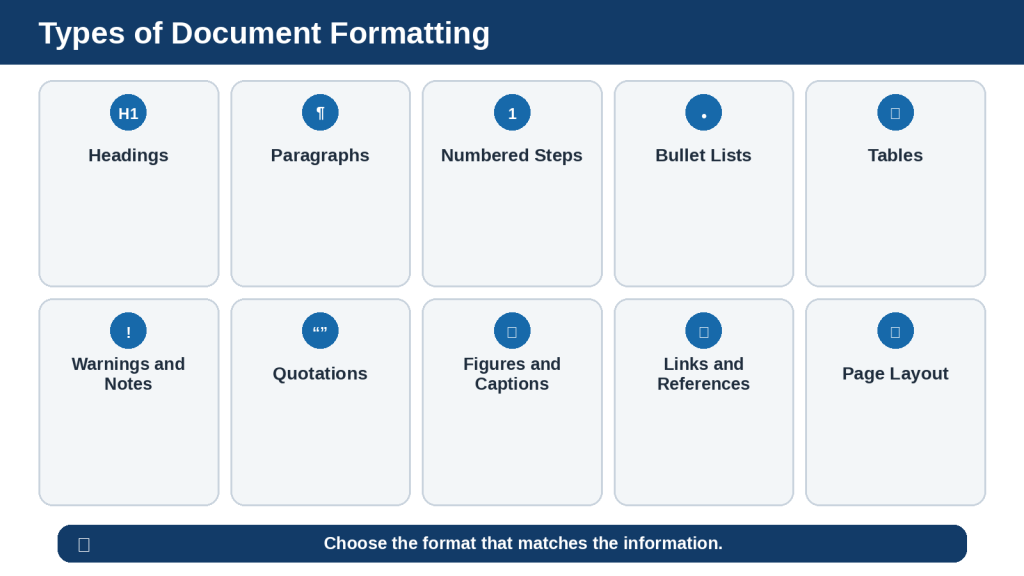
Figure 2. Different document elements require different formatting, including headings, paragraphs, lists, tables, captions, links, and page-layout settings.
Figure 2 shows that different information requires different formatting. Ordered actions use numbered steps, unordered information uses bullets, and comparisons may be clearer in a table.
What You Need Before Formatting a Document
Before formatting begins, prepare the file, the formatting rules, and the final destination.
The Correct File
Confirm that you are using the intended version.
An early draft
A proofread copy
A reviewed version
An approved version
A publication copy
Create a separate formatting copy, such as:
article-032-formatting-copy-july-2026.docx
Do not overwrite the original.
A Complete and Readable Document
Check that the file contains:
All pages and sections
Complete paragraphs
Complete lists
Readable tables
Correct figures
Captions
Links
References
Mark unreadable content as [Unclear in the source] rather than asking ChatGPT to guess.
The Purpose and Audience
Tell ChatGPT what the document is meant to do, who will read it, and whether it will be read online, printed, or both.
This is a beginner-friendly WordPress tutorial for adults with little technical experience.
The Final Program
WordPress
SoftMaker TextMaker
Microsoft Word
Google Docs
The same formatting may display differently in each program.
A Document Outline
1. Title
2. Introduction
3. Main sections
4. Subsections
5. Examples
6. Warnings or limitations
7. Frequently asked questions
8. Key takeaways
9. Sources and references
For AI Mastery articles, also record:
Article number
Figure numbers
Figure placements
Captions
Explanations
Internal-link locations
A Style Guide
| Element | Approved Format |
| Article title | H1 |
| Main sections | H2 |
| Subsections | H3 |
| Body text | Arial 12-point in DOCX |
| Alignment | Left |
| Ordered instructions | Numbered list |
| Unordered information | Bullet list |
| Important labels | Bold |
| Figure captions | “Figure X.” |
| Spelling | Canadian English |
Protected Content
Tell ChatGPT not to change:
Names
Dates
Numbers
Responsibilities
Deadlines
Ordered steps
Warnings
Conditions
Exceptions
Limitations
Quotations
Technical terms
Links
References
Uncertainty
Change the formatting only. Do not rewrite, shorten, summarize, correct, remove, or add information.
Privacy and Permission
Before uploading, inspect:
Main text
Tables
Comments
Tracked changes
Headers and footers
Images
File names
Document properties
Remove unnecessary private information and confirm permission to upload, format, share, and publish the document.
A Test Section
Begin with one section containing a heading, paragraphs, a list, and a warning, table, or figure when relevant.
Format the Introduction only as a test. Preserve every word and sentence. Stop before the next main section.
Keep the Original Document
Use the original to verify:
Section order
Paragraph content
List sequence
Table values
Figure placement
Captions
Links
References
Warnings and conditions
Save the formatted document as a separate version.
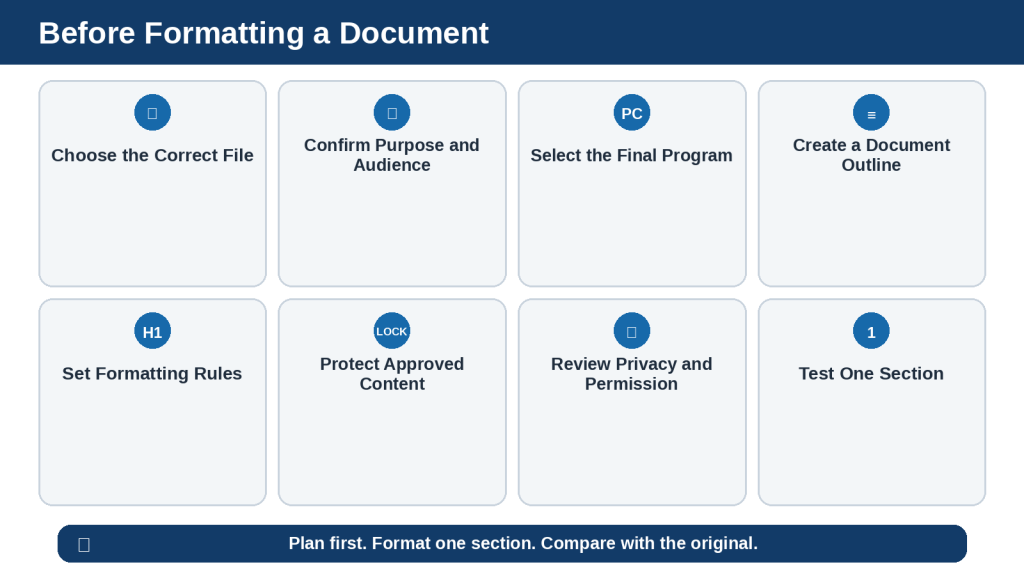
Figure 3. Preparing the file, formatting rules, protected content, privacy, and test section helps prevent inconsistent or inaccurate changes.
Figure 3 shows the main preparation checks to complete before formatting. A clear file, audience, destination, style guide, privacy review, and test section reduce inconsistent or inaccurate changes.
How to Upload and Format a Document with ChatGPT
ChatGPT supports common document, presentation, spreadsheet, and text formats, including PDF, DOCX, PPTX, TXT, XLSX, XLS, CSV, and TSV. Google Docs .gdoc files currently need to be exported to a supported format such as PDF or DOCX.
Step 1: Create a Formatting Copy
Keep the original unchanged. Use a filename such as:
article-032-formatting-copy-july-2026.docx
Step 2: Open a Dedicated Chat
Use one chat for the document, style rules, formatting plans, approved changes, and comparison checks.
Step 3: Upload the File
Select the attachment control near the message box. It may appear as a plus sign, paperclip, or similar control depending on the interface. Confirm that the correct filename appears.
Step 4: Ask ChatGPT to Identify the Structure
List the document title, headings, paragraphs, numbered lists, bullet lists, tables, figures, captions, links, and references. Do not format or rewrite anything yet.
Compare the response with the original.
Step 5: State the Purpose and Destination
This is a beginner-friendly WordPress tutorial. It will first be saved as a DOCX file for SoftMaker TextMaker and then transferred to WordPress.
Step 6: Provide the Style Rules
Use one H1 for the title, H2 for main sections, and H3 for subsections. Use numbers only for ordered steps and bullets for unordered information. Use Arial 12-point body text in the final DOCX. Keep all text left-aligned. Do not use horizontal divider lines.
Step 7: Protect the Content
Change formatting only. Preserve every word, fact, name, date, number, responsibility, deadline, warning, condition, quotation, technical term, link, reference, and uncertain phrase.
Step 8: Request a Formatting Plan
Ask for a table with these columns:
| Current Element | Suggested Format | Reason | Meaning Risk |
Do not allow changes until the plan is approved.
Step 9: Approve or Reject Suggestions
Approve the heading and bullet suggestions. Reject the proposed table because the information is easier to read as a list.
Step 10: Format One Test Section
Apply only the approved formatting to the Introduction. Preserve every word. Stop before the next H2 section.
Step 11: Continue Section by Section
1. Name the section.
2. Apply approved formatting.
3. Compare it with the original.
4. Correct problems.
5. Save the approved section.
6. Continue.
Step 12: Assemble the Document
1. Place sections in the correct order.
2. Check the heading hierarchy.
3. Check lists and tables.
4. Confirm figure numbering.
5. Check links and references.
6. Compare with the original.
Step 13: Preview the Final Layout
In TextMaker, check:
Arial 12-point body text
Heading appearance
Round bullets
Indentation
Paragraph spacing
Table width
Figure placement
Page breaks
Hyperlinks
In WordPress, check:
Heading blocks
Paragraph blocks
Lists
Tables
Images
Captions
Alt text
Links
Desktop, tablet, and mobile display
Step 14: Save the Approved Version
Use a filename such as:
article-032-formatted-approved-version-july-2026.docx
Complete Beginner Prompt
Review the uploaded document for formatting only. Do not rewrite, proofread, shorten, summarize, remove, or add information.
Use one H1 for the title, H2 for main sections, and H3 for subsections. Use numbered lists only when actions follow an order. Use bullets for unordered examples, options, benefits, limitations, and requirements.
Preserve every name, date, number, responsibility, deadline, warning, condition, exception, limitation, quotation, technical term, table value, figure number, caption, link, reference, and uncertain phrase.
First, list all proposed formatting changes in a table with the columns Current Element, Suggested Format, Reason, and Meaning Risk. Do not apply any changes until I approve them. Begin with the Introduction only.
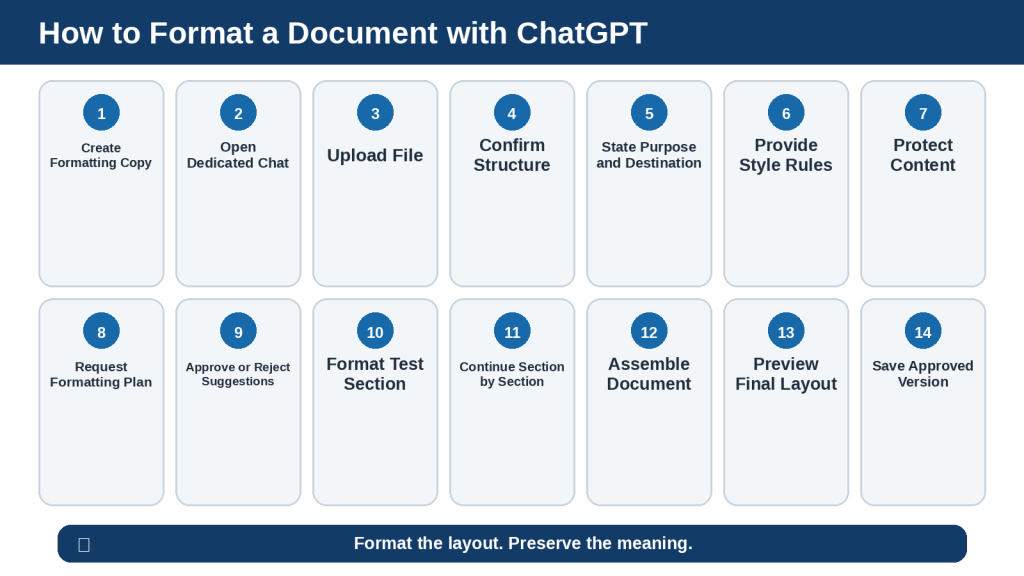
Figure 4. Formatting one section at a time allows the user to review the structure before completing the full document.
Figure 4 shows how a document can be formatted in controlled stages. Clear rules, content protection, a test section, section-by-section review, and final preview help preserve the document’s meaning.
How to Format a Long Document in Sections
Step 1: List Every Section
Titles
Headings
Subsections
Lists
Tables
Figures
Captions
Links
References
Appendices
Step 2: Number the Sections
Title and introductory details
Before Learning
What You’ll Learn
Introduction
Main sections
Practical examples
Benefits
Limitations
Frequently asked questions
Sources and references
Step 3: Create a Tracker
| Section | Status | Compared with Original | Final Check |
| Introduction | Approved | Complete | Complete |
| Main Section 1 | In progress | Not started | Not started |
| Benefits | Not started | Not started | Not started |
Useful status labels include:
Not started
In progress
Awaiting approval
Approved
Compared with original
Final check complete
Step 4: Apply One Style Guide
Use the same rules for every section.
Step 5: Format One Named Section
Format Section 4 – Introduction only. Preserve every word. Stop before Section 5.
Step 6: Check Each Element
Heading levels
Paragraph breaks
Numbered lists
Bullets
Tables
Warnings
Figures and captions
Links and references
Step 7: Compare with the Original
Ask ChatGPT to list anything that was added, removed, moved, rewritten, or separated from related content.
Step 8: Save the Approved Section
article-032-section-04-introduction-approved.docx
Step 9: Check Section Boundaries
Duplicate headings
Repeated paragraphs
Broken lists
Restarted figure numbering
Misplaced warnings
Citations under the wrong section
Step 10: Assemble and Review the Complete Document
No section is missing.
Heading levels remain logical.
Lists and figure numbers remain continuous.
Tables and figures are in the correct locations.
Links and references are complete.
The final layout works in its destination program.
Prompt for One Section
Format Section [number and title] only. Preserve every word, sentence, fact, number, warning, condition, quotation, link, and reference. Apply the approved heading, paragraph, list, table, figure, caption, and spacing rules. Do not rewrite, proofread, summarize, remove, or add information. After formatting, list every structural change. Stop before the next main section.
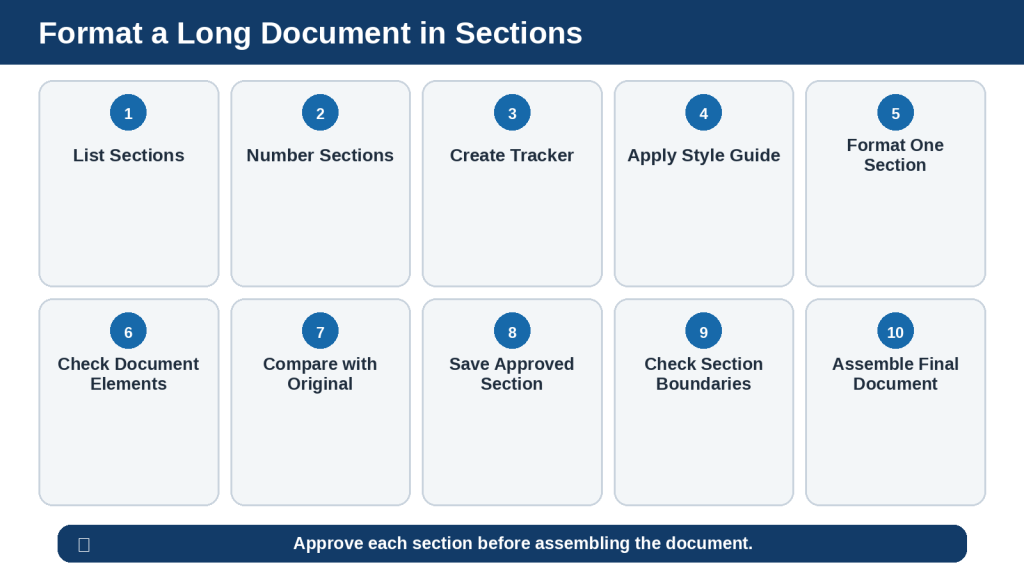
Figure 5. Formatting a long document in tracked sections makes structural changes easier to review and approve.
Figure 5 shows how a long document can be divided into tracked sections. Each section follows the same style guide and is compared with the original before the complete document is assembled.
How to Review ChatGPT’s Formatting Suggestions
Treat every formatting suggestion as a proposal.
Confirm That It Is Formatting Only
Acceptable changes may affect heading levels, paragraph breaks, list types, table structure, labels, caption placement, and spacing. They should not rewrite the content.
Check Heading Levels
The title uses H1.
Main sections use H2.
Subsections use H3.
Levels are not skipped.
Headings are not duplicated.
Ordinary bold text is not incorrectly treated as a heading.
Check Paragraph Breaks
Every sentence remains.
The original order is preserved.
Conditions stay with the statements they affect.
Warnings remain near related instructions.
Citations remain beside supported claims.
Check Lists
Does the order matter?
Is every item present?
Was a required step turned into an optional bullet?
Was unordered information incorrectly numbered?
Check Tables
Correct headings
Correct row and column relationships
Correct values
Correct units and dates
No missing cells
No unsupported calculations or summaries
Check Warnings and Notes
A warning must not become a tip.
Original:
Do not upload restricted information without permission.
Incorrect format:
Tip: Try not to upload restricted information.
Check Figures and Captions
The figure remains after the approved paragraph.
Numbering is continuous.
The caption is directly below the image.
The explanation follows the caption.
Alt text is included.
The figure is not duplicated.
Check Links and References
Descriptive link text remains attached to the correct URL.
Citations remain near supported statements.
Public links are used.
Reference titles remain complete.
Classify Suggestions
Necessary structural correction
Readability improvement
Consistency correction
Accessibility improvement
Optional design preference
Possible meaning risk
Requires manual review
Approval Table
| Suggestion | Decision | Reason |
| Change article title to H1 | Approve | Correct hierarchy |
| Convert ordered steps to bullets | Reject | Sequence matters |
| Divide long paragraph | Approve | Wording remains unchanged |
| Move warning to another section | Reject | Warning must stay near instruction |
Review Prompt
Review the proposed formatting changes against the original document. Classify each suggestion as Necessary Structural Correction, Readability Improvement, Consistency Correction, Accessibility Improvement, Optional Design Preference, Possible Meaning Risk, or Requires Manual Review. Identify anything that rewrites, removes, adds, moves, or separates approved content. Do not apply the changes.

Figure 6. Formatting suggestions should be reviewed for structure, readability, consistency, accessibility, and possible meaning changes.
Figure 6 shows the main formatting suggestions that require approval. Headings, paragraphs, lists, tables, warnings, figures, captions, links, and references should be reviewed before changes are accepted.
How to Verify a Formatted Document
A professional-looking document may still contain missing information or structural errors.
Keep Three Records
1. The original document
2. The approved formatting plan
3. The formatted document
Confirm That No Wording Changed
Added words
Removed words
Rewritten sentences
Changed terminology
Shortened warnings
Missing conditions
Modified quotations
Verify Headings
One H1
H2 for main sections
H3 for subsections
Logical order
No missing or duplicate headings
Verify Paragraphs
Every sentence remains present.
Paragraphs stay under the correct headings.
Warnings and citations remain correctly connected.
Spacing is consistent.
Verify Lists
For numbered lists:
The order must matter.
Every step must remain.
The sequence must remain correct.
For bullets:
Items must be unordered.
No item may be missing or duplicated.
Verify Tables
Headings are correct.
Values remain in the correct cells.
Units, dates, and notes remain.
The table is readable on mobile.
Verify Figures
Correct image
Correct filename
Continuous numbering
Correct placement
Caption directly below
Explanation directly below caption
Descriptive alt text
Readable visible text
Verify Links and References
Correct destination
Descriptive wording
Correct citation placement
Complete reference title
No editing-page URL
No unnecessary tracking parameter
Check Reading Order and Accessibility
Headings should communicate structure; links should describe their purpose; informative images need appropriate text alternatives; and tables need clear relationships between headings and data.
Preview the Final Program
TextMaker
WordPress
Desktop view
Tablet view
Mobile view
Verification Prompt
Compare the formatted document with the original and approved formatting plan. Report added, deleted, moved, or rewritten text; incorrect headings; missing sections; incorrect lists; table problems; misplaced figures and captions; broken links; reading-order concerns; and items requiring manual review. Do not make changes.
Reality: Formatting verification checks both the content and the final visual layout.
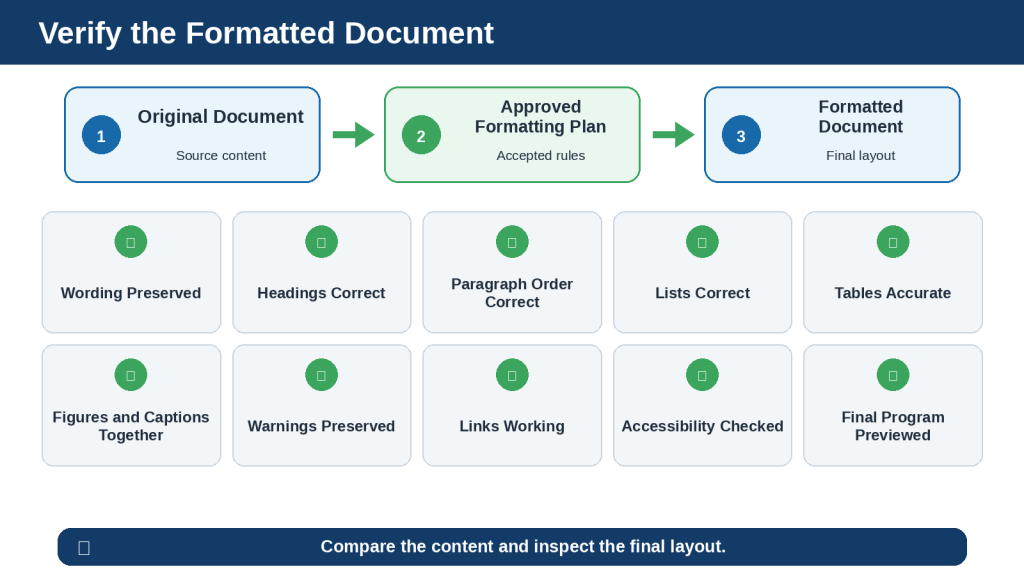
Figure 7. Final verification compares the original content, approved plan, and completed layout before the document is accepted.
Figure 7 shows that final verification compares the original document, approved formatting plan, and completed layout. Wording, structure, tables, figures, links, accessibility, and final display all require checking.
Practical Example: Formatting a Beginner-Friendly WordPress Tutorial
Original Unformatted Text
How to upload a document. Before uploading check that the file opens correctly, remove unnecessary private information and confirm that you have permission to use the document. Do not upload restricted information without permission. Open ChatGPT. Select the attachment option. Choose the correct file. Wait for the filename to appear. Confirm that the correct version was uploaded. Ask ChatGPT to identify the file before requesting changes. Benefits include easier review, faster access to important sections and the ability to ask focused questions.
The passage contains:
A section title
Preparation requirements
Ordered upload steps
A warning
Unordered benefits
Formatting Prompt
Format this passage for a beginner-friendly WordPress tutorial. Preserve the approved meaning and instructions. Use H2 for the main title and H3 for preparation, upload steps, and benefits. Use bullets for unordered preparation points and benefits. Use numbers for ordered actions. Format the permission instruction as a bold warning. Do not add, remove, summarize, or rewrite information.
Formatted Version
How to Upload a Document
Before Uploading
Before uploading:
Check that the file opens correctly.
Remove unnecessary private information.
Confirm that you have permission to use the document.
Warning: Do not upload restricted information without permission.
Upload the Document
1. Open ChatGPT.
2. Select the attachment option.
3. Choose the correct file.
4. Wait for the filename to appear.
5. Confirm that the correct version was uploaded.
6. Ask ChatGPT to identify the file before requesting changes.
Benefits
Benefits include:
Easier review
Faster access to important sections
The ability to ask focused questions
Why These Formats Were Used
H2 begins the main section.
H3 separates the three topics.
Preparation points and benefits use bullets because they are unordered.
Upload actions use numbers because they follow a sequence.
The permission instruction uses a bold warning label.
Content-Preservation Check
The file-opening check
Removal of unnecessary private information
Permission to use the document
The warning about restricted information
All six upload actions
All three benefits
WordPress Block Setup
Use a Heading block set to H2 for the main heading.
Use Heading blocks set to H3 for subsections.
Use a List block with bullets for preparation points and benefits.
Use a List block with numbers for upload steps.
Use a Paragraph block with a bold warning label.
Reality: Good formatting helps readers recognize preparation requirements, ordered actions, warnings, and benefits without changing what the document says.
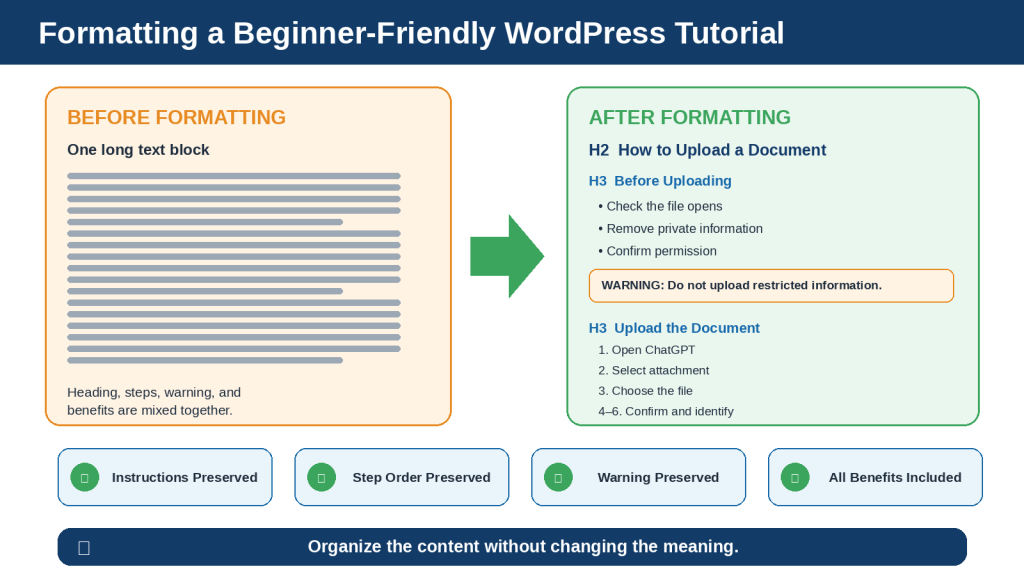
Figure 8. Headings, bullets, numbered steps, and warning labels make a WordPress tutorial easier to follow without changing its approved information.
Figure 8 shows how one long WordPress tutorial paragraph can become clear headings, preparation bullets, a warning, ordered upload steps, and benefit bullets while preserving the approved instructions.
Practical Example: Formatting a Workplace Procedure
Original Unformatted Procedure
Damaged equipment procedure. Employees must stop using equipment immediately if they notice visible damage, unusual sounds or possible malfunction. They must complete the equipment incident form before the end of the current shift and submit it to the shift supervisor. Include the equipment number, date, time and description of the problem. The shift supervisor sends the report to maintenance. Employees must not return the equipment to service until the maintenance manager provides written approval. An additional inspection may be required.
Information to Protect
Immediate action
All three warning signs
The equipment incident form
The current-shift deadline
The shift supervisor
All four form details
The supervisor’s responsibility
Maintenance involvement
Written approval from the maintenance manager
Must not
May be required
Formatted Version
Damaged Equipment Procedure
Warning Signs
Employees must stop using equipment immediately if they notice:
Visible damage
Unusual sounds
Possible malfunction
Report the Problem
1. Stop using the equipment immediately.
2. Complete the equipment incident form before the end of the current shift.
3. Submit the completed form to the shift supervisor.
4. The shift supervisor sends the report to maintenance.
Information to Include
Include:
Equipment number
Date
Time
Description of the problem
Return to Service
Warning: Employees must not return the equipment to service until the maintenance manager provides written approval.
An additional inspection may be required.
Formatting Decisions
Warning signs use bullets because they are alternatives.
Reporting actions use numbers because they follow a process.
Form details use bullets because they have equal importance.
The return-to-service restriction remains a warning.
The possible inspection remains a normal paragraph because it is not required in every case.
Formatting Mistakes to Reject
Incorrect: Numbering the warning signs
Reason: They are alternatives, not steps.
Incorrect: Changing must not to should avoid
Reason: This weakens the prohibition.
Incorrect: Replacing the deadline with as soon as possible
Reason: The source gives an exact deadline.
Incorrect: Making an additional inspection a required step
Reason: The source says it may be required.
Reality: Workplace procedures must remain operationally accurate after formatting.

Figure 9. Formatting separates warning signs, reporting steps, form information, and return-to-service conditions while preserving the procedure.
Figure 9 shows how a workplace procedure can be separated into warning signs, ordered reporting steps, required form information, and return-to-service conditions without changing deadlines or responsibilities.
Benefits of Formatting Documents with ChatGPT
Creates a Clear Starting Plan
The main title
Main sections
Subsections
Instructions
Examples
Warnings
Tables
Figures
References
Makes Information Easier to Find
Instructions
Warnings
Benefits
Limitations
Questions
Sources
Helps Choose the Correct Format
A paragraph
Numbers
Bullets
A table
A warning
A quotation
A caption
Improves Consistency
Heading levels
List styles
Capitalization
Paragraph spacing
Bold labels
Figure numbers
Caption punctuation
References
Helps Protect the Original Content
Added text
Missing text
Rewritten sentences
Changed list order
Moved warnings
Missing references
Makes Long Documents Easier to Manage
Test rules
Track progress
Review smaller amounts of content
Correct problems early
Prevent missing sections
Creates Reusable Formatting Rules
A style guide can be reused across future articles.
Helps Prepare Content for WordPress and TextMaker
ChatGPT can organize blocks, headings, lists, tables, captions, links, and references before the final manual setup.
Supports Accessibility Planning
Heading order
Link wording
Table headings
Alt text
Reading order
Colour-dependent information
Explains Formatting Decisions
Beginners can ask why a particular format is suitable.
Reality: ChatGPT can help plan, organize, compare, and explain document formatting. The final layout must still be checked manually.

Figure 10. ChatGPT can help plan document structure, choose suitable formats, improve consistency, and prepare content for its final program.
Figure 10 shows the main benefits of using ChatGPT to plan document formatting. It can improve structure, consistency, findability, content protection, long-document management, and preparation for the final program.
Limitations of Formatting Documents with ChatGPT
It May Change the Wording
A formatting request may produce rewritten or shortened text.
How to Reduce This Limitation: State that only presentation may change and compare the result with the original.
It May Use the Wrong Heading Level
ChatGPT may use H1 more than once, skip heading levels, turn a subsection into a main section, or treat bold text as a heading.
How to Reduce This Limitation: Provide the approved hierarchy and review every heading.
It May Choose the Wrong List Type
Benefits may be incorrectly numbered, or ordered steps may be changed to bullets.
How to Reduce This Limitation: Explain that numbers are for sequences and bullets are for unordered information.
It May Damage Table Relationships
A correct value may be placed in the wrong row or column.
How to Reduce This Limitation: Compare every table with the source.
It May Separate Related Content
Formatting may separate a warning from its instruction, a figure from its paragraph, a caption from its figure, or a citation from its statement.
How to Reduce This Limitation: Check the location and reading order of connected elements.
It May Be Inconsistent in Long Documents
It may restart numbering, change list punctuation, or forget earlier rules.
How to Reduce This Limitation: Use one style guide and work section by section.
It Cannot Control the Final Appearance
The destination program controls fonts, margins, tables, page breaks, image placement, and mobile display.
How to Reduce This Limitation: Inspect the final program manually.
Formatting May Change Between Programs
A DOCX file may display differently in TextMaker and Word. WordPress themes may also apply different styles.
How to Reduce This Limitation: Preview every important destination.
Wide Tables and Images May Fail on Mobile
Tables may require horizontal scrolling, and image text may become unreadable.
How to Reduce This Limitation: Use simple tables and preview all figures on mobile.
It Cannot Guarantee Accessibility
ChatGPT can suggest accessible structures, but it cannot confirm formal compliance.
How to Reduce This Limitation: Use appropriate testing tools and qualified guidance.
It May Overformat the Document
Too many headings, tables, colours, boxes, or bold paragraphs can reduce readability.
How to Reduce This Limitation: Use formatting only when it improves understanding.
It Does Not Verify the Facts
A professionally formatted document may still contain incorrect or outdated information.
How to Reduce This Limitation: Complete proofreading, fact-checking, and source review separately.
Privacy and Permission Risks Remain
Formatting does not remove privacy, copyright, confidentiality, or licensing responsibilities.
How to Reduce This Limitation: Confirm permission and remove unnecessary private information.
Reality: ChatGPT can help plan and organize formatting, but it cannot guarantee that the final document is accurate, accessible, consistent, visually correct, or ready to publish.
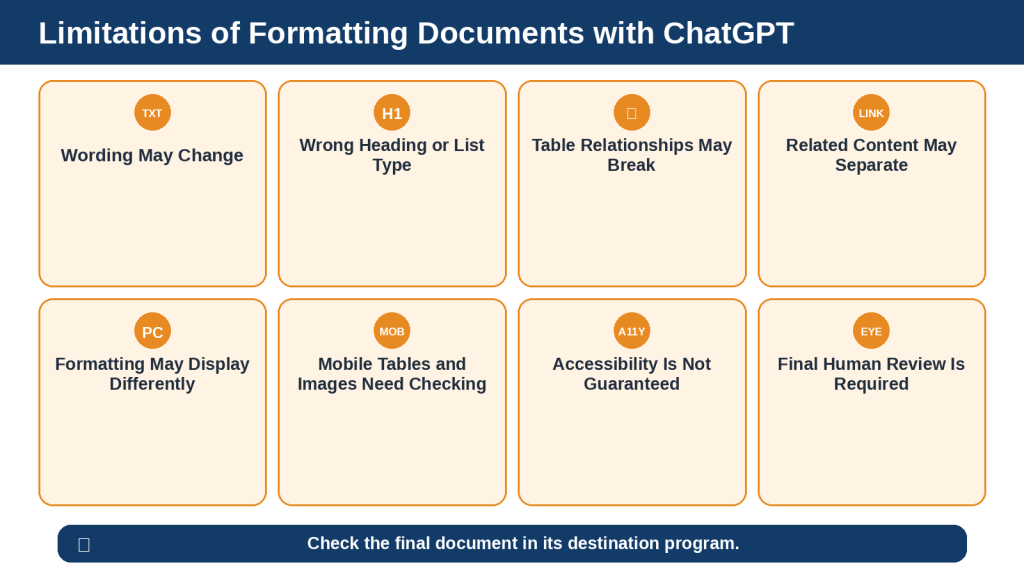
Figure 11. ChatGPT may change wording, select unsuitable formats, damage content relationships, or produce layouts that display differently in the final program.
Figure 11 shows the main limitations of AI-assisted formatting. Wording, heading levels, lists, tables, connected content, mobile display, accessibility, and final layout still require human review.
Common Formatting Mistakes
Formatting Before Proofreading
Errors may become harder to find after the layout becomes more complex.
How to Avoid This Mistake: Complete language and fact review before final formatting when possible.
Giving a Vague Request
“Make this look better” does not explain the required structure or protected content.
How to Avoid This Mistake: Provide heading, list, table, figure, and preservation rules.
Formatting the Entire Document at Once
This may cause missing sections and inconsistent styles.
How to Avoid This Mistake: Begin with a test section and continue one section at a time.
Using Bold Text Instead of Real Headings
Bold text does not provide the same document structure as a heading.
How to Avoid This Mistake: Use actual H1, H2, and H3 styles or Heading blocks.
Using Numbers for Unordered Information
Numbers can incorrectly suggest sequence or priority.
How to Avoid This Mistake: Use bullets for examples, options, benefits, and limitations.
Using Bullets for Ordered Steps
Bullets may hide the required sequence.
How to Avoid This Mistake: Use numbers when order affects the result.
Using Tables for Decoration
Decorative tables can be difficult on mobile and for assistive technology.
How to Avoid This Mistake: Use tables only when they clarify data relationships.
Moving Warnings Away from Instructions
Readers may miss the warning.
How to Avoid This Mistake: Keep warnings beside the content they affect.
Overusing Bold, Italic, Colour, or Callout Boxes
Too much emphasis makes it difficult to identify what is important.
How to Avoid This Mistake: Use restrained, consistent emphasis.
Ignoring Mobile Preview
Wide tables and small image text may not work on phones.
How to Avoid This Mistake: Preview desktop, tablet, and mobile layouts.
Forgetting Alt Text and Captions
Informative images need suitable text alternatives based on their purpose.
How to Avoid This Mistake: Add descriptive alt text, captions, and nearby explanations.
Overwriting the Original File
This removes the comparison copy.
How to Avoid This Mistake: Save a separate formatted version.
Skipping Final Visual Review
ChatGPT cannot see every final spacing or page-break problem.
How to Avoid This Mistake: Open the final document and inspect it from beginning to end.
Reality: Most formatting mistakes come from unclear rules, incorrect list choices, excessive decoration, or failure to check the final program.
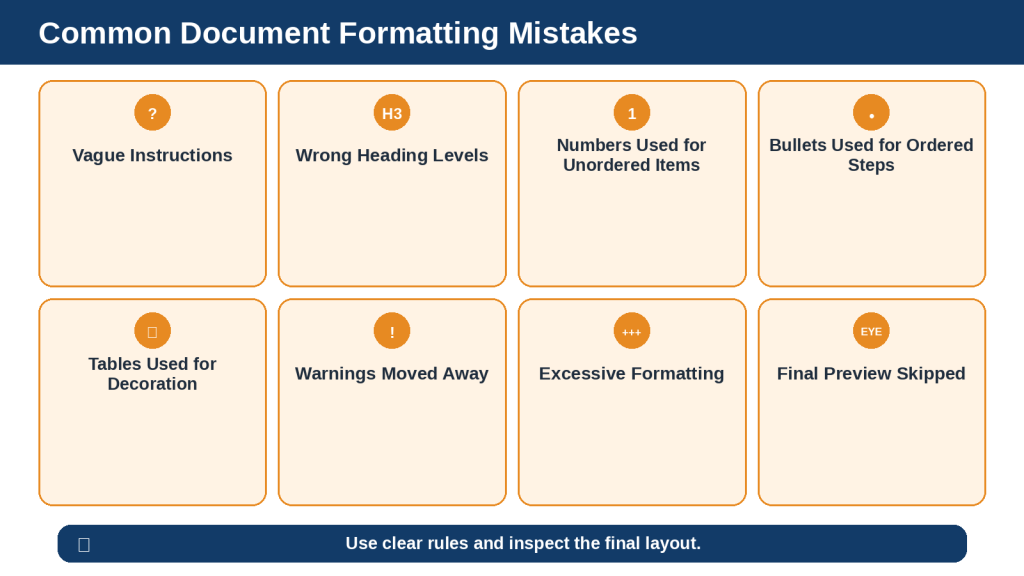
Figure 12. Common formatting mistakes include vague instructions, unsuitable lists, misplaced warnings, excessive styling, and skipped previews.
Figure 12 shows common document-formatting mistakes, including vague instructions, unsuitable headings or lists, decorative tables, misplaced warnings, excessive styling, and skipped final previews.
Common Myths About Document Formatting with ChatGPT
Myth 1: Formatting and Editing Are the Same
Reality: Formatting changes presentation. Editing changes wording.
Myth 2: More Formatting Always Looks Better
Reality: Excessive decoration can make information harder to read.
Myth 3: Numbers Always Look More Organized
Reality: Numbers should be used only when sequence or priority matters.
Myth 4: Bold Text Is the Same as a Heading
Reality: A real heading provides structural meaning that bold text alone does not.
Myth 5: A Table Is Always Better Than a List
Reality: Use a table only when rows and columns clarify relationships.
Myth 6: ChatGPT Can Apply the Final Layout Perfectly
Reality: The final program controls many visual details.
Myth 7: Formatting Cannot Change Meaning
Reality: Changing list order, warning placement, or table relationships can affect interpretation.
Myth 8: A Desktop Preview Is Enough
Reality: The document should also be checked on tablets and phones when published online.
Myth 9: Clear Formatting Guarantees Accessibility
Reality: Accessibility also involves headings, links, tables, alt text, reading order, contrast, and testing.
Myth 10: A Professional-Looking Document Is Ready to Publish
Reality: Facts, permissions, sources, links, accessibility, and final approval must still be checked.
Reality: ChatGPT is a formatting assistant, not the final document designer, fact-checker, accessibility auditor, or publisher.

Figure 13. Formatting myths can lead to unsuitable layouts, changed meaning, mobile problems, or premature publication.
Figure 13 compares common formatting myths with practical realities. The correct format depends on purpose, structure, audience, accessibility, and the destination program rather than decoration alone.
Privacy, Permission, Accessibility, and Responsible Use
Remove Unnecessary Private Information
Main text
Tables
Comments
Tracked changes
Headers and footers
Images
File names
Document properties
The Office of the Privacy Commissioner of Canada recommends limiting personal information shared with AI tools and reviewing privacy settings.
Review ChatGPT Data Controls
OpenAI currently provides Data Controls that allow users to manage whether new personal-account conversations may be used to improve its models. Temporary Chats do not appear in history or create memories and are deleted from OpenAI systems after 30 days under the stated current conditions.
These controls do not replace permission, confidentiality rules, or secure workplace procedures.
Understand File Retention
Files connected to chats and projects follow OpenAI’s current retention rules and may remain until the associated chat or project is deleted, subject to stated exceptions.
Check current official information before handling sensitive documents.
Confirm Permission
Upload the document
Reformat it
Share it
Publish it
Use it commercially
Canadian copyright generally protects original works, and ownership, licences, and moral rights may affect whether another person’s work can be changed or published.
This article provides general educational information and is not legal advice.
Preserve Meaning and Authorship
Hide limitations
Weaken warnings
Change responsibilities
Remove conditions
Alter quotations
Misrepresent the author’s position
Use Logical Headings
Headings should be nested according to their level so that readers and assistive technologies can understand the content structure.
Use Accessible Tables
Use tables for data, not layout, and provide clear headings and separate cells for separate pieces of information.
Add Suitable Alt Text
Alternative text should communicate the purpose or meaning of an informative image. Complex information should also be explained in nearby text.
Use Descriptive Links
Readers should be able to understand a link’s purpose from its wording or immediate context.
Do Not Rely Only on Colour
Approved
Rejected
Warning
Needs Review
Disclose AI Assistance When Appropriate
ChatGPT assisted with planning and reviewing the document formatting. The author reviewed and approved the final version.
Keep Records
Original document
Formatting copy
Prompts
Style guide
Approved and rejected changes
Permission records
Licence information
Accessibility review notes
Final approved version
Publication records
Responsible-Use Checklist
Unnecessary private information was removed.
Permission was confirmed.
Data Controls and retention were reviewed.
Copyright and licensing were considered.
Approved wording remained unchanged.
Headings, lists, tables, figures, links, and reading order were checked.
Accessibility received a separate review.
AI assistance was disclosed when appropriate.
The original and final versions were saved.
Reality: Responsible formatting protects privacy, permission, authorship, meaning, accessibility, and the people who use the document.
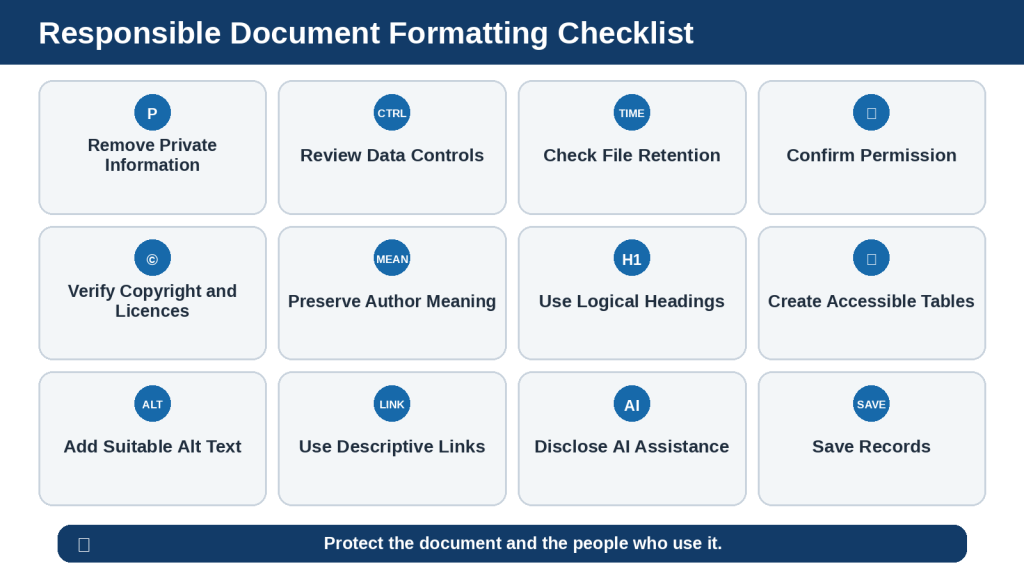
Figure 14. Responsible formatting includes privacy, permission, copyright, content preservation, accessibility, disclosure, and record keeping.
Figure 14 shows the responsible-use checks for document formatting. Privacy, Data Controls, retention, permission, copyright, meaning, headings, tables, alt text, links, disclosure, and records should all be reviewed.
Frequently Asked Questions
Can ChatGPT format an entire document?
Yes, but long documents are usually easier to control one section at a time.
Can ChatGPT apply Arial 12-point text?
ChatGPT can prepare a DOCX with Arial 12-point body text when the final file is requested. The document should still be opened and checked in TextMaker.
Should the article title be H1?
Yes. In WordPress, the post title is normally assigned H1 automatically, so headings inside the body normally begin with H2.
When should I use numbered lists?
Use numbers when actions follow an order or one step depends on another.
When should I use bullets?
Use bullets for examples, options, benefits, limitations, and other unordered information.
Should I use a table or a list?
Use a table when rows and columns clarify relationships. Use a list when the information does not need a grid.
Can ChatGPT format WordPress blocks?
ChatGPT can identify suitable block types and prepare the content. The blocks must still be checked in the WordPress editor.
Can ChatGPT guarantee that a document is accessible?
No. It can suggest improvements, but accessibility requires separate review and testing.
Can formatting change meaning?
Yes. Changing list order, warning placement, headings, or table relationships may change how information is understood.
Should I keep the original file?
Yes. Never overwrite the source document during experimental formatting.
Can I format and proofread at the same time?
It is usually safer to treat them as separate tasks so that language changes are easier to identify.
What should I check on mobile?
Check heading size, paragraph length, table width, image text, captions, links, and spacing.
What should I save?
Save the original, formatting copy, prompts, style guide, approval notes, final version, and publication records.
Key Takeaways
Formatting changes presentation, not meaning.
Keep the original file unchanged.
Identify the purpose, audience, and final program.
Use one H1, H2 for main sections, and H3 for subsections.
Use numbers for ordered steps and bullets for unordered information.
Use tables only when they clarify relationships.
Keep warnings near the instructions they affect.
Keep figures, captions, and explanations together.
Use descriptive links and suitable alt text.
Protect facts, deadlines, warnings, conditions, quotations, and uncertainty.
Work one section at a time.
Compare the formatted version with the original.
Preview TextMaker, WordPress, PDF, desktop, tablet, and mobile layouts as applicable.
Complete a separate privacy, permission, copyright, and accessibility review.
Save the final verified version separately.
The responsible person must approve the finished document.
Final Tip
Use ChatGPT to create the formatting plan before asking it to reorganize the document.
Compare this formatted document with the original. Do not rewrite anything. Identify missing, added, moved, or changed content; incorrect heading levels; unsuitable lists; table problems; misplaced warnings; missing captions; broken links; accessibility concerns; and items that require manual review in the final program.
A document is not finished until both its content and its final appearance have been checked.
Continue Learning
How to Analyze Documents with ChatGPT: Beginner Guide (2026)
How to Compare Documents with ChatGPT: Beginner Guide (2026)
How to Extract Information from Documents with ChatGPT: Beginner Guide (2026)
How to Ask Questions About Documents with ChatGPT: Beginner Guide (2026)
How to Create Tables and Charts from Documents with ChatGPT: Beginner Guide (2026)
How to Summarize Documents with ChatGPT: Beginner Guide (2026)
How to Translate Documents with ChatGPT: Beginner Guide (2026)
How to Rewrite and Simplify Documents with ChatGPT: Beginner Guide (2026)
How to Proofread and Edit Documents with ChatGPT: Beginner Guide (2026)
Sources and References
Source review date: July 29, 2026
OpenAI File Uploads, Privacy, and Retention
OpenAI Help Center – What Types of Files Are Supported? – Supports the explanation of common file formats and the current lack of direct .gdoc support.
OpenAI Help Center – Data Controls FAQ – Supports the explanation of Data Controls and Temporary Chat.
OpenAI Help Center – Chat and File Retention Policies in ChatGPT – Supports the file and conversation-retention guidance.
WordPress Formatting Guidance
WordPress.com Support – Add a Heading – Explains Heading blocks and heading levels, including WordPress’s automatic use of H1 for post and page titles.
WordPress.com Support – Write a List – Explains the List block for numbered and bulleted lists.
WordPress.com Support – Insert a Table – Explains the Table block and its row, column, header, and display controls.
WordPress.com Support – Add a Caption or Alt Text to an Image – Explains current image-caption and alt-text controls.
Accessibility Guidance
W3C Web Accessibility Initiative – Headings Tutorial – Explains logical heading levels and nesting.
W3C Web Accessibility Initiative – Tables Tutorial – Explains the use of data tables and meaningful data relationships.
W3C Web Accessibility Initiative – Images Tutorial – Explains text alternatives based on an image’s purpose.
W3C – Link Purpose in Context – Explains the importance of descriptive link text.
Canadian Privacy and Copyright Guidance
Office of the Privacy Commissioner of Canada – Privacy and Artificial Intelligence – Provides Canadian privacy information related to AI systems.
Office of the Privacy Commissioner of Canada – Principles for Responsible, Trustworthy and Privacy-Protective Generative AI – Explains responsibilities involving personal information, transparency, safeguards, and appropriate use.
Canadian Intellectual Property Office – A Guide to Copyright – Explains basic Canadian copyright protection and rights.
Features, policies, interfaces, and limits may change. Check official guidance when first using a feature, after a significant update, after changing plans or workspaces, when handling sensitive documents, and periodically.


Leave a Reply