
Estimated reading time: 28–32 minutes
Last updated: August 16, 2026
Introduction
Writing a clear email can take more time than expected. You may know what you want to say but still struggle with the opening, tone, wording, length, or ending.
AI can help you turn a rough idea into a more organized email. It can also help you rewrite a message so it sounds clearer, shorter, more professional, friendlier, or easier to understand.
For example, instead of spending several minutes trying to rewrite:
“Hi, I just want to ask if you had time to look at the document I sent because I need to know what you think before I continue.”
you could ask an AI tool:
“Rewrite this email so it is polite, clear, and professional. Keep it short.”
The AI might suggest:
“Hi, I’m following up to see whether you’ve had a chance to review the document I sent. I’d appreciate your feedback before I move forward. Thank you.”
AI can also help you:
· Draft an email from a few notes
· Improve grammar and spelling
· Make a message shorter
· Change the tone
· Create a clearer subject line
· Rewrite a difficult or sensitive message
· Organize a long email
· Translate or simplify wording
· Create different versions for different situations
However, an AI-generated email should not be sent automatically without review. AI can misunderstand your intention, invent details, choose an inappropriate tone, or include wording that does not match your situation.
You should always check names, dates, facts, attachments, promises, deadlines, and any sensitive information before sending an AI-assisted email.
In this guide, you will learn how to use AI to draft and improve emails step by step, write better prompts, avoid common mistakes, protect private information, and decide when AI assistance is useful.
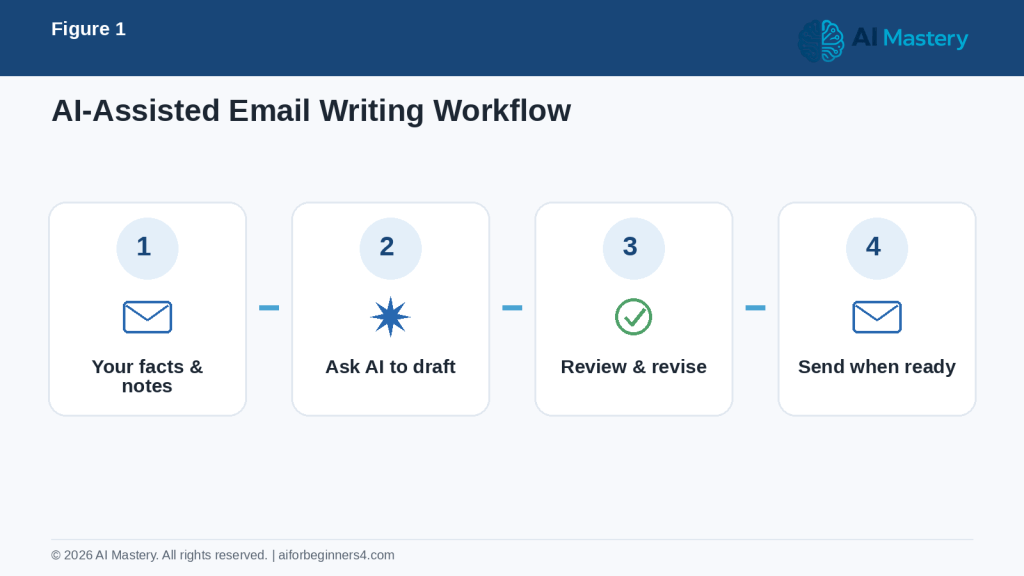
Figure 1. A simple AI-assisted email workflow from rough notes to final review.
Explanation: Start with your own facts, use AI to draft or improve the wording, review the result, and send only after checking the details.
Before You Start
You do not need advanced writing skills to use AI for email. You mainly need to know:
· Who the email is for
· What you want to say
· What action, if any, you want the reader to take
· The tone you want to use
· Any important facts that must remain accurate
Before using AI, gather the information you need so the tool does not have to guess.
For example, you might prepare:
· Recipient’s role or relationship to you
· Main purpose of the email
· Important dates or deadlines
· Documents or attachments you plan to mention
· Questions you want answered
· Preferred length
· Preferred tone
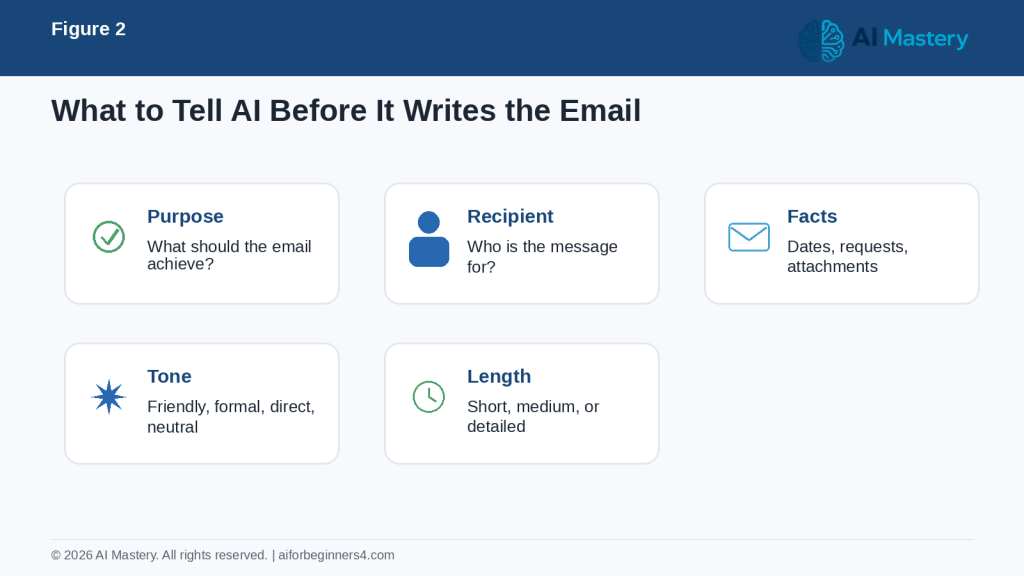
Figure 2. The main information to give AI before asking it to write an email.
Explanation: Purpose, recipient, facts, tone, and length give the AI useful context while helping you stay in control of the message.
Decide What You Want the Email to Achieve
A good email usually has one main purpose.
Examples include:
· Asking for information
· Following up
· Requesting a meeting
· Confirming an appointment
· Sending a document
· Thanking someone
· Apologizing
· Asking for help
· Giving an update
· Responding to a complaint
If you tell the AI the purpose clearly, it is more likely to produce a useful draft.
For example:
“Write a short professional email asking a supplier to confirm the delivery date.”
This is more useful than:
“Write an email.”
Protect Private and Sensitive Information
Avoid entering information that is not necessary for the writing task.
This may include:
· Passwords
· Account numbers
· Credit card details
· Government identification numbers
· Private medical information
· Confidential business information
· Personal information about other people
· Information you do not have permission to share
If the exact details are not needed, use placeholders.
For example:
“Write an email asking a customer to confirm their account information. Use [ACCOUNT NUMBER] as a placeholder.”
You can replace the placeholder yourself before sending the email.
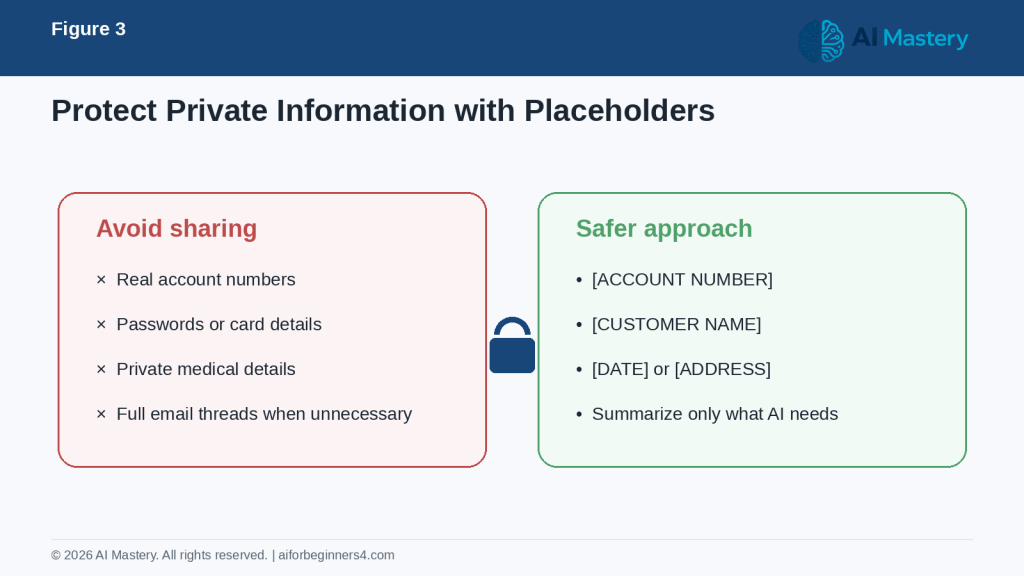
Figure 3. Use placeholders when private details are not necessary for the writing task.
Explanation: Removing unnecessary sensitive information reduces privacy risk while still giving the AI enough context to help with wording.
Keep the Original Facts
AI can improve wording, but it should not be allowed to change important facts.
If your original notes say:
“The meeting is Tuesday at 2:00 p.m.”
check that the final draft still says Tuesday at 2:00 p.m.
Do the same for:
· Names
· Dates
· Prices
· Deadlines
· Addresses
· Phone numbers
· File names
· Commitments
· Instructions
Reality: AI can make an email sound polished while still including a factual mistake. Always review the final message before sending it.
What You’ll Learn
By the end of this guide, you will know how to:
· Write a new email with AI from a few simple notes.
· Improve an email you have already written.
· Make an email clearer, shorter, or easier to understand.
· Change the tone without changing the main message.
· Create better subject lines.
· Write professional follow-up emails.
· Ask AI to make an email friendlier or more formal.
· Use placeholders instead of unnecessary private information.
· Check AI-generated emails for factual mistakes.
· Review names, dates, deadlines, attachments, and promises before sending.
· Avoid common mistakes when using AI for email.
· Decide when AI is useful and when you should write or review the message yourself.
You will also learn how to give AI enough context to produce a useful email without sharing more information than necessary.
The goal is not to let AI speak for you without review. The goal is to use AI as a writing assistant while keeping the final message accurate, appropriate, and consistent with what you actually want to say.
How AI Can Help You Write Better Emails
AI can help at different stages of email writing. You can use it before you start writing, while you are editing, or after you have finished a draft.
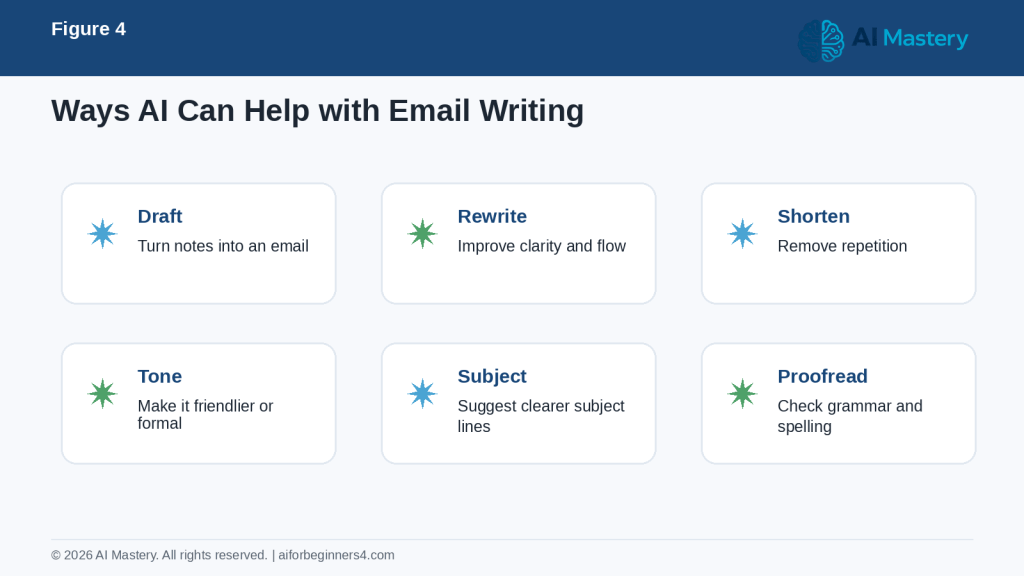
Figure 4. Common ways AI can assist with email writing and editing.
Explanation: AI can help draft, rewrite, shorten, adjust tone, suggest subject lines, and proofread, but every result should still be reviewed.
Turn Notes into a Complete Email
You can give AI a few short notes and ask it to turn them into a complete message.
For example:
“Write a polite email to my manager. Tell them I finished the report, attached the final file, and would like feedback before Friday.”
AI can organize those points into a clearer email with an opening, main message, and closing.
Improve an Email You Already Wrote
If you already have a draft, AI can help improve the wording without changing the main meaning.
For example:
“Improve this email. Keep the same facts, make it clearer, and do not make it longer.”
This can be useful when the message feels awkward, repetitive, or difficult to follow.
Make an Email Shorter
Long emails can be difficult to read.
You can ask:
“Shorten this email while keeping all important information and the request at the end.”
AI can remove repeated wording and make the message more direct.
Change the Tone
Tone is the way a message sounds to the reader.
You can ask AI to make an email:
· More professional
· More friendly
· More formal
· More polite
· More direct
· More reassuring
· More concise
For example:
“Rewrite this email so it sounds professional and friendly, not demanding.”
Be careful with sensitive situations. A tone that sounds appropriate to AI may not match the relationship you have with the recipient.
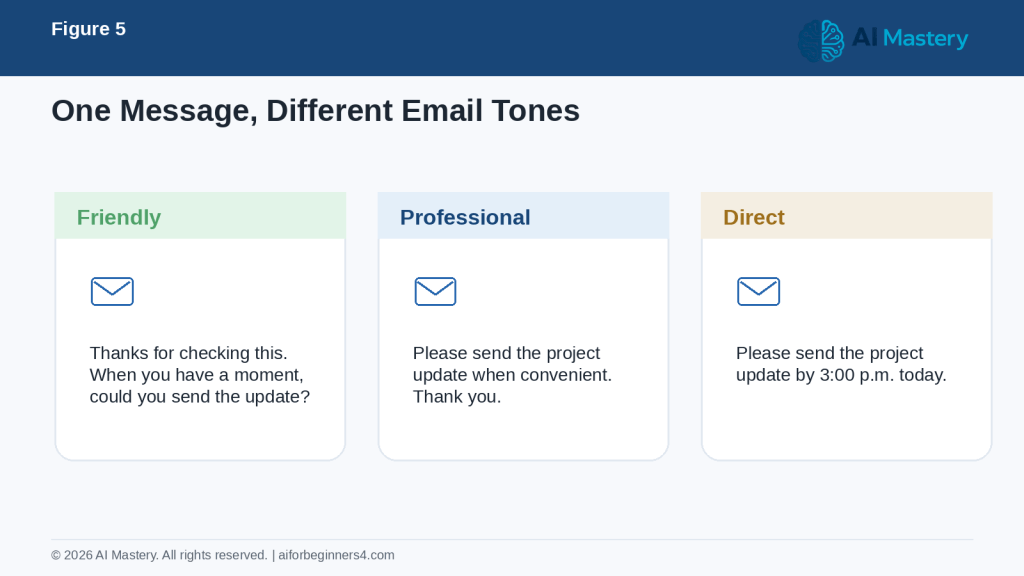
Figure 5. The same request can sound different depending on the tone you choose.
Explanation: Tell the AI whether you want friendly, professional, or direct wording, then check that the result fits the relationship and situation.
Create Better Subject Lines
A clear subject line helps the recipient understand the purpose of the email before opening it.
For example, instead of:
“Question”
you could ask AI for something more specific, such as:
“Question About Friday’s Project Deadline”
You can ask:
“Give me five short subject-line options for this email. Make them clear and professional.”
Improve Grammar and Spelling
AI can help identify awkward sentences, grammar problems, or spelling mistakes.
For example:
“Proofread this email for grammar, spelling, and clarity. Do not change the meaning.”
You should still review the result because AI may occasionally change a sentence in a way you did not intend.
Help with Difficult Messages
Some emails are harder to write because the situation is sensitive.
Examples include:
· Following up when someone has not replied
· Asking for payment
· Declining a request
· Correcting a misunderstanding
· Apologizing
· Responding to a complaint
· Asking for a deadline extension
AI can help you create a calmer first draft.
For example:
“Help me write a polite follow-up because I have not received a response. Keep the message respectful and brief.”
Reality: AI can improve wording and structure, but it cannot fully understand the relationship between you and the recipient. You should decide whether the final message is appropriate before sending it.
Step-by-Step: Write an Email with AI
You can create a useful email with AI by giving it a few clear details about the situation.
Step 1: Identify the Purpose
Start by deciding what the email needs to accomplish.
For example:
· Ask for information
· Send an update
· Request a meeting
· Follow up
· Confirm an appointment
· Ask for payment
· Thank someone
A clear purpose helps the AI stay focused.
Step 2: Identify the Recipient
Tell the AI who the email is for.
You do not always need to provide the person’s full name. Often, a role or relationship is enough.
For example:
· My manager
· A customer
· A supplier
· A teacher
· A colleague
· A landlord
· A service provider
Example:
“Write a professional email to a supplier asking for an update on a delayed delivery.”
Step 3: Provide the Important Facts
Give the AI the information that must appear in the message.
For example:
· What happened
· What you need
· Important dates
· Deadlines
· Relevant reference information
· Whether a document is attached
You could write:
“The order was expected on August 12. It has not arrived. Ask the supplier to confirm the new delivery date.”
This gives the AI enough context without unnecessary details.
Step 4: Choose the Tone
Tell the AI how you want the email to sound.
For example:
“Make the email polite, professional, and concise.”
Other useful instructions include:
· Friendly but professional
· Formal
· Warm and appreciative
· Direct but respectful
· Calm and neutral
Step 5: Ask for an Appropriate Length
You can tell the AI how long the message should be.
For example:
“Keep it under 150 words.”
or:
“Make it short enough to read quickly.”
This can help prevent the draft from becoming unnecessarily long.
Step 6: Ask AI to Draft the Email
A complete prompt might look like this:
“Write a short professional email to a supplier. The order was expected on August 12 but has not arrived. Ask them to confirm the new delivery date. Keep the tone polite and professional. Do not invent any information.”
Step 7: Review the Draft
Before sending the email, check:
· Is the purpose clear?
· Are the names correct?
· Are the dates correct?
· Is the tone appropriate?
· Is anything important missing?
· Did the AI add information you did not provide?
· Does the email make any promise you did not intend to make?
Step 8: Ask for Improvements if Needed
You can continue refining the draft.
For example:
“Make this slightly friendlier.”
“Shorten the second paragraph.”
“Make the request clearer.”
“Remove any wording that sounds too demanding.”
Step 9: Add Final Details Yourself
Before sending, add or confirm:
· Recipient name
· Your name
· Correct dates
· Attachments
· Contact information
· Any reference or account details that are genuinely necessary
How to Avoid This Mistake: Do not copy and send the first AI-generated draft without reading it. Even a well-written email can contain inaccurate details, an unsuitable tone, or wording that does not reflect what you actually mean.
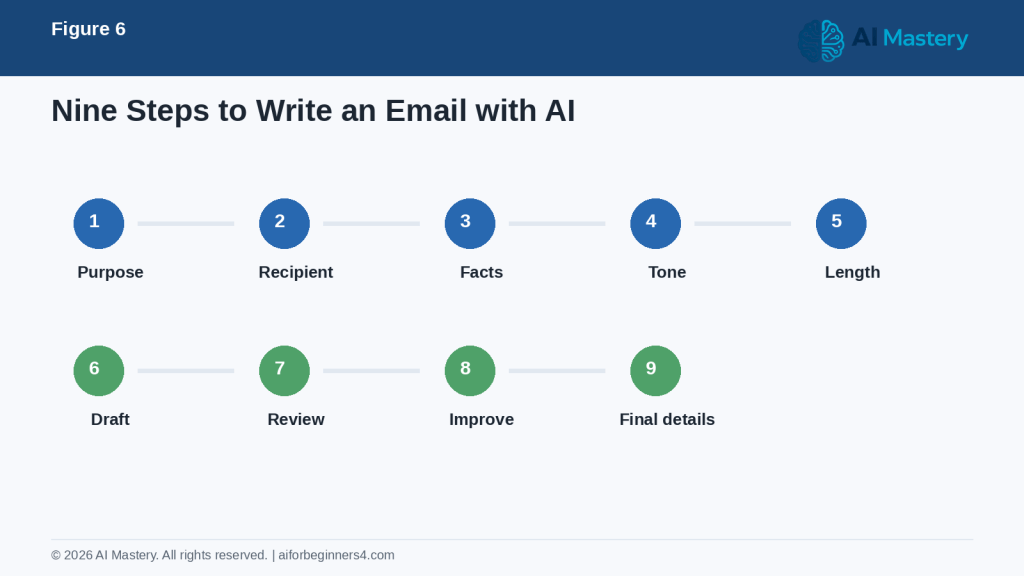
Figure 6. A nine-step beginner workflow for writing an email with AI.
Explanation: The process begins with purpose and recipient, then adds facts, tone, and length before drafting, reviewing, improving, and adding final details.
Useful AI Prompts for Writing and Improving Emails
Once you understand the basic process, you can save time by reusing simple prompts and changing only the details that matter for each email.
Prompt for Writing a New Email
“Write a professional email to [recipient or role]. The purpose is [purpose]. Include these important points: [points]. Keep the tone [tone] and the length [short/medium]. Do not invent any facts.”
Prompt for Improving an Existing Email
“Improve this email for clarity, grammar, and professionalism. Keep the same meaning and facts. Do not add new information.”
Then paste your draft below the instruction.
Prompt for Making an Email Shorter
“Shorten this email while keeping the important information, dates, and request. Remove repetition and unnecessary wording.”
Prompt for Making an Email Friendlier
“Rewrite this email so it sounds friendly and professional. Keep the message clear and do not make it too casual.”
Prompt for Making an Email More Formal
“Rewrite this email in a more formal and professional tone. Keep the same facts and request.”
Prompt for a Follow-Up Email
“Write a polite follow-up email because I have not received a response. Mention that I am following up on [subject]. Keep it brief and respectful.”
Prompt for Asking for a Meeting
“Write a short professional email asking for a meeting about [topic]. Suggest [date or time options] if appropriate. Keep the wording polite and flexible.”
Prompt for Sending an Attachment
“Write a short email explaining that I have attached [document]. Briefly state what the recipient should review and what response I need.”
Before sending, confirm that the attachment is actually included.
Prompt for Correcting a Mistake
“Write a professional email explaining that I need to correct information in my previous message. The correct information is [correct information]. Keep the tone calm and clear.”
Prompt for Declining a Request
“Write a polite email declining [request]. Keep it respectful, brief, and clear. Do not make promises I have not provided.”
Prompt for Asking for More Time
“Write a professional email requesting an extension until [date]. Explain briefly that I need additional time for [general reason]. Keep the message respectful and concise.”
Prompt for Checking Tone
“Review this email and tell me whether any wording could sound rude, demanding, confusing, or overly formal. Suggest small improvements without changing the main message.”
Prompt for Creating Subject Lines
“Give me five short, clear subject-line options for this email. Make them professional and specific.”
Prompt for Final Review
“Review this email before I send it. Check for unclear wording, grammar problems, missing information, accidental promises, and an inappropriate tone. Do not change any facts unless you point out the change first.”
Final Check Before Using Any Prompt: Replace placeholders with only the information needed for the email. Review every AI-generated draft yourself before sending it.
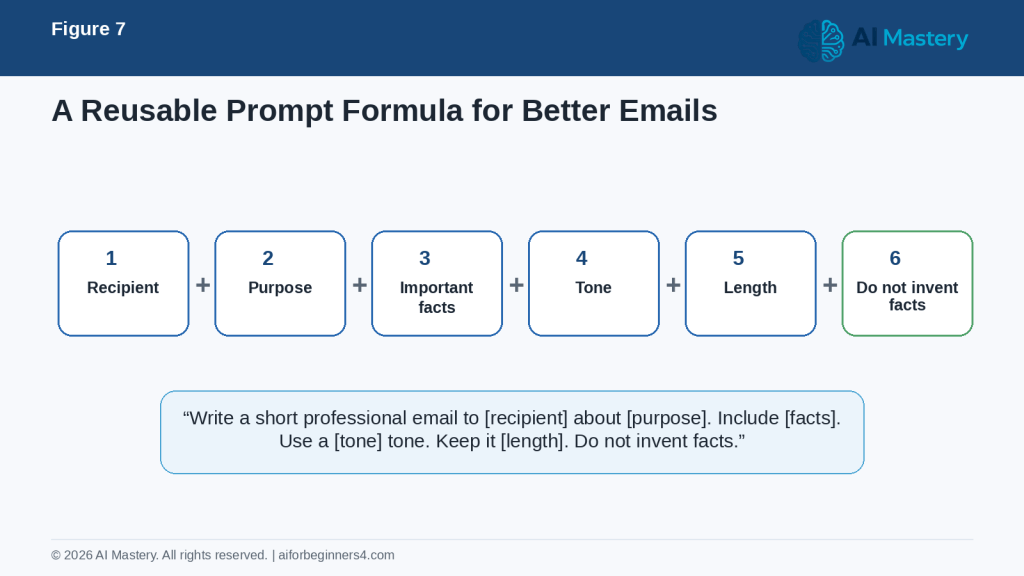
Figure 7. A reusable prompt formula for creating clearer AI-assisted emails.
Explanation: A strong prompt combines recipient, purpose, important facts, tone, length, and an instruction not to invent information.
Practical Example: Turn Rough Notes into a Professional Email
Suppose you need to ask a supplier about a delayed order.
Your rough notes might be:
· Order expected August 12
· Still not received
· Need new delivery date
· Keep message polite
· Need answer soon
You could give AI this prompt:
“Write a short professional email to a supplier. The order was expected on August 12 but has not arrived. Ask them to confirm the new delivery date. Keep the tone polite and professional. Do not invent any information.”
A possible draft could be:
Subject: Request for Updated Delivery Date
Hello,
I’m following up regarding the order that was expected on August 12 but has not yet arrived.
Could you please confirm the updated delivery date when convenient?
Thank you for your assistance.
Best regards,
[Your Name]
Why This Draft Works
The email is useful because it:
· States the purpose quickly.
· Includes the important date.
· Clearly asks for the information needed.
· Uses a polite and professional tone.
· Avoids unnecessary details.
· Does not accuse the supplier or make assumptions.
Improve It Further
You can ask AI to make small changes.
For example:
“Make the email slightly warmer.”
or:
“Make the request more direct but still polite.”
or:
“Give me three alternative subject lines.”
Check the Facts Before Sending
Before you send the email, confirm:
· The expected delivery date is correct.
· The correct supplier is receiving the message.
· The order or reference number is included if necessary.
· You have not accidentally added information that was not in your original notes.
· The tone matches your relationship with the recipient.
Another Example: Improving a Rough Email
Your original draft might say:
“Hi, I sent you the document before and I don’t know if you saw it. I need your answer because I have to continue.”
You could ask:
“Rewrite this email so it is polite, professional, and concise. Keep the same meaning.”
A clearer version could be:
“Hi,
I’m following up on the document I sent earlier. When you have a chance, please let me know whether you have reviewed it, as I need your feedback before moving forward.
Thank you.”
The main information stays the same, but the message is easier to read and sounds more professional.
Reality: A polished email is only useful when it still reflects the facts and your actual intention. Always compare the AI-generated version with your original notes before sending it.
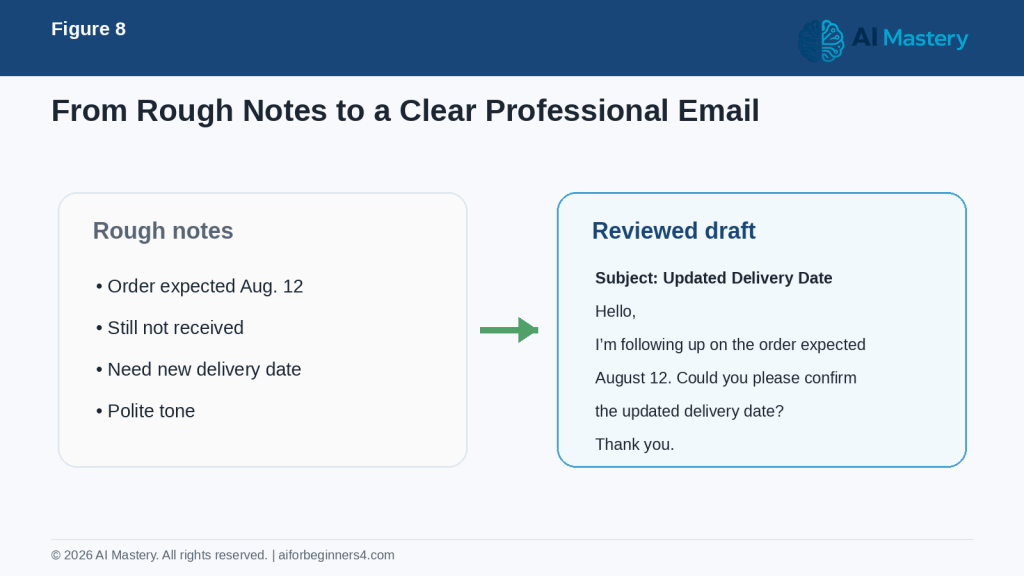
Figure 8. AI can turn rough notes into a clearer draft while keeping the original facts.
Explanation: The AI can organize the wording, but the sender must verify dates, requests, and other details before using the draft.
Benefits of Using AI for Email Writing
AI can make email writing faster and easier, especially when you know what you want to say but are unsure how to phrase it.
Helps You Start More Quickly
A blank email can sometimes be the hardest part.
Instead of trying to write the perfect opening, you can give AI a few notes and ask it to create a first draft.
For example:
“Write a short email asking a customer to confirm whether they received the invoice.”
You can then review and edit the draft rather than starting from nothing.
Helps Improve Clarity
AI can help reorganize sentences that are confusing, repetitive, or too long.
You might ask:
“Rewrite this email so the main request is easier to understand.”
This can be useful when the original message contains too many details or the main point is hidden.
Helps Adjust Tone
The same information can sound very different depending on how it is written.
AI can help you make a message:
· More professional
· More friendly
· More formal
· More concise
· More neutral
· More polite
This can be especially helpful when writing to someone you do not know well.
Helps Reduce Repetition
Long emails often repeat the same point in several different ways.
AI can help remove unnecessary wording while keeping the important information.
For example:
“Shorten this email by removing repetition. Keep all dates, facts, and action items.”
Helps with Grammar and Spelling
AI can help identify grammar problems, spelling mistakes, and awkward wording.
This can be useful when English is not your first language or when you want a second review before sending an important message.
Helps Create Different Versions
You can ask AI to produce more than one version of the same email.
For example:
“Give me three versions of this email:
· one very short,
· one friendly and professional,
· one more formal.”
Comparing versions can help you decide which tone fits the situation best.
Helps with Repetitive Email Tasks
If you often send similar types of emails, AI can help you create reusable templates.
Examples include:
· Appointment confirmations
· Follow-up messages
· Requests for information
· Thank-you emails
· Project updates
· Delivery inquiries
· Meeting requests
You should still customize each message before sending it.
Can Help Build Writing Confidence
Reviewing AI suggestions can help you notice clearer ways to structure an email, write a subject line, make a request, or close a message.
Over time, you may need less help for common types of emails.
Benefit: AI is most useful when it helps you express your own message more clearly and efficiently. The final email should still sound appropriate for you and accurately represent what you mean.
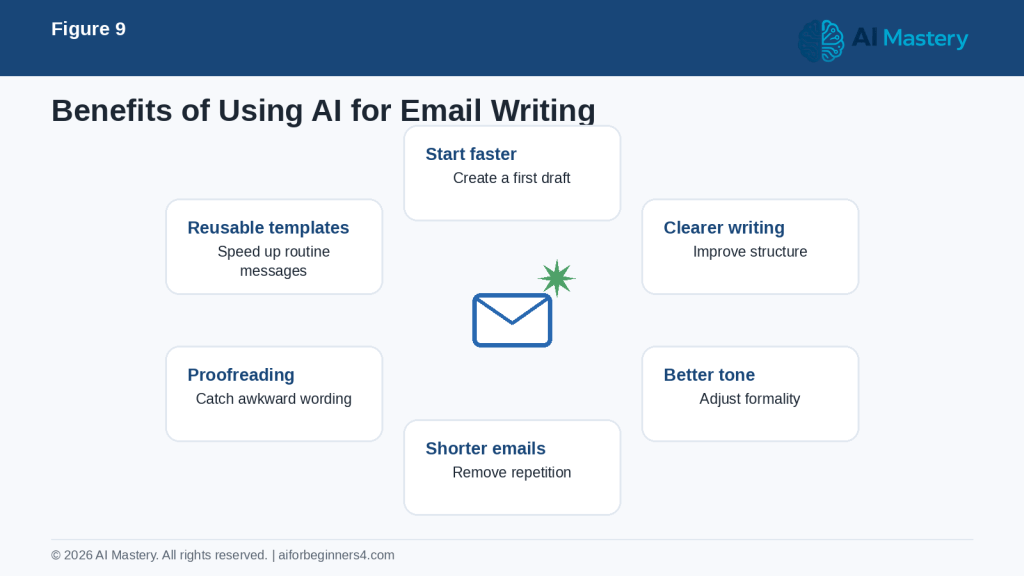
Figure 9. Common benefits of using AI as an email-writing assistant.
Explanation: AI can help you start faster, improve clarity and tone, shorten messages, proofread, and create reusable templates.
Limitations and Common Mistakes
AI can improve email writing, but it can also create problems if you trust the draft without checking it carefully.
Limitation: AI Can Invent Details
AI may add information that sounds reasonable even when you did not provide it.
For example, it might add:
· A deadline
· A date
· A promise
· A reason for a delay
· A meeting time
· A delivery estimate
How to Reduce This Limitation: Tell the AI:
“Do not invent any facts, dates, promises, or explanations.”
Then compare the draft with your original information before sending it.
Limitation: The Tone May Be Wrong
An email can be grammatically correct but still sound too formal, too casual, too cold, or too demanding.
How to Reduce This Limitation: Tell the AI who the recipient is and what tone you want.
For example:
“Rewrite this for a customer. Make it professional, warm, and respectful.”
Limitation: AI Does Not Fully Understand Your Relationship
AI does not know the full history between you and the recipient unless you explain it.
A message to a close colleague may need a different tone from a message to a new customer or senior manager.
How to Reduce This Limitation: Give only the relevant relationship context without sharing unnecessary private information.
Common Mistake: Sending the First Draft Without Reviewing It
A polished draft can make it easy to assume everything is correct.
How to Avoid This Mistake: Always read the entire email before sending it.
Check:
· Names
· Dates
· Facts
· Deadlines
· Attachments
· Tone
· Requests
· Promises
· Contact details
Common Mistake: Sharing Too Much Private Information
Some users paste entire email threads or confidential information into an AI tool when only a small amount of context is needed.
How to Avoid This Mistake: Remove unnecessary personal, confidential, financial, medical, or business information.
Use placeholders where possible.
For example:
“Please rewrite this message and keep [CUSTOMER NAME] and [ACCOUNT NUMBER] as placeholders.”
Common Mistake: Letting AI Change the Meaning
A rewrite can sometimes make a message sound stronger or weaker than you intended.
For example, AI might change:
“I hope to finish this by Friday.”
into:
“I will finish this by Friday.”
The second sentence is a stronger commitment.
How to Avoid This Mistake: Ask:
“Improve the wording without changing the meaning, level of certainty, or commitments.”
Common Mistake: Forgetting the Attachment
An AI-generated email may say:
“I have attached the document.”
but the file may not actually be attached.
How to Avoid This Mistake: Before sending, confirm that every attachment mentioned in the email is included.
Common Mistake: Making the Email Too Long
AI can sometimes produce a long explanation when a short message would be better.
How to Avoid This Mistake: Give a clear length instruction.
For example:
“Keep this email under 120 words.”
Common Mistake: Using an AI Draft That Does Not Sound Like You
A message may be technically correct but feel unnatural or overly formal.
How to Avoid This Mistake: Ask AI to simplify the language or make the message sound more natural.
For example:
“Make this professional but simple. Avoid complicated words and overly formal phrases.”
Common Mistake: Using AI for Sensitive Messages Without Extra Review
Messages involving complaints, legal issues, employment matters, health information, financial disputes, or serious personal situations can have important consequences.
How to Avoid This Mistake: Review these messages especially carefully and obtain appropriate professional advice when necessary.
Reality: AI is a writing assistant, not a substitute for your judgment. The final responsibility for the message remains with the person sending it.
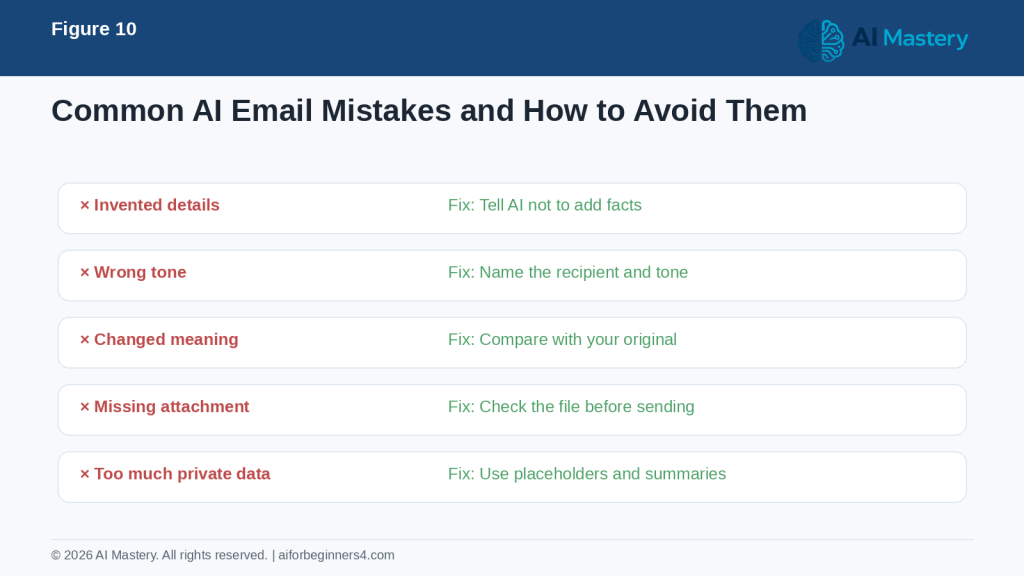
Figure 10. Common AI email mistakes and simple ways to reduce them.
Explanation: The most important safeguards are preventing invented details, checking tone and meaning, confirming attachments, and protecting private information.
Common Myths About Using AI for Email
AI can be very helpful for email writing, but it is important to understand what it can and cannot do.
Myth 1: AI Will Always Write the Perfect Email
AI can produce polished wording, but the first draft may still be too long, too formal, too vague, or factually incorrect.
Reality: Treat the first draft as a starting point. Review it and ask for changes when needed.
For example:
“Make this shorter and more direct.”
Myth 2: If the Grammar Is Correct, the Email Is Ready to Send
Good grammar does not guarantee that the message is appropriate.
An email can still contain:
· Incorrect facts
· The wrong tone
· An unclear request
· An accidental promise
· Missing information
Reality: Check both the writing and the meaning before sending.
Myth 3: AI Knows the Best Tone for Every Situation
AI can suggest a tone, but it does not fully understand your relationship with the recipient.
Reality: Tell the AI whether the email should be formal, friendly, direct, neutral, or reassuring, and decide whether the result fits the situation.
Myth 4: AI Can Safely Handle Any Information I Paste Into It
Some email content may contain private, confidential, financial, medical, or business information.
Reality: Share only the information needed for the writing task and use placeholders when possible.
Myth 5: AI Will Never Change My Meaning
Even when you ask for a simple rewrite, AI may accidentally change certainty, tone, or commitment.
For example:
“I may be available on Friday.”
could become:
“I am available on Friday.”
These statements do not mean the same thing.
Reality: Compare important statements with your original wording.
Myth 6: AI-Written Emails Always Sound Artificial
AI-generated emails can sound natural when the prompt is clear and the draft is edited.
You can ask:
“Make this professional but simple and natural. Avoid overly formal phrases.”
Reality: The final message should be reviewed and adjusted so it sounds appropriate for you.
Myth 7: AI Can Replace My Judgment
AI can help with wording, structure, grammar, and tone, but it cannot take responsibility for the message.
Reality: You remain responsible for deciding what to say, what information to include, and whether the email should be sent.
The best use of AI is to support your writing, not to make every communication decision for you.
When to Use AI and When to Write the Email Yourself
AI is useful for many everyday emails, but it is not equally suitable for every situation. The more sensitive or important the message is, the more carefully you should review it.
Good Uses for AI Email Assistance
AI can be helpful for:
· Routine follow-up emails
· Meeting requests
· Appointment confirmations
· Thank-you messages
· Project updates
· Delivery inquiries
· Requests for information
· Simple customer-service messages
· Rewriting a draft for clarity
· Shortening a long email
· Improving grammar and spelling
· Creating subject-line options
For these situations, AI can save time by creating a first draft that you review and customize.
Use Extra Care with Sensitive Emails
Some messages may have legal, financial, employment, medical, or personal consequences.
Examples include:
· Employment disputes
· Formal complaints
· Contract disagreements
· Financial disputes
· Legal notices
· Medical information
· Disciplinary matters
· Serious personal conflicts
AI may help you organize your thoughts, but these messages require careful human review.
If the consequences are significant, consider appropriate professional advice before sending the email.
Write More Personally When the Relationship Matters
Some messages are better when they sound clearly personal.
Examples include:
· Condolences
· Personal apologies
· Important congratulations
· Emotional family messages
· Sensitive relationship discussions
· Messages of appreciation to someone close to you
AI can help you organize wording, but the final message should reflect your own feelings and relationship with the recipient.
Use AI as an Editor Instead of the Author
You do not always need AI to write the entire email.
You can write the message yourself and ask:
“Check this email for clarity and grammar. Keep my wording and tone as much as possible.”
This approach can be useful when you want the message to remain strongly in your own voice.
Decide How Much Help You Need
You can use AI at different levels:
1. Idea level — Ask for suggestions about what the email should include.
2. Draft level — Ask AI to create a first version from your notes.
3. Editing level — Write the email yourself and ask AI to improve it.
4. Proofreading level — Ask AI only to check grammar, spelling, and clarity.
You do not need to use the same approach for every email.
Reality: The best role for AI depends on the message. Routine emails may need only a quick review, while important or sensitive emails deserve much more careful human attention.
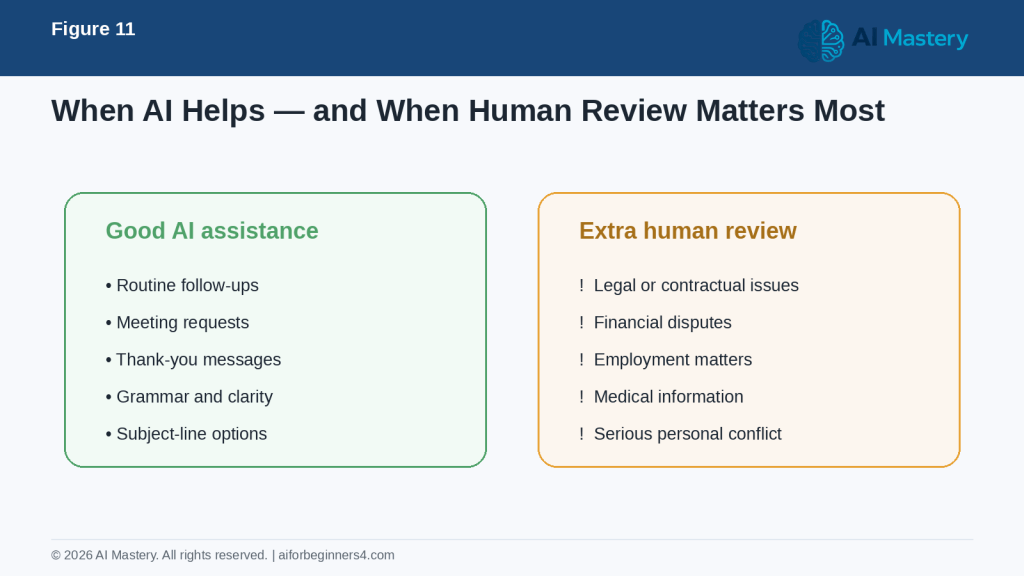
Figure 11. Routine emails are suitable for AI assistance, while sensitive messages need extra human review.
Explanation: The higher the possible consequence of a mistake, the more important careful human review and appropriate professional advice become.
Privacy, Security, and Responsible Use
Emails can contain personal, confidential, or sensitive information. When using AI to help write or improve an email, think carefully about what you paste into the tool.
Remove Unnecessary Sensitive Information
Before sharing an email draft with AI, remove details that are not needed for the writing task.
Examples include:
· Passwords
· Banking information
· Credit card numbers
· Government identification numbers
· Private medical details
· Confidential company information
· Customer information
· Personal addresses
· Private information about another person
Instead of using real details, you can use placeholders such as:
· [CUSTOMER NAME]
· [ACCOUNT NUMBER]
· [ADDRESS]
· [ORDER NUMBER]
· [DATE]
Then add the correct information yourself after the wording is finished.
Be Careful with Entire Email Threads
A long email conversation may contain far more information than AI needs.
Instead of pasting the entire thread, you can summarize the situation.
For example:
“Help me write a polite response to a customer who is asking for an update on a delayed order. I need to explain that I am checking the status and will respond when I have confirmed information.”
This gives the AI enough context without sharing the full conversation.
Check Who Should Receive the Email
Before sending an AI-assisted email, confirm:
· The correct recipient is selected.
· People copied with CC really need the message.
· BCC is used appropriately when needed.
· Sensitive information is not being sent to unintended recipients.
· Attachments contain only the information you intend to share.
AI can help write the message, but it cannot prevent every sending mistake.
Be Careful with Attachments
If an email mentions an attachment, check the file before sending.
Confirm:
· The correct file is attached.
· The filename is appropriate.
· The document does not contain hidden or unnecessary information.
· You have permission to share it.
· The attachment does not include confidential information that the recipient should not receive.
Do Not Use AI to Impersonate Someone
AI should not be used to create emails that falsely pretend to come from another person or organization.
This is especially important when the message could affect:
· Money
· Employment
· Account access
· Identity
· Business decisions
· Personal reputation
If AI helped you draft the email, make sure the final message still accurately represents you and your intentions.
Check Important Claims
If an email includes factual statements, confirm them before sending.
This may include:
· Prices
· Policies
· Deadlines
· Product details
· Delivery dates
· Legal requirements
· Financial information
· Medical information
AI may produce confident wording even when the underlying information is incomplete or incorrect.
Reality: Using AI to improve an email does not remove your responsibility for privacy, accuracy, permission, and appropriate communication. Review the final message and attachments before you send them.
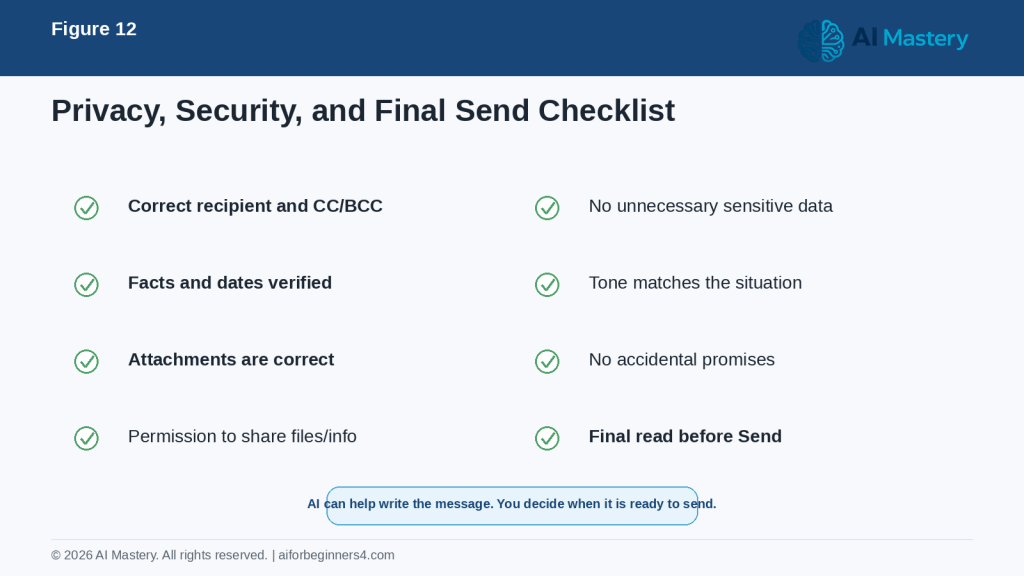
Figure 12. A final privacy, security, and sending checklist for AI-assisted emails.
Explanation: Before sending, confirm the recipient, privacy, facts, tone, attachments, permissions, and any commitments in the message.
How to Make AI-Written Emails Sound More Natural
AI-generated emails can sometimes sound too formal, too polished, or unlike the way you normally communicate. You can improve the result by giving the AI clearer style instructions and making a few final edits yourself.
Ask for Simple Language
If the email sounds too complicated, ask:
“Rewrite this in simple, natural language. Keep it professional and easy to understand.”
This can help remove unnecessary formal phrases and overly complex wording.
Ask the AI to Match Your Preferred Tone
You can describe the tone you normally use.
For example:
“Make this sound friendly, respectful, and professional, but not too formal.”
or:
“Keep this direct and concise. Avoid long introductions.”
The more specific your instruction is, the easier it is for AI to produce a suitable draft.
Keep Some of Your Own Wording
If you want the email to sound more like you, write the first version yourself and ask AI to improve it lightly.
For example:
“Improve the grammar and clarity of this email, but keep my wording and tone as much as possible.”
This often preserves more of your own voice than asking AI to write the entire message from scratch.
Remove Overly Formal Phrases
AI may sometimes use expressions such as:
· “I hope this message finds you well.”
· “I am writing to kindly inquire…”
· “Please do not hesitate to reach out…”
· “At your earliest convenience…”
These phrases are not necessarily wrong, but they may sound too formal or repetitive depending on the situation.
You can ask:
“Make this email more natural and remove unnecessary formal phrases.”
Avoid Unnecessary Enthusiasm
AI can sometimes add too much enthusiasm, especially in business messages.
For example:
“I’m absolutely thrilled to connect with you!”
may not fit a routine professional email.
You can ask:
“Keep the tone warm but neutral. Avoid exaggerated enthusiasm.”
Read the Email Out Loud
Reading the message aloud can help you notice wording that feels unnatural.
Ask yourself:
· Would I normally say this?
· Is the message too formal?
· Is any sentence too long?
· Does the request sound clear?
· Does the email sound respectful?
If something feels unnatural, simplify it.
Keep Your Signature Consistent
AI may create a closing that does not match how you normally end emails.
Choose a closing that fits the situation, such as:
· Best regards,
· Kind regards,
· Thank you,
· Thanks,
· Sincerely,
Then use your own name and normal signature details.
Final Tip for Natural Email Writing: Use AI to improve your message, but make the final version sound like something you would actually send.
Frequently Asked Questions
Can AI write an entire email for me?
Yes. You can give AI the purpose, recipient, important facts, preferred tone, and desired length, and it can create a complete draft.
You should still review the message before sending it because AI may misunderstand your intention, add incorrect details, or choose wording that does not fit the situation.
Can AI improve an email I already wrote?
Yes. This is often one of the safest and most useful ways to use AI.
For example, you can ask:
“Improve this email for clarity, grammar, and professionalism. Keep the same meaning and facts.”
This allows you to keep control of the main message while using AI as an editor.
Can AI make my email shorter?
Yes.
You can ask:
“Shorten this email while keeping all important facts, dates, and requests.”
Always compare the shorter version with the original to make sure nothing important was removed.
Can AI change the tone of an email?
Yes. You can ask for a tone that is:
· Professional
· Friendly
· Formal
· Polite
· Direct
· Neutral
· Warm
· Concise
For example:
“Rewrite this so it sounds professional and friendly, but not too formal.”
Can AI help with subject lines?
Yes.
You can ask:
“Give me five short, clear subject-line options for this email.”
Choose the subject line that most accurately describes the message.
Can AI help me write a follow-up email?
Yes.
For example:
“Write a polite follow-up email because I have not received a response. Keep it short and respectful.”
Avoid asking AI to make the message more aggressive unless that is genuinely appropriate.
Should I paste an entire email conversation into AI?
Not necessarily.
A complete email thread may contain private or unnecessary information.
In many cases, it is better to summarize the situation and include only the details needed to write the response.
Can AI check grammar and spelling?
Yes. AI can help identify grammar, spelling, and clarity problems.
You can ask:
“Proofread this email for grammar, spelling, and clarity. Do not change the meaning.”
You should still read the final version yourself.
Can AI translate an email?
Many AI tools can help translate text between languages.
However, important business, legal, medical, financial, or sensitive messages should receive extra review because translation can change meaning or tone.
Can AI help with difficult or sensitive emails?
It can help you organize your thoughts and create a calmer first draft.
However, messages involving legal, employment, financial, medical, contractual, or serious personal matters may require professional advice or careful human review.
Should I tell the recipient that AI helped me write the email?
Whether AI disclosure is required depends on the rules that apply to your workplace, school, profession, industry, or service. If no specific rule applies, decide whether disclosure is appropriate for the context. Never use AI to misrepresent who wrote, approved, or authorized an important message when authorship matters.
However, you should never use AI to misrepresent who wrote or approved an important message when authorship matters.
Check the rules that apply to your workplace, school, profession, or service because AI-use policies can change.
Is an AI-generated email automatically correct?
No.
AI can produce confident and professional-looking text while still making mistakes.
Always verify:
· Names
· Dates
· Facts
· Deadlines
· Prices
· Attachments
· Requests
· Commitments
· Contact information
Reality: AI can make email writing easier, but the final responsibility for accuracy, privacy, tone, and sending the message remains with you.
Key Takeaways
AI can make email writing faster and easier, but the best results come from combining AI assistance with your own judgment.
Remember these main points:
· Start with a clear purpose for the email.
· Tell the AI who the recipient is and what tone you want.
· Provide only the facts that are necessary.
· Ask AI not to invent dates, promises, explanations, or other details.
· Use AI to draft, rewrite, shorten, proofread, or improve subject lines.
· Review every AI-generated email before sending it.
· Check names, dates, deadlines, prices, attachments, contact details, and commitments carefully.
· Use placeholders instead of unnecessary private or confidential information.
· Be especially careful with legal, financial, medical, employment, contractual, or other sensitive messages.
· Make sure the final email still sounds appropriate for you.
· Confirm that any attachment mentioned in the email is actually attached.
· Use AI as a writing assistant, not as a replacement for your judgment.
The most useful AI-written email is not necessarily the most polished one. It is the one that is clear, accurate, appropriate for the recipient, and faithful to what you actually want to communicate.
Final Tip
Start by using AI on ordinary, low-risk emails before relying on it for important messages.
For example, you could begin with:
“Rewrite this email so it is clear, polite, and professional. Keep the same facts and do not add any new information.”
Then compare the AI version with what you originally wrote.
If the result sounds better, ask yourself why. You may notice that the AI:
· Removed repeated wording
· Made the request clearer
· Shortened long sentences
· Improved the tone
· Organized the information more logically
Over time, this can help you improve your own email-writing skills.
For important messages, take an extra minute before sending. Recheck the recipient, subject line, facts, tone, attachments, dates, and any promise or commitment in the email.
The goal is not to let AI send messages for you without thought. The goal is to use AI to help you communicate more clearly while keeping control of what you say.
Continue Learning
After you learn how to write and improve emails with AI, the next step is to use AI for other everyday productivity tasks.
Continue with these AI Mastery guides:
· Article 077 — AI Productivity for Beginners: Complete Guide (2026) — Review the broader ways AI can help with planning, writing, research, organization, and everyday work.
· Article 078 — How to Create a Daily Plan with ChatGPT (2026) — Learn how to turn tasks, appointments, and priorities into a realistic daily schedule.
· Article 080 — How to Prepare Meeting Agendas and Notes with AI (2026) — Learn how AI can help you prepare for meetings, organize notes, and identify action items. Link after Article 080 is published.
· Article 081 — How to Research and Organize Information with AI (2026) — Learn how to collect, compare, summarize, and organize information more efficiently. Link after Article 081 is published.
· Article 082 — How to Create a Personal Study Plan with AI (2026) — Learn how AI can help organize study goals, subjects, review sessions, and progress. Link after Article 082 is published.
· Article 083 — How to Organize Files, Tasks, and Projects with AI (2026) — Learn how AI can help you structure ongoing work and larger projects. Link after Article 083 is published.
These guides continue the same basic approach: give the AI clear instructions, protect unnecessary private information, review the result carefully, and keep the final decisions under your control.
Sources and References
The following official sources were reviewed for this guide. AI features, privacy settings, plan availability, and data-handling practices can change. Check current provider information when first using a tool, after changing plans or settings, after receiving a policy-update notice, and periodically.
• OpenAI Help Center — Prompt Engineering Best Practices for ChatGPT. Explains that clear, specific prompts with relevant context and iterative refinement can improve ChatGPT responses.
• OpenAI Help Center — Data Controls FAQ. Explains ChatGPT Data Controls and how users can manage whether conversations help improve OpenAI models.
• Google Gmail Help — Draft emails with Gemini in Gmail. Explains that Gemini in Gmail can generate new email drafts and refine existing draft text for tone and clarity, subject to availability.
• Google — Gemini Apps Privacy Hub. Explains how Gemini Apps handle information and the privacy controls available to users.
• Microsoft Support — Draft an email message with Copilot in Outlook. Explains how Copilot in Outlook can help draft email messages, subject to product and account availability.
• Microsoft Support — Microsoft Copilot Privacy Controls. Explains privacy and training controls for Microsoft Copilot when signed in with a personal Microsoft account.
These sources support the prompting, email-writing assistance, and privacy guidance used in this article. The example emails and prompts are educational examples and should be reviewed and adapted before use. For legal, medical, financial, employment, contractual, or other high-consequence matters, this article provides general education only and is not a substitute for appropriate professional advice.


Leave a Reply