
Estimated reading time: 90–120 minutes
Last updated: July 28, 2026
Before Learning
Before starting this guide, you should understand the basic ChatGPT interface and know how to upload a document.
These AI Mastery articles provide useful preparation:
· ChatGPT Basics for Beginners: Complete Guide (2026)
· Best ChatGPT Prompts for Beginners (2026)
· Prompt Engineering for Beginners: Complete Guide (2026)
· How to Summarize Documents with ChatGPT: Beginner Guide (2026)
· How to Analyze Documents with ChatGPT: Beginner Guide (2026) — link after Article 023 is published
You do not need advanced technical knowledge. This guide explains each step using simple language and practical examples.
What Document Comparison Means
Document comparison means examining two or more documents to identify:
· Information that appears in both documents
· Important differences
· Changed dates, prices, responsibilities, or requirements
· Added or removed sections
· Conflicting statements
· Missing information
· Changes in tone, purpose, or intended audience
· New risks, restrictions, or conditions
For example, you may want to compare:
· An old policy with a revised policy
· Two versions of a contract
· Two research reports
· Two product descriptions
· Meeting notes from different dates
· Two business proposals
· Two spreadsheets
· A draft document with its final version
ChatGPT can help organize these differences, but its comparison must still be checked against the original documents.
Documents You Can Use for Practice
Begin with two short and simple documents that you are allowed to use.
Suitable practice examples include:
· Two versions of a document you created
· Two public articles covering the same subject
· Two product information sheets
· Two short meeting records
· An original paragraph and a revised paragraph
· Two public policies
· Two small spreadsheets with similar columns
Avoid beginning with:
· Confidential contracts
· Medical records
· Financial statements
· Employee or customer files
· Legal documents containing private information
· Large documents with hundreds of pages
· Poor-quality scanned files
Short documents make it easier to check whether ChatGPT identified the differences correctly.
Prepare Safe Copies
Keep the original documents unchanged.
Create separate working copies and remove unnecessary:
· Names
· Addresses
· Email addresses
· Telephone numbers
· Account numbers
· Signatures
· Identification numbers
· Customer information
· Employee information
· Confidential comments
· Tracked changes
· Hidden metadata
Use clear filenames so the documents cannot be confused.
For example:
· policy-version-a-safe-copy.docx
· policy-version-b-safe-copy.docx
Avoid filenames such as:
· document1.docx
· document2.docx
· new-final-last-copy.docx
Clear filenames help ChatGPT and the user keep every finding connected to the correct source.
Confirm Permission and Privacy
Before uploading the documents, confirm that:
· You own the documents or have permission to use them.
· Uploading them does not violate workplace or organizational rules.
· Private information has been removed when possible.
· Confidential or restricted material is not included.
· The documents do not contain information that should remain offline.
Removing names does not automatically make a document safe to upload. Business methods, customer information, internal policies, copyrighted material, and restricted project information may still require permission.
Decide What You Need to Compare
Do not begin with only:
Compare these documents.
Choose a specific comparison goal.
For example:
· Identify every changed date and deadline.
· Compare responsibilities assigned to each department.
· Find sections added or removed from the revised policy.
· Compare the main arguments and supporting evidence.
· Identify differences in prices, fees, or payment conditions.
· Compare risks, limitations, and warnings.
· Find conflicting statements.
· Compare spreadsheet totals and trends.
A clear goal makes the comparison more focused and easier to verify.
Understand the Limits
ChatGPT may:
· Miss a difference
· Report a difference that is not real
· Combine information from the wrong document
· Misread dates, numbers, tables, or charts
· Ignore an exception or condition
· Present interpretation as fact
· Confuse an updated rule with a contradiction
The original documents remain the main sources.
· Every important difference should be checked manually before it is copied, shared, published, or used for a decision.
What You’ll Learn
By the end of this guide, you will understand how to:
· Prepare two or more documents safely before uploading them
· Give each document a clear name or label
· Decide what information you need to compare
· Ask ChatGPT to compare documents accurately
· Compare two versions of the same document
· Identify information that was added, removed, or changed
· Compare dates, deadlines, prices, responsibilities, and requirements
· Compare arguments, claims, evidence, and conclusions
· Compare policies, contracts, reports, meeting notes, presentations, and spreadsheets
· Find possible contradictions and inconsistencies
· Separate genuine differences from changes that apply to different groups or conditions
· Create side-by-side comparison tables
· Compare long documents one section at a time
· Check whether ChatGPT assigned information to the correct source
· Verify important findings against the original documents
· Protect privacy, confidentiality, permissions, and document ownership
· Correct comparison errors before sharing or using the results
· Recognize the benefits and limitations of AI-assisted document comparison
· Avoid common comparison mistakes and myths
· Decide when professional review is necessary
You will also receive practical comparison prompts that you can copy and adapt for different types of documents.
Introduction
Comparing documents means examining two or more sources to find what is the same, what is different, and what may have changed.
People often compare documents when they need to understand:
· Whether a policy has been updated
· Whether a contract contains new conditions
· Whether a report reaches a different conclusion
· Whether meeting responsibilities or deadlines have changed
· Whether a product description includes different features
· Whether spreadsheet values increased, decreased, or disappeared
· Whether important information was added or removed
For example, imagine that an organization publishes a revised policy.
The original version says:
Employees must submit requests at least 14 days before the planned absence.
The revised version says:
Employees must submit requests at least 21 days before the planned absence.
A useful comparison should identify:
· The original requirement
· The revised requirement
· The exact difference
· Who the change applies to
· Where the change appears
· Whether any exceptions also changed
It should not simply say:
The policy was updated.
That statement is too general to be useful.
How ChatGPT Can Help
ChatGPT can help organize a document comparison by:
· Reading the main text
· Identifying matching topics
· Listing similarities
· Highlighting differences
· Finding added or removed information
· Creating comparison tables
· Separating findings by document
· Locating possible contradictions
· Explaining changes in simpler language
· Preparing questions for further review
For example, you can ask:
Compare Document A and Document B. Identify every changed deadline, responsibility, requirement, exception, and penalty. Keep each finding connected to the correct document and include the source section when available.
A focused prompt usually produces a more useful result than:
What changed?
Comparison Is Different from Summarization
A summary explains the main information in one document.
A comparison examines the relationship between two or more documents.
For example:
Summary of Document A:
The policy explains employee leave requirements.
Summary of Document B:
The revised policy explains updated employee leave requirements.
Comparison:
Document B increases the advance-notice requirement from 14 days to 21 days and adds a new approval condition for requests submitted during peak periods.
The comparison provides information that the two separate summaries may not show clearly.
Comparison Is Different from Analysis
Document analysis examines one source more deeply.
It may identify:
· Purpose
· Main claims
· Supporting evidence
· Assumptions
· Strengths
· Weaknesses
· Risks
· Limitations
· Missing information
Document comparison examines how two or more sources relate to each other.
It may identify:
· Agreements
· Differences
· Added information
· Removed information
· Changed wording
· Changed responsibilities
· Changed dates or amounts
· Conflicting statements
· Different conclusions
· Different levels of evidence
Analysis and comparison can also be combined.
For example:
Analyze each report separately. Then compare their main claims, evidence, limitations, and conclusions.
Each document should be understood separately before the findings are combined.
Comparison Does Not Automatically Prove Which Document Is Correct
ChatGPT may identify that two documents disagree.
For example:
· Document A lists a deadline of September 15.
· Document B lists a deadline of September 30.
This does not automatically show which date is correct.
Possible explanations include:
· One document is newer.
· The dates apply to different groups.
· One is a draft.
· One contains an error.
· One deadline applies to online submissions.
· The other applies to mailed submissions.
A careful comparison should identify the difference without guessing the explanation.
Use wording such as:
The documents list different deadlines. The sources do not clearly explain whether the dates apply to different groups or whether one version replaces the other.
Keep Every Finding Connected to Its Source
One of the biggest risks in document comparison is mixing information from different files.
A comparison should clearly identify:
· Document A
· Document B
· The relevant section
· The exact difference
· Any uncertainty
· What requires verification
A useful comparison table may look like this:
| Topic | Document A | Document B | Important Difference | Verification Needed |
| Application deadline | September 15 | September 30 | Dates differ by 15 days | Confirm which version is current |
| Approval responsibility | Department manager | Human Resources | Responsibility changed | Check revised procedure |
| Required form | Form A | Form B | New form named | Confirm where Form B is available |
Clear labels reduce the risk of assigning information to the wrong source.
Compare Important Details, Not Only Wording
Two documents may use different wording but communicate the same meaning.
For example:
Document A:
Applicants must provide proof of identification.
Document B:
Applicants are required to submit an accepted identification document.
The wording is different, but the requirement may be substantially the same.
The opposite can also happen. Two sentences may appear similar but contain an important change.
Document A:
Applicants may submit the form electronically.
Document B:
Applicants must submit the form electronically.
The change from may to must changes an optional action into a requirement.
A useful comparison should examine meaning, conditions, exceptions, and level of certainty—not only matching words.
A Reliable Comparison Uses a Staged Process
A careful comparison normally follows these stages:
1st Prepare safe copies.
2nd Give each document a clear label.
3rd Confirm the title, date, and version.
4th Map or summarize each document separately.
5th Choose one comparison goal.
6th Request a focused comparison.
7th Keep findings connected to the correct source.
8th Check important differences manually.
9th Correct errors or unsupported conclusions.
10th Save the reviewed comparison.
This process is especially important when the documents affect:
· Legal rights
· Employment
· Insurance
· Health
· Safety
· Money
· Taxes
· Contracts
· Eligibility
· Technical procedures
ChatGPT can support the comparison, but the user remains responsible for checking the original documents and deciding how the findings should be used.

Figure 1. A reliable document comparison begins with safe preparation, separate review, focused comparison, source checking, correction, and final verification.
Figure 1 shows the main workflow for comparing documents with ChatGPT. Each source should be identified and reviewed separately before ChatGPT combines the findings into a comparison.
What Is Document Comparison?
Document comparison is the process of examining two or more documents to identify how they are similar, how they differ, and whether important information has changed.
A comparison may examine:
· Words and sentences
· Main ideas
· Dates and deadlines
· Names and responsibilities
· Prices, fees, and amounts
· Rules and requirements
· Conditions and exceptions
· Claims and supporting evidence
· Risks and warnings
· Conclusions and recommendations
· Tables, charts, and numerical data
· Information that was added or removed
The purpose is not only to find different words. A useful comparison explains whether those differences change the meaning.
A Simple Document-Comparison Example
Imagine that you have two versions of a workplace procedure.
Document A:
Employees may submit the request by email or through the online portal.
Document B:
Employees must submit the request through the online portal.
A basic word comparison may notice that the sentences are different.
A meaningful comparison should explain that:
· Email submission was allowed in Document A.
· Document B removes the email option.
· The word may changes to must.
· Online submission becomes a requirement.
· Employees may need to change how they submit requests.
The important finding is not only that the wording changed. The available submission method and level of obligation also changed.
Document Comparison Can Examine Different Levels
A comparison can focus on several levels of detail.
Word-Level Comparison
This identifies changes to individual words or short phrases.
For example:
· May changed to must
· 14 days changed to 21 days
· Manager changed to Human Resources
· Optional changed to required
Word-level comparison is useful when exact wording matters.
However, a changed word does not always change the meaning significantly.
Sentence-Level Comparison
This examines complete sentences to identify:
· Reworded instructions
· Added conditions
· Removed exceptions
· Changed responsibilities
· Stronger or weaker language
For example:
Document A:
The manager should review the request.
Document B:
Human Resources must approve the request before processing begins.
The second sentence changes both the responsible party and the required action.
Section-Level Comparison
This compares complete sections or topics.
It can identify:
· New sections
· Deleted sections
· Combined sections
· Reorganized information
· Changed headings
· Additional examples
· New warnings or procedures
This is useful when comparing policies, reports, manuals, contracts, and long documents.
Document-Level Comparison
This examines the documents as complete sources.
It may compare:
· Purpose
· Intended audience
· Structure
· Main argument
· Evidence
· Tone
· Conclusions
· Recommendations
· Overall responsibilities
· Major risks
Document-level comparison helps explain whether the complete direction or purpose has changed.
Similar Wording Can Have Different Meanings
Two sentences may look similar while creating different requirements.
Document A:
Customers should contact support within 30 days.
Document B:
Customers must contact support within 30 calendar days to remain eligible.
Document B adds:
· A required action
· A specific type of day
· An eligibility condition
· A possible consequence for missing the deadline
A useful comparison should preserve these details.
Different Wording Can Have the Same Meaning
Two documents may use different words without changing the practical meaning.
Document A:
Submit proof of identity.
Document B:
Provide an accepted identification document.
These sentences may express the same basic requirement.
ChatGPT should not report every reworded sentence as a major policy change.
A careful prompt can include:
Separate wording changes from changes that affect meaning, responsibilities, conditions, deadlines, or required actions.
Added Information
A revised document may contain information that did not appear in the earlier version.
Added information may include:
· A new deadline
· A new responsibility
· An additional fee
· A new exception
· A new warning
· A new eligibility rule
· A new form
· A new approval step
· A new contact method
· An additional source or reference
Use this prompt:
Identify information that appears in Document B but not in Document A. Explain whether each addition changes a requirement, responsibility, condition, risk, or recommendation.
Check that the information is genuinely new and was not simply moved to another section.
Removed Information
Important information may also be removed.
Removed content may include:
· An option
· A benefit
· A responsibility
· A condition
· An exception
· A deadline
· A warning
· A procedure
· A contact person
· A supporting explanation
Use this prompt:
Identify information that appears in Document A but not in Document B. Check whether the information was removed completely, rewritten, or moved to another section.
Do not assume that missing information was intentionally cancelled. It may appear elsewhere in the revised document.
Changed Information
Changed information appears in both documents but differs in an important way.
Examples include:
· A deadline changed from 14 days to 21 days.
· A payment changed from $50 to $75.
· Responsibility moved from a manager to Human Resources.
· An optional action became mandatory.
· An approval step was added.
· A recommendation became a formal requirement.
· A warning became more specific.
A useful comparison should show:
· The original information
· The revised information
· The practical difference
· The source location
· Any question requiring verification
Unchanged Information
A comparison should also identify important information that remains the same.
This may include:
· Purpose
· Eligibility rules
· Main responsibilities
· Payment method
· Required documents
· Cancellation conditions
· Safety warnings
· Contact information
Confirming unchanged information can be valuable when only a few parts of a long document were revised.
Use this prompt:
Identify the important requirements and conditions that remain unchanged between the two documents.
Agreements and Disagreements
When comparing separate reports, articles, or research papers, the documents may agree or disagree.
They may agree about:
· A problem
· A trend
· A definition
· A recommended action
· A risk
· A conclusion
They may disagree about:
· Causes
· Evidence
· Importance
· Recommended solutions
· Predicted results
· Limitations
· Priorities
A comparison should not combine disagreement into one artificial conclusion.
For example:
Document A concludes that cost is the main barrier. Document B concludes that lack of training is the main barrier. The documents identify different primary causes.
This is more accurate than saying:
The main barriers are cost and training.
The combined statement may hide the disagreement.
Direct Differences and Interpretive Differences
Some differences are directly stated and easy to verify.
Examples include:
· Different dates
· Different prices
· Different names
· Added sections
· Removed paragraphs
Other differences require interpretation.
Examples include:
· A stronger tone
· A narrower audience
· Greater emphasis on risk
· A weaker conclusion
· A more persuasive approach
A comparison should separate these categories.
A useful structure is:
Directly Verified Differences
· Exact wording changes
· Dates
· Amounts
· Added or removed requirements
Possible Interpretive Differences
· Tone
· Emphasis
· Intended audience
· Strength of argument
· Possible implications
Interpretive differences should be connected to specific examples and clearly labelled.
Source Labels Are Essential
Before comparing documents, assign a clear label to each source.
For example:
· Document A — Original Policy, March 2026
· Document B — Revised Policy, July 2026
Do not use unclear labels such as:
· First file
· Other document
· New one
· Old copy
· Latest version
Clear labels reduce the risk of mixing findings.
Source Locations Improve Verification
Ask ChatGPT to include source locations when available.
A source location may be:
· Page number
· Section heading
· Paragraph
· Table name
· Chart title
· Appendix
· Worksheet
· Row or column
For example:
| Topic | Document A | Document B | Difference | Source Location |
| Notice period | 14 days | 21 days | Increased by 7 days | Section 4 |
| Approval | Manager review | HR approval | Responsibility changed | Section 6 |
| Submission method | Email or portal | Portal only | Email removed | Section 3 |
Verify important locations manually because page numbers and extracted sections may be incorrect.
Comparison Does Not Replace Verification
A ChatGPT comparison may miss a difference or report one incorrectly.
Possible causes include:
· Different document layouts
· Scanned pages
· Similar section names
· Moved information
· Tables or charts
· Long documents
· Unclear filenames
· Missing context
· Different dates or groups
The original documents remain the final references.
A reliable comparison explains what appears to be the same or different while clearly identifying what still requires checking.
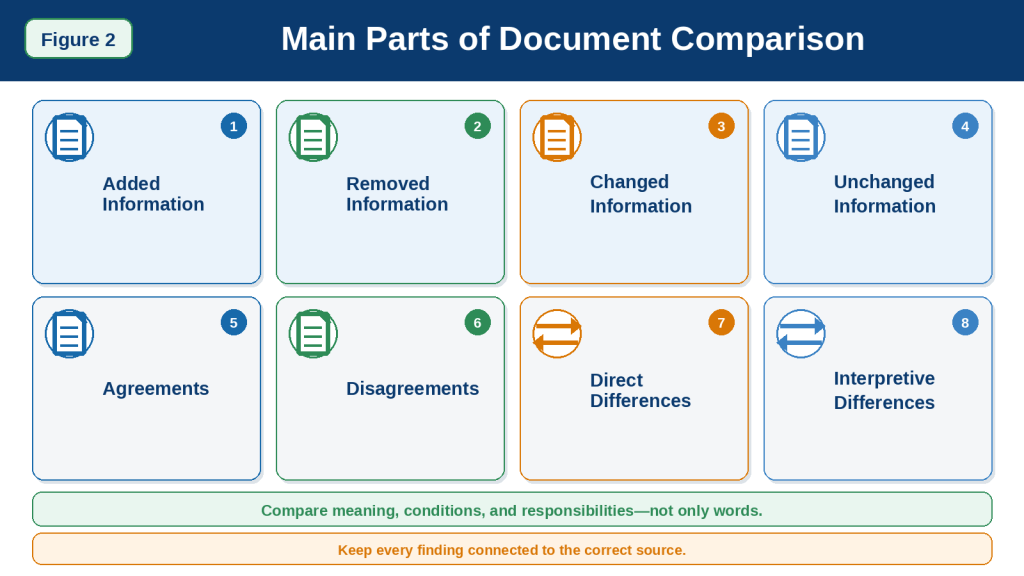
Figure 2. Document comparison examines added, removed, changed, and unchanged information while keeping every finding connected to the correct source.
Figure 2 shows the main categories used when comparing documents. It also separates direct differences, such as dates and amounts, from interpretive differences, such as tone or emphasis.
What Types of Documents Can You Compare with ChatGPT?
ChatGPT can support comparisons involving many types of written and structured documents, provided the content is readable and you are allowed to use it.
The comparison method should match the document type. A contract comparison requires different questions from a report, spreadsheet, meeting record, or product description.
Different Versions of the Same Document
One of the most useful comparison tasks is checking an original document against a revised version.
Examples include:
· Draft and final documents
· Old and updated policies
· Original and revised contracts
· Earlier and later reports
· First and corrected procedures
· Previous and current application instructions
· Original and edited articles
A version comparison may identify:
· Added wording
· Removed wording
· Changed responsibilities
· New deadlines
· Revised amounts
· Added conditions
· Removed exceptions
· New warnings
· Reorganized sections
Example prompt:
Compare the original version with the revised version. Identify information that was added, removed, changed, or moved. Separate wording changes from changes that affect meaning, responsibilities, deadlines, conditions, or required actions.
Confirm which document is older and which is newer before starting.
Policies and Procedures
Policies and procedures may contain:
· Eligibility rules
· Responsibilities
· Required actions
· Deadlines
· Restrictions
· Exceptions
· Penalties
· Approval processes
· Complaint procedures
When comparing two policies, focus on whether the revised version changes:
· Who the policy applies to
· What people must do
· Who approves an action
· Which documents are required
· When actions must be completed
· Which exceptions remain available
· What happens when requirements are not followed
Example prompt:
Compare Policy A and Policy B. Identify changes to scope, eligibility, responsibilities, required actions, deadlines, exceptions, restrictions, penalties, and appeal procedures. Keep every finding connected to the correct policy.
A policy difference does not automatically mean that one document is wrong. One may apply to a different date, department, location, or group.
Contracts and Agreements
Contracts may contain important differences involving:
· Parties
· Services
· Payments
· Fees
· Responsibilities
· Renewal
· Cancellation
· Notice periods
· Warranties
· Confidentiality
· Penalties
· Dispute procedures
Example prompt:
Compare Agreement A and Agreement B. Identify changes to the parties, services, responsibilities, payment terms, dates, renewal, cancellation, notice requirements, restrictions, penalties, and dispute procedures. Include the source section for each difference.
A changed word can have an important effect.
For example:
· May can become must.
· 30 days can become 60 days.
· Refundable can become non-refundable.
· Either party can become the customer only.
ChatGPT can help organize an initial comparison, but it cannot confirm legal meaning or determine which agreement should be accepted.
Reports
Reports may be compared to identify differences in:
· Purpose
· Methods
· Data
· Findings
· Risks
· Limitations
· Recommendations
· Conclusions
For example, two reports may study the same problem but use different methods or reach different conclusions.
Example prompt:
Compare Report A and Report B. Identify agreements and differences in purpose, methods, evidence, findings, limitations, recommendations, and conclusions. Do not combine disagreements into one conclusion.
Check whether the reports:
· Cover the same date range
· Study the same population
· Use the same definitions
· Use comparable methods
· Rely on the same data
· Address the same question
Two different findings may result from different methods rather than a direct contradiction.
Research Papers
Research papers may be compared by examining:
· Research questions
· Participants or data
· Methods
· Measurements
· Results
· Limitations
· Conclusions
· Suggested future research
Example prompt:
Compare the two research papers. Create separate sections for research question, method, sample or data, main findings, limitations, and conclusions. Identify where the papers agree, disagree, or examine different conditions.
Do not assume that one paper disproves another simply because the results differ.
The papers may involve:
· Different samples
· Different locations
· Different time periods
· Different measurements
· Different study designs
· Different definitions
Articles and Opinion Pieces
Articles may be compared to examine:
· Main message
· Claims
· Evidence
· Sources
· Tone
· Intended audience
· Opinions
· Assumptions
· Conclusions
· Calls to action
Example prompt:
Compare Article A and Article B. Identify their main positions, supporting evidence, assumptions, tone, intended audience, areas of agreement, and areas of disagreement. Clearly label interpretations.
A comparison can show that two writers use the same facts differently.
For example:
· One writer may emphasize benefits.
· Another may emphasize risks.
· One may use research evidence.
· Another may rely mainly on personal examples.
Meeting Notes
Meeting notes from different dates can be compared to track:
· Decisions
· Proposals
· Action items
· Responsible people
· Deadlines
· Completed tasks
· Delayed tasks
· Unresolved questions
· Changes in project direction
Example prompt:
Compare the meeting notes from May and June. Identify new decisions, changed responsibilities, completed action items, missed deadlines, unresolved questions, and items that no longer appear.
Be careful not to treat a discussion or suggestion as an approved decision.
Proposals and Business Plans
Proposals may differ in:
· Goals
· Target audience
· Budget
· Timeline
· Resources
· Responsibilities
· Risks
· Expected results
· Marketing approach
· Implementation plan
Example prompt:
Compare Proposal A and Proposal B. Identify differences in goals, audience, budget, timeline, resources, risks, responsibilities, and expected results. Show which details appear in only one proposal.
Check whether both proposals use the same assumptions and time period.
Product or Service Information
Product and service documents may be compared by examining:
· Features
· Specifications
· Requirements
· Compatibility
· Included items
· Limitations
· Warranties
· Support
· Cancellation rules
· Delivery conditions
Example prompt:
Compare the two product information documents. Identify similarities and differences in features, requirements, limitations, included services, warranty conditions, and support.
Do not assume that a missing feature is unavailable. It may simply be omitted from one description.
Confirm important details using the current official product source before buying or recommending something.
Manuals and Instructions
Manuals may be compared to find changes in:
· Preparation
· Tools
· Steps
· Measurements
· Settings
· Warnings
· Maintenance
· Troubleshooting
· Model-specific instructions
Example prompt:
Compare Manual A and Manual B. Identify changed steps, settings, measurements, warnings, required tools, and troubleshooting instructions. Preserve the original order and identify which model or version each instruction applies to.
Do not combine instructions for different models unless the manuals confirm they are interchangeable.
When safety is involved, use the current official manual rather than relying only on an AI comparison.
Letters and Official Notices
Official notices may be compared to identify changed:
· Dates
· Required actions
· Required documents
· Contact information
· Eligibility conditions
· Consequences
· Appeal procedures
· Reference numbers
Example prompt:
Compare Notice A and Notice B. Identify changes to the required action, deadline, documents, contact information, consequences, and appeal options. Do not guess why the information changed.
Verify important instructions directly from the issuing organization.
Presentations
Presentations may be compared by examining:
· Main message
· Slide order
· Evidence
· Charts
· Recommendations
· Intended audience
· Added or removed slides
· Changed conclusions
Example prompt:
Compare Presentation A and Presentation B. Identify added, removed, or revised slides and explain whether the main message, evidence, recommendations, or intended audience changed.
Speaker notes may contain important information that does not appear on the slides.
Spreadsheets
Spreadsheets may be compared to identify:
· Added or removed rows
· Added or removed columns
· Changed values
· Changed formulas
· Missing entries
· Different totals
· Duplicate records
· Changed date ranges
· Changed categories
· Different worksheet names
Example prompt:
Compare Spreadsheet A and Spreadsheet B. Identify changed rows, columns, values, formulas, totals, missing entries, and duplicate records. Show the worksheet and cell or row location for each important difference.
Check carefully whether:
· Blank cells were treated as zeros
· Dates use the same format
· Units and currencies match
· Hidden rows or filters affect the comparison
· Formulas changed
· Totals use the same data range
Transcripts
Transcripts may be compared to examine:
· Topics discussed
· Speaker statements
· Changed opinions
· New claims
· Decisions
· Disagreements
· Action items
· Repeated concerns
Example prompt:
Compare Transcript A and Transcript B. Identify repeated topics, changed positions, new claims, disagreements, decisions, and action items. Do not assign a statement to a person unless the transcript clearly identifies the speaker.
Check important quotations against the original recording when available and when you have permission.
Documents from Different Organizations
Two organizations may publish documents about the same topic.
A comparison may examine:
· Definitions
· Requirements
· Advice
· Evidence
· Priorities
· Risks
· Responsibilities
· Recommendations
Example prompt:
Compare the two organizations’ documents. Identify similarities and differences in definitions, requirements, recommendations, evidence, and warnings. Keep every finding connected to its organization.
Do not combine the documents into one set of rules unless they clearly apply to the same situation.
Choose Documents That Can Be Compared Meaningfully
Two documents are easier to compare when they share:
· A similar purpose
· A similar topic
· Comparable sections
· The same type of information
· Similar date ranges
· Similar audiences
· Related definitions or categories
Documents may be difficult to compare when they:
· Address unrelated questions
· Use different definitions
· Cover different time periods
· Apply to different groups
· Use incompatible measurements
· Have very different purposes
Before comparing, ask:
Are these documents similar enough for the comparison question I am asking?
Choosing the correct document pair and comparison goal helps prevent misleading conclusions.
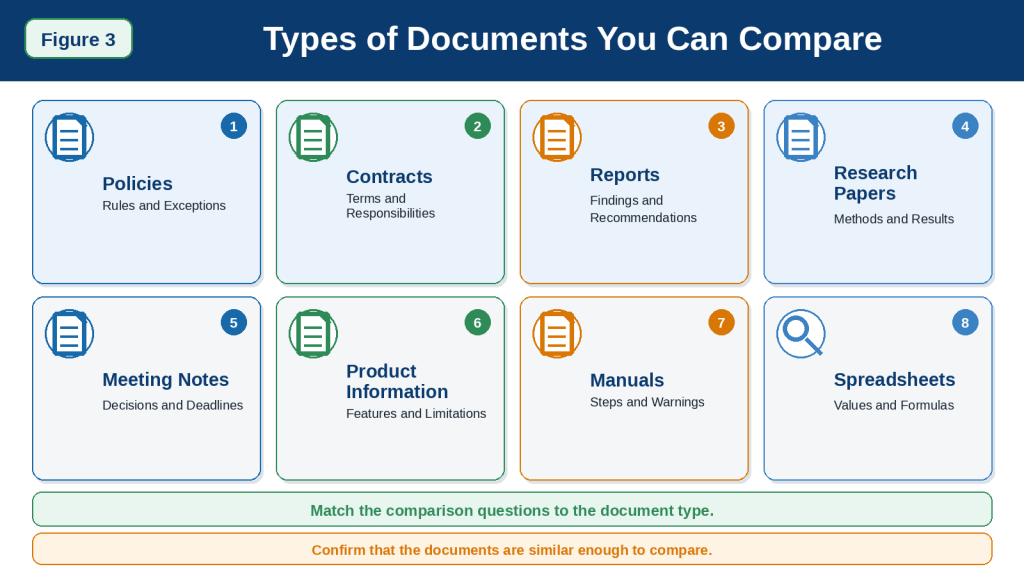
Figure 3. Different document types require different comparison priorities, including requirements, evidence, decisions, deadlines, procedures, features, and numerical changes.
Figure 3 shows common document types that beginners may compare with ChatGPT. The comparison questions should match the type and purpose of each source.
How to Prepare Documents Before Comparing Them
Good preparation helps ChatGPT keep the documents separate and identify meaningful differences more accurately.
Before uploading anything, prepare each file carefully.
Keep the Original Documents Unchanged
Do not edit, rename, or overwrite the only copy of an important document.
Keep the originals in a separate folder and create working copies for comparison.
For example:
· employee-policy-original-march-2026.docx
· employee-policy-revised-july-2026.docx
The original files should remain available in case you need to confirm:
· Exact wording
· Page layout
· Dates
· Signatures
· Version numbers
· Tables
· Comments
· Official formatting
Create Safe Working Copies
Make a duplicate of each document before removing private or unnecessary information.
Example working filenames:
· document-a-policy-safe-copy.docx
· document-b-policy-safe-copy.docx
Review each copy for:
· Personal names
· Email addresses
· Telephone numbers
· Home addresses
· Account numbers
· Identification numbers
· Signatures
· Customer information
· Employee information
· Confidential notes
· Internal comments
· Tracked changes
· Hidden metadata
Remove only information that is unnecessary for the comparison.
Do not remove definitions, conditions, exceptions, headings, table labels, or other context needed to understand the documents correctly.
Confirm That You Have Permission
Before uploading the documents, confirm that:
· You own the files or have permission to use them.
· The documents are not prohibited from being uploaded to an external service.
· Workplace or organizational rules allow the comparison.
· Confidentiality agreements do not restrict the files.
· Copyright or licensing conditions permit the intended use.
Removing names does not automatically make every document safe to upload.
The file may still contain protected business methods, private project information, customer records, or restricted internal material.
Give Each Document a Clear Label
Clear labels help prevent information from being assigned to the wrong source.
Use labels such as:
· Document A — Original Policy, March 2026
· Document B — Revised Policy, July 2026
For three documents:
· Document A — Draft Version
· Document B — Manager Review Version
· Document C — Final Approved Version
Avoid labels such as:
· First file
· Second file
· New document
· Other version
· Final copy
· Latest file
These labels may become confusing during a long conversation.
Use Descriptive Filenames
A good filename should identify:
· The document topic
· The version
· The date
· Whether it is an original or safe copy
For example:
leave-policy-original-2026-03-safe-copy.docx
leave-policy-revised-2026-07-safe-copy.docx
Avoid filenames such as:
· document.docx
· final.docx
· new-final.docx
· final-last-version-2.docx
Clear filenames help both the user and ChatGPT distinguish the sources.
Confirm the Date and Version
A comparison can be misleading when the documents are not arranged in the correct order.
Check:
· Creation date
· Revision date
· Publication date
· Effective date
· Version number
· Approval status
· Draft or final status
For example:
· Version 1.0 — March 2026
· Version 1.1 — May 2026
· Version 2.0 — July 2026
Do not assume that the file with the newest upload date is the newest document version.
A recently downloaded copy may contain older content.
Check Whether the Documents Are Complete
Confirm that each file includes all required:
· Pages
· Sections
· Tables
· Charts
· Footnotes
· Appendices
· Attachments
· References
· Signature pages
A missing page may create a false difference.
For example, ChatGPT may report that Document B removed a cancellation clause when the page containing that clause was simply missing from the uploaded copy.
Check Readability
Use documents with clear, selectable text whenever possible.
Review each file for:
· Blurred text
· Cropped pages
· Skewed scans
· Small print
· Faded characters
· Handwriting
· Multiple columns
· Overlapping text
· Unreadable tables
· Missing page numbers
When one document is clear and the other is difficult to read, the comparison may be uneven.
Create a clearer copy or upload important pages separately when necessary.
Keep the Same File Type When Practical
Comparing two files is usually easier when they use similar formats.
For example:
· DOCX compared with DOCX
· PDF compared with PDF
· XLSX compared with XLSX
· TXT compared with TXT
Different formats can still be compared, but the layout and extracted content may not match in the same way.
For example, comparing a PDF with copied plain text may make page references difficult to verify.
Check Headings and Section Names
Similar documents may use different section names.
For example:
Document A
· Employee Responsibilities
· Request Procedure
· Approval Process
Document B
· Staff Duties
· Submission Steps
· Authorization Process
These sections may discuss similar topics even though the headings are different.
Create a simple section map when necessary:
| Document A | Document B |
| Employee Responsibilities | Staff Duties |
| Request Procedure | Submission Steps |
| Approval Process | Authorization Process |
This helps ChatGPT compare matching topics rather than only matching headings.
Identify the Comparison Baseline
Decide which document will be treated as the starting point.
For example:
· Document A is the original.
· Document B is the revised version.
The comparison can then identify what changed from Document A to Document B.
For separate documents, the baseline may be:
· A current policy compared with a proposed policy
· A company report compared with an industry report
· A draft compared with a final version
· Last year’s data compared with this year’s data
State the baseline clearly in the prompt.
Decide Which Differences Matter
Not every change is equally important.
You may want ChatGPT to separate:
Meaningful changes
· New requirements
· Removed options
· Changed responsibilities
· Revised deadlines
· Different amounts
· Added risks
· Changed exceptions
· New penalties
Minor wording or formatting changes
· Punctuation
· Spelling corrections
· Reworded sentences with the same meaning
· Heading style
· Paragraph order
· Font or layout changes
Example instruction:
Separate changes that affect meaning from minor wording, spelling, punctuation, or formatting changes.
Create a Comparison Question List
Before uploading the documents, write the questions you need answered.
For example:
· What information was added?
· What information was removed?
· Which deadlines changed?
· Did any responsibility move to another person or department?
· Were new conditions or exceptions added?
· Did any amount, percentage, or fee change?
· Did the conclusion become stronger or weaker?
· Are there any conflicting statements?
· Which sections appear unchanged?
· Which differences require confirmation?
A question list helps prevent the comparison from becoming too broad.
Prepare Tables and Spreadsheets Carefully
Before comparing spreadsheets, check:
· Worksheet names
· Column headers
· Row labels
· Date formats
· Currency
· Units
· Formulas
· Filters
· Hidden rows or columns
· Blank cells
· Duplicate records
Confirm that both spreadsheets use compatible categories.
For example, one file may report monthly totals while the other reports quarterly totals.
These values should not be compared directly without adjustment or explanation.
Prepare Scanned Documents Carefully
When comparing scanned documents:
· Use the clearest available copies.
· Confirm that all pages are upright.
· Remove blank or duplicated pages.
· Check cropped edges.
· Confirm that page numbers are visible.
· Review handwritten notes separately.
· Upload unclear pages individually when necessary.
Do not ask ChatGPT to guess unreadable content.
Create a Preparation Checklist
Before uploading, confirm:
· The original documents are saved separately.
· Safe working copies were created.
· Private and restricted information was reviewed.
· Permission to upload was confirmed.
· Each document has a clear filename.
· Each source has a clear label.
· Dates and version numbers were checked.
· Every page and appendix is included.
· Text and tables are readable.
· The comparison baseline is clear.
· The comparison questions are ready.
· Meaningful changes will be separated from minor wording changes.
Careful preparation reduces the risk of mixed sources, false differences, missing context, and incorrect conclusions.
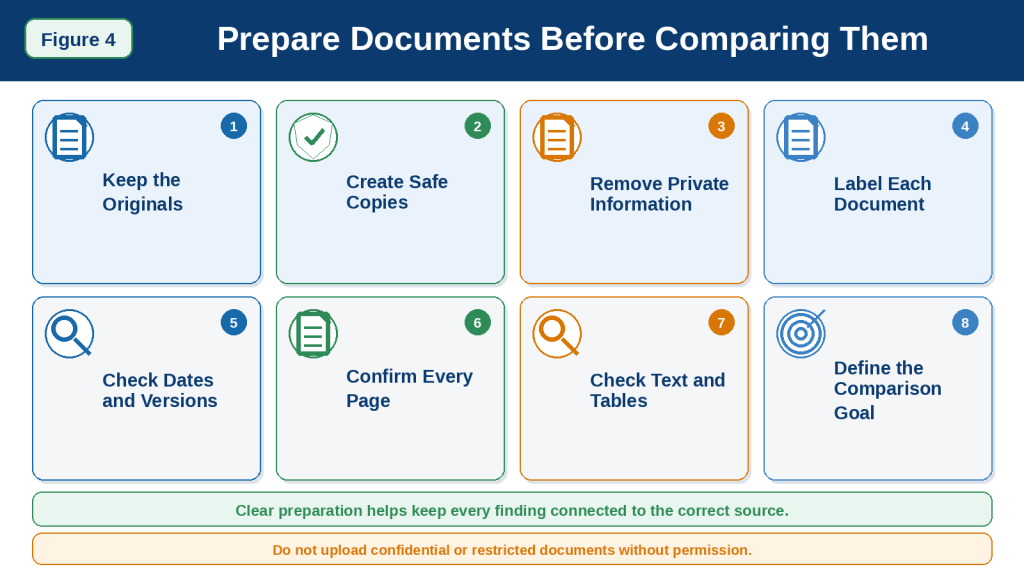
Figure 4. Documents should be copied safely, labelled clearly, checked for completeness, and organized by date and version before comparison begins.
Figure 4 shows the main preparation steps for document comparison. Clear filenames, readable content, complete pages, and a defined comparison goal help keep findings connected to the correct source.
How to Upload and Label Documents for Comparison
After preparing safe copies, upload the documents in a way that keeps each source clearly identified.
OpenAI lists comparing and contrasting two documents as a supported use of ChatGPT file uploads. Common supported formats include PDF, DOCX, PPTX, XLS, XLSX, CSV, TSV, and TXT. Google Docs files should normally be exported to a supported format before uploading.
The exact button names and screen layout may vary by device, plan, workspace, and future ChatGPT update.
Step 1: Start a Separate Conversation
Open a new ChatGPT conversation for the comparison.
A separate conversation helps you:
· Keep the documents and prompts together
· Avoid mixing the comparison with unrelated work
· Find the results later
· Track corrections
· Preserve clear source labels
Use a descriptive conversation name when that option is available.
For example:
Comparison of Original and Revised Leave Policies
Avoid continuing an unrelated conversation that already contains other documents. Earlier files and instructions may create confusion about which sources should be compared.
Step 2: Confirm the Documents Before Uploading
Before selecting the files, check:
· Both documents are safe working copies.
· The originals are stored separately.
· Private or restricted information has been reviewed.
· The filenames are clear.
· The dates and versions are correct.
· All required pages are included.
· The documents are readable.
· You have permission to upload them.
Do not rely only on the order in which files appear in a folder. Read each complete filename before selecting it.
Step 3: Upload the First Document
Select the attachment or add-files control near the message box.
Choose the first safe working copy.
The wording may appear as Add files, Upload files, Add photos and files, an attachment symbol, or another similar label depending on the interface.
Wait until the filename or attachment preview appears.
Confirm that the correct first document is attached.
For example:
leave-policy-original-2026-03-safe-copy.docx
Do not send the comparison prompt yet.
Step 4: Upload the Second Document
Use the attachment control again and choose the second safe working copy.
For example:
leave-policy-revised-2026-07-safe-copy.docx
Confirm that both filenames appear before continuing.
ChatGPT supports common text, document, presentation, and spreadsheet formats, but readability and comparison quality still depend on the file structure and content.
Step 5: Assign a Clear Label to Each Document
Do not depend only on attachment order.
In your first message, state exactly how each file should be identified.
For example:
Use these source labels throughout the comparison:
Document A — Original Leave Policy, March 2026
Document B — Revised Leave Policy, July 2026
Do not refer to them only as “the first document” and “the second document.”
Clear labels help prevent ChatGPT from:
· Assigning a rule to the wrong source
· Reversing the old and new versions
· Combining both documents
· Referring to an unclear “new file”
· Losing track of the comparison baseline
Use the same labels in every follow-up prompt.
Step 6: Ask ChatGPT to Confirm the Files
Before requesting the comparison, ask ChatGPT to identify each source.
Use this prompt:
Before comparing the files, confirm the filename, title, date, version, and main headings of Document A and Document B. Keep the information for each document separate. Identify anything you cannot read confidently.
Compare the response with the original documents.
Check whether ChatGPT correctly identified:
· The filename
· Document title
· Publication or revision date
· Version number
· Draft or final status
· Main headings
· Number of pages when clearly available
Do not continue when the documents appear to have been reversed or misidentified.
Step 7: Request a Separate Document Map
Ask ChatGPT to map each document before comparing them.
Use this prompt:
Create a separate document map for Document A and Document B. For each source, list the main headings, subsections, tables, charts, appendices, and major topics in the order they appear. Do not compare the documents yet.
This helps you check whether:
· Both documents were recognized
· Major sections are present
· One file has additional sections
· A table or appendix may require separate review
· Similar topics use different headings
· Important content could not be read
A document map is especially useful when comparing long policies, reports, manuals, presentations, or contracts.
Step 8: Check Whether Matching Sections Have Different Names
The same topic may appear under different headings.
For example:
| Document A | Document B |
| Employee Responsibilities | Staff Duties |
| Request Procedure | Submission Process |
| Manager Approval | Authorization Requirements |
| Exceptions | Special Circumstances |
Ask ChatGPT:
Identify sections in Document A and Document B that appear to cover the same topic even when their headings are different. Clearly label this as a proposed section match for manual review.
Check every proposed match yourself.
Similar headings do not always contain equivalent information, and different headings may still discuss the same requirement.
Step 9: Confirm the Comparison Direction
State which document is the baseline.
For example:
Treat Document A as the original version and Document B as the revised version. Describe changes from Document A to Document B.
This direction matters.
Without it, ChatGPT might say:
The notice period changed from 21 days to 14 days.
when the actual revision changed it from 14 days to 21 days.
For separate sources that are not versions, use neutral wording:
Treat Document A and Document B as separate reports. Do not assume that either document replaces the other.
Step 10: Ask for a Basic Summary of Each Document
Before comparing, request a short separate summary.
Use this prompt:
Summarize Document A and Document B separately. For each document, identify its purpose, intended audience, main requirements, important findings, recommendations, limitations, and conclusion. Do not combine the summaries.
Review both summaries against the originals.
Correct mistakes before requesting the comparison.
A comparison built from incorrect summaries may produce additional errors.
Step 11: Choose One Comparison Goal
Do not begin by asking for every possible difference.
Choose one focused goal, such as:
· Added and removed information
· Changed deadlines
· Changed responsibilities
· Different prices or fees
· New requirements
· Changed conditions or exceptions
· Different claims and evidence
· Different findings and conclusions
· Spreadsheet value changes
Example:
Compare only the deadlines, required actions, responsible departments, and exceptions. Do not analyze tone or writing style yet.
You can request another comparison type after verifying the first result.
Step 12: Send the First Comparison Prompt
A useful beginner prompt is:
Compare Document A — Original Leave Policy, March 2026, with Document B — Revised Leave Policy, July 2026.
Identify:
· Information added in Document B
· Information removed from Document A
· Requirements that changed
· Deadlines that changed
· Responsibilities that changed
· Conditions or exceptions that changed
· Important information that remained unchanged
Separate meaningful changes from minor wording, spelling, punctuation, or formatting changes.
For every finding, show the information from Document A, the information from Document B, the practical difference, and the source section when available.
Do not guess why a change was made. Write “Requires verification” when the documents do not provide enough information.
ChatGPT file uploads can be used to compare documents and extract information from them, but the findings still require review against the original sources.
Step 13: Check That the Documents Remained Separate
Review the response for source confusion.
Ask:
· Is every statement assigned to Document A or Document B?
· Was the comparison direction preserved?
· Were original and revised details reversed?
· Did ChatGPT combine rules from both documents?
· Are source locations connected to the correct file?
· Were differences reported when information was only moved?
· Were similar meanings treated as major changes?
Use this correction prompt when necessary:
Review the comparison and check that every statement is assigned to the correct document. Do not combine information from Document A and Document B. Correct any reversed or unsupported findings.
Step 14: Upload Unclear Pages Separately When Necessary
A comparison may fail when one document contains:
· A blurred scan
· A complicated table
· A chart
· Small text
· Multiple columns
· Handwriting
· A cropped page
· An unclear appendix
When an important page is unreadable:
1st Locate the page in the original file.
2nd Create a clear copy or image.
3rd Remove unnecessary private information.
4th Upload it in the same conversation.
5th Identify the source and page clearly.
6th Ask one focused question.
For example:
This is page 12 from Document B. Review only the deadline table and compare it with the corresponding table on page 9 of Document A. Identify any values you cannot read confidently.
Do not ask ChatGPT to guess missing or unreadable content.
Step 15: Avoid Uploading Unnecessary Files
Do not add unrelated documents to the same comparison conversation.
Extra files may make it harder to determine:
· Which source contains a finding
· Which version is current
· Which documents should be compared
· Whether a statement came from an unrelated attachment
Upload only the sources required for the current task.
When several versions are necessary, label each one clearly:
· Document A — Original Draft
· Document B — First Revision
· Document C — Approved Version
Step 16: Save the Source List
Record the comparison sources in your working notes.
For example:
Comparison sources
· Document A — Original Leave Policy, March 2026
· Filename: leave-policy-original-2026-03-safe-copy.docx
· Status: Original approved version
· Document B — Revised Leave Policy, July 2026
· Filename: leave-policy-revised-2026-07-safe-copy.docx
· Status: Revised version requiring confirmation
Also record:
· Upload date
· Comparison goal
· Original prompt
· Corrections
· Final review date
This record helps prevent confusion when the documents are reviewed later.
Upload and Labelling Checklist
Before requesting the comparison, confirm:
· A separate conversation was opened.
· Only the required files were attached.
· The correct safe copies were selected.
· Every filename is clear.
· Each source has a permanent label.
· Dates and version numbers were checked.
· ChatGPT confirmed the document identities.
· Separate document maps were reviewed.
· Matching sections were identified carefully.
· The comparison direction is clear.
· Each document was summarized separately.
· One focused comparison goal was chosen.
· Unreadable content was identified.
· The original files remain available.
Uploading the correct files is only the first step. Clear source labels and separate document checks are essential for preventing mixed, reversed, or unsupported comparison findings.

Figure 5. Documents should be uploaded, labelled, mapped, summarized, and confirmed separately before ChatGPT begins the comparison.
Figure 5 shows how clear source labels help prevent Document A and Document B from becoming mixed or reversed. Beginners should confirm the identity and structure of both files before requesting differences.
How to Write a Clear Document-Comparison Prompt
A clear comparison prompt tells ChatGPT:
· Which documents to compare
· How each document should be labelled
· Which document is the baseline
· What information to examine
· How the results should be organized
· Which details must remain separate
· What ChatGPT should do when information is missing or unclear
A vague prompt such as:
Compare these two documents.
may produce a general response that misses important changes or mixes the sources.
A clearer prompt may say:
Compare Document A — Original Policy, March 2026, with Document B — Revised Policy, July 2026. Identify added, removed, changed, and unchanged requirements. Separate meaningful changes from minor wording changes. Include the source section for every important finding and write “Requires verification” when the documents do not provide enough information.
Use a Clear Comparison Formula
A useful document-comparison prompt can include eight parts:
1st Name and label the documents.
2nd State the comparison direction.
3rd Explain the comparison goal.
4th List the topics to compare.
5th Choose the output format.
6th Request source locations.
7th Separate direct findings from interpretation.
8th Add accuracy and uncertainty rules.
You do not need to use every part in every prompt, but including the most relevant parts usually improves the result.
Part 1: Name and Label the Documents
Identify each file clearly.
For example:
Document A — Original Employee Policy, March 2026
Document B — Revised Employee Policy, July 2026
Use the same labels throughout the conversation.
Avoid changing from:
· Document A
· Old file
· First policy
· Original document
These may all refer to the same source, but changing the label can create confusion.
Part 2: State the Comparison Direction
When one document is a revision of another, explain which version is the starting point.
For example:
Treat Document A as the original version and Document B as the revised version. Describe changes from Document A to Document B.
This helps prevent reversed findings.
Without a clear direction, ChatGPT may incorrectly report:
The deadline changed from 21 days to 14 days.
when the revised document actually increased the deadline from 14 days to 21 days.
When comparing separate sources rather than versions, use neutral wording:
Treat Document A and Document B as separate reports. Do not assume that either document replaces the other.
Part 3: Explain the Comparison Goal
State why you are comparing the documents.
Possible goals include:
· Finding all important revisions
· Checking changed responsibilities
· Comparing arguments and evidence
· Identifying different conclusions
· Finding changed fees or deadlines
· Comparing risks and limitations
· Checking whether requirements were removed
· Comparing spreadsheet values
Example:
The goal is to identify changes that affect employee responsibilities, deadlines, approval requirements, and available exceptions.
A clear goal helps ChatGPT focus on useful differences.
Part 4: List the Topics to Compare
Do not assume that ChatGPT will know which details matter most.
List the categories you want reviewed.
For a policy comparison, you may request:
· Purpose
· Scope
· Eligibility
· Responsibilities
· Required actions
· Deadlines
· Conditions
· Exceptions
· Penalties
· Appeal process
For a report comparison, you may request:
· Research question
· Method
· Data
· Main findings
· Evidence
· Limitations
· Recommendations
· Conclusion
For a spreadsheet comparison, you may request:
· Worksheets
· Added or removed rows
· Changed columns
· Updated values
· Formulas
· Totals
· Missing entries
· Date ranges
Example:
Compare the two policies only for eligibility, required documents, deadlines, responsibilities, exceptions, and penalties.
This focused request is easier to verify than asking for every possible difference at once.
Part 5: Choose the Output Format
Tell ChatGPT how to organize the results.
Useful formats include:
· Side-by-side table
· Added, Removed, Changed, and Unchanged sections
· Topic-by-topic comparison
· Section-by-section comparison
· Change log
· Checklist
· Summary followed by detailed findings
A side-by-side table may use these columns:
· Topic
· Document A
· Document B
· Important difference
· Practical effect
· Source location
· Verification required
Example prompt:
Present the results in a table with the columns Topic, Document A, Document B, Important Difference, Practical Effect, Source Location, and Verification Required.
Tables are useful for short, specific findings.
For long explanations, headings and paragraphs may be easier to read.
Part 6: Request Source Locations
Ask ChatGPT to show where each finding appears.
A source location may include:
· Page number
· Section heading
· Paragraph
· Table name
· Chart title
· Appendix
· Worksheet
· Row or column
Example:
Include the page number, section heading, table name, worksheet, or other source location for every important difference when available.
Source locations make review easier, but they must still be checked manually.
Page numbers may be inaccurate when:
· Printed and digital page numbers differ
· The file was scanned
· Similar headings appear more than once
· Text was copied instead of uploaded
· Tables were extracted incorrectly
Part 7: Separate Direct Findings from Interpretation
Some differences are directly visible.
Examples include:
· A changed date
· A removed paragraph
· A new fee
· A different responsible department
Other differences require interpretation.
Examples include:
· A stronger tone
· A narrower audience
· Greater emphasis on risk
· A more cautious conclusion
· A possible change in purpose
Use this instruction:
Separate directly verified differences from interpretive differences. Clearly label tone, emphasis, audience, and possible implications as interpretation.
This reduces the risk of presenting judgement as fact.
Part 8: Add Accuracy and Uncertainty Rules
Tell ChatGPT what to do when information is missing, unclear, or inconsistent.
Useful instructions include:
Do not guess why a change was made.
Write “Not stated in the document” when information is missing.
Write “Requires verification” when the source is unclear.
Do not combine information from the two documents.
Do not treat moved information as removed until the complete document has been checked.
Preserve conditions, exceptions, dates, amounts, and uncertainty.
These rules help make the comparison easier to review.
Beginner Document-Comparison Prompt
Copy and adapt this prompt:
Compare the following documents:
Document A — [name, date, and version]
Document B — [name, date, and version]
Treat Document A as the baseline and describe changes from Document A to Document B.
Compare:
· Added information
· Removed information
· Changed requirements
· Changed responsibilities
· Changed dates or deadlines
· Changed amounts or fees
· Changed conditions or exceptions
· Important information that remained unchanged
Separate meaningful changes from minor wording, spelling, punctuation, or formatting changes.
Present the results in a table with the columns Topic, Document A, Document B, Important Difference, Practical Effect, Source Location, and Verification Required.
Keep every finding connected to the correct document. Do not guess why a change was made. Write “Not stated in the document” when information is missing and “Requires verification” when the source is unclear.
Prompt for Added and Removed Information
Use this when you mainly need to identify new and deleted content:
Compare Document A with Document B. Identify information added in Document B and information removed from Document A. Check whether apparently removed information was moved or rewritten elsewhere before classifying it as removed.
This last instruction is important because content may have changed location without being deleted.
Prompt for Meaningful Changes Only
Use this when you do not want a long list of minor edits:
Compare the documents and report only changes that affect meaning, responsibilities, deadlines, amounts, requirements, risks, conditions, exceptions, or required actions. Ignore spelling, punctuation, formatting, and rewording that does not change the meaning.
This prompt is useful when the revised document contains many editorial changes.
Prompt for Exact Wording Changes
Use this when exact wording matters:
Compare the documents sentence by sentence. Show the original wording, revised wording, changed words, possible change in meaning, and source location. Preserve words such as may, must, should, can, cannot, before, after, and only.
This can be useful for policies, procedures, contracts, and official instructions.
It does not replace legal or professional review.
Prompt for Comparing Claims and Evidence
Use this for reports, articles, and research papers:
Compare Document A and Document B. For each source, identify the main claims, supporting evidence, limitations, and conclusion. Show where the documents agree, disagree, or examine different conditions. Do not combine disagreements into one conclusion.
A useful table may contain:
· Topic
· Claim in Document A
· Evidence in Document A
· Claim in Document B
· Evidence in Document B
· Agreement or disagreement
· Important limitation
· Source location
Prompt for Comparing Policies
Compare Policy A and Policy B. Identify differences in scope, eligibility, responsibilities, required actions, deadlines, conditions, exceptions, restrictions, penalties, and appeal procedures. Explain whether each change affects what a person must do. Keep every finding connected to the correct policy.
Prompt for Comparing Contracts
Create an initial plain-language comparison of Agreement A and Agreement B. Identify changes to the parties, responsibilities, services, payments, fees, dates, renewal, cancellation, notice requirements, restrictions, penalties, confidentiality, and dispute procedures. Preserve exact conditions and source sections. Clearly label possible legal implications as interpretation and do not provide legal advice.
Prompt for Comparing Meeting Notes
Compare the meeting notes from [date] and [date]. Identify new decisions, changed responsibilities, completed action items, missed deadlines, unresolved questions, and topics that no longer appear. Do not treat a suggestion or discussion as a confirmed decision.
Prompt for Comparing Spreadsheets
Compare Spreadsheet A and Spreadsheet B. Identify changed worksheets, rows, columns, values, formulas, totals, missing entries, duplicate records, and date ranges. Show the exact worksheet, row, column, or cell used for each finding. Do not treat blank cells as zeros unless the spreadsheet clearly does so.
Prompt for Comparing Long Documents
Do not request one complete comparison immediately.
Begin with:
These are long documents. Do not compare them yet. First create a separate document map for Document A and Document B. List all main headings, subsections, tables, charts, appendices, and major topics. Identify matching sections and anything you could not read confidently.
After reviewing the maps, compare one section at a time.
For example:
Compare only the sections titled “Eligibility Requirements” in Document A and “Who Can Apply” in Document B. Identify matching information, added requirements, removed conditions, changed deadlines, and unclear differences.
Avoid Overloaded Comparison Prompts
Do not ask ChatGPT to:
· Compare every detail
· Summarize both files
· Fact-check all claims
· Provide legal advice
· Recommend a decision
· Rewrite the documents
· Create a presentation
· Produce a final report
all in one prompt.
A better sequence is:
1st Confirm the documents.
2nd Map each source.
3rd Summarize each source.
4th Compare one category.
5th Verify the findings.
6th Compare another category.
7th Create the final reviewed comparison.
Improve the Prompt After the First Response
The first result may be too broad or may miss an important category.
Use a focused follow-up prompt.
For example:
Repeat the comparison, but include only deadlines, responsible people, required actions, and exceptions.
Or:
Review the comparison and separate changes in wording from changes in meaning.
Or:
Add source locations for every changed date and amount.
Or:
Check whether the information classified as removed was moved to another section.
These follow-up instructions are easier to verify than requesting a complete rewrite.
Final Prompt Check
Before sending the prompt, confirm that it includes:
· Clear source labels
· The comparison direction
· One main goal
· The topics to compare
· The preferred output format
· Source-location instructions
· Direct versus interpretive findings
· Rules for missing or unclear information
A well-structured prompt helps ChatGPT produce a comparison that is clearer, more focused, and easier to check against the original documents.
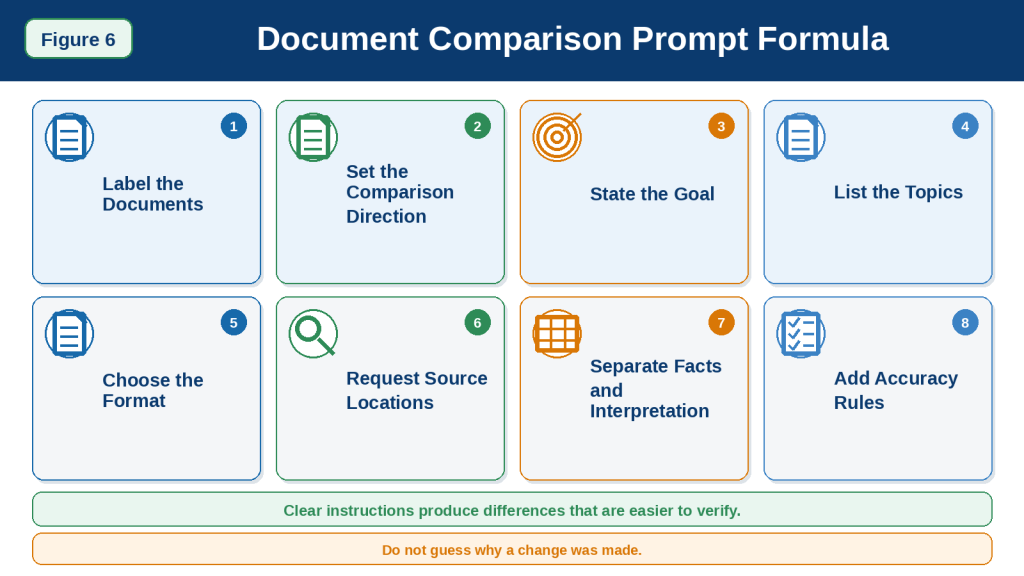
Figure 6. A clear document-comparison prompt identifies the sources, comparison direction, goal, topics, output format, source locations, interpretation rules, and accuracy requirements.
Figure 6 shows the main parts of a useful document-comparison prompt. Clear labels and verification rules help prevent reversed findings, mixed sources, and unsupported conclusions.
Step-by-Step: Compare Your First Two Documents with ChatGPT
This beginner exercise uses two short documents that discuss the same topic.
Choose documents that:
· Are safe to upload
· Contain readable text
· Have clear titles or filenames
· Are similar enough to compare
· Do not contain unnecessary private or confidential information
· Are short enough to check manually
Suitable practice documents include:
· An original paragraph and a revised paragraph
· Two versions of a simple policy
· Two product information sheets
· Two short public articles
· Meeting notes from two different dates
· Two small spreadsheets with similar columns
Avoid beginning with a complicated contract, medical record, financial statement, or very long scanned document.
Step 1: Choose Two Related Documents
Select two documents that have a clear relationship.
For example:
· Document A — Original Procedure
· Document B — Revised Procedure
The documents should discuss similar topics, such as:
· Requirements
· Responsibilities
· Deadlines
· Features
· Findings
· Recommendations
· Prices
· Risks
· Action items
Documents that discuss unrelated subjects will not produce a meaningful comparison.
Step 2: Keep the Originals and Create Safe Copies
Do not edit or upload the only copies of the documents.
Create duplicates and give them clear filenames.
For example:
· document-a-original-policy-safe-copy.docx
· document-b-revised-policy-safe-copy.docx
Review both copies and remove unnecessary:
· Personal names
· Addresses
· Email addresses
· Telephone numbers
· Account numbers
· Signatures
· Identification numbers
· Customer information
· Employee information
· Confidential notes
· Tracked changes
· Hidden metadata
Keep the definitions, headings, conditions, exceptions, tables, and other information needed for an accurate comparison.
Step 3: Confirm the Dates and Versions
Check the document titles and version information.
Record:
· Document name
· Publication date
· Revision date
· Effective date
· Version number
· Draft or approved status
For example:
Document A — Original Leave Policy
· Version: 1.0
· Date: March 2026
· Status: Approved original
Document B — Revised Leave Policy
· Version: 2.0
· Date: July 2026
· Status: Revised version
Do not assume that the most recently downloaded file contains the newest information.
Step 4: Decide What You Want to Compare
Choose one focused comparison goal.
For this exercise, use:
Identify information that was added, removed, changed, or left unchanged.
You can also focus on:
· Deadlines
· Responsibilities
· Requirements
· Amounts
· Conditions
· Exceptions
· Risks
· Findings
· Recommendations
Do not begin by requesting every possible comparison.
Step 5: Open a Separate Chat
Start a new ChatGPT conversation.
A separate chat helps you:
· Keep both documents together
· Preserve clear source labels
· Avoid mixing the comparison with unrelated files
· Save corrections and follow-up prompts
· Find the comparison later
Give the conversation a descriptive name when that option is available.
For example:
Practice Policy Comparison
Step 6: Upload Document A
Select the attachment or add-files control near the message box.
Choose the safe copy of Document A.
Wait until the filename appears.
Confirm that:
· The correct file is attached.
· The filename is complete.
· The file is readable.
· The document is not password-protected.
· The original confidential file was not selected.
Do not send the comparison prompt yet.
Step 7: Upload Document B
Use the attachment control again.
Choose the safe copy of Document B.
Confirm that both filenames appear before continuing.
Check that you did not accidentally upload:
· The same document twice
· Two copies of the original
· Two copies of the revision
· An unrelated file
· An unfinished draft
Step 8: Assign Permanent Source Labels
Send this message first:
Use these labels throughout this conversation:
Document A — Original Policy, March 2026
Document B — Revised Policy, July 2026
Treat Document A as the original version and Document B as the revised version. Do not reverse or combine the sources.
Use the same labels in every later prompt.
Step 9: Ask ChatGPT to Confirm the Documents
Before requesting a comparison, ask ChatGPT to identify both sources.
Use this prompt:
Confirm the filename, title, date, version, and main headings of Document A and Document B. Keep the information separate and identify anything you cannot read confidently.
Compare the response with the original documents.
Check whether ChatGPT correctly identified:
· Both filenames
· The title of each document
· The dates
· The versions
· The main headings
· The original and revised order
Correct any problem before continuing.
Step 10: Request Separate Document Maps
Use this prompt:
Create a separate document map for Document A and Document B. List the headings, subsections, tables, charts, appendices, and main topics in the order they appear. Do not compare the documents yet.
Compare both maps with the originals.
Check whether:
· Major sections were recognized.
· One document contains additional sections.
· A section was moved.
· Similar topics use different headings.
· Tables or appendices require separate review.
· Any content could not be read.
Step 11: Request Separate Summaries
Ask for a short summary of each document.
Use this prompt:
Summarize Document A and Document B separately. For each document, identify its purpose, main requirements, responsibilities, deadlines, conditions, exceptions, and conclusion. Do not combine the summaries.
Review both summaries against the originals.
Correct inaccurate details before requesting the comparison.
Step 12: Send the First Comparison Prompt
Use this beginner-friendly prompt:
Compare Document A — Original Policy, March 2026, with Document B — Revised Policy, July 2026.
Identify:
· Information added in Document B
· Information removed from Document A
· Information that changed
· Important information that remained unchanged
· Changed responsibilities
· Changed deadlines
· Changed conditions or exceptions
Separate meaningful changes from minor wording, spelling, punctuation, or formatting changes.
Present the results in a table with the columns Topic, Document A, Document B, Important Difference, Practical Effect, Source Location, and Verification Required.
Keep every finding connected to the correct document. Do not guess why a change was made. Write “Not stated in the document” when information is missing and “Requires verification” when the source is unclear.
Step 13: Read the Complete Comparison
Read the entire response before requesting corrections.
Ask:
· Did ChatGPT compare the correct documents?
· Was the original and revised direction preserved?
· Are the source labels correct?
· Were important additions identified?
· Were removed items checked for relocation?
· Were minor wording changes separated from meaningful changes?
· Were responsibilities and deadlines reported accurately?
· Are source locations included?
· Did ChatGPT add information not found in either document?
Treat the first comparison as a draft.
Step 14: Check Added Information
Review every item listed as new.
For each addition, ask:
· Does it appear in Document B?
· Is it absent from Document A?
· Was it truly added?
· Did it appear in another section of Document A?
· Does the addition change a requirement or responsibility?
Use this prompt:
Review every item classified as added. Check the complete Document A to confirm that the information did not already appear under another heading.
Step 15: Check Removed Information
Review every item listed as removed.
Ask:
· Did the information appear in Document A?
· Is it truly absent from Document B?
· Was it rewritten?
· Was it moved to another section?
· Was it replaced by a different rule?
Use this prompt:
Review every item classified as removed. Check whether it was moved, shortened, combined, or rewritten elsewhere in Document B before confirming that it was removed.
Step 16: Check Changed Information
For each changed item, compare the original and revised wording directly.
Pay close attention to words such as:
· May
· Must
· Should
· Can
· Cannot
· Before
· After
· Only
· Except
· Unless
· At least
· No more than
Also verify:
· Dates
· Deadlines
· Amounts
· Percentages
· Names
· Departments
· Responsibilities
· Conditions
· Exceptions
· Penalties
A small wording change may create an important practical difference.
Step 17: Check Unchanged Information
Ask ChatGPT to identify important information that remains the same.
Use this prompt:
List the main requirements, responsibilities, deadlines, conditions, and exceptions that remain unchanged between Document A and Document B. Include source locations.
Confirm the findings manually.
This helps prevent the comparison from focusing only on differences while ignoring important continuity.
Step 18: Separate Wording Changes from Meaning Changes
Use this follow-up prompt:
Divide the differences into two groups:
1st Changes That Affect Meaning or Action
2nd Minor Wording, Spelling, Punctuation, or Formatting Changes
Explain why each item belongs in its group.
Check that a reworded sentence was not incorrectly treated as a new rule.
Also check that a small but important word change was not dismissed as minor.
Step 19: Verify Source Locations
Open both original documents and check each important reference.
Confirm:
· Page numbers
· Section headings
· Table names
· Appendix labels
· Paragraph locations
· Worksheet names
· Row or cell references
When a source location is incorrect, correct it or mark it:
Source location requires manual confirmation.
Do not keep an incorrect reference simply because it looks precise.
Step 20: Correct One Problem at a Time
Use specific correction prompts.
For example:
The deadline in Document A is 14 calendar days, not 14 working days. Correct only that row.
Or:
The approval responsibility did not change. Both documents assign approval to Human Resources. Rewrite that finding.
Or:
The cancellation condition was moved to Section 8 in Document B. It was not removed. Correct the comparison.
Or:
This is only a wording change and does not affect the requirement. Move it to the minor-changes section.
Specific corrections are easier to verify than requesting a complete rewrite.
Step 21: Request a Final Reviewed Comparison
After checking and correcting the findings, use this prompt:
Create a final reviewed comparison using only the findings we have verified.
Organize it under:
· Added Information
· Removed Information
· Changed Information
· Unchanged Information
· Changed Responsibilities
· Changed Dates and Amounts
· Changed Conditions and Exceptions
· Information Requiring Verification
Do not reintroduce any finding that was removed or corrected. Keep every statement connected to Document A or Document B.
Review the final result against your correction notes.
Step 22: Save the Comparison Records
Save these files together when appropriate:
· Original Document A
· Safe copy of Document A
· Original Document B
· Safe copy of Document B
· Separate document maps
· Separate summaries
· First comparison
· Correction notes
· Final reviewed comparison
· Original prompts
· Source references
· Review date
Use a clear filename such as:
leave-policy-final-reviewed-comparison.docx
Complete Beginner Comparison Prompt
Copy and adapt this prompt:
Compare:
Document A — [title, date, and version]
Document B — [title, date, and version]
Treat Document A as the baseline and describe changes from Document A to Document B.
Identify:
· Added information
· Removed information
· Changed information
· Important unchanged information
· Changed responsibilities
· Changed dates, deadlines, amounts, or percentages
· Changed requirements, conditions, and exceptions
Separate changes that affect meaning or action from minor wording, spelling, punctuation, or formatting changes.
Use a table with the columns Topic, Document A, Document B, Important Difference, Practical Effect, Source Location, and Verification Required.
Keep every finding connected to the correct source. Do not guess why a difference exists. Write “Not stated in the document” when information is missing and “Requires verification” when the source is unclear.
A reliable first comparison requires separate document review, focused comparison, manual checking, correction, and final verification—not only uploading two files and accepting the first response.
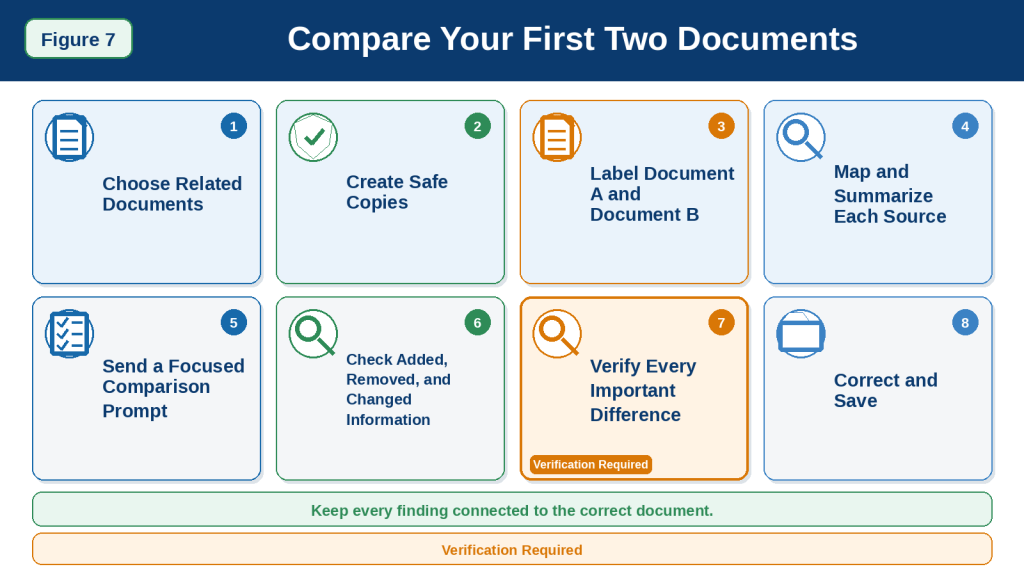
Figure 7. A reliable first document comparison includes separate source confirmation, document mapping, focused comparison, verification, correction, and record keeping.
Figure 7 shows the complete beginner workflow for comparing two documents with ChatGPT. Each source must remain clearly labelled, and every important difference should be checked manually before the final comparison is saved or shared.
How to Request Different Types of Document Comparisons
The same two documents can be compared in several different ways.
The best comparison type depends on what you need to understand.
For example, you may want to compare:
· Added and removed information
· Exact wording changes
· Responsibilities
· Dates and deadlines
· Prices or amounts
· Rules and exceptions
· Arguments and evidence
· Risks and warnings
· Tone and audience
· Tables and numerical data
A broad instruction such as:
Compare these documents.
may produce a general response.
A focused comparison prompt usually produces results that are easier to check.
Added, Removed, Changed, and Unchanged Comparison
This is one of the most useful comparison types for revised documents.
It identifies:
· Information added to the new version
· Information removed from the old version
· Information that changed
· Important information that stayed the same
Example prompt:
Compare Document A with Document B. Organize the findings under Added Information, Removed Information, Changed Information, and Important Unchanged Information. Check whether information that appears removed was moved or rewritten elsewhere.
This method works well for:
· Policies
· Procedures
· Contracts
· Manuals
· Reports
· Drafts and revisions
Exact Wording Comparison
Exact wording comparison focuses on changed words, phrases, and sentences.
It is useful when small words may change the meaning.
Pay special attention to words such as:
· May
· Must
· Should
· Can
· Cannot
· Only
· Unless
· Before
· After
· At least
· No more than
Example prompt:
Compare the documents sentence by sentence. Show the original wording, revised wording, changed words, possible effect on meaning, and source location.
For example:
Document A:
Employees may submit the form electronically.
Document B:
Employees must submit the form electronically.
The change from may to must changes an optional action into a requirement.
Exact wording comparison does not replace legal or professional review.
Meaningful-Change Comparison
This type ignores minor editing changes and focuses only on changes that affect meaning or action.
Example prompt:
Report only changes that affect requirements, responsibilities, dates, amounts, conditions, exceptions, risks, or required actions. Ignore punctuation, spelling, formatting, and rewording that does not change the meaning.
This is useful when the revised document contains many small editorial changes.
Responsibility Comparison
Responsibility comparison identifies who must complete, approve, review, pay for, or manage an action.
It may compare:
· People
· Departments
· Organizations
· Managers
· Customers
· Contractors
· Service providers
Example prompt:
Compare responsibilities in Document A and Document B. Identify every task that was added, removed, reassigned, or left unchanged. Show the responsible person or department and the source location.
A responsibility table may include:
| Task | Document A | Document B | Change | Verification Needed |
| Approve request | Manager | Human Resources | Responsibility reassigned | Confirm effective date |
| Submit form | Employee | Employee | No change | No |
| Keep records | Not stated | Department manager | New responsibility | Confirm scope |
Check that a discussion or suggestion was not treated as an official responsibility.
Dates and Deadline Comparison
This comparison focuses on:
· Submission deadlines
· Notice periods
· Effective dates
· Renewal dates
· Payment dates
· Review dates
· Completion dates
Example prompt:
Compare every date and deadline in Document A and Document B. Show what each date applies to, who is responsible, whether the date changed, and the source location.
Check whether dates apply to:
· Different groups
· Different submission methods
· Different plans
· Different locations
· Different stages of a process
Two different dates are not automatically contradictory.
Price, Fee, and Amount Comparison
This comparison examines:
· Prices
· Fees
· Deposits
· Refunds
· Penalties
· Discounts
· Percentages
· Payment schedules
· Spending limits
Example prompt:
Compare all prices, fees, deposits, penalties, percentages, and payment conditions. Preserve the currency, units, dates, and conditions connected to each amount.
A useful table may include:
| Topic | Document A | Document B | Difference | Condition |
| Application fee | $50 | $75 | Increased by $25 | Paid at submission |
| Refund period | 30 days | 14 days | Reduced by 16 days | Applies to unused service |
Verify every amount and calculation manually.
Requirement and Eligibility Comparison
This comparison is useful for:
· Applications
· Benefits
· Programs
· Policies
· Services
· Memberships
· Employment procedures
It may examine:
· Who is eligible
· Required documents
· Required qualifications
· Minimum or maximum limits
· Exclusions
· Conditions
· Approval requirements
Example prompt:
Compare eligibility rules and requirements in the two documents. Identify added, removed, changed, and unchanged conditions. Keep different applicant groups separate.
Do not combine requirements that apply to different categories of people.
Condition and Exception Comparison
A general rule may be changed by a condition or exception.
For example:
General rule:
Applications must be submitted online.
Exception:
Paper applications are allowed when an accessibility accommodation has been approved.
A comparison that reports only the general rule may be misleading.
Example prompt:
Compare all conditions and exceptions. For each general rule, identify any exception, who it applies to, and whether it changed between the documents.
This is especially important for:
· Policies
· Contracts
· Insurance documents
· Benefits
· Employment rules
· Application instructions
Risk and Warning Comparison
This comparison examines whether the documents contain different:
· Warnings
· Restrictions
· Penalties
· Consequences
· Safety instructions
· Privacy risks
· Financial risks
· Technical limitations
Example prompt:
Compare the risks, warnings, restrictions, penalties, and possible consequences in both documents. Identify which risks are new, removed, changed, or unchanged.
Check whether a warning applies to:
· Every user
· One product
· One stage
· One location
· One group
· One condition
Claim-and-Evidence Comparison
This comparison is useful for reports, articles, proposals, and research papers.
It examines:
· Main claims
· Supporting evidence
· Data
· Examples
· Sources
· Limitations
· Conclusions
Example prompt:
Compare the main claims and supporting evidence in Document A and Document B. Show where the documents agree, disagree, or use different evidence. Do not combine conflicting conclusions.
A useful table may include:
| Topic | Claim in Document A | Evidence in Document A | Claim in Document B | Evidence in Document B | Agreement or Difference |
This helps show whether two documents reach different conclusions because they use different evidence.
Method Comparison
Method comparison is useful for reports and research papers.
It may examine:
· Research question
· Participants
· Sample size
· Data source
· Measurement method
· Time period
· Location
· Procedure
· Analysis method
Example prompt:
Compare the methods used in both documents. Identify differences in participants, data, measurements, time periods, locations, procedures, and limitations.
Different methods may explain why two documents reach different findings.
Findings and Conclusion Comparison
This comparison examines:
· Main findings
· Reported results
· Interpretation of results
· Conclusions
· Recommendations
Example prompt:
Compare the findings, conclusions, and recommendations in the two reports. Identify where they agree, disagree, or answer different questions. Keep the findings separate from your interpretation.
Check whether the documents:
· Use the same evidence
· Cover the same period
· Study the same group
· Use the same definitions
· Apply the same standard
Structure Comparison
Structure comparison examines how the documents are organized.
It may identify:
· Added sections
· Removed sections
· Moved sections
· Renamed headings
· Combined topics
· Divided topics
· Reordered procedures
Example prompt:
Compare the structure of Document A and Document B. Identify sections that were added, removed, renamed, moved, combined, or divided. Do not assume that moved information was deleted.
This comparison can help before a detailed content review.
Tone and Audience Comparison
Tone and audience comparison is interpretive.
It may examine whether one document is more:
· Formal
· Technical
· Persuasive
· Cautious
· Promotional
· Urgent
· Beginner-friendly
· Restrictive
Example prompt:
Compare the likely tone and intended audience of both documents. Support each interpretation with specific wording, examples, headings, or technical terms.
Clearly label findings about tone, emphasis, or audience as interpretations unless the documents state them directly.
Recommendation Comparison
Recommendation comparison examines:
· What action is proposed
· Who should act
· Why the action is recommended
· Which evidence supports it
· Which risks are discussed
· Which alternatives are considered
Example prompt:
Compare the recommendations in both documents. For each recommendation, identify the supporting evidence, intended decision-maker, required action, limitation, and source location.
Do not combine different recommendations into one conclusion.
Decision and Action-Item Comparison
This comparison is useful for meeting notes and project documents.
It may identify:
· New decisions
· Changed decisions
· Cancelled decisions
· Completed action items
· Delayed tasks
· Changed responsibilities
· New deadlines
· Unresolved questions
Example prompt:
Compare the meeting notes from the two dates. Separate confirmed decisions, proposals, action items, responsible people, deadlines, completed work, and unresolved questions.
Check that a suggestion was not incorrectly presented as a decision.
Spreadsheet Comparison
Spreadsheet comparison may examine:
· Added or removed rows
· Added or removed columns
· Changed values
· Changed formulas
· Missing entries
· Duplicate records
· Different totals
· Changed date ranges
· Changed categories
Example prompt:
Compare Spreadsheet A and Spreadsheet B. Identify changed worksheets, rows, columns, values, formulas, totals, missing entries, and duplicates. Include the exact worksheet and cell, row, or column location for each important difference.
Check:
· Currency
· Units
· Date formats
· Blank cells
· Hidden rows
· Filters
· Formulas
· Data ranges
Section-by-Section Comparison
This format follows the original document structure.
Example prompt:
Compare the documents section by section. Match sections that discuss the same topic even when their headings differ. Under each topic, identify added, removed, changed, and unchanged information.
This method works well for:
· Long policies
· Manuals
· Contracts
· Reports
· Business plans
· Training documents
Topic-by-Topic Comparison
A topic-based comparison is useful when the documents use different structures.
For example, compare both documents under:
· Eligibility
· Responsibilities
· Deadlines
· Fees
· Risks
· Appeals
Example prompt:
Compare the documents by topic rather than by section order. Use the headings Eligibility, Required Documents, Deadlines, Responsibilities, Fees, Exceptions, and Appeals.
This can make the comparison easier when related information appears in different locations.
Choose One Comparison Type at a Time
Avoid requesting all comparison types in one prompt.
A better sequence is:
1st Compare structure.
2nd Compare added and removed information.
3rd Compare responsibilities and deadlines.
4th Compare risks and exceptions.
5th Compare claims and evidence.
6th Verify the findings.
7th Create the final combined comparison.
Separating the tasks makes errors easier to identify and correct.
Choose the Comparison Type Before Uploading
Before starting, ask:
· Am I comparing versions?
· Do exact words matter?
· Do I need only meaningful changes?
· Am I checking responsibilities?
· Do dates or amounts matter most?
· Am I comparing claims and evidence?
· Am I checking risks or exceptions?
· Do the documents have different structures?
· Is numerical data involved?
· Which findings require professional review?
Choosing the comparison type before sending the prompt helps ChatGPT produce a more focused and reviewable response.
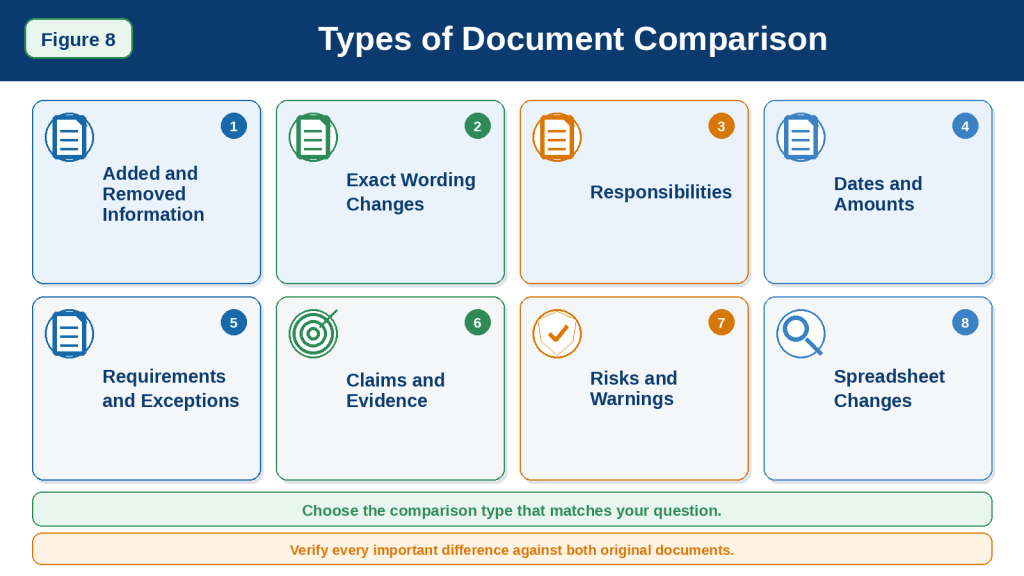
Figure 8. Different comparison methods focus on wording, meaning, responsibilities, dates, amounts, requirements, evidence, risks, structure, or numerical data.
Figure 8 shows common types of document comparison. Beginners should choose the method that matches their main question instead of requesting every type of comparison in one broad prompt.
How to Compare Long Documents with ChatGPT
Long documents require a more careful comparison process than short files.
Examples include:
· Policy manuals
· Contracts with many sections
· Research reports
· Business plans
· Technical manuals
· Government publications
· Training guides
· Books
· Annual reports
· Large spreadsheets
· Documents with appendices, tables, charts, and footnotes
Do not begin with a broad request such as:
Compare these two 300-page documents and identify every difference.
A single response may overlook sections, combine unrelated information, reverse the comparison direction, or focus unevenly on the beginning of the files.
OpenAI’s guidance for large and multiple file tasks recommends using fewer focused files when practical, dividing documents containing many hundreds of pages into smaller parts, reviewing those parts separately, and combining the results afterward.
Confirm That Both Documents Are Complete
Before comparing the documents, confirm that each file includes all required:
· Pages
· Chapters
· Sections
· Tables
· Charts
· Footnotes
· Appendices
· References
· Attachments
· Signature pages
A missing section may create a false difference.
For example, ChatGPT may report that Document B removed a cancellation rule when the page containing that rule was accidentally omitted from the uploaded copy.
Check the page sequence and table of contents before starting.
Confirm the Versions and Comparison Direction
Record the title, date, version number, and status of each document.
For example:
Document A — Original Policy
· Version 1.0
· Published March 2026
· Approved version
Document B — Revised Policy
· Version 2.0
· Published July 2026
· Revised version
Then tell ChatGPT:
Treat Document A as the original version and Document B as the revised version. Describe changes from Document A to Document B.
This helps prevent reversed findings.
When the documents are separate reports rather than versions, use:
Treat Document A and Document B as separate sources. Do not assume that either document replaces the other.
Create a Separate Document Map for Each Source
Do not compare the documents immediately.
First ask ChatGPT to map their structure.
Use this prompt:
Create a separate document map for Document A and Document B. For each source, list every main heading, subsection, table, chart, appendix, and major topic in the order it appears. Do not compare the documents yet. Identify anything you could not read confidently.
Compare each map with:
· The table of contents
· Chapter titles
· Page headings
· Tables
· Charts
· Appendices
· References
· The beginning and end of the file
Do not continue until both maps reasonably match the original documents.
Create a Section-Matching Table
Long documents may discuss the same topic under different headings.
For example:
| Document A | Document B |
| Employee Responsibilities | Staff Duties |
| Application Procedure | Submission Process |
| Approval Requirements | Authorization Rules |
| Special Exceptions | Alternative Arrangements |
Ask ChatGPT:
Match sections that appear to discuss the same topic, even when their headings differ. Present the proposed matches in a table and clearly label them as requiring manual review.
Check each proposed match yourself.
Two sections with similar names may discuss different subjects, while sections with different names may contain closely related information.
Divide the Documents into Logical Comparison Units
Divide the files according to their existing structure.
Useful units may include:
· Chapters
· Parts
· Main headings
· Policy areas
· Project stages
· Date periods
· Departments
· Appendices
· Groups of related tables
For example:
· Part 1 — Purpose and Scope
· Part 2 — Eligibility
· Part 3 — Responsibilities
· Part 4 — Procedures
· Part 5 — Deadlines and Fees
· Part 6 — Exceptions and Appeals
· Part 7 — Appendices
Do not divide the documents:
· In the middle of a paragraph
· Between a rule and its exception
· Between a claim and supporting evidence
· Between a chart and its explanation
· Between an instruction and its warning
· In the middle of a table
· Between a defined term and its use
Keep related information together.
Compare One Matching Section at a Time
Begin with one matched topic.
For example:
Compare the “Eligibility” section in Document A with the “Who Can Apply” section in Document B. Identify added, removed, changed, and unchanged requirements. Include source locations and do not use information from other sections yet.
Review and correct that comparison before continuing.
Then move to the next matched topic.
A section-tracking table may contain:
| Comparison Topic | Document A Section | Document B Section | Compared | Verified |
| Purpose and scope | Section 1 | Introduction | Yes | Yes |
| Eligibility | Section 2 | Who Can Apply | Yes | Yes |
| Responsibilities | Section 3 | Staff Duties | Yes | No |
| Appeals | Section 8 | Review Process | No | No |
Do not mark a section as complete until its important findings have been checked against both original documents.
Use the Same Comparison Structure for Every Section
A consistent format makes the separate comparisons easier to review and combine.
For each topic, request:
· Document A information
· Document B information
· Added information
· Removed information
· Changed information
· Important unchanged information
· Practical difference
· Source locations
· Verification required
Example prompt:
Compare this topic using the headings Document A, Document B, Added Information, Removed Information, Changed Information, Unchanged Information, Practical Difference, and Verification Required.
Using the same format makes missing categories easier to notice.
Compare Meaning Before Exact Wording
Long documents often contain many editorial changes that do not affect meaning.
These may include:
· Corrected spelling
· Revised punctuation
· Shorter sentences
· Renamed headings
· Moved paragraphs
· Formatting changes
· Reworded explanations
Ask ChatGPT to separate:
Changes that affect meaning or action
· New requirements
· Removed options
· Changed responsibilities
· New deadlines
· Revised amounts
· Added conditions
· Removed exceptions
· New risks or penalties
Minor editorial changes
· Spelling
· Punctuation
· Formatting
· Rewording with the same practical meaning
Use this instruction:
Report meaningful changes separately from minor wording, spelling, punctuation, formatting, and organizational changes.
Check Whether Information Was Moved
Information that disappears from one section may appear elsewhere in the revised document.
Before confirming that content was removed, ask:
Search the complete Document B for every item classified as removed. Check whether the information was moved, shortened, combined, renamed, or rewritten elsewhere.
Complete the same check for information that appears new:
Search the complete Document A for every item classified as added. Confirm that it did not already appear under another heading or in an appendix.
This reduces false added-or-removed findings.
Compare Definitions Before Comparing Rules
Long documents may define important terms differently.
For example:
· Employee may include contractors in one document but not the other.
· Business day may exclude weekends and holidays.
· Customer may refer only to paid account holders.
· Immediate family may include different relatives.
Compare definitions before comparing rules that depend on those terms.
Use this prompt:
Compare all defined terms before comparing the related requirements. Identify definitions that were added, removed, narrowed, expanded, or left unchanged.
A small definition change can affect many later sections.
Compare General Rules with Their Exceptions
A long document may state a general rule in one section and an exception much later.
For example:
General rule:
All applications must be submitted online.
Later exception:
Paper applications may be accepted as an approved accessibility accommodation.
When comparing the general rule, search both documents for related exceptions.
Use this prompt:
For each general requirement, identify every related condition, exception, limitation, and special case appearing elsewhere in the document.
Do not report a rule change without checking whether the exception also changed.
Review Tables, Charts, and Appendices Separately
Important differences may appear outside ordinary paragraphs.
Review separately:
· Tables
· Charts
· Diagrams
· Appendices
· Footnotes
· Endnotes
· Forms
· Reference lists
· Supplementary files
Ask:
List every table, chart, appendix, footnote, and supplementary item in both documents. Identify which items correspond and which appear in only one source.
When exact numerical values matter, compare the original table or spreadsheet directly.
ChatGPT can analyze uploaded spreadsheets and structured data, but values, formulas, worksheets, and data ranges still require manual checking.
Check Topics That Appear in Several Sections
Some information may be repeated throughout a long document.
Examples include:
· Eligibility
· Deadlines
· Responsibilities
· Fees
· Risks
· Definitions
· Restrictions
· Cancellation rules
· Required documents
· Approval procedures
After completing the section comparisons, ask a cross-document question.
For example:
Identify every reference to deadlines across both documents. Keep different application methods, groups, stages, and exceptions separate. Include the source location for each reference.
Repeat this process for every high-priority topic.
Create a Master Change Log
After verifying each section, create a combined change log.
A useful table may contain:
| Change ID | Topic | Document A | Document B | Change Type | Practical Effect | Source Location | Verified |
| 001 | Notice period | 14 days | 21 days | Changed | Longer advance notice required | Section 4 | Yes |
| 002 | Submission method | Email or portal | Portal only | Removed option | Email no longer listed | Section 5 | Yes |
| 003 | Appeal process | Not stated | New appeal section | Added | New review option appears | Section 9 | Requires review |
Useful change types include:
· Added
· Removed
· Changed
· Moved
· Renamed
· Unchanged
· Possible contradiction
· Requires verification
Do not add a finding to the final change log until it has been checked.
Create a Comparison of the Reviewed Sections
After every major topic has been compared and verified, combine the reviewed findings.
Use this prompt:
Using only the verified section comparisons below, create a complete comparison of Document A and Document B.
Organize it under:
· Purpose and Scope
· Definitions
· Added Information
· Removed Information
· Changed Requirements
· Changed Responsibilities
· Changed Dates and Amounts
· Changed Conditions and Exceptions
· Important Unchanged Information
· Possible Contradictions
· Information Requiring Verification
Preserve source labels, conditions, exceptions, uncertainty, and source locations. Do not reintroduce findings that were corrected or removed.
Review the combined result against the section records.
Compare Several Long Documents Separately
When comparing more than two long documents, do not upload everything and request one immediate answer.
Use this order:
1st Map Document A.
2nd Review Document A.
3rd Map Document B.
4th Review Document B.
5th Compare Documents A and B.
6th Verify the findings.
7th Repeat the process for Document C.
8th Add Document C only after the earlier comparison is stable.
9th Create a final multi-document comparison from verified findings.
For example:
· Document A — Original version
· Document B — First revision
· Document C — Approved version
Compare:
· A with B
· B with C
· Then summarize the complete revision history
OpenAI identifies comparing and contrasting documents as a file-upload use case, but large and multiple-file tasks benefit from focused organization rather than one overloaded request.
Long-Document Comparison Prompt
Begin with:
These are long documents. Do not create a complete comparison yet.
First, create a separate document map for Document A and Document B. List every main heading, subsection, table, chart, appendix, and major topic.
Then propose matching sections that discuss the same subject, even when their headings differ.
Identify anything you could not read confidently. Do not guess.
After reviewing the maps, use:
Compare only these matching sections:
Document A: [section name]
Document B: [section name]
Identify added, removed, changed, moved, and unchanged information. Separate meaningful changes from minor editorial changes. Include source locations and write “Requires verification” when the source is unclear.
Final Long-Document Comparison Check
Before accepting the combined comparison, confirm:
· Both documents were complete.
· Titles, dates, versions, and status were checked.
· Separate document maps matched the sources.
· Matching sections were reviewed manually.
· Every major section was compared.
· Definitions were compared before related rules.
· General rules were connected to their exceptions.
· Moved information was not reported as removed.
· Rewritten information was not reported as new without checking.
· Tables, charts, footnotes, and appendices were reviewed.
· Dates, numbers, amounts, and units were verified.
· Every finding remained connected to the correct source.
· Direct differences were separated from interpretation.
· Section comparisons were checked before being combined.
· Corrected findings did not reappear.
· Both original documents remain available.
A long-document comparison is more reliable when it is built from smaller, verified section comparisons rather than created through one broad request.
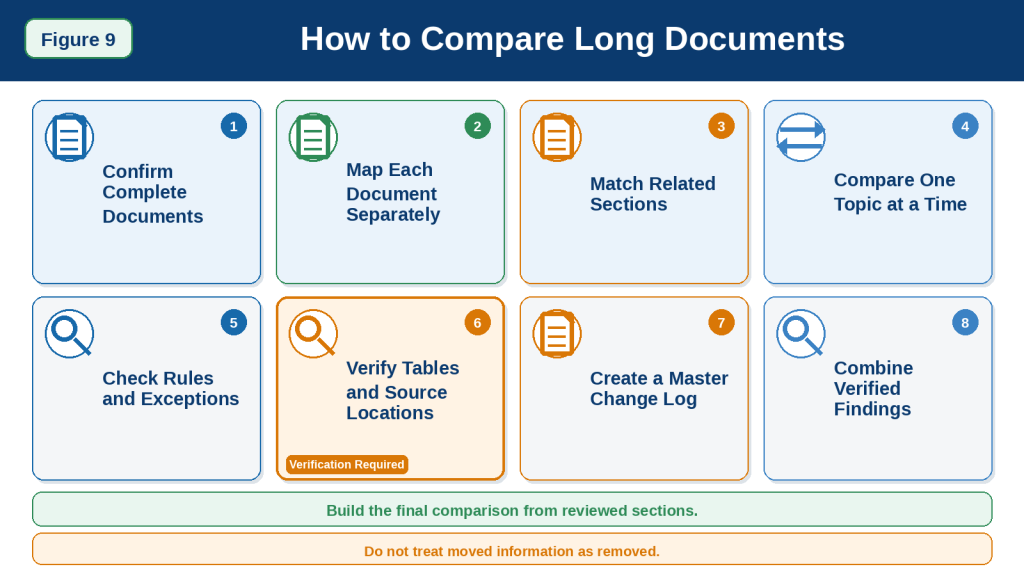
Figure 9. Long documents are easier to compare when they are mapped separately, divided into matching sections, checked topic by topic, and combined after verification.
Figure 9 shows the staged workflow for comparing long documents. Beginners should verify each section comparison before creating a master change log or final combined report.
How to Check and Correct a ChatGPT Document Comparison
A ChatGPT comparison should be treated as a draft until every important difference has been checked against both original documents.
Even when the response looks organized and professional, it may contain:
· Reversed documents
· Incorrect dates or amounts
· Information assigned to the wrong source
· Content reported as removed when it was moved
· Reworded information reported as new
· Minor edits described as meaningful changes
· Important differences that were missed
· False contradictions
· Incorrect source locations
· Interpretations presented as direct findings
A careful review helps prevent comparison errors from being copied into reports, emails, presentations, websites, contracts, meeting records, or business decisions.
Confirm the Comparison Goal
Return to the original prompt and check what ChatGPT was asked to compare.
For example, was the goal to identify:
· Added and removed information
· Changed responsibilities
· New deadlines
· Different prices
· Revised requirements
· Different claims and evidence
· Spreadsheet changes
· Risks and warnings
Then ask:
Does every major finding help answer the original comparison question?
Remove or revise information that is unrelated to the goal.
For example, when the task was to compare deadlines and responsibilities, a long discussion about writing tone may not be useful.
Confirm That the Correct Documents Were Compared
Check that ChatGPT used the intended files.
Verify:
· Filename
· Document title
· Date
· Version number
· Draft or approved status
· Main headings
· Original and revised order
Ask ChatGPT:
State the filename, title, date, version, and source label of each document used in the comparison.
Compare the response with the original files.
Do not continue when:
· Document A and Document B were reversed.
· The same file was uploaded twice.
· An unrelated file was included.
· One version was missing.
· The document dates were misunderstood.
Confirm the Comparison Direction
When Document A is the original and Document B is the revision, make sure every change is described in that direction.
For example:
Correct direction:
The notice period increased from 14 days in Document A to 21 days in Document B.
Reversed direction:
The notice period decreased from 21 days to 14 days.
A reversed comparison can change the meaning of the entire result.
Use this correction prompt:
Treat Document A as the original and Document B as the revised version. Review every change and correct any reversed comparison direction.
Check Every Added Item
For each item described as added, confirm:
· It appears in Document B.
· It does not appear in Document A.
· It was not moved from another section.
· It was not stated using different wording.
· It was not included in an appendix, footnote, or table.
· It genuinely adds a requirement, option, explanation, warning, or condition.
For example, ChatGPT may report that Document B added an appeal process.
Before accepting the finding, search Document A for:
· Appeal
· Review
· Reconsideration
· Complaint
· Dispute
· Request for review
The same process may have appeared under a different heading.
Use this prompt:
Review every item classified as added. Search the complete Document A for equivalent information, including differently worded sections, tables, appendices, and footnotes.
Check Every Removed Item
For each item described as removed, confirm:
· It appears in Document A.
· It is absent from Document B.
· It was not moved to another section.
· It was not shortened.
· It was not combined with another rule.
· It was not rewritten using different terminology.
· It was not transferred to an appendix or table.
Use this prompt:
Review every item classified as removed. Search the complete Document B to determine whether the information was moved, renamed, shortened, combined, or rewritten.
Do not report information as removed until the complete revised document has been checked.
Check Every Changed Item
For every changed item, place the original and revised wording side by side.
Check:
· What changed
· Whether the meaning changed
· Who the change applies to
· Whether a condition was added
· Whether an exception was removed
· Whether the level of obligation changed
· Whether the practical effect is accurately described
For example:
Document A:
Employees should submit requests 14 days in advance.
Document B:
Employees must submit requests at least 21 calendar days in advance.
Important changes include:
· Should changed to must.
· The notice period increased from 14 to 21 days.
· Calendar days was added.
· At least creates a minimum requirement.
A useful comparison should preserve every meaningful part.
Check Words That Change Obligations
Pay close attention to words such as:
· May
· Must
· Should
· Can
· Cannot
· Required
· Optional
· Only
· Unless
· Except
· Before
· After
· At least
· No more than
· Immediately
· Normally
These words may change:
· Permission
· Obligation
· Eligibility
· Timing
· Exceptions
· Consequences
Do not dismiss them as minor wording changes.
Check Whether Different Wording Has the Same Meaning
Not every rewritten sentence creates a real change.
For example:
Document A:
Applicants must provide proof of identification.
Document B:
Applicants are required to submit an accepted identification document.
The wording differs, but the practical requirement may be the same.
Use this prompt:
Review every wording change and determine whether it changes meaning, responsibility, timing, eligibility, conditions, or required action. Move equivalent rewording to the minor-changes section.
Check Dates and Deadlines
Verify every:
· Publication date
· Effective date
· Deadline
· Notice period
· Renewal date
· Payment date
· Review date
· Completion date
For each date, confirm:
· The exact value
· What it applies to
· Who must act
· Whether it uses calendar or business days
· Whether an exception applies
· Whether the date belongs to the correct document
A useful table may include:
| Topic | Document A | Document B | Verified Change | Source Location |
| Notice period | 14 calendar days | 21 calendar days | Increased by 7 days | Section 4 |
| Renewal date | June 30 | June 30 | No change | Section 8 |
| Appeal deadline | Not stated | 10 business days | Added deadline | Section 10 |
Check Prices, Fees, and Amounts
Verify every:
· Price
· Fee
· Deposit
· Penalty
· Refund
· Percentage
· Spending limit
· Payment schedule
· Quantity
· Measurement
Confirm:
· Currency
· Unit
· Tax treatment
· Time period
· Applicable group
· Conditions
· Calculation
For example:
· $50 must not become $500.
· 15% must not become 50%.
· Monthly cost must not be described as an annual total.
· A refundable deposit must not be described as a non-refundable fee.
Check Responsibilities
For each responsibility, confirm:
· Who performs the action
· Who approves it
· Who reviews it
· Who pays
· Who keeps records
· Who receives notice
· Whether the responsibility changed
· Whether the responsibility applies to all groups
A comparison may incorrectly report that responsibility moved from a manager to Human Resources when both documents assign different parts of the process to each department.
Use this prompt:
Review every responsibility change. Separate the person who submits, reviews, approves, records, pays, or communicates each action.
Check Requirements, Conditions, and Exceptions Together
Do not review a general rule without checking its conditions and exceptions.
For example:
General rule:
Applications must be submitted online.
Exception:
Paper applications may be accepted as an accessibility accommodation.
A comparison that reports only “Paper applications were removed” may be wrong when the exception still exists elsewhere.
For every important requirement, check:
· Who it applies to
· When it applies
· Conditions
· Exceptions
· Required documents
· Approval requirements
· Consequences
Check Whether Information Applies to Different Groups
Two statements may look contradictory when they apply to different:
· Applicant types
· Employee groups
· Membership levels
· Products
· Plans
· Locations
· Departments
· Submission methods
· Time periods
For example:
· Online applicants must submit by September 15.
· Mailed applications must arrive by September 1.
These deadlines are different but not contradictory.
Use this prompt:
Review every possible contradiction and confirm whether the statements apply to the same group, location, plan, date range, product, or submission method.
Check for False Contradictions
ChatGPT may describe two differently worded rules as conflicting.
Before accepting a contradiction, confirm that:
· Both statements apply to the same situation.
· Neither statement is an exception.
· One is not a later update.
· One is not a general rule and the other a special case.
· The definitions are the same.
· The documents use the same time period.
Classify findings as:
· Confirmed contradiction
· Possible contradiction
· Different conditions
· Different groups
· Different versions
· Requires verification
Check for Missed Differences
ChatGPT may fail to identify an important change.
Compare:
· Tables of contents
· Section headings
· Defined terms
· Dates
· Amounts
· Responsibilities
· Requirements
· Exceptions
· Warnings
· Penalties
· Appendices
· Tables
· Conclusions
Ask ChatGPT:
Compare the document maps with the completed comparison and list every section, table, appendix, definition, or major topic that received little or no comparison.
Then check the answer manually.
Check Definitions
A changed definition may affect many later sections.
For example:
Document A:
Employee means a permanent full-time worker.
Document B:
Employee means a permanent, temporary, or contract worker.
The definition in Document B applies the policy to a larger group.
Compare important terms such as:
· Employee
· Customer
· Applicant
· Business day
· Confidential information
· Immediate family
· Eligible expense
· Service period
· Authorized person
Definitions should be checked before related rules are accepted.
Check Tables, Charts, and Appendices
Important differences may appear outside ordinary paragraphs.
Review:
· Tables
· Charts
· Diagrams
· Footnotes
· Endnotes
· Appendices
· Forms
· References
· Supplementary pages
Ask ChatGPT:
Identify every comparison finding that depends on a table, chart, appendix, footnote, or visual. State whether the information was read confidently and what requires manual checking.
Verify:
· Labels
· Units
· Legends
· Row and column relationships
· Totals
· Date ranges
· Colour coding
· Footnotes
Check Spreadsheet Comparisons Carefully
For spreadsheet comparisons, verify:
· Worksheet names
· Row and column labels
· Formulas
· Values
· Totals
· Filters
· Hidden rows or columns
· Blank cells
· Duplicate entries
· Date formats
· Currency
· Units
A blank cell should not automatically be treated as zero.
A formula difference may be more important than a visible value difference.
For example:
· Spreadsheet A may total rows 2–20.
· Spreadsheet B may total rows 2–25.
Even when the displayed totals look similar, the calculation ranges differ.
Separate Direct Findings from Interpretation
Some comparison findings are direct.
Examples:
· A date changed.
· A paragraph was added.
· A fee increased.
· A department name changed.
Other findings are interpretive.
Examples:
· The revised document sounds stricter.
· The intended audience appears narrower.
· The conclusion seems more cautious.
· Risk receives greater emphasis.
Use separate sections:
Directly Verified Differences
Possible Interpretive Differences
Every interpretive finding should include:
· Supporting wording
· Source location
· Explanation
· Uncertainty
Check Practical-Effect Statements
ChatGPT may explain the possible effect of a change.
For example:
Increasing the notice period from 14 to 21 days gives employees less flexibility.
This may be a reasonable interpretation, but it is not stated directly unless the document says so.
Label such statements as:
· Possible practical effect
· Interpretation
· Requires confirmation
Do not present a predicted consequence as a verified fact.
Check Source Locations
Verify every important:
· Page number
· Section heading
· Paragraph
· Table name
· Appendix
· Worksheet
· Cell
· Row
· Column
Source references may be incorrect when:
· Printed and digital page numbers differ.
· The document was scanned.
· Similar headings appear more than once.
· Text was copied and pasted.
· Tables were extracted incorrectly.
· Sections were moved.
Replace incorrect references with the verified location or write:
Source location requires manual confirmation.
Keep a Comparison Correction Log
A correction log records which findings were changed.
A useful table may include:
| Original Comparison Finding | Problem | Corrected Finding | Source |
| Appeal process removed | Moved to another section | Appeal process appears in Section 10 | Document B, Section 10 |
| Deadline decreased to 14 days | Direction reversed | Deadline increased from 14 to 21 days | Both documents, Section 4 |
| Manager approval replaced by HR | Sources combined | Manager reviews; HR gives final approval | Document B, Section 6 |
| New fee added | Already present in appendix | Fee wording moved to main section | Document A appendix; Document B Section 5 |
A correction log helps prevent the same error from returning in the final comparison.
Correct One Problem at a Time
Avoid requesting a complete rewrite after every error.
Use specific corrections.
For example:
Correct only the deadline row. Document A states 14 calendar days, and Document B states 21 calendar days.
Or:
The appeal process was moved, not removed. Correct only that finding and preserve the source sections.
Or:
Both documents assign final approval to Human Resources. Remove the claimed responsibility change.
Specific corrections are easier to verify.
Ask ChatGPT to Review Source Assignment
Use this prompt:
Review every comparison finding and confirm whether it belongs to Document A, Document B, or both. Correct reversed, mixed, unsupported, or unclear source assignments.
This may help reveal source confusion, but it does not replace manual checking.
Request the Final Reviewed Comparison
After checking and correcting the findings, use:
Create a final reviewed comparison using only verified findings.
Organize it under:
· Added Information
· Removed Information
· Changed Information
· Important Unchanged Information
· Changed Responsibilities
· Changed Dates and Amounts
· Changed Requirements and Exceptions
· Confirmed Contradictions
· Possible Interpretive Differences
· Information Requiring Verification
Do not reintroduce findings that were corrected or removed. Keep every statement connected to the correct source and preserve verified source locations.
Compare the final result with the correction log.
Add an Appropriate Disclosure
When sharing or publishing the comparison, consider adding:
This comparison was created with AI assistance and reviewed against both original documents. Interpretive findings are clearly labelled. Readers should consult the original sources for complete wording and official requirements.
Disclosure is especially useful when the comparison is:
· Published online
· Shared with colleagues
· Used in training
· Included in business records
· Used to support a decision
· Presented to clients or managers
Save the Comparison Records
Keep these items together when appropriate:
· Original Document A
· Safe copy of Document A
· Original Document B
· Safe copy of Document B
· Source labels
· Document maps
· Separate summaries
· First comparison
· Correction log
· Final reviewed comparison
· Prompts
· Source references
· Review date
· Reviewer name
Final Comparison Verification Checklist
Before using the comparison, confirm:
· The correct documents were compared.
· Document A and Document B were not reversed.
· Titles, dates, versions, and status are accurate.
· Every added item is genuinely new.
· Every removed item is genuinely absent.
· Moved information was not reported as removed.
· Reworded information was not reported as new.
· Meaningful and minor changes are separated.
· Dates, numbers, amounts, and units are accurate.
· Responsibilities belong to the correct people or departments.
· Requirements remain connected to conditions and exceptions.
· Different groups and time periods remain separate.
· Contradictions were confirmed rather than guessed.
· Definitions were reviewed.
· Tables, charts, appendices, and spreadsheets were checked.
· Direct findings and interpretations are separated.
· Practical effects are labelled as interpretation.
· Source locations were verified.
· Corrections are recorded.
· Corrected errors did not return.
· Both original documents remain available.
A document comparison is ready to use only after its important differences, source assignments, conditions, dates, amounts, and interpretations have been checked against both original documents.
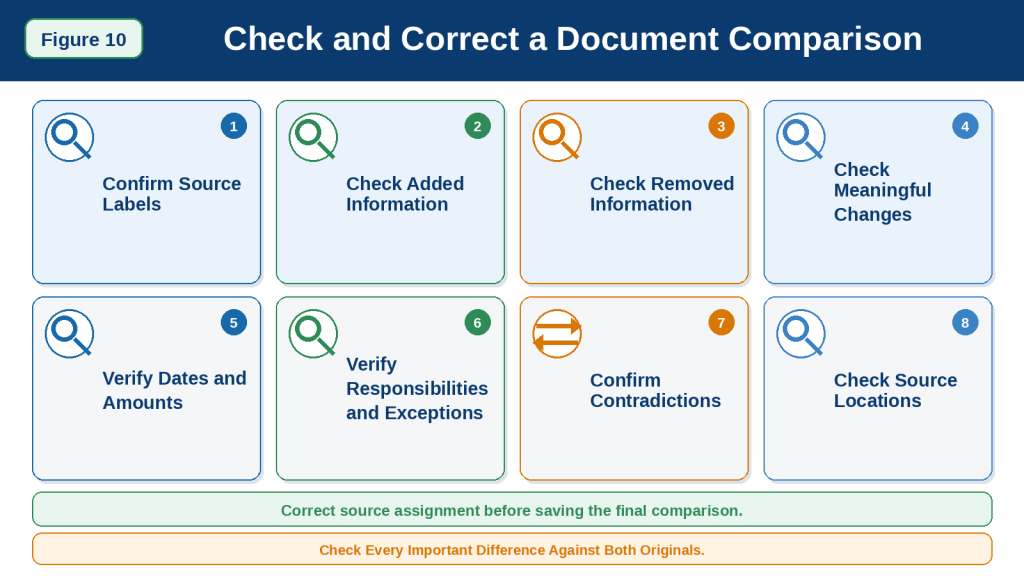
Figure 10. A reliable comparison review checks source labels, additions, removals, meaningful changes, dates, responsibilities, conditions, contradictions, and source locations.
Figure 10 shows the main checks beginners should complete before accepting a ChatGPT document comparison. Every important finding should be connected to the correct source, verified manually, corrected when necessary, and preserved in a reviewed comparison record.
Benefits of Using ChatGPT to Compare Documents
ChatGPT can make document comparison faster and more organized when the documents are prepared carefully and the findings are checked against both original sources.
The main benefits depend on:
· Clear source labels
· Readable documents
· A focused comparison goal
· Accurate prompts
· Careful manual verification
· Correct source assignment
ChatGPT should support human review rather than replace it.
Helps Identify Important Changes Quickly
A revised document may contain many small edits.
ChatGPT can help identify changes involving:
· Requirements
· Responsibilities
· Dates
· Deadlines
· Prices
· Fees
· Conditions
· Exceptions
· Penalties
· Recommendations
For example:
Compare Document A and Document B and report only changes that affect meaning, responsibilities, deadlines, amounts, conditions, or required actions.
This can help readers focus on practical changes instead of reviewing every punctuation or formatting edit manually.
Organizes Added, Removed, Changed, and Unchanged Information
ChatGPT can arrange comparison findings into clear categories:
· Added information
· Removed information
· Changed information
· Important unchanged information
This structure helps readers understand what happened between versions.
For example:
| Change Type | Finding |
| Added | New appeal procedure |
| Removed | Email submission option |
| Changed | Notice period increased from 14 to 21 days |
| Unchanged | Human Resources remains the final approver |
A clear structure is especially helpful when the revised document is long.
Creates Side-by-Side Comparisons
ChatGPT can organize information from both documents in one table.
A side-by-side table may include:
· Topic
· Document A
· Document B
· Difference
· Possible practical effect
· Source location
· Verification needed
For example:
| Topic | Document A | Document B | Important Difference |
| Submission method | Email or portal | Portal only | Email option removed |
| Notice period | 14 days | 21 days | Advance notice increased |
| Approval | Manager review | HR approval | Final responsibility changed |
This format makes differences easier to locate and verify.
Separates Meaningful Changes from Minor Editing
Revised documents often contain:
· Spelling corrections
· Punctuation changes
· Reorganized paragraphs
· Reworded sentences
· Formatting changes
These edits may not affect the meaning.
ChatGPT can help separate them from changes involving:
· New obligations
· Removed options
· Changed deadlines
· Revised amounts
· New conditions
· Different responsibilities
· Added warnings
Example prompt:
Separate changes that affect meaning or action from minor wording, spelling, punctuation, formatting, and organizational changes.
This can reduce unnecessary review work.
Helps Track Changes in Responsibilities
Responsibilities may move between:
· Employees
· Managers
· Departments
· Customers
· Contractors
· Service providers
· Organizations
ChatGPT can help identify:
· New responsibilities
· Removed responsibilities
· Reassigned tasks
· Changed approval authority
· Unchanged duties
For example:
Compare every responsibility in both documents. Identify who submits, reviews, approves, records, pays, and communicates each action.
This can be useful for policies, procedures, meeting notes, contracts, and project documents.
Helps Find Changed Dates and Deadlines
Important dates may be spread across several sections.
ChatGPT can help collect and compare:
· Effective dates
· Submission deadlines
· Notice periods
· Payment dates
· Renewal dates
· Appeal deadlines
· Review dates
For example:
List every date and deadline in both documents. Show what each date applies to, who must act, and whether it changed.
This can make manual checking more organized.
Every date should still be verified directly.
Helps Compare Conditions and Exceptions
A general rule may appear similar in both documents while an exception changes elsewhere.
ChatGPT can help connect:
· General requirements
· Eligibility conditions
· Exceptions
· Limitations
· Special cases
· Approval conditions
For example:
Compare every rule together with its conditions and exceptions. Do not report a rule change without checking related exceptions elsewhere in both documents.
This can help prevent incomplete comparisons.
Helps Identify Moved or Reorganized Information
A revised document may move information without removing it.
ChatGPT can help determine whether content was:
· Moved
· Renamed
· Combined
· Divided
· Shortened
· Rewritten
· Transferred to an appendix or table
For example:
Check whether information classified as removed from Document A appears elsewhere in Document B under a different heading.
This reduces false reports of removed content.
Supports Comparison of Claims and Evidence
Reports, articles, proposals, and research papers may use different claims or evidence.
ChatGPT can help compare:
· Main arguments
· Supporting statistics
· Examples
· Research methods
· Sources
· Limitations
· Conclusions
For example:
Compare the main claims and supporting evidence in both reports. Show where they agree, disagree, or use different evidence.
This may help explain why two documents reach different conclusions.
Helps Preserve Disagreement Between Sources
Two documents may disagree.
ChatGPT can organize those differences without combining them into one artificial conclusion.
For example:
· Document A identifies cost as the main problem.
· Document B identifies lack of training as the main problem.
A careful comparison preserves both positions.
It should not automatically conclude:
Cost and training are the two main problems.
That combined statement may not represent either document accurately.
Supports Version Tracking
When several versions exist, ChatGPT can help create a revision history.
For example:
· Version 1.0 — Original
· Version 1.1 — First revision
· Version 2.0 — Approved update
A version history may show:
· What changed between each version
· When the change appeared
· Whether it remained in later versions
· Which version introduced a new rule
· Which version removed an option
This can be useful for policies, manuals, reports, contracts, and project documents.
Helps Compare Long Documents in Sections
Long documents can be divided into matching topics.
ChatGPT can help compare:
· Purpose and scope
· Definitions
· Eligibility
· Responsibilities
· Procedures
· Deadlines
· Fees
· Exceptions
· Appeals
· Appendices
This staged method makes large comparisons easier to review.
Each section can be verified before the final comparison is created.
Helps Compare Documents with Different Structures
Two documents may discuss the same topics under different headings.
ChatGPT can help propose possible section matches.
For example:
| Document A | Document B |
| Employee Responsibilities | Staff Duties |
| Request Procedure | Submission Process |
| Exceptions | Special Circumstances |
This helps readers compare by topic rather than only by heading name.
The proposed matches still require manual review.
Supports Spreadsheet Comparison
ChatGPT can help organize differences between spreadsheets, including:
· Added or removed rows
· Added or removed columns
· Changed values
· Changed formulas
· Different totals
· Missing entries
· Duplicate records
· Different date ranges
Example prompt:
Compare Spreadsheet A and Spreadsheet B. Identify changed worksheets, rows, columns, values, formulas, totals, and missing entries.
This can save time when two files use similar structures.
Exact values, formulas, filters, hidden rows, currencies, and units must still be verified manually.
Helps Find Information Requiring Verification
A useful comparison does not need to pretend that every difference is certain.
ChatGPT can create a separate section for:
· Unclear wording
· Missing pages
· Unreadable tables
· Different source locations
· Possible contradictions
· Unconfirmed versions
· Changes with uncertain meaning
For example:
Create a section titled “Information Requiring Verification” and place every uncertain or unsupported comparison finding there.
This helps readers separate confirmed changes from unresolved questions.
Supports Focused Follow-Up Questions
After the first comparison, users can ask:
· Was this information added or moved?
· Did the responsibility really change?
· Does this deadline apply to the same group?
· Is this a wording change or a meaning change?
· Which section supports this finding?
· Did the exception remain unchanged?
· Are these conclusions actually contradictory?
Focused questions make the review process easier to manage.
Helps Prepare Questions for an Author or Professional
A comparison may reveal issues that require clarification.
For example:
· Which version is current?
· Does the new deadline apply to existing users?
· Was the removed exception cancelled intentionally?
· Which department now approves the request?
· Does the revised fee include tax?
· Which contract clause controls when two sections appear inconsistent?
ChatGPT can help organize these questions for:
· The document author
· An employer
· A government office
· A lawyer
· An accountant
· A doctor
· A technical specialist
· Another qualified professional
It should not answer professional questions beyond what the documents support.
Creates a Clear Comparison Record
Saving the comparison process creates a useful record.
This may include:
· Original documents
· Safe working copies
· Source labels
· Document maps
· Separate summaries
· First comparison
· Correction log
· Final reviewed comparison
· Prompts
· Source locations
· Review date
A clear record helps explain how the final findings were produced and corrected.
The Benefits Depend on Careful Use
ChatGPT is most useful when the user:
1st Keeps both original documents unchanged.
2nd Creates safe working copies.
3rd Labels each source clearly.
4th Confirms dates and versions.
5th Reviews each document separately.
6th Chooses one comparison goal.
7th Requests source locations.
8th Checks every important difference.
9th Corrects one problem at a time.
10th Saves only the reviewed comparison.
The main benefit is not that ChatGPT decides which document is correct. It helps the reader organize differences, locate changes, compare matching topics, and prepare findings for careful human review.
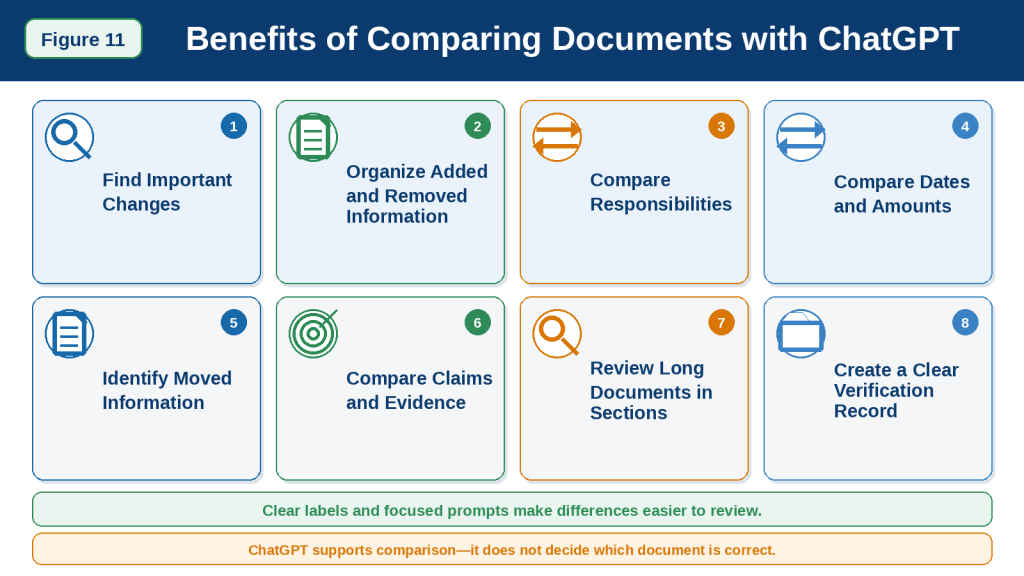
Figure 11. ChatGPT can help organize changes, compare responsibilities and deadlines, identify moved information, examine claims and evidence, and create a clearer verification record.
Figure 11 summarizes the main benefits of AI-assisted document comparison. These benefits are most reliable when the documents are labelled clearly, reviewed separately, and checked against both original sources.
Limitations of Using ChatGPT to Compare Documents
ChatGPT can help organize a document comparison, but it cannot guarantee that every difference, source assignment, interpretation, date, amount, or conclusion is correct.
Understanding these limitations helps beginners avoid false confidence and use document comparison more responsibly.
ChatGPT May Reverse the Documents
ChatGPT may confuse:
· Document A with Document B
· The original with the revised version
· The older version with the newer version
· A draft with an approved version
For example, the real change may be:
The deadline increased from 14 days in Document A to 21 days in Document B.
A reversed comparison may incorrectly say:
The deadline decreased from 21 days to 14 days.
How to Reduce This Limitation: Give each source a permanent label and state the comparison direction clearly.
For example:
Treat Document A as the original and Document B as the revised version. Describe every change from Document A to Document B.
Confirm the filenames, dates, titles, and versions before accepting the comparison.
ChatGPT May Assign Information to the Wrong Source
When documents contain similar sections, ChatGPT may report that a requirement appears in Document A when it actually appears in Document B.
This may happen when:
· Both documents use similar headings
· The same topic appears several times
· The files have unclear names
· Several documents were uploaded together
· The conversation contains earlier attachments
How to Reduce This Limitation: Require every finding to include a clear source label and source location.
Use this instruction:
Identify whether each finding belongs to Document A, Document B, or both. Do not combine information from the two sources.
Verify important findings manually.
ChatGPT May Report Moved Information as Removed
A revised document may move information to another:
· Section
· Appendix
· Table
· Footnote
· Heading
· Form
· Supplementary page
ChatGPT may report that the information was removed because it no longer appears in its original location.
How to Reduce This Limitation: Ask ChatGPT to search the complete revised document before confirming that content was removed.
Use this prompt:
Check whether every item classified as removed was moved, renamed, shortened, combined, or rewritten elsewhere in Document B.
Do not accept a removed-content finding until the complete revised document has been reviewed.
ChatGPT May Report Reworded Information as New
Two sentences may use different wording but communicate the same basic meaning.
For example:
Document A:
Applicants must provide proof of identification.
Document B:
Applicants are required to submit an accepted identification document.
ChatGPT may report the second sentence as a new requirement even though the practical meaning may be unchanged.
How to Reduce This Limitation: Ask ChatGPT to separate wording changes from meaning changes.
Use this instruction:
Report information as new only when it introduces a new requirement, responsibility, condition, deadline, amount, exception, or practical action.
ChatGPT May Miss Small but Important Word Changes
A one-word change can affect the meaning of a policy, procedure, agreement, or instruction.
Important words include:
· May
· Must
· Should
· Can
· Cannot
· Only
· Unless
· Except
· Before
· After
· At least
· No more than
For example:
Document A:
Customers may cancel by email.
Document B:
Customers must cancel through the online portal.
The wording change affects both the obligation and the permitted method.
How to Reduce This Limitation: Request an exact-wording comparison for important sections and review obligation words manually.
ChatGPT May Treat Minor Editing as a Major Change
Revised documents often contain changes involving:
· Punctuation
· Spelling
· Grammar
· Formatting
· Paragraph order
· Heading style
· Sentence length
These changes may not affect the practical meaning.
ChatGPT may create a long list of changes that are not useful to the reader.
How to Reduce This Limitation: Ask for two separate categories:
· Changes that affect meaning or action
· Minor editorial or formatting changes
This keeps the comparison focused.
ChatGPT May Miss Important Differences
ChatGPT may overlook:
· A removed exception
· A changed definition
· A revised date
· A new responsibility
· A changed formula
· An added warning
· A deleted appendix
· A modified footnote
This is more likely when documents are:
· Long
· Poorly scanned
· Complicated
· Repetitive
· Filled with tables
· Organized differently
How to Reduce This Limitation: Create separate document maps, compare one section at a time, and check the final comparison against the tables of contents and section lists.
ChatGPT May Create False Contradictions
Two statements may appear different because they apply to different:
· Groups
· Products
· Locations
· Dates
· Plans
· Departments
· Submission methods
· General rules and exceptions
For example:
· Online applications close on September 15.
· Mailed applications must arrive by September 1.
These dates are different, but they do not necessarily conflict.
How to Reduce This Limitation: Ask ChatGPT to confirm that both statements apply to the same situation before declaring a contradiction.
ChatGPT May Miss Genuine Contradictions
ChatGPT may also fail to identify a real conflict.
A contradiction may be hidden in:
· A later section
· An appendix
· A table
· A footnote
· A definition
· A revised procedure
· A differently worded paragraph
How to Reduce This Limitation: Search important topics across both complete documents and compare every related reference.
For example:
Identify every statement about cancellation in both documents. Keep general rules, exceptions, deadlines, and penalties connected.
ChatGPT May Misread Dates, Numbers, and Amounts
ChatGPT may reproduce:
· 15% as 50%
· 30 days as 3 days
· June 13 as June 30
· $75 as $750
· Monthly values as annual totals
It may also overlook:
· Currency
· Units
· Tax conditions
· Date ranges
· Business days versus calendar days
How to Reduce This Limitation: Verify every numerical finding directly from both originals.
Ask ChatGPT to include:
· Exact value
· Unit
· Currency
· Date range
· Source location
· Applicable condition
ChatGPT May Misunderstand Definitions
A definition change may affect many later rules.
For example:
Document A:
Employee means a permanent full-time worker.
Document B:
Employee means a permanent, temporary, or contract worker.
This change may expand the number of people covered by the document.
ChatGPT may compare later requirements without first noticing the changed definition.
How to Reduce This Limitation: Compare defined terms before comparing related rules, responsibilities, eligibility conditions, or exceptions.
ChatGPT May Ignore Conditions and Exceptions
A general rule may appear in one section, while an exception appears much later.
For example:
General rule:
Applications must be submitted online.
Exception:
Paper applications may be accepted when an accessibility accommodation is approved.
A comparison that includes only the general rule may be incomplete.
How to Reduce This Limitation: Ask ChatGPT to connect each important requirement with every related condition, exception, limitation, and special case.
ChatGPT May Misinterpret Tables and Charts
Documents may contain important differences inside:
· Tables
· Charts
· Diagrams
· Maps
· Forms
· Screenshots
· Colour-coded information
ChatGPT may:
· Read the wrong row
· Combine columns
· Miss a unit
· Ignore a legend
· Misread a scale
· Overlook a footnote
· Confuse table headings
How to Reduce This Limitation: Review important visuals separately and verify exact values manually.
Ask ChatGPT to identify anything it could not interpret confidently.
ChatGPT May Miss Hidden Spreadsheet Differences
Two spreadsheets may look similar while using different:
· Formulas
· Filters
· Hidden rows
· Hidden columns
· Data ranges
· Worksheet names
· Number formats
· Date formats
· Currency units
For example, two total cells may display similar values while using different row ranges.
How to Reduce This Limitation: Ask ChatGPT to compare formulas and data ranges, not only visible values.
Manually check hidden rows, filters, formulas, units, and blank cells.
Blank Cells May Be Misinterpreted
A blank spreadsheet cell may mean:
· No information was entered
· The value is unknown
· The information is not applicable
· The record is incomplete
ChatGPT may incorrectly treat it as zero.
How to Reduce This Limitation: Include this instruction:
Do not treat blank cells as zero unless the spreadsheet clearly defines them that way.
ChatGPT May Struggle with Long Documents
A long document comparison may produce:
· Uneven coverage
· Missing later sections
· Repeated findings
· Mixed source information
· Incorrect section matches
· Lost exceptions
· Incomplete appendices
A successful upload does not guarantee a complete comparison.
How to Reduce This Limitation: Compare long documents in smaller, matching sections and combine only verified findings.
ChatGPT May Struggle with Scanned Documents
Scanned documents may contain:
· Blurred text
· Cropped pages
· Shadows
· Skewed pages
· Handwriting
· Multiple columns
· Faded characters
· Small print
When one scan is clearer than the other, the comparison may be uneven.
How to Reduce This Limitation: Use clean, text-based files when possible. Upload unclear pages separately and do not ask ChatGPT to guess unreadable text.
ChatGPT May Compare Documents That Are Not Truly Comparable
Two documents may discuss the same general topic but differ in:
· Purpose
· Audience
· Time period
· Location
· Population
· Definitions
· Measurement methods
· Data sources
For example, one report may examine national data while another studies one small city.
Their results should not be compared as though they describe the same situation.
How to Reduce This Limitation: Confirm that the documents are comparable before interpreting their differences.
Ask:
· Do they answer the same question?
· Do they examine similar groups?
· Do they use similar definitions?
· Do they cover similar dates?
· Do they use compatible measurements?
ChatGPT May Hide Disagreement by Combining Conclusions
Two sources may reach different conclusions.
For example:
· Document A identifies cost as the main problem.
· Document B identifies lack of training as the main problem.
ChatGPT may combine them and say:
Cost and training are the main problems.
That statement may not accurately represent either source.
How to Reduce This Limitation: Require ChatGPT to preserve agreements and disagreements separately.
Use this instruction:
Do not combine conflicting conclusions into one conclusion.
ChatGPT May Present Interpretation as a Direct Difference
Some comparison findings are interpretive.
Examples include:
· The revised document sounds stricter.
· The intended audience appears narrower.
· Risk receives greater emphasis.
· The conclusion seems less confident.
These findings may be reasonable, but they are not direct facts unless the documents state them clearly.
How to Reduce This Limitation: Separate:
· Directly verified differences
· Possible interpretive differences
Require supporting wording and source locations for interpretations.
Practical Effects May Be Speculative
ChatGPT may explain what a change could mean for users.
For example:
Increasing the notice period may reduce employee flexibility.
This may be a reasonable interpretation, but it is not necessarily stated in the document.
How to Reduce This Limitation: Label predicted effects as:
· Possible practical effect
· Interpretation
· Requires confirmation
Do not present them as proven consequences.
ChatGPT Cannot Confirm Which Document Is Correct
A comparison may show that the documents disagree.
It cannot automatically determine:
· Which deadline is official
· Which version is current
· Which requirement is legally valid
· Which calculation is correct
· Which report is more reliable
· Which conclusion should be accepted
How to Reduce This Limitation: Check publication dates, version numbers, approval status, issuing organizations, and current official sources.
When necessary, contact the author, organization, or qualified professional.
ChatGPT Cannot Confirm Professional or Legal Meaning Reliably
A changed clause may have specialized legal, medical, financial, tax, insurance, safety, or technical meaning.
ChatGPT can help organize the difference, but it cannot reliably determine:
· Legal effect
· Contract enforceability
· Tax consequences
· Medical significance
· Insurance coverage
· Safety compliance
· Professional responsibility
How to Reduce This Limitation: Use ChatGPT for initial organization and question preparation. Have the original documents reviewed by a qualified professional when the matter is important.
Privacy and Permission Risks Remain
Comparing documents may require uploading two copies of sensitive material instead of one.
The files may contain:
· Customer information
· Employee records
· Confidential business information
· Contract details
· Medical information
· Financial information
· Internal methods
· Copyrighted material
How to Reduce This Limitation: Use safe copies, remove unnecessary information, confirm permission, and follow workplace or organizational rules.
Do not upload documents when confidentiality requirements prohibit external processing.
Different Prompts May Produce Different Comparisons
The same documents may produce different results depending on whether the prompt focuses on:
· Exact wording
· Meaningful changes
· Responsibilities
· Risks
· Evidence
· Tone
· Numerical data
One comparison is not automatically complete.
How to Reduce This Limitation: Define the comparison goal clearly and complete one comparison type at a time.
ChatGPT’s Self-Review Is Not Independent Verification
You can ask ChatGPT to check its own comparison.
However, it may:
· Repeat the same source error
· Confirm a false difference
· Miss a reversed direction
· Reintroduce a removed finding
· Provide an incorrect page reference
How to Reduce This Limitation: Use AI self-review as an additional step, not as final proof. Compare every important finding manually with both original documents.
The User Remains Responsible
ChatGPT may produce a polished comparison with tables, headings, source references, and professional wording.
Professional appearance does not prove that the comparison is accurate.
A responsible user must still:
1st Confirm the correct documents.
2nd Check the comparison direction.
3rd Verify added and removed information.
4th Check wording and meaning changes.
5th Confirm dates, amounts, and responsibilities.
6th Review conditions and exceptions.
7th Check tables, charts, and spreadsheets.
8th Separate direct findings from interpretation.
9th Correct source assignments.
10th Obtain professional review when necessary.
The most important limitation is that ChatGPT cannot take responsibility for deciding whether the comparison is accurate, complete, official, or safe enough for the user’s purpose.

Figure 12. ChatGPT may reverse documents, mix sources, misclassify moved or rewritten information, miss important changes, misread numerical data, or present interpretation as fact.
Figure 12 highlights the main limitations of AI-assisted document comparison. Clear source labels, focused prompts, readable files, separate section review, manual verification, and professional advice can reduce these risks but cannot eliminate them completely.
Common Mistakes When Comparing Documents with ChatGPT
Beginners may focus on receiving a fast list of differences and forget to check whether the correct documents were uploaded, labelled, compared in the right direction, and verified against both originals.
The following mistakes can create inaccurate findings, source confusion, privacy risks, or misleading conclusions.
Mistake 1: Uploading the Wrong Documents
A comparison cannot be reliable when the wrong files are selected.
Common problems include:
· Uploading the same document twice
· Uploading two copies of the old version
· Uploading an unfinished draft
· Selecting an unrelated file
· Using a recently downloaded copy of an older document
· Uploading an incomplete scan
How to Avoid This Mistake: Confirm the filename, title, date, version number, page count, and status of each document before requesting the comparison.
Ask ChatGPT:
Confirm the filename, title, date, version, and main headings of Document A and Document B before comparing them.
Mistake 2: Using Unclear Source Labels
Labels such as first document, new file, or other version may become confusing during a long conversation.
ChatGPT may reverse or combine the sources.
How to Avoid This Mistake: Use permanent labels such as:
· Document A — Original Policy, March 2026
· Document B — Revised Policy, July 2026
Use the same labels in every prompt and correction.
Mistake 3: Failing to State the Comparison Direction
When one document is a revision of another, ChatGPT needs to know which version is the baseline.
Without a clear direction, it may report:
The deadline decreased from 21 days to 14 days.
when the revision actually increased it from 14 days to 21 days.
How to Avoid This Mistake: State:
Treat Document A as the original and Document B as the revised version. Describe changes from Document A to Document B.
Mistake 4: Asking Only “Compare These Documents”
A vague prompt does not explain what kind of comparison you need.
ChatGPT may focus on:
· Tone
· Structure
· Wording
· Main ideas
· Dates
· Risks
· Evidence
without knowing which details matter most.
How to Avoid This Mistake: State the comparison goal and list the categories to examine.
For example:
Compare responsibilities, deadlines, requirements, conditions, exceptions, and penalties. Ignore formatting changes.
Mistake 5: Requesting Every Comparison Type at Once
One prompt may ask ChatGPT to:
· Compare exact wording
· Find all revisions
· Analyze arguments
· Check evidence
· Compare spreadsheets
· Fact-check claims
· Recommend a decision
This can produce a broad response that is difficult to verify.
How to Avoid This Mistake: Use a staged workflow:
1st Confirm the documents.
2nd Map each source.
3rd Compare structure.
4th Compare meaningful changes.
5th Compare dates and responsibilities.
6th Verify the findings.
7th Request the final reviewed comparison.
Mistake 6: Skipping Separate Document Review
Comparing two documents immediately can hide problems in the individual sources.
ChatGPT may misunderstand the purpose, sections, or dates of one document before beginning the comparison.
How to Avoid This Mistake: Request a separate document map and summary for each source before asking for differences.
Mistake 7: Reporting Moved Information as Removed
Information may disappear from one section and appear elsewhere in the revised document.
ChatGPT may incorrectly classify it as deleted.
How to Avoid This Mistake: Ask:
Check whether every item classified as removed was moved, renamed, combined, shortened, or rewritten elsewhere in Document B.
Review appendices, tables, footnotes, and renamed headings.
Mistake 8: Reporting Reworded Information as New
Different wording does not always create a new rule.
For example:
Document A:
Applicants must provide proof of identification.
Document B:
Applicants are required to submit an accepted identification document.
The wording changed, but the basic requirement may be the same.
How to Avoid This Mistake: Ask ChatGPT to separate:
· Wording changes with the same meaning
· Changes that affect meaning, responsibility, timing, conditions, or action
Mistake 9: Ignoring Small Words That Change Meaning
Words such as may, must, should, only, unless, and except can create important changes.
For example:
Document A:
Customers may submit the form online.
Document B:
Customers must submit the form online.
The revised version changes permission into an obligation.
How to Avoid This Mistake: Review obligation, permission, timing, and exception words manually in important sections.
Mistake 10: Treating Every Wording Change as Important
A revised document may contain hundreds of spelling, punctuation, formatting, or style changes.
Listing all of them may hide the changes that affect action or meaning.
How to Avoid This Mistake: Request separate categories:
· Meaningful changes
· Minor editorial or formatting changes
Mistake 11: Comparing Only Matching Headings
The same topic may appear under different section names.
For example:
· Employee Responsibilities
· Staff Duties
A heading-only comparison may fail to match them.
How to Avoid This Mistake: Ask ChatGPT to propose topic matches even when headings differ, then review those matches manually.
Mistake 12: Comparing Documents That Are Not Truly Comparable
Two documents may discuss the same general subject while covering different:
· Audiences
· Locations
· Dates
· Populations
· Definitions
· Methods
· Products
· Plans
Their differences may not represent a revision or contradiction.
How to Avoid This Mistake: Confirm that the documents answer a similar question and use comparable categories before interpreting the differences.
Mistake 13: Ignoring Definitions
A changed definition can affect many later rules.
For example, expanding the definition of employee to include temporary and contract workers may change who the complete policy covers.
How to Avoid This Mistake: Compare defined terms before comparing eligibility, responsibilities, requirements, and exceptions.
Mistake 14: Separating Rules from Their Conditions and Exceptions
A general rule may appear in one section and its exception in another.
Comparing only the rule may create an incomplete finding.
How to Avoid This Mistake: For every important requirement, compare:
· Who it applies to
· Conditions
· Exceptions
· Required approvals
· Deadlines
· Consequences
Mistake 15: Declaring a False Contradiction
Two different statements may apply to different groups or situations.
For example:
· Online applications close on September 15.
· Mailed applications must arrive by September 1.
These dates are different but may both be correct.
How to Avoid This Mistake: Confirm that the statements apply to the same group, location, plan, date range, product, and submission method before calling them contradictory.
Mistake 16: Hiding Real Disagreement by Combining Conclusions
Two reports may reach different conclusions.
ChatGPT may combine them into one statement that neither source supports.
For example:
· Document A identifies cost as the main barrier.
· Document B identifies lack of training as the main barrier.
Unsafe combined finding:
Cost and training are the main barriers.
How to Avoid This Mistake: Preserve agreements and disagreements separately. Do not merge conflicting conclusions.
Mistake 17: Ignoring Dates, Numbers, Units, and Currency
A comparison may contain a correct general idea but an incorrect value.
Common errors include:
· 15% becoming 50%
· 30 days becoming 3 days
· June 13 becoming June 30
· $75 becoming $750
· Monthly totals being described as annual amounts
How to Avoid This Mistake: Verify every date, amount, percentage, unit, currency, calculation, and time period against both originals.
Mistake 18: Ignoring Tables, Charts, Footnotes, and Appendices
Important changes may appear outside the main paragraphs.
Examples include:
· Revised values in a table
· A new chart
· A changed footnote
· A deleted appendix
· A new form
· A revised legend or unit
How to Avoid This Mistake: Compare visual and supporting materials separately and verify exact values manually.
Mistake 19: Checking Visible Spreadsheet Values Only
Two spreadsheets may display similar values while using different:
· Formulas
· Data ranges
· Filters
· Hidden rows
· Units
· Number formats
A formula change may matter even when the visible result appears similar.
How to Avoid This Mistake: Compare formulas, ranges, worksheet names, hidden content, filters, blank cells, and units—not only displayed values.
Mistake 20: Treating Blank Cells as Zero
A blank spreadsheet cell may mean:
· Unknown
· Not entered
· Not applicable
· Missing information
It does not automatically mean zero.
How to Avoid This Mistake: Include:
Do not treat blank cells as zero unless the spreadsheet clearly defines them that way.
Mistake 21: Comparing Long Documents in One Step
One broad prompt may produce uneven coverage.
ChatGPT may focus on:
· Introductions
· Early sections
· Repeated topics
· Easily recognized headings
while missing:
· Later chapters
· Appendices
· Footnotes
· Definitions
· Final conditions
· Tables
How to Avoid This Mistake: Map both documents, match related sections, compare one topic at a time, and combine only verified findings.
Mistake 22: Trusting Source Locations Automatically
ChatGPT may provide precise-looking page numbers or section names that are incorrect.
This can happen when:
· Printed and digital page numbers differ
· Files were scanned
· Similar headings appear more than once
· Sections moved
· Text was extracted incorrectly
How to Avoid This Mistake: Verify every important page, section, table, worksheet, row, and cell reference manually.
Mistake 23: Presenting Interpretation as a Direct Difference
Statements such as:
· The revised document sounds stricter.
· The intended audience appears narrower.
· Risk receives more attention.
· The conclusion seems weaker.
are interpretations.
How to Avoid This Mistake: Separate:
· Directly verified differences
· Possible interpretive differences
Support interpretations with specific wording and source locations.
Mistake 24: Presenting a Possible Effect as a Proven Result
ChatGPT may say:
The new deadline will reduce flexibility.
The documents may not prove that consequence.
How to Avoid This Mistake: Use labels such as:
· Possible practical effect
· Interpretation
· Requires confirmation
Do not present predicted results as verified facts.
Mistake 25: Asking ChatGPT Which Document Is Correct
A comparison can show disagreement, but it may not prove which source is current, official, accurate, or legally valid.
How to Avoid This Mistake: Check:
· Publication date
· Effective date
· Version number
· Approval status
· Issuing organization
· Current official source
Contact the author, organization, or qualified professional when necessary.
Mistake 26: Using the Comparison as Professional Advice
A comparison may identify changed contract terms, medical information, insurance conditions, tax rules, or safety procedures.
It cannot replace qualified professional review.
How to Avoid This Mistake: Use ChatGPT to organize changes and prepare questions. Have both original documents reviewed by the appropriate professional when important decisions are involved.
Mistake 27: Uploading Restricted or Confidential Documents
Comparing documents may expose two versions of sensitive information.
Removing names may not remove:
· Internal business details
· Customer information
· Confidential methods
· Contract terms
· Employee records
· Restricted project information
· Hidden metadata
How to Avoid This Mistake: Confirm permission, create safe copies, remove unnecessary information, and follow workplace or organizational rules before uploading.
Mistake 28: Treating AI Self-Review as Final Verification
ChatGPT may review its own comparison but repeat the same mistake.
It may:
· Confirm a reversed source
· Repeat a false contradiction
· Reintroduce removed findings
· Confirm an incorrect page number
How to Avoid This Mistake: Use AI self-review as an additional check only. Verify important findings manually against both originals.
Mistake 29: Failing to Keep a Correction Log
Without correction records, errors may return in the final comparison.
How to Avoid This Mistake: Save:
· Original finding
· Problem identified
· Corrected finding
· Source location
· Verification status
Mistake 30: Sharing the Comparison Before Final Review
An incorrect finding may be copied into:
· An email
· A presentation
· A report
· A website
· Meeting records
· Contract discussions
· Business decisions
How to Avoid This Mistake: Complete a final side-by-side review with both original documents before sharing, publishing, or acting on the comparison.
Common-Mistake Checklist
Before accepting a comparison, confirm that you did not:
· Upload the wrong documents
· Use unclear source labels
· Reverse the comparison direction
· Use a vague prompt
· Request too many tasks at once
· Skip separate document review
· Report moved content as removed
· Report reworded content as new
· Ignore important obligation words
· Treat minor editing as a major change
· Compare headings instead of topics
· Compare incompatible documents
· Ignore definitions
· Separate rules from exceptions
· Declare false contradictions
· Hide genuine disagreement
· Ignore dates, amounts, units, or currency
· Overlook tables and appendices
· Check spreadsheet values without formulas
· Treat blank cells as zero
· Compare long documents in one step
· Trust source locations automatically
· Present interpretation as fact
· Present possible effects as proven
· Ask ChatGPT to decide which source is correct
· Replace professional advice with AI output
· Upload restricted information
· Treat self-review as independent verification
· Lose the correction record
· Share the findings before final review
Avoiding these mistakes makes AI-assisted document comparison clearer, safer, and easier to verify.

Figure 13. Common comparison mistakes include unclear source labels, reversed documents, false additions or removals, ignored definitions, unverified numbers, and missing source checks.
Figure 13 shows the mistakes that most often reduce the reliability of ChatGPT document comparisons. Beginners can avoid them by confirming the files, using permanent labels, comparing focused topics, preserving conditions and exceptions, and verifying every important finding against both originals.
Common Myths About Comparing Documents with ChatGPT
ChatGPT can make document comparison faster and more organized, but beginners may misunderstand what an AI-generated comparison can prove.
The following myths can create false confidence, incorrect conclusions, or unsafe decisions.
Myth 1: ChatGPT Always Knows Which Document Is Newer
A filename may include words such as:
· Final
· Revised
· Updated
· New
· Approved
· Latest
Reality: A filename does not prove that the document contains the newest or official information.
A recently downloaded file may contain an older version. A document called final may later have been replaced.
Confirm:
· Publication date
· Revision date
· Effective date
· Version number
· Approval status
· Issuing organization
Tell ChatGPT which source is the baseline instead of asking it to decide from filenames alone.
Myth 2: Uploading Two Files Automatically Creates an Accurate Comparison
ChatGPT may accept both files successfully.
Reality: A successful upload does not guarantee that:
· Both files were read completely
· The documents remained separate
· The comparison direction was correct
· Every section was examined
· Tables and appendices were included
· Important differences were identified
Confirm each document separately before requesting the comparison.
Myth 3: ChatGPT Will Never Reverse Document A and Document B
Clear source labels may appear simple enough to follow.
Reality: ChatGPT may still reverse:
· Original and revised versions
· Older and newer documents
· Draft and approved versions
· Document A and Document B
This is especially possible during long conversations or when several files have similar names.
Use permanent labels and check the comparison direction in every important result.
Myth 4: Every Difference in Wording Changes the Meaning
Two documents may use different words.
Reality: Different wording can communicate the same practical requirement.
For example:
Document A:
Applicants must provide proof of identity.
Document B:
Applicants are required to submit an accepted identification document.
The wording is different, but the requirement may be substantially the same.
Ask ChatGPT to separate:
· Changes in wording
· Changes in meaning or action
Myth 5: Small Wording Changes Are Always Unimportant
A one-word change may appear minor.
Reality: Words such as may, must, only, unless, and except can significantly change a requirement.
For example:
Document A:
Customers may submit requests by email.
Document B:
Customers must submit requests through the online portal.
The change affects both obligation and submission method.
Review important wording manually.
Myth 6: Missing Information Must Have Been Removed
A paragraph may no longer appear in its original section.
Reality: The information may have been:
· Moved
· Renamed
· Shortened
· Combined with another section
· Added to a table
· Transferred to an appendix
· Rewritten using different terms
Search the complete revised document before classifying information as removed.
Myth 7: Information That Looks New Must Have Been Added
A statement may appear under a new heading or use different wording.
Reality: The information may already have appeared elsewhere in the earlier document.
Before confirming an addition, check:
· Other sections
· Tables
· Appendices
· Footnotes
· Definitions
· Related wording
A reorganized rule is not automatically a new rule.
Myth 8: ChatGPT Finds Every Important Difference
ChatGPT may produce a long and detailed change list.
Reality: It may still miss:
· Changed definitions
· Removed exceptions
· New deadlines
· Revised formulas
· Added warnings
· Modified footnotes
· Differences in appendices
· Changes appearing only in tables
Detailed presentation does not guarantee complete coverage.
Compare document maps and review high-priority sections manually.
Myth 9: Every Difference Is a Contradiction
Two documents may contain different dates, requirements, or conclusions.
Reality: The statements may apply to different:
· Groups
· Locations
· Products
· Plans
· Submission methods
· Time periods
· Conditions
· General rules and exceptions
A difference becomes a contradiction only when the statements apply to the same situation and cannot both be correct.
Myth 10: Two Similar Statements Must Mean the Same Thing
Two sentences may look almost identical.
Reality: A small addition can create an important condition.
For example:
Document A:
Customers may request a refund within 30 days.
Document B:
Customers may request a refund within 30 days when the product has not been opened.
Document B adds a condition that limits eligibility.
Compare the complete sentence, not only the main subject and number.
Myth 11: ChatGPT Can Automatically Decide Which Document Is Correct
Two documents may disagree.
Reality: A comparison identifies the difference, but it does not automatically establish which source is:
· Current
· Official
· Accurate
· Approved
· Legally controlling
· Supported by better evidence
The answer may require checking the issuing organization, publication history, approval records, or a qualified professional.
Myth 12: A Newer Document Is Always the Correct Document
A later date may suggest a newer version.
Reality: A newer file may be:
· A draft
· Unapproved
· Incomplete
· Published by a different department
· Intended for another audience
· Rejected later
· Superseded by another source
Check the document’s status, not only its date.
Myth 13: Comparing Summaries Is the Same as Comparing the Original Documents
You may summarize both files and compare the summaries.
Reality: Summaries may omit:
· Conditions
· Exceptions
· Exact wording
· Definitions
· Footnotes
· Numerical details
· Warnings
· Source locations
Comparing summaries can provide an overview, but important differences should be checked directly in the originals.
Myth 14: A Side-by-Side Table Must Be Objective
A table can make findings appear factual and precise.
Reality: The table may still contain:
· Incorrect source assignments
· Missing context
· Reversed changes
· Unsupported practical effects
· Interpretive conclusions
· Incorrect source locations
Check the content of each row rather than trusting the format.
Myth 15: Source Locations Provided by ChatGPT Must Be Correct
Page numbers and section names may appear exact.
Reality: Source locations may be wrong when:
· Printed and digital page numbers differ
· The document was scanned
· Similar headings appear more than once
· Sections were moved
· Text extraction changed the layout
· Tables were interpreted incorrectly
Verify important references manually.
Myth 16: ChatGPT Always Understands Tables and Charts Correctly
Charts and tables may appear simple to the reader.
Reality: ChatGPT may misread:
· Columns
· Rows
· Units
· Legends
· Scales
· Footnotes
· Colour coding
· Merged cells
· Date ranges
Compare exact values using the original tables or spreadsheets.
Myth 17: Matching Spreadsheet Values Mean the Files Are the Same
Two spreadsheets may display the same visible result.
Reality: They may use different:
· Formulas
· Data ranges
· Filters
· Hidden rows
· Hidden columns
· Number formats
· Assumptions
For example, two total cells may show the same amount while calculating different groups of rows.
Compare formulas and data structure, not only displayed values.
Myth 18: Blank Spreadsheet Cells Mean Zero
An empty cell may look like no value.
Reality: It may mean:
· Unknown
· Not applicable
· Not entered
· Missing
· Pending review
Do not treat blanks as zero unless the document defines them that way.
Myth 19: One Prompt Can Compare Every Part of a Long Document
A very detailed prompt may appear capable of covering everything.
Reality: One broad comparison may overlook:
· Middle sections
· Appendices
· Definitions
· Tables
· Footnotes
· Exceptions
· Final recommendations
Long documents should be mapped and compared section by section.
Myth 20: More Detail Always Produces a Better Comparison
A long response may seem more complete.
Reality: Additional detail can also create:
· Repetition
· Irrelevant findings
· Unsupported interpretations
· More source-assignment errors
· Greater difficulty checking the results
Choose the level of detail that matches the comparison goal.
Myth 21: AI Self-Review Guarantees That Errors Are Corrected
You can ask ChatGPT to examine its earlier comparison.
Reality: It may:
· Repeat the same mistake
· Confirm a reversed source
· Defend a false contradiction
· Reintroduce a corrected finding
· Provide another incorrect source reference
Self-review can support checking, but it is not independent verification.
Myth 22: ChatGPT Can Reliably Explain Why a Change Was Made
A revised policy may contain a new deadline or requirement.
Reality: The documents may not explain the reason for the change.
ChatGPT may suggest a possible reason, but that suggestion is an interpretation.
Use:
The reason for this change is not stated in the documents.
Do not present a guessed explanation as fact.
Myth 23: Practical Effects Are Directly Proven by the Comparison
ChatGPT may say:
The longer deadline will improve planning.
Reality: The documents may show only that the deadline changed. They may not prove the result.
Label consequences as:
· Possible practical effect
· Interpretation
· Requires confirmation
Myth 24: ChatGPT Comparison Is Automatically Neutral
A response may use professional and balanced language.
Reality: The findings may still be influenced by:
· Prompt wording
· Comparison categories
· Document order
· Missing context
· Unclear sources
· Interpretive choices
Different prompts may emphasize different differences.
Myth 25: Removing Names Makes Both Documents Safe to Upload
Names and account numbers may be removed.
Reality: The files may still contain:
· Confidential business information
· Restricted procedures
· Customer data
· Employee information
· Contract terms
· Copyrighted material
· Private project details
· Hidden metadata
Privacy and permission checks remain necessary.
Myth 26: Deleting the Chat Completely Reverses an Unsafe Upload
A user may upload restricted documents and later delete the conversation.
Reality: Deleting the chat does not change the fact that the files were uploaded.
Safety checks must occur before uploading.
Users should also review current file-storage, Library, deletion, and retention controls when managing uploaded files.
Myth 27: An AI Comparison Can Replace Legal or Professional Review
ChatGPT may identify changed clauses, financial figures, medical information, or safety instructions.
Reality: It cannot reliably determine:
· Legal effect
· Contract enforceability
· Tax consequences
· Medical significance
· Insurance coverage
· Safety compliance
· Technical suitability
Use the comparison to locate changes and prepare questions. Qualified professionals should review both originals when important decisions are involved.
Myth 28: A Reviewed AI Comparison Becomes an Official Document
A carefully checked comparison may be useful.
Reality: It is not automatically:
· Approved by the authors
· Accepted by an organization
· Legally authoritative
· Professionally certified
· Complete evidence
· A replacement for the originals
Clearly label shared comparisons and preserve both source documents.
A Safer Way to Think About Document Comparison
A ChatGPT document comparison is best treated as:
· A structured review aid
· A method for organizing differences
· A way to locate possible changes
· A tool for preparing verification questions
· A draft comparison requiring human review
It should not automatically be treated as:
· Proof that every difference was found
· Proof that one document is correct
· An official interpretation
· Professional advice
· A replacement for either source
· A guarantee of accuracy
Understanding these myths helps beginners compare documents with realistic expectations and greater care.
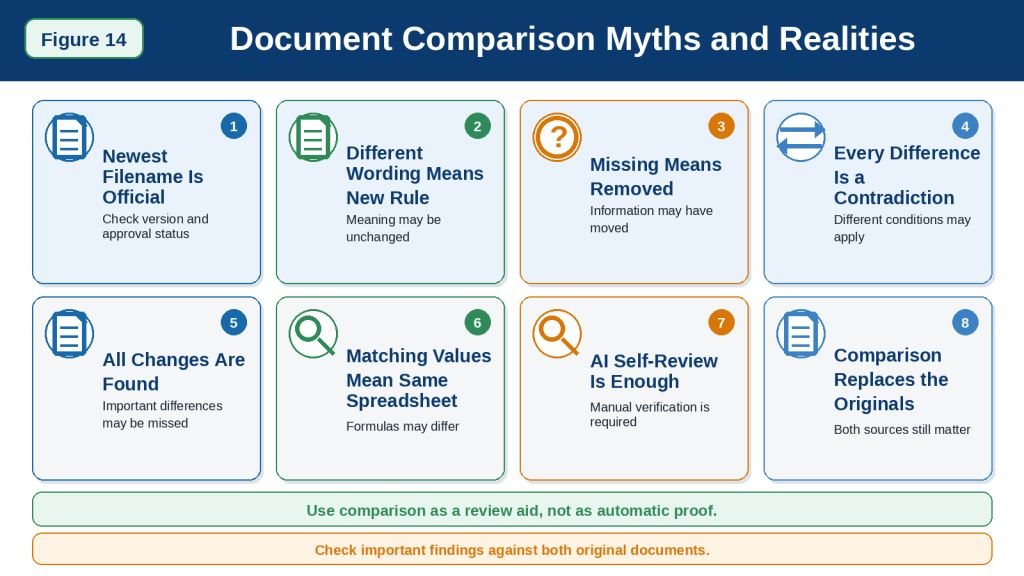
Figure 14. Common document-comparison myths can create false confidence about versions, additions, removals, contradictions, numerical findings, and professional-looking results.
Figure 14 compares common assumptions with the realities of AI-assisted document comparison. ChatGPT can organize possible differences, but every important finding must remain connected to both original sources and undergo human verification.
Frequently Asked Questions About Comparing Documents with ChatGPT
Can ChatGPT Compare Two Complete Documents?
ChatGPT can compare two uploaded documents, but the quality of the comparison depends on:
· Document length
· File readability
· Document structure
· Clear source labels
· The comparison prompt
· Whether tables, charts, or scanned pages are involved
For short documents, one focused comparison may be enough.
For long or complicated documents, create a separate document map for each source and compare matching sections one at a time.
A successful upload does not guarantee that every page, footnote, table, appendix, or change was examined correctly.
What Is the Best First Prompt for Comparing Two Documents?
A useful beginner prompt is:
Compare:
Document A — [title, date, and version]
Document B — [title, date, and version]
Treat Document A as the baseline and describe changes from Document A to Document B.
Identify added, removed, changed, and important unchanged information. Separate meaningful changes from spelling, punctuation, formatting, and rewording that does not change the meaning. Include source locations when available and write “Requires verification” when a finding is unclear.
Modify the categories to match your documents and purpose.
Should I Compare the Documents Immediately After Uploading?
It is safer to confirm each document first.
Before comparing them:
1st Confirm each filename, title, date, and version.
2nd Assign permanent labels such as Document A and Document B.
3rd Create a separate document map for each source.
4th Request separate summaries.
5th Correct any identification or summary errors.
6th Choose one focused comparison goal.
A comparison built from an incorrect understanding of either document may contain additional errors.
How Do I Prevent ChatGPT from Mixing the Documents?
Use clear and permanent labels.
For example:
· Document A — Original Policy, March 2026
· Document B — Revised Policy, July 2026
Then include this instruction:
Keep every finding connected to Document A, Document B, or both. Do not combine the sources.
Ask ChatGPT to include source labels and locations for every important finding.
You must still check the assignments manually.
Can ChatGPT Tell Which Document Is Newer?
It can read dates, filenames, or version information when those details are available, but it should not be trusted to decide the official order automatically.
A file called final may not be the newest approved version.
Check:
· Publication date
· Effective date
· Revision date
· Version number
· Approval status
· Issuing organization
Then state the comparison direction yourself.
What Does “Comparison Direction” Mean?
Comparison direction explains which document is the starting point and which is the revised version.
For example:
Treat Document A as the original and Document B as the revised version. Describe changes from A to B.
This helps prevent a change from being reported backward.
For unrelated reports, use:
Treat the documents as separate sources. Do not assume that either one replaces the other.
Can ChatGPT Identify Added Information?
Yes, it can attempt to find information that appears in Document B but not in Document A.
However, apparently new information may have appeared:
· Under another heading
· In an appendix
· In a table
· In a footnote
· Using different wording
Use this follow-up prompt:
Review every item classified as added and search the complete Document A for equivalent information before confirming it as new.
Can ChatGPT Identify Removed Information?
Yes, but information that disappears from one section may have been moved or rewritten elsewhere.
Before accepting a removal, ask:
Search the complete Document B to determine whether the information was moved, renamed, shortened, combined, or rewritten before classifying it as removed.
Check the revised document manually.
Can ChatGPT Separate Wording Changes from Meaning Changes?
It can attempt to make this distinction.
Use a prompt such as:
Divide the differences into:
1st Changes That Affect Meaning or Action
2nd Minor Wording, Spelling, Punctuation, Formatting, or Organizational Changes
Meaningful changes may involve:
· Requirements
· Responsibilities
· Deadlines
· Amounts
· Conditions
· Exceptions
· Warnings
· Penalties
The classification still requires human review.
Why Are Words Such as “May” and “Must” Important?
Small words can change the level of obligation.
For example:
Document A:
Customers may submit the form online.
Document B:
Customers must submit the form online.
The first sentence permits online submission.
The second sentence requires it.
Other important words include:
· Should
· Can
· Cannot
· Only
· Unless
· Except
· Before
· After
· At least
· No more than
Review these words carefully in policies, procedures, contracts, instructions, and official notices.
Can ChatGPT Compare Dates and Deadlines?
Yes, it can organize dates and deadlines from both documents.
Use this prompt:
List every date and deadline in both documents. Show what it applies to, who must act, whether it changed, and the source location.
Verify:
· Exact date
· Business days or calendar days
· Relevant group
· Required action
· Condition
· Exception
· Source document
Two different deadlines may both be correct when they apply to different groups or submission methods.
Can ChatGPT Compare Prices, Fees, and Amounts?
It can compare numerical information, but every value must be checked manually.
Ask it to preserve:
· Currency
· Unit
· Percentage
· Tax condition
· Payment period
· Applicable group
· Source location
For example:
Compare all fees, deposits, refunds, penalties, percentages, and payment conditions. Preserve the exact currency and conditions connected to each amount.
Do not accept a financial difference until the original values and calculations have been checked.
Can ChatGPT Compare Responsibilities?
Yes.
It can help identify who:
· Submits
· Reviews
· Approves
· Pays
· Records
· Communicates
· Completes
· Supervises
Use this prompt:
Compare every responsibility in both documents. Identify added, removed, reassigned, and unchanged tasks. Separate the person who submits, reviews, approves, records, pays, or communicates each action.
Check that ChatGPT did not combine separate roles.
Can ChatGPT Find Contradictions?
It can identify possible contradictions, but many apparent conflicts have another explanation.
The statements may apply to different:
· Groups
· Products
· Plans
· Locations
· Dates
· Submission methods
· Conditions
· General rules and exceptions
Use this prompt:
Identify possible contradictions, but confirm whether the statements apply to the same group, date, location, product, plan, and condition before classifying them as confirmed contradictions.
Treat the result as a draft requiring manual review.
Can ChatGPT Decide Which Document Is Correct?
Not reliably.
A comparison may show that the documents disagree, but determining which one is correct may require checking:
· Official publication history
· Approval records
· Current organizational instructions
· Version status
· Issuing authority
· Original evidence
· Professional interpretation
ChatGPT should identify the disagreement without guessing which source controls.
Can ChatGPT Compare Two Contracts?
It can help create an initial plain-language comparison of:
· Parties
· Responsibilities
· Services
· Payments
· Renewal
· Cancellation
· Notice periods
· Restrictions
· Penalties
· Dispute procedures
It cannot confirm legal effect, enforceability, or which agreement should be accepted.
A qualified lawyer should review both original contracts when important rights or obligations are involved.
Can ChatGPT Compare Two Policies?
Yes.
A policy comparison may examine:
· Purpose
· Scope
· Eligibility
· Responsibilities
· Requirements
· Deadlines
· Exceptions
· Restrictions
· Penalties
· Appeals
Keep rules connected to their conditions and exceptions.
Do not assume that a difference means one policy is wrong. The policies may apply to different locations, groups, dates, or departments.
Can ChatGPT Compare Research Papers or Reports?
Yes, it can help compare:
· Research questions
· Methods
· Samples or data
· Findings
· Evidence
· Limitations
· Conclusions
· Recommendations
Use this prompt:
Compare the papers separately under Research Question, Method, Data or Participants, Findings, Limitations, and Conclusion. Identify agreements, disagreements, and differences in study conditions.
Different findings do not automatically mean that one paper disproves the other.
Can ChatGPT Compare Spreadsheets?
It can help compare:
· Worksheets
· Rows
· Columns
· Values
· Formulas
· Totals
· Missing entries
· Duplicate records
· Date ranges
Ask for exact worksheet, row, column, or cell locations.
Verify:
· Hidden rows and columns
· Filters
· Blank cells
· Currency
· Units
· Date formats
· Formula ranges
Do not treat blank cells as zero unless the spreadsheet clearly defines them that way.
Can ChatGPT Compare Scanned PDFs?
It may be able to work with some scanned documents, but comparison quality depends on scan clarity.
Problems may include:
· Blurred text
· Cropped edges
· Small print
· Skewed pages
· Handwriting
· Multiple columns
· Faded characters
· Unreadable tables
Use clear, text-based files when possible.
Upload important unclear pages separately and do not ask ChatGPT to guess unreadable content.
Can ChatGPT Compare Tables and Charts?
It may help interpret some tables and charts, but visual comparisons can contain errors.
Possible problems include:
· Wrong row or column
· Missed unit
· Incorrect legend
· Misread scale
· Overlooked footnote
· Confused colour coding
· Incorrect date range
Verify exact values directly from both original visuals or spreadsheets.
Can ChatGPT Compare More Than Two Documents?
Yes, but several documents should usually be added gradually.
A safer process is:
1st Review Document A.
2nd Review Document B.
3rd Compare A and B.
4th Verify the findings.
5th Add Document C.
6th Compare B and C.
7th Create a revision history from verified findings.
Avoid requesting one immediate comparison of many long files.
Can I Compare Two Documents with Different Structures?
Yes, but compare by topic rather than only by heading.
For example:
| Document A | Document B |
| Employee Responsibilities | Staff Duties |
| Request Procedure | Submission Process |
| Exceptions | Special Circumstances |
Ask ChatGPT to propose matching topics and clearly label the proposed matches for manual review.
Can I Compare Summaries Instead of Original Documents?
You can compare summaries for a general overview, but summaries may omit:
· Conditions
· Exceptions
· Exact wording
· Definitions
· Footnotes
· Numerical details
· Warnings
· Source locations
Important differences should be verified directly in the original documents.
Why Does ChatGPT Produce Different Comparisons from Different Prompts?
Each prompt directs attention to different information.
For example:
· An exact-wording prompt emphasizes changed words.
· A responsibility prompt emphasizes tasks and approvals.
· A risk prompt emphasizes warnings and consequences.
· A numerical prompt emphasizes values and formulas.
· A tone prompt emphasizes language and audience.
The responses may differ because the comparison goals differ.
One comparison should not be assumed to cover every possible category.
Can I Ask ChatGPT to Review Its Own Comparison?
Yes.
For example:
Review your comparison and identify any finding that may be reversed, assigned to the wrong source, unsupported, missing context, or incorrectly classified as added or removed.
This may identify some problems, but it is not independent verification.
ChatGPT may repeat the same error.
How Can I Make a Comparison More Accurate?
Use these practices:
1st Upload safe and readable copies.
2nd Confirm filenames, titles, dates, and versions.
3rd Use permanent source labels.
4th State the comparison direction.
5th Map and summarize each document separately.
6th Choose one focused comparison type.
7th Request source locations.
8th Separate wording changes from meaning changes.
9th Check moved and rewritten information.
10th Verify every important difference manually.
11th Correct one problem at a time.
12th Save only the reviewed comparison.
Should I Share the Comparison with Other People?
You may share a reviewed comparison when:
· You have permission
· Private information has been removed
· The findings were checked
· Interpretations are labelled
· Both original sources remain available
Consider adding:
This comparison was created with AI assistance and reviewed against both original documents. Interpretive findings are clearly labelled. Consult the original sources for complete wording and official requirements.
Do I Still Need Both Original Documents?
Yes.
The originals contain:
· Complete wording
· Context
· Definitions
· Conditions
· Exceptions
· Tables
· Charts
· Footnotes
· Official formatting
· Approval information
A comparison is a supporting record, not a replacement for either source.
When Is Professional Review Necessary?
Seek qualified advice when the comparison involves:
· Contracts
· Legal rights
· Medical information
· Taxes
· Investments
· Insurance
· Employment obligations
· Safety procedures
· Technical instructions
· Major financial commitments
ChatGPT can help organize the differences and prepare questions, but the professional should review both original documents.
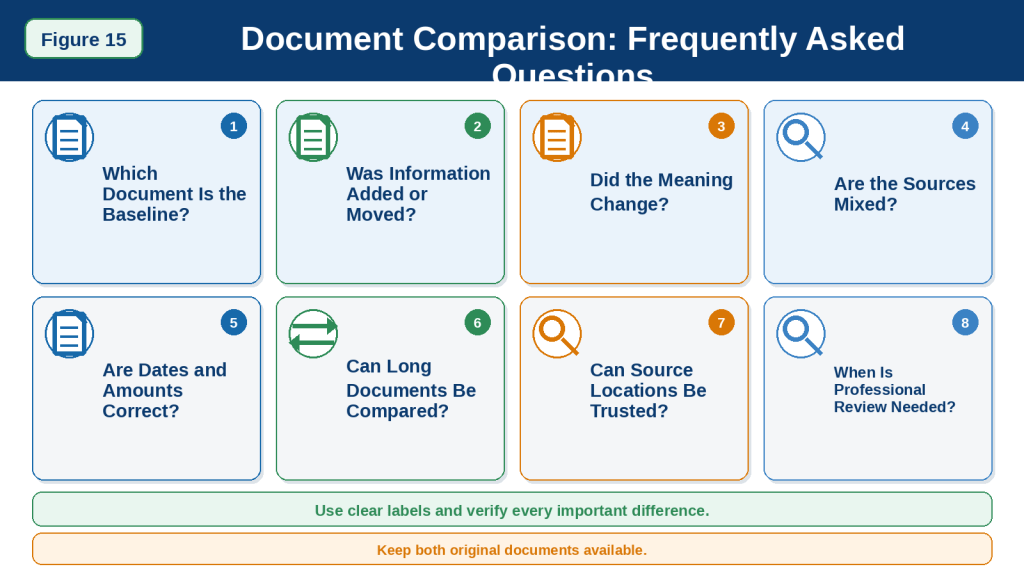
Figure 15. Common document-comparison questions cover source labels, comparison direction, additions, removals, wording changes, numerical information, long documents, verification, and professional review.
Figure 15 summarizes the main questions beginners may have when comparing documents with ChatGPT. Reliable results depend on clear labels, focused prompts, careful source checking, and keeping both original documents available.
Key Takeaways
Comparing documents with ChatGPT can help beginners organize differences, but the comparison must still be checked against both original sources.
Remember these main points:
· Keep the original documents unchanged.
· Create safe working copies before uploading.
· Remove unnecessary private, confidential, or restricted information.
· Confirm that you have permission to use and upload both files.
· Give each source a permanent label, such as Document A and Document B.
· Confirm the title, date, version number, and approval status of each document.
· State clearly which document is the baseline.
· Review and summarize each document separately before comparing them.
· Choose one focused comparison goal at a time.
· Separate meaningful changes from minor wording, spelling, punctuation, or formatting changes.
· Check whether apparently removed information was moved, renamed, combined, or rewritten.
· Check whether apparently new information already appeared elsewhere in the earlier document.
· Pay close attention to words such as may, must, only, unless, and except.
· Keep requirements connected to their conditions, limitations, and exceptions.
· Compare definitions before comparing rules that depend on those definitions.
· Verify dates, deadlines, amounts, percentages, currencies, measurements, and units manually.
· Keep responsibilities connected to the correct person, department, or organization.
· Do not describe every difference as a contradiction.
· Preserve genuine disagreement between separate reports or sources.
· Review tables, charts, footnotes, appendices, formulas, filters, and hidden spreadsheet content when relevant.
· Treat the first comparison as a draft.
· Separate direct findings from interpretation.
· Label predicted practical effects as interpretations rather than proven results.
· Verify important source locations manually.
· Correct one problem at a time.
· Keep a correction log so removed errors do not return.
· Do not ask ChatGPT to decide automatically which document is official or legally controlling.
· Obtain qualified professional review when the comparison affects legal rights, health, safety, taxes, insurance, employment, technical work, or major financial decisions.
· Keep both original documents available after the comparison is completed.
· Clearly disclose AI assistance when sharing a comparison that others may treat as official or independently verified.
A reliable document-comparison workflow follows this general order:
1st Choose two related and comparable documents.
2nd Preserve both originals.
3rd Create safe working copies.
4th Confirm privacy, permission, dates, and versions.
5th Assign permanent source labels.
6th Create separate document maps.
7th Summarize each document separately.
8th Choose one comparison goal.
9th Request a focused comparison.
10th Check added, removed, changed, and unchanged information.
11th Verify dates, responsibilities, conditions, and source locations.
12th Correct errors and record the changes.
13th Create the final reviewed comparison.
14th Save both originals and the comparison records.
ChatGPT is most useful as a structured comparison assistant. It can help organize differences and identify possible changes, but the user remains responsible for checking both original documents and deciding how the findings should be used.
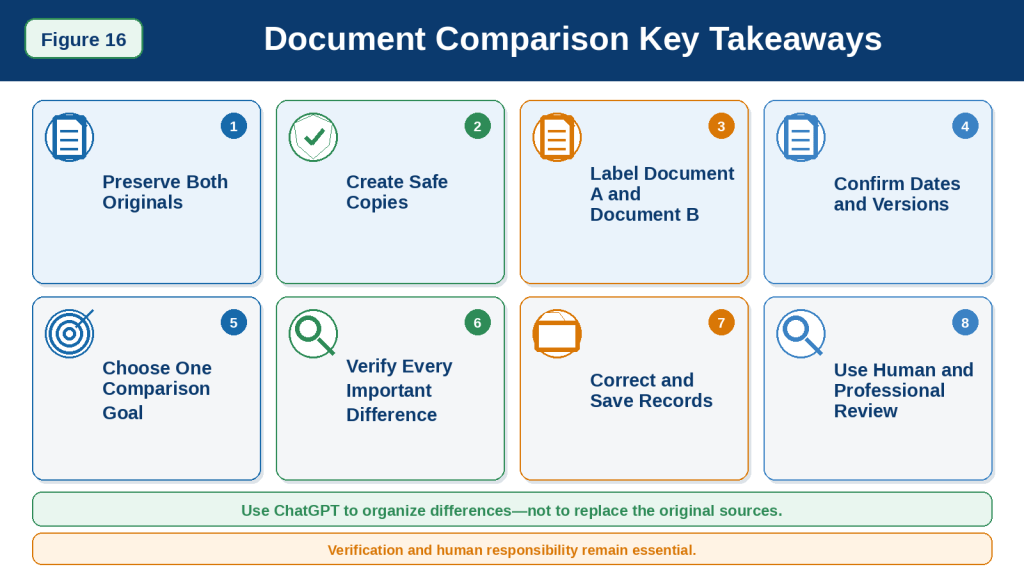
Figure 16. Reliable document comparison requires safe preparation, clear source labels, focused questions, separate source review, manual verification, correction records, and responsible human judgement.
Figure 16 summarizes the most important lessons from this guide. Beginners should use ChatGPT to organize possible differences while preserving both original documents, checking every important finding, and seeking professional review when necessary.
Final Tip
Do not begin by asking ChatGPT to find every possible difference at once.
Use this safer sequence:
1. Confirm the correct files.
2. Label each source clearly.
3. State which document is the baseline.
4. Review each document separately.
5. Choose one comparison goal.
6. Compare one category at a time.
7. Verify every important difference.
8. Correct errors before creating the final version.
A useful final prompt is:
Compare Document A and Document B using only information contained in the two sources. Keep every finding connected to the correct document. Separate changes in meaning from minor wording or formatting changes. Check whether information described as added or removed was moved or rewritten elsewhere. Preserve dates, amounts, conditions, exceptions, and uncertainty. Write “Requires verification” when a difference cannot be confirmed.
The most important habit is simple: never accept an important difference until you can locate and confirm it in both original documents.
Sources and References
The following official OpenAI resources were reviewed for information about document uploads, supported file formats, document comparison, spreadsheet analysis, PDF visuals, privacy controls, file storage, and retention.
OpenAI: File Uploads FAQ
This resource explains common uses for uploaded documents, including comparing two documents, extracting information, summarizing content, and analyzing spreadsheets. It also describes current file-size, usage, and storage limits. Limits and availability may vary by plan, model, workspace, and future update.
OpenAI: How Does the File Uploads Capability Work?
This source specifically lists comparing and contrasting two documents as a supported file-upload task. It also describes other uses, including analyzing document tone, reviewing spreadsheets, and working with presentation files.
OpenAI: What Types of Files Are Supported?
This source confirms support for common document, presentation, spreadsheet, and text formats, including:
· DOCX
· PPTX
· XLS
· XLSX
· CSV
· TSV
· TXT
Google Docs files in the .gdoc format are not directly supported and should be exported to a supported format, such as PDF or DOCX.
OpenAI: Data Analysis with ChatGPT
This resource explains how ChatGPT can work with spreadsheets, PDFs, and text or data files. It also states that available file types and capabilities may depend on the selected model, plan, workspace settings, and account features. Numerical findings, formulas, worksheets, filters, and data ranges should still be checked against the original source.
OpenAI: Extracting Insights with ChatGPT Data Analysis
This source explains that uploaded structured data can be displayed in an interactive table for reviewing rows and columns. This can support spreadsheet comparison, but users should still verify exact values, formulas, units, blank cells, hidden content, and date ranges in the original files.
OpenAI: Visual Retrieval with PDFs FAQ
This resource explains that supported ChatGPT Enterprise workflows can interpret both text and embedded visual elements in PDF files, including images, graphs, and diagrams. Users should not assume that all plans, models, workspaces, or document formats process embedded visuals in the same way.
OpenAI: Optimizing File Uploads in ChatGPT Enterprise
This resource provides guidance for working with large or multiple files. It supports using focused files, dividing very long documents into smaller parts, reviewing parts separately, and combining the results afterward. This staged approach is also useful when comparing long documents.
OpenAI: Data Controls FAQ
This source explains the controls available for deciding whether conversations may be used to help improve OpenAI’s models. Available settings can differ depending on whether the user is signed in and which account or workspace is being used.
OpenAI: File Storage and Library in ChatGPT
This resource explains how files uploaded to or created in ChatGPT may be stored in Library when that feature is available. Retention can depend on the account type and workspace policy. Users should review Library separately when managing uploaded comparison files.
OpenAI: Chat and File Retention Policies in ChatGPT
This source explains how chats and files may be stored and retained and how users can manage or delete them. Chat and file retention may differ according to the feature, account, workspace, and applicable exceptions.
OpenAI: How Do I Delete Files I Upload?
This resource explains ways to remove uploaded files, including deleting the conversation containing the upload in applicable situations. Users should also check whether a file remains stored in another location, such as Library or a custom GPT.
Source Review Note
These official resources were reviewed on July 28, 2026.
ChatGPT features, supported formats, plan conditions, upload limits, privacy settings, visual-processing capabilities, Library behaviour, and retention policies may change. Readers do not need to review every policy before every comparison, but they should check the current official information:
· When first using document uploads
· When changing plans, models, accounts, or workspaces
· When using a new file, data-analysis, Library, or PDF-visual feature
· After receiving a policy or feature-update notice
· Before uploading confidential, restricted, regulated, or important documents
· Periodically when document comparison is part of a regular workflow
This article provides general educational information. It does not replace current OpenAI documentation, an organization’s privacy and security rules, either original document, or qualified legal, medical, financial, tax, insurance, safety, employment, or technical advice.
Continue Learning
Continue building your document skills with these related AI Mastery guides:
· ChatGPT Basics for Beginners: Complete Guide (2026)
Learn how to use the ChatGPT interface, upload files, organize conversations, and review responses.
· Best ChatGPT Prompts for Beginners (2026)
Learn how to write clearer instructions for summaries, comparisons, explanations, and document-based questions.
· Prompt Engineering for Beginners: Complete Guide (2026)
Learn how to add context, source labels, output formats, accuracy rules, and verification instructions to your prompts.
· How to Summarize Documents with ChatGPT: Beginner Guide (2026)
Learn how to summarize each document separately before beginning a detailed comparison.
· How to Analyze Documents with ChatGPT: Beginner Guide (2026)
Learn how to examine claims, evidence, assumptions, risks, limitations, and missing information before comparing two sources. Link this title after Article 023 is published.
Conclusion
ChatGPT can help beginners compare documents by organizing similarities, differences, additions, removals, changed requirements, deadlines, responsibilities, risks, and numerical information.
A reliable comparison requires more than uploading two files and asking:
Compare these documents.
A safer process includes:
1st Keeping both original documents unchanged.
2nd Creating safe working copies.
3rd Confirming permission, privacy, filenames, dates, and versions.
4th Assigning permanent labels such as Document A and Document B.
5th Reviewing and summarizing each document separately.
6th Stating the comparison direction clearly.
7th Choosing one focused comparison goal.
8th Separating meaningful changes from minor editing.
9th Checking whether content was moved, rewritten, added, or truly removed.
10th Verifying dates, amounts, responsibilities, conditions, exceptions, and source locations.
11th Correcting errors and saving a reviewed comparison record.
ChatGPT can make document differences easier to organize, but it cannot guarantee that every change was found or that each source was interpreted correctly.
Both original documents remain the most important references. Important findings should be confirmed manually, and qualified professional advice should be obtained when the comparison affects contracts, legal rights, health, safety, taxes, insurance, employment, technical work, or major financial decisions.
Used carefully, ChatGPT can become a useful comparison assistant that helps readers locate changes, understand revisions, prepare questions, and review documents more efficiently.


Leave a Reply