
Estimated reading time: 60–80 minutes
Last updated: July 30, 2026
Before Learning
Before starting this guide, you should understand the basic ChatGPT interface and know how to attach a document to a conversation.
These AI Mastery articles provide useful preparation:
• ChatGPT Basics for Beginners: Complete Guide (2026)
• Best ChatGPT Prompts for Beginners (2026)
• Prompt Engineering for Beginners: Complete Guide (2026)
• How to Summarize Documents with ChatGPT: Beginner Guide (2026)
• How to Analyze Documents with ChatGPT: Beginner Guide (2026)
• How to Compare Documents with ChatGPT: Beginner Guide (2026)
You do not need programming, data-analysis, or document-management experience. Begin with one short document that you created, own, received legally, or have permission to review.
Choose a Safe Practice Document
Suitable practice files include:
• A short public report
• Meeting notes that contain no private information
• A simple policy you created
• A product information sheet
• A study guide
• A project update
• A public form or instruction document
• A document created specifically for practice
Avoid beginning with medical records, tax documents, confidential contracts, customer files, employee records, identity documents, bank information, or any material that should remain offline.
Keep the Original File Unchanged
Create a separate working copy before removing information, splitting pages, improving a scan, or changing the file format. The original document should remain available so every extracted detail can be checked later.
Understand the Main Rule
ChatGPT can help locate and organize details, but it can miss information, copy a value incorrectly, confuse sections, or present an unsupported interpretation. The original document remains the main source.
What You’ll Learn
By the end of this guide, you will know how to:
• Understand what document information extraction means
• Decide exactly which details you need
• Prepare a safe working copy
• Use supported document formats
• Upload and identify a file clearly
• Write a focused extraction prompt
• Request names, roles, dates, deadlines, numbers, amounts, decisions, and action items
• Extract requirements, conditions, exceptions, warnings, definitions, and references
• Request tables, checklists, timelines, and structured lists
• Require page numbers, section names, or other source locations
• Handle missing, uncertain, contradictory, or unreadable information
• Extract from long documents in smaller sections
• Work cautiously with scanned pages, images, and complex tables
• Separate information from several documents
• Verify every important extracted item
• Correct incomplete or unsupported results
• Save the source, prompt, reviewed extraction, and corrections
• Avoid common mistakes and use extracted information responsibly
Introduction
Documents often contain useful information that is difficult to locate quickly. A report may include dates in several sections. Meeting notes may mix decisions, responsibilities, and deadlines. A policy may hide important conditions in footnotes or appendices. A long PDF may contain dozens of names, numbers, warnings, and requirements.
Document information extraction means identifying selected details in a source and reorganizing them into a useful structure. The goal is not to rewrite the whole document. The goal is to find specific information while preserving its meaning and source location.
ChatGPT can assist with this work by reading many common document formats, locating requested fields, and presenting the result as a list, table, checklist, timeline, or other structure. OpenAI describes file uploads as supporting tasks that include extracting information, analyzing documents, comparing files, and transforming source material. Available file types and capabilities can vary by model, plan, workspace settings, and account capabilities.
Official reference: OpenAI File Uploads FAQ
The result must still be reviewed. A professional-looking table may contain a copied number from the wrong row. A deadline may lose an exception. A blank field may be treated as zero. A statement may be presented as a decision even though the document described it only as a proposal.
This guide uses a controlled beginner workflow: prepare the source, define the exact fields, request source locations, extract in manageable groups, verify the result, correct errors, and save the reviewed record.
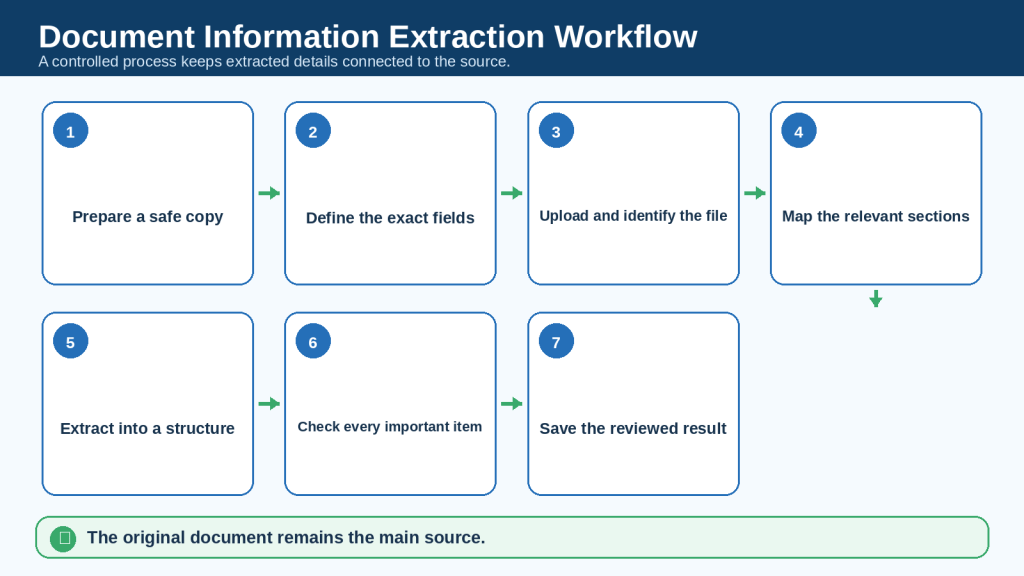
Figure 1. A reliable document-information extraction process begins with safe preparation and ends with verification and record keeping.
Figure 1 shows the complete extraction cycle. Each extracted detail should remain connected to the original file, page, section, table, or other source location so it can be checked before use.
What Is Document Information Extraction?
Document information extraction is the process of locating selected details in a document and placing them into a clear, consistent structure.
The source may be:
• A PDF
• A Word document
• A text file
• A spreadsheet
• A presentation
• A report
• Meeting notes
• A policy
• A contract or agreement that you are authorized to review
• A study document
• A public form
• A scanned page or image
The extracted result may be:
• A bullet list
• A table
• A checklist
• A timeline
• A contact list
• An action-item register
• A requirements list
• A risk register
• A glossary
• A list of references
• A structured record for later review
Extraction Is Different from Summarization
A summary reduces a document to its main ideas. Extraction locates selected details, often using the exact wording or value from the source.
For example, a summary prompt may ask:
Summarize the main purpose, findings, and recommendations in this report.
An extraction prompt may ask:
Extract every deadline, responsible person, required action, and approval condition. Use a table and include the page or section for every item.
Extraction Is Different from Analysis
Extraction asks what the document states. Analysis asks what the information may mean, whether the evidence is strong, what patterns appear, or what risks and implications may exist.
Keep these tasks separate when accuracy matters. Extract and verify the source information first. Analyze it only after the extracted details have been checked.
Extraction Is Different from Comparison
Extraction collects selected fields from one or more documents. Comparison examines similarities, differences, additions, removals, or conflicts between sources.
When several documents are involved, extract the same fields from each file separately before creating a comparison. This reduces the risk of mixing information from different sources.
What Information Can ChatGPT Help Extract?
ChatGPT can help locate many types of information, depending on the file quality, layout, selected model, account capabilities, and clarity of the prompt.
Names and roles
People, organizations, departments, job titles, speakers, authors, approvers, and responsible parties.
Dates and deadlines
Publication dates, meeting dates, effective dates, renewal dates, submission deadlines, and review periods.
Numbers and amounts
Prices, fees, totals, percentages, quantities, measurements, scores, targets, account references, and other numerical values.
Decisions and action items
Approved decisions, proposed decisions, assignments, next steps, owners, completion status, and dependencies.
Requirements and conditions
Mandatory actions, eligibility rules, required documents, restrictions, exceptions, approvals, and penalties.
Warnings and risks
Safety warnings, financial risks, privacy concerns, limitations, exclusions, and situations requiring professional review.
Definitions and key terms
Formal definitions, abbreviations, technical terms, labels, and terms that have a special meaning in the document.
References and citations
Source titles, authors, publication details, footnotes, endnotes, URLs, and cross-references.
Contact details
Public or authorized contact names, departments, email addresses, telephone numbers, and mailing information.
Table values
Rows, columns, headings, values, totals, notes, and footnotes from a clearly readable table.

Figure 2. ChatGPT can help extract many common document details when the request is focused and the source is readable.
Figure 2 groups the main information types beginners may request. A smaller, clearly defined field list is usually easier to verify than one broad request for every possible detail.
Supported Files and Changing Capabilities
OpenAI currently lists common supported file types that include PDF, DOCX, PPTX, TXT, XLSX, XLS, CSV, and TSV. Data-analysis guidance also lists text and data formats such as JSON, XML, YAML, TXT, and Markdown. Availability can vary by model, plan, workspace settings, and account capabilities.
Official references: OpenAI Supported File Types
OpenAI Data Analysis with ChatGPT
Text-Based Documents
Text-based PDF and DOCX files are often easier to process because the words, headings, and paragraphs can be read directly. Even so, complicated columns, text boxes, footnotes, comments, or embedded objects may be missed or read in an unexpected order.
Scanned or Image-Based Documents
A scanned PDF may contain page images rather than selectable text. Results depend heavily on image clarity, orientation, contrast, font size, table layout, and whether the page is cropped. Important values must be checked visually.
Spreadsheets and Structured Data
Spreadsheets can be useful when exact rows and columns are available, but users must still identify the correct sheet, column, date range, unit, and category. Ask ChatGPT to show the extracted table before relying on any calculation or chart.
Presentations
A presentation may include text, tables, diagrams, speaker notes, and images. State whether the extraction should use slide text only, speaker notes, or both. Review slides that contain diagrams or small tables separately.
Files That Require Conversion
OpenAI notes that Google Docs files are not uploaded directly as .gdoc files. Export the document to a supported format such as PDF or DOCX before uploading.
Do Not Assume Every Page Was Read Correctly
A successful upload does not prove that every page, table, appendix, note, or image was interpreted correctly. Ask ChatGPT to map the document before extraction when the file is long, unfamiliar, or visually complex.
What You Need Before Starting
The Original Document
Keep the original file unchanged. It is the authoritative reference used to verify the extraction.
A Safe Working Copy
Create a separate copy for uploading. Remove unnecessary private information, hidden comments, tracked changes, internal notes, and metadata when appropriate.
A Clear Extraction Goal
Write one sentence explaining what you need. For example:
I need a verified list of every deadline, responsible person, required action, and source location in this project report.
A Field List
Decide the exact columns or labels before asking ChatGPT to begin. A field list prevents the response from becoming inconsistent.
Example fields:
• Item
• Exact source wording
• Simplified explanation
• Person or department
• Date or deadline
• Amount or value
• Condition or exception
• Source location
• Verification status
A Review Method
Decide how the result will be checked. You may compare every row, verify high-impact details first, or have another authorized person review the result.
A Project Folder
Use a clear folder structure:
• Original Document
• Safe Working Copy
• Prompts
• Extracted Drafts
• Verified Results
• Corrections
• Sources and Notes

Figure 3. A prepared working copy improves organization and reduces avoidable extraction problems.
Figure 3 shows the basic preparation checks: protect the original, improve readability, use clear filenames, select the needed scope, and record which source version was used.
Privacy, Permission, and Safe Document Handling
Uploading a document may expose information that should not be shared. Review the file before attaching it to ChatGPT.
Remove Unnecessary Private Information
Depending on the task, remove or replace unnecessary:
• Full names
• Home addresses
• Personal email addresses
• Telephone numbers
• Birth dates
• Government identification numbers
• Account numbers
• Credit-card information
• Signatures
• Medical information
• Employee or customer details
• Passwords and security answers
• Private photographs
• Confidential business information
Confirm Permission
Use documents that you own, created, received legally, or have permission to review. Follow workplace, school, professional, contractual, and organizational rules.
Removing Names May Not Be Enough
A file may remain sensitive after names are removed. Project descriptions, dates, locations, account patterns, internal methods, customer details, and combinations of facts may still identify a person or organization.
Review Data Controls
For personal ChatGPT accounts, OpenAI provides a Data Controls setting called Improve the model for everyone. Turning it off prevents new conversations from being used to improve OpenAI’s models while allowing those conversations to remain in chat history.
Official reference: OpenAI Data Controls FAQ
Understand File Storage and Deletion
OpenAI states that files saved to Library, when that feature is available, may be managed separately from chats. Deleting a chat may not delete a file that remains saved in Library. Review and delete files from the correct location when necessary.
Official references: OpenAI File Storage and Library
OpenAI Chat and File Retention Policies
OpenAI: How Do I Delete Files I Upload?
Keep Certain Documents Offline
Do not upload a document when policy, law, contract, professional duty, or common sense requires it to remain offline. Use an approved organizational system or ask an authorized privacy, legal, security, or compliance professional for guidance.
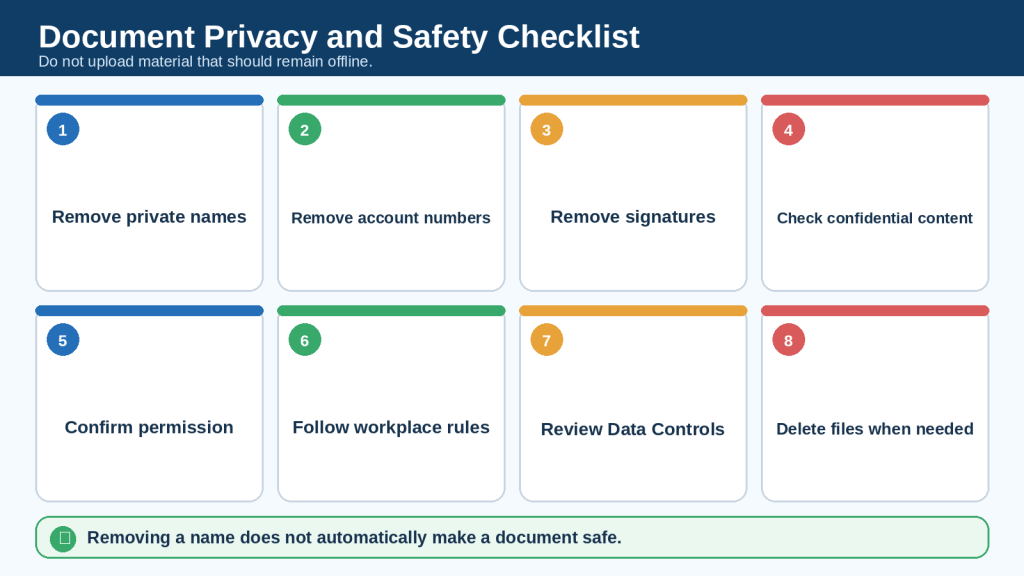
Figure 4. Privacy and permission checks should be completed before a document is uploaded.
Figure 4 reminds beginners to remove unnecessary private information, confirm permission, follow workplace rules, review Data Controls, and manage saved files from the correct location.
The Document Extraction Prompt Formula
A strong extraction prompt contains ten parts. You do not need to use the same wording every time, but each part reduces ambiguity.
1. Source
Identify the file clearly, especially when several files are attached.
2. Goal
Explain why you need the information and what the final result should help you do.
3. Fields
List the exact information to extract.
4. Scope
Name the pages, sections, sheets, slides, dates, or headings to review.
5. Exact Wording Rule
State whether ChatGPT should copy the wording exactly or provide a simplified explanation in a separate column.
6. Output Format
Choose a table, list, checklist, timeline, JSON structure, CSV-ready table, or another useful format.
7. Source Location
Require page numbers, section names, table names, slide numbers, paragraph headings, or cell references when available.
8. Missing Data Rule
Tell ChatGPT to write “Not stated in the document” instead of guessing.
9. Uncertainty Rule
Require labels such as “Unreadable,” “Unclear,” “Conflicting,” or “Requires verification.”
10. Verification Instruction
Ask ChatGPT to identify high-risk items that must be checked manually.
Complete Beginner Prompt
Review the attached project report. Extract every deadline, responsible person, required action, approval condition, amount, and warning from sections 2 through 6. Use a table with the columns Item, Exact Source Wording, Simplified Meaning, Responsible Person or Department, Date or Amount, Condition or Exception, Source Location, and Verification Status. Write “Not stated in the document” when a field is missing. Mark unreadable, unclear, or conflicting information. Do not guess and do not add outside information.

Figure 5. A complete extraction prompt defines the source, fields, scope, format, source-location rules, and verification requirements.
Figure 5 shows the ten-part prompt formula. Beginners can copy the structure and replace the field list, scope, and output format for each new document.
Complete Step-by-Step Beginner Workflow
Step 1: Choose One Document
Begin with one short, readable document. Using one source reduces the risk of mixing information and makes verification easier.
Step 2: State the Purpose
Write one clear sentence. For example:
I need a verified action-item register for the next project meeting.
Step 3: List the Exact Fields
Decide what belongs in each row or record. Do not ask for every possible detail.
Step 4: Set the Scope
Identify the pages, section names, date range, table, sheet, or slide range. For a small file, you may request the whole document. For a long file, begin with one section.
Step 5: Prepare and Name the Safe Copy
Use a descriptive filename such as:
025-project-update-july-2026-safe-copy.docx
Avoid unclear filenames such as document-final-new.docx.
Step 6: Upload and Identify the File
After attaching the file, identify it in the message:
The attached file is the approved July 2026 project update. Use only this file for the current extraction.
Step 7: Ask for a Document Map
For an unfamiliar file, request the main headings, tables, appendices, and page ranges before extracting details.
Create a map of the document. List every main heading, subsection, table, appendix, and major topic in order. Identify any pages or elements you cannot read reliably. Do not extract details yet.
Step 8: Send the Extraction Prompt
Use the ten-part formula. Keep the first request focused enough to review.
Step 9: Check the Structure Before the Details
Confirm that the table has the requested columns, each row represents one item, and source locations are included.
Step 10: Review the First Result
Compare several rows with the original. Check the beginning, middle, and end of the selected scope.
Step 11: Correct Unsupported Items
Review the extraction again. Remove any item that is not directly supported by the document. Correct source locations and label missing or unclear information. Do not add new information.
Step 12: Verify and Save
Verify important details, save the reviewed result, preserve the original prompt, and record any corrections. The final extraction should never be stored without its source information.
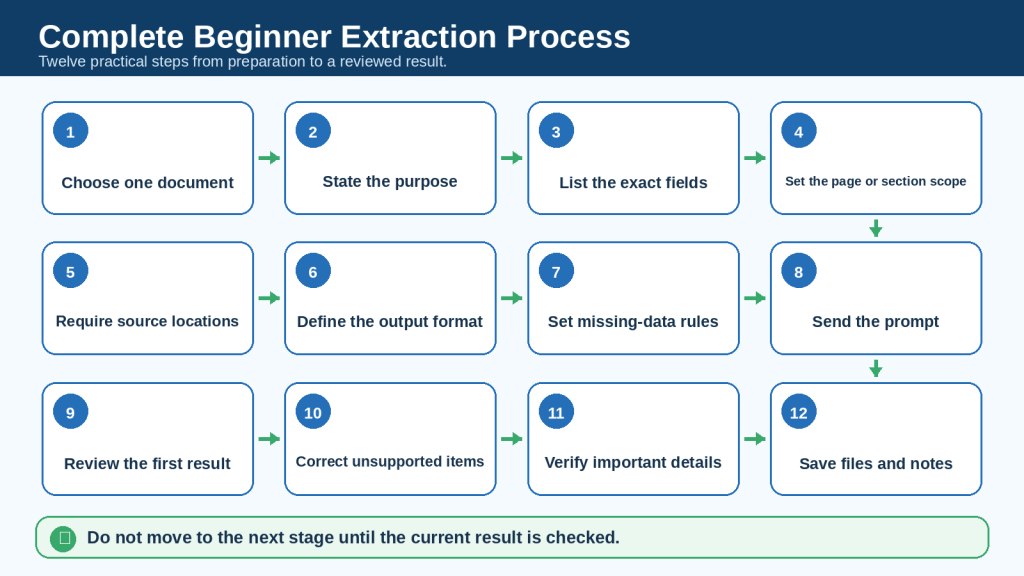
Figure 6. A complete beginner process moves from one clear goal to a reviewed and saved result.
Figure 6 divides the workflow into twelve practical steps. Each stage produces a checkable result before the next stage begins.
How to Request a Useful Output Format
Bullet List
Use a bullet list for a small number of simple items.
Extract every required document from the eligibility section. Use one bullet per requirement and include the source section.
Structured Table
A table is useful when each item contains several fields.
Create a table with the columns Requirement, Who It Applies To, Deadline, Condition, Exception, and Source Location.
Checklist
Use a checklist when the result will support a repeatable task.
Turn the safety requirements into a checklist. Preserve all conditions and warnings. Add a source-location column.
Timeline
Use a timeline for dates, events, decisions, and deadlines.
Extract every dated event and deadline. Sort them chronologically and include the responsible person and source location. Keep uncertain dates labelled.
Action-Item Register
Use an action-item register for meeting notes and project reports.
Extract every confirmed action item into a table with Action, Owner, Deadline, Dependency, Status, and Source Location. Do not treat suggestions as confirmed actions.
Glossary
Use a glossary for defined terms and abbreviations.
Extract every formally defined term and abbreviation. Copy the exact definition, add a beginner-friendly explanation in a separate column, and include the source section.
CSV-Ready Table
Use a simple table without merged cells or line breaks when the result will be copied into a spreadsheet.
Create a CSV-ready table with one record per row and no merged cells. Use the columns Date, Category, Exact Value, Unit, Source Location, and Verification Status.
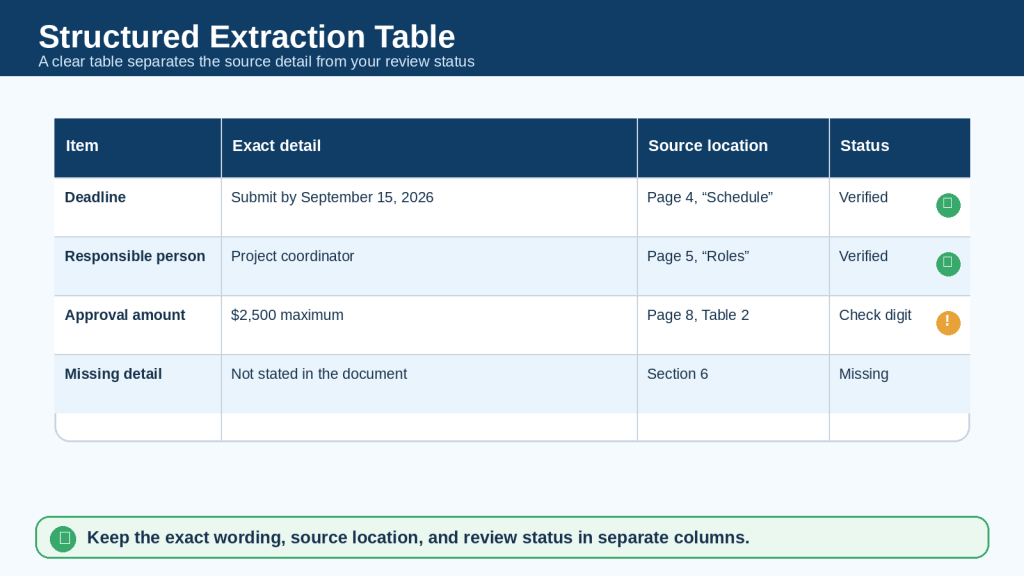
Figure 7. A structured extraction table keeps the exact detail, source location, and review status separate.
Figure 7 shows a practical table format. The verification-status column makes missing, uncertain, or high-risk details visible instead of hiding them inside ordinary text.
How to Extract Names, Roles, Dates, Numbers, and Amounts
Names and Roles
Ask for exact spelling and preserve the relationship between each name and role. A person may be an author, speaker, approver, owner, witness, reviewer, or contact.
Extract every person and organization named in sections 1–4. Use the columns Exact Name, Role, Organization, Related Action, and Source Location. Do not combine people with similar names.
Dates and Deadlines
Preserve the full date, year, time, time zone, and whether the date is confirmed, estimated, proposed, or conditional.
Extract every date and deadline. Include the exact wording, event or requirement, responsible person, time zone when stated, condition, and source location. Label dates that are proposed or uncertain.
Numbers and Amounts
Check decimal points, commas, currency symbols, negative signs, percentages, units, and whether the number is a total, estimate, target, range, or example.
Extract every amount, percentage, quantity, score, and measurement from Table 2 and its footnotes. Preserve the exact value and unit. Add a Notes column for estimates, exclusions, or conditions.
Reference Numbers
Long identifiers may be reformatted or shortened. Ask ChatGPT to copy them exactly and check every character manually.
Copy every reference number exactly as written. Do not remove leading zeros, spaces, dashes, or letters. Include the source location and mark any unreadable character.
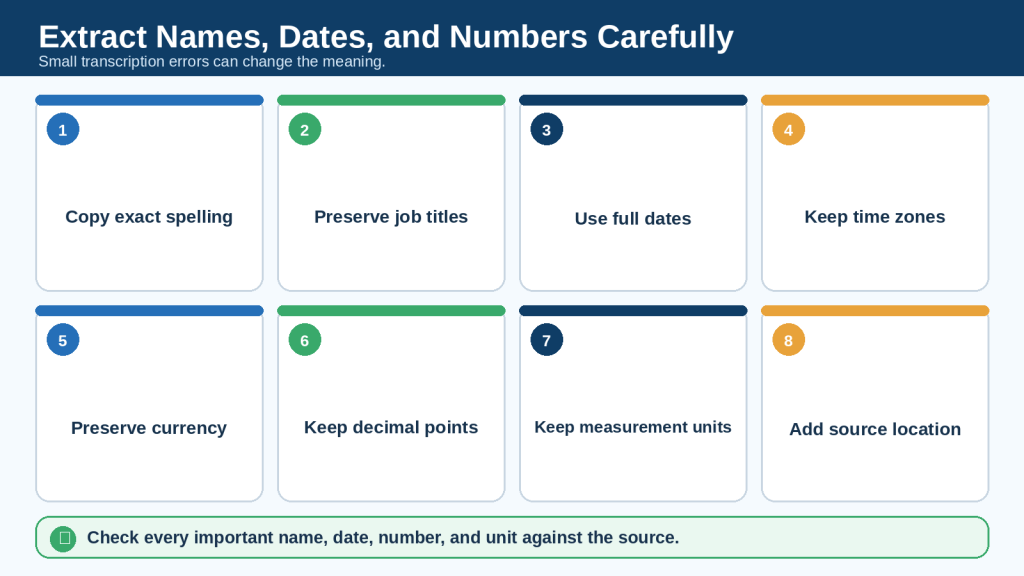
Figure 8. Names, dates, numbers, currencies, and units require exact copying and source checks.
Figure 8 highlights the small details that commonly change during extraction. A single letter, decimal point, sign, or unit can materially alter the result.
How to Extract Decisions, Deadlines, and Action Items
Separate Confirmed Decisions from Proposals
Meeting notes may include ideas, recommendations, unresolved questions, and confirmed decisions. Do not place them in one undifferentiated list.
Classify each item as Confirmed Decision, Proposed Decision, Discussion Point, Open Question, or Not Clear. Copy the supporting wording and include the source location.
Identify the Responsible Person
A sentence may contain several names but assign the action to only one person or department. Preserve that relationship.
Preserve Dependencies and Conditions
An action may depend on approval, funding, another task, or information from a third party. Include the dependency in a separate field.
Do Not Invent Deadlines
When no deadline appears, write “Not stated in the document.” Do not convert words such as soon, promptly, or next phase into a date.
Action-Item Prompt
Extract every confirmed action item from the meeting notes. Use the columns Action, Owner, Deadline, Dependency, Approval Needed, Current Status, Exact Source Wording, and Source Location. List proposals and open questions in separate sections. Write “Not stated in the document” when a deadline or owner is missing.
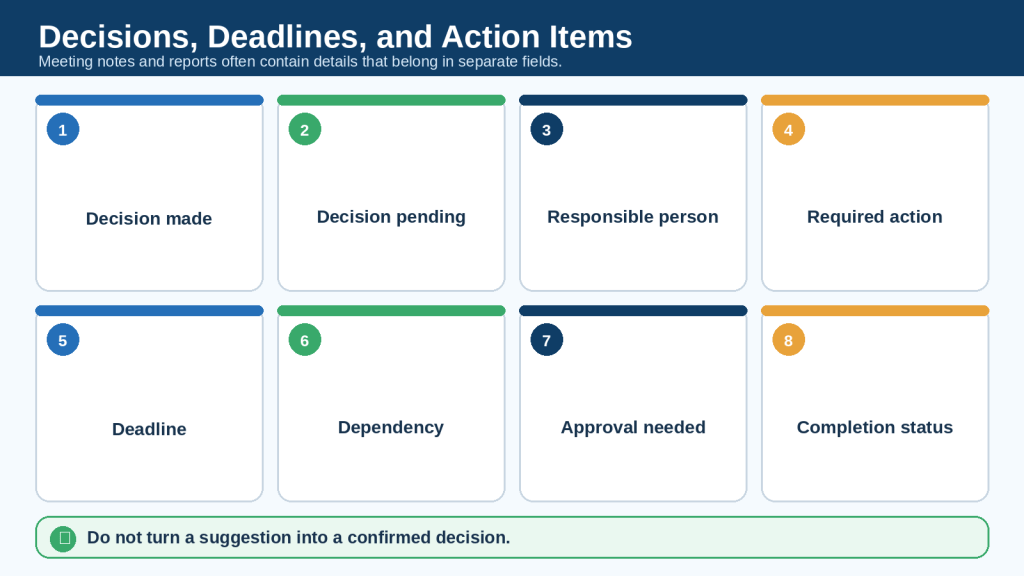
Figure 9. Decisions, proposals, action items, owners, deadlines, and dependencies should remain separate.
Figure 9 shows the fields used in a reliable action-item register. Keeping the status and evidence visible prevents a suggestion from being mistaken for an approved decision.
How to Extract Requirements, Conditions, Exceptions, and Warnings
Policies, contracts, instructions, application guides, and safety documents often use limiting words that must be preserved.
Watch for Mandatory Words
Important words include must, required, shall, may not, prohibited, only, before, after, within, unless, except, and subject to.
Keep Conditions with the Requirement
A rule may apply only to a specific person, date, product, location, account type, or situation. Do not extract the rule without its condition.
Keep Exceptions Separate
An exception should have its own field so it is not lost inside a long sentence.
Preserve Warnings and Penalties
Do not simplify a warning so heavily that the severity, affected person, required action, or consequence changes.
Requirements Prompt
Extract every requirement, restriction, condition, exception, warning, penalty, required document, and approval from sections 3–7. Use one row per rule. Copy the exact source wording, add a short explanation in a separate column, and include who it applies to, deadline, exception, consequence, and source location. Do not provide legal advice.
For legal, medical, financial, safety, tax, employment, or regulated documents, extraction can support an initial review but does not replace the original text or qualified professional advice.

Figure 10. Rules must be extracted together with the conditions, exceptions, warnings, and consequences that control their meaning.
Figure 10 separates eight types of rule-related information. This structure helps prevent an exception or warning from being detached from the requirement it modifies.
How to Extract Definitions, References, and Contact Information
Definitions
A defined term may have a special meaning that differs from ordinary usage. Copy the formal definition exactly before adding a simpler explanation.
Extract every formally defined term. Use the columns Term, Exact Definition, Beginner Explanation, Related Section, and Source Location. Do not change the legal or technical meaning.
Abbreviations
Record the abbreviation, full form, first source location, and whether the document uses it consistently.
References and Citations
Extract reference titles, authors, organizations, publication dates, links, footnotes, and page numbers without inventing missing bibliographic information.
Extract every source cited in the document. Preserve the exact reference text. Use “Not stated” for missing author, date, publisher, or link fields.
Contact Information
Extract contact details only when you are authorized to use them. Distinguish personal details from public organizational contact information.
Extract only the public organizational contact information in the “Contact Us” section. Do not include private personal details from other parts of the document.
How to Extract Information from Long Documents
Long documents should be processed gradually. A broad request may overlook appendices, later sections, repeated headings, footnotes, or tables.
Create a Document Map First
Create a document map containing every main heading, subsection, table, appendix, and major topic in the order they appear. Identify any page or element you cannot read reliably. Do not extract the requested fields yet.
Choose One Section and One Field Group
Extract dates and deadlines from one section, verify them, and then continue. Do not ask for dates, names, risks, definitions, references, and every table from hundreds of pages in one request.
Record Source Locations During Each Stage
Do not postpone source locations until the end. They are easier to preserve when each section is processed.
Review Appendices and Footnotes Separately
Appendices may contain forms, definitions, tables, calculations, exceptions, and requirements that affect the main text. Footnotes may change the meaning of a number or rule.
Combine Only Reviewed Results
After verifying each section, ask ChatGPT to combine the reviewed tables without changing the values or source locations.
Combine the verified section tables into one master table. Preserve every original value, note, and source location. Remove exact duplicates only. Keep conflicting items separate and label them for review.
Run a Completeness Check
Compare the document map with the completed extraction tables. List every heading, appendix, table, or field group that has not yet been reviewed.
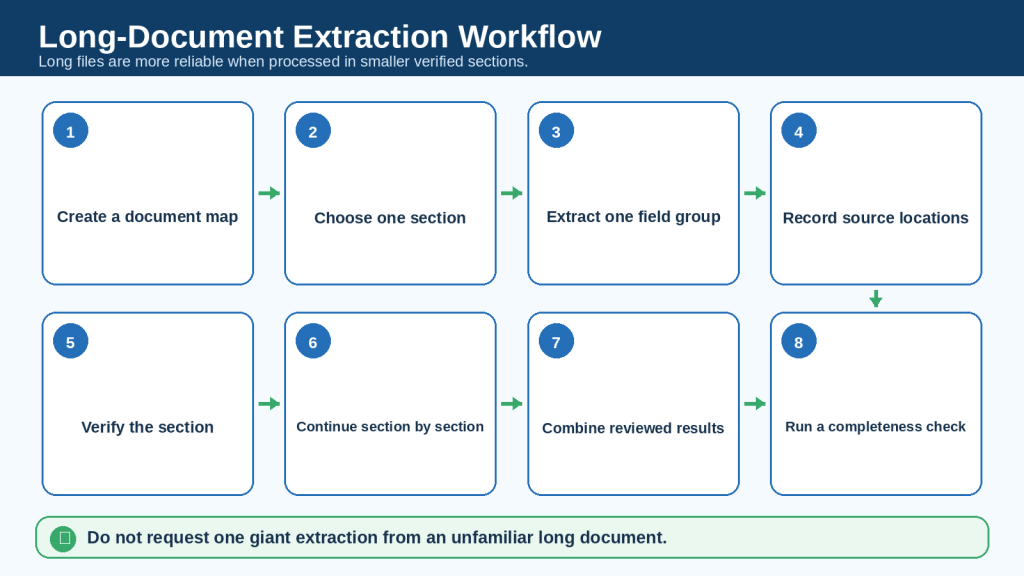
Figure 11. Long documents are easier to process when mapped, divided, verified section by section, and combined afterward.
Figure 11 presents an eight-step long-document workflow. The final completeness check compares the document map with the reviewed extraction so skipped sections remain visible.
How to Work with Scanned Documents, Images, and Tables
Inspect the Source Quality
Check whether text is blurred, tilted, cropped, faint, handwritten, printed over a background, or divided into narrow columns.
Prepare a Clear Page
Rotate the page, crop unnecessary borders, improve contrast, and provide the highest-quality authorized copy available. Do not edit the content itself.
Identify the Exact Page and Element
This is page 14 from the July 2026 report. Review only Table 3 titled “Approved Costs.” First transcribe the table exactly. Mark any cell you cannot read confidently.
Request a Transcription Before an Extraction
For a complex table, first check whether the headings, rows, and values were read correctly. Then request selected fields from the verified transcription.
Check Every Cell That Matters
Verify row labels, column headings, decimal points, negative values, totals, units, footnotes, and whether values belong to the correct category.
Do Not Guess Unreadable Values
Write “Unreadable” for any character or value that cannot be identified confidently. Do not estimate or infer it from surrounding values.
Image-Heavy Documents
Charts, diagrams, forms, and screenshots may need separate review. A text-only extraction may omit information communicated visually.
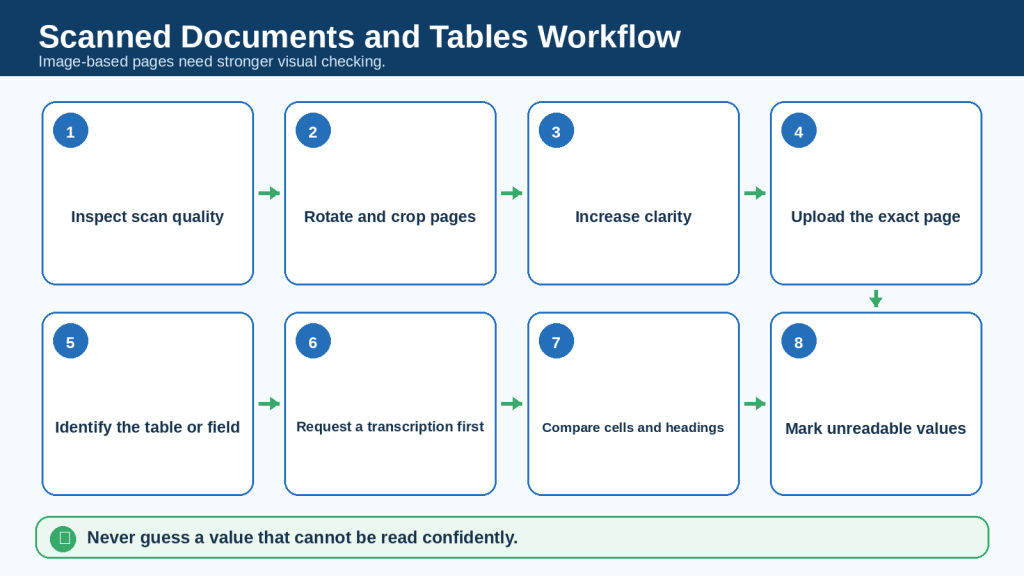
Figure 12. Scanned pages and complex tables should be transcribed and verified before selected information is extracted.
Figure 12 shows a cautious visual-document workflow. It separates source-quality improvement, transcription, field extraction, and cell-by-cell checking.
How to Extract Information from Several Documents
Label Every Source Clearly
Use clear identifiers such as Document A — Original Policy and Document B — Revised Policy. Avoid using only file1 and file2.
Use the Same Field List
When documents will later be compared or combined, use the same columns for each extraction.
Process One File at a Time
Use only Document A for this step. Extract the requested fields and include Document A in the Source column. Do not use information from the other attached files.
Verify Each Result Before Combining
Source confusion becomes difficult to correct after several unverified tables have been merged.
Add a Source Identifier to Every Row
Include filename, document label, version date, page or section, and review status.
Keep Conflicts Separate
Do not automatically choose which source is correct. Present conflicting values in separate rows and label them for review.
Combined Extraction Prompt
Combine only the verified extraction tables from Documents A, B, and C. Keep the Source Document, Version Date, Source Location, and Verification Status columns. Remove exact duplicates, but do not merge conflicting or similar-looking items.

Figure 13. Information from several documents should be extracted and verified separately before it is combined.
Figure 13 shows how clear labels, a consistent field list, and source identifiers prevent details from different files being mixed together.
Prompt Examples You Can Copy and Adapt
Extract Key Facts
Extract the main names, dates, amounts, decisions, requirements, and warnings from the attached document. Use a table and include a source location for every item.
Extract Deadlines
Extract every deadline and review date. Include the event, responsible person, condition, exact wording, and source location. Keep proposed dates separate from confirmed dates.
Extract Meeting Actions
Extract every confirmed action item from the meeting notes. Include owner, deadline, dependency, status, and source location. Place suggestions and open questions in separate sections.
Extract Requirements
Extract every mandatory requirement, restriction, exception, and required document. Preserve words such as must, may not, only, unless, and except.
Extract Amounts
Extract every currency amount, percentage, quantity, and measurement. Preserve signs, decimals, currencies, and units. Include nearby footnotes or conditions.
Extract Contacts
Extract only the public organizational contact details from the named section. Do not include private personal information from elsewhere in the document.
Extract Definitions
Extract every defined term and abbreviation. Copy the exact definition and add a simple explanation in a separate column.
Extract Warnings
Identify every warning, risk, limitation, exclusion, penalty, and situation requiring professional review. Keep the wording close to the source.
Extract References
Extract every reference, citation, source title, author, organization, date, and URL. Write “Not stated” for missing information.
Extract from Selected Pages
Review pages 10 through 18 only. Extract the requested fields and do not use information from other pages.
Extract from a Table
Transcribe Table 4 exactly before extracting values. Preserve headings, row labels, units, notes, and totals. Mark unreadable cells.
Create a Timeline
Extract all dated events and deadlines, sort them chronologically, and include the responsible person, status, condition, and source location.
Create a Checklist
Turn the confirmed requirements into a checklist. Include who each item applies to, deadline, exception, and source location.
Create a Risk Register
Extract every risk into a table with Risk, Evidence, Affected Area, Required Action, Deadline, and Source Location. Do not add risks that are not stated.
Check Missing Information
For every requested field that is missing, write “Not stated in the document.” Do not infer or estimate missing details.
Check Completeness
Compare the extraction with the document map and identify any section, table, appendix, or requested field that has not been reviewed.
Correct an Extraction
Review the extraction against the source. Remove unsupported items, correct copied values, restore missing conditions, and fix source locations.
Prepare for a Spreadsheet
Create a CSV-ready table with one record per row, no merged cells, consistent date format, separate amount and currency columns, and a verification-status column.
How to Verify Extracted Information
Verification is the most important stage. ChatGPT may sound confident even when a detail is incomplete, copied incorrectly, or connected to the wrong source.
Check the Source
Confirm that every row comes from the correct document, version, page, section, table, or slide.
Check Exact Details
Verify spelling, dates, times, time zones, signs, decimals, currencies, units, identifiers, and capitalization when these details matter.
Check Context
Read the paragraph, heading, footnote, or table note surrounding the extracted item. A nearby condition may change the meaning.
Check Missing Information
Make sure blanks are labelled rather than silently filled. Missing does not mean zero, not applicable, or approved.
Check Uncertainty
Items described as unclear, unreadable, proposed, estimated, or disputed should remain labelled.
Check the Beginning, Middle, and End
A long result may represent early pages more completely than later pages. Sample several locations and run a completeness check.
Use a Correction Prompt
Check every row against the original document. Correct spelling, dates, numbers, units, source locations, and missing conditions. Remove unsupported items. Keep uncertain or conflicting information labelled. Do not add outside information.
High-Impact Information
Verify legal duties, medical instructions, financial amounts, safety warnings, eligibility rules, contractual terms, deadlines, and personal information directly against the original and, when necessary, with a qualified professional.

Figure 14. A verification checklist keeps source, wording, values, conditions, missing data, and uncertainty visible.
Figure 14 summarizes ten checks that should be completed before extracted information is used, shared, copied into another file, or published.
Common Mistakes and How to Avoid Them
Mistake 1: Asking for Everything at Once
A broad prompt may produce an inconsistent and incomplete result.
How to Avoid This Mistake: Extract one field group or one section at a time.
Mistake 2: Using a Vague Prompt
“Extract the important information” does not define important, fields, scope, or output.
How to Avoid This Mistake: List the exact fields and source-location requirements.
Mistake 3: Uploading the Original Without a Safe Copy
Removing or changing information later may damage the only available source.
How to Avoid This Mistake: Keep the original unchanged and upload a prepared working copy.
Mistake 4: Uploading Private or Confidential Information
A document may contain information that should not leave an approved system.
How to Avoid This Mistake: Remove unnecessary sensitive details, confirm permission, and follow organizational rules.
Mistake 5: Failing to Identify the Source
Several attachments may be confused or combined.
How to Avoid This Mistake: Name the document and version in the prompt and include a source column.
Mistake 6: Omitting Page or Section Locations
A result without source locations is difficult to verify.
How to Avoid This Mistake: Require a page, heading, table, slide, sheet, or cell reference for every item when available.
Mistake 7: Trusting the First Result
The first response may contain omissions or transcription errors.
How to Avoid This Mistake: Review, correct, and verify before use.
Mistake 8: Ignoring Footnotes and Appendices
Important conditions may appear outside the main paragraph.
How to Avoid This Mistake: Review footnotes, notes, tables, appendices, and nearby definitions separately.
Mistake 9: Allowing Missing Values to Be Filled
ChatGPT may infer a likely answer or treat a blank as zero.
How to Avoid This Mistake: Require “Not stated in the document” and prohibit guessing.
Mistake 10: Simplifying Away Important Wording
Words such as unless, only, proposed, estimated, or subject to can disappear.
How to Avoid This Mistake: Keep exact wording and simplified explanation in separate columns.
Mistake 11: Combining Several Documents Too Early
Source confusion becomes difficult to detect after merging.
How to Avoid This Mistake: Extract and verify each file separately.
Mistake 12: Saving Only the Final Answer
Later reviewers may not know which source, version, prompt, or correction produced the result.
How to Avoid This Mistake: Save the original, safe copy, prompt, first extraction, corrections, reviewed result, and source notes.
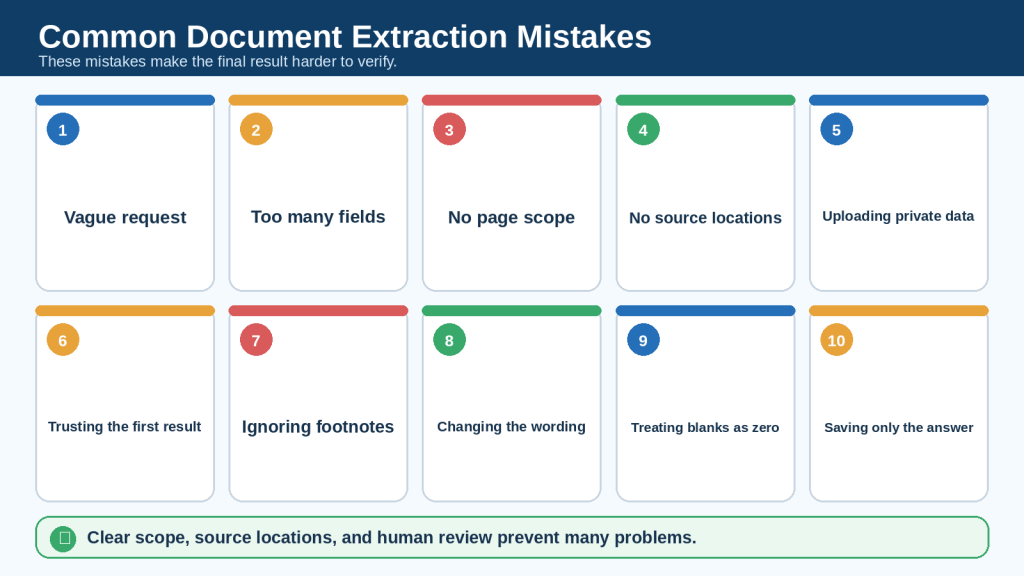
Figure 15. Common extraction mistakes include vague scope, missing source locations, private uploads, and unverified results.
Figure 15 highlights ten frequent beginner problems. Clear fields, careful source handling, and a documented review process reduce many of these risks.
Limitations of Extracting Information with ChatGPT
ChatGPT May Miss Information
A page, footnote, appendix, table, repeated heading, or later section may be overlooked.
How to Reduce This Limitation: Create a document map, process sections separately, and run a completeness check.
Scanned Text May Be Misread
Blur, skew, handwriting, small text, columns, and low contrast can cause transcription errors.
How to Reduce This Limitation: Provide a clearer page, request a transcription first, and verify every important value.
Complex Layouts May Be Read in the Wrong Order
Text boxes, columns, sidebars, headers, and tables may be combined incorrectly.
How to Reduce This Limitation: Identify the exact element and review visual pages separately.
Values May Be Copied Incorrectly
A decimal, negative sign, currency, unit, or digit may change.
How to Reduce This Limitation: Check all high-impact values directly against the source.
Source Information May Be Mixed
When several files are attached, a detail may be assigned to the wrong source.
How to Reduce This Limitation: Label files, process one at a time, and include a source identifier in every row.
Context May Be Lost
A condition, exception, footnote, or definition may be separated from the extracted detail.
How to Reduce This Limitation: Include nearby wording and create separate columns for conditions and notes.
Interpretation May Be Presented as Fact
ChatGPT may infer a reason, responsibility, or conclusion that the document does not state.
How to Reduce This Limitation: Require exact source support and label interpretation separately.
Calculations May Be Incorrect
Totals, percentages, differences, and conversions may contain errors.
How to Reduce This Limitation: Extract original values first, show formulas separately, and verify calculations with a calculator or spreadsheet.
The Complete File May Not Be Reviewed
Upload success does not prove complete processing.
How to Reduce This Limitation: Ask which pages, sections, sheets, tables, or slides were reviewed and identify unreadable areas.
Features and Limits May Change
Supported formats, upload limits, Library behavior, privacy settings, and data-analysis features may change.
How to Reduce This Limitation: Check current official OpenAI guidance when a feature is first used, changes, or behaves differently.
Reality: A clean table, checklist, or timeline is not proof that the extraction is complete or correct. The original document, source locations, human verification, and professional judgment remain essential.
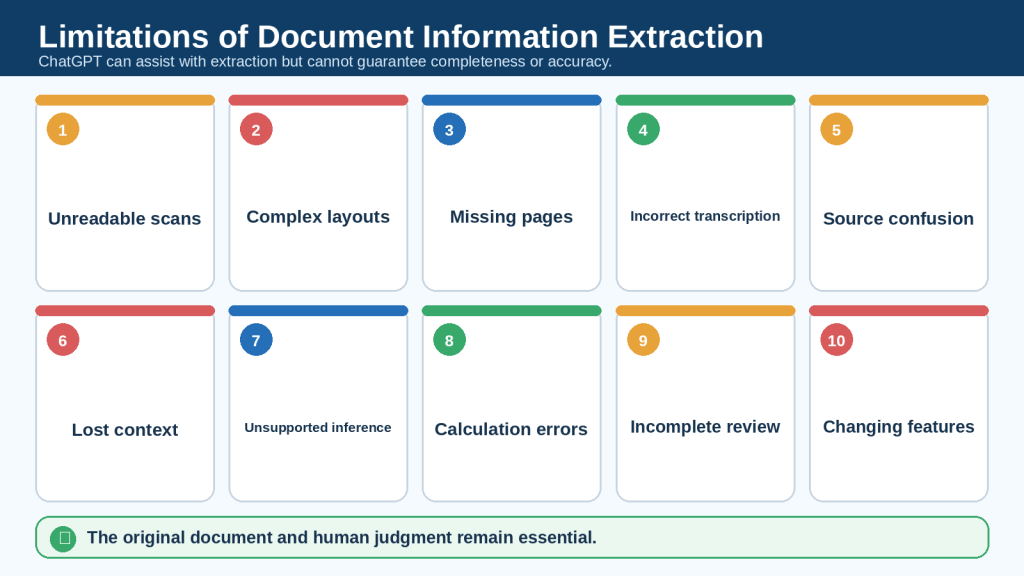
Figure 16. Document extraction may be affected by unreadable scans, complex layouts, transcription errors, lost context, and incomplete review.
Figure 16 summarizes the main limitations. These risks do not make extraction useless, but they require narrower prompts, source locations, and deliberate verification.
Common Myths About Document Information Extraction
Myth 1: A Successful Upload Means the Whole Document Was Read Correctly
Reality: The file may upload while pages, tables, appendices, or visual elements remain incomplete or unreadable.
Myth 2: Exact-Looking Numbers Must Be Correct
Reality: A value can look precise and still come from the wrong row, lose a sign, or use the wrong unit.
Myth 3: Source Locations Are Optional
Reality: Source locations are essential when the result must be checked, corrected, or defended later.
Myth 4: Removing Names Makes Every Document Safe
Reality: Other details may still identify a person, organization, project, or confidential method.
Myth 5: ChatGPT Can Decide Which Conflicting Source Is Correct
Reality: It can organize conflicts, but the user or an authorized reviewer must determine which source controls.
Myth 6: Extraction Replaces Reading the Original
Reality: Extraction supports review; it does not replace the source when details affect rights, safety, money, eligibility, duties, or professional decisions.
Myth 7: One Giant Prompt Saves Time
Reality: A broad request may create more correction work than several smaller verified extractions.
Myth 8: A Table Is Automatically Objective
Reality: Field selection, labels, missing-data rules, and simplification choices can change how the information is understood.
Responsible Use Checklist
• Use only documents you are authorized to review.
• Keep the original document unchanged.
• Prepare a safe working copy.
• Remove unnecessary private or confidential information.
• Follow workplace, school, contractual, legal, and professional rules.
• State one clear extraction goal.
• Use a defined field list and scope.
• Require source locations.
• Label missing, unclear, unreadable, proposed, or conflicting information.
• Verify important details against the original.
• Separate extraction from analysis and advice.
• Do not present unverified information as confirmed fact.
• Save the source, prompt, corrections, and reviewed result.
• Delete or retain files according to current policy and organizational requirements.
• Use qualified professional review when the document affects legal, medical, financial, tax, employment, insurance, safety, or regulated decisions.
Frequently Asked Questions
Can ChatGPT extract information from a PDF?
Yes, when file uploads are available and the PDF can be read. Text-based PDFs are generally easier than poor-quality scans. Verify all important details.
Can ChatGPT extract information from Word documents?
Common document formats such as DOCX are supported according to OpenAI’s current file-upload guidance. Availability can vary by account and workspace.
Can ChatGPT extract information from a scanned PDF?
It may be able to read scanned pages, but quality varies. Use clear pages, request transcription first, mark unreadable values, and verify visually.
Can I extract information from several files at once?
You can attach several files when your account supports it, but one-file-at-a-time extraction is easier to verify and less likely to mix sources.
What is the best output format?
Use a bullet list for a few simple items, a table for repeated fields, a timeline for dates, a checklist for requirements, and an action-item register for meetings and projects.
Should ChatGPT copy exact wording or simplify it?
For important information, request both in separate columns: Exact Source Wording and Simplified Explanation.
How do I stop ChatGPT from guessing missing information?
State that missing fields must be labelled “Not stated in the document” and unreadable information must be labelled “Unreadable.”
How do I know whether the whole document was reviewed?
Request a document map, ask which pages and sections were processed, and compare the completed extraction with the map.
Can I use extracted information in a legal or financial decision?
Use it only as an initial aid. Check the original source and obtain qualified professional advice when the decision is important or regulated.
Can I copy the table into a spreadsheet?
Yes. Ask for a CSV-ready table with one record per row, consistent fields, no merged cells, and separate columns for value, unit, source, and verification status.
What should I save?
Save the original, safe copy, exact prompt, first result, correction prompts, reviewed extraction, source map, and review notes.
What should I do when ChatGPT gives different results twice?
Return to the source, narrow the scope, request exact wording and source locations, and verify the disputed items manually.
Key Takeaways
• Information extraction is a focused search for selected document details, not a replacement for the source.
• A safe working copy, clear fields, and a limited scope improve reliability.
• Strong prompts specify source, goal, fields, scope, output, source locations, and missing-data rules.
• Names, dates, numbers, requirements, and warnings need exact checking.
• Long and scanned documents should be processed in smaller stages.
• Several documents should be extracted and verified separately before combining.
• A polished result may still be incomplete or inaccurate.
• The original document and human verification remain essential.
Final Tip
Begin with one short document and one small field list. Ask for source locations, verify several rows, correct the result, and save the complete record. A careful extraction that takes several steps is more useful than a fast table that cannot be checked.
The safest practical rule is simple: extract, verify, correct, and only then use or publish the result.
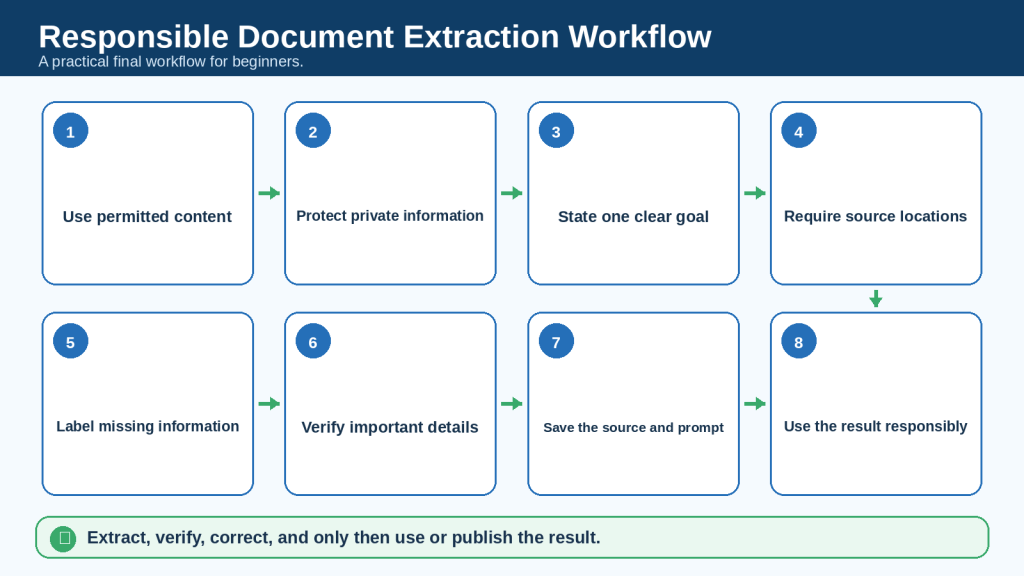
Figure 17. A responsible extraction workflow protects the source, privacy, accuracy, and final use of the information.
Figure 17 combines the main beginner lessons into one final process: use permitted content, protect private information, define the goal, require source locations, label uncertainty, verify, save records, and use the result responsibly.
Continue Learning
Continue building your document skills with these related AI Mastery guides:
• ChatGPT Basics for Beginners: Complete Guide (2026)
• Best ChatGPT Prompts for Beginners (2026)
• Prompt Engineering for Beginners: Complete Guide (2026)
• How to Summarize Documents with ChatGPT: Beginner Guide (2026)
• How to Analyze Documents with ChatGPT: Beginner Guide (2026)
• How to Compare Documents with ChatGPT: Beginner Guide (2026)
• How to Ask Questions About Documents with ChatGPT: Beginner Guide (2026)
Sources and References
1. OpenAI. “File Uploads FAQ.” Explains document-upload use cases, including extraction, analysis, comparison, and transformation. Accessed July 30, 2026.
2. OpenAI. “What Types of Files Are Supported?” Lists common supported document, presentation, spreadsheet, and text-file formats. Accessed July 30, 2026.
3. OpenAI. “Data Analysis with ChatGPT.” Explains supported files and how ChatGPT can inspect uploaded data and create structured outputs. Accessed July 30, 2026.
4. OpenAI. “Data Controls FAQ.” Explains the Improve the model for everyone control and related account settings. Accessed July 30, 2026.
5. OpenAI. “File Storage and Library in ChatGPT.” Explains how uploaded or generated files may appear in Library when available. Accessed July 30, 2026.
6. OpenAI. “Chat and File Retention Policies in ChatGPT.” Explains current chat and file retention and the separate management of some Library files. Accessed July 30, 2026.
7. OpenAI. “How Do I Delete Files I Upload?” Explains methods for deleting uploaded files and managing file usage. Accessed July 30, 2026.
8. OpenAI. “How Your Data Is Used to Improve Model Performance.” Explains how submitted content may be used depending on service and settings. Accessed July 30, 2026.
Source Review Note: ChatGPT features, supported formats, upload limits, models, plan conditions, privacy controls, storage behavior, and retention practices may change. Check current official OpenAI guidance when first using a feature, after an account or workspace change, when the interface behaves differently, or before handling important or sensitive documents.
This article provides general educational information. It does not replace the original document, current OpenAI documentation, organizational rules, or qualified legal, medical, financial, tax, employment, insurance, safety, privacy, security, or technical advice.


Leave a Reply