
Estimated reading time: 35–40 minutes
Last updated: August 16, 2026
Introduction
Files, tasks, and projects can become difficult to manage when information is spread across many folders, notes, documents, emails, and apps.
AI can help you bring that information into a clearer structure.
For example, you might have a task list such as:
· Finish article draft
· Check source links
· Prepare images
· Rename files
· Review the final document
· Upload the article to WordPress
· Save a backup copy
You could ask AI:
“Organize these tasks into a simple project plan. Group related tasks, put them in a logical order, and show which tasks should be completed before publishing.”
AI can help you:
· Group related files into clearer categories
· Suggest folder structures
· Create consistent file-naming systems
· Turn long task lists into priorities
· Break large projects into smaller steps
· Create checklists
· Organize deadlines
· Identify tasks that depend on other tasks
· Create simple project workflows
· Track what is completed and what still needs attention
· Summarize the current status of a project
For example, files named:
“final.docx”
“final2.docx”
“new-final.docx”
“final-revised.docx”
can quickly become confusing.
AI can help you design a clearer naming system such as:
“083-article-draft-v01.docx”
“083-article-reviewed-v02.docx”
“083-final-textmaker.docx”
A consistent naming system can make files easier to find, sort, and update later.
AI can also help divide a large project into stages.
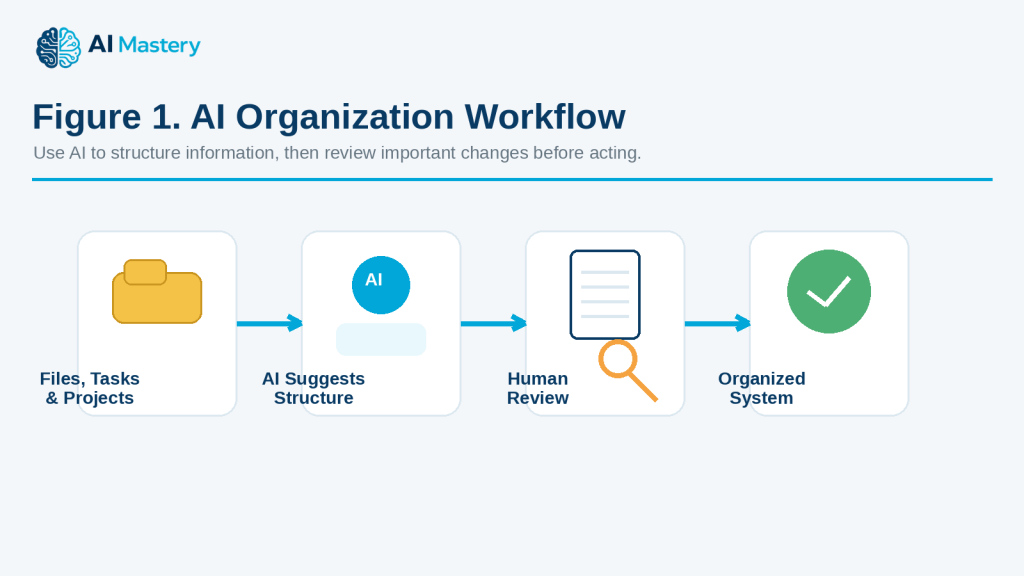
Figure 1. AI Organization Workflow.
Explanation: AI can help structure files, tasks, and projects, but important changes should be reviewed by a person before they are applied.
For example, a website article project might include:
· Research
· Writing
· Images
· Review
· Sources
· WordPress preparation
· Publishing
· Backup and records
However, AI should not automatically delete, rename, move, or overwrite important files without your review.
It may misunderstand which file is the latest version, confuse similar filenames, or suggest removing something you still need.
Always keep important originals and backups before making major changes to your file system or project structure.
In this guide, you will learn how to use AI to organize files, manage task lists, break projects into manageable stages, create clearer workflows, track progress, avoid common organization mistakes, and protect private or important information.
Before You Start
You do not need an advanced project-management system to organize files, tasks, and projects with AI. You mainly need to know what you are working on, where your information is stored, and what result you want.
Before asking AI to help, prepare:
· The project or activity you want to organize
· Your current file and folder structure
· A list of tasks
· Important deadlines
· Files or notes that belong together
· Any naming rules you already use
· Which files are current, old, or archived
· Which tasks are completed, in progress, or not started
· A place to keep backups before making major changes
Start with One Clear Goal
A broad request such as:
“Organize everything.”
is too vague.
A clearer request is:
“Help me organize the files for one website article into folders for drafts, images, sources, WordPress files, and final delivery.”
This gives AI a specific task.
Do Not Start by Deleting Files
If your folders are messy, it may be tempting to delete anything that looks old.
Do not do that first.
Before deleting, moving, or renaming files:
· Identify which files are current
· Check whether old versions may still be needed
· Confirm that important files are backed up
· Separate duplicates from different versions
· Review files with unclear names
AI can suggest what may be redundant, but you should make the final decision.
Make a Backup First
Before a large reorganization, create a backup of important files.
For example, keep:
· An original project folder
· A backup copy on another drive or approved cloud location
· Important final exports
· Source documents
· Licence or permission records when relevant
This gives you a way to recover something if a file is moved, renamed, or deleted by mistake.
Decide What You Want AI to Do
AI can help in different ways.
You might ask it to:
· Suggest a folder structure
· Create a file-naming system
· Organize a task list
· Turn tasks into project stages
· Identify priorities
· Create a checklist
· Build a project-status summary
· Suggest archive categories
Choose the task before providing a large amount of information.
Protect Private or Confidential Information
File lists, project notes, and task descriptions may contain sensitive information.
Before sharing them with an AI tool, remove unnecessary details such as:
· Customer names
· Employee information
· Account numbers
· Passwords
· Private addresses
· Confidential project names
· Financial records
· Contract details
Use placeholders when possible, such as:
· [CLIENT NAME]
· [PROJECT NAME]
· [PRIVATE FILE]
· [ACCOUNT NUMBER]
Keep Your Existing Rules When They Work
If you already have a useful naming system, folder structure, or project method, tell AI to preserve it.
For example:
“Keep my current article-numbering system and suggest improvements without renaming completed files unnecessarily.”
This reduces the chance of AI suggesting a completely different system that creates more work.
Reality: AI can help you design a clearer organization system, but important file changes should be reviewed before anything is renamed, moved, overwritten, archived, or deleted.
What You’ll Learn
By the end of this guide, you will know how to:
· Organize files into clearer folders and categories.
· Create a consistent file-naming system.
· Separate working files, final files, source files, and archived files.
· Use AI to clean up long or confusing task lists.
· Group related tasks into project stages.
· Decide which tasks should come first.
· Identify tasks that depend on other tasks.
· Create practical checklists and workflows.
· Track what is completed, in progress, or still waiting.
· Update a project plan when priorities or deadlines change.
· Create simple project-status summaries.
· Use AI to suggest improvements without automatically changing your files.
· Keep backups before making major organizational changes.
· Protect private, confidential, or sensitive information.
· Preserve important source files, versions, permissions, licences, and final records when relevant.
You will also learn how to use AI as an organizing assistant without giving it uncontrolled authority over important files or projects.
The goal is not to create the most complicated system. The goal is to build a simple structure that helps you find files, understand your priorities, track progress, and reduce unnecessary confusion.
How AI Can Help Organize Files, Tasks, and Projects
AI can support several parts of everyday organization. It can help you design clearer folder structures, create naming systems, sort task lists, and turn large projects into manageable stages.
Suggest a Folder Structure
If your files are stored together in one large folder, AI can suggest a simpler structure.
For example:
“Create a folder structure for a website article project. I need separate places for drafts, images, sources, WordPress files, and final delivery files.”
AI might suggest:
· Drafts
· Images
· Sources
· WordPress
· Final
· Archive
You can then adjust the structure to match the way you actually work.
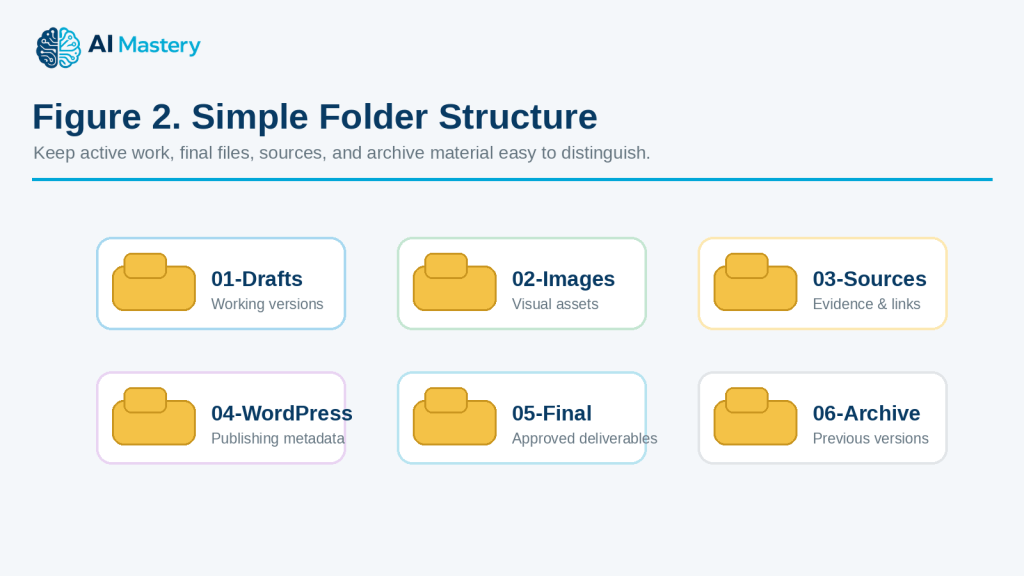
Figure 2. Simple Folder Structure.
Explanation: A small set of clearly named folders separates working files, images, sources, WordPress material, final deliverables, and archive items.
Create Consistent File Names
AI can help turn inconsistent filenames into a clear naming pattern.
For example:
“Create a file-naming system for article files that includes the article number, file type, short description, and version when needed.”
A system might look like:
· 083-article-draft-v01.docx
· 083-article-reviewed-v02.docx
· 083-featured-image.png
· 083-figure-01-project-workflow.png
· 083-sources-and-references.docx
· 083-final-textmaker.docx
Consistent filenames make files easier to sort and recognize.
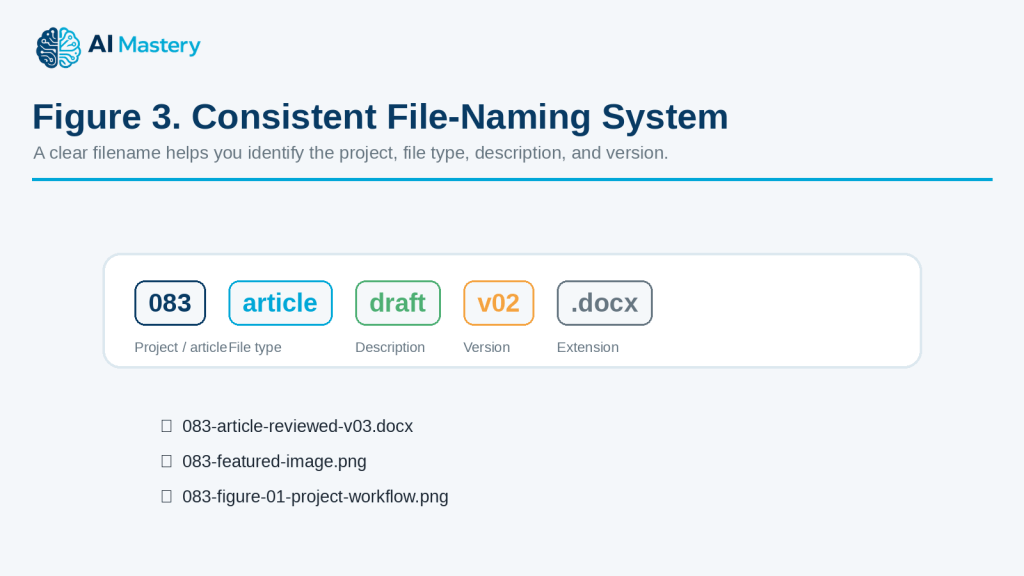
Figure 3. Consistent File-Naming System.
Explanation: A predictable filename can show the project number, file type, description, version, and extension at a glance.
Group Tasks into Categories
A long task list can become easier to understand when related tasks are grouped.
For example:
“Group these tasks into research, writing, images, review, publishing, and backup.”
Instead of one long list, you get smaller groups that are easier to manage.
Put Tasks in a Logical Order
Some tasks need to happen before others.
For example, you normally need to finish the article before completing the final review.
You can ask:
“Put these tasks in the order they should normally be completed and explain which tasks depend on earlier steps.”
AI can help identify a basic sequence.
Identify Priorities
When many tasks are waiting, AI can help organize them by urgency or importance.
For example:
“Organize these tasks into high, medium, and lower priority based only on the deadlines and project information I provide.”
You should review the result because AI may misunderstand which task matters most to you.
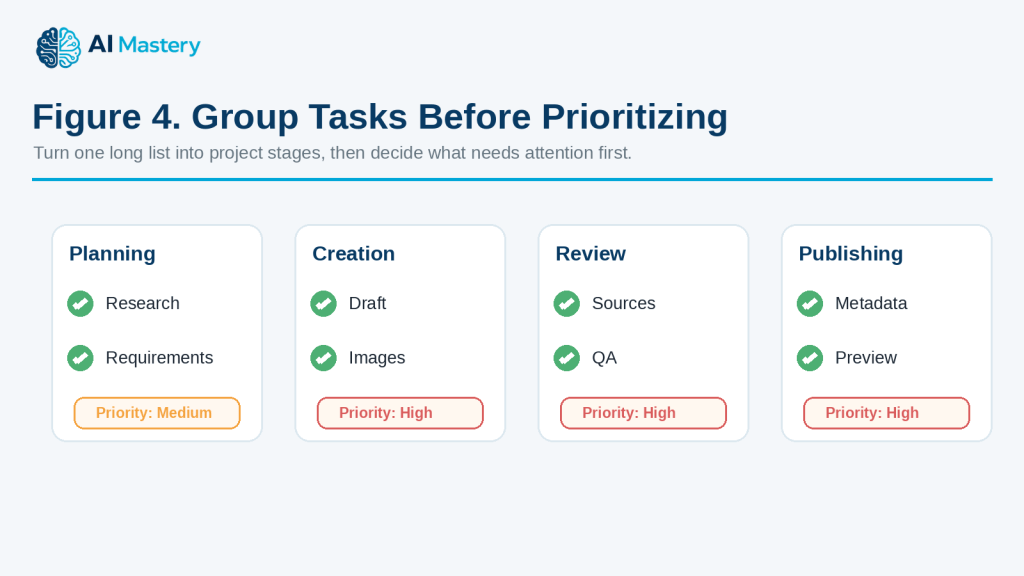
Figure 4. Group Tasks Before Prioritizing.
Explanation: Grouping tasks into stages makes it easier to decide what should happen first and which work is still waiting.
Break Large Projects into Stages
A large project can feel overwhelming when it is treated as one task.
AI can divide it into stages such as:
· Planning
· Research
· Creation
· Review
· Approval
· Publishing
· Archive
You can then focus on one stage at a time.
Create Checklists
AI can convert a process into a checklist.
For example:
“Turn this project workflow into a final checklist. Include files, images, links, review, backup, and publication.”
Checklists are useful when a process needs to be repeated consistently.
Track Project Status
If you provide your current progress, AI can organize tasks into statuses such as:
· Not started
· In progress
· Waiting
· Needs review
· Completed
· Archived
For example:
“Organize these project tasks by current status and show what still needs attention.”
Summarize What Has Changed
For larger projects, AI can help summarize updates.
For example:
“Compare this week’s task list with last week’s list. Show what was completed, what was added, and what is still unfinished.”
This can make project reviews easier.
Help Design an Archive System
Completed projects can create clutter if everything stays in the active workspace.
AI can suggest archive categories such as:
· Completed projects
· Previous versions
· Old source material
· Superseded files
· Historical records
Do not archive or delete files only because AI recommends it. Review important records first.
Reality: AI can help design and improve an organization system, but it does not automatically know which file is authoritative, which version must be kept, or which task is most important. Important decisions still need human review.
Step-by-Step: Organize Files, Tasks, and Projects with AI
A simple process can help you organize your work without making unnecessary changes too quickly.
Step 1: Define What You Are Organizing
Start with one project, folder, or task list.
For example:
“Organize the files and tasks for Article 083.”
This is clearer than trying to reorganize your entire computer at once.
Step 2: Make a Backup
Before changing important files, create a backup.
Keep copies of:
· Current working files
· Important source files
· Final versions
· Permissions or licences
· Important project records
This gives you a recovery point if something goes wrong.
Step 3: List Your Current Files and Tasks
Write down what you already have.
For example:
· Draft article
· Source document
· Featured image
· Figure files
· WordPress notes
· Final checklist
· Unfinished tasks
Do not rename or move anything yet.
Step 4: Ask AI to Group Related Items
You can ask:
“Group these files and tasks into logical categories. Do not rename or delete anything.”
AI might create groups such as:
· Drafts
· Images
· Sources
· WordPress
· Final files
· Archive
· Tasks
This gives you a suggested structure before any actual changes are made.
Step 5: Create a Folder Structure
Once the categories make sense, ask:
“Turn these categories into a simple folder structure.”
A project structure might look like:
· 01-Drafts
· 02-Images
· 03-Sources
· 04-WordPress
· 05-Final
· 06-Archive
Numbering folders can help keep them in a predictable order.
Step 6: Create a File-Naming Rule
Decide how files should be named.
A useful naming rule might include:
· Project or article number
· File type
· Short description
· Version number when needed
For example:
· 083-article-draft-v01.docx
· 083-article-reviewed-v02.docx
· 083-featured-image.png
· 083-figure-01-project-workflow.png
· 083-final-textmaker.docx
Ask AI to suggest names, but review them before renaming important files.
Step 7: Organize the Task List
Give AI the unfinished tasks and ask it to group them.
For example:
“Organize these tasks into planning, creation, review, publishing, and backup.”
This turns one long list into smaller stages.
Step 8: Put Tasks in Order
Some tasks depend on earlier work.
You can ask:
“Put these tasks in a logical order and mark any task that depends on another task.”
For example:
You normally need to finish the final review before publishing.
Step 9: Add Status Labels
Use simple labels such as:
· Not started
· In progress
· Waiting
· Needs review
· Completed
You can then ask AI:
“Organize this project by status and show only the unfinished tasks at the end.”
Step 10: Review Before Making Changes
Before moving or renaming files, check:
· Is the correct file marked as current?
· Are important originals preserved?
· Are duplicate-looking files actually duplicates?
· Are final versions clearly identified?
· Are source and licence records protected?
· Is anything being suggested for deletion?
Do not continue if you are unsure.
Step 11: Make Changes Gradually
Change one part of the system at a time.
For example:
1. Create the folders.
2. Move obvious files.
3. Rename only clearly identified files.
4. Review the result.
5. Continue with the next group.
This makes mistakes easier to detect and correct.
Step 12: Create a Final Project Summary
When the project is organized, ask AI:
“Create a short project summary showing what is completed, what is still in progress, where the final files are stored, and what should be archived.”
This creates a useful record for future reference.
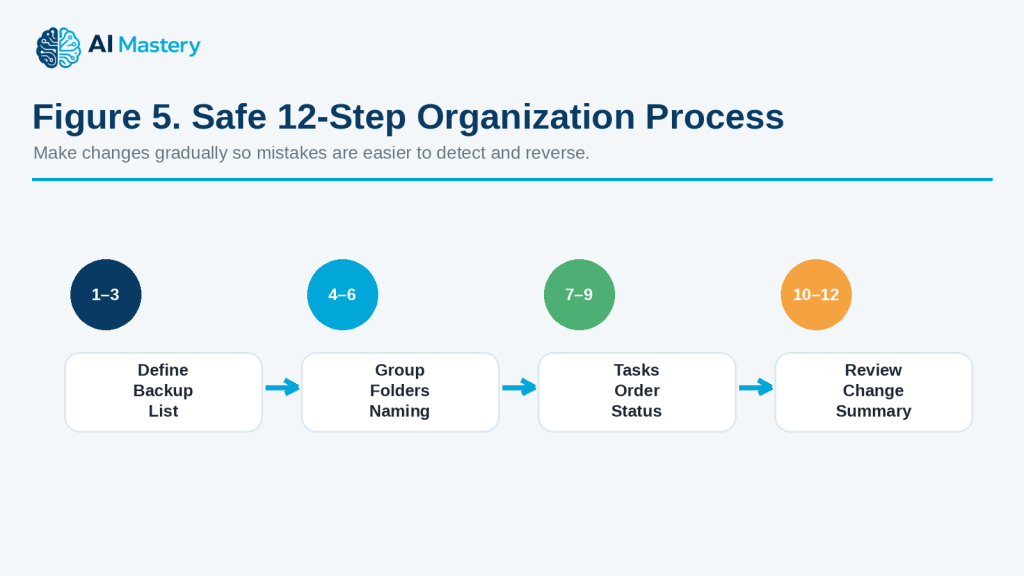
Figure 5. Safe 12-Step Organization Process.
Explanation: The full workflow moves from defining and backing up the project to structuring, reviewing, changing gradually, and recording the final result.
How to Avoid This Mistake: Do not let AI reorganize a large number of important files based only on filenames. Similar names may represent different versions, and AI may not know which file must be preserved.
Useful AI Prompts for File, Task, and Project Organization
Reusable prompts can make organization faster and more consistent. Replace the bracketed information with your own files, tasks, project details, or deadlines.
Prompt for Organizing a File List
“Review this file list and group the files into logical categories. Do not delete, rename, or move anything. Show me the suggested structure first.”
Prompt for Creating a Folder Structure
“Create a simple folder structure for [project]. I need separate areas for working files, images, sources, final files, and archive material. Keep the structure easy for a beginner to understand.”
Prompt for Creating File Names
“Create consistent filenames for these files using this pattern: [project number]-[file type]-[short description]-[version if needed]. Do not change file extensions.”
Prompt for Identifying Unclear Filenames
“Review these filenames and identify which ones are unclear or inconsistent. Suggest clearer names, but do not assume that similar files are duplicates.”
Prompt for Reviewing Possible Duplicates
“These files have similar names. Help me create a checklist for comparing them before I decide whether any are duplicates. Do not recommend deletion based only on the filenames.”
Prompt for Organizing a Task List
“Group these tasks into logical categories and keep every original task. Do not remove or combine tasks unless they clearly describe the same action.”
Prompt for Prioritizing Tasks
“Organize these tasks into high, medium, and lower priority using only the deadlines, dependencies, and importance information I provide. Explain any priority that is uncertain.”
Prompt for Putting Tasks in Order
“Put these project tasks into a logical sequence. Mark tasks that must be completed before another task can begin.”
Prompt for Creating a Project Checklist
“Turn this project plan into a checklist. Keep the tasks in order and include a status field for Not Started, In Progress, Needs Review, Waiting, and Completed.”
Prompt for Breaking Down a Large Project
“Break this project into smaller beginner-friendly stages. For each stage, list the main tasks and the expected result. Do not invent deadlines.”
Prompt for Creating a Weekly Project Plan
“These are my unfinished tasks and deadlines: [tasks and dates]. Create a realistic one-week project plan. Do not schedule more work per day than the limits I provide.”
Prompt for Updating a Project After Something Changes
“This project plan has changed. These tasks are completed: [completed tasks]. These are still unfinished: [unfinished tasks]. These new tasks were added: [new tasks]. Reorganize the remaining plan without changing completed work.”
Prompt for Tracking Project Status
“Organize these tasks into Completed, In Progress, Waiting, Needs Review, and Not Started. Then create a short summary of what still needs attention.”
Prompt for Identifying Dependencies
“Review these tasks and identify any dependencies. For each dependency, explain which task should normally happen first. Mark anything uncertain instead of guessing.”
Prompt for Creating an Archive Plan
“Suggest which categories of completed project files might belong in an archive. Do not recommend deleting anything. Separate final records, previous versions, source material, and temporary files.”
Prompt for Reviewing a Folder Structure
“Review this folder structure for clarity and consistency. Identify folders that may overlap, have unclear names, or could be simplified. Preserve my existing numbering and naming rules unless there is a clear problem.”
Prompt for Creating a Final Project Summary
“Create a short project summary from these notes. Include completed work, unfinished work, final file locations, important source records, and items that still need review.”
Prompt for Checking Before a Major Reorganization
“Review this proposed file reorganization and create a safety checklist. Check for backups, unclear versions, duplicate-looking files, final files, source records, permissions, licences, and anything that should be reviewed before files are moved or renamed.”
Final Check Before Using Any Prompt: Ask AI to suggest changes first rather than immediately acting on important files. Review the proposed structure, filenames, priorities, and archive decisions before making permanent changes.
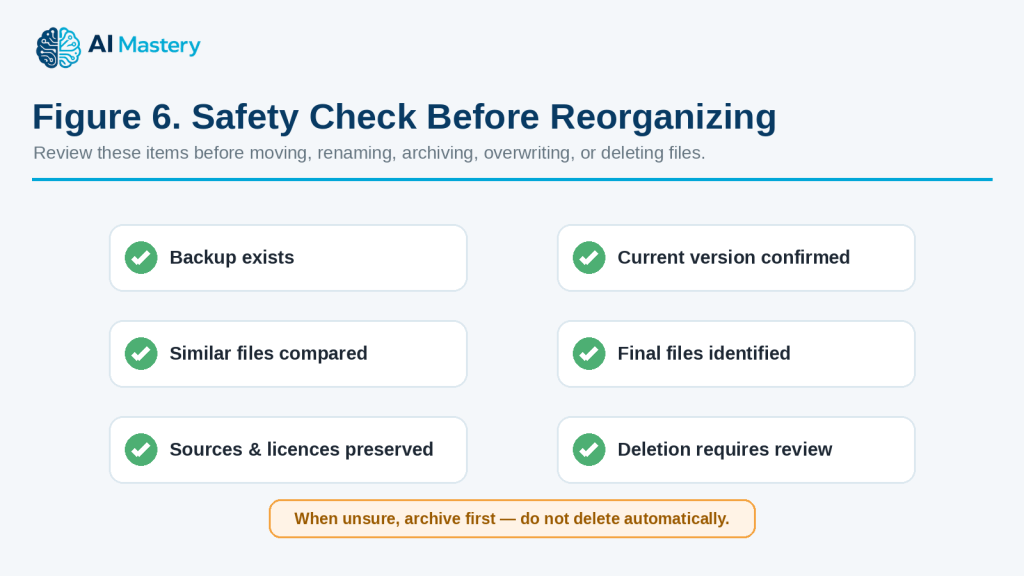
Figure 6. Safety Check Before Reorganizing.
Explanation: Before major changes, confirm backups, current versions, possible duplicates, final files, source records, and anything proposed for deletion.
Practical Example: Organize a Website Article Project with AI
Suppose you are working on a website article and your project folder contains files such as:
· Article draft
· Revised article
· Featured image
· Several figure images
· Source notes
· WordPress notes
· Final checklist
· Old versions
· A ZIP file
· A few files with unclear names
You also have unfinished tasks such as:
· Finish reviewing the article
· Check source links
· Rename the figures
· Prepare the WordPress metadata
· Create the final ZIP
· Save a backup
· Publish the article
Instead of trying to organize everything at once, you can ask AI to help in stages.
Stage 1: Organize the Project Files
You could start with:
“Here is a list of files for one website article. Group them into Drafts, Images, Sources, WordPress, Final Delivery, and Archive. Do not delete, move, or rename anything yet.”
AI might suggest:
Drafts
· Article draft
· Revised article
Images
· Featured image
· Figure images
Sources
· Source notes
· Reference document
WordPress
· WordPress metadata
· Publishing notes
Final Delivery
· Final article
· Final checklist
· ZIP package
Archive
· Old drafts
· Superseded versions
This gives you a suggested structure before making any actual changes.
Stage 2: Create Clear Folder Names
You could then ask:
“Create numbered folder names so the project stays in a logical order.”
For example:
· 01-Drafts
· 02-Images
· 03-Sources
· 04-WordPress
· 05-Final-Delivery
· 06-Archive
Numbering can make the folders easier to scan.
Stage 3: Create Consistent Filenames
Suppose some image files are named:
· image1.png
· finalimage.png
· newpic.png
· screenshot2.png
You could ask:
“Suggest clearer filenames for these images using article number 083, figure numbers, and short descriptions. Do not change the file extensions.”
A clearer system might look like:
· 083-featured-organize-files-tasks-projects.png
· 083-figure-01-organization-workflow.png
· 083-figure-02-folder-structure.png
· 083-figure-03-task-priority-example.png
You should confirm which image is which before renaming anything.
Stage 4: Organize the Remaining Tasks
Next, give AI your unfinished task list.
For example:
“Group these unfinished tasks into Review, WordPress Preparation, Final Delivery, and Publishing.”
The result might be:
Review
· Check article content
· Verify source links
· Review images
WordPress Preparation
· Prepare featured-image metadata
· Add category and tags
· Prepare excerpt
· Check internal links
Final Delivery
· Create final article file
· Create image ZIP
· Create final checklist
· Save backup copy
Publishing
· Upload article
· Add images
· Preview the post
· Check mobile appearance
· Publish
Stage 5: Identify Dependencies
Some tasks cannot be completed properly until another task is finished.
You could ask:
“Show which tasks depend on earlier tasks.”
For example:
· Final article review should happen before creating the final delivery file.
· Image review should happen before creating the image ZIP.
· WordPress metadata should be ready before final publishing.
· The final preview should happen before publication.
This helps prevent work from being completed in the wrong order.
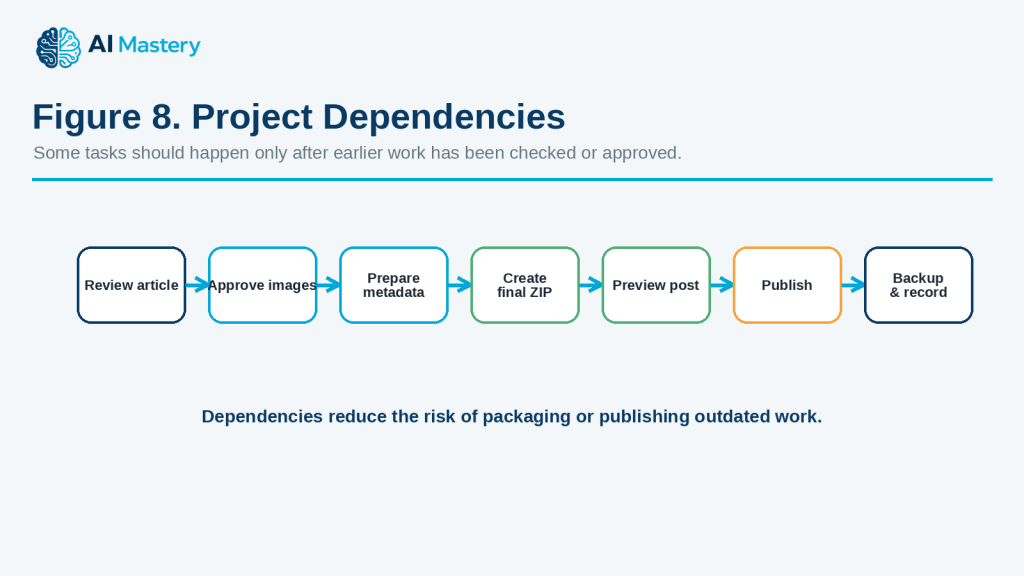
Figure 8. Project Dependencies.
Explanation: Dependencies show why some tasks, such as final packaging or publishing, should wait until earlier review and approval steps are complete.
Stage 6: Add Status Labels
Suppose your project now looks like this:
· Article review — Completed
· Source check — Completed
· Images — In progress
· WordPress package — Not started
· Final ZIP — Waiting
· Publishing — Not started
You could ask:
“Organize these tasks by status and show what I should work on next.”
AI can create a clearer status summary without changing your files.
Stage 7: Create the Final Project Record
When everything is finished, ask:
“Create a final project summary showing the final files, backup location, publication status, and anything that should be archived.”
A simple record could contain:
· Final article filename
· Featured-image filename
· Figure ZIP filename
· Sources file
· WordPress package
· Final checklist
· Publication date
· Published URL
· Backup location
· Archive notes
This can make the project easier to find and update later.
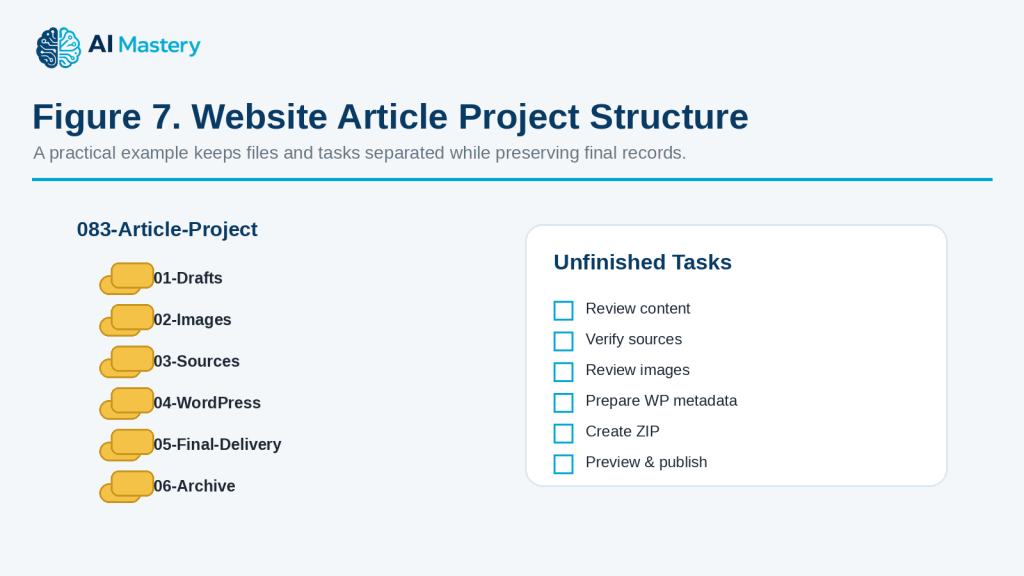
Figure 7. Website Article Project Structure.
Explanation: Separating project folders from unfinished tasks keeps active work, final delivery files, and archive material easier to understand.
Why This Approach Helps
The project becomes easier to manage because files, tasks, and final records are handled separately instead of being mixed together.
The important point is that AI suggests the structure first.
You still decide:
· Which file is the real final version
· Which files should be renamed
· Which old versions should be archived
· Whether anything can safely be deleted
· Which tasks are truly complete
Reality: AI can turn a messy project into a much clearer plan, but it should not make irreversible file decisions without your review. Keep backups and verify important files before renaming, moving, overwriting, archiving, or deleting them.
Benefits of Using AI for File, Task, and Project Organization
AI can make everyday organization easier when you already have files, notes, tasks, and deadlines but need help turning them into a clearer system.
Helps Reduce Clutter
A large number of files or tasks can feel difficult to manage.
AI can help group related items so you can see:
· What belongs together
· What is still active
· What may belong in an archive
· What needs review
· What is already completed
This can make a busy project easier to understand.
Helps Create Consistent File Names
Inconsistent filenames can make files difficult to find later.
AI can help create a naming pattern that uses:
· Project or article numbers
· Short descriptions
· File types
· Version numbers
· Dates when useful
A consistent system can make sorting and searching easier.
Helps Break Large Projects into Smaller Stages
A project can feel overwhelming when it is treated as one large task.
AI can divide it into stages such as:
· Planning
· Research
· Creation
· Review
· Approval
· Publishing
· Backup
· Archive
This makes it easier to focus on one part at a time.
Helps Organize Priorities
When many tasks are waiting, AI can help sort them using information you provide, such as:
· Deadlines
· Dependencies
· Importance
· Project stage
· Waiting items
For example:
“Organize these tasks by priority using the deadlines and dependencies I provide.”
You should still review the result because AI may not fully understand your personal priorities.
Helps Identify Task Dependencies
Some tasks cannot begin until another task is finished.
AI can help identify relationships such as:
· Review before publishing
· Approval before final export
· Image completion before ZIP creation
· Source verification before final article review
This can reduce the chance of completing work in the wrong order.
Helps Create Repeatable Checklists
If you perform the same type of project regularly, AI can turn the process into a reusable checklist.
For example, a publishing checklist could include:
· Review article
· Check links
· Review images
· Prepare metadata
· Preview
· Back up
· Publish
A repeatable checklist can reduce forgotten steps.
Helps Track Progress
AI can help organize work using simple status labels such as:
· Not started
· In progress
· Waiting
· Needs review
· Completed
This can make it easier to see what still needs attention.
Helps Update Plans Quickly
Projects often change.
You may:
· Receive a new deadline
· Add a new task
· Finish something early
· Discover missing work
· Need to delay another task
Instead of rebuilding the whole plan, you can ask AI to reorganize only the unfinished work.
Helps Create Clear Project Summaries
AI can turn a long task list into a short summary showing:
· What is finished
· What is still in progress
· What is waiting
· What needs review
· What should happen next
This can be useful when returning to a project after several days or weeks.
Helps Preserve a Clearer Project History
When filenames, versions, status notes, and archive records are organized consistently, it becomes easier to understand how a project developed.
This can help when you later need to:
· Find an older version
· Verify a source
· Update a published file
· Check a permission or licence
· Review what changed
Benefit: AI can reduce the time spent sorting and planning, but its main value comes from helping you create a system that remains understandable, consistent, and easy to review.
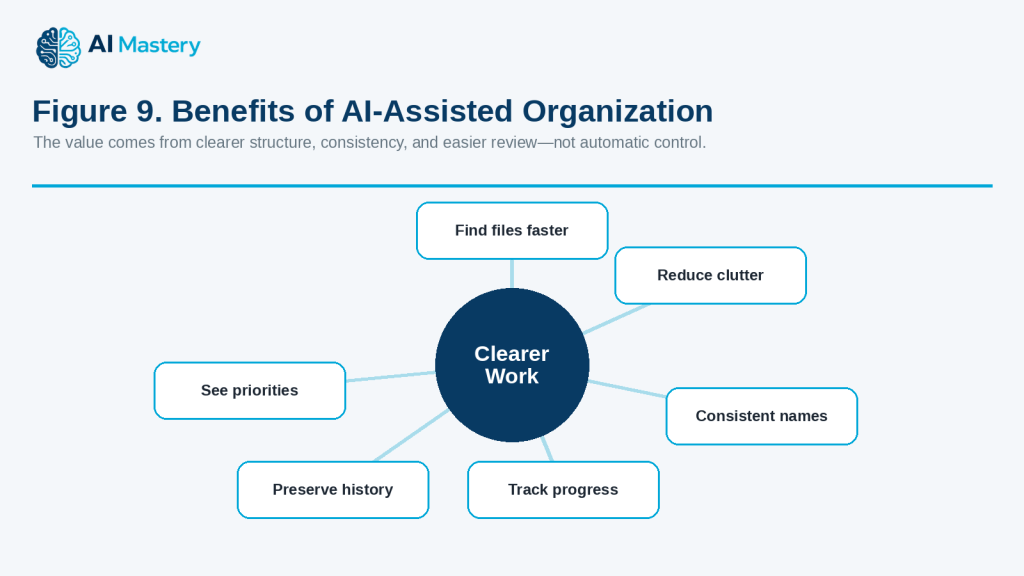
Figure 9. Benefits of AI-Assisted Organization.
Explanation: A clearer system can reduce clutter, improve consistency, show priorities, track progress, and preserve project history.
Limitations and Common Mistakes
AI can make organization easier, but it can also create problems if its suggestions are followed without checking important files, tasks, or project details.
Limitation: AI May Misunderstand Which File Is Current
Files with similar names can be difficult to interpret.
For example:
· final.docx
· final2.docx
· final-revised.docx
· final-new.docx
AI cannot reliably know which one is the authoritative version unless you provide that information.
How to Reduce This Limitation: Confirm the current version yourself before renaming, moving, archiving, or deleting files.
Limitation: AI May Treat Different Files as Duplicates
Two files may have similar names but contain different information.
One may be:
· An earlier draft
· A reviewed version
· A source copy
· A signed version
· A final export
How to Reduce This Limitation: Compare the contents, dates, file sizes, and purpose before deciding that files are duplicates.
Limitation: AI May Suggest a System That Is Too Complicated
AI can create detailed folder structures with many levels.
A complex system may be harder to use than the original one.
How to Reduce This Limitation: Ask for a simple structure with only the folders and categories you actually need.
Limitation: AI Does Not Know Your Real Priorities
AI may place a task at the top of the list because of a deadline while missing another important reason a different task should come first.
How to Reduce This Limitation: Give AI information about:
· Deadlines
· Dependencies
· Importance
· Waiting approvals
· Your own priorities
Then review the suggested order.
Common Mistake: Reorganizing Too Much at Once
Trying to reorganize an entire computer, cloud drive, or large project at once can create confusion.
How to Avoid This Mistake: Start with one project or folder.
Finish reviewing it before moving to the next.
Common Mistake: Renaming Files Without a Backup
If filenames are changed incorrectly, it may become difficult to identify older versions.
How to Avoid This Mistake: Make a backup before a major renaming project.
Common Mistake: Deleting Files Based Only on Their Names
A filename such as “old” or “copy” does not prove that the file is unnecessary.
How to Avoid This Mistake: Open and compare important files before deleting them.
If you are unsure, archive the file rather than deleting it immediately.
Common Mistake: Using Too Many Folder Levels
A structure such as:
Project → Files → Documents → Drafts → Current → Reviewed → Final
may be unnecessarily complicated.
How to Avoid This Mistake: Use the fewest folder levels needed to find your files easily.
Common Mistake: Creating Inconsistent File Names
Using several naming styles in the same project makes searching harder.
For example:
· article83draft.docx
· 083-final.docx
· Article_083_NEW.docx
· finalarticle83.docx
How to Avoid This Mistake: Choose one naming pattern and use it consistently.
Common Mistake: Putting Everything in the Final Folder
A final folder should normally contain approved final deliverables, not every draft and temporary file.
How to Avoid This Mistake: Keep working files and final deliverables separate.
Common Mistake: Archiving Too Early
A project may appear finished but still need:
· Corrections
· Publication
· Client approval
· Source verification
· Final backup
How to Avoid This Mistake: Archive only after confirming that the active work is complete.
Common Mistake: Forgetting Project Dependencies
A task may look ready even though another required step is unfinished.
For example, creating a final ZIP before the images are approved can result in an outdated package.
How to Avoid This Mistake: Ask AI to identify dependencies and review them before marking a stage complete.
Common Mistake: Treating AI Status Labels as Proof
If AI labels a task “Completed,” that does not prove the work has actually been finished.
How to Avoid This Mistake: Use status labels only from information you have confirmed.
Common Mistake: Sharing Sensitive File Lists
Even filenames can reveal private information.
A filename may contain:
· A customer name
· Medical information
· Financial details
· Contract information
· Confidential project names
How to Avoid This Mistake: Remove or replace unnecessary sensitive details before sharing file lists with an AI tool.
Common Mistake: Losing Source and Licence Records
Project cleanup can accidentally separate a final asset from the permission, licence, or source record that explains where it came from.
How to Avoid This Mistake: Keep source, permission, licence, and attribution records with the project when they may be needed later.
Common Mistake: Depending on Only One Copy
A perfectly organized folder can still be lost because of hardware failure, accidental deletion, or another problem.
How to Avoid This Mistake: Keep appropriate backups of important files in a separate location.
Reality: AI can help you create a cleaner organization system, but good organization still depends on confirming file versions, protecting important records, keeping backups, and reviewing major changes before making them permanent.
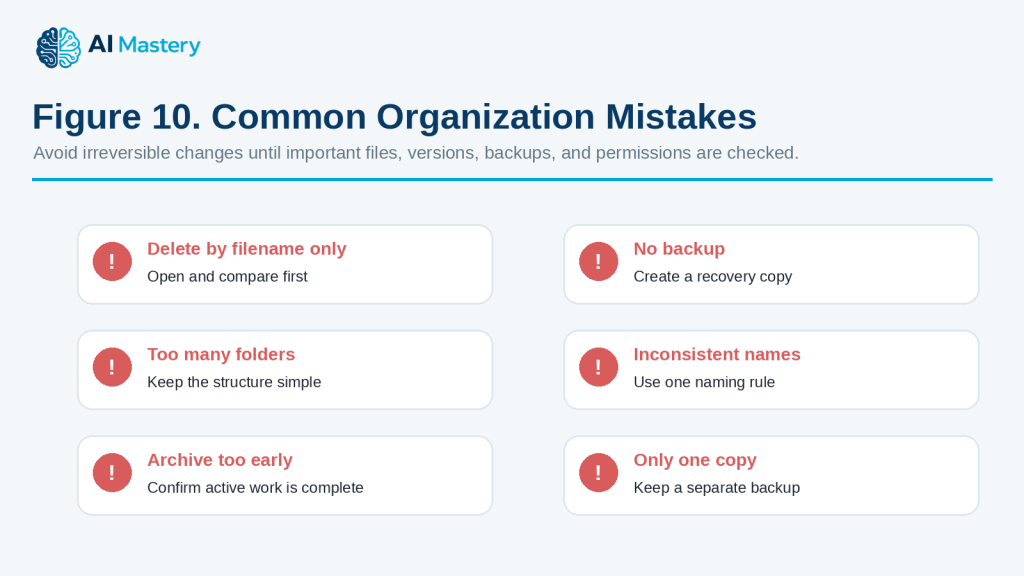
Figure 10. Common Organization Mistakes.
Explanation: The safest approach avoids deletion based only on filenames, missing backups, overly complex folders, inconsistent names, premature archiving, and reliance on a single copy.
Common Myths About Using AI for Organization
AI can help organize files, tasks, and projects, but it is important to understand its limits.
Myth 1: AI Automatically Knows Which File Is the Final Version
AI may see several similar filenames and assume that the newest-sounding one is correct.
Reality: You should confirm the authoritative version yourself before renaming, moving, archiving, or deleting files.
Myth 2: Similar Filenames Mean the Files Are Duplicates
Files with similar names may contain different versions, approvals, edits, or records.
Reality: Compare important files before deciding that one can be removed.
Myth 3: More Folders Always Mean Better Organization
A large folder structure can look organized but still be difficult to use.
Reality: A simple structure is usually easier to maintain.
Myth 4: AI Can Decide What Should Be Deleted
AI can suggest files that may be old or redundant, but it may not understand their real purpose.
Reality: Permanent deletion should remain a human decision.
Myth 5: The Most Detailed Project Plan Is the Best One
A project plan with too many categories, statuses, and steps can become harder to follow.
Reality: Use enough detail to understand the work without creating unnecessary complexity.
Myth 6: AI Always Knows Which Task Is Most Important
AI can organize priorities based on the information you provide, but it may miss factors that matter to you.
Reality: Review priorities yourself, especially when deadlines, approvals, money, clients, safety, or important commitments are involved.
Myth 7: Once a Project Is Organized, It Will Stay Organized
Projects change over time.
New files, revisions, tasks, and deadlines can make the original structure less useful.
Reality: Review and update the organization system when the project changes.
Myth 8: Completed Means Finished Forever
A task marked “Completed” may still require approval, publishing, backup, or later updating.
Reality: Define what “Completed” means for your project.
Myth 9: AI Can Safely Rename Hundreds of Files at Once
Large batch changes can create serious confusion if the naming rules are wrong.
Reality: Test the naming system on a small group first and keep a backup.
Myth 10: Archived Files Are No Longer Important
Archived files may still contain:
· Previous versions
· Source material
· Permissions
· Licences
· Historical records
· Evidence of earlier decisions
Reality: Archive does not mean disposable.
Myth 11: A Cloud Folder Is Automatically a Complete Backup
Cloud storage can help protect files, but synchronization, accidental deletion, account problems, or version changes can still affect stored material.
Reality: Important projects may need an additional backup in a separate approved location.
Myth 12: AI Organization Removes the Need for Human Review
AI can make a project look very clear and professional.
That appearance does not prove that:
· The correct files were selected
· The priorities are right
· The final version is correct
· Nothing important is missing
· Archive decisions are safe
Reality: Human review remains necessary for important file and project decisions.
The best use of AI is to help you design and maintain a clearer system while keeping control of permanent changes, important records, and final decisions.
When AI Can Help and When Human Review Matters Most
AI can be useful for routine organization, but important file changes, deadlines, permissions, and project decisions still need human review.
Good Uses for AI Organization Assistance
AI can help with:
· Suggesting folder structures
· Creating consistent filenames
· Grouping related tasks
· Breaking projects into stages
· Creating checklists
· Organizing priorities from information you provide
· Identifying possible task dependencies
· Creating project-status summaries
· Suggesting archive categories
· Reorganizing unfinished work when plans change
These tasks mainly involve structure and planning.
Review Important File Decisions Yourself
Do not rely only on AI when deciding whether to:
· Delete a file
· Overwrite a file
· Replace a final version
· Archive an important record
· Rename a large number of files
· Move files that other people depend on
· Remove source or licence records
AI may not understand why a particular file must be kept.
Use Extra Care with Shared Projects
If several people work on the same project, a change that looks harmless may affect someone else.
Before reorganizing shared files, consider:
· Who uses the files
· Whether links will stop working
· Whether another person is editing the same document
· Whether existing folder names are part of a team process
· Whether permissions or access settings could be affected
For shared work, agree on the organization system before making major changes.
Human Review Matters for Deadlines and Priorities
AI can suggest which tasks should come first, but it may not know about:
· A client commitment
· An approval that is still waiting
· A legal or contractual deadline
· A publication schedule
· A dependency outside the task list
· An urgent problem that was not included in the prompt
Use AI suggestions as a starting point, then confirm the real priorities yourself.
Be Careful with Legal, Financial, or Regulated Records
Some projects contain records that may need to be preserved for legal, tax, financial, regulatory, employment, contractual, or compliance reasons.
AI should not decide how long these records must be kept.
Use the appropriate:
· Official requirements
· Organizational policies
· Contract terms
· Records-retention rules
· Qualified professional advice when necessary
before deleting or archiving important records.
Review Automated Actions Before They Run
Some AI tools or connected apps may be able to perform actions rather than only suggest them.
Before allowing an automated action, check:
· Exactly what will change
· Which files or tasks are affected
· Whether the action can be reversed
· Whether a backup exists
· Whether permissions will change
· Whether other people will be affected
For important projects, it is safer to review a proposed change before approving it.
Keep Final Control of the Project
A practical workflow is:
1. Give AI the information it needs.
2. Ask for a suggested structure or plan.
3. Review the suggestion.
4. Correct anything AI misunderstood.
5. Back up important files.
6. Make changes gradually.
7. Check the result.
8. Record the final structure or status.
Reality: AI is most useful as an organization assistant. People should remain responsible for permanent file changes, important priorities, shared-project decisions, record retention, permissions, and final project approval.
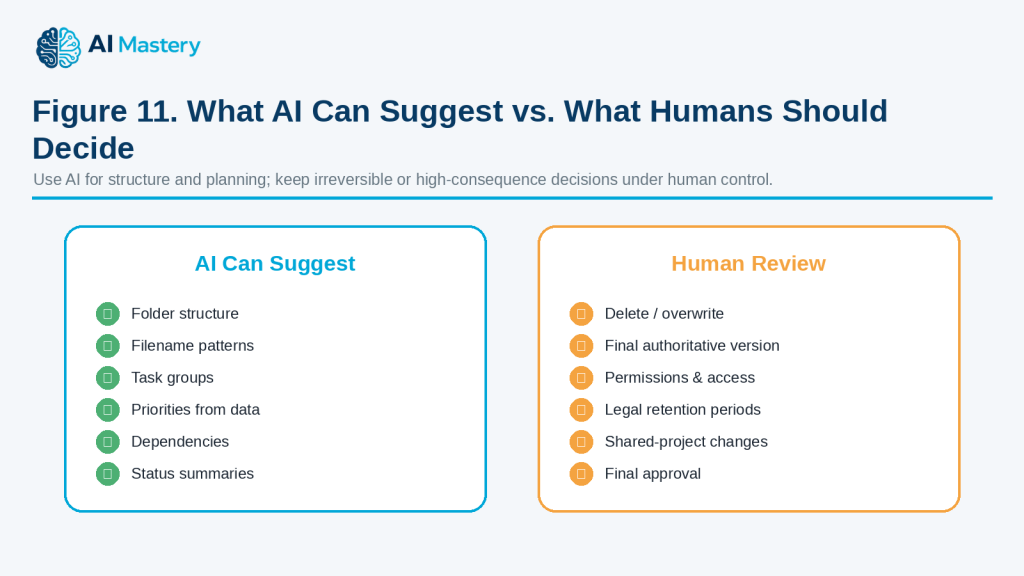
Figure 11. What AI Can Suggest vs. What Humans Should Decide.
Explanation: AI is well suited to suggesting structure and summaries, while people should retain control of deletion, authoritative versions, permissions, retention decisions, and final approval.
Privacy, Permissions, and Responsible Organization
Files, task lists, and project notes can contain information that should not be shared carelessly. AI can help organize this material, but privacy, access rights, permissions, and record-keeping still matter.
Protect Personal and Confidential Information
Before giving file lists, project notes, or document contents to an AI tool, remove information that is not necessary.
Examples include:
· Customer names
· Employee records
· Account numbers
· Passwords
· Personal addresses
· Financial information
· Medical information
· Confidential business details
· Private project names
Use placeholders when possible, such as:
· [CLIENT NAME]
· [EMPLOYEE NAME]
· [ACCOUNT NUMBER]
· [PRIVATE PROJECT]
· [CONFIDENTIAL DETAIL]
Remember That Filenames Can Reveal Information
Even if you do not upload the actual file, its filename may contain sensitive information.
For example:
“john-smith-medical-report-2026.pdf”
reveals much more than:
“client-document-01.pdf”
Review filenames before sharing a list with an AI tool.
Check Permission Before Uploading Files
Having access to a file does not automatically mean you should upload it to an AI service.
Before uploading a document, consider:
· Who owns the file?
· Does it contain another person’s information?
· Is it confidential?
· Does your workplace allow AI use with this type of document?
· Are there contractual restrictions?
· Does the AI provider’s privacy policy meet your needs?
If you are unsure, do not upload the file until you have checked.
Respect Shared-File Permissions
A project folder may include files shared by:
· Coworkers
· Clients
· Teachers
· Contractors
· Family members
· Other project participants
Do not assume you have permission to rename, move, delete, redistribute, or upload those files simply because you can access them.
Protect Copyrighted and Licensed Material
Projects may contain:
· Photographs
· Illustrations
· Music
· Videos
· Templates
· Fonts
· Stock assets
· Reports
· Articles
· Source documents
Keep licence and permission records when they apply.
Do not assume that reorganizing, summarizing, or processing content with AI gives you new rights to use or distribute it.
Preserve Source and Permission Records
When a project may later be published or used commercially, keep important records together.
These may include:
· Original source files
· Source links
· Permissions
· Licences
· Attribution requirements
· Purchase records when relevant
· Important project versions
· Final exports
· Publication records
This can make future verification much easier.
Be Careful with AI-Connected Apps
Some AI tools can connect to storage, productivity, or project-management services.
A connected tool may be able to access more information than you intended if broad permissions are granted.
Before connecting an AI tool, review:
· What information it can access
· Whether it can only read information or also change it
· Which folders or services are included
· Whether access can be removed later
· Whether the connection is appropriate for confidential work
Features and permission options can change, so check the provider’s current settings and documentation.
Do Not Give AI Permanent Authority Without Review
If an AI system can move, rename, archive, or delete items automatically, use extra care.
For important work, a safer process is:
1. Ask AI to propose the changes.
2. Review the proposed changes.
3. Back up important files.
4. Approve only the changes you understand.
5. Check the results afterward.
Keep Backups Separate from the Working Folder
A backup stored only inside the folder you are reorganizing may not provide enough protection.
For important projects, keep an appropriate backup in a separate location.
The best backup method depends on the importance of the files, your devices, workplace policies, and the services you use.
Avoid Keeping Sensitive Information Longer Than Necessary
Good organization does not mean keeping every file forever.
Some information may need to be deleted after it is no longer required, while other records may need to be retained for a specific period.
Follow applicable:
· Laws
· Organizational policies
· Contracts
· Records-retention requirements
· Professional guidance
when these apply.
Do not ask AI to decide legal retention periods without checking an authoritative source.
Reality: AI can help organize information, but it does not remove your responsibility to protect private data, respect permissions and licences, control access, preserve important records, and review permanent changes before they are made.
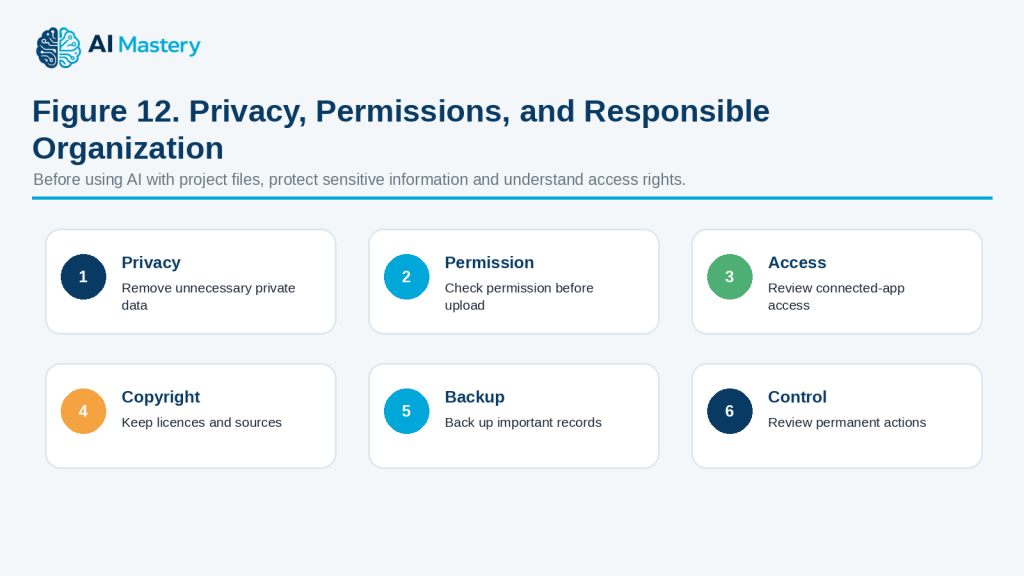
Figure 12. Privacy, Permissions, and Responsible Organization.
Explanation: Responsible organization includes limiting private data, checking permission, reviewing connected-app access, preserving licences and sources, backing up records, and reviewing permanent actions.
Frequently Asked Questions
Can AI organize my files automatically?
Some AI-connected tools may be able to rename, move, or organize files, but you should review important changes before allowing them to happen.
For valuable files, it is safer to:
· Back up the files first
· Ask AI to propose the changes
· Review the proposed names and folders
· Apply changes gradually
Can AI tell me which files are duplicates?
AI can help identify files that may be duplicates based on filenames, dates, or other information you provide.
However, similar filenames do not prove that the contents are identical.
Compare important files before deleting anything.
What is a good file-naming system?
A useful filename usually includes enough information to identify the file quickly.
For example:
“083-article-draft-v02.docx”
This shows:
· Project or article number
· Type of file
· Version
Keep the naming system simple and use it consistently.
Should I include dates in filenames?
Dates can be useful when the date matters to the project.
For example:
“project-status-2026-08-16.docx”
Use one consistent date format, such as YYYY-MM-DD, because it sorts clearly.
You do not need dates in every filename if version numbers or other identifiers already make the file clear.
Should I use version numbers?
Version numbers can help when a document goes through several revisions.
For example:
· v01 — first working version
· v02 — revised version
· v03 — later revision
Avoid keeping many files all named “final.”
Can AI help organize my task list?
Yes.
You can ask AI to group tasks by:
· Project stage
· Priority
· Deadline
· Status
· Dependency
Then review the result to make sure the priorities reflect your actual needs.
Can AI help me decide what to work on first?
Yes, if you provide enough information about deadlines, importance, and dependencies.
For example:
“Organize these tasks by priority using the deadlines and dependencies I provide.”
You should still make the final decision.
What does a task dependency mean?
A dependency means one task needs another task to happen first.
For example:
You may need to approve the final images before creating the final image ZIP.
Identifying dependencies can help prevent work from being completed in the wrong order.
Can AI manage a large project?
AI can help break a large project into smaller stages, create checklists, organize tasks, and summarize progress.
However, important deadlines, approvals, permissions, and final decisions should still be reviewed by the people responsible for the project.
How many folders should a project have?
There is no correct number.
Use enough folders to make files easy to find without creating unnecessary complexity.
For a simple project, a few folders such as Drafts, Images, Sources, Final, and Archive may be enough.
Should I delete old versions?
Not automatically.
Old versions may still be useful for:
· Recovering previous work
· Checking what changed
· Confirming an earlier decision
· Preserving approvals
· Keeping project history
If storage space is not a problem, archiving may be safer than immediate deletion.
What should go in an archive folder?
An archive may contain:
· Previous versions
· Completed project material
· Superseded files
· Historical records
· Old source material that still needs to be preserved
Final deliverables and important records should remain clearly identifiable.
Is cloud storage the same as a backup?
Not always.
Cloud storage may synchronize changes, including accidental deletions.
Important files may need an additional backup in a separate approved location.
Can AI organize files from several projects together?
It can help design a structure, but start carefully.
Organizing one project at a time makes it easier to identify mistakes before they affect many files.
Can I give AI a list of filenames instead of uploading the files?
Yes.
A filename list may be enough if you only want help designing:
· Folder categories
· Naming rules
· Archive structures
· Project organization
Remember that filenames themselves may contain private information.
Should I let AI delete files automatically?
For important files, no automatic deletion should happen without careful review.
A safer approach is to have AI identify files for review and then decide yourself what should be kept, archived, or deleted.
Can AI replace project-management software?
AI can help with planning, summaries, checklists, and organization, but it may not replace features such as shared calendars, permissions, notifications, version history, and team workflows.
Use the tools that fit the project.
Reality: AI can make files, tasks, and projects easier to organize, but reliable organization still depends on clear naming rules, backups, accurate status information, sensible priorities, and careful review of permanent changes.
Key Takeaways
AI can make files, tasks, and projects easier to organize, but important changes should still remain under your control.
Remember these main points:
· Start with one project, folder, or task list instead of reorganizing everything at once.
· Make a backup before major file changes.
· Use simple folder structures that are easy to understand.
· Create one consistent file-naming system and use it regularly.
· Keep drafts, source files, final files, and archived material clearly separated.
· Do not assume similar filenames mean files are duplicates.
· Confirm the authoritative version before renaming, moving, archiving, overwriting, or deleting anything.
· Ask AI to suggest changes before allowing permanent actions.
· Break large projects into smaller stages.
· Organize tasks by status, priority, deadline, and dependency when useful.
· Review AI-generated priorities against your real commitments and deadlines.
· Keep important source, permission, licence, approval, and publication records.
· Protect unnecessary personal, confidential, financial, medical, or business information.
· Review access permissions before connecting AI tools to storage or project-management services.
· Use extra care with shared files and team projects.
· Follow applicable legal, contractual, organizational, and records-retention requirements.
· Keep appropriate backups in a separate location.
· Review the final project structure so you know where important files and records are stored.
The most useful role for AI is to help you create a clearer and more consistent organization system while you keep control of important files, permanent changes, priorities, permissions, and final project decisions.
Final Tip
Keep your organization system simple enough that you will continue using it.
A complicated system with too many folders, labels, versions, and status categories can become another source of confusion.
A practical workflow is:
1. Choose one project or folder.
2. Back up important files.
3. List the files and tasks you already have.
4. Ask AI to suggest a clearer structure.
5. Review the suggested folders, filenames, priorities, and dependencies.
6. Make changes gradually.
7. Check that important files, sources, permissions, and licences are still preserved.
8. Create a short final project summary so you know what is complete and where everything is stored.
A useful prompt is:
“Help me simplify this project organization. Preserve important files and existing numbering, suggest only necessary folders and naming improvements, and clearly identify anything that needs human review before it is moved, renamed, archived, or deleted.”
The goal is not to build the most detailed organization system. The goal is to create a structure that helps you quickly find what you need, understand what comes next, and protect important records.
Continue Learning
After you learn how to organize files, tasks, and projects with AI, continue with these related AI Mastery guides:
· Article 077 — AI Productivity for Beginners: Complete Guide (2026) — Review the broader ways AI can help with planning, writing, research, organization, and everyday work.
· Article 078 — How to Create a Daily Plan with ChatGPT (2026) — Learn how to organize daily tasks, appointments, priorities, and available time.
· Article 079 — How to Write and Improve Emails with AI (2026) — Learn how AI can help draft, rewrite, shorten, and improve everyday emails.
· Article 080 — How to Prepare Meeting Agendas and Notes with AI (2026) — Learn how to organize meetings, notes, decisions, action items, and follow-up work.
· Article 081 — How to Research and Organize Information with AI (2026) — Learn how to collect, compare, verify, and organize information from different sources.
· Article 082 — How to Create a Personal Study Plan with AI (2026) — Learn how to organize subjects, deadlines, study sessions, review activities, and learning progress.
Together, Articles 077–083 provide a beginner-friendly foundation for using AI to improve everyday productivity while keeping important information, decisions, privacy, permissions, and final control in human hands.
Sources and References
The following official sources were reviewed for this guide. AI-connected apps, file-recovery features, permissions, privacy practices, copyright rules, and storage services can change, so readers should check current provider information when first using a feature, after changing accounts or plans, after receiving a policy update, and periodically.
· OpenAI Help Center — Apps in ChatGPT. Explains that connected apps can allow ChatGPT to read information and, depending on the app and configuration, take actions in connected services. OpenAI also provides permission controls that determine when confirmation is required before an action is performed. This supports the recommendation to review connected-app permissions before allowing important changes.
· OpenAI Help Center — Google App for ChatGPT: Data Controls FAQ. Explains that ChatGPT accesses a connected Google account only after the user grants permission and that organizational settings may further limit available permissions. This supports the article’s guidance to check what information an AI-connected service can access.
· Office of the Privacy Commissioner of Canada — Privacy and Artificial Intelligence. Provides Canadian information about AI and privacy and emphasizes responsible handling of personal information. This supports the recommendation to avoid unnecessarily sharing personal or confidential information with AI tools.
· Office of the Privacy Commissioner of Canada — Principles for Responsible, Trustworthy and Privacy-Protective Generative AI. Provides privacy principles for organizations developing, providing, or using generative AI, including responsible treatment of personal information.
· Microsoft Support — Backup and Restore with File History. Explains how Windows File History can help recover files and folders that have been accidentally changed or deleted. This supports the recommendation to maintain appropriate backups before major file reorganizations.
· Microsoft Support — Restore a Previous Version of a File Stored in OneDrive. Explains OneDrive and SharePoint version history and how previous versions of files can be viewed and restored. This supports the article’s guidance about preserving versions and checking recovery options before overwriting files.
· Google Drive Help — Check Activity and File Versions. Explains how users can review file activity and manage or restore recent file versions in Google Drive. This supports the recommendation to check file history and existing versions before replacing or deleting important material.
· Canadian Intellectual Property Office — A Guide to Copyright. Explains the basic copyright protection provided to original literary, artistic, dramatic, and musical works in Canada. This supports the recommendation to preserve licence, permission, and attribution records when projects contain third-party material.
· Canadian Intellectual Property Office — Copyright: Learn the Basics. Provides beginner-friendly information about copyright protection, ownership, and legally using the works of others. This supports the article’s guidance that organizing or processing material with AI does not automatically give permission to reuse or distribute it.
These sources support the article’s guidance on connected-app permissions, privacy, file recovery, version history, backups, copyright, permissions, and responsible handling of important project files.
File-management and AI features differ between services and may change over time. Some connected AI apps can perform actions as well as read information, so users should review the current permission settings and understand what an action will do before allowing important files or project records to be changed.
For legal, contractual, financial, regulatory, records-retention, privacy, or copyright decisions, this article provides general educational information only. Check the applicable official requirements, organizational policies, contracts, or qualified professional guidance when the consequences are important.
 AI Mastery
Leave a comment