
Estimated Reading Time: 34 minutes
Last Updated: August 3, 2026
Before Learning
Before starting this guide, you should know the basic purpose of Google Gemini and how to enter a prompt. A prompt is the instruction, question, or request that you give to an AI tool.
You will also need:
- A Google Account
- Access to the Google Gemini website or mobile app
- A basic task that you perform repeatedly, such as writing emails, planning lessons, summarizing information, or creating social media ideas
- Permission to use any documents or information you plan to provide to Gemini
You do not need programming experience or advanced technical knowledge.
A Gem is a customized version of Gemini created for a particular purpose. Instead of repeatedly explaining the same role, preferences, rules, and output format in every prompt, you can save those instructions inside a Gem and reuse them. Google also provides premade Gems that can be used immediately or customized.
Important: Gemini’s menus, available features, account requirements, usage limits, and plan conditions may change. Check Google’s current information when first using Gems, after changing your plan or account type, when you receive a policy-update notice, and periodically.
What You’ll Learn
By the end of this guide, you will understand:
- What Gems are and how they work in Google Gemini
- The difference between premade Gems and custom Gems
- How to find and open Gems
- How to use a premade Gem
- How to create your own custom Gem
- How to write clear instructions for a Gem
- How to add reference files as knowledge
- How to test, edit, copy, share, and delete a Gem
- Practical ways to use Gems for writing, learning, planning, and everyday tasks
- The benefits and limitations of Gems
- Common mistakes, myths, privacy risks, and troubleshooting methods
Introduction
Many people use Google Gemini for writing emails, explaining difficult subjects, planning projects, organizing ideas, and creating content. Repeatedly entering the same instructions can become slow and frustrating.
Gems help reduce this repetition. A Gem is a customized version of Gemini prepared for a particular purpose. You can give it a name, working instructions, a preferred communication style, and supporting files. After saving it, you can return to the Gem whenever you need help with that type of task.
For example, you could create:
- An Email Writing Assistant that produces polite and professional messages
- A Study Helper that explains subjects using simple language
- A Recipe Planner that works with your stated preferences
- A Small-Business Content Assistant that follows an approved style guide
- A Document Reviewer that checks writing for clarity and common errors
Google also provides premade Gems for common tasks. These can be used immediately, and some may provide a copy or customization option.
A well-designed Gem can save time and improve consistency, but it does not guarantee accurate answers. You should still provide clear requests, review the work, verify important facts, and protect private or confidential information.
Important distinction: Google also uses the name Gems from Google Labs for experimental AI mini-apps and workflows powered by Opal. These are different from the classic custom Gems covered mainly in this guide. Their requirements, supported accounts, devices, and features may differ.
What Are Gems in Google Gemini?
Gems are customized versions of Google Gemini designed to help with a particular task, subject, or working style. A Gem can follow saved instructions whenever you open it, reducing the need to repeat the same directions in every new request.
Think of a Gem as a reusable assistant with a prepared job description. A normal Gemini conversation begins with general capabilities. A Gem begins with the role, goals, preferences, and rules that you previously gave it.
For example, a normal prompt might say:
Write a simple introduction to artificial intelligence for complete beginners. Use short paragraphs, explain technical terms, avoid exaggerated claims, and finish with three key takeaways.
Without a Gem, you may need to repeat these instructions whenever you request similar content. With a properly configured Beginner Writing Assistant Gem, many of these continuing instructions can already be saved.
What a Gem Can Contain
Depending on the available Gemini features and your account, a custom Gem can contain:
- A clear name
- A description of its purpose
- Detailed working instructions
- A preferred tone or writing style
- Rules about what the Gem should include or avoid
- Supporting files that provide useful knowledge or examples
When you start a conversation with the Gem, Gemini combines the saved instructions with the new prompt you enter. It then creates a response based on both.
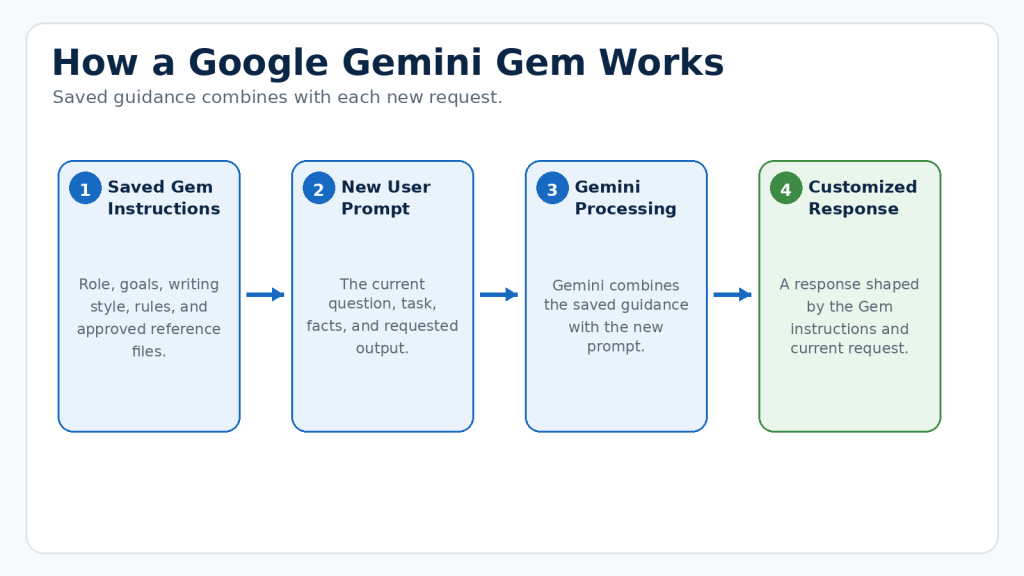
Figure 1. A Gem combines saved instructions and supporting information with each new prompt to create a more customized response.
Explanation: The saved Gem instructions provide the continuing role and rules, while the new prompt tells Gemini what you need during the current conversation.
What a Gem Does Not Do
Creating a Gem does not create a completely separate AI model. It customizes how Gemini responds by providing reusable instructions and, when added, reference material.
A Gem also does not guarantee that every response will be correct or perfectly follow every instruction. You must still:
- Write a clear request
- Review the generated response
- Check important facts
- Correct errors or missing information
- Protect private and confidential information
- Confirm licenses, permissions, and publishing requirements when using generated content
Reality: A Gem can improve consistency and save time, but it does not replace human judgment. The quality of its answers still depends on the instructions, reference material, current Gemini capabilities, and the prompt you provide.
Premade Gems and Custom Gems
Google Gemini offers two main ways to use classic Gems: start with a premade Gem provided by Google or create a custom Gem for your own repeated tasks.
Premade Gems
Premade Gems already contain instructions for a particular type of assistance. They are useful when you want to begin quickly without writing the Gem’s complete instructions yourself.
Premade Gems may help with tasks such as:
- Brainstorming ideas
- Improving writing
- Exploring career goals
- Learning unfamiliar subjects
- Getting help with coding
The available Gems may change as Google updates Gemini. You can open a premade Gem and enter a prompt related to its purpose. Gemini may ask follow-up questions when it needs more details.
Some premade Gems may provide a copy or customization option. When available, this lets you adjust your copy without changing Google’s original version.
Custom Gems
A custom Gem is one that you prepare for your own specific needs. You decide what role it should perform, what instructions it should follow, and what type of responses it should produce.
For example, you could create a custom Gem called Beginner Tutorial Assistant and instruct it to:
- Explain technical terms in simple language
- Use short paragraphs
- Include practical examples
- Avoid unsupported claims
- Identify possible limitations
- Finish with key takeaways
- Remind you to verify important facts
Which Type Should You Choose?
Use a premade Gem when:
- You are new to Gems
- You want to begin immediately
- The Gem already matches your task
- You want to explore how saved instructions affect responses
Create a custom Gem when:
- You repeatedly perform the same type of task
- You need a particular writing style or format
- You have rules that Gemini should follow
- You want to add your own reference material
- A premade Gem is too general for your needs
Beginner Tip: Start by testing one premade Gem. After you understand how it responds, create one simple custom Gem for a task you perform regularly.
How to Find and Open Gems
You can use Gems in the Gemini web app and, depending on the account and current feature availability, the Gemini mobile app and supported Google Workspace side panels.
Find Gems on a Computer
1. Open a supported web browser.
2. Go to the Google Gemini website.
3. Sign in with the Google Account you want to use.
4. If the left sidebar is closed, select Open sidebar.
5. Select Gems.
6. If you have not created a Gem before, you may first need to select Settings and help, followed by Gems.
7. Review the available premade and custom Gems.
8. Select the Gem you want to use.
9. Enter your request in the prompt box and submit it.
Google may change the names or positions of menu options. Look for wording such as Gems, Explore Gems, or Gem manager when your screen differs.
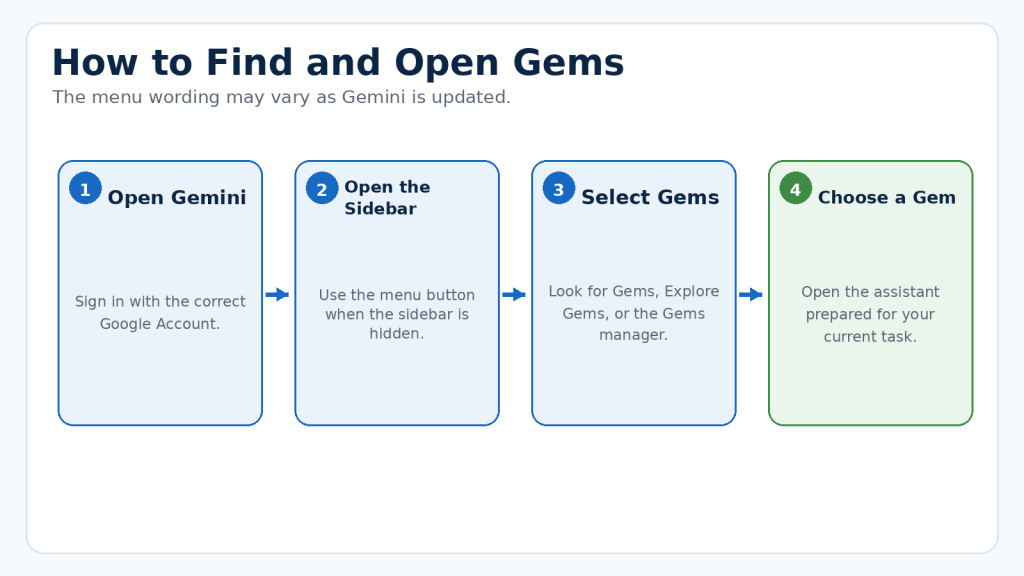
Figure 2. Open the Gemini sidebar, select Gems, and choose the assistant prepared for your current task.
Explanation: The location and wording of the Gems menu may change, but it is normally available from Gemini’s sidebar or settings area.
Find Gems on a Mobile Device
1. Open the Gemini mobile app or visit the Gemini website on the device.
2. Sign in to the correct Google Account.
3. Open the main menu.
4. Look for Gems, Explore Gems, or the Gems area under settings and help.
5. Select a premade or custom Gem.
6. Enter your request and submit it.
Some management options may work best in the Gemini web app. For the clearest beginner experience, create and configure a custom Gem in the web app before using it on other devices.
Check That You Opened the Correct Gem
Before entering private information or beginning important work, check the Gem’s name at the top of the conversation.
Common Mistake: Some beginners open a normal Gemini conversation and expect their custom Gem instructions to be applied automatically.
How to Avoid This Mistake: Open the required Gem from the Gems area before entering your task. Confirm the Gem’s name at the top of the new conversation.
How to Use a Premade Gem
Premade Gems allow you to try specialized Gemini assistance without creating instructions from the beginning. The available selection may change as Gemini is updated.
Use a Premade Gem on a Computer
1. Open the Google Gemini website.
2. Sign in to your Google Account.
3. Open the left sidebar.
4. Select Gems.
5. Find the premade Gems area.
6. Select a Gem that matches your task.
7. Enter a clear request in the prompt box.
8. Select Submit.
Premade Gems already contain instructions related to their intended purpose. You do not need to explain their complete role, but you should still provide enough information about the result you need.
Example: Use a Writing Gem
Open a writing-related Gem and enter:
Rewrite this email using polite, professional, and easy-to-understand language. Keep it under 150 words and preserve all important dates and instructions.
Paste the email below the request, but remove private information that Gemini does not need. Check whether the original meaning, names, dates, numbers, tone, and important details were preserved.
You can continue with a follow-up prompt such as:
Make the message friendlier, but keep it professional.
Example: Use a Learning Gem
Enter:
Explain cloud storage for a complete beginner. Use a simple everyday comparison, define technical terms, and finish with three key points.
You can continue with related questions. Restate critical requirements when accuracy or formatting matters.
Customize the Result Through Conversation
The first response does not need to be the final version. You can ask the Gem to:
- Make the answer shorter or longer
- Use simpler language
- Add practical examples
- Change the tone
- Reorganize the information
- Explain a difficult point
- Remove irrelevant material
- Present the answer as steps, bullets, or a table
Common Mistake: Entering a very general prompt such as “Help me write” and expecting a finished response that matches an unstated purpose.
How to Avoid This Mistake: Include the task, intended audience, desired format, tone, important details, and any limits in your prompt.
How to Create a Custom Gem
A custom Gem allows you to save instructions for a task you perform repeatedly. The following instructions create a classic custom Gem rather than an experimental Gem from Google Labs.
Create a New Gem
1. Open the Google Gemini website.
2. Sign in with the Google Account you want to use.
3. Select Open sidebar if the sidebar is closed.
4. Select Gems or Explore Gems.
5. Select New Gem.
6. Enter a short and descriptive name.
7. Enter the instructions you want the Gem to follow.
8. Optionally add supporting files under Knowledge.
9. Test the Gem by entering a sample prompt in the preview area.
10. Review the response and improve the instructions when necessary.
11. Select Save.
Testing in the preview area does not automatically save the Gem. Select Save after reviewing the preview.
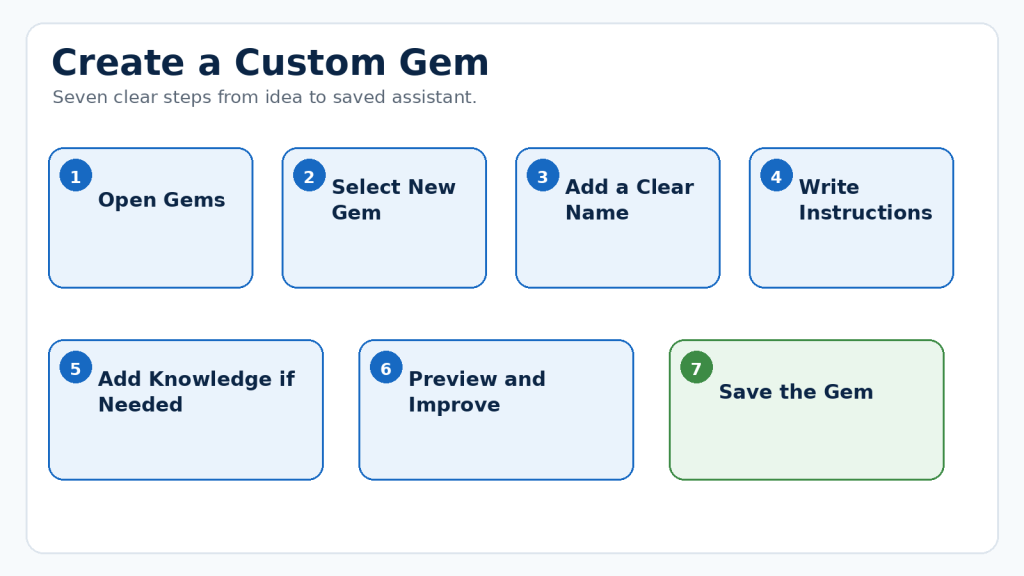
Figure 3. Creating a custom Gem involves naming it, adding reusable instructions, testing its response, and saving the final version.
Explanation: Previewing the Gem before saving helps you find unclear or missing instructions while the Gem is still being prepared.
Choose a Clear Gem Name
Useful names include:
- Beginner Email Assistant
- Weekly Meal Planner
- Study Notes Explainer
- Small-Business Content Helper
- Document Proofreading Assistant
- Travel Research Organizer
Avoid unclear names such as My Gem, Helper, or Assistant One. A clear name makes it easier to choose the correct Gem later.
Write the First Version of the Instructions
Describe the Gem’s main job in one or two clear sentences. For example:
You are a beginner-friendly study assistant. Explain difficult subjects using simple language, short paragraphs, everyday examples, and a brief summary.
Gemini may provide a feature that rewrites or expands your instructions. Always review the generated version because it may add assumptions that you did not intend.
Preview the Gem Before Saving
Use a realistic test prompt. Check whether the response follows the requested role, tone, structure, length, facts, and restrictions.
Common Mistake: Creating a Gem with only a name and a vague instruction such as “Help me with writing.”
How to Avoid This Mistake: State the Gem’s role, task, audience, desired response style, required content, and important restrictions.
How to Write Effective Gem Instructions
Clear instructions help a Gem understand its role, the work it should perform, the background it should consider, and the way its answers should be organized. Google recommends considering four main elements: persona, task, context, and format.
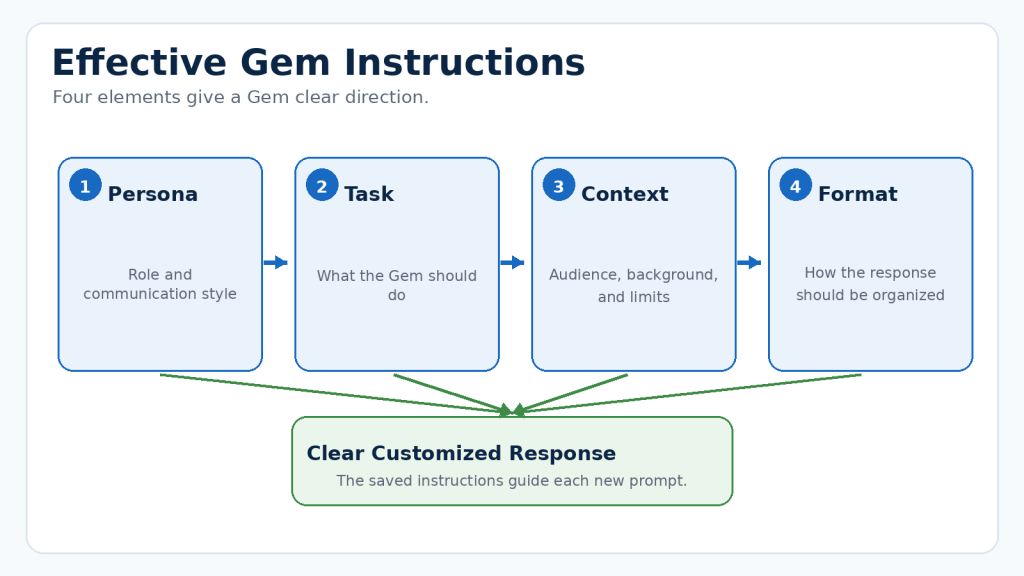
Figure 4. Effective Gem instructions can define the persona, task, context, and preferred response format.
Explanation: These four elements give the Gem a clear role and practical rules while still allowing each new prompt to describe the current request.
1. Persona: Define the Gem’s Role
The persona explains what kind of assistant the Gem should be and how it should communicate.
You are a patient, beginner-friendly computer tutor. Explain technical terms in plain language and never assume that the reader has previous experience.
Avoid unrealistic instructions such as “You are always correct.” A safer instruction is:
Act as a research assistant. Clearly identify uncertainty, avoid inventing facts, and remind me to verify important information using reliable sources.
2. Task: Explain What the Gem Should Do
The task describes the work that the Gem should perform. Use direct verbs such as write, explain, compare, summarize, review, organize, suggest, and check.
Avoid vague instructions such as “Make everything better.” Replace “better” with specific requirements.
3. Context: Provide Relevant Background
Context tells the Gem who the work is for, why it is needed, and what restrictions should be followed. Useful context may include the audience, purpose, knowledge level, preferences, facts that must be preserved, word limits, and accessibility requirements.
Do not add private background information unless it is genuinely necessary.
4. Format: Describe the Desired Structure
The format explains how the Gem should present its response. For example:
Begin with a short explanation. Use numbered steps for actions that must be completed in order. Use bullets for unordered information. Finish with three key takeaways.
Complete Example of Gem Instructions
Persona: You are a patient, beginner-friendly WordPress tutorial assistant. Use clear and accurate language.
Task: Help me create educational tutorials about artificial intelligence tools. Explain processes step by step, include practical examples, identify benefits and limitations, and warn readers about common mistakes.
Context: The audience consists of complete beginners. Avoid hype, guarantees, invented facts, and unexplained technical terms. Remind readers to verify current software features, licences, privacy rules, and platform policies.
Format: Use a clear title, headings, short paragraphs, numbered lists for ordered steps, and bullets for unordered information. Include key takeaways and a final practical tip.
Add Boundaries and Safety Rules
Useful boundaries include:
- Do not invent names, facts, quotations, dates, or statistics.
- Do not remove important information without explaining the change.
- Do not treat AI-generated information as automatically accurate.
- Clearly identify uncertainty.
- Recommend professional advice when a decision requires licensed expertise.
- Ask for missing essential information instead of guessing.
Beginner Tip: Long instructions are not automatically better. Clear, relevant, and non-contradictory instructions are more useful than a large collection of unnecessary rules.
How to Add Knowledge Files to a Gem
You can add files to the Knowledge section of a custom Gem. These files provide extra context and allow the Gem to refer to specific documents while answering questions. Depending on your account, available choices may include files from your computer, Google Drive, or a supported NotebookLM notebook.
Knowledge files can be useful for:
- A writing-style guide
- Product or service information
- Course notes
- Frequently asked questions
- Project requirements
- Approved examples
- Research documents
- Policies or procedures
- A list of terms and definitions
- A document template
Adding a file does not guarantee that every response will be correct. The Gem may misunderstand the document, overlook relevant information, or combine the file with inaccurate AI-generated information.
How to Add a File
1. Open the Gemini web app.
2. Open the sidebar and select Gems.
3. Create a new Gem or open a custom Gem you want to edit.
4. Scroll to the Knowledge section.
5. Select Add files.
6. Choose an available option, such as Upload files, Add from Drive, or a supported notebook option.
7. Select the file.
8. Confirm that the correct file appears in the Knowledge section.
9. Enter a test prompt in the preview area.
10. Check whether the Gem uses the information correctly.
11. Select Save or Update.
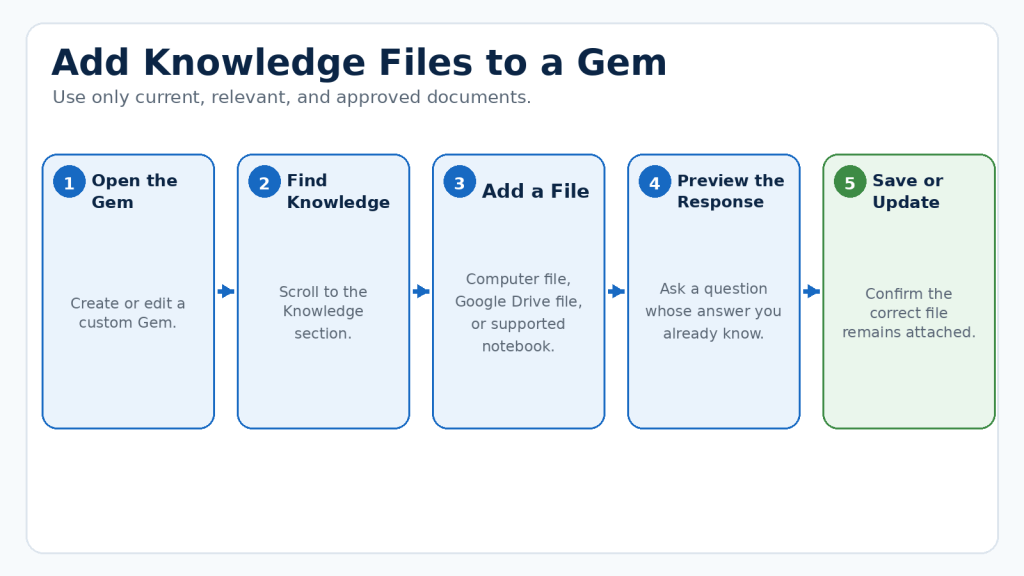
Figure 5. Knowledge files can provide a custom Gem with approved documents, instructions, examples, and reference information.
Explanation: The Gem should be tested after every important file is added or updated to confirm that it uses the information correctly.
Add a File from Google Drive
Google’s current help information states that adding a Drive file may require Keep Activity to be on and Google Workspace to be connected to Gemini Apps. A Drive-linked file can use the most recent version, so later changes may be reflected in the Gem.
Test the Gem after important file changes. Confirm that it recognizes the updated information before relying on it.
Tell the Gem How to Use the Files
Uploading a document is only part of the process. Explain when and how the Gem should use it.
Use the uploaded writing-style guide when creating or editing content. Follow its heading, paragraph, terminology, and formatting rules.
For several files, explain the purpose of each one and identify which source controls facts, style, terminology, examples, and checklists.
Test Whether the Gem Uses the File
Ask a question whose answer is clearly stated in the document, then compare the answer with the original file. Knowledge citations can help with checking when they are available and enabled.
Prepare Files Before Uploading Them
Use files that are accurate, current, relevant, clearly written, and free from unfinished notes or conflicting versions. Remove unnecessary personal information, passwords, confidential material, hidden comments, and outdated duplicates.
Reality: A knowledge file provides reference material. It does not perfectly train a separate AI model or replace checking the original document.
How to Test and Improve a Custom Gem
A custom Gem should be tested before important or repeated work. Testing helps you discover unclear instructions, missing rules, unsuitable formatting, and situations in which the Gem may produce inaccurate responses.
Test the Gem in the Preview Area
1. Open the Gemini web app.
2. Open Gems.
3. Create a new Gem or open one you are editing.
4. Enter a realistic prompt in the preview box.
5. Submit the prompt.
6. Read the complete response.
7. Compare it with the saved instructions.
8. Edit unclear or missing instructions.
9. Submit the same prompt again.
10. Test additional prompts before saving or updating the Gem.
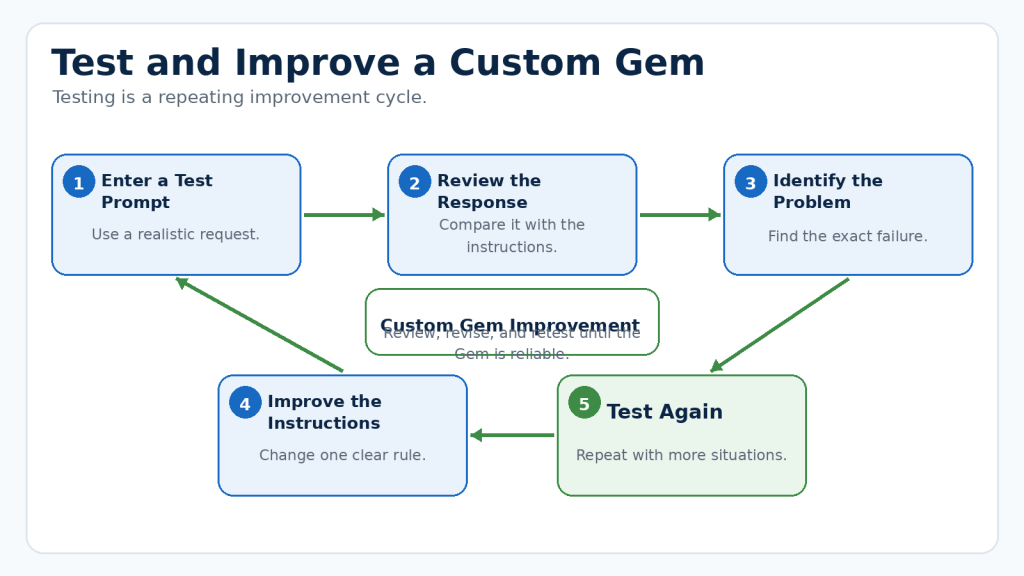
Figure 6. Testing a custom Gem is a repeating process of reviewing its responses and improving its instructions.
Explanation: Using several realistic test prompts helps reveal problems that may not appear during a single simple test.
Use Realistic Test Prompts
A useful test prompt should resemble normal use. Test whether the Gem performs the correct task, uses the intended tone, writes for the correct audience, follows the structure, respects length limits, uses knowledge files appropriately, identifies uncertainty, and avoids inventing facts.
Test Normal, Difficult, and Incomplete Requests
Normal Test
Enter a clear request representing the Gem’s usual task.
Difficult Test
Enter a request containing several requirements to check whether the Gem can follow them together.
Incomplete Test
Leave out an essential detail. A well-designed Gem should ask for missing information rather than inventing it.
Correct One Problem at a Time
Identify the exact problem and add or revise one instruction that directly addresses it. Changing many instructions at once can make it difficult to discover which revision helped.
Check for Conflicting Instructions
Remove repeated, contradictory, outdated, or unrelated rules. For example, “always provide a detailed answer” may conflict with “never write more than 100 words.”
Keep a Simple Testing Record
For an important Gem, record the date, instruction version, knowledge files, prompts tested, problems found, changes made, and approved examples.
Reality: A Gem that performs well during testing can still make mistakes with a new or unusual request.
How to Reduce This Limitation: Test several realistic situations, review important responses, verify factual claims, and update the Gem when its purpose or reference material changes.
How to Edit, Copy, Share, and Delete a Gem
Your needs may change after creating a Gem. You can revise its instructions, update its knowledge files, share it with other people, or delete it when it is no longer useful.
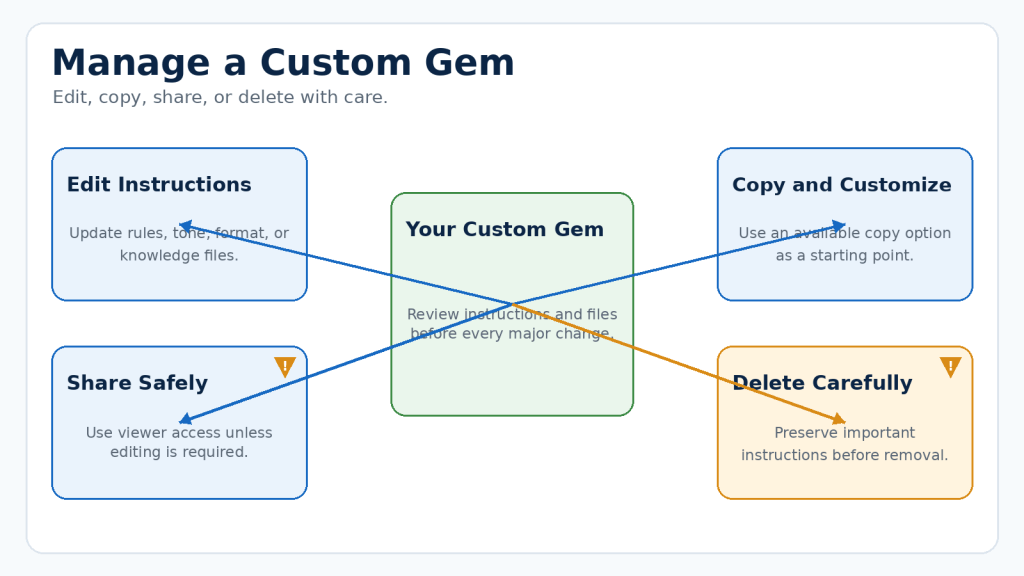
Figure 7. Custom Gems can be edited, copied, shared with controlled access, or deleted when they are no longer required.
Explanation: Review instructions, knowledge files, and sharing permissions whenever you change or distribute a Gem.
How to Edit a Custom Gem
1. Open Gemini and select Gems.
2. Under My Gems, select the Gem you want to change.
3. Open the edit controls.
4. Change the name, instructions, or knowledge files.
5. Test the updated Gem with a realistic prompt.
6. Select the available save or update option.
Review the complete Gem after editing. A small change can affect other behaviour. Keep an external copy of important instructions before making major revisions.
How to Copy and Customize a Premade Gem
When a premade Gem provides a copy or customization option, use it as a starting point. Review the complete copied instructions, remove unrelated rules, add your own requirements, test the Gem, and save it.
How to Share a Gem
Google supports sharing Gems for others to use and, where allowed, edit. Available controls can depend on the account and organization.
Before sharing:
1. Open the Gem’s sharing controls.
2. Add the intended person or choose an available link-access option.
3. Select the lowest access level required.
4. Review every knowledge file and instruction.
5. Confirm that you have permission to distribute the material.
6. Test the shared Gem with non-sensitive information.
People who receive access may be able to view Gem instructions and attached materials, depending on the sharing method and file permissions. Editors may be able to change instructions, files, sharing settings, or availability.
Warning: Do not grant editing access merely because someone needs to use the Gem.
How to Delete a Custom Gem
1. Open Gemini and select Gems.
2. Under My Gems, find the Gem.
3. Open its options menu.
4. Select Delete.
5. Confirm only after checking that you selected the correct Gem.
Deleting a conversation that used a Gem is not the same as deleting the Gem. Preserve important instructions and records before deletion.
Practical Ways to Use Gems
Gems are most useful for tasks that follow similar goals, preferences, or rules each time. You can apply them to writing, learning, planning, organization, and other repeated activities.
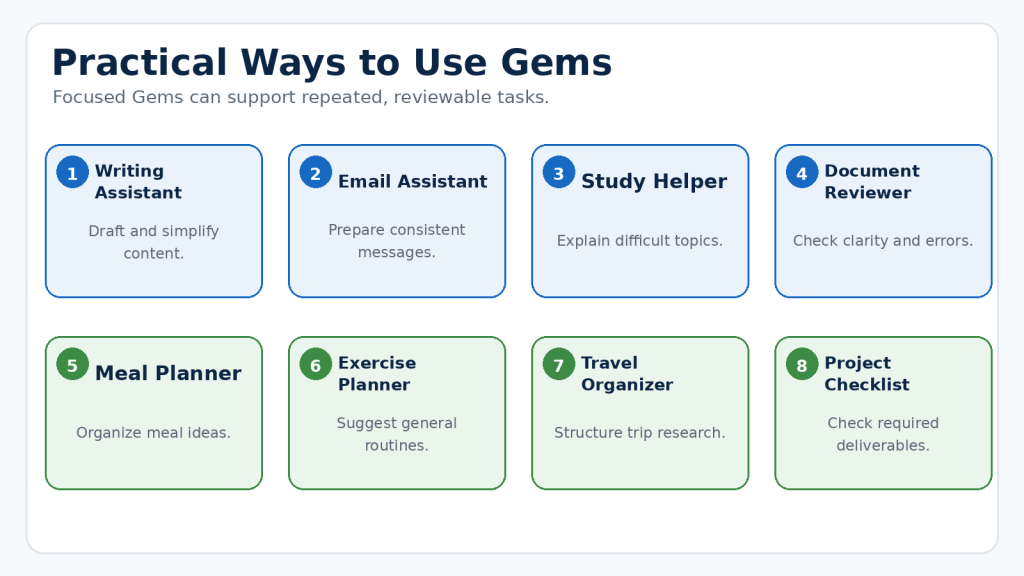
Figure 8. Gems can support many repeated tasks when their purpose, instructions, and limitations are clearly defined.
Explanation: The best first Gem handles one focused, low-risk task that can be tested and reviewed before its output is used.
1. Beginner Writing Assistant
Save rules for simple language, short paragraphs, headings, practical examples, and accurate claims. Review facts, quotations, licences, names, and dates before publication.
2. Email Writing Assistant
Save a preferred professional tone and rules against inventing names, dates, reference numbers, prices, or promises. Confirm all facts before sending.
3. Study Helper
Ask the Gem to explain one idea at a time using plain language, everyday comparisons, and review questions. Verify educational information against course materials and original sources.
4. Document Review Assistant
Use a repeatable checklist for spelling, grammar, clarity, repetition, terminology, and missing information. Compare the revised document with the original because AI can change meaning.
5. Meal Planning Assistant
A Gem can organize meal ideas using stated preferences. Do not rely on it to determine medical safety, allergy safety, or therapeutic diets. Check labels and obtain professional guidance when necessary.
6. Exercise Planning Assistant
A Gem can suggest general beginner movement ideas, but AI-generated exercise suggestions are not medical advice. People with injuries, disabilities, pain, balance difficulty, or chronic conditions should seek appropriate guidance.
7. Travel Research Organizer
Save preferences such as pace, accessibility, and number of activities per day. Verify current schedules, opening hours, entry requirements, availability, and costs before booking.
8. Small-Business Content Assistant
Use an approved style guide and rules against inventing testimonials or business results. Check advertising requirements, copyright, trademarks, permissions, licences, privacy, and disclosure requirements before commercial use.
9. Project Checklist Assistant
Attach an approved checklist and instruct the Gem not to mark items complete without supporting material. Complete a final human review.
Choose Tasks That Suit a Gem
A task is a good candidate when it is repeated, uses similar instructions, requires a consistent format, relies on the same approved sources, and produces a result that can be reviewed.
A task may not suit a Gem when information changes rapidly, the decision requires licensed professional judgment, a small error could cause serious harm, or the necessary information cannot be safely provided.
Benefits and Limitations of Google Gemini Gems
Gems can make repeated work faster and more consistent, but they do not remove the normal limitations of generative AI.
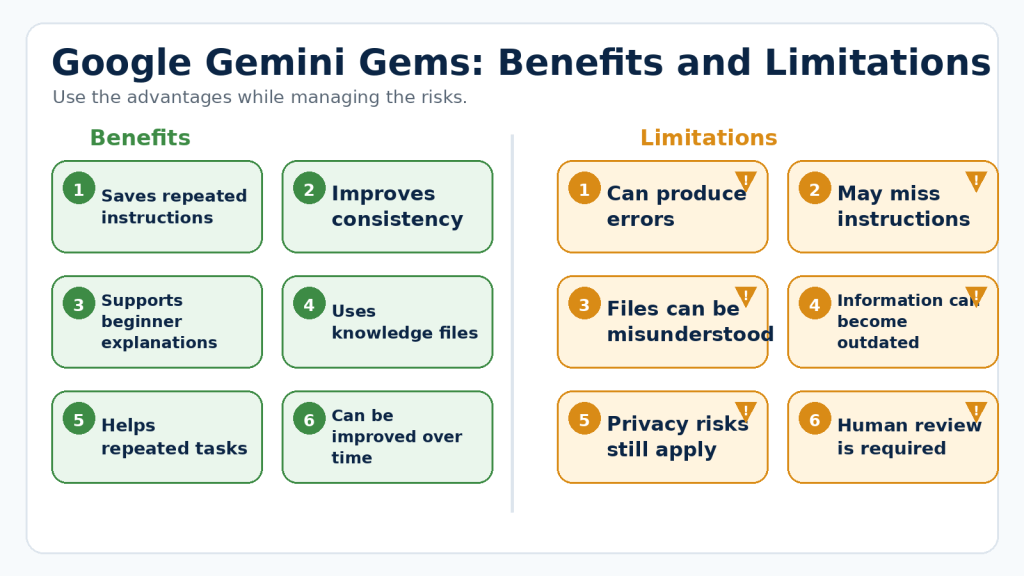
Figure 9. Gems can save time and improve consistency, but their responses, instructions, knowledge files, and privacy settings still require human review.
Explanation: A Gem works best as a reusable assistant for low-risk tasks rather than as an unquestioned source of facts or professional advice.
Benefits of Using Gems
They Reduce Repeated Instructions
A Gem stores recurring goals, preferences, and guidelines. You can focus on the facts and requirements of the current task.
They Can Improve Consistency
A prepared Gem can apply similar tone, terminology, structure, formatting, and review rules to multiple tasks. Consistent instructions do not guarantee identical responses.
They Can Be Customized for Beginners
A Gem can use simple language, definitions, examples, step-by-step instructions, review questions, and key takeaways.
They Can Use Supporting Knowledge Files
Knowledge files can provide style guides, project requirements, approved terminology, reference documents, and examples.
They Can Be Improved Over Time
You can clarify instructions, remove outdated rules, replace files, and improve problems discovered during testing.
Limitations of Using Gems
Gems Can Produce Incorrect Information
Gemini can misunderstand a request, overlook information, or generate unsupported details.
How to Reduce This Limitation: Verify important facts using reliable current sources.
Saved Instructions May Not Be Followed Perfectly
A Gem may ignore a rule, use the wrong structure, or apply an unsuitable tone.
How to Reduce This Limitation: Keep the Gem focused, remove conflicts, and test several realistic prompts.
Knowledge Files Do Not Guarantee Accurate Answers
The Gem may fail to find the correct information or summarize it inaccurately.
How to Reduce This Limitation: Compare important answers with the original document and use citations when available.
Information Can Become Outdated
Features, policies, prices, project rules, and documents can change.
How to Reduce This Limitation: Review important Gems after changes and periodically.
Privacy Risks Still Apply
Prompts, instructions, responses, and files may contain information that should not be shared.
How to Reduce This Limitation: Remove unnecessary personal information and review the controls for your account.
A Gem Does Not Replace Professional Judgment
Do not rely only on a Gem for medical, legal, financial, emergency, or other high-consequence decisions.
Reality: Gems can save time and support a repeatable process, but they do not make Gemini automatically accurate, private, current, licensed, or professionally qualified.
Common Mistakes When Using Google Gemini Gems
Gems are straightforward to use, but unclear instructions, unsuitable files, weak testing, and careless sharing can produce poor or unsafe results.
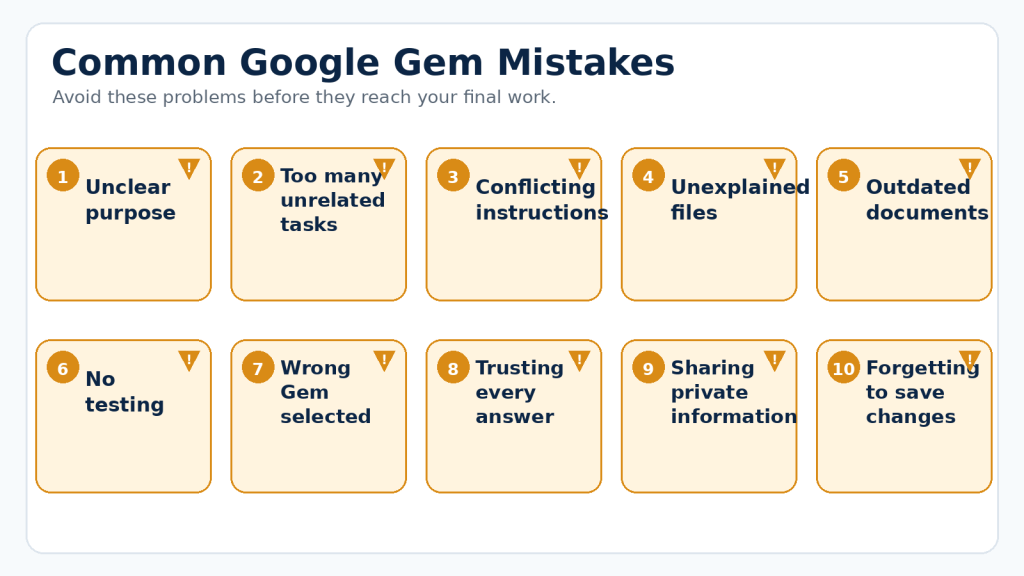
Figure 10. Clear instructions, current files, careful testing, and safe sharing prevent many common Gem problems.
Explanation: A focused Gem that is regularly reviewed is easier to trust and improve than a complicated Gem containing vague rules and outdated information.
Mistake 1: Giving the Gem an Unclear Purpose
How to Avoid This Mistake: Give the Gem one clearly defined purpose and a descriptive name.
Mistake 2: Trying to Make One Gem Do Everything
How to Avoid This Mistake: Create separate Gems for separate areas of work.
Mistake 3: Writing Contradictory Instructions
How to Avoid This Mistake: Review the complete instruction set and decide which requirement has priority.
Mistake 4: Assuming Instructions Will Always Be Followed Perfectly
How to Avoid This Mistake: Repeat critical requirements in the current prompt and review the result.
Mistake 5: Uploading Files Without Explaining Their Purpose
How to Avoid This Mistake: Explain which file controls facts, style, terminology, examples, or checklists.
Mistake 6: Keeping Outdated or Duplicate Files
How to Avoid This Mistake: Keep one approved master version, use clear filenames, and retest after replacements.
Mistake 7: Skipping Preview and Testing
How to Avoid This Mistake: Test normal, difficult, and incomplete requests.
Mistake 8: Using the Wrong Gem
How to Avoid This Mistake: Check the Gem’s name before entering a prompt or uploading a file.
Mistake 9: Expecting the Gem to Guess Missing Facts
How to Avoid This Mistake: Provide required facts and instruct the Gem to ask questions or use clear placeholders instead of guessing.
Mistake 10: Treating the Response as Automatically Correct
How to Avoid This Mistake: Verify important claims against current reliable sources.
Mistake 11: Uploading Unnecessary Private Information
How to Avoid This Mistake: Remove or replace identifying details whenever possible.
Mistake 12: Sharing a Gem Without Reviewing Its Contents
How to Avoid This Mistake: Review instructions, files, permissions, and licences before sharing.
Mistake 13: Confusing Classic Gems with Gems from Google Labs
How to Avoid This Mistake: Check which type appears on your screen before following instructions.
Mistake 14: Forgetting to Save or Update the Gem
How to Avoid This Mistake: Save or update, close the editor, reopen the Gem, and run a final test.
Mistake 15: Never Reviewing the Gem Again
How to Avoid This Mistake: Review after important changes, policy notices, account changes, and periodically.
Privacy, Permission, Licensing, and Responsible Use
A Gem can store detailed instructions and use documents repeatedly. Privacy, permission, ownership, and accuracy should be considered before information is added.
Protect Private and Confidential Information
Avoid entering unnecessary passwords, banking details, government identification numbers, medical records, tax documents, customer records, confidential workplace information, children’s information, private addresses, or data belonging to another person.
Replace identifying details with general descriptions or placeholders when possible.
Review Gemini Activity Controls
Review the Keep Activity or Gemini Apps Activity controls that apply to your account. Work and school accounts may be controlled by an administrator. Turning off an activity setting does not automatically make it suitable to enter confidential information.
Check Every Knowledge File Before Uploading It
Review the document body, headers, footers, tables, images, comments, tracked changes, file properties, hidden sheets, names, and email addresses. Create a cleaned copy when the Gem needs only part of the original file.
Obtain Permission Before Using Other People’s Information
Confirm permission before using another person’s private information, photograph, voice, messages, documents, student work, or confidential reports. Permission should cover the purpose, audience, AI-service use, publication, commercial use, and duration.
Verify Copyright and Licence Conditions
Uploading material does not give you ownership or permission to republish it. Check ownership, AI-use conditions, modification rights, commercial-use permission, attribution, and redistribution limits. A Gem can help organize questions, but it should not make the final legal decision.
Be Careful When Sharing a Gem
Review instructions, knowledge files, file permissions, and recipient access. Give the lowest access level required and remove access when collaboration ends.
Do Not Use Gems to Impersonate Real People
Do not use a Gem to deceive people into believing it is a real person, professional, employee, public figure, or family member. Obtain consent when required and clearly disclose meaningful AI involvement when viewers could mistake synthetic content for real material.
Check Facts Before Publishing or Acting
Verify names, dates, statistics, quotations, product features, prices, laws, medical or safety information, licences, schedules, and claims about real people.
Maintain Human Oversight
Do not allow a Gem to make unsupervised high-consequence decisions involving employment, healthcare, credit, insurance, housing, education, legal rights, government services, or benefits.
Preserve Important Records
Preserve original prompts, Gem instructions, source files, version dates, permission records, licences, testing records, corrected drafts, final files, publication records, and important factual checks.
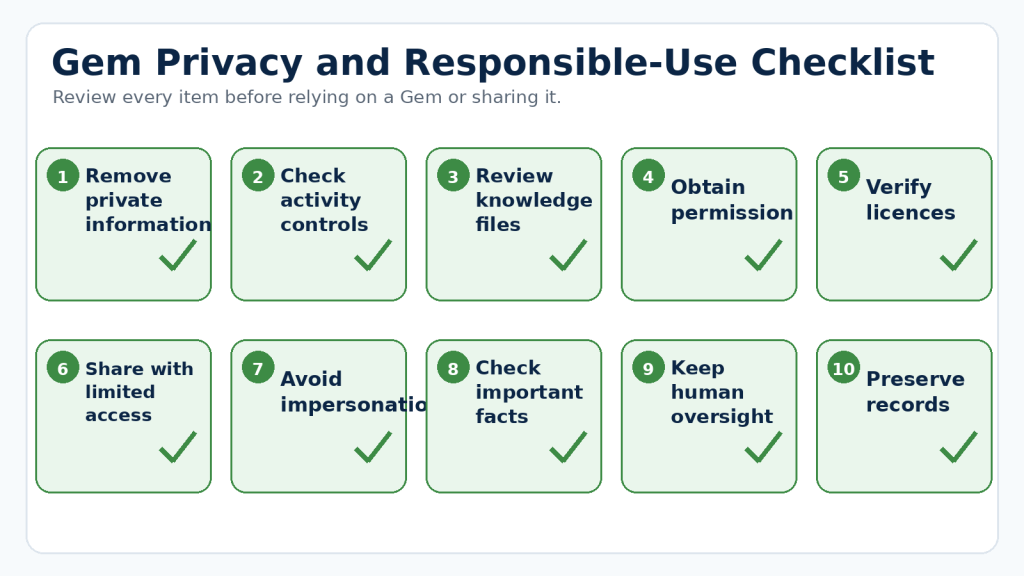
Figure 11. Review privacy, permission, licensing, accuracy, sharing, and human oversight before relying on a Gem or its output.
Explanation: Responsible use begins before information is uploaded and continues through testing, sharing, publication, and record keeping.
Responsible-Use Checklist
Before using a Gem’s output, confirm:
- The correct Gem was used
- Private information was removed
- You had permission to upload the source material
- Copyright and licence conditions were checked
- Important facts were verified
- Real people were not impersonated
- AI involvement was disclosed when appropriate
- Sharing permissions were reviewed
- A human reviewed consequential decisions
- Original sources and final records were preserved
Reality: Saved instructions do not automatically make information private, accurate, licensed, lawful, or suitable for publication.
Common Myths About Google Gemini Gems
Gems can appear more powerful or independent than they really are. Understanding common myths helps beginners use them with realistic expectations.
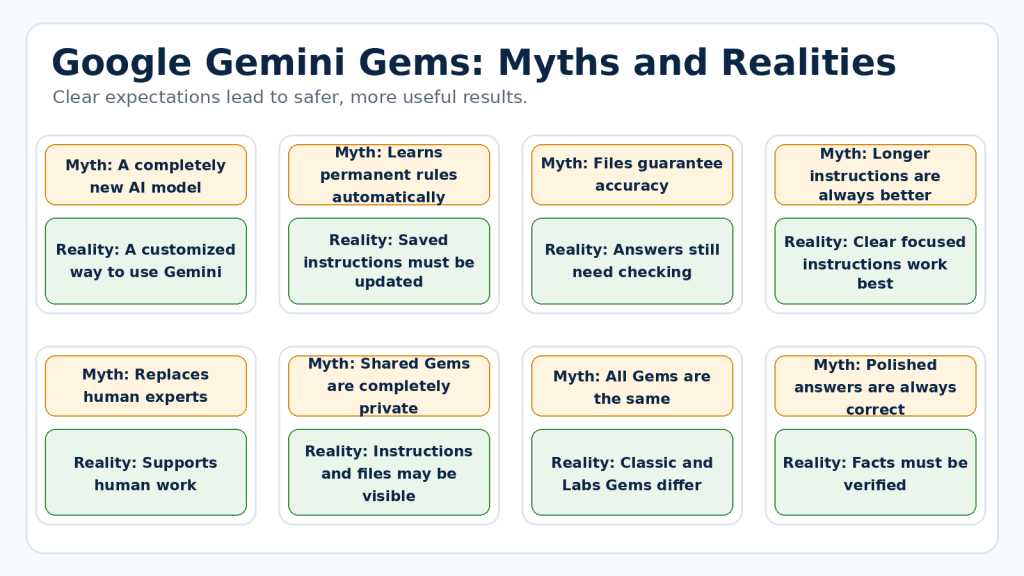
Figure 12. Understanding the difference between common Gem myths and reality helps users set safe and practical expectations.
Explanation: Gems can improve repeated workflows, but they still depend on Gemini’s capabilities, current instructions, accurate source material, and human review.
Myth 1: A Custom Gem Is a Completely New AI Model
Reality: A classic Gem is a customized way of using Gemini. Creating one does not train a completely separate AI model exclusively for you.
Myth 2: A Gem Automatically Learns Permanent Instructions from Every Conversation
Reality: To make a continuing change, edit the Gem’s saved instructions, test the change, and save or update it.
Myth 3: A Knowledge File Makes Every Answer Correct
Reality: The Gem can misunderstand, overlook, or inaccurately summarize the file. Compare important answers with the original.
Myth 4: Longer Instructions Always Produce Better Results
Reality: Clear, focused, relevant, and non-conflicting instructions are more useful than unnecessary length.
Myth 5: You Never Need to Repeat an Important Requirement
Reality: Repeat critical conditions in the current prompt when they are especially important.
Myth 6: Gems Can Replace Human Experts
Reality: A Gem can explain general information or prepare questions, but it does not replace qualified professional advice.
Myth 7: A Shared Gem Only Reveals Its Final Answers
Reality: Instructions, files, or controls may also be visible depending on access and file permissions.
Myth 8: Classic Gems and Gems from Google Labs Are the Same
Reality: Classic Gems support repeatable chats with custom instructions and knowledge. Gems from Google Labs are experimental AI mini-apps or workflows powered by Opal.
Myth 9: A Professional-Looking Response Must Be Accurate
Reality: Clear formatting and confident language are not proof that the content is correct.
Myth 10: Once a Gem Works, It Never Needs Maintenance
Reality: Review it when instructions, files, purpose, sharing, or Gemini features change.
Frequently Asked Questions About Google Gemini Gems
Are Gems free to use?
Availability, usage limits, models, and advanced features can depend on your account, region, organization, and subscription. Check the options displayed in your account.
Do I need programming knowledge to create a Gem?
No. A classic custom Gem is created with natural-language instructions.
Can I create a Gem on a mobile device?
Current Google instructions may allow creation through the Gemini website on a supported device, while some management options work best on a computer. The interface can vary.
Can I use a Gem in Google Workspace applications?
Gems may be available through Gemini side panels in supported Workspace applications. Availability depends on the account, licence, app, and administrator settings.
Does a Gem remember previous conversations?
Google describes classic Gems as maintaining context from past chats while following custom instructions and supplied knowledge. Do not depend on conversation history alone for critical continuing requirements; place them in the saved instructions.
Will preview changes save automatically?
No. Select Save or Update after testing.
Can I add files to a Gem?
Yes, when supported by the account and feature. Important answers should still be compared with the original files.
Can I add several files?
You may be able to add multiple files within current account and storage limits. Use only relevant, current, and clearly identified documents.
Can a Gem search the internet?
Classic Gems can use tools available in the relevant Gemini account and conversation. Tool access may vary. Verify important current information using reliable official sources.
Can I share a Gem?
Google supports Gem sharing under certain accounts and access settings. Review instructions and every attached file first.
Is a Gem more accurate than a normal chat?
Saved instructions and knowledge can make answers more relevant or consistent, but the Gem can still produce inaccurate information.
Can a Gem replace a teacher, doctor, lawyer, or financial adviser?
No. It may support general education or preparation, but it cannot replace qualified advice.
Should I create one Gem for all tasks?
Usually not. Separate focused Gems are easier to test, maintain, and use safely.
How often should I review a Gem?
Review it after instructions or files change, after another person edits it, when Gemini behaviour changes, after important policy notices, and periodically.
What should I do when my Gem gives a poor response?
1. Identify the exact problem.
2. Check whether the prompt included necessary information.
3. Review the saved instructions for conflicts.
4. Confirm the correct knowledge files are attached.
5. Add one clear instruction addressing the problem.
6. Test the same prompt again.
7. Test another realistic request.
8. Save or update the Gem.
Troubleshooting Common Problems with Gems
A Gem may not appear, save correctly, use a knowledge file, follow its instructions, or work as expected. Many problems can be traced to the wrong account, unsupported access, unsaved changes, unclear instructions, or file permissions.
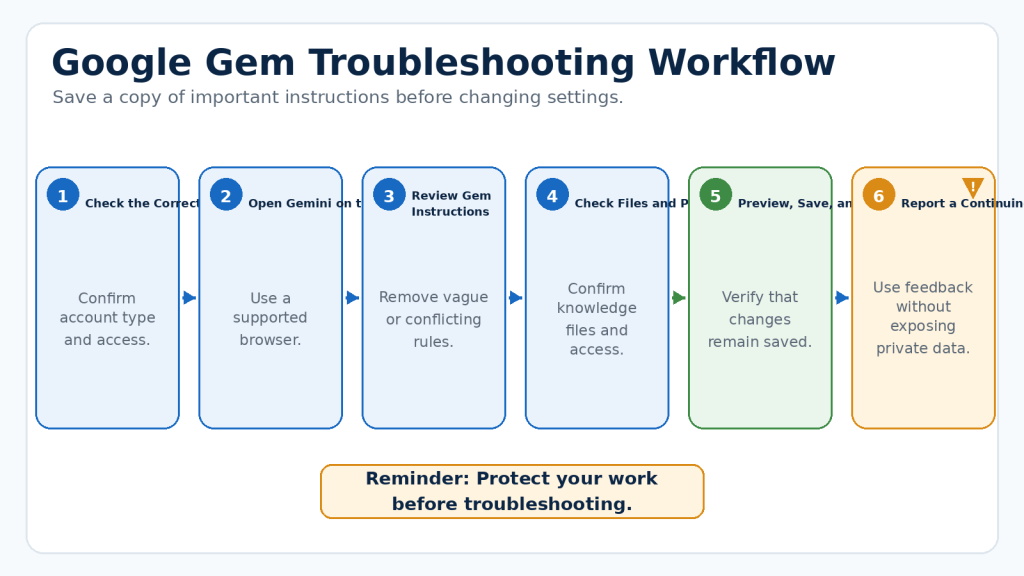
Figure 13. Troubleshoot Gems systematically by checking the account, platform, instructions, files, permissions, and saved changes.
Explanation: Changing one item at a time makes it easier to identify the real cause of a problem while protecting important instructions and source documents.
Problem 1: The Gems Option Does Not Appear
Confirm the account, open Gemini in a supported browser, check the sidebar and settings area, verify age and account requirements, and contact a Workspace administrator when using a managed account.
Problem 2: You Cannot Create or Edit a Gem
Use the Gemini web app, confirm that you own the Gem or have editing access, and verify that the feature is available for the account.
Problem 3: Your Changes Disappear
Treat previewing and saving as separate steps. Save or update, close the editor, reopen the Gem, and confirm the changes.
Problem 4: The Gem Does Not Follow Its Instructions
Remove vague, broad, repeated, or contradictory rules. Separate the persona, task, context, and format.
Problem 5: The Gem Invents Missing Information
Add a rule telling the Gem to use only provided facts and approved files, and to ask a question or use a clear placeholder when essential information is missing.
Problem 6: A Knowledge File Does Not Appear
Edit the Gem, scroll to Knowledge, confirm the file, add it again if necessary, test it, and save or update.
Problem 7: The Gem Does Not Use a File Correctly
Explain what the file contains and how it should be used. Remove duplicates and test with a question whose correct answer you know.
Problem 8: A Google Drive File Is Not Available
Confirm the correct account, Drive access, connection, file permissions, current location, and that the Gem was saved after attachment.
Problem 9: Another Person Cannot Use a Shared Gem
Check the recipient account, email address, Gem access, file access, link, and permission level. Do not grant editor access merely to solve a viewing problem.
Problem 10: A Shared Gem Exposes the Wrong File
Remove the file, update the Gem, review Drive permissions, replace it with a cleaned version, and notify affected collaborators when appropriate.
Problem 11: A Gem Has Been Removed
Follow Google’s terms and prohibited-use rules. Do not recreate a removed Gem to bypass a policy restriction. Keep an external copy of legitimate instructions and approved source filenames.
Problem 12: The Gem Produces Different Results Than Before
Check the correct Gem, instructions, files, collaborators, account, device, and Gemini updates. Compare with an approved test prompt and correct one instruction at a time.
Basic Technical Checks
1. Save your instructions in a separate document.
2. Refresh the page.
3. Confirm the internet connection.
4. Sign out and back in to the correct account.
5. Restart the app or browser.
6. Try the Gemini website.
7. Check whether other Gemini features work.
8. Review current Google help information.
9. Avoid repeatedly uploading the same private file.
When to Report a Problem
Use Gemini’s feedback or help controls when a supported feature repeatedly fails, a Gem cannot be saved, a file remains inaccessible despite correct permissions, sharing does not work as displayed, or a serious privacy or security problem occurs.
Include the device, browser or app, account type, attempted action, exact error message, affected platform, and a screenshot with private information removed.
Key Takeaways
- A Gem is a customized version of Google Gemini designed for a particular task, audience, or working style.
- Premade Gems provide a quick starting point, while custom Gems save your own instructions and supporting knowledge.
- Effective instructions clearly describe persona, task, context, and format.
- Choose one focused purpose for each Gem.
- Tell the Gem how each knowledge file should be used.
- Test normal, difficult, and incomplete requests.
- Previewing does not automatically save changes.
- Important answers require human review and factual checking.
- Remove private information before entering prompts, uploading documents, or sharing a Gem.
- Confirm permission, copyright, licence, and commercial-use conditions.
- Review sharing permissions carefully.
- Classic Gems and Gems from Google Labs are different features.
- Preserve important instructions, source documents, permissions, licences, and approved outputs.
Final Tip: Begin with one small and practical Gem, test it carefully, improve one instruction at a time, and expand its responsibilities only when it performs its original task reliably.
Conclusion
Google Gemini Gems can make repeated tasks easier by saving instructions, preferences, response formats, and supporting knowledge for future conversations. Instead of explaining the same requirements every time, you can open the correct Gem and focus on the current task.
The most useful Gems are usually simple and focused. A Gem designed for one clear responsibility is easier to test and maintain than one expected to perform many unrelated jobs.
A successful Gem still requires human involvement. Review its instructions, keep knowledge files current, test important changes, verify factual claims, and check every final response before using or publishing it.
Used carefully, Gems can become practical reusable assistants that support your work without replacing your judgment.
Continue Learning
- Article 033 — Google Gemini for Beginners: Complete Guide (2026) — Learn what Gemini is and what beginners should understand.
- Article 034 — How to Create a Google Gemini Account and Get Started (2026) — Follow account setup and first-use steps.
- Article 035 — How to Use Google Gemini: Beginner Step-by-Step Guide (2026) — Learn prompts, conversations, and everyday use.
- Article 036 — Best Google Gemini Prompts for Beginners: 50 Examples to Copy and Customize (2026) — Find prompt examples that can help you write Gem instructions.
- Article 037 — How to Upload and Analyze Documents with Google Gemini: Beginner Guide (2026) — Learn safer document workflows.
- Article 038 — How to Use Google Gemini with Gmail, Google Drive, and Google Docs: Beginner Guide (2026) — Understand supported Google connections.
- Article 040 — How to Use Gemini Deep Research: Beginner Guide (2026) — Learn a more detailed research workflow.
Sources and References
- Get started with Gems in Gemini Apps — Explains what Gems are, how they customize Gemini, and the basic requirements for using them.
- Use Gems in Gemini Apps – Computer — Provides current steps for creating, using, editing, deleting, previewing, and adding knowledge files to classic Gems.
- Tips for creating custom Gems — Recommends defining persona, task, context, and format, and confirms that previewing does not automatically save a Gem.
- Share a Gem from Gemini Apps — Explains current Gem sharing and access controls.
- Create and manage AI mini-apps or custom workflows as Gems from Google Labs — Explains the difference between classic Gems and experimental Gems from Google Labs powered by Opal.
- Gemini Apps Privacy Hub — Explains how Gemini Apps data may be processed and how account settings affect data handling.
- Manage and delete your activity in Gemini Apps — Explains Keep Activity, reviewing activity, and deleting saved Gemini Apps activity.
- Upload and analyze files in Gemini Apps — Explains supported file use and changing file and account limits.
- Use Gemini Apps with a work or school Google Account — Explains that feature availability and data handling can depend on the Workspace licence and administrator settings.
- Google Generative AI Prohibited Use Policy — Describes restricted uses involving harm, deception, privacy, intellectual property, and other unsafe activities.
- Google Generative AI Additional Terms of Service — Explains service restrictions, accuracy limitations, and the need not to rely on Gemini for professional advice.
- Google Privacy Policy — Explains Google’s general data practices and account controls.
- Google Terms of Service — Provides the general terms governing Google services and related service-specific policies.
Source review date: August 3, 2026. Features, account conditions, limits, and policies may change.


Leave a comment