
Estimated Reading Time: 27 minutes
Last Updated: August 4, 2026
Introduction
Claude can help beginners navigate long and complicated documents. It can create summaries, identify claims and evidence, compare several files, extract important facts, answer focused questions, and organize unresolved issues for review.
These abilities are useful for policies, proposals, contracts, reports, research papers, meeting notes, quotations, manuals, application instructions, and many other document types. However, Claude does not turn an uploaded file into a guaranteed source of truth.
A polished response can still contain an incorrect page reference, an omitted condition, a quotation that is not exact, a number copied from the wrong table row, or an interpretation presented as a document fact. The original source must remain available for verification.
This guide explains a controlled beginner workflow for preparing files, uploading them, writing clear prompts, summarizing, analyzing, comparing, extracting information, asking questions, checking results, and protecting privacy.
What Claude Can Do with Documents
Claude can assist with several related document tasks. Choose the task before writing the prompt because each one produces a different type of result.
• Summarize the main purpose, sections, requirements, conclusions, and actions.
• Analyze claims, evidence, assumptions, risks, limitations, contradictions, and missing information.
• Compare versions, proposals, policies, specifications, research papers, or supplier quotations.
• Extract dates, amounts, responsibilities, definitions, warnings, decisions, and table values.
• Answer focused questions using a named document and a page, section, table, or row reference.
• Create practical review tools such as timelines, action checklists, responsibility registers, question logs, and verification tables.
• Rewrite approved findings into simpler language after the information has been checked.
Claude should be treated as a document-review assistant. It can organize evidence and make long material easier to navigate, but it cannot determine that every answer is complete, current, legally controlling, professionally appropriate, or safe to use in a real-world decision.
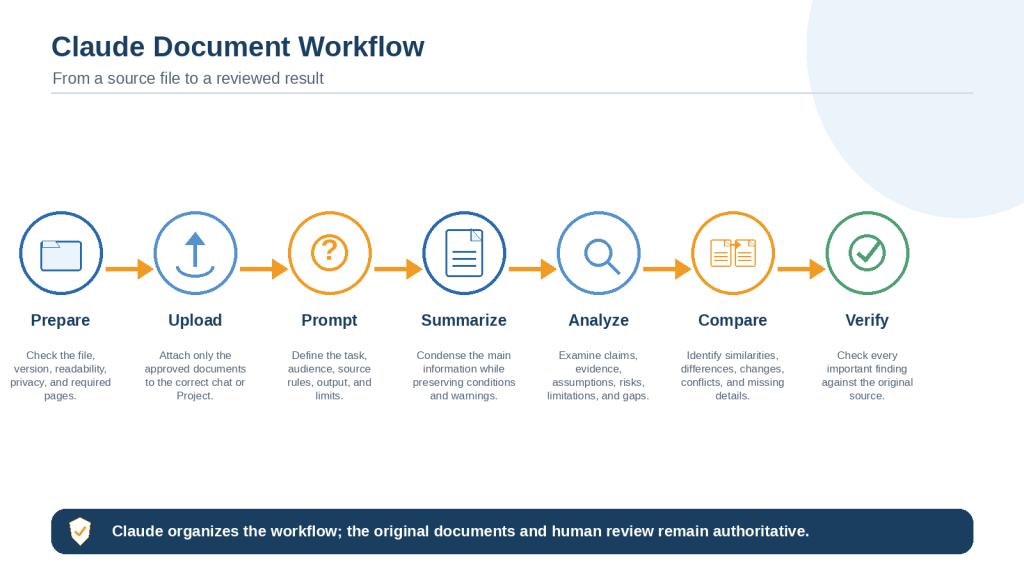
Figure 1. The complete Claude document workflow moves from file preparation and upload to prompting, summarizing, analyzing, comparing, verification, and final approval.
Explanation: Claude can organize each stage, but the original documents and human review remain authoritative.
How to Prepare Documents Before Uploading Them to Claude
Reliable document work begins before the upload. A clean, correctly labelled, readable source is easier to analyze and less likely to expose unnecessary information.
Define the Task and Confirm Permission
Decide what you need Claude to do and whether you are permitted to upload the material. Workplace rules, client agreements, school policies, confidentiality duties, privacy requirements, and professional obligations may limit how a document can be used.
Access to a file does not always mean permission to send it to an AI service. When permission is unclear, resolve the question before uploading.
Choose the Correct File and Version
Confirm the exact filename, document title, date, version number, approval status, and effective date. A document named “final” may still be an earlier draft.
• Current or approved source
• Previous or superseded version
• Original draft
• Proposed revision
• Supporting schedule, appendix, or exhibit
Use descriptive filenames such as employee-policy-2026-approved.pdf instead of final2.pdf.
Check Readability and Completeness
Open every file before upload. Confirm that pages are upright, text is readable, tables are complete, charts have labels, and appendices are present. A poor scan may cause mistakes in names, dates, numbers, symbols, and table values.
When a page is unclear, rescan it or prepare a verified transcription. Tell Claude to use [Unreadable] or [Unclear] instead of guessing.
Create a Prepared Copy
Keep the original unchanged and create a separate copy for Claude. Remove pages and fields that are not needed. Replace personal details with neutral labels where possible.
• Employee A instead of a full name
• Customer B instead of an account holder’s identity
• [Address Removed] instead of a home address
• [Account Number Removed] instead of a financial identifier
Review comments, tracked changes, document properties, hidden spreadsheet sheets, hidden rows or columns, PDF attachments, form fields, and metadata before upload.
Create a Source Register
For several files, assign stable labels and record their status. For example:
Document A: policy-2025.pdf — previous version
Document B: policy-2026-approved.pdf — current approved version
Schedule C: eligibility-table-2026.pdf — approved supporting schedule
Use the same labels in every summary, question, comparison, and verification record.
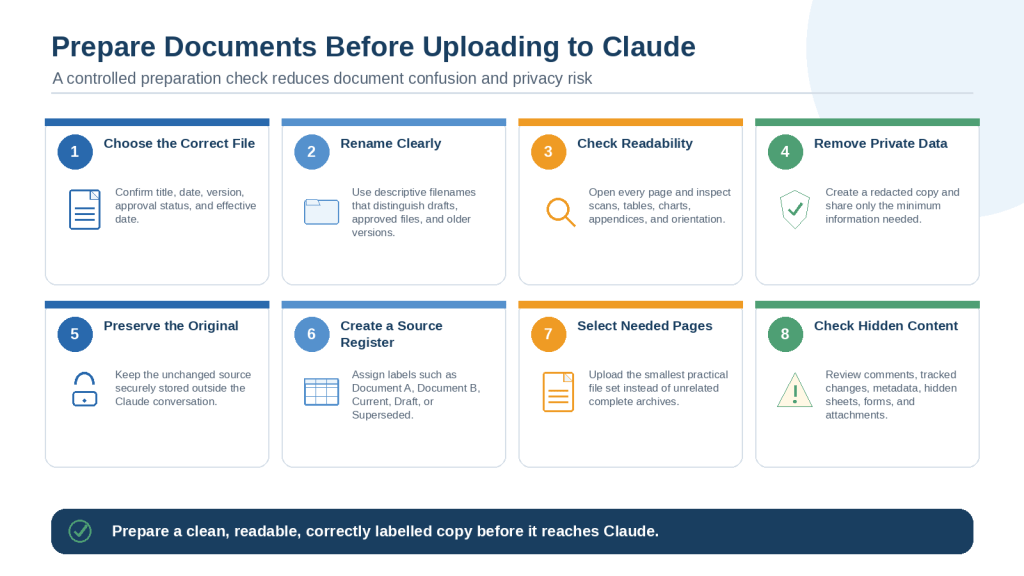
Figure 2. Preparing documents includes checking the correct version, readability, filenames, privacy, hidden content, and source labels before upload.
Explanation: A clean and correctly labelled copy reduces document confusion, improves analysis quality, and protects unnecessary private information.
How to Upload Documents to Claude: Step-by-Step
Claude can work with common document formats, and its official Help Center describes current supported file types and upload behaviour. Because formats, limits, and interface labels can change, check the current official guidance when a precise limit matters.
Choose a Normal Chat or Project
A normal chat is often sufficient for one document or a one-time task. A Claude Project may be more useful for ongoing work involving several related files, shared instructions, or repeated questions.
When using a Project, identify the required file in each important prompt. Old or unrelated Project files may still be available as context.
Upload and Confirm the Files
1. Open the correct Claude chat or Project.
2. Select the file-upload control and choose Add files or photos.
3. Attach only the prepared and approved documents.
4. Wait until every upload has completed.
5. Ask Claude to list the exact filenames, apparent titles, dates, versions, and readability concerns.
6. Correct any file label or version error before continuing.
7. Ask Claude to locate one known heading, date, or table value that you can verify easily.
8. Begin the document task only after the source check succeeds.
File Confirmation Prompt
List every attached document with its exact filename, apparent title, date, version, document type, page count, and readability concerns. Do not summarize or analyze the contents yet. State clearly if any file appears incomplete, duplicated, unreadable, or inconsistent with its filename.
When the Upload Does Not Work
• Confirm that the file opens normally on your computer.
• Rename the file using simple letters, numbers, and hyphens.
• Remove password protection when you are authorized to do so.
• Export a new clean copy.
• Divide a very large document into logical parts.
• Convert an image-heavy non-PDF document to PDF when visual content must be reviewed.
• Try a new chat if the current conversation is extremely long.
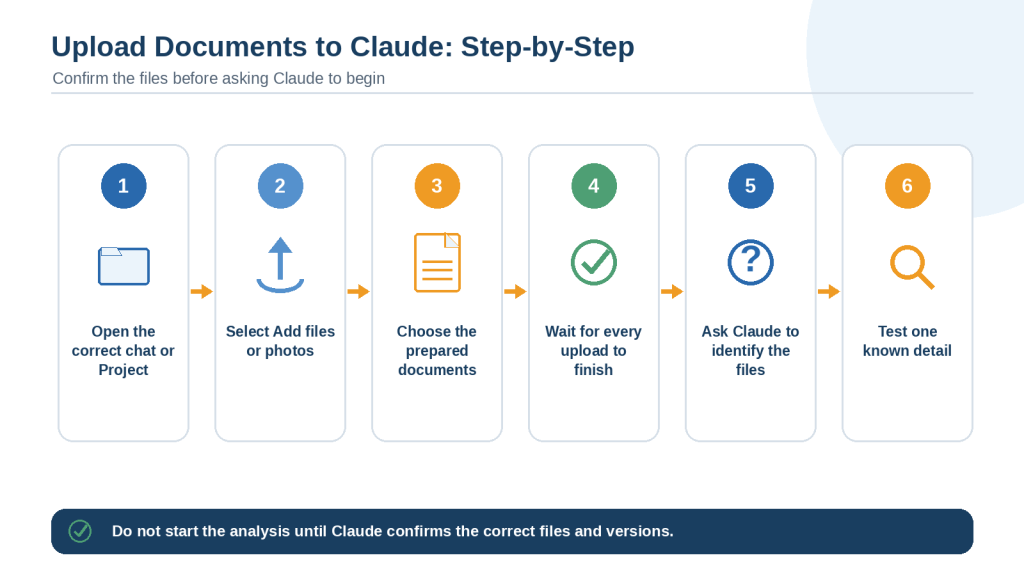
Figure 3. Upload documents to the correct Claude chat or Project, wait for completion, confirm the filenames, and test one known detail before analysis.
Explanation: Do not begin important document work until Claude identifies the correct files and versions.
How to Write a Clear Document Prompt for Claude
A strong document prompt tells Claude what to do, which files to use, what details must remain exact, and how uncertainty should be reported.
The Eight-Part Document Prompt
1. Task: summarize, analyze, compare, extract, or answer a question.
2. Documents: name each filename and label.
3. Purpose and audience: explain why the work is needed and who will use it.
4. Permitted sources: limit Claude to approved documents or authorize a separate research step.
5. Required information: list every topic, fact, risk, condition, and action that must appear.
6. Protected details: preserve dates, amounts, currencies, units, responsibilities, conditions, warnings, quotations, and certainty.
7. Output format: define headings, tables, labels, length, and reference style.
8. Limits and review: state what Claude must not guess, decide, change, or recommend.
Missing-Information Labels
Define the labels Claude should use instead of filling a gap:
• [Not Stated]
• [Unclear]
• [Unreadable]
• [Blank Cell]
• [Conflicting Information]
• [Requires Verification]
• [Human Review Required]
[Not Stated] does not mean no, none, zero, rejected, unlimited, or not applicable.
Complete Document Prompt Template
Task: [Summarize, analyze, compare, extract, or answer a question.]
Documents: [List exact filenames and labels.]
Purpose: [Explain why the result is needed.]
Audience: [Identify the reader.]
Permitted source: Use only the documents listed above.
Required information: [List the topics and fields that must appear.]
Protected details: Preserve names, dates, amounts, units, conditions, exceptions, warnings, quotations, responsibilities, and certainty.
References: Add the PDF viewer page, section, table, row, or column beside every important finding.
Missing information: Use [Not Stated], [Unclear], [Unreadable], [Blank Cell], or [Conflicting Information].
Limits: Do not add outside information, fill missing values, change qualifications, or make a professional conclusion.
Final review: List findings requiring manual or professional verification.
For a long task, ask Claude for an outline or document map first. Review the structure before requesting the full response.
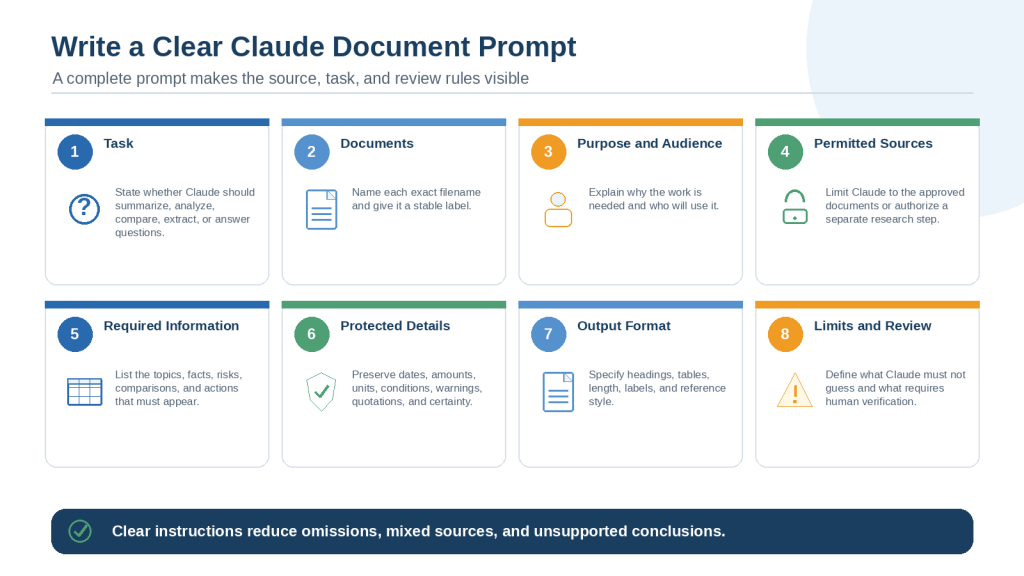
Figure 4. A clear document prompt defines the task, documents, purpose, source rules, required information, protected details, output, and review limits.
Explanation: Specific instructions reduce omissions, mixed sources, changed qualifications, and unsupported conclusions.
How to Summarize a Document with Claude: Step-by-Step
A summary presents the main information in a shorter form. It should not silently remove a condition, warning, exception, limitation, or uncertainty that changes the source’s meaning.
Step 1: Confirm the Source
Ask Claude to restate the document label, filename, date, version, and status. Stop if it identifies the wrong file.
Step 2: Create a Document Map
Create a document map showing the title, purpose, main sections, appendices, tables, charts, and page ranges. Do not summarize yet.
A map helps identify where important conditions, footnotes, and supporting material are located.
Step 3: Define the Summary
State the audience, approximate length, required sections, and protected details. A beginner summary may explain technical terms, while a specialist summary may preserve formal terminology.
Step 4: Summarize Long Documents in Stages
1. Summarize one logical section at a time.
2. Check each section against the original.
3. Correct missing or changed information.
4. Combine only the approved section summaries.
5. Create a shorter executive summary from the approved detailed version.
Step 5: Preserve Qualifications
Check words such as may, might, must, should, proposed, estimated, up to, at least, if eligible, and subject to approval. These words affect meaning.
Step 6: Add References and Missing Information
Require a page, section, table, or chart reference beside every important requirement, date, amount, warning, and conclusion. Ask Claude to list missing or conflicting information separately.
Step 7: Verify the Summary
Open the cited pages and read the complete surrounding passage. Confirm that the summary has not detached a statement from its condition or footnote.
Complete Summary Prompt
Summarize Document A for a complete beginner. Use only the uploaded document. Include purpose, scope, main sections, requirements, responsibilities, dates, amounts, conditions, exceptions, warnings, conclusions, and required actions. Preserve all words affecting certainty. Add a PDF viewer page or section reference beside each important point. Use [Not Stated], [Unclear], or [Conflicting Information] instead of guessing. Finish with a list of items requiring manual verification.
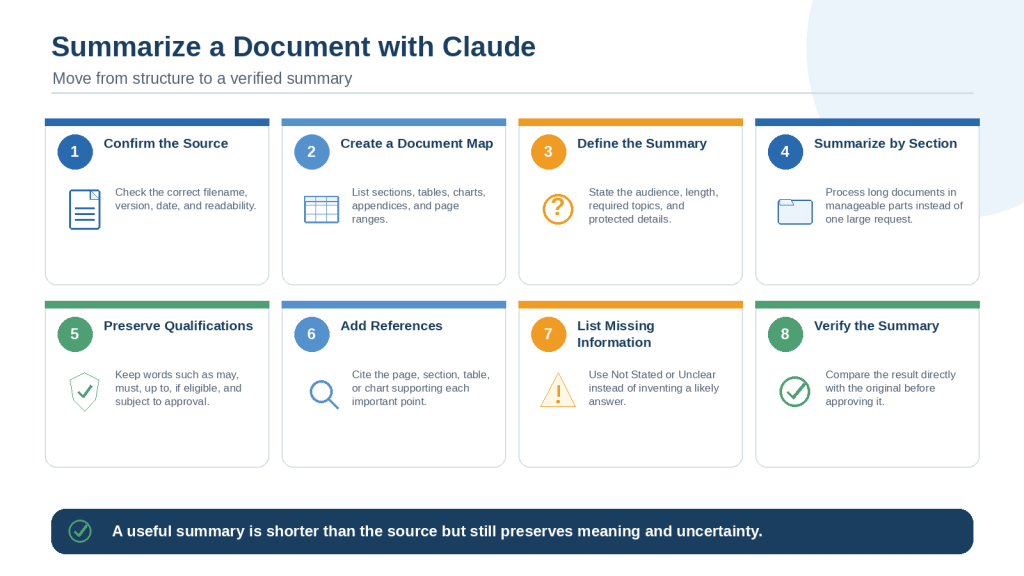
Figure 5. A controlled summary workflow maps the document, summarizes it in stages, preserves qualifications, adds references, and verifies the result.
Explanation: A useful summary is shorter than the source but still protects its meaning, warnings, conditions, and uncertainty.
How to Analyze a Document with Claude: Step-by-Step
Analysis goes beyond a summary. It examines how the document supports its statements and where uncertainty, risk, missing information, or conflicting evidence may affect interpretation.
Identify Purpose, Scope, and Audience
Ask what the document attempts to accomplish, who it addresses, what period it covers, and what it excludes.
List the Main Claims
Separate factual claims, causal claims, predictions, opinions, and recommendations. A recommendation is not the same as a confirmed result.
Connect Claims to Evidence
For every major claim, ask Claude to identify the supporting data, quotation, example, calculation, reference, table, or chart. Report [No Supporting Evidence Identified] when the document does not provide support.
Make Assumptions Visible
Separate assumptions stated by the author from assumptions inferred during the analysis. Explain how each assumption affects the conclusion without presenting the effect as a confirmed fact.
Identify Risks, Limitations, and Missing Information
• Unclear definitions
• Incomplete data
• Old or unidentified sources
• Small or unrepresentative samples
• Unexplained calculations
• Unaddressed costs or dependencies
• Missing deadlines or responsibilities
• Possible alternative explanations
Identify Contradictions
When two statements appear inconsistent, quote both, cite each location, and check whether they apply to different groups, dates, conditions, or versions before calling them a true contradiction.
Complete Analysis Prompt
Analyze Document A using only the uploaded source. Identify purpose, scope, audience, main claims, supporting evidence, assumptions, risks, limitations, contradictions, missing information, recommendations, and required actions. Connect every major finding to a page, section, table, or chart. Label direct document statements, close paraphrases, and interpretations separately. Do not provide a legal, medical, financial, engineering, tax, immigration, safety, or other professional conclusion.
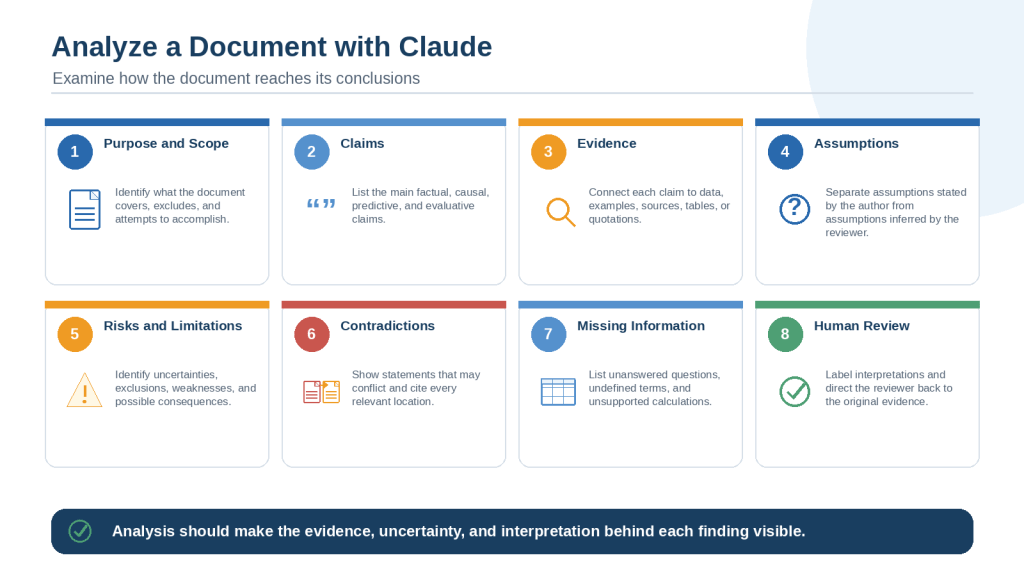
Figure 6. Document analysis examines purpose, claims, evidence, assumptions, risks, limitations, contradictions, and missing information.
Explanation: Claude can organize a detailed analysis, but each major finding should remain connected to a page, section, table, or chart in the original.
How to Compare Documents with Claude: Step-by-Step
Document comparison helps identify what is the same, what is different, what changed, and what remains unresolved across two or more sources.
Useful comparisons include policy versions, original and revised contracts, supplier quotations, job descriptions, proposals, reports from different periods, and research papers.
Label the Documents and Identify Authority
Document A: employee-policy-2025.pdf — previous policy
Document B: employee-policy-2026-approved.pdf — current approved policy
Treat Document B as authoritative for current requirements. Use Document A only to identify changes.
When no document has priority, say so. For example, supplier proposals should be treated as alternatives until a human decision is made.
Define the Purpose and Criteria
State why the comparison is needed and use the same criteria for every source. Possible criteria include purpose, scope, definitions, requirements, responsibilities, dates, amounts, technical specifications, delivery, warranty, payment terms, exclusions, risks, and conclusions.
Summarize Each Document Separately
For complex sources, review separate summaries before asking Claude to combine the findings. This reduces the risk of mixing details from different files.
Identify Similarities and Differences
Similar wording is not always equivalent. “Should submit within 30 days” and “must be received within 30 calendar days” differ in obligation, event, and day type.
Ask Claude to explain each meaningful difference and cite both documents.
Identify Additions, Removals, Moves, and Rewording
Do not accept that information was removed until the complete revised document has been searched. Content may have been moved, combined, split, renumbered, or rewritten.
• Added
• Removed
• Moved
• Reworded
• Expanded
• Shortened
• Date changed
• Amount changed
• Responsibility changed
• Condition changed
• Formatting only
• Unclear
Compare Dates, Amounts, Responsibilities, and Conditions
Check exact dates, business versus calendar days, currencies, units, tax treatment, minimums, maximums, triggering events, approval requirements, and exceptions.
A value such as $500 per month is not equivalent to $500. A maximum amount is not the same as an expected amount.
Identify Conflicts and Missing Information
Show conflicting statements side by side and cite both locations. Write [Not Stated] when one document does not provide a comparison value.
Do Not Rank Too Early
Complete the factual comparison before requesting a recommendation. Ranking requires approved criteria, weightings, minimum requirements, treatment of missing information, and calculation rules.
Complete Two-Document Comparison Prompt
Task: Compare Document A and Document B.
Purpose: Identify meaningful similarities, differences, additions, removals, moved content, conflicts, and missing information.
Authority: Document B is the current approved version.
Source: Use only Documents A and B.
Criteria: Compare purpose, scope, definitions, requirements, responsibilities, dates, amounts, conditions, exceptions, warnings, approvals, and conclusions.
References: Cite both documents for every meaningful finding.
Missing information: Write [Not Stated].
Interpretation: Label possible effects as interpretations.
Output: Provide separate summaries, a detailed comparison, a change log, a conflict list, missing information, and questions requiring human review.
Limits: Do not select a preferred document or make a professional conclusion.
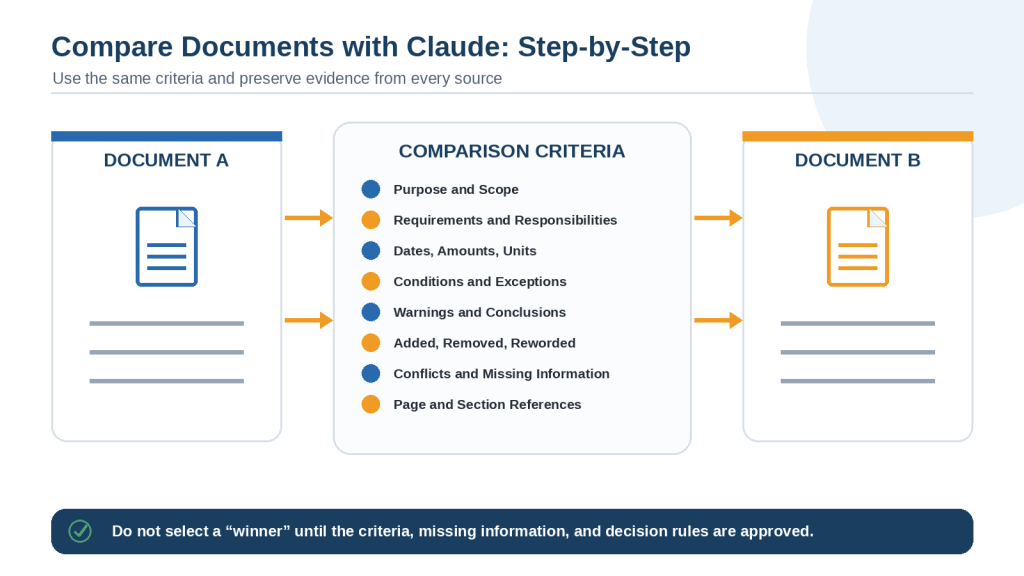
Figure 7. A controlled comparison identifies similarities, differences, additions, removals, conflicts, and missing information using evidence from every source.
Explanation: A comparison should use approved criteria and references from each document before any recommendation is considered.
How to Ask Questions About Documents with Claude
Focused questions help move from a broad overview to a specific fact, requirement, table value, quotation, warning, or unresolved issue.
Use One Clear Question
Instead of asking about eligibility, deadlines, costs, evidence, risks, and recommendations at once, ask each question separately and verify the answer before continuing.
Name the Exact Source
Use only Document A, employee-policy-2026.pdf. Do not use other Project files, past chats, outside information, or general knowledge.
Require a Reference and Supporting Wording
Ask for the PDF viewer page number and section heading. For tables, request the table title, row label, column heading, value, unit, footnote, and page number.
When exact wording matters, request the shortest complete quotation that supports the answer and confirm it against the original.
Separate Direct Answers from Interpretation
Separate the response into: Directly stated in the document; Possible interpretation; Not stated; Conflicting information; Requires verification.
Question Examples
• Who is eligible? List every requirement and exception with references.
• What is the deadline? Include the triggering event, day type, time, time zone, exception, and reference.
• Who must approve the request, and what documents are required before approval?
• What evidence supports the claim that the project will reduce costs?
• Does the document provide more than one completion deadline? Quote every relevant statement.
• How does the notice period in Document A differ from Document B?
Reusable Question Formula
Question: [Ask one specific neutral question.]
Document: Use only [label and filename].
Scope: Search the complete document or named sections.
Answer rule: Report only information stated directly in the source.
References: Include the page, section, table, row, or column.
Missing information: Use [Not Stated], [Unclear], [Unreadable], or [Conflicting Information].
Interpretation: Put interpretations in a separate labelled section.
Final check: Identify what requires manual verification.
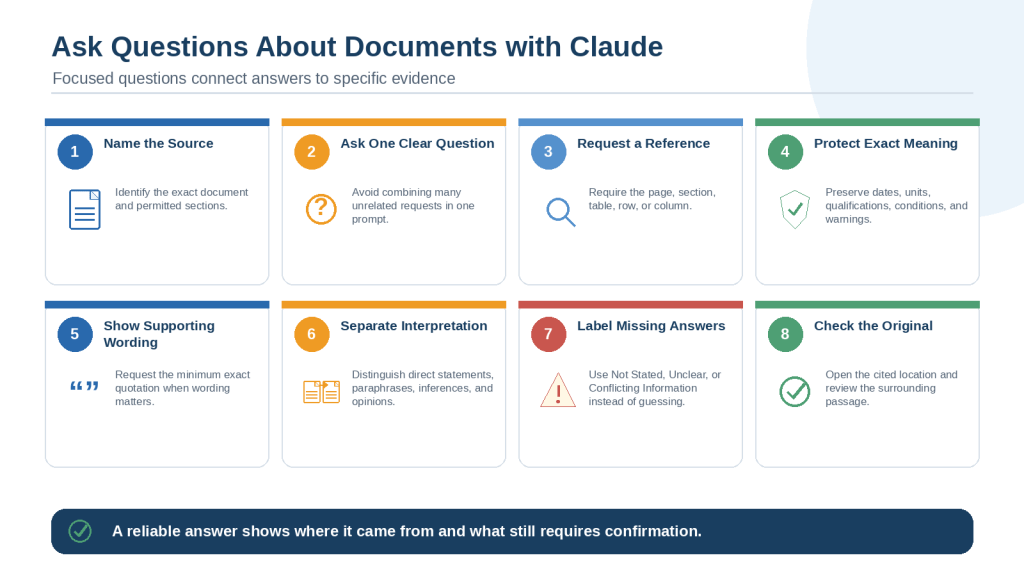
Figure 8. Focused document questions locate specific facts, evidence, conditions, missing information, and conflicts while keeping answers connected to the source.
Explanation: A reliable answer names the document, cites the location, preserves qualifications, and clearly states when the source does not provide an answer.
How to Extract Important Information from Documents with Claude
Extraction locates and organizes specific details rather than summarizing the complete source. Define the fields first so the result can be reviewed systematically.
Choose the Extraction Fields
• Names, roles, departments, and organizations
• Dates, deadlines, notice periods, and triggering events
• Amounts, percentages, quantities, measurements, and limits
• Requirements, recommendations, permissions, and prohibitions
• Responsibilities, approvals, and evidence of completion
• Conditions, exceptions, warnings, and limitations
• Decisions, actions, unresolved questions, and dependencies
• Definitions, quotations, table values, and chart findings
Preserve Complete Meaning
“Funding amount: $2,000” is incomplete when the source states “Eligible applicants may receive up to $2,000, subject to available funding and final approval.” Keep the amount with its eligibility, maximum, funding condition, and approval rule.
Create Practical Outputs
• Fact table: one source-supported item per row.
• Timeline: dated events in chronological order, with undated actions separated.
• Action checklist: action, owner, deadline, condition, approval, and evidence.
• Responsibility register: party, action, deadline, dependency, and reference.
• Question log: issue, source wording, clarification question, priority, and status.
• Verification register: finding, reason for checking, source, method, and status.
Special Rules for Tables and Charts
For tables, preserve the title, row label, column heading, value, unit, currency, date period, and footnote. Write [Blank Cell] when the source cell is empty unless the document defines a different meaning.
For charts, identify the title, axes, units, legend, date range, scale, and visible pattern. Do not estimate precise values when they are not clearly labelled.
Complete Extraction Prompt
Task: Extract specific information from Document A.
Purpose: Create a fact table, timeline, action checklist, responsibility register, question log, and verification register.
Fields: names and roles; dates and deadlines; amounts and units; requirements; responsibilities; conditions; exceptions; warnings; decisions; actions; quotations; table values.
References: Add a page, section, table, row, or column for every item.
Missing information: Use [Not Stated], [Unclear], [Unreadable], [Blank Cell], or [Conflicting Information].
Limits: Do not use outside information, fill blank cells, combine different units, or detach a value from its qualifications.
Final check: List entries requiring manual or professional review.

Figure 9. Claude can organize source-supported information into fact tables, timelines, action checklists, responsibility registers, question logs, and verification registers.
Explanation: Every extracted date, amount, requirement, warning, or action should retain its conditions and source reference.
How to Verify Claude’s Document Findings
Verification means checking Claude’s summary, analysis, comparison, question answer, or extraction directly against the original source before it is used, shared, submitted, or published.
Keep the Original Unchanged
Save Claude’s result separately. The summary, table, or comparison should never replace the original document.
Confirm the Correct Source
Check the exact filename, title, date, version, approval status, language, page count, appendices, and supporting schedules. A correct statement from an outdated version may still be unsuitable.
Verify One Finding at a Time
1. Locate the cited page or section.
2. Read the complete sentence and surrounding paragraph.
3. Check related footnotes, tables, charts, definitions, and appendices.
4. Compare Claude’s wording with the source.
5. Record whether the finding is verified, corrected, unresolved, or conflicting.
Check High-Risk Details First
• Legal rights or obligations
• Medical information
• Financial or tax decisions
• Immigration requirements
• Employment conditions
• Safety procedures
• Eligibility and deadlines
• Amounts and contract terms
• Confidential information
Verify Names, Dates, Amounts, Units, and Certainty
Check every spelling, official title, date, time, time zone, amount, percentage, unit, currency, range, billing period, tax condition, and triggering event. Confirm words such as may, must, estimated, proposed, approximately, up to, and at least.
Verify Quotations, Tables, Charts, and Calculations
Match quotations exactly. Recheck table rows, columns, totals, footnotes, and blank-cell meanings. Confirm chart axes, legend, scale, and date range. Recalculate important arithmetic independently using the correct inputs.
Verify Comparison Findings
Open the relevant location in every document. Confirm whether information was truly added or removed, or merely moved or reworded. Label possible effects as interpretations unless the source states them directly.
Use a Verification Status System
• Verified
• Verified with Correction
• Partly Verified
• Not Verified
• Conflicting
• Requires Professional Review
Claude Self-Audit Prompt
Audit your response against the uploaded document. Create a table showing each finding, source wording, page or section, direct statement or interpretation, qualification preserved, verification status, and required correction. Mark any statement without clear support as [Unsupported]. Do not treat this self-audit as independent verification.
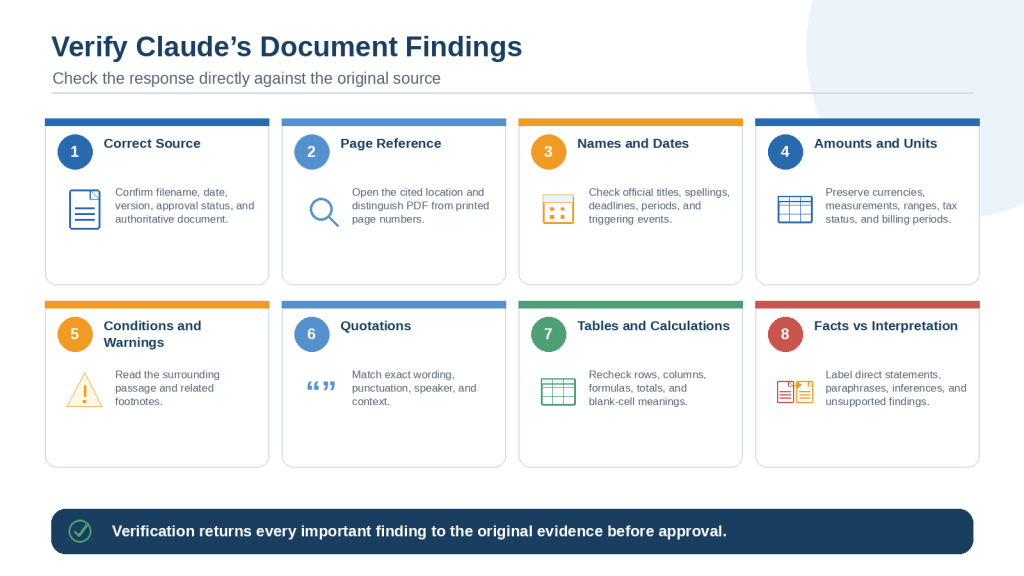
Figure 10. Important Claude document findings should be checked against the original source, including wording, references, qualifications, tables, charts, and calculations.
Explanation: Unsupported, conflicting, or high-risk findings should remain clearly labelled until appropriate human or professional review is complete.
Common Document Mistakes When Using Claude
Many document errors begin with an unclear source or prompt rather than the final wording. The following mistakes are especially common.
Using the wrong file or version
Confirm the title, date, version, approval status, and effective date before analysis.
Uploading too many unrelated files
Use the smallest practical source set and group large collections by topic.
Failing to label documents
Use stable labels such as Document A, Document B, Current Policy, or Supplier 1.
Asking Claude to “review” a document
Name the exact task: summarize, analyze, compare, extract, proofread, or answer questions.
Leaving source rules unclear
State which files Claude may use and whether outside research is allowed.
Requesting an extremely short summary
Create a detailed verified summary first, then shorten the approved version.
Failing to require references
Add page, section, table, row, or column references beside important findings.
Trusting an incorrect page reference
Open the source location and read the complete surrounding passage.
Removing conditions while shortening
Preserve may, up to, if eligible, subject to approval, warnings, and exceptions.
Treating recommendations as requirements
Classify statements as required, recommended, optional, permitted, prohibited, conditional, or unclear.
Treating missing information as no
Use [Not Stated] rather than no, none, zero, or not applicable.
Treating blank table cells as zero
Use [Blank Cell] unless the document defines the blank differently.
Mixing information from several documents
Keep separate summaries and include a source label for every finding.
Comparing without criteria
Define the approved criteria before asking Claude to compare.
Choosing the best option too early
Complete the factual comparison and resolve missing information first.
Accepting added or removed without searching
Check for moved, combined, split, renumbered, or reworded content.
Presenting interpretation as fact
Label direct statements, paraphrases, interpretations, and unresolved questions.
Ignoring footnotes, appendices, and hidden content
Create a document map and inspect supporting material.
Trusting Claude’s confidence
Require evidence, references, uncertainty, assumptions, and manual checks.
Skipping final human review
Keep the result unapproved until important findings have been checked.
Common-Mistake Audit Prompt
Audit the response for wrong documents, mixed sources, missing references, changed dates or amounts, removed conditions, requirements changed into recommendations, blank cells treated as zero, missing information treated as no, interpretations presented as facts, missed footnotes, table or chart errors, calculation errors, unsupported recommendations, and privacy concerns. List the problem, source reference, required correction, and human review needed. Do not rewrite the response yet.
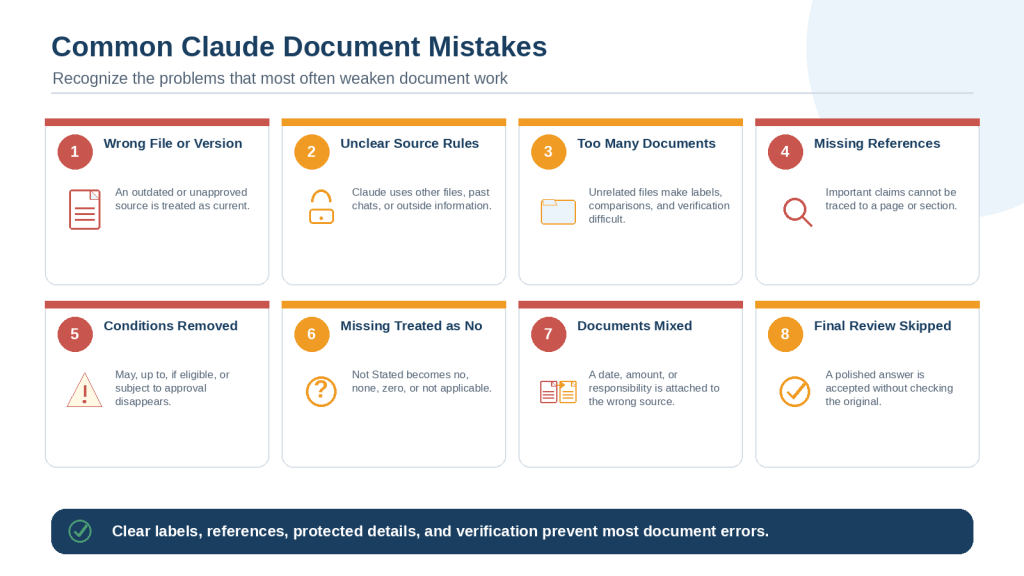
Figure 11. Common Claude document mistakes include incorrect files, unclear source rules, missing references, lost qualifications, mixed documents, and skipped verification.
Explanation: Clear labels, missing-information rules, protected details, and direct review of the originals reduce these errors.
How to Protect Privacy When Working with Documents in Claude
Documents may contain more personal, confidential, or sensitive information than the task requires. Privacy protection begins by sharing the minimum necessary material.
Confirm Permission and Use an Approved Account
Check organizational rules, client agreements, confidentiality requirements, privacy laws, professional duties, and AI-use policies. Some organizations require a specific workspace, manager approval, data-processing terms, or complete prohibition of certain records.
Use the Minimum Necessary Information
Claude may need one paragraph instead of a complete report, five pages instead of a full manual, or a redacted table instead of the entire spreadsheet.
Use Proper Redaction
Covering text with a shape or changing its colour may leave the underlying content accessible. Use a method that removes the data. Save the redacted copy under a new filename, reopen it, search for the removed information, and test whether it can still be selected or copied.
Never Upload Credentials
• Passwords
• One-time verification codes
• API keys
• Access tokens
• Recovery codes
• Security answers
• Private authentication links
• Database or server credentials
• Encryption keys
If a credential is uploaded accidentally, treat it as exposed and revoke or change it through the relevant service.
Inspect Hidden Content
• DOCX comments, tracked changes, deleted wording, reviewer names, headers, footers, and properties
• Spreadsheet hidden sheets, rows, columns, comments, formulas, external links, named ranges, and filtered records
• PDF attachments, comments, form fields, signatures, layers, bookmarks, and hidden text
Review Projects, Shared Chats, and Generated Files
Confirm who can access the Project and whether old files remain available. Before sharing a chat, inspect the complete conversation. Review every generated DOCX, PDF, spreadsheet, table, link, filename, and attachment for private information.
Store Approved Results Safely
Use neutral filenames, appropriate folder permissions, authorized recipients, and the required retention rules. Do not rely on the Claude conversation as the permanent record.
Reusable Privacy Instruction
Use only the redacted documents identified in this prompt. Do not repeat, infer, or expose personal or confidential information unnecessarily. Replace names, addresses, contact details, account numbers, identification information, signatures, and confidential codes with neutral labels. Do not include passwords, credentials, or private links. Mark anything requiring authorized review as [Restricted Review Required]. Treat every output as a draft until it has been checked for privacy and approved.
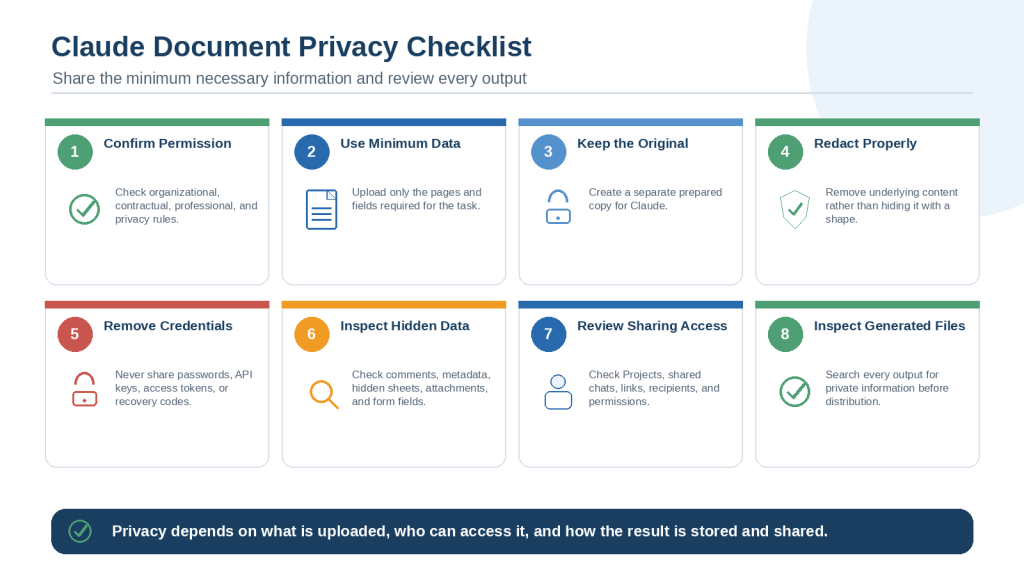
Figure 12. Document privacy requires permission, data minimization, proper redaction, hidden-content checks, controlled access, and review of generated files.
Explanation: Claude usually does not need complete identities or full confidential records to complete a document task.
Frequently Asked Questions About Working with Documents in Claude
Can Claude summarize a complete document?
Yes, when the file is readable and fits the available working limits. For long documents, create a map, summarize sections separately, verify each section, and combine only approved results.
Can Claude analyze PDFs?
Claude can work with text and may interpret visual elements in supported PDFs. Important scans, tables, charts, and diagrams still require manual checking.
Can Claude read scanned documents?
It may, but poor image quality can create recognition errors. Mark uncertain text and test important passages before relying on the result.
Can Claude analyze DOCX files with embedded images?
Text may be available even when embedded visuals are not interpreted in the same way as a PDF. Provide a PDF or separate image when the visual content is essential.
Can Claude work with spreadsheets?
Claude can assist with supported spreadsheet files, tables, calculations, trends, and summaries. Inspect hidden data and verify every important calculation.
How many documents should I upload?
Use the smallest practical set. A focused source group is easier to label, compare, protect, and verify.
Should I use a chat or Project?
Use a chat for a limited one-time task and a Project for ongoing work with related files and shared instructions. Review Project access and stored files.
How do I stop Claude from using the wrong document?
Use exact filenames, stable labels, clear authority rules, and a file-confirmation prompt before analysis.
Can Claude summarize several documents together?
Yes, but verify separate summaries first. A combined summary should preserve source labels, unique information, conflicts, and missing details.
Can Claude compare more than two documents?
Yes. Use the same criteria and separate columns for every source. Do not rank options until the evaluation rules are approved.
How can I get page references?
Ask for the PDF viewer page, printed page when different, section heading, table title, row, or column. Open important references yourself.
How do I stop invented information?
Define strict missing-information labels and prohibit guessing, estimating, inference, or outside knowledge.
Can Claude extract exact quotations?
Claude can help locate quotations, but every quotation should be checked word for word against the source.
Can Claude create timelines and checklists?
Yes. Define the fields first and keep dates, actions, owners, conditions, approvals, and references together.
Can Claude identify contradictions?
It can identify statements that may conflict. Check whether they apply to different groups, periods, conditions, or versions.
Can Claude verify its own answer?
It can perform a useful self-audit, but that is not independent verification. Review the original source.
Should I trust Claude’s confidence?
No. Ask for evidence, references, assumptions, uncertainty, and manual checks instead.
Can I upload confidential documents?
Only when you have permission and the task complies with applicable rules. Use minimization, redaction, hidden-content checks, and controlled access.
Should Claude replace professional review?
No. High-risk legal, medical, financial, tax, immigration, employment, insurance, engineering, or safety documents may require a qualified professional.
Should I save Claude’s results?
Keep the original source, first result, corrected versions, verification notes, unresolved questions, and approved final copy under clear filenames.
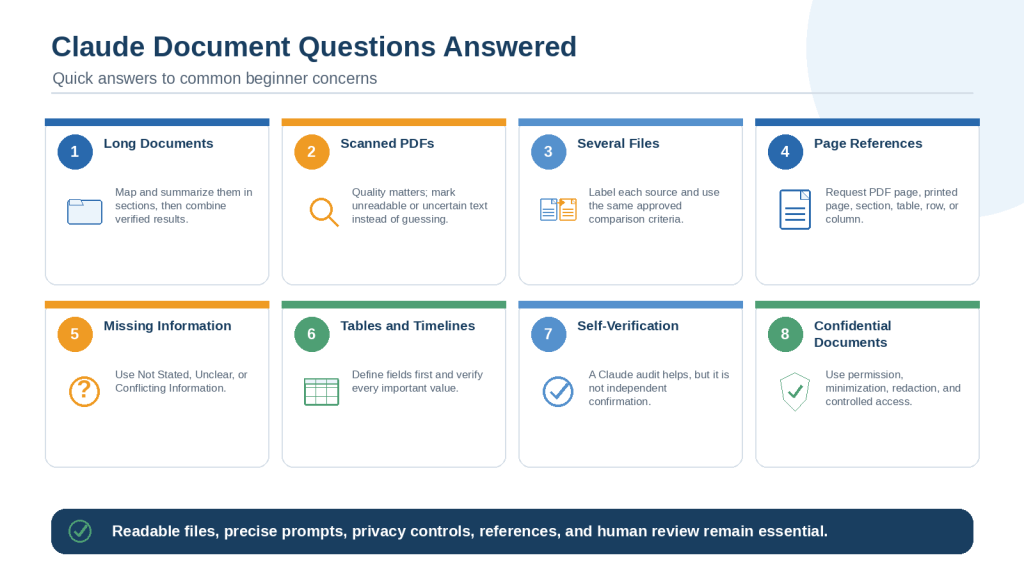
Figure 13. Common beginner questions cover long documents, scanned PDFs, multiple files, page references, missing information, verification, and confidentiality.
Explanation: Readable files, precise prompts, source references, privacy controls, and human review remain essential across every document type.
Key Takeaways
1. Define whether the task is a summary, analysis, comparison, extraction, or focused question.
2. Confirm the correct file, version, date, approval status, and effective date.
3. Upload only necessary material and keep the original unchanged.
4. Use descriptive filenames and stable document labels.
5. State which source is current, approved, original, proposed, or superseded.
6. Limit Claude to the approved documents unless a separate research step is authorized.
7. Ask Claude to identify the files before beginning.
8. Test one known detail to confirm access and readability.
9. Create a document map for long or complicated sources.
10. List every required topic and field in the prompt.
11. Preserve names, dates, amounts, units, conditions, exceptions, warnings, and certainty.
12. Require page, section, table, row, or column references.
13. Use missing-information labels rather than allowing Claude to guess.
14. Separate direct source statements from paraphrases and interpretations.
15. Summarize long documents in stages and verify each part.
16. Analyze claims, evidence, assumptions, risks, limitations, and gaps separately.
17. Define comparison criteria before comparing documents.
18. Summarize sources separately before combining them.
19. Treat [Not Stated] as missing, not as no or zero.
20. Check whether changed content was moved or reworded before calling it removed.
21. Do not request a recommendation until criteria, weightings, and missing information are resolved.
22. Define extraction fields before creating tables, timelines, or checklists.
23. Keep every extracted value attached to its unit, condition, and reference.
24. Preserve blank cells accurately.
25. Verify quotations, tables, charts, and calculations manually.
26. Review one important finding at a time against the original.
27. Prioritize high-risk dates, amounts, requirements, and professional decisions.
28. Treat Claude’s self-audit as an aid rather than independent proof.
29. Protect privacy through permission, minimization, redaction, and hidden-content checks.
30. Inspect generated files, filenames, links, recipients, and sharing permissions.
31. Keep unresolved questions visible.
32. Arrange qualified professional review when appropriate.
33. Save the approved result separately and retain final human control.
Reusable Complete Workflow
1. Define the purpose and audience.
2. Select the minimum necessary files.
3. Confirm permission and protect private information.
4. Keep the originals unchanged and create prepared copies.
5. Rename and label every document.
6. Confirm the current or authoritative source.
7. Upload to the correct chat or Project.
8. Ask Claude to identify the files and test one known detail.
9. Create a document map.
10. Define source limits, protected details, references, and missing-information labels.
11. Request the summary, analysis, comparison, extraction, or answer.
12. Verify one section or finding at a time.
13. Correct errors and complete a second review pass.
14. Arrange professional review where needed.
15. Inspect the final file, link, and sharing permissions.
16. Save the approved result separately.
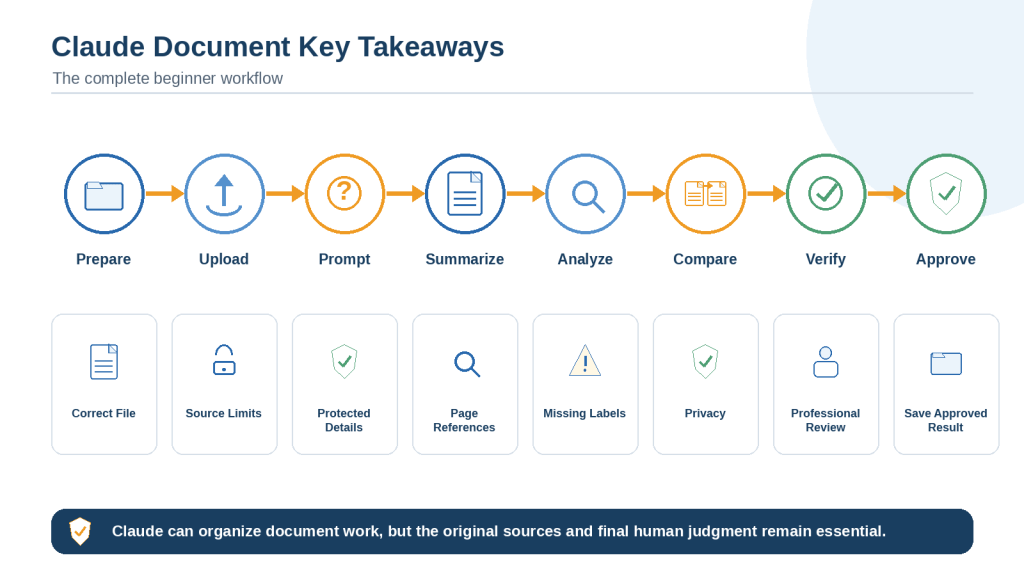
Figure 14. The complete safe workflow prepares, uploads, prompts, summarizes, analyzes, compares, verifies, and approves document work with Claude.
Explanation: Correct files, clear source limits, visible uncertainty, privacy controls, and direct verification are the foundation of reliable results.
Conclusion
Claude can make long and complicated documents easier to navigate. It can summarize key information, analyze claims and evidence, compare files, extract facts, answer focused questions, and organize unresolved issues for review.
The strongest results begin with the correct source and a precise prompt. Clear labels, source limits, protected details, missing-information rules, and page references make Claude’s work easier to check.
Privacy must remain part of the workflow. Upload only necessary material, use properly redacted copies, remove credentials, inspect hidden content, and review every generated file, link, and attachment before sharing.
Claude’s polished wording should not be treated as proof of accuracy. Its self-audit can assist the review, but it does not replace checking the original pages, tables, charts, quotations, and calculations.
Claude can organize document work, but the original sources remain authoritative. Direct verification, appropriate professional review, and final human approval are the foundation of safe and reliable results.
Continue Learning
Claude AI for Beginners: Complete Guide (2026)
Learn what Claude is, how to access it, use Projects and tools, protect private information, and review important results.
Best Claude Prompts for Beginners: 50 Examples to Copy and Customize (2026)
Explore reusable Claude prompts for documents, research, writing, spreadsheets, and everyday tasks.
How to Write and Rewrite with Claude: Beginner Guide (2026)
Learn how to draft, rewrite, simplify, change tone, proofread, and compare revisions.
How to Summarize Documents with ChatGPT: Beginner Guide (2026)
Compare Claude’s summary workflow with a structured ChatGPT method.
How to Analyze Documents with ChatGPT: Beginner Guide (2026)
Learn another approach to claims, evidence, risks, limitations, contradictions, and missing information.
How to Compare Documents with ChatGPT: Beginner Guide (2026)
Explore a step-by-step method for comparing versions, policies, proposals, dates, amounts, and responsibilities.
Sources and References
Source Review Date: August 4, 2026
The following official Claude Help Center resources were reviewed for this article. Supported formats, upload limits, interfaces, Projects, privacy controls, sharing options, context limits, and other capabilities may change. Check current official guidance before publishing time-sensitive instructions or using Claude for important document work.
1. Get Started with Claude — Claude Help Center
2. Upload Files to Claude — Claude Help Center
3. Introduction to Prompt Design — Claude Help Center
4. My Prompt Is Not Giving Me a Helpful Answer — Claude Help Center
5. Claude’s Response to My Prompt Is Too Brief — Claude Help Center
6. Claude Is Providing Incorrect or Misleading Responses — Claude Help Center
7. What Are Projects? — Claude Help Center
8. How Can I Create and Manage Projects? — Claude Help Center
9. Manage Project Visibility and Sharing — Claude Help Center
10. Create and Edit Files with Claude — Claude Help Center
11. How Do Usage and Length Limits Work? — Claude Help Center
12. Sensitive Data in Claude Chats: Who Can View Conversations? — Claude Help Center
13. Share and Unshare Chats — Claude Help Center
14. Use Incognito Chats — Claude Help Center
15. Use Research on Claude — Claude Help Center
16. How Can I Delete or Rename a Conversation? — Claude Help Center
Claude’s official guidance warns that it can occasionally produce incorrect or misleading information, including convincing-looking quotations that are not grounded in fact. Important findings should be checked against the original source rather than treating Claude as the only source of truth.


Leave a comment