Tag: Prompting

  • How to Create a Daily Plan with ChatGPT (2026)

    How to Create a Daily Plan with ChatGPT (2026)

    Estimated reading time: 12–15 minutes
    Last updated: August 15, 2026

    Introduction

    A daily plan helps you decide what needs to be done, what should be done first, and how much time you may need for each task. For beginners, the difficult part is often not making a list—it is turning a long or confusing list into a realistic plan.

    ChatGPT can help you organize your day by taking the tasks you provide and arranging them into a clearer schedule. You can tell ChatGPT what you need to do, when you are available, which tasks are most important, and whether you want breaks included.

    For example, instead of simply writing:

    “Pay bills, make two phone calls, work on my website, buy groceries, and exercise.”

    you could ask ChatGPT:

    “Help me create a realistic daily plan from 9:00 a.m. to 5:00 p.m. I need to pay bills, make two phone calls, work on my website for two hours, buy groceries, and exercise for 30 minutes. Include breaks and put the most important tasks first.”

    Clear and specific instructions generally help ChatGPT produce more useful responses. OpenAI recommends clearly describing the task, providing relevant context, and refining the prompt when necessary.

    ChatGPT can suggest a plan, but it does not know everything about your day unless you tell it. You should review the result and adjust times, priorities, travel time, appointments, health needs, family responsibilities, and other personal circumstances before following the schedule.

    In this guide, you will learn how to give ChatGPT the information it needs, create a practical daily plan, adjust that plan when circumstances change, and avoid common planning mistakes.

    Before You Start

    You do not need special technical skills to create a daily plan with ChatGPT. You mainly need a clear idea of what you want to accomplish and enough information about your available time.

    Before asking ChatGPT to organize your day, prepare:

    · The tasks you need to complete

    · Any fixed appointments or deadlines

    · The approximate time you have available

    · Your most important tasks

    · Tasks that can wait until another day

    · Breaks, meals, travel time, or other commitments you want included
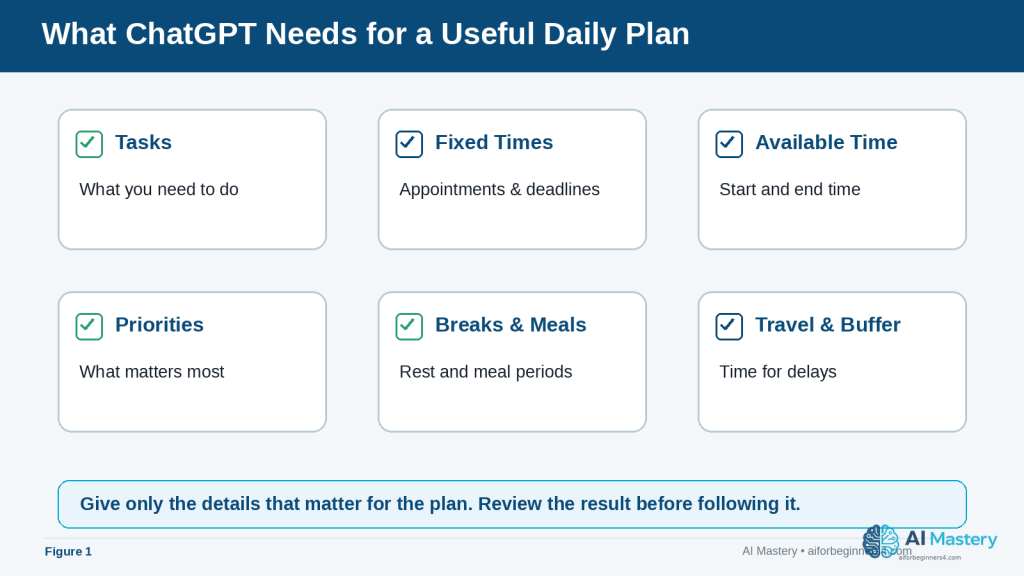
    Figure 1. A useful daily plan starts with tasks, fixed times, available time, priorities, breaks, meals, travel, and buffer time.

    Explanation: Providing the information that affects the schedule gives ChatGPT a better basis for organizing the day while keeping unnecessary personal details out of the prompt.

    The more useful context you provide, the easier it is for ChatGPT to produce a plan that fits your situation. OpenAI recommends using clear, specific prompts and providing enough context for ChatGPT to understand the request.

    Protect Your Personal Information

    You may need to provide some personal context when planning your day, but avoid entering unnecessary sensitive information.

    For example, instead of writing:

    “Dr. Smith at 123 Main Street is treating me for [medical condition] at 2:00 p.m.”

    you could simply write:

    “Medical appointment from 2:00 p.m. to 3:00 p.m.”

    ChatGPT only needs the information required to organize the schedule.
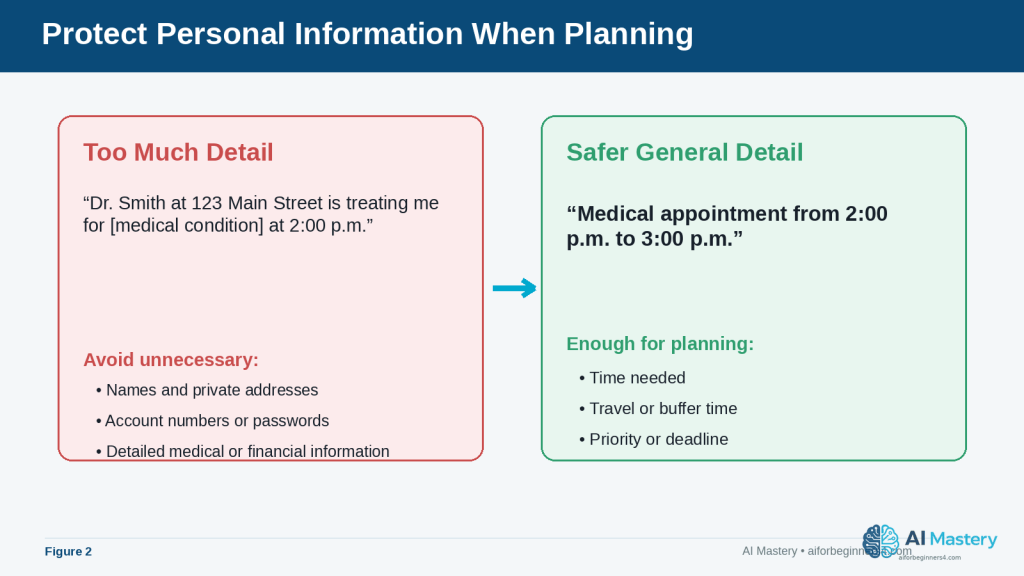
    Figure 2. Share only the personal information that is necessary for planning, and use general descriptions when specific details are not needed.

    Explanation: A time and general appointment label are often enough for scheduling. Names, addresses, passwords, account numbers, or sensitive details usually add risk without improving the plan.

    ChatGPT also provides Data Controls that let users manage how their conversations may be used to improve OpenAI’s models. These settings can change over time, so readers should check the current options in ChatGPT’s Settings > Data Controls when privacy settings are important to them.

    Do Not Expect ChatGPT to Know Your Entire Schedule

    ChatGPT should not be treated as automatically knowing every appointment, responsibility, deadline, or change in your day.

    Tell it the information that matters for the plan.

    For example:

    “Create my plan from 8:00 a.m. to 6:00 p.m. I have an appointment from 11:00 a.m. to noon and need 30 minutes of travel time before and after it.”

    This is much more useful than simply asking:

    “Plan my day.”

    ChatGPT may also use saved memories or information from previous conversations when relevant settings are enabled, but you should still provide important current-day information rather than assuming it will be remembered correctly. OpenAI allows users to review, change, or turn off memory features in ChatGPT settings.

    Reality: ChatGPT can help organize your information, but you remain responsible for checking the schedule and deciding whether the suggested plan is practical and appropriate for your day.

    What You’ll Learn

    By the end of this guide, you will know how to:

    · Give ChatGPT the information it needs to help organize your day.

    · Turn an unordered task list into a clearer daily schedule.

    · Tell ChatGPT which tasks are most important.

    · Add appointments, breaks, meals, travel time, and other fixed commitments.

    · Estimate how much time to allow for different tasks.

    · Ask ChatGPT to make a busy schedule more realistic.

    · Adjust your plan when something unexpected happens.

    · Create reusable prompts for morning planning.

    · Use ChatGPT Scheduled Tasks for suitable reminders and recurring tasks when the feature is available.

    · Review AI-generated schedules for mistakes or unrealistic assumptions.

    · Protect unnecessary personal or sensitive information when using AI for planning.

    You will also learn when ChatGPT is useful for daily planning and when you should rely on a calendar, reminder app, task manager, or your own judgment instead.

    The goal is not to let AI control your day. The goal is to use ChatGPT as an organizing assistant that helps you turn your priorities into a plan you can review and change.

    How ChatGPT Can Help You Plan Your Day

    ChatGPT can take a simple list of tasks and help turn it into a more organized plan. This is useful when you know what you need to do but are unsure what to do first or how to fit everything into the time available.

    For example, you might start with this unordered list:

    · Reply to emails

    · Buy groceries

    · Work on an important project

    · Call the bank

    · Exercise

    · Prepare dinner

    ChatGPT can help group these tasks, suggest an order, and assign approximate time blocks.

    Prioritize Important Tasks

    You can tell ChatGPT which tasks are urgent or important.

    For example:

    “Help me organize these tasks for today. Working on my project is the highest priority. Calling the bank must be done before 4:00 p.m. The other tasks are flexible.”

    This gives ChatGPT more useful information than simply providing a task list.

    Create Time Blocks

    A time block is a period reserved for a particular activity.

    For example:

    · 9:00–10:30 a.m. — Important project

    · 10:30–10:45 a.m. — Break

    · 10:45–11:15 a.m. — Emails

    · 11:15–11:30 a.m. — Call the bank

    Time blocks can make a long list feel easier to manage because each task has a suggested place in the day.
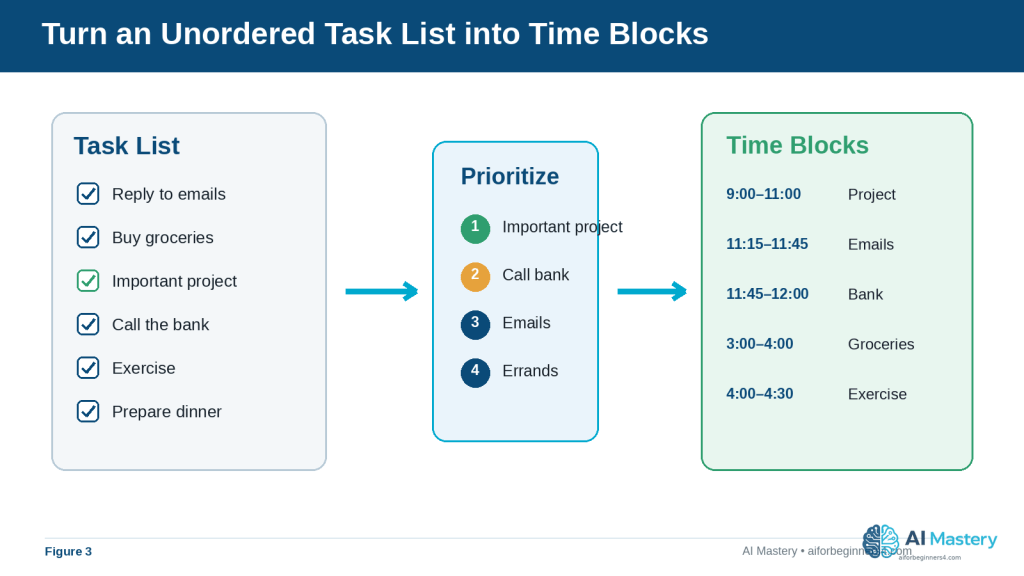
    Figure 3. ChatGPT can help turn an unordered task list into priorities and suggested time blocks.

    Explanation: The schedule becomes easier to scan when important work is identified first and each activity receives a realistic place in the day.

    Include Breaks and Buffer Time

    A plan that fills every minute of the day is usually difficult to follow.

    You can ask ChatGPT to include:

    · Short breaks

    · Lunch or meal periods

    · Travel time

    · Extra time between appointments

    · Buffer time for unexpected delays

    For example:

    “Create a schedule from 9:00 a.m. to 5:00 p.m. Include a 15-minute break in the morning, a one-hour lunch, and at least 15 minutes of free time between major tasks.”

    Break Large Tasks into Smaller Steps

    A task such as “work on my website” may be too broad to schedule effectively.

    ChatGPT can help divide it into smaller actions, such as:

    · Review the article draft

    · Prepare images

    · Add the article to WordPress

    · Check links

    · Preview the page

    · Publish or save the draft

    Smaller tasks make it easier to estimate the time required and see what progress you have made.

    Adjust the Plan When Your Day Changes

    Daily plans often change.

    If an appointment runs late or an unexpected task appears, you can give ChatGPT the updated information.

    For example:

    “My appointment took one hour longer than expected. It is now 2:00 p.m. I still need to finish my project, buy groceries, and exercise. Reorganize the rest of my day without making the schedule too busy.”

    ChatGPT can then suggest a revised plan.

    Reality: A ChatGPT schedule is a suggestion, not a fixed timetable. Task durations may be inaccurate, unexpected events can occur, and some priorities require your own judgment. Review the plan and change anything that does not fit your real circumstances.

    Step-by-Step: Create a Daily Plan with ChatGPT

    You can create a useful daily plan with ChatGPT by giving it your tasks, available time, priorities, and fixed commitments.

    Step 1: Write Down Everything You Need to Do

    Start by listing the tasks you want to complete.

    For example:

    · Answer important emails

    · Work on a website article

    · Call the bank

    · Buy groceries

    · Exercise

    · Prepare dinner

    Do not worry about putting them in the correct order yet.

    Step 2: Add Your Available Time

    Tell ChatGPT when your day begins and when you want your planned activities to end.

    For example:

    “Plan my tasks between 9:00 a.m. and 6:00 p.m.”

    This gives ChatGPT a clear time window to work with.

    Step 3: Add Fixed Appointments

    Next, include anything that already has a set time.

    For example:

    “I have an appointment from 1:00 p.m. to 2:00 p.m. and need 30 minutes of travel time before and after it.”

    Fixed commitments should normally be added before flexible tasks because they cannot easily be moved.

    Step 4: Identify Your Priorities

    Tell ChatGPT which tasks are most important.

    For example:

    “My website article is my highest-priority task today. I also need to call the bank before 4:00 p.m.”

    This helps ChatGPT avoid giving equal importance to every item.

    Step 5: Ask for Breaks and Realistic Time Blocks

    You can ask ChatGPT not to overload the schedule.

    For example:

    “Include lunch, two short breaks, and some buffer time between major tasks. Do not schedule every minute.”

    This can make the plan easier to follow.

    Step 6: Send the Complete Prompt

    A complete beginner-friendly prompt could look like this:

    “Help me create a realistic daily plan from 9:00 a.m. to 6:00 p.m. I need to answer important emails, work on my website article for about two hours, call the bank before 4:00 p.m., buy groceries, exercise for 30 minutes, and prepare dinner. I have an appointment from 1:00 p.m. to 2:00 p.m. and need 30 minutes of travel time before and after it. My website article is the highest priority. Include lunch, short breaks, and some buffer time. Do not make the schedule too busy.”

    Step 7: Review the Suggested Schedule

    Read the plan carefully before using it.

    Check:

    · Are the most important tasks scheduled early enough?

    · Are appointments placed at the correct times?

    · Is enough travel time included?

    · Are task durations realistic?

    · Are there enough breaks?

    · Is the day too crowded?

    · Is anything important missing?

    If something looks wrong, tell ChatGPT what needs to change.

    Step 8: Ask ChatGPT to Revise It

    You do not need to accept the first version.

    For example:

    “Move grocery shopping to later in the afternoon, give me another 30 minutes for the website article, and add a longer break after my appointment.”

    ChatGPT can then create a revised version.

    How to Avoid This Mistake: Do not ask ChatGPT to plan your day using only a short instruction such as “Organize my day” when you have important deadlines or fixed appointments. Include enough detail for the plan to reflect your actual situation.
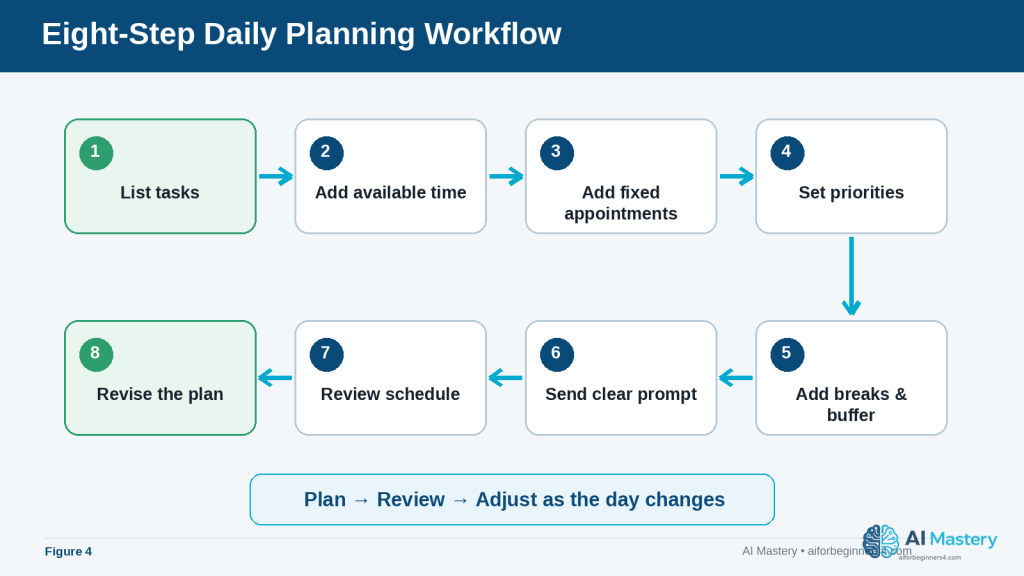
    Figure 4. An eight-step workflow moves from listing tasks through creating, reviewing, and revising the daily plan.

    Explanation: Using the same sequence each day makes it easier to remember fixed commitments, priorities, breaks, and the final review before following the schedule.

    Useful ChatGPT Prompts for Daily Planning

    Once you understand the basic process, you can save time by reusing simple prompts and changing only the details that matter for that day.

    Basic Daily Planning Prompt

    “Help me create a realistic plan for today from 9:00 a.m. to 5:00 p.m. My tasks are: [insert tasks]. My most important task is [insert priority]. Include lunch, short breaks, and some buffer time.”
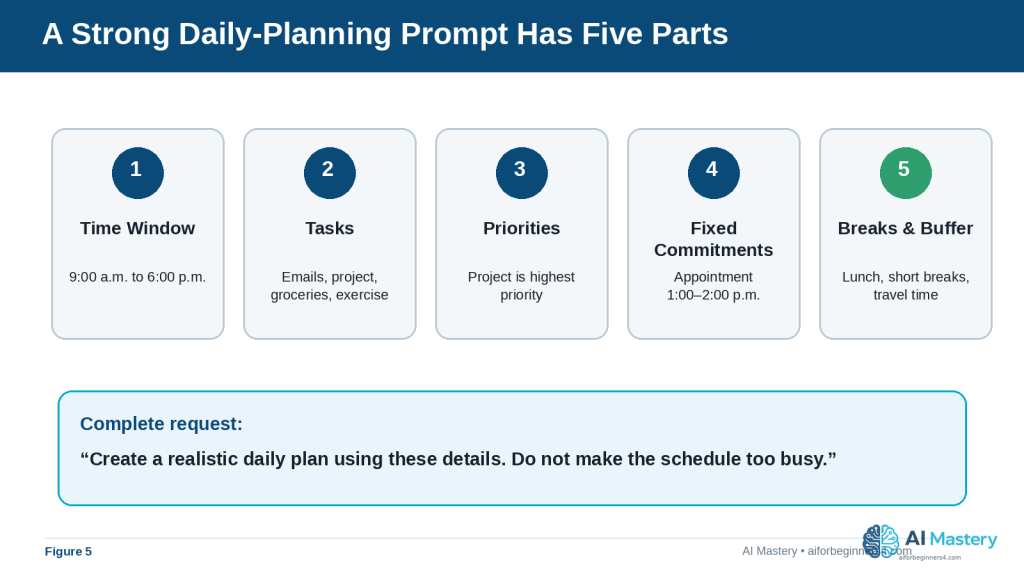
    Figure 5. A strong daily-planning prompt combines the time window, tasks, priorities, fixed commitments, and breaks or buffer time.

    Explanation: These five pieces of context reduce ambiguity and make the first suggested schedule easier to review and revise.

    Prompt for a Busy Day

    “I have too many tasks today. Help me decide what should be done today, what can wait, and what should be removed from the schedule. My available time is [insert hours]. These are my tasks: [insert tasks].”

    This type of prompt can be useful when your list is longer than the time available.

    Prompt for Prioritizing Tasks

    “Organize these tasks into high, medium, and low priority. Explain briefly why each task belongs in that group. Then create a realistic schedule for the high-priority tasks first.”

    You should still review the suggested priorities because ChatGPT may not understand the real consequences of delaying a task unless you explain them.

    Prompt for Planning Around Appointments

    “Create my daily schedule around these fixed appointments: [insert appointments and times]. I also need to complete these flexible tasks: [insert tasks]. Include travel time and breaks.”

    Prompt for a Short Work Session

    “I have only two hours available. Help me choose the most useful tasks from this list and create a focused two-hour plan: [insert tasks]. Include one short break.”

    This can be helpful when you have limited time and cannot complete everything.

    Prompt for Breaking Down a Large Task

    “I need to complete this task: [describe task]. Break it into small, manageable steps and estimate a reasonable amount of time for each step. Then place the steps into my daily schedule.”

    Time estimates from ChatGPT are only suggestions. Adjust them if you know a task normally takes you longer or shorter.

    Prompt for Replanning After an Interruption

    “My original plan has changed. It is now [time]. I still need to complete these tasks: [insert remaining tasks]. My new available time ends at [time]. Reorganize the rest of my day and remove lower-priority tasks if necessary.”

    Prompt for an End-of-Day Review

    “At the end of the day, help me review what I completed, what I did not finish, and what should move to tomorrow. Here is what happened today: [insert summary].”

    This can help you learn whether you regularly schedule too much or underestimate how long certain activities take.

    Final Check Before Using Any Prompt: Replace the example information with your actual tasks, times, and priorities. Avoid including unnecessary sensitive personal information.

    Practical Example: Turn a Busy Task List into a Realistic Day

    Suppose you have the following tasks:

    · Work on an important project for two hours

    · Reply to emails

    · Call the insurance company before 4:00 p.m.

    · Buy groceries

    · Exercise for 30 minutes

    · Prepare dinner

    · Attend an appointment from 1:00 p.m. to 2:00 p.m.

    · Allow 30 minutes of travel time before and after the appointment

    You could give ChatGPT this prompt:

    “Create a realistic daily plan from 9:00 a.m. to 6:00 p.m. My highest-priority task is working on my project for two hours. I also need to reply to emails, call the insurance company before 4:00 p.m., buy groceries, exercise for 30 minutes, and prepare dinner. I have an appointment from 1:00 p.m. to 2:00 p.m. and need 30 minutes of travel time before and after it. Include lunch, short breaks, and some buffer time. Do not make the schedule too crowded.”

    A reasonable plan might look like this:

    · 9:00–11:00 a.m. — Work on the important project

    · 11:00–11:15 a.m. — Short break

    · 11:15–11:45 a.m. — Reply to important emails

    · 11:45 a.m.–12:00 p.m. — Call the insurance company

    · 12:00–12:30 p.m. — Lunch

    · 12:30–1:00 p.m. — Travel to appointment

    · 1:00–2:00 p.m. — Appointment

    · 2:00–2:30 p.m. — Travel home

    · 2:30–3:00 p.m. — Buffer time or rest

    · 3:00–4:00 p.m. — Grocery shopping

    · 4:00–4:30 p.m. — Exercise

    · 4:30–5:00 p.m. — Free time or unfinished tasks

    · 5:00–6:00 p.m. — Prepare dinner

    Why This Plan Works

    The most important task is scheduled early, when there is less risk that later interruptions will push it aside.

    The phone call is scheduled before its deadline.

    The fixed appointment and travel time are protected.

    Breaks and buffer time are included instead of filling every minute.

    Flexible tasks such as grocery shopping and exercise are placed around the fixed commitments.

    How to Improve the Plan

    If the suggested schedule does not fit your real situation, tell ChatGPT exactly what needs to change.

    For example:

    “I need one hour for grocery shopping plus 20 minutes of driving. Move exercise to the evening and give me another 30 minutes for emails.”

    ChatGPT can then revise the plan using the new information.

    Reality: Even a well-organized AI-generated schedule can become unrealistic if tasks take longer than expected. Treat the plan as a flexible guide and update it when your day changes.
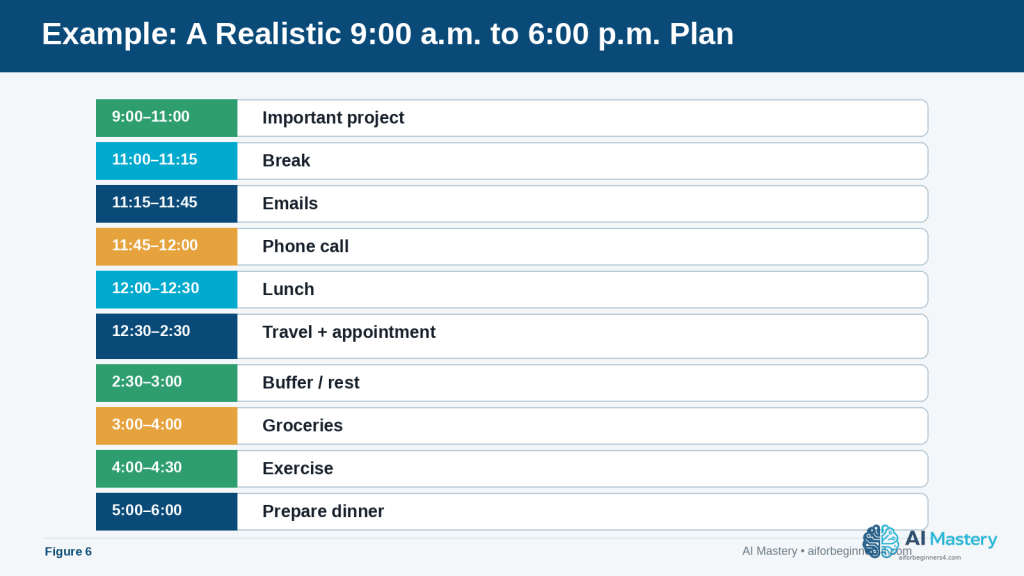
    Figure 6. A realistic daily plan protects priority work, fixed appointments, travel time, meals, breaks, and buffer time.

    Explanation: The example leaves some flexibility instead of filling every minute, which makes it easier to adjust when real activities take longer than expected.

    Benefits of Using ChatGPT for Daily Planning

    ChatGPT can be useful when you already know what you need to do but want help turning your ideas into a clearer plan.

    Helps You Organize a Long Task List

    A long list can feel difficult to manage. ChatGPT can help group tasks, identify priorities, and place them into a suggested order.

    Instead of looking at ten unrelated tasks, you can see them arranged into a more structured day.

    Helps You Decide What to Do First

    When several tasks seem important, ChatGPT can help compare them using information you provide about:

    · Deadlines

    · Importance

    · Time required

    · Fixed appointments

    · Dependencies between tasks

    · Tasks that can be postponed

    You still make the final decision about what matters most.

    Saves Planning Time

    Creating a schedule manually can take time, especially when several appointments and tasks need to fit together.

    ChatGPT can quickly suggest a first version that you can then review and adjust.

    Makes It Easier to Reorganize Your Day

    If something changes, you do not have to rebuild the entire plan yourself.

    You can tell ChatGPT what happened and ask it to reorganize the remaining tasks.

    For example:

    “My appointment finished one hour late. It is now 3:00 p.m. Please reorganize my remaining tasks between 3:00 p.m. and 7:00 p.m.”

    Helps Break Large Tasks into Smaller Steps

    Large tasks can be easier to start when they are divided into smaller actions.

    For example, instead of:

    “Work on website”

    ChatGPT could help turn it into:

    · Review the article

    · Prepare images

    · Upload the article

    · Add links

    · Preview the page

    · Make corrections

    This can make progress easier to see and manage.

    Can Help You Build a Consistent Routine

    You can reuse the same basic planning prompt each morning and change only the tasks, appointments, and priorities.

    Over time, you may also notice which activities regularly take longer than expected. You can then adjust future plans to make them more realistic.

    Benefit: ChatGPT is most useful as a flexible planning assistant. It can help organize information and suggest a schedule while leaving you in control of the final decisions.
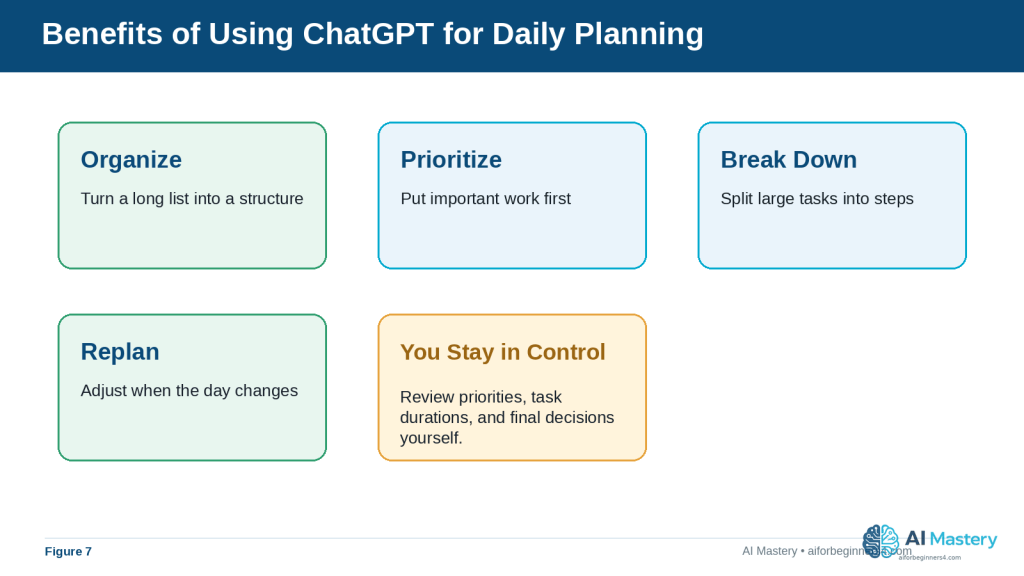
    Figure 7. ChatGPT can help organize, prioritize, break down, replan, and reuse daily-planning routines.

    Explanation: These benefits are most useful when the suggested plan remains subject to your own judgment about priorities, time, and real-world constraints.

    Limitations and Common Mistakes

    ChatGPT can help organize a day, but it does not automatically know whether a schedule is realistic for your personal situation. Understanding its limitations can help you use it more effectively.

    Limitation: Time Estimates May Be Inaccurate

    ChatGPT may suggest that a task will take 30 minutes when it normally takes you an hour.

    This can happen because the AI does not know your working speed, experience, travel conditions, or how complicated the task really is.

    How to Reduce This Limitation: Tell ChatGPT how long similar tasks usually take you.

    For example:

    “Email usually takes me about 45 minutes, grocery shopping takes 90 minutes including travel, and I need at least two hours for my project.”

    Limitation: ChatGPT Does Not Know Every Important Detail

    A schedule may look good but still be unsuitable because ChatGPT was not told about:

    · Travel time

    · Family responsibilities

    · Business hours

    · Deadlines

    · Energy levels

    · Meal times

    · Accessibility needs

    · Other personal commitments

    How to Reduce This Limitation: Include the details that genuinely affect your schedule without sharing unnecessary private information.

    Limitation: Plans Can Become Outdated Quickly

    An unexpected phone call, traffic delay, urgent task, or appointment change can make the original plan impractical.

    How to Reduce This Limitation: Treat the schedule as flexible. Give ChatGPT the new situation and ask it to reorganize the remaining time.

    Common Mistake: Scheduling Too Many Tasks

    A long task list does not mean everything needs to be completed in one day.

    Trying to fit too much into the schedule can leave little room for delays and make the plan difficult to follow.

    How to Avoid This Mistake: Ask ChatGPT to separate tasks into:

    · Must do today

    · Should do today if time allows

    · Can wait until another day

    Common Mistake: Giving Every Task the Same Priority

    Answering an unimportant email may appear beside an urgent deadline even though the two tasks are not equally important.

    How to Avoid This Mistake: Tell ChatGPT which tasks have deadlines, which are essential, and which can be postponed.

    Common Mistake: Forgetting Travel and Transition Time

    Moving from one activity to another often takes time.

    For example, a one-hour appointment may require:

    · Time to prepare

    · Travel to the appointment

    · Waiting time

    · Travel home

    How to Avoid This Mistake: Include realistic transition and travel time when describing your day.

    Common Mistake: Following the AI Schedule Without Reviewing It

    ChatGPT may misunderstand a task, place something at an inconvenient time, or produce a schedule that looks organized but is not practical.

    How to Avoid This Mistake: Read the entire schedule before using it. Check times, priorities, appointments, breaks, and deadlines.

    Common Mistake: Sharing More Personal Information Than Necessary

    A daily schedule can contain sensitive information about appointments, locations, family members, work, or finances.

    How to Avoid This Mistake: Use general descriptions whenever detailed personal information is not necessary.

    For example, “appointment at 2:00 p.m.” is often enough. You usually do not need to include the person’s name, address, account information, or reason for the appointment.

    Reality: The best daily plan is not necessarily the most detailed one. A useful plan should be realistic, flexible, easy to understand, and simple enough to follow.
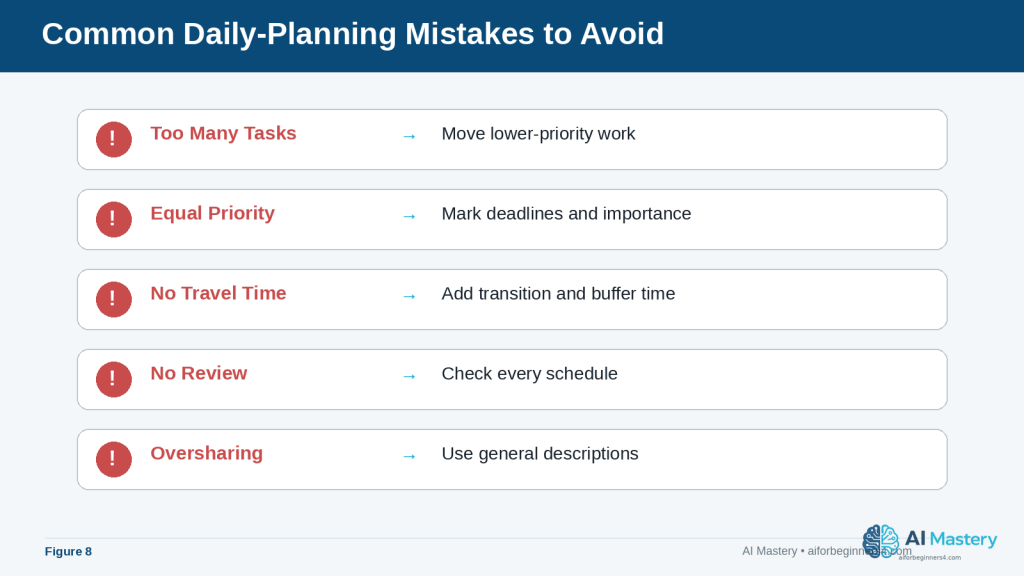
    Figure 8. Common planning mistakes include scheduling too much, ignoring priorities or travel time, skipping review, and sharing unnecessary private information.

    Explanation: A quick mistake check can prevent a neat-looking schedule from becoming unrealistic, inconvenient, or unnecessarily revealing.

    Common Myths About Using ChatGPT for Daily Planning

    Daily planning with AI is useful, but beginners can easily expect more from ChatGPT than it is designed to provide.

    Myth 1: ChatGPT Will Automatically Know Everything I Need to Do

    ChatGPT does not automatically know every appointment, deadline, errand, family responsibility, or priority in your day.

    Reality: You need to provide the important information that affects the schedule.

    A better prompt is:

    “Plan my day from 9:00 a.m. to 5:00 p.m. I have an appointment at 1:00 p.m., need one hour of travel time, and must complete my report before 4:00 p.m.”

    Myth 2: The First Schedule ChatGPT Creates Will Be Perfect

    The first response may be helpful, but it may also contain unrealistic task durations, too many activities, or inconvenient timing.

    Reality: Daily planning usually works better as a conversation. Review the first plan, explain what does not work, and ask ChatGPT to revise it.

    For example:

    “Give me more time for the project and remove the least important afternoon task.”

    Myth 3: ChatGPT Can Decide What Is Most Important for Me

    ChatGPT can help compare priorities, but it does not fully understand the personal consequences of every decision.

    Reality: You should decide which responsibilities, deadlines, appointments, and personal needs are most important.

    Tell ChatGPT your priorities instead of expecting it to determine them without enough context.

    Myth 4: A Detailed Schedule Is Always Better

    A schedule divided into very small time blocks can look organized but become difficult to follow.

    Reality: Some people work better with broader blocks such as:

    · Morning — Important project

    · Early afternoon — Appointments and errands

    · Late afternoon — Emails and smaller tasks

    · Evening — Personal time

    The best level of detail depends on how you prefer to work.

    Myth 5: If I Miss One Task, the Whole Plan Has Failed

    Daily schedules often change because real life is unpredictable.

    Reality: A missed or delayed task does not mean the plan was useless. Update the remaining tasks and create a revised schedule.

    For example:

    “It is now 3:30 p.m. I did not finish my morning project. Help me reorganize the rest of the day and move anything nonessential to tomorrow.”

    Myth 6: ChatGPT Cannot Remind Me About Tasks

    ChatGPT is mainly useful for helping you plan and organize your day, but some users can also use Scheduled Tasks to receive reminders and have ChatGPT perform certain tasks later.

    For example, you may be able to ask: “Remind me tomorrow morning to call the insurance company.” Or: “Every weekday morning, remind me to review my daily priorities.”

    Reality: ChatGPT Scheduled Tasks can support one-time and recurring tasks, reminders, daily briefings, and monitoring. Availability and active-task limits depend on the current ChatGPT plan and may change over time. For important commitments, use the planning system that is most reliable for you and confirm that the task and notifications were created correctly.
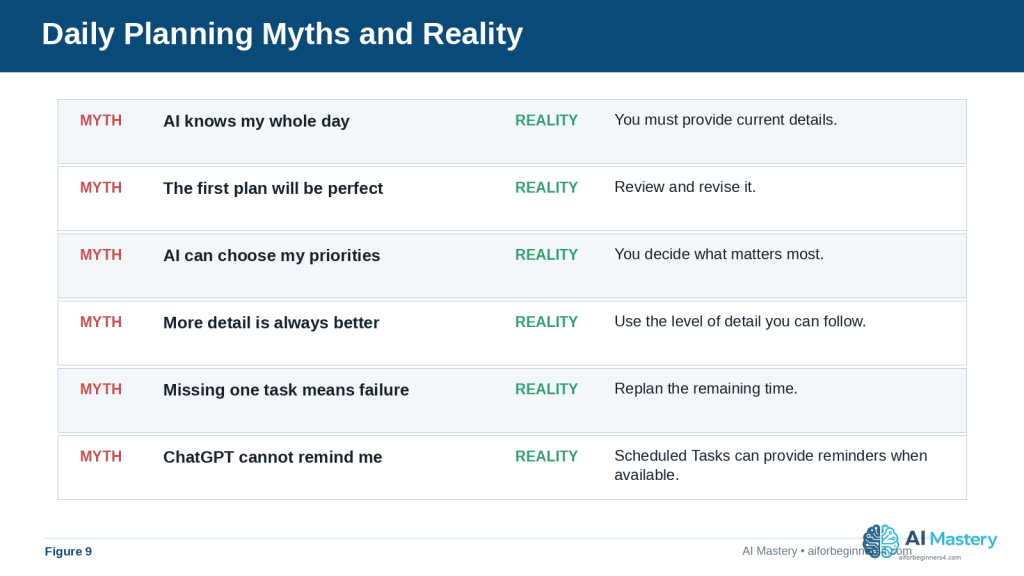
    Figure 9. Daily-planning myths can create unrealistic expectations about what ChatGPT knows, decides, remembers, or schedules automatically.

    Explanation: The reality is more practical: provide current details, make your own priority decisions, review the result, replan when needed, and use Scheduled Tasks when available for suitable reminders.

    When to Use ChatGPT, a Calendar, or a Task Manager

    ChatGPT can help you think through your day, but it is not always the best tool for every planning job. Different tools are useful for different purposes.

    Use ChatGPT for Planning and Organizing

    ChatGPT is especially useful when you need help:

    · Turning a long task list into a manageable plan

    · Deciding what to do first

    · Breaking a large task into smaller steps

    · Creating time blocks

    · Reorganizing your day after plans change

    · Comparing different ways to use your available time

    For example, you might ask:

    “I have six tasks but only four hours. Help me decide what to complete today and what should move to tomorrow.”

    Use a Calendar for Fixed Appointments

    A calendar is usually better for events that happen at a specific date and time, such as:

    · Medical appointments

    · Meetings

    · Classes

    · Travel

    · School events

    · Important deadlines

    Calendars can also provide notifications or reminders, depending on the app and settings you use.

    Use ChatGPT Scheduled Tasks or Reminder Tools for Things You Must Not Forget

    When Scheduled Tasks are available for your account, ChatGPT can create one-time or recurring reminders and can also check for changes and notify you when there is a meaningful update. A calendar or dedicated reminder app may still be preferable for important appointments or obligations you want to manage in one place.

    · Make a phone call

    · Take something with you

    · Pay a bill

    · Submit a form

    · Leave for an appointment

    Important: Always confirm that a scheduled task or reminder was created successfully and that the notification settings you need are enabled. Do not rely on memory alone for important commitments.

    Use a Task Manager for Ongoing Projects

    A task-management app can be useful when work extends over several days or weeks.

    For example, a project such as “Publish a new website article” may contain several separate tasks:

    · Finish the draft

    · Review facts

    · Prepare images

    · Add the article to WordPress

    · Check links

    · Preview the page

    · Publish

    A task manager can help you keep track of what is finished and what still needs attention.

    Use the Tools Together

    You do not have to choose only one system.

    A practical workflow could be:

    1. Keep fixed appointments in your calendar.

    2. Keep longer projects and unfinished work in a task list.

    3. Give ChatGPT the tasks and appointments that matter for today.

    4. Ask ChatGPT to suggest a realistic daily plan.

    5. Add important time-sensitive items to ChatGPT Scheduled Tasks, your calendar, or another reliable reminder system when appropriate.

    6. Review the plan during the day and adjust it when circumstances change.

    Reality: ChatGPT can help with planning and, when Scheduled Tasks are available, some reminders and recurring work. Calendars and task managers can still be better for fixed appointments and longer projects. Use the tools together when that makes your system easier to manage.
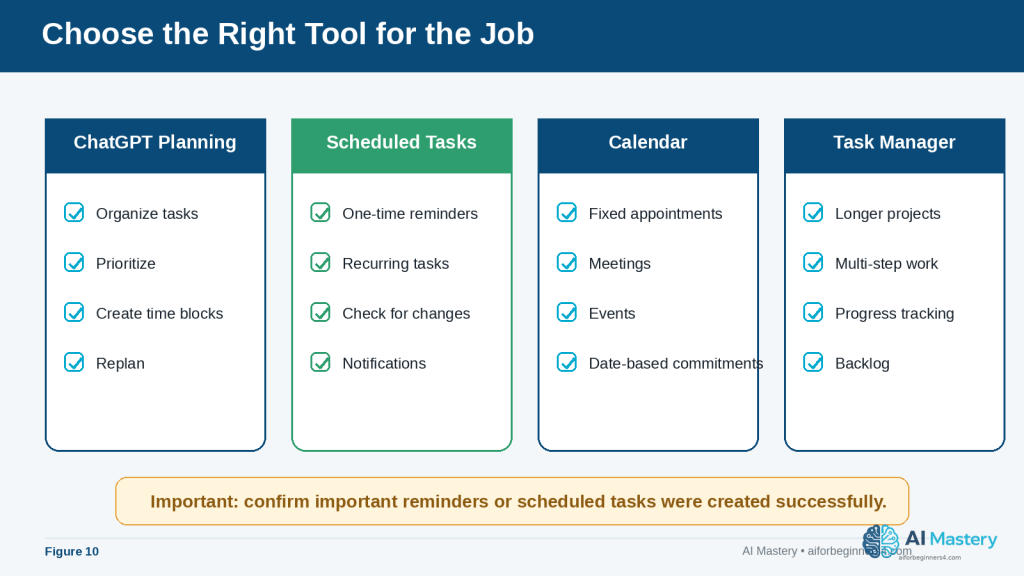
    Figure 10. ChatGPT planning, Scheduled Tasks, calendars, and task managers each serve different planning needs.

    Explanation: Using each tool for the work it handles best can make a planning system clearer and more reliable than trying to force every responsibility into one tool.

    How to Make Your Daily Plan More Realistic

    A schedule can look neat on the screen and still be difficult to follow in real life. A realistic plan should leave enough time for delays, interruptions, breaks, and tasks that take longer than expected.

    Start with Fewer Priorities

    Instead of treating every task as equally important, identify the few things that matter most.

    For example:

    “My three most important tasks today are finishing my report, calling the bank, and attending my appointment. Everything else is optional.”

    This helps ChatGPT build the schedule around the tasks that should not be missed.

    Be Realistic About Task Duration

    If you already know how long something normally takes, tell ChatGPT.

    For example:

    “I usually need about 90 minutes to review an article, not 30 minutes.”

    Your own experience is often more reliable than an AI-generated estimate.

    Add Buffer Time

    Buffer time is extra unscheduled time placed between activities.

    It can help when:

    · A phone call takes longer than expected

    · Traffic delays your trip

    · A website or computer problem slows you down

    · An appointment starts late

    · You need a short rest before beginning the next task

    For example:

    “Leave at least 15 minutes of buffer time between major activities.”

    Avoid Filling Every Minute

    A schedule from 9:00 a.m. to 5:00 p.m. does not need eight hours of scheduled activity.

    Leaving some open time can make the plan easier to follow and reduce the need to reorganize everything after one delay.

    You could ask:

    “Use only about 75% of my available time and leave the rest open for delays or unexpected tasks.”

    The exact percentage is not important. The goal is simply to avoid creating an overly crowded plan.

    Consider Your Energy, Not Just Your Available Time

    Some tasks require more concentration than others.

    If you work better on difficult tasks in the morning, tell ChatGPT:

    “Schedule my most demanding work before lunch and leave easier administrative tasks for the afternoon.”

    If you prefer a different routine, describe that instead.

    ChatGPT should adapt to your preferences rather than assuming everyone works best at the same time.

    Separate Must-Do Tasks from Optional Tasks

    A useful daily plan can include two levels:

    · Must do today: Tasks with important deadlines or consequences

    · If time allows: Useful tasks that can move to another day

    For example:

    “Create my plan with a main schedule and a separate ‘if time allows’ list.”

    This prevents lower-priority work from crowding out essential tasks.

    Replan Instead of Trying to Catch Up

    If the day falls behind, trying to complete every delayed task can make the remaining schedule unrealistic.

    Instead, you can tell ChatGPT:

    “It is now 4:00 p.m. I am 90 minutes behind. Keep only the essential tasks for today and move the rest to tomorrow.”

    This can be more practical than compressing every remaining activity into a smaller amount of time.

    Final Tip for Realistic Planning: Build your schedule around your real available time, priorities, and working habits—not around the largest number of tasks you can fit onto a page.
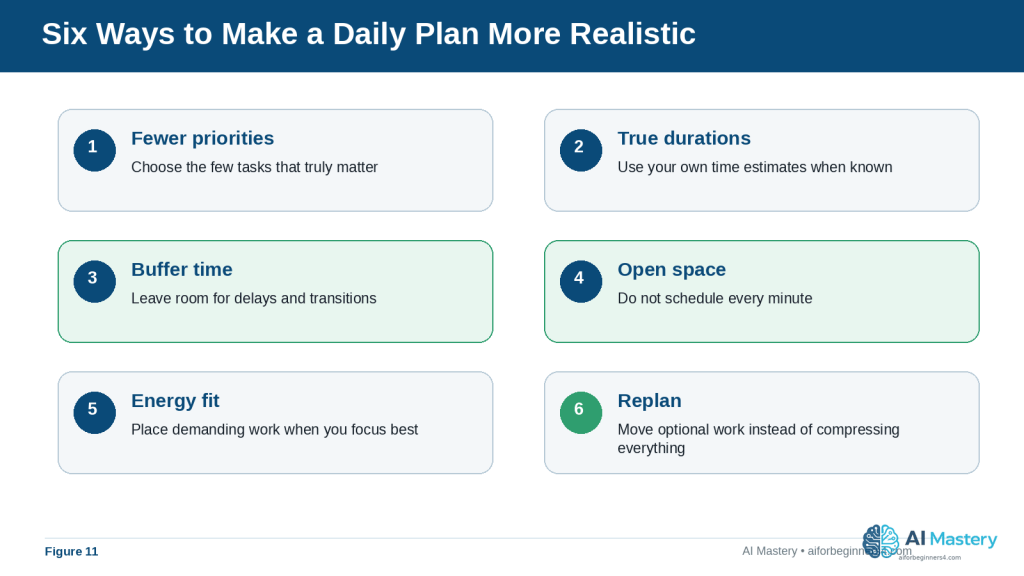
    Figure 11. Realistic planning uses fewer priorities, honest time estimates, buffer time, open space, energy awareness, and replanning.

    Explanation: These adjustments help the schedule match the way the day actually works instead of creating an overfilled timetable that quickly becomes outdated.

    Frequently Asked Questions

    Can ChatGPT create my entire daily schedule for me?

    Yes. You can give ChatGPT your tasks, appointments, available hours, priorities, and preferred break times, and it can suggest a complete schedule.

    You should still review the result before following it. ChatGPT may estimate task duration incorrectly or misunderstand which activities matter most.

    Do I need to give ChatGPT exact times for every task?

    No. Exact times are most useful for fixed commitments such as appointments, meetings, or deadlines.

    For flexible tasks, you can simply tell ChatGPT approximately how long they take or let it suggest a time block.

    For example:

    “I need about two hours for my project sometime before 3:00 p.m.”

    Can ChatGPT help if I have too many tasks?

    Yes. You can ask it to separate your tasks into:

    · Must do today

    · Should do today

    · Can wait until later

    You can also ask it to remove lower-priority activities when your available time is limited.

    Can I change the schedule after ChatGPT creates it?

    Yes. You can continue the same conversation and explain what changed.

    For example:

    “My morning appointment was cancelled. Use the extra hour for my project and move grocery shopping earlier.”

    ChatGPT can then suggest an updated schedule.

    Can ChatGPT plan more than one day?

    Yes. You can ask it to organize several days or an entire week.

    However, longer plans usually contain more assumptions and are more likely to change. Review each day as it approaches rather than assuming the original weekly schedule will remain suitable.

    Can ChatGPT remind me when it is time to do a task?

    Yes, when Scheduled Tasks are available for your account. ChatGPT can create one-time and recurring tasks and send notifications. For important appointments or deadlines, confirm that the task was created correctly, make sure the notification settings you need are enabled, and consider keeping the commitment in a calendar or another reliable reminder system as well.
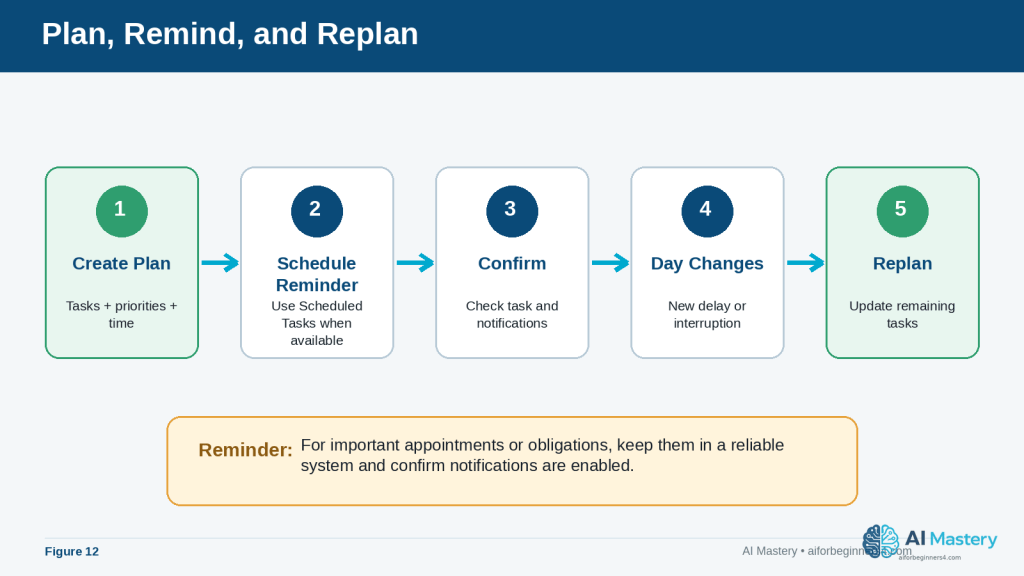
    Figure 12. A practical workflow can combine daily planning, Scheduled Tasks, notification checks, and replanning when circumstances change.

    Explanation: Scheduled reminders can support the plan, but important commitments still need confirmation and a reliable backup system when appropriate.

    Should I enter private information when creating my plan?

    Only provide information that is necessary for the planning task.

    For example, “appointment from 2:00 p.m. to 3:00 p.m.” may be enough. You normally do not need to provide account numbers, detailed medical information, private addresses, passwords, or other unnecessary sensitive information.

    Is an AI-generated daily plan always accurate?

    No. ChatGPT can misunderstand instructions, underestimate how long activities take, or create a schedule that does not match your real circumstances.

    Always check the plan before relying on it.

    Can I reuse the same daily-planning prompt?

    Yes. A reusable prompt can make daily planning faster.

    You can save a simple template such as:

    “Create a realistic plan for today from [start time] to [end time]. My fixed commitments are [appointments]. My tasks are [tasks]. My three highest priorities are [priorities]. Include meals, breaks, and buffer time. Put unfinished optional tasks in a separate list.”

    Then replace the bracketed information each day.

    Key Takeaways

    ChatGPT can make daily planning easier by helping you turn an unorganized list of tasks into a clearer and more realistic schedule.

    Remember these main points:

    · Start by listing the tasks you actually need to complete.

    · Tell ChatGPT your available start and end times.

    · Add fixed appointments, deadlines, travel time, meals, and other commitments.

    · Identify your highest-priority tasks instead of treating everything as equally important.

    · Give realistic estimates when you already know how long tasks usually take.

    · Ask ChatGPT to include breaks and buffer time rather than filling every minute.

    · Break large projects into smaller, manageable steps.

    · Review every AI-generated schedule before using it.

    · Reorganize the plan when unexpected events change your day.

    · Move lower-priority tasks to another day when there is not enough time.

    · Avoid sharing unnecessary sensitive or private information.

    · Use ChatGPT Scheduled Tasks, calendars, reminders, and task managers together when each tool is better suited to a particular job.

    The purpose of daily planning with ChatGPT is not to create a perfect timetable. It is to help you make clearer decisions about what deserves your time and create a plan that you can adjust as the day changes.

    Final Tip

    Start with a simple daily-planning prompt rather than trying to create a complicated system immediately.

    For example:

    “Help me plan today from 9:00 a.m. to 5:00 p.m. My most important tasks are [tasks]. My fixed appointments are [appointments]. Include breaks and leave some extra time for delays.”

    Use the plan for a few days and notice what works and what does not. If you regularly need more time for certain tasks, tell ChatGPT. If you prefer difficult work in the morning or need longer breaks, include that information too.

    A useful daily plan should gradually become more realistic because it reflects how you actually spend your time.

    The best use of ChatGPT is not to let it control your schedule. Use it to help organize your choices, then make the final decisions yourself.

    Continue Learning

    After you learn how to create a daily plan with ChatGPT, the next step is to use AI for other everyday productivity tasks.

    Continue with these AI Mastery guides:

    · AI Productivity for Beginners: Complete Guide (2026) — Review the broader ways AI can help with planning, organizing, writing, research, and everyday work.

    · How to Write and Improve Emails with AI (2026) — Learn how to draft, rewrite, shorten, and improve emails with AI.

    · How to Prepare Meeting Agendas and Notes with AI (2026) — Learn how AI can help organize meetings and turn notes into useful summaries and action items. Link after Article 080 is published.

    · How to Research and Organize Information with AI (2026) — Learn how to collect, organize, compare, and review information more efficiently. Link after Article 081 is published.

    · How to Create a Personal Study Plan with AI (2026) — Learn how to use AI to organize subjects, study sessions, goals, and review periods. Link after Article 082 is published.

    · How to Organize Files, Tasks, and Projects with AI (2026) — Learn how AI can help you structure larger projects and ongoing responsibilities. Link after Article 083 is published.

    These articles build on the same basic principle used in daily planning: give the AI clear information, review its suggestions carefully, and keep the final decisions under your control.

    Sources and References

    The following official OpenAI resources were reviewed for this guide. ChatGPT features, menus, Scheduled Tasks, privacy controls, memory, limits, and availability can change, so readers should check current official information when first using a feature, after changing plans or settings, when receiving an important update notice, and periodically.

    · OpenAI Help Center — Prompt Engineering Best Practices for ChatGPT: Explains that useful prompts should be clear and specific, include enough context, and can be improved through iterative refinement.

    · OpenAI Help Center — Data Controls FAQ: Explains ChatGPT Data Controls, including model-improvement choices, Temporary Chat, data export, and related privacy settings.

    · OpenAI Help Center — Memory FAQ: Explains how ChatGPT memory can use helpful context when enabled and how users can review, change, or turn memory off.

    · OpenAI Help Center — Scheduled Tasks in ChatGPT: Explains one-time and recurring tasks, reminders, monitoring, notification settings, and current usage limits.

    · OpenAI Help Center — How Your Data Is Used to Improve Model Performance: Explains how consumer-service content may be used to improve models and how users can opt out through Data Controls.

    · OpenAI Help Center — What Is ChatGPT: FAQ: Describes ChatGPT as an AI assistant for everyday tasks including planning, writing, studying, coding, and working with files and images.

    These sources support the ChatGPT-specific prompting, privacy, memory, Scheduled Tasks, and capability information used in this article. The scheduling examples and productivity suggestions are educational examples rather than guarantees that a particular schedule will work for every reader.
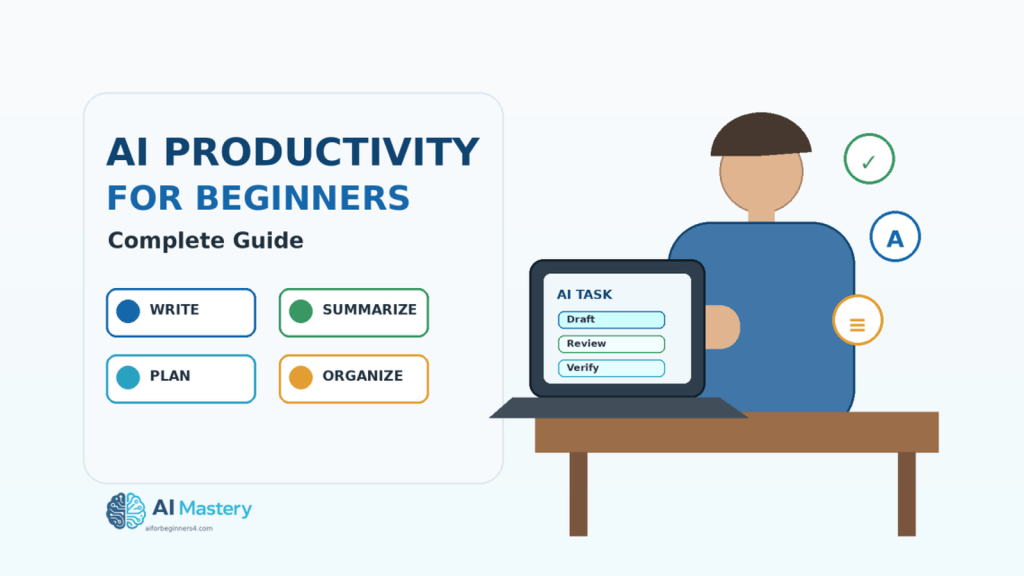
  • AI Productivity for Beginners: Complete Guide (2026)

    AI Productivity for Beginners: Complete Guide (2026)

    Estimated Reading Time: 20 minutes
    Last Updated: August 15, 2026

    Before Learning

    AI productivity means using artificial intelligence to help you complete everyday tasks more efficiently. It can assist with writing, summarizing, organizing information, planning projects, brainstorming ideas, researching topics, managing documents, and preparing routine work.

    You do not need programming skills or advanced technical knowledge to begin. Most beginner AI productivity tasks can be completed by describing what you need in ordinary language and then reviewing the AI-generated result carefully.

    Before using AI for productivity, remember several important points:

    · AI can make mistakes or provide outdated information.

    · Important facts should be checked before you rely on them.

    · Avoid uploading confidential, private, or sensitive information unless you understand how the AI service handles that information.

    · Review AI-generated writing before sending, publishing, or sharing it.

    · Check licences and usage conditions when AI generates or helps modify images, music, documents, templates, or other creative material.

    · Do not assume that AI-generated content is automatically copyright-free or approved for commercial use.

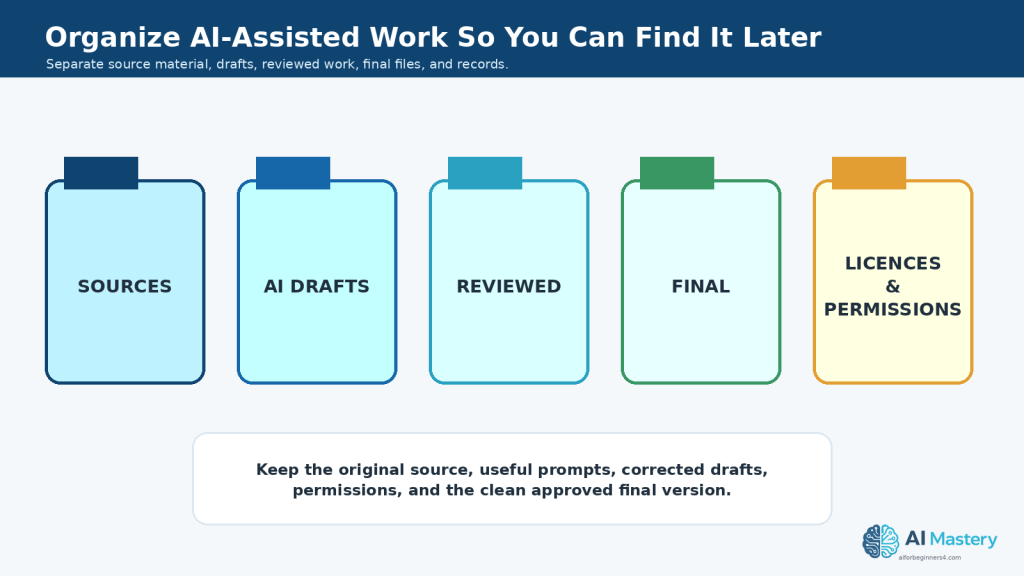
    · Keep important source files and original documents when AI is used to summarize, rewrite, translate, or analyze them.

    · Use AI as an assistant rather than allowing it to make important decisions without your review.

    In this guide, you will learn a simple beginner workflow for using AI to save time while maintaining accuracy, privacy, organization, and human oversight.

    The goal is not to automate everything. The goal is to identify suitable tasks where AI can reduce repetitive work, help you organize information, or give you a useful starting point while you remain responsible for the final result.

    What You’ll Learn

    By the end of this guide, you will know how to:

    · Identify everyday tasks where AI can genuinely save time.

    · Use AI to help write, rewrite, summarize, and organize information.

    · Brainstorm ideas and create simple plans with AI assistance.

    · Use AI to help with emails, documents, notes, checklists, and routine work.

    · Create clearer prompts that give AI enough context to help effectively.

    · Review AI-generated results for mistakes, missing information, or unsupported claims.

    · Protect private, confidential, and sensitive information when using AI tools.

    · Decide which tasks are suitable for AI assistance and which still require direct human judgment.

    · Organize AI-generated work so you can find prompts, source files, and final versions later.

    · Check licences and usage conditions when AI assists with creative or commercial work.

    · Avoid common productivity mistakes such as over-automating tasks or trusting AI output without review.

    · Build a simple, repeatable AI productivity workflow that you can use for everyday tasks.

    Introduction

    AI productivity tools can help beginners complete many everyday tasks more efficiently, but they are most useful when you give them a clear purpose and review the results carefully.

    You can use AI to help with tasks such as:

    · Writing and rewriting text.

    · Summarizing long documents.

    · Organizing notes and information.

    · Creating checklists and simple plans.

    · Brainstorming ideas.

    · Preparing first drafts of emails or documents.

    · Comparing options.

    · Extracting key information from text.

    · Creating tables or structured outlines.

    · Simplifying difficult explanations.

    · Preparing study notes or practice questions.

    The important point is that AI should support your work rather than replace your judgment.

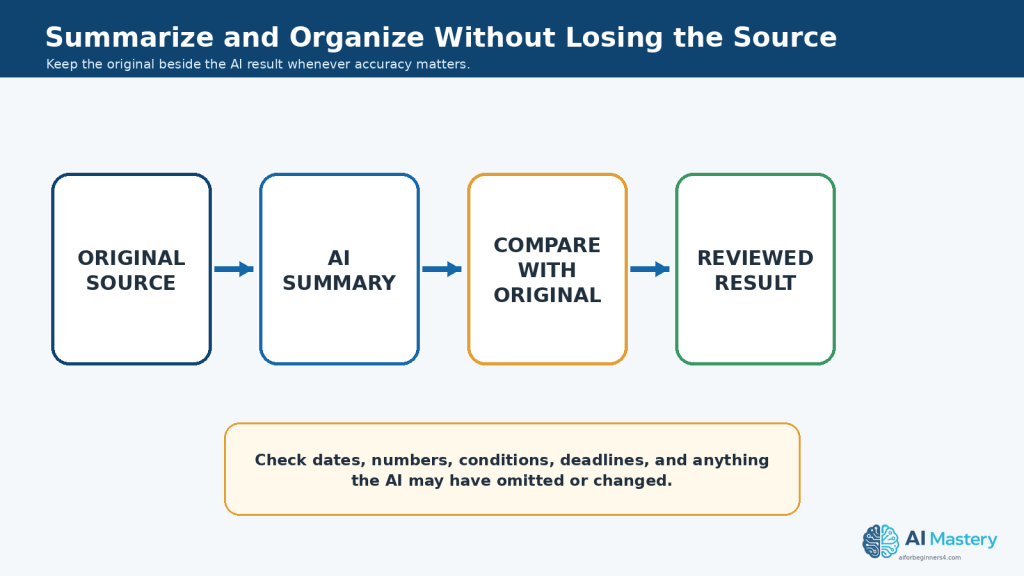
    For example, if you ask AI to summarize a long document, it may save you time by creating a shorter version. However, you should still compare important information with the original document before relying on the summary.

    The same principle applies to other productivity tasks. AI can help create a first draft, organize information, suggest ideas, or reduce repetitive work, but you remain responsible for checking accuracy, privacy, permissions, and the final result.

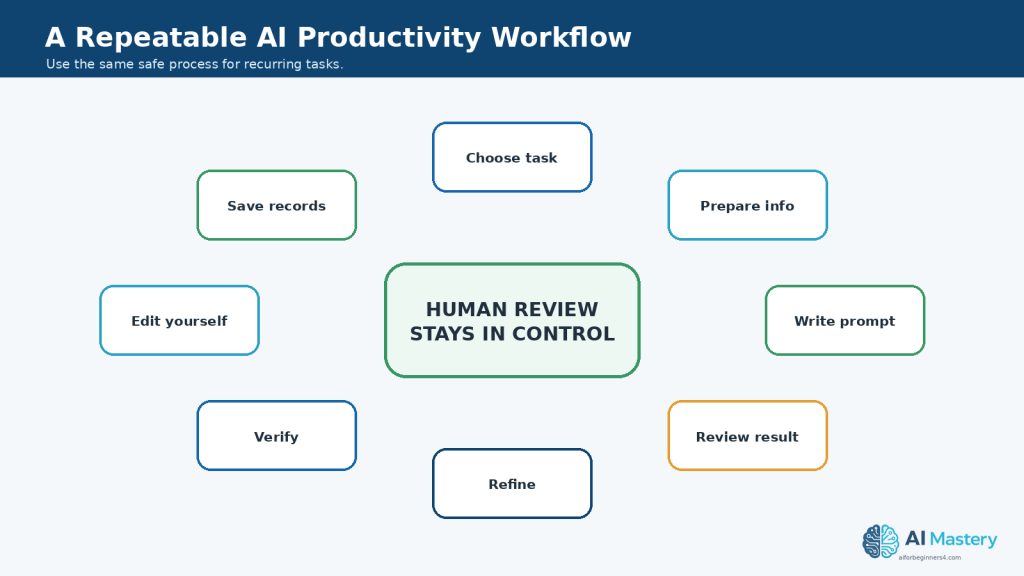
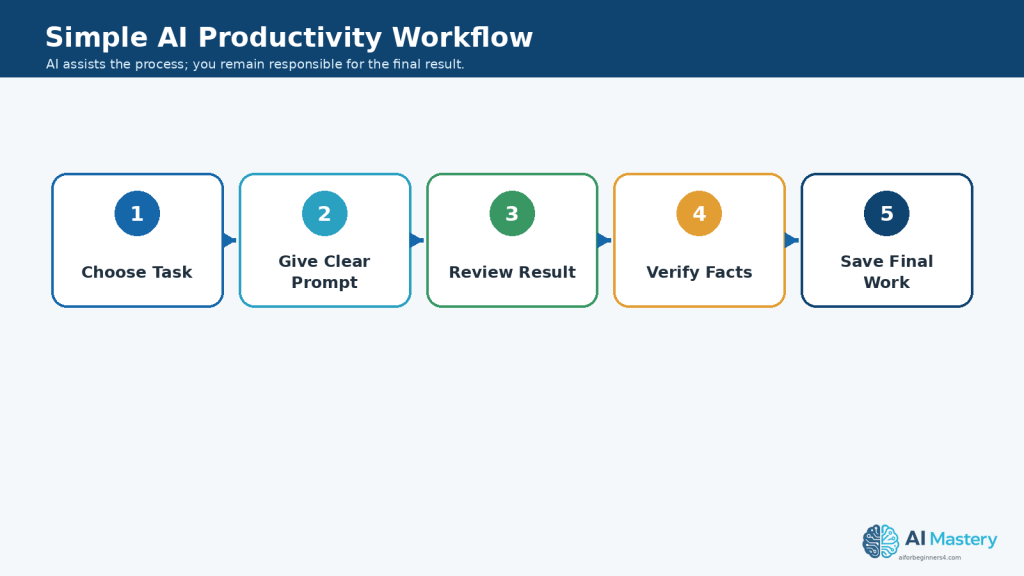
    A practical beginner workflow is:

    1. Decide what task you want help with.

    2. Give the AI clear instructions and enough context.

    3. Review the result carefully.

    4. Correct or refine the output when necessary.

    5. Save the useful result together with important source files or prompts.

    This simple process can help you use AI more efficiently without treating its output as automatically correct or complete.

    Figure 1. A simple AI productivity workflow moves from choosing one task through prompting, reviewing, verifying, and saving the final work.

    Explanation: Reusing the same basic sequence makes AI-assisted work easier to review and helps keep human judgment in the process.

    What Is AI Productivity?

    AI productivity means using artificial intelligence to help you complete useful tasks more efficiently.

    The goal is not simply to do more work. It is to reduce unnecessary effort, organize information more clearly, and spend less time on repetitive tasks while keeping human review and judgment in the process.

    AI can support productivity in several ways:

    · Drafting text.

    · Rewriting difficult or unclear writing.

    · Summarizing long information.

    · Organizing notes.

    · Creating checklists.

    · Brainstorming ideas.

    · Preparing outlines.

    · Comparing information.

    · Extracting important details.

    · Turning unstructured information into tables or lists.

    · Explaining unfamiliar topics in simpler language.

    · Suggesting next steps for a project.

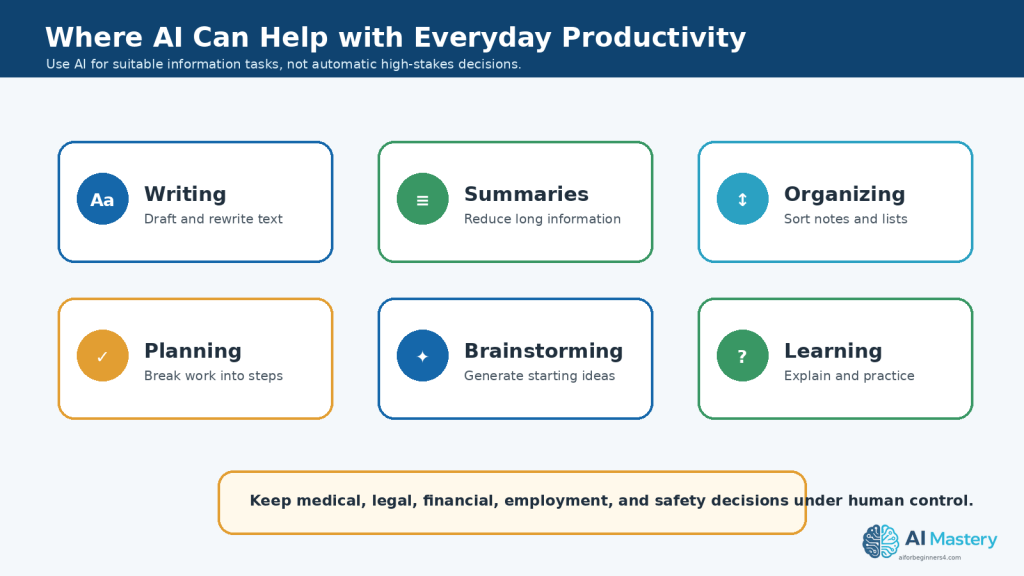
    Figure 2. AI can support everyday productivity through writing, summarizing, organizing, planning, brainstorming, and learning.

    Explanation: These are practical information tasks where AI can provide a useful starting point while the user remains responsible for the final result.

    AI Works Best as an Assistant

    AI is most useful when you treat it as a helper rather than an automatic replacement for your own thinking.

    For example, you might ask AI to:

    “Create a simple checklist for preparing a weekly household budget.”

    The AI can give you a useful starting point. You can then remove unnecessary items, add information that applies to your situation, and check that the final checklist is accurate.

    Productivity Does Not Mean Automating Everything

    Not every task should be given to AI.

    Tasks involving important personal, legal, medical, financial, safety, employment, or business decisions may require additional professional knowledge or careful human judgment.

    AI can still help organize questions, summarize information, or prepare a draft, but important decisions should not be made solely because an AI system suggested them.

    Practical Example

    Suppose you have several pages of meeting notes and need to prepare a short action list.

    Instead of reading the notes repeatedly, you could ask:

    Prompt:

    “Review these meeting notes and create a short action list. Separate each action into task, responsible person, and deadline. Do not invent information that is not included in the notes.”

    You would then compare the AI-generated list with the original notes before using or sharing it.

    This is a practical example of AI productivity: using AI to reduce repetitive work while keeping the original information and human review at the centre of the process.

    Step 1: Identify Tasks Where AI Can Save Time

    Before using AI, decide which parts of your work are repetitive, time-consuming, or difficult to organize.

    AI is often most useful for tasks that involve working with information rather than making important decisions for you.

    Suitable beginner tasks can include:

    · Drafting a first version of an email.

    · Summarizing a long document.

    · Rewriting difficult text in simpler language.

    · Turning notes into a checklist.

    · Organizing information into categories.

    · Brainstorming ideas for a project.

    · Creating an outline before writing.

    · Extracting names, dates, or action items from text.

    · Comparing information you provide.

    · Creating practice questions from study notes.

    · Suggesting different ways to organize a task.

    Look for Repetitive Work

    A useful question to ask is:

    “What task do I repeat that takes time but still needs my final review?”

    For example, you may regularly:

    · Turn meeting notes into action items.

    · Rewrite similar messages.

    · Summarize reports.

    · Organize lists.

    · Prepare weekly plans.

    · Convert unstructured notes into a clearer format.

    These are often good places to test AI assistance.

    Do Not Start with High-Risk Decisions

    For your first AI productivity tasks, avoid giving AI complete control over decisions that could have serious consequences.

    Examples include:

    · Medical decisions.

    · Legal decisions.

    · Financial decisions.

    · Employment decisions affecting another person.

    · Safety-critical instructions.

    · Decisions involving confidential or highly sensitive information.

    AI may help you organize questions or understand general information, but important decisions should be checked with appropriate qualified sources or professionals when necessary.

    Start Small

    Choose one simple task that you already understand well.

    This makes it easier to judge whether the AI result is useful and accurate.

    For example, instead of asking:

    “Organize my entire business for me.”

    you could begin with:

    “Turn these project notes into a checklist of tasks. Keep the original meaning and do not add information that is not in my notes.”

    Practical Example

    Suppose you have a long list of household tasks written in no particular order.

    You could ask:

    Prompt:

    “Organize these household tasks into four groups: urgent, this week, this month, and optional. Do not remove any tasks or add new ones.”

    The AI can help structure the information, but you should still review the categories and move any task that does not fit your priorities.

    Starting with small, clearly defined tasks makes it easier to learn what AI can do well and where your own judgment is still needed.

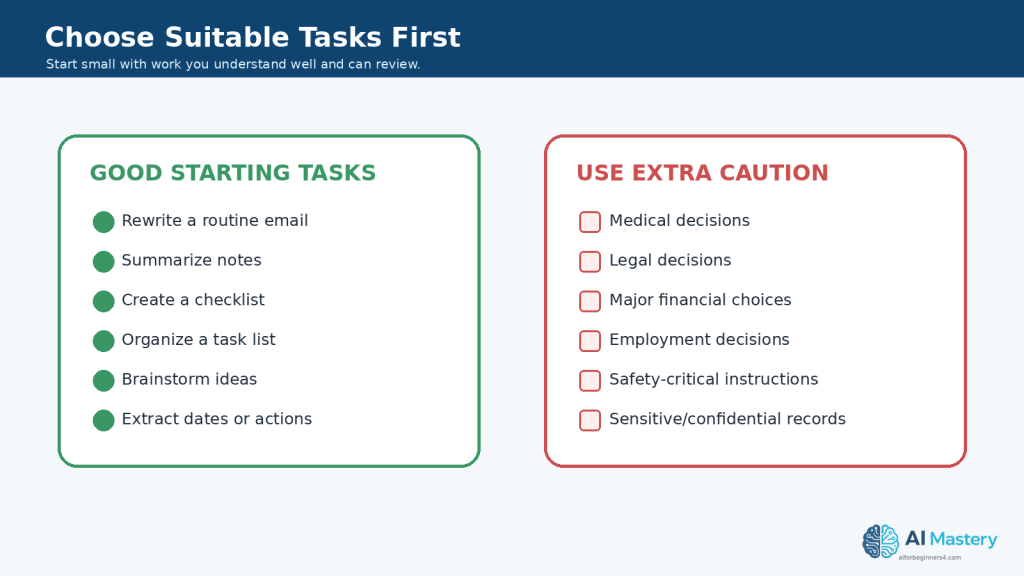
    Figure 3. Start with low-risk tasks you understand well, and use extra caution for high-stakes decisions or sensitive information.

    Explanation: Beginning with simple, reviewable work makes it easier to judge whether the AI result is genuinely useful.

    Step 2: Give AI Clear Instructions

    AI usually gives better results when you clearly explain what you want it to do.

    A short prompt such as:

    “Help me with this.”

    does not provide enough information.

    A more useful prompt explains the task, the type of result you want, and any important limits.

    Include the Main Task

    Start by telling the AI exactly what you want.

    For example:

    “Summarize this document.”

    or:

    “Rewrite this paragraph in simpler language.”

    or:

    “Turn these notes into a checklist.”

    Add Useful Context

    Give enough background for the AI to understand the situation.

    For example:

    “Rewrite this explanation for a complete beginner who has never used AI before.”

    The extra context helps the AI choose more appropriate language.

    Explain the Format You Want

    You can also tell the AI how to organize the answer.

    For example:

    Prompt:

    “Turn these meeting notes into a checklist. Use bullets for the tasks and include the responsible person and deadline when they are mentioned.”

    You could also request:

    · A short summary.

    · A table.

    · A numbered procedure.

    · A checklist.

    · An outline.

    · A list of key points.

    · A beginner-friendly explanation.

    Add Important Limits

    Tell the AI what it should not do.

    For example:

    Prompt:

    “Summarize this document in five bullet points. Use only information from the document. Do not invent missing details.”

    Clear limits can reduce unwanted additions, although you should still review the result.

    Improve the Prompt When Necessary

    Your first prompt does not need to be perfect.

    If the result is too long, you can say:

    “Make this shorter and keep only the most important points.”

    If it is too technical:

    “Rewrite this using simpler language for a beginner.”

    If information is missing:

    “Review the original text again and include any important deadlines that were omitted.”

    This back-and-forth process is often called refining the prompt.

    Practical Example

    Suppose you have several pages of notes from a project.

    Instead of asking:

    “Organize this.”

    you could ask:

    Prompt:

    “Organize these project notes into four sections: completed tasks, tasks still to do, deadlines, and questions that need answers. Use only information from the notes and do not invent missing details.”

    After receiving the result, compare it with the original notes.

    Clear instructions help AI produce a more useful starting point, but the final result still needs your review.

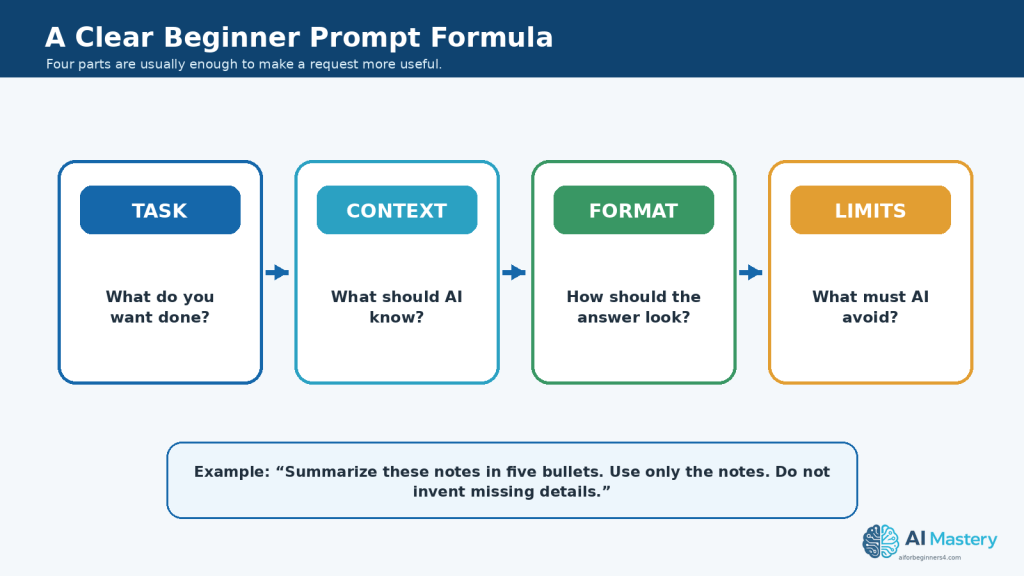
    Figure 4. A useful beginner prompt usually explains the task, relevant context, desired format, and important limits.

    Explanation: Clear instructions reduce ambiguity and make it easier to review whether the AI followed the request correctly.

    Step 3: Use AI to Write and Rewrite Everyday Text

    Writing is one of the most common productivity tasks where AI can provide useful assistance.

    AI can help you create a first draft, improve existing writing, simplify difficult wording, change the tone, or reorganize text.

    You can use AI to help with:

    · Emails.

    · Letters.

    · Reports.

    · Notes.

    · Instructions.

    · Checklists.

    · Short descriptions.

    · Project updates.

    · Social media drafts.

    · Personal reminders.

    · Simple business documents.

    Create a First Draft

    If you know what you want to say but are not sure how to begin, AI can create a starting draft.

    For example:

    Prompt:

    “Write a polite email asking a company for an update on an order that has not arrived. Keep the message short and professional.”

    Review the result and add any missing information such as the order number, date, or contact details.

    Rewrite Existing Text

    You can also give AI text that you have already written and ask it to improve the wording.

    For example:

    Prompt:

    “Rewrite this message so it is clearer and more professional. Keep the original meaning and do not add new information.”

    This can be useful when a message feels repetitive, unclear, or difficult to read.

    Simplify Difficult Writing

    AI can help turn technical or complicated wording into simpler language.

    For example:

    Prompt:

    “Rewrite this explanation for a complete beginner. Use short sentences and explain any technical terms.”

    Afterward, compare the rewritten version with the original to make sure important meaning was not lost.

    Change the Tone Carefully

    You can ask AI to adjust the tone of a message.

    For example:

    Prompt:

    “Rewrite this email so it sounds polite, calm, and professional without changing the facts.”

    Possible tone requests include:

    · Professional.

    · Friendly.

    · Formal.

    · Simple.

    · Concise.

    · Neutral.

    · Beginner-friendly.

    Be careful when changing tone in sensitive messages. Make sure the final wording still reflects what you actually intend to say.

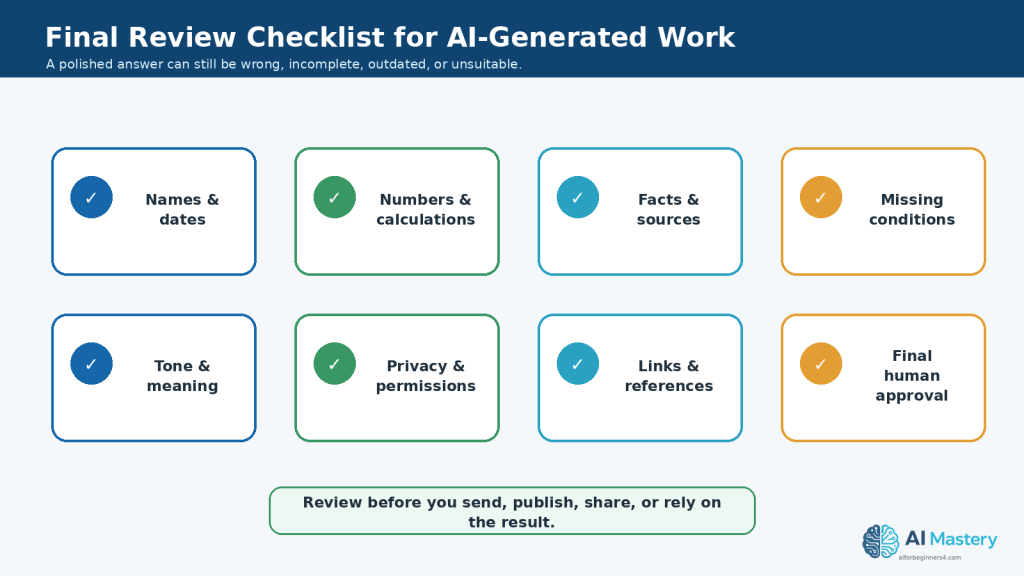
    Review Before Sending or Publishing

    Do not send AI-generated writing automatically.

    Check:

    · Names.

    · Dates.

    · Numbers.

    · Addresses.

    · Links.

    · Factual claims.

    · Tone.

    · Missing information.

    · Statements the AI may have invented.

    · Private or confidential information.

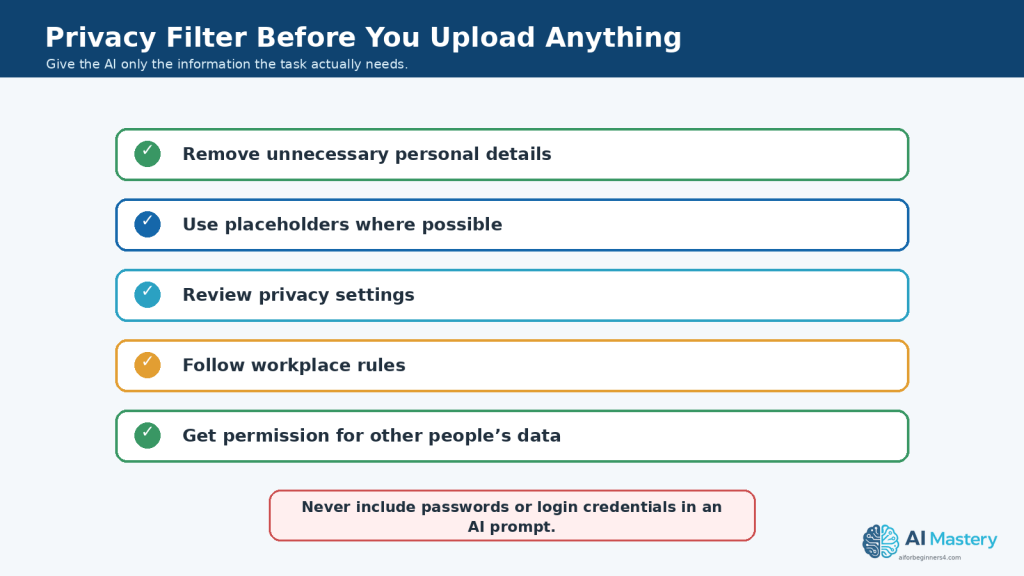
    Protect Private Information

    Before pasting text into an AI tool, consider whether it contains information that should remain private.

    Depending on the task, you may be able to remove or replace:

    · Full names.

    · Account numbers.

    · Addresses.

    · Phone numbers.

    · Customer information.

    · Employee information.

    · Confidential business details.

    · Medical or financial information.

    For example, instead of including a real customer name, you could replace it with:

    [Customer Name]

    and add the correct information yourself after reviewing the draft.

    Practical Example

    Suppose you wrote this message:

    “My order still not here and I need know what happened please tell me.”

    You could ask:

    Prompt:

    “Rewrite this as a polite and professional customer-service email. Keep it short and do not invent an order number or delivery date.”

    AI might help create a clearer draft, but you should still add the correct order details and review the final message before sending it.

    Using AI for writing can save time, especially when you already know the message you want to communicate and use AI to help organize or improve the wording.

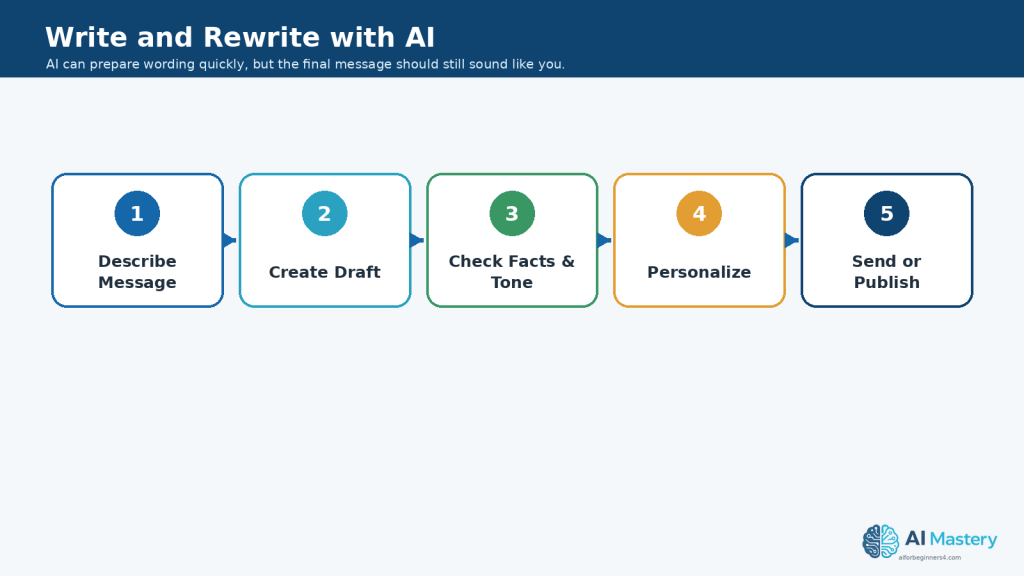
    Figure 5. Use AI writing as a draft-and-review process rather than sending the first generated version automatically.

    Explanation: Checking facts, tone, personal details, and meaning before sending helps turn a fast draft into dependable communication.

    Step 4: Use AI to Summarize and Organize Information

    AI can help reduce long information into a shorter form and organize scattered notes into a clearer structure.

    This can be useful when you have:

    · Long documents.

    · Meeting notes.

    · Research notes.

    · Articles.

    · Instructions.

    · Project updates.

    · Study material.

    · Lists of ideas.

    · Customer feedback.

    · Personal notes.

    Summarize Long Information

    You can ask AI to create a shorter version of a document or passage.

    For example:

    Prompt:

    “Summarize this text in five bullet points. Keep the most important facts and do not add information that is not in the original.”

    A summary can help you understand the main points more quickly, but it should not automatically replace the original source.

    Ask for Different Types of Summaries

    You can change the summary depending on what you need.

    For example:

    Short summary:

    “Summarize this document in one paragraph.”

    Key points:

    “List the five most important points from this document.”

    Beginner explanation:

    “Explain the main ideas from this document in simple language for a beginner.”

    Action summary:

    “Summarize this meeting and list only the decisions, tasks, deadlines, and unanswered questions.”

    Organize Unstructured Notes

    AI can also help turn messy notes into categories.

    For example:

    Prompt:

    “Organize these notes into the following sections: ideas, tasks, deadlines, questions, and completed items. Do not remove or invent information.”

    This can save time when information has been collected from several conversations, meetings, or brainstorming sessions.

    Extract Specific Information

    Instead of summarizing everything, you can ask AI to find particular details.

    For example:

    Prompt:

    “Review this text and list every date, deadline, person responsible, and action item mentioned.”

    This can be useful for project notes, reports, instructions, or meeting records.

    Ask for a Table When It Improves Clarity

    Structured information may be easier to review in a table.

    For example:

    Prompt:

    “Turn these project notes into a table with the columns Task, Person Responsible, Deadline, and Status. Leave a field blank if the information is not provided.”

    Asking the AI to leave missing information blank helps reduce the risk that it will fill gaps with invented details.

    Compare the Result with the Original

    AI summaries can:

    · Leave out important information.

    · Misunderstand a sentence.

    · Combine separate ideas incorrectly.

    · Change the meaning of a detail.

    · Miss dates, numbers, or conditions.

    · Present an interpretation as if it were stated directly.

    For important information, compare the AI-generated result with the original source.

    Keep the Original Document

    Do not delete the source simply because AI created a shorter version.

    Keep the original document together with:

    · The AI summary.

    · Important prompts.

    · Your corrected version.

    · The final document you actually use.

    This makes it easier to verify information later.

    Practical Example

    Suppose you have three pages of meeting notes.

    You could ask:

    Prompt:

    “Review these meeting notes and create four sections: Decisions Made, Action Items, Deadlines, and Questions Still Open. Use only information in the notes. If a responsible person or deadline is not stated, write ‘Not specified’ rather than guessing.”

    After receiving the result, compare each important task and deadline with the original notes.

    AI can make long or disorganized information easier to review, but the original source remains important whenever accuracy matters.

    Figure 6. Keep the original source beside an AI summary and compare important details before relying on the shorter version.

    Explanation: Dates, numbers, conditions, deadlines, and other important facts can be omitted or changed during summarization, so the source remains essential.

    Step 5: Use AI to Brainstorm Ideas and Create Simple Plans

    AI can be useful when you know the general goal but are not sure how to begin.

    It can help you generate ideas, compare possible approaches, organize a project into smaller tasks, and create a simple starting plan.

    Brainstorm Several Ideas

    Instead of asking AI for one answer immediately, ask for several options.

    For example:

    Prompt:

    “Give me 10 beginner-friendly ideas for using AI to save time with everyday office tasks. Keep each idea practical and explain it in one sentence.”

    You can then review the suggestions and choose the ones that are realistic for your situation.

    Give AI Clear Limits

    Broad brainstorming prompts can produce ideas that are too complicated or irrelevant.

    Add useful limits such as:

    · Beginner-friendly.

    · Low cost.

    · No coding required.

    · Suitable for a small project.

    · Can be completed this week.

    · Uses tools you already have.

    · Avoids confidential information.

    For example:

    Prompt:

    “Give me five simple ideas for organizing a weekly work schedule with AI. The ideas should be suitable for a beginner and should not require programming or paid automation software.”

    Turn an Idea into a Plan

    After choosing an idea, ask AI to break it into smaller tasks.

    For example:

    Prompt:

    “Create a simple step-by-step plan for organizing my digital files. Start with the easiest tasks and keep the plan suitable for a beginner.”

    AI might suggest stages such as reviewing files, creating folders, renaming important documents, removing duplicates, and creating a regular backup routine.

    Review the plan and change anything that does not fit your situation.

    Ask for a Checklist

    A checklist can make a plan easier to follow.

    For example:

    Prompt:

    “Turn this project plan into a checklist. Keep the tasks in a practical order and do not add any tasks that are not supported by the plan.”

    You can mark each item as you complete it.

    Break Large Projects into Smaller Parts

    Large projects can feel difficult because several tasks are mixed together.

    AI can help divide them into manageable parts.

    For example, instead of asking:

    “Help me create a website.”

    you could ask:

    Prompt:

    “Break a beginner website project into smaller stages such as planning, writing content, preparing images, building pages, reviewing, and publishing. Keep the explanation simple.”

    You can then work through one stage at a time.

    Review Priorities Yourself

    AI can suggest priorities, but it may not understand your actual deadlines, responsibilities, available time, budget, or personal circumstances.

    If you ask AI to prioritize tasks, treat the result as a suggestion.

    For example:

    Prompt:

    “Suggest a possible priority order for these tasks based on the deadlines I provide. Explain why you placed each task in that position. Do not invent deadlines.”

    Review the order before following it.

    Practical Example

    Suppose you want to prepare a short beginner tutorial but do not know how to organize the work.

    You could ask:

    Prompt:

    “Create a simple project plan for producing a beginner tutorial. Include planning the topic, researching information, writing the draft, checking facts, preparing visuals, proofreading, and publishing. Put the tasks in a logical order.”

    AI can provide an organized starting plan.

    You can then adjust the steps according to your actual tools, deadlines, sources, and publishing requirements.

    Using AI for brainstorming and planning can reduce the time spent staring at a blank page, but you should still decide which ideas are useful and which tasks deserve the highest priority.

    Step 6: Use AI to Create Checklists, Schedules, and Task Lists

    AI can help turn a goal, project, or group of notes into a clearer list of tasks.

    This can be useful when you need to organize work but are not sure what order to follow.

    Create a Simple Checklist

    A checklist can help you avoid forgetting important steps.

    For example:

    Prompt:

    “Create a beginner-friendly checklist for preparing a short presentation. Include planning, research, writing, visuals, proofreading, practice, and final review.”

    Review the checklist and remove anything that does not apply to your project.

    Turn Notes into Tasks

    If you already have notes, AI can convert them into a clearer task list.

    For example:

    Prompt:

    “Turn these project notes into a task list. Keep every task that is mentioned, combine obvious duplicates, and do not add tasks that are not supported by the notes.”

    Afterward, compare the task list with the original notes.

    Organize Tasks by Priority

    You can ask AI to suggest a possible priority order when you provide enough information.

    For example:

    Prompt:

    “Organize these tasks into High, Medium, and Low priority using the deadlines and importance information I provide. Do not invent deadlines or assume priorities that are not stated.”

    Review the result yourself because AI may not understand all of your real-world responsibilities.

    Create a Simple Schedule

    AI can also help arrange tasks across several days or weeks.

    For example:

    Prompt:

    “Create a five-day work plan for these tasks. I have two hours available each day. Put urgent tasks first and leave some time for final review.”

    A schedule like this can provide a useful starting point, but you should adjust it if tasks take longer than expected.

    Break Large Tasks into Smaller Actions

    A task such as:

    “Prepare the monthly report.”

    may be easier to manage when divided into smaller actions.

    You could ask:

    Prompt:

    “Break ‘Prepare the monthly report’ into small, practical steps for a beginner. Include gathering information, checking the data, writing the report, proofreading, and final review.”

    This can make a large task feel more manageable.

    Add Deadlines Only When You Know Them

    Be careful when asking AI to create schedules from incomplete information.

    If a real deadline is not provided, ask the AI not to invent one.

    For example:

    Prompt:

    “Create a task table with Task, Deadline, Priority, and Status. If no deadline is provided, write ‘Not specified.’”

    This helps keep known information separate from assumptions.

    Review the Workload

    AI may create a schedule that looks organized but is unrealistic.

    Check whether:

    · Too many tasks are assigned to one day.

    · Important tasks have enough time.

    · Breaks or review time are included.

    · Deadlines are correct.

    · Tasks are placed in a logical order.

    · Dependencies are respected.

    · You have enough time for unexpected problems.

    Practical Example

    Suppose you need to finish a small project by Friday.

    You could provide your task list and ask:

    Prompt:

    “Organize these tasks from Monday to Friday. I have about three hours available each day. Put tasks with real deadlines first, keep dependent tasks in the correct order, and leave time on Friday for final review. Do not invent missing deadlines.”

    AI can prepare a draft schedule.

    You can then adjust it based on how long each task actually takes and any responsibilities the AI does not know about.

    Using AI to create checklists and task plans can improve organization, but the final schedule should reflect your real priorities, deadlines, available time, and responsibilities.

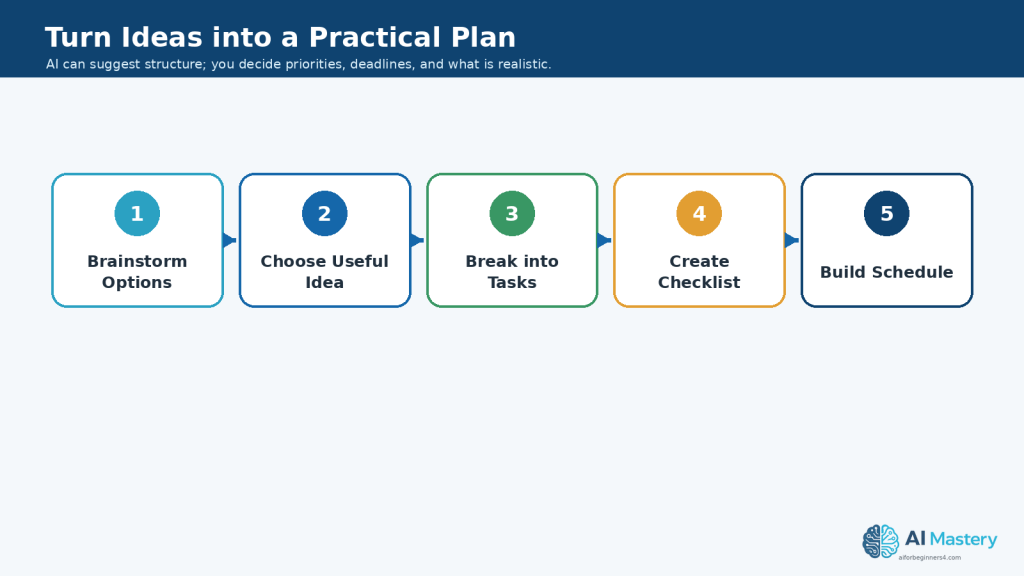
    Figure 7. AI can help turn a broad idea into smaller tasks, a checklist, and a draft schedule.

    Explanation: The structure can save planning time, but priorities, deadlines, available time, and workload still need human review.

    Step 7: Use AI to Compare Information and Options

    AI can help organize differences between several options so they are easier to review.

    This can be useful when comparing:

    · Software tools.

    · Products or services.

    · Project ideas.

    · Documents.

    · Plans.

    · Courses.

    · Features.

    · Work methods.

    · Different versions of written material.

    The goal is to organize information more clearly, not to let AI make an important decision for you.

    Provide the Information You Want Compared

    For reliable comparisons, give the AI the information you want it to use.

    For example:

    Prompt:

    “Compare these three software options using only the information I provide. Create a table with Features, Advantages, Limitations, and Cost Information. Write ‘Not provided’ when information is missing.”

    This helps separate known information from assumptions.

    Choose Your Comparison Criteria

    Tell the AI which factors matter to you.

    For example, you could compare tools based on:

    · Ease of use.

    · Features.

    · Price.

    · Free-plan limitations.

    · Export options.

    · Commercial-use conditions.

    · Privacy features.

    · Accessibility.

    · Customer support.

    · Device compatibility.

    The criteria should match the decision you are actually trying to make.

    Ask for a Comparison Table

    Tables can make several options easier to scan.

    For example:

    Prompt:

    “Compare these four AI tools in a table. Use the columns Tool, Main Purpose, Beginner Friendliness, Free Option, Main Limitation, and Best Use. Use only the information I provide.”

    You can then review the table and correct anything that does not match your source information.

    Separate Facts from Suggestions

    AI sometimes presents recommendations as though they are facts.

    You can reduce this problem by asking it to separate them.

    For example:

    Prompt:

    “First list the factual differences between these options. Then provide a separate section called Possible Considerations. Do not choose a winner for me.”

    This makes it easier to distinguish documented information from AI-generated suggestions.

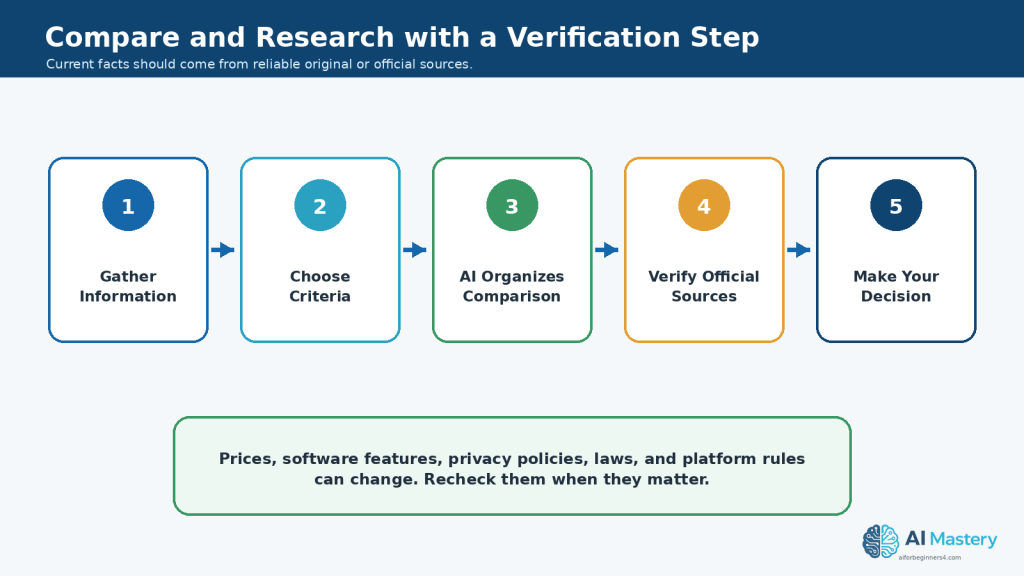
    Be Careful with Current Information

    Information about software plans, prices, features, limits, privacy policies, and commercial-use conditions can change.

    If your decision depends on current information, verify important details with the official provider before acting on the comparison.

    Do not rely on an old AI-generated comparison for information that may have changed.

    Do Not Let AI Make High-Stakes Decisions for You

    AI can help organize information related to important decisions, but it should not be the only basis for decisions involving areas such as:

    · Medical treatment.

    · Legal matters.

    · Investments or major financial decisions.

    · Employment decisions affecting another person.

    · Safety-critical choices.

    For these situations, use appropriate qualified sources or professional advice when needed.

    Practical Example

    Suppose you are choosing between three AI writing tools.

    You could collect information from each provider and ask:

    Prompt:

    “Using only the information below, compare these three AI writing tools in a table. Include Ease of Use, Main Features, Free-Plan Limits, Export Options, Privacy Information Provided, and Commercial-Use Information. Write ‘Not stated’ when the source does not provide an answer. Do not recommend a winner.”

    The resulting table can save time by organizing the information.

    You can then verify the important details with the official providers and decide which option best fits your own needs.

    AI can make comparisons easier to read, but the final decision should remain based on accurate information, your priorities, and your own judgment.

    Step 8: Use AI to Help with Research and Learning

    AI can help beginners understand unfamiliar topics, organize research questions, explain difficult concepts, and create study materials.

    However, AI should not be treated as the original source of important facts.

    Use AI to Explain Difficult Topics

    You can ask AI to explain a subject in simpler language.

    For example:

    Prompt:

    “Explain cloud storage for a complete beginner. Use simple language and give one practical example.”

    You can also ask follow-up questions when something is unclear.

    For example:

    “Explain the difference between cloud storage and a local hard drive using a simple comparison.”

    Ask AI to Create Research Questions

    Before researching a topic, AI can help you identify what you need to investigate.

    For example:

    Prompt:

    “I am researching AI tools for small businesses. Give me 10 questions I should investigate before comparing the tools.”

    The questions might cover areas such as:

    · Main features.

    · Ease of use.

    · Pricing.

    · Privacy.

    · Commercial-use conditions.

    · Accessibility.

    · Export options.

    · Support.

    · Limitations.

    · Suitable use cases.

    You can then research the answers using appropriate reliable sources.

    Use AI to Organize Research Notes

    If you collect information from several sources, AI can help organize your notes.

    For example:

    Prompt:

    “Organize these research notes into Features, Benefits, Limitations, Privacy, Pricing, and Questions Still Unanswered. Do not add facts that are not in my notes.”

    This can make large amounts of information easier to review.

    Ask AI to Create Study Materials

    AI can help turn your own study material into:

    · Flashcards.

    · Practice questions.

    · Short quizzes.

    · Key-point summaries.

    · Vocabulary lists.

    · Study checklists.

    · Beginner explanations.

    For example:

    Prompt:

    “Using only these study notes, create 10 beginner practice questions. Put the answers at the end.”

    Verify Important Facts

    AI-generated explanations can contain mistakes, outdated information, or unsupported claims.

    For important information, check reliable original sources such as:

    · Official product documentation.

    · Government websites.

    · Standards organizations.

    · Universities or educational institutions.

    · Original research publications.

    · Official company policies.

    · Reputable professional organizations.

    When information can change frequently, such as prices, software features, laws, policies, or platform rules, check the current source rather than relying only on an AI answer.

    Ask for Sources, but Verify Them

    You can ask AI to suggest sources or references, but do not assume every citation it provides is real or accurate.

    Check:

    · Whether the source actually exists.

    · Whether the link leads to the correct page.

    · Whether the source supports the claim.

    · Whether the information is current.

    · Whether the source is authoritative for the subject.

    Practical Example

    Suppose you want to learn about password managers.

    You could begin with:

    Prompt:

    “Explain what a password manager is for a complete beginner. Then give me five questions I should research before choosing one.”

    AI can help you understand the basic idea and organize your research.

    You should then verify important matters such as security features, supported devices, pricing, privacy policies, and account-recovery options using the current official information from the providers you are considering.

    AI can make learning and research more organized, but reliable sources remain essential whenever accuracy matters.

    Figure 8. Use AI to organize comparisons and research notes, then verify important current facts with reliable original or official sources.

    Explanation: This is especially important for changing information such as software features, prices, privacy policies, laws, and platform rules.

    Step 9: Protect Privacy and Sensitive Information When Using AI

    AI productivity can save time, but you should think carefully before uploading private, confidential, or sensitive information to an AI tool.

    A useful rule is:

    If the information would cause a problem if it were exposed, shared, or stored unexpectedly, review the tool’s privacy options before uploading it.

    Check the Information Before You Upload It

    Before pasting text or uploading a file, look for information such as:

    · Full names.

    · Home addresses.

    · Phone numbers.

    · Email addresses.

    · Account numbers.

    · Passwords.

    · Login information.

    · Banking or payment details.

    · Medical information.

    · Employee records.

    · Customer information.

    · Confidential business information.

    · Private contracts or internal documents.

    · Photographs or recordings of other people.

    Not every AI task requires the original personal information.

    Remove Unnecessary Personal Details

    When possible, replace sensitive details with neutral placeholders.

    For example, instead of:

    “Write a reply to John Smith at 125 Example Street about account number 123456.”

    you could use:

    “Write a polite reply to [Customer Name] about an account issue. Do not invent any personal details.”

    You can add the real information yourself after reviewing the draft.

    Use Only the Information the Task Requires

    Avoid giving an AI tool more information than it needs.

    If you want AI to improve the wording of a letter, it may not need:

    · The recipient’s full address.

    · Your bank details.

    · Identification numbers.

    · Private attachments.

    · Information about unrelated people.

    Providing less information can reduce unnecessary privacy exposure.

    Review the AI Tool’s Privacy Settings

    AI services can have different policies for:

    · Storing conversations.

    · Using uploaded content.

    · Training or improving models.

    · Retaining files.

    · Deleting chats.

    · Business or organizational accounts.

    · Sharing information with connected services.

    These policies can change.

    Check the current official privacy information when you first begin using an AI tool, when you change plans or features, when the provider announces an important policy update, and periodically as part of your normal review.

    Be Careful with Workplace Information

    If you are using AI for work, your employer may have rules about what information can be entered into external AI services.

    Before uploading company information, check whether your organization permits it.

    This is especially important for:

    · Customer records.

    · Internal reports.

    · Contracts.

    · Financial information.

    · Employee information.

    · Proprietary documents.

    · Unreleased products.

    · Security information.

    Get Permission When Other People Are Involved

    If a task includes another person’s:

    · Photograph.

    · Voice.

    · Video.

    · Private correspondence.

    · Personal records.

    · Confidential information.

    make sure you have appropriate permission before uploading or using that material.

    Do not use AI to imitate or clone another person’s voice, image, or identity without appropriate consent.

    Review the Final Output for Private Information

    AI may repeat information that you provided earlier in the conversation.

    Before sending, publishing, or sharing the result, check that it does not contain:

    · Private names.

    · Account details.

    · Confidential notes.

    · Internal instructions.

    · Hidden personal information.

    · Information that was intended only for the drafting process.

    Practical Example

    Suppose you want AI to rewrite a customer-service email that contains a customer’s name, address, telephone number, and account number.

    Instead of uploading all of that information, you could first replace it with:

    · [Customer Name]

    · [Address]

    · [Phone Number]

    · [Account Number]

    Then use this prompt:

    Prompt:

    “Rewrite this customer-service email so it is clear, polite, and professional. Keep all placeholders exactly as written and do not invent any missing information.”

    After reviewing the draft, you can restore the correct information in the final document if appropriate.

    Protecting privacy does not mean you cannot use AI for productivity. It means giving the tool only the information it actually needs and keeping control over sensitive details.

    Figure 9. Apply a privacy filter before uploading information to an AI tool.

    Explanation: Removing unnecessary personal details and checking the service or workplace rules can reduce avoidable privacy exposure.

    Step 10: Organize and Save Your AI-Assisted Work

    AI can save time during a task, but good organization is what makes the work useful later.

    If you do not save your prompts, source files, corrected drafts, and final versions clearly, you may have difficulty finding the right information when you need to update, verify, or reuse the work.

    Keep the Original Source

    When AI helps with a document, summary, rewrite, comparison, or plan, keep the original source whenever possible.

    For example, you might save:

    · The original document.

    · The prompt you used.

    · The first AI-generated result.

    · Your corrected version.

    · The final approved version.

    This makes it easier to compare changes and check important information later.

    Use Clear Filenames

    Avoid filenames such as:

    document1.docx

    or:

    final-final-new.docx

    Use names that explain what the file contains.

    For example:

    project-notes-original.docx

    project-notes-ai-summary.docx

    project-notes-reviewed-summary.docx

    project-notes-final.docx

    Clear filenames reduce confusion when several versions exist.

    Save Useful Prompts

    If a prompt works well, keep a copy of it.

    For example:

    Prompt:

    “Summarize these meeting notes into Decisions, Tasks, Deadlines, and Questions. Use only information from the notes and write ‘Not specified’ when information is missing.”

    You can reuse or adapt the prompt for similar work later.

    A simple prompt library could include categories such as:

    · Writing.

    · Summarizing.

    · Planning.

    · Research.

    · Checklists.

    · Comparing information.

    · Editing.

    · Learning.

    Keep Versions When the Work Is Important

    For important projects, avoid overwriting every earlier version.

    You might keep:

    · Version 1 — Original draft

    · Version 2 — AI-assisted revision

    · Version 3 — Human-reviewed version

    · Final — Approved version

    This creates a simple record of how the work changed.

    Record Important Sources and Permissions

    If your project includes external material, keep records of:

    · Source links.

    · Research references.

    · Image licences.

    · Music licences.

    · Stock-media licences.

    · Permission from other people.

    · Commercial-use conditions.

    · Publication dates.

    · Final exported files.

    This is especially useful when content may be published, shared publicly, or used commercially.

    Separate Drafts from Final Files

    Create a clear distinction between unfinished AI-generated material and content that has been reviewed.

    For example, you could use folders such as:

    · Sources

    · AI Drafts

    · Reviewed

    · Final

    · Licences and Permissions

    This reduces the chance of accidentally sharing an unfinished or unverified AI draft.

    Keep a Clean Final Copy

    After completing the work, save a clean version that does not contain:

    · Drafting notes.

    · AI instructions.

    · Unresolved placeholders.

    · Private information that should have been removed.

    · Old comments.

    · Unapproved changes.

    The clean copy should be the version you actually send, publish, or archive.

    Practical Example

    Suppose you use AI to help prepare a report.

    A simple folder might contain:

    · report-source-data.xlsx

    · report-original-draft.docx

    · report-ai-rewrite.docx

    · report-reviewed.docx

    · report-final.docx

    · report-prompts.txt

    · sources-and-permissions.docx

    This organization makes it easier to confirm what information was used, what AI changed, and which version is ready to share.

    Good file organization turns AI from a one-time convenience into a repeatable productivity system.

    Figure 10. Separate source files, AI drafts, reviewed versions, final files, and licence or permission records.

    Explanation: Clear folders and filenames make it easier to verify earlier work, update a project, and avoid sharing an unfinished draft.

    Step 11: Review and Verify AI-Generated Work Before Using It

    AI can produce useful drafts quickly, but speed does not guarantee accuracy.

    Before sending, publishing, sharing, or relying on AI-assisted work, review the result carefully.

    Check Important Facts

    Look for information that could be wrong, outdated, incomplete, or unsupported.

    Check items such as:

    · Names.

    · Dates.

    · Prices.

    · Statistics.

    · Addresses.

    · Product features.

    · Software instructions.

    · Laws or policies.

    · Technical specifications.

    · Quotations.

    · Sources and references.

    If an important fact matters to your decision or publication, verify it using an appropriate reliable source.

    Compare with the Original Source

    When AI summarizes, rewrites, translates, or analyzes information you provided, compare important parts with the original.

    Check whether the AI:

    · Removed an important condition.

    · Changed the meaning.

    · Combined unrelated points.

    · Missed a deadline.

    · Changed a number.

    · Added information that was not present.

    · Presented an assumption as a fact.

    For example, if an original document says:

    “The application should be submitted by Friday when possible.”

    an AI summary should not change this to:

    “The application must be submitted by Friday.”

    Those statements do not mean exactly the same thing.

    Check for Invented Information

    AI can sometimes produce information that sounds confident even when it is incorrect or unsupported.

    This is sometimes called an AI hallucination.

    For example, AI may invent:

    · A source.

    · A quotation.

    · A feature.

    · A date.

    · A policy.

    · A person.

    · A statistic.

    · A product specification.

    Do not assume that detailed wording means the information is correct.

    Review Links and References

    If AI provides links, citations, or references, check them before using them.

    Confirm that:

    · The source exists.

    · The link works.

    · The page is relevant.

    · The source actually supports the claim.

    · The information is current enough for your purpose.

    For important research, prefer original or authoritative sources when available.

    Check the Tone and Meaning

    Accuracy is not only about facts.

    Review whether the final writing:

    · Says what you intended.

    · Uses an appropriate tone.

    · Avoids misleading wording.

    · Does not exaggerate results.

    · Clearly separates facts from opinions or suggestions.

    · Does not make promises you cannot support.

    Check Numbers and Calculations Separately

    If AI provides calculations, totals, percentages, or conversions, verify them independently when accuracy matters.

    Even a well-written explanation can contain a numerical error.

    Check for Missing Information

    Sometimes AI produces a polished answer that leaves out an important detail.

    Ask yourself:

    · Is anything essential missing?

    · Were all requested items included?

    · Were important exceptions preserved?

    · Were all deadlines included?

    · Were warnings or limitations removed?

    · Does the final result still answer the original task?

    Use a Final Review Prompt

    AI can help with part of the review process, although your own review is still necessary.

    For example:

    Prompt:

    “Review this draft for possible inconsistencies, missing information, unclear wording, and unsupported claims. Do not rewrite it yet. List the issues you find.”

    You can then decide which changes should actually be made.

    Practical Example

    Suppose AI creates a summary of a project report.

    Before sending the summary to someone else, compare the important points with the original report.

    Check:

    · Project dates.

    · Costs.

    · Tasks.

    · Responsibilities.

    · Problems.

    · Decisions.

    · Deadlines.

    If the AI summary says that a task is complete but the original report says it is still in progress, correct the summary before sharing it.

    AI can reduce the time required to create a first draft, but careful human review is what turns that draft into dependable work.

    Figure 11. Review facts, numbers, sources, missing details, tone, privacy, links, and final approval before using AI-generated work.

    Explanation: A polished response can still contain errors or omissions, so a structured final check helps catch problems before sharing or publishing.

    Step 12: Build a Simple, Repeatable AI Productivity Workflow

    Once you have tried several AI productivity tasks, the next step is to create a simple workflow you can reuse.

    A repeatable workflow reduces confusion and helps you remember the important checks for accuracy, privacy, and final review.

    Use the Same Basic Process

    A practical beginner workflow is:

    1. Choose the task. Decide exactly what you want AI to help with.

    2. Prepare the information. Remove unnecessary private or confidential details.

    3. Write a clear prompt. Explain the task, context, format, and important limits.

    4. Review the first result. Check whether the AI understood your request.

    5. Refine the result. Ask for corrections, simpler wording, a different format, or missing information when necessary.

    6. Verify important information. Compare facts with reliable sources or original documents.

    7. Edit the final version yourself. Make sure the wording and decisions reflect what you actually intend.

    8. Save the important files. Keep useful prompts, sources, licences, permissions, reviewed drafts, and the final version.

    Create Reusable Prompt Templates

    If you perform the same type of task regularly, save a prompt template.

    For example:

    Meeting Notes Template:

    “Review these meeting notes and organize them into Decisions, Action Items, Responsible Person, Deadline, and Questions Still Open. Use only information in the notes. Write ‘Not specified’ when information is missing.”

    You can reuse the structure with different notes.

    Keep Templates Simple

    You do not need a complicated prompt library.

    A small collection of useful prompts might include:

    · Summarize a document.

    · Rewrite text clearly.

    · Create a checklist.

    · Organize meeting notes.

    · Compare several options.

    · Create a project plan.

    · Simplify technical information.

    · Review a draft for errors.

    · Extract dates and action items.

    Update a template when you discover wording that produces better results.

    Decide Where Human Review Is Required

    Some parts of your workflow should always remain under human control.

    For example:

    AI can help with:

    · Drafting.

    · Organizing.

    · Summarizing.

    · Brainstorming.

    · Formatting ideas.

    · Identifying possible issues.

    You should remain responsible for:

    · Final factual verification.

    · Important decisions.

    · Privacy.

    · Permissions.

    · Licensing.

    · Professional judgment.

    · Final approval.

    · Publishing or sending the work.

    Do Not Automate a Bad Process

    AI can make an existing process faster, but that does not necessarily make the process better.

    Before automating or repeating a task, ask:

    · Is this task actually necessary?

    · Is the information accurate?

    · Are there unnecessary steps?

    · Does a person need to review the result?

    · Could automation create additional privacy or accuracy risks?

    Improving the process first can be more useful than simply making a poor process run faster.

    Practical Example

    Suppose you prepare a weekly project update.

    Your repeatable workflow might be:

    1. Collect the week’s project notes.

    2. Remove unnecessary confidential information.

    3. Ask AI to organize the notes into Completed Work, Work in Progress, Problems, and Next Steps.

    4. Compare the result with the original notes.

    5. Correct missing or inaccurate information.

    6. Rewrite any unclear sections.

    7. Add information that only you know.

    1st Save the reviewed final update.

    The following week, you can reuse the same prompt and workflow.

    A simple repeatable system can make AI productivity more useful over time while still keeping human review at the centre of the process.

    Figure 12. A repeatable AI productivity workflow keeps human review at the centre from the first task through verification and record keeping.

    Explanation: Saving reusable prompts and repeating the same safe process can improve consistency without handing important judgment to the AI.

    Common Mistakes to Avoid When Using AI for Productivity

    AI can improve productivity, but beginners can lose time or create new problems when it is used without a clear process.

    Common mistakes include:

    · Asking AI to complete a task without giving enough context.

    · Giving AI a very broad instruction instead of one specific task.

    · Trusting the first answer without reviewing it.

    · Using AI-generated facts without checking reliable sources.

    · Allowing AI to invent missing information.

    · Uploading private, confidential, or sensitive information unnecessarily.

    · Forgetting to check licences, permissions, or commercial-use conditions.

    · Sending or publishing AI-generated writing without proofreading it.

    · Using outdated AI-generated information about software, prices, policies, or regulations.

    · Asking AI to make important decisions that require human judgment.

    · Automating a task before deciding whether the task is actually necessary.

    · Saving only the final AI output and losing the original source or prompt.

    · Keeping so many drafts that it becomes unclear which version is approved.

    · Using AI for every small task even when completing the task directly would be faster.

    · Assuming that more complicated prompts always produce better results.

    How to Avoid These Mistakes

    Start with one clearly defined task and give the AI only the information it needs.

    Before using the result:

    · Compare important details with the original source.

    · Verify facts that matter.

    · Remove incorrect or unnecessary information.

    · Check privacy and confidentiality.

    · Review licences and permissions when external assets are involved.

    · Make sure the wording reflects what you actually intend.

    · Save the original source and reviewed final version.

    · Keep useful prompts when you expect to repeat the task.

    Do Not Spend More Time Managing AI Than Doing the Task

    AI should reduce unnecessary effort.

    If you spend 20 minutes repeatedly rewriting prompts for a task that you could complete correctly in five minutes yourself, AI is probably not improving productivity for that task.

    Use AI where it provides a practical benefit.

    Practical Example

    Suppose you need to turn six short meeting notes into a simple task list.

    A common mistake would be to spend a long time creating a complicated prompt with many unnecessary instructions.

    A simpler prompt might be:

    Prompt:

    “Turn these meeting notes into a task list. Include the responsible person and deadline when stated. Write ‘Not specified’ when information is missing. Do not invent details.”

    Review the result against the original notes and make any necessary corrections.

    Effective AI productivity is not about using AI as much as possible. It is about using it carefully where it genuinely makes the work easier.

    Benefits of Using AI for Productivity

    AI can provide practical benefits when it is used for suitable tasks and the results are reviewed carefully.

    Faster First Drafts

    AI can help you get started when you are facing a blank page.

    It can create a first draft of:

    · Emails.

    · Reports.

    · Checklists.

    · Plans.

    · Summaries.

    · Instructions.

    · Outlines.

    · Notes.

    You can then review and improve the draft instead of starting completely from scratch.

    Less Time Spent on Repetitive Work

    AI can help reduce repetitive information-handling tasks such as:

    · Reorganizing notes.

    · Rewriting similar messages.

    · Extracting action items.

    · Summarizing long text.

    · Changing information into a different format.

    · Creating routine checklists.

    This can leave more time for tasks that require your judgment or attention.

    Easier Organization

    AI can help turn unstructured information into clearer formats.

    For example, it can change a page of notes into:

    · Categories.

    · Tasks.

    · Deadlines.

    · Questions.

    · Tables.

    · Checklists.

    You still need to review the organization, but the initial sorting can be faster.

    Help with Difficult Writing

    AI can assist when you know what you want to say but are unsure how to express it clearly.

    It can help:

    · Simplify difficult wording.

    · Shorten long paragraphs.

    · Improve organization.

    · Adjust tone.

    · Remove repetition.

    · Create a clearer structure.

    The final wording should still be reviewed to make sure it represents your intended meaning.

    Support for Brainstorming

    AI can suggest several possible ideas quickly.

    This can be useful for:

    · Project topics.

    · Article ideas.

    · Presentation ideas.

    · Questions to research.

    · Ways to organize a task.

    · Possible approaches to a problem.

    You decide which suggestions are useful.

    Help Breaking Down Large Tasks

    A large project can feel difficult when it is viewed as one task.

    AI can help divide it into smaller actions.

    For example:

    Prompt:

    “Break this project into small beginner-friendly tasks. Put the tasks in a logical order and explain what should be completed first.”

    This can make the project easier to understand and manage.

    Faster Learning Support

    AI can help explain unfamiliar terms or processes in simpler language.

    You can ask for:

    · Beginner explanations.

    · Examples.

    · Comparisons.

    · Practice questions.

    · Short summaries.

    · Step-by-step explanations.

    Important information should still be verified with reliable sources when accuracy matters.

    Reusable Workflows

    Once you find a prompt and process that works well, you can reuse it.

    For example, the same meeting-notes prompt can be used every week with different notes.

    This can make repeated tasks more consistent.

    Better Starting Structure

    AI is particularly useful when information exists but lacks organization.

    It can provide an initial structure that you can review and improve rather than requiring you to organize everything manually.

    Practical Example

    Suppose you receive several pages of project notes every Friday and need to prepare a weekly update.

    Without AI, you might manually read the notes several times and copy information into different sections.

    With AI assistance, you could use:

    Prompt:

    “Organize these project notes into Completed Work, Work in Progress, Problems, Deadlines, and Next Steps. Use only information from the notes and write ‘Not specified’ when necessary.”

    You would then compare the result with the original notes, correct any mistakes, and prepare the final update.

    The benefit is not that AI completes the entire responsibility for you. The benefit is that it can reduce some of the repetitive organizing work so you can spend more time reviewing and improving the final result.

    Limitations of Using AI for Productivity

    AI can save time, but it also has limitations that beginners should understand.

    AI Can Be Wrong

    AI may produce incorrect, incomplete, outdated, or misleading information.

    This can happen even when the answer sounds confident.

    For important work, verify:

    · Facts.

    · Dates.

    · Names.

    · Numbers.

    · Policies.

    · Prices.

    · Technical instructions.

    · Sources.

    · Quotations.

    AI Can Miss Important Context

    AI only knows the information you provide and any context available to the tool.

    It may not understand:

    · Your real priorities.

    · Workplace rules.

    · Personal circumstances.

    · Unspoken expectations.

    · Important background information.

    · Recent changes that are not available to it.

    This means a well-written answer may still be unsuitable for your situation.

    AI Output Can Be Generic

    AI-generated writing can sometimes sound repetitive, vague, or similar to other AI-generated material.

    A first draft may need editing to make it:

    · More specific.

    · More useful.

    · More natural.

    · More appropriate for your audience.

    · More consistent with your own style.

    AI May Invent Missing Details

    When information is incomplete, AI may sometimes fill gaps instead of clearly saying that the information is missing.

    For example, if meeting notes do not include a deadline, AI might incorrectly suggest one.

    You can reduce this risk by writing:

    “If information is missing, write ‘Not specified’ instead of guessing.”

    You should still review the result.

    Privacy Can Be a Concern

    Some productivity tasks contain private or confidential information.

    Uploading that information to an AI service without reviewing its privacy settings or your organization’s rules may create unnecessary risk.

    Remove information that the AI does not need.

    AI Does Not Remove Licensing Responsibilities

    Using AI to create, rewrite, edit, or organize content does not automatically give you permission to use every included asset.

    You may still need to check rights for:

    · Images.

    · Music.

    · Video clips.

    · Fonts.

    · Templates.

    · Stock media.

    · AI-generated voices.

    · Reference material.

    Licensing conditions can vary between tools and can change over time.

    AI Can Create More Work

    AI is not productive when you spend more time correcting its output than completing the task yourself.

    This may happen when:

    · The task is extremely simple.

    · The prompt is unclear.

    · The source information is poor.

    · The AI repeatedly misunderstands the goal.

    · Extensive factual checking is required.

    · The result needs major rewriting.

    In these cases, completing the task manually may be faster.

    Too Much Dependence Can Reduce Judgment

    If you automatically ask AI what to do for every task, you may become less likely to evaluate the problem yourself.

    AI should help you think and work more efficiently, not replace your ability to:

    · Make decisions.

    · Check information.

    · Understand your work.

    · Recognize mistakes.

    · Apply experience.

    · Take responsibility for the final result.

    AI Tools and Features Can Change

    AI tools can change their:

    · Features.

    · Limits.

    · Plans.

    · Privacy settings.

    · File-upload options.

    · Model availability.

    · Commercial-use conditions.

    · Connected-app features.

    Instructions that work today may not work exactly the same way later.

    For an important workflow, check the current official information when a relevant feature or policy changes.

    How to Reduce These Limitations

    Use AI as an assistant rather than an automatic authority.

    To reduce problems:

    · Give clear instructions.

    · Provide only necessary information.

    · Ask AI not to invent missing details.

    · Verify important facts.

    · Compare summaries and rewrites with the original source.

    · Review privacy before uploading sensitive material.

    · Check licences and permissions.

    · Keep human approval before sending or publishing.

    · Stop using AI for a task when it creates more work than it saves.

    AI productivity works best when the tool handles suitable repetitive or organizational work while you remain responsible for accuracy, judgment, privacy, and the final decision.

    Common Myths About Using AI for Productivity

    Several common myths can make beginners expect too much from AI or use it in ways that create unnecessary problems.

    Myth 1: AI Will Always Save Time

    Reality: AI can save time on suitable tasks, but not every task becomes faster with AI.

    If you spend a long time correcting the output, rewriting prompts, or checking mistakes, completing the task yourself may be more efficient.

    Use AI where it provides a practical benefit.

    Myth 2: AI Answers Are Automatically Correct

    Reality: AI can produce incorrect, incomplete, outdated, or unsupported information.

    Even a detailed and confident answer should be reviewed when accuracy matters.

    Verify important facts using reliable sources.

    Myth 3: A Longer Prompt Is Always Better

    Reality: A prompt needs enough information to explain the task clearly, but unnecessary instructions can make it harder to understand.

    A useful prompt usually explains:

    · What you want done.

    · Important context.

    · The format you want.

    · Any important limits.

    Clear prompts are more important than complicated prompts.

    Myth 4: AI Can Make Important Decisions for Me

    Reality: AI can organize information, compare options, and suggest possible considerations, but important decisions still require human judgment.

    This is especially important for decisions involving:

    · Health.

    · Legal matters.

    · Finances.

    · Employment.

    · Safety.

    · Confidential business information.

    Use qualified professional advice when appropriate.

    Myth 5: Anything I Upload to AI Is Automatically Private

    Reality: AI services can have different policies for storing, processing, retaining, or using information.

    Do not assume that every AI tool handles information in the same way.

    Check the current privacy information for the service you use and avoid uploading unnecessary confidential or sensitive information.

    Myth 6: AI-Generated Content Is Automatically Copyright-Free

    Reality: Copyright, licensing, and commercial-use conditions can depend on the AI tool, source material, asset type, and intended use.

    Check the applicable terms when AI work includes:

    · Images.

    · Music.

    · Video.

    · Voices.

    · Fonts.

    · Templates.

    · Stock media.

    · Other third-party material.

    Myth 7: AI Can Replace All Repetitive Work Automatically

    Reality: Some repetitive tasks can be assisted or automated, but they may still require review.

    For example, automatically creating weekly summaries may save time, but someone should still check that important information was not omitted or misunderstood.

    Automation should include appropriate human review.

    Myth 8: I Need Advanced Technical Skills to Use AI Productively

    Reality: Many useful AI productivity tasks can be completed with ordinary language.

    Beginners can start with simple activities such as:

    · Rewriting an email.

    · Summarizing notes.

    · Creating a checklist.

    · Organizing tasks.

    · Brainstorming ideas.

    · Simplifying difficult text.

    Advanced features can be learned later if they become useful.

    Myth 9: More AI Tools Mean Better Productivity

    Reality: Using many different AI tools can create more complexity.

    You may need to manage:

    · Several accounts.

    · Different privacy policies.

    · Different file limits.

    · Separate subscriptions.

    · Multiple interfaces.

    · Different licences.

    It is often better to learn a small number of useful tools well before adding more.

    Myth 10: AI Productivity Means Doing Everything Faster

    Reality: Productivity is not only about speed.

    A productive workflow should also help you maintain:

    · Accuracy.

    · Quality.

    · Privacy.

    · Organization.

    · Appropriate permissions.

    · Clear responsibility.

    · Reliable final results.

    The best AI productivity workflow is one that saves useful time without reducing the quality or reliability of your work.

    Frequently Asked Questions

    What Is the Easiest Way to Start Using AI for Productivity?

    Start with one simple task that you already understand well.

    Good beginner examples include:

    · Rewriting an email.

    · Summarizing notes.

    · Creating a checklist.

    · Organizing a task list.

    · Brainstorming ideas.

    · Simplifying difficult text.

    Starting small makes it easier to judge whether the AI result is actually useful.

    Do I Need to Learn Complicated Prompts?

    No.

    A useful beginner prompt usually needs four things:

    · The task.

    · Relevant context.

    · The format you want.

    · Any important limits.

    For example:

    Prompt:

    “Summarize these meeting notes into Decisions, Tasks, Deadlines, and Questions. Use only information in the notes and do not invent missing details.”

    You can refine the prompt if the first result needs improvement.

    Can AI Write My Emails for Me?

    AI can help create a first draft or improve wording.

    However, review the message before sending it.

    Check:

    · Names.

    · Dates.

    · Facts.

    · Tone.

    · Attachments.

    · Private information.

    · Any promises or commitments.

    The final message should reflect what you actually intend to communicate.

    Can AI Summarize Important Documents?

    Yes, AI can help summarize documents, but important information should be checked against the original.

    A summary may omit details, misunderstand conditions, or change the meaning of a statement.

    Keep the original document whenever accuracy matters.

    Can AI Organize My Daily Tasks?

    Yes.

    You can provide a task list and ask AI to:

    · Group similar tasks.

    · Suggest a possible priority order.

    · Create a checklist.

    · Break large tasks into smaller steps.

    · Arrange tasks into a draft schedule.

    You should still review the result because AI may not understand all of your deadlines, responsibilities, or priorities.

    Is It Safe to Upload Private Documents to an AI Tool?

    That depends on the tool, account type, privacy settings, organizational rules, and the information inside the document.

    Before uploading sensitive material:

    · Remove unnecessary personal information.

    · Check the provider’s current privacy information.

    · Review workplace rules if the document belongs to an employer.

    · Avoid uploading confidential material when the task can be completed without it.

    Use only the information the AI actually needs.

    Should I Trust Information Provided by AI?

    Not automatically.

    AI can make mistakes or provide outdated information.

    Verify important facts using reliable sources, especially when the information involves:

    · Software features.

    · Prices.

    · Policies.

    · Laws.

    · Technical instructions.

    · Health.

    · Finance.

    · Safety.

    Can AI Make Decisions for Me?

    AI can help organize information and suggest possible options, but important decisions should remain under human control.

    For high-stakes matters, use appropriate qualified sources or professional advice when necessary.

    Can AI Help Me Learn New Skills?

    Yes.

    You can ask AI to:

    · Explain difficult terms.

    · Give beginner examples.

    · Create practice questions.

    · Summarize study notes.

    · Break a process into smaller steps.

    · Suggest questions for further research.

    Important factual information should still be checked with reliable sources.

    Should I Save My Prompts?

    Save prompts that work well for tasks you expect to repeat.

    A small prompt library can save time for recurring activities such as:

    · Meeting summaries.

    · Email drafting.

    · Project planning.

    · Checklists.

    · Research organization.

    · Document rewriting.

    You can improve the templates as you gain experience.

    Do I Need Many Different AI Tools?

    No.

    Beginners often benefit more from learning a small number of useful tools well.

    Adding many tools can create extra accounts, subscriptions, privacy policies, file limits, and workflows to manage.

    Choose tools based on the tasks you actually need to complete.

    Will AI Automatically Make Me More Productive?

    No.

    AI improves productivity only when it reduces useful work without creating larger problems.

    If a task takes longer because you must repeatedly correct AI errors, rewrite prompts, or verify unreliable information, doing the task manually may be faster.

    The best approach is to use AI selectively for tasks where it provides a clear practical benefit.

    Key Takeaways

    AI productivity is most useful when it helps you complete suitable tasks more efficiently without removing human review and responsibility.

    Remember these main points:

    · Start with one simple task that you already understand.

    · Use AI for practical activities such as writing, summarizing, organizing, planning, brainstorming, and creating checklists.

    · Give clear instructions that explain the task, context, format, and important limits.

    · Ask AI not to invent missing information when accuracy matters.

    · Review every important AI-generated result before using, sending, or publishing it.

    · Compare summaries, rewrites, and extracted information with the original source.

    · Verify important facts using reliable and current sources.

    · Remove unnecessary private, confidential, or sensitive information before uploading material to an AI tool.

    · Review the AI service’s current privacy settings and your organization’s rules when workplace information is involved.

    · Check licences, permissions, and commercial-use conditions for images, music, video, voices, fonts, templates, and other external assets.

    · Use AI to suggest plans or priorities, but keep important decisions under human control.

    · Save useful prompts so you can reuse them for recurring tasks.

    · Keep original source files, reviewed drafts, permissions, licences, and final versions organized.

    · Separate unfinished AI drafts from approved final documents.

    · Do not assume that using more AI tools automatically improves productivity.

    · Stop using AI for a task when correcting or managing the AI takes more time than completing the task directly.

    · Check current official information when AI tools, software features, prices, privacy policies, or usage conditions change.

    A good AI productivity workflow is not about automating everything. It is about using AI selectively to reduce repetitive work while maintaining accuracy, privacy, organization, appropriate permissions, and human judgment.

    Final Tip

    Do not try to use AI for every task.

    Start with one or two repetitive activities where AI clearly saves time, such as summarizing notes, drafting routine messages, organizing information, or creating checklists.

    As you become more comfortable, save the prompts and workflows that work well so you can reuse them.

    The most productive approach is usually simple:

    · Give clear instructions.

    · Review the result.

    · Verify important information.

    · Protect private information.

    · Save the final approved version.

    AI is most useful when it reduces unnecessary work while you remain in control of the final result.

    Continue Learning

    If you want to continue improving your AI productivity skills, these AI Mastery guides are useful next steps:

    · How to Summarize Documents with ChatGPT: Beginner Guide (2026) — Learn how to reduce long documents into shorter summaries while checking important information against the original.

    · How to Create Tables and Charts with ChatGPT: Beginner Guide (2026) — Learn how AI can help organize information into clearer tables and visual formats.

    · How to Translate Documents with ChatGPT: Beginner Guide (2026) — Learn how to translate documents while reviewing meaning, formatting, privacy, and accuracy.

    · How to Rewrite and Simplify Documents with ChatGPT: Beginner Guide (2026) — Learn how to make difficult or complicated writing clearer and easier to understand.

    · How to Proofread and Edit Documents with ChatGPT: Beginner Guide (2026) — Learn how AI can help find writing problems while keeping human review in the editing process.

    · How to Format Documents with ChatGPT: Beginner Guide (2026) — Learn how to organize headings, lists, spacing, and other document elements more clearly.

    · How to Use Gemini Deep Research: Beginner Guide (2026) — Learn how to use Gemini for more structured research tasks and review the information it gathers.

    · How to Summarize, Analyze, and Compare Documents with Claude: Beginner Guide (2026) — Learn how Claude can assist with several common document-productivity tasks.

    Sources and References

    The following official sources were reviewed for the AI accuracy, risk-management, privacy, data-control, and responsible-use guidance discussed in this article. AI tools, account settings, privacy practices, and service terms can change, so readers should check the current official information when first using a tool, when changing plans or features, after an important policy update, and periodically.

    · National Institute of Standards and Technology (NIST) — Artificial Intelligence Risk Management Framework: Generative Artificial Intelligence Profile: Generative Artificial Intelligence Profile: NIST provides a cross-sector framework for identifying and managing risks associated with generative AI and for incorporating trustworthiness considerations into AI use and evaluation.

    · Office of the Privacy Commissioner of Canada — Principles for Responsible, Trustworthy and Privacy-Protective Generative AI Technologies: Canadian privacy regulators emphasize privacy protection, transparency, accuracy, appropriate oversight, and careful handling of personal information when organizations develop or use generative AI. The guidance also recommends reasonable steps to check the accuracy of AI outputs when they may affect people or be used publicly.

    · OpenAI — ChatGPT Data Controls and Privacy Settings: OpenAI provides privacy and data controls for ChatGPT, including options related to temporary chats, memory, connected apps, and managing or deleting data. These controls illustrate why users should review the settings of the particular AI service they use rather than assuming every service handles information in the same way.

    · Google — Gemini Apps Privacy Hub: Google explains how Gemini Apps can process information from chats, saved information, activity, permissions, and other Google services, and provides controls for managing some of that information.

    · Anthropic — Privacy Center: Anthropic provides separate privacy information for consumer Claude accounts and commercial customers, together with links to its privacy policy, terms, usage policy, and related controls.

    Important: This guide provides general educational information about using AI for productivity, privacy, accuracy, licensing, and responsible use. It is not legal, medical, financial, employment, or other professional advice. When a task involves important personal information, professional decisions, copyrighted material, confidential business information, or other high-impact matters, verify the applicable requirements and use qualified professional advice when appropriate.