

Estimated reading time: 25–30 minutes
Last updated: August 16, 2026
Introduction
Learning individual Python commands is useful, but a small finished project teaches something different: how separate pieces of code work together. You have to decide what the program should do, divide the idea into manageable parts, build those parts in a sensible order, test them, correct mistakes, and decide when the first version is complete.
This guide continues the AI Mastery AI Coding series after the Python foundations in Article 087 and the debugging workflow in Article 088. Instead of learning another isolated concept, you will use those skills to build one complete beginner project: a command-line to-do list written in Python.
The finished first version will let a user view tasks, add a task, remove a task, and quit the program. The tasks will be kept in memory while the program is running. Saving tasks permanently will be treated as an optional improvement after the first version works, because adding too many features at once makes a beginner project harder to understand and troubleshoot.
ChatGPT or another AI coding assistant can help during the project, but the goal is not to ask for a complete program and paste it without review. A more useful learning process is to ask for one focused explanation or feature at a time, read the suggested code, make the change yourself, run the program, and keep the change only when you understand the result.
OpenAI currently describes Codex as an AI coding agent that can help write, review, and ship code, while conversational ChatGPT can also be used for explanations and focused coding questions. Product features, plan conditions, and interfaces can change, so this article concentrates on a workflow that remains useful regardless of which supported AI coding interface you use.
The project will also include basic privacy, security, licensing, and responsible-use checks. Even a small program can contain personal information, copied code, third-party packages, or secrets if a beginner is not careful. The safest habit is to build with fictional practice data and to review anything before sharing it with an online service or publishing it.
By the end, you should have a working Python project, understand how its main parts fit together, know how to test it, and have a repeatable process for building another small project without depending on a large block of unexplained generated code.
What You’ll Learn
- how to choose a project small enough to finish
- how to separate must-have features from later improvements
- how to describe a project as input, process, and output
- how to create a simple project folder and Python file
- how to store tasks in a Python list
- how to build a repeating text menu
- how to write small functions for viewing, adding, and removing tasks
- how to validate beginner user input
- how to run and test each feature before adding the next one
- how to use ChatGPT for focused planning, explanation, and troubleshooting
- how to ask AI for one small feature instead of an entire rewrite
- how to compare expected and actual results
- how to test normal, empty, invalid, and boundary cases
- how to keep a working copy before major changes
- how to improve the project gradually after version 1 works
- how to remove passwords, API keys, private data, and unnecessary local details before sharing code
- why copied or AI-suggested third-party code and packages still require source and licence checks
- how to prepare code examples for WordPress Code blocks when publishing the tutorial
You do not need to build a professional application. The purpose is to finish a small project that you can read, explain, change, and test yourself.
Before Learning
You will get the most from this guide if you already understand the basic Python ideas from Article 087: variables, strings, numbers, lists, input(), print(), if statements, loops, functions, and how to run a .py file. You should also be comfortable reading a simple traceback and changing one part of a program at a time, as covered in Article 088.
Use Python 3
As of August 16, 2026, Python 3.14.7 is the current stable Python 3.14 maintenance release listed by the Python Software Foundation. The project uses ordinary language features that are suitable for current Python 3 releases. Exact menus and installer wording can change, so use current official Python instructions if you need to install or update Python.
Create a Practice Folder
Create a folder such as Python-Projects and, inside it, create another folder named todo-project. Keep only practice files there. A clean folder makes it easier to know which file you are running and reduces the chance of editing the wrong copy.
Use Fictional Information
The project does not need real names, customer records, passwords, API keys, or confidential information. Use ordinary fictional tasks such as “Buy milk,” “Call dentist,” or “Read Python notes.”
Save a Working Copy
Whenever the project reaches a working milestone, save a copy before making a larger change. For example, you might keep todo-v1-working.py before experimenting with todo-v2-test.py. This simple habit makes recovery easier if a new feature breaks something.
What Project Will We Build?
The project is a small command-line to-do list. A command-line program displays text, accepts typed input, and prints a result. It does not need graphics, a database, a website, or third-party packages.
The first version has four essential actions:
- View tasks — display the tasks currently stored in the list.
- Add a task — ask for text and add it to the list.
- Remove a task — let the user choose a numbered task and remove it safely.
- Quit — end the menu loop without an error.
This is enough to create a real interactive program while keeping every part understandable. Features such as saving to a file, due dates, priorities, completion status, a graphical interface, or a web version can be added later.
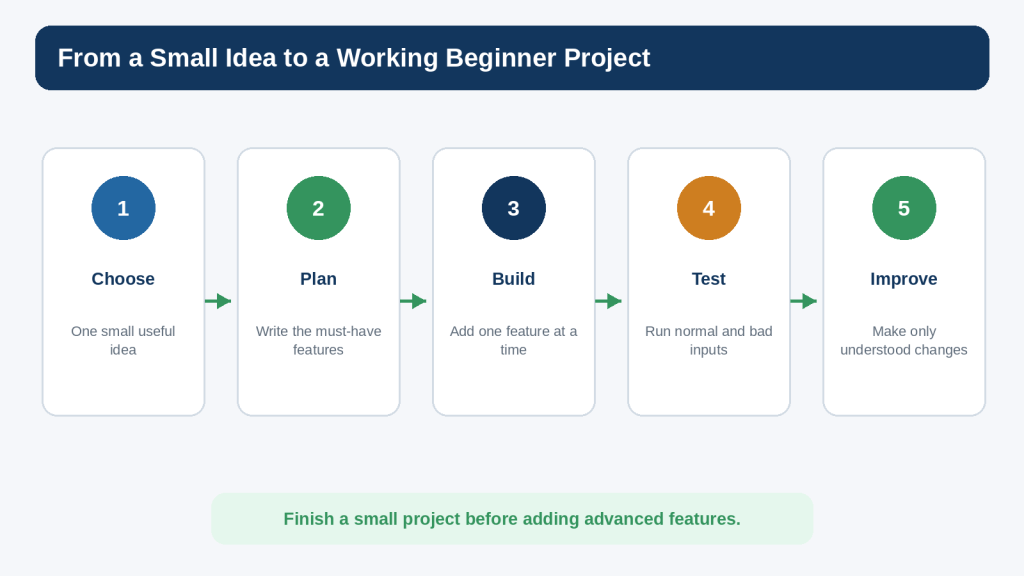
Figure 1. A beginner project becomes manageable when you move from a small idea to a plan, build one feature at a time, test it, and improve it gradually.
Explanation: The purpose of the roadmap is to make the development process predictable rather than trying to create the finished project in one step.
Keep Version 1 Small
One of the easiest ways to make a beginner project fail is to keep adding ideas before the basic version works. A project can quickly expand from “simple to-do list” into accounts, cloud syncing, reminders, categories, search, encryption, mobile notifications, and a database. Those may be useful later, but they are not necessary for the learning goal.
Write a Must-Have List
Before writing code, write down the smallest set of behaviours that would make the project useful. For this project, view, add, remove, and quit are enough.
Create a Later List
When you think of another idea, put it on a later list instead of changing the current plan. This lets you preserve good ideas without turning version 1 into an endless project.
Reality: Finishing a small project teaches more about the complete development process than starting a large project that you cannot explain or test.
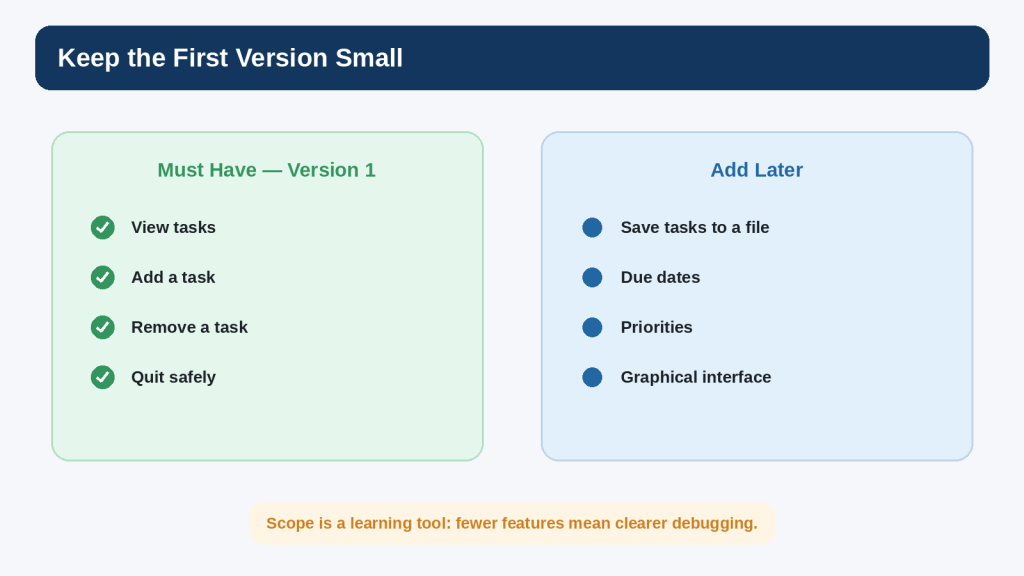
Figure 2. Separate the must-have features for version 1 from ideas that can wait until the basic project works.
Explanation: A small scope reduces confusion and makes debugging easier because fewer behaviours are changing at the same time.
How AI Coding Tools Fit into the Project
AI can help at several points: planning the features, explaining unfamiliar syntax, suggesting a small function, reviewing an error message, proposing test cases, or comparing two approaches. The useful question is not “Can AI generate the whole project?” but “What is the smallest help that lets me keep learning and moving forward?”
Ask for a Plan Before Code
I am a complete beginner learning Python. I want to build a command-line to-do list with only four features: view tasks, add a task, remove a task, and quit. Give me a short step-by-step build plan. Do not write the full program yet.
This gives you a structure to review before any code appears.
Ask for One Feature at a Time
Help me write only the add-task feature for my beginner Python to-do list. Explain each new line and keep the code as simple as possible. Do not add file saving, classes, or third-party packages.
The constraints make it easier to compare the suggestion with your current project.
Ask for an Explanation After It Works
The add-task function works. Explain why task.strip() is useful and what tasks.append(task) changes in the list. Use beginner-friendly language.
Understanding the working code is part of finishing the feature.
Keep the Human Review Loop
1. Describe one small goal.
2. Read the AI response.
3. Check that it matches the project plan.
4. Apply or type the smallest useful change.
5. Save the file.
6. Run the program.
7. Test the new behaviour.
8. Keep the change only when you understand it.
OpenAI cautions that AI-generated output can be incorrect. Testing and understanding remain necessary even when a suggestion looks professional.
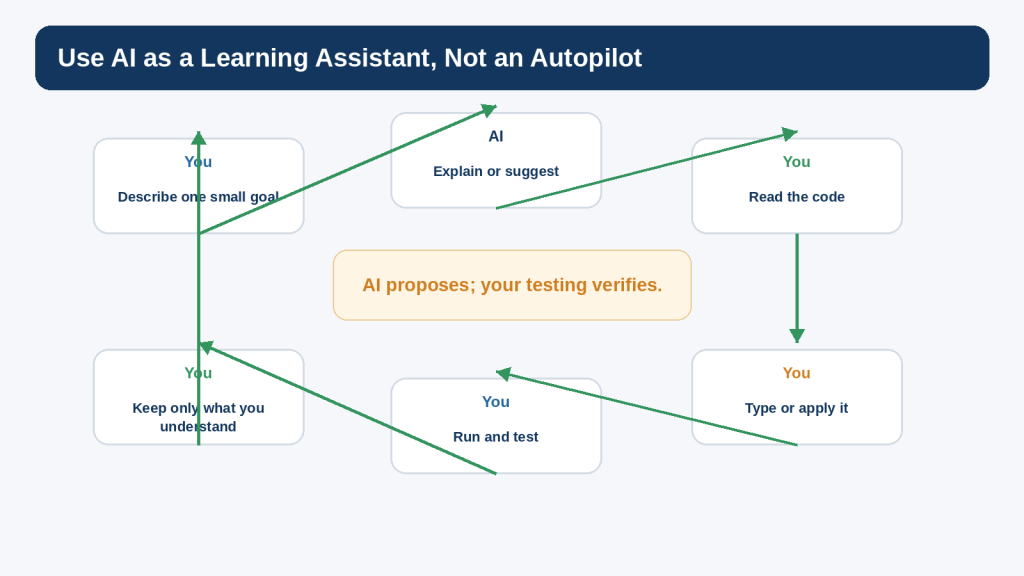
Figure 3. AI assistance works best inside a human review-and-test loop rather than as an automatic replacement for the project.
Explanation: Use the assistant to explain or propose, but rely on your own understanding and the running program to verify the result.
Plan the Project Before Writing Code
A simple way to plan a beginner program is to describe each feature as input, process, and output.
Input
Input is information the program receives. In this project, the user enters a menu choice, task text, or a task number to remove.
Process
The process is what Python does with the input. It may append a task to the list, loop through the list for display, or remove one item after validating the number.
Output
Output is what the user sees. The program prints the current tasks, a confirmation such as “Task added,” or a helpful error message if the input is invalid.
This simple model also improves AI prompts. If something fails, you can state the input you gave, the process you expected, and the actual output you received.
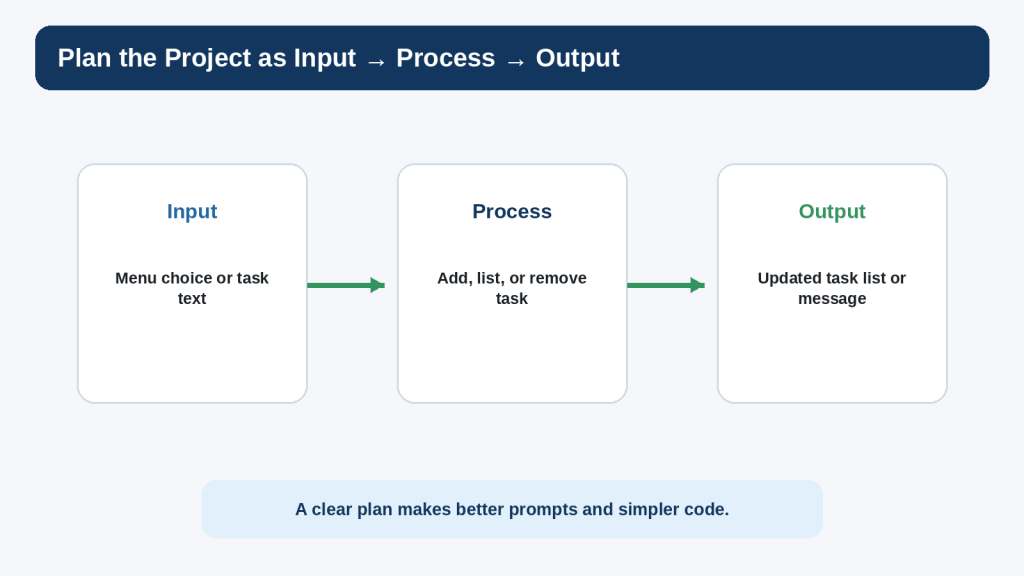
Figure 4. Describing a feature as input, process, and output helps you plan the code and explain problems clearly.
Explanation: The same model also gives you better context for an AI prompt when the program does not behave as expected.
Set Up the Project File
Inside your todo-project folder, create a file named todo.py. Use a plain-text Python editor such as IDLE or another code editor. Do not write Python code in TextMaker; TextMaker is for the tutorial document, while todo.py is the actual program file.
Start with a Tiny Working File
print(“Beginner To-Do List”)
Save todo.py and run it. You should see the title. This first test confirms that you are editing and running the correct file before the project becomes larger.
Add a Working-Copy Habit
When the project reaches an important milestone, copy todo.py to a working backup such as todo-v1-working.py. Do not create a new version for every tiny edit; use working copies before changes that are difficult to undo.
Step 1: Create the Task List
The program needs somewhere to keep tasks while it is running. A Python list is suitable because it stores several values in order and lets you append and remove items.
tasks = []
This creates an empty list named tasks. At the beginning of the program, there are no tasks yet.
Try Adding Sample Values Temporarily
tasks = []
tasks.append(“Buy milk”)
tasks.append(“Call dentist”)
print(tasks)
Running this should display a Python list containing the two strings. This is only a temporary learning test. Once you understand the list, remove the sample append lines so the real program begins empty.
Why Keep One List?
The same tasks list will be used by the view, add, and remove features. Keeping one clearly named list makes the program easier for a beginner to follow than introducing multiple data structures before they are needed.
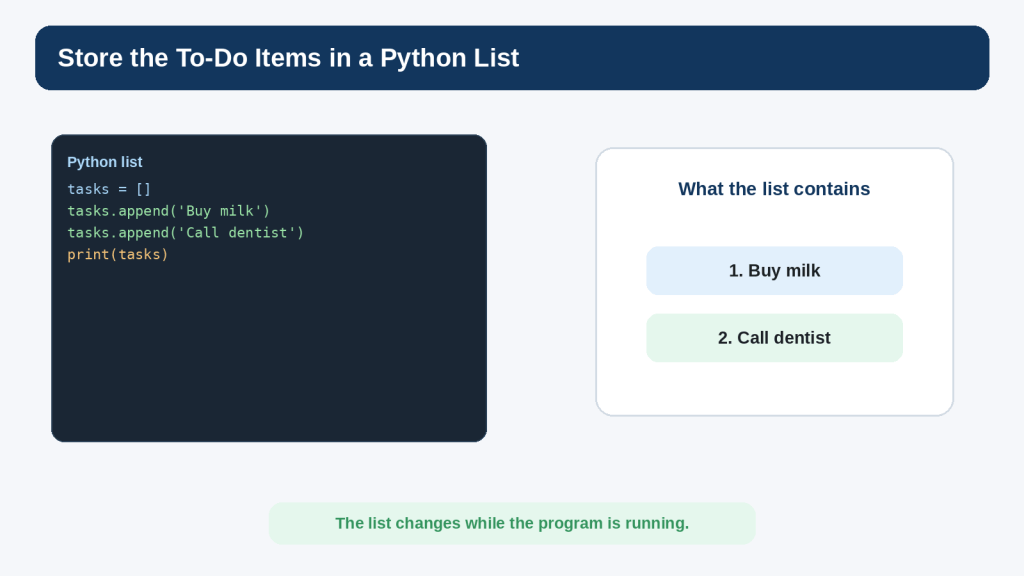
Figure 5. A Python list can hold the to-do items while the program is running.
Explanation: The same list is shared by the view, add, and remove functions, keeping the first project simple and easy to follow.
Step 2: Build the Repeating Menu
The program should continue showing a menu until the user chooses Quit. A while loop is a natural fit because the number of menu cycles is not known in advance.
while True:
print(“\nBeginner To-Do List”)
- print(“1. View tasks”)
- print(“2. Add a task”)
- print(“3. Remove a task”)
- print(“4. Quit”)
- choice = input(“Choose an option: “).strip()
- if choice == “4”:
- print(“Goodbye!”)
- break
At this stage, options 1 to 3 do nothing yet. That is acceptable. The purpose of this step is to confirm that the menu appears repeatedly and that option 4 ends the loop.
Test the Menu Now
9. Run the program.
10. Enter 1 and confirm that the menu appears again.
11. Enter x and confirm that the program still continues.
12. Enter 4 and confirm that Goodbye! appears and the program ends.
The menu is not complete, but one piece of the project now works.
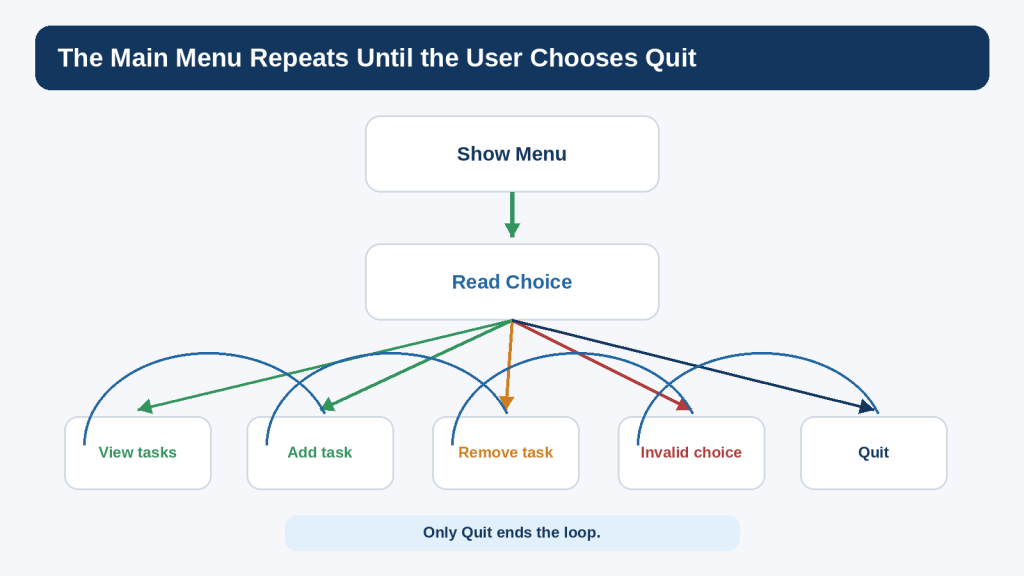
Figure 6. The main menu repeats until the user chooses Quit, while the other choices return to the menu after their work is complete.
Explanation: A simple while loop gives the project its repeated interaction without requiring a graphical interface.
Step 3: Add a Task
The add feature should ask for task text, reject an empty response, append valid text to the tasks list, and confirm the result.
def add_task():
task = input(“Enter a task: “).strip()
if task:
tasks.append(task)
print(“Task added.”)
else:
print(“Task cannot be empty.”)
The strip() method removes extra whitespace from the beginning and end of the text. That means an input containing only spaces becomes an empty string and can be rejected.
Connect the Function to the Menu
Add this branch before the Quit branch:
if choice == “2”:
add_task()
elif choice == “4”:
print(“Goodbye!”)
break
Later, the menu will include the other choices. For now, test option 2.
Test Normal and Empty Input
13. Choose option 2.
14. Enter Buy milk.
15. Confirm that Task added. appears.
16. Choose option 2 again.
17. Press Enter without typing a task.
18. Confirm that the program shows Task cannot be empty. rather than storing a blank item.
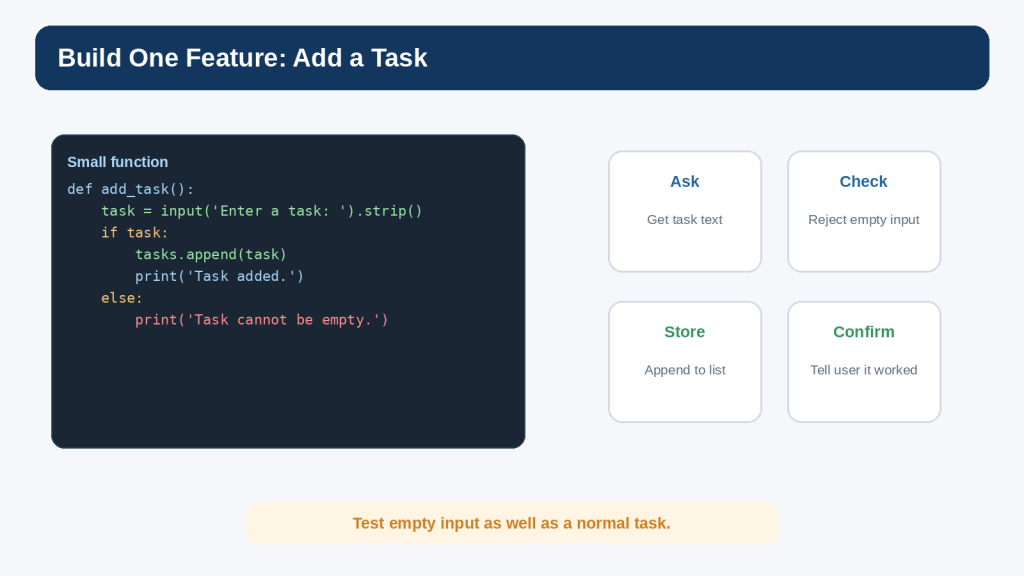
Figure 7. The add-task feature asks for text, rejects empty input, appends a valid task, and confirms the result.
Explanation: Testing both a normal task and an empty response helps verify that the feature behaves sensibly.
Step 4: View the Tasks
The view feature has two jobs: handle the empty list gracefully and display numbered tasks when items exist.
def view_tasks():
if not tasks:
print(“No tasks yet.”)
return
print(“\nYour tasks:”)
for number, task in enumerate(tasks, 1):
print(f”{number}. {task}”)
The condition if not tasks is true when the list is empty. The return statement ends the function after the message. When tasks exist, enumerate(tasks, 1) produces both a display number beginning at 1 and the task text.
Connect View to the Menu
if choice == “1”:
view_tasks()
elif choice == “2”:
add_task()
elif choice == “4”:
print(“Goodbye!”)
break
Test the View Feature
19. Start with a new run and choose 1 before adding anything.
20. Confirm that No tasks yet. appears.
21. Add two tasks.
22. Choose 1 again.
23. Confirm that the tasks appear as 1 and 2 in the same order they were added.
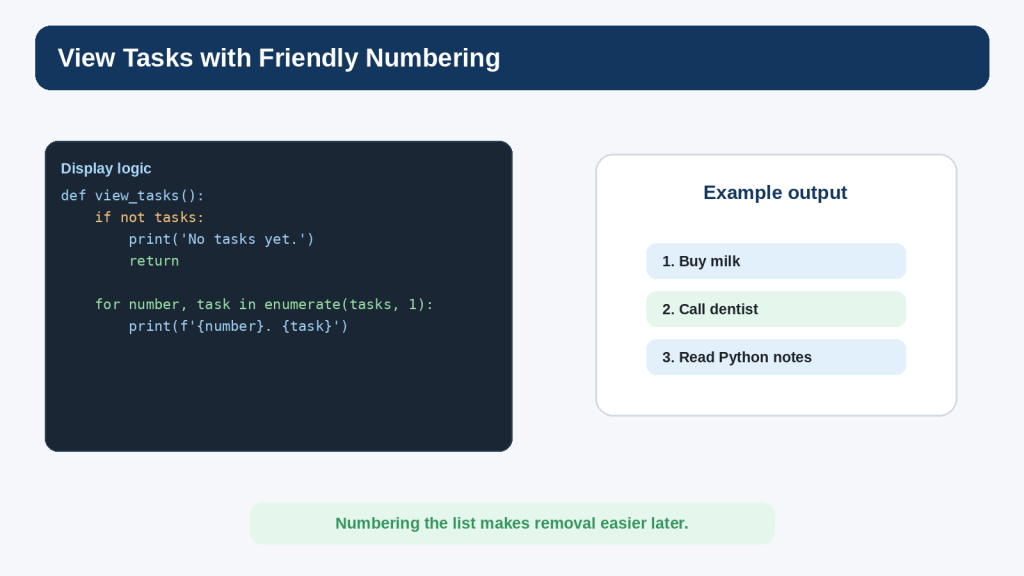
Figure 8. The view-task feature handles an empty list and uses friendly numbering when tasks exist.
Explanation: Starting the displayed numbers at 1 makes the list easier for a person to read and prepares the interface for removing a numbered task.
Step 5: Remove a Task Safely
Removing a task is slightly more difficult because the user types a number, input() returns text, and the number must refer to an existing list item. This is a good place to practise validation.
def remove_task():
view_tasks()
if not tasks:
return
try:
number = int(input(“Enter the task number to remove: “))
except ValueError:
print(“Please enter a number.”)
return
if 1 <= number <= len(tasks):
removed = tasks.pop(number – 1)
print(f”Removed: {removed}”)
else:
print(“That task number does not exist.”)
The function first displays the current tasks. If the list is empty, there is nothing to remove. The try and except block handles text that cannot be converted to an integer. The range check confirms that the number refers to an existing task. Because Python list indexes begin at 0 while the displayed numbering begins at 1, the code uses number – 1 when calling pop().
Connect Remove to the Menu
if choice == “1”:
view_tasks()
elif choice == “2”:
add_task()
elif choice == “3”:
remove_task()
elif choice == “4”:
print(“Goodbye!”)
break
else:
print(“Please choose 1, 2, 3, or 4.”)
Test Bad Input Deliberately
24. Try removing a task when the list is empty.
25. Add two tasks.
26. Enter letters instead of a number.
27. Enter 0.
28. Enter 99.
29. Enter a valid number.
30. View the list and confirm that the intended task was removed.
OWASP input-validation guidance emphasizes checking untrusted input against the expected type, format, range, and application rules. This beginner example applies the same principle at a small scale.
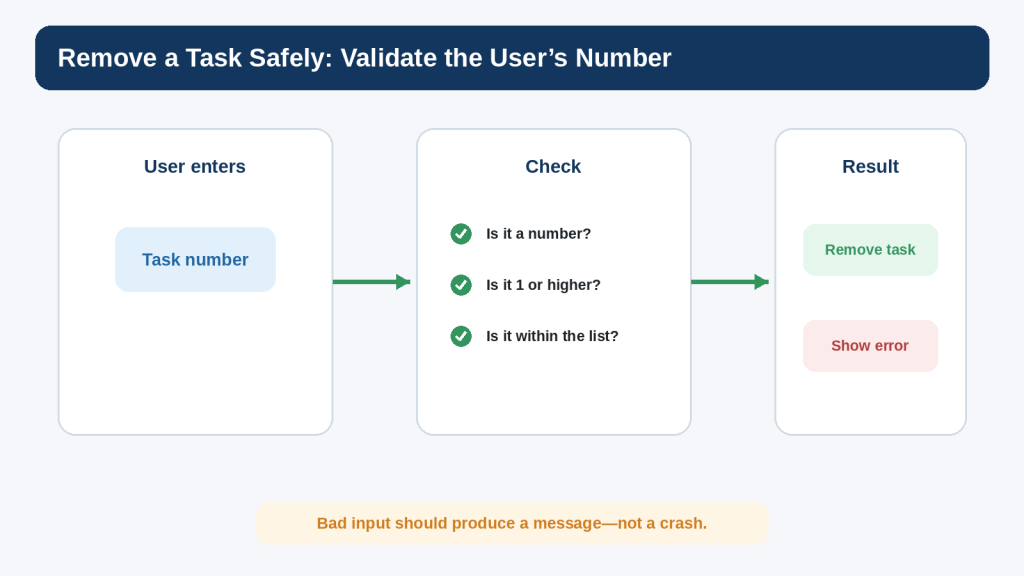
Figure 9. Removing a task safely requires converting and validating the user’s number before changing the list.
Explanation: Invalid input should result in a clear message rather than a crash or the removal of the wrong item.
Put the Complete Program Together
You now have all four version-1 behaviours. The complete program below keeps the same simple structure rather than introducing classes, external packages, or file storage.
tasks = []
def view_tasks():
if not tasks:
print(“No tasks yet.”)
return
print(“\nYour tasks:”)
for number, task in enumerate(tasks, 1):
print(f”{number}. {task}”)
def add_task():
task = input(“Enter a task: “).strip()
if task:
tasks.append(task)
print(“Task added.”)
else:
print(“Task cannot be empty.”)
def remove_task():
view_tasks()
if not tasks:
return
try:
number = int(input(“Enter the task number to remove: “))
except ValueError:
print(“Please enter a number.”)
return
if 1 <= number <= len(tasks):
removed = tasks.pop(number – 1)
print(f”Removed: {removed}”)
else:
print(“That task number does not exist.”)
while True:
print(“\nBeginner To-Do List”)
print(“1. View tasks”)
print(“2. Add a task”)
print(“3. Remove a task”)
print(“4. Quit”)
choice = input(“Choose an option: “).strip()
if choice == “1”:
view_tasks()
elif choice == “2”:
add_task()
elif choice == “3”:
remove_task()
elif choice == “4”:
print(“Goodbye!”)
break
else:
print(“Please choose 1, 2, 3, or 4.”)
Save the file before running it. If your editor supports syntax highlighting, use it as a reading aid, but do not assume colour highlighting proves that the code is correct.
Read the Program from the Top
The tasks list is created first. Three functions define the individual jobs. The while loop displays the menu and decides which function to call. Quit uses break to end the loop. The structure is intentionally repetitive and explicit because clarity is more useful than cleverness in a first project.
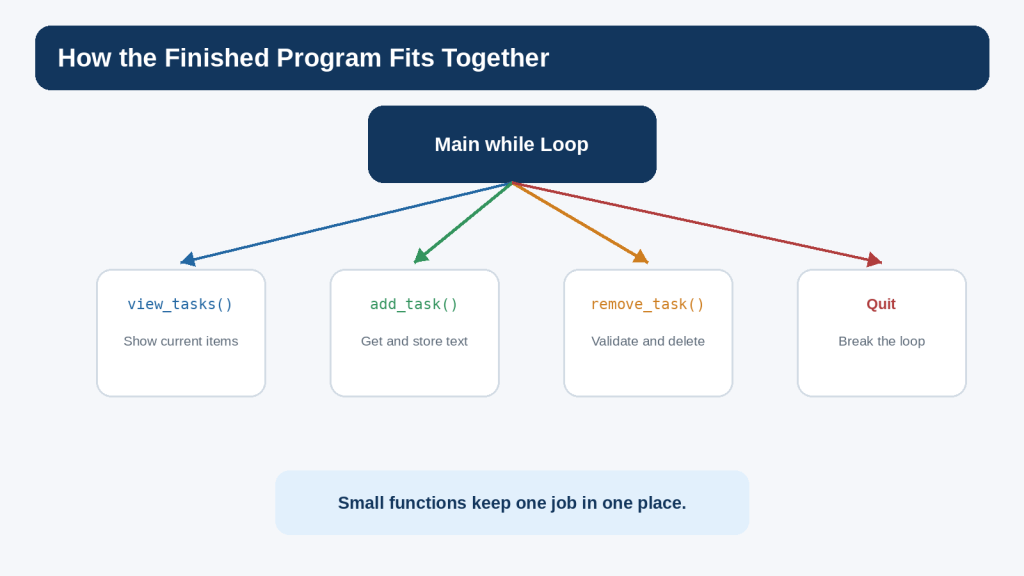
Figure 10. The finished beginner project uses one menu loop and small functions that each handle one job.
Explanation: Keeping the responsibilities separate makes the program easier to read, test, and change.
Test the Whole Project
Testing should be planned, not limited to clicking around until the program seems fine. Write down important cases and the result you expect before you run them.
Normal Cases
- view an empty list
- add one normal task
- add several tasks
- view the numbered list
- remove the first task
- remove the last task
- quit from the main menu
Invalid Cases
- add an empty task
- enter letters when a task number is required
- enter 0 as a task number
- enter a number larger than the list
- enter an invalid menu choice
Boundary Cases
Boundary cases sit at the edge of allowed values. For the remove feature, 1 is the lowest valid displayed task number and len(tasks) is the highest valid number. Values immediately outside that range are useful tests.
Keep a Simple Test Record
For a beginner project, a small table is enough. Record the test, input, expected result, actual result, and whether it passed. If a test fails, use the debugging process from Article 088 rather than changing several parts of the program at once.
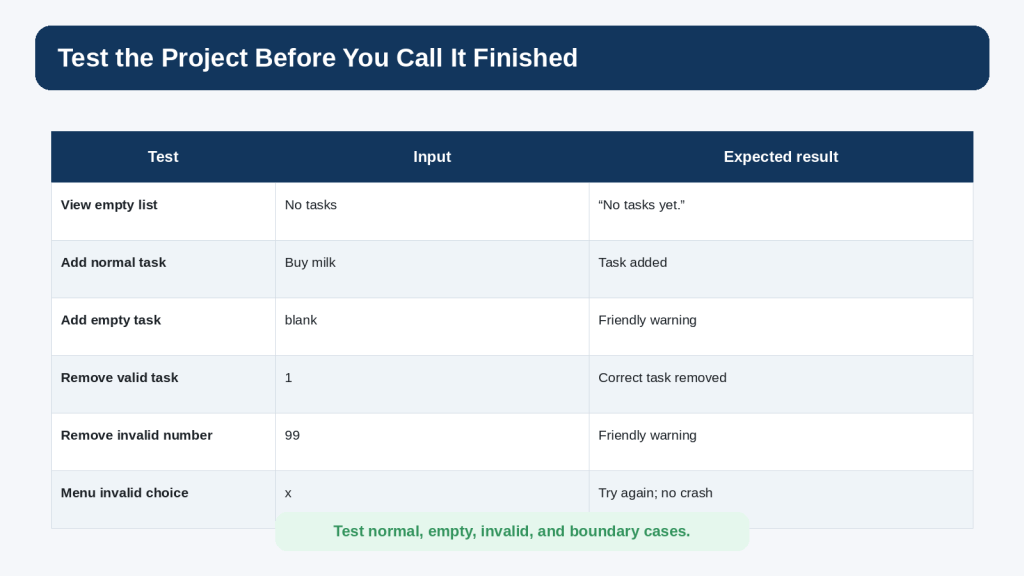
Figure 11. A useful beginner test plan includes normal, empty, invalid, and boundary cases instead of relying on one successful run.
Explanation: Writing the expected result before testing makes it easier to recognize logic problems and confirm a correction.
Ask AI for Better Help During the Project
The quality of an AI coding answer depends partly on the context you provide. A useful project prompt usually includes your skill level, one goal, the relevant code, constraints, and the kind of help you want.
Poor Prompt
Make my to-do app better.
Better could mean almost anything, so the response may become much larger than the project.
Focused Feature Prompt
I am a complete beginner. Help me add only the remove-task feature to this Python to-do list. Keep my current list-based structure, do not add classes or external packages, explain each new line, and give me three tests. Here is the relevant code: …
This prompt sets boundaries that make the response easier to compare with your existing program.
Focused Debugging Prompt
I expected task 2 to be removed, but my program removes task 3. Here is the remove_task() function and the task list before the removal. Explain the likely indexing mistake and show only the smallest correction.
Focused Review Prompt
Review this final beginner to-do list for obvious logic errors, unhandled user input, and unnecessary complexity. List the issues first. Do not rewrite the program unless I ask.
Asking for issues before a rewrite keeps you in control of what changes.
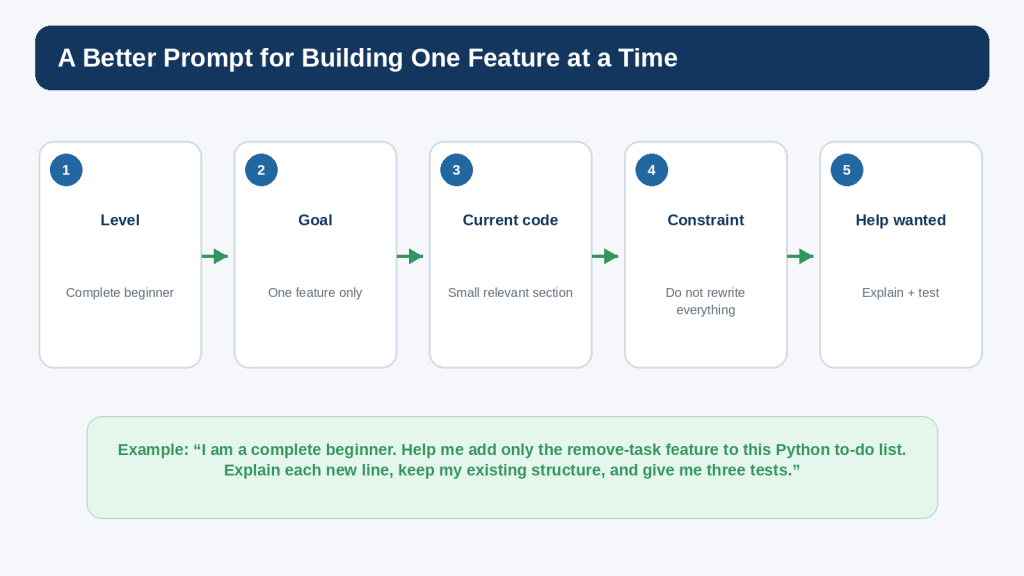
Figure 12. A focused project prompt states your level, one goal, relevant code, constraints, and the kind of help you want.
Explanation: Clear boundaries reduce unnecessary rewrites and make the suggested change easier to review and test.
Protect Privacy, Security, and Licensing
This practice project does not require secrets, personal records, or third-party packages. Keeping the first version dependency-free is useful because it reduces both technical complexity and licensing questions. However, the habits you learn should also prepare you for larger projects.
Do Not Paste Secrets into AI Prompts
- passwords
- API keys
- authentication tokens
- private keys
- database credentials
- customer information
- payment information
- confidential business data
Replace real values with placeholders such as YOUR_API_KEY_HERE or name@example.com. OpenAI’s current Data Controls allow personal ChatGPT users to turn off “Improve the model for everyone” so new conversations are not used to improve models. Temporary Chats have separate retention and training behavior described in OpenAI’s current help documentation. These controls are useful, but data minimization is still the safer practice.
Check Local Paths and Comments
A traceback, screenshot, comment, or file path can reveal a personal name, employer, project code name, or internal directory. Review the information before sharing it.
Check Third-Party Code and Packages
If a later version uses an external library, verify the package at its official source, read the relevant documentation, and check its licence. The Open Source Initiative explains that open-source software is distributed under licences whose terms govern use, modification, and sharing. “Open source” does not mean “no conditions.”
Keep a Simple Source Record
For any third-party code, template, library, icon, font, or other asset used in a real project, keep the source, licence, date checked, and any attribution or notice requirements. Do not assume that an AI suggestion automatically establishes permission to reuse something.
Important Note: This article provides general educational guidance. Projects involving accounts, payments, personal information, authentication, sensitive files, or real customers need additional privacy, security, legal, and professional review appropriate to the situation.
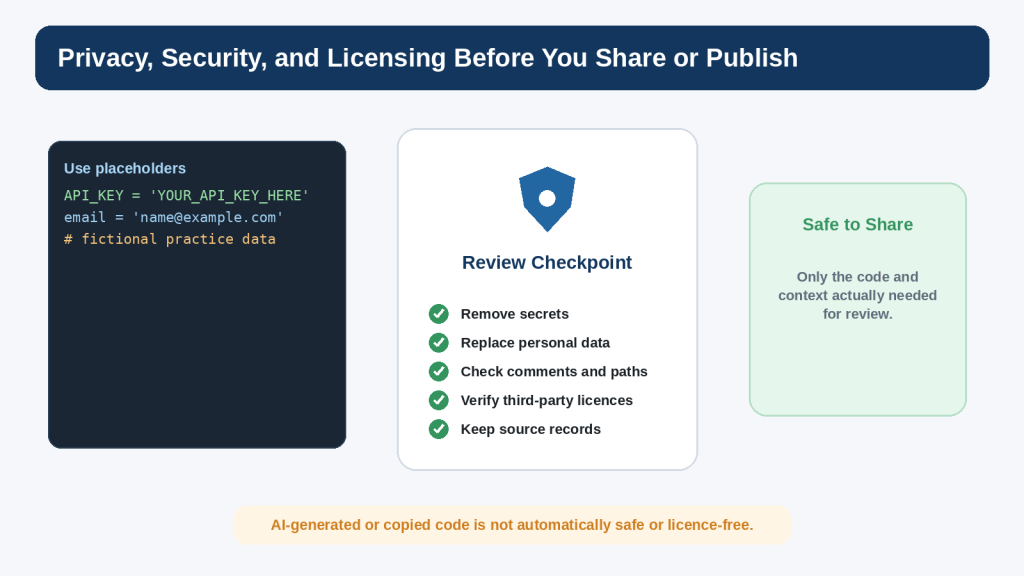
Figure 13. Review code for sensitive information and third-party licence obligations before sharing or publishing it.
Explanation: AI-generated or copied material is not automatically safe, private, copyright-free, or commercially permitted.
Accessibility and Usability for a Simple Command-Line Project
Accessibility is often discussed in relation to websites, but a beginner command-line program can still be made clearer for more users. The goal here is not to claim formal accessibility conformance; it is to use straightforward text and predictable interaction.
- Use plain text labels such as “1. View tasks” rather than relying on colour or icons alone.
- Keep prompts short and specific.
- Print a clear message after success or failure.
- Do not make the user remember hidden commands.
- Allow the keyboard to perform every action, which is natural for a command-line program.
- Avoid unnecessary flashing, animation, or rapidly changing output.
- Use meaningful wording such as “Please enter a number” instead of an unexplained error code.
If you later create a graphical or web version, accessibility requirements become broader and should be considered during design rather than added after the project is complete.
Common Beginner Mistakes
Mistake 1: Asking AI for the Entire App Immediately
A complete generated program may work, but it can be difficult to learn from. When you do not understand the structure, even a small bug becomes intimidating.
How to Avoid This Mistake: Ask for a plan first and build one feature at a time.
Mistake 2: Adding Too Many Features Before Testing
If you add saving, priorities, due dates, colours, categories, and search before the add and remove functions are stable, the source of a problem becomes harder to isolate.
How to Avoid This Mistake: Finish and test each must-have feature before moving to the next one.
Mistake 3: Replacing Working Code During a Small Fix
A broad rewrite can remove code that already passed your tests.
How to Avoid This Mistake: Ask for the smallest necessary correction and keep a working copy.
Mistake 4: Testing Only the Happy Path
Beginners often test “Buy milk” but never test an empty task, letters instead of a number, or a number outside the valid range.
How to Avoid This Mistake: Write a short test list before declaring the project finished.
Mistake 5: Treating AI Output as Proof
A confident explanation can still be wrong or inappropriate for your program.
How to Avoid This Mistake: Run the code yourself, compare actual results with expected results, and check important technical information against current official documentation.
Mistake 6: Publishing Practice Data Without Reviewing It
A practice file may contain personal names, comments, local paths, or copied code that you did not intend to publish.
How to Avoid This Mistake: Review every file before sharing or uploading the project.
Benefits and Limitations of Building with AI Coding Tools
Benefits
- AI can explain unfamiliar syntax at your level.
- AI can break a project into smaller steps.
- AI can suggest test cases you may have forgotten.
- AI can help explain a traceback or indexing mistake.
- AI can compare two simple approaches.
- AI can help you practise by giving hints instead of the full answer.
Limitations
- Suggested code can be incorrect.
- The assistant may misunderstand your intended scope.
- A generated solution may be much more complicated than necessary.
- A working result may still have security, privacy, accessibility, or licensing problems.
- The assistant cannot replace running the program in your own environment.
- Product features and documentation can change.
Reality: AI is most useful when it helps you understand and test your own project. It is least useful when it becomes a substitute for knowing what the project does.
Improve the Project After Version 1 Works
Once every version-1 test passes and you can explain the program, choose one improvement. Do not add several upgrades at the same time.
Improvement 1: Save Tasks to a Text File
This teaches file handling and lets tasks survive after the program closes. It also introduces new questions such as file paths, missing files, encoding, and when to save. Treat it as a separate learning step rather than silently adding it to the first version.
Improvement 2: Mark Tasks Complete
You could move from storing plain strings to storing a status with each task. This introduces a richer data structure and more display logic.
Improvement 3: Add Priorities or Due Dates
This introduces additional input validation and decisions about sorting or display. Add one field at a time.
Improvement 4: Create a Graphical or Web Version
A graphical interface or website is a much larger project. It introduces interface design, accessibility, event handling, deployment, and potentially security and privacy requirements. Finish the command-line version first so you have a working reference for the underlying logic.
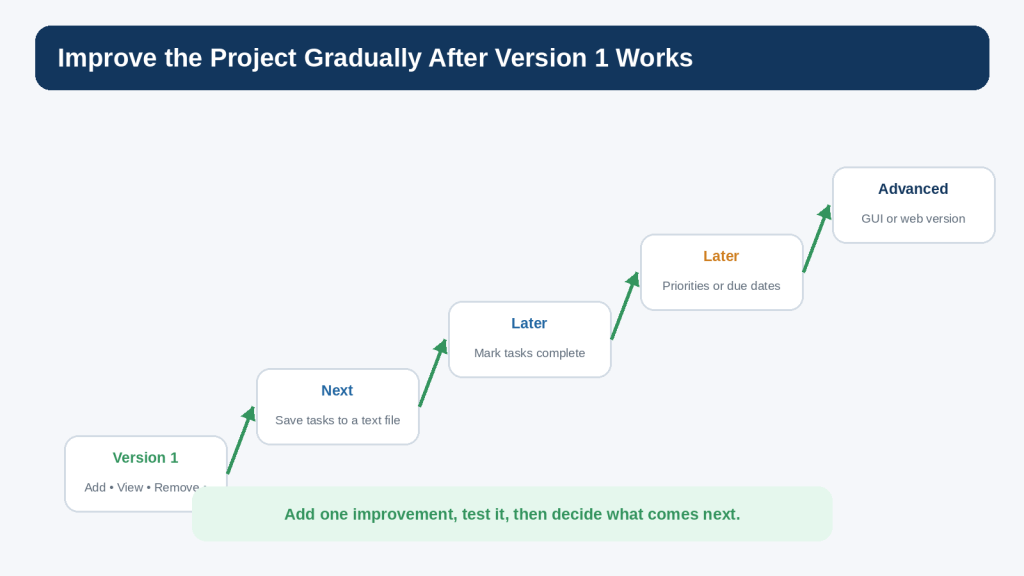
Figure 14. Improve the project one tested feature at a time after the simple version works.
Explanation: A gradual roadmap lets you keep a working reference while each new idea becomes its own learning step.
Common Myths About Beginner AI Coding Projects
Myth 1: A Real Project Must Be Large
Reality: A project is useful when it solves a defined problem and can be completed, tested, and explained. Size is not what makes it real.
Myth 2: If AI Wrote It, the Project Is Finished
Reality: Generated code still needs review, testing, privacy checks, and sometimes licence or security review.
Myth 3: You Should Add Every Suggested Improvement
Reality: Suggestions are options. The project owner decides what belongs in the scope.
Myth 4: More Advanced Code Is Better Code
Reality: For a beginner project, simple code that you understand is usually more valuable than an advanced pattern you cannot maintain.
Myth 5: One Successful Run Proves the Program Works
Reality: A useful test includes normal, empty, invalid, and boundary cases, not just one example.
Frequently Asked Questions
Do I need Codex to follow this article?
No. You can build the project in an ordinary Python editor and use ChatGPT conversationally for explanations or focused help. Codex is an optional coding-focused OpenAI experience, not a requirement for this beginner project.
Do I need a paid code editor?
No. A basic Python editor such as IDLE is enough for the project. Use a more advanced editor only when its features genuinely help you.
Why does the project not save tasks after I close it?
Version 1 deliberately stores tasks only in memory. File saving is a useful next lesson, but it adds another concept and another source of errors. Finish the basic list first.
Can I ask ChatGPT to generate the complete code?
You can, but that is not the recommended learning workflow in this article. If you do request a complete example, compare it with your own version, ask for explanations, and test every feature before using it.
What if my code is different from the article but still works?
There can be more than one correct approach. Check whether your version is understandable, meets the project requirements, handles the important inputs, and passes the tests.
Should I use classes for the to-do list?
Not for this first version unless you already understand classes and want the practice. Functions and a list are enough for the learning goals.
Can I publish the code on my website?
Yes, if it is your project and you have reviewed it for private information and third-party material. On WordPress, display Python examples in Code blocks rather than expecting WordPress to execute the Python file.
Can WordPress run this Python program?
Not as an ordinary WordPress post. The tutorial shows the code for readers to copy into their own Python environment. WordPress.com provides a Code block for displaying source code; it does not turn the Python snippet into a running server-side program.
How do I know when the project is finished?
Version 1 is finished when the four planned behaviours work, the important tests pass, the code has been reviewed, no unnecessary private information is present, and you can explain the main parts. Additional ideas belong to later versions.
Key Takeaways
- Choose a project small enough to finish.
- Define the must-have features before writing code.
- Use a simple input-process-output plan.
- Build one feature at a time.
- Run and test after every meaningful change.
- Keep a working copy before larger experiments.
- Use AI for focused explanations, planning, debugging, and tests rather than automatic full-project replacement.
- Validate user input so bad input produces a helpful message instead of a crash.
- Test normal, empty, invalid, and boundary cases.
- Do not share passwords, API keys, private records, or unnecessary confidential information with an AI service.
- Check sources and licences before reusing third-party code or packages.
- Do not assume AI-generated code is automatically correct, secure, accessible, copyright-free, or commercially permitted.
- Finish version 1 before adding advanced features.
The most important lesson is not the to-do list itself. It is the process: plan a small goal, build one part, test it, understand it, and then continue.
Final Tip
When you start your next project, resist the urge to ask for everything at once. Write the smallest useful goal on one line, list the first three or four features, and build only the first one. A finished small project creates a stronger foundation than a large generated project you cannot explain.
Use AI when it helps you understand a decision, investigate a problem, or practise a skill. Keep yourself responsible for the final code, testing, data, permissions, and decision to publish.
Continue Learning
Article 089 completes an important beginner transition: you have moved from learning isolated Python ideas to assembling a working project. Continue practising by rebuilding the same app without looking at the finished code, changing the project theme, or adding exactly one improvement.
Useful next practice ideas include a simple shopping list, reading list, study checklist, expense list using fictional data, or a small quiz. Keep the same development pattern: define the scope, build one feature, test it, and review every change.
Continue with the AI Mastery AI Coding Series
- Article 084 — What Is AI Coding? Complete Beginner Guide (2026)
- Article 085 — How to Ask ChatGPT to Explain Code (2026)
- Article 086 — HTML and CSS for Beginners with ChatGPT (2026)
- Article 087 — Python for Complete Beginners with ChatGPT (2026)
- Article 088 — How to Find and Fix Coding Errors with AI (2026)
- Future AI Coding articles can build on this project workflow with additional Python, automation, and application-development skills.
Sources and References
The following official and authoritative sources were reviewed for the Python, AI-coding, privacy, security, licensing, and WordPress publishing information in this article. Information was checked on August 16, 2026. Software versions, AI product features, policies, security guidance, and licence conditions can change, so readers should check current official information when it matters to their project.
- Python Software Foundation — Python 3.14.7. Official release page for the current stable Python 3.14 maintenance release used when checking version-sensitive statements. Open official source
- Python Software Foundation — The Python Tutorial. Official introduction to Python language concepts and programming examples. Open official source
- Python Software Foundation — More Control Flow Tools. Official reference for if statements, for and while loops, break, functions, and related control-flow concepts. Open official source
- Python Software Foundation — Data Structures. Official tutorial material for lists and operations used by the project. Open official source
- Python Software Foundation — Built-in Functions. Official reference for built-ins such as input(), print(), enumerate(), int(), and len(). Open official source
- Python Software Foundation — Errors and Exceptions. Official beginner reference for exceptions and try/except handling used by the remove-task validation example. Open official source
- OpenAI — Using Codex with your ChatGPT plan. Current official description of Codex as an AI coding agent for writing, reviewing, and shipping code. Open official source
- OpenAI — Data Controls FAQ. Current official guidance for “Improve the model for everyone” and related ChatGPT data controls. Open official source
- OpenAI — How your data is used to improve model performance. Official explanation of model-improvement data use and user controls. Open official source
- OWASP — Input Validation Cheat Sheet. Security guidance for validating untrusted input according to expected types, formats, ranges, and rules. Open official source
- OWASP — Secrets Management Cheat Sheet. Security guidance for handling passwords, API keys, credentials, and other secrets. Open official source
- Python Packaging Authority — Installing packages in a virtual environment using pip and venv. Official Python packaging guidance for isolated environments if a later project adds third-party packages. Open official source
- Open Source Initiative — OSI Approved Licenses. Authoritative explanation that open-source software is provided under licences whose terms govern use, modification, and sharing. Open official source
- WordPress.com — Display code snippets. Official WordPress.com instructions for adding a Code block to a post or page and displaying source code. Open official source
Important Note: This article provides general educational information about beginner programming, AI-assisted coding, privacy, security, and licensing. It is not legal, cybersecurity, or other professional advice. Readers do not need to reread every policy before every small practice exercise, but they should check current official information when first using a tool, changing plans or features, receiving an important update notice, beginning a commercial or sensitive project, and periodically thereafter.


Leave a Reply