Estimated reading time: 20–25 minutes
Last updated: July 2026
Before Learning
Before using ChatGPT to proofread or edit a document, it helps to understand how document uploads, analysis, rewriting, and verification work.
Review these beginner guides first:
· ChatGPT Basics for Beginners: Complete Guide (2026)
· How to Analyze Documents with ChatGPT: Beginner Guide (2026)
· How to Extract Information from Documents with ChatGPT: Beginner Guide (2026)
· How to Ask Questions About Documents with ChatGPT: Beginner Guide (2026)
· How to Summarize Documents with ChatGPT: Beginner Guide (2026)
· How to Rewrite and Simplify Documents with ChatGPT: Beginner Guide (2026)
These guides explain how to inspect a document, identify important details, ask focused questions, rewrite unclear text, and compare ChatGPT’s output with the original source.
Those skills are useful because proofreading and editing should improve spelling, grammar, punctuation, clarity, and consistency without changing the document’s facts or intended meaning.
For example:
Original:
The application may be approved after the supporting documents are reviewed.
Incorrect edit:
The application will be approved.
The incorrect edit removes the review condition and changes a possible result into a guarantee.
A careful proofreading process should preserve:
· Names
· Dates
· Numbers
· Responsibilities
· Deadlines
· Conditions
· Warnings
· Limitations
· Approval status
· Uncertainty
What You’ll Learn
In this beginner guide, you will learn how to:
· Upload a document to ChatGPT for proofreading and editing.
· Choose whether you need proofreading, copy editing, or a broader content review.
· Check spelling, grammar, punctuation, and capitalization.
· Find missing words, repeated words, and awkward sentences.
· Correct inconsistent terminology, headings, and formatting.
· Review numbered steps, bullet points, tables, captions, and references.
· Improve sentence clarity without changing the original meaning.
· Preserve names, dates, numbers, deadlines, warnings, conditions, and uncertainty.
· Ask ChatGPT to explain each proposed correction.
· Compare the original and edited versions side by side.
· Approve or reject individual changes.
· Proofread long documents one section at a time.
· Check whether edits introduced unsupported information.
· Review tone, reading level, and consistency.
· Protect private and confidential information before uploading.
· Confirm permission, copyright, licensing, and publication requirements.
· Understand when professional editing or subject-matter review may be necessary.
· Save the original document, editing prompts, corrections, and approved final version.
By the end of this guide, you should be able to use ChatGPT to identify and correct writing problems while keeping the document’s facts, requirements, warnings, and intended meaning accurate.
Introduction
A document may contain useful and accurate information but still have writing errors that make it difficult to read.
Common problems include:
· Misspelled words
· Missing words
· Repeated words
· Incorrect punctuation
· Inconsistent capitalization
· Awkward sentences
· Grammar mistakes
· Inconsistent terminology
· Incorrect heading or list formatting
· Repeated paragraphs
· Incorrect figure or table numbers
Proofreading and editing can help correct these problems before a document is shared, submitted, or published.
What Is Proofreading?
Proofreading is the final check for smaller writing and formatting errors.
It usually focuses on:
· Spelling
· Grammar
· Punctuation
· Capitalization
· Missing or repeated words
· Extra spaces
· Typing errors
· Inconsistent formatting
· Incorrect numbering
For example:
Original:
The employes must submits the report by July 20 2026.
Proofread version:
The employees must submit the report by July 20, 2026.
The corrected version fixes:
· The spelling of employees
· The grammar in must submit
· The missing comma in the date
The original meaning remains unchanged.
What Is Editing?
Editing is a broader process.
It may improve:
· Sentence clarity
· Paragraph organization
· Tone
· Word choice
· Consistency
· Reading level
· Document structure
· Repetition
· Transitions between ideas
For example:
Original:
Due to the fact that the inspection had not yet been completed, the equipment was not permitted to be returned to active service.
Edited version:
The equipment could not return to service because the inspection was incomplete.
The edited version is shorter and clearer while preserving the original meaning.
OpenAI describes ChatGPT as useful for drafting, revising, refining, tightening, and adjusting written content for a particular audience. It also recommends providing clear instructions and reviewing the output carefully rather than automatically accepting every suggested change.
Proofreading Is Not the Same as Rewriting
Proofreading normally corrects errors without substantially changing the wording.
Rewriting changes how the information is expressed.
For example:
Original:
Employees must completing the inspection form before each shift.
Proofread version:
Employees must complete the inspection form before each shift.
Rewritten version:
Before every shift, employees must complete the inspection form.
Both corrected versions preserve the requirement, but the rewrite changes the sentence structure.
Use proofreading when you want minimal changes.
Use editing or rewriting when the wording, organization, tone, or reading level also needs improvement.
Editing Should Not Change the Facts
An edit is not correct when it changes important information.
For example:
Original:
The application may be approved after the supporting documents are reviewed.
Incorrect edit:
The application will be approved.
The incorrect edit:
· Changes may into will
· Removes the document-review condition
· Turns a possible result into a guarantee
A careful edit should preserve:
· Names
· Dates
· Numbers
· Amounts
· Measurements
· Deadlines
· Responsibilities
· Required actions
· Conditions
· Exceptions
· Warnings
· Limitations
· Approval status
· Uncertainty
What ChatGPT Can Help You Check
You can ask ChatGPT to identify possible:
· Spelling errors
· Grammar mistakes
· Punctuation problems
· Capitalization inconsistencies
· Missing or repeated words
· Awkward sentences
· Repeated ideas
· Inconsistent terminology
· Incorrect list formatting
· Heading inconsistencies
· Table and figure-numbering problems
· Changes in tone
· Possible changes in meaning
ChatGPT can also present the original and edited text side by side so that you can review each proposed change.
However, ChatGPT may:
· Suggest an unnecessary edit
· Misunderstand the intended meaning
· Change a fact
· Remove an important condition
· Weaken a warning
· Replace an approved term
· Introduce a new error
For this reason, each important correction should be reviewed before it is accepted.
Working with Uploaded Documents
ChatGPT currently supports many commonly used document, text, presentation, and spreadsheet formats, including PDF, DOCX, PPTX, TXT, CSV, TSV, XLS, and XLSX. Google Docs files using the .gdoc format must currently be exported to a supported format before uploading. Supported features and limits may vary by account, plan, workspace, and future update.
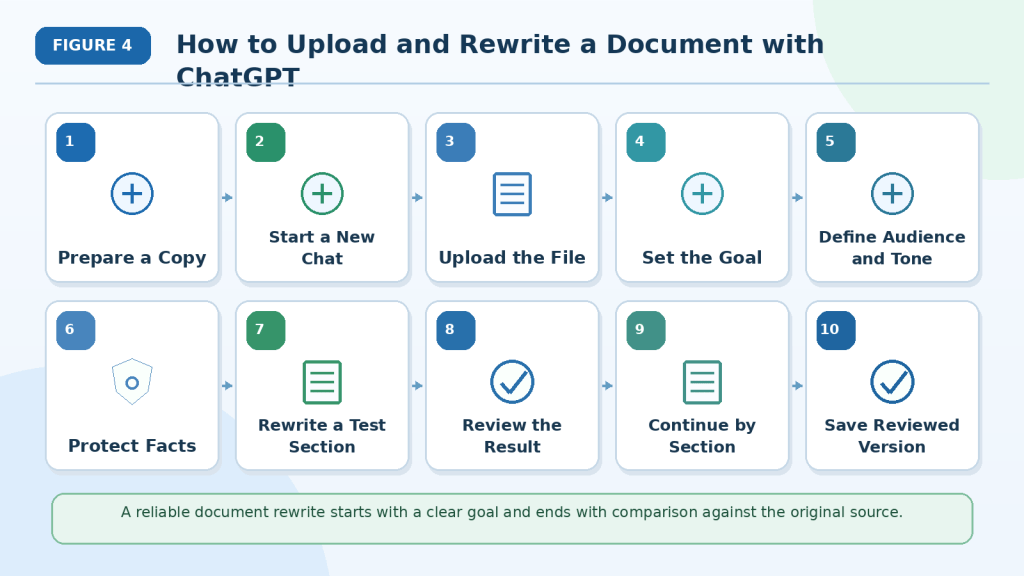
The basic proofreading and editing process is:
- Review the document for private or restricted information.
- Upload the correct and readable file.
- Choose the type of review required.
- Explain what ChatGPT may and may not change.
- Proofread one manageable section.
- Review every proposed correction.
- Accept, reject, or revise each change.
- Compare the edited section with the original.
- Check formatting, terminology, facts, and references.
- Save the reviewed version separately.
Keep the original document throughout this process.
ChatGPT can help identify and explain possible problems, but the user remains responsible for deciding which edits are correct.

Figure 1. A careful proofreading and editing process corrects writing problems while preserving the document’s original facts and meaning.
Proofreading begins with clear instructions about what ChatGPT may change. Each proposed correction should then be reviewed and compared with the original before the edited version is accepted as final.
Types of Proofreading and Editing You Can Request
ChatGPT can review a document at different levels.
The right type of review depends on:
· The document’s purpose
· How complete the draft is
· How much wording may change
· Whether facts and formatting must remain exactly the same
· Whether you need only error correction or broader improvement
Before beginning, tell ChatGPT what kind of review you want.
Basic Proofreading
Basic proofreading focuses on small language and typing errors.
It may check:
· Spelling
· Grammar
· Punctuation
· Capitalization
· Missing words
· Repeated words
· Extra spaces
· Typing mistakes
Example prompt:
Proofread this section for spelling, grammar, punctuation, capitalization, missing words, repeated words, and typing errors. Make only necessary corrections. Do not rewrite sentences or change the meaning.
This option is useful when the document is already clear and organized.
Light Editing
Light editing corrects errors and improves awkward wording while keeping the original style and structure.
It may improve:
· Sentence flow
· Word choice
· Repetition
· Clarity
· Grammar
· Punctuation
Example prompt:
Lightly edit this section for grammar, clarity, and natural sentence flow. Preserve the original tone, structure, facts, conditions, warnings, and uncertainty. Avoid unnecessary rewriting.
Light editing allows more change than proofreading but should still stay close to the source.
Copy Editing
Copy editing is a more detailed review of language and consistency.
It may check:
· Grammar and punctuation
· Sentence clarity
· Word choice
· Tone
· Terminology
· Heading style
· List formatting
· Capitalization
· Numbers and dates
· References
· Internal consistency
Example prompt:
Copy edit this document for clarity, grammar, punctuation, consistency, terminology, headings, lists, and references. Show every suggested change and explain the reason. Do not change facts or add information.
Copy editing is useful when a document needs careful preparation before publication.
Grammar and Punctuation Review
You may request a focused review that changes only grammar and punctuation.
Example prompt:
Correct grammar and punctuation only. Do not change vocabulary, sentence order, tone, formatting, or meaning.
This is useful when the wording has already been approved.
Spelling and Capitalization Review
You can ask ChatGPT to check spelling and capitalization without changing sentence structure.
This may include:
· Misspelled words
· Product or department names
· Job titles
· Headings
· Acronyms
· Proper nouns
· Regional spelling
Example prompt:
Check spelling and capitalization only. Use Canadian English. Keep all approved names, technical terms, dates, numbers, and formatting unchanged.
Specify the required regional spelling when necessary, such as:
· Canadian English
· American English
· British English
· Australian English
Clarity Editing
Clarity editing improves sentences that are confusing, wordy, or difficult to follow.
It may:
· Shorten long sentences
· Replace unclear wording
· Remove unnecessary repetition
· Improve transitions
· Separate several ideas
· Make instructions more direct
Example prompt:
Edit this section for clarity. Preserve every fact, requirement, deadline, condition, warning, exception, limitation, and uncertain statement. Show the original and edited versions side by side.
Clarity editing should not become summarization.
Consistency Editing
Consistency editing checks whether the same style and terminology are used throughout the document.
It may review:
· Repeated terms
· Job titles
· Department names
· Capitalization
· Date formats
· Number formats
· Heading styles
· Bullet punctuation
· Figure captions
· Table labels
Example prompt:
Review this document for consistency. Identify variations in terminology, capitalization, date format, heading style, list punctuation, figure captions, and table labels. Do not correct anything until I approve the list.
This review is especially useful for long documents written over several days or by several people.
Tone Editing
Tone editing adjusts how the document sounds.
Possible tones include:
· Formal
· Professional
· Neutral
· Friendly
· Direct
· Instructional
· Cautious
· Reassuring
Example prompt:
Edit this customer notice into a friendly but professional tone. Preserve every requirement, deadline, warning, condition, and limitation. Do not make mandatory instructions sound optional.
Tone editing should not change the strength of the source message.
Reading-Level Editing
Reading-level editing adjusts the difficulty of the wording for a specific audience.
For example:
· Complete beginners
· General adult readers
· Students
· Customers
· Employees without technical training
· Specialists
Example prompt:
Edit this guide for adult beginners. Use short sentences, familiar words, clear headings, and one main idea per paragraph. Keep necessary technical terms and explain them simply.
Simplifying the reading level should not remove essential content.
Structural Editing
Structural editing reviews how information is organized.
It may suggest:
· New headings
· Shorter sections
· Better paragraph order
· Moving repeated information
· Separating warnings
· Reorganizing steps
· Combining related ideas
Example prompt:
Review the document structure and suggest improvements. List all proposed changes before applying them. Do not move warnings, conditions, notes, or definitions away from the content they affect.
Structural changes require careful review because location can affect meaning.
Formatting Review
A formatting review checks whether document elements are used consistently.
It may review:
· H1, H2, and H3 headings
· Numbered lists
· Bullet lists
· Tables
· Captions
· Figure numbering
· Bold labels
· Paragraph spacing
· References
· Links
Example prompt:
Review the formatting only. Check headings, numbered lists, bullets, tables, captions, figure numbers, bold labels, paragraph spacing, and references. Do not rewrite the text.
The final formatting should also be checked in the program where the document will be used.
Fact-Preservation Review
This review checks whether proposed edits changed factual or conditional information.
It may focus on:
· Names
· Dates
· Numbers
· Amounts
· Measurements
· Deadlines
· Responsibilities
· Warnings
· Conditions
· Exceptions
· Approval status
· Uncertainty
Example prompt:
Compare the edited version with the original and list every changed fact, responsibility, deadline, condition, warning, limitation, or uncertain phrase. Do not make corrections yet.
This review is important after broader editing.
Publication-Readiness Review
A publication-readiness review checks the document as a complete final draft.
It may include:
· Language errors
· Heading consistency
· Figure and table numbering
· Caption placement
· Broken links
· Repeated sections
· Missing references
· Formatting problems
· Unresolved notes
· Accessibility concerns
Example prompt:
Review this document for publication readiness. Create a checklist of language, structure, formatting, numbering, links, references, captions, accessibility, and unresolved issues. Do not silently rewrite approved text.
Publication readiness does not guarantee legal, technical, accessibility, or professional approval.
Choosing the Right Review Type
Before asking ChatGPT to review the document, decide:
· Should it correct only errors?
· May it improve sentence wording?
· Can it reorganize paragraphs?
· Must the original tone remain?
· Which terminology must stay unchanged?
· Should every proposed change be explained?
· Are facts, warnings, and conditions especially important?
· Does the document need professional or subject review?
You may combine review types.
For example:
Proofread and lightly copy edit this article using Canadian English. Correct spelling, grammar, punctuation, awkward wording, terminology inconsistencies, headings, lists, and captions. Preserve all approved facts, examples, dates, warnings, conditions, and uncertainty. Show each proposed change before applying it.
Reality: Proofreading, copy editing, tone editing, and structural editing are different tasks. Clear instructions help ChatGPT make only the changes you intend.

Figure 2. Different proofreading and editing methods correct different kinds of language, consistency, tone, structure, and publication problems.
Basic proofreading makes small corrections, while copy editing and structural editing may change more of the document. Choosing the review type first helps protect approved wording and prevents unnecessary changes.
What You Need Before Proofreading or Editing a Document
Preparing the document and review instructions before editing can reduce unnecessary changes and make corrections easier to verify.
A Clear and Readable Document
Use the clearest available version of the document.
ChatGPT currently supports common document, spreadsheet, presentation, and text formats, including PDF, DOCX, PPTX, TXT, CSV, TSV, XLS, and XLSX. Available upload features and limits may vary by plan, workspace, and future update.
The document should have:
· Readable text
· Complete pages
· Correct page order
· Clear headings
· Properly arranged tables
· Legible captions and footnotes
· No cropped sentences
· No unexplained blank sections
Blurred scans, handwriting, text inside images, complicated layouts, and damaged files may be harder to proofread accurately.
How to Reduce This Limitation: Use a text-based PDF or DOCX file when possible. Mark unreadable wording as [Unclear in the source] rather than allowing ChatGPT to guess.
The Correct Document Version
Confirm that you are uploading the intended version.
You may have:
· An early draft
· A corrected draft
· A manager-reviewed copy
· A client-approved copy
· A publication draft
· Several files with similar names
Use a clear filename, such as:
employee-guide-proofreading-copy-july-2026.docx
Keep the original file unchanged and create a separate copy for editing.
The Type of Review You Need
Decide whether you want:
· Basic proofreading
· Grammar and punctuation correction
· Light editing
· Copy editing
· Clarity editing
· Consistency checking
· Tone editing
· Formatting review
· Publication-readiness review
Do not ask for broad editing when you want only small corrections.
For example:
Correct spelling, grammar, punctuation, and capitalization only. Do not rewrite sentences or change the meaning.
Clear limits help protect approved wording.
A List of Allowed Changes
Tell ChatGPT what it may change.
For example, you may allow it to:
· Correct spelling
· Fix grammar
· Add missing punctuation
· Correct capitalization
· Remove repeated words
· Fix obvious typing errors
· Improve awkward wording
· Standardize headings
Example prompt:
You may correct spelling, grammar, punctuation, capitalization, missing words, repeated words, and obvious typing errors.
A List of Prohibited Changes
Also explain what ChatGPT must not change.
For example:
Do not change facts, names, dates, numbers, responsibilities, deadlines, warnings, conditions, limitations, technical terms, quotations, or uncertainty.
This is especially important when the document has already received approval from an author, manager, client, editor, or subject specialist.
The Required Language Variation
Choose the spelling and language style required for the document.
Examples include:
· Canadian English
· American English
· British English
· Australian English
· Canadian French
Regional differences may affect:
· Spelling
· Punctuation
· Vocabulary
· Date formats
· Number formats
For an AI Mastery article, you might write:
Proofread this article using Canadian English. Preserve approved capitalization, technical terminology, article numbering, figure numbering, and WordPress formatting.
A Style and Terminology Guide
Prepare a list of approved writing rules.
It may include:
· Preferred spelling
· Capitalization
· Technical terms
· Product names
· Job titles
· Department names
· Date format
· Figure-caption format
· Heading style
· List punctuation
· Words to avoid
For example:
| Item | Approved Style |
| ChatGPT | Use this capitalization |
| AI-generated | Include the hyphen |
| Figure caption | Use “Figure 1.” |
| Body spelling | Canadian English |
| Dates | Write the month in words |
A style guide helps prevent inconsistent corrections across a long document.
Information That Must Remain Accurate
Identify important information before proofreading begins.
Check and protect:
· Personal names
· Organization names
· Job titles
· Dates
· Times
· Numbers
· Currency amounts
· Measurements
· Deadlines
· Responsibilities
· Conditions
· Exceptions
· Warnings
· Limitations
· Approval status
· Uncertainty
· Source references
For example:
Preserve the words “may,” “could,” “expected,” “preliminary,” and “subject to approval.” Do not replace them with definite wording.
A grammar correction should never change a possible result into a guarantee.
Approved Quotations and Source Text
Tell ChatGPT whether quotations may be edited.
Direct quotations should normally remain exactly as written unless:
· The source quotation contains an obvious transcription error.
· The quotation is being paraphrased rather than quoted directly.
· The original publisher provides a corrected version.
Example prompt:
Do not edit text inside quotation marks. List possible errors in quotations separately for review.
Also preserve:
· Legal wording
· Official titles
· Product-interface labels
· Source citations
· Reference numbers
unless you have confirmed that a correction is appropriate.
Required Document Structure
Decide what formatting must remain unchanged.
This may include:
· H1, H2, and H3 headings
· Paragraph order
· Numbered steps
· Bullet points
· Tables
· Captions
· Figure numbers
· Bold labels
· Notes
· References
· Internal and external links
Example prompt:
Correct the language without changing the heading levels, list order, tables, captions, figure numbering, links, or reference structure.
The final formatting should also be checked in the program where the document will be used.
A Change-Review Format
Choose how ChatGPT should present proposed corrections.
Useful formats include:
· Original text followed by corrected text
· A side-by-side table
· A correction list
· Tracked-change style labels
· A paragraph-by-paragraph review
For example:
| Original Text | Suggested Correction | Reason |
| The employes must submits it. | The employees must submit it. | Spelling and grammar |
| July 20 2026 | July 20, 2026 | Date punctuation |
A comparison format allows you to approve or reject changes before replacing the original text.
A Manageable Test Section
Begin with one short section.
Choose a section that includes:
· Normal paragraphs
· Typical terminology
· A heading
· A list or table when relevant
· Important facts or dates
A test section helps you check whether ChatGPT understands:
· The required editing level
· The regional spelling
· The document’s tone
· Approved terminology
· What must remain unchanged
Correct the instructions before proofreading the rest of the document.
Privacy and Confidentiality Review
Check the complete file before uploading it.
Private information may appear in:
· Main text
· Tables
· Headers and footers
· Comments
· Tracked changes
· File names
· Images
· Document properties
Remove unnecessary:
· Personal details
· Customer information
· Employee records
· Medical information
· Financial information
· Account numbers
· Signatures
· Confidential business content
For signed-in ChatGPT accounts, the Improve the model for everyone setting can currently be managed through Profile icon → Settings → Data Controls. Turning it off means new conversations remain in chat history but are not used to improve OpenAI’s models.
OpenAI also states that Temporary Chats do not appear in history, do not create memories, are not used to improve its models, and are deleted from its systems after 30 days, subject to current safety and retention conditions.
These controls do not replace permission, confidentiality requirements, or secure workplace procedures.
Permission to Upload and Edit
Confirm that you are allowed to:
· Upload the document
· Edit its wording
· Change its structure
· Share the corrected version
· Publish it
· Use it commercially
Access to a file does not automatically provide permission to edit or distribute it.
Check:
· Copyright
· Licences
· Workplace policies
· Client agreements
· Confidentiality agreements
· Publisher requirements
· Approval procedures
Keep written permission when necessary.
The Original Document
Keep the original file available throughout the editing process.
You will need it to confirm:
· What wording was changed
· Whether facts remain accurate
· Whether approved text was preserved
· Whether anything was removed
· Whether unsupported information was added
· Whether formatting and references remain correct
Do not overwrite the original source.
The edited document should be saved as a separate version.

Figure 3. Preparing the file, review type, style rules, protected information, privacy, and comparison method can improve document proofreading.
Clear preparation tells ChatGPT which corrections are allowed and which wording must remain unchanged. Keeping the original file and reviewing proposed edits separately make unnecessary or inaccurate changes easier to identify.
How to Upload and Proofread or Edit a Document with ChatGPT
You can proofread a short passage by pasting it into the message box. For a longer document, uploading the file is usually easier.
ChatGPT supports common document formats such as PDF, DOCX, PPTX, and TXT. It also supports common spreadsheet formats. Google Docs files using the .gdoc format must be exported to a supported format before uploading. Available file features and limits may vary by plan, model, workspace, device, and future update.
Step 1: Prepare a Separate Proofreading Copy
Keep the original document unchanged.
Create a separate copy with a clear filename, such as:
article-031-proofreading-copy-july-2026.docx
Before uploading, check:
· The file opens correctly.
· All pages are present.
· The text is readable.
· Tables are arranged correctly.
· Comments and tracked changes have been reviewed.
· Unnecessary private information has been removed.
· You have permission to upload and edit the content.
Do not overwrite the original file with an AI-edited version.
Step 2: Open the Correct Chat
Open ChatGPT and begin a new chat for the document.
Using one chat for one document can make it easier to keep track of:
· The original instructions
· Approved terminology
· Corrections
· Rejected suggestions
· Follow-up checks
· Final versions
For a long project, use a clear chat title such as:
Article 031 Proofreading Review
Step 3: Upload the Document
Select the file-upload control near the message box. Depending on your device and current interface, it may appear as a plus sign, paperclip, or another attachment option.
Choose the document from your computer or available file source, and wait until the filename appears in the conversation.
Confirm that:
· The correct file was attached.
· The filename matches the intended version.
· The upload completed successfully.
· You did not accidentally attach a private or outdated file.
Do not begin the review until you have confirmed the document.
Step 4: Ask ChatGPT to Identify the Document
Before requesting corrections, ask ChatGPT to confirm what it can access.
Example prompt:
Confirm the filename and describe the document’s title, main headings, number of pages or major sections, and general purpose. Do not proofread or edit anything yet.
Compare the response with the original file.
Check whether:
· The correct document was opened.
· The main sections were recognized.
· Any pages appear missing.
· Tables, captions, or footnotes may require separate attention.
· Some content appears unreadable.
When information cannot be read, instruct ChatGPT to label it:
· [Unclear in the source]
· [Not visible in the uploaded file]
· [Formatting requires manual review]
ChatGPT should not invent missing wording.
Step 5: State the Review Type
Tell ChatGPT exactly what kind of review you need.
For basic proofreading:
Proofread this document for spelling, grammar, punctuation, capitalization, missing words, repeated words, and obvious typing errors. Make only necessary corrections.
For light editing:
Proofread and lightly edit this document for grammar, clarity, and natural sentence flow. Keep the wording close to the original.
For copy editing:
Copy edit this document for grammar, punctuation, clarity, consistency, terminology, headings, lists, captions, and references. Explain every proposed change.
OpenAI recommends focused revision instructions and notes that several targeted revision passes may be more useful than requesting a completely new draft.
Step 6: Define What Must Not Change
Add clear protection rules to the prompt.
Example:
Do not change names, dates, numbers, deadlines, responsibilities, technical terms, quotations, warnings, conditions, exceptions, limitations, approval status, or uncertainty. Preserve the words “may,” “could,” “expected,” “preliminary,” and “subject to approval.”
Also specify whether ChatGPT must preserve:
· Heading levels
· Paragraph order
· Numbered steps
· Bullet lists
· Tables
· Figure numbers
· Captions
· Links
· References
· Bold labels
· Approved terminology
These instructions reduce the risk of unnecessary rewriting.
Step 7: Choose the Language and Style Rules
State the required language variation and style.
Example:
Use Canadian English. Preserve the article’s beginner-friendly tone, H1, H2, and H3 structure, figure-caption format, approved terminology, and numbered-step order.
You can also provide a terminology list:
| Incorrect or Unwanted Variation | Approved Term |
| Chat GPT | ChatGPT |
| AI generated | AI-generated |
| figure 1: | Figure 1. |
| web site | website |
Ask ChatGPT to follow the approved terms consistently.
Step 8: Begin with One Test Section
Do not immediately edit the complete document.
Ask ChatGPT to review one short section first.
Example prompt:
Start with the Introduction only. Do not review the rest of the document yet. Present the proposed corrections in a table with the original wording, corrected wording, correction type, and reason.
A test section helps you check whether ChatGPT is:
· Making the correct level of changes
· Following the required spelling
· Preserving the original meaning
· Respecting protected terminology
· Explaining corrections clearly
· Avoiding unnecessary rewrites
Adjust the instructions before continuing.
Step 9: Request a Correction Table
Ask ChatGPT to show changes before applying them.
Use a table such as:
| Original Text | Suggested Correction | Correction Type | Reason |
| The employes must submits the form. | The employees must submit the form. | Spelling and grammar | Corrects the spelling and verb form |
| Submit it by July 20 2026. | Submit it by July 20, 2026. | Punctuation | Adds the date comma |
| Approval may be provided. | No change | Meaning protected | “May” correctly preserves uncertainty |
This format makes each suggestion easier to review.
Step 10: Approve or Reject the Changes
Review every proposed correction.
You may respond with instructions such as:
Approve corrections 1, 2, 4, and 5. Reject correction 3 because the original technical term is required.
You can also ask:
Explain why you changed this sentence and whether the correction affects its meaning.
Do not accept a change only because it sounds smoother.
Check whether it changes:
· Who performs an action
· When the action happens
· Whether the action is required
· Whether approval is guaranteed
· Whether an exception applies
· How serious a warning is
· Whether a statement is certain or uncertain
Step 11: Request the Corrected Section
After approving the changes, ask for a clean version.
Example prompt:
Apply only the corrections I approved. Return the complete corrected Introduction. Preserve its headings, paragraphs, lists, links, and formatting. Do not add explanations inside the corrected text.
Compare the clean version with:
· The original section
· The correction table
· Your approval instructions
Confirm that rejected changes were not applied.
Step 12: Continue One Section at a Time
Repeat the process for each section:
- Submit one manageable section.
- Request proposed corrections.
- Review the correction table.
- Approve or reject each change.
- Request the corrected section.
- Compare it with the original.
- Save the approved version.
Several focused editing passes can help separate grammar correction, clarity improvement, consistency checking, and final proofreading.
Step 13: Perform a Final Comparison
After all sections have been reviewed, ask ChatGPT to compare the complete edited document with the original.
Example prompt:
Compare the final edited document with the original. List every change involving a name, date, number, deadline, responsibility, warning, condition, exception, limitation, quotation, technical term, approval status, or uncertain phrase. Do not make further edits.
Review the list manually.
Also check:
· Headings
· Numbered steps
· Bullet points
· Tables
· Captions
· Figure numbering
· Links
· References
· Page layout
· Paragraph spacing
ChatGPT can support drafting, revising, and refining written content, but responsibility for accuracy, attribution, and approval remains with the person reviewing the document.
Step 14: Save the Reviewed Version Separately
Use a clear version name, such as:
article-031-proofread-approved-version-july-2026.docx
Keep:
· The original file
· The proofreading copy
· The prompts
· The correction tables
· Approved and rejected changes
· Terminology rules
· Reviewer notes
· The final approved version
These records can help explain how the document was edited and which corrections were approved.
Complete Beginner Prompt
Copy and modify this prompt:
Proofread the uploaded document using Canadian English. Begin with the first main section only and stop after reviewing it. Check spelling, grammar, punctuation, capitalization, missing words, repeated words, awkward sentences, and terminology consistency.
Do not change names, dates, numbers, deadlines, responsibilities, technical terms, quotations, warnings, conditions, exceptions, limitations, approval status, or uncertainty. Preserve the words “may,” “could,” “expected,” “preliminary,” and “subject to approval.”
Keep all headings, paragraph order, numbered steps, bullet points, tables, captions, figure numbers, links, and references unchanged.
Present proposed changes in a table with four columns: Original Text, Suggested Correction, Correction Type, and Reason. Do not apply any correction until I approve it. Label unreadable information as [Unclear in the source] and missing information as [Not stated]. Do not guess or add facts.

Figure 4. Proofreading one section at a time makes proposed corrections easier to review, approve, and compare with the original document.
A controlled proofreading process begins with clear editing limits and a small test section. Showing corrections before applying them helps protect important facts, approved terminology, warnings, conditions, and uncertainty.
How to Proofread a Long Document in Sections
A long document should usually be proofread in smaller sections rather than reviewed all at once.
Working section by section can make it easier to:
· Notice individual corrections
· Protect important facts
· Keep terminology consistent
· Review tables and lists carefully
· Approve or reject each change
· Prevent missing sections
· Compare corrected text with the original
· Manage a large number of suggestions
It also reduces the risk of receiving a heavily rewritten version that is difficult to verify.
Step 1: Create a Section List
Before proofreading begins, identify the document’s structure.
The list may include:
- Title and introductory information
- Introduction
- Main Section 1
- Main Section 2
- Examples
- Benefits
- Limitations
- Warnings or safety guidance
- Frequently asked questions
- References
- Appendices
For an article with figures, also record:
· Figure numbers
· Figure captions
· Placement instructions
· Tables
· Internal links
· External sources
Example prompt:
List every H1, H2, and H3 heading in the uploaded document in its current order. Also list all tables, figures, captions, numbered lists, references, and appendices. Do not proofread or edit anything yet.
Compare this outline with the original document.
If a section is missing, do not assume that the remaining review is complete.
Step 2: Number the Review Sections
Assign a clear number to each section.
For example:
· Section 1 — Title and introductory information
· Section 2 — Before Learning
· Section 3 — What You’ll Learn
· Section 4 — Introduction
· Section 5 — Types of Proofreading and Editing
· Section 6 — Uploading and Reviewing the Document
Numbering helps you track:
· Completed sections
· Sections awaiting approval
· Sections needing another review
· Missing sections
· Final versions
Use the same section names throughout the proofreading process.
Step 3: Create a Proofreading Tracker
A simple tracker can prevent sections from being overlooked.
| Section | Review Status | Corrections Approved | Final Comparison | Saved |
| Introduction | Reviewed | Yes | Complete | Yes |
| Benefits | In progress | Not yet | Not started | No |
| Limitations | Not started | No | Not started | No |
| References | Not started | No | Not started | No |
Useful status labels include:
· Not started
· In progress
· Awaiting approval
· Corrections approved
· Final comparison complete
· Saved
Do not mark a section complete until you have reviewed the corrected version.
Step 4: Set Rules That Apply to the Complete Document
Provide the general proofreading rules once at the beginning.
For example:
Use Canadian English throughout the document. Correct spelling, grammar, punctuation, capitalization, missing words, repeated words, and obvious typing errors. Preserve all approved facts, names, dates, numbers, deadlines, responsibilities, warnings, conditions, limitations, technical terms, quotations, references, and uncertainty. Do not add new information.
Also provide the approved style rules.
For an AI Mastery article, these may include:
· H1 for the article title
· H2 for main sections
· H3 for subsections
· Numbered lists only for ordered steps
· Bullets for unordered information
· A period after the figure number
· Consistent article numbering
· Canadian English spelling
· Beginner-friendly language
· No horizontal divider lines
Ask ChatGPT to follow these rules in every section.
Step 5: Review One Section at a Time
Ask ChatGPT to proofread only the named section.
Example:
Proofread Section 4 — Introduction only. Stop before the next H2 heading. Show proposed corrections in a table. Do not apply them yet.
This instruction helps prevent ChatGPT from continuing into unapproved sections.
For each correction, request:
· Original wording
· Suggested wording
· Correction type
· Reason
· Possible meaning change
A useful correction table is:
| Original | Suggested Correction | Type | Meaning Risk |
| The employes must submits it. | The employees must submit it. | Spelling and grammar | None |
| Approval may follow review. | Approval will follow review. | Wording change | High—changes possibility into certainty |
Reject any correction that changes important meaning.
Step 6: Review Different Elements Separately
A section may contain more than normal paragraphs.
Check each element carefully.
Headings
Confirm that headings:
· Use the correct level
· Follow consistent capitalization
· Match the section content
· Are not duplicated
· Are not missing
Numbered Lists
Confirm that numbered lists:
· Contain ordered steps
· Remain in the correct sequence
· Begin with consistent verb forms
· Do not omit a required action
· Use continuous numbering where necessary
Bullet Lists
Confirm that bullets:
· Contain unordered information
· Follow consistent punctuation
· Use parallel sentence structure
· Do not repeat the same point
· Remain connected to the correct introductory sentence
Tables
Confirm that tables preserve:
· Row and column relationships
· Headings
· Dates
· Amounts
· Units
· Labels
· Notes
Do not accept a table correction unless the information remains in the correct row and column.
Figures and Captions
Confirm that:
· Figure numbers are continuous
· The correct caption appears below each figure
· Caption punctuation is consistent
· The explanation appears below the caption
· The figure matches the surrounding text
· The approved filename is used
Links and References
Confirm that:
· Links point to the intended source
· The linked text describes the destination
· Citations remain connected to the correct statement
· Reference titles are complete
· Tracking parameters are removed when necessary
· No source was silently deleted
These elements may require a separate manual check in the original program.
Step 7: Approve Changes Before Creating the Clean Version
Review the suggested corrections for the section.
Use instructions such as:
Approve corrections 1 through 6. Reject correction 7 because “may” must remain unchanged. Revise correction 8 so that the approved technical term remains exactly as written.
After approval, request:
Apply only the approved corrections to Section 4. Return the complete corrected section with its original heading, paragraphs, lists, tables, captions, links, and references.
Do not ask for only the changed sentences.
A complete section is easier to save and compare.
Step 8: Compare the Corrected Section with the Original
After receiving the clean section, compare it with the source.
Check:
· Opening and closing paragraphs
· Names
· Dates
· Numbers
· Deadlines
· Responsibilities
· Conditions
· Warnings
· Exceptions
· Limitations
· Quotations
· Technical terminology
· Uncertainty
· Lists
· Tables
· Captions
· Links
· References
Ask ChatGPT:
Compare the corrected Section 4 with the original Section 4. List every change that affects facts, requirements, responsibilities, dates, numbers, warnings, conditions, limitations, quotations, technical terms, references, or uncertainty.
Do not rely only on the comparison response. Review important information manually.
Step 9: Save Each Approved Section
Save the reviewed section before continuing.
A useful filename may be:
article-031-section-04-introduction-approved.docx
You may also keep the sections in one master editing file, but mark each approved section clearly.
Record:
· Date reviewed
· Review type
· Approved corrections
· Rejected corrections
· Remaining questions
· Reviewer name when applicable
This creates a clear editing record.
Step 10: Perform Consistency Passes
After all sections have been proofread, review the complete document again for consistency.
Separate passes may check:
- Terminology
- Headings
- Dates and numbers
- Lists
- Tables
- Figure numbering
- Captions
- Links and references
- Tone
- Final spelling and punctuation
Example prompt:
Review the complete document for terminology consistency only. List every variation of approved terms. Do not change the document.
A separate request may then check heading consistency.
Focused passes make problems easier to identify than one broad final request.
Step 11: Check the Section Boundaries
Editing sections separately can create problems where one section ends and another begins.
Check whether:
· Ideas are repeated across two sections
· A transition is missing
· A heading separates related content incorrectly
· A warning appears too far from the instruction it affects
· A definition is introduced after it is used
· Numbering restarts incorrectly
· The same example appears twice
Example prompt:
Review the transition between Section 4 and Section 5. Identify repetition, missing context, abrupt changes, or misplaced warnings. Do not rewrite either section yet.
Approve any transition change carefully.
Step 12: Assemble and Review the Complete Document
After every section is approved:
- Place the sections in their original order.
- Confirm that no section is missing.
- Remove duplicate headings or paragraphs.
- Check continuous list and figure numbering.
- Confirm that tables and captions remain correctly placed.
- Test all links.
- Review the references.
- Compare the complete edited document with the original.
- Perform a final manual read.
- Save a new approved version.
Do not assume that separately correct sections automatically create a correct complete document.
Prompt for Proofreading One Section
Copy and modify this prompt:
Proofread Section [number and title] only. Stop when you reach the next main heading. Use Canadian English. Correct spelling, grammar, punctuation, capitalization, missing words, repeated words, and obvious typing errors. Lightly improve awkward wording only when necessary.
Preserve every name, date, number, responsibility, deadline, requirement, warning, condition, exception, limitation, technical term, quotation, source reference, and uncertain phrase. Do not add facts or remove approved information.
Keep the heading level, paragraph order, numbered steps, bullet points, tables, captions, figure numbers, links, and references unchanged.
Present proposed corrections in a table with five columns: Original Text, Suggested Correction, Correction Type, Reason, and Meaning Risk. Do not apply any change until I approve it.

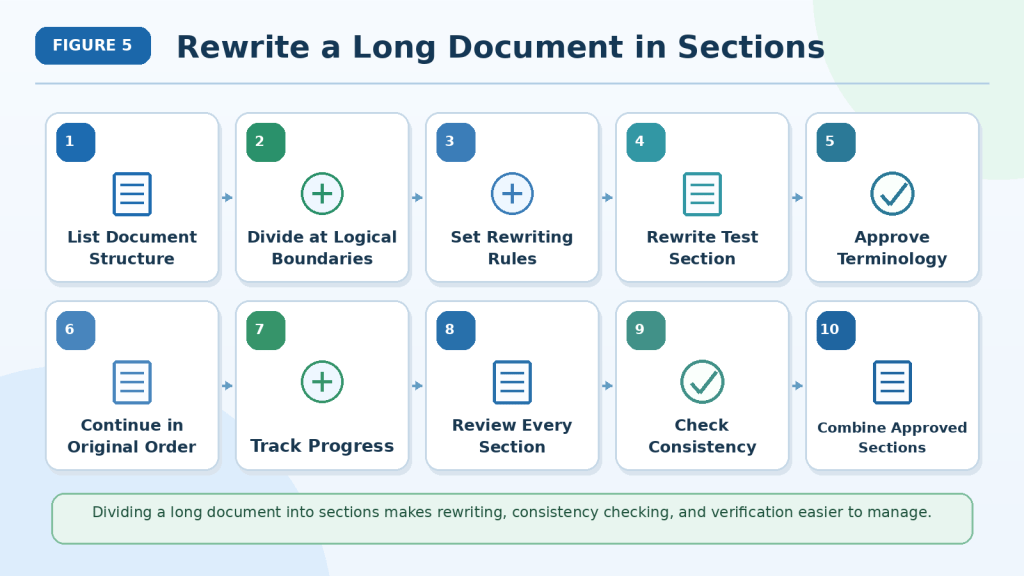
Figure 5. Dividing a long document into tracked sections makes corrections easier to review, compare, approve, and save.
Each section should pass through the same controlled process before it is marked complete. A final consistency review is still necessary after the approved sections are assembled into one document.
How to Review and Correct ChatGPT’s Suggested Edits
ChatGPT’s suggested corrections should be treated as proposals, not automatic replacements.
A correction may improve grammar but still:
· Change the intended meaning
· Replace an approved term
· Remove an important condition
· Weaken a warning
· Change uncertainty into certainty
· Alter a date or number
· Add unsupported information
· Create a new grammar problem
· Make the tone unsuitable
· Damage the document’s formatting
Review each suggestion before applying it.
Check Whether a Correction Is Necessary
Not every sentence needs to be changed.
ChatGPT may suggest a different sentence simply because another wording is possible.
For example:
Original:
Employees must submit the completed form before leaving the workplace.
Suggested edit:
Before departing the workplace, employees are required to submit the finalized form.
The suggestion is not necessarily wrong, but it changes several words without providing a clear benefit.
A better instruction may be:
Keep the original sentence because it is already clear and correct. Make only necessary corrections.
Avoid changing approved wording only to make it sound different.
Separate Corrections from Preferences
A correction fixes an error.
A preference changes style without fixing an error.
For example:
| Original | Suggestion | Classification |
| The employes must submit it. | The employees must submit it. | Necessary spelling correction |
| Submit the form by July 20 2026. | Submit the form by July 20, 2026. | Necessary punctuation correction |
| Use the form to report damage. | Report damage using the form. | Optional wording preference |
Ask ChatGPT to label each suggestion as:
· Necessary correction
· Clarity improvement
· Consistency correction
· Optional style preference
· Possible meaning change
· Requires human review
This helps you decide which changes are worth applying.
Check the Original Meaning
Compare each corrected sentence with the original.
Ask:
· Is the same person responsible?
· Is the same action required?
· Is the deadline unchanged?
· Is the condition still present?
· Is the warning equally strong?
· Is uncertainty still preserved?
· Is the same exception included?
· Is the approval status unchanged?
Example:
Original:
The request may be approved after the manager reviews the supporting documents.
Incorrect edit:
The manager will approve the request after reviewing the documents.
The edit changes:
· May be approved into will approve
· A general review condition into a promise
· The sentence’s focus and responsibility
A safer correction is:
The request may be approved after the manager reviews the supporting documents.
No change is needed.
Protect Mandatory and Optional Language
Small words can change the strength of an instruction.
Protect terms such as:
· Must
· Must not
· Required
· Prohibited
· May
· Might
· Could
· Should
· Recommended
· Expected
· Subject to approval
For example:
Original:
Employees must not use the equipment until the inspection is complete.
Incorrect edit:
Employees should avoid using the equipment until the inspection is complete.
The edit weakens a prohibition into a recommendation.
Ask ChatGPT:
Identify every change involving “must,” “must not,” “may,” “could,” “should,” “required,” “prohibited,” or similar words. Explain whether the strength of the instruction changed.
Check Names, Dates, Numbers, and Units
Review every correction involving:
· Personal names
· Organization names
· Job titles
· Dates
· Times
· Phone numbers
· Reference numbers
· Prices
· Percentages
· Measurements
· Units
· Deadlines
· Version numbers
Example:
Original:
Submit Form A-17 by August 12, 2026.
Incorrect edit:
Submit Form A-71 by August 21, 2026.
Grammar review should not alter the form number or deadline.
Compare important values character by character when accuracy matters.
Protect Approved Terminology
ChatGPT may replace a correct technical or organizational term with a more familiar word.
For example:
Approved term:
preventive maintenance inspection
Unwanted replacement:
safety check
The replacement may sound simpler but could have a different technical meaning.
Create a terminology table:
| Approved Term | Do Not Replace With |
| Preventive maintenance inspection | Safety check |
| Shift supervisor | Team leader |
| Temporary access code | Password |
| Two-factor authentication | Double password |
Ask ChatGPT to flag possible inconsistencies rather than silently replacing approved terms.
Review Quotations Carefully
Direct quotations should normally remain unchanged.
ChatGPT may try to correct grammar inside quoted material, even when the wording must match the original source.
Example:
The notice states, “Applications recieved after July 20 will not be reviewed.”
The quotation contains an apparent spelling error, but changing it may make the quotation inaccurate.
Possible options include:
· Preserve the quotation exactly.
· Confirm the wording with the original source.
· Use [sic] only when appropriate and understood by the audience.
· Paraphrase the statement without quotation marks.
· Ask the source owner for a corrected version.
Do not silently correct quoted text.
Check Whether Information Was Added
ChatGPT may add an explanation, example, recommendation, or conclusion that was not in the source.
For example:
Original:
Staff must report equipment damage to the shift supervisor.
Unsupported addition:
Staff must report equipment damage to the shift supervisor, who will arrange an inspection within 24 hours.
The 24-hour requirement was not stated in the original.
Ask ChatGPT:
List every word, sentence, example, requirement, explanation, or conclusion added during editing that was not supported by the original document.
Remove unsupported additions or label them clearly as separate suggestions.
Check Whether Information Was Removed
An edited sentence may be smoother because an important detail was deleted.
For example:
Original:
Employees must submit the form before the end of the current shift unless the supervisor provides written permission for a later submission.
Incomplete edit:
Employees must submit the form before the end of the current shift.
The edit removes the exception.
Check for missing:
· Conditions
· Exceptions
· Warnings
· Limitations
· Examples
· Definitions
· References
· Required steps
· Uncertain language
Ask ChatGPT to list every deleted phrase separately.
Review Grammar Changes in Context
A sentence may look correct by itself but be wrong in the full paragraph.
Check whether pronouns still refer to the correct person or object.
For example:
Maria gave the report to Fatima after she completed the inspection.
The word she may be unclear.
A possible correction is:
After Maria completed the inspection, she gave the report to Fatima.
However, this correction is only accurate if Maria performed the inspection.
When the source does not clarify the meaning, label it:
[Needs author clarification: Who completed the inspection?]
Do not guess.
Check Tone and Audience
A grammatically correct edit may use the wrong tone.
For example:
Original customer notice:
Please submit the missing document by July 20 so that we can continue reviewing your application.
Unnecessarily harsh edit:
You failed to provide the required document and must submit it immediately.
The new version changes the tone and may add an unsupported accusation.
Check whether the edited document should remain:
· Professional
· Neutral
· Friendly
· Formal
· Cautious
· Instructional
· Reassuring
· Direct
Preserve the intended relationship with the reader.
Review Headings and Lists
When ChatGPT edits a heading or list, confirm that:
· The heading still describes the section.
· The heading level remains correct.
· Ordered steps stay in the correct sequence.
· Unordered information remains in bullets.
· No step is combined or removed.
· List introductions still match the items.
· Punctuation remains consistent.
· Parallel wording is preserved.
For example, a step beginning with Check should not be changed into an unrelated noun phrase when the other steps begin with action verbs.
Review Tables and Captions
Check that editing did not move information into the wrong table cell.
Confirm:
· Column headings
· Row labels
· Dates
· Numbers
· Units
· Notes
· Source labels
For figures, confirm:
· Correct figure number
· Approved caption wording
· Period after the figure number
· Explanation placed below the caption
· Correct connection to the surrounding paragraph
Complex tables and layouts should also be checked manually in the final document program.
Ask ChatGPT to Explain Unclear Changes
When you do not understand a correction, ask for an explanation.
Example:
Explain why you changed “may be required” to “is required.” Does this change possibility into certainty?
Another useful prompt is:
Identify the exact grammar rule behind this correction. Also explain whether the original sentence was incorrect or whether your suggestion is only a style preference.
A clear explanation can help you reject unnecessary or risky edits.
Ask for Safer Alternatives
A suggested correction may identify a real problem but solve it poorly.
For example:
Original:
The equipment should not be operated where damage is suspected.
The wording may be unclear because should not might mean advice rather than prohibition.
Instead of guessing, ask:
Provide three possible corrections. Keep the level of obligation unchanged and explain how each version could be interpreted.
Then confirm the intended requirement with the document owner or subject specialist.
Use an Approval Table
Record your decisions in a structured table.
| Correction | Decision | Reason | Final Wording |
| Correct “employes” | Approve | Spelling error | employees |
| Change “may” to “will” | Reject | Changes uncertainty | may |
| Replace approved job title | Reject | Terminology must remain | shift supervisor |
| Add missing comma | Approve | Punctuation correction | July 20, 2026 |
| Add 24-hour deadline | Remove | Unsupported information | Not included |
This record is useful when several people review the document.
Request a Revised Correction List
After rejecting or changing suggestions, ask ChatGPT to produce an updated list.
Example prompt:
Remove all rejected suggestions. Revise the approved corrections according to my instructions. Return an updated correction table only. Do not produce the clean document yet.
Review the revised list before requesting the final corrected section.
Request a Clean Version with Approved Changes Only
Use a precise instruction:
Apply only the corrections marked Approved in the final correction table. Preserve all other wording exactly. Return the complete section without comments, explanations, labels, or additional rewriting.
Then compare the clean section with:
· The original
· The final correction table
· Your approval decisions
Confirm that no unapproved change was applied.
Perform a Meaning-Risk Review
Before accepting the corrected section, request one more check:
Review the corrected section for meaning risk. List any change that may affect a fact, responsibility, deadline, requirement, warning, condition, exception, limitation, technical term, quotation, approval status, or uncertainty.
Treat this as an additional check, not proof that the document is correct.
When to Ask a Human Reviewer
Human review may be necessary when the document contains:
· Legal obligations
· Medical instructions
· Financial information
· Safety procedures
· Employment requirements
· Technical specifications
· Accessibility requirements
· Contracts
· Regulatory information
· Sensitive public statements
Use a qualified editor, subject specialist, legal professional, medical professional, financial professional, accessibility specialist, or other appropriate reviewer when needed.
ChatGPT can help identify possible writing problems, but it cannot replace required professional judgment or organizational approval.
Prompt for Reviewing Suggested Edits
Copy and modify this prompt:
Review the proposed edits against the original document. Classify every suggestion as Necessary Correction, Clarity Improvement, Consistency Correction, Optional Style Preference, Possible Meaning Change, or Requires Human Review.
Identify any change involving names, dates, numbers, units, deadlines, responsibilities, requirements, warnings, conditions, exceptions, limitations, technical terms, quotations, references, approval status, or uncertainty.
List any unsupported addition, deleted information, weakened instruction, stronger claim, changed tone, or altered terminology. Do not apply further edits. Present the findings in a table with the columns: Original Text, Proposed Edit, Classification, Meaning Risk, Recommended Decision, and Reason.

Figure 6. Suggested edits should be classified, checked for meaning risk, and approved or rejected before they are added to the document.
A correct proofreading decision considers more than grammar. It also protects facts, responsibilities, warnings, conditions, approved terminology, uncertainty, and the document’s intended tone.
How to Verify a Proofread or Edited Document
Proofreading is not complete when ChatGPT produces a cleaner version.
The final document must be compared with the original to confirm that:
· Every approved correction was applied
· Rejected suggestions were not applied
· No facts were changed
· No required information was removed
· No unsupported information was added
· The original structure and formatting were preserved
· The document still communicates the intended meaning
Verification is especially important after clarity editing, tone editing, structural editing, or several separate proofreading passes.
Keep Three Versions Available
Before verification, keep these versions open:
- Original document — the unchanged source file
- Approved correction record — the final correction table or review notes
- Edited document — the version containing approved changes
These three records help you determine whether a difference was:
· Present in the original
· Proposed during proofreading
· Approved by you
· Added without approval
· Accidentally removed
Do not verify the edited document from memory.
Confirm That Only Approved Changes Were Applied
Compare the edited document with the final correction record.
Check that:
· Every approved correction appears
· Every rejected correction is absent
· Revised suggestions use the wording you approved
· Optional suggestions were not applied automatically
· No extra rewriting was added
Example:
| Proposed Change | Decision | Final Document |
| Correct “employes” to “employees” | Approved | Correct |
| Change “may” to “will” | Rejected | Must remain “may” |
| Add a 24-hour deadline | Rejected | Must not appear |
| Add comma to July 20, 2026 | Approved | Correct |
When an unapproved change appears, restore the original wording or apply the approved version.
Compare Facts Character by Character
Review information that must remain exact.
This includes:
· Names
· Organization names
· Job titles
· Dates
· Times
· Numbers
· Amounts
· Percentages
· Measurements
· Units
· Reference numbers
· Form numbers
· Version numbers
· Contact details
· Deadlines
For example:
Original:
Submit Form A-17 by August 12, 2026.
Incorrect edited version:
Submit Form A-71 by August 21, 2026.
Both sentences are grammatically correct, but the edited version contains two serious factual errors.
Do not rely on grammar tools to verify factual values.
Check Responsibilities and Required Actions
Confirm that the same person or group remains responsible for each action.
Ask:
· Who must perform the action?
· Who receives the document?
· Who reviews it?
· Who provides approval?
· Who records the result?
· Who may make an exception?
Example:
Original:
The employee submits the form to the supervisor, who sends it to maintenance.
Incorrect edit:
The supervisor submits the form to the employee before sending it to maintenance.
The edit reverses the responsibility and direction of the document.
Verify every sentence containing:
· Must
· Must not
· Is responsible for
· Submits
· Reviews
· Approves
· Reports
· Notifies
· Authorizes
Verify Conditions and Exceptions
An edit may be incomplete when it removes a condition or exception.
Original:
The equipment may return to service after maintenance completes the inspection and the manager provides written approval.
Incomplete edit:
The equipment may return to service after the inspection.
The edited version removes:
· Who performs the inspection
· The written-approval requirement
· The manager’s responsibility
Check for words and phrases such as:
· If
· Unless
· Except
· After
· Before
· Only when
· Provided that
· Subject to
· With approval
· In certain cases
These details may control when a rule applies.
Protect Warnings and Prohibitions
Warnings should not become weaker during editing.
Original:
Do not operate the equipment while the safety guard is missing.
Unsafe edit:
Avoid operating the equipment while the safety guard is missing.
The edit changes a direct prohibition into softer advice.
Confirm that:
· Must not was not changed to should not
· Do not was not changed to try not to
· Required was not changed to recommended
· Prohibited was not changed to discouraged
· Important warning details were not shortened or removed
Safety-related wording may require review by a qualified specialist.
Preserve Uncertainty
Proofreading should not make uncertain information sound definite.
Protect words such as:
· May
· Might
· Could
· Possible
· Expected
· Estimated
· Preliminary
· Generally
· Usually
· Subject to approval
· Not yet confirmed
Example:
Original:
The project is expected to begin in September 2026.
Incorrect edit:
The project will begin in September 2026.
The edited version changes an expectation into a definite commitment.
Ask ChatGPT:
Compare the original and edited documents and list every uncertain word that was removed, replaced, or strengthened.
Review the results manually.
Check for Unsupported Additions
Look for information that did not appear in the source or approved correction record.
Unsupported additions may include:
· New facts
· New deadlines
· New requirements
· New examples
· New warnings
· New explanations
· New conclusions
· New recommendations
· New qualifications
For example:
Original:
Submit the request to the department manager.
Unsupported addition:
Submit the request to the department manager, who will respond within five business days.
The response time was invented.
Remove unsupported additions unless they have been separately researched, approved, and clearly identified as new content.
Check for Missing Information
Compare the beginning, middle, and end of every section.
Look for missing:
· Sentences
· Paragraphs
· List items
· Conditions
· Exceptions
· Warnings
· Definitions
· Notes
· Citations
· Links
· Table rows
· Captions
· References
Ask ChatGPT:
Compare the original and edited versions section by section. List every sentence, phrase, list item, table entry, caption, citation, or reference that appears in the original but not in the edited version.
Do not assume that an empty result proves nothing is missing.
Review Headings and Document Structure
Confirm that:
· The H1 title appears once
· H2 and H3 levels remain correct
· No headings were duplicated
· No section was moved without approval
· No section was omitted
· Paragraphs remain under the correct headings
· Warnings remain close to the instructions they affect
· Definitions appear before or near their first use
Structural changes can affect meaning even when the wording remains correct.
Verify Numbered and Bulleted Lists
For numbered lists, confirm:
· All steps remain present
· The order is correct
· Numbering is continuous
· Required actions were not combined
· No optional point was turned into a required step
For bullet lists, confirm:
· Every item belongs in the list
· No bullet was duplicated
· Punctuation is consistent
· The introduction matches the list
· Similar items use parallel wording
Example:
Incorrect mixed structure:
- Upload the document.
- Privacy considerations
- Review the corrections.
A more consistent ordered list is:
- Upload the document.
- Review the privacy settings.
- Review the corrections.
Verify Tables
Check tables directly against the original.
Confirm:
· Correct column headings
· Correct row labels
· Correct data placement
· Correct dates and numbers
· Correct units
· Correct notes
· No missing rows or columns
· No merged information that changes meaning
A correct value in the wrong row or column is still an error.
Complex tables should be checked manually in the original document program.
Verify Figures, Captions, and Explanations
For each figure, confirm:
· The correct image is present
· The filename matches the approved figure
· Figure numbering is continuous
· The caption begins with Figure X.
· The approved caption is unchanged
· The explanation appears immediately below the caption
· The figure remains near the correct paragraph
· Alt text accurately describes the image
· Visible text in the image is correctly spelled
Also check that no figure was duplicated or omitted.
Verify Links and References
Test every link manually.
Confirm that:
· The link opens
· It leads to the intended destination
· The linked text is descriptive
· The correct statement is connected to the source
· No internal link points to a WordPress editing page
· Tracking parameters have been removed when appropriate
· Reference titles remain complete
· Citations were not separated from the statements they support
A grammatically correct citation may still point to the wrong source.
Check Formatting in the Final Program
ChatGPT may help identify formatting inconsistencies, but the final document should be reviewed in the program where it will be used.
For example:
· SoftMaker TextMaker
· Microsoft Word
· Google Docs
· WordPress
· A PDF viewer
Check:
· Font and size
· Heading styles
· Paragraph spacing
· Indentation
· Page breaks
· Bullets
· Numbering
· Table width
· Image placement
· Captions
· Headers and footers
· Hyperlinks
For AI Mastery DOCX files, confirm that body text uses Arial 12-point and that the document displays correctly in SoftMaker TextMaker 2021.
Read the Document Aloud
Reading aloud can help reveal:
· Missing words
· Repeated words
· Awkward sentences
· Sudden tone changes
· Overly long sentences
· Incorrect punctuation
· Repeated ideas
· Unclear transitions
You may read it yourself or use an available text-to-speech tool.
Do not use smooth audio delivery as proof that the information is accurate.
Perform Separate Final Passes
One final review may miss problems.
Use separate passes for:
- Spelling and grammar
- Names, dates, and numbers
- Responsibilities and deadlines
- Conditions, exceptions, and warnings
- Terminology consistency
- Headings and lists
- Tables
- Figures and captions
- Links and references
- Formatting and layout
Focused reviews make specific errors easier to notice.
Request a Final Verification Report
You can ask ChatGPT to produce a structured verification report.
Example prompt:
Compare the final edited document with the original and the approved correction table. Do not edit anything. Report:
- Approved corrections that were applied
- Approved corrections that are missing
- Rejected corrections that were applied
- Unapproved wording changes
- Changed names, dates, numbers, responsibilities, deadlines, warnings, conditions, exceptions, limitations, quotations, technical terms, references, or uncertainty
- Added or deleted information
- Heading, list, table, figure, caption, link, reference, or formatting problems
- Items requiring human review
For each finding, quote a short identifying phrase from the original and edited versions and explain the risk. Do not guess when the source is unclear.
Use this report as an additional review aid, not as proof that the document is error-free.
Save the Verified Version
After completing the review, save a separate final file.
Example filename:
article-031-proofread-verified-version-july-2026.docx
Keep:
· The original document
· The proofreading copy
· Correction tables
· Approved and rejected decisions
· Verification reports
· Style and terminology rules
· Reviewer comments
· The final verified version
· Publication records when applicable
Reality: A document that looks cleaner may still contain changed facts, missing conditions, weakened warnings, unsupported additions, or formatting problems. Verification requires comparing the edited version with the original and the approved correction record.

Figure 7. Final verification compares the original document, approved corrections, and edited version to identify unauthorized or inaccurate changes.
Grammar and clarity are only part of the final review. Facts, responsibilities, conditions, warnings, uncertainty, structure, references, and formatting must also remain accurate before the document is approved.
Practical Example: Proofreading a Workplace Notice
This example shows how ChatGPT can help identify language errors while preserving a workplace notice’s facts, deadline, responsibilities, and conditions.
Original Notice
All employee’s must submits there completed safety forms to the shift supervisor by July 31 2026. The supervisor review each form and send any incomplete form’s back to the employee. A form may be accepted after the missing information is provided. Employee’s must not return damaged equipment to service unless the maintenance manager provide written approval.
The notice contains several writing problems:
· Incorrect apostrophes
· Incorrect verb forms
· Confusion between there and their
· Missing punctuation
· Inconsistent singular and plural forms
· A missing comma in the date
However, the important meaning must remain unchanged.
Important Information to Protect
Before proofreading, identify the facts and requirements that must remain accurate:
· All employees must submit the forms.
· The forms are safety forms.
· The forms must be completed.
· The recipient is the shift supervisor.
· The deadline is July 31, 2026.
· The supervisor reviews each form.
· Incomplete forms are returned to the employee.
· A form may be accepted after missing information is provided.
· Damaged equipment must not return to service without written approval.
· The maintenance manager provides the approval.
These details should not be shortened, strengthened, weakened, or reassigned.
Proofreading Prompt
Proofread the workplace notice for spelling, grammar, punctuation, capitalization, apostrophes, missing words, and incorrect word forms.
Make only necessary corrections. Preserve every responsibility, deadline, condition, warning, and uncertain statement. Keep “may” unchanged. Do not add new requirements, explanations, deadlines, or consequences.
Present the proposed corrections in a table before creating the corrected notice.
Proposed Correction Table
| Original Text | Suggested Correction | Correction Type | Reason |
| All employee’s | All employees | Apostrophe | A plural noun does not require an apostrophe |
| must submits | must submit | Grammar | A modal verb is followed by the base verb |
| there completed safety forms | their completed safety forms | Word choice | Their shows possession |
| July 31 2026 | July 31, 2026 | Punctuation | Adds the comma used in this date format |
| The supervisor review | The supervisor reviews | Subject–verb agreement | Singular subject requires reviews |
| send any incomplete form’s | sends any incomplete forms | Grammar and apostrophe | Corrects the verb and plural noun |
| Employee’s must not | Employees must not | Apostrophe | A plural noun does not require an apostrophe |
| manager provide | manager provides | Subject–verb agreement | Singular subject requires provides |
The sentence containing may be accepted does not require a change because may preserves uncertainty.
Corrected Notice
All employees must submit their completed safety forms to the shift supervisor by July 31, 2026. The supervisor reviews each form and sends any incomplete forms back to the employee. A form may be accepted after the missing information is provided. Employees must not return damaged equipment to service unless the maintenance manager provides written approval.
What Was Corrected
The proofreading corrected:
· Plural nouns
· Apostrophes
· Verb forms
· Subject–verb agreement
· A commonly confused word
· Date punctuation
What Was Preserved
The corrected version preserves:
· The employees’ responsibility
· The shift supervisor’s responsibility
· The maintenance manager’s authority
· The July 31, 2026 deadline
· The requirement to complete the form
· The process for incomplete forms
· The word may
· The condition for accepting a form
· The prohibition against returning damaged equipment to service
· The written-approval requirement
Incorrect Edits to Reject
Changed Deadline
Incorrect edit:
All employees must submit their completed safety forms by July 30, 2026.
Why it should be rejected: The original deadline was July 31, 2026.
Weakened Safety Instruction
Incorrect edit:
Employees should avoid returning damaged equipment to service.
Why it should be rejected: The original uses must not, which is a direct prohibition. Should avoid weakens the instruction.
Changed Approval Responsibility
Incorrect edit:
Employees may return damaged equipment to service after receiving approval from the shift supervisor.
Why it should be rejected: The original requires written approval from the maintenance manager.
Changed Uncertainty
Incorrect edit:
A form will be accepted after the missing information is provided.
Why it should be rejected: The original says may be accepted, not will be accepted.
Unsupported Addition
Incorrect edit:
Incomplete forms must be corrected within 24 hours.
Why it should be rejected: The original notice does not include a 24-hour deadline.
Verification Table
After proofreading, compare the corrected notice with the original.
| Verification Item | Original Meaning | Corrected Version | Result |
| Who submits the forms? | All employees | All employees | Preserved |
| What is submitted? | Completed safety forms | Completed safety forms | Preserved |
| Who receives them? | Shift supervisor | Shift supervisor | Preserved |
| What is the deadline? | July 31, 2026 | July 31, 2026 | Preserved |
| Who reviews the forms? | Shift supervisor | Shift supervisor | Preserved |
| What happens to incomplete forms? | Returned to the employee | Returned to the employee | Preserved |
| Is acceptance guaranteed? | No—form may be accepted | No—form may be accepted | Preserved |
| Can damaged equipment return automatically? | No | No | Preserved |
| Who authorizes its return? | Maintenance manager | Maintenance manager | Preserved |
| Is written approval required? | Yes | Yes | Preserved |
Final Review
The corrected notice is grammatically cleaner, but its operational meaning remains the same.
Before using it, a final reviewer should still confirm:
· The deadline
· The job titles
· The approval process
· The safety instruction
· The form name
· The intended workplace procedure
Reality: A workplace notice is not correctly proofread when its grammar improves but its deadline, responsibility, condition, or warning changes.

Figure 8. Proofreading corrects language errors while preserving the notice’s deadline, responsibilities, conditions, and safety requirements.
A side-by-side review helps separate necessary grammar corrections from edits that would change workplace rules. Important words such as may, must not, and written approval should remain unchanged unless the document owner approves a revision.
Practical Example: Editing a Technical Explanation for Beginners
This example shows how ChatGPT can help improve clarity and consistency in a technical explanation without removing essential facts or creating unsupported claims.
Original Technical Explanation
Two factor authentication is a security process were a user must provide two types of verification before they can access there account. The first factor is usually there password and the second factor could be a code that is send to there phone. This makes the account completely secure because a hacker cannot get in without both factors. Users should always turn it on because it prevents all unauthorized access.
The paragraph contains:
· Spelling and grammar errors
· Missing hyphens
· Confusion between were, where, their, and there
· An incorrect verb form
· Repeated wording
· An unsupported claim of complete security
· An unsupported statement that it prevents all unauthorized access
· Limited examples of possible second verification methods
Important Information to Protect
Before editing, identify the accurate meaning that should remain:
· Two-factor authentication requires two different verification methods.
· A password is commonly the first method.
· A temporary code may be used as the second method.
· Two-factor authentication can make unauthorized access more difficult.
· It does not remove every security risk.
The editor should not promise complete protection.
Editing Prompt
Proofread and lightly edit this technical explanation for complete beginners. Correct spelling, grammar, punctuation, hyphenation, word choice, and awkward sentences.
Preserve the explanation that two-factor authentication uses two different verification methods. Keep a password as the usual first method and a temporary code as one possible second method.
Remove or correct unsupported claims that it makes an account completely secure or prevents all unauthorized access. Use cautious, accurate language. Do not add technical claims that are not supported by the source. Present proposed changes before creating the corrected paragraph.
Proposed Correction Table
| Original Text | Suggested Correction | Correction Type | Reason |
| Two factor authentication | Two-factor authentication | Hyphenation | The words work together as a compound term |
| were a user | where a user | Word choice | Where refers to the situation being described |
| access there account | access their account | Word choice | Their shows possession |
| there password | their password | Word choice | Correct possessive form |
| could be a code that is send | could be a code that is sent | Grammar | Corrects the passive verb form |
| send to there phone | sent to their phone | Grammar and word choice | Corrects the verb and possessive form |
| completely secure | more difficult for someone else to access | Accuracy | Removes an unsupported guarantee |
| prevents all unauthorized access | adds protection but does not remove every risk | Accuracy | Preserves the benefit without claiming complete protection |
Corrected Explanation
Two-factor authentication is a security process in which a user provides two different verification methods before accessing an account. The first method is usually a password. The second method could be a temporary code sent to the user’s phone. Two-factor authentication can make it more difficult for someone else to access the account, but it does not remove every security risk.
What Was Corrected
The edited version corrects:
· Grammar
· Spelling
· Hyphenation
· Possessive words
· Verb forms
· Sentence structure
· Repetition
· Unsupported security claims
What Was Preserved
The corrected explanation preserves:
· The full term two-factor authentication
· The requirement for two different verification methods
· A password as the usual first method
· A temporary code as a possible second method
· The security benefit
· The limitation that protection is not complete
Optional Expansion for Beginners
After the original meaning has been verified, a separate approved explanation could add other common examples.
For example:
The second method may also use an authentication app, security key, or biometric method such as a fingerprint, depending on the service.
This information should be added only after it has been checked and approved. It should not be presented as part of the original source when the source mentioned only a temporary code.
Incorrect Edits to Reject
Complete-Security Promise
Incorrect edit:
Two-factor authentication makes an account completely secure.
Why it should be rejected: No security method removes every possible risk.
Guaranteed Prevention
Incorrect edit:
Two-factor authentication prevents hackers from accessing an account.
Why it should be rejected: It can make unauthorized access more difficult, but it cannot guarantee prevention.
Changed Technical Meaning
Incorrect edit:
Two-factor authentication requires users to enter their password twice.
Why it should be rejected: Two-factor authentication uses two different verification methods, not two entries of the same password.
Unsupported Requirement
Incorrect edit:
Every website requires users to enable two-factor authentication.
Why it should be rejected: The original does not state this, and availability or requirements may vary by service.
Removed Limitation
Incorrect edit:
Two-factor authentication protects the account from unauthorized access.
Why it should be rejected: The sentence removes the limitation and may sound like a guarantee.
Verification Table
| Verification Item | Original Intended Meaning | Corrected Version | Result |
| What is the security process called? | Two-factor authentication | Two-factor authentication | Preserved |
| How many verification methods are used? | Two | Two | Preserved |
| Are the methods different? | Yes | Yes | Clarified |
| What is usually the first method? | Password | Password | Preserved |
| What may be the second method? | Temporary code | Temporary code | Preserved |
| Is complete security promised? | Original incorrectly says yes | No | Corrected |
| Is every unauthorized attempt prevented? | Original incorrectly says yes | No | Corrected |
| Is the security benefit explained? | Yes | Yes | Preserved accurately |
| Is a limitation included? | Missing | Yes | Added to correct the unsupported claim |
Why Accuracy Editing Was Necessary
A basic grammar check would not have been enough for this paragraph.
The original contained statements that were grammatically understandable but factually too strong:
· Completely secure
· Prevents all unauthorized access
These claims required accuracy editing, not only proofreading.
When technical content contains guarantees, absolute claims, or safety statements, ask whether the wording is:
· Supported
· Current
· Complete
· Properly qualified
· Suitable for the intended audience
The final explanation should be easy to understand without becoming misleading.
Reality: Clearer technical writing must remain accurate. Removing complexity should not create guarantees, change definitions, or hide important limitations.

Figure 9. Editing can make a technical explanation easier for beginners while preserving its definition, benefit, examples, and limitations.
Technical editing requires more than correcting grammar. Claims of complete protection should be removed or qualified, and important technical meanings should remain accurate.
Benefits of Proofreading and Editing Documents with ChatGPT
ChatGPT can support several stages of proofreading and editing when the user provides clear instructions and reviews the suggested changes carefully.
Finds Common Writing Errors
ChatGPT can help identify:
· Misspelled words
· Grammar mistakes
· Missing punctuation
· Incorrect capitalization
· Repeated words
· Missing words
· Awkward sentence construction
· Inconsistent verb forms
This can make an early review faster, especially when a document contains many pages.
Explains Why a Correction Is Suggested
Instead of providing only a corrected sentence, ChatGPT can explain:
· Which grammar rule applies
· Whether the change is necessary
· Whether it is a style preference
· Whether the original wording is unclear
· Whether the correction may affect meaning
Example prompt:
Explain each correction in simple language. Label it as necessary, optional, or meaning-sensitive.
This can help beginners understand their writing mistakes and improve future drafts.
Supports Different Review Levels
You can request:
· Basic proofreading
· Grammar-only correction
· Light editing
· Copy editing
· Clarity editing
· Tone editing
· Consistency checking
· Publication-readiness review
Choosing the correct review level helps prevent unnecessary rewriting.
Helps Maintain Consistent Terminology
Long documents may use several versions of the same term.
For example:
· AI generated
· AI-generated
· artificial intelligence-generated
ChatGPT can list these variations and help you apply one approved form consistently.
This can also help with:
· Job titles
· Department names
· Product names
· Technical terms
· Heading capitalization
· Date formats
· Figure-caption styles
Reviews One Section at a Time
A section-by-section process makes it easier to:
· Review each suggested change
· Protect important facts
· Track completed sections
· Approve or reject corrections
· Prevent missing content
· Save reviewed versions
This is especially useful for long articles, reports, guides, manuals, and workplace documents.
Compares Original and Edited Text
ChatGPT can organize corrections in a comparison table.
For example:
| Original | Suggested Correction | Reason |
| The employes submits it. | The employees submit it. | Spelling and grammar |
| Approval may follow review. | No change | Preserves uncertainty |
A comparison table makes it easier to see what changed before accepting the final version.
Helps Protect Important Meaning
Clear instructions can direct ChatGPT to preserve:
· Names
· Dates
· Numbers
· Responsibilities
· Deadlines
· Conditions
· Warnings
· Exceptions
· Limitations
· Technical terms
· Uncertainty
This does not remove the need for verification, but it creates a more controlled editing process.
Identifies Possible Meaning Changes
ChatGPT can help flag risky edits involving words such as:
· Must
· Must not
· May
· Could
· Should
· Required
· Recommended
· Expected
· Subject to approval
For example, it can identify that changing may be approved to will be approved changes uncertainty into certainty.
Supports Different Audiences
You can ask ChatGPT to adjust the clarity or tone for:
· Complete beginners
· Customers
· Employees
· Students
· General adult readers
· Technical specialists
The user should still confirm that the edited version remains accurate and appropriate for the intended audience.
Helps Review Document Structure
ChatGPT can identify possible problems involving:
· Repeated sections
· Missing headings
· Inconsistent heading levels
· Disorganized paragraphs
· Incorrect list use
· Abrupt transitions
· Duplicate examples
· Misplaced warnings
Structural suggestions should be reviewed carefully before they are applied.
Assists with Final Consistency Checks
After individual sections are approved, ChatGPT can perform focused final checks for:
· Terminology
· Spelling variation
· Heading style
· List punctuation
· Date formatting
· Figure numbering
· Captions
· References
· Repeated content
Focused checks are often easier to verify than one broad final editing request.
Supports Learning and Skill Development
Beginners can ask ChatGPT to explain:
· Why a word is incorrect
· Why punctuation is needed
· Why a sentence is unclear
· Why a suggestion changes meaning
· How two possible corrections differ
This can turn proofreading into a learning activity instead of simply replacing the original text.
Helps Create an Editing Record
ChatGPT can organize:
· Proposed corrections
· Approved changes
· Rejected suggestions
· Terminology rules
· Meaning-risk notes
· Final verification findings
These records may help when:
· Several people review the document
· A manager or client must approve changes
· The writer needs to explain a correction
· The original and edited versions must be preserved
Improves Efficiency Without Removing Human Review
ChatGPT can reduce some repetitive work by identifying likely errors and organizing suggestions.
However, the user still needs to:
· Review every important change
· Check facts manually
· Confirm required terminology
· Test links
· Review tables and formatting
· Obtain professional approval when necessary
Reality: ChatGPT can make proofreading and editing more organized and efficient, but it does not guarantee that every correction is accurate or appropriate.

Figure 10. ChatGPT can help organize proofreading, explain corrections, compare versions, and improve consistency when the user reviews each suggestion.
The main benefit is a more structured editing process. Human review remains necessary to confirm facts, meaning, formatting, terminology, and professional requirements.
Limitations of Proofreading and Editing Documents with ChatGPT
ChatGPT can help find writing problems, but it should not be trusted to approve a document automatically.
Its suggestions may be useful, unnecessary, incomplete, or incorrect. Important changes must always be compared with the original document.
It May Change the Meaning
A small wording change can alter an important fact, condition, responsibility, or level of certainty.
Original:
The application may be approved after review.
Incorrect edit:
The application will be approved after review.
Changing may to will turns a possible outcome into a guarantee.
How to Reduce This Limitation: Tell ChatGPT to preserve words such as may, could, must, must not, expected, and subject to approval. Check every meaning-sensitive change manually.
It May Make Unnecessary Changes
ChatGPT may rewrite sentences that are already correct.
Original:
Employees must submit the form before leaving.
Unnecessary edit:
Employees are required to submit the form before departing.
The new version is different, but it is not clearly better.
How to Reduce This Limitation: Ask ChatGPT to make only necessary corrections and list optional style changes separately.
It May Add Information That Was Not in the Source
ChatGPT may invent a deadline, requirement, explanation, example, or conclusion.
Original:
Send the report to the supervisor.
Unsupported addition:
Send the report to the supervisor within 24 hours.
The original did not include a 24-hour deadline.
How to Reduce This Limitation: Ask ChatGPT to identify every added detail. Remove anything that cannot be confirmed from the original document or another approved source.
It May Remove Important Details
A shorter sentence may accidentally leave out a condition, exception, warning, or required step.
Original:
The equipment may return to service after inspection and written approval.
Incomplete edit:
The equipment may return to service after inspection.
The written-approval condition has disappeared.
How to Reduce This Limitation: Compare the original and edited versions section by section and check for deleted sentences, list items, warnings, conditions, references, and captions.
It May Weaken Requirements or Warnings
Some words communicate different levels of obligation.
Original:
Employees must not operate damaged equipment.
Unsafe edit:
Employees should avoid operating damaged equipment.
Must not is a prohibition. Should avoid sounds like advice.
How to Reduce This Limitation: Request a separate check of every change involving mandatory, optional, conditional, or uncertain wording.
It May Guess When the Source Is Unclear
Some sentences have more than one possible meaning.
For example:
Maria gave the report to Fatima after she completed the inspection.
The sentence does not clearly identify who completed the inspection.
ChatGPT may choose one meaning and rewrite the sentence confidently.
How to Reduce This Limitation: Instruct ChatGPT to use [Needs author clarification] when the intended meaning cannot be confirmed.
It Cannot Verify Every Fact
A sentence can be grammatically correct but factually wrong.
For example:
Submit Form A-71 by August 21, 2026.
The original document may actually require Form A-17 by August 12, 2026.
How to Reduce This Limitation: Check names, dates, numbers, amounts, units, deadlines, job titles, and reference codes against the original source.
It May Replace Approved Terminology
ChatGPT may replace an official or technical term with a simpler phrase.
Approved term:
Preventive maintenance inspection
Possible replacement:
Safety check
These terms may not mean the same thing.
How to Reduce This Limitation: Provide a list of approved terms and instruct ChatGPT not to replace them.
It May Miss Errors or Create New Ones
ChatGPT may fail to notice:
· A misspelled name
· An incorrect date
· A repeated paragraph
· A missing step
· A broken reference
· An incorrect figure number
· Information in the wrong table cell
It may also introduce a new grammar, punctuation, or consistency problem.
How to Reduce This Limitation: Use several focused review passes and proofread the edited version again.
Long Documents May Be Reviewed Inconsistently
During a long review, ChatGPT may:
· Forget earlier instructions
· Use different terminology
· Miss a section
· Repeat content
· Change formatting
· Restart numbering
How to Reduce This Limitation: Review one section at a time, use a progress tracker, and complete a final consistency check after assembling the document.
Complex Layouts May Not Be Preserved Correctly
Tables, columns, text boxes, footnotes, scans, and text inside images may be difficult to interpret.
A value may be correct but appear under the wrong heading or in the wrong table row.
How to Reduce This Limitation: Check all tables, figures, captions, page layouts, headers, footers, and visual relationships in the original file and final document program.
It Cannot Guarantee Accessibility
Clear language is only one part of accessibility.
A document may also require:
· Correct heading structure
· Descriptive links
· Alt text
· Accessible tables
· Logical reading order
· Colour contrast
· Captions or transcripts
· Keyboard accessibility
How to Reduce This Limitation: Review the final document with appropriate accessibility tools and qualified guidance when required.
It Cannot Replace Professional Review
Extra review may be necessary for:
· Legal documents
· Medical instructions
· Financial information
· Safety procedures
· Employment policies
· Technical specifications
· Contracts
· Regulatory information
A sentence can be well written and still be professionally inaccurate or unsafe.
How to Reduce This Limitation: Use a qualified editor, subject specialist, legal professional, medical professional, financial professional, accessibility specialist, or other appropriate reviewer when needed.
Privacy and Permission Risks Remain
Privacy controls do not automatically give permission to upload or edit a document.
The file may still be protected by:
· Confidentiality rules
· Copyright
· Client agreements
· Workplace policies
· Personal-information laws
· Publication restrictions
How to Reduce This Limitation: Remove unnecessary private information, confirm permission, review current privacy settings, and follow the document owner’s approved procedures.
Features and Policies May Change
File support, upload limits, privacy settings, retention rules, and interface controls may change.
Readers should check current official information:
· When first using a feature
· After changing plans or workspaces
· After receiving a policy-update notice
· Before handling sensitive documents
· Periodically
Reality: ChatGPT can support proofreading and editing, but it cannot guarantee that a document is accurate, complete, accessible, professionally approved, or ready to publish.

Figure 11. ChatGPT may change meaning, add unsupported information, miss errors, or misunderstand complex document content.
Careful instructions and comparison checks can reduce these risks, but they cannot remove them completely. Important documents may still require manual or professional review.
Common Proofreading and Editing Mistakes
Even when ChatGPT identifies useful corrections, the review process can fail if the user gives unclear instructions or accepts changes too quickly.
Asking for a Complete Rewrite Instead of Proofreading
A broad request such as:
Improve this document.
may cause ChatGPT to change:
· Sentence structure
· Tone
· Paragraph order
· Terminology
· Examples
· Important conditions
This is risky when the document needs only spelling, grammar, or punctuation corrections.
How to Avoid This Mistake: State the exact review level.
For example:
Proofread for spelling, grammar, punctuation, capitalization, missing words, and repeated words only. Do not rewrite sentences unless they contain a clear error.
Accepting Every Suggestion Automatically
A suggested change may sound smoother but still be:
· Unnecessary
· Factually incorrect
· Too formal
· Too informal
· Different from the approved meaning
· Inconsistent with the document’s terminology
How to Avoid This Mistake: Review each proposed correction and approve or reject it before requesting a clean version.
Failing to Protect Important Words
Words such as must, must not, may, could, should, and subject to approval can change the meaning of a rule.
Original:
The refund may be approved after review.
Incorrect edit:
The refund will be approved after review.
How to Avoid This Mistake: Include protected words in the proofreading prompt and ask ChatGPT to report every proposed change involving obligation, permission, prohibition, or uncertainty.
Proofreading Without the Original Document
It is difficult to identify missing, changed, or unsupported information when only the edited version is available.
How to Avoid This Mistake: Keep the original document, correction record, and edited version available throughout the review.
Editing the Entire Long Document at Once
A single large request may result in:
· Missed sections
· Inconsistent terminology
· Repeated content
· Changed formatting
· Unclear correction records
· Too many suggestions to review carefully
How to Avoid This Mistake: Divide the document into named sections and complete one section before continuing.
Using Unclear Instructions
A request such as:
Make it better and professional.
does not explain:
· What may change
· What must remain unchanged
· Which spelling variation to use
· Whether the tone may change
· Whether explanations are required
· Whether restructuring is allowed
How to Avoid This Mistake: Define the review type, language style, protected information, formatting rules, and correction format.
Failing to Test the Instructions
ChatGPT may misunderstand the requested editing level.
How to Avoid This Mistake: Begin with one representative section. Review the corrections and adjust the instructions before processing the remaining document.
Confusing Proofreading with Rewriting
Proofreading corrects smaller language errors. Rewriting changes how the message is expressed.
A user who asks for proofreading but expects a complete restructuring may receive unsuitable results.
How to Avoid This Mistake: Decide whether the document needs:
· Proofreading
· Light editing
· Copy editing
· Clarity editing
· Structural editing
· Rewriting
Request each task separately when possible.
Focusing Only on Grammar
A grammatically correct sentence may still contain:
· A wrong date
· An incorrect name
· A changed deadline
· A missing condition
· A weakened warning
· An unsupported claim
· An incorrect table value
How to Avoid This Mistake: Complete separate checks for facts, responsibilities, conditions, warnings, terminology, tables, figures, links, and references.
Allowing ChatGPT to Guess
Unclear sentences, blurred scans, missing pages, and confusing pronouns may have several possible meanings.
How to Avoid This Mistake: Use labels such as:
· [Needs author clarification]
· [Unclear in the source]
· [Not stated]
· [Formatting requires manual review]
Do not allow unsupported guesses to become part of the corrected text.
Ignoring Approved Terminology
Replacing an official term with a familiar synonym may change its technical or organizational meaning.
How to Avoid This Mistake: Provide an approved terminology list and ask ChatGPT to flag variations rather than replacing them automatically.
Editing Direct Quotations
Correcting a quotation without checking the source can make it inaccurate.
How to Avoid This Mistake: Tell ChatGPT not to edit text inside quotation marks. Review possible quotation errors separately.
Failing to Check Deleted Information
Users often focus on changed words but overlook sentences, conditions, list items, or references that disappeared.
How to Avoid This Mistake: Ask for a deletion report comparing the original and edited versions.
For example:
List every sentence, phrase, bullet, table entry, caption, link, and reference that appears in the original but not in the edited version.
Failing to Check Added Information
ChatGPT may introduce a new deadline, example, recommendation, or explanation.
How to Avoid This Mistake: Request a separate list of unsupported additions and remove anything that has not been verified and approved.
Ignoring Tables and Visual Structure
A document’s text may look correct while:
· A value appears in the wrong table row
· A heading level changes
· A caption moves
· A list restarts incorrectly
· A warning becomes separated from its instruction
· A figure number is duplicated
How to Avoid This Mistake: Review the final document in its original editing or publishing program, not only inside ChatGPT.
Overwriting the Original File
Saving the edited version over the source removes an important comparison record.
How to Avoid This Mistake: Keep separate files for:
· Original document
· Proofreading copy
· Approved corrections
· Edited version
· Verified final version
Skipping the Final Manual Read
An automated review may still miss obvious or context-specific problems.
How to Avoid This Mistake: Read the complete final document from beginning to end. Reading aloud can help reveal missing words, repetition, awkward sentences, and abrupt transitions.
Treating AI Review as Professional Approval
A polished document is not automatically:
· Legally approved
· Medically accurate
· Financially reliable
· Technically correct
· Accessible
· Safe to publish
· Approved by an employer, client, or regulator
How to Avoid This Mistake: Obtain the appropriate human, professional, technical, legal, safety, accessibility, or organizational review when required.
Reality: Most proofreading problems occur when the user gives broad instructions, accepts changes automatically, or fails to compare the result with the original document.

Figure 12. Common proofreading mistakes include vague instructions, automatic acceptance, missing comparisons, and failure to protect important information.
A controlled review process helps prevent unnecessary rewriting, unsupported additions, deleted conditions, changed facts, and lost original files.
Common Myths About Proofreading and Editing with ChatGPT
ChatGPT can help review a document, but it does not replace careful judgment. These common myths can lead beginners to accept unsuitable changes or overlook important checks.
Myth 1: Proofreading Fixes Everything
Proofreading mainly corrects smaller language problems, such as:
· Spelling
· Grammar
· Punctuation
· Capitalization
· Missing or repeated words
It does not automatically correct weak organization, unclear explanations, factual mistakes, or accessibility problems.
Reality: Choose the correct task. A document may need proofreading, editing, fact-checking, formatting review, or professional review.
Myth 2: Editing and Rewriting Are the Same
Editing may improve clarity, tone, consistency, and sentence flow while staying close to the original.
Rewriting may change the sentence structure, paragraph organization, and way the message is expressed.
Reality: Ask for editing when you want controlled improvements. Ask for rewriting only when broader wording changes are acceptable.
Myth 3: Every Correction Should Be Accepted
ChatGPT may suggest a change because another wording is possible, not because the original is wrong.
Original:
Employees must submit the form before leaving.
Optional suggestion:
Employees are required to submit the form before departing.
The original sentence is already clear.
Reality: Accept corrections that fix an error or provide a clear benefit. Reject unnecessary style changes.
Myth 4: Correct Grammar Means Correct Information
A grammatically correct sentence may still contain the wrong:
· Name
· Date
· Number
· Deadline
· Job title
· Form number
· Technical fact
For example:
Submit Form A-71 by August 21, 2026.
The sentence is grammatically correct, but the approved information may be Form A-17 by August 12, 2026.
Reality: Proofreading checks language. Important facts must be checked against the original document or another reliable source.
Myth 5: Clearer Wording Cannot Change the Meaning
A small edit may change a requirement, warning, condition, or uncertain statement.
Original:
The application may be approved after review.
Incorrect edit:
The application will be approved after review.
The second sentence creates a guarantee.
Reality: Check words such as must, must not, may, could, should, expected, and subject to approval after editing.
Myth 6: Shorter Is Always Better
Shorter writing can improve readability, but it may also remove important information.
Original:
The equipment may return to service after inspection and written approval.
Incomplete edit:
The equipment may return to service after inspection.
The shorter version removes the written-approval condition.
Reality: Remove unnecessary words, not necessary facts, conditions, exceptions, warnings, or limitations.
Myth 7: ChatGPT Knows the Correct Terminology
ChatGPT may replace an approved term with a familiar synonym.
Approved term:
Preventive maintenance inspection
Possible replacement:
Safety check
The terms may not have the same technical meaning.
Reality: Provide a list of approved terms and ask ChatGPT to flag variations instead of replacing them automatically.
Myth 8: One Proofreading Pass Is Enough
A single review may miss:
· An incorrect date
· A repeated paragraph
· A missing step
· Inconsistent terminology
· Broken links
· Incorrect figure numbering
· Table-placement errors
· Formatting problems
Reality: Use separate checks for language, facts, meaning, terminology, structure, tables, figures, links, and formatting.
Myth 9: ChatGPT Can Fully Review the Final Layout
ChatGPT may review extracted text, but it may not correctly interpret every:
· Table
· Column
· Text box
· Header
· Footer
· Footnote
· Image
· Caption
· Page break
Reality: Review the final layout in the program where the document will be used, such as TextMaker, WordPress, or a PDF viewer.
Myth 10: A Polished Document Is Ready to Publish
A document can look professional while still containing:
· Incorrect facts
· Missing permission
· Privacy problems
· Accessibility barriers
· Unsupported claims
· Broken references
· Unapproved wording
Reality: Complete the required fact, privacy, permission, accessibility, source, and publication checks before publishing.
Myth 11: AI Proofreading Replaces Human Review
ChatGPT does not know every:
· Author intention
· Workplace rule
· Client requirement
· Technical standard
· Legal obligation
· Safety procedure
· Publication condition
Reality: The document owner remains responsible for the final version. Important documents may also require review by a qualified editor, subject specialist, legal professional, medical professional, financial professional, safety professional, or accessibility specialist.
Reality: ChatGPT is a proofreading assistant, not a final approver. Use it to identify possible problems, then compare, verify, approve, and save the reviewed document.

Figure 13. Proofreading myths can cause users to accept unnecessary edits, overlook factual problems, or publish without completing important checks.
ChatGPT can assist with language review, but the user must still protect meaning, verify facts, check the final layout, and approve the finished document.
Privacy, Permission, Accessibility, and Responsible Use
Proofreading may appear to be a simple language task, but an uploaded document can contain private information, confidential material, copyrighted text, or instructions that affect important decisions.
Review these issues before uploading, editing, sharing, or publishing a document.
Protect Personal and Confidential Information
Documents may contain private information in places that are easy to overlook.
Check:
· Main paragraphs
· Tables
· Forms
· Headers and footers
· Comments
· Tracked changes
· Images
· Screenshots
· File names
· Document properties
· Signatures
· References and appendices
Remove information that ChatGPT does not need, such as:
· Home addresses
· Personal phone numbers
· Private email addresses
· Account numbers
· Identification numbers
· Medical information
· Financial details
· Employee records
· Customer information
· Passwords
· Signatures
· Confidential business information
The Office of the Privacy Commissioner of Canada recommends limiting the information shared with AI tools, reviewing privacy settings, and avoiding the sharing of another person’s personal information or photographs without an appropriate reason and authority.
How to Reduce This Risk: Create a separate proofreading copy and replace unnecessary identifying information with neutral labels such as:
· [Employee name removed]
· [Customer number removed]
· [Address removed]
· [Confidential amount removed]
Keep the original information in a secure location outside the proofreading conversation.
Review ChatGPT Data Controls
For personal ChatGPT accounts, available Data Controls can affect whether new conversations are used to improve OpenAI’s models.
OpenAI currently explains that users can manage this setting through Settings → Data Controls. Turning off Improve the model for everyone prevents new conversations from being used to improve OpenAI’s models, although those conversations may remain in chat history.
The wording or location of these controls may vary by device, account, workspace, and future interface update.
Review the current settings before working with sensitive documents.
Understand Temporary Chat
OpenAI currently states that Temporary Chats:
· Do not appear in chat history
· Do not use or create memories
· Are not used to improve its models
· Are deleted from its systems within 30 days, subject to current safety and retention practices
Temporary Chat can reduce some data-retention concerns, but it does not make every document appropriate to upload.
It does not replace:
· Permission
· Confidentiality agreements
· Workplace security policies
· Client restrictions
· Legal obligations
· Secure document handling
Check File Storage and Retention
Uploaded files may be connected to chats, projects, or ChatGPT’s file-storage features.
OpenAI’s current retention guidance explains that files connected to a conversation generally follow the retention of that conversation. Temporary Chat files are scheduled for deletion with the Temporary Chat, and deleted projects and their associated files are removed from OpenAI’s systems within 30 days, subject to stated exceptions.
Before uploading, determine:
· Where the file will be stored
· Who may have access to the workspace
· How long the chat or project will remain
· How the file can be deleted
· Whether organizational retention rules apply
Features and retention conditions may change. Check current official guidance when first using a feature, changing account plans or workspaces, receiving a policy-update notice, or handling sensitive documents.
Confirm Permission to Upload and Edit
Possessing or receiving a document does not automatically give you permission to upload, modify, or publish it.
Before proofreading, confirm that you may:
· Upload the document to an AI service
· Correct its language
· Change its tone or structure
· Share the edited version
· Publish it
· Use it for business purposes
Check:
· Copyright ownership
· Licences
· Client agreements
· Employment policies
· Confidentiality agreements
· Publisher requirements
· School or institutional rules
· Approval procedures
Canadian copyright generally protects original works automatically when they are created. Copyright ownership, licences, and moral rights may affect whether and how another person’s work can be copied or changed.
This article provides general educational information and is not legal advice. Ask an appropriate legal or copyright professional when permission or ownership is uncertain.
Preserve the Author’s Meaning
Proofreading should not silently change what the author intended to communicate.
Protect:
· Facts
· Opinions
· Tone
· Responsibilities
· Requirements
· Warnings
· Conditions
· Exceptions
· Limitations
· Uncertainty
· Technical terminology
· Direct quotations
When the meaning is unclear, use:
[Needs author clarification]
Do not choose an interpretation merely because it produces a smoother sentence.
Separate Corrections from New Content
A proofreading correction fixes an error in the existing text.
New content may include:
· An additional fact
· A new example
· A recommendation
· A deadline
· A warning
· A conclusion
· An explanation
Do not present new content as though it appeared in the original document.
Use a label such as:
Editor suggestion—not contained in the original document
Then verify and approve the addition separately.
Do Not Hide Important Limitations
Editing should not remove language that tells readers about uncertainty or risk.
Preserve phrases such as:
· May
· Might
· Could
· Usually
· Generally
· Estimated
· Preliminary
· Not guaranteed
· Subject to approval
· Results may vary
A polished document can become misleading when limitations are removed.
Use Extra Care with Important Documents
Language changes may have serious effects in:
· Legal documents
· Medical instructions
· Financial information
· Employment policies
· Safety procedures
· Contracts
· Technical specifications
· Regulatory material
· Accessibility statements
· Public announcements
ChatGPT can help identify possible writing problems, but it cannot provide legal, medical, financial, technical, safety, accessibility-compliance, or other professional approval.
Use an appropriately qualified reviewer when a document affects rights, health, safety, employment, money, compliance, or important decisions.
Make the Final Document Accessible
Correct spelling and clearer sentences can improve readability, but they do not automatically make a document accessible.
Check:
· Logical H1, H2, and H3 heading structure
· Descriptive headings
· Short, understandable paragraphs
· Descriptive link text
· Correctly structured lists
· Clear table headings
· Logical reading order
· Descriptive alt text
· Captions and transcripts where needed
· Sufficient colour contrast
· Readable text size
· Keyboard access where applicable
W3C guidance explains that headings communicate content organization and support navigation, meaningful link text helps users understand link destinations, and informative images need suitable text alternatives.
W3C also recommends checking contrast, headings, alternative text, tables, and other page features as part of an accessibility review.
Accessibility requirements may vary by document type, audience, organization, and applicable law. Use suitable testing tools and qualified guidance when formal accessibility requirements apply.
Review Tables Separately
A grammar correction does not confirm that a table is accessible or accurate.
Check:
· Clear column headings
· Clear row labels
· Correct data relationships
· Units and dates
· Reading order
· Abbreviations
· Notes
· Colour-dependent meaning
· Complex merged cells
Do not use colour alone to communicate whether an item is approved, rejected, safe, or unsafe.
Include words, symbols, or labels as well.
Use Descriptive Links
Avoid link text such as:
· Click here
· Read more
· Website
· This page
Use text that describes the destination.
For example:
Review the ChatGPT Data Controls FAQ.
Descriptive links help readers decide whether the destination is relevant and can improve navigation for people using assistive technology.
Review AI-Generated Corrections for Bias or Harm
An edit may unintentionally introduce:
· Stereotypes
· Disrespectful wording
· Unnecessary assumptions
· Gendered language
· Cultural inaccuracies
· Exclusionary examples
· Blame or accusations
· Claims about a person that the source does not support
Check whether the edited version remains:
· Respectful
· Neutral when appropriate
· Accurate
· Relevant
· Suitable for the audience
· Consistent with the author’s intended tone
Do not allow an editing suggestion to add unsupported personal characteristics, motives, diagnoses, or accusations.
Disclose AI Assistance When Appropriate
Disclosure may be appropriate when:
· An employer, school, client, publisher, or platform requires it
· AI made substantial wording or structural changes
· Readers could reasonably expect human-only editing
· The document affects an important decision
· Transparency would help readers understand the creation process
A simple disclosure may state:
ChatGPT assisted with proofreading and language editing. The author reviewed and approved the final document.
Disclosure does not remove responsibility for errors.
Keep Editing Records
Save:
· The original document
· The proofreading copy
· Prompts
· Approved terminology
· Correction tables
· Accepted changes
· Rejected changes
· Author clarifications
· Permission records
· Licence information
· Verification notes
· Accessibility review results
· The final approved version
· Publication records
Clear records can help explain which changes were made and who approved them.
Responsible-Use Checklist
Before accepting the final document, confirm:
· Unnecessary personal information was removed.
· Permission to upload and edit was confirmed.
· Current privacy and retention controls were reviewed.
· The original file was preserved.
· Facts, warnings, conditions, and uncertainty remain accurate.
· Unsupported additions were removed or clearly labelled.
· Quotations and approved terminology were preserved.
· Tables, headings, links, images, and reading order were checked.
· Accessibility received a separate review.
· AI assistance was disclosed when appropriate.
· Required human or professional approval was obtained.
· The verified final version and editing records were saved.
Reality: Responsible proofreading protects more than grammar. It also protects privacy, permission, authorship, factual meaning, accessibility, transparency, and the people affected by the document.

Figure 14. Responsible proofreading includes privacy, permission, copyright, factual accuracy, accessibility, disclosure, and secure record keeping.
Correct grammar is only one part of document review. The final version should also protect confidential information, preserve the author’s meaning, meet applicable accessibility needs, and receive the necessary human approval.
Frequently Asked Questions
Can ChatGPT proofread an entire document?
Yes, ChatGPT can help review a complete document, but long files are usually easier to manage one section at a time.
A section-by-section process makes it easier to:
· Review each correction
· Preserve approved terminology
· Protect facts and warnings
· Track completed sections
· Compare the edited version with the original
After every section is approved, complete a final consistency and formatting review of the entire document.
What is the difference between proofreading and editing?
Proofreading focuses mainly on smaller errors, such as:
· Spelling
· Grammar
· Punctuation
· Capitalization
· Missing or repeated words
· Typing mistakes
Editing may also improve:
· Clarity
· Tone
· Word choice
· Sentence flow
· Paragraph organization
· Terminology consistency
Ask for proofreading when you want minimal changes. Ask for editing when broader improvements are acceptable.
Can I ask ChatGPT to correct grammar only?
Yes.
Use a focused prompt such as:
Correct grammar only. Do not change spelling variation, vocabulary, sentence order, tone, formatting, facts, names, dates, numbers, warnings, conditions, or uncertainty.
Review every correction before applying it.
Can ChatGPT use Canadian English?
Yes. State the required language variation in your prompt.
For example:
Proofread this document using Canadian English. Preserve all approved terminology, capitalization, dates, headings, and formatting.
You may also provide a list of preferred spellings and style rules.
Should I allow ChatGPT to rewrite unclear sentences?
Only when rewriting is appropriate.
A safer approach is to ask ChatGPT to:
- Identify the unclear sentence.
- Explain why it is unclear.
- Provide possible alternatives.
- Wait for your approval.
When the meaning cannot be confirmed, use:
[Needs author clarification]
Do not allow ChatGPT to guess.
How can I stop ChatGPT from making too many changes?
Give narrow instructions.
For example:
Make only necessary spelling, grammar, punctuation, and capitalization corrections. List optional style suggestions separately. Do not rewrite correct sentences.
Begin with one short section to test whether the instructions are being followed.
Can ChatGPT explain every correction?
Yes.
Ask for a table containing:
· Original wording
· Suggested correction
· Correction type
· Reason
· Possible meaning risk
This can help you understand whether a change is necessary, optional, or potentially inaccurate.
Should I accept every correction ChatGPT suggests?
No.
A suggestion may:
· Be unnecessary
· Change the meaning
· Replace an approved term
· Alter the tone
· Add unsupported information
· Remove a condition
· Introduce a new error
Approve or reject each important change before requesting a clean edited version.
How do I protect important words such as “may” and “must”?
List them in the prompt.
For example:
Preserve the words “must,” “must not,” “may,” “could,” “expected,” “preliminary,” and “subject to approval.” Report every suggested change involving obligation, permission, prohibition, or uncertainty.
Check these words again during final verification.
Can ChatGPT check names, dates, and numbers?
ChatGPT can compare them with the original document, but it cannot independently guarantee that they are correct.
Verify important details against an approved source, including:
· Names
· Dates
· Times
· Amounts
· Measurements
· Deadlines
· Form numbers
· Reference codes
· Version numbers
Can ChatGPT fact-check while proofreading?
It may identify claims that appear unclear, inconsistent, or too strong, but proofreading is not the same as fact-checking.
For factual verification, provide reliable sources and ask for a separate fact-checking review.
Clearly separate:
· Language corrections
· Factual concerns
· New researched information
· Editor suggestions
Can ChatGPT proofread quotations?
It can identify possible issues, but direct quotations should normally remain exactly as written.
Use a prompt such as:
Do not edit text inside quotation marks. List possible quotation errors separately.
Confirm quotations against the original source.
Can ChatGPT review tables?
It can help identify language and consistency problems in tables, but complex layouts require manual review.
Check:
· Column headings
· Row labels
· Values
· Units
· Dates
· Notes
· Reading order
· Merged cells
A correct value in the wrong row or column is still incorrect.
Can ChatGPT check formatting?
ChatGPT can help review:
· Heading levels
· Lists
· Captions
· Figure numbering
· Terminology
· References
· Basic consistency
However, final formatting should be checked in the program where the document will be used, such as SoftMaker TextMaker, Microsoft Word, WordPress, or a PDF viewer.
Can ChatGPT make a document accessible?
It can suggest improvements, but it cannot guarantee accessibility.
A separate review may need to check:
· Heading structure
· Link wording
· Alt text
· Table structure
· Reading order
· Colour contrast
· Captions
· Keyboard access
Use appropriate testing tools and qualified guidance when accessibility requirements apply.
Is it safe to upload a confidential document?
Not every confidential document should be uploaded.
Before uploading:
· Confirm permission
· Remove unnecessary private information
· Review current Data Controls
· Check storage and retention conditions
· Follow workplace or client policies
· Consider whether the document requires a secure approved system
Privacy settings do not replace permission or confidentiality obligations.
Should I use Temporary Chat for proofreading?
Temporary Chat may reduce some history and retention concerns under OpenAI’s current conditions, but it does not automatically make sensitive content safe to upload.
You must still consider:
· Permission
· Confidentiality
· Copyright
· Workplace rules
· Client restrictions
· Applicable privacy requirements
Can I publish a document after ChatGPT proofreads it?
Not automatically.
Before publishing, review:
· Facts
· Names, dates, and numbers
· Permissions
· Copyright and licences
· Sources and references
· Accessibility
· Formatting
· Links
· Tables
· Figures and captions
· Required professional approval
The document owner remains responsible for the final published version.
Do I need to disclose that ChatGPT helped with proofreading?
Disclosure may be appropriate when required by an employer, school, client, publisher, platform, or professional standard.
A simple statement may be:
ChatGPT assisted with proofreading and language editing. The author reviewed and approved the final document.
Disclosure does not remove responsibility for accuracy.
When is professional review necessary?
Professional or specialist review may be needed for documents involving:
· Legal rights
· Medical instructions
· Financial decisions
· Workplace safety
· Employment rules
· Technical specifications
· Contracts
· Regulatory requirements
· Accessibility compliance
ChatGPT can support the language review, but it cannot provide required professional approval.
What should I save after proofreading?
Keep:
· The original document
· The proofreading copy
· Your prompts
· Approved terminology
· Correction tables
· Accepted changes
· Rejected changes
· Author clarifications
· Verification notes
· Permission and licence records
· The final approved version
Key Takeaways
· Proofreading focuses mainly on spelling, grammar, punctuation, capitalization, missing words, repeated words, and typing errors.
· Editing may also improve clarity, tone, word choice, consistency, organization, and sentence flow.
· Choose the review type before asking ChatGPT to work on the document.
· Use a clear and readable file, confirm the correct version, and keep the original document unchanged.
· Tell ChatGPT exactly what it may correct and what must remain unchanged.
· Protect names, dates, numbers, deadlines, responsibilities, warnings, conditions, exceptions, technical terms, quotations, and uncertainty.
· Use approved terminology and specify the required language variation, such as Canadian English.
· Begin with one short test section before reviewing a long document.
· Ask ChatGPT to show proposed corrections before applying them.
· Classify suggestions as necessary corrections, clarity improvements, consistency corrections, optional preferences, possible meaning changes, or items requiring human review.
· Do not accept a change only because it sounds smoother.
· Compare every corrected section with the original and the approved correction record.
· Check for unsupported additions, deleted information, weakened warnings, changed facts, and altered responsibilities.
· Review headings, lists, tables, captions, links, references, and formatting separately.
· Verify the final layout in the program where the document will be used.
· Remove unnecessary private information and confirm permission before uploading.
· Review current Data Controls, file-retention conditions, workplace rules, confidentiality requirements, copyright, and licences.
· Complete a separate accessibility review when accessibility requirements apply.
· Keep the original file, prompts, correction tables, reviewer decisions, permissions, verification notes, and final approved version.
· Use qualified professional or subject-matter review when the document affects legal rights, health, safety, money, employment, technical decisions, or regulatory requirements.
· ChatGPT can support proofreading and editing, but the responsible person must make the final decision.
Final Tip
Use ChatGPT as a careful second reader, not as the final authority.
The safest proofreading process is:
- Keep the original document.
- Set narrow editing rules.
- Review one section at a time.
- Ask for proposed changes before applying them.
- Approve or reject each important correction.
- Compare the edited version with the original.
- Check facts, warnings, conditions, terminology, tables, links, and formatting separately.
- Complete a final manual or professional review when necessary.
- Save the verified version and editing records.
A useful final prompt is:
Review this document one last time without rewriting it. Identify possible spelling, grammar, punctuation, consistency, factual, meaning, formatting, link, table, figure, caption, reference, privacy, permission, and accessibility concerns. Separate confirmed language errors from items that require human judgment. Do not make changes automatically.
A polished document is not complete until the responsible person has verified and approved it.
Continue Learning
Continue building your document skills with these beginner guides:
· ChatGPT Basics for Beginners: Complete Guide (2026)
· How to Analyze Documents with ChatGPT: Beginner Guide (2026)
· How to Compare Documents with ChatGPT: Beginner Guide (2026)
· How to Extract Information from Documents with ChatGPT: Beginner Guide (2026)
· How to Ask Questions About Documents with ChatGPT: Beginner Guide (2026)
· How to Create Tables and Charts from Documents with ChatGPT: Beginner Guide (2026)
· How to Summarize Documents with ChatGPT: Beginner Guide (2026)
· How to Translate Documents with ChatGPT: Beginner Guide (2026)
· How to Rewrite and Simplify Documents with ChatGPT: Beginner Guide (2026)
These guides explain how to inspect, compare, extract, question, organize, summarize, translate, rewrite, simplify, proofread, and verify information from uploaded documents.
Add each internal link only after the related article is published and its public URL has been tested.
Sources and References
The following official sources were reviewed for this article.
Source review date: July 29, 2026
OpenAI Writing and Document Guidance
OpenAI Academy — K–12: Writing and Editing with ChatGPT Edu
Explains how ChatGPT can support generating, revising, refining, and editing written content. It also demonstrates how writing tools such as Canvas can support planning, feedback, and revision. This is the closest verified official OpenAI Academy source to the originally listed title, “Writing with ChatGPT.”
OpenAI Academy — Draft and Revise Academic Documents in ChatGPT
Recommends beginning with one section, summary, or type of revision and deciding which changes to keep before continuing. It emphasizes that users remain responsible for accuracy, attribution, confidentiality, and final decisions.
OpenAI Academy — Improve Your Papers Without Losing Your Voice
Explains how ChatGPT can identify unclear, repetitive, or weakly organized writing and suggest revised versions. It presents ChatGPT as a tool that supports revision and learning rather than replacing the writer’s ideas, judgment, or authorship.
OpenAI File Uploads, Privacy, and Retention
OpenAI Help Center — What Types of Files Are Supported?
Lists commonly supported document, spreadsheet, presentation, and text formats, including DOCX, PDF, PPTX, TXT, XLSX, XLS, CSV, and TSV. It also states that .gdoc files are not currently supported and should be exported to another supported format before uploading.
OpenAI Help Center — Data Controls FAQ
Explains how users can manage whether their conversations help improve OpenAI’s models. On the web, signed-in users can open Settings → Data Controls and turn off Improve the model for everyone. It also provides information about data export, account deletion, and related controls.
OpenAI Help Center — Chat and File Retention Policies in ChatGPT
Explains how chats and uploaded files are stored, retained, managed, and deleted. It also provides current information about Temporary Chats, Library files, and files associated with Projects and custom GPTs. Chats and files saved in Library are managed separately, so deleting a chat may not delete a separately stored Library file.
OpenAI features, controls, limits, interface wording, and retention conditions may change. Check current official guidance when first using a feature, changing plans or workspaces, receiving a policy-update notice, handling sensitive material, and periodically.
Canadian Privacy and Copyright Guidance
Office of the Privacy Commissioner of Canada — Principles for Responsible, Trustworthy and Privacy-Protective Generative AI Technologies
Provides privacy principles for organizations that develop, provide, or use generative AI systems. These principles address accountability, appropriate purposes, legal authority, limiting unnecessary personal information, transparency, accuracy, security safeguards, and human oversight.
Canadian Intellectual Property Office — A Guide to Copyright
Explains basic Canadian copyright concepts, including protected works, ownership, registration, rights, assignments, licences, and terms of protection. The guide is an introduction and recommends obtaining appropriate legal advice for specific situations.
Canadian Intellectual Property Office — What You Should Know About Copyright
Explains economic rights and moral rights in Canada. These rights may affect whether and how another person’s work can be copied, modified, attributed, licensed, published, or distributed.
Copyright, confidentiality, privacy, and permission requirements depend on the document and its intended use. This article provides general educational information and is not legal advice.
Web Accessibility Guidance
W3C Web Accessibility Initiative — Headings Tutorial
Explains how headings communicate page organization and help readers and assistive technologies navigate content. Headings should be descriptive and nested logically according to the relationship between sections.
W3C Web Accessibility Initiative — Understanding Link Purpose in Context
Explains that users should be able to understand the purpose of a link from its linked text alone or from the linked text together with its surrounding context.
W3C Web Accessibility Initiative — Images Tutorial
Explains that meaningful images require appropriate text alternatives based on their purpose and the information they communicate. Decorative images normally use an empty alternative-text value.
W3C Web Accessibility Initiative — Tables Tutorial
Provides guidance for creating accessible data tables with meaningful relationships between row or column headings and their associated data cells.
Web Content Accessibility Guidelines 2.2
Provides internationally recognized recommendations for making websites and digital content more accessible to people with disabilities.
Proofreading can improve readability, but it does not by itself confirm accessibility. Documents and WordPress posts may require separate testing, appropriate accessibility tools, and qualified guidance.