
Estimated Reading Time: 18 minutes
Last Updated: August 3, 2026
Before Learning
Before starting this guide, you should understand the basic purpose of Google Gemini and know how to enter a prompt. A prompt is the instruction, question, or request that you give to an AI tool.
You will need:
- A Google Account
- Access to the Google Gemini website or mobile app
- A stable internet connection
- A simple writing or project idea to practise with
- Permission to use any documents or information you plan to provide
You do not need programming experience or advanced technical knowledge to use Canvas for writing and basic project work.
Google Gemini Canvas is a workspace where you can create and edit documents, slides, apps, and code with Gemini assistance. Some Canvas work can also be transformed into other formats, such as quizzes or audio summaries. You must be signed in to Gemini Apps to use the feature.
For this guide, the main focus is using Canvas for:
- Writing and improving documents
- Developing longer content
- Organizing project ideas
- Preparing outlines and plans
- Revising selected text
- Creating presentations and other project materials
- Sharing or exporting completed work
Important: Google Gemini Canvas is different from Canva, the graphic-design platform, and Canvas, the learning-management system used by some schools and colleges.
Gemini menus, features, account requirements, and supported formats may change. Check Google current instructions when first using Canvas, after receiving a feature or policy update, and periodically.
What You’ll Learn
- What Canvas is in Google Gemini
- How Canvas differs from a normal Gemini conversation
- How to open Canvas on a computer or mobile device
- How to start a new document or project
- How to create an outline before writing
- How to draft and expand longer content
- How to select and revise a specific part of a document
- How to adjust the tone, length, and reading level
- How to use Canvas for project plans, reports, presentations, and simple apps
- How to use supporting information safely
- How to review changes and preserve earlier versions
- How to export, share, or continue working with completed material
- The main benefits and limitations of Canvas
- Common mistakes to avoid
- How to protect privacy, verify facts, and use AI-generated work responsibly
Canvas is designed for creating and refining longer work in a dedicated workspace rather than managing every revision through separate chat messages. It can be especially useful when a document or project requires several rounds of planning, writing, editing, and review.
Introduction
A normal Google Gemini conversation is useful for asking questions and receiving answers. Longer writing and project tasks often require several rounds of planning, drafting, editing, and reorganizing. Moving complete documents back and forth through separate chat messages can become difficult.
Canvas provides a dedicated workspace inside Gemini where you can create and improve longer work while continuing to communicate with Gemini. Google supports using Canvas to create or edit documents, presentations, apps, and code. Suitable Canvas work may also be transformed into other formats when those options are available.
For example, you could use Canvas to:
- Create an article outline
- Draft a report or letter
- Expand rough notes into organized writing
- Rewrite selected paragraphs
- Adjust the tone or length of a document
- Plan a personal or business project
- Prepare a slide presentation
- Develop and preview a simple interactive app
- Turn suitable content into study materials
Canvas places the developing work in a separate editing area while the Gemini conversation remains available. This allows you to request changes without asking Gemini to rewrite the entire document after every small correction.
Canvas can save time and make longer projects easier to organize, but it does not guarantee accurate, original, private, or publication-ready work. Gemini may misunderstand instructions, change important facts, omit information, or produce unsupported claims.
You should always:
- Review every important revision
- Verify facts using reliable and current sources
- Preserve original documents and approved versions
- Remove unnecessary private information
- Confirm permission and licence conditions
- Check accessibility and formatting
- Complete a final human review before sharing or publishing
Reality: Canvas is a collaborative workspace, not an automatic project manager or professional editor. Its value depends on clear prompts, careful revision, reliable source material, and human judgment.
What Is Canvas in Google Gemini?
Canvas is a dedicated workspace inside Google Gemini for creating and editing longer content. It allows you to work on a document, slide presentation, app, or code project while continuing to give instructions to Gemini in the same conversation.
In a normal Gemini chat, the response usually appears as part of the conversation. In Canvas, the developing content opens in a separate workspace where you can read it as a complete project, edit it directly, and ask Gemini to make targeted changes.
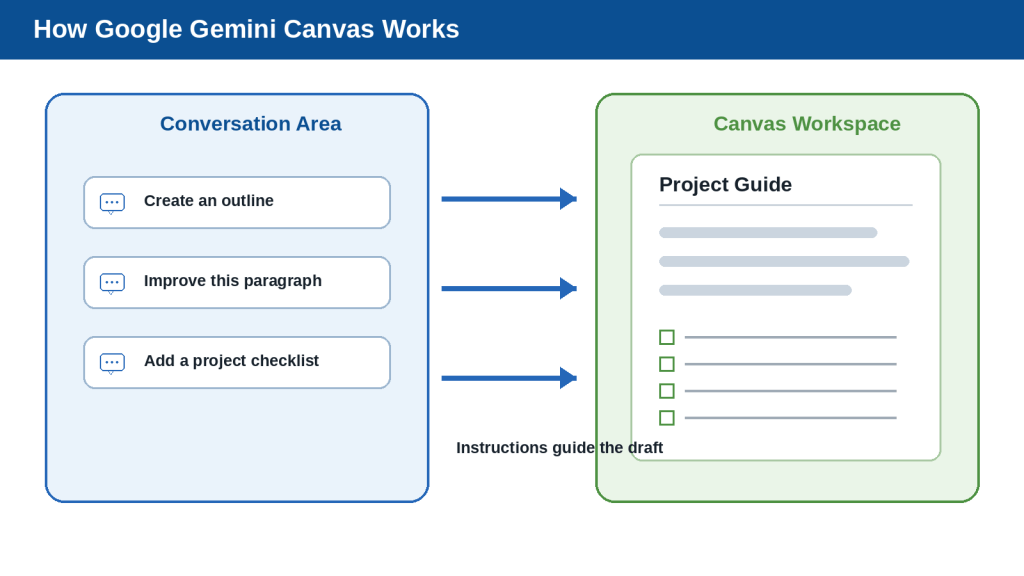
Figure 1. Google Gemini Canvas combines a conversation area for instructions with a separate workspace for developing and editing longer content.
Explanation: The conversation guides Gemini, while the Canvas workspace keeps the complete document or project visible and ready for direct editing.
How the Canvas Workspace Is Organized
On a computer, the Gemini conversation normally remains available on one side of the screen while the Canvas workspace displays the document or project on the other side.
The conversation area is used to:
- Enter new instructions
- Ask for revisions
- Request additional sections
- Explain how content should be changed
- Ask questions about the project
The Canvas area is used to:
- View the complete work
- Edit text directly
- Select specific text for revision
- Review changes
- Adjust the length or tone of writing
- Create another format from the content
- Share, copy, or export finished work
Canvas changes are normally saved as you work. Available version controls and interface wording can vary by account and product update, so keep an external copy of important approved work.
What You Can Create in Canvas
- Documents
- Slide presentations
- Apps
- Code
- Quizzes or study materials when available
- Audio summaries or overviews when available
- Infographics, web pages, or custom visuals when available
Some creation options are restricted by age, account, device, or organization settings.
Canvas for Writing
- Plan an article
- Turn notes into a draft
- Write a report
- Prepare a letter
- Create a project proposal
- Develop educational material
- Improve an existing document
- Reorganize sections
- Shorten or expand selected text
- Change the tone of the writing
On the Gemini web app, you may be able to select part of a document and ask Gemini to revise only that section. Basic text-style and formatting controls are more limited than a full word processor and may differ on mobile devices.
Canvas for Projects
- A project goal and scope
- A task list
- A proposed timeline
- A meeting agenda
- A research outline
- A risk checklist
- A progress report
- A slide presentation
- A simple project-tracking app
Canvas Is Not a Full Replacement for Other Applications
A dedicated application may still be better when you need:
- Advanced page formatting
- Precise font and paragraph controls
- Complex tables
- Formal citations
- Track Changes
- Detailed comments and approvals
- Print-ready layouts
- Advanced project schedules
- Controlled document permissions
- Final publication formatting
Reality: Canvas is best treated as a flexible workspace for planning, drafting, revising, and developing content. Important documents should still receive a final review and, when necessary, final formatting in a dedicated application.
How to Open Canvas in Google Gemini
You must be signed in to Gemini Apps before you can use Canvas. Canvas can be started from the Gemini website or the Gemini mobile app. Menu names can change, so look for an Add, Tools, or Canvas option near the prompt box.
Open Canvas on a Computer
1. Open a supported web browser.
2. Go to the Google Gemini website.
3. Sign in to the Google Account you want to use.
4. Find the prompt box.
5. Open the Add or Tools menu.
6. Select Canvas.
7. Enter a prompt explaining what you want Gemini to create.
8. Optionally attach a supporting file or image.
9. Submit the prompt.
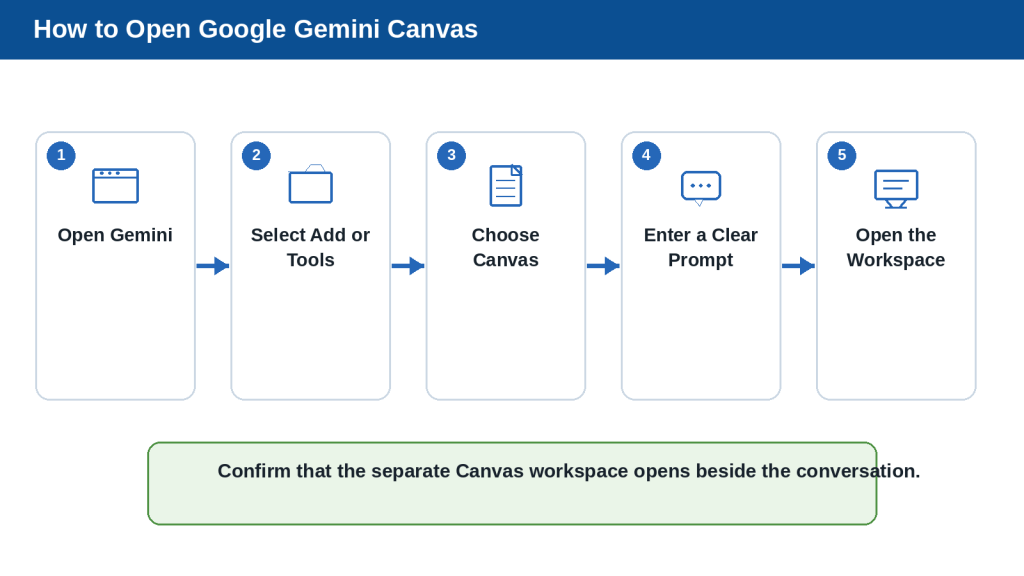
Figure 2. Select Canvas before submitting your prompt to open a dedicated workspace for the document or project.
Explanation: Starting Canvas from the available creation tools helps the work open in an editable workspace instead of appearing only as a normal chat response.
State the required format in your prompt. For example, specify whether you want a document, project plan, slide presentation, quiz, app, or another type of content.
Open Canvas in the Gemini Mobile App
1. Open the Gemini mobile app.
2. Sign in to the correct Google Account.
3. Find the prompt box.
4. Tap Add or Tools.
5. Tap Canvas.
6. Enter a prompt describing what you want to create.
7. Optionally attach a file or image.
8. Submit the prompt.
Mobile interfaces can support Canvas work, but some detailed editing and formatting controls are easier to use on a computer.
Start Canvas with a Clear Prompt
A useful starting prompt should explain:
- The type of content
- The subject
- The intended audience
- The desired structure
- The preferred tone
- Important requirements
- Information that should not be invented
Example: Create a Canvas project plan for organizing a community workshop about artificial intelligence. Write for complete beginners. Include the project goal, target audience, preparation tasks, proposed schedule, required materials, possible risks, and a final checklist. Clearly mark any details that still need to be confirmed.
Attach Supporting Files When Necessary
- Confirm that the file is the correct version
- Remove unnecessary private information
- Check that you have permission to use it
- Remove comments or unfinished drafting notes
- Give it a clear filename
- Keep an original copy outside Gemini
Tell Gemini how the file should be used. Example: Use the attached notes as the main source for the project facts. Organize them into a clear report, but do not invent missing dates, costs, names, or results.
Common Mistake: Entering a long writing request in a normal Gemini chat and expecting Canvas to open automatically.
How to Avoid This Mistake: Select Canvas before submitting the starting prompt and confirm that the separate workspace opens.
Beginner Tip: Start with a short, low-risk document such as an outline, checklist, or simple project plan.
How to Start a Writing Project in Canvas
Canvas works best when you begin with a clear goal and a simple structure. Instead of asking Gemini to create an entire finished document from a vague request, describe the type of writing, audience, purpose, and sections you need.
Step 1: Decide What You Want to Create
- An article
- A report
- A letter
- A project proposal
- A lesson plan
- A meeting agenda
- A study guide
- A product description
- A business plan
- A personal checklist
Avoid a broad request such as “Write something about artificial intelligence.” A clearer goal would be “Create a beginner-friendly article explaining how artificial intelligence is used in everyday life.”
Step 2: Identify the Intended Audience
Tell Gemini who will read the document. The same subject may need different explanations for complete beginners, students, customers, employees, small-business owners, or technical users.
Step 3: Explain the Purpose
State what the document should help the reader understand or do. A clear purpose gives the writing a practical direction.
Step 4: Request an Outline First
For a longer document, begin with an outline rather than requesting the full draft immediately. Review the outline for logical order, missing information, repeated sections, audience suitability, and required safety guidance.
Step 5: Expand One Section at a Time
After approving the outline, ask Gemini to develop one section at a time. This makes it easier to check factual accuracy, maintain a consistent tone, prevent repeated information, and control the document length.

Figure 3. Starting with a clear purpose and approved outline makes a Canvas writing project easier to develop and review.
Explanation: Expanding one section at a time gives you more control over accuracy, structure, tone, and repeated information.
Step 6: Include Important Writing Rules
- Use simple language
- Explain technical terms
- Use short paragraphs
- Include practical examples
- Avoid unsupported claims
- Do not invent facts or statistics
- Preserve names, dates, and numbers
- Identify benefits and limitations
- Add warnings where necessary
- Use numbered lists only for ordered steps
- Finish with key takeaways
Step 7: Add Source Material Carefully
Tell Gemini exactly how attached notes or documents should be used. Compare important statements with the original source because uploaded material can be misunderstood or summarized incorrectly.
Step 8: Review the First Draft
- Is the title accurate?
- Does the introduction explain the subject?
- Are the sections in the correct order?
- Is the language suitable for the audience?
- Are technical terms explained?
- Are any ideas repeated?
- Are important warnings missing?
- Did Gemini invent facts, names, or examples?
- Does the conclusion match the document?
- Are sources or permissions required?
Common Mistake: Asking Canvas to create a long finished document from one vague sentence and trying to correct every problem at the end.
How to Avoid This Mistake: Begin with a clear outline, approve the structure, and expand the document one section at a time.
Beginner Tip: Save a copy of important writing outside Gemini after completing major sections.
How to Edit and Improve Writing in Canvas
After creating a first draft, you can improve the document by editing it directly or asking Gemini to revise specific parts. Detailed controls can vary by interface and account.
Edit the Text Directly
- Correct spelling or punctuation
- Replace an inaccurate word
- Add a missing sentence
- Remove repeated information
- Change names, dates, or numbers
- Reorganize a short passage
- Add your own experience or example
Direct editing is often the safest choice for small factual corrections because you control the exact change.
Ask Gemini to Revise Selected Text
1. Open the Canvas document.
2. Highlight the sentence, paragraph, or section that needs improvement.
3. Enter a clear revision instruction.
4. Review the proposed change.
5. Compare it with the original before accepting it.

Figure 4. Selecting only the text that needs improvement allows Gemini to make a focused revision without rewriting the entire document.
Explanation: Every suggested change should be compared with the original to confirm that important meaning, facts, and warnings were preserved.
Examples include “Rewrite this paragraph for complete beginners,” “Preserve the meaning but make the sentences shorter,” and “Add one practical example without changing the existing facts.”
Review Suggested Changes Carefully
- Preserved the intended meaning
- Retained important facts
- Kept names, dates, figures, and quotations accurate
- Kept necessary warnings
- Avoided unsupported information
- Maintained the intended tone
- Avoided repetition
- Avoided new spelling or formatting problems
Change the Length
A clear prompt is safer than “Make it shorter.” Example: Shorten this section by approximately 30 percent. Preserve the instructions, warning, and practical example.
Change the Tone
Possible tone instructions include friendly, professional, neutral, encouraging, formal, conversational, or beginner-friendly. Changing the tone should not change the facts.
Simplify, Expand, or Reorganize
Select the affected passage and describe exactly what to change. Avoid oversimplifying information when doing so would make it inaccurate. Review expanded text for repetition and reorganized text for missing details.
Apply Basic Formatting
- Heading styles
- Bold
- Italic
- Bulleted lists
- Numbered lists
Canvas does not provide all the detailed formatting controls found in a full word processor. Complete final formatting in Google Docs, TextMaker, Microsoft Word, or another suitable application when precise page layout is required.
Review Earlier Versions and Keep Backups
Use available version controls when a revision removes useful content or changes the meaning. Even with saved versions, preserve important approved drafts outside Gemini.
Common Mistake: Asking Gemini to rewrite the entire document whenever one paragraph needs correction.
How to Avoid This Mistake: Select only the affected text and give one clear revision instruction. Review the change before moving to the next problem.
Reality: Gemini can improve readability and organization, but it may also remove facts, alter meaning, or add unsupported material during revision.
How to Reduce This Limitation: Make targeted changes, compare every revision with the original, verify important facts, and preserve approved versions outside Canvas.
How to Use Canvas for Project Planning
Canvas can help turn a broad idea into an organized project plan. Use the conversation area to describe the project and request changes while the full plan remains visible in the Canvas workspace.
Step 1: Define the Project Goal
Begin by explaining what the project should accomplish. A useful goal is specific enough to guide the plan.
Step 2: Provide Important Background
- The intended audience
- The project location
- The expected completion date
- Available people or resources
- Known restrictions
- Required approvals
- Important risks
- Information that has not yet been confirmed
Step 3: Request a Clear Project Structure
- Project goal
- Intended audience
- Scope
- Main tasks
- Required materials
- Responsibilities
- Proposed timeline
- Budget items
- Risks and possible solutions
- Approval requirements
- Final checklist
Step 4: Review the Scope
The scope explains what the project includes and does not include. A clear scope helps prevent the project from growing beyond its original purpose.
Step 5: Break the Project into Tasks
Each task should describe one clear action. Avoid tasks such as “Complete everything for the event,” which are too broad to assign, schedule, or review.
Step 6: Add Responsibilities
When several people are involved, identify who is responsible for each task. Leave fields blank or mark them “To be confirmed” when you have not provided the information.
Step 7: Create a Realistic Timeline
Review whether tasks appear in a sensible order, enough time is provided, approvals occur early enough, dependent tasks are connected, and unconfirmed dates are clearly labelled.
Step 8: Identify Risks and Solutions
A risk table may contain the risk, likelihood, possible effect, prevention, and backup plan. Gemini can suggest possible risks, but you must decide which ones genuinely apply.
Step 9: Add Unanswered Questions
A good project plan separates confirmed information from missing information. This is safer than allowing Gemini to fill gaps with assumptions.
Step 10: Create a Final Checklist
The final checklist should reflect the real project and cover approvals, materials, accessibility, permissions, testing, communication, backups, delivery, and review.
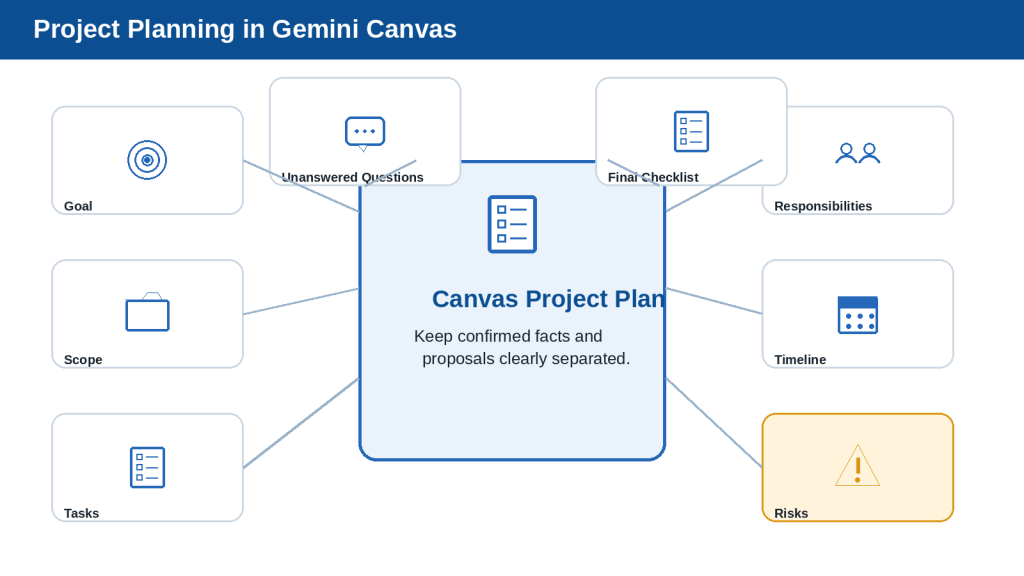
Figure 5. A Canvas project plan can organize goals, tasks, responsibilities, timelines, risks, unanswered questions, and final checks in one workspace.
Explanation: Proposed information should remain clearly separated from confirmed facts until the responsible people approve it.
Common Mistake: Treating an AI-generated project plan as a confirmed schedule.
How to Avoid This Mistake: Clearly mark proposed dates, estimated costs, possible responsibilities, and assumptions. Confirm them with the people responsible before using the plan.
Reality: Canvas can organize project information and suggest missing considerations, but it does not know your actual resources, approvals, deadlines, or responsibilities unless you provide them.
How to Reduce This Limitation: Supply confirmed information, label unknown details, review every task and deadline, and keep an approved project record outside Gemini.
How to Turn Canvas Work into Presentations and Other Formats
After developing a document or project plan in Canvas, you may be able to transform it into another format without starting again. Available options can differ by account, age, device, region, and product update.
This can be useful when the same approved information is needed for different purposes, such as a slide presentation, quiz, audio summary, infographic, web page, or simple interactive checklist.
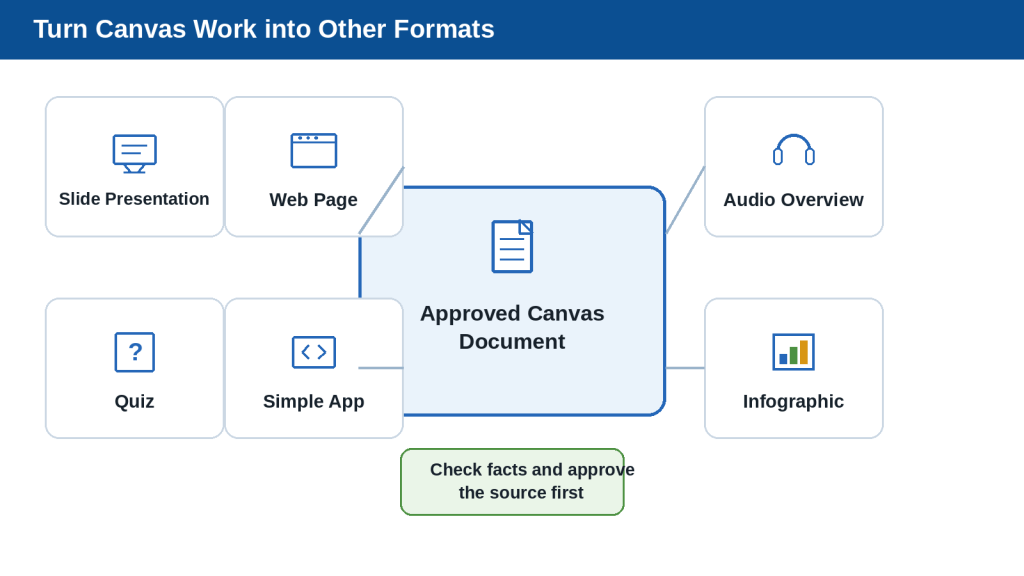
Figure 6. An approved Canvas document can become a presentation, quiz, audio overview, infographic, web page, or simple app.
Explanation: Every new format must be checked separately because information can be shortened, omitted, changed, or presented inaccurately during conversion.
Review the Source Document First
- The title
- Names and dates
- Important facts
- Section order
- Missing information
- Repeated content
- Unsupported claims
- Permissions and licences
- Private or confidential information
- Accessibility requirements
Common Mistake: Transforming an unfinished draft and assuming the new format will correct its problems automatically.
How to Avoid This Mistake: Approve the source document before converting it. Treat the new format as another draft that requires its own review.
Create a Slide Presentation
A slide presentation should summarize the document rather than copy every paragraph. Use one clear idea per slide, short bullets, descriptive titles, and speaker notes for additional explanation.
- Clear slide purpose
- Readable text size
- Appropriate amount of text
- Facts matching the source
- No omitted critical warnings
- Relevant and licensed images
- Accessible colour contrast and layout
- Speaker notes free from unsupported claims
Create a Quiz
Use only approved source information. Check that every question has one defensible answer, the wording is clear, incorrect choices are not misleading, and explanations match the source material.
Create an Audio Overview
Listen to the complete recording. Check pronunciations, facts, omitted warnings, tone, and disclosure requirements. Do not use AI audio to impersonate a real person.
Create an Infographic
Inspect all visible words and numbers because AI-generated graphics can contain misspellings, repeated items, missing steps, incorrect numbers, distorted icons, or tiny unreadable labels.
Create a Web Page or Simple App
Generated web pages and apps are not automatically secure, accessible, legally compliant, or ready for publication. Review heading order, links, mobile layout, contrast, image descriptions, keyboard use, form labels, data collection, code, calculations, and error handling.
Reality: Transforming Canvas content into another format can save time, but every new format creates new opportunities for errors, omissions, accessibility problems, and misleading presentation.
How to Reduce This Limitation: Approve the source document first, give clear conversion instructions, compare the result with the original, and complete a separate human review for the new format.
How to Share, Export, Copy, and Save Canvas Work
After reviewing a Canvas document or project, you can share it, export it to another Google application, or copy its contents for use elsewhere. The available options depend on the content type, device, account settings, and current Gemini features.
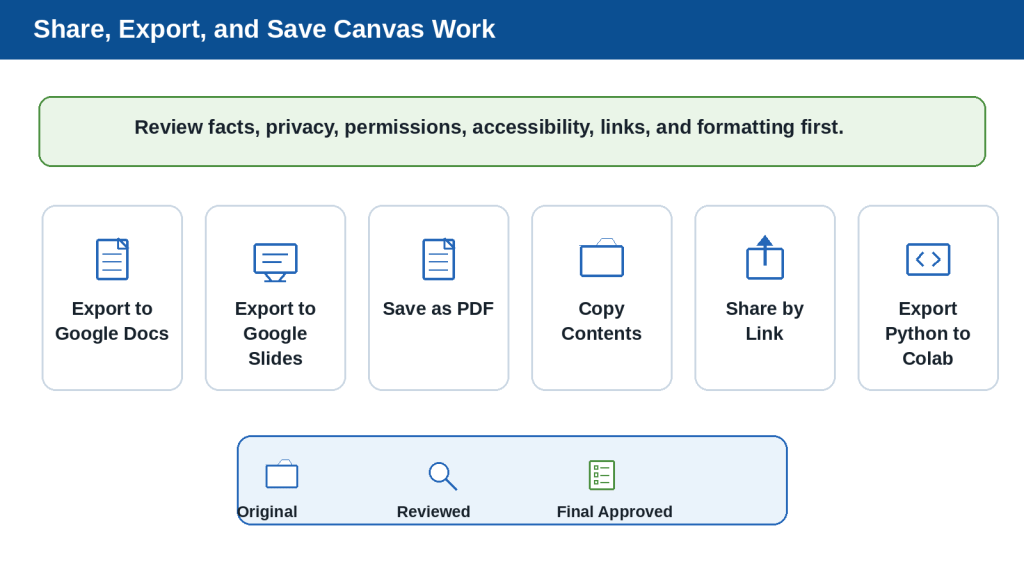
Figure 7. Canvas work can be exported, copied, or shared after its content, privacy, permissions, and formatting have been reviewed.
Explanation: The exported or shared version should be checked as a separate file because formatting, links, permissions, and other details may change outside Canvas.
Review the Work Before Exporting
- Incorrect names, dates, numbers, or quotations
- Missing sections
- Repeated information
- Unsupported claims
- Unconfirmed assumptions
- Private or confidential information
- Material you do not have permission to distribute
- Spelling and grammar problems
- Inconsistent headings or list formatting
- Missing accessibility information
- AI-generated content that should be disclosed
Export a Document to Google Docs
1. Open the Gemini conversation containing the Canvas document.
2. Review the complete document.
3. Open the Share or Export controls.
4. Choose the option to export or open the text in Google Docs.
5. Review the exported document from beginning to end.
6. Correct formatting, spacing, headings, links, and lists.
7. Rename the document clearly.
8. Confirm the Google Drive location and permissions.
Treat the Canvas version and exported Google Docs version as separate working copies.
Export Slides, Copy Text, or Export Code
Depending on the content and interface, you may be able to export slides to Google Slides or PDF, copy text into TextMaker or WordPress, or export supported Python code to Google Colab. Every exported file must be reviewed separately.
Share Canvas Content with a Link
1. Open the approved Canvas content.
2. Remove unnecessary private information.
3. Open the Share or Export controls.
4. Review what recipients will be able to see.
5. Copy the link.
6. Open the shared link yourself to test it.
7. Send it only to the intended people.
8. Replace or remove outdated shared versions when appropriate.
Warning: A public sharing link may allow people outside your intended audience to access or copy the content if the link is forwarded.
How to Reduce This Risk: Remove private information, share only approved material, test the link, and avoid public sharing for confidential projects.
Preserve Important Versions
- The original source material
- The original Canvas prompt
- Important revision prompts
- An approved Canvas version
- The exported file
- A final reviewed file
- Permissions and licence records
- Publication or sharing records
Reality: Exporting and sharing make Canvas work easier to continue elsewhere, but they do not guarantee privacy, accurate formatting, accessibility, factual correctness, or permission to distribute the material.
Benefits and Limitations of Google Gemini Canvas
Canvas can make longer writing and project work easier to organize, revise, and transform into other formats. However, it still uses generative AI and does not remove the need for factual checking, privacy protection, careful version control, and final human review.
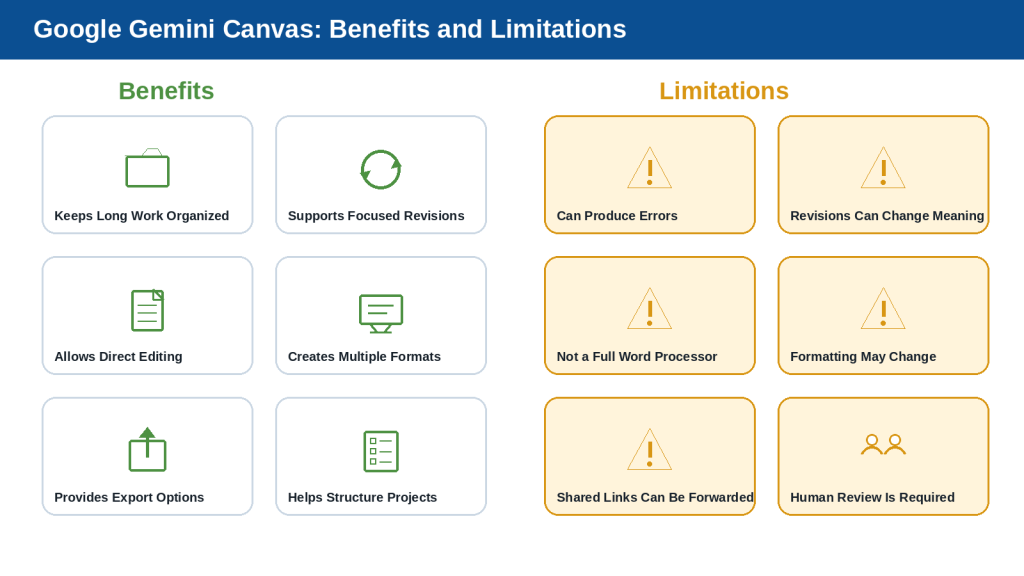
Figure 8. Canvas can organize and improve longer work, but its content, revisions, exports, and sharing settings still require careful review.
Explanation: Canvas works best as a drafting and project-development workspace rather than as an unquestioned source of facts or a complete replacement for specialized applications.
Benefits of Using Canvas
1. It Keeps Longer Work in One Workspace
The developing document remains visible while you continue requesting revisions.
2. It Supports Focused Revisions
You can improve selected parts instead of repeatedly rewriting the complete project.
3. It Supports Direct Editing
You can combine AI assistance with your own exact corrections.
4. It Can Support Several Project Stages
One conversation can support brainstorming, outlining, drafting, revising, planning, presenting, exporting, and sharing.
5. It Can Transform Approved Work
Suitable content may become slides, quizzes, audio summaries, infographics, web pages, or apps.
6. It Provides Export and Copy Options
You can continue final formatting in a dedicated application.
7. It Can Help Manage Revisions
Saved versions may help when a revision removes approved content.
8. It Helps Beginners Structure Complex Tasks
Canvas can suggest an outline, tasks, timeline, risks, questions, and a checklist.
Limitations of Using Canvas
1. Canvas Can Produce Incorrect Information
How to Reduce This Limitation: Verify important facts using current and reliable sources.
2. Revisions Can Change Approved Meaning
How to Reduce This Limitation: Select only the text that needs revision and compare it with the original.
3. Generated Work Can Become Repetitive
How to Reduce This Limitation: Review the complete document after major sections are added.
4. Canvas Is Not a Full Word Processor
How to Reduce This Limitation: Use a dedicated application for precise layout, comments, and formal formatting.
5. Formatting May Change During Export
How to Reduce This Limitation: Open every exported file and review it as a separate version.
6. Shared Links Can Be Forwarded
How to Reduce This Limitation: Share only approved non-confidential material.
7. Canvas Apps Can Create Additional Privacy Risks
How to Reduce This Limitation: Do not enter private information into an app unless its data handling has been reviewed.
8. Features Can Differ Between Accounts and Devices
How to Reduce This Limitation: Check the controls available in your own account.
9. Automatic Saving Is Not a Complete Backup
How to Reduce This Limitation: Preserve external copies after important milestones.
10. Transforming Content Can Introduce New Errors
How to Reduce This Limitation: Review every output separately.
11. Canvas Does Not Replace Professional Judgment
How to Reduce This Limitation: Obtain qualified guidance when errors could cause serious harm.
Reality: Canvas can improve planning, drafting, revision, and content reuse, but it does not make AI-generated work automatically accurate, private, accessible, licensed, or ready for publication.
Common Mistakes When Using Google Gemini Canvas
Canvas can simplify writing and project development, but unclear prompts, careless revisions, weak review, and unsafe sharing can create serious problems.
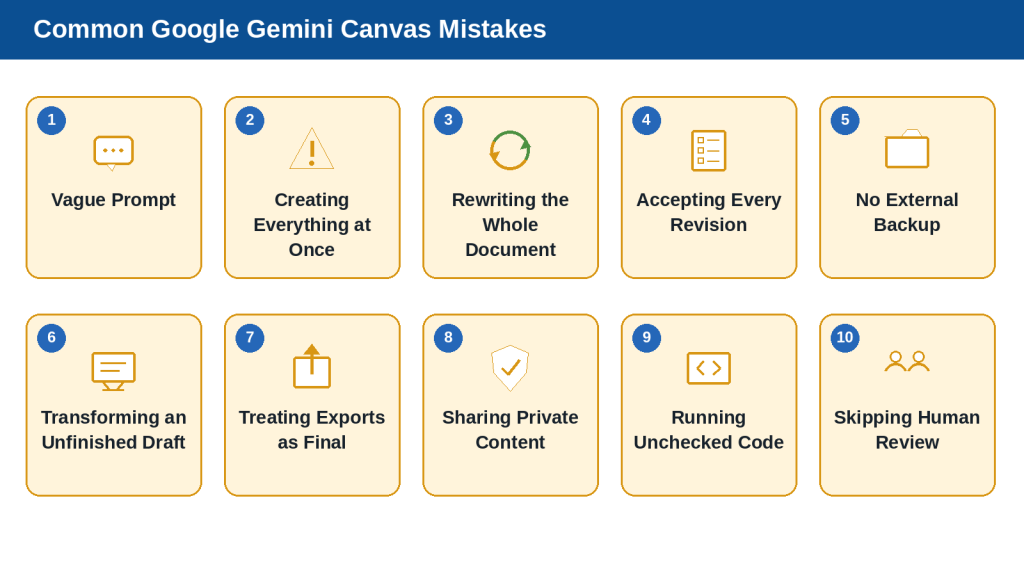
Figure 9. Clear prompts, focused revisions, external backups, careful sharing, and final human review prevent many common Canvas problems.
Explanation: Canvas is easier to manage when the project is developed gradually and every important change, export, and shared version is checked before use.
Mistake 1: Starting with a Vague Prompt
How to Avoid This Mistake: Include the document type, subject, audience, purpose, structure, tone, and restrictions.
Mistake 2: Requesting the Entire Final Document Immediately
How to Avoid This Mistake: Begin with an outline and expand one section at a time.
Mistake 3: Failing to State the Intended Format
How to Avoid This Mistake: State whether you want a document, presentation, quiz, web page, infographic, or app.
Mistake 4: Rewriting the Entire Document for One Small Problem
How to Avoid This Mistake: Select only the affected passage.
Mistake 5: Accepting Every Suggested Revision
How to Avoid This Mistake: Compare important original and revised wording.
Mistake 6: Making Too Many Changes in One Request
How to Avoid This Mistake: Correct one category of problem at a time.
Mistake 7: Treating Automatic Saving as a Complete Backup
How to Avoid This Mistake: Keep original, reviewed, and final approved versions outside Gemini.
Mistake 8: Transforming an Unfinished Draft
How to Avoid This Mistake: Approve the source document first.
Mistake 9: Assuming the New Format Matches the Source Perfectly
How to Avoid This Mistake: Review every slide, quiz answer, image label, audio statement, or app control.
Mistake 10: Treating an Exported File as Final
How to Avoid This Mistake: Review headings, lists, spacing, links, captions, and page layout.
Mistake 11: Sharing Canvas Content Without Reviewing It
How to Avoid This Mistake: Remove private information and test the link.
Mistake 12: Entering Private Information into a Shared Canvas App
How to Avoid This Mistake: Use sample or anonymized information during testing.
Mistake 13: Assuming You Can Delete Data Entered into Every Canvas App
How to Avoid This Mistake: Treat a shared app as an external system and provide only necessary data.
Mistake 14: Running Generated Code Without Reviewing It
How to Avoid This Mistake: Read, test, and technically review code before important use.
Mistake 15: Confusing Gemini Canvas with Other Products
How to Avoid This Mistake: Confirm that Canvas opens inside Gemini.
Mistake 16: Ignoring Account, Age, or Device Differences
How to Avoid This Mistake: Check the options shown in your own account.
Mistake 17: Publishing Without a Final Human Review
How to Avoid This Mistake: Verify facts, permissions, licences, accessibility, links, and disclosure requirements.
Reality: Most Canvas problems begin with vague instructions, large uncontrolled revisions, weak version management, or sharing before the work has been reviewed.
Privacy, Permission, Licensing, and Responsible Use
Canvas can contain complete documents, uploaded information, generated images, code, project plans, and interactive apps. Before adding, sharing, exporting, or publishing this material, consider who may see it, whether you have permission to use it, and whether the information is accurate.
Protect Private and Confidential Information
- Passwords or security codes
- Banking and credit-card details
- Government identification numbers
- Medical records
- Tax documents
- Customer or employee information
- Confidential workplace documents
- Private family information
- Children personal information
- Home addresses and telephone numbers
Replace identifying information with general descriptions or placeholders when possible.
Review Gemini Apps Activity Settings
1. Open your Google Account or Gemini settings.
2. Find Gemini Apps Activity or the relevant activity control.
3. Review whether activity saving is turned on.
4. Read what happens to saved and future conversations.
5. Check whether your organization controls the setting.
6. Delete earlier activity when appropriate.
7. Review the setting again after important account or policy changes.
Turning off an activity setting does not make it appropriate to enter highly sensitive information. Limit the information you provide regardless of the selected setting.
Clean Files Before Uploading Them
- Headers and footers
- Tables
- Images and screenshots
- Comments
- Tracked changes
- Hidden worksheets
- Document properties
- Author and reviewer names
- Email addresses
- Customer or employee details
- Old drafting instructions
Use Shared Canvas Apps Carefully
A Canvas app may accept information, store data, or share data between users. Before using someone else app, confirm who created it, understand its purpose, check what it requests, use sample information during testing, and avoid confidential data.
Warning: Information entered into some user-created apps may not be under your direct deletion control. Do not enter anything you would not want another person to see.
Review Public Links Before Sharing
1. Review the complete Canvas content.
2. Remove private and confidential information.
3. Confirm that the material is approved for sharing.
4. Check every image, file, table, link, and app field.
5. Open the public link yourself.
6. Confirm what an outside user can view or copy.
7. Share the link through an appropriate channel.
8. Replace outdated shared versions.
Obtain Permission and Verify Licences
Do not upload or publish another person private information, photograph, voice recording, document, or creative work merely because you can access it. Confirm ownership, permission, AI-tool use, modification rights, commercial-use conditions, attribution requirements, redistribution restrictions, and whether the licence is current.
Avoid Deceptive Impersonation
Do not use Canvas to deceive people into believing that AI-generated material came from a real person, qualified professional, company representative, or public figure. Use clear AI disclosure when realistic synthetic material could be mistaken for a real event or person.
Verify Facts and Maintain Human Oversight
- Names
- Dates
- Numbers
- Statistics
- Quotations
- Product features
- Prices and plan conditions
- Laws and regulations
- Medical or safety information
- Licence requirements
- Current schedules
- Claims about real people
- Information taken from uploaded files
Do not use Canvas as the only decision-maker for healthcare, employment, credit, insurance, housing, education, legal rights, government services, finance, or physical safety.
Check Accessibility
- Heading order
- Font size
- Colour contrast
- Descriptive link text
- Image alternative text
- Captions and transcripts
- Keyboard navigation
- Reading order
- Table structure
- Form labels
- Instructions that do not rely only on colour
Preserve Important Records
- The original prompt
- Source documents
- Important revision prompts
- Approved Canvas versions
- Exported files
- Permission records
- Licence information
- Fact-checking notes
- Accessibility checks
- AI-disclosure wording
- Final approved files
- Sharing and publication records
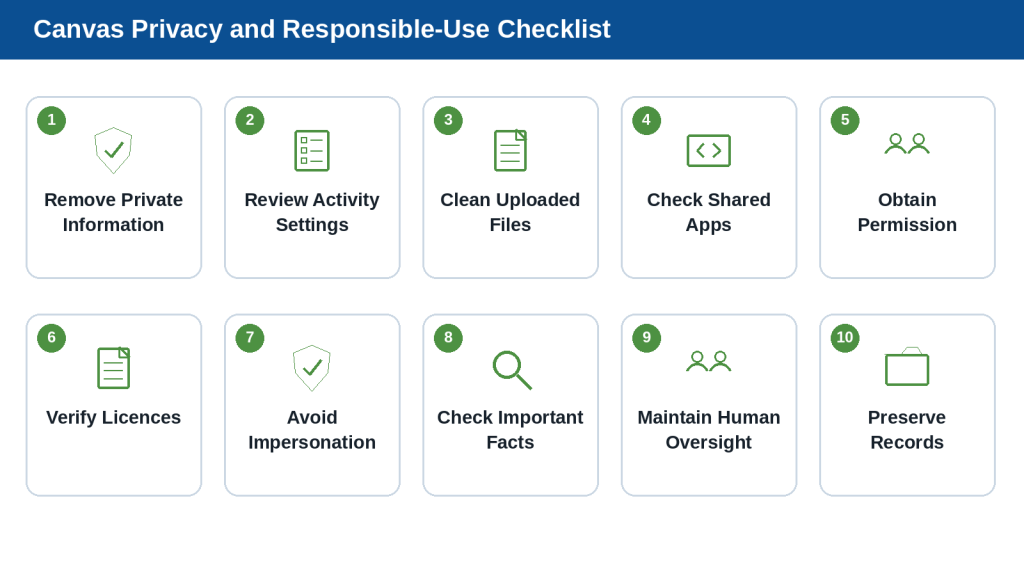
Figure 10. Review privacy, permissions, licences, factual accuracy, accessibility, sharing, and human oversight before using Canvas work.
Explanation: Responsible use begins before information is entered and continues through drafting, revision, export, sharing, publication, and record keeping.
Reality: Canvas instructions and polished formatting do not automatically make the work private, accurate, accessible, licensed, lawful, or ready for publication.
How to Reduce This Limitation: Provide only necessary information, use approved source material, review account and sharing controls, verify important claims, obtain permission, check licences, and complete a human review before publishing or acting.
Common Myths About Google Gemini Canvas
Canvas can appear to be a complete writing, design, coding, and project-management system. In reality, it is an AI-assisted workspace with useful capabilities and important limitations.
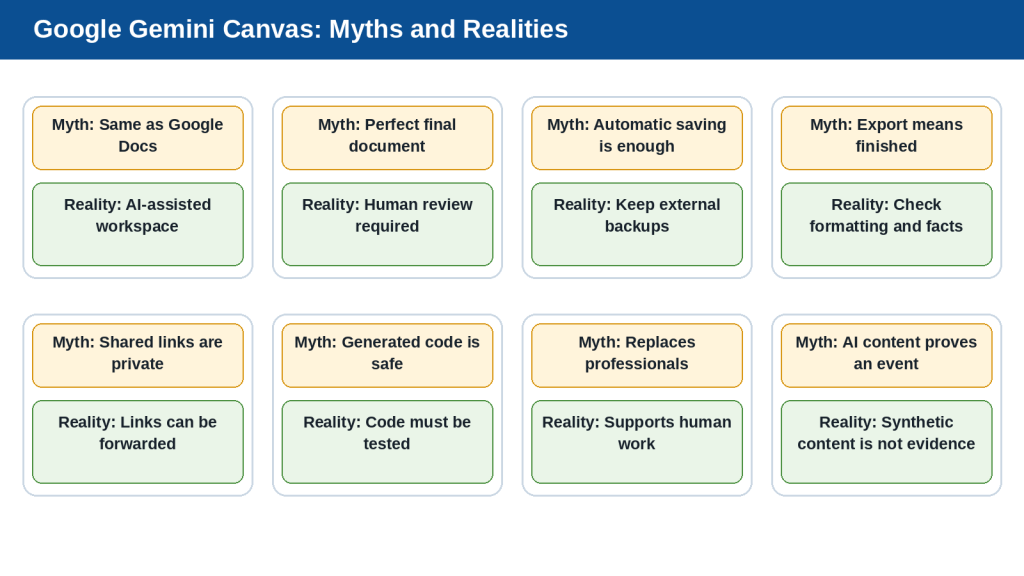
Figure 11. Understanding common Canvas myths helps users set realistic expectations about accuracy, privacy, exporting, sharing, and human review.
Explanation: Canvas can support useful writing and project workflows, but its output must still be checked, backed up, protected, and approved by a responsible person.
Myth 1: Canvas Is the Same as Google Docs
Reality: Canvas is an AI-assisted workspace. A dedicated word processor is usually better for final formatting, comments, collaboration, and approval.
Myth 2: Canvas Is the Same as Canva
Reality: Google Gemini Canvas and Canva are different products.
Myth 3: Canvas Automatically Creates a Perfect Final Document
Reality: The result may contain inaccurate facts, repetition, missing information, unsuitable wording, or formatting problems.
Myth 4: Every Canvas Revision Improves the Document
Reality: A revision can make a paragraph smoother while changing its meaning.
Myth 5: Automatic Saving Means an External Backup Is Unnecessary
Reality: Preserve original, draft, reviewed, final, and published versions outside Gemini.
Myth 6: Exporting a Document Makes It Publication-Ready
Reality: Export only transfers the work. Formatting and facts still require review.
Myth 7: Transforming a Document Preserves Everything Perfectly
Reality: Slides, quizzes, infographics, audio, web pages, and apps may shorten, omit, or change information.
Myth 8: A Shared Canvas Link Is Private
Reality: A link can be copied or forwarded.
Myth 9: Information Entered into a Shared Canvas App Is Visible Only to You
Reality: Depending on the app, data may be visible to the creator or other link holders.
Myth 10: Gemini-Generated Code Is Automatically Safe
Reality: Code can contain errors, insecure behaviour, or unexpected actions.
Myth 11: Canvas Can Replace Professional Advice
Reality: Canvas can support preparation but cannot replace qualified professional judgment.
Myth 12: Canvas Features Are Identical for Everyone
Reality: Features differ by device, account, age, region, and organization.
Myth 13: AI-Generated Material Is Automatically Copyright-Free
Reality: Copyright, trademark, privacy, licensing, and permission issues still apply.
Myth 14: Realistic AI Content Proves That an Event Happened
Reality: Synthetic content is not proof of a real event.
Myth 15: Once a Canvas Project Works, It Never Needs Review
Reality: Facts, source documents, requirements, sharing conditions, and features can change.
Final Reality: Canvas is a flexible AI-assisted workspace, not an infallible writer, private storage vault, professional adviser, or complete replacement for dedicated document and project applications.
Frequently Asked Questions About Google Gemini Canvas
Is Google Gemini Canvas free to use?
Canvas availability, usage limits, models, and advanced options can depend on the account, subscription, age, location, and organization settings. Check your account because conditions may change.
Do I need to install Canvas?
No. Canvas is built into supported Gemini interfaces.
Is Gemini Canvas the same as Canva?
No. Gemini Canvas is an AI-assisted workspace inside Google Gemini. Canva is a separate design platform.
Is Gemini Canvas the same as Google Docs?
No. Canvas is designed for AI-assisted development. Google Docs provides broader document editing and collaboration controls.
Can I use Canvas on my phone?
Yes, although some detailed editing and formatting controls are easier to use on a computer.
Can I use Canvas without signing in?
No. You need to sign in to Gemini Apps.
What can I create in Canvas?
Documents, presentations, apps, code, and other supported formats depending on your account and current features.
Can I upload a document to Canvas?
Yes. Attach a supported file and tell Gemini how it should be used. Compare the result with the original.
Can Canvas edit only one paragraph?
In supported interfaces, you can select a specific passage and request a targeted revision.
Can I edit Canvas text myself?
Yes. Direct editing is useful for exact facts, terminology, spelling, punctuation, names, dates, and numbers.
Can Canvas shorten, expand, or change the tone?
Yes. Give a precise instruction and review the result because meaning can change.
Does Canvas save my work automatically?
Canvas normally saves changes, but important work should also be copied or exported after major milestones.
Can I recover an earlier version?
Available version controls may help, but do not depend on them as your only backup.
Can Canvas create a presentation from my document?
Yes, when the option is available. Review the presentation for omitted or invented information.
Can I export Canvas work to Google Docs?
Supported text can be exported or copied for continued editing. Check formatting after export.
Can I copy Canvas text into TextMaker?
Yes. Apply the correct heading styles, Arial 12-point body text, lists, spacing, links, figures, and captions after pasting.
Can Canvas create a quiz, audio overview, infographic, web page, or app?
These options may be available depending on the account, age, device, region, and current feature rollout. Review each output separately.
Can I share Canvas content with another person?
Yes, when sharing is available. Remove private information and do not treat the link as confidential.
Is Canvas content always factually correct?
No. Verify important claims with current official or primary sources.
Can Canvas replace a professional editor?
No. It can assist with planning and revision, but important work still needs human review.
Can Canvas provide legal, medical, or financial advice?
Use it only for general education and preparation. Obtain appropriate professional advice for high-consequence decisions.
Does Canvas guarantee that generated material is copyright-free?
No. Check ownership, licences, commercial-use conditions, attribution, and rights involving real people.
Should I disclose that Canvas helped create my work?
Disclosure may be appropriate or required when realistic synthetic material could be mistaken for real content, a platform requires it, or transparency matters.
What should I do when Canvas gives a poor result?
Identify the exact problem, check the prompt and source files, select only the affected text, make one focused correction, compare versions, and preserve an approved backup.
When should I use Canvas instead of a normal Gemini chat?
Use Canvas for longer work requiring several revisions, a visible complete draft, selected-text editing, transformation into other formats, or export for final formatting.
Final Tip: Use Canvas for developing the work, but use an appropriate dedicated application for final formatting, approval, publishing, and permanent record keeping.
Troubleshooting Common Canvas Problems
Canvas may fail to appear, open in the wrong format, ignore an instruction, lose important wording during revision, or produce an export that looks different from the original. Work through the following checks systematically.
Problem 1: The Canvas Option Does Not Appear
1. Confirm the correct Google Account.
2. Use a supported browser.
3. Open the Add or Tools menu near the prompt box.
4. Check the mobile Add menu.
5. Check administrator restrictions on work or school accounts.
6. Try the desktop web version.
Problem 2: Canvas Opens as a Normal Chat Response
1. Save your prompt.
2. Start a new conversation.
3. Select Canvas before submitting.
4. State the required format clearly.
Problem 3: Canvas Creates the Wrong Type of Content
1. Name the exact format and intended audience.
2. Describe required sections and restrictions.
Problem 4: Canvas Does Not Follow the Prompt
1. Remove conflicting or excessive instructions.
2. Separate content type, audience, purpose, structure, tone, length, and restrictions.
Problem 5: Canvas Rewrites Too Much
1. Select only the sentence or paragraph that needs correction.
2. Give one focused instruction.
3. Compare with the original.
Problem 6: Important Information Disappears
1. Use a preservation instruction.
2. Review earlier versions.
3. Restore missing warnings, dates, or steps.
4. Export an approved backup.
Problem 7: You Cannot Find Text-Formatting Tools
1. Use the desktop web version.
2. Select the text.
3. Look for the toolbar or More menu.
4. Use a dedicated document editor for precise formatting.
Problem 8: The Exported Document Looks Different
1. Review the entire exported file.
2. Apply correct styles.
3. Check lists, links, spacing, images, and captions.
4. Save a reviewed version.
Problem 9: Sharing Is Missing or Unavailable
1. Check the content type, account, age, device, and organization restrictions.
2. Try the desktop web version.
Problem 10: Another Person Cannot Open the Shared Link
1. Use a web browser.
2. Sign in if required.
3. Confirm the complete link.
4. Test it yourself in a private browser window.
Problem 11: A Shared App Displays or Stores Unexpected Information
1. Stop using real information.
2. Review fields, storage, sharing, and creator access.
3. Test with fictional data.
Problem 12: The App or Code Does Not Work
1. Review the code and logs.
2. Ask Gemini to explain the exact error.
3. Correct one issue at a time.
4. Test with sample information.
Problem 13: Canvas Produces Different Results
1. Confirm the conversation, prompt, files, account, and model.
2. Compare with an approved backup.
3. Repeat critical requirements.
Problem 14: Canvas Repeats Information
1. Ask for a list of repeated ideas without deleting anything.
2. Remove only verified repetition.
Problem 15: Canvas Invents Missing Facts
1. Tell Gemini not to invent information.
2. Use To be confirmed labels.
3. Check every name, date, price, statistic, quotation, deadline, responsibility, feature, and policy statement.
Problem 16: Canvas Is Slow or Stops Responding
1. Copy unsent prompt text.
2. Check the connection.
3. Refresh and reopen the conversation.
4. Close unnecessary tabs.
5. Try another supported browser.
6. Divide a very large task into sections.
Problem 17: The Project Has Become Too Complicated
1. Export the current approved version.
2. Identify the main purpose.
3. Remove unrelated tasks.
4. Split the work into smaller Canvas projects.
5. Keep one approved master source.
Basic Troubleshooting Order
1. Confirm the correct Google Account.
2. Use the Gemini website on a computer.
3. Confirm that Canvas was selected.
4. Check the requested content format.
5. Review the prompt for unclear or conflicting instructions.
6. Confirm the correct source files.
7. Review earlier saved versions.
8. Make one focused correction.
9. Export or copy an approved backup.
10. Report a continuing technical problem through Gemini help or feedback controls.
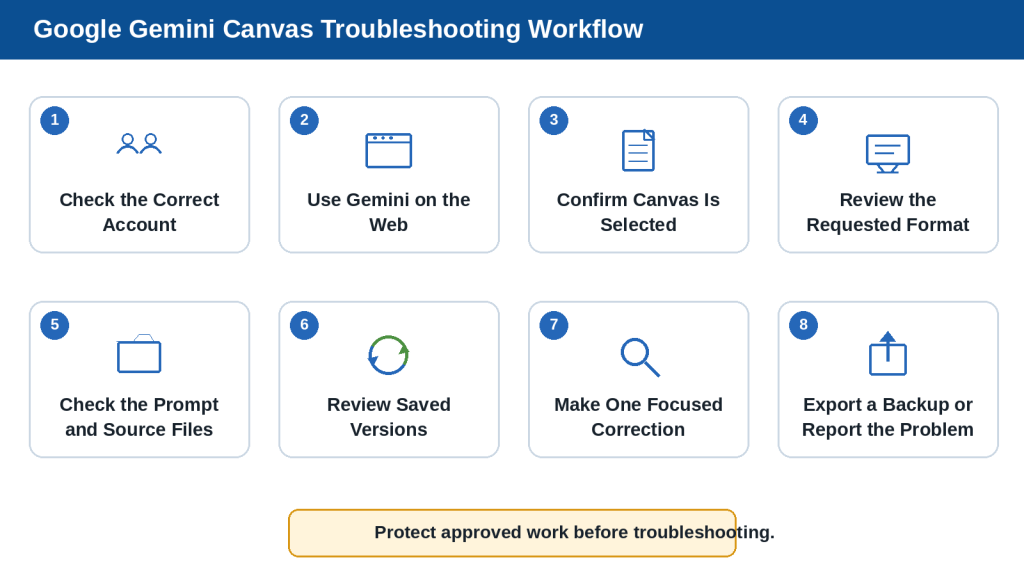
Figure 12. Troubleshoot Canvas systematically by checking the account, interface, format, prompt, files, saved versions, and smallest possible correction.
Explanation: Changing one item at a time protects approved content and makes it easier to identify what caused the problem.
Reality: Many Canvas problems are not caused by a single technical failure. They often result from unclear prompts, broad revisions, unsuitable source material, device differences, or an exported file that has not received a separate review.
How to Reduce This Limitation: Protect approved work before troubleshooting, change one item at a time, use the desktop web version for detailed editing, and keep external backups.
Key Takeaways
- Google Gemini Canvas is a dedicated workspace for developing longer documents, presentations, project plans, apps, and code.
- Canvas keeps the developing work visible while you continue giving instructions through the Gemini conversation.
- Select Canvas before submitting the starting prompt when you want an editable workspace.
- A strong starting prompt identifies the content type, subject, audience, purpose, structure, tone, and restrictions.
- Begin longer writing projects with an outline and expand one section at a time.
- Select only the text that needs revision.
- Review every AI-generated change because meaning and facts can change.
- Clearly separate confirmed information from estimates, assumptions, and details requiring approval.
- Approve the source document before transforming it into another format.
- Review every transformed format separately.
- Exporting does not make the result final.
- Shared links should not be treated as confidential.
- Do not enter unnecessary private information into Canvas or an unverified app.
- Confirm permission and licence conditions for source material.
- AI-generated content is not automatically accurate, accessible, copyright-free, commercially permitted, or ready for publication.
- Canvas does not replace dedicated document applications, project-management software, technical testing, or professional advice.
- Preserve external copies of important sources, prompts, drafts, exports, permissions, licences, and publication records.
- When Canvas behaves unexpectedly, protect approved work first and correct one problem at a time.
Final Tip: Use Canvas to plan, draft, and improve the work. Use the most suitable dedicated application for final formatting, approval, publication, and permanent record keeping.
Conclusion
Google Gemini Canvas provides a practical workspace for developing longer writing and project material without managing every revision through separate chat responses. It keeps the complete document or project visible while you ask Gemini to create an outline, expand sections, reorganize information, adjust the tone, or revise selected text.
Canvas is most effective when the work is developed gradually. Begin with a clear purpose, identify the audience and required format, approve the outline, and expand one section at a time. Make focused revisions rather than repeatedly rewriting the entire project.
Canvas can also help turn approved content into presentations, quizzes, audio summaries, infographics, web pages, or simple apps when those options are available. Each new format must receive its own review because information may be shortened, changed, omitted, or presented incorrectly during conversion.
Important work should not remain only inside Canvas. Preserve external copies of source documents, prompts, approved drafts, exported files, permissions, licences, and final publication records.
Most importantly, treat Canvas as an assistant rather than a final authority. Verify facts, remove unnecessary private information, obtain permission to use other people material, check licence conditions, review accessibility, and maintain human oversight.
Used carefully, Google Gemini Canvas can make writing and project development more organized and manageable while leaving final decisions, approval, and responsibility in human hands.
Continue Learning
- Article 033 — Google Gemini for Beginners: Complete Guide (2026) — Learn what Google Gemini is, what it can do, and the basic ideas beginners should understand.
- Article 034 — How to Create a Google Gemini Account and Get Started (2026) — Follow the account setup process and learn how to begin safely.
- Article 035 — How to Use Google Gemini: Beginner Step-by-Step Guide (2026) — Learn how to enter prompts, continue conversations, and review responses.
- Article 036 — Best Google Gemini Prompts for Beginners: 50 Examples to Copy and Customize (2026) — Explore prompt examples that can be adapted for Canvas.
- Article 037 — How to Upload and Analyze Documents with Google Gemini: Beginner Guide (2026) — Learn how to work with uploaded documents and check important information.
- Article 038 — How to Use Google Gemini with Gmail, Google Drive, and Google Docs: Beginner Guide (2026) — Understand supported Google connections and how exported Canvas documents can continue in Google Docs.
- Article 040 — How to Use Gemini Deep Research: Beginner Guide (2026) — Learn how to research detailed subjects while checking sources and current information.
- Article 041 — How to Use Gems in Google Gemini: Beginner Guide (2026) — Learn how reusable Gems can store instructions and knowledge for repeated work.
Add internal links after confirming that each related post has been published on the AI Mastery website.
Sources and References
The following official Google sources were reviewed on August 3, 2026. Features, menus, supported formats, account conditions, and policies may change.
- Google Gemini Apps Help — Create docs, apps and more with Canvas — Official instructions for starting Canvas, creating and editing documents, presentations, apps, and code, and using available sharing or export controls.
- Google Gemini Apps Help — Canvas safety and security — Explains safety and data considerations for user-created Canvas apps and shared app data.
- Google Gemini Apps Help — Create quizzes, flashcards and more — Explains supported study-material features and account or age conditions.
- Google Gemini Apps Privacy Hub — Describes data handling, prompts, uploads, generated responses, activity settings, and relevant privacy cautions.
- Google Gemini Apps Help — Manage and delete your activity — Explains how to review or delete Gemini Apps activity and how administrator settings may apply.
- Google Gemini Apps Help — Download your Gemini Apps data — Explains data export and the distinction between downloading and deleting information.
- Google Gemini Apps limits and upgrades — Explains that usage limits and access conditions can vary and change.
- Google — Generative AI Prohibited Use Policy — Describes restricted uses involving privacy, intellectual property, deception, harmful activity, and high-risk decisions.
- Google Privacy Policy — Explains information collection, privacy controls, sharing, retention, export, and deletion.
- Google Terms of Service — Provides general conditions for using Google services and refers to product-specific policies.


Leave a comment