Estimated reading time: 75–100 minutes
Last updated: July 28, 2026
Before Learning
Before starting Article 026, you should understand the basic ChatGPT interface and know how to upload documents safely.
These AI Mastery articles provide useful preparation:
· ChatGPT Basics for Beginners: Complete Guide (2026)
· Best ChatGPT Prompts for Beginners (2026)
· Prompt Engineering for Beginners: Complete Guide (2026)
· How to Summarize Documents with ChatGPT: Beginner Guide (2026)
· How to Analyze Documents with ChatGPT: Beginner Guide (2026)
· How to Compare Documents with ChatGPT: Beginner Guide (2026)
· How to Extract Information from Documents with ChatGPT: Beginner Guide (2026)
You do not need programming or advanced technical knowledge. This guide explains how to ask clear questions about uploaded documents and how to check whether the answers are supported by the source.
What Asking Questions About Documents Means
Asking questions about documents means uploading or attaching a document and requesting answers based on its content.
For example, you might ask:
What is the application deadline stated in this document?
Who is responsible for approving the request?
What documents must an applicant provide?
Does the policy include any exceptions?
Where does the report explain its main limitation?
Which section describes the cancellation process?
These questions focus on specific information in the document.
How This Differs from Information Extraction
Information extraction usually collects several related details into a list or table.
For example:
Extract every deadline, required action, responsible person, condition, and source location.
Document questioning may focus on one question at a time:
What is the deadline for submitting the supporting documents?
Both methods are useful.
Questioning is often better when:
· You need one clear answer
· You are exploring an unfamiliar document
· You need clarification about a section
· You want to check a particular rule or claim
· You need a source location for one detail
Extraction is often better when you need many similar records.
Choose a Suitable Practice Document
Begin with a short document that you created, own, or have permission to use.
Suitable practice documents include:
· Meeting notes
· A public report
· A training guide
· A short policy
· A product manual
· A public article
· A document you created yourself
Avoid beginning with:
· Confidential contracts
· Medical records
· Financial statements
· Employee or customer records
· Legal documents containing private information
· Poor-quality scans
· Documents with complicated charts or tables
A short, clearly structured document is easier to question and verify.
Prepare a Safe Working Copy
Keep the original document unchanged.
Create a separate working copy and remove unnecessary:
· Personal names
· Email addresses
· Telephone numbers
· Home addresses
· Account numbers
· Identification numbers
· Signatures
· Customer details
· Employee information
· Confidential comments
· Tracked changes
· Hidden metadata
Do not remove headings, definitions, conditions, exceptions, table labels, or other context needed to understand the answer correctly.
Confirm Permission and Privacy
Before uploading the document, confirm that:
· You own it or have permission to use it.
· Uploading it does not violate workplace or organizational rules.
· Confidential or restricted information has been removed.
· The document may be processed by an external service.
· Copyright or licensing conditions allow the intended use.
Removing names does not automatically make every document safe to upload.
A document may still contain confidential business information, restricted procedures, private project details, or licensed material.
Decide What You Need to Know
Before uploading the document, write one or two clear questions.
For example:
· What is the main requirement?
· Who does this rule apply to?
· What is the exact deadline?
· Is there an exception?
· What happens if the requirement is not completed?
· Which section supports the answer?
· What information is missing or unclear?
Avoid beginning with:
Tell me everything about this document.
A focused question is easier to answer and verify.
Understand the Limits
ChatGPT may:
· Answer from the wrong section
· Miss an exception
· Misread a date or number
· Combine separate rules
· Provide an unsupported answer
· Give an incorrect page or section reference
· Interpret unclear wording too confidently
· Use information that is not stated in the document
The original document remains the main source.
Every important answer should be checked against the source before it is used for legal, medical, financial, safety, employment, government, technical, or other high-risk decisions.
What You’ll Learn
By the end of this guide, you will understand how to:
· Prepare a document safely before uploading it
· Choose clear questions that match your purpose
· Ask factual questions about names, dates, amounts, requirements, and responsibilities
· Ask explanation questions about difficult wording or sections
· Ask follow-up questions without losing the original context
· Request page numbers, headings, tables, clauses, worksheets, or other source locations
· Ask ChatGPT to quote or paraphrase a specific part of a document
· Distinguish answers stated directly in the document from interpretation
· Ask ChatGPT to identify missing, unclear, or unsupported information
· Check whether an answer preserves conditions, exceptions, units, and obligation words
· Ask questions about reports, policies, contracts, manuals, meeting notes, presentations, and spreadsheets
· Work through long documents one section or question at a time
· Check answers involving dates, numbers, percentages, currencies, measurements, and deadlines
· Review answers taken from tables, charts, diagrams, scanned pages, footnotes, or appendices
· Correct unsupported, incomplete, or inaccurate answers
· Avoid common document-questioning mistakes and myths
· Protect privacy, permissions, confidentiality, and document ownership
· Decide when legal, medical, financial, technical, or other professional review is necessary
You will also receive practical question templates that you can copy and adapt for different documents and goals.
Introduction
Documents often contain answers that are difficult to find quickly.
A policy, report, contract, manual, presentation, spreadsheet, or meeting record may contain:
· Important dates
· Requirements
· Responsibilities
· Fees
· Definitions
· Warnings
· Exceptions
· Decisions
· Instructions
· Supporting evidence
ChatGPT can help you ask focused questions about an uploaded document and locate possible answers. However, the answer must still be checked against the original source.
Document Questions Can Be Simple or Detailed
A simple question may ask for one fact:
What is the application deadline?
A more detailed question may ask:
What is the application deadline, who must meet it, which documents must be submitted, and does the document state any exceptions?
The second question asks ChatGPT to preserve more of the surrounding context.
Start with One Clear Question
Beginners often begin with a broad request such as:
Explain this document.
This may produce a general summary instead of the specific answer needed.
A focused question is more useful:
According to the document, what identification must a new applicant provide?
Or:
Which section explains how to cancel the service?
Or:
What action was assigned to Daniel, and what deadline was stated?
One clear question is easier to answer and easier to verify.
Ask Questions Based Only on the Document
Tell ChatGPT to use the uploaded document as the source.
For example:
Answer using only the attached document. Do not add outside information.
This helps separate the document’s content from general knowledge.
However, the instruction does not guarantee that every answer will be accurate. ChatGPT may still misunderstand the document or provide unsupported details.
Ask for the Source Location
A useful document answer should show where the information appears.
Ask for:
· Page number
· Section heading
· Clause
· Paragraph
· Table name
· Appendix
· Worksheet
· Row
· Column
For example:
What is the cancellation deadline? Include the exact section heading and page number.
A source location makes the answer easier to check.
Page numbers and section references can still be wrong, so open the document and confirm them manually.
Preserve the Exact Meaning
An answer should keep important words and conditions from the source.
For example, the document may state:
Applicants may submit supporting documents within ten business days after receiving a written request.
An incomplete answer may say:
Applicants must submit documents within ten days.
This changes several important details:
· May became must.
· Supporting documents became documents.
· Business days became days.
· The starting event was removed.
· The written-request condition was removed.
Ask ChatGPT to preserve exact:
· Obligation words
· Dates
· Time periods
· Units
· Currencies
· Conditions
· Exceptions
· Responsible people or groups
Ask Whether the Answer Is Directly Stated
Some answers appear clearly in the document.
Others require interpretation.
For example:
Directly stated:
The policy states that applications close on August 15.
Interpretation:
This may mean applications submitted on August 16 will not be reviewed.
The first answer reports the source.
The second explains a possible meaning.
Use a prompt such as:
State whether the answer is directly stated in the document or is an interpretation.
This helps prevent interpretation from being presented as confirmed fact.
Ask ChatGPT to Admit When the Answer Is Missing
A document may not answer your question.
For example, meeting notes may list an action item without stating:
· Who is responsible
· When it is due
· Whether it was approved
· Whether it has been completed
ChatGPT should not fill the gap.
Use:
When the document does not answer the question, write “Not stated in the document.” Do not guess.
For unclear source text, use:
Write “Could not be read confidently” when the relevant text is unclear.
One Question May Require Several Parts
A useful answer may need more than one fact.
For example:
What is the refund policy?
This question may require:
· Refund amount
· Eligibility
· Deadline
· Required action
· Exclusions
· Processing method
· Source section
A more precise version is:
According to the document, who is eligible for a refund, what amount may be refunded, what deadline applies, what exclusions are stated, and where does this information appear?
This reduces the risk of receiving an incomplete answer.
Follow-Up Questions Should Preserve Context
After receiving an answer, you may ask a follow-up question.
For example:
Does that deadline apply to all applicants?
Or:
Is there an exception elsewhere in the document?
Or:
Which sentence supports that answer?
Follow-up questions are useful, but they should refer clearly to the earlier topic.
Avoid unclear follow-ups such as:
What about the other one?
A clearer question is:
What deadline applies to applicants who receive an approved extension?
Different Questions Serve Different Purposes
You may ask:
Factual Questions
These locate specific details.
Examples:
What date does the policy become effective?
Who approves the request?
What fee is stated?
Explanation Questions
These ask ChatGPT to explain difficult wording.
Example:
Explain this cancellation clause in simple language without changing its meaning.
Source Questions
These ask where information appears.
Example:
Which page and section describe the appeal process?
Completeness Questions
These ask whether related information may be missing.
Example:
Does the document mention any exception to this requirement?
Relationship Questions
These connect information from different parts of the document.
Example:
How does the definition in Section 2 affect the deadline in Section 6?
Verification Questions
These test an earlier answer.
Example:
Show the exact sentence that supports your answer and state whether any nearby text changes it.
Avoid Asking for a Conclusion the Document Cannot Support
A document may provide information without answering a broader question.
For example, a product guide may list technical specifications but not prove that the product is suitable for your needs.
A report may contain a claim but not prove that the claim is correct.
A contract may contain a clause but not explain its full legal effect.
When the source does not support the requested conclusion, the answer should say so.
For example:
The document lists the product’s dimensions and supported formats, but it does not state whether the product is suitable for your specific project.
Document Answers Are Not Automatically Current
A document may be outdated.
Check:
· Publication date
· Effective date
· Version number
· Revision date
· Approval status
· Replacement notice
· Official source
ChatGPT may answer accurately from an old document while the information is no longer current.
For important tasks, confirm that you are using the latest authorized version.
Document Answers Are Not Automatically True
ChatGPT may accurately report what a document says without confirming that the statement is correct.
For example:
The report states that costs decreased by 20%.
This does not prove:
· The calculation is correct
· The evidence is reliable
· The method is appropriate
· The information is current
· Outside sources agree
Questioning the document and fact-checking the document are separate tasks.
High-Risk Questions Need Extra Review
Take additional care when asking questions about:
· Contracts
· Legal notices
· Medical instructions
· Financial records
· Safety procedures
· Employment policies
· Government applications
· Technical operations
· Deadlines affecting rights or payments
For these tasks:
1st Check the exact answer against the original.
2nd Confirm the source location.
3rd Preserve all conditions and exceptions.
4th Verify that the document is current.
5th Obtain qualified professional assistance when necessary.
A Reliable Document-Questioning Workflow
A careful process follows these stages:
1st Prepare a safe working copy.
2nd Confirm the document is complete and readable.
3rd Identify the title, date, and version.
4th Ask one clear question.
5th Tell ChatGPT to use only the document.
6th Request the source location.
7th Ask whether the answer is directly stated or interpreted.
8th Preserve exact dates, numbers, conditions, and obligation words.
9th Check the answer against the original source.
10th Correct or reject unsupported answers.
ChatGPT can help you navigate a document, but the original source and careful human review remain essential.
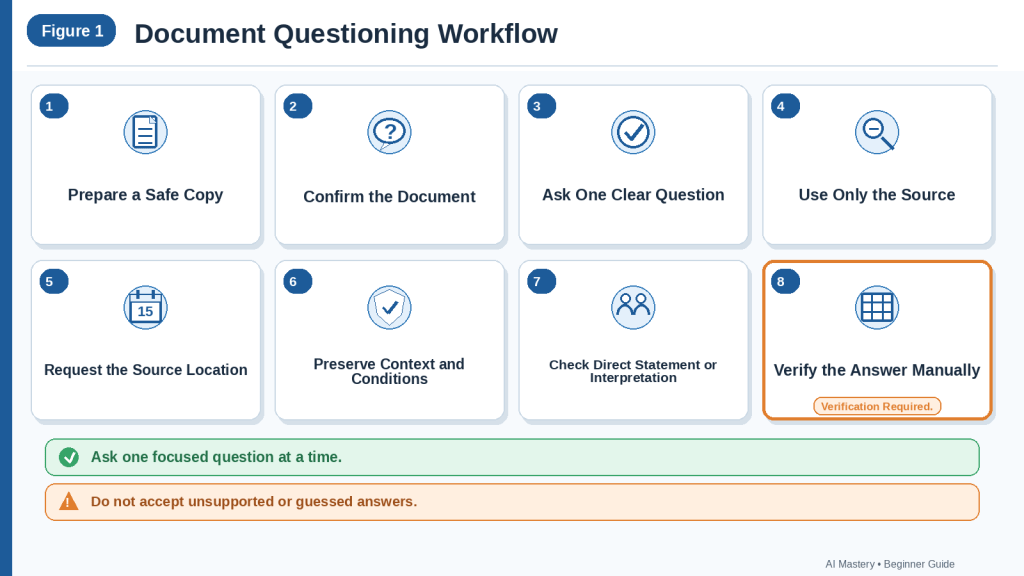
Figure 1. A reliable document-questioning workflow uses a safe source, one focused question, source-based answers, exact context, and manual verification.
Figure 1 shows the main stages for asking questions about a document with ChatGPT. Beginners should ask one clear question at a time, request the supporting source location, and verify every important answer against the original document.
What Types of Questions Can You Ask About Documents?
You can ask many kinds of questions about an uploaded document.
The best question depends on what you need to understand, confirm, locate, or review.
A useful question should be:
· Specific
· Based on the document
· Easy to verify
· Clear about the required answer
· Clear about missing or uncertain information
Factual Questions
Factual questions ask for a specific detail stated in the document.
Examples include:
What is the application deadline?
Who signed the agreement?
What fee is listed?
When does the policy become effective?
Which department is responsible for approval?
Factual questions may focus on:
· Names
· Dates
· Deadlines
· Amounts
· Contact information
· Responsibilities
· Locations
· Product specifications
· Reference numbers
A stronger factual question includes the source location:
What is the application deadline? Include the page number and section heading.
Definition Questions
Definition questions ask what a term means according to the document.
Examples include:
How does this document define “eligible applicant”?
What does “business day” mean in this policy?
Which section defines “confidential information”?
Definitions can affect the meaning of later rules.
For example, a contract may define business day differently from ordinary everyday use.
Ask ChatGPT to preserve the document’s wording and source location:
According to the document, how is “business day” defined? Quote the exact definition and include the clause number.
Requirement Questions
Requirement questions ask what a person or group must do.
Examples include:
What documents must a new applicant submit?
What training is required for employees?
What steps must be completed before approval?
Which requirements apply to contractors?
A complete answer may need:
· Person or group affected
· Required action
· Deadline
· Condition
· Exception
· Consequence
· Source location
A useful prompt is:
What requirements apply to new applicants? Include the required action, deadline, condition, exception, and source location.
Responsibility Questions
Responsibility questions ask who must perform an action.
Examples include:
Who must approve the request?
Which department maintains the records?
Who is responsible for contacting the supplier?
Which person must submit the final report?
Do not assume that a person mentioned near an action is responsible for it.
Ask ChatGPT to answer only when the responsibility is directly stated or clearly assigned.
Use:
Who is responsible for this action? Provide the exact supporting sentence and write “Not stated in the document” when no responsibility is assigned.
Deadline and Timing Questions
Timing questions ask when something must happen.
Examples include:
What is the deadline?
How much notice is required?
When does the renewal period begin?
How many days are allowed for an appeal?
A complete answer should preserve:
· Exact date
· Time
· Time zone
· Business or calendar days
· Starting event
· Before or after wording
· Condition
· Source location
For example:
What is the appeal deadline? Preserve whether the document uses business days or calendar days and identify when the time period begins.
Amount and Payment Questions
Payment questions may ask about:
· Price
· Fee
· Deposit
· Refund
· Penalty
· Tax
· Percentage
· Payment date
· Payment condition
· Currency
Examples include:
What application fee is stated?
Is the deposit refundable?
When is payment due?
What penalty applies to late payment?
A complete question may be:
What fee must be paid, in which currency, when is it due, is it refundable, and which section supports the answer?
Verify every important financial amount manually.
Condition Questions
Condition questions ask when a rule applies.
Examples include:
Under what condition is the additional form required?
When does the cancellation fee apply?
Which applicants must provide supporting records?
Conditions often contain words such as:
· If
· When
· Unless
· Only when
· Subject to
· Provided that
Use:
What condition must be met before this requirement applies? Include the exact supporting wording and source location.
Exception Questions
Exception questions ask whether a general rule has an exception.
Examples include:
Does the document provide any exception to the online-submission rule?
Are any applicants exempt from the fee?
Is there an exception to the deadline?
Does another section change this requirement?
Exceptions may appear in:
· A later section
· An appendix
· A footnote
· A table note
· A definition
Use:
Search the complete document for any exception that changes or limits this rule. Include the source location and do not assume that no exception exists after reviewing only one paragraph.
Consequence Questions
Consequence questions ask what may happen when a requirement is not followed.
Examples include:
What happens if the form is submitted late?
What consequence is stated for missing the payment deadline?
Does the document state that access may be suspended?
A complete answer should preserve whether the consequence is:
· Automatic
· Possible
· Discretionary
· Recommended
· Conditional
· Not stated
For example:
What consequence does the document state for late submission? Preserve whether the wording says “may,” “will,” or “must.”
Procedure Questions
Procedure questions ask how to complete a task.
Examples include:
How does the document say to submit an application?
What steps are required to request a refund?
How should an appeal be filed?
What process must be followed to cancel the service?
Ask ChatGPT to preserve the original order:
List the required steps in the order stated in the document. Include any forms, deadlines, approvals, conditions, and warnings.
Do not allow ChatGPT to add steps that are not stated.
Location Questions
Location questions ask where information appears.
Examples include:
Which section explains the refund policy?
Where does the document define the cancellation period?
Which table contains the fee amounts?
Which worksheet contains overdue tasks?
A source-location answer may include:
· Page
· Section
· Clause
· Table
· Appendix
· Worksheet
· Row
· Column
Check the stated location manually.
Explanation Questions
Explanation questions ask ChatGPT to restate difficult wording in simpler language.
Examples include:
Explain this paragraph in plain language.
What does this clause mean for a beginner?
Explain the difference between these two requirements.
A safe explanation prompt is:
Explain this section in simple language without adding information, changing obligation words, or removing conditions and exceptions. Then show the original source location.
Simple language should not change the legal, technical, or procedural meaning.
Example Questions
Example questions ask ChatGPT to show how a rule might work in a simple situation.
For example:
Give one simple example showing how this deadline works.
The example should be clearly labelled as an illustration, not as part of the source.
Use:
Give one fictional example based on the rule. Clearly label it “Example created for explanation” and do not present it as text from the document.
Do not use invented examples when they could create confusion in legal, medical, financial, or safety situations.
Comparison Questions Within One Document
A document may contain two rules, plans, groups, or procedures.
You may ask:
What is the difference between the standard application process and the expedited process?
How do the responsibilities of managers differ from those of employees?
What is different between the initial review and the appeal stage?
Ask ChatGPT to preserve the source sections:
Compare these two procedures using only the document. Include the source location for each difference.
Relationship Questions
Relationship questions ask how two parts of the document connect.
Examples include:
How does the definition in Section 2 affect the requirement in Section 7?
Which exception modifies the general rule?
How does the fee schedule relate to the application instructions?
These questions are useful when information is spread across several sections.
Use:
Explain how these two sections are connected. Separate what is directly stated from what must be inferred.
Completeness Questions
Completeness questions ask whether related details may be missing.
Examples include:
Does the document state who is responsible?
Is a deadline provided?
Does the document explain what happens after submission?
Are any required documents missing from the list?
A safe prompt is:
Does the document answer this question completely? List what is stated, what is missing, and what remains unclear. Do not fill the gaps.
Evidence Questions
Evidence questions ask what support the document provides for a claim.
Examples include:
What evidence supports the report’s main conclusion?
Which statistics support this recommendation?
Does the document cite a study for this claim?
What limitation does the document state about the evidence?
A complete answer may include:
· Claim
· Supporting evidence
· Sample
· Date range
· Method
· Limitation
· Source location
Extraction of evidence does not prove that the evidence is reliable.
Claim Questions
Claim questions ask what the document says about a topic.
Examples include:
What does the report claim about customer satisfaction?
What outcome does the proposal predict?
What benefit does the product guide describe?
A safer question is:
What does the document claim about this topic? Use wording such as “The document states” and do not present the claim as independently verified fact.
Limitation Questions
Limitation questions ask what restrictions, uncertainties, or weaknesses the document identifies.
Examples include:
What limitations does the report state?
Which situations are not covered by the policy?
What restrictions apply to this feature?
What does the manual warn the user not to do?
These questions can help prevent overconfident conclusions.
Contradiction Questions
Contradiction questions ask whether two parts of a document appear inconsistent.
Examples include:
Does the deadline in the main section match the deadline in the appendix?
Do these two sections assign responsibility to different departments?
Does the summary conflict with the detailed table?
Use:
Identify possible inconsistencies between these sections. Quote or paraphrase each relevant statement, include the source locations, and do not decide which one is correct unless the document explains the difference.
A difference may be intentional rather than contradictory.
Missing-Information Questions
Missing-information questions ask what the document does not state.
Examples include:
Does the document identify a responsible person?
Is a payment deadline stated?
Does the policy explain how to appeal?
Is the product version identified?
ChatGPT should answer:
· Stated
· Not stated
· Unclear
· Could not be read confidently
It should not invent the missing detail.
Verification Questions
Verification questions test an earlier answer.
Examples include:
Which exact sentence supports your answer?
Does any nearby text limit or change this answer?
Is the answer directly stated or inferred?
Did the document use “must,” “may,” or “should”?
Does another section provide an exception?
These questions are especially useful before relying on an important answer.
Question Chains
A question chain is a sequence of related questions.
For example:
1st What is the application deadline?
2nd Who must meet it?
3rd Are any exceptions stated?
4th What happens if it is missed?
5th Which sections support each answer?
Question chains can help explore a topic carefully without requesting everything at once.
Keep each question focused and verify each answer before continuing.
Questions About Tables
For a table, ask:
What value appears in the row labelled “Application Fee” and the column labelled “2026”? Include the table title, page number, currency, and any related footnote.
Check:
· Row
· Column
· Unit
· Currency
· Footnote
· Date range
· Table title
Do not ask only:
What does this table say?
unless you need a broad explanation.
Questions About Spreadsheets
For a spreadsheet, ask:
Which rows have a Status of “Overdue”? Include the worksheet name, row number, task, responsible person, due date, and notes.
Check:
· Worksheet
· Filter
· Hidden rows
· Column headings
· Formula results
· Blank-cell meaning
· Currency
· Date format
Questions About Charts and Diagrams
For a chart, ask:
What does the chart show about the change from January to June? Include the chart title, axis labels, units, legend, and any limitation stated in the caption or footnote.
Charts can be misread when they use:
· Similar colours
· Small labels
· Unclear scales
· Missing units
· Truncated axes
· Multiple data series
Verify visual answers manually.
Questions About Scanned Pages
For scanned documents, ask:
Answer only when the relevant text can be read confidently. Identify the page and state “Could not be read confidently” when the text is unclear.
Do not treat a confident answer as proof that the scan was read correctly.
Questions Requiring Professional Review
Some questions should not be answered only through ChatGPT.
Examples include:
· What legal rights do I have under this contract?
· Is this dosage safe for me?
· Should I make this investment?
· Is this procedure safe to perform?
· Does this document satisfy a government requirement?
· Can my employer legally enforce this rule?
ChatGPT may help locate and organize the relevant text, but qualified professional guidance may still be necessary.
Choose the Smallest Useful Question
Do not ask ten questions when one clear question will solve the task.
A useful sequence is:
1st Ask for the direct answer.
2nd Request the source location.
3rd Ask about conditions or exceptions.
4th Ask whether the answer is directly stated.
5th Verify it against the original.
Choosing the correct question type helps ChatGPT provide an answer that is more focused, easier to check, and better connected to the document.
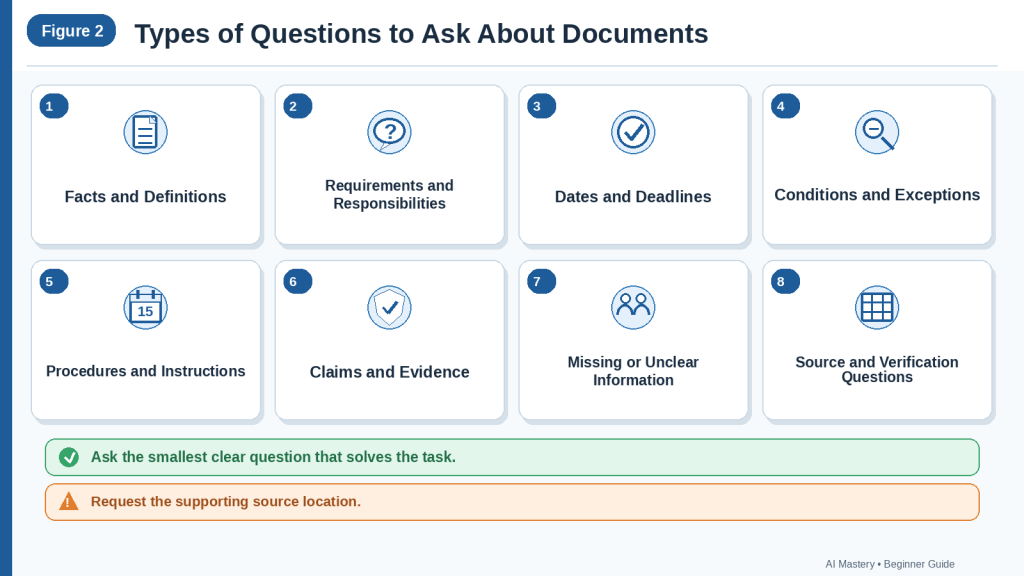
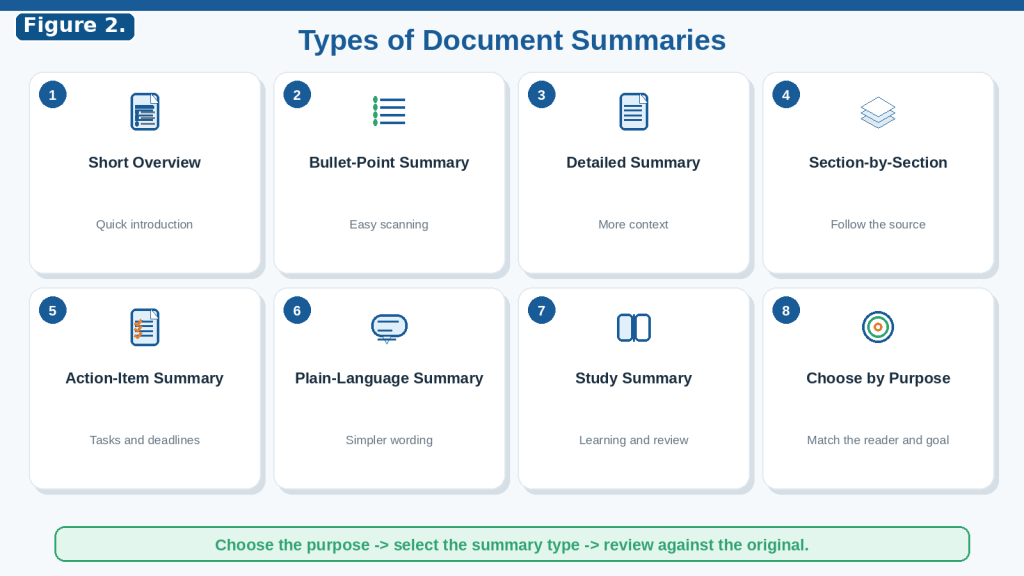
Figure 2. Document questions may ask about facts, definitions, requirements, responsibilities, deadlines, conditions, exceptions, evidence, or missing information.
Figure 2 shows common question types beginners can use with uploaded documents. A focused question should identify the needed answer, preserve important context, and request a source location for verification.
What Types of Documents Can You Ask Questions About?
ChatGPT can answer questions about many common document, presentation, spreadsheet, and text-file formats.
OpenAI currently lists support for common formats including:
· DOCX
· PPTX
· XLS
· XLSX
· CSV
· TSV
· TXT
Google Docs files using the .gdoc format are not directly supported. Export the document as PDF, DOCX, or another supported format before uploading it. Supported formats and features may change, so check current official guidance when beginning an important workflow.
The document type affects:
· Which questions are useful
· How information is organized
· Which source locations should be requested
· Which details require extra checking
· Whether charts, images, formulas, or scans may affect the answer
PDF Documents
PDF files may contain:
· Reports
· Policies
· Contracts
· Manuals
· Research papers
· Government publications
· Application instructions
· Product guides
· Scanned pages
You may ask:
What is the main purpose of this document?
Which section explains the application requirements?
What deadline applies, and are any exceptions stated?
What warnings appear in the document?
Where does the report explain its limitations?
A useful PDF question should request:
· Page number
· Section heading
· Table or appendix name
· Exact supporting wording
· Any related condition or exception
Example:
According to this PDF, what documents must a new applicant submit? Include the page number, section heading, deadline, and any exception.
A text-based PDF is generally easier to question than a blurred scan.
You can test whether a PDF contains selectable text by trying to highlight a sentence with your mouse.
PDF Files Containing Images and Charts
Some PDFs contain important information mainly in:
· Charts
· Diagrams
· Photographs
· Maps
· Scanned forms
· Screenshots
· Infographics
OpenAI’s current guidance explains that the ability to interpret embedded PDF visuals depends on the available feature, plan, and upload context. Visual information should therefore be checked manually instead of assuming every chart, diagram, or image was interpreted correctly.
Use a question such as:
Does the answer depend on a chart, image, diagram, or scanned page? Identify the visual element and state anything you cannot read confidently.
When asking about a chart, request:
· Chart title
· Axis labels
· Units
· Legend
· Date range
· Footnotes
· Source page
For example:
According to the chart on page 12, what changed between January and June? Preserve the axis units and identify any limitation stated in the caption or footnote.
Microsoft Word Documents
Word documents may include:
· Reports
· Policies
· Meeting notes
· Procedures
· Proposals
· Articles
· Training materials
· Agreements
You may ask:
What action items appear in this document?
Who is responsible for approving the request?
Which paragraph explains the exception?
What changes are required before the proposal can be approved?
Before uploading a Word document, check the safe working copy for:
· Comments
· Tracked changes
· Headers and footers
· Personal information
· Hidden text
· Document properties
· Embedded files
Do not assume that deleting visible information removes every private detail.
Presentation Files
Presentation files may contain information in:
· Slide titles
· Bullet points
· Tables
· Charts
· Diagrams
· Timelines
· Recommendations
· Speaker notes
You may ask:
What is the main message of slide 5?
Which slides contain recommendations?
What evidence supports the conclusion?
What action is requested in the final slide?
Which deadlines appear in the presentation?
A useful presentation question is:
According to the presentation, what recommendation appears on each slide? Include the slide number and identify any information that appears mainly in a chart, diagram, or speaker note.
Check the original slides because important meaning may depend on:
· Visual layout
· Arrows
· Colours
· Charts
· Images
· Speaker notes
· Animation order
Spreadsheet Files
Spreadsheet files may contain:
· Project trackers
· Budgets
· Expense records
· Schedules
· Inventory
· Survey results
· Sales information
· Task lists
· Customer or employee records
You may ask:
Which tasks are overdue?
What amount appears for March?
Which rows have a status of “Pending”?
Which worksheet contains the annual total?
Are any required fields blank?
A strong spreadsheet question identifies:
· Worksheet
· Column
· Row condition
· Date range
· Currency
· Unit
· Required output fields
Example:
In the worksheet named “Outstanding Tasks,” which rows have a Status of “Overdue”? Include the row number, task ID, responsible person, due date, and notes.
Before relying on the answer, check:
· Hidden rows
· Hidden columns
· Filters
· Formulas
· Merged cells
· Blank cells
· Date formats
· Currency
· Units
· Duplicate records
A blank cell does not automatically mean zero.
CSV and TSV Files
CSV and TSV files contain structured information in rows and columns.
They may be exported from:
· Spreadsheets
· Databases
· Surveys
· Website systems
· Accounting software
· Inventory platforms
· Customer-management systems
You may ask:
Which records have a Country value of “Canada” and a Status value of “Pending”?
How many records are missing a completion date?
Which entries contain duplicate reference numbers?
A useful question is:
Which rows have “Pending” in the Status column? Include the record ID, date, assigned person, amount, and original row number.
Check whether:
· Column headings were interpreted correctly
· Commas or tabs separated fields properly
· Dates use one consistent format
· Blank fields remained blank
· Quotation marks affected the columns
· Duplicate records exist
Do not upload private customer, employee, payment, or account information without authorization and appropriate privacy protection.
Plain-Text Files
Plain-text files may contain:
· Notes
· Transcripts
· Instructions
· Logs
· Drafts
· Exported conversations
· Simple reports
You may ask:
What decisions appear in these notes?
Which speaker raised the concern?
What instructions are listed?
Does the file state a deadline?
Plain-text files usually contain fewer visual structure clues.
They may not clearly show:
· Heading levels
· Tables
· Page boundaries
· Text boxes
· Colour coding
· Column relationships
Use labels inside the file when possible:
· Meeting Date:
· Participants:
· Decisions:
· Action Items:
· Deadlines:
· Unresolved Questions:
These labels make focused questions easier to answer.
Meeting Notes and Minutes
Meeting records may contain:
· Participants
· Discussion topics
· Suggestions
· Decisions
· Action items
· Responsible people
· Deadlines
· Follow-up questions
Useful questions include:
What decisions were confirmed?
Which ideas were only discussed?
Who agreed to contact the supplier?
What deadline was assigned?
Which questions remain unresolved?
Ask ChatGPT to keep these categories separate:
· Discussion
· Proposal
· Confirmed decision
· Action item
· Deferred matter
· Unresolved question
For example:
What confirmed decisions appear in the meeting record? Keep suggestions, proposals, and discussion separate, and include the supporting section for each answer.
Reports
Reports may contain:
· Purpose
· Findings
· Statistics
· Evidence
· Risks
· Limitations
· Recommendations
· Conclusions
Useful questions include:
What is the report’s main finding?
Which statistics support that finding?
What limitations does the report identify?
Who is expected to act on the recommendations?
What date range does the evidence cover?
A strong report question is:
What does the report claim about customer waiting times? Include the supporting evidence, measurement period, stated limitation, and source location.
Remember that accurately reporting a claim does not prove that the claim is true.
Research Papers
Research papers commonly include:
· Research question
· Sample
· Participants
· Method
· Measurements
· Results
· Limitations
· Conclusions
· References
You may ask:
What research question does the paper examine?
How many participants were included?
What method was used?
What result was reported?
What limitations did the authors identify?
Preserve cautious research language such as:
· May
· Suggests
· Appears
· Could
· Was associated with
Do not turn an association into proof of cause.
For example:
According to the paper, what relationship was found between the two variables? Preserve the authors’ level of certainty and include the results section.
Policies and Procedures
Policies may contain:
· Purpose
· Scope
· Eligibility
· Responsibilities
· Requirements
· Restrictions
· Deadlines
· Exceptions
· Penalties
· Appeals
Useful questions include:
Who does this policy apply to?
What action is required?
Is there an exception?
What happens if the rule is not followed?
How can a decision be appealed?
A complete policy question may be:
According to the policy, what requirement applies to new applicants, what deadline must they meet, what exception is stated, and what consequence may apply?
Do not read only the main rule. Search for related:
· Definitions
· Exceptions
· Footnotes
· Appendices
· Appeal sections
Contracts and Agreements
Contracts may include:
· Parties
· Services
· Responsibilities
· Payments
· Renewal
· Cancellation
· Notice periods
· Confidentiality
· Restrictions
· Penalties
· Dispute procedures
You may ask:
What payment deadline does the agreement state?
What notice is required for cancellation?
Does the agreement renew automatically?
What responsibilities are assigned to each party?
Which clause describes dispute resolution?
Use:
Answer using only the agreement. Preserve exact obligation words, dates, notice periods, conditions, exceptions, and clause references.
ChatGPT may help locate and organize contract wording, but it does not determine the full legal meaning or replace qualified legal advice.
Manuals and Instruction Guides
Manuals may contain:
· Required tools
· Preparation steps
· Ordered instructions
· Measurements
· Settings
· Warnings
· Maintenance requirements
· Troubleshooting guidance
· Model-specific directions
Useful questions include:
What must be completed before starting?
Which setting does the manual recommend?
What warning applies to this step?
Which model does this instruction apply to?
What should be checked when the device does not start?
Ask ChatGPT to preserve the order of the instructions.
For example:
According to the manual, what steps must be followed before operating the equipment? Preserve the original order, warnings, measurements, and model references.
Do not rely only on ChatGPT for dangerous activities involving:
· Electricity
· Chemicals
· Vehicles
· Medical devices
· Heavy equipment
· Safety systems
Use the current official manual and qualified assistance where necessary.
Forms and Applications
Forms may contain:
· Required fields
· Eligibility questions
· Supporting documents
· Signatures
· Submission instructions
· Deadlines
· Contact information
Useful questions include:
Which fields are required?
What supporting documents must be included?
Where must the form be submitted?
Is a signature required?
What is the submission deadline?
A blank field in a completed form may mean that information is missing. It should not be treated as confirmed information.
Letters and Official Notices
Official notices may contain:
· Sender
· Recipient
· Purpose
· Required action
· Deadline
· Reference number
· Contact details
· Consequence
· Appeal information
Useful questions include:
What action does this notice require?
What is the exact deadline?
Which documents must be provided?
What consequence is stated?
Does the notice explain how to appeal?
Verify deadlines and required actions directly before responding to an official notice.
Invoices and Receipts
Invoices and receipts may contain:
· Seller
· Customer
· Invoice number
· Date
· Products or services
· Quantity
· Price
· Tax
· Total
· Payment status
· Due date
Useful questions include:
What is the total amount due?
Which currency is used?
When is payment due?
Which line item includes the additional charge?
Does the invoice show that payment was received?
Financial documents often contain private information.
Confirm permission and remove unnecessary customer, payment, account, or identification details before uploading.
Verify every amount and calculation manually.
Transcripts
Transcripts may come from:
· Meetings
· Interviews
· Lectures
· Videos
· Podcasts
· Customer calls
· Speeches
Useful questions include:
Who made this statement?
What decision was confirmed?
Which topics were discussed?
What disagreement appears in the conversation?
What follow-up action was assigned?
Do not assign a statement to a person unless the transcript clearly identifies the speaker.
Check important quotations against the original recording when it is available and you have permission to use it.
Documents Containing Several Related Files
Sometimes one question requires information from several documents.
For example:
· A policy contains the general rule.
· An appendix contains the exception.
· A fee schedule contains the amount.
· An application form contains the required fields.
Use clear source labels:
· Document A — Main Policy
· Document B — Application Form
· Document C — Fee Schedule
Ask:
Which document answers each part of the question? Include the document label and source location for every answer.
For important work, question each document separately before combining the answers.
Choose the Clearest Authorized Source
When the same information is available in several formats, use the clearest authorized version.
A practical order may be:
1st Original structured spreadsheet for numerical records
2nd Original text-based document
3rd Text-based PDF
4th High-quality scan
5th Photograph of a page
The clearest source usually makes document questions easier to answer and verify.
Choosing the correct document type helps you ask better questions, request useful source locations, and identify which parts of the answer require additional checking.
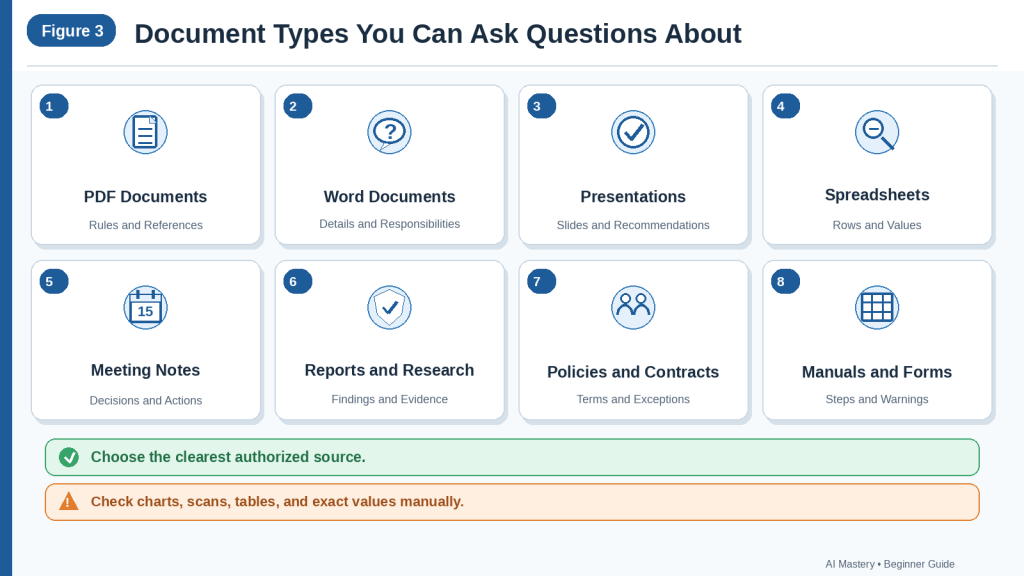
Figure 3. ChatGPT can help answer focused questions about documents, presentations, spreadsheets, reports, policies, meeting notes, manuals, forms, and other readable sources.
Figure 3 shows common document types that beginners may question. The question, requested source location, and verification method should match the document’s structure and the type of information it contains.
How to Prepare a Document Before Asking Questions
Careful preparation helps ChatGPT answer questions more accurately and reduces privacy, permission, version, and source-confusion risks.
Keep the original document unchanged and prepare a separate working copy before uploading it.
Step 1: Define Why You Are Reading the Document
Decide what you need to learn from the document.
For example, you may need to understand:
· An application requirement
· A payment deadline
· A cancellation process
· An assigned responsibility
· A product limitation
· A report finding
· A safety warning
· A contract clause
· A spreadsheet value
A clear purpose helps you choose focused questions.
Avoid beginning with:
Tell me everything about this document.
A more useful purpose is:
I need to understand the application requirements, deadline, exceptions, and submission process.
Step 2: Write Your Main Question Before Uploading
Write one clear question in advance.
For example:
What supporting documents must a new applicant provide?
Or:
What deadline applies to cancelling the service?
Or:
Who is responsible for approving the request?
Starting with one question helps prevent the conversation from becoming unfocused.
You can ask related follow-up questions after checking the first answer.
Step 3: Identify the Information Needed for a Complete Answer
One question may require several connected details.
For example, the question:
What is the application deadline?
may also require:
· Who the deadline applies to
· What must be submitted
· The exact date or time period
· Whether business days or calendar days are used
· Any condition or exception
· The consequence of missing it
· The source location
Write these supporting fields before uploading the document.
This reduces the chance of receiving an incomplete answer.
Step 4: Keep the Original Document Unchanged
Store the original file safely.
Do not:
· Delete pages from the original
· Remove comments from the only copy
· Replace original wording
· Change official dates
· Overwrite the original filename
· Depend on ChatGPT as the only remaining copy
The original may be needed to verify:
· Exact wording
· Page order
· Tables
· Signatures
· Definitions
· Conditions
· Exceptions
· Version information
Step 5: Create a Safe Working Copy
Duplicate the original document.
Use a descriptive filename such as:
employee-policy-safe-question-copy.docx
or:
application-guide-safe-question-copy.pdf
A clear filename should show:
· Document topic
· That it is a working copy
· Its date or version when relevant
Avoid unclear filenames such as:
· document.pdf
· latest-copy.docx
· new-file-2.pdf
· final-final.docx
Step 6: Confirm Permission to Use the Document
Before uploading the working copy, confirm that:
· You own the document or have permission to use it.
· Workplace or organizational rules allow external processing.
· A confidentiality agreement does not prohibit uploading it.
· Privacy requirements are being followed.
· Copyright or licence conditions allow the intended use.
· The document is not restricted or classified.
A document may still be unsuitable for uploading after names are removed.
It may contain:
· Confidential business methods
· Internal procedures
· Trade information
· Protected customer records
· Private legal information
· Restricted project details
· Licensed material with limited-use conditions
When permission is unclear, do not upload the document until the responsible person or organization confirms that the use is permitted.
Step 7: Remove Unnecessary Private Information
Review the working copy and remove private information that is not needed to answer the question.
This may include:
· Full names
· Email addresses
· Telephone numbers
· Home addresses
· Dates of birth
· Account numbers
· Identification numbers
· Signatures
· Customer records
· Employee numbers
· Medical details
· Financial details
· Login information
When identity is unnecessary, replace names with neutral labels such as:
· Applicant A
· Employee B
· Customer 1
· Department Manager
· Service Provider
Do not remove a name when the question genuinely depends on identifying responsibility. In that situation, confirm that processing the information is allowed.
Step 8: Check Hidden and Embedded Information
Private information may remain outside the visible body text.
Check for:
· Comments
· Tracked changes
· Document properties
· Headers and footers
· Speaker notes
· Hidden spreadsheet rows
· Hidden columns
· Hidden worksheets
· Embedded files
· Image metadata
· Previous revision details
Deleting visible text may not remove all private information.
Use your document program’s inspection, properties, or document-review tools when available. Exact menu names may vary by program and version.
Step 9: Preserve the Context Needed to Answer Correctly
Removing too much context can make an answer misleading.
Keep:
· Section headings
· Definitions
· Person or group affected
· Required action
· Dates
· Units
· Conditions
· Exceptions
· Consequences
· Table headings
· Footnotes
· Related clauses
For example, do not preserve only:
Within 30 days.
Keep the complete meaning:
The customer must submit the cancellation request within 30 calendar days after the purchase date.
The person, action, time period, type of day, and starting event are all necessary.
Step 10: Confirm That the Document Is Complete
Check that the working copy contains every relevant:
· Page
· Section
· Table
· Chart
· Footnote
· Appendix
· Attachment
· Definition
· Signature page
· Reference
Compare the file with:
· Table of contents
· Page numbers
· Section numbering
· Appendix list
· Original document
A missing page may cause ChatGPT to say that an answer is absent when the information was simply not uploaded.
Step 11: Check the Document’s Readability
Open the complete working copy and inspect it.
Look for:
· Blurred text
· Cropped pages
· Skewed scans
· Faded characters
· Small print
· Overlapping text
· Multiple-column layouts
· Handwriting
· Missing labels
· Incorrect page order
· Unclear tables
Use a clean text-based file when possible.
For scanned documents, consider preparing clearer page images or smaller page groups for difficult sections.
Step 12: Identify the Document Clearly
Record the document’s:
· Visible title
· Filename
· Date
· Version number
· Effective date
· Draft or approved status
· Issuing organization
· Replacement or revision notice
For example:
Document title: Employee Training Policy
Version: 2.0
Effective date: July 2026
Status: Approved
Main question: What training must new employees complete?
This identification note helps prevent answers from being based on the wrong version.
Step 13: Confirm That the Document Is Current
An old document may contain outdated:
· Requirements
· Fees
· Dates
· Procedures
· Contact information
· Product features
· Policy terms
· Forms
Check whether the document includes:
· Revision date
· Effective date
· Expiration date
· Version number
· Superseded notice
· Official publication source
ChatGPT may answer correctly from an outdated document while the information is no longer valid.
For important decisions, confirm that you have the latest authorized version.
Step 14: Review Definitions Before Asking Detailed Questions
Definitions may affect the meaning of later rules.
For example, the document may define:
· Applicant
· Business day
· Eligible expense
· Confidential information
· Service period
· Written notice
· Authorized representative
A question about a deadline may be answered incorrectly when a related definition is overlooked.
Prepare a definition question when necessary:
How does the document define “business day,” and how does that definition affect the deadline in Section 6?
Step 15: Identify Related Sections
The answer may be spread across several parts of the document.
For example:
· Main rule in Section 4
· Definition in Section 2
· Exception in Section 8
· Fee in Appendix A
· Deadline in a separate table
Identify likely related sections before asking the final question.
You may first ask for a document map:
List the main headings, tables, appendices, and definitions in the order they appear. Do not answer my main question yet.
Compare the map with the original source.
Step 16: Prepare Source-Location Requirements
Decide which source details should appear with the answer.
Possible locations include:
· Page number
· Section heading
· Clause
· Paragraph
· Table title
· Appendix
· Slide number
· Worksheet
· Row
· Column
· Cell
For example:
Include the page number, section heading, and exact supporting sentence.
Source locations make checking easier, but they must still be verified manually.
Step 17: Decide Whether You Need Exact Wording or Plain Language
Choose the type of answer you need.
You may request:
Exact wording
Quote the exact sentence that states the cancellation deadline.
Plain-language explanation
Explain the cancellation deadline in simple language without changing its meaning.
Both
Quote the exact wording first, then explain it in simple language.
Exact wording is useful when obligation words, dates, and conditions matter.
Plain language is useful for understanding difficult text.
The explanation should not replace the original wording in high-risk situations.
Step 18: Define Missing-Information Rules
Tell ChatGPT what to say when the document does not answer the question.
Use labels such as:
· Not stated in the document
· Could not be read confidently
· Requires verification
· Source location not confirmed
· Document version unclear
For example:
When the document does not answer the question, write “Not stated in the document.” Do not guess or use outside information.
This prevents a complete-looking but unsupported answer.
Step 19: Define Direct-Statement and Interpretation Rules
Ask ChatGPT to separate what the source states from what it infers.
Use:
Label the answer as “Directly stated” when the document answers the question clearly. Label it “Interpretation” when reasoning is required. Explain what wording supports the interpretation.
For important tasks, request three sections:
· Directly Stated
· Interpretation
· Not Stated or Unclear
This makes uncertainty visible.
Step 20: Prepare Exact-Detail Rules
When the question involves precise information, tell ChatGPT what must remain unchanged.
Ask it to preserve:
· Names
· Dates
· Times
· Time zones
· Business or calendar days
· Amounts
· Currency
· Percentages
· Measurements
· Units
· Model numbers
· Obligation words
· Conditions
· Exceptions
For example:
Preserve whether the document uses “must,” “may,” or “should.” Preserve the exact time period, starting event, and any exception.
Step 21: Decide Whether Outside Information Is Allowed
For source-based document questions, begin with:
Answer using only the uploaded document.
This keeps the first answer grounded in the source.
When outside research is required, make it a separate step.
For example:
1st Ask what the document states.
2nd Verify the source-based answer.
3rd Ask whether current official information differs.
4th Clearly separate the document answer from outside research.
Do not mix source content and outside information without clear labels.
Step 22: Prepare Follow-Up Questions
Write one or two possible follow-ups.
For example:
· Does another section provide an exception?
· Which sentence supports the answer?
· Is this directly stated or inferred?
· Does the rule apply to every applicant?
· What information is missing?
· Does a definition change the meaning?
· Is the date confirmed or proposed?
These questions can test the completeness of the first answer.
Step 23: Create a Verification Plan
Decide how the answer will be checked.
A simple verification plan may include:
1st Open the stated page or section.
2nd Find the exact supporting wording.
3rd Check nearby conditions and exceptions.
4th Confirm names, dates, numbers, and obligation words.
5th Confirm the document version.
6th Record any correction.
7th Reject the answer when no supporting source exists.
For high-risk questions, verify every part of the answer.
Step 24: Use a Question Review Table
A review table can help track several questions.
| Question | ChatGPT Answer | Source Location | Directly Stated or Interpreted | Verified | Correction Needed |
| What is the deadline? | August 15 | Page 4, Applications | Directly stated | Yes | No |
| Is there an exception? | Approved extensions | Page 6, Exceptions | Directly stated | Yes | Clarify affected group |
| Who approves the request? | Department manager | Page 7 | Interpretation | No | Requires verification |
Use Verified: Yes only after checking the source.
Step 25: Prepare a Complete Question Prompt
A strong beginner prompt may be:
Review Document A — Employee Training Policy, Version 2.0, July 2026.
Question: What training must new employees complete?
Answer using only the document.
Include:
· Required training
· Person or group affected
· Completion deadline
· Responsible department
· Condition
· Exception
· Consequence
· Page number and section heading
Preserve exact dates, time periods, obligation words, conditions, and exceptions.
Label the answer as Directly stated or Interpretation.
Write “Not stated in the document” when information is missing.
Write “Could not be read confidently” when the source is unclear.
Do not guess or add outside information.
Document-Preparation Checklist
Before uploading, confirm:
· The purpose of the document review is clear.
· One main question has been written.
· Supporting answer fields have been identified.
· The original document remains unchanged.
· A safe working copy was created.
· Permission and confidentiality were checked.
· Unnecessary private information was removed.
· Hidden and embedded content was reviewed.
· Necessary context was preserved.
· The document is complete and readable.
· The title, date, version, and status were identified.
· The latest authorized version was confirmed.
· Related definitions and sections were considered.
· Source-location requirements were selected.
· Exact wording or plain language was chosen.
· Missing-information rules were defined.
· Direct statements and interpretations will be separated.
· Exact dates, numbers, units, and obligation words will be preserved.
· Outside information will remain separate.
· Follow-up questions are ready.
· A verification plan has been prepared.
Careful document preparation makes questions easier to answer, helps preserve important context, and reduces unsupported, incomplete, outdated, or privacy-sensitive responses.
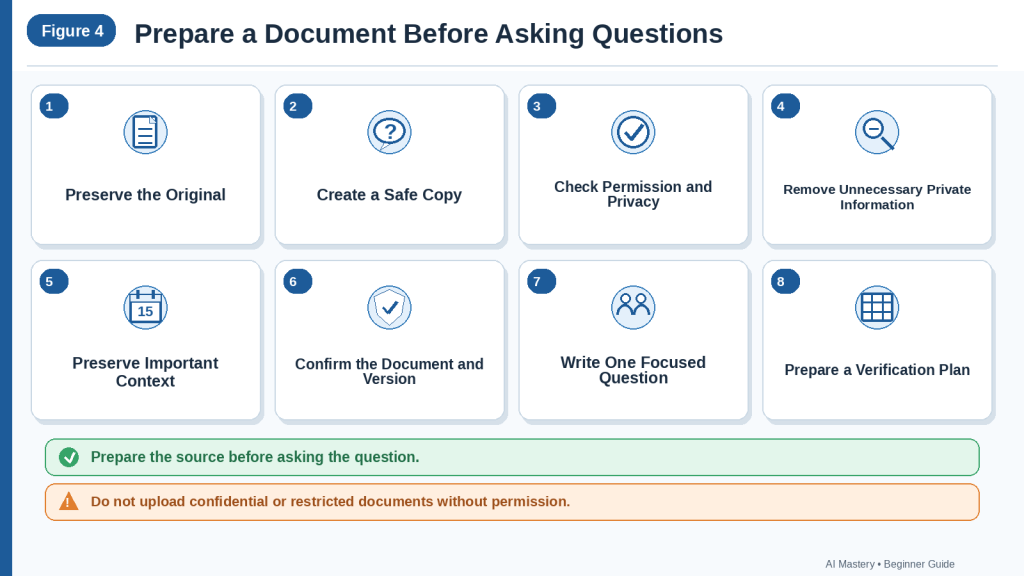
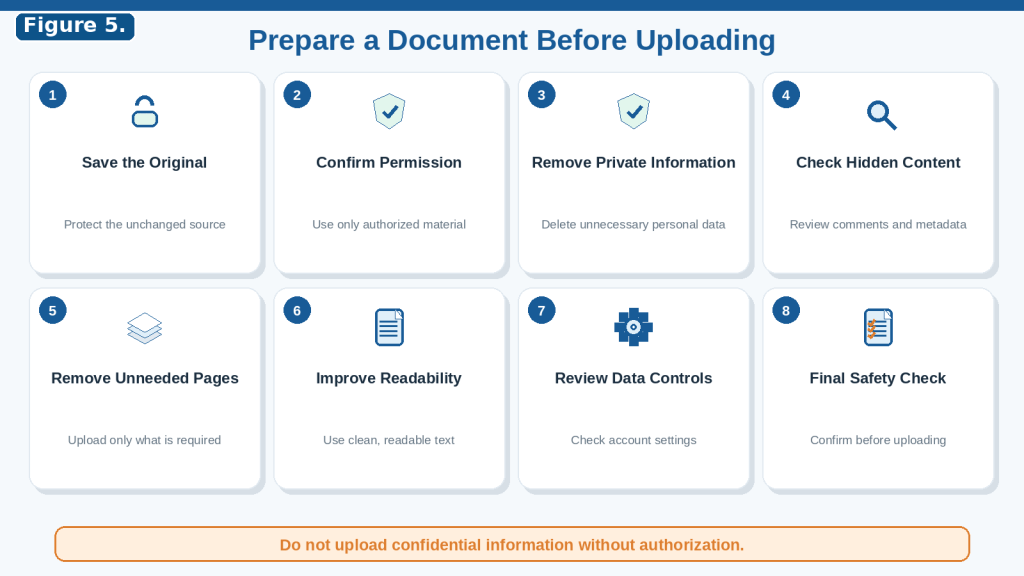
Figure 4. A document should be copied safely, checked for permission and privacy, preserved with necessary context, and paired with one focused question and a verification plan.
Figure 4 shows how to prepare a document before asking questions. A safe working copy should protect privacy without removing the definitions, conditions, exceptions, headings, or labels needed to understand the answer.
How to Upload a Document and Ask Your First Question
After preparing a safe working copy, upload it in a separate ChatGPT conversation and begin with one focused question.
ChatGPT currently supports common document, presentation, spreadsheet, and text formats, including PDF, DOCX, PPTX, XLS, XLSX, CSV, TSV, and TXT. Google Docs files using the .gdoc format should be exported to a supported format before uploading.
The exact buttons and menu wording may vary by device, account, workspace, plan, and future update.
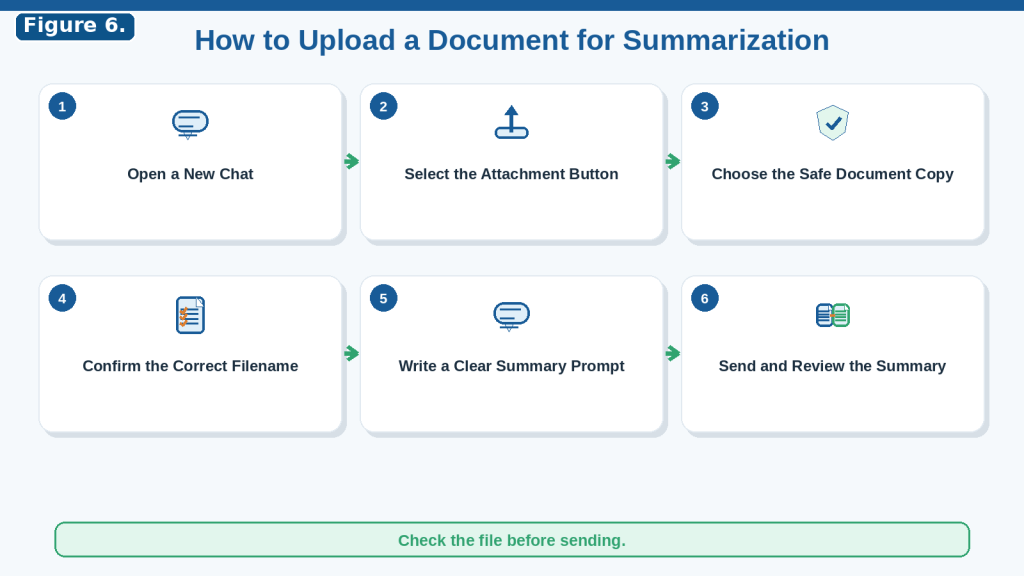
Step 1: Open a Separate Conversation
Start a new ChatGPT conversation for the document-questioning task.
A separate conversation helps you:
· Keep the source and questions together
· Avoid mixing information from unrelated files
· Track follow-up questions
· Record corrections
· Find the conversation later
· Preserve a clearer review history
Use a descriptive conversation title when that option is available.
For example:
Questions About Employee Training Policy
Avoid continuing a conversation that already contains several unrelated documents, topics, or instructions.
Step 2: Select the Attachment Control
Look near the ChatGPT message box for the attachment control.
Depending on the interface, it may appear as:
· A plus sign
· A paperclip
· Add files
· Upload files
· Add photos and files
OpenAI’s current interface guidance commonly refers to selecting the attachment button, shown as a plus sign, to add a relevant file or image.
Select the control and choose the safe working copy from your computer or device.
Step 3: Confirm That You Selected the Correct File
Before sending the message, read the complete filename.
For example:
employee-policy-safe-question-copy.docx
Confirm that:
· The correct document is attached.
· It is the safe working copy.
· It is the correct version.
· The confidential original was not selected.
· The file is complete.
· The file is not password-protected.
· The filename is understandable.
Do not rely only on a small preview or thumbnail.
Step 4: Wait for the Attachment to Appear
Wait until the filename, file card, or attachment preview appears in the conversation.
Do not send your question while the file is still uploading.
A successful attachment means the file was added to the conversation. It does not prove that every page, table, chart, image, footnote, or scanned section was interpreted correctly.
Step 5: Identify the Document
Before asking the main question, give the document a clear source label.
For example:
Use this source label throughout the conversation:
Document A — Employee Training Policy, Version 2.0, July 2026
Also provide any relevant information such as:
· Visible document title
· Date
· Version number
· Effective date
· Draft or approved status
· Issuing organization
· Main review purpose
For example:
Main purpose: I need to understand which training requirements apply to new employees.
Clear identification reduces the risk of using the wrong file or version.
Step 6: Ask ChatGPT to Confirm the Source
Before asking the main question, ask ChatGPT to confirm what it received.
Use:
Confirm the filename, visible document title, date, version, status, and main headings. Identify anything you cannot read confidently. Do not answer my main question yet.
Compare the response with the original document.
Check whether ChatGPT correctly identified:
· Filename
· Title
· Date
· Version
· Effective date
· Main headings
· Tables
· Appendices
· Worksheets
· Major visual elements
Correct any source-identification problem before continuing.
Step 7: Request a Document Map When Necessary
A document map shows the source’s organization.
It may list:
· Main headings
· Subsections
· Definitions
· Tables
· Charts
· Appendices
· Worksheets
· Major topics
Use:
Create a document map showing the main headings, subsections, definitions, tables, charts, appendices, and major topics in the order they appear. Identify anything you cannot read confidently. Do not answer my main question yet.
A document map is especially useful for:
· Long reports
· Policies
· Contracts
· Manuals
· Research papers
· Presentations
· Multi-worksheet spreadsheets
Compare the map with the original source.
A missing section in the map may indicate that part of the document needs closer review.
Step 8: Ask One Focused Question
Begin with one question that has a clear purpose.
For example:
According to Document A, what training must new employees complete?
Avoid beginning with:
Tell me everything about this document.
A broad request may produce a summary rather than the specific answer you need.
Step 9: Tell ChatGPT to Use Only the Document
Add a source rule:
Answer using only Document A. Do not add outside information.
This helps keep the answer connected to the uploaded source.
However, this instruction does not guarantee accuracy. The answer must still be checked manually.
Step 10: Request the Parts Needed for a Complete Answer
A simple-looking question may require several connected details.
For example:
What training must new employees complete?
A complete answer may need:
· Training name
· Person or group affected
· Required action
· Completion deadline
· Responsible department
· Condition
· Exception
· Consequence
· Source location
Use:
Include the required training, affected group, deadline, responsible department, condition, exception, consequence, and source location.
This reduces the risk of receiving an incomplete answer.
Step 11: Request a Source Location
Ask ChatGPT to identify where the answer appears.
For example:
Include the page number, section heading, clause, table, appendix, worksheet, row, or other source location when available.
A source location helps you find the supporting wording.
Do not assume the location is correct merely because it looks precise.
Open the stated location and verify it manually.
Step 12: Ask Whether the Answer Is Directly Stated
Use:
Label the answer as Directly stated, Interpretation, or Not stated in the document.
These labels help distinguish:
· Information clearly provided by the source
· A conclusion that requires reasoning
· Information the source does not provide
For example:
Directly stated
New employees must complete workplace safety training within 30 calendar days.
Interpretation
This appears to mean that employees who begin on July 1 should complete the training by July 31.
The interpretation may be reasonable, but it is not the same as the original wording.
Step 13: Define Missing-Information Rules
Tell ChatGPT what to do when the document does not provide the answer.
Use:
Write “Not stated in the document” when the requested information is missing.
For unclear text:
Write “Could not be read confidently” when the relevant text is unclear.
For an uncertain source location:
Write “Source location requires verification” when the location cannot be confirmed.
Do not permit ChatGPT to guess:
· A deadline
· A responsible person
· A fee
· An approval status
· A consequence
· A missing requirement
Step 14: Preserve Exact Wording When It Matters
Ask ChatGPT to preserve important details such as:
· Must
· May
· Should
· Recommended
· Optional
· Business days
· Calendar days
· Before
· After
· Within
· At least
· No later than
· Exact currency
· Percentage
· Measurement
· Model number
Use:
Preserve exact dates, numbers, currencies, units, obligation words, conditions, and exceptions.
For example:
Applicants may submit the form within five business days after receiving written approval.
must not become:
Applicants must submit the form within five days.
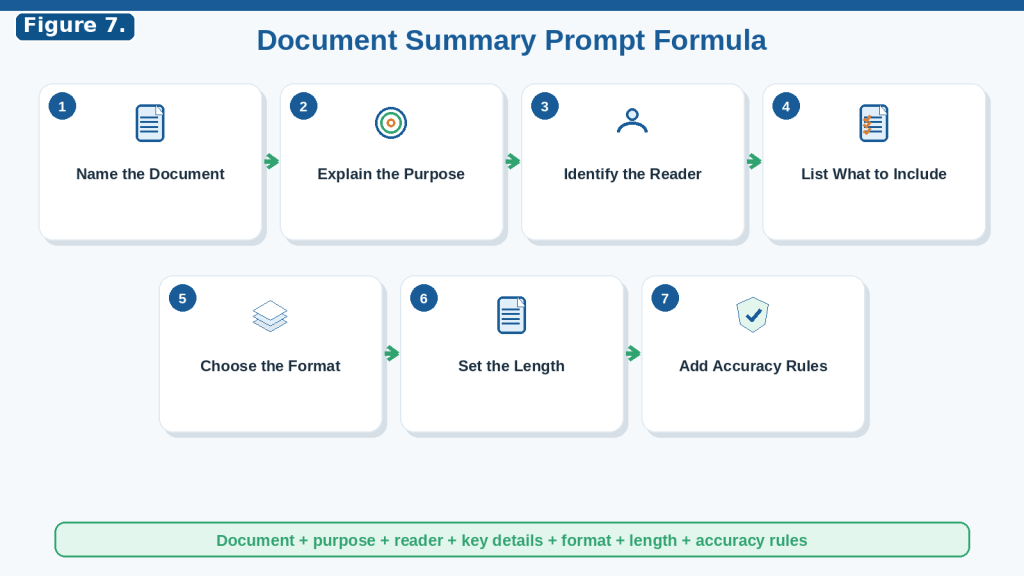
Step 15: Use a Complete Beginner Question Prompt
Copy and adapt this prompt:
Review Document A — [document title, date, and version].
Question: [write one focused question]
Answer using only Document A.
Include:
· Direct answer
· Person or group affected
· Required action
· Date or deadline
· Condition
· Exception
· Stated consequence
· Page number and section heading
Preserve exact names, dates, time periods, currencies, percentages, measurements, units, obligation words, conditions, and exceptions.
Label the answer as:
· Directly stated
· Interpretation
· Not stated in the document
Write “Could not be read confidently” when the relevant source text is unclear.
Do not guess, estimate, complete missing information, or add outside information.
Step 16: Read the Entire Answer
Do not copy or use the answer immediately.
Read the complete response and ask:
· Did ChatGPT answer the correct question?
· Did it use the correct document?
· Is the answer complete?
· Is any part unsupported?
· Are conditions and exceptions included?
· Are exact dates and numbers preserved?
· Is the answer labelled correctly?
· Is the source location provided?
· Did outside information appear?
· Did ChatGPT sound more certain than the document?
Treat the first response as a draft.
Step 17: Find the Supporting Text
Open the original document and locate the stated source.
Check:
· Exact sentence
· Surrounding paragraph
· Section heading
· Related definition
· Nearby condition
· Later exception
· Table note
· Appendix reference
Do not verify only the sentence that seems to support the answer.
Nearby wording may change its meaning.
Step 18: Ask for the Exact Supporting Wording
Use:
Show the exact sentence or shortest necessary passage that supports the answer. Include the source location and do not combine wording from different sections.
Then compare the quotation with the original source.
Use exact quotations only when necessary and within applicable copyright and permission limits.
Step 19: Ask Whether Nearby Text Changes the Answer
A correct sentence may still be incomplete when nearby information adds a condition or exception.
Ask:
Does any nearby paragraph, definition, footnote, table note, appendix, or later section change, limit, or create an exception to this answer?
Verify every identified section manually.
Step 20: Ask a Focused Follow-Up Question
After checking the first answer, ask one related follow-up.
For example:
Does this requirement apply to temporary employees?
Is an extension permitted?
What happens if the deadline is missed?
Which department approves an exception?
Is this directly stated or inferred?
Avoid unclear follow-ups such as:
What about the other one?
A clearer follow-up preserves the topic:
What deadline applies to employees who receive an approved extension?
Step 21: Use a Question Chain
A question chain explores one topic in manageable stages.
For example:
1st What is the general requirement?
2nd Who does it apply to?
3rd What deadline applies?
4th Is an exception stated?
5th What consequence may apply?
6th Which sections support each answer?
Verify each answer before moving to the next question.
This is usually easier to check than one very large prompt.
Step 22: Ask ChatGPT to Identify Uncertainty
Use:
List every part of your answer that depends on unclear wording, inference, missing information, a visual element, or an unconfirmed source location.
A useful response may separate:
· Confirmed from source
· Unclear
· Inferred
· Missing
· Requires manual verification
Do not allow uncertainty to disappear inside a confident paragraph.
Step 23: Correct One Problem at a Time
Use focused correction prompts.
For example:
Review only the deadline. Preserve whether it uses business days or calendar days.
Review only the responsible person. Remove the assignment unless the document states it directly.
Search only for exceptions to this requirement.
Correct only the source location.
Remove any information that came from outside the document.
Focused corrections are easier to verify than asking ChatGPT to rewrite the entire answer.
Step 24: Record the Question and Answer
Save:
· Source filename
· Source title and version
· Question
· Initial answer
· Supporting source location
· Correction prompts
· Corrected answer
· Verification date
· Unresolved information
A simple review table may contain:
| Question | Answer | Source Location | Answer Type | Verified | Correction |
| What training is required? | Workplace safety training | Section 4, page 6 | Directly stated | Yes | None |
| What is the deadline? | Within 30 calendar days | Section 4, page 6 | Directly stated | Yes | “Business days” corrected to “calendar days” |
| Is an extension allowed? | Not stated in the document | Not available | Not stated | Yes | None |
Step 25: Use High-Risk Answers Carefully
Take extra care when the answer affects:
· Legal rights
· Medical treatment
· Financial payments
· Safety
· Employment
· Government applications
· Contract obligations
· Technical operations
· Access to services
For high-risk questions:
1st Verify every part of the answer.
2nd Confirm the document is current.
3rd Check related definitions and exceptions.
4th Preserve the exact wording.
5th Obtain qualified professional review when necessary.
First-Question Checklist
Before accepting the answer, confirm:
· A separate conversation was used.
· The safe working copy was uploaded.
· The correct filename and version were confirmed.
· A document map was reviewed when necessary.
· One focused question was asked.
· ChatGPT was told to use only the document.
· The required answer fields were listed.
· Missing-information rules were included.
· Exact dates, numbers, units, and obligation words were preserved.
· A source location was requested.
· Direct statements and interpretations were separated.
· The supporting wording was checked.
· Nearby conditions and exceptions were reviewed.
· Uncertainty was made visible.
· Corrections were recorded.
· High-risk information received appropriate review.
Uploading a document does not make its answers automatically reliable. A focused question, clear source rules, visible uncertainty, and manual verification are what make the response useful.
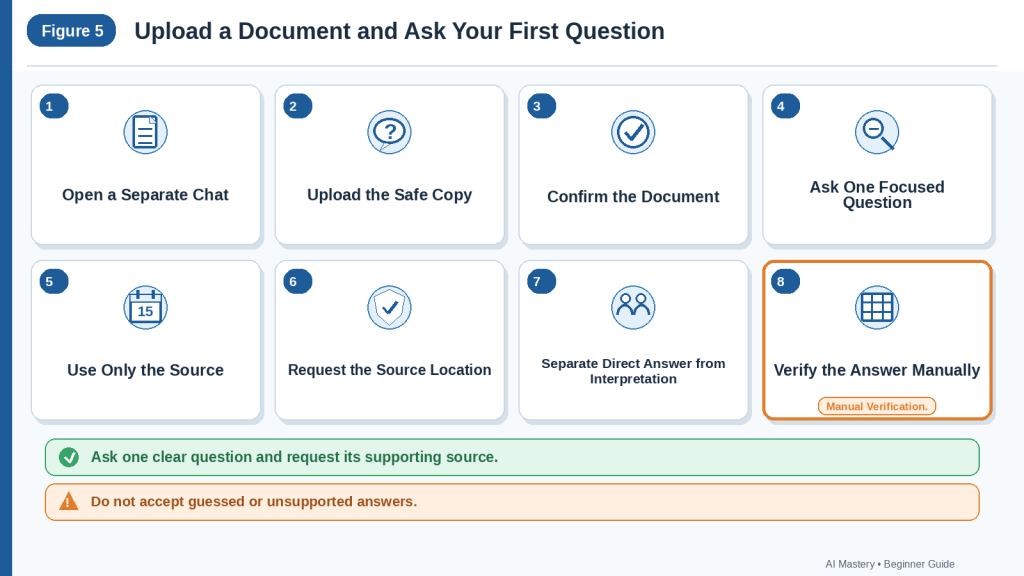
Figure 5. A reliable first document question identifies the safe source, asks one focused question, requests the source location, separates fact from interpretation, and ends with manual verification.
Figure 5 shows a careful first-question workflow. Upload a safe copy, confirm the source, ask one focused question, request the source location, and compare the answer with the original before relying on it.
How to Write Clear Questions About Documents
A clear document question tells ChatGPT:
· Which document to use
· What you need to know
· Which details the answer must include
· Whether exact wording or plain language is required
· Where the supporting information appears
· How missing or unclear information should be handled
· Whether interpretation is allowed
· What must be verified manually
A vague question such as:
What does this document say?
may produce a broad summary rather than the specific answer you need.
A clearer question is:
According to Document A, what deadline applies to new applicants, what must they submit, which exceptions are stated, and where does this information appear?
Use an Eight-Part Document-Question Formula
A useful document question can include eight parts:
1st Identify the document.
2nd State one focused question.
3rd Define the required answer details.
4th Limit the answer to the source.
5th Request the source location.
6th Preserve exact meaning and context.
7th Define missing and unclear information.
8th Separate direct statements from interpretation.
You may not need every part for a simple question, but important questions usually benefit from clear instructions.
Part 1: Identify the Document
Use a clear source label.
For example:
Review Document A — Employee Training Policy, Version 2.0, July 2026.
When several files are attached, label each one:
· Document A — Main Policy
· Document B — Application Form
· Document C — Fee Schedule
Avoid unclear references such as:
· The first file
· The new version
· The other attachment
· The latest document
Clear labels reduce the risk of receiving an answer from the wrong file.
Part 2: Ask One Focused Question
Ask one question that has a clear purpose.
For example:
What training must new employees complete?
What deadline applies to cancellation requests?
Who approves an exception?
What evidence supports the report’s main recommendation?
Avoid combining many unrelated questions in one message.
An overloaded question may ask about:
· Deadlines
· Fees
· Responsibilities
· Definitions
· Warnings
· Claims
· Recommendations
· Contact information
A smaller question is easier to answer and verify.
Part 3: Define the Required Answer Details
A short question may still require several connected details.
For example:
What is the application deadline?
A complete answer may need:
· Exact date or time period
· Person or group affected
· Required action
· Starting event
· Condition
· Exception
· Consequence
· Source location
Add those fields directly:
What is the application deadline? Include who must meet it, what must be submitted, when the time period begins, any condition or exception, and the source location.
This reduces incomplete answers.
Part 4: Limit the Answer to the Source
Tell ChatGPT to use only the uploaded document.
Use:
Answer using only Document A.
Do not add general knowledge or outside information.
When the document does not answer the question, state that clearly.
This is especially important when asking about:
· Policies
· Contracts
· Reports
· Manuals
· Official notices
· Product documents
Outside information can be researched later as a separate task.
Part 5: Request the Source Location
Ask where the answer appears.
Possible source locations include:
· Page number
· Section heading
· Clause
· Paragraph
· Table title
· Appendix
· Slide number
· Worksheet
· Row
· Column
· Cell
For example:
Include the page number, section heading, and shortest supporting passage.
A source location makes the answer easier to check.
It must still be verified manually.
Part 6: Preserve Exact Meaning and Context
Tell ChatGPT not to change important wording.
Ask it to preserve:
· Names
· Dates
· Time periods
· Time zones
· Amounts
· Currency
· Percentages
· Measurements
· Units
· Obligation words
· Conditions
· Exceptions
· Consequences
For example:
Preserve whether the document says “must,” “may,” “should,” or “recommended.”
Preserve whether the deadline uses business days or calendar days.
Keep every exception connected to the rule it changes.
This helps prevent small wording changes from changing the meaning.
Part 7: Define Missing and Unclear Information
Tell ChatGPT what to write when the answer is absent or unreadable.
Use labels such as:
· Not stated in the document
· Could not be read confidently
· Source location requires verification
· Document version unclear
For example:
Write “Not stated in the document” when the source does not provide the answer. Do not guess or fill the gap.
This is safer than allowing ChatGPT to produce a complete-looking but unsupported response.
Part 8: Separate Direct Statements from Interpretation
Ask ChatGPT to label the answer.
Useful labels include:
· Directly stated
· Interpretation
· Not stated
· Unclear
· Requires verification
For example:
State whether each part of the answer is directly stated or interpreted.
A direct statement reports what the document says.
An interpretation explains what the wording may mean.
The two should not be mixed.
Complete Beginner Question Template
Copy and adapt this prompt:
Review Document A — [document title, date, and version].
Question: [write one focused question]
Answer using only Document A.
Include:
· Direct answer
· Person or group affected
· Required action
· Date or deadline
· Condition
· Exception
· Stated consequence
· Source location
Preserve exact names, dates, time periods, currencies, percentages, measurements, units, obligation words, conditions, and exceptions.
Label each part of the answer as:
· Directly stated
· Interpretation
· Not stated in the document
· Requires verification
Write “Could not be read confidently” when the relevant text is unclear.
Do not guess, estimate, complete missing information, or add outside information.
Question Template for Requirements
According to Document A, what requirements apply to [person or group]?
Include:
· Required action
· Required document or qualification
· Deadline
· Condition
· Exception
· Consequence
· Source location
Preserve the original obligation words and do not convert optional guidance into a requirement.
Question Template for Dates and Deadlines
What deadline applies to [action or requirement]?
Include:
· Exact date or time period
· Person or group affected
· Required action
· Starting event
· Business or calendar days
· Condition
· Exception
· Source location
State whether the deadline is confirmed, proposed, estimated, or not stated.
Question Template for Responsibilities
Who is responsible for [specific action]?
Include:
· Person, role, or department
· Exact assigned action
· Deadline
· Condition
· Source location
Do not assign responsibility based only on a nearby name or discussion.
Question Template for Conditions and Exceptions
Does the document state any condition or exception related to [rule or requirement]?
Search the complete document, including definitions, footnotes, tables, appendices, and related sections.
Connect every exception to the rule it changes and include the source location.
Question Template for Procedures
According to Document A, what steps must be followed to [complete the task]?
Present the steps in the original order.
Include:
· Required forms or documents
· Responsible person or group
· Deadline
· Approval
· Warning
· Condition
· Exception
· Source location
Do not add steps that are not stated in the document.
Question Template for Fees and Payments
What payment requirement applies to [person, service, or transaction]?
Include:
· Payment type
· Exact amount
· Currency
· Due date
· Refund condition
· Penalty
· Applicable person or group
· Source location
Do not calculate or estimate missing amounts.
Question Template for Reports and Evidence
What does the report claim about [topic]?
Include:
· Main claim
· Supporting evidence
· Statistic or example
· Measurement period
· Sample or data source
· Stated limitation
· Source location
Use wording such as “The report states” and do not present the claim as independently verified fact.
Question Template for Contracts
According to the agreement, what does the clause about [topic] state?
Include:
· Exact obligation
· Responsible party
· Date or notice period
· Condition
· Exception
· Stated consequence
· Clause and page location
Preserve exact obligation words.
Separate the clause wording from any interpretation.
Do not provide a final legal conclusion.
Question Template for Spreadsheets
In the worksheet named [worksheet name], which records meet this condition: [condition]?
Include:
· Worksheet name
· Row number
· Record ID
· Relevant fields
· Date
· Amount
· Currency or unit
· Status
· Notes
Do not treat blank cells as zero unless the spreadsheet defines them that way.
Identify any hidden, filtered, formula-based, or unclear data that may affect the answer.
Question Template for Tables
In [table title], what value appears in the row [row label] and column [column label]?
Include:
· Exact value
· Unit or currency
· Table title
· Row label
· Column heading
· Footnote
· Page number
State when the table structure cannot be read confidently.
Question Template for Scanned Pages or Images
Answer only when the relevant text or visual can be read confidently.
Identify:
· Page or image
· Visible answer
· Supporting label or caption
· Any uncertainty
Write “Could not be read confidently” instead of guessing.
Ask for the Shortest Necessary Answer
A long answer may hide the main point.
Use:
Give the direct answer first in one or two sentences. Then provide the supporting details and source location.
This structure helps beginners find the answer quickly while preserving the evidence.
Ask for Exact Wording and Plain Language Separately
When wording matters, request both.
For example:
First, provide the exact sentence that answers the question.
Second, explain it in simple language without changing its meaning.
Third, identify any condition, exception, or uncertainty.
This is useful for:
· Policies
· Contracts
· Official notices
· Technical instructions
· Procedures
The plain-language explanation should not replace the original wording when exact meaning matters.
Ask ChatGPT to Show What Is Missing
A document may answer only part of the question.
Use:
Separate the response into:
· What the document states
· What the document does not state
· What remains unclear
· What requires verification
This prevents missing information from being hidden.
Ask ChatGPT to Challenge Its First Answer
After receiving an answer, ask:
Search the document again for any definition, condition, exception, footnote, table note, appendix, or later section that could change the answer.
Then verify every new source location manually.
Use Focused Follow-Up Questions
Good follow-up questions include:
Which exact sentence supports the answer?
Does this apply to every applicant?
Is an extension stated?
Does another section provide an exception?
Is this directly stated or inferred?
What information remains missing?
Does the document use “must,” “may,” or “should”?
Avoid unclear follow-ups such as:
Explain more.
What about that?
Is there anything else?
State the exact topic you want reviewed.
Avoid Leading Questions
A leading question suggests the answer.
For example:
Does this policy clearly prove that the employee must pay the fee?
This wording may encourage an overly confident response.
A more neutral question is:
What does the policy state about payment responsibility? Preserve the exact obligation words and include the source location.
Neutral questions reduce confirmation bias.
Avoid Questions That Require Unsupported Conclusions
A document may not support questions such as:
Is this contract fair?
Is this product the best choice?
Is this medical treatment safe for me?
Will this investment make money?
ChatGPT can help identify the relevant document wording, but the final conclusion may require:
· More evidence
· Current outside information
· Personal circumstances
· Qualified professional review
A safer question is:
What risks, limitations, fees, conditions, and warnings does the document state?
Improve the Question After the First Answer
The first response may show that the question needs refinement.
Use a correction such as:
Review only the deadline and preserve the exact starting event.
Review only the responsible department.
Search the complete document only for exceptions.
Remove information not supported by Document A.
Separate direct statements from interpretation.
Focused corrections are easier to verify than requesting a full rewrite.
Final Question Check
Before sending the question, confirm that it includes:
· A clear document label
· One focused question
· The required answer details
· A source-only instruction
· Source-location requirements
· Exact-context instructions
· Missing-information rules
· Direct-statement and interpretation labels
· A no-guess instruction
· A manual-verification requirement
A well-written document question helps ChatGPT produce an answer that is more focused, traceable, and easier to verify against the original source.
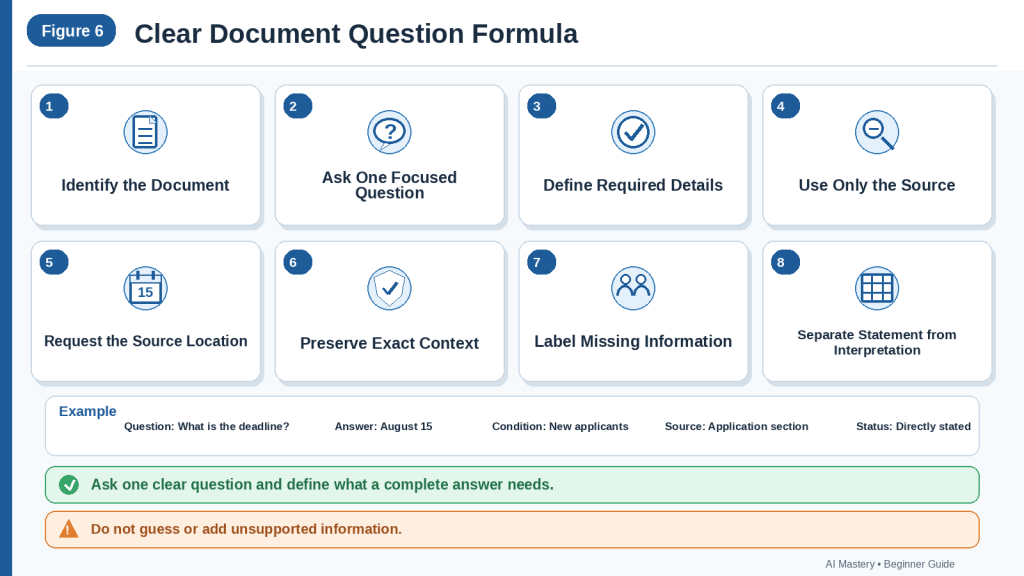
Figure 6. A clear document question identifies the source, asks one focused question, defines the required details, preserves exact context, labels missing information, and requests a source location.
Figure 6 shows the parts of a strong document question. Clear instructions reduce incomplete answers by defining the source, required fields, context, missing-information label, and verification location.
Step-by-Step: Ask Questions About Your First Document
This section shows a complete beginner workflow for asking focused questions about one short document.
For practice, use a document that you created, own, or have permission to process.
A short policy, meeting record, training guide, public report, application guide, or product manual is a suitable starting point.
Practice Example
Imagine that you have a short employee training policy.
You want to answer these questions:
· What training must new employees complete?
· When must they complete it?
· Which department manages the training?
· Does the document state an exception?
· What happens if the requirement is not completed?
· Where does each answer appear?
The goal is not to summarize the complete policy. The goal is to answer one focused question at a time and verify each answer against the original document.
Step 1: Save the Original Document
Keep the original file unchanged.
Use a clear filename such as:
employee-training-policy-original.docx
Do not:
· Delete pages from the original
· Change official wording
· Remove comments from the only copy
· Replace dates
· Overwrite the original filename
· Depend on ChatGPT as the only stored copy
You may need the original later to check exact wording, page order, definitions, conditions, exceptions, and version information.
Step 2: Create a Safe Working Copy
Duplicate the original file.
Rename the copy:
employee-training-policy-safe-question-copy.docx
Review the working copy and remove unnecessary:
· Personal contact information
· Employee identification numbers
· Signatures
· Account details
· Confidential notes
· Hidden comments
· Tracked changes
· Restricted information
Keep the sections needed to understand:
· Who the policy applies to
· What training is required
· When it must be completed
· Who manages it
· Which exceptions apply
· What consequence is stated
Step 3: Confirm Permission and Privacy
Before uploading the working copy, confirm that:
· You own the document or have permission to use it.
· External processing is allowed.
· Workplace or organizational rules permit the upload.
· Confidential information has been removed.
· Licence and copyright conditions permit the intended use.
· The document does not contain restricted personal information.
When permission is uncertain, do not upload the file until the responsible person or organization confirms that it is allowed.
Step 4: Check the Document Version
Confirm the document’s:
· Title
· Version number
· Effective date
· Revision date
· Approved or draft status
· Issuing organization
For example:
Employee Training Policy
Version 2.0
Effective July 2026
Approved document
An accurate answer from an outdated policy may still be unsuitable for a current decision.
Step 5: Confirm That the File Is Complete
Check that the working copy contains every relevant:
· Page
· Heading
· Definition
· Table
· Footnote
· Appendix
· Exception section
· Signature or approval page
Compare the file with its table of contents or section numbering.
A missing page may cause ChatGPT to report that an answer is not stated when the information was simply omitted from the uploaded copy.
Step 6: Check Readability
Open the complete working copy and inspect it.
Look for:
· Blurred text
· Cropped pages
· Faded print
· Skewed scans
· Small footnotes
· Unclear tables
· Multiple-column layouts
· Incorrect page order
· Missing headings
When part of the document is unclear, prepare a cleaner copy before asking important questions.
Step 7: Write One Main Question
Begin with one clear question:
What training must new employees complete?
Do not begin with several unrelated questions such as:
What training is required, who approves expenses, what happens during an appeal, and which benefits are available?
One focused question is easier to answer and verify.
Step 8: Identify the Supporting Details
Decide what a complete answer should include.
For the training question, request:
· Training name
· Person or group affected
· Completion deadline
· Responsible department
· Condition
· Exception
· Consequence
· Source location
Without these fields, ChatGPT may provide only the training name and omit important limitations.
Step 9: Open a Separate Chat
Start a new ChatGPT conversation.
Use a descriptive title when that option is available:
Questions About Employee Training Policy
A separate conversation helps keep:
· The document
· Questions
· Answers
· Corrections
· Source references
· Verification notes
together.
Step 10: Upload the Safe Working Copy
Select the attachment control near the message box.
Choose:
employee-training-policy-safe-question-copy.docx
Wait until the filename or attachment card appears.
Confirm that you did not upload:
· The confidential original
· An older version
· An incomplete copy
· An unrelated document
Step 11: Identify the Source
Send:
Use this source label throughout the conversation:
Document A — Employee Training Policy, Version 2.0, July 2026
Add the main review purpose:
I need to understand the training requirements for new employees.
This reduces confusion when other files are added later.
Step 12: Ask ChatGPT to Confirm the Document
Send:
Confirm the filename, visible title, version, effective date, approval status, main headings, definitions, tables, and appendices. Identify anything you cannot read confidently. Do not answer my training question yet.
Compare the response with the original document.
Correct any mistake before continuing.
Step 13: Request a Short Document Map
Send:
Create a short document map showing the main sections, definitions, requirements, exceptions, consequences, tables, and appendices in the order they appear. Do not answer my main question yet.
The map may show that the answer depends on several sections.
For example:
· Section 2 — Definitions
· Section 4 — Required Training
· Section 6 — Completion Deadlines
· Section 8 — Exceptions
· Appendix A — Training List
Check the map against the original document.
Step 14: Ask the First Question
Use this prompt:
Review Document A — Employee Training Policy, Version 2.0, July 2026.
Question: What training must new employees complete?
Answer using only Document A.
Include:
· Required training
· Person or group affected
· Completion deadline
· Responsible department
· Condition
· Exception
· Stated consequence
· Page number and section heading
Preserve exact dates, time periods, obligation words, conditions, and exceptions.
Label each part as:
· Directly stated
· Interpretation
· Not stated in the document
· Requires verification
Write “Could not be read confidently” when the source is unclear.
Do not guess, estimate, complete missing information, or add outside information.
Step 15: Read the Complete Answer
Do not use the answer immediately.
Check whether ChatGPT:
· Used the correct document
· Answered the correct question
· Identified the affected group
· Preserved the obligation word
· Included the deadline
· Included related conditions
· Searched for exceptions
· Identified the responsible department
· Provided source locations
· Added unsupported information
· Separated direct statements from interpretation
Treat the first answer as a draft.
Step 16: Find the Supporting Wording
Open the original document and locate the stated page and section.
Find the exact wording supporting:
· Required training
· Affected employees
· Deadline
· Responsible department
· Condition
· Exception
· Consequence
Read the sentences before and after the supporting text.
Nearby wording may change or limit the answer.
Step 17: Check the Obligation Word
Suppose the source states:
New employees must complete workplace safety training.
The answer should preserve must.
If the source states:
New employees should complete optional orientation training.
the answer should not change should into must.
Use this correction prompt when necessary:
Review the obligation wording. Preserve exactly whether the document says “must,” “may,” “should,” “recommended,” or “optional.”
Step 18: Check the Deadline
Suppose the source states:
Training must be completed within 30 calendar days after the employee’s start date.
The answer must preserve:
· 30
· Calendar days
· After
· Employee’s start date
It should not become:
Training is due in one month.
Use:
Review only the deadline. Preserve the exact time period, type of day, starting event, and source location.
Step 19: Ask About Exceptions
The main training section may not contain every exception.
Ask:
Search the complete document for any definition, condition, exception, footnote, appendix, or later section that changes the training requirement or deadline.
Verify every identified exception manually.
For example, the policy may state:
Employees on approved leave must complete the training within 15 calendar days after returning to work.
This exception should remain connected to the affected group and revised deadline.
Step 20: Ask for the Exact Supporting Passage
Send:
Show the shortest exact passage that supports each part of the answer. Do not combine sentences from unrelated sections. Include the page and section location.
Compare every quotation with the original document.
Do not rely on the quotation without checking it manually.
Step 21: Ask Whether the Answer Is Complete
Use:
Does Document A answer this question completely?
Separate the response into:
· What is directly stated
· What is interpreted
· What is not stated
· What remains unclear
· What requires manual verification
This may reveal that the document states the training and deadline but does not state a consequence.
Step 22: Ask a Focused Follow-Up Question
After verifying the first answer, ask one related question.
For example:
Which department records completion of the training?
Or:
What exception applies to employees on approved leave?
Or:
What consequence does the document state when training is not completed by the deadline?
Do not ask:
What else?
State the exact topic.
Step 23: Build a Question Chain
A useful question chain for the policy is:
1st What training is required?
2nd Who must complete it?
3rd What deadline applies?
4th Which department manages it?
5th Is an exception stated?
6th What consequence may apply?
7th Which sections support each answer?
Verify each answer before continuing.
Step 24: Correct One Problem at a Time
When the answer contains an error, use a focused correction.
Examples:
Review only the affected employee group.
Review only the deadline and starting event.
Search only for exceptions.
Correct only the responsible department.
Remove information not supported by Document A.
Correct only the page and section references.
Focused corrections are easier to check than a complete rewrite.
Step 25: Record Corrections
Use a question-review table:
| Question | Initial Answer | Corrected Answer | Source Location | Answer Type | Verified |
| What training is required? | Safety orientation | Workplace safety training | Section 4, page 5 | Directly stated | Yes |
| What is the deadline? | Within 30 days | Within 30 calendar days after the start date | Section 6, page 7 | Directly stated | Yes |
| Is an exception stated? | No | Approved-leave exception applies | Section 8, page 10 | Directly stated | Yes |
Keep the initial answer so the correction history remains visible.
Step 26: Request a Clean Reviewed Answer
After completing the corrections, send:
Create a clean final answer using only the reviewed corrections.
Preserve:
· Exact obligation words
· Exact deadline wording
· Conditions
· Exceptions
· Source locations
· Missing-information labels
Do not add new information.
Compare the clean answer with the correction table and original source.
Step 27: Save the Questioning Record
Save:
· Original document
· Safe working copy
· Document label
· First question
· Initial answer
· Supporting passages
· Follow-up questions
· Correction prompts
· Correction table
· Final verified answer
· Review date
· Unresolved information
Suggested filename:
employee-training-policy-reviewed-questions-and-answers.docx
Step 28: Use the Answer According to Its Risk
Low-risk uses may include:
· Personal study
· Draft notes
· Internal reminders
· Preparing questions for a meeting
Higher-risk uses may include:
· Legal deadlines
· Medical instructions
· Financial payments
· Safety procedures
· Employment decisions
· Government applications
· Contract obligations
For higher-risk uses:
· Verify every detail directly.
· Confirm that the document is current.
· Preserve exact wording.
· Review all conditions and exceptions.
· Obtain qualified professional guidance when appropriate.
Complete First-Document Prompt
Copy and adapt this prompt:
Review Document A — [document title, date, and version].
Question: [write one focused question]
Answer using only Document A.
Give the direct answer first.
Then include:
· Person or group affected
· Required action
· Date or deadline
· Starting event
· Condition
· Exception
· Stated consequence
· Source location
Preserve exact names, dates, time periods, currencies, percentages, measurements, units, obligation words, conditions, and exceptions.
Label every part as:
· Directly stated
· Interpretation
· Not stated in the document
· Requires verification
Write “Could not be read confidently” when the relevant text is unclear.
Do not guess, estimate, complete missing information, or add outside information.
Identify any nearby definition, footnote, table note, appendix, or later section that could change the answer.
This step-by-step method helps beginners ask focused document questions, identify the supporting evidence, preserve important context, correct errors, and save a verified answer.
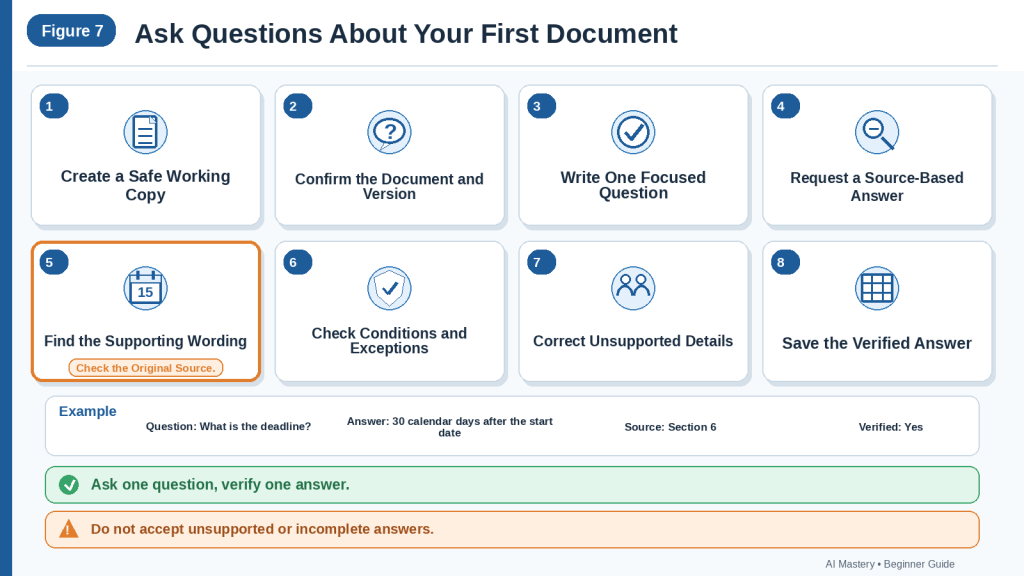
Figure 7. A beginner can ask reliable document questions by preparing a safe source, asking one focused question, finding the supporting wording, checking conditions and exceptions, and saving the verified answer.
Figure 7 shows a beginner-friendly method for questioning a first document. The answer remains a draft until its supporting wording, conditions, exceptions, and source location have been checked.
How to Ask Questions About Long Documents
Long documents can contain hundreds of pages, repeated topics, several appendices, complex tables, and information spread across different sections.
Examples include:
· Contracts
· Policies
· Technical manuals
· Government reports
· Research papers
· Business plans
· Training guides
· Multi-worksheet spreadsheets
Asking many broad questions about the complete document at once can lead to:
· Incomplete answers
· Incorrect source references
· Mixed information from different sections
· Missed conditions or exceptions
· Repeated answers
· Confusion between versions
· Overly long responses
· Unsupported conclusions
A safer approach is to map the document, divide it into manageable parts, and ask one focused question at a time.
Begin with a Document Map
Before asking detailed questions, ask ChatGPT to identify the document’s structure.
Use:
Create a document map showing the main headings, subsections, definitions, tables, charts, appendices, and major topics in the order they appear. Identify anything you cannot read confidently. Do not answer my detailed questions yet.
Compare the map with the original document’s:
· Table of contents
· Page numbers
· Section numbering
· Appendix list
· Worksheet names
· Table titles
· Visible headings
Correct any missing or incorrect section before continuing.
Divide the Document into Questioning Units
A questioning unit is a manageable part of the document that can be reviewed separately.
Possible units include:
· One chapter
· One policy section
· A page range
· One appendix
· One table
· One worksheet
· One topic
· One question category
For example:
· Unit 1 — Definitions
· Unit 2 — Eligibility
· Unit 3 — Application Requirements
· Unit 4 — Fees and Payments
· Unit 5 — Exceptions and Appeals
Do not separate a rule from the definition, condition, or exception needed to understand it.
Label Every Unit Clearly
Use clear labels throughout the conversation.
For example:
· Unit 1 — Pages 1–15: Definitions and Scope
· Unit 2 — Pages 16–30: Requirements
· Unit 3 — Appendix A: Fee Schedule
Avoid unclear instructions such as:
· Continue
· Do the next part
· Review the rest
· Check the other section
Clear labels make source tracking easier.
Ask One Question About One Unit
A focused prompt may be:
Review only Unit 2 — Requirements.
What documents must a new applicant submit?
Answer using only this unit.
Include the affected group, deadline, condition, exception, and source location.
Write “Not stated in this unit” when information is missing.
Identify any cross-reference to another section.
This reduces the risk of mixing information from unrelated parts of the document.
Preserve Cross-References
Long documents often contain references such as:
· See Section 8
· Subject to Appendix B
· As defined in Section 2
· Except as stated in Table 4
· According to the fee schedule
· Unless otherwise approved
These references may change the answer.
Ask ChatGPT to include:
· Referenced section
· Reason it matters
· Whether it changes or limits the answer
· Source location
Use:
Identify every cross-reference that may affect the answer. Do not assume the answer is complete until the referenced section has been reviewed.
Review Definitions Separately
Definitions can affect many later questions.
For example, a document may define:
· Applicant
· Business day
· Eligible expense
· Written notice
· Service period
· Authorized person
A question about a deadline may be wrong when the definition of business day is overlooked.
Use:
Identify every defined term that affects this question. Include the exact definition and source location.
Check Footnotes, Tables, and Appendices
Important information may appear outside the main paragraphs.
Review:
· Footnotes
· Endnotes
· Table notes
· Appendices
· Figure captions
· Small-print conditions
· Revision notes
Ask:
Does any footnote, table note, appendix, or later section change, limit, or create an exception to the answer?
Verify each identified source manually.
Use a Question Log
A question log helps track progress.
| Question ID | Unit | Question | Answered | Verified | Follow-Up Needed |
| Q-001 | Unit 1 | How is “business day” defined? | Yes | Yes | No |
| Q-002 | Unit 2 | What is the submission deadline? | Yes | No | Check Section 8 |
| Q-003 | Appendix A | What fee applies? | No | No | Not started |
This prevents questions from being repeated or skipped.
Use Consistent Answer Fields
For related questions, keep the answer structure consistent.
For example:
· Direct answer
· Person or group affected
· Required action
· Date or deadline
· Condition
· Exception
· Consequence
· Source location
· Answer type
· Verification status
Consistent fields make it easier to compare answers from different sections.
Ask Category-Based Questions When Needed
Some information appears throughout the document.
You may ask category-based questions such as:
· Where are all deadlines discussed?
· Which sections contain exceptions?
· Where are responsibilities assigned?
· Which tables contain fees?
· Where does the document describe appeals?
Use a two-stage process:
1st Ask ChatGPT to identify possible source locations.
2nd Review each location separately with focused questions.
Do not ask ChatGPT to provide a final answer from the complete document until the relevant sections have been checked.
Ask for a Section-Based Answer
A useful prompt is:
Work only with Unit 3 — Fees and Payments.
Question: What payment obligations are stated?
Include:
· Payment type
· Amount
· Currency
· Due date
· Refund condition
· Penalty
· Person or group affected
· Source location
Preserve exact numbers and obligation words.
Identify any cross-reference to another unit.
Do not use information from outside Unit 3 unless you clearly label the related source.
Track Unanswered Questions
Long documents often leave some questions unanswered.
Create a separate list for:
· Not stated
· Unclear
· Could not be read
· Requires another section
· Requires outside information
· Requires professional review
For example:
| Question | Status | Reason |
| Who approves an exception? | Not stated | No responsible role identified |
| What happens after an appeal? | Requires another section | Cross-reference to Section 12 |
| Is the fee refundable? | Unclear | Table note is difficult to read |
Do not allow unanswered questions to disappear when later answers are combined.
Verify Each Unit Before Moving On
For each answer:
1st Open the stated source location.
2nd Find the exact supporting wording.
3rd Check nearby definitions and conditions.
4th Search for related exceptions.
5th Confirm dates, amounts, and obligation words.
6th Record corrections.
7th Mark the answer as verified.
Do not combine unverified answers into a final document.
Search for Missed Information
After completing a unit, ask:
Search this unit again for any information related to the question that was not included in the answer. Do not repeat information already listed.
Then verify each additional result manually.
Check for Conflicting Answers
Two sections may appear to provide different answers.
For example:
· Main section: Submit within 30 days
· Appendix: Submit within 20 business days
· Revision note: New deadline applies from September 1
Do not ask ChatGPT to choose one automatically.
Use:
Show each relevant statement separately with its source location. Explain whether the document identifies which statement controls. When it does not, label the issue “Possible inconsistency requiring review.”
A difference may reflect:
· Different groups
· Different versions
· Different conditions
· A later revision
· A genuine contradiction
Combine Only Verified Answers
After every relevant unit has been reviewed, ask:
Combine only the answers marked as verified.
Preserve:
· Question ID
· Unit label
· Direct answer
· Conditions and exceptions
· Source location
· Answer type
· Verification status
Do not add new conclusions.
Compare the combined answer set with the question log.
Perform a Completeness Check
Ask:
Compare the reviewed questions and answers with the document map. Identify any section, appendix, table, or related topic that may not have been reviewed. Do not invent missing answers.
Then inspect the identified areas manually.
Perform a Consistency Check
Ask ChatGPT to identify inconsistent:
· Dates
· Names
· Responsibilities
· Units
· Currencies
· Obligation words
· Section labels
· Answer types
Use:
Identify possible inconsistencies in the verified answer set. Show the related question IDs and source locations. Do not change anything automatically.
Start a New Conversation When Necessary
A new conversation may help when:
· Too many files are attached
· Questions from different topics become mixed
· Source labels are unclear
· Corrections are difficult to trace
· The final answer-combining stage begins
In the new conversation, provide:
· Document title and version
· Document map
· Unit labels
· Question log
· Verified answers
· Missing-information rules
· Source-location requirements
Do not rely on unexplained references to an earlier chat.
Save the Questioning Record
Keep:
· Original document
· Safe working copy
· Document map
· Unit labels
· Question log
· Initial answers
· Supporting passages
· Correction notes
· Verified answers
· Unresolved questions
· Review date
Suggested filename:
long-document-reviewed-questions-and-answers.docx
Long-Document Questioning Checklist
Before finishing, confirm:
· The document map was checked.
· The source was divided into clear units.
· Every unit has a label.
· One focused question was asked at a time.
· Cross-references were preserved.
· Definitions affecting answers were reviewed.
· Footnotes, tables, and appendices were checked.
· Answer fields remained consistent.
· Every important answer was verified.
· Unanswered and unclear questions remained visible.
· Conflicting answers were reviewed separately.
· Only verified answers were combined.
· Completeness and consistency checks were completed.
· Questions, corrections, and source locations were saved.
Asking questions about a long document is more reliable when the source is divided into labelled units, each answer is checked separately, and only verified answers are combined.
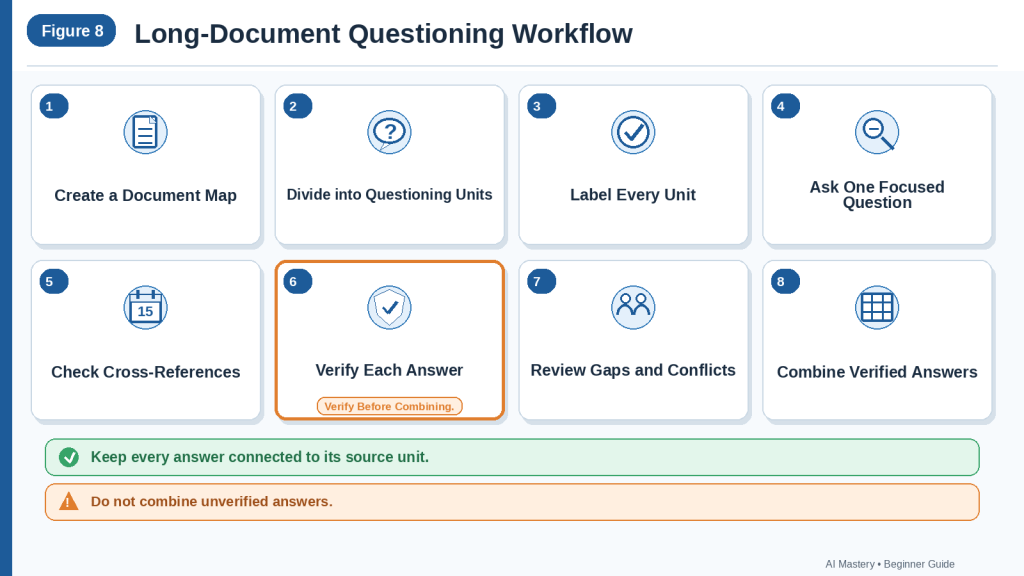
Figure 8. Long-document questioning works best when the source is mapped, divided into labelled units, reviewed one question at a time, and verified before answers are combined.
Figure 8 shows how to question a long document without losing source context. Label each unit, verify each answer separately, and combine only answers that remain traceable to their original sections.
How to Check and Correct Answers About Documents
ChatGPT’s first answer should be treated as a draft.
An answer may sound clear and confident while still containing:
· Unsupported information
· Missing conditions
· Incorrect dates
· Changed numbers
· Mixed responsibilities
· Misread obligation words
· Incorrect source locations
· Interpretation presented as fact
· Information from the wrong section
· Details that are not stated in the document
The original document remains the main source.
Every important answer should be checked against the document before it is shared, published, entered into another system, or used for a decision.
Begin with the Exact Question
Before reviewing the answer, confirm what you actually asked.
For example:
What deadline applies to new applicants?
Do not review the answer as though the question were:
What deadlines appear anywhere in the document?
Small differences in the question can change which source text is relevant.
Record:
· The exact question
· The document label
· The document version
· The date asked
· The answer received
Confirm That the Correct Document Was Used
When several documents are attached, ChatGPT may answer from the wrong file or combine information from several sources.
Check whether the answer identifies:
· Correct document title
· Correct version
· Correct date
· Correct source label
· Correct section
Use:
State which document and version support this answer. Do not use information from another attachment.
When the source cannot be confirmed, mark the answer:
Source requires verification
Find the Supporting Passage
Ask ChatGPT to identify the shortest source passage that supports the answer.
Use:
Show the shortest exact passage that supports this answer. Include the page number, section heading, clause, table, appendix, worksheet, or other source location.
Then open the original document and locate that passage manually.
Check whether:
· The wording appears exactly as shown
· The location is correct
· The passage answers the question
· Nearby wording changes its meaning
· A definition or exception applies
Do not accept a quotation or source reference without comparing it with the original.
Check Whether the Answer Is Directly Stated
An answer may be:
· Directly stated
· Partly stated
· Interpreted
· Not stated
· Unclear
· Unsupported
Ask:
Label each part of the answer as directly stated, interpreted, not stated, unclear, or unsupported.
For example:
Directly stated
The application deadline is August 15.
Interpretation
Applications received after August 15 may not be reviewed.
The first statement may come directly from the source.
The second statement should not be treated as confirmed unless the document says it.
Check the Complete Context
The supporting sentence may not contain the complete answer.
Read:
· The paragraph before it
· The paragraph after it
· Related definitions
· Footnotes
· Table notes
· Cross-referenced sections
· Appendices
· Revision notes
For example:
Applications must be submitted by August 15.
A later section may state:
Applicants with an approved extension may submit supporting documents by September 1.
The first sentence alone does not provide the complete rule.
Use:
Search the document for any condition, exception, definition, footnote, appendix, or later section that changes or limits the answer.
Check Names and Responsibilities
ChatGPT may assign an action to the wrong person when several names appear close together.
Example source:
Maria explained the delay. Daniel agreed to contact the supplier.
Incorrect answer:
Maria is responsible for contacting the supplier.
Correct answer:
Daniel agreed to contact the supplier.
Use:
Review the responsibility assignment. Keep it only when the document directly states or clearly records who must act.
Check:
· Person
· Role
· Department
· Assigned action
· Approval responsibility
· Recipient of the action
Check Dates and Time Periods
Verify every:
· Day
· Month
· Year
· Time
· Time zone
· Notice period
· Renewal period
· Starting event
· Business-day or calendar-day wording
· Before or after wording
· Confirmed or proposed status
For example:
Within 10 business days after written approval
must not become:
Within 10 days.
Use:
Review only the date or deadline. Preserve the exact time period, starting event, type of day, and related condition.
Check Numbers, Amounts, and Units
Small errors can change an answer significantly.
Verify:
· Digits
· Decimal places
· Percentages
· Currency
· Measurements
· Units
· Quantities
· Rates
· Totals
· Tax
· Formula results
Examples:
· $75 is not $750.
· 1.5% is not 15%.
· 30 days is not 30 weeks.
· 12 kilograms is not 12 pounds.
Use:
Review every number against the source. Preserve exact digits, decimal places, currencies, percentages, measurements, units, and related conditions.
Check Obligation Words
Words such as must, may, should, and recommended are not interchangeable.
Example source:
Employees may attend the optional session.
Incorrect answer:
Employees must attend the session.
Use:
Preserve the exact obligation word used in the document. Do not change optional guidance into a requirement.
Check:
· Must
· Shall
· Required
· May
· Can
· Should
· Recommended
· Optional
Check Conditions and Exceptions
A rule may apply only to a particular person, group, situation, date, plan, or product version.
Example source:
The additional form is required only when an applicant requests financial assistance.
Incomplete answer:
The additional form is required.
The condition has been removed.
Use:
Review the answer for any missing condition or exception. Connect each condition and exception to the rule it changes.
Check Consequences Carefully
A document may describe a consequence as:
· Automatic
· Possible
· Discretionary
· Conditional
· Recommended
· Not stated
Example source:
Late applications may be rejected.
Incorrect answer:
Late applications will be rejected.
Use:
Preserve whether the document says the consequence may occur, will occur, can occur, or is not stated.
Check Whether the Answer Uses Outside Information
A source-based question should not silently include general knowledge.
For example, the document may state:
Submit the form to the program office.
ChatGPT should not add:
You can probably submit it online.
unless the document says so.
Use:
Identify every part of the answer that does not come directly from Document A. Remove unsupported outside information.
Outside research may be useful later, but it should be clearly separated from the document-based answer.
Check Source Locations
A source location may look precise while still being incorrect.
Verify every:
· Page number
· Section heading
· Clause
· Paragraph
· Table
· Appendix
· Slide
· Worksheet
· Row
· Column
· Cell
When the location is wrong:
1st Find the correct source.
2nd Replace the incorrect location.
3rd Record the correction.
4th Recheck the answer itself.
Use:
Review only the source location. Do not change the answer unless the source requires a correction.
Check Tables Separately
When the answer comes from a table, confirm:
· Table title
· Row label
· Column heading
· Unit
· Currency
· Footnote
· Date range
· Page number
· Blank-cell meaning
A value may be assigned to the wrong row or column.
Use:
Show the table title, row label, column heading, unit, footnote, and page supporting this answer.
Check Spreadsheets Separately
For spreadsheet answers, verify:
· Worksheet
· Row
· Column
· Filter
· Hidden rows
· Hidden columns
· Formula
· Date format
· Currency
· Unit
· Blank-cell meaning
· Duplicate records
Use:
Review this answer against the original worksheet, row, column, formula, filter, date format, and unit.
Do not treat a blank cell as zero unless the spreadsheet defines it that way.
Check Charts, Diagrams, and Images
Visual answers may be affected by:
· Axis labels
· Scale
· Legend
· Colour categories
· Units
· Date range
· Arrows
· Captions
· Small text
· Image quality
Ask:
Identify every part of the answer that depends on a chart, diagram, image, or scanned page. Mark it for manual verification.
Do not rely on colour alone to understand a visual.
Check Whether the Answer Is Complete
An answer may be correct but incomplete.
For example, ChatGPT may correctly state the deadline but omit:
· Affected group
· Required action
· Exception
· Consequence
· Starting event
· Source location
Ask:
Does the document answer this question completely? Separate what is stated, missing, unclear, and interpreted.
Compare the result with the fields you originally requested.
Search for Missed Information
After checking the first answer, ask:
Search the complete document again for any additional information related to this question. Do not repeat the current answer. Include every new source location.
Then verify each new result manually.
This may identify information in:
· Definitions
· Footnotes
· Tables
· Appendices
· Later sections
· Revision notes
Check for Contradictory Information
Different sections may provide different answers.
For example:
· Section 4 states August 15.
· Appendix B states September 1.
· A revision note states that a new date applies after July 1.
Ask:
Show every statement related to this question separately. Include the source location and do not decide which statement controls unless the document explains it.
Label unresolved differences:
Possible inconsistency requiring review
Correct One Problem at a Time
Do not ask only:
Fix the answer.
Use focused corrections such as:
Correct only the deadline.
Review only the responsible department.
Search only for exceptions.
Remove outside information.
Correct only the source location.
Separate direct statements from interpretation.
Focused corrections are easier to check.
Use a Correction Log
Record what changed.
| Question ID | Initial Answer | Corrected Answer | Reason | Correct Source | Verified |
| Q-001 | Deadline is August 5 | Deadline is August 15 | Date misread | Page 4, Applications | Yes |
| Q-002 | Manager approves request | Approval role not stated | Unsupported responsibility | Section 6 | Yes |
| Q-003 | Fee is refundable | Fee is non-refundable | Condition omitted | Appendix B | Yes |
A correction log preserves the review history.
Keep the Initial Answer
Do not overwrite the only copy of the first answer.
Save:
· Original question
· Initial answer
· Supporting passage
· Correction prompts
· Correction log
· Revised answer
· Final verified answer
This helps explain how the final response was produced.
Request a Clean Revised Answer
After completing the corrections, use:
Create a clean final answer using only the reviewed corrections.
Preserve:
· Exact wording
· Dates
· Numbers
· Units
· Obligation words
· Conditions
· Exceptions
· Source locations
· Missing-information labels
· Verification status
Do not add new information.
Compare the clean answer with the correction log and original document.
Check the Revised Answer Again
A revised response may accidentally:
· Restore an earlier error
· Remove a verified detail
· Change a date
· Lose an exception
· Add unsupported information
· Replace a source location
· Remove an uncertainty label
Do not assume the newest version is automatically the most accurate.
Use a Question Verification Table
A final review table may contain:
| Question | Final Answer | Source Location | Answer Type | Verified | Professional Review Needed |
| What is the deadline? | August 15 | Page 4, Applications | Directly stated | Yes | No |
| Is an extension allowed? | Approved extensions are permitted | Page 6, Exceptions | Directly stated | Yes | No |
| What legal effect does the clause have? | Not determined by document review alone | Clause 8 | Interpretation | Yes | Yes |
This keeps direct answers and professional questions separate.
Perform a High-Risk Review
Use extra care when the answer affects:
· Legal rights
· Medical treatment
· Financial payments
· Safety
· Employment
· Government applications
· Contract obligations
· Technical operations
· Access to services
For high-risk questions:
1st Verify every part of the answer.
2nd Confirm that the document is current.
3rd Check related definitions and exceptions.
4th Preserve exact wording.
5th Confirm source locations.
6th Obtain qualified professional review when necessary.
Final Answer-Review Checklist
Before using the answer, confirm:
· The exact question was preserved.
· The correct document and version were used.
· The supporting passage exists.
· The source location is accurate.
· Direct statements and interpretation are separated.
· Names and responsibilities are correct.
· Dates and time periods are exact.
· Numbers, currencies, percentages, and units are correct.
· Obligation words remain unchanged.
· Conditions and exceptions are included.
· Consequences are not overstated.
· Outside information is clearly separated or removed.
· Tables, spreadsheets, charts, and scans were checked manually.
· Missing and unclear information remains visible.
· Possible contradictions were reviewed.
· Corrections were recorded.
· The clean final answer was checked again.
· High-risk information received appropriate professional review.
A reliable document answer is not simply a confident response. It is an answer supported by the correct source, checked in context, corrected when necessary, and clearly separated from interpretation.

Figure 9. Document answers should be checked against the original source, corrected when necessary, and saved with their supporting locations and verification status.
Figure 9 shows how to review and correct a document answer. Check the exact question, source version, supporting passage, context, values, and exceptions before saving the final verified answer.
How to Check and Correct Answers About Documents
ChatGPT’s first answer should be treated as a draft.
An answer may sound clear and confident while still containing:
· Unsupported information
· Missing conditions
· Incorrect dates
· Changed numbers
· Mixed responsibilities
· Misread obligation words
· Incorrect source locations
· Interpretation presented as fact
· Information from the wrong section
· Details that are not stated in the document
The original document remains the main source.
Every important answer should be checked against the document before it is shared, published, entered into another system, or used for a decision.
Begin with the Exact Question
Before reviewing the answer, confirm what you actually asked.
For example:
What deadline applies to new applicants?
Do not review the answer as though the question were:
What deadlines appear anywhere in the document?
Small differences in the question can change which source text is relevant.
Record:
· The exact question
· The document label
· The document version
· The date asked
· The answer received
Confirm That the Correct Document Was Used
When several documents are attached, ChatGPT may answer from the wrong file or combine information from several sources.
Check whether the answer identifies:
· Correct document title
· Correct version
· Correct date
· Correct source label
· Correct section
Use:
State which document and version support this answer. Do not use information from another attachment.
When the source cannot be confirmed, mark the answer:
Source requires verification
Find the Supporting Passage
Ask ChatGPT to identify the shortest source passage that supports the answer.
Use:
Show the shortest exact passage that supports this answer. Include the page number, section heading, clause, table, appendix, worksheet, or other source location.
Then open the original document and locate that passage manually.
Check whether:
· The wording appears exactly as shown
· The location is correct
· The passage answers the question
· Nearby wording changes its meaning
· A definition or exception applies
Do not accept a quotation or source reference without comparing it with the original.
Check Whether the Answer Is Directly Stated
An answer may be:
· Directly stated
· Partly stated
· Interpreted
· Not stated
· Unclear
· Unsupported
Ask:
Label each part of the answer as directly stated, interpreted, not stated, unclear, or unsupported.
For example:
Directly stated
The application deadline is August 15.
Interpretation
Applications received after August 15 may not be reviewed.
The first statement may come directly from the source.
The second statement should not be treated as confirmed unless the document says it.
Check the Complete Context
The supporting sentence may not contain the complete answer.
Read:
· The paragraph before it
· The paragraph after it
· Related definitions
· Footnotes
· Table notes
· Cross-referenced sections
· Appendices
· Revision notes
For example:
Applications must be submitted by August 15.
A later section may state:
Applicants with an approved extension may submit supporting documents by September 1.
The first sentence alone does not provide the complete rule.
Use:
Search the document for any condition, exception, definition, footnote, appendix, or later section that changes or limits the answer.
Check Names and Responsibilities
ChatGPT may assign an action to the wrong person when several names appear close together.
Example source:
Maria explained the delay. Daniel agreed to contact the supplier.
Incorrect answer:
Maria is responsible for contacting the supplier.
Correct answer:
Daniel agreed to contact the supplier.
Use:
Review the responsibility assignment. Keep it only when the document directly states or clearly records who must act.
Check:
· Person
· Role
· Department
· Assigned action
· Approval responsibility
· Recipient of the action
Check Dates and Time Periods
Verify every:
· Day
· Month
· Year
· Time
· Time zone
· Notice period
· Renewal period
· Starting event
· Business-day or calendar-day wording
· Before or after wording
· Confirmed or proposed status
For example:
Within 10 business days after written approval
must not become:
Within 10 days.
Use:
Review only the date or deadline. Preserve the exact time period, starting event, type of day, and related condition.
Check Numbers, Amounts, and Units
Small errors can change an answer significantly.
Verify:
· Digits
· Decimal places
· Percentages
· Currency
· Measurements
· Units
· Quantities
· Rates
· Totals
· Tax
· Formula results
Examples:
· $75 is not $750.
· 1.5% is not 15%.
· 30 days is not 30 weeks.
· 12 kilograms is not 12 pounds.
Use:
Review every number against the source. Preserve exact digits, decimal places, currencies, percentages, measurements, units, and related conditions.
Check Obligation Words
Words such as must, may, should, and recommended are not interchangeable.
Example source:
Employees may attend the optional session.
Incorrect answer:
Employees must attend the session.
Use:
Preserve the exact obligation word used in the document. Do not change optional guidance into a requirement.
Check:
· Must
· Shall
· Required
· May
· Can
· Should
· Recommended
· Optional
Check Conditions and Exceptions
A rule may apply only to a particular person, group, situation, date, plan, or product version.
Example source:
The additional form is required only when an applicant requests financial assistance.
Incomplete answer:
The additional form is required.
The condition has been removed.
Use:
Review the answer for any missing condition or exception. Connect each condition and exception to the rule it changes.
Check Consequences Carefully
A document may describe a consequence as:
· Automatic
· Possible
· Discretionary
· Conditional
· Recommended
· Not stated
Example source:
Late applications may be rejected.
Incorrect answer:
Late applications will be rejected.
Use:
Preserve whether the document says the consequence may occur, will occur, can occur, or is not stated.
Check Whether the Answer Uses Outside Information
A source-based question should not silently include general knowledge.
For example, the document may state:
Submit the form to the program office.
ChatGPT should not add:
You can probably submit it online.
unless the document says so.
Use:
Identify every part of the answer that does not come directly from Document A. Remove unsupported outside information.
Outside research may be useful later, but it should be clearly separated from the document-based answer.
Check Source Locations
A source location may look precise while still being incorrect.
Verify every:
· Page number
· Section heading
· Clause
· Paragraph
· Table
· Appendix
· Slide
· Worksheet
· Row
· Column
· Cell
When the location is wrong:
1st Find the correct source.
2nd Replace the incorrect location.
3rd Record the correction.
4th Recheck the answer itself.
Use:
Review only the source location. Do not change the answer unless the source requires a correction.
Check Tables Separately
When the answer comes from a table, confirm:
· Table title
· Row label
· Column heading
· Unit
· Currency
· Footnote
· Date range
· Page number
· Blank-cell meaning
A value may be assigned to the wrong row or column.
Use:
Show the table title, row label, column heading, unit, footnote, and page supporting this answer.
Check Spreadsheets Separately
For spreadsheet answers, verify:
· Worksheet
· Row
· Column
· Filter
· Hidden rows
· Hidden columns
· Formula
· Date format
· Currency
· Unit
· Blank-cell meaning
· Duplicate records
Use:
Review this answer against the original worksheet, row, column, formula, filter, date format, and unit.
Do not treat a blank cell as zero unless the spreadsheet defines it that way.
Check Charts, Diagrams, and Images
Visual answers may be affected by:
· Axis labels
· Scale
· Legend
· Colour categories
· Units
· Date range
· Arrows
· Captions
· Small text
· Image quality
Ask:
Identify every part of the answer that depends on a chart, diagram, image, or scanned page. Mark it for manual verification.
Do not rely on colour alone to understand a visual.
Check Whether the Answer Is Complete
An answer may be correct but incomplete.
For example, ChatGPT may correctly state the deadline but omit:
· Affected group
· Required action
· Exception
· Consequence
· Starting event
· Source location
Ask:
Does the document answer this question completely? Separate what is stated, missing, unclear, and interpreted.
Compare the result with the fields you originally requested.
Search for Missed Information
After checking the first answer, ask:
Search the complete document again for any additional information related to this question. Do not repeat the current answer. Include every new source location.
Then verify each new result manually.
This may identify information in:
· Definitions
· Footnotes
· Tables
· Appendices
· Later sections
· Revision notes
Check for Contradictory Information
Different sections may provide different answers.
For example:
· Section 4 states August 15.
· Appendix B states September 1.
· A revision note states that a new date applies after July 1.
Ask:
Show every statement related to this question separately. Include the source location and do not decide which statement controls unless the document explains it.
Label unresolved differences:
Possible inconsistency requiring review
Correct One Problem at a Time
Do not ask only:
Fix the answer.
Use focused corrections such as:
Correct only the deadline.
Review only the responsible department.
Search only for exceptions.
Remove outside information.
Correct only the source location.
Separate direct statements from interpretation.
Focused corrections are easier to check.
Use a Correction Log
Record what changed.
| Question ID | Initial Answer | Corrected Answer | Reason | Correct Source | Verified |
| Q-001 | Deadline is August 5 | Deadline is August 15 | Date misread | Page 4, Applications | Yes |
| Q-002 | Manager approves request | Approval role not stated | Unsupported responsibility | Section 6 | Yes |
| Q-003 | Fee is refundable | Fee is non-refundable | Condition omitted | Appendix B | Yes |
A correction log preserves the review history.
Keep the Initial Answer
Do not overwrite the only copy of the first answer.
Save:
· Original question
· Initial answer
· Supporting passage
· Correction prompts
· Correction log
· Revised answer
· Final verified answer
This helps explain how the final response was produced.
Request a Clean Revised Answer
After completing the corrections, use:
Create a clean final answer using only the reviewed corrections.
Preserve:
· Exact wording
· Dates
· Numbers
· Units
· Obligation words
· Conditions
· Exceptions
· Source locations
· Missing-information labels
· Verification status
Do not add new information.
Compare the clean answer with the correction log and original document.
Check the Revised Answer Again
A revised response may accidentally:
· Restore an earlier error
· Remove a verified detail
· Change a date
· Lose an exception
· Add unsupported information
· Replace a source location
· Remove an uncertainty label
Do not assume the newest version is automatically the most accurate.
Use a Question Verification Table
A final review table may contain:
| Question | Final Answer | Source Location | Answer Type | Verified | Professional Review Needed |
| What is the deadline? | August 15 | Page 4, Applications | Directly stated | Yes | No |
| Is an extension allowed? | Approved extensions are permitted | Page 6, Exceptions | Directly stated | Yes | No |
| What legal effect does the clause have? | Not determined by document review alone | Clause 8 | Interpretation | Yes | Yes |
This keeps direct answers and professional questions separate.
Perform a High-Risk Review
Use extra care when the answer affects:
· Legal rights
· Medical treatment
· Financial payments
· Safety
· Employment
· Government applications
· Contract obligations
· Technical operations
· Access to services
For high-risk questions:
1st Verify every part of the answer.
2nd Confirm that the document is current.
3rd Check related definitions and exceptions.
4th Preserve exact wording.
5th Confirm source locations.
6th Obtain qualified professional review when necessary.
Final Answer-Review Checklist
Before using the answer, confirm:
· The exact question was preserved.
· The correct document and version were used.
· The supporting passage exists.
· The source location is accurate.
· Direct statements and interpretation are separated.
· Names and responsibilities are correct.
· Dates and time periods are exact.
· Numbers, currencies, percentages, and units are correct.
· Obligation words remain unchanged.
· Conditions and exceptions are included.
· Consequences are not overstated.
· Outside information is clearly separated or removed.
· Tables, spreadsheets, charts, and scans were checked manually.
· Missing and unclear information remains visible.
· Possible contradictions were reviewed.
· Corrections were recorded.
· The clean final answer was checked again.
· High-risk information received appropriate professional review.
A reliable document answer is not simply a confident response. It is an answer supported by the correct source, checked in context, corrected when necessary, and clearly separated from interpretation.
Benefits of Asking Questions About Documents with ChatGPT
ChatGPT can make documents easier to explore when the user asks focused questions and checks the answers against the original source.
It is most useful as a document-navigation and review assistant. It should not replace careful reading, professional judgement, or source verification.
Helps Find Specific Answers Faster
A long document may contain one important answer hidden among many pages.
For example, you may need to know:
· The application deadline
· The required documents
· The cancellation notice period
· The responsible department
· The stated fee
· The location of a particular rule
Instead of reading the complete document several times, you may ask:
According to Document A, what is the cancellation notice period? Include the exact clause and page number.
ChatGPT may help identify the relevant section more quickly.
The answer and source location must still be checked manually.
Makes Unfamiliar Documents Easier to Explore
Beginners may find policies, manuals, reports, contracts, or spreadsheets difficult to navigate.
Focused questions can provide a starting point.
For example:
What is the purpose of this policy?
Which section explains eligibility?
Where are the exceptions listed?
Which table contains the fees?
These questions can help the user understand the document’s structure before examining the details.
Allows One Topic to Be Explored Step by Step
A complicated topic can be divided into a question chain.
For example:
1st What is the general requirement?
2nd Who does it apply to?
3rd What deadline applies?
4th Is an exception stated?
5th What consequence may apply?
6th Which sections support the answers?
This approach is easier to review than asking ChatGPT to explain the entire document at once.
Each answer can be checked before continuing.
Helps Locate Supporting Evidence
A useful answer should include the source location.
ChatGPT may help identify:
· Page number
· Section heading
· Clause
· Table
· Appendix
· Slide
· Worksheet
· Row
· Column
For example:
| Question | Answer | Source Location |
| What is the application deadline? | August 15 | Page 4, Application Process |
| Is an extension allowed? | Yes, when approved | Page 6, Exceptions |
| What fee applies? | $50 | Appendix B, Fee Schedule |
This can reduce the time spent searching for supporting wording.
The stated source locations must still be verified against the original file.
Helps Explain Difficult Wording
Some documents use technical, formal, legal, or administrative language.
ChatGPT can help restate a difficult section in simpler language.
For example:
Quote the exact wording first. Then explain it in simple language without changing the obligation, condition, exception, or deadline.
This can help beginners understand:
· Policies
· Procedures
· Product manuals
· Research papers
· Official notices
· Contract clauses
The plain-language explanation should not replace the original wording when exact meaning matters.
Helps Separate Direct Statements from Interpretation
ChatGPT can organize a response under clear labels.
For example:
Directly stated
The policy requires applications to be submitted by August 15.
Interpretation
Applications received later may not be considered.
Not stated in the document
The policy does not state whether late applications can be accepted without an approved extension.
This structure helps prevent interpretation from being mistaken for source-supported fact.
Makes Missing Information Visible
A document may answer only part of a question.
For example, it may identify:
· The required action
· The deadline
but not state:
· Who is responsible
· What consequence applies
· Whether an exception is available
ChatGPT can organize the answer as:
| Requested Detail | Document Answer |
| Required action | Submit the completed form |
| Deadline | August 15 |
| Responsible person | Not stated in the document |
| Exception | Approved extensions |
| Consequence | Not stated in the document |
This makes incomplete information easier to identify.
Missing details should not be filled with guesses.
Helps Identify Conditions and Exceptions
A main rule may not provide the complete answer.
For example:
Applications must be submitted online.
A later section may state:
Applicants with an approved accessibility accommodation may submit a paper application.
A focused follow-up question can help locate the exception:
Does any definition, footnote, appendix, or later section create an exception to the online-submission rule?
This encourages a more complete review.
Every exception should still be checked manually and connected to the rule it changes.
Helps Distinguish Decisions from Discussion
Meeting notes may mix:
· Discussion
· Suggestions
· Proposals
· Confirmed decisions
· Deferred matters
· Action items
A focused question can help separate these categories.
For example:
What decisions were confirmed? Keep proposals, suggestions, and unresolved discussion separate.
This reduces the risk of presenting a suggestion as an approved decision.
Supports Follow-Up Questions
After receiving one answer, the user can ask a focused follow-up.
For example:
Does that deadline apply to all applicants?
Which exact sentence supports the answer?
Is there an exception?
What information is missing?
Is the answer directly stated or inferred?
Follow-up questions help test the completeness of the first response.
They should remain clear and connected to the original topic.
Helps Review Reports and Research
Users may ask questions such as:
What is the report’s main finding?
What evidence supports it?
What limitation does the report state?
What date range does the data cover?
How large was the sample?
ChatGPT can help connect:
· Claim
· Evidence
· Method
· Date range
· Sample
· Limitation
· Source location
This can make report review more organized.
However, locating evidence does not prove that the evidence is reliable or that the conclusion is correct.
Helps Navigate Policies and Procedures
A policy may contain:
· General rules
· Definitions
· Responsibilities
· Exceptions
· Deadlines
· Appeals
· Penalties
Focused questions can help identify how these parts connect.
For example:
What rule applies to new applicants, what exception is stated, and which section explains the appeal process?
This can help the user navigate the policy more efficiently.
Important requirements should still be read directly.
Helps Review Contracts and Agreements
ChatGPT can help locate:
· Payment terms
· Notice periods
· Renewal conditions
· Cancellation clauses
· Responsibilities
· Restrictions
· Dispute procedures
For example:
Which clause explains cancellation, and what notice period does it state?
This can support an initial document review.
It does not determine the final legal meaning of a clause or replace qualified legal advice.
Helps Review Manuals and Instructions
Users may ask:
What steps must be completed before operating the equipment?
Which warning applies to this procedure?
What setting does the manual recommend?
Which model does this instruction apply to?
ChatGPT can help locate ordered steps and related warnings.
This can make long manuals easier to navigate.
For safety-critical work, use the current official manual and qualified assistance.
Helps Explore Spreadsheets
Focused spreadsheet questions may include:
Which tasks are overdue?
Which rows contain missing values?
What amount appears in the March column?
Which worksheet contains the annual total?
A well-written question can request:
· Worksheet
· Row
· Column
· Record ID
· Date
· Amount
· Currency
· Status
· Notes
This can reduce repetitive searching.
Filters, formulas, hidden data, and exact values still require manual review.
Helps Organize Questions and Answers
A question log can turn an informal conversation into a structured review record.
For example:
| Question ID | Question | Answer | Source | Verified |
| Q-001 | What is the deadline? | August 15 | Page 4 | Yes |
| Q-002 | Is an extension allowed? | Yes, when approved | Page 6 | Yes |
| Q-003 | Who approves it? | Not stated | Not available | Yes |
This can help users:
· Track what has been answered
· Identify unanswered questions
· Record corrections
· Prepare for a meeting
· Review updated document versions
Supports Long-Document Review in Smaller Units
Long documents can be divided into:
· Sections
· Chapters
· Page ranges
· Appendices
· Tables
· Worksheets
· Topics
The user can ask one question about one unit at a time.
This reduces:
· Source confusion
· Missing context
· Overly long responses
· Mixed answers
· Lost exceptions
· Incorrect references
Verified answers can be combined later.
Supports Accessibility and Different Learning Needs
Some users find dense documents difficult to read or navigate.
Question-based review can provide:
· Short answers
· Clear labels
· Plain-language explanations
· Step-by-step exploration
· Source references
· Visible missing information
The final content should still use:
· Clear headings
· Simple tables
· Descriptive labels
· Readable font sizes
· Logical reading order
· Text-based status indicators
Do not rely only on colour to show meaning.
Can Reduce Repetitive Searching
Some review tasks require searching repeatedly for:
· Dates
· Definitions
· Responsibilities
· Fees
· Exceptions
· Contact details
· Warnings
· Source sections
ChatGPT can help locate possible answers and organize them for review.
The time saved should partly be used to check the answers against the source.
Helps Prepare Better Questions for a Professional
ChatGPT may help a user identify which parts of a document remain unclear.
For example:
· The cancellation clause does not state whether notice must be written.
· Two sections appear to show different deadlines.
· The responsible department is not identified.
· A medical instruction contains an unclear dosage condition.
· A financial table does not explain a fee.
The user can then prepare focused questions for:
· A lawyer
· A healthcare professional
· An accountant
· A financial adviser
· A technician
· A government office
· A workplace representative
This can make professional discussions more efficient.
Creates a Traceable Review Record
A careful workflow can preserve:
· Document title and version
· Original question
· Initial answer
· Source location
· Supporting passage
· Follow-up questions
· Correction log
· Verification status
· Final reviewed answer
This record can help when:
· The document changes
· Another person reviews the answer
· A correction must be explained
· The same question is asked later
· Several documents are involved
Supports Human Judgement Rather Than Replacing It
The strongest benefit is not automatic correctness.
ChatGPT can help the user:
· Navigate the source
· Locate possible answers
· Ask better follow-up questions
· Identify missing information
· Organize supporting evidence
· Prepare a verification record
The user remains responsible for deciding whether the answer is accurate, complete, current, and suitable for the intended use.
Example: Reviewing an Application Guide
Imagine that an application guide contains:
· An August 15 deadline
· A list of required documents
· A $50 application fee
· An approved-extension process
· An appeal section
· No stated contact person for exceptions
A focused question-and-answer review may produce:
| Question | Answer | Source Location | Status |
| What is the deadline? | August 15 | Application Process | Directly stated |
| What documents are required? | Identification and completed form | Required Documents | Directly stated |
| What fee applies? | $50 | Fee Schedule | Directly stated |
| Is an extension available? | Yes, when approved | Exceptions | Directly stated |
| Who approves the extension? | Not stated in the document | Not available | Missing information |
This structure provides useful answers without inventing the missing approval role.
Use the Benefits Responsibly
The benefits are strongest when the user:
· Starts with a clear and authorized source
· Confirms the correct version
· Asks one focused question
· Requests complete answer details
· Preserves exact wording and context
· Makes missing information visible
· Requests source locations
· Separates direct statements from interpretation
· Checks the answer manually
· Saves corrections and verification records
ChatGPT can make documents easier to explore, but the usefulness of each answer depends on the question, source quality, context, and verification process.
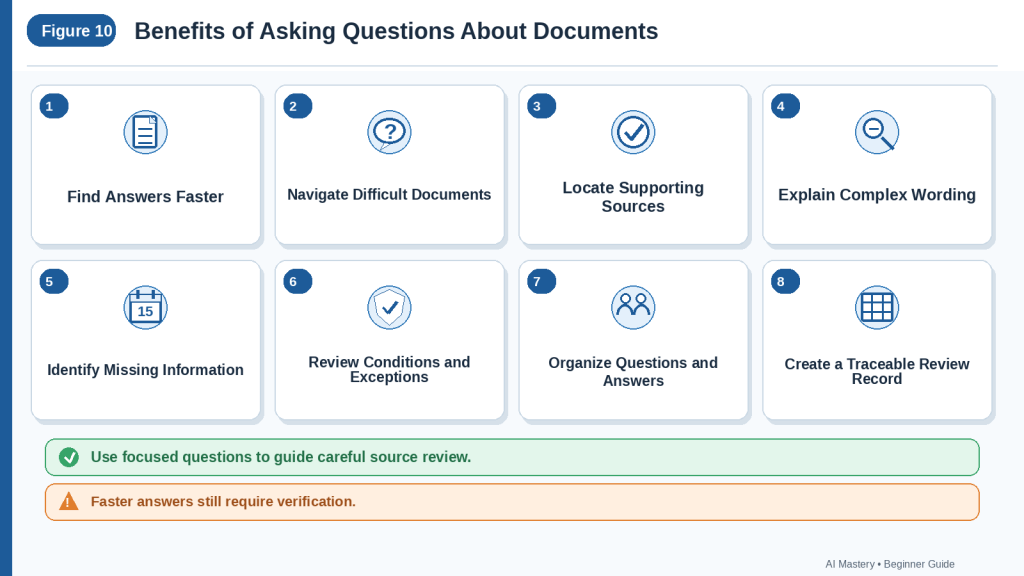
Figure 10. Asking focused questions can help users find answers, locate supporting sections, understand difficult wording, identify missing information, and create a traceable document-review record.
Figure 10 shows the main benefits of asking questions about documents with ChatGPT. The tool can make sources easier to navigate, but every important answer should remain connected to the original wording and be checked by a human reviewer.
Limitations of Asking Questions About Documents with ChatGPT
ChatGPT can help locate and explain information in a document, but it does not guarantee that every answer is correct, complete, current, or supported by the source.
An answer may sound confident while still containing:
· Missing information
· Incorrect dates or amounts
· Lost conditions or exceptions
· Unsupported assumptions
· Information from the wrong section
· Incorrect source locations
· Interpretation presented as fact
· Details taken from another uploaded file
Understanding these limitations helps beginners ask safer questions and check answers more carefully.
It May Give an Answer That Is Not in the Document
When the document does not answer a question, ChatGPT may sometimes produce a plausible response instead of clearly stating that the information is missing.
For example, meeting notes may include an action item but no deadline.
An unsupported answer may say:
The task is due at the end of the month.
even though the notes do not state a deadline.
How to Reduce This Limitation
Add:
When the document does not answer the question, write “Not stated in the document.” Do not guess or add outside information.
Then search the source manually before accepting the answer.
It May Answer from the Wrong Document
When several files are attached, ChatGPT may confuse:
· Document titles
· Versions
· Dates
· Requirements
· Tables
· Source locations
This risk is higher when filenames are similar.
For example:
· employee-policy-final.docx
· employee-policy-final-revised.docx
· employee-policy-final-revised-2.docx
How to Reduce This Limitation
Use clear labels:
· Document A — Employee Policy, Version 2.0
· Document B — Employee Policy, Version 3.0
Ask ChatGPT to identify the source label and version in every answer.
It May Use the Wrong Version
ChatGPT may accurately answer from an outdated document.
An older version may contain different:
· Deadlines
· Fees
· Responsibilities
· Contact information
· Procedures
· Product specifications
· Policy terms
How to Reduce This Limitation
Confirm:
· Document title
· Version number
· Effective date
· Revision date
· Approval status
· Official source
Before asking detailed questions, use:
Confirm the document version and effective date. Identify any indication that the document has been replaced or superseded.
It May Miss Information Elsewhere in the Document
The first section containing an answer may not provide the complete rule.
Related information may appear in:
· Definitions
· Footnotes
· Appendices
· Tables
· Exceptions
· Revision notes
· Later sections
For example, the main section may state:
Applications must be submitted online.
An appendix may allow another method for applicants with an approved accommodation.
How to Reduce This Limitation
Ask:
Search the complete document for any definition, condition, exception, footnote, appendix, table note, or later section that changes or limits the answer.
Verify every related section manually.
It May Misread Dates and Deadlines
Dates may be confused because of:
· Similar numbers
· Different date formats
· Poor scans
· Several related deadlines
· Proposed and confirmed dates
· Business-day and calendar-day wording
For example:
· August 15 may become August 5.
· Five business days may become five calendar days.
· A proposed date may be presented as final.
How to Reduce This Limitation
Ask ChatGPT to preserve:
· Exact date
· Original date format
· Type of day
· Starting event
· Before or after wording
· Confirmed, proposed, or estimated status
· Source location
Check every important deadline directly.
It May Change Numbers, Amounts, or Units
Small numerical errors may have serious consequences.
Examples include:
· $50 becoming $500
· 1.5% becoming 15%
· 12 months becoming 12 weeks
· 30 kilograms becoming 30 pounds
How to Reduce This Limitation
Use:
Preserve exact digits, decimal places, currencies, percentages, measurements, units, and connected conditions.
Verify important values against the original table or paragraph.
It May Change Obligation Words
Words such as must, may, should, and recommended have different meanings.
For example:
Employees may attend the optional session.
must not become:
Employees must attend the session.
How to Reduce This Limitation
Ask:
Preserve the exact obligation word used in the document. Do not change optional guidance into a requirement.
Check the original wording manually.
It May Assign Responsibility to the Wrong Person
A person mentioned near a task may not be responsible for completing it.
Example source:
Maria explained the delay. Daniel agreed to contact the supplier.
Incorrect answer:
Maria must contact the supplier.
How to Reduce This Limitation
Use:
Assign responsibility only when the document directly states or clearly records who must act.
Verify every person, role, and department against the source.
It May Remove Conditions
A requirement may apply only in a specific situation.
Example source:
The additional form is required only when an applicant requests financial assistance.
Incomplete answer:
The additional form is required.
The condition has been removed.
How to Reduce This Limitation
Ask ChatGPT to include:
· Person or group affected
· Condition
· Required action
· Exception
· Source location
Do not accept a rule that has been separated from the condition that controls it.
It May Omit Exceptions
Exceptions may appear far from the general rule.
For example:
All applications must be submitted online.
A later section may state:
Applicants with an approved accessibility accommodation may submit a paper application.
How to Reduce This Limitation
Ask:
Search the complete document for every exception related to this rule. Connect each exception to the rule it changes.
Review footnotes, appendices, and related sections separately.
It May Overstate Consequences
A document may use cautious wording such as:
· May be rejected
· Could result in suspension
· May require additional review
· Is subject to approval
ChatGPT may turn a possible consequence into a guaranteed result.
For example:
Late applications may be rejected.
may become:
Late applications will be rejected.
How to Reduce This Limitation
Use:
Preserve whether the consequence is possible, automatic, discretionary, conditional, or not stated.
It May Present Interpretation as a Direct Answer
ChatGPT may explain what a clause appears to mean without clearly identifying the explanation as interpretation.
For example:
Document wording:
The agreement may renew automatically for one additional year.
Interpretation:
The customer may need to cancel before the renewal date to avoid another term.
The interpretation may be reasonable, but it is not the same as the source wording.
How to Reduce This Limitation
Request separate labels:
· Directly stated
· Interpretation
· Not stated
· Requires verification
Do not accept an interpretation as extracted fact.
It May Provide an Incorrect Source Location
ChatGPT may provide:
· The wrong page
· The wrong section
· The wrong clause
· The wrong table
· The wrong worksheet
· A location that does not contain the answer
A precise-looking source reference is not automatically reliable.
How to Reduce This Limitation
Open every important source location and confirm that the answer appears there.
When the location is wrong, correct both the source reference and the answer if necessary.
It May Misread Tables
Tables may contain:
· Merged cells
· Multi-level headings
· Footnotes
· Repeated labels
· Blank cells
· Small text
· Split pages
· Colour-based categories
ChatGPT may connect a value to the wrong row or column.
How to Reduce This Limitation
Ask:
Identify the table title, row label, column heading, unit, footnote, and page supporting the answer.
Check the original table manually.
It May Misread Spreadsheet Data
Spreadsheet answers may be affected by:
· Hidden rows
· Hidden columns
· Filters
· Formulas
· Multiple worksheets
· Blank cells
· Inconsistent dates
· Mixed currencies
· Duplicate records
A blank cell may mean missing, unknown, pending, or not applicable. It does not automatically mean zero.
How to Reduce This Limitation
Request:
· Worksheet name
· Row number
· Column name
· Formula status
· Filter status
· Currency or unit
· Blank-cell meaning
Verify important records in the original spreadsheet.
It May Misread Charts, Diagrams, or Images
Visual content may depend on:
· Axis labels
· Scale
· Legend
· Colour
· Arrows
· Captions
· Units
· Date range
· Small print
ChatGPT may misunderstand the relationship shown or read the wrong value.
How to Reduce This Limitation
Ask:
Identify every part of the answer that depends on a chart, diagram, image, or scanned page. Mark it for manual verification.
Review the visual source directly.
It May Struggle with Scanned Documents
Scans may contain:
· Blurred text
· Shadows
· Skewed pages
· Handwriting
· Faded characters
· Cropped edges
· Small print
· Multiple columns
ChatGPT may miss or misread important wording.
How to Reduce This Limitation
Use a clear text-based version when possible.
When only a scan is available:
· Improve the image quality.
· Upload smaller page groups.
· Identify unclear pages.
· Ask ChatGPT to state what it cannot read confidently.
· Check all important answers manually.
It May Give an Incomplete Answer
An answer may be correct but omit:
· Who the rule applies to
· Required action
· Starting event
· Condition
· Exception
· Consequence
· Source location
For example:
The deadline is August 15.
may be incomplete when the source states:
New applicants must submit the completed form by August 15 unless an approved extension has been granted.
How to Reduce This Limitation
Define what a complete answer must include before asking the question.
It May Mix Separate Rules
ChatGPT may combine information that applies to different:
· People
· Plans
· Products
· Locations
· Dates
· Document sections
For example:
Employees must complete training. Managers must submit completion records.
may become:
Managers must complete training and submit records.
How to Reduce This Limitation
Ask:
Keep separate rules in separate answer sections when they involve different people, actions, dates, conditions, or sources.
It May Confuse a Proposal with a Decision
Meeting notes may include:
· Discussion
· Suggestion
· Proposal
· Approval
· Deferred matter
· Final decision
A proposal may be presented as confirmed.
How to Reduce This Limitation
Request separate categories:
· Confirmed decision
· Proposal
· Suggestion
· Deferred decision
· Unresolved question
Check the exact wording.
It May Add Outside Information
Even when the question is based on one document, ChatGPT may add general knowledge or assumptions.
For example, a document may say:
Contact the program office.
ChatGPT may add an email address from outside the file or suggest a process not stated in the source.
How to Reduce This Limitation
Use:
Answer using only Document A. Clearly label any outside information separately, and do not include it unless requested.
It Does Not Prove That the Document Is Correct
ChatGPT may accurately answer what a document says without proving that the content is true.
For example:
The report states that productivity increased by 25%.
This does not confirm:
· The calculation
· The evidence
· The sample
· The method
· The current relevance
· Independent verification
How to Reduce This Limitation
Separate:
· What the document states
· What the evidence supports
· What outside sources confirm
· What remains uncertain
Document questioning and fact-checking are different tasks.
It Cannot Determine Every Legal or Professional Meaning
ChatGPT may help locate:
· Contract clauses
· Medical instructions
· Financial conditions
· Safety warnings
· Employment requirements
However, it may not correctly determine their full legal, medical, financial, technical, or professional meaning.
How to Reduce This Limitation
Use ChatGPT to identify and organize the relevant wording.
Obtain qualified professional guidance when an incorrect answer could cause harm, financial loss, missed rights, or legal consequences.
Privacy Settings Do Not Create Permission
Changing ChatGPT settings does not create permission to upload:
· Confidential workplace files
· Medical records
· Customer information
· Employee records
· Financial statements
· Private communications
· Restricted documents
· Licensed materials
How to Reduce This Limitation
Confirm:
· Ownership
· Permission
· Workplace policy
· Confidentiality rules
· Privacy obligations
· Licensing conditions
· Retention requirements
Prepare a safe working copy and remove unnecessary private information.
Removing Names May Not Protect All Privacy
A person may still be identifiable through:
· Job title
· Location
· Project name
· Dates
· Unique events
· Small group membership
· Medical details
· Financial details
How to Reduce This Limitation
Review the complete document for indirect identifying information.
Do not assume that removing names makes every document anonymous.
Long Conversations Can Cause Source Confusion
A long conversation may contain:
· Several documents
· Many questions
· Revised answers
· Conflicting corrections
· Different versions
ChatGPT may lose track of which source or correction should control.
How to Reduce This Limitation
Use:
· Clear document labels
· Question IDs
· Separate conversations for unrelated topics
· A correction log
· Saved verified answers
Start a new conversation when the source history becomes difficult to follow.
Corrections Can Introduce New Errors
After correcting an answer, ChatGPT may:
· Restore an earlier mistake
· Remove a verified detail
· Change a date
· Lose an exception
· Replace a source location
· Add new unsupported information
How to Reduce This Limitation
Keep:
· Initial answer
· Correction prompt
· Correction log
· Revised answer
· Final verified answer
Compare the final version with the original source and correction history.
The Most Recent Answer Is Not Automatically the Best
A later answer may be more polished but less accurate.
It may simplify wording, remove uncertainty, or combine information incorrectly.
How to Reduce This Limitation
Choose the version that is best supported by the source, not simply the newest or longest response.
Limitation Example
Imagine a policy states:
New applicants must submit identification by August 15. Applicants with an approved accessibility accommodation may submit the identification by mail. Late applications may be rejected. The application fee is $50 and is non-refundable.
An incorrect answer may say:
All applicants must upload identification online by August 5. Late applications will be rejected. The refundable fee is $500.
This answer contains several errors:
· New applicants became all applicants.
· The approved mail exception was removed.
· August 15 became August 5.
· May be rejected became will be rejected.
· $50 became $500.
· Non-refundable became refundable.
A reliable answer must preserve:
· Affected group
· Required action
· Deadline
· Exception
· Level of consequence
· Exact fee
· Refund condition
· Source location
How to Work Within These Limitations
A safer document-questioning process is:
1st Use the correct authorized document and version.
2nd Ask one focused question.
3rd Define what a complete answer must include.
4th Limit the answer to the source.
5th Request the supporting location.
6th Preserve exact wording and context.
7th Make missing and unclear information visible.
8th Separate direct statements from interpretation.
9th Verify every important answer manually.
10th Obtain professional review when necessary.
ChatGPT can help users navigate documents, but reliable answers depend on source quality, clear questions, preserved context, visible uncertainty, and responsible human verification.

Figure 11. Document answers may contain unsupported information, incorrect values, lost conditions, wrong responsibilities, misread visuals, or inaccurate source locations.
Figure 11 shows common limitations of asking questions about documents with ChatGPT. Beginners should treat each answer as a draft, preserve uncertainty, and verify important details against the correct document and version.
Common Mistakes When Asking Questions About Documents with ChatGPT
Document questions can produce unreliable answers when the source is poorly prepared, the question is vague, or the response is accepted without checking.
The following mistakes are common among beginners.
Mistake 1: Asking a Question That Is Too Broad
A question such as:
What does this document say?
may produce a general summary rather than the specific information you need.
ChatGPT may focus on:
· Main themes
· General conclusions
· Frequently repeated topics
· Broad explanations
How to Avoid This Mistake
Ask one focused question.
For example:
According to Document A, what deadline applies to new applicants, and which section supports the answer?
Mistake 2: Asking Several Unrelated Questions at Once
A single prompt may ask about:
· Deadlines
· Fees
· Responsibilities
· Definitions
· Warnings
· Recommendations
· Appeals
· Contact information
This can produce a long response with missing or mixed details.
How to Avoid This Mistake
Ask one topic at a time.
A useful sequence is:
1st Ask about the requirement.
2nd Verify the answer.
3rd Ask about the deadline.
4th Verify the answer.
5th Ask about exceptions.
6th Verify the answer.
7th Combine only the checked answers.
Mistake 3: Uploading the Confidential Original
The original file may contain information that is not needed for the question.
Examples include:
· Personal information
· Signatures
· Comments
· Tracked changes
· Hidden worksheets
· Account numbers
· Confidential notes
· Embedded files
How to Avoid This Mistake
Keep the original unchanged.
Create a safe working copy and remove unnecessary private or restricted information before uploading it.
Confirm that you have permission to process the document.
Mistake 4: Removing Too Much Context
Removing names or private details can protect privacy, but deleting too much information may change the meaning.
For example, preserving only:
Submit within 30 days.
does not explain:
· Who must submit
· What must be submitted
· When the period begins
· Whether business or calendar days apply
· Whether an exception exists
How to Avoid This Mistake
Preserve:
· Roles
· Actions
· Dates
· Units
· Conditions
· Exceptions
· Definitions
· Source headings
Use neutral labels such as Applicant A or Department Manager when identity is unnecessary.
Mistake 5: Failing to Confirm the Document Version
An outdated document may contain old:
· Deadlines
· Fees
· Procedures
· Contact information
· Product specifications
· Policy terms
· Responsibilities
ChatGPT may answer accurately from the old version while the information is no longer current.
How to Avoid This Mistake
Confirm:
· Title
· Version number
· Effective date
· Revision date
· Approval status
· Official source
· Superseded-document notice
Mistake 6: Using Unclear Document Labels
When several files are attached, references such as:
· First file
· New version
· Other document
· Latest copy
can cause source confusion.
How to Avoid This Mistake
Use clear labels such as:
· Document A — Employee Policy, Version 2.0
· Document B — Employee Policy, Version 3.0
· Document C — Fee Schedule
Ask ChatGPT to identify the source label in every answer.
Mistake 7: Asking the Main Question Before Confirming the File
The wrong file, incomplete copy, or outdated version may have been uploaded.
How to Avoid This Mistake
First ask ChatGPT to confirm:
· Filename
· Visible title
· Date
· Version
· Main headings
· Tables
· Appendices
· Anything unreadable
Compare the confirmation with the original document before asking detailed questions.
Mistake 8: Assuming a Successful Upload Means Everything Was Read Correctly
A document may upload successfully while some content remains difficult to interpret.
This may affect:
· Scanned pages
· Small print
· Charts
· Tables
· Diagrams
· Footnotes
· Multiple-column layouts
· Handwriting
How to Avoid This Mistake
Ask:
Identify every page, table, chart, image, appendix, or section that you could not read confidently.
Check important visual or scanned content manually.
Mistake 9: Not Limiting the Answer to the Document
ChatGPT may include outside knowledge, assumptions, or general advice.
For example, a document may state:
Contact the program office.
ChatGPT may add a contact method that does not appear in the source.
How to Avoid This Mistake
Use:
Answer using only Document A. Do not add outside information.
Request outside research separately when needed.
Mistake 10: Asking a Leading Question
A leading question suggests the answer.
For example:
Does this policy clearly prove that the employee must pay the fee?
This wording may encourage an overly confident response.
How to Avoid This Mistake
Use neutral wording:
What does the policy state about payment responsibility? Preserve the exact obligation words and include the source location.
Mistake 11: Not Defining What a Complete Answer Requires
A question such as:
What is the deadline?
may produce only a date.
The complete answer may also need:
· Person or group affected
· Required action
· Starting event
· Business or calendar days
· Condition
· Exception
· Consequence
· Source location
How to Avoid This Mistake
List the supporting details you need.
For example:
What deadline applies, who must meet it, what action is required, when does the time period begin, and are any exceptions stated?
Mistake 12: Allowing Missing Information to Be Guessed
When the source does not provide an answer, ChatGPT may produce a plausible detail.
For example, it may assign a deadline or responsible person that is not stated.
How to Avoid This Mistake
Use:
Write “Not stated in the document” when the answer is missing. Do not guess, estimate, or fill the gap.
Missing information is often an important finding.
Mistake 13: Failing to Ask for the Source Location
An answer without a supporting location is harder to verify.
How to Avoid This Mistake
Ask for:
· Page number
· Section heading
· Clause
· Table
· Appendix
· Slide
· Worksheet
· Row
· Column
For example:
Include the page number, section heading, and shortest supporting passage.
Mistake 14: Trusting Source Locations Automatically
A precise-looking reference may still be incorrect.
ChatGPT may provide:
· The wrong page
· A related section
· The wrong table
· The wrong worksheet
· A location that does not contain the answer
How to Avoid This Mistake
Open every important source location and confirm that the supporting information appears there.
Correct the source reference manually when necessary.
Mistake 15: Ignoring Nearby Context
The supporting sentence may not contain the complete rule.
A nearby paragraph, definition, footnote, or appendix may change the answer.
How to Avoid This Mistake
Read:
· The paragraph before
· The paragraph after
· Related definitions
· Footnotes
· Table notes
· Cross-referenced sections
· Appendices
Ask ChatGPT to search for information that changes or limits the answer.
Mistake 16: Changing Obligation Words
Words such as must, may, should, and recommended are not interchangeable.
For example:
Employees may attend the optional session.
must not become:
Employees must attend the session.
How to Avoid This Mistake
Use:
Preserve the exact obligation word used in the document.
Check the wording directly against the source.
Mistake 17: Losing Conditions or Exceptions
A rule may apply only in a particular situation.
For example:
The additional form is required only when the applicant requests financial assistance.
An incomplete answer may say:
The additional form is required.
How to Avoid This Mistake
Request separate details for:
· Person or group affected
· Condition
· Required action
· Exception
· Source location
Search the complete document for related exceptions.
Mistake 18: Assigning Responsibility Based on Nearby Names
A person may discuss an issue without being responsible for the action.
For example:
Maria explained the delay. Daniel agreed to contact the supplier.
The responsibility belongs to Daniel.
How to Avoid This Mistake
Use:
Assign responsibility only when the document directly states or clearly records who must act.
Verify every name, role, and department manually.
Mistake 19: Treating a Proposal as a Confirmed Decision
Meeting records may mix:
· Discussion
· Suggestions
· Proposals
· Approvals
· Deferred matters
· Final decisions
A topic being discussed does not mean it was approved.
How to Avoid This Mistake
Ask for separate categories:
· Confirmed decision
· Proposal
· Suggestion
· Deferred matter
· Unresolved question
Mistake 20: Accepting an Interpretation as a Direct Answer
ChatGPT may explain what wording appears to mean without clearly identifying the explanation as interpretation.
How to Avoid This Mistake
Request labels:
· Directly stated
· Interpretation
· Not stated
· Unclear
· Requires verification
Do not present interpretation as source-supported fact.
Mistake 21: Ignoring Definitions
A definition may affect the answer.
For example, a document may define business day as excluding weekends and official holidays.
That definition affects any deadline using the term.
How to Avoid This Mistake
Ask:
Which defined terms affect this answer? Include the exact definition and source location.
Mistake 22: Ignoring Footnotes, Tables, and Appendices
Important conditions may appear outside the main body text.
Examples include:
· Footnotes
· Table notes
· Appendix rules
· Small-print warnings
· Revision notes
· Figure captions
How to Avoid This Mistake
Ask ChatGPT to search these areas separately.
Verify them manually because small text and complex layouts may be misread.
Mistake 23: Asking “Is This Correct?” Without Identifying the Claim
A broad verification question may produce another broad answer.
How to Avoid This Mistake
State the exact claim:
The answer says the deadline is August 15. Which exact sentence supports that date, and does any other section provide a different deadline?
Mistake 24: Asking “Explain More” as a Follow-Up
An unclear follow-up may cause ChatGPT to discuss a different part of the document.
How to Avoid This Mistake
Name the exact topic:
Explain how the approved-extension rule changes the August 15 deadline.
Mistake 25: Asking ChatGPT to Decide Which Conflicting Statement Is Correct
Two sections may contain different wording.
The difference may result from:
· Different groups
· Different dates
· Different conditions
· A revision
· A genuine contradiction
How to Avoid This Mistake
Ask:
Show each statement separately with its source location. Explain whether the document identifies which one controls. Do not choose automatically.
Mistake 26: Misreading a Table Answer
A table value may be connected to the wrong:
· Row
· Column
· Unit
· Currency
· Date range
· Footnote
How to Avoid This Mistake
Ask for:
· Table title
· Row label
· Column heading
· Exact value
· Unit or currency
· Footnote
· Page number
Then inspect the original table.
Mistake 27: Treating Blank Spreadsheet Cells as Zero
A blank cell may mean:
· Missing
· Unknown
· Pending
· Not applicable
· Not entered
It does not automatically mean zero.
How to Avoid This Mistake
Use:
Label blank cells as “Blank in source” unless the spreadsheet defines another meaning.
Mistake 28: Ignoring Spreadsheet Filters and Hidden Data
A spreadsheet may contain:
· Hidden rows
· Hidden columns
· Hidden worksheets
· Active filters
· Formulas
· Merged cells
The answer may not represent the complete file.
How to Avoid This Mistake
Review the spreadsheet structure before asking the question.
Request the worksheet, row, column, formula, filter status, currency, and unit.
Mistake 29: Trusting Answers Taken from Charts or Scans
Charts, diagrams, and scans may contain:
· Small labels
· Unclear scales
· Similar colours
· Missing units
· Cropped text
· Blurred values
How to Avoid This Mistake
Ask ChatGPT to identify every part of the answer that depends on a visual element.
Mark those details for manual verification.
Mistake 30: Asking Everything About a Long Document at Once
A large request may cause:
· Missing sections
· Mixed answers
· Incorrect source references
· Repeated information
· Truncated responses
· Lost conditions
How to Avoid This Mistake
Create a document map and divide the source into labelled units.
Ask one question about one unit at a time.
Verify every answer before combining the results.
Mistake 31: Mixing Document Questioning with Fact-Checking
A source-based question asks what the document says.
Fact-checking asks whether the statement is true.
These are different tasks.
How to Avoid This Mistake
Use separate stages:
1st Ask what the document states.
2nd Verify the source-based answer.
3rd Research current outside information separately.
4th Clearly label outside verification.
Mistake 32: Assuming an Answer Is Current Because It Is Accurate to the File
ChatGPT may correctly report an outdated document.
How to Avoid This Mistake
Confirm the latest authorized version through the official source before using the answer for an important decision.
Mistake 33: Using a Document Answer Without Professional Review
Some answers can affect:
· Legal rights
· Medical treatment
· Financial decisions
· Safety
· Employment
· Government applications
· Contract obligations
· Technical operations
How to Avoid This Mistake
Use ChatGPT to locate and organize the relevant wording.
Obtain qualified professional guidance when an incorrect answer could cause serious harm, loss, or missed rights.
Mistake 34: Assuming Privacy Settings Create Permission
Changing privacy or data settings does not create the right to upload confidential information.
How to Avoid This Mistake
Check:
· Ownership
· Permission
· Workplace rules
· Confidentiality obligations
· Privacy requirements
· Licence conditions
· Retention requirements
Mistake 35: Failing to Save the Question and Correction History
Overwriting the first answer removes the record of what changed.
How to Avoid This Mistake
Save:
· Exact question
· Initial answer
· Supporting passage
· Follow-up questions
· Correction prompts
· Correction log
· Final verified answer
· Source title and version
· Review date
Mistake 36: Failing to Check the Final Revised Answer
A correction may introduce another mistake.
ChatGPT may:
· Restore an earlier error
· Remove a verified detail
· Change a date
· Lose an exception
· Add unsupported wording
· Replace a source location
How to Avoid This Mistake
Compare the clean final answer with:
· Original document
· Correction log
· Last verified answer
Do not assume the newest response is automatically the most accurate.
Common-Mistake Checklist
Before using a document answer, confirm that you did not:
· Ask a vague or overloaded question
· Upload the confidential original
· Remove necessary context
· Use the wrong file or version
· Begin before confirming the source
· Allow outside information to enter unnoticed
· Accept guessed missing details
· Skip source-location requests
· Trust source references automatically
· Ignore definitions, conditions, or exceptions
· Change obligation words
· Assign responsibility incorrectly
· Treat discussion as a decision
· Present interpretation as fact
· Misread a table, spreadsheet, chart, or scan
· Combine conflicting answers automatically
· Treat document content as independently verified truth
· Use high-risk information without appropriate review
· Lose the correction history
· Skip the final verification
Avoiding these mistakes helps keep document answers focused, source-supported, traceable, and suitable for careful human review.
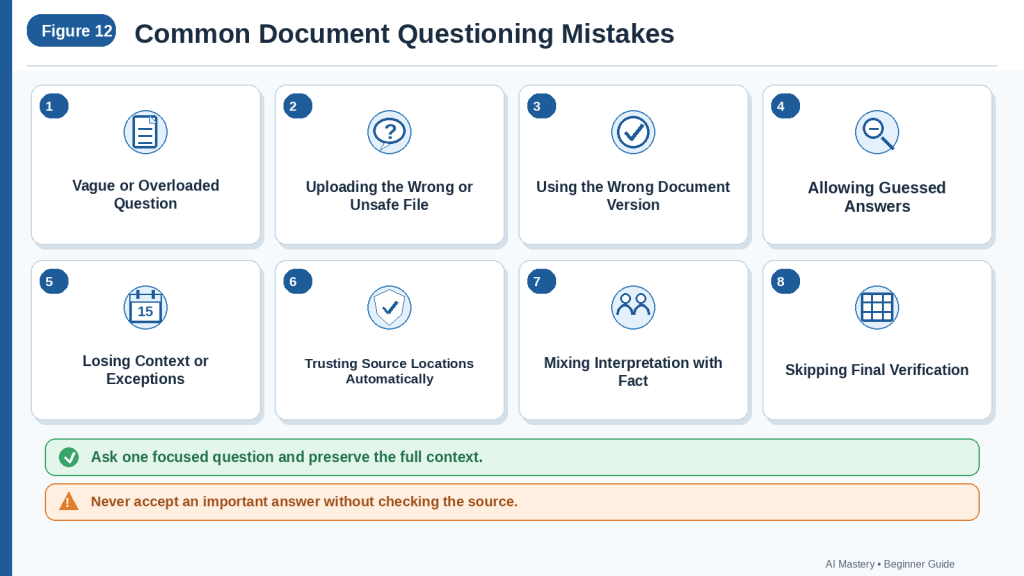
Figure 12. Common document-questioning mistakes include vague questions, unsafe uploads, wrong versions, guessed answers, missing context, unverified source locations, and skipped final review.
Figure 12 shows mistakes that can make answers about documents incomplete or misleading. Beginners should ask one focused question, preserve exact context, make uncertainty visible, and verify every important answer against the original source.
Common Myths About Asking Questions About Documents with ChatGPT
Beginners may assume that uploading a document allows ChatGPT to answer every question automatically and accurately.
These myths can lead to unsupported answers, missed exceptions, privacy problems, and incorrect decisions.
Myth 1: ChatGPT Always Finds the Correct Answer
A document may contain several statements about the same topic.
The correct answer may depend on:
· A definition
· A condition
· An exception
· A later revision
· A footnote
· An appendix
· A table note
ChatGPT may find one relevant sentence while missing another section that changes its meaning.
Reality
Treat the first answer as a draft.
Ask ChatGPT to search for related definitions, conditions, exceptions, footnotes, tables, and appendices. Then verify the answer manually.
Myth 2: A Confident Answer Must Be Correct
ChatGPT may present an answer in clear and confident language.
For example:
The application deadline is August 15.
The answer may still contain:
· The wrong date
· The wrong applicant group
· A missing extension
· An incorrect source location
· Information from another document version
Reality
Confidence and clear formatting do not prove accuracy.
Check every important answer against the original document.
Myth 3: Uploading a Document Means Every Part Was Read Correctly
A successful upload confirms that the file was attached.
It does not prove that ChatGPT correctly interpreted:
· Every page
· Every table
· Every footnote
· Every chart
· Every scanned section
· Every hidden spreadsheet row
· Every appendix
Reality
Ask ChatGPT to identify content it could not read confidently.
Review visual, scanned, small, hidden, or complicated information manually.
Myth 4: ChatGPT Will Say When the Answer Is Missing
Users may expect ChatGPT to respond:
Not stated in the document.
However, it may sometimes infer or generate a plausible answer.
For example, it may assign a deadline to an action item even though the source does not state one.
Reality
Include a clear instruction:
Write “Not stated in the document” when the answer is missing. Do not guess or complete the gap.
Myth 5: Asking “What Does This Document Say?” Is Specific Enough
This question may produce:
· A summary
· A general explanation
· A list of main topics
· An overview that does not answer the user’s real concern
Reality
Ask one focused question.
For example:
What deadline applies to new applicants, what must they submit, and which section supports the answer?
Myth 6: One Large Question Is More Efficient
A user may ask about:
· Requirements
· Deadlines
· Fees
· Responsibilities
· Exceptions
· Warnings
· Appeals
· Contact details
in one prompt.
This may produce a long response that is difficult to verify.
Reality
A sequence of smaller questions is often safer:
1st Ask about the requirement.
2nd Verify it.
3rd Ask about the deadline.
4th Verify it.
5th Ask about exceptions.
6th Verify them.
Myth 7: ChatGPT Automatically Uses Only the Uploaded Document
ChatGPT may add:
· General knowledge
· Assumptions
· Common procedures
· Information from another uploaded file
· Outside explanations
without clearly separating them from the document answer.
Reality
Use:
Answer using only Document A. Do not add outside information.
Then check whether every part of the answer is supported by the source.
Myth 8: Source Locations Are Always Correct
An answer may include a precise-looking reference such as:
Page 7, Section 3.2
That location may still be incorrect.
ChatGPT may identify:
· The wrong page
· A nearby section
· A summary instead of the original rule
· The wrong table
· The wrong worksheet or row
Reality
Open every important source location and confirm that it contains the supporting information.
Myth 9: The First Relevant Sentence Gives the Complete Answer
A sentence may answer part of the question while leaving out:
· A definition
· A condition
· An exception
· A consequence
· A later revision
· A cross-reference
For example:
Applications must be submitted online.
may be limited by a later accessibility exception.
Reality
Read the surrounding paragraphs and search related sections before accepting the answer.
Myth 10: ChatGPT Automatically Preserves Exact Wording
ChatGPT may simplify wording in a way that changes the meaning.
Examples include:
· May becoming must
· Business days becoming days
· May be rejected becoming will be rejected
· Recommended becoming required
Reality
Ask ChatGPT to preserve exact:
· Obligation words
· Dates
· Time periods
· Conditions
· Exceptions
· Consequences
Check the original wording manually.
Myth 11: Dates and Numbers Are Easy to Answer Correctly
Small mistakes can produce major differences.
Examples include:
· August 15 becoming August 5
· $50 becoming $500
· 1.5% becoming 15%
· 12 months becoming 12 weeks
· Five business days becoming five calendar days
Reality
Every important date, amount, percentage, measurement, and unit requires direct source checking.
Myth 12: ChatGPT Can Reliably Identify Who Is Responsible
A name appearing near an action does not necessarily identify the responsible person.
For example:
Maria explained the delay. Daniel agreed to contact the supplier.
ChatGPT may incorrectly assign the task to Maria.
Reality
Responsibility should be accepted only when the document states or clearly records the assignment.
Myth 13: Conditions and Exceptions Will Be Included Automatically
A document may state:
The additional form is required only when the applicant requests financial assistance.
An incomplete answer may say:
The additional form is required.
Reality
Ask specifically for:
· Affected group
· Condition
· Exception
· Related rule
· Source location
Conditions and exceptions must remain connected to the main answer.
Myth 14: ChatGPT Can Always Distinguish a Decision from a Proposal
Meeting records may contain:
· Discussion
· Suggestions
· Proposals
· Deferred decisions
· Final approvals
· Action items
ChatGPT may present a discussed idea as a confirmed decision.
Reality
Request separate categories for confirmed decisions, proposals, suggestions, deferred matters, and unresolved questions.
Myth 15: An Explanation Is the Same as the Document’s Answer
ChatGPT may explain what a clause appears to mean.
That explanation may include interpretation.
For example:
Document wording:
The agreement may renew automatically for one additional year.
Interpretation:
The customer may need to cancel before renewal to avoid another term.
Reality
Ask ChatGPT to separate:
· Directly stated
· Interpretation
· Not stated
· Requires verification
Myth 16: ChatGPT Can Resolve Every Contradiction
Two sections may state different:
· Dates
· Responsibilities
· Requirements
· Fees
· Procedures
ChatGPT may choose one answer without enough support.
Reality
Ask it to show each statement separately with its source location.
When the document does not explain which statement controls, label the issue:
Possible inconsistency requiring review
Myth 17: A Document Answer Proves That the Document Is Correct
ChatGPT may accurately report:
The report states that productivity increased by 25%.
This does not prove:
· The calculation is correct
· The data is reliable
· The method is appropriate
· The claim is current
· Independent evidence agrees
Reality
Document questioning identifies what the source says.
Fact-checking and evidence evaluation are separate tasks.
Myth 18: The Uploaded Document Must Be the Latest Version
A file may be outdated even when its title looks current.
It may contain old:
· Deadlines
· Fees
· Procedures
· Contact information
· Product specifications
· Policy terms
Reality
Check:
· Version number
· Effective date
· Revision date
· Approval status
· Official publication source
· Superseded-document notice
Myth 19: Removing Names Protects All Privacy
A person may remain identifiable through:
· Job title
· Location
· Project name
· Dates
· Unique events
· Small-group information
· Medical or financial details
Reality
Removing names does not automatically anonymize a document.
Review all direct and indirect identifying details before uploading.
Myth 20: Privacy Settings Make Every Document Safe to Upload
Changing ChatGPT settings does not remove:
· Confidentiality obligations
· Workplace restrictions
· Privacy responsibilities
· Copyright conditions
· Licence limits
· Permission requirements
Reality
The user must confirm that uploading and processing the document is permitted.
Myth 21: ChatGPT Can See Every Hidden Spreadsheet Detail
A spreadsheet may contain:
· Hidden rows
· Hidden columns
· Hidden worksheets
· Active filters
· Formulas
· Protected cells
· Merged cells
The answer may not represent the complete file.
Reality
Inspect the spreadsheet structure manually and request the worksheet, row, column, filter, formula, currency, and unit.
Myth 22: Blank Cells Mean Zero
A blank spreadsheet cell may mean:
· Missing
· Unknown
· Pending
· Not applicable
· Not entered
Reality
Do not treat a blank cell as zero unless the document clearly defines it that way.
Use:
Label blank cells as “Blank in source.”
Myth 23: Charts and Scans Are as Reliable as Clear Text
Charts, diagrams, images, and scanned pages may contain:
· Tiny labels
· Poor contrast
· Similar colours
· Unclear scales
· Cropped wording
· Blurred values
· Handwriting
Reality
Answers based on visual or scanned content require additional manual checking.
Myth 24: ChatGPT Can Answer an Entire Long Document Reliably in One Conversation
Long conversations may contain:
· Several files
· Many questions
· Multiple corrections
· Different versions
· Conflicting answers
Source confusion may increase over time.
Reality
Divide long documents into labelled units and keep a question log.
Start a new conversation when the source history becomes difficult to follow.
Myth 25: The Newest Answer Must Be the Best Answer
A revised answer may accidentally:
· Restore an earlier mistake
· Remove a verified detail
· Change a date
· Lose an exception
· Replace a source location
· Add unsupported wording
Reality
The best answer is the one most strongly supported by the source, not necessarily the newest or longest response.
Myth 26: Professional Review Is Needed Only for Contracts
Errors can also have serious consequences in:
· Medical instructions
· Financial records
· Safety procedures
· Employment documents
· Government applications
· Technical manuals
· Official notices
Reality
The level of review should match the possible harm caused by an incorrect answer.
Myth 27: Verification Removes the Benefit of Using ChatGPT
Some users may believe that manually checking answers means ChatGPT did not save time.
Reality
ChatGPT may still reduce time spent:
· Navigating the document
· Locating possible source sections
· Organizing questions
· Creating review tables
· Identifying missing information
· Preparing follow-up questions
Part of the saved time should be used for verification.
Myth 28: ChatGPT Should Silently Correct Errors in the Source
The document itself may contain:
· A typographical error
· An inconsistent date
· Conflicting requirements
· An incorrect total
· Missing information
ChatGPT may normalize the wording without explaining that the source was changed.
Reality
Ask ChatGPT to preserve what the document states and identify possible source errors separately.
Use:
Do not silently correct the document. Flag possible errors or inconsistencies for review.
Myth 29: A Complete-Looking Answer Is a Complete Answer
An answer may contain several detailed paragraphs while still omitting:
· Affected group
· Starting event
· Condition
· Exception
· Source location
· Missing information
Reality
Define the required answer fields before asking the question.
Completeness should be checked against those fields, not against the answer’s length.
Myth 30: Human Review Is Optional for Important Answers
An answer may affect:
· A legal deadline
· A financial payment
· A medical instruction
· A safety procedure
· Employment status
· Government eligibility
· Contract obligations
Reality
Important answers require manual source verification and, when appropriate, qualified professional review.
Myths-and-Reality Checklist
Before accepting an answer, remember:
· A successful upload does not prove complete reading.
· A confident answer is not proof of accuracy.
· Missing information may be guessed unless you prohibit it.
· Source locations must be checked.
· Conditions and exceptions may appear elsewhere.
· Exact wording can change during explanation.
· Document content is not automatically true or current.
· Privacy settings do not replace permission.
· Revisions can introduce new errors.
· High-risk answers require stronger human review.
Understanding these realities helps beginners use ChatGPT as a document-questioning assistant without treating it as an automatic or authoritative source.
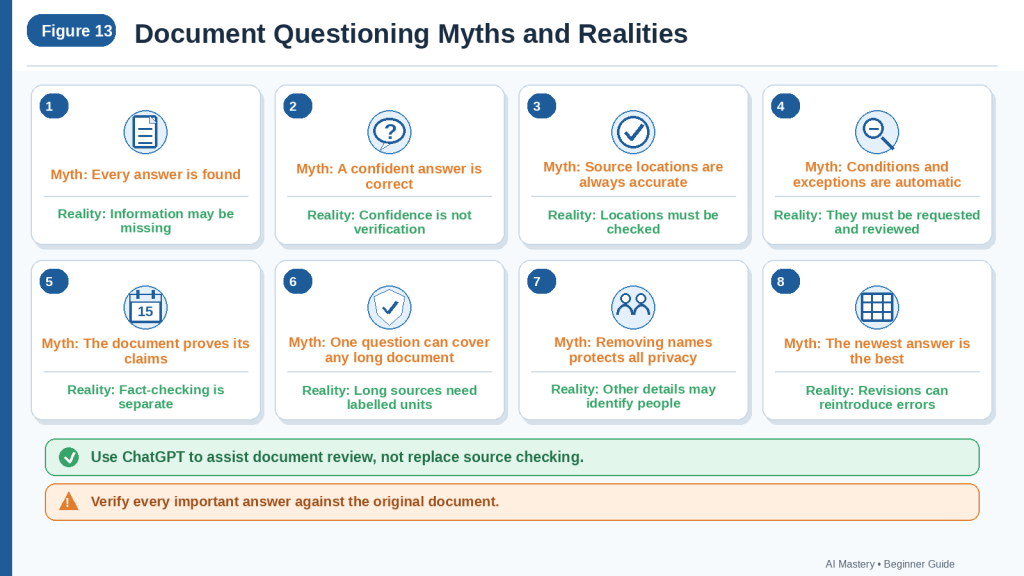
Figure 13. Common myths can make document questioning appear more automatic, complete, accurate, and authoritative than it really is.
Figure 13 compares common document-questioning myths with safer realities. ChatGPT can help locate and explain information, but users must define the question, preserve context, verify the source, and make uncertainty visible.
Frequently Asked Questions About Asking Questions About Documents with ChatGPT
Can ChatGPT Answer Questions About a PDF?
Yes. ChatGPT can help answer focused questions about readable PDF documents.
For example:
What is the application deadline?
Which section explains the cancellation process?
What limitations does the report identify?
Does the policy include an exception?
Text-based PDFs are generally easier to review than poor-quality scans.
Check important answers involving:
· Tables
· Charts
· Diagrams
· Scanned pages
· Footnotes
· Appendices
· Small print
Ask ChatGPT to identify any content it could not read confidently.
Can ChatGPT Answer Questions About a Word Document?
Yes. ChatGPT can help answer questions about supported Word documents.
Before uploading, create a safe working copy and check for:
· Comments
· Tracked changes
· Personal information
· Hidden text
· Headers and footers
· Document properties
· Embedded files
Do not upload a confidential original without permission.
Can ChatGPT Answer Questions About a Spreadsheet?
Yes. You can ask focused questions about spreadsheet records, values, dates, amounts, formulas, and status fields.
For example:
Which rows have a Status of “Overdue”?
What amount appears in the March column?
Which worksheet contains the annual total?
Which records have a missing completion date?
Include:
· Worksheet name
· Row number
· Column heading
· Record ID
· Date
· Currency or unit
· Filter condition
Check hidden rows, hidden columns, formulas, filters, and blank-cell meanings manually.
Can ChatGPT Answer Questions About a Scanned Document?
It may be able to answer some questions, but the result depends on scan quality.
Problems may include:
· Blurred wording
· Cropped pages
· Shadows
· Skewed text
· Handwriting
· Small print
· Faded characters
· Multiple-column layouts
Use:
Answer only when the relevant text can be read confidently. Otherwise, write “Could not be read confidently.”
Verify every important answer against the scanned page.
Can ChatGPT Answer Questions About Charts or Images Inside a Document?
It may help interpret visible information in charts, diagrams, screenshots, forms, and other images.
However, visual answers may be affected by:
· Small labels
· Similar colours
· Unclear scales
· Missing units
· Cropped content
· Low image quality
· Complicated legends
Ask ChatGPT to identify:
· Chart or image title
· Axis labels
· Units
· Legend
· Date range
· Caption
· Source page
· Any uncertainty
Review the visual manually before relying on the answer.
Should I Ask One Question or Several Questions?
Begin with one focused question.
For example:
What deadline applies to new applicants?
After checking the answer, ask related follow-up questions:
1st What must they submit?
2nd Are any exceptions stated?
3rd What consequence may apply?
4th Which sections support the answers?
One focused question at a time is usually easier to verify than one large request.
How Specific Should My Question Be?
Your question should identify:
· The document
· The topic
· The answer details required
· The source location needed
· How missing information should be handled
· Whether interpretation is allowed
For example:
According to Document A, what cancellation deadline applies, who must act, when does the time period begin, are any exceptions stated, and which section supports the answer?
Should I Tell ChatGPT to Use Only the Document?
Yes, when you want a source-based answer.
Use:
Answer using only Document A. Do not add outside information.
This helps keep the response connected to the uploaded source.
You must still verify the answer because ChatGPT may misunderstand or misread the document.
What Should ChatGPT Say When the Answer Is Missing?
Ask it to use a clear label:
· Not stated in the document
· Could not be read confidently
· Source location requires verification
· Document version unclear
For example:
Write “Not stated in the document” when the answer is missing. Do not guess or complete the gap.
Can ChatGPT Provide Page Numbers and Section Headings?
It may provide:
· Page numbers
· Headings
· Clauses
· Tables
· Appendices
· Slides
· Worksheets
· Rows
· Columns
These locations can make checking easier.
However, they may be inaccurate.
Open every important source location and confirm that it contains the supporting information.
Should I Ask for the Exact Supporting Sentence?
Yes, when exact wording matters.
Use:
Show the shortest exact passage that supports the answer. Include the page and section location.
Check the passage directly against the original source.
Keep quotations short and respect copyright, permission, and publication requirements.
Can ChatGPT Explain Difficult Wording in Simple Language?
Yes.
Use:
Quote the exact wording first. Then explain it in simple language without changing the obligation, deadline, condition, exception, or consequence.
The plain-language explanation should not replace the original wording when legal, medical, financial, safety, or technical meaning matters.
How Do I Know Whether an Answer Is Directly Stated?
Ask ChatGPT to label each part of the response as:
· Directly stated
· Interpretation
· Not stated
· Unclear
· Requires verification
A directly stated answer appears clearly in the document.
An interpretation requires reasoning beyond the exact wording.
Can ChatGPT Find Conditions and Exceptions?
It may find them when you request them clearly.
Use:
Search the complete document for any definition, condition, exception, footnote, appendix, table note, or later section that changes or limits the answer.
Verify each related source manually.
Can ChatGPT Identify Who Is Responsible for an Action?
It can help, but responsibility may be assigned incorrectly.
For example:
Maria explained the delay. Daniel agreed to contact the supplier.
The responsibility belongs to Daniel.
Use:
Identify the responsible person only when the document directly states or clearly records the assignment.
Can ChatGPT Find Dates and Deadlines Accurately?
It can help locate them, but errors are possible.
Check:
· Exact date
· Time
· Time zone
· Business or calendar days
· Starting event
· Before or after wording
· Confirmed or proposed status
· Conditions and exceptions
For example:
Within five business days after approval
must not become:
Within five days.
Can ChatGPT Answer Questions About Fees and Payments?
Yes. You may ask about:
· Prices
· Fees
· Deposits
· Refunds
· Penalties
· Taxes
· Percentages
· Payment dates
· Payment conditions
Ask ChatGPT to preserve:
· Exact amount
· Currency
· Decimal places
· Due date
· Refund condition
· Applicable person or group
· Source location
Verify every important financial amount manually.
Can ChatGPT Distinguish a Decision from a Proposal?
It may help, but the distinction can be missed.
Request separate categories:
· Confirmed decision
· Proposal
· Suggestion
· Deferred matter
· Unresolved question
Do not accept a discussion or proposal as a final decision without source support.
Can ChatGPT Answer Questions About Several Documents?
Yes, but source confusion can occur.
Use clear labels:
· Document A — Main Policy
· Document B — Application Form
· Document C — Fee Schedule
Ask ChatGPT to include the document label and source location with every answer.
For complicated work, question each document separately before combining the verified answers.
Can I Ask Follow-Up Questions?
Yes.
Useful follow-up questions include:
Which exact sentence supports that answer?
Does this apply to every applicant?
Is an exception stated elsewhere?
What information remains missing?
Is this directly stated or interpreted?
Does a definition change the answer?
Avoid unclear follow-ups such as:
What about the other one?
State the exact topic.
Can ChatGPT Remember Earlier Answers in a Long Conversation?
It may continue using earlier context, but long conversations can become difficult to manage.
Problems may include:
· Mixed documents
· Conflicting corrections
· Wrong versions
· Lost source labels
· Reintroduced errors
Use:
· Clear document labels
· Question IDs
· A correction log
· Separate conversations for unrelated topics
· Saved verified answers
Start a new conversation when the source history becomes unclear.
Can ChatGPT Answer Every Question About a Long Document at Once?
It may attempt to, but the result may be incomplete or difficult to verify.
A safer method is:
1st Create a document map.
2nd Divide the source into labelled units.
3rd Ask one question about one unit.
4th Verify the answer.
5th Record unresolved questions.
6th Combine only verified answers.
Can ChatGPT Resolve Conflicting Statements?
It can help locate and organize the conflicting statements.
For example:
Show every statement related to the deadline separately. Include each source location and explain whether the document identifies which statement controls.
Do not ask ChatGPT to choose automatically when the source does not explain the difference.
Label the issue:
Possible inconsistency requiring review
Does an Answer Prove That the Document Is Correct?
No.
ChatGPT may accurately report:
The report states that costs decreased by 25%.
This does not prove that:
· The calculation is correct
· The evidence is reliable
· The method is appropriate
· The result is current
· Independent sources agree
Document questioning and fact-checking are separate tasks.
Is Asking Questions the Same as Summarizing a Document?
No.
A summary explains the document’s main content in a shorter form.
A question asks for a particular answer.
For example:
Summary request:
Summarize this application guide.
Document question:
What supporting documents must a new applicant provide?
Is Asking Questions the Same as Extracting Information?
Not exactly.
A question may request one answer:
What is the deadline?
Information extraction usually collects several related records:
Extract every deadline, required action, responsible person, condition, and source location.
Use questioning for focused exploration and extraction for structured collections of similar information.
Is Asking Questions the Same as Document Analysis?
No.
Questioning usually asks what the document says.
Analysis examines:
· Meaning
· Evidence
· Strengths
· Weaknesses
· Risks
· Contradictions
· Missing information
Verify the source-based answers before requesting analysis.
Can ChatGPT Answer Legal Questions About a Contract?
It can help locate and organize relevant clauses, including:
· Responsibilities
· Payment terms
· Notice periods
· Renewal
· Cancellation
· Restrictions
· Dispute procedures
It does not determine the full legal effect of a clause or replace qualified legal advice.
A safer question is:
What does the cancellation clause state? Preserve the exact wording, notice period, condition, exception, and source location.
Can ChatGPT Answer Medical Questions from a Document?
It may help locate information, but medical answers require extra care.
Possible risks include:
· Misread dosage
· Incorrect unit
· Missing warning
· Wrong patient information
· Lost condition
· Outdated instruction
Do not rely only on ChatGPT for treatment decisions or medical instructions.
Check the original source and consult a qualified healthcare professional when appropriate.
Can ChatGPT Answer Financial Questions from a Document?
It may help identify:
· Amounts
· Fees
· Dates
· Interest rates
· Percentages
· Payment conditions
· Totals
Errors involving currency, decimal places, percentages, taxes, or deadlines can cause financial loss.
Verify the source and seek qualified financial or accounting guidance when needed.
Is It Safe to Upload Private Documents?
Not every private document is suitable for uploading.
Before uploading, confirm:
· Ownership
· Permission
· Workplace rules
· Confidentiality requirements
· Privacy obligations
· Licence conditions
· Retention requirements
Create a safe working copy and remove unnecessary private information.
Is Removing Names Enough to Protect Privacy?
No.
A person may remain identifiable through:
· Job title
· Location
· Project name
· Dates
· Unique events
· Small group
· Medical information
· Financial information
Review the complete document for direct and indirect identifying details.
Should I Upload the Original Document?
Usually, keep the original unchanged and upload a safe working copy.
The working copy should remove unnecessary private information while preserving the context required to answer the question correctly.
Should I Save My Questions and Answers?
Yes.
Save:
· Document title
· Filename
· Version
· Exact question
· Initial answer
· Supporting passage
· Follow-up questions
· Correction prompts
· Correction log
· Final verified answer
· Review date
· Unresolved information
This creates a traceable review record.
What Should I Do When the Answer Is Wrong?
Do not ask only:
Fix it.
Use a focused correction:
Review only the deadline. Preserve the exact date, starting event, and business-day or calendar-day wording.
Or:
Review only the responsible person. Remove any assignment not directly supported by the document.
Record the correction and verify the revised answer.
Can a Corrected Answer Become Wrong Again?
Yes.
A later revision may:
· Restore an earlier error
· Change a date
· Remove a condition
· Lose an exception
· Replace a source location
· Add unsupported wording
Compare the final answer with:
· Original document
· Correction log
· Last verified answer
How Do I Know When an Answer Is Complete?
Compare the response with the fields required by your question.
For example:
· Direct answer
· Person or group affected
· Required action
· Date or deadline
· Starting event
· Condition
· Exception
· Consequence
· Source location
· Answer type
· Verification status
A long answer is not necessarily a complete answer.
When Is Professional Review Necessary?
Professional review may be necessary when an answer affects:
· Legal rights
· Contracts
· Medical treatment
· Financial decisions
· Safety
· Employment
· Government applications
· Technical operations
· Regulatory requirements
The more serious the consequence of an error, the stronger the review should be.
What Is a Safe General Document-Question Prompt?
Use this template:
Review Document A — [document title, date, and version].
Question: [write one focused question]
Answer using only Document A.
Give the direct answer first.
Then include:
· Person or group affected
· Required action
· Date or deadline
· Starting event
· Condition
· Exception
· Stated consequence
· Source location
Preserve exact names, dates, amounts, currencies, percentages, measurements, units, obligation words, conditions, and exceptions.
Label each part as:
· Directly stated
· Interpretation
· Not stated in the document
· Requires verification
Write “Could not be read confidently” when the source is unclear.
Do not guess, complete missing information, or add outside information.
Identify any definition, footnote, table note, appendix, or later section that could change the answer.
The safest document-questioning process combines one focused question, a readable authorized source, exact-context instructions, visible uncertainty, source locations, and careful human verification.
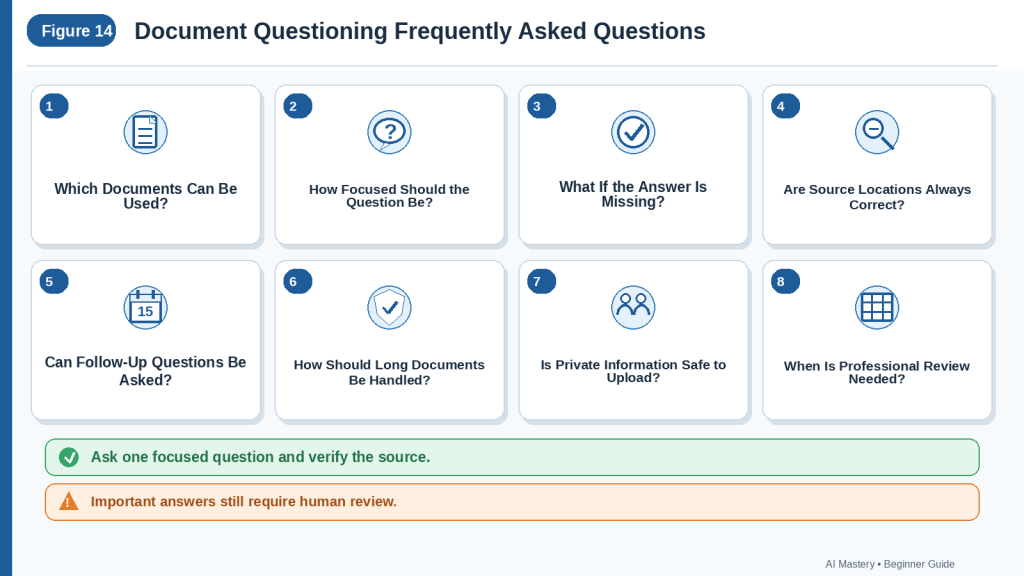
Figure 14. Common questions about document questioning focus on supported sources, clear prompts, source locations, missing information, verification, privacy, and professional review.
Figure 14 summarizes the main questions beginners should consider before accepting an answer about a document. Reliable answers depend on a focused question, a safe source, preserved context, visible uncertainty, and careful verification.
Key Takeaways
ChatGPT can help beginners ask focused questions about documents, but reliable answers require a clear source, careful prompting, and manual verification.
Remember these main points:
· Begin with a document that you own or have permission to use.
· Keep the original file unchanged.
· Create a safe working copy before uploading.
· Remove unnecessary private or confidential information.
· Preserve headings, definitions, conditions, exceptions, dates, units, and other context needed to understand the answer.
· Confirm the document title, version, effective date, and approval status.
· Use the latest authorized document when current information matters.
· Label each uploaded file clearly when several documents are involved.
· Ask ChatGPT to confirm the filename, title, version, and main sections before asking detailed questions.
· Begin with one focused question instead of asking for everything at once.
· Explain what information a complete answer must include.
· Tell ChatGPT to answer using only the specified document.
· Request the page number, section heading, clause, table, appendix, slide, worksheet, row, or other source location.
· Ask ChatGPT to preserve exact names, dates, amounts, currencies, percentages, measurements, units, and time periods.
· Preserve obligation words such as must, may, should, recommended, and optional.
· Keep every condition and exception connected to the rule it changes.
· Ask ChatGPT to write Not stated in the document when the answer is missing.
· Use Could not be read confidently when the relevant text or visual is unclear.
· Separate Directly stated information from Interpretation.
· Do not accept a confident answer as proof of accuracy.
· Open the original document and check the supporting passage manually.
· Read nearby paragraphs, definitions, footnotes, tables, appendices, and cross-references.
· Verify every important name, responsibility, date, number, amount, currency, and unit.
· Check tables, charts, diagrams, scans, and spreadsheet records separately.
· Do not treat blank spreadsheet cells as zero unless the source defines them that way.
· Divide long documents into clearly labelled units.
· Ask one question about one section or topic at a time.
· Keep a question log and correction record.
· Correct one problem at a time instead of requesting a complete rewrite.
· Recheck the final revised answer because corrections can introduce new errors.
· Remember that answering what a document says is different from fact-checking whether the document is correct.
· Keep outside research separate from the source-based answer.
· Obtain qualified professional review when an answer affects legal rights, medical treatment, financial decisions, safety, employment, government applications, contracts, or technical operations.
· Save the source version, question, initial answer, supporting passage, corrections, final verified answer, and review date.
A reliable document answer is not simply a quick or polished response. It is a source-supported answer that preserves the document’s exact context, shows uncertainty clearly, and has been checked by a human reviewer.

Figure 15. Reliable document questioning requires a safe source, one focused question, preserved context, visible uncertainty, source locations, manual verification, and responsible human review.
Figure 15 summarizes the most important lessons from this guide. Beginners should use ChatGPT to help locate and explain information while keeping the original document, verification process, and final decisions under human control.
Final Tip
Use ChatGPT to help you locate, organize, and explain information, but keep the original document in control of the answer.
For every important question, follow this simple rule:
1 Ask one focused question.
2 Request the supporting source location.
3 Check the exact wording in the original document.
4 Review nearby conditions, exceptions, definitions, and footnotes.
5 Correct unsupported or incomplete details.
6 Save the verified answer and review record.
A useful final prompt is:
Review Document A — [document title, date, and version].
Question: [write one focused question]
Answer using only Document A.
Give the direct answer first, followed by the person or group affected, required action, date or deadline, condition, exception, consequence, and source location.
Preserve exact names, dates, amounts, currencies, percentages, measurements, units, obligation words, conditions, and exceptions.
Label each part as Directly stated, Interpretation, Not stated in the document, or Requires verification.
Write Could not be read confidently when the relevant text or visual is unclear.
Do not guess, complete missing information, or add outside information.
The safest habit is simple: ask clearly, verify carefully, and save the evidence.
Continue Learning
Continue building your document skills with these related AI Mastery guides:
· How to Summarize Documents with ChatGPT: Beginner Guide (2026)
· How to Analyze Documents with ChatGPT: Beginner Guide (2026).
· How to Compare Documents with ChatGPT: Beginner Guide (2026)
· How to Extract Information from Documents with ChatGPT: Beginner Guide (2026)
· Best ChatGPT Prompts for Beginners: Complete Guide (2026)
· Prompt Engineering for Beginners: Complete Guide (2026)
These guides work together. Summarizing provides an overview, questioning finds specific answers, extracting collects structured details, comparing identifies differences, and analysis examines meaning and evidence.
Conclusion
Asking questions about documents with ChatGPT can help beginners find specific information, understand difficult wording, locate supporting sections, identify missing details, and organize follow-up questions.
The quality of the answer depends on the quality of the process.
Use a readable and authorized document. Confirm the correct version. Ask one focused question. Define what a complete answer must include. Request the source location. Preserve exact dates, numbers, units, obligation words, conditions, and exceptions. Make missing or unclear information visible. Separate direct statements from interpretation. Then verify every important answer against the original source.
ChatGPT should support document review rather than replace it. It may help you navigate a long or complex file, but it can still miss information, confuse versions, misread tables, change wording, provide an incorrect source location, or add unsupported details.
For important decisions, the safest approach is to combine ChatGPT assistance with careful human review and qualified professional guidance when appropriate.
By following a clear question-and-verification workflow, beginners can use ChatGPT more responsibly while keeping the original document, supporting evidence, and final judgement under human control.
Sources and References
The following official OpenAI sources were reviewed on July 29, 2026. ChatGPT features, file limits, storage rules, plan availability, interface wording, and privacy controls may change. Readers should check the current official guidance when first using document uploads, after changing a plan or workspace, when a feature behaves differently, after receiving a policy-update notice, and periodically.
OpenAI Help Center — What Types of Files Are Supported?
OpenAI currently lists common supported formats including XLSX, XLS, CSV, TSV, DOCX, PPTX, PDF, and TXT. Google Docs files using the .gdoc format must be exported to a supported format such as PDF or DOCX before uploading.
OpenAI Help Center — File Uploads FAQ
This source explains file-upload limits, usage caps, file retention, deletion, and differences between text-based and visual processing. It also states that availability and processing can depend on the plan and file type.
OpenAI Help Center — Visual Retrieval with PDFs FAQ
OpenAI currently documents visual retrieval for embedded PDF images, graphs, and diagrams as an Enterprise capability. Other users should not assume that every visual inside a PDF will be processed in the same way.
OpenAI Help Center — Images Embedded in Documents and Presentations
OpenAI currently states that document and presentation files generally use text-based retrieval and that embedded images may be discarded. Important screenshots, charts, diagrams, or photographed text may therefore need to be uploaded separately or checked manually.
OpenAI Help Center — Data Analysis with ChatGPT
This source explains that ChatGPT can answer questions about uploaded data and create tables, charts, calculations, and structured analyses. It recommends clear column headings and one record per row, and warns that exact values may not be extracted reliably from scanned files, image-based tables, or complex visual layouts. Available capabilities can vary by model, plan, workspace settings, and account.
OpenAI Help Center — Data Controls FAQ
Data Controls allow users to manage whether conversations help improve OpenAI’s models. Turning off Improve the model for everyone applies across the account, but privacy settings do not create permission to upload confidential, restricted, copyrighted, workplace, medical, financial, or personal documents.
OpenAI Help Center — File Storage and Library in ChatGPT
OpenAI explains that uploaded and created files may be saved in Library for later access and reuse. Library availability, storage allowances, and workspace handling depend on the account or workspace. Deleting a chat does not necessarily delete a file stored separately in Library, so users should review and manage both areas when removing sensitive material.
OpenAI Help Center — Chat and File Retention Policies in ChatGPT
This source explains how chats and files are stored, retained, archived, and deleted. Files stored in Library can be managed separately from their original chats, and workspace retention policies may apply to Enterprise, Edu, and Healthcare accounts.
This article provides general educational guidance. It does not provide legal, medical, financial, safety, employment, regulatory, or other professional advice. Important answers should be checked against the original, current, authorized document and reviewed by a qualified professional when an error could cause harm, financial loss, missed rights, or an unsafe decision.