
Estimated reading time: approximately 35-40 minutes
Last updated: August 2026
Google Gemini is a generative AI assistant that can help with writing, learning, planning, brainstorming, file analysis, and other everyday tasks. This guide explains the basic interface, how to write prompts, how to use follow-up questions, how to work with files, and how to review privacy and safety settings.
Gemini can produce incorrect, incomplete, or outdated information. Use it as an assistant, verify important details through reliable sources, and keep a human responsible for every final decision.
What You Will Learn
How to recognize the main Gemini interface controls
How to start a new conversation and write a clear prompt
How to submit, review, edit, and regenerate responses
How to ask useful follow-up questions
How to upload and analyze supported files
How to manage, save, export, and share chats
How to verify answers and avoid common mistakes
How to protect private information and understand Gemini’s limitations
Table of Contents
Google Gemini Interface
What You Need Before You Start
Start a New Gemini Conversation
Write a Clear Gemini Prompt
Submit and Review a Gemini Response
Ask Follow-Up Questions
Edit a Gemini Prompt
Regenerate or Modify a Response
Upload and Use Files
Start a New Chat for a Different Task
Find and Manage Previous Chats
Save, Export, or Share a Response
Verify Gemini’s Answers
Common Google Gemini Beginner Mistakes
Google Gemini Privacy and Safety Checklist
Benefits of Using Google Gemini
Limitations of Google Gemini
Frequently Asked Questions
Google Gemini Beginner Workflow
What Is the Google Gemini Interface?
Gemini’s interface may vary by device, account, country, and current product updates. The main areas usually include a New chat control, a list of recent conversations, a prompt box, an attachment control, a submit control, and a response area.
Before starting, confirm the active Google Account. Personal, work, and school accounts can provide different features, permissions, retention rules, and Connected Apps.
New Chat
Recent Chats
Prompt Box
Add Files
Submit
Response Area
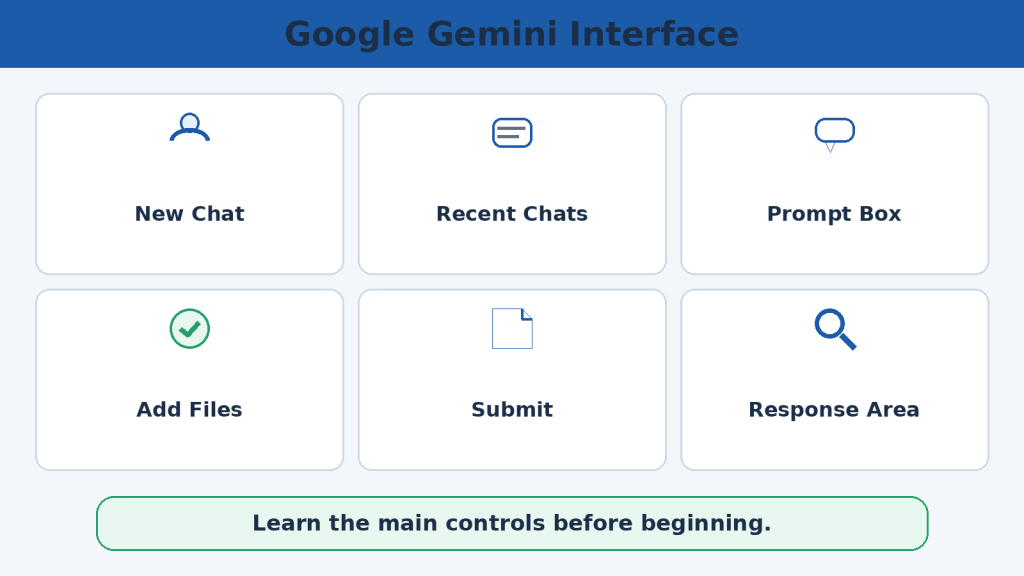
Figure 1. Google Gemini Interface
The main Gemini controls are easier to use when the account, prompt area, attachment tools, and response area are identified first.
What You Need Before You Start
Prepare a supported device, a stable internet connection, an appropriate Google Account, and a clear low-risk task. Work and school users should follow organizational rules and administrator settings.
Do not begin by uploading sensitive material. Practise with a simple request that contains no confidential personal, medical, financial, workplace, or school information.
A suitable Google Account
A supported browser or Gemini app
A stable internet connection
A clear task
Permission to use any files
Time to review and verify the answer
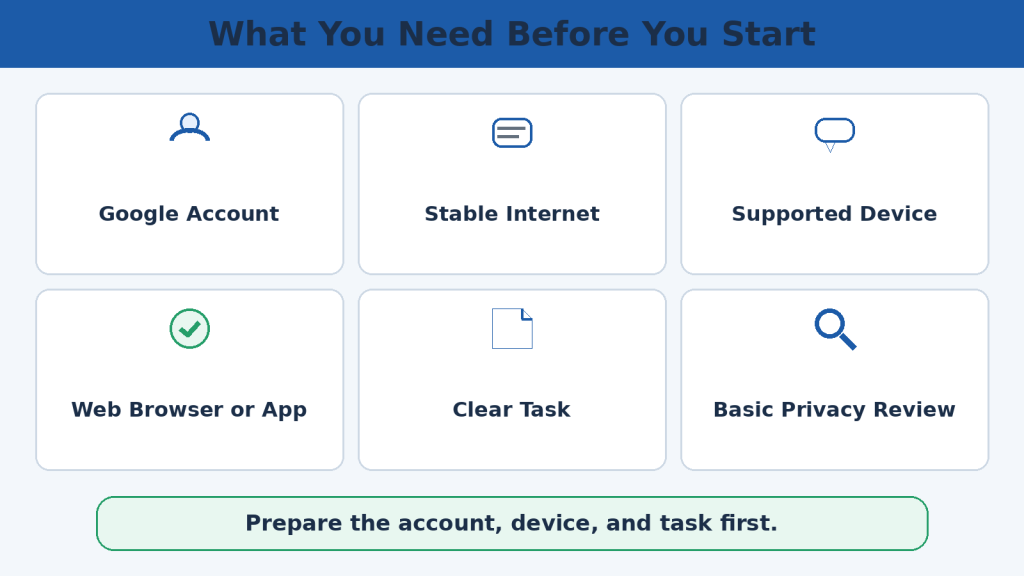
Figure 2. What You Need Before You Start
Preparation reduces account, privacy, and file-handling mistakes before the first prompt is submitted.
How to Start a New Gemini Conversation
Open Gemini, confirm the active account, and select New chat. A blank conversation reduces the chance that earlier instructions or unrelated files will influence the result.
Use the same conversation only when the new question is part of the same task, document, or project.
Open Gemini
Confirm the correct account
Select New chat
Check that the chat is blank
Enter the first prompt
Submit and review
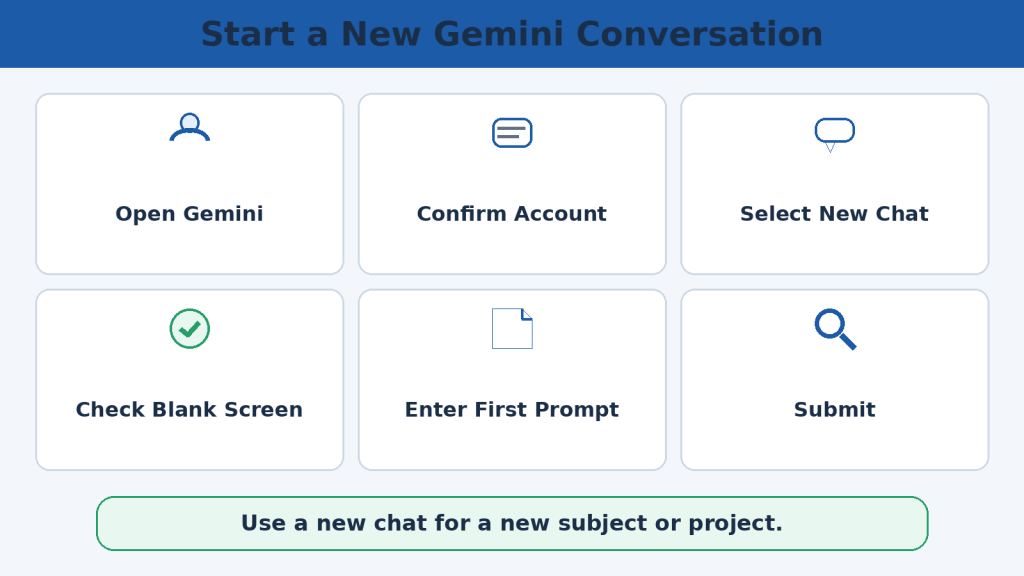
Figure 3. Start a New Gemini Conversation
A clean conversation is the safest place to begin a new subject or project.
How to Write a Clear Gemini Prompt
A strong prompt identifies the task, subject, audience, format, length, context, restrictions, and verification requirements. Ordinary language is sufficient; complicated commands are not required.
Example: Explain cloud storage to a complete beginner using five short bullet points and one everyday example. Define technical terms and avoid promotional language.
State the task
Name the subject
Identify the audience
Choose the format
Set the length
Add context
Add restrictions
Request verification
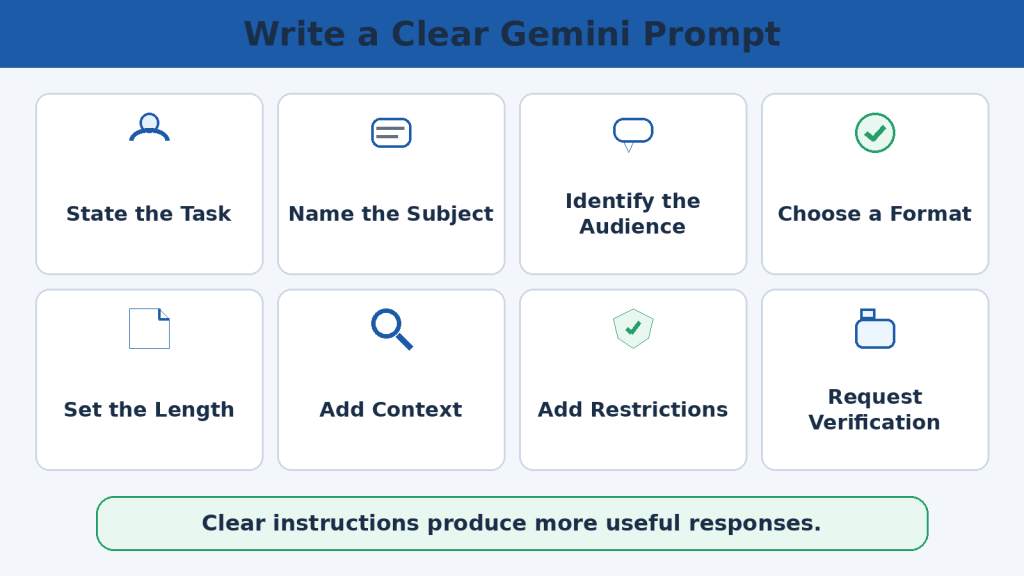
Figure 4. Write a Clear Gemini Prompt
A complete prompt gives Gemini clearer direction about the expected result.
How to Submit and Review a Gemini Response
After submitting, read the complete response rather than only the first paragraph. Compare the answer with every requirement in the prompt.
Check factual claims, missing details, formatting, tone, privacy, and whether Gemini added information outside an uploaded source.
Read the entire response
Check every prompt requirement
Identify unsupported claims
Verify names, dates, and numbers
Request focused corrections
Save only the approved version
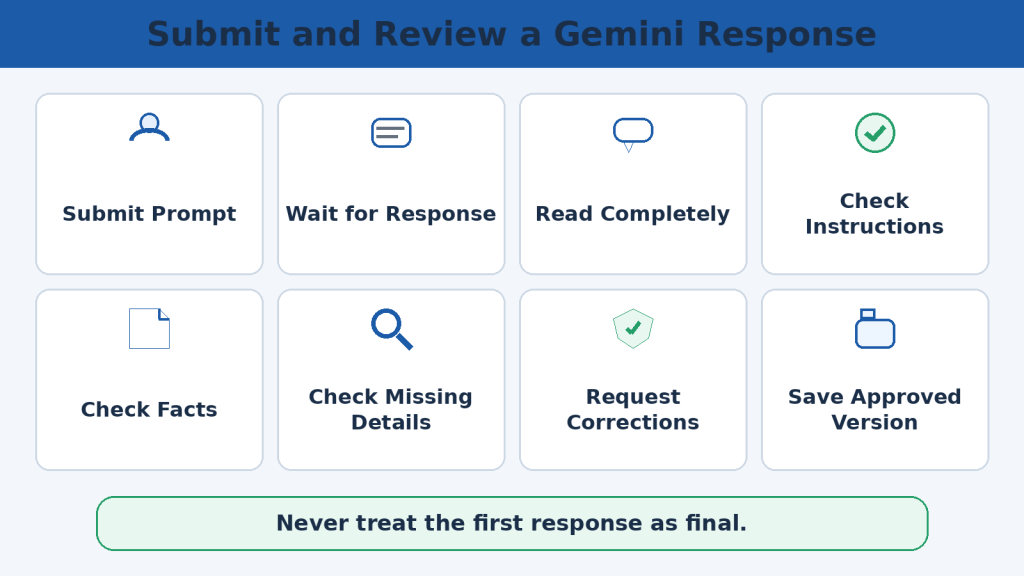
Figure 5. Submit and Review a Gemini Response
Reviewing the full response helps identify missing requirements, factual errors, and privacy concerns.
How to Ask Follow-Up Questions
Follow-up questions help refine the same task. State the exact change rather than using vague instructions such as Make it better.
Useful follow-ups include: Explain that more simply; add two examples; convert the answer into a table; shorten the introduction to 120 words; identify claims requiring verification.
Clarify
Simplify
Add examples
Shorten
Expand
Reformat
Compare
Correct
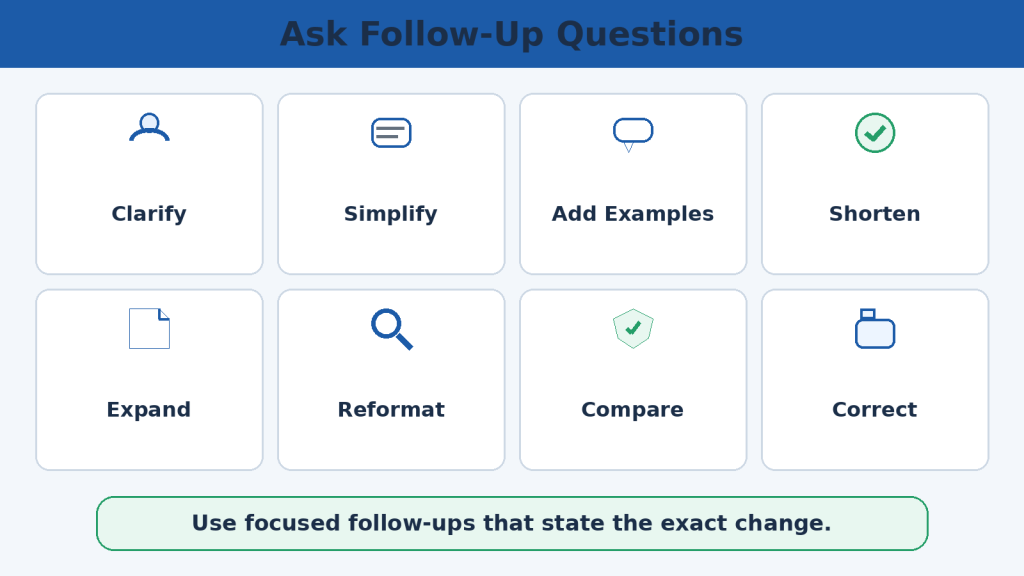
Figure 6. Ask Follow-Up Questions
Focused follow-ups make revisions easier to control and evaluate.
How to Edit a Gemini Prompt
Edit the original prompt when the instruction itself was wrong or incomplete. This is useful when the audience, format, source, or required result needs to change.
Save useful later responses before editing an earlier prompt because the conversation path may change.
Find the original prompt
Select Edit
Add missing context
Correct the audience or format
Update the prompt
Compare the new response
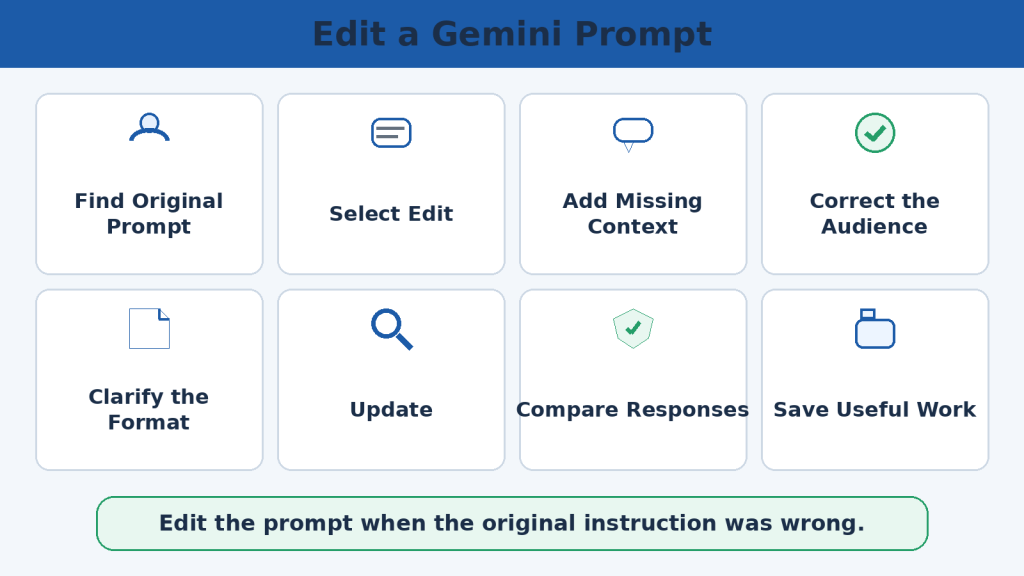
Figure 7. Edit a Gemini Prompt
Editing is appropriate when the original instruction, audience, source, or format was incorrect.
How to Regenerate or Modify a Gemini Response
Regeneration creates another version of a response. It may change wording, examples, or structure, but it is not automatically more accurate.
When you know what needs improvement, use a focused follow-up instead of repeated regeneration.
Regenerate once when another version may help
Compare the versions
Check facts again
Use a focused follow-up for a known problem
Keep the best reviewed version
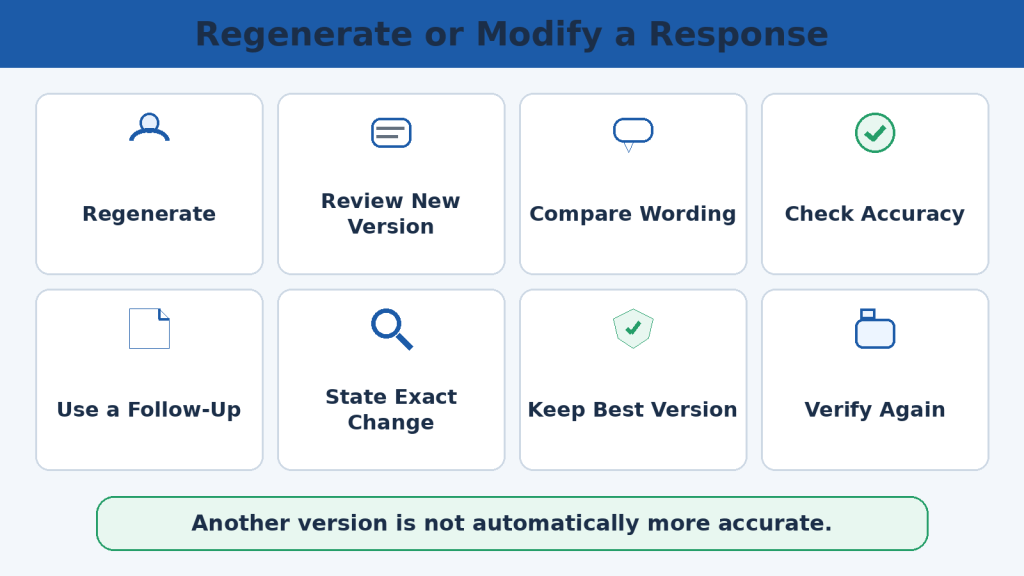
Figure 8. Regenerate or Modify a Response
Regeneration is useful for alternatives, but focused corrections are better for known problems.
How to Upload and Use Files with Google Gemini
Gemini may work with supported documents, spreadsheets, images, audio, video, code, Drive files, and other eligible content. Availability and limits can vary by account, plan, and current product settings.
Before uploading, confirm permission, remove unnecessary private information, check the filename and version, and write a focused prompt. Compare every important answer with the original file.
Prepare the file
Remove private information
Use the correct chat
Write a focused file prompt
Confirm the attachment
Submit
Review
Compare with the original
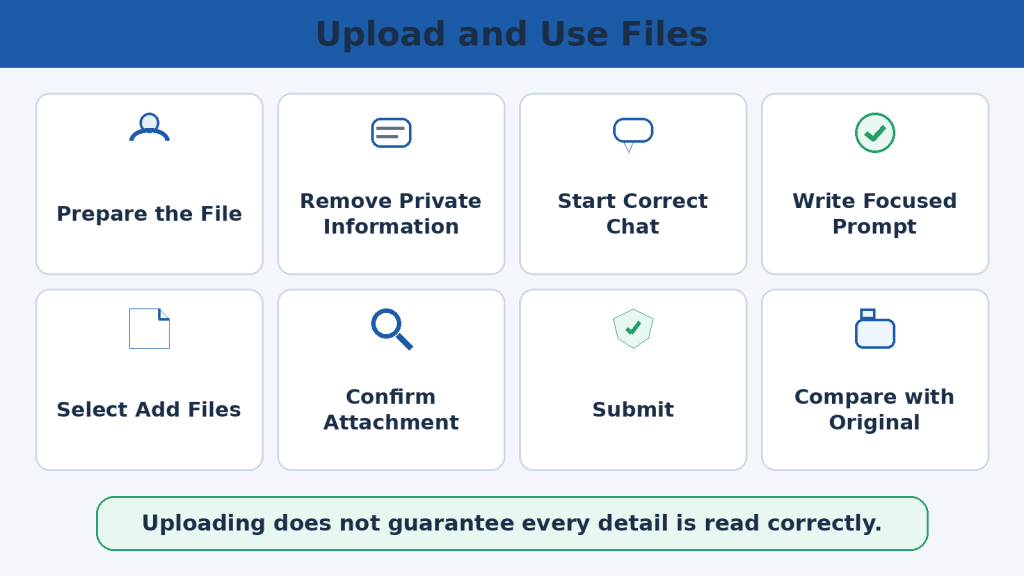
Figure 9. Upload and Use Files
File analysis remains a review task; accepted uploads are not guaranteed to be interpreted perfectly.
How to Start a New Chat for a Different Task
Start a new chat when the subject, project, audience, document, or account purpose changes. This provides cleaner context and reduces the risk of mixing unrelated instructions or information.
Use branching only when a new direction still depends on an earlier response.
Different subject
New project
Unrelated file
Different audience
Personal and work separation
Conflicting instructions
Clean prompt test
Long confusing chat
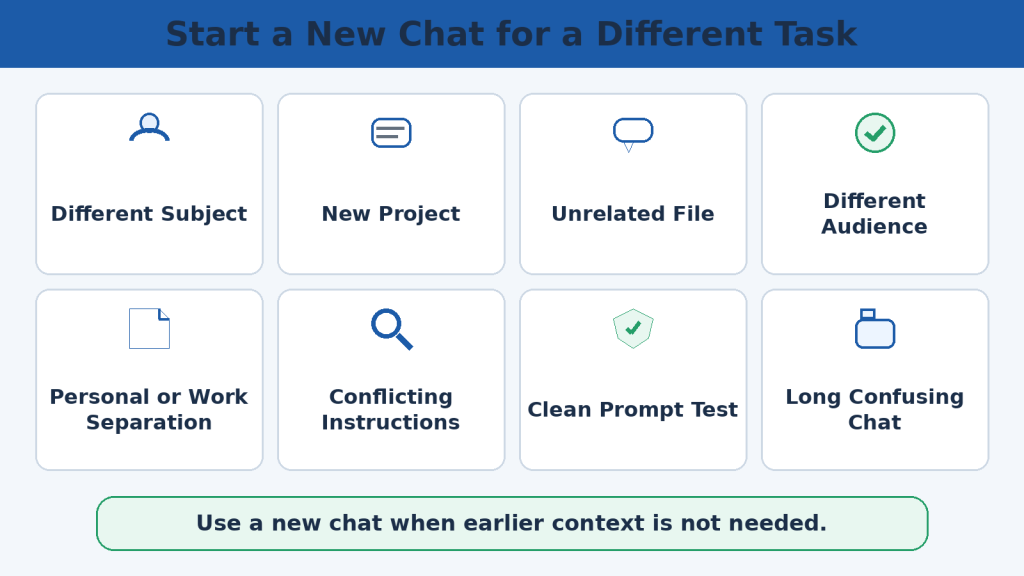
Figure 10. Start a New Chat for a Different Task
Separating unrelated work reduces accidental mixing of files, instructions, and private information.
How to Find and Manage Previous Gemini Chats
Eligible signed-in users may be able to search, rename, pin, reopen, branch, and delete previous chats. Availability depends on account and activity settings.
Use descriptive titles, pin only active projects, and save important work outside Gemini before deleting a conversation.
Search by project name or article number
Rename chats clearly
Pin active work
Reopen and review context
Branch related alternatives
Delete only after saving important content
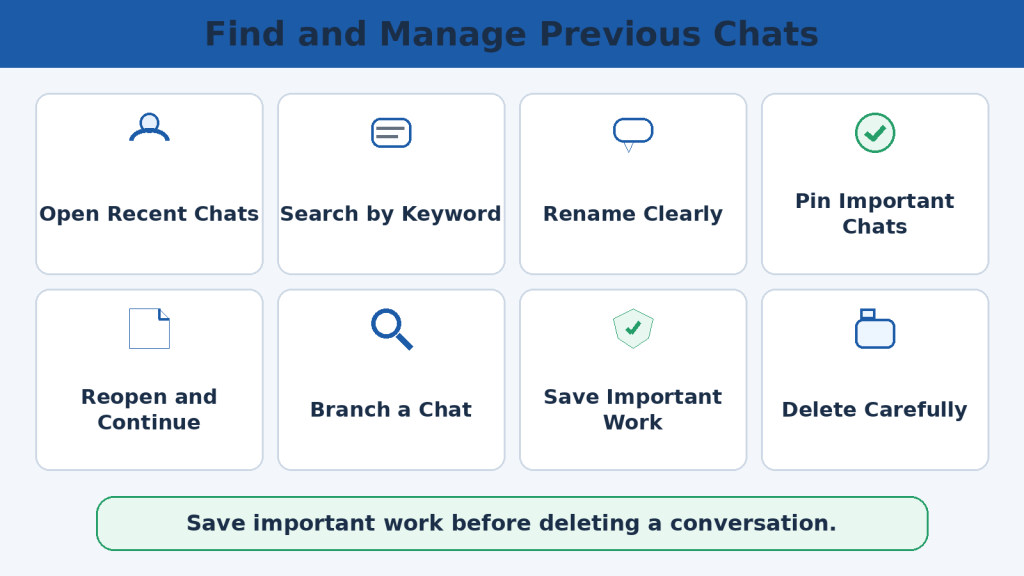
Figure 11. Find and Manage Previous Chats
Clear naming and careful deletion make long-term projects easier to manage.
How to Save, Export, or Share a Gemini Response
Gemini may allow copying, exporting to Google Docs, drafting in Gmail, downloading supported files, or sharing a conversation through a public link.
A public conversation link should be treated as public. Review the entire chat, including earlier prompts, uploads, generated media, and private information, before sharing.
Copy selected text
Export to Google Docs
Draft in Gmail
Download supported files
Share only public-safe conversations
Store exports securely
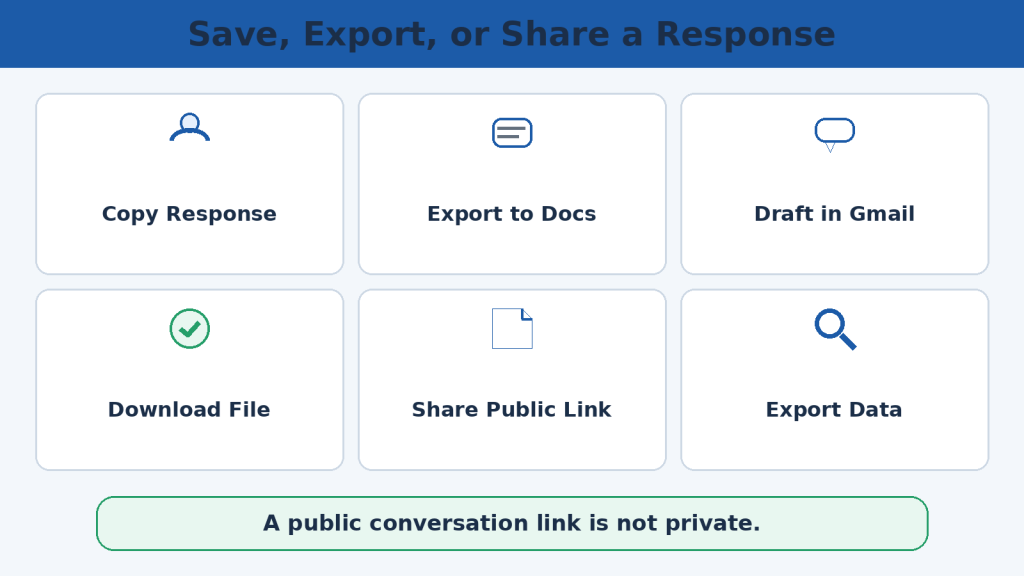
Figure 12. Save, Export, or Share a Response
Each saving or sharing method has different privacy, formatting, and access implications.
How to Verify Gemini’s Answers
Verification means checking important claims against reliable original or official sources. Asking Gemini whether it is sure is not an independent verification method.
Prioritize names, dates, quotations, calculations, laws, policies, product limits, current events, and professional or high-stakes information.
Identify important claims
Check the original source
Use official sources
Check the date
Open every link
Compare sources
Repeat calculations
Verify quotations
Record corrections
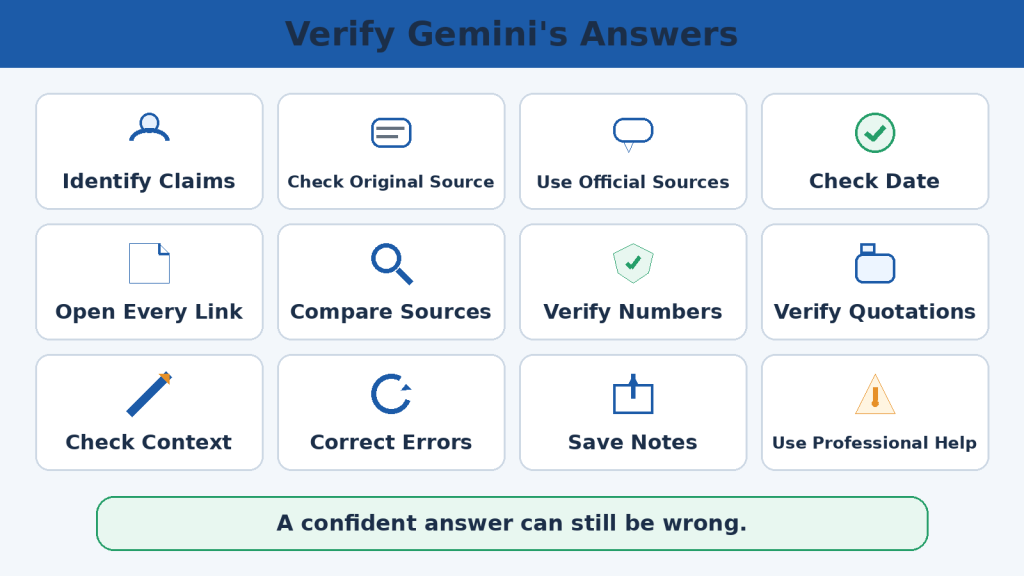
Figure 13. Verify Gemini’s Answers
Official and primary sources are the strongest basis for checking important claims.
Common Google Gemini Beginner Mistakes
Common mistakes include vague prompts, unrelated tasks in one chat, the wrong account or file, trusting the first answer, skipping verification, sharing private information, and exporting or sending content without review.
Most problems can be reduced through a consistent workflow: one clear task, correct account and files, careful verification, privacy review, and final human approval.
Vague prompts
Too many unrelated tasks
Wrong chat
Wrong account
Wrong file
Trusting the first answer
Skipping verification
Sharing private information
Unchecked exports or actions
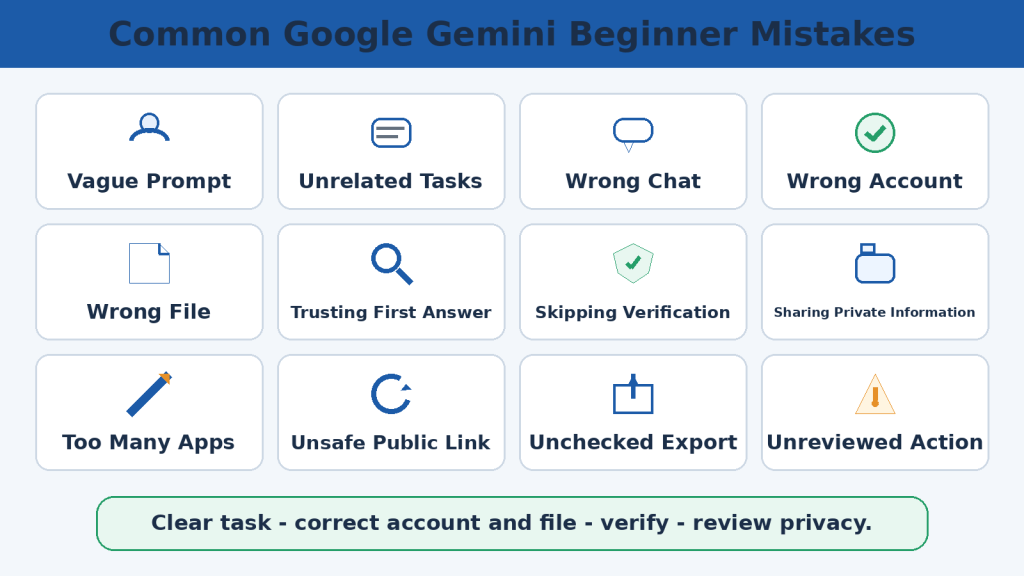
Figure 14. Common Google Gemini Beginner Mistakes
A repeatable workflow prevents many beginner errors before they reach a final document or action.
Google Gemini Privacy and Safety Tips
Review the correct account, activity settings, temporary-chat behaviour, Connected Apps, personalization, device permissions, screen sharing, and public links.
Do not enter passwords, verification codes, payment details, security tokens, or unnecessary confidential information. Disconnecting an app or deleting a chat may not remove data stored elsewhere.
Use the correct account
Review Keep Activity
Understand temporary chats
Remove private information
Limit Connected Apps
Check device permissions
Review public links
Confirm automated actions
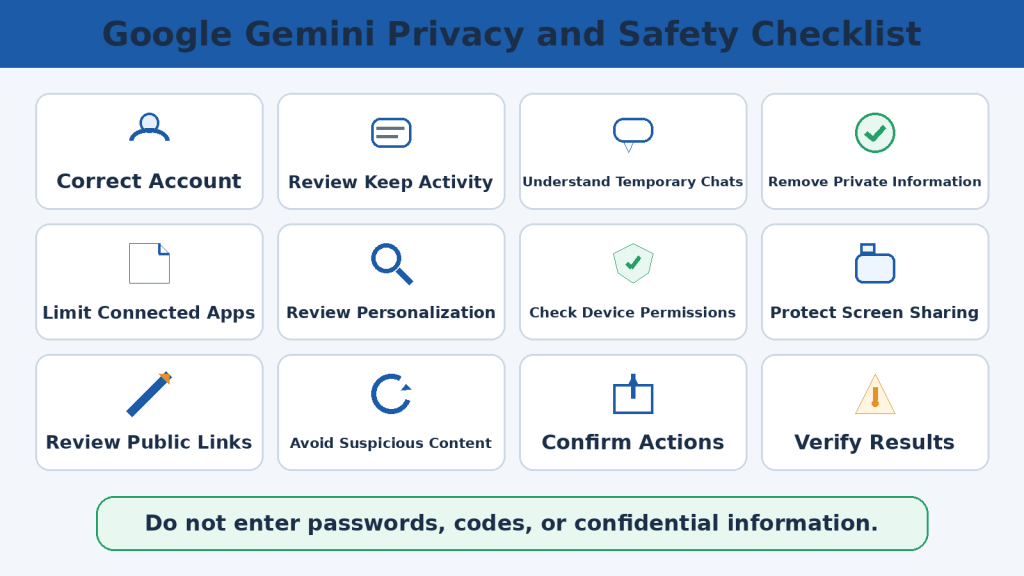
Figure 15. Google Gemini Privacy and Safety Checklist
Privacy and safety depend on account choice, activity settings, permissions, trusted content, and human review.
Benefits of Using Google Gemini
Gemini can help beginners start difficult tasks, understand complex information, improve writing, organize notes, work with supported files, generate alternatives, and plan projects.
These benefits depend on clear prompts, suitable features, careful privacy choices, and human review.
Start tasks
Save drafting time
Explain complex topics
Support learning
Improve writing
Organize information
Work with files
Generate alternatives
Plan projects
Break tasks into steps
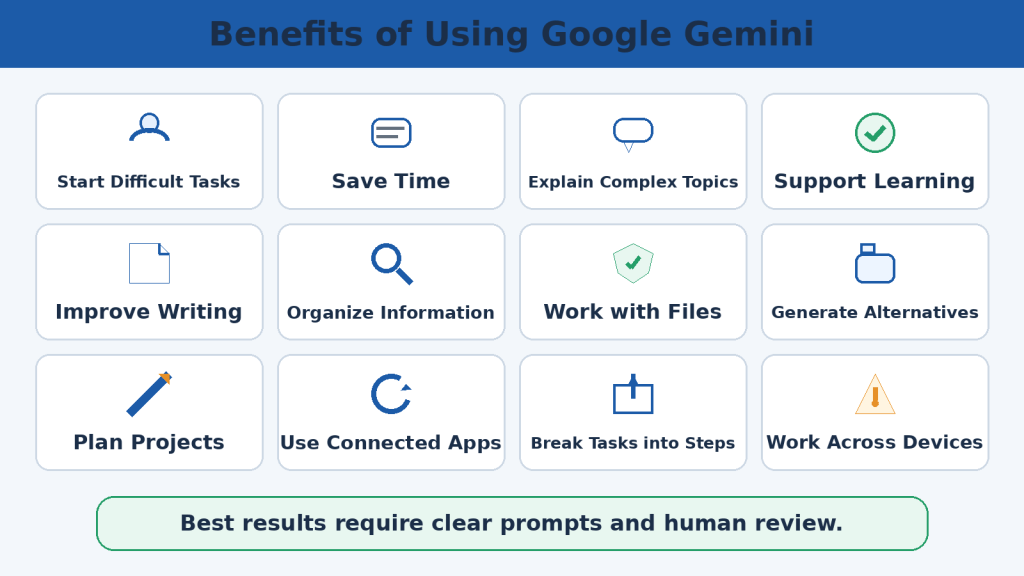
Figure 16. Benefits of Using Google Gemini
Gemini’s benefits are strongest when the tool supports rather than replaces the user’s judgment.
Limitations of Google Gemini
Gemini may provide incorrect or outdated information, misunderstand prompts, miss instructions, misread files or visuals, make calculation errors, reach usage limits, or behave differently across accounts.
It cannot replace qualified medical, legal, financial, tax, immigration, employment, or safety-critical advice.
Incorrect information
Outdated information
Prompt misunderstanding
Missed instructions
Context limits
File-reading errors
Usage limits
Feature differences
Weak source support
Privacy and security risks
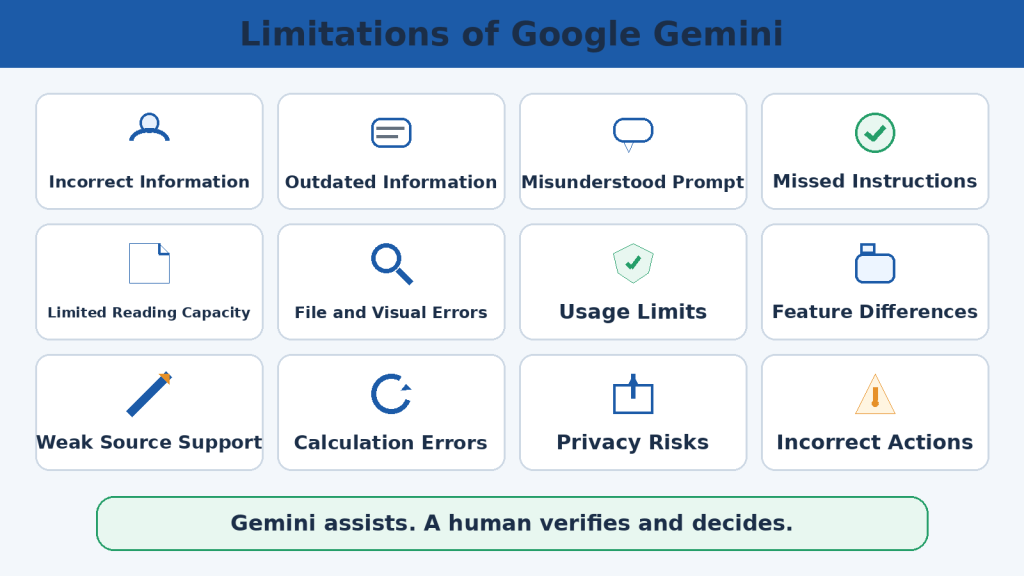
Figure 17. Limitations of Google Gemini
Understanding limitations helps users choose suitable tasks and verification methods.
Frequently Asked Questions About Using Google Gemini
Beginners commonly ask whether an account is required, how to write a prompt, when to start a new chat, how to upload files, whether Gemini is always correct, and how privacy settings work.
The consistent answer is to use the correct account, write a focused prompt, verify important results, protect private information, and save approved work outside Gemini.
Do I need an account?
Can I ask follow-ups?
Can I upload files?
Can I export responses?
Is a public link private?
Is Gemini always correct?
What is Keep Activity?
How do I protect private information?
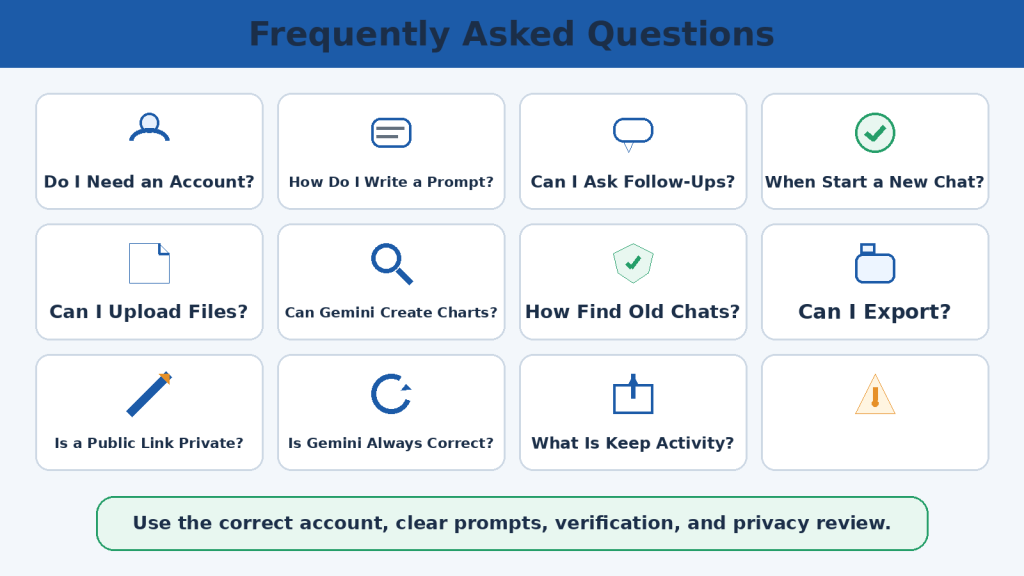
Figure 18. Frequently Asked Questions
Most beginner questions are resolved through clear prompting, verification, privacy review, and careful saving.
Key Takeaways
Gemini is most useful as a starting, organizing, explaining, drafting, and revision assistant. The user remains responsible for accuracy, privacy, permissions, safety, and final decisions.
Follow a simple workflow: confirm the account, start the correct chat, write one clear prompt, add only necessary context, review the response, verify important claims, check privacy, approve the final result, and save it securely.
Confirm account
Start correct chat
Write clear prompt
Add needed context
Upload approved files
Review response
Ask focused follow-ups
Verify claims
Check privacy
Review exports or actions
Approve final result
Save securely
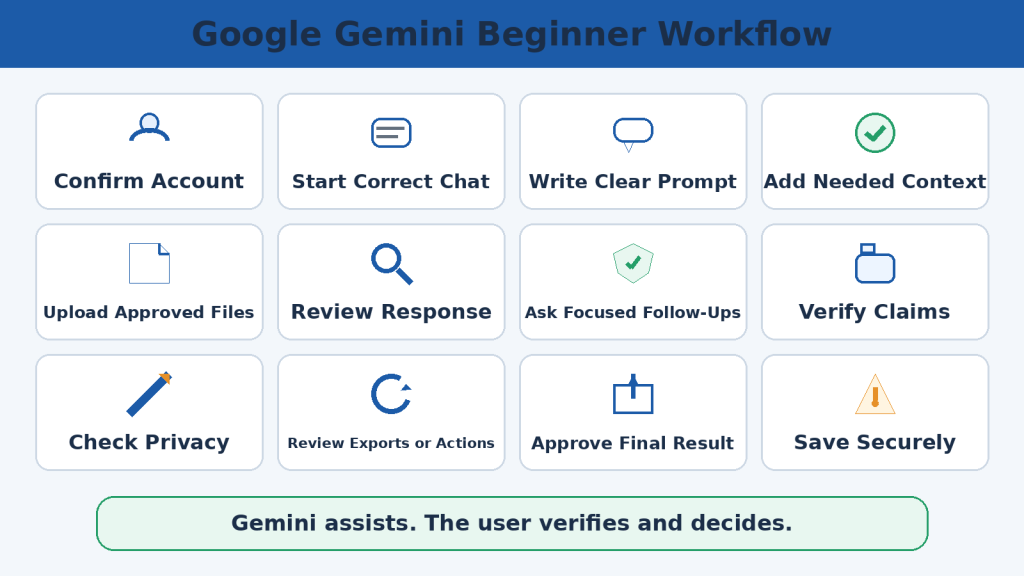
Figure 19. Google Gemini Beginner Workflow
The full workflow keeps a human responsible for every important final result.
Continue Learning
Article 022 – How to Summarize Documents with ChatGPT: Beginner Guide (2026)
Article 023 – How to Analyze Documents with ChatGPT: Beginner Guide (2026)
Article 024 – How to Compare Documents with ChatGPT: Beginner Guide (2026)
Article 025 – How to Extract Information from Documents with ChatGPT: Beginner Guide (2026)
Article 026 – How to Ask Questions About Documents with ChatGPT: Beginner Guide (2026)
Article 029 – How to Translate Documents with ChatGPT: Beginner Guide (2026)
Article 030 – How to Rewrite and Simplify Documents with ChatGPT: Beginner Guide (2026)
Article 031 – How to Proofread and Edit Documents with ChatGPT: Beginner Guide (2026)
Article 032 – How to Format Documents with ChatGPT: Beginner Guide (2026)
Sources and References
Upload and Analyze Files in Gemini Apps
Gemini Apps Limits and Google AI Plan Upgrades


Leave a comment