Tag: Gemini for beginners

  • How to Upload and Analyze Documents with Google Gemini: Beginner Guide (2026)

    How to Upload and Analyze Documents with Google Gemini: Beginner Guide (2026)

    Estimated reading time: Approximately 37 minutes

    Last updated: August 2026

    Introduction

    Google Gemini can help beginners work with uploaded documents by summarizing long files, answering focused questions, extracting specific details, comparing versions, and organizing findings. It can be useful for PDFs, Word documents, spreadsheets, presentations, scans, and other supported file types, depending on the current Gemini feature and account.

    The important point is that uploading a file does not make Gemini’s answer automatically correct. A file may contain unreadable pages, complex tables, charts, handwritten notes, hidden material, conflicting versions, or information that requires professional judgment. Gemini can also omit a warning, misread a number, cite the wrong page, or add information that does not appear in the source.

    For that reason, this guide uses a simple rule throughout: the original document remains the main authority. Gemini is an assistant for locating, organizing, and explaining information. Important answers should be checked against the source before they are used, shared, or published.

    A useful beginner prompt follows this pattern: Task + exact filename + pages or sections + information needed + output format + source rule + missing-information rule + verification.

    Example: Review the attached file named “Website Accessibility Report.pdf.” Use pages 4–15. Extract every recommendation, responsible person, deadline, and stated priority. Present the result in a table. Use only the file, write “Not stated” when information is missing, and include the supporting page for each row.

    What You’ll Learn

    • How to prepare a document before uploading it.

    • How to upload a file from your computer or select a file from Google Drive.

    • How to write a clear document-analysis prompt.

    • How to summarize a document without removing important meaning.

    • How to ask focused questions and request source references.

    • How to extract names, dates, amounts, requirements, risks, and recommendations.

    • How to compare several files without mixing their content.

    • How to identify unreadable or uncertain material.

    • How to check Gemini’s answers against the original source.

    • How to troubleshoot common upload and analysis problems.

    • How to protect privacy, copyright, confidential information, and high-stakes decisions.

    What Google Gemini Can Do with an Uploaded Document

    Depending on the file and the prompt, Gemini may help summarize a document, explain difficult sections, extract key details, organize information into a table, identify stated risks or recommendations, compare sections, and answer questions about the source. These tasks are most reliable when you define exactly what you want instead of asking Gemini to “analyze everything.”

    For example, a general summary and a deadline extraction are different jobs. A summary focuses on the main meaning. An extraction focuses on exact items. A comparison needs clearly named files and criteria. A question-and-answer task should identify the precise question and the part of the source that should support the answer.

    What Gemini Cannot Guarantee

    • That every page, table, chart, image, scan, or handwritten note will be read correctly.

    • That the correct document version will be selected automatically.

    • That every page or section reference will be accurate.

    • That important warnings, exceptions, and qualifications will always be preserved.

    • That calculations, spreadsheet totals, or chart values will be correct.

    • That the answer will remain completely limited to the uploaded source unless you instruct it clearly.

    • That a legal, medical, financial, tax, safety, security, or other high-stakes conclusion is professionally reliable.

    A polished response can still be wrong. Treat clarity and formatting as presentation qualities, not evidence of accuracy.

    Figure 1. Google Gemini can help summarize, explain, extract, organize, compare, and answer questions about supported uploaded documents.

    Explanation: Document analysis works best when the prompt identifies the exact file, the information required, the desired format, and the rules for missing or uncertain information.

    What You Need Before Uploading a Document

    Good document analysis begins before the file reaches Gemini. Preparing the source reduces privacy risks, version mistakes, unreadable content, and wasted analysis.

    Check the Account, File, and Version

    • Sign in to the Google Account you intend to use.

    • Confirm that the file opens normally and is a supported type for the current feature.

    • Use a clear filename such as Website-Accessibility-Report-August-2026.pdf.

    • Choose the correct draft, revised copy, or final approved version.

    • Keep the original file unchanged and work from a separate analysis copy when necessary.

    Check Readability and Size

    Inspect several pages at normal zoom. Look for blurry scans, rotated pages, cut-off tables, faint text, missing pages, unreadable handwriting, very small text, or charts without labels. A file can be technically uploadable but still difficult to analyze reliably.

    The source article notes that Gemini currently allows multiple supported files in a prompt and that file limits can vary by account, file type, and product changes. Large files may still produce incomplete answers. For a very long document, use the smallest authorized section that contains the information needed.

    Check Permission and Privacy

    Before uploading, confirm that you are allowed to use the document with an AI service. Access to a file is not the same as permission to process, reproduce, or share it.

    • Remove unnecessary names, addresses, phone numbers, account numbers, health information, student or employee records, signatures, passwords, API keys, and other private details.

    • Review comments, tracked changes, hidden text, metadata, notes, hidden spreadsheet rows or sheets, and embedded files when they may contain sensitive information.

    • Review Gemini activity and privacy settings before using confidential material.

    • Do not upload a restricted workplace or school file simply because it is technically accessible.

    Define the Task and Review Method

    Decide what you want Gemini to do before uploading. A specific goal might be to summarize one chapter, extract deadlines, compare two versions, explain a technical section, or create a checklist.

    Also decide how you will verify the answer. For important work, plan to check names, dates, numbers, requirements, warnings, page references, tables, and calculations against the original file.

    Figure 2. Before uploading a document, check the account, file type, correct version, readability, size, permission, privacy, activity settings, prompt, backup, and review plan.

    Explanation: Preparing the file before uploading can reduce privacy risks, prevent version confusion, and make Gemini’s response easier to check against the original document.

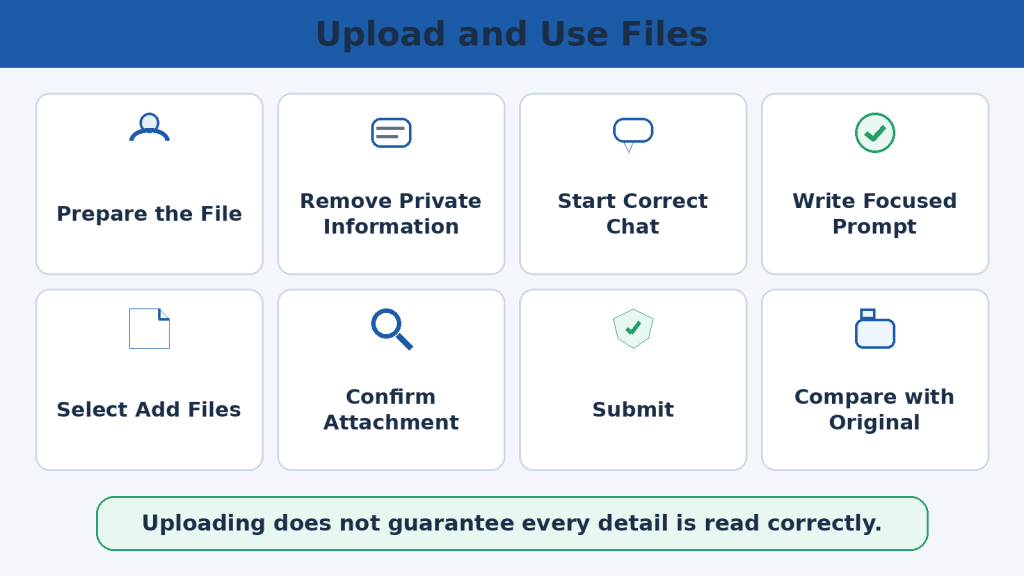
    How to Upload a Document from Your Computer

    The exact Gemini interface can change, but the basic desktop workflow in the source is straightforward. Use the labels shown in your current Gemini screen.

    1. Open Google Gemini in a supported browser and sign in to the correct account.

    2. Start a new chat when the document is unrelated to earlier files or instructions.

    3. Write the analysis prompt or prepare it before attaching the file.

    4. Select Add files in the prompt area.

    5. Choose Upload files.

    6. Find the document on your computer.

    7. Select the correct filename and version.

    8. Wait until the upload finishes and the file appears in the prompt area.

    9. Confirm the attached filename, file type, number of files, and prompt.

    10. Submit the file and prompt.

    Confirm That Gemini Recognized the File

    Do not begin with a long analysis immediately. First ask Gemini to identify the source it received.

    State the exact filename you received, the apparent file type, the number of pages or visible sections you can identify, and any content you could not read reliably. Do not analyze the document yet.

    Then perform a small verification task. For example, ask for the document title, publication date, organization, and first few headings. Compare the answer with the original. If Gemini identifies the wrong file or clearly misreads the source, stop and correct the problem before continuing.

    Work in Stages for Long Files

    For a long report, analyze pages or sections in manageable groups. Review each stage, then combine only the verified findings. This is safer than requesting one enormous answer from hundreds of pages.

    Figure 3. Uploading a document involves opening Gemini, preparing the prompt, selecting Add files, choosing Upload files, confirming the correct document, submitting it, and checking that Gemini recognized it.

    Explanation: A successful upload is only the beginning. Confirm the filename and readable content, perform a small verification task, and compare the main analysis with the original document.

    How to Add a Document from Google Drive

    Gemini can also work with supported files stored in Google Drive when the required account and connected-service settings are available. The source notes that Drive access depends on the correct Google Account, Keep Activity, the Google Workspace connection, and administrator settings for some work or school accounts.

    1. Open Google Drive and confirm the exact file, owner, location, and version.

    2. Open Gemini with the Google Account that has access to the Drive file.

    3. Review Keep Activity and the applicable privacy settings.

    4. Confirm that Google Workspace is connected when required.

    5. Start a suitable Gemini chat.

    6. Write the document-analysis prompt.

    7. Select Add files.

    8. Choose Add from Drive.

    9. Locate the exact file using its filename, folder, owner, or distinctive keywords.

    10. Check the version and last-modified information before selecting it.

    11. Attach the file and submit the prompt.

    12. Ask Gemini to confirm the filename and visible content before detailed analysis.

    When Drive Access Is Missing

    If Add from Drive is not available, check the signed-in account, Keep Activity, Google Workspace connection, browser session, feature availability, and administrator restrictions. If the document is authorized for use, downloading a copy and using Upload files may be another option.

    Do Not Assume Connected Access Means Complete Access

    The source warns that some Google Workspace content may not be available through the connection, including certain comments, images, and ordinary Drive media. When a document depends on comments, visual material, or another unsupported element, review that material separately.

    Figure 4. Adding a Drive document involves using the correct account, reviewing Keep Activity, connecting Google Workspace, selecting Add from Drive, confirming the exact file, and verifying the source before analysis.

    Explanation: Google Drive integration can simplify file access, but users must still confirm account permissions, file versions, readable content, and the accuracy of Gemini’s response.

    How to Write a Clear Document-Analysis Prompt

    A clear prompt tells Gemini what to examine, what to find, how to organize the answer, and how to handle missing or uncertain information. The source uses a practical formula:

    Task + Exact Filename + Relevant Pages or Sections + Required Information + Output Format + Source Rule + Missing-Information Rule + Verification

    1. State the Task

    Use a clear action word such as summarize, explain, extract, compare, review, identify, organize, locate, classify, or verify. Avoid “Analyze this” unless you define what analysis means.

    2. Name the Source and Scope

    Use the exact filename and identify pages, sections, slides, sheets, rows, cells, tables, or charts when the file is long or complex.

    3. List the Required Information

    Do not expect Gemini to decide automatically which details are important. State the fields you need, such as purpose, findings, deadlines, responsible people, requirements, costs, risks, exceptions, recommendations, and unresolved questions.

    4. Choose the Output Format

    Tables are useful for structured extraction. Bullets are useful for concise summaries. Numbered lists are useful when the source contains an ordered process. Timelines are useful for dated events.

    5. Add Source and Missing-Information Rules

    Use only information from the attached file. Do not add outside knowledge. Write “Not stated” when the file does not provide the answer.

    6. Request References and Verification

    Include the exact filename and supporting page or section after every important point. Mark any item affected by unreadable text, an unclear table, or uncertain source content as “Needs manual review.”

    For high-stakes content, also tell Gemini not to provide a professional conclusion and to preserve exact wording for obligations, warnings, dates, amounts, and technical terms.

    Figure 5. A clear document-analysis prompt identifies the task, exact filename, relevant pages, required information, output format, source rule, missing-information rule, and verification method.

    Explanation: Specific document prompts make Gemini’s response easier to review because the expected findings, source boundaries, and handling of missing information are defined before analysis begins.

    How to Summarize an Uploaded Document

    A useful summary is shorter than the source but still preserves its important meaning. The main risk is not simply “being too short.” A summary can be misleading if it removes a warning, changes a date, turns a recommendation into a requirement, or makes uncertain wording sound definite.

    Choose the Type of Summary

    • General summary: the main purpose and important points.

    • Executive summary: major findings, risks, recommendations, decisions, and deadlines.

    • Section-by-section summary: a short explanation under each original heading.

    • Action summary: tasks, responsible people, deadlines, and dependencies.

    • Beginner summary: plain-language explanations with technical terms defined.

    • Short summary: a tightly limited overview for quick reading.

    Build the Prompt

    Summarize the attached file named “Program Guide 2026.pdf” for a complete beginner. Include the purpose, eligibility, required documents, application steps, deadlines, fees, and contact information. Use eight bullet points. Use only the file, include the supporting page after every point, and write “Not stated” when information is missing.

    Protect Important Meaning

    Ask Gemini to preserve names, dates, numbers, warnings, qualifications, exceptions, required actions, and the original level of certainty. Words such as may, should, must, recommended, optional, and confirmed should not be silently changed.

    Review the Summary

    Compare the summary with the original file. Check whether the correct pages were used, important topics were included, unsupported information was added, warnings were omitted, or page references are wrong. Review tables and charts separately because visual and structured content is easier to misinterpret.

    Figure 6. A reliable document summary confirms the correct file, defines the audience and required details, uses source rules, preserves important meaning, and is checked against the original.

    Explanation: The most useful summaries are specific about length, format, required information, missing-information handling, and source references. Human review remains necessary because important warnings or qualifications may be omitted.

    How to Ask Questions About an Uploaded Document

    After the file has been confirmed, focused questions can be more useful than a broad summary. A good document question identifies the exact file, relevant page or section, information needed, answer format, source rule, missing-information rule, and reference requirement.

    Ask One Main Question at a Time

    Questions such as “What is the deadline?” or “Which documents are required?” are easier to verify than a single prompt containing ten unrelated requests. When several related questions are needed, a table can keep the answers organized.

    According to “Application Guide 2026.pdf,” what is the final submission deadline? Include the exact date, time, time zone, and source page. Write “Not stated” when any part is missing.

    Useful Question Types

    • What is the document’s main purpose?

    • Who is eligible or responsible?

    • What requirements, fees, dates, deadlines, warnings, or exceptions are stated?

    • What does a difficult paragraph mean in plain language?

    • What information is missing or contradictory?

    • What changed between two clearly named versions?

    • What does a specific table, chart, row, cell, or slide show?

    Separate Source Facts from Inference

    Separate the answer into Directly Stated in the Document, Reasonable Inference, Outside Information, and Not Supported. Include the source page for every directly stated point.

    This does not guarantee that Gemini will classify everything correctly, but it makes unsupported material easier to notice during review.

    Figure 7. A clear document question identifies the exact file, relevant pages, required answer, source rule, missing-information rule, response format, and supporting reference.

    Explanation: Focused questions are easier to verify than broad requests. Gemini should be instructed not to guess when the answer is missing and to identify the exact page, section, slide, sheet, row, or cell supporting each response.

    How to Extract Important Information

    Extraction is different from summarization. A summary reduces a document to its main ideas. Extraction locates exact items and places them into a structured format.

    Choose the Extraction Categories

    • Names, organizations, roles, and contact details.

    • Dates, deadlines, review periods, and renewal dates.

    • Amounts, fees, percentages, currencies, and reference numbers.

    • Mandatory, recommended, optional, and unclear requirements.

    • Required documents, forms, approvals, and responsibilities.

    • Risks, recommendations, warnings, exceptions, and decisions.

    • Table values, spreadsheet rows, slide actions, or other structured information.

    Use a Table

    Extract every deadline, responsible person, required document, fee, and contact detail from the attached file named “Program Guide 2026.pdf.” Use a table with Category, Extracted Information, Source Page, and Review Notes. Use only the file and write “Not stated” when information is missing.

    For information where wording matters, add separate columns for Exact Source Wording and Plain-Language Explanation.

    Preserve Exact Details

    Names, dates, amounts, currencies, reference numbers, warnings, and conditions should be copied carefully. For requirements, preserve words such as must, should, may, required, recommended, and optional.

    Extract Complex Content Separately

    If the file contains a complex table, chart, or spreadsheet, review that element on its own. Preserve headings, row labels, units, footnotes, blank cells, and source locations. Do not treat a blank spreadsheet cell as zero unless the source defines it that way.

    Figure 8. Information extraction works best when the required categories, exact file, source range, output table, missing-information rule, and verification process are defined clearly.

    Explanation: Structured extraction can organize names, dates, amounts, requirements, responsibilities, risks, and contact information, but every important item should be compared with the original source.

    How to Analyze Themes, Findings, Risks, and Recommendations

    Deeper document analysis can examine recurring ideas and relationships, but the categories must remain separate. A theme is a recurring subject. A finding is a conclusion or observation stated in the source. Evidence supports a finding. A risk is a possible negative outcome. A recommendation is an action proposed by the source. A limitation explains what the source could not establish fully.

    Analyze Themes

    Identify the main recurring themes in the attached document. For each theme, include a short description, supporting pages, examples from the document, and why it appears important. Do not create a theme from one isolated sentence.

    Analyze Findings and Evidence

    Extract every stated finding and the evidence used to support it. Use a table with Finding, Evidence, Source Page, Level of Certainty, and Limitation. Preserve words such as may, suggests, likely, possible, and confirmed.

    Analyze Risks and Recommendations

    Identify every risk explicitly stated in the document and every recommendation stated by the author. Keep them in separate tables. Do not invent risks or recommendations that are not in the source.

    For each recommendation, check whether the source states a reason, supporting finding, responsible person, priority, deadline, or expected result. Write “Not stated” for missing fields rather than filling them in.

    Identify Limitations and Unresolved Questions

    A limitation can affect how strongly a finding should be interpreted. Unresolved questions can show where additional evidence, clarification, or a decision is needed. Keep both visible instead of allowing a polished summary to hide uncertainty.

    Figure 9. Document analysis should separate recurring themes, stated findings, supporting evidence, risks, recommendations, limitations, and unresolved questions.

    Explanation: Separating analysis categories reduces the chance that an opinion, inference, or suggestion will be presented as a confirmed finding or formal recommendation.

    How to Compare Several Uploaded Documents Without Mixing Them

    Comparing several files increases the risk of source confusion. Gemini may attribute information to the wrong file, combine versions, omit a document, or cite the wrong page. A reliable comparison begins by assigning every file a clear role.

    1. List every file by its exact filename.

    2. Define which file is earlier, current, draft, approved, original, revised, or supporting.

    3. Ask Gemini to confirm that every file was recognized.

    4. Summarize each file separately before comparing them.

    5. Choose the exact comparison criteria.

    6. Use a table that identifies the source file for every statement.

    7. Request filename and page references for both sides of each difference.

    8. Classify each difference as Added, Removed, Revised, Unchanged, Moved, Renamed, or Unclear.

    9. Preserve exact wording when a change affects obligations, dates, amounts, permissions, warnings, or certainty.

    10. Audit the completed comparison against every original file.

    Compare “Remote Work Policy 2025.pdf” and “Remote Work Policy 2026 Final Approved.pdf.” Identify changes in eligibility, responsibilities, deadlines, fees, exceptions, warnings, and termination conditions. Include both filenames and source pages. Do not decide which rule is authoritative beyond the role stated in this prompt.

    Compare Tables, Charts, and Spreadsheets Separately

    Structured content should be checked separately from surrounding text. For spreadsheets, identify the workbook, sheet, columns, matching key, blank-cell treatment, formulas, and subtotal or total rows before calculating differences.

    Figure 10. A reliable multi-document comparison defines each file’s role, summarizes the files separately, uses clear criteria, classifies changes, and includes source references for every difference.

    Explanation: Separating files before comparing them reduces version confusion and incorrect source attribution. Important wording, dates, amounts, requirements, and warnings should be checked against every original document.

    How to Request and Check Source References

    Source references help you find the exact information that supports a Gemini answer. Depending on the file type, the useful reference may be a page, section heading, slide number, sheet name, row, cell, table, chart, or exact filename plus location.

    Ask for the Smallest Useful Reference

    • Document: filename, page, section, and short source phrase.

    • Presentation: filename, slide number, slide title, and source type.

    • Spreadsheet: filename, sheet, row or cell, and column heading.

    • Table: filename, page, table title, row, and column.

    • Chart: filename, page or slide, chart title, category, series, value, and unit.

    When printed page numbers differ from the PDF viewer page numbers, ask Gemini to state both. For a document without page numbers, use section and subsection headings plus a short locating phrase.

    References Must Be Verified

    A reference can be confidently wrong. Open the file and confirm that the cited location exists and actually supports the claim. Check the correct file version, nearby context, printed versus viewer page numbering, and any relevant footnote or table note.

    Audit every reference in your previous response. Confirm the filename, page, section, slide, sheet, row, cell, table, or chart location. Mark each reference as Correct, Partly Correct, Incorrect, Unclear, or Needs Manual Review.

    Figure 11. Document references may identify a page, section, slide, sheet, row, cell, table, chart, and exact filename, but every important reference should be checked manually.

    Explanation: Precise source references make document answers easier to verify. References should identify the smallest useful location and distinguish files, versions, printed pages, viewer pages, sheets, rows, and cells clearly.

    How to Identify Unreadable, Missing, or Uncertain Content

    Gemini may produce a confident answer even when part of a file is unclear. Before relying on the analysis, ask for a readability review.

    Review the attached file for readability before analyzing it. Identify unreadable pages, blurred text, cut-off content, unclear tables, difficult charts, handwritten notes, missing page numbers, blank pages, and information you may not have interpreted reliably. Do not summarize the document yet.

    Use Clear Readability Labels

    • Readable

    • Mostly Readable

    • Partly Readable

    • Unreadable

    • Missing

    • Needs Manual Review

    Common Problems to Check

    • Blurry or low-contrast scans.

    • Missing, duplicated, blank, or out-of-order pages.

    • Multi-column text read in the wrong order.

    • Merged cells, repeated headings, footnotes, or cut-off rows in tables.

    • Small chart labels, missing legends, unclear units, or truncated axes.

    • Handwritten notes or signatures.

    • Text inside screenshots, diagrams, photographs, or scanned forms.

    • Comments, tracked changes, hidden rows, hidden sheets, embedded files, or other material Gemini could not access.

    • Unclear dates, numbers, currency symbols, units, names, and reference codes.

    • Broken characters or formatting caused by file conversion.

    Do Not Guess Important Content

    If a deadline, amount, legal obligation, medical result, safety instruction, or other important detail is unclear, mark it for manual review. Re-scan the page, upload a clearer source, inspect the original, or obtain a better copy. Do not reconstruct missing content from context.

    Figure 12. A document-readability review should identify blurry scans, missing pages, cut-off text, unclear tables, difficult charts, handwriting, broken characters, hidden content, and uncertain numbers before analysis begins.

    Explanation: Separating readable content from uncertain or missing content reduces the risk that Gemini will present a guessed word, number, date, or table value as confirmed information.

    How to Review Gemini’s Document Analysis Against the Original

    A Gemini analysis should not be accepted as final until it has been compared with the original source. The safest method is to review one claim, row, or section at a time.

    1. Confirm the exact source file, version, and pages used.

    2. Compare the response with the original prompt and check whether every requested requirement was followed.

    3. Check the document structure: title, headings, appendices, tables, charts, sheets, or slides.

    4. Review every major statement against the source.

    5. Classify each statement as Supported, Partly Supported, Unsupported, Misinterpreted, Wrong Source, Missing Qualification, Incorrect Reference, or Needs Manual Review.

    6. Verify page and section references manually.

    7. Check names, roles, organizations, dates, time periods, amounts, currencies, units, and reference numbers.

    8. Check requirement wording such as must, shall, should, may, recommended, optional, and prohibited.

    9. Restore omitted warnings, exceptions, conditions, and limitations.

    10. Check that the original level of certainty was preserved.

    11. Separate outside information and inference from source facts.

    12. Review tables, charts, images, spreadsheets, formulas, and calculations separately.

    13. Approve corrections before Gemini rewrites the answer.

    14. Audit the corrected result again.

    Reusable Review Prompt

    Review the previous analysis against the original uploaded file. Check filename and version, prompt compliance, missing information, unsupported additions, names and roles, dates and deadlines, numbers and units, requirement wording, warnings and exceptions, source references, tables, charts, images, calculations, findings, risks, recommendations, privacy, and high-stakes concerns. Present the review as a table. Do not rewrite the analysis until I approve the corrections.

    Figure 13. Reviewing a Gemini document analysis requires checking the source file, prompt requirements, facts, dates, numbers, wording, references, tables, calculations, conclusions, and approved corrections.

    Explanation: A statement-by-statement review makes unsupported additions, omitted qualifications, incorrect references, and changed meanings easier to identify before the analysis is used.

    Common Google Gemini Document Upload and Analysis Problems

    Problems may come from the account, browser, file, version, upload process, prompt, source quality, or analysis method. Troubleshoot one cause at a time.

    Upload Problems

    • Add files is missing: confirm sign-in, feature availability, administrator restrictions, browser loading, and the current interface.

    • The upload is stuck: wait, check the connection, try one smaller file, save a fresh copy, or retry later.

    • Gemini cannot analyze the file: confirm that the file opens, remove unnecessary pages, simplify the prompt, or convert to a suitable supported format.

    • The wrong file was attached: stop, remove it, and attach the intended version.

    Analysis Problems

    • Gemini uses an older version: clearly identify the authoritative filename and exclude earlier drafts.

    • Several files are mixed: start a new chat, analyze each source separately, and include the filename with every finding.

    • The scan is unreadable: replace it with a clearer source instead of accepting guessed text.

    • The table or chart is misread: analyze the visual element separately and verify labels, units, rows, and values manually.

    • Outside information appears in a source-only answer: ask Gemini to separate source facts from inference and unsupported content.

    • Page references are wrong: audit references without rewriting the approved answer.

    • Spreadsheet totals are wrong: repeat the calculation from verified source rows, excluding existing subtotal or total rows when appropriate.

    Low-Risk Troubleshooting Order

    1. Confirm the correct account.

    2. Confirm the file opens.

    3. Confirm the correct version.

    4. Check file size and format.

    5. Use a clear filename.

    6. Upload one file.

    7. Use a simple prompt.

    8. Confirm that Gemini recognized the file.

    9. Test one small source-based question.

    10. Split the document if needed.

    11. Try an updated browser.

    12. Retry later or report the problem if it continues.

    Figure 14. Common document problems include missing upload controls, failed or stuck uploads, wrong files, unreadable scans, mixed versions, incorrect references, skipped tables, unsupported additions, and spreadsheet errors.

    Explanation: A low-risk troubleshooting process checks the account, file condition, version, size, upload status, prompt, source references, and analysis method one issue at a time.

    Privacy, Security, Copyright, and Responsible Document Use

    Technical upload support does not determine whether a document is appropriate to use. The user must consider permission, confidentiality, privacy, copyright, account settings, organizational rules, and the intended result.

    Use Only Authorized Information

    Before uploading, ask whether you created the document, have permission from the owner, or are otherwise authorized to process it with an AI service. Workplace, school, customer, medical, financial, government, and legal records may have additional restrictions.

    Minimize Private and Confidential Information

    • Remove information that Gemini does not need for the task.

    • Never upload passwords, security codes, recovery keys, API keys, or access tokens.

    • Use neutral labels for unnecessary names or account details when exact identity is not required.

    • Check hidden comments, tracked changes, metadata, and attachments.

    • Use secure devices, accounts, and approved storage locations for downloaded or exported results.

    Respect Copyright and Licence Conditions

    Having a copy of a document does not automatically give permission to reproduce, republish, translate, or distribute its contents. Check the relevant copyright, licence, employment, customer, or organizational terms before sharing the source or the AI-generated result.

    Use Qualified Review for High-Stakes Material

    Gemini can organize what a document states, but it should not replace a lawyer, healthcare professional, accountant, financial adviser, safety specialist, security professional, or other qualified reviewer when an important decision depends on the material.

    Protect the Output

    AI-generated summaries and extracts can contain private information from the source. Review them before copying, exporting, emailing, sharing, or publishing. Label unreviewed files clearly and preserve the original source separately.

    Figure 15. Responsible document use requires authorization, data minimization, privacy review, credential removal, copyright checks, secure sharing, professional review, and final human approval.

    Explanation: Technical upload support does not determine whether a document is appropriate to use. The user must consider ownership, permission, confidentiality, account settings, organizational policy, security, and the intended use.

    Benefits and Limitations of Using Google Gemini for Document Analysis

    Benefits

    • It can reduce the time needed for a first-pass summary.

    • It can explain difficult wording in simpler language.

    • It can organize extracted information into tables and checklists.

    • It can help locate names, dates, amounts, requirements, risks, and recommendations.

    • It can compare clearly identified versions or sections.

    • It can generate follow-up questions and review checklists.

    • It can help beginners understand the structure of a long or technical document.

    Limitations

    • A supported file can still contain unreadable or poorly interpreted content.

    • Gemini can use the wrong file or version.

    • References may point to the wrong page, section, slide, row, or cell.

    • Tables, charts, images, and spreadsheet formulas require extra review.

    • Missing information may be guessed unless the prompt tells Gemini not to infer.

    • A summary can omit warnings, exceptions, or uncertainty.

    • Calculations can be wrong even when the extracted values look plausible.

    • Privacy and copyright are not solved automatically by using Gemini.

    • Professional-looking output is not the same as professional approval.

    The practical value of Gemini is strongest when it acts as a first-pass assistant inside a careful workflow: prepare the source, define the task, request precise references, verify important details, and approve the final result.

    Figure 16. Google Gemini can speed up summaries, explanations, extraction, questioning, comparison, and organization, but its answers, references, calculations, visual interpretation, privacy handling, and high-stakes conclusions require careful review.

    Explanation: Gemini is most useful as a first-pass document assistant. The original source, clear prompts, manual verification, privacy review, and qualified judgment remain essential.

    Common Myths About Google Gemini Document Analysis

    Myth 1: If the File Uploaded, Gemini Read Everything Correctly

    Reality: Upload success confirms that the file was accepted, not that every page, table, image, chart, or handwritten note was interpreted correctly.

    Myth 2: Gemini Automatically Uses the Correct Version

    Reality: Similar filenames and old drafts can cause confusion. Name the exact file and define which version is current.

    Myth 3: Page References Are Automatically Reliable

    Reality: Gemini can cite the wrong page or a nearby section. Open and verify important references.

    Myth 4: Tables and Charts Are Just as Easy as Ordinary Text

    Reality: Structured and visual material requires separate checking for headings, units, row relationships, labels, legends, footnotes, and scale.

    Myth 5: Gemini Protects Privacy Automatically

    Reality: The user still needs to decide whether the source is appropriate to upload, remove unnecessary information, review activity settings, and control how the output is stored and shared.

    Myth 6: A Confident Answer Must Be Correct

    Reality: Confidence, detail, and professional formatting do not prove that the source supports the answer.

    Myth 7: Self-Auditing Replaces Human Review

    Reality: Asking Gemini to audit itself is useful, but the final check must still compare the answer with the original source.

    Figure 17. Common myths include assuming that Gemini reads every file perfectly, uses the correct version, provides accurate references, understands tables and charts, protects privacy automatically, and produces final professional conclusions.

    Explanation: Recognizing these myths encourages a safer workflow based on clear prompts, source-only rules, careful file selection, manual reference checks, privacy review, and qualified human judgment.

    Frequently Asked Questions

    Can I upload a PDF, Word document, spreadsheet, presentation, image, or other file?

    Gemini supports many common file types, but exact availability and limits can vary. Use the current Gemini interface and official help information for the account and file type you are using.

    How many files can I add at once?

    The source article states that Gemini currently supports multiple files in a prompt, subject to account and product limits. For reliable beginner work, use only the files needed and analyze complicated sources separately before comparing them.

    Should I upload a 500-page file all at once?

    You can sometimes upload large documents within the technical limit, but a smaller relevant section is often easier to analyze and verify. Divide very long files by chapter, section, or task when practical.

    Can Gemini summarize my document?

    Yes, but define the audience, topics, length, format, source-only rule, and references. Review the summary for omitted warnings, changed numbers, and unsupported additions.

    Can I ask questions about the file?

    Yes. Ask one focused question at a time and require the source page or section. Tell Gemini not to guess when the answer is missing.

    Can Gemini extract names, dates, amounts, or deadlines?

    Yes. Structured extraction works well when you define the fields, output table, source references, and missing-information rule. Verify important values manually.

    Can Gemini compare two versions?

    Yes, but name both files, define their roles, summarize them separately first, and include the filename and source location for every difference.

    Can Gemini read tables, charts, and spreadsheets?

    It can analyze supported structured and visual material, but these elements need separate verification. Check headings, units, formulas, blank cells, total rows, chart axes, legends, and source notes.

    What if a scan is blurry?

    Do not rely on guessed text. Mark the affected content for manual review and replace the page with a clearer scan or original file when possible.

    Can I use Gemini for contracts, medical reports, or financial records?

    Gemini can help organize what the source states, but it should not provide the final professional judgment. Protect sensitive information and obtain qualified review before making high-stakes decisions.

    Can Gemini’s page references be wrong?

    Yes. Verify important references directly in the source.

    Does deleting a Gemini chat delete the original file?

    No. The original source file and Gemini activity are separate. Activity, connected-service data, and downloaded copies may have different controls.

    What is the most important rule?

    Treat Gemini’s response as an AI-generated interpretation. The original document remains the final reference.

    Figure 18. Beginners commonly ask about file uploads, Drive access, summaries, questions, extraction, comparison, tables, charts, spreadsheets, privacy, copyright, troubleshooting, and source verification.

    Explanation: The safest answer to most document-analysis questions is to define the task clearly, use only the intended source, request precise references, protect private information, and compare the result with the original file.

    Best Practices for Reliable Google Gemini Document Analysis

    1. Confirm permission before uploading the source.

    2. Preserve the original document unchanged.

    3. Prepare a safe copy and remove unnecessary private information.

    4. Use a descriptive filename and confirm the correct version.

    5. Check readability before analysis.

    6. Upload only the files required for the current task.

    7. Ask Gemini to confirm the filename and visible content.

    8. Define one clear task at a time.

    9. State the exact scope, audience, and required information.

    10. Choose a useful output format.

    11. Use source-only instructions when outside information is not wanted.

    12. Tell Gemini how to handle missing or uncertain information.

    13. Request precise source references.

    14. Review tables, charts, images, and spreadsheets separately.

    15. Verify dates, numbers, amounts, units, and calculations independently.

    16. Keep themes, findings, risks, recommendations, limitations, and inference separate.

    17. Summarize each file separately before comparing multiple sources.

    18. Review every important statement against the original.

    19. Approve corrections before applying them.

    20. Audit the corrected result and share only the reviewed version.

    Reusable Beginner Workflow Prompt

    Use only the attached file named [filename]. First confirm the file, version, readable pages, and any content you cannot interpret reliably. Then complete this task: [task]. Use only [pages or sections]. Include [required information] in [format]. Write “Not stated” when information is missing. Preserve names, dates, numbers, warnings, requirements, exceptions, and levels of certainty. Include the supporting source location after every important point. Mark uncertain content as “Needs manual review.” Do not add outside information or professional conclusions.

    Figure 19. Reliable Google Gemini document analysis requires careful file preparation, a focused prompt, source-only rules, precise references, manual verification, controlled corrections, and final human approval.

    Explanation: A staged workflow reduces the risk of mixed files, unsupported answers, missing qualifications, incorrect calculations, privacy problems, and unverified conclusions.

    Key Takeaways

    • Use the correct file and version.

    • Prepare a safe copy and preserve the original.

    • Ask one clear task at a time.

    • Define the exact scope and required information.

    • Choose a clear output format.

    • Use source-only rules when appropriate.

    • Tell Gemini what to do when information is missing.

    • Preserve exact wording, dates, numbers, warnings, and certainty.

    • Request precise source references.

    • Check readability before analysis.

    • Review tables, charts, and spreadsheets separately.

    • Verify calculations independently.

    • Separate themes, findings, risks, recommendations, and inference.

    • Summarize each file separately before comparison.

    • Protect privacy, security, copyright, and confidential information.

    • Use qualified review for high-stakes documents.

    • Approve corrections before they are applied.

    • Treat the original document as the final authority.

    A reliable document workflow is a process, not a single prompt. The goal is not to make Gemini sound confident. The goal is to produce an answer that can be traced back to the correct source and reviewed by the person responsible for using it.

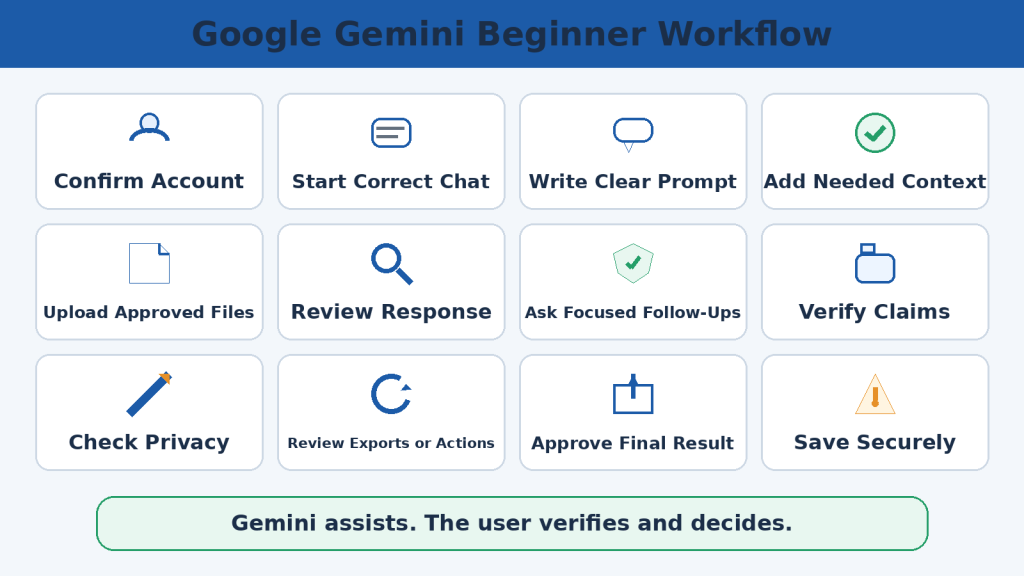
    Figure 20. Reliable Google Gemini document analysis depends on the correct file, a clear task, source-only instructions, precise references, privacy protection, manual verification, controlled corrections, and final human approval.

    Explanation: The original document remains the final authority. Gemini is most useful as an assistant for organizing, summarizing, extracting, comparing, and explaining information that will still be checked by the user.

    Conclusion

    Google Gemini can help beginners work with documents more efficiently by summarizing information, answering focused questions, extracting details, comparing versions, identifying themes, and organizing findings. These capabilities are useful because they can reduce repetitive first-pass work and make a difficult source easier to navigate.

    The most reliable results begin with a carefully prepared source file and a clearly defined task. Confirm permission, preserve the original, remove unnecessary private information, choose the correct version, and use a clear filename. After upload, ask Gemini to confirm the source and identify anything it cannot read reliably.

    Then define one specific task. State the pages or sections to use, list the information that must be included, choose the format, add source-only and missing-information rules, and request precise references. When the answer arrives, compare it with the original file. Check names, dates, amounts, units, requirements, warnings, exceptions, page references, tables, charts, formulas, calculations, and conclusions.

    When you find a problem, ask Gemini to list the proposed corrections first. Approve only the corrections you have verified, apply them, and audit the result again. For medical, legal, financial, tax, employment, safety, security, or other high-stakes documents, use Gemini to organize the stated information and prepare questions rather than replacing qualified professional judgment.

    The final rule is simple: upload carefully, prompt clearly, verify thoroughly, and use only the reviewed result.

    Figure 21. A reliable Google Gemini document workflow prepares the file, defines the task, requests source-based analysis, verifies the response, applies approved corrections, and keeps the original document as the final authority.

    Explanation: Following a staged workflow helps reduce unreadable-source problems, unsupported answers, mixed files, privacy risks, incorrect references, and unverified conclusions.

    Sources and References

    The original Article 037 source package identifies the following official Google resources for the product, account, privacy, activity, and responsible-use information in this guide. Gemini features, limits, settings, and interface labels can change, so current official guidance should be checked when the article is updated or when a feature matters to an important task.

    1. Upload and Analyze Files in Gemini Apps

    Google Gemini Apps Help. Supports the article’s guidance on file uploads, supported file categories, file-analysis errors, changing limits, large-file considerations, and work or school account requirements.

    2. Connect Google Workspace to Gemini Apps

    Google Gemini Apps Help. Supports the guidance on using authorized Google Drive and Google Docs information, account requirements, Keep Activity, administrator restrictions, connected-app limitations, and source verification.

    3. Gemini Apps Privacy Hub

    Google Gemini Apps Help. Explains privacy considerations, uploaded-file handling, connected-app data, Keep Activity, retention information, human review, and why users should avoid unnecessary confidential information.

    4. Manage and Delete Gemini Apps Activity

    Google Gemini Apps Help. Explains how users can review or delete Gemini Apps activity and how personal and managed account controls may differ.

    5. Download Gemini Apps Data

    Google Gemini Apps Help. Explains exporting Gemini Apps information and the distinction between downloading data and deleting it.

    Source Review Reminder: Readers do not need to reread every policy before every document. Check current official information when first using a feature, changing plans or accounts, receiving a policy-update notice, using sensitive information, or periodically when maintaining the article.

    Continue Learning

    After learning the Gemini document workflow, continue with related AI Mastery guides. Add internal links only after confirming that each article is published and its permanent URL works.

    • How to Summarize Documents with ChatGPT: Beginner Guide (2026)

    • How to Analyze Documents with ChatGPT: Beginner Guide (2026)

    • How to Compare Documents with ChatGPT: Beginner Guide (2026)

    • How to Extract Information from Documents with ChatGPT: Beginner Guide (2026)

    • How to Ask Questions About Documents with ChatGPT: Beginner Guide (2026)

    • How to Use Google Gemini with Gmail, Google Drive, and Google Docs: Beginner Guide (2026)

  • Best Google Gemini Prompts for Beginners: Practical Examples (2026)

    Best Google Gemini Prompts for Beginners: Practical Examples (2026)

    Estimated reading time: Approximately 35–40 minutes

    Last updated: August 2026

    Google Gemini can produce more useful responses when a prompt clearly explains the task, audience, format, context, and important restrictions. Beginners do not need complicated prompt formulas or technical commands. They need clear instructions written in ordinary language.

    This corrected guide focuses on 50 practical prompts that beginners can copy, paste, and customize for learning, writing, communication, documents, planning, research, spreadsheets, images, everyday tasks, work, and coding.

    Gemini can still produce incorrect, incomplete, or outdated information. Review important responses, verify factual claims through reliable sources, repeat important calculations independently, and avoid sharing unnecessary private or confidential information.

    What You Will Learn

     What a Google Gemini prompt is and why clear instructions matter

     A simple prompt formula that works for many beginner tasks

     How to customize a prompt for your audience, format, and goal

     50 practical prompt examples across common everyday and work tasks

     How to improve a weak prompt instead of starting over

     Common prompting mistakes and how to avoid them

     How to review Gemini’s response before using or publishing it

    Before You Start

    Use the minimum information needed for the task. Remove unnecessary personal, financial, medical, customer, employee, or confidential information before entering it into a prompt or uploading a file.

    For current software features, plans, prices, policies, laws, medical information, financial information, travel requirements, or other changing facts, check current official or primary sources before relying on the answer.

    What Is a Google Gemini Prompt?

    A Google Gemini prompt is the question, instruction, or information you enter into the Gemini prompt box. A prompt can ask Gemini to explain, summarize, rewrite, compare, organize, extract, create, review, translate, brainstorm, plan, calculate, or troubleshoot.

    For example, “Tell me about cloud storage” is broad. A clearer prompt is: “Explain cloud storage to a complete beginner using five short bullet points and one everyday example.” The second version identifies the subject, audience, format, and an extra requirement.

    A Simple Gemini Prompt Formula

    Task + Subject + Audience + Format + Context + Restrictions

    You do not need every part for every prompt. Include only the details that help Gemini understand the task and the result you need.

     Task: explain, summarize, compare, rewrite, extract, create, review, or another clear action

     Subject: the exact topic, file, text, problem, or information

     Audience: who will read or use the answer

     Format: bullets, numbered steps, table, checklist, short paragraphs, or another structure

     Context: useful background that affects the answer

     Restrictions: what Gemini must avoid, preserve, or verify

    How to Customize the Prompts in This Guide

    1. Choose one main task.

    2. Replace bracketed placeholders such as [topic], [audience], or [filename].

    3. Identify the audience when the level of explanation matters.

    4. Choose an output format that makes the result easy to use.

    5. Add relevant context, but remove private information Gemini does not need.

    6. State important restrictions, such as “Do not invent missing details” or “Use only the attached file.”

    7. For important factual tasks, add a verification instruction.

    Beginner Tip: A prompt does not need to sound technical. Clear ordinary language is usually easier to review and customize.

    Figure 1. A reusable Gemini prompt becomes more useful after the task, subject, audience, format, context, restrictions, and verification requirements are customized.

    Explanation: Prompt templates are starting points rather than finished instructions. Every placeholder and requirement should be reviewed before the prompt is submitted.

    Google Gemini Prompts for Learning and Explanations

    Gemini can help beginners understand unfamiliar subjects, review lessons, create practice activities, and explain difficult ideas in simpler language.

    These prompts are most useful when you identify the learner’s level, the subject, the required format, and the type of example that would make the explanation easier to understand.

    Gemini can still provide incorrect or oversimplified information. Verify important facts through reliable educational or official sources.

    Prompt 1: Explain a Topic to a Complete Beginner

    Copy this prompt: Explain [topic] to a complete beginner. Use simple language, define every technical term, and include one everyday example. Organize the explanation into five short bullet points.

    Example: Explain cloud computing to a complete beginner. Use simple language, define every technical term, and include one everyday example. Organize the explanation into five short bullet points.

    Prompt 2: Simplify a Difficult Explanation

    Copy this prompt: Rewrite the following explanation for complete beginners. Keep the original meaning, important facts, names, dates, numbers, warnings, and qualifications unchanged. Define technical terms and use shorter sentences. Do not add new information.

    Prompt 3: Create a Quiz

    Copy this prompt: Create a [number]-question beginner quiz about [topic]. Include [number] multiple-choice questions and [number] true-or-false questions. Do not show the answers until the end. After the answer key, explain why each correct answer is right in one sentence.

    Prompt 4: Create a Learning Plan

    Copy this prompt: Create a [time period] beginner learning plan for [topic]. The learner has [available time]. Organize it as a table with Time Period, Topic, Learning Activity, Practice Task, and Expected Outcome. Include regular review sessions.

    Example: Create a four-week beginner learning plan for Google Sheets. The learner has 30 minutes per day, five days per week. Organize it as a table with Week, Topic, Learning Activity, Practice Task, and Expected Outcome. Include a review session every Friday.

    Beginner Tip: Learning prompts work best when the learner level, subject, format, and example requirements are clear. Verify important educational content.

    Figure 2. Learning prompts can ask Gemini to explain, simplify, compare, quiz, create examples, build study plans, and identify information that requires verification.

    Explanation: A useful learning prompt identifies the subject, learner level, format, examples, and review requirements. Human verification remains important because a clear explanation may still contain errors or oversimplifications.

    Google Gemini Prompts for Writing and Rewriting

    Gemini can help beginners plan, draft, revise, shorten, expand, and reorganize written content. It can also suggest several versions so the user can compare different approaches.

    Writing prompts are more useful when they identify the content type, subject, audience, tone, structure, length, and information that must remain unchanged.

    Prompt 5: Create an Article Outline

    Copy this prompt: Create a detailed outline for a beginner-friendly article titled [title]. Organize it with one introduction, logical H2 sections, useful H3 subsections, frequently asked questions, key takeaways, and a sources section. Explain technical terms and avoid repeated sections.

    Example: Create a detailed outline for a beginner-friendly article titled “How to Use Cloud Storage Safely.” Organize it with one introduction, logical H2 sections, useful H3 subsections, frequently asked questions, key takeaways, and a sources section. Explain technical terms and avoid repeated sections.

    Prompt 6: Draft One Section at a Time

    Copy this prompt: Write the section titled [section heading] for a beginner-friendly article about [topic]. Use clear language, short paragraphs, accurate examples, and suitable H3 subsections. Do not write later sections. Stop after completing this section.

    Example: Write the section titled “How Cloud Storage Works” for a beginner-friendly article about cloud storage. Use clear language, short paragraphs, accurate examples, and suitable H3 subsections. Do not write later sections. Stop after completing this section.

    Prompt 7: Rewrite for Complete Beginners

    Copy this prompt: Rewrite the following text for complete beginners. Use shorter sentences, explain technical terms, and improve clarity. Keep every important fact, name, date, number, warning, qualification, and instruction unchanged. Do not add new information.

    Prompt 8: Remove Repetition

    Copy this prompt: Review the following draft and identify repeated ideas, phrases, examples, or conclusions. Create a table with Repeated Content, Locations, and Recommended Action. Then provide a revised version that removes unnecessary repetition without deleting unique information.

    Prompt 9: Review a Final Draft

    Copy this prompt: Review the following final draft for clarity, grammar, structure, repetition, consistency, unsupported claims, missing explanations, and beginner suitability. Do not rewrite it immediately. First provide a prioritized review table with Issue, Location, Importance, and Recommended Correction.

    Beginner Tip: Compare Gemini-generated writing with the original when rewriting or shortening. Check that facts, warnings, qualifications, and meaning remain unchanged.

    Figure 3. Writing prompts can help create outlines, draft sections, simplify text, improve clarity, change tone, remove repetition, check consistency, and review unsupported claims.

    Explanation: Gemini-generated revisions should be compared with the original because shortening, expanding, simplifying, or changing tone can unintentionally alter facts, warnings, qualifications, or the writer’s voice.

    Google Gemini Prompts for Emails and Professional Communication

    Gemini can help beginners draft, revise, shorten, and organize emails, messages, notices, meeting summaries, and other professional communication.

    A strong communication prompt should identify the purpose, recipient, relationship, tone, important facts, requested action, deadline, and information that must not be invented.

    Prompt 10: Draft a Professional Email

    Copy this prompt: Write a professional email to [recipient or role] about [subject]. The purpose is to [goal]. Include [important details] and request [action] by [deadline]. Use a [tone] tone. Do not invent information or make commitments that were not provided.

    Example: Write a professional email to a website designer about reviewing the updated homepage. The purpose is to request feedback before publication. Include that the draft is attached and request comments by August 10. Use a friendly and professional tone. Do not invent information or make commitments that were not provided.

    Prompt 11: Write a Follow-Up Email

    Copy this prompt: Write a polite follow-up email about [subject]. The original message was sent on [date]. Ask whether the recipient had an opportunity to review it and restate the requested action. Use a respectful tone and do not suggest blame or impatience.

    Example: Write a polite follow-up email about the website draft. The original message was sent on August 4. Ask whether the recipient had an opportunity to review it and restate that comments are requested by August 10. Use a respectful tone and do not suggest blame or impatience.

    Prompt 12: Confirm an Appointment or Meeting

    Copy this prompt: Write an email confirming a [meeting or appointment] with [person or organization] on [date] at [time and time zone]. Include the location or meeting link, expected duration, purpose, and anything the recipient should prepare. Ask them to confirm that the details are correct.

    Example: Write an email confirming a website review meeting with the designer on August 12 at 2:00 p.m. Eastern Time. Include that the meeting will be online, should take approximately 45 minutes, and will focus on the homepage and navigation. Ask them to confirm that the details are correct.

    Prompt 13: Check an Email Before Sending

    Copy this prompt: Review the following email before it is sent. Check the recipient reference, subject, purpose, tone, names, dates, times, time zone, numbers, attachments, deadlines, requested action, promises, and confidential information. First list the problems. Do not rewrite the email until I approve the corrections.

    Beginner Tip: Review every professional message before sending it. Confirm the recipient, names, dates, times, attachments, requested action, and any commitments.

    Figure 4. Professional communication prompts can help draft emails, follow up, request information, confirm meetings, summarize notes, explain delays, respond to complaints, and review messages before sending.

    Explanation: Gemini can improve wording and organization, but the sender must confirm the recipient, facts, attachments, dates, deadlines, permissions, commitments, and final tone.

    Google Gemini Prompts for Documents and File Analysis

    Gemini can help beginners summarize, compare, organize, and examine supported files. These may include documents, spreadsheets, images, audio, video, code, Google Drive files, and eligible NotebookLM notebooks.

    Google currently states that signed-in users can upload supported files to request answers, summaries, and insights. File availability and limits can depend on the account, plan, device, and administrator settings.

    Gemini may overlook details, misread tables or scans, confuse several files, or add information that does not appear in the source. Always compare important answers with the original file.

    Prompt 14: Summarize a Document

    Copy this prompt: Summarize the attached file named [filename] for [audience]. Focus on [pages, sections, or subject]. Present the result as [format]. Include [required details]. Use only information from the file and do not invent missing information.

    Example: Summarize the attached file named “Cloud Storage Guide.pdf” for complete beginners. Focus on pages 3–12. Present the result as seven bullet points. Include every benefit, limitation, and safety warning. Use only information from the file and do not invent missing information.

    Prompt 15: Extract Important Details

    Copy this prompt: Extract every [type of information] from the attached file. Use a table with [column names]. Include the page or section where each item appears. Mark missing information as Not stated and do not guess.

    Example: Extract every deadline and required action from the attached file. Use a table with Action, Responsible Person, Deadline, Page or Section, and Notes. Mark missing information as Not stated and do not guess.

    Prompt 16: Ask Questions About a Document

    Copy this prompt: Answer the following questions using only the attached file named [filename]. For each answer, include the supporting page or section. When the file does not contain the answer, write Not found in the file instead of guessing.

    Prompt 17: Compare Two Documents

    Copy this prompt: Compare the attached files named [file one] and [file two]. Use a table with Topic, File One, File Two, Similarity or Difference, and Source Location. Include only information found in the files and do not decide which is better unless evaluation criteria are provided.

    Example: Compare the attached files named “Policy Draft A.pdf” and “Policy Draft B.pdf.” Use a table with Topic, Draft A, Draft B, Similarity or Difference, and Source Page. Include only information found in the files and do not decide which is better unless evaluation criteria are provided.

    Prompt 18: Final File-Analysis Review

    Copy this prompt: Review the previous file analysis against the attached source. Identify unsupported statements, missing sections, wrong page references, altered numbers, invented details, and conclusions that go beyond the file. Provide corrections in a table before rewriting the analysis.

    Beginner Tip: For file tasks, identify the exact file and relevant pages or sections. Compare important answers with the original source and do not let missing information be guessed.

    Figure 5. File prompts can ask Gemini to summarize, extract, compare, organize, question, analyze spreadsheets, review images, and identify information that requires verification.

    Explanation: A strong file prompt identifies the exact source, task, pages or sections, output format, outside-information rules, and verification requirements. Important results should always be checked against the original file.

    Google Gemini Prompts for Planning and Organization

    Gemini can help beginners turn a broad goal into smaller steps, organize ideas, create schedules, prepare checklists, and identify missing information.

    Planning prompts work best when they include the goal, available time, deadline, people involved, resources, restrictions, required format, and review method.

    Prompt 19: Create a Simple Action Plan

    Copy this prompt: Create a step-by-step action plan for [goal]. Organize it into Preparation, Main Tasks, Review, and Completion. For each step, include the action, why it matters, and what must be completed before moving to the next step.

    Example: Create a step-by-step action plan for publishing a beginner-friendly WordPress article. Organize it into Preparation, Main Tasks, Review, and Completion. For each step, include the action, why it matters, and what must be completed before moving to the next step.

    Prompt 20: Create a Weekly Schedule

    Copy this prompt: Create a weekly schedule for [goal or responsibilities]. The available days are [days], and the available time is [time per day]. Use a table with Day, Main Task, Duration, Priority, and Expected Result. Include one catch-up period.

    Example: Create a weekly schedule for writing a beginner AI article. The available days are Monday to Friday, and the available time is two hours per day. Use a table with Day, Main Task, Duration, Priority, and Expected Result. Include one catch-up period.

    Prompt 21: Create a Checklist

    Copy this prompt: Create a checklist for [task or process]. Arrange the items in the order they should be completed. Include preparation, main actions, review, and final confirmation. Keep each checklist item specific and measurable.

    Example: Create a checklist for publishing a WordPress article. Arrange the items in the order they should be completed. Include preparation, main actions, review, and final confirmation. Keep each checklist item specific and measurable.

    Prompt 22: Review Whether a Plan Is Realistic

    Copy this prompt: Review the following plan for realism. Check the available time, deadlines, workload, dependencies, resources, approvals, costs, and review periods. First list the concerns. Then suggest adjustments without changing the final goal.

    Beginner Tip: A useful plan must fit the real goal, time, resources, deadlines, and responsibilities. Treat estimated schedules or risk ratings as suggestions until reviewed.

    Figure 6. Planning prompts can help create action plans, schedules, timelines, checklists, priorities, content calendars, risk reviews, progress trackers, and decision tools.

    Explanation: A useful planning prompt includes a clear goal, available time, deadline, responsibilities, resources, restrictions, and measurable completion criteria. Every proposed plan should be reviewed for realism.

    Google Gemini Prompts for Brainstorming and Idea Generation

    Gemini can help beginners generate possibilities, explore different directions, organize rough ideas, and identify questions that should be answered before a decision is made.

    Brainstorming is most useful when the prompt states the goal, audience, subject, important limits, number of ideas required, and how the ideas should be organized.

    Prompt 23: Generate Beginner-Friendly Ideas

    Copy this prompt: Generate [number] beginner-friendly ideas for [goal or subject]. The audience is [audience]. Keep each idea practical, clearly different, and possible within [limitations]. Present the result in a table with Idea, Purpose, Required Resources, and First Step.

    Example: Generate 15 beginner-friendly article ideas about Google Gemini. The audience is complete beginners. Keep each idea practical, clearly different, and suitable for an educational WordPress website. Present the result in a table with Idea, Purpose, Required Resources, and First Step.

    Prompt 24: Brainstorm Article Topics

    Copy this prompt: Suggest [number] article topics about [main subject] for [audience]. Group them into [categories]. For each topic, include a working title, reader question, main learning outcome, and possible difficulty level. Avoid duplicate topics.

    Example: Suggest 20 article topics about Google Gemini for complete beginners. Group them into Getting Started, Prompts, Documents, Productivity, and Safety. For each topic, include a working title, reader question, main learning outcome, and possible difficulty level. Avoid duplicate topics.

    Prompt 25: Challenge an Idea

    Copy this prompt: Critically review the following idea. Identify assumptions, weaknesses, missing evidence, practical obstacles, unintended effects, and reasons it may fail. Then suggest improvements without changing the main goal.

    Beginner Tip: Brainstormed ideas are possibilities, not evidence. Check duplication, practicality, cost, permissions, risks, and the next step before acting.

    Figure 7. Brainstorming prompts can help generate, group, compare, challenge, shortlist, test, and convert ideas into practical next actions.

    Explanation: Useful brainstorming requires more than producing a long list. Ideas should be checked for duplication, suitability, evidence, cost, permissions, risks, and practical next steps.

    Google Gemini Prompts for Research and Fact-Checking

    Gemini can help beginners develop research questions, organize sources, compare claims, identify missing evidence, and prepare a fact-checking plan.

    It can also support research through features such as related sources, Double-check response, and Deep Research when those features are available for the account. Google states that Deep Research normally includes Google Search as a source, although users may be able to select or remove available research sources.

    Gemini can still invent facts, misinterpret sources, cite material that does not support the claim, or overlook current information. Google warns that Gemini may present inaccurate information as factual and should not be relied on as the only source for important decisions.

    Prompt 26: Create a Research Plan

    Copy this prompt: Create a research plan for [topic or question]. Include the main research question, supporting questions, required source types, suggested search terms, information that may change over time, and a process for checking the final findings. Do not answer the research question yet.

    Example: Create a research plan for determining how Google Gemini file-upload limits differ between free and paid plans. Include the main research question, supporting questions, required official sources, suggested search terms, information that may change over time, and a process for checking the final findings. Do not answer the research question yet.

    Prompt 27: Identify Claims Requiring Evidence

    Copy this prompt: Review the following text and identify every factual, statistical, comparative, performance, safety, legal, medical, financial, or current-product claim requiring evidence. Use a table with Claim, Claim Type, Source Needed, Importance, and Suggested Action. Do not invent citations.

    Prompt 28: Verify a Specific Claim

    Copy this prompt: Fact-check the claim [claim]. First restate the claim precisely. Then identify the best original or official sources, check the relevant dates and scope, summarize the evidence for and against it, and provide one of these conclusions: Supported, Partly Supported, Unsupported, Contradicted, or Not Enough Evidence. Explain the conclusion cautiously.

    Prompt 29: Verify a Product Feature

    Copy this prompt: Verify whether [product or service] currently supports [feature]. Use current official documentation. Identify account, plan, device, country, language, administrator, or rollout limitations. Include the date checked.

    Example: Verify whether Google Gemini currently supports uploading files from Google Drive. Use current official documentation. Identify account, plan, activity-setting, and administrator limitations. Include the date checked.

    Prompt 30: Perform a Final Fact-Check

    Copy this prompt: Perform a final fact-check of the following draft. Review every name, date, number, quotation, current feature, product limit, source link, and high-impact claim. Use a table with Claim, Source, Date Checked, Finding, Correction, and Final Status. Do not rewrite the draft until the review is complete.

    Beginner Tip: For research, prioritize current primary or official sources. Open important links and confirm that each source supports the exact claim.

    Figure 8. Research prompts can help create research plans, evaluate sources, compare evidence, verify claims, check dates and calculations, identify uncertainty, and record corrections.

    Explanation: Gemini’s related sources, Deep Research, and Double-check tools can support investigation, but important findings still require manual review of current primary or official sources.

    Google Gemini Prompts for Spreadsheets, Data, and Calculations

    Gemini can help beginners organize spreadsheet data, explain formulas, identify possible errors, calculate totals, compare periods, summarize patterns, and create charts.

    Google states that Gemini Apps can analyze supported spreadsheet uploads and generate visual representations such as charts. The Gemini web app can also create a chart from data contained in a response or table. Feature availability may depend on the account, plan, device, and current interface.

    Gemini may still use the wrong rows or columns, misread dates or number formats, apply the wrong formula, ignore missing values, or create a misleading chart. Always compare important results with the original spreadsheet.

    Prompt 31: Identify Data-Quality Problems

    Copy this prompt: Review the attached spreadsheet for data-quality problems. Check blank required cells, duplicate rows, inconsistent categories, invalid dates, mixed units, unusual values, spelling differences, and incorrect number formats. Use a table with Sheet, Cell or Row, Issue, Possible Effect, and Recommended Review. Do not alter the file.

    Prompt 32: Summarize a Spreadsheet

    Copy this prompt: Summarize the attached spreadsheet named [filename] for [audience]. State the sheets used, reporting period, number of records, main categories, totals, averages, highest and lowest values, missing-data concerns, and important patterns. Explain every calculation.

    Example: Summarize the attached spreadsheet named “2026 Website Traffic.xlsx” for a complete beginner. State the sheets used, reporting period, number of records, main traffic sources, total visits, average visits per month, highest and lowest months, missing-data concerns, and important patterns. Explain every calculation.

    Prompt 33: Calculate a Total

    Copy this prompt: Calculate the total of [column or range] in [sheet name]. State the exact cells included, identify blank or non-numeric values, show the formula, and provide the result. Do not include hidden, filtered, or subtotal rows unless instructed.

    Prompt 34: Explain a Formula

    Copy this prompt: Explain the formula in cell [cell] of the sheet [sheet name]. Break down every function, reference, operator, and condition. Show the current calculation using the referenced values and identify possible errors.

    Prompt 35: Create a Chart from Spreadsheet Data

    Copy this prompt: Create a [chart type] using [category field] and [value field] from [sheet name]. State the exact rows, date range, filters, aggregation method, units, and missing-value treatment. Include the supporting data table.

    Beginner Tip: For spreadsheet work, name the sheet and columns, review missing or duplicate data, and repeat important calculations independently.

    Figure 9. Spreadsheet prompts can help inspect data quality, calculate totals and percentages, compare periods, explain formulas, identify trends, and create or review charts.

    Explanation: Reliable spreadsheet analysis requires clear sheet and column references, consistent units, careful missing-value treatment, independent calculations, and comparison with the original data.

    Google Gemini Prompts for Images and Visual Content

    Gemini can help beginners generate image concepts, describe uploaded images, revise visual ideas, create image-generation prompts, review infographics, and prepare accessibility information.

    Google’s current Gemini guidance states that eligible users can generate and edit images in Gemini Apps. Availability can depend on the account, plan, supported language, country, device, and current Gemini model. Google also advises users to respect copyright, privacy, and prohibited-use rules before relying on, publishing, or sharing generated images.

    A detailed image prompt does not guarantee a perfect result. Review visible text, object counts, hands and faces, logos, composition, privacy, accuracy, and accessibility before using the image.

    Prompt 36: Create a Featured-Image Prompt

    Copy this prompt: Write a detailed image-generation prompt for a 16:9 featured image about [topic]. The audience is [audience]. Show [main subject] in [setting]. Position the main subject [location] and leave open space [location] for article text. Use [style and colours]. Do not include [elements to avoid].

    Example: Write a detailed image-generation prompt for a 16:9 featured image about using Google Gemini for beginners. The audience is complete beginners. Show an adult using an AI assistant on a laptop in a modern home office. Position the person and laptop on the right and leave open space on the left for article text. Use a realistic, professional style with blue, white, light-grey, and subtle green colours. Do not include company logos, watermarks, private information, unreadable interface text, distorted hands, duplicate objects, or clutter.

    Prompt 37: Create an Infographic Prompt

    Copy this prompt: Write a detailed prompt for a [aspect ratio] educational infographic titled [title]. Show [number] clearly separated cards or stages representing [items]. Use large readable labels, beginner-friendly icons, balanced spacing, and [colour palette]. Do not include logos, tiny text, duplicated objects, distorted icons, guarantees, or decorative clutter.

    Example: Write a detailed prompt for a 16:9 educational infographic titled “Clear AI Prompt Formula.” Show eight connected stages representing Task, Subject, Audience, Format, Context, Length, Restrictions, and Verification. Use large readable labels, beginner-friendly icons, balanced spacing, and blue, white, light-grey, and subtle green colours. Do not include logos, tiny text, duplicated objects, distorted icons, guarantees, or decorative clutter.

    Prompt 38: Remove an Object

    Copy this prompt: Edit the attached image by removing [object] from [location]. Reconstruct the background naturally and keep the remaining people, objects, lighting, perspective, and composition unchanged.

    Prompt 39: Perform a Final Figure Review

    Copy this prompt: Review the attached article figure before publication. Check dimensions, title, figure number, spelling, labels, icons, sequence, object counts, factual accuracy, privacy, accessibility, caption match, filename, and consistency with the article. Create a correction table before approving it.

    Beginner Tip: Review every generated or edited image for spelling, composition, distorted objects, misleading details, privacy, permission, and accessibility.

    Figure 10. Image prompts can help plan concepts, generate illustrations, create infographics, edit existing images, review visual accuracy, prepare accessibility text, and check privacy or permissions.

    Explanation: Successful visual work requires both a detailed prompt and a careful review of the generated image. Users should check spelling, object counts, people, accuracy, privacy, permissions, accessibility, and publication requirements.

    Google Gemini Prompts for Everyday Tasks and Personal Organization

    Gemini can help beginners organize ordinary tasks, prepare checklists, plan routines, compare options, create simple schedules, and turn rough notes into clearer action steps.

    Everyday-task prompts work best when they include the real goal, available time, budget or resource limits, safety needs, and only the personal information necessary for the task.

    Prompt 40: Create a Daily To-Do List

    Copy this prompt: Turn the following tasks into a realistic daily to-do list. Organize them by Priority, Estimated Time, Required Preparation, and Completion Order. Do not schedule more work than can fit within [available time].

    Example: Turn the following tasks into a realistic daily to-do list. Organize them by Priority, Estimated Time, Required Preparation, and Completion Order. Do not schedule more work than can fit within four hours.

    Prompt 41: Create a Travel-Preparation Checklist

    Copy this prompt: Create a travel-preparation checklist for a trip from [origin] to [destination] on [date]. Include documents, transportation, accommodation, medication preparation, communications, budget categories, and emergency information. Mark current entry and health requirements for official verification.

    Prompt 42: Create a Digital-File Organization Plan

    Copy this prompt: Create a digital-file organization plan for [project or household use]. Include folders, naming rules, version control, backups, archive rules, and privacy protection. Do not recommend storing passwords in ordinary documents.

    Example: Create a digital-file organization plan for a WordPress article project. Include folders for drafts, figures, sources, final documents, WordPress metadata, and archives. Use article-numbered filenames and version-control rules.

    Beginner Tip: Everyday prompts should minimize personal information and be adjusted to the user’s real time, resources, safety needs, and circumstances.

    Figure 11. Everyday prompts can help organize schedules, household tasks, travel preparation, meal planning, appointments, files, decisions, routines, and personal reviews.

    Explanation: Personal planning prompts should include realistic time, resources, restrictions, privacy limits, accessibility needs, and information requiring official or professional verification.

    Google Gemini Prompts for Work, Business, and Productivity

    Gemini can help beginners organize work, prepare documents, plan projects, create checklists, summarize meetings, improve workflows, and develop business ideas.

    Work and business prompts are more useful when they identify the goal, audience, deadlines, confirmed facts, responsibilities, approval requirements, risks, and information that must remain confidential.

    Prompt 43: Prioritize Work Tasks

    Copy this prompt: Organize the following work tasks by urgency, importance, deadline, dependency, and possible effect. Use a table with Task, Priority, Deadline, Dependency, Reason, and Next Action. Mark missing information instead of guessing.

    Prompt 44: Break a Business Goal into Tasks

    Copy this prompt: Break the business goal [goal] into small tasks. Arrange them by Preparation, Research, Setup, Testing, Launch, and Review. Include dependencies, required information, and completion criteria.

    Prompt 45: Create a Supplier Evaluation Matrix

    Copy this prompt: Create a supplier evaluation matrix using the criteria [criteria]. Include weights, scoring scale, evidence required, total score, risks, and approval status. Show every calculation.

    Prompt 46: Perform a Final Business-Task Review

    Copy this prompt: Review the previous business plan, document, calculation, or recommendation before it is used. Check facts, dates, costs, approvals, responsibilities, confidentiality, privacy, legal or financial implications, risks, evidence, and final human authorization. Do not rewrite it until the review is complete.

    Beginner Tip: Business prompts can organize work, but final decisions about suppliers, budgets, policies, customers, or risks require verified information and human approval.

    Figure 12. Work and business prompts can help plan projects, improve workflows, prepare meetings, compare suppliers, organize expenses, develop marketing content, review risks, and support productivity.

    Explanation: Business prompts should include clear goals, confirmed facts, responsibilities, approvals, confidentiality limits, and measurable completion criteria. Important legal, financial, employment, and contractual matters require qualified review.

    Google Gemini Prompts for Coding and Technical Help

    Gemini can help beginners explain code, draft small programs, identify possible errors, create test cases, organize technical requirements, and prepare troubleshooting steps.

    Coding prompts are more useful when they identify the programming language, environment, exact task or error, expected input and output, relevant code, safety limits, and how the result will be tested.

    Prompt 47: Explain Code to a Complete Beginner

    Copy this prompt: Explain the following [programming language] code to a complete beginner. Describe what each line does, define every technical term, explain the overall purpose, and identify any possible error or security concern. Do not change the code yet.

    Prompt 48: Explain a Technical Error Message

    Copy this prompt: Explain the error message [exact error message] in beginner-friendly language. Identify the most likely causes, information needed to confirm the cause, and low-risk troubleshooting steps. Do not assume the cause without seeing the relevant code or configuration.

    Prompt 49: Write a Small Beginner Program

    Copy this prompt: Write a small [programming language] program that [task]. The input is [input], and the expected output is [output]. Use beginner-friendly code, clear variable names, comments only where useful, input validation, and basic error handling. Do not use external libraries unless necessary.

    Example: Write a small Python program that calculates the total and average of a list of numbers entered by the user. Use beginner-friendly code, clear variable names, input validation, and basic error handling. Do not use external libraries.

    Prompt 50: Perform a Final Technical Review

    Copy this prompt: Perform a final review of the supplied code, setup, or technical instructions. Check requirements, versions, dependencies, errors, security, privacy, accessibility, tests, backups, documentation, deployment, and rollback. Do not approve the work until unresolved concerns are listed.

    Beginner Tip: Do not run unfamiliar code immediately. Read it, test it in a safe environment, protect passwords and keys, and review any change that can modify or delete data.

    Figure 13. Coding prompts can help explain code, draft small programs, troubleshoot errors, improve readability, review security, create tests, prepare documentation, and plan safe deployment.

    Explanation: Reliable coding assistance requires a clear language and environment, complete error information, secure handling of credentials, preservation of original files, careful testing, and human review.

    How to Improve a Weak Google Gemini Prompt

    A weak prompt is usually too broad, incomplete, or unclear. It may name a topic without explaining the exact task, audience, format, limits, or quality requirements.

    Weak prompt: Tell me about online safety.

    Improved prompt: Explain online safety to a complete beginner. Focus on passwords, suspicious links, privacy, software updates, and public Wi-Fi. Use five short sections, define technical terms, include one example for each section, and identify information that should be checked against current official guidance.

    A Seven-Step Prompt-Improvement Method

    1. Identify the exact task with a clear action word.

    2. Name the exact subject, file, section, or problem.

    3. Define the audience and what they already know.

    4. Add only context that affects the answer.

    5. Specify the output format.

    6. Add useful limits and requirements.

    7. Explain how missing information, uncertainty, sources, or calculations should be handled.

    Beginner Tip: When the response is weak, improve one or two missing instructions first. A longer prompt is not automatically a better prompt.

    Figure 14. A weak prompt becomes more useful when it identifies the task, subject, audience, context, output format, limits, source rules, and verification requirements.

    Explanation: Prompt improvement is not simply adding more words. Each added instruction should remove uncertainty, protect important information, define the expected output, or make the result easier to verify.

    Common Google Gemini Prompt Mistakes and How to Avoid Them

    Mistake 1: Using a prompt that is too vague

    How to Avoid This Mistake: State the exact task, subject, audience, and required result.

    Mistake 2: Asking several unrelated tasks at once

    How to Avoid This Mistake: Separate unrelated tasks into different prompts or chats.

    Mistake 3: Failing to identify the audience

    How to Avoid This Mistake: Tell Gemini whether the answer is for beginners, customers, students, managers, or another group.

    Mistake 4: Failing to identify the correct source

    How to Avoid This Mistake: Name the exact file, page, sheet, or source when working from uploaded material.

    Mistake 5: Allowing Gemini to guess missing information

    How to Avoid This Mistake: Use instructions such as “Write Not stated when the source does not provide the answer.”

    Mistake 6: Failing to specify the output format

    How to Avoid This Mistake: Request bullets, ordered steps, a table, checklist, or another useful structure.

    Mistake 7: Providing conflicting instructions

    How to Avoid This Mistake: Remove requirements that contradict one another and state the priority.

    Mistake 8: Including unnecessary personal information

    How to Avoid This Mistake: Use the minimum information needed for the task.

    Mistake 9: Trusting citations or calculations without checking them

    How to Avoid This Mistake: Open sources and repeat important calculations independently.

    Mistake 10: Skipping the final human review

    How to Avoid This Mistake: Read the complete answer before sending, publishing, running code, or making an important decision.

    Figure 15. Common prompt mistakes include vague instructions, too many tasks, missing source rules, conflicting requirements, unnecessary private information, unchecked calculations, and skipped human review.

    Explanation: Most prompt mistakes can be corrected by stating the exact task, source, audience, format, restrictions, missing-information rules, and verification process.

    How to Review and Improve a Google Gemini Response

    A well-written response can still contain errors. Review the result against the original request and any source material before using it.

    A Ten-Step Gemini Response-Review Method

    1. Compare the response with the original prompt.

    2. Check whether any requested information is missing.

    3. Separate source-supported information from inference or unsupported content.

    4. Verify important facts through suitable sources.

    5. Check names, dates, numbers, quotations, and links.

    6. Repeat important calculations independently.

    7. Review reasoning, comparisons, and conclusions for unsupported jumps.

    8. Check safety, privacy, permission, licensing, and high-stakes limitations.

    9. Review clarity, structure, and suitability for the audience.

    10. Make only approved corrections and complete a final human review.

    Beginner Tip: Ask for a review table before requesting a full rewrite. This makes important changes easier to approve.

    Figure 16. A reliable review checks prompt compliance, missing content, source support, facts, calculations, reasoning, privacy, safety, clarity, and final quality control.

    Explanation: Reviewing a Gemini response in separate stages makes problems easier to identify. Corrections should be based on verified information and limited to the approved issues.

    Frequently Asked Questions About Google Gemini Prompts

    Do Gemini prompts need to be long?

    No. A short prompt can work well when it clearly states the task and important requirements. Add detail only when it affects the answer.

    What information should a good Gemini prompt include?

    Usually the task, subject, audience, format, useful context, restrictions, and any verification requirement.

    Can I copy and paste the prompts in this guide?

    Yes. Replace the bracketed placeholders and remove instructions that do not apply to your task.

    What should I do when Gemini gives a weak response?

    Identify what is missing—such as audience, format, context, or source rules—and revise the prompt rather than simply asking the same question again.

    How can I stop Gemini from guessing?

    Tell it to write “Not stated” or “Not found in the file” when the source does not provide the answer.

    Can Gemini read every part of an uploaded file?

    Do not assume so. Complex tables, scans, images, long files, or unsupported elements can be misread or omitted. Verify important content against the original.

    Can Gemini analyze spreadsheets?

    It can help with supported spreadsheet tasks, but you should name the correct sheet and columns, review the source data, and repeat important calculations.

    Should I trust Gemini’s citations?

    Open and inspect important sources yourself. A related link does not automatically prove that the source supports the exact claim.

    Can Gemini generate and edit images?

    Eligible users may have image-generation and editing features, but availability can vary. Review generated images for accuracy, privacy, permissions, and visual defects.

    What is the most important rule for using Gemini prompts?

    Give clear instructions, then review the result. A better prompt can improve usefulness, but it does not guarantee accuracy.

    Figure 17. Common questions about Gemini prompts involve prompt length, source use, file analysis, citations, calculations, images, coding, privacy, professional advice, and final review.

    Explanation: Clear prompts improve the chance of receiving a useful response, but every important output should still be checked against the original request, reliable sources, and the user’s real requirements.

    Key Takeaways

     Begin with a clear action such as Explain, Summarize, Compare, Rewrite, Extract, Create, Review, or Verify.

     Identify the exact subject, file, page, sheet, or source when precision matters.

     State the intended audience so the vocabulary and detail are suitable.

     Choose a useful output format instead of accepting an unstructured answer.

     Add only context that changes the answer and minimize private information.

     Tell Gemini what must remain unchanged during rewriting, translation, or editing.

     Explain what Gemini should do when information is missing or uncertain.

     Use current official or primary sources for changing information.

     Repeat important calculations and test code safely.

     Complete a final human review before publishing, sending, or acting on important results.

    A Reusable Beginner Prompt

    [Task] [subject or content] for [audience]. Present the result as [format]. Include [important context or requirements]. Preserve [information that must not change]. Do not [restriction]. When information is missing, [missing-information rule]. For factual or current claims, [verification instruction].

    Final Tip: Save prompts that work well, but review them before reusing them. The task, file, audience, product feature, or policy may have changed.

    Figure 18. Effective Gemini prompts identify the task, source, audience, context, format, limits, missing-information rules, and verification process.

    Explanation: Clear instructions can improve the usefulness of a Gemini response, but reliable results also require source checking, calculation review, privacy protection, safe testing, and final human approval.

    Continue Learning

     How to Use Google Gemini: Beginner Step-by-Step Guide (2026)

     How to Upload and Analyze Documents with Google Gemini: Beginner Guide (2026)

     How to Create and Edit Images with Google Gemini: Beginner Guide (2026)

     How to Use Google Gemini with Gmail, Google Drive, and Google Docs: Beginner Guide (2026)

    Internal-link suggestion: Link these titles to the related published AI Mastery articles. If any related article is not published yet, add the link later.

    Sources and References

    The following official Google resources are the sources listed in the original Article 036 source package. Product features, usage limits, account requirements, and interface controls can change. The source package states that these resources were reviewed on August 2, 2026; recheck current official information when a feature, plan, limit, or policy matters to publication.

    Use Gemini Apps — Google Gemini Apps Help

    Learn About Responses from Gemini Apps — Google Gemini Apps Help

    Upload and Analyze Files in Gemini Apps — Google Gemini Apps Help

    Gemini Apps Limits and Upgrades for Google AI Subscribers — Google Gemini Apps Help

    Generate and Edit Images with Gemini Apps — Google Gemini Apps Help

    Use Deep Research in Gemini Apps — Google Gemini Apps Help

    Gemini Apps Privacy Hub — Google Gemini Apps Help

    Manage and Delete Your Activity in Gemini Apps — Google Gemini Apps Help

    Connect the Google Workspace App to Gemini Apps — Google Gemini Apps Help

    How to Use Gems — Google Gemini Apps Help

    Send Feedback or Report a Problem with Gemini Apps — Google Gemini Apps Help

    The individual prompt examples in this article are original educational templates created for beginners. They are not official Google commands.

    Source Review Reminder: Readers do not need to reread every policy before every use. Check official information when first using a tool, changing plans or features, receiving a policy-update notice, when an important feature or limit affects the task, and periodically.

  • How to Use Google Gemini: Beginner Step-by-Step Guide (2026)

    How to Use Google Gemini: Beginner Step-by-Step Guide (2026)

    Estimated reading time: approximately 35-40 minutes

    Last updated: August 2026

    Google Gemini is a generative AI assistant that can help with writing, learning, planning, brainstorming, file analysis, and other everyday tasks. This guide explains the basic interface, how to write prompts, how to use follow-up questions, how to work with files, and how to review privacy and safety settings.

    Gemini can produce incorrect, incomplete, or outdated information. Use it as an assistant, verify important details through reliable sources, and keep a human responsible for every final decision.

    What You Will Learn

     How to recognize the main Gemini interface controls

     How to start a new conversation and write a clear prompt

     How to submit, review, edit, and regenerate responses

     How to ask useful follow-up questions

     How to upload and analyze supported files

     How to manage, save, export, and share chats

     How to verify answers and avoid common mistakes

     How to protect private information and understand Gemini’s limitations

    Table of Contents

    Google Gemini Interface

    What You Need Before You Start

    Start a New Gemini Conversation

    Write a Clear Gemini Prompt

    Submit and Review a Gemini Response

    Ask Follow-Up Questions

    Edit a Gemini Prompt

    Regenerate or Modify a Response

    Upload and Use Files

    Start a New Chat for a Different Task

    Find and Manage Previous Chats

    Save, Export, or Share a Response

    Verify Gemini’s Answers

    Common Google Gemini Beginner Mistakes

    Google Gemini Privacy and Safety Checklist

    Benefits of Using Google Gemini

    Limitations of Google Gemini

    Frequently Asked Questions

    Google Gemini Beginner Workflow

    What Is the Google Gemini Interface?

    Gemini’s interface may vary by device, account, country, and current product updates. The main areas usually include a New chat control, a list of recent conversations, a prompt box, an attachment control, a submit control, and a response area.

    Before starting, confirm the active Google Account. Personal, work, and school accounts can provide different features, permissions, retention rules, and Connected Apps.

     New Chat

     Recent Chats

     Prompt Box

     Add Files

     Submit

     Response Area

    Figure 1. Google Gemini Interface

    The main Gemini controls are easier to use when the account, prompt area, attachment tools, and response area are identified first.

    What You Need Before You Start

    Prepare a supported device, a stable internet connection, an appropriate Google Account, and a clear low-risk task. Work and school users should follow organizational rules and administrator settings.

    Do not begin by uploading sensitive material. Practise with a simple request that contains no confidential personal, medical, financial, workplace, or school information.

     A suitable Google Account

     A supported browser or Gemini app

     A stable internet connection

     A clear task

     Permission to use any files

     Time to review and verify the answer

    Figure 2. What You Need Before You Start

    Preparation reduces account, privacy, and file-handling mistakes before the first prompt is submitted.

    How to Start a New Gemini Conversation

    Open Gemini, confirm the active account, and select New chat. A blank conversation reduces the chance that earlier instructions or unrelated files will influence the result.

    Use the same conversation only when the new question is part of the same task, document, or project.

     Open Gemini

     Confirm the correct account

     Select New chat

     Check that the chat is blank

     Enter the first prompt

     Submit and review

    Figure 3. Start a New Gemini Conversation

    A clean conversation is the safest place to begin a new subject or project.

    How to Write a Clear Gemini Prompt

    A strong prompt identifies the task, subject, audience, format, length, context, restrictions, and verification requirements. Ordinary language is sufficient; complicated commands are not required.

    Example: Explain cloud storage to a complete beginner using five short bullet points and one everyday example. Define technical terms and avoid promotional language.

     State the task

     Name the subject

     Identify the audience

     Choose the format

     Set the length

     Add context

     Add restrictions

     Request verification

    Figure 4. Write a Clear Gemini Prompt

    A complete prompt gives Gemini clearer direction about the expected result.

    How to Submit and Review a Gemini Response

    After submitting, read the complete response rather than only the first paragraph. Compare the answer with every requirement in the prompt.

    Check factual claims, missing details, formatting, tone, privacy, and whether Gemini added information outside an uploaded source.

     Read the entire response

     Check every prompt requirement

     Identify unsupported claims

     Verify names, dates, and numbers

     Request focused corrections

     Save only the approved version

    Figure 5. Submit and Review a Gemini Response

    Reviewing the full response helps identify missing requirements, factual errors, and privacy concerns.

    How to Ask Follow-Up Questions

    Follow-up questions help refine the same task. State the exact change rather than using vague instructions such as Make it better.

    Useful follow-ups include: Explain that more simply; add two examples; convert the answer into a table; shorten the introduction to 120 words; identify claims requiring verification.

     Clarify

     Simplify

     Add examples

     Shorten

     Expand

     Reformat

     Compare

     Correct

    Figure 6. Ask Follow-Up Questions

    Focused follow-ups make revisions easier to control and evaluate.

    How to Edit a Gemini Prompt

    Edit the original prompt when the instruction itself was wrong or incomplete. This is useful when the audience, format, source, or required result needs to change.

    Save useful later responses before editing an earlier prompt because the conversation path may change.

     Find the original prompt

     Select Edit

     Add missing context

     Correct the audience or format

     Update the prompt

     Compare the new response

    Figure 7. Edit a Gemini Prompt

    Editing is appropriate when the original instruction, audience, source, or format was incorrect.

    How to Regenerate or Modify a Gemini Response

    Regeneration creates another version of a response. It may change wording, examples, or structure, but it is not automatically more accurate.

    When you know what needs improvement, use a focused follow-up instead of repeated regeneration.

     Regenerate once when another version may help

     Compare the versions

     Check facts again

     Use a focused follow-up for a known problem

     Keep the best reviewed version

    Figure 8. Regenerate or Modify a Response

    Regeneration is useful for alternatives, but focused corrections are better for known problems.

    How to Upload and Use Files with Google Gemini

    Gemini may work with supported documents, spreadsheets, images, audio, video, code, Drive files, and other eligible content. Availability and limits can vary by account, plan, and current product settings.

    Before uploading, confirm permission, remove unnecessary private information, check the filename and version, and write a focused prompt. Compare every important answer with the original file.

     Prepare the file

     Remove private information

     Use the correct chat

     Write a focused file prompt

     Confirm the attachment

     Submit

     Review

     Compare with the original

    Figure 9. Upload and Use Files

    File analysis remains a review task; accepted uploads are not guaranteed to be interpreted perfectly.

    How to Start a New Chat for a Different Task

    Start a new chat when the subject, project, audience, document, or account purpose changes. This provides cleaner context and reduces the risk of mixing unrelated instructions or information.

    Use branching only when a new direction still depends on an earlier response.

     Different subject

     New project

     Unrelated file

     Different audience

     Personal and work separation

     Conflicting instructions

     Clean prompt test

     Long confusing chat

    Figure 10. Start a New Chat for a Different Task

    Separating unrelated work reduces accidental mixing of files, instructions, and private information.

    How to Find and Manage Previous Gemini Chats

    Eligible signed-in users may be able to search, rename, pin, reopen, branch, and delete previous chats. Availability depends on account and activity settings.

    Use descriptive titles, pin only active projects, and save important work outside Gemini before deleting a conversation.

     Search by project name or article number

     Rename chats clearly

     Pin active work

     Reopen and review context

     Branch related alternatives

     Delete only after saving important content

    Figure 11. Find and Manage Previous Chats

    Clear naming and careful deletion make long-term projects easier to manage.

    How to Save, Export, or Share a Gemini Response

    Gemini may allow copying, exporting to Google Docs, drafting in Gmail, downloading supported files, or sharing a conversation through a public link.

    A public conversation link should be treated as public. Review the entire chat, including earlier prompts, uploads, generated media, and private information, before sharing.

     Copy selected text

     Export to Google Docs

     Draft in Gmail

     Download supported files

     Share only public-safe conversations

     Store exports securely

    Figure 12. Save, Export, or Share a Response

    Each saving or sharing method has different privacy, formatting, and access implications.

    How to Verify Gemini’s Answers

    Verification means checking important claims against reliable original or official sources. Asking Gemini whether it is sure is not an independent verification method.

    Prioritize names, dates, quotations, calculations, laws, policies, product limits, current events, and professional or high-stakes information.

     Identify important claims

     Check the original source

     Use official sources

     Check the date

     Open every link

     Compare sources

     Repeat calculations

     Verify quotations

     Record corrections

    Figure 13. Verify Gemini’s Answers

    Official and primary sources are the strongest basis for checking important claims.

    Common Google Gemini Beginner Mistakes

    Common mistakes include vague prompts, unrelated tasks in one chat, the wrong account or file, trusting the first answer, skipping verification, sharing private information, and exporting or sending content without review.

    Most problems can be reduced through a consistent workflow: one clear task, correct account and files, careful verification, privacy review, and final human approval.

     Vague prompts

     Too many unrelated tasks

     Wrong chat

     Wrong account

     Wrong file

     Trusting the first answer

     Skipping verification

     Sharing private information

     Unchecked exports or actions

    Figure 14. Common Google Gemini Beginner Mistakes

    A repeatable workflow prevents many beginner errors before they reach a final document or action.

    Google Gemini Privacy and Safety Tips

    Review the correct account, activity settings, temporary-chat behaviour, Connected Apps, personalization, device permissions, screen sharing, and public links.

    Do not enter passwords, verification codes, payment details, security tokens, or unnecessary confidential information. Disconnecting an app or deleting a chat may not remove data stored elsewhere.

     Use the correct account

     Review Keep Activity

     Understand temporary chats

     Remove private information

     Limit Connected Apps

     Check device permissions

     Review public links

     Confirm automated actions

    Figure 15. Google Gemini Privacy and Safety Checklist

    Privacy and safety depend on account choice, activity settings, permissions, trusted content, and human review.

    Benefits of Using Google Gemini

    Gemini can help beginners start difficult tasks, understand complex information, improve writing, organize notes, work with supported files, generate alternatives, and plan projects.

    These benefits depend on clear prompts, suitable features, careful privacy choices, and human review.

     Start tasks

     Save drafting time

     Explain complex topics

     Support learning

     Improve writing

     Organize information

     Work with files

     Generate alternatives

     Plan projects

     Break tasks into steps

    Figure 16. Benefits of Using Google Gemini

    Gemini’s benefits are strongest when the tool supports rather than replaces the user’s judgment.

    Limitations of Google Gemini

    Gemini may provide incorrect or outdated information, misunderstand prompts, miss instructions, misread files or visuals, make calculation errors, reach usage limits, or behave differently across accounts.

    It cannot replace qualified medical, legal, financial, tax, immigration, employment, or safety-critical advice.

     Incorrect information

     Outdated information

     Prompt misunderstanding

     Missed instructions

     Context limits

     File-reading errors

     Usage limits

     Feature differences

     Weak source support

     Privacy and security risks

    Figure 17. Limitations of Google Gemini

    Understanding limitations helps users choose suitable tasks and verification methods.

    Frequently Asked Questions About Using Google Gemini

    Beginners commonly ask whether an account is required, how to write a prompt, when to start a new chat, how to upload files, whether Gemini is always correct, and how privacy settings work.

    The consistent answer is to use the correct account, write a focused prompt, verify important results, protect private information, and save approved work outside Gemini.

     Do I need an account?

     Can I ask follow-ups?

     Can I upload files?

     Can I export responses?

     Is a public link private?

     Is Gemini always correct?

     What is Keep Activity?

     How do I protect private information?

    Figure 18. Frequently Asked Questions

    Most beginner questions are resolved through clear prompting, verification, privacy review, and careful saving.

    Key Takeaways

    Gemini is most useful as a starting, organizing, explaining, drafting, and revision assistant. The user remains responsible for accuracy, privacy, permissions, safety, and final decisions.

    Follow a simple workflow: confirm the account, start the correct chat, write one clear prompt, add only necessary context, review the response, verify important claims, check privacy, approve the final result, and save it securely.

     Confirm account

     Start correct chat

     Write clear prompt

     Add needed context

     Upload approved files

     Review response

     Ask focused follow-ups

     Verify claims

     Check privacy

     Review exports or actions

     Approve final result

     Save securely

    Figure 19. Google Gemini Beginner Workflow

    The full workflow keeps a human responsible for every important final result.

    Continue Learning

    Article 022 – How to Summarize Documents with ChatGPT: Beginner Guide (2026)

    Article 023 – How to Analyze Documents with ChatGPT: Beginner Guide (2026)

    Article 024 – How to Compare Documents with ChatGPT: Beginner Guide (2026)

    Article 025 – How to Extract Information from Documents with ChatGPT: Beginner Guide (2026)
    Article 026 – How to Ask Questions About Documents with ChatGPT: Beginner Guide (2026)
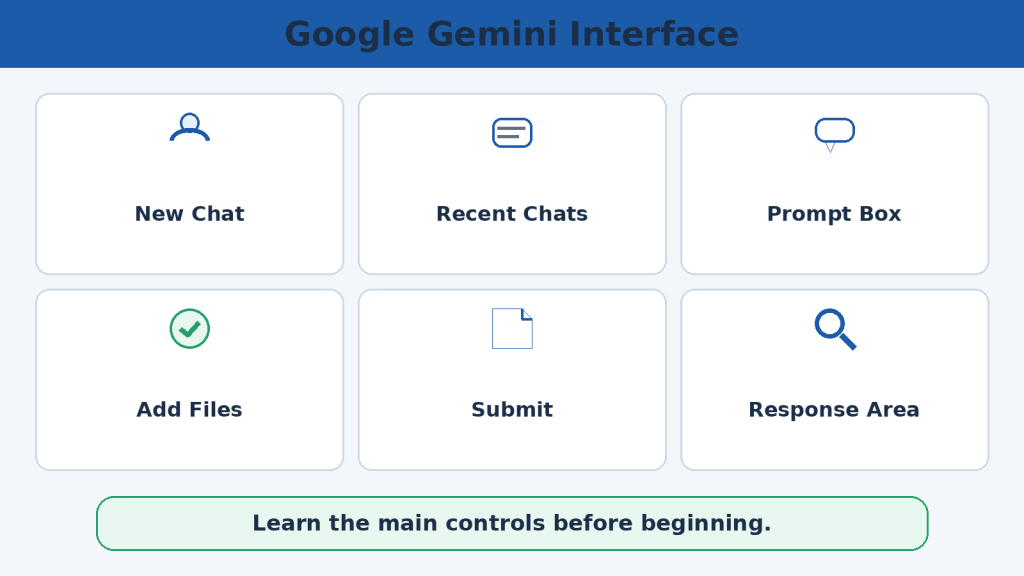
    Article 029 – How to Translate Documents with ChatGPT: Beginner Guide (2026)
    Article 030 – How to Rewrite and Simplify Documents with ChatGPT: Beginner Guide (2026)
    Article 031 – How to Proofread and Edit Documents with ChatGPT: Beginner Guide (2026)
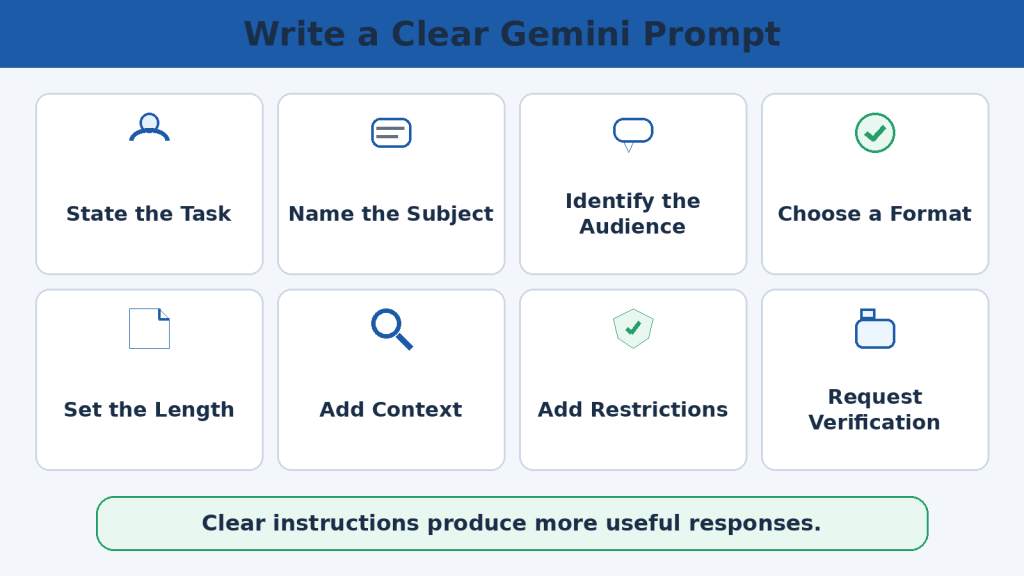
    Article 032 – How to Format Documents with ChatGPT: Beginner Guide (2026)
    Sources and References

    Google Gemini Apps Help

    Use Gemini Apps

    Upload and Analyze Files in Gemini Apps

    Gemini Apps Limits and Google AI Plan Upgrades

    Manage and Delete Gemini Apps Activity

    Gemini Apps Privacy Hub

    Share Gemini Conversations

    Download Gemini Apps Data

    Manage Previous Gemini Chats

    Create and Manage Gems