
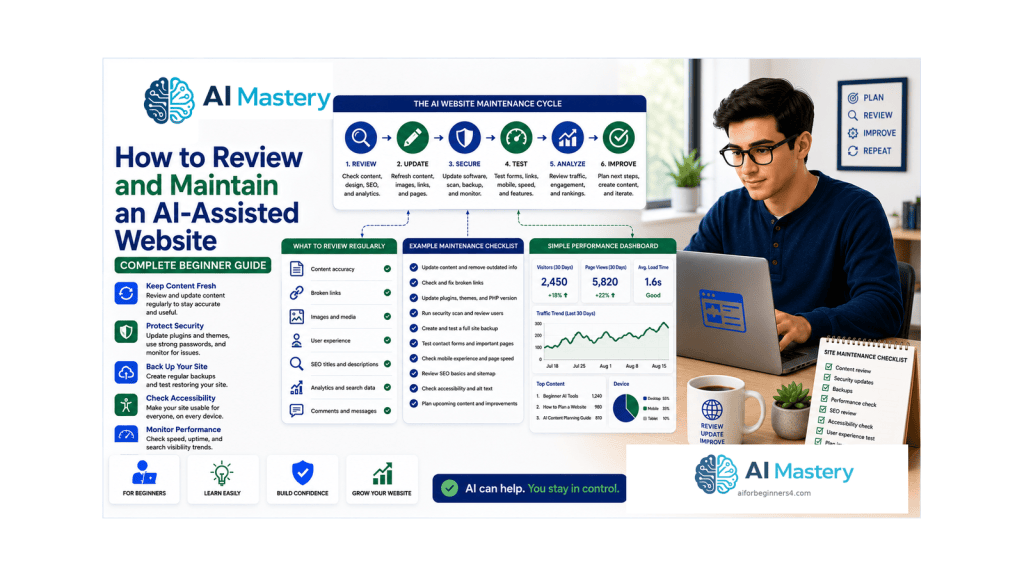
Estimated reading time: 25–30 minutes
Last updated: August 16, 2026
Introduction
A website is not finished when it is published. Pages become outdated, links change, forms stop working, software and platform features evolve, search traffic changes, and accessibility or security issues can appear after later edits.
An AI-assisted website adds another maintenance responsibility: you need to review not only the website itself but also the way AI is being used in the workflow. AI can help organize a review, explain an error, compare old and new wording, or suggest a checklist. It can also produce incorrect, incomplete, or outdated advice. The website owner remains responsible for deciding what to change and for testing the result.
This guide gives complete beginners a practical maintenance routine. It focuses on a WordPress-style website, with special attention to WordPress.com because many beginners use managed hosting. The same principles also apply to other website platforms, although menus, backup systems, update responsibilities, and security tools can differ.
You do not need to inspect every policy or every page every day. The goal is a manageable routine: check important items regularly, perform deeper reviews periodically, and do extra checks when something meaningful changes.
What You’ll Learn
- why website maintenance matters after publication
- how to create a simple weekly, monthly, and quarterly maintenance routine
- how to review older content without rewriting everything
- how to check backups and restore options before major changes
- how WordPress.com and self-hosted WordPress differ in maintenance responsibilities
- how to test links, forms, navigation, and mobile layouts
- how to use Google Search Console to notice indexing or performance problems
- what Core Web Vitals can tell you about real-world page experience
- how to recheck accessibility after content or design changes
- how to use ChatGPT or another AI assistant for focused website review tasks
- how to protect passwords, private analytics, customer information, and other sensitive data
- how to review copyright, licences, permissions, and attribution when replacing website assets
- how to keep a simple record of website changes so future troubleshooting is easier
Before You Start
Before reviewing the site, collect the information you actually need. For a beginner website, that usually means access to the WordPress dashboard, the public site, your normal browser, a phone or narrow browser window for mobile testing, and any search or analytics tools you already use.
- Do not share your WordPress password, API keys, payment information, private customer details, or other secrets with an AI tool.
- Confirm which WordPress environment you use. WordPress.com managed hosting handles many platform-level responsibilities for you, while self-hosted WordPress gives the site owner or host more responsibility for core, theme, plugin, backup, and security management.
- Know where your important source files, image licences, permissions, and article drafts are stored.
- Decide which pages matter most. Start with the homepage, navigation, contact page, important tutorials, high-traffic posts, and any page that collects information from visitors.
Why Website Maintenance Matters
A website can continue loading while becoming less useful. A tutorial can contain an outdated menu name. A link can point to a removed page. A form can stop delivering messages. An image can lose its alt text during a redesign. A page can become slow after adding a large image or plugin. A policy statement can become inaccurate after a service changes its terms.
Maintenance is the process of finding and correcting these problems before they seriously affect readers. For a beginner, maintenance should be simple, documented, and repeatable rather than based on memory.
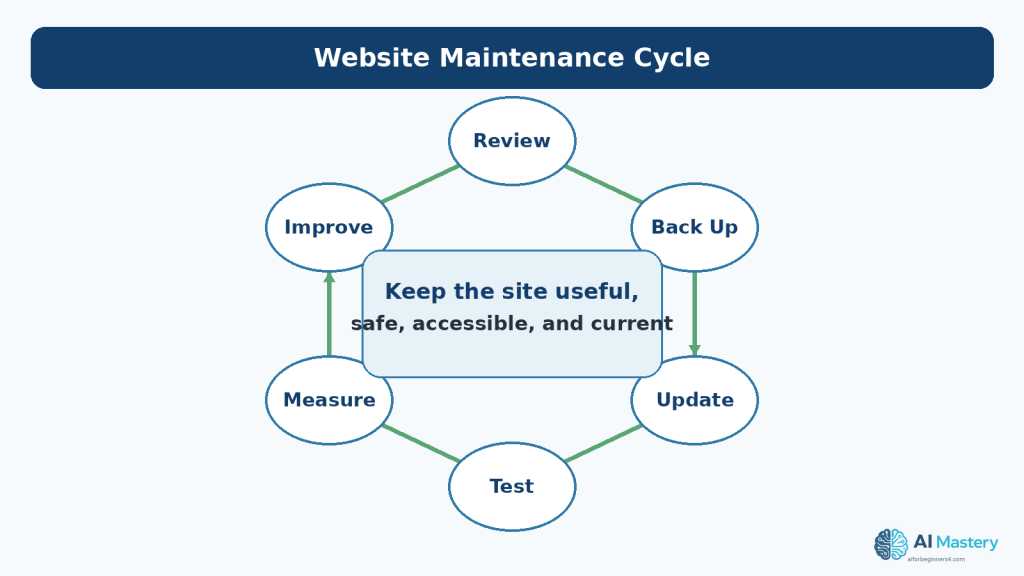
Figure 1. Website maintenance is an ongoing cycle of review, backup, updating, testing, measurement, and improvement.
Explanation: Regular small reviews help prevent a website from becoming outdated or difficult to repair. The goal is not constant redesign; it is keeping important content and functions useful, safe, accessible, and current.
Build a Simple Maintenance Routine
Weekly Checks
Weekly checks should be quick. Review new comments or messages, confirm that recently published posts display correctly, and investigate obvious errors reported by readers. If the site is small and changes infrequently, even this can take only a few minutes.
Monthly Checks
Once a month, test the most important parts of the site. Open the homepage and key posts on both a normal desktop window and a narrow mobile-sized view. Use the navigation, click important links, and submit a test message through any contact form you rely on.
Also review recent security or downtime notices, confirm that you understand your current backup options, and look at Search Console if it is connected to the site.
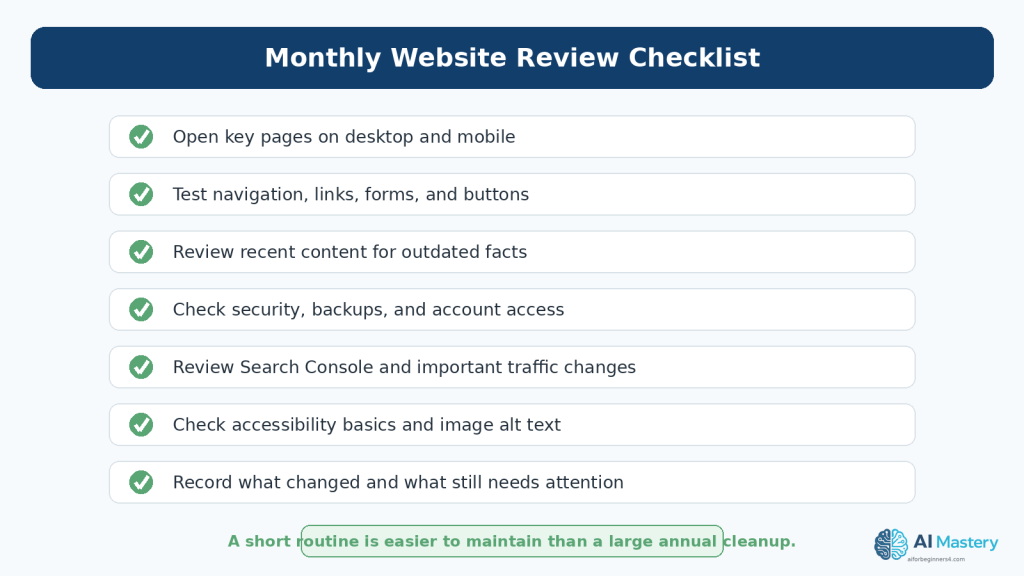
Figure 2. A short monthly checklist can cover the most important website maintenance tasks without turning maintenance into a large project.
Explanation: Checking important pages, links, forms, mobile layouts, recent content, security notices, search performance, and accessibility on a regular schedule is usually easier than waiting for problems to accumulate.
Quarterly Checks
Every few months, perform a deeper review of older priority content, accessibility basics, user permissions, licence records, and site structure. This is also a useful time to confirm that your About, Contact, privacy information, and important internal links still reflect the current site.
Review Older Content for Accuracy and Freshness
Do not update an article only because it has an old date. The more important question is whether the information is still accurate and helpful.
Look for High-Risk Changes
- software menus, feature names, plan conditions, or limits
- prices or commercial terms
- privacy, licensing, disclosure, or platform-policy information
- screenshots showing an old interface
- dead external sources
- instructions that no longer match the current workflow
- facts that were time-sensitive when originally written
Keep Stable Content When It Is Still Correct
Foundational explanations often remain useful for a long time. Rewriting stable material unnecessarily can introduce new mistakes. If a section is still correct, readable, and relevant, it may only need a new source check or a small clarification.
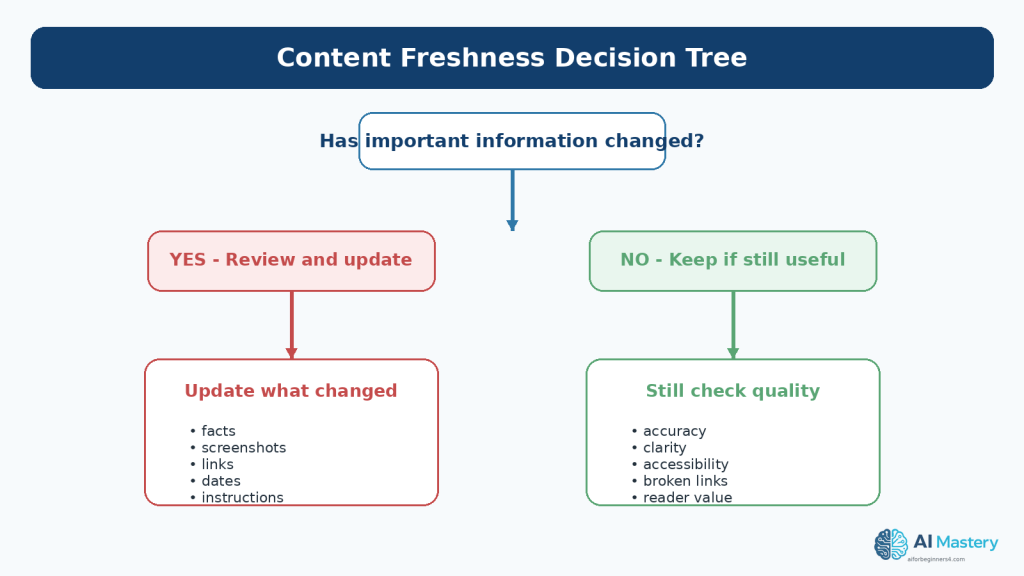
Figure 3. Review older content based on whether important facts, screenshots, links, instructions, policies, or reader needs have changed.
Explanation: Not every old article needs to be rewritten. Keep content that remains accurate and useful, but update sections that could mislead readers because the underlying information has changed.
Update the Date Honestly
Change a “last updated” date only when you actually review or revise the content. A date should help readers understand freshness, not create the impression that an untouched article was recently verified.
Back Up Before Major Changes
A backup is a recovery tool. Before changing a theme, adding or removing an important plugin, editing a large group of pages, changing navigation, or making another major structural change, confirm that you have a suitable restore option.
WordPress.com provides managed hosting and handles many infrastructure tasks automatically, but backup and restore features depend on the site and plan. Current WordPress.com documentation explains both restore and downloadable-backup options where available. Self-hosted WordPress users may rely on their host, a backup plugin, or another backup system.
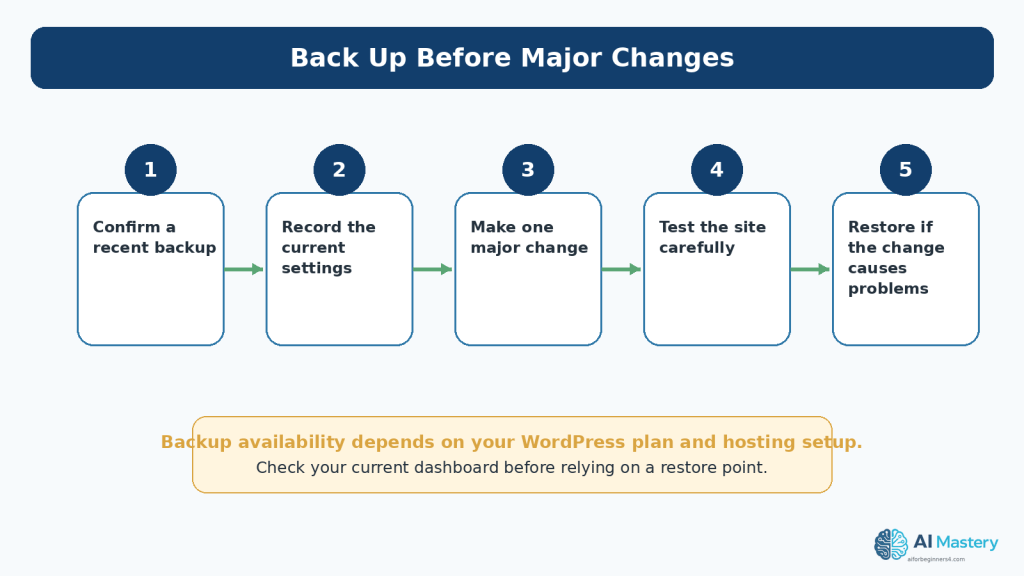
Figure 4. Confirm that you have an appropriate backup or restore option before making a major website change.
Explanation: Backup features vary by WordPress plan and hosting setup. Check the current options available to your site, record the existing settings, make one significant change at a time, and test before moving on.
Important: Do not assume that a backup exists simply because a site is online. Check the actual backup or restore area that applies to your current hosting setup.
Review Website Security
Security maintenance should focus first on practical beginner actions: protect the account, review who has access, understand which updates you are responsible for, and pay attention to security or downtime notices.
Protect the Administrator Account
Use a strong unique password and enable two-step authentication when available. Do not reuse the same administrator password on unrelated services.
Review Users and Permissions
If someone no longer needs access to the site, remove or reduce that access. Give people only the permissions required for their role.
Understand Update Responsibility
On WordPress.com managed hosting, many platform updates and infrastructure protections are handled for you. On self-hosted WordPress, the site owner and host generally have more responsibility for WordPress core, themes, plugins, backups, and server security. The exact responsibilities depend on the host and setup.
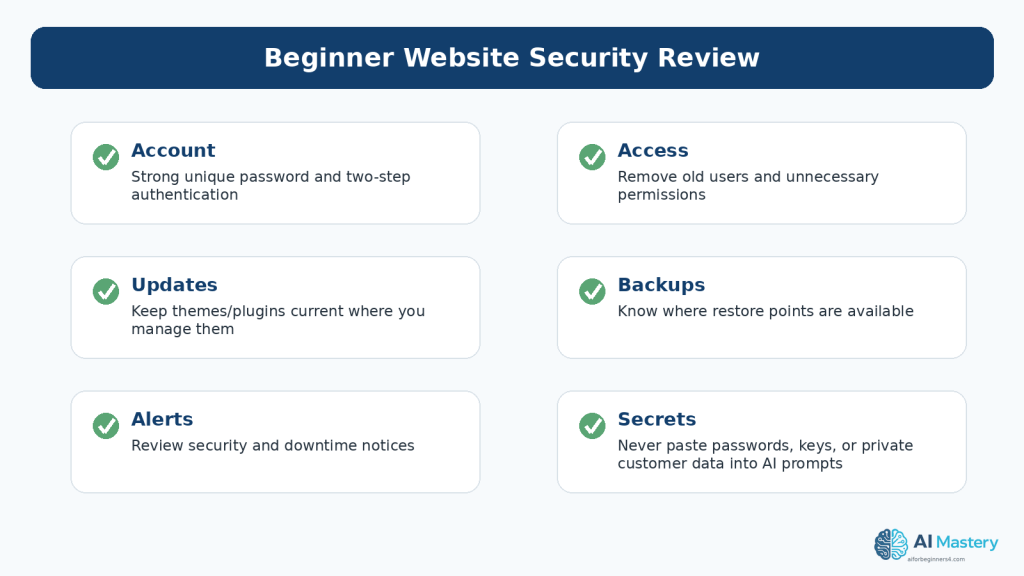
Figure 5. A beginner security review should include account protection, access permissions, updates you are responsible for, restore options, alerts, and protection of secrets.
Explanation: Website security is not only about software. Old user accounts, weak passwords, exposed credentials, and ignored alerts can also create risk.
Test Links, Forms, Buttons, and Navigation
Maintenance is not only reading. You need to use the website like a visitor.
Test Important Links
Click the main navigation, homepage calls to action, Continue Learning links, source links, and any important external resources. Repair or replace links that lead to deleted, redirected, or incorrect destinations.
Test Forms
If the site has a contact form, send a test message using non-sensitive test information. Confirm that the submission succeeds and that the message reaches the expected destination. Do not use real customer information for a routine test.
Test on a Narrow Screen
A change that looks fine on a desktop can make a menu, image, table, or button difficult to use on a phone. Resize the browser or use a phone to check important pages after layout changes.
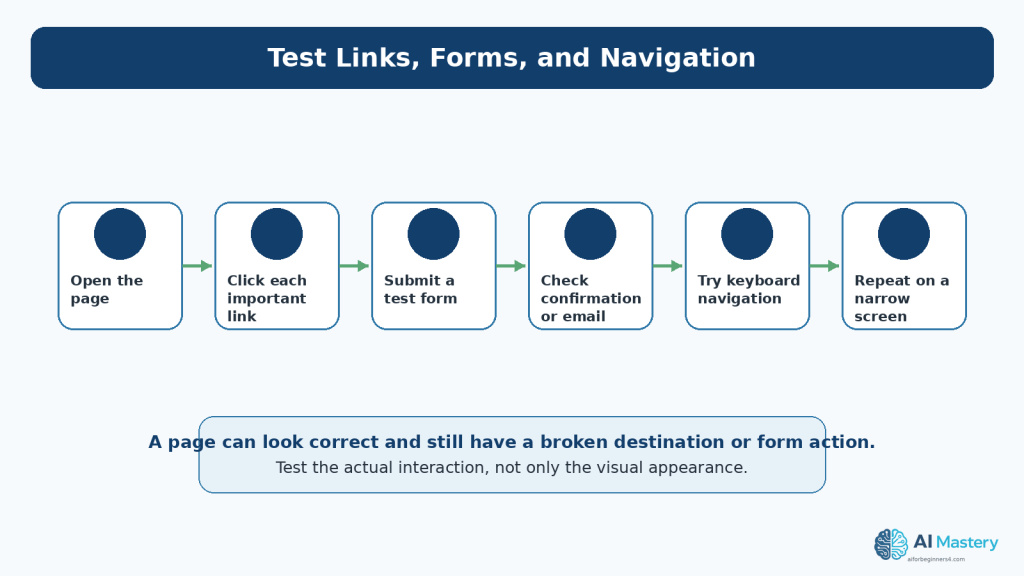
Figure 6. Test important website interactions directly instead of assuming they work because the page looks correct.
Explanation: A page can appear normal while a link points to the wrong destination, a form fails to send, or navigation becomes difficult on a phone or keyboard.
Use Google Search Console as a Maintenance Tool
Google Search Console is a free service that helps site owners monitor, maintain, and troubleshoot a site’s presence in Google Search. You do not need Search Console for Google to discover a public site, but it provides useful information about search performance and indexing.
Watch Trends, Not Every Small Movement
The Performance report can show clicks, impressions, queries, pages, and other search information. Small changes are normal. Look for larger or sustained changes that deserve investigation.
Check Indexing When a Page Is Missing
The Page indexing report shows the indexing status of URLs Google knows about. The URL Inspection tool can provide information about a particular URL and can test whether it might be indexable.
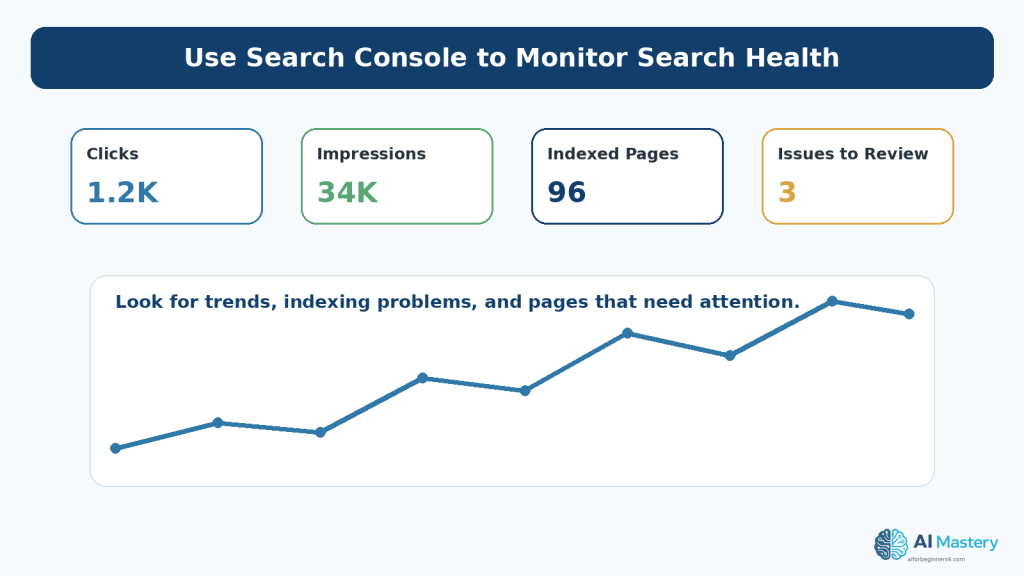
Figure 7. Search Console can help you monitor search performance, indexing, and problems that may need attention.
Explanation: Focus on trends and meaningful changes rather than reacting to every small fluctuation. Search Console is a monitoring and troubleshooting tool, not a guarantee of rankings or traffic.
Reality: Search Console can help you diagnose search visibility, but it does not guarantee that a page will be indexed, ranked, or receive traffic.
Review Speed and Core Web Vitals
Website performance can change after uploading large images, adding plugins, changing themes, embedding media, or adding third-party scripts. WordPress.com currently recommends steps such as optimizing images, limiting unnecessary plugins, and choosing efficient themes.
Google’s Core Web Vitals are real-world user-experience metrics focused on loading performance, responsiveness, and visual stability. They can help identify performance problems, but they are one part of the overall website experience.
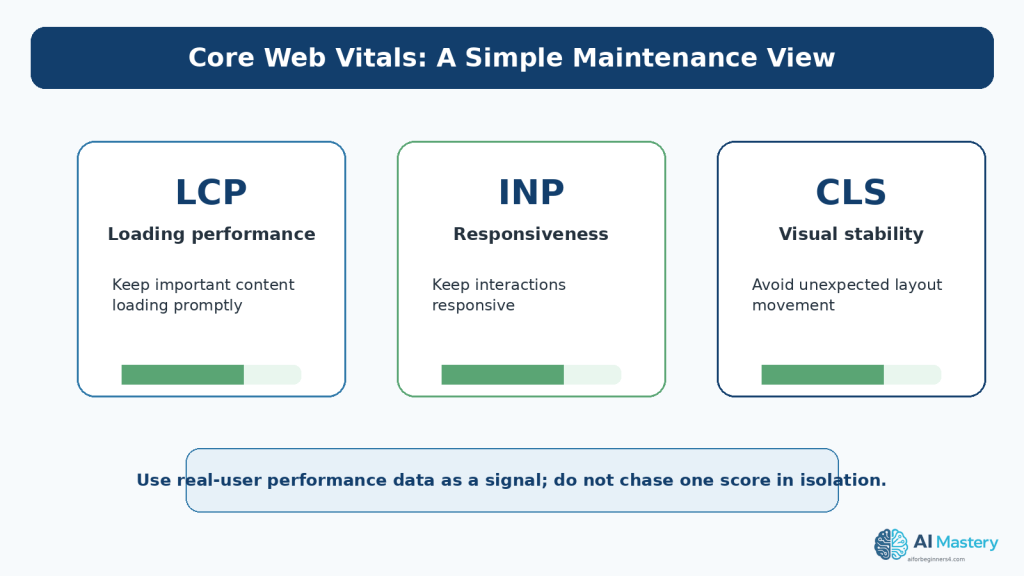
Figure 8. Core Web Vitals provide real-world signals for loading performance, responsiveness, and visual stability.
Explanation: Performance metrics are useful maintenance signals, but they should be considered together with usability, accessibility, content quality, and the actual experience of visitors.
Fix the Cause, Not Only the Score
Do not make a page less useful just to improve a single metric. For example, removing essential explanatory images could improve page weight while making the tutorial harder to understand. Aim for a balance of useful content, accessible design, and reasonable performance.
Recheck Accessibility After Changes
Accessibility is not a one-time certificate. Editing a theme, changing colours, adding a form, replacing an image, reorganizing headings, or modifying navigation can create new barriers.
Beginner Accessibility Checks
- headings follow a logical structure
- informative images have useful alternative text
- text remains readable against its background
- links have meaningful wording
- keyboard focus is visible
- forms have labels and understandable instructions
- content can reflow when the page is zoomed or viewed narrowly
- important information is not communicated only by colour
WCAG 2.2 is the current W3C Recommendation used in this guide. A beginner checklist can identify obvious problems, but a quick review does not prove full WCAG conformance.
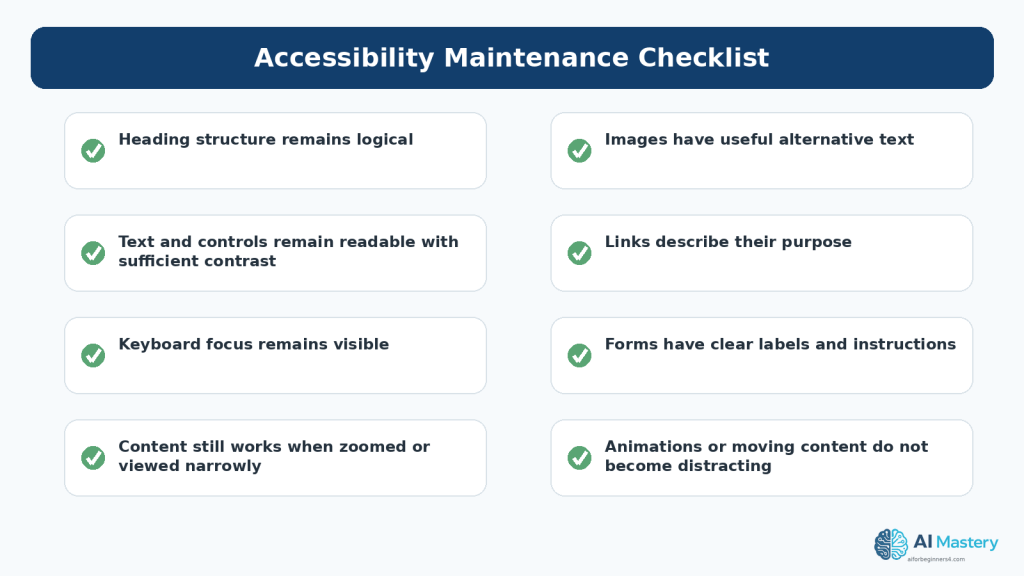
Figure 9. Accessibility needs to be rechecked when content, themes, navigation, forms, or layouts change.
Explanation: A page that was accessible when first published can become harder to use after later edits. Maintenance should therefore include recurring accessibility checks rather than a one-time review.
Use AI for Focused Website Reviews
AI is most useful when the task is narrow and verifiable. Instead of asking “Fix my whole website,” ask for help with one page, one problem, or one checklist.
Useful AI Review Tasks
- turn a maintenance goal into a checklist
- compare an old paragraph with a verified new source and identify what may need updating
- explain an unfamiliar error message
- suggest test cases for a contact form or navigation change
- review a page for obvious clarity or accessibility concerns without claiming certification
- help summarize Search Console observations that you provide
Example Prompt
I am reviewing a beginner WordPress tutorial that was published several months ago. I will provide the current article text and the official source I checked today. Identify statements that may need updating. Do not rewrite unrelated sections, and clearly separate confirmed differences from suggestions.
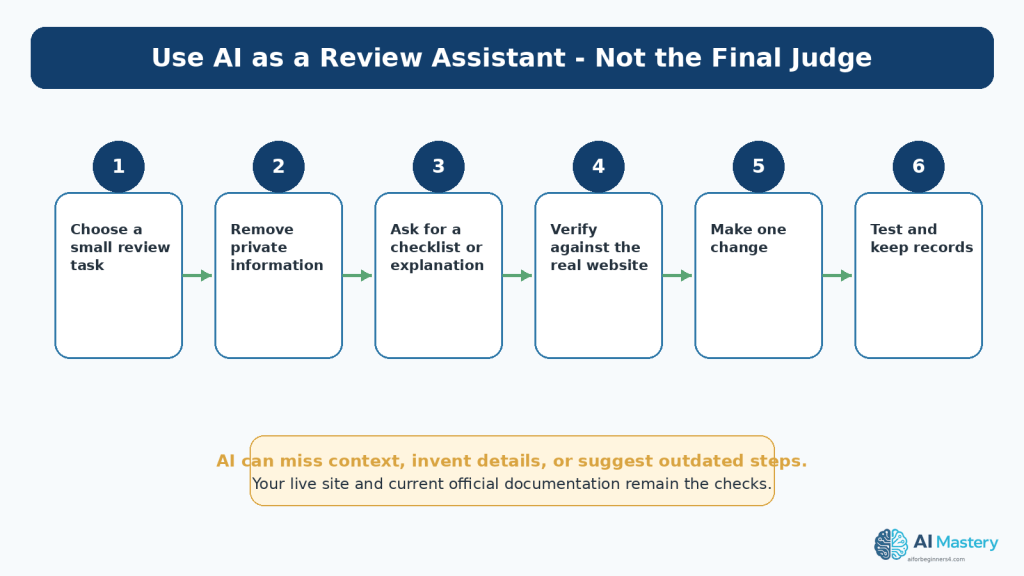
Figure 10. Use AI for focused review tasks, then verify every important suggestion against the real website and current official guidance.
Explanation: AI can help organize a checklist, summarize a problem, or suggest what to inspect. It can also misunderstand context or produce outdated or incorrect guidance, so it should not be treated as the final judge.
Verify Before Publishing
Check important AI suggestions against the actual website, current official documentation, and your intended audience. If an AI response conflicts with the live platform or a current official source, use the live evidence and authoritative documentation as the basis for the correction.
Protect Privacy When Using AI for Maintenance
Website troubleshooting can involve information that should not be pasted into an AI conversation. Before sharing code, screenshots, logs, analytics exports, or account details, remove information that is not necessary for the question.
Remove Sensitive Information
- passwords and authentication codes
- API keys and access tokens
- private customer or subscriber information
- payment information
- administrator-only URLs when they reveal private structure
- private email addresses or contact details that are not required
- confidential business data
OpenAI’s current Data Controls let ChatGPT users choose whether conversations help improve models. These settings are useful, but they are not a reason to share secrets that are unnecessary for the task.
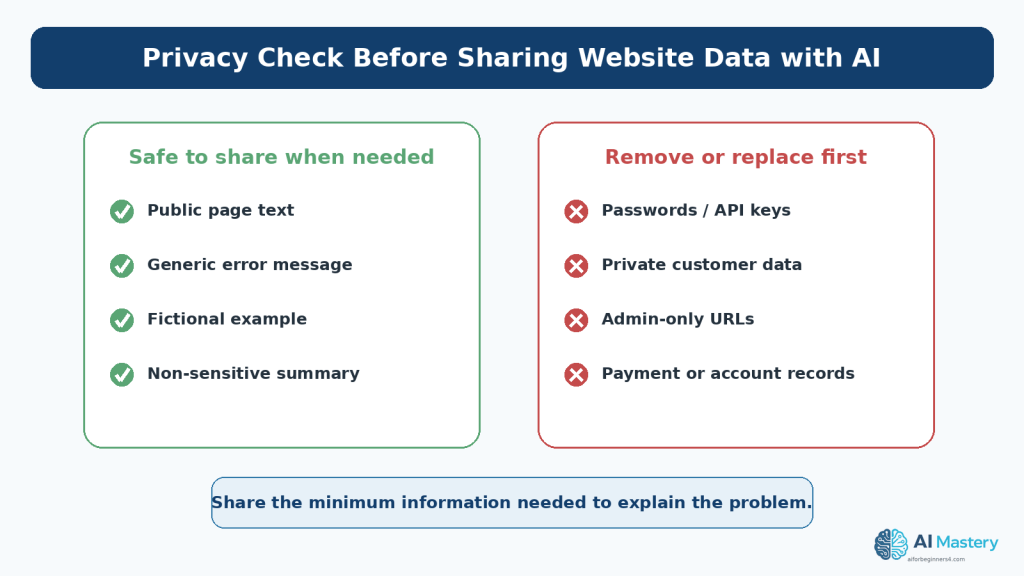
Figure 11. Share only the minimum website information needed for an AI-assisted review and remove sensitive data first.
Explanation: Public page text may be appropriate for a review, while passwords, API keys, private customer information, admin-only URLs, and payment or account records should not be pasted into an AI conversation.
Review Copyright, Permissions, and Licences
Maintenance often includes replacing images, fonts, icons, templates, code libraries, screenshots, or other assets. Each replacement is a new opportunity to verify the source and usage conditions.
Keep a Simple Asset Record
- asset name
- creator or provider
- source URL
- licence or permission
- date checked
- whether attribution is required
- where the asset is used
A resource being free of charge or publicly visible does not automatically mean it is unrestricted. Creative Commons licences, open-source licences, stock licences, and direct permissions can contain different conditions.
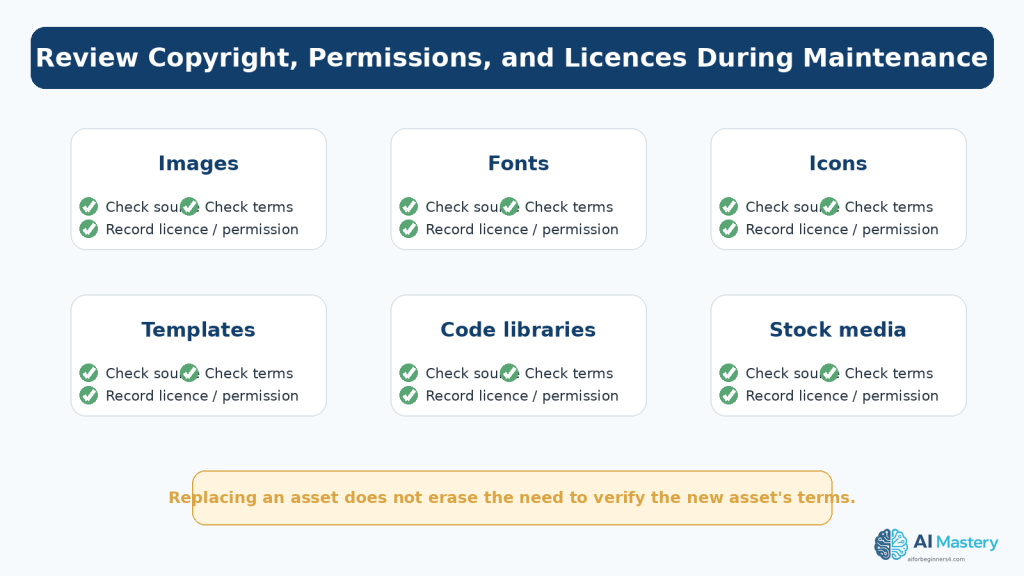
Figure 12. Website maintenance includes checking the source, licence, permission, and attribution requirements of third-party assets.
Explanation: Replacing an old image, font, icon, template, library, or stock asset creates a new licensing decision. Keep records so you can show where important third-party materials came from and what terms applied.
General education only: Copyright and licensing rules vary by jurisdiction and by the specific material. For important legal questions, obtain appropriate professional advice.
Keep a Maintenance Log
A simple record prevents repeated troubleshooting. You do not need specialized software. A document or spreadsheet can record the date, page, change, reason, source checked, backup status, and result of testing.
Example Maintenance Entry
August 16, 2026 — Article 095 — Updated Google Search guidance paragraph after checking current Google Search Central source. Rechecked links and mobile layout. No change to article structure. Backup/restore option confirmed before editing.
This record is especially useful when several articles refer to the same platform feature. When that feature changes, you can search the maintenance log to find related content that may also require review.
Use a Realistic Maintenance Calendar
A schedule should fit the size and importance of the website. A small educational site does not need the same monitoring system as a large store or financial service.
A Beginner Schedule
- Weekly: review new messages, recent posts, and obvious errors.
- Monthly: test important links, forms, navigation, mobile layouts, Search Console, and recent security notices.
- Quarterly: review older priority content, permissions, licences, accessibility basics, and site structure.
- When something changes: back up before major edits, retest after theme or plugin changes, and update articles affected by an important platform or policy change.
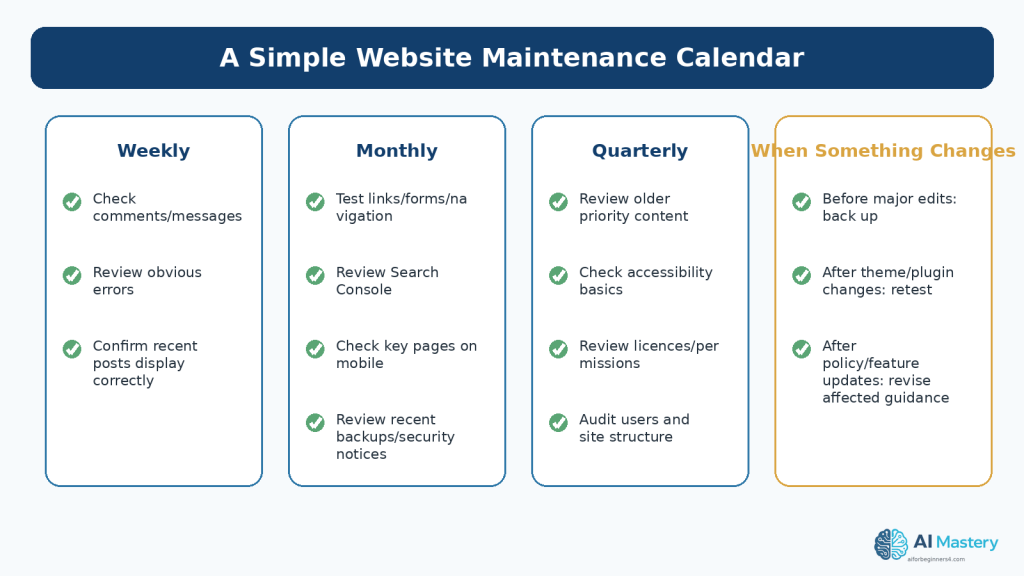
Figure 13. A simple maintenance calendar separates quick routine checks from deeper periodic reviews and event-triggered tasks.
Explanation: You do not need to inspect every detail every day. A realistic schedule helps beginners maintain the site consistently without turning website ownership into constant technical work.
Common Website Maintenance Mistakes
Mistake 1: Waiting Until Something Breaks
Emergency maintenance is harder because you may not know which change caused the problem. Small routine checks create a clearer history.
Mistake 2: Updating Everything at Once
Changing many plugins, settings, pages, or design elements simultaneously makes troubleshooting difficult. Make major changes in controlled steps and test between them.
Mistake 3: Trusting AI Without Verification
AI-generated maintenance advice can sound confident while being wrong or outdated. Verify important instructions, especially those involving security, privacy, accessibility, legal obligations, or current platform features.
Mistake 4: Treating a Backup as an Assumption
Know where the restore option is and what it covers. Backup features differ between hosts and plans.
Mistake 5: Ignoring Accessibility After Redesigns
A theme or layout change can alter contrast, focus visibility, headings, navigation, or reflow. Recheck accessibility after visual changes.
Mistake 6: Losing Licence Records
If you replace third-party media without recording the new source and terms, future verification becomes difficult. Preserve the relevant licence or permission information when the asset is added.
Benefits and Limitations of AI-Assisted Maintenance
Benefits
- turning a vague maintenance goal into a clear checklist
- summarizing differences between old and verified new information
- explaining technical errors in beginner-friendly language
- suggesting tests you may have forgotten
- helping organize maintenance records and follow-up tasks
Limitations
- AI cannot see your live website unless you provide the relevant information or use an appropriate connected tool
- it can misunderstand screenshots or incomplete context
- it can recommend a feature that has changed or does not apply to your plan
- it can miss accessibility, security, or legal issues
- it cannot replace a real backup, browser test, form submission, Search Console report, or professional review when one is required
How to Reduce These Limitations: Use AI for focused assistance, provide only necessary non-sensitive context, verify important claims, test real website behavior, and keep a record of what you changed.
A Practical Maintenance Workflow
1. Choose one maintenance area, such as links, content freshness, security, accessibility, or search visibility.
2. Confirm that you have the access and backup information needed for the task.
3. Review the live website before changing anything.
4. Use current official documentation when the task depends on a platform feature or policy.
5. Use AI only for a focused explanation, checklist, comparison, or draft when it adds value.
6. Remove private information before sharing any material with an AI tool.
7. Make one meaningful change at a time.
8. Test the page on the live or preview environment.
9. Check mobile layout, navigation, links, forms, and accessibility when relevant.
10. Record what changed, why it changed, and what source or evidence you used.
Frequently Asked Questions
How often should I maintain a small WordPress website?
A small site can use quick weekly checks, a more complete monthly review, and deeper quarterly checks. Increase the frequency when the site changes often, collects important information, sells products, or has other higher-risk functions.
Does WordPress.com handle all maintenance for me?
WordPress.com managed hosting handles many infrastructure, platform-update, security, and backup responsibilities, but you still need to maintain your content, navigation, forms, account access, accessibility, licences, and published information. Plan-specific features can differ.
Should I update every old article?
No. Update content when important information has changed or when the article is no longer useful or accurate. Stable content can remain as it is after a current review.
Can ChatGPT check my whole website automatically?
ChatGPT can help with material you provide and may support connected workflows where available, but a reliable website review still requires real page testing, current platform documentation, and human judgement.
Do I need Google Search Console?
It is not required for Google to discover a public site, but it is useful for monitoring search performance, indexing, and problems that may require attention.
Does a good Core Web Vitals score guarantee good rankings?
No. Core Web Vitals are useful page-experience signals, but Google uses many systems and signals. Helpful content, crawlability, indexing, relevance, and other factors still matter.
Is an accessibility audit once a year enough?
Accessibility can change whenever content or design changes. Routine beginner checks should be part of maintenance, with deeper evaluation when the site or its risks justify it.
What should I save before making a major change?
Confirm a current backup or restore option, keep copies of important source files, and record current settings or screenshots where they would help you restore the previous state.
Can I paste Search Console data into AI?
Use caution. Share only what is needed, remove private or identifying information when possible, and avoid pasting credentials, account details, or sensitive business data.
When should I get professional help?
Consider professional help for serious security incidents, complex accessibility conformance work, legal or licensing disputes, payment systems, personal-data handling, or other high-risk situations that exceed a beginner maintenance workflow.
Key Takeaways
- A published website still needs ongoing review.
- Use small recurring checks instead of waiting for a large emergency cleanup.
- Review content based on accuracy and usefulness, not age alone.
- Confirm backup and restore options before major changes.
- Understand which security and update responsibilities belong to WordPress.com, your host, or you.
- Test real links, forms, navigation, mobile layouts, and key interactions.
- Use Search Console to monitor search health and indexing trends.
- Treat Core Web Vitals as useful performance signals, not the only measure of a good page.
- Recheck accessibility after content, navigation, theme, or layout changes.
- Use AI as a focused assistant and verify important suggestions.
- Remove sensitive data before sharing website material with an AI tool.
- Keep licence and permission records for third-party assets.
- Maintain a simple log of important website changes.
Final Tip
The most sustainable maintenance system is the one you will actually use. A 20-minute monthly review that happens consistently is more valuable than a perfect 40-point checklist that is never opened.
Start with your most important pages, check one area at a time, and keep a short record of what you found. Over time, maintenance becomes less about fixing surprises and more about preventing them.
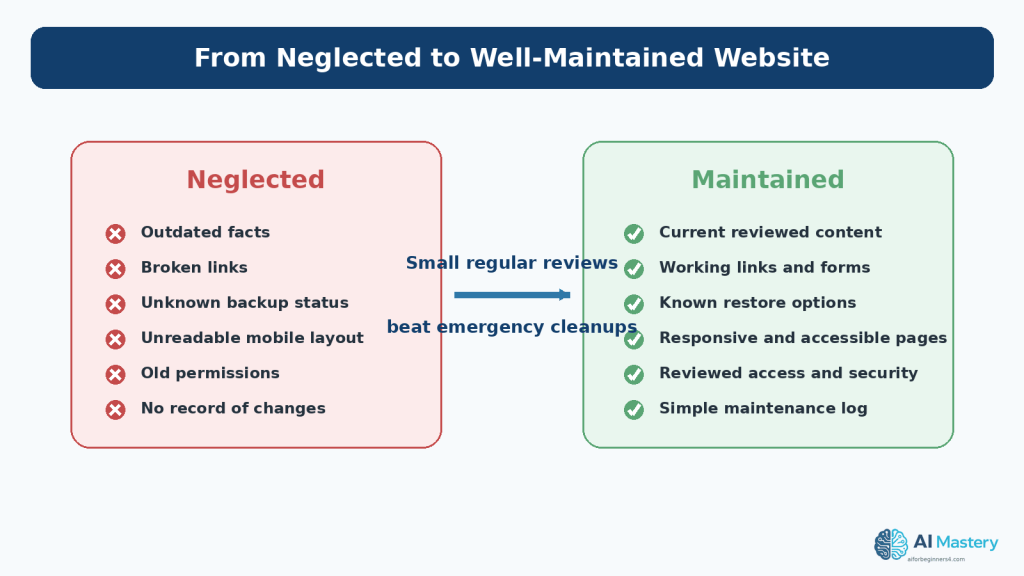
Figure 14. Small regular maintenance tasks can move a website from outdated and uncertain to current, tested, documented, and easier to manage.
Explanation: The objective is not perfection. A maintained website has fewer unknowns because important content, links, backups, access, accessibility, and recent changes are reviewed on a predictable schedule.
Continue Learning
Article 096 completes the first Website Planning sequence after Articles 091–095. Review the earlier articles when you need to revisit the site topic, audience, page structure, navigation, content plan, or beginner SEO plan.
- Article 091 — How to Plan a Beginner Website with AI (2026)
- Article 092 — How to Choose a Website Topic and Audience with AI (2026)
- Article 093 — How to Plan Website Pages and Navigation with AI (2026)
- Article 094 — How to Create a Website Content Plan with AI (2026)
- Article 095 — How to Plan Beginner SEO Content with AI (2026)
After these planning and maintenance foundations are in place, future AI Mastery articles can build on them with publishing, analytics, growth, and more advanced website workflows.
Sources and References
The following official and authoritative sources were reviewed for the WordPress, search, accessibility, privacy, copyright, and licensing information in this article. Information was checked on August 16, 2026. Platform features, plans, standards, policies, and licence conditions can change, so readers should check current official information when a decision depends on them.
1. WordPress.com — Keep your site safe and secure. Current WordPress.com security guidance, including recommended account and site-protection practices.
2. WordPress.com — Security settings. Current dashboard guidance for backups, security scanning, downtime monitoring, anti-spam, and related settings where available.
3. WordPress.com — Download a backup of your site. Current instructions for downloading a WordPress.com backup when the feature is available for the site and plan.
4. WordPress.com — Improve your website’s speed and performance. Current WordPress.com performance guidance, including image optimization, theme choices, and plugin considerations.
5. WordPress.com — WordPress.com vs WordPress.org. Explains managed WordPress.com hosting compared with self-hosted WordPress, including differences in updates, security, and backups.
6. Google Search Console Help — About Search Console. Explains how Search Console helps site owners monitor, maintain, and troubleshoot a site’s presence in Google Search.
7. Google Search Central — How to use Search Console. Current workflow for monitoring search performance, indexing, and important issues.
8. Google Search Console Help — Page indexing report. Explains the indexing status report for URLs Google knows about.
9. Google Search Console Help — URL Inspection tool. Explains how to inspect Google’s indexed version of a specific URL and test indexability.
10. Google Search Central — Core Web Vitals. Current overview of real-world loading, responsiveness, and visual-stability metrics.
11. Google Search Central — SEO Starter Guide. Current beginner SEO guidance and long-term site maintenance recommendations.
12. W3C — Web Content Accessibility Guidelines (WCAG) 2.2. The current W3C Recommendation used for accessibility guidance in this article.
13. W3C WAI — How to Meet WCAG 2.2 (Quick Reference). Practical reference for reviewing accessibility requirements such as text alternatives, keyboard access, focus, contrast, and reflow.
14. OpenAI — Data Controls FAQ. Current OpenAI guidance for ChatGPT data controls and choices about model improvement.
15. OpenAI — How your data is used to improve model performance. Current explanation of how data controls affect model improvement and how Temporary Chats are handled.
16. WIPO — Copyright. General authoritative copyright reference for creative works including text, images, software, and other materials.
17. Creative Commons — About CC Licenses. Official overview of Creative Commons licence conditions and attribution requirements.
Important Note
This article provides general educational information about website maintenance, WordPress, search visibility, accessibility, privacy, security, copyright, and licensing. It is not legal, cybersecurity, accessibility-conformance, or other professional advice. Higher-risk websites may require qualified professional review.

