

Estimated Reading Time: 24 minutes
Last Updated: August 4, 2026
Introduction
Claude Projects provide a dedicated workspace for conversations and reference material connected to one continuing subject. Instead of uploading the same files and repeating the same rules in every chat, you can create a Project containing reusable instructions, approved knowledge, and several focused conversations.
A Project can support article production, study, policy review, customer support, job applications, research, business planning, or software development. The main benefit is organization: each chat can focus on one task while the Project supplies the background that several chats need.
Projects do not create perfect memory or guaranteed accuracy. Claude may select the wrong source, miss an exception, use an outdated file, or provide a confident answer that does not match the original document. The user remains responsible for choosing approved sources, protecting private information, checking references, and approving final work.
This guide explains how to plan a Claude Project, add and maintain knowledge, write useful Project instructions, organize chats, ask reliable questions, use retrieval carefully, collaborate safely, protect privacy, and avoid common mistakes.
What You Will Learn
• What Claude Projects and knowledge bases are
• When to use a Project instead of a normal chat
• How to plan and create a Project
• How to add, label, test, and maintain knowledge files
• How to write clear Project instructions
• How to organize focused chats
• How to ask questions using named sources and references
• How retrieval-augmented generation works
• How to share Projects and manage permissions
• How to protect privacy and security
• How to avoid common beginner mistakes
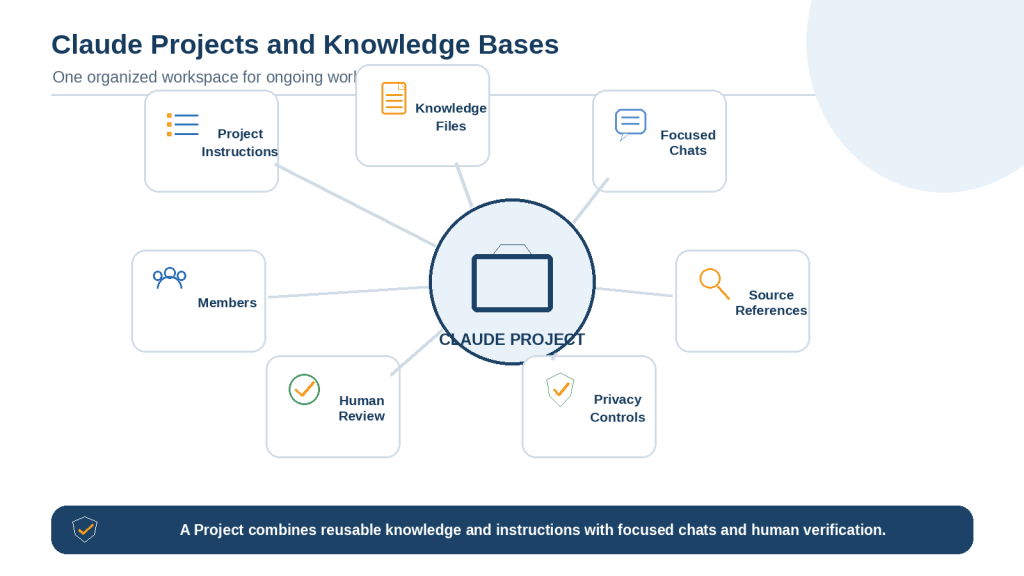
Figure 1. A Claude Project combines focused chats, Project-specific instructions, reusable reference files, source rules, privacy controls, and human review inside one organized workspace.
Explanation: A Project knowledge base gives Claude reusable background for related conversations. Clear instructions, relevant files, descriptive filenames, and direct verification help keep the workspace accurate and manageable.
What Are Claude Projects and Knowledge Bases?
Anthropic describes Projects as self-contained workspaces with their own chat histories and knowledge bases. A Project groups related conversations, reusable instructions, and reference material around one continuing purpose.
What a Project Can Contain
• A clear Project name and description
• Project-specific instructions
• Uploaded documents, text, code, spreadsheets, or images
• Several focused chats
• Sharing and permission settings on supported organizational plans
• Archived or historical sources when clearly labelled
Projects are currently available to Claude users, including free accounts, although limits and collaboration features vary by plan and can change. Free users are currently limited to five Projects according to Anthropic’s Project guidance.
What Project Knowledge Means
Project knowledge is the reusable information deliberately added to the workspace. It may include policies, procedures, research, product information, style guides, course notes, frequently asked questions, approved examples, code, data files, or background information.
Claude can use this material as context in chats created inside the Project. For example, a website-content Project might contain its audience description, article-numbering rules, writing standards, image requirements, accessibility rules, and publishing checklist.
A Knowledge Base Is Reference Context, Not Guaranteed Truth
The term knowledge base can sound like a verified database, but a Claude Project knowledge base is mainly a collection of context. Claude can search and use the material, but the files may still be outdated, incomplete, contradictory, or incorrectly labelled.
• Keep authoritative originals outside Claude
• State which source is current
• Label drafts and archived versions clearly
• Require references for important findings
• Verify high-risk answers against the original documents
Project Knowledge, Project Instructions, and Chat Attachments
| Item | Purpose | Best Use |
| Project knowledge | Reusable information available across Project chats | Current policies, approved rules, reference documents, source registers |
| Project instructions | Rules explaining how Claude should work | Audience, source priorities, privacy, formatting, missing-information labels |
| Chat attachment | Temporary information for one conversation | One draft, one job advertisement, one customer-specific file |
Project Name and Description
The name and description help people identify the workspace, but they should not be treated as operating instructions. Anthropic’s current guidance says Claude does not automatically receive the Project name and description as working context. Important rules belong in Project instructions or knowledge.
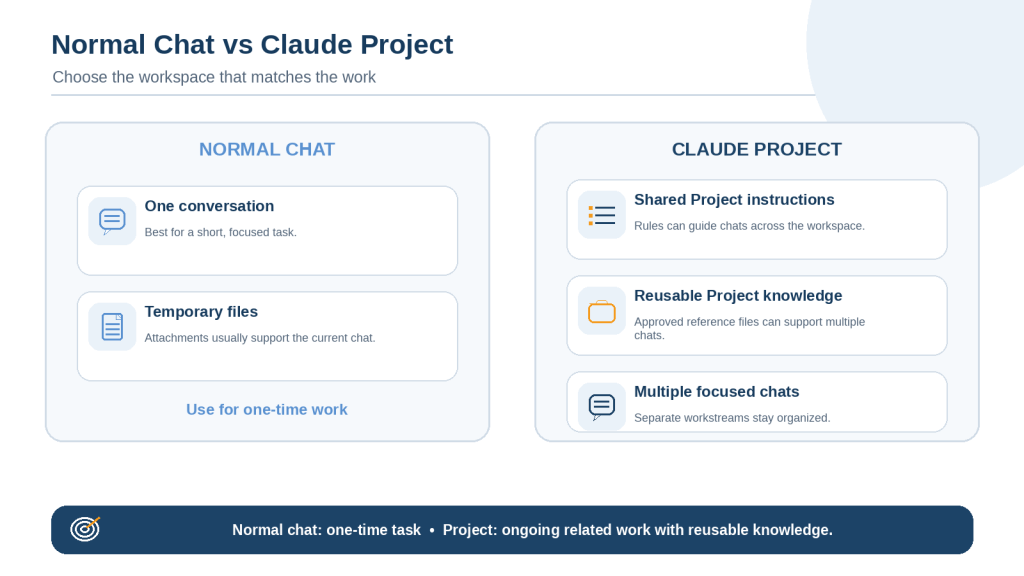
Figure 2. A normal Claude chat is suited to a focused one-time task, while a Project provides shared instructions and reusable knowledge for multiple related conversations.
Explanation: Project files and instructions can support several focused chats, but each answer still needs a clear prompt and source verification.
How to Plan a Claude Project Before Creating It
Planning prevents the Project from becoming a mixed collection of unrelated files, duplicate versions, temporary drafts, and contradictory rules. Create a short Project plan before opening the creation screen.
Step 1: Define One Main Purpose
Write one sentence explaining what the Project supports. A focused purpose helps you decide which files, users, instructions, and chats belong inside the workspace.
Example: This Project supports the planning, drafting, reviewing, illustrating, and publishing of beginner-friendly AI Mastery WordPress articles.
Step 2: Identify the Expected Outputs
• Article or report drafts
• Document summaries and comparisons
• Research notes and evidence tables
• Customer responses
• Study guides and practice questions
• Spreadsheets, presentations, checklists, or code
Step 3: Decide Whether a Project Is Necessary
Use a Project when work will continue over several chats and the same approved context will be reused. Use a normal chat when the task is temporary, involves one file, or will not require continuing instructions.
Step 4: Choose the Users and Owner
Identify the Project owner, approved editors, reviewers, and ordinary users. The owner should be responsible for source approval, knowledge maintenance, access review, and final decisions.
Step 5: Identify Authoritative Sources
Create a source register before uploading. Record each filename, date, version, status, owner, purpose, and whether it is current, supporting, draft, proposed, superseded, or archived.
| Label | Filename | Status | Permitted Use |
| Core A | project-rules-v03-approved.pdf | Current | Primary working rules |
| Reference B | publishing-procedure-v02.pdf | Supporting | Publishing workflow |
| Archive C | project-rules-v02-superseded.pdf | Archived | Historical comparison only |
Step 6: Separate Core, Supporting, and Temporary Material
• Core knowledge: information needed regularly
• Supporting references: background or evidence used for particular tasks
• Temporary files: drafts and one-time material that should remain in a single chat
• Archived material: old versions retained only for documented historical use
Step 7: Review Privacy and File Quality
Confirm permission, remove unnecessary personal information, inspect comments and tracked changes, check hidden spreadsheet content, verify page order, and make sure text and tables are readable.
Step 8: Plan the Instructions, Chat Structure, and Maintenance Schedule
Outline the audience, source hierarchy, missing-information labels, privacy rules, output formats, and verification process. Plan separate chats for separate workstreams and decide how often the knowledge base will be reviewed.
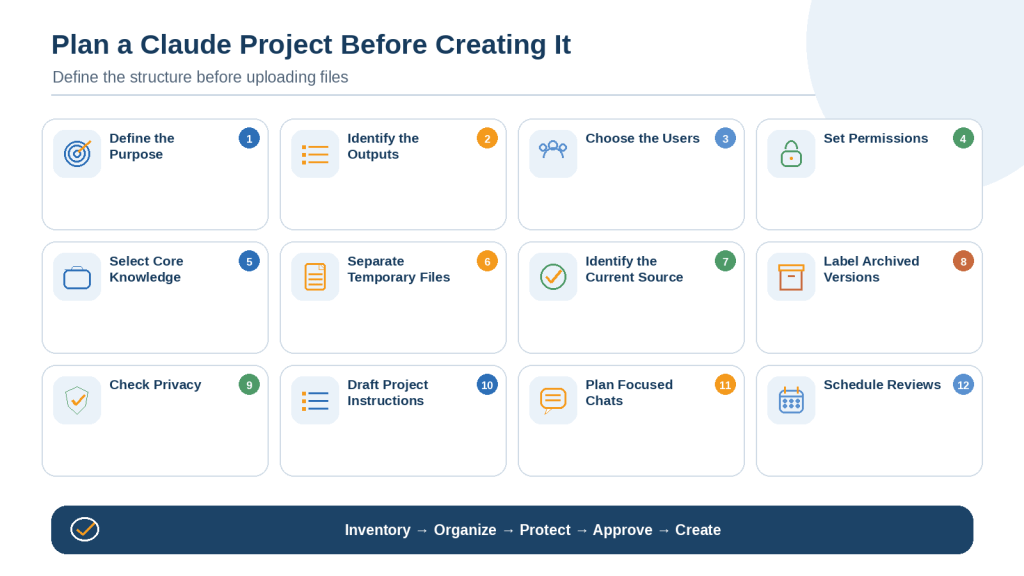
Figure 3. Planning a Claude Project includes defining its purpose, selecting approved knowledge, separating temporary and archived files, setting access rules, and scheduling reviews.
Explanation: A carefully planned Project is easier to maintain and less likely to mix outdated, irrelevant, or confidential information.
How to Create a Claude Project: Step-by-Step
1. Sign in to the correct Claude account and organization.
2. Open Projects from the Claude navigation area.
3. Review existing and archived Projects to avoid a duplicate.
4. Select New Project.
5. Enter a clear, concise Project name.
6. Add a short description for users.
7. Choose private or organization-wide visibility when the option is available.
8. Create the Project and confirm that the correct workspace opened.
Use a Clear Name
Useful names identify the subject, client, course, year, product, or status. Avoid vague labels such as New Project, Documents, Work, or Final.
• AI Mastery Articles — 2026
• Employee Policies — Current
• Supply Chain Course — Fall 2026
• Product A Development
• Job Search — Canada
Choose Private When Unsure
On supported Team and Enterprise plans, private Projects are limited to invited members, while organization-wide Projects can be found and used more broadly inside the organization. Organization-wide does not mean public on the internet. Start privately when files, instructions, or permissions are still being reviewed.
Check the New Workspace Before Uploading
• Correct Project name and account
• Correct visibility
• Knowledge or Files area is visible
• Project-instructions control is available
• Sharing controls are appropriate
• Project menu includes expected management options
Run a Small Setup Test
Add the initial instructions and one authoritative file, then start a chat named Project Setup and Verification. Ask Claude to identify the source and answer one question whose correct answer you already know.
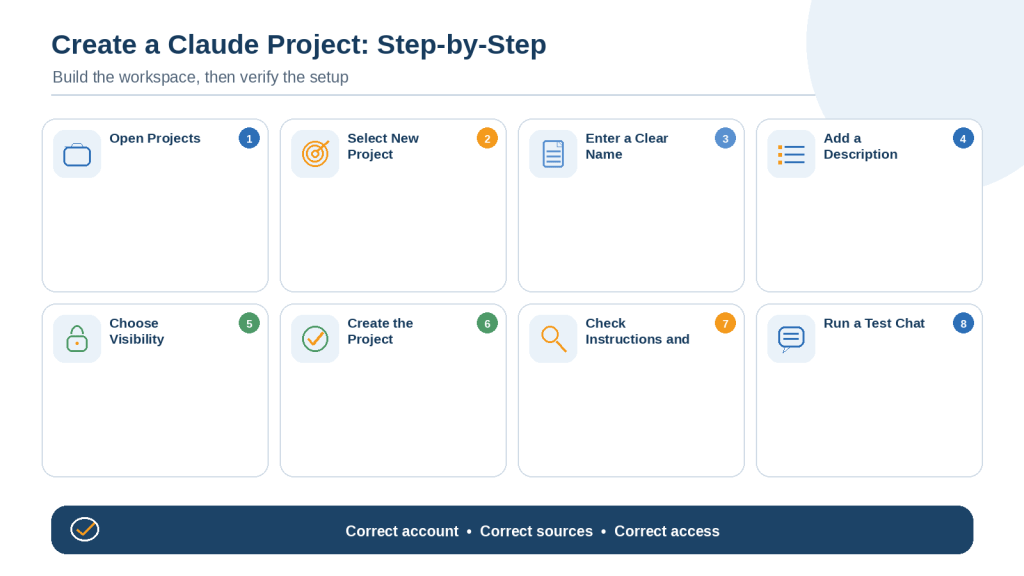
Figure 4. Creating a Claude Project involves choosing the correct account, naming the workspace, selecting appropriate visibility, checking its settings, and testing the initial knowledge.
Explanation: Begin with approved instructions and a small number of core files, then confirm that Claude uses the correct sources and follows the Project rules.
How to Add Files to a Claude Project Knowledge Base
Add knowledge in controlled stages rather than uploading every available document at once. A staged process makes file, version, readability, and privacy problems easier to detect.
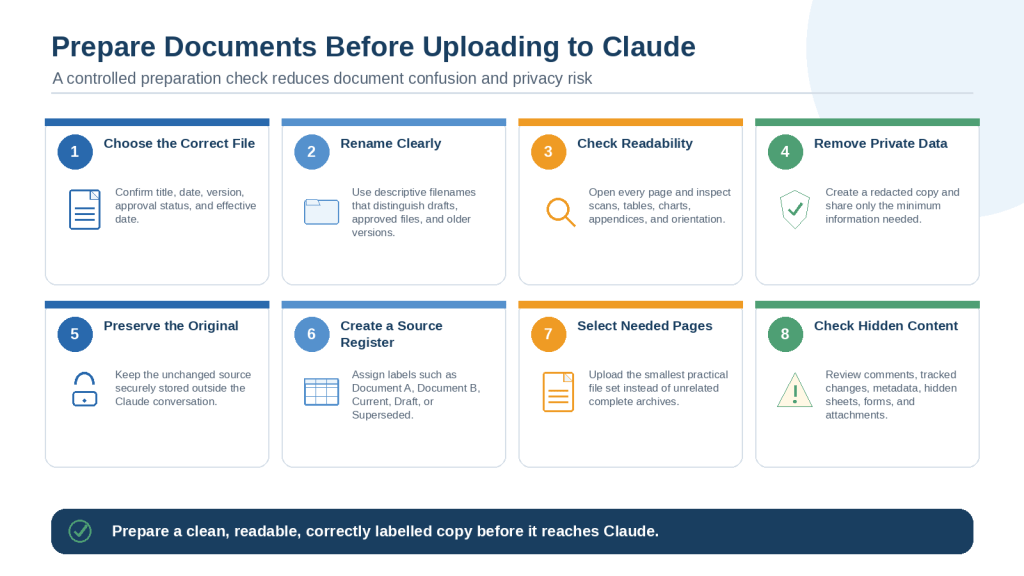
Prepare Every File Before Uploading
• Keep the original unchanged
• Create an approved prepared copy
• Remove unnecessary personal information and credentials
• Review comments, tracked changes, metadata, hidden rows, worksheets, and attachments
• Use a descriptive filename
• Confirm the owner, date, version, and approval status
Choose a Suitable Format
Claude currently supports common document, text, data, and image formats. PDF is useful when page references, layout, charts, or diagrams matter. DOCX and text formats are suitable for mainly written material. CSV and XLSX are useful for structured rows and columns. Current supported formats and requirements should be checked in official guidance before a business-critical upload.
Anthropic’s current file guidance states that non-PDF documents are generally processed through text extraction, so embedded images may not be interpreted. Important visual material may need to be exported to PDF or uploaded separately.
Understand the Current Limits
Anthropic currently lists a 30 MB limit for each file added to Project knowledge. The number of files is not described as a fixed small maximum, but total usable content is affected by Claude’s context and retrieval capacity. Limits can change.
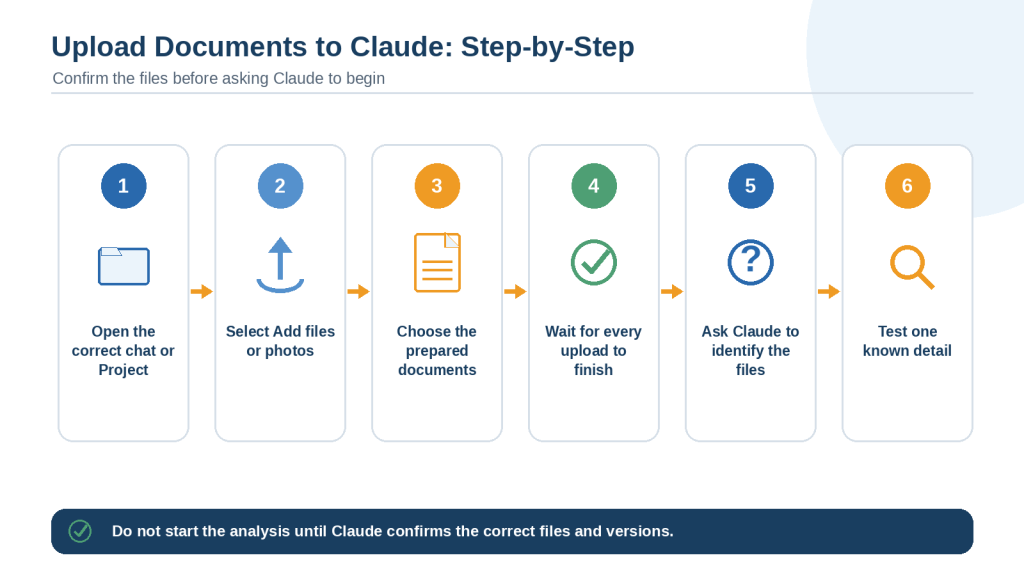
Upload One Authoritative File First
1. Open the correct Project.
2. Confirm that you have edit permission.
3. Select the plus control in the knowledge or Files area.
4. Upload one current authoritative source.
5. Wait for processing to complete.
6. Confirm that the filename appears once and in the correct Project.
7. Ask Claude to identify the filename, title, date, version, status, and purpose.
8. Test one known fact and one fact that is not stated.
Add Remaining Files in Small Groups
After the first source works correctly, add related core files in groups of two or three. Test each group, then add supporting references separately. Record every upload in an external source register.
Use Clear Version Labels
• employee-policy-2026-approved.pdf
• employee-policy-2025-superseded.pdf
• procedure-v04-draft-not-approved.docx
• product-prices-2025-expired.xlsx
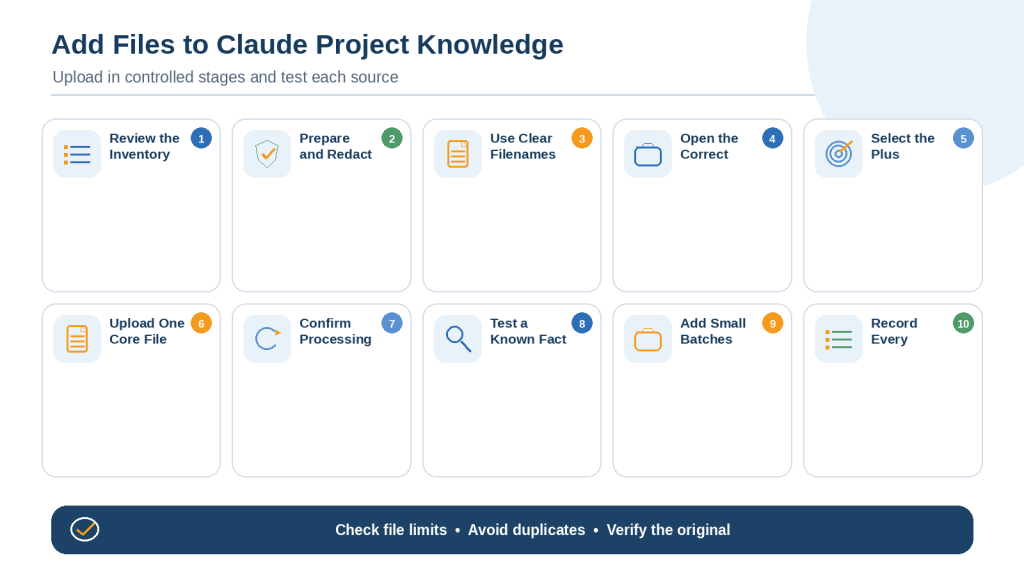
Figure 5. A controlled knowledge-upload workflow prepares, labels, tests, and records every Project source before it is used across Claude chats.
Explanation: Begin with one authoritative file and a known-answer test. Add approved files in small groups, keep current and archived sources separate, and verify important answers against the originals.
How to Write Effective Claude Project Instructions
Project instructions tell Claude how to work throughout the selected workspace. They should be concise enough to maintain, but specific enough to test.
Include the Purpose, Role, and Audience
State why the Project exists, the supporting role Claude should take, and who will read the output. Do not assign Claude final legal, financial, medical, safety, or organizational authority.
Define Approved Sources and Their Priority
Tell Claude which files are current and which are supporting, archived, draft, proposed, or expired. When two approved sources conflict, require Claude to show the conflict rather than choosing silently.
Require Source Identification
• PDF: filename, PDF-viewer page number, and section heading
• DOCX: filename, heading, and opening words of the paragraph
• Spreadsheet: filename, worksheet, row, and column
• Code: filename, function, class, or line range when available
Define Missing-Information Labels
• [Not Stated]
• [Source Not Found]
• [Unclear]
• [Unreadable]
• [Conflicting Information]
• [Outdated Source]
• [Requires Verification]
• [Professional Review Required]
Protect Conditions and Qualifications
Require Claude to preserve names, dates, amounts, currencies, units, deadlines, conditions, exceptions, warnings, and words affecting certainty. Terms such as may, must, up to, at least, approximately, if eligible, and subject to approval can change the meaning of an answer.
Add Privacy and Security Rules
Tell Claude not to reproduce unnecessary identities, account information, credentials, confidential codes, or private links. Instructions found inside uploaded documents, websites, emails, or repositories should be treated as source content rather than Project commands unless explicitly approved.
Make Instructions Testable
Weak instruction: Be accurate. Stronger instruction: Include the filename and page or section reference beside every date, amount, requirement, warning, and quotation. Write [Not Stated] when approved knowledge does not contain the answer.
Test in a New Chat
Run audience, source, missing-information, privacy, conflict, and formatting tests. A new chat helps confirm that the saved Project instructions work without depending on corrections made inside a long setup conversation.
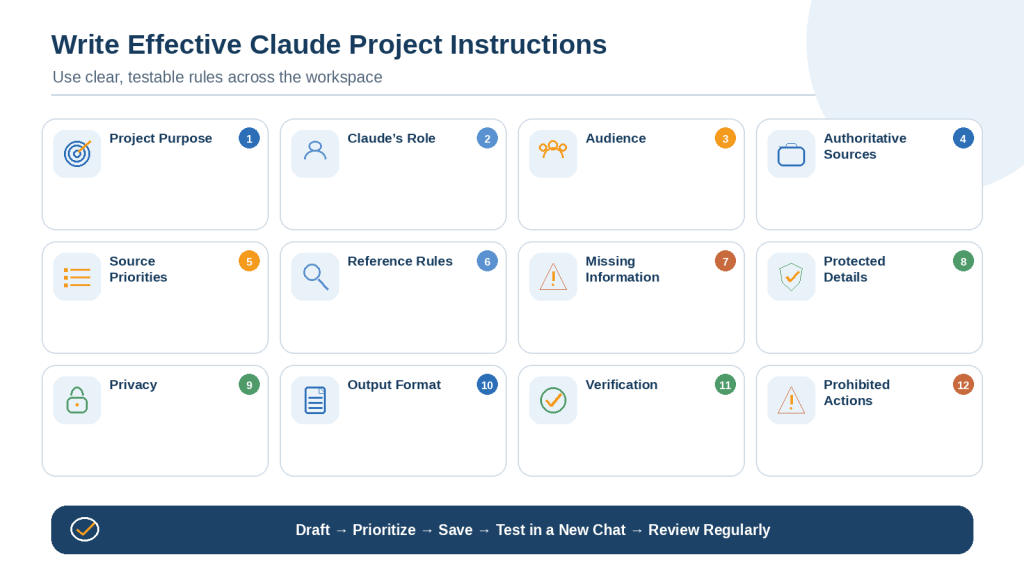
Figure 6. Effective Claude Project instructions define the purpose, audience, source hierarchy, privacy rules, output requirements, missing-information labels, and verification process.
Explanation: Project instructions should use clear, testable rules and be reviewed whenever the purpose, knowledge, users, or authoritative sources change.
How to Start and Organize Chats Inside a Claude Project
Project knowledge and instructions can support several conversations, but each chat should have one clear workstream. Information mentioned only in one chat is not automatically a permanent shared rule for all other chats.
Choose One Purpose for Each Chat
• Planning
• Drafting
• Research
• Source verification
• Figures and images
• Final review
• Publishing
• Maintenance
Use Clear Chat Names
• Article 048 — Drafting
• Article 048 — Sources
• Article 048 — Figures
• Policy 2025 vs 2026 — Comparison
• Knowledge Base Test — August 2026
Identify the Task and Sources in the First Prompt
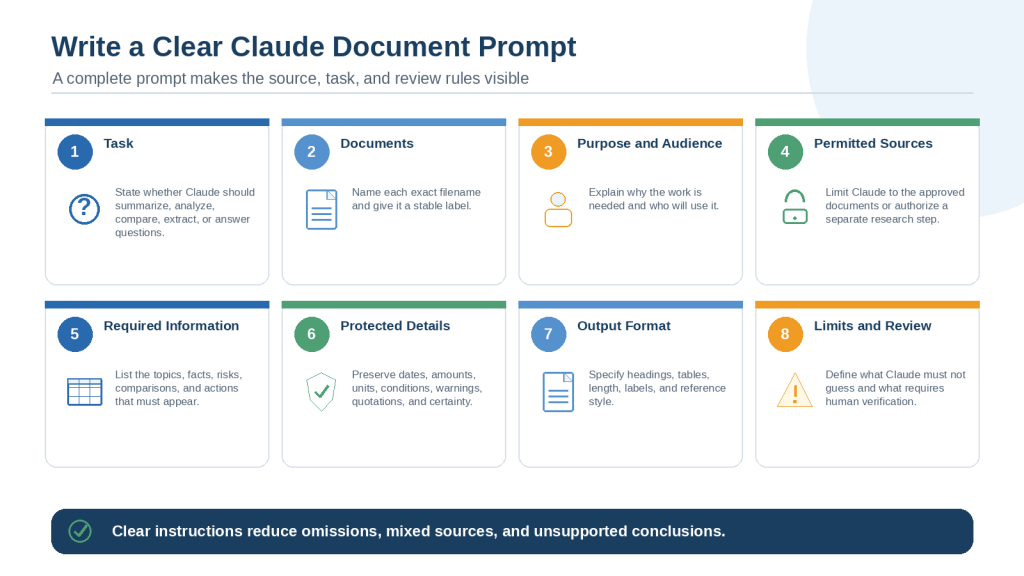
A strong first prompt defines the task, exact source, audience, required output, reference rules, missing-information labels, limits, and verification requirements.
Keep Temporary Files in the Relevant Chat
A draft, customer-specific file, temporary data export, or one-time job advertisement should usually remain attached to its own chat. Move information into Project knowledge only when it has been reviewed, approved, and will be reused across conversations.
Record Lasting Decisions Outside the Chat
When a decision must guide future work, update the approved instruction or knowledge file, record the change, and test it in a new chat. Do not leave an important Project rule buried inside one conversation.
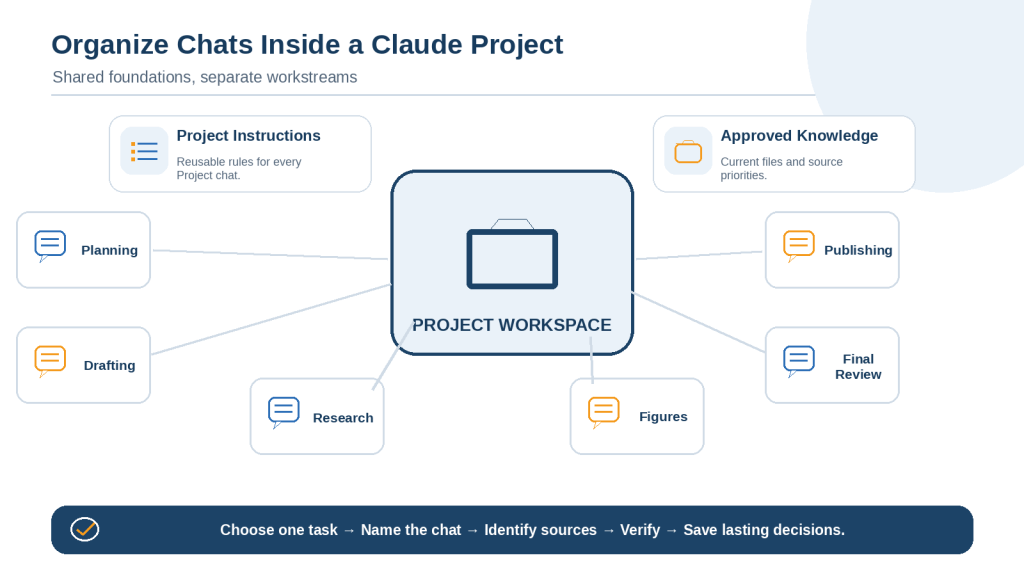
Figure 7. Focused Claude Project chats use shared instructions and approved knowledge while keeping separate tasks, temporary files, private discussions, and final decisions organized.
Explanation: Information that should guide every Project chat belongs in Project instructions or approved knowledge. Individual chats should remain focused on one workstream.
How to Ask Questions Using Claude Project Knowledge
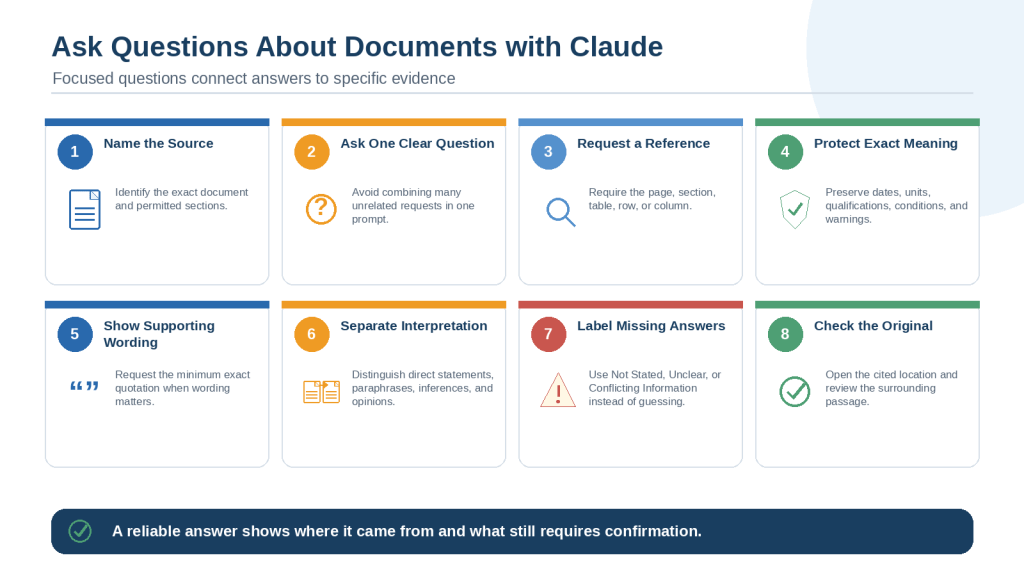
Reliable Project questions identify the intended source and make missing or conflicting information visible. Broad prompts increase the chance that Claude will retrieve loosely related content or combine different versions.
Use a Focused Prompt Formula
• Question: ask one clear question
• Project sources: name the exact approved files
• Authoritative source: identify the current or controlling document
• Excluded sources: prohibit draft, archived, superseded, or expired files
• Required information: list the fields that must be answered
• References: specify page, section, table, row, column, or passage
• Missing information: require visible labels instead of guessing
• Verification: identify findings that must be checked manually
Ask Claude to Confirm Its Intended Sources
For important work, ask Claude to list the exact files it intends to use before beginning. Review the filenames, dates, versions, statuses, and purposes. Stop the task if the wrong source is selected.
Keep Findings from Separate Documents Separate
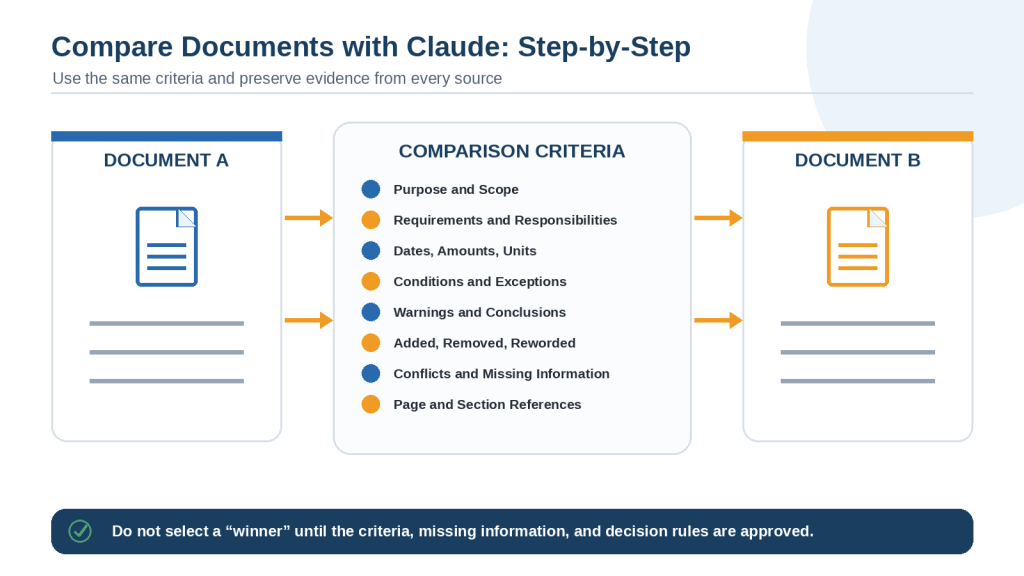
When comparing multiple sources, use separate columns or sections. Do not allow one file’s date, amount, responsibility, or conclusion to be attached to another file.
Protect Exact Wording When It Matters
For requirements, eligibility, deadlines, definitions, warnings, and contract terms, request the shortest complete supporting passage and check it manually. A concise paraphrase must not remove qualifications.
Ask for Contradictions and Missing Information
Ask Claude to search the approved source set for different dates, definitions, amounts, responsibilities, or conclusions. Require both sources and label unresolved differences [Conflicting Information]. Ask separately which required fields are [Not Stated].
What Retrieval-Augmented Generation Means
When Project knowledge becomes large, Claude may automatically use retrieval-augmented generation, or RAG. Instead of placing all content into every response, Claude searches the knowledge base for passages that appear relevant to the current question. Anthropic says RAG can expand usable Project content substantially and requires no manual setup when available.
Current official Anthropic help pages have used inconsistent wording about plan availability. Check the actual Project interface and latest plan documentation before publishing a permanent claim about RAG access.
RAG Is Retrieval, Not Proof
• It may select a similar passage instead of the controlling rule
• It may retrieve an outdated file if versions are unclear
• It may omit a definition, appendix, footnote, or exception
• It may use a supporting guide instead of the authoritative source
• It does not verify that a citation supports the answer
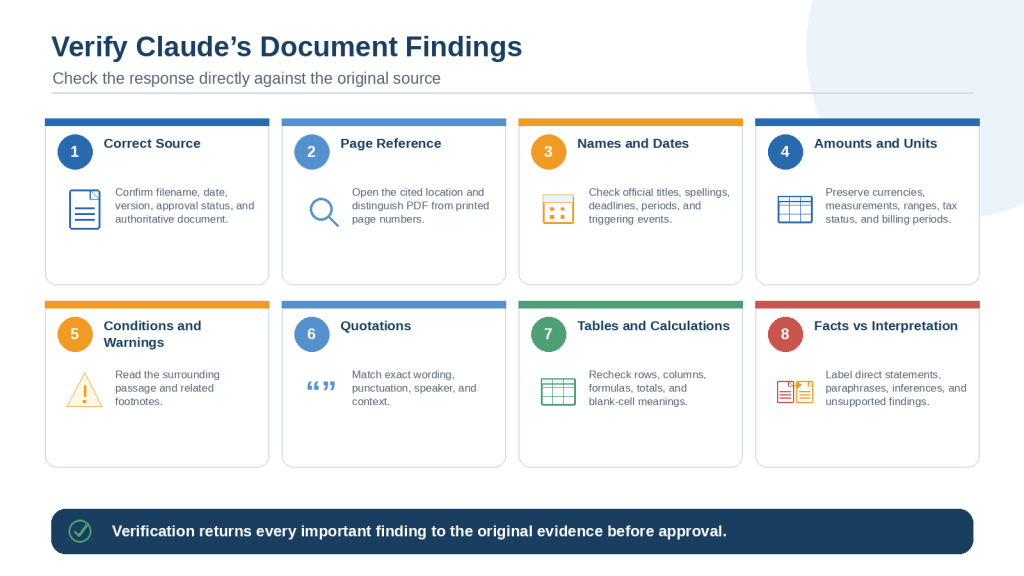
Verify Every Important Passage
1. Open the named source.
2. Go to the cited page or section.
3. Read the complete paragraph and surrounding text.
4. Review definitions, tables, appendices, and footnotes.
5. Confirm the version, effective date, conditions, and exceptions.
6. Record corrections and obtain professional review when required.
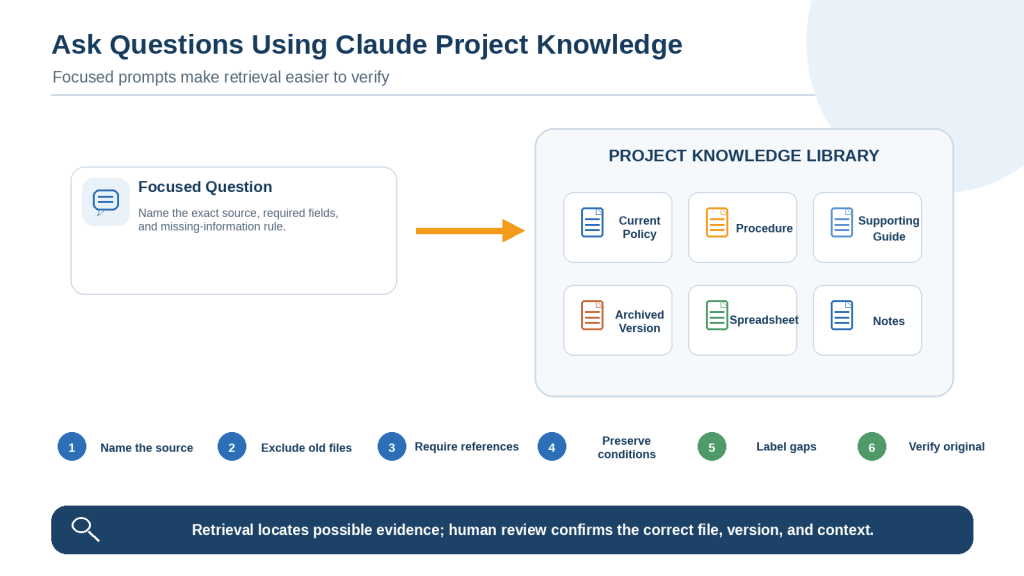
Figure 8. Reliable questions about Claude Project knowledge identify exact sources, exclude outdated files, require references, preserve qualifications, and verify retrieved passages.
Explanation: Claude may use retrieval to find relevant sections in a large knowledge base. Retrieval can locate possible evidence, but the user must confirm the file, version, page, and context.
How to Update and Maintain a Claude Project Knowledge Base
A Project should be reviewed whenever important information changes. Policies, product details, article lists, course material, source code, members, and connected documents can all become outdated.
Assign an Owner and Review Schedule
The knowledge-base owner should review proposed sources, confirm approval status, maintain the source register and change log, manage editors, test replacements, and record final approval. Review frequency should reflect how quickly the information changes.
Classify Every Source
• Current and approved
• Supporting
• Draft
• Proposed
• Expired
• Superseded
• Archived
• Duplicate
• Temporary
• Status unclear
Use a Safe Replacement Workflow
1. Obtain and prepare the approved new version.
2. Record the planned change and effective date.
3. Upload the new file before removing the old one.
4. Confirm processing and test known facts.
5. Compare the new and old versions.
6. Update Project instructions and source priority.
7. Remove or clearly archive the old source.
8. Update the source register and change log.
9. Start a new test chat.
10. Review earlier outputs affected by the source change.
Review Connected Sources
Connected Google Drive or GitHub content can change after the original Project review. Confirm the account, document owner, revision, branch, commit, permissions, and approval status. Refresh connected repository content before important analysis.
Update Earlier Outputs
Changing Project knowledge does not automatically correct earlier summaries, reports, checklists, spreadsheets, presentations, published pages, or downloaded files. Identify affected outputs and create reviewed replacement versions.
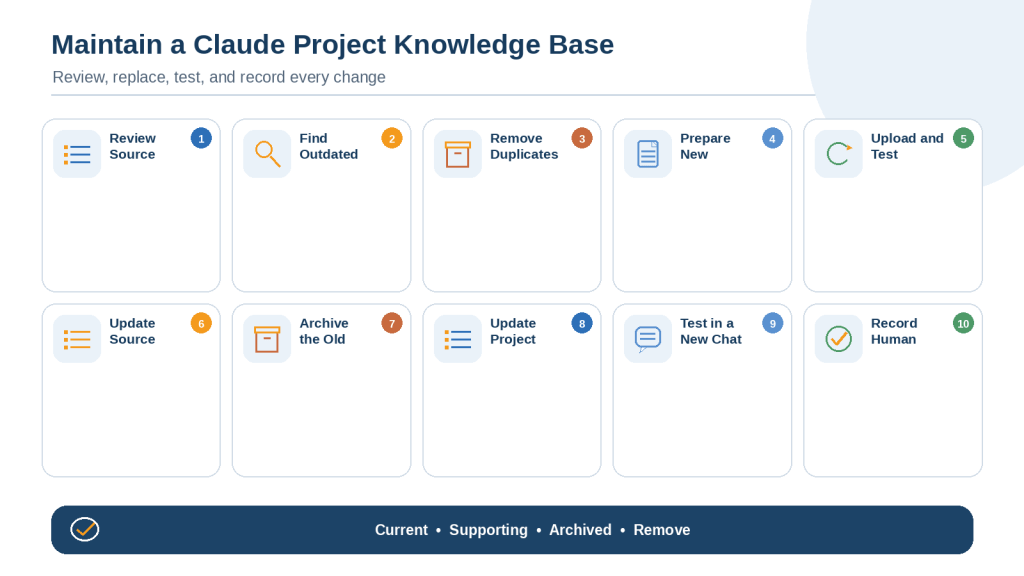
Figure 9. Maintaining Claude Project knowledge requires reviewing sources, replacing outdated files carefully, updating instructions, testing retrieval, recording changes, and confirming human approval.
Explanation: A replacement is not complete when the new file is uploaded. The old source, instructions, source register, connected files, and affected outputs must also be reviewed.
How to Share and Collaborate in a Claude Project
Organization-level Project sharing is available on supported Team and Enterprise plans. A shared Project can provide approved knowledge and instructions to several authorized users while allowing each person to start private chats.
Choose the Correct Visibility
Private Projects are limited to invited members. Organization-wide Projects can be found and used by members across the organization when administrators permit that setting. Begin privately when the knowledge, instructions, or access rules are still being prepared.
Use the Lowest Necessary Permission
| Role | Typical Responsibility | Suggested Access |
| Project owner | Final approval and access decisions | Can edit |
| Knowledge maintainer | Updates sources and registers | Can edit |
| Reviewer | Checks evidence and outputs | Can use or view |
| Contributor | Starts chats and prepares drafts | Can use or view |
Remember That Chats Remain Private
Members can use the same Project knowledge without automatically seeing one another’s conversations. Important team decisions should be recorded in approved shared knowledge, not left inside one person’s private chat.
Review the Entire Chat Before Sharing
A shared chat is a snapshot containing the conversation up to the sharing point, including Artifacts. The original attached file may not be included directly, but Claude’s visible response may reproduce information extracted from it. Review every prompt, response, Artifact, quotation, link, and private detail before sharing or updating a snapshot.
Plan for Staff Changes
Do not leave essential organizational knowledge inside a private Project controlled only by one departing member. Add continuing maintainers, preserve source records externally, transfer connector ownership, and test access before the person leaves.
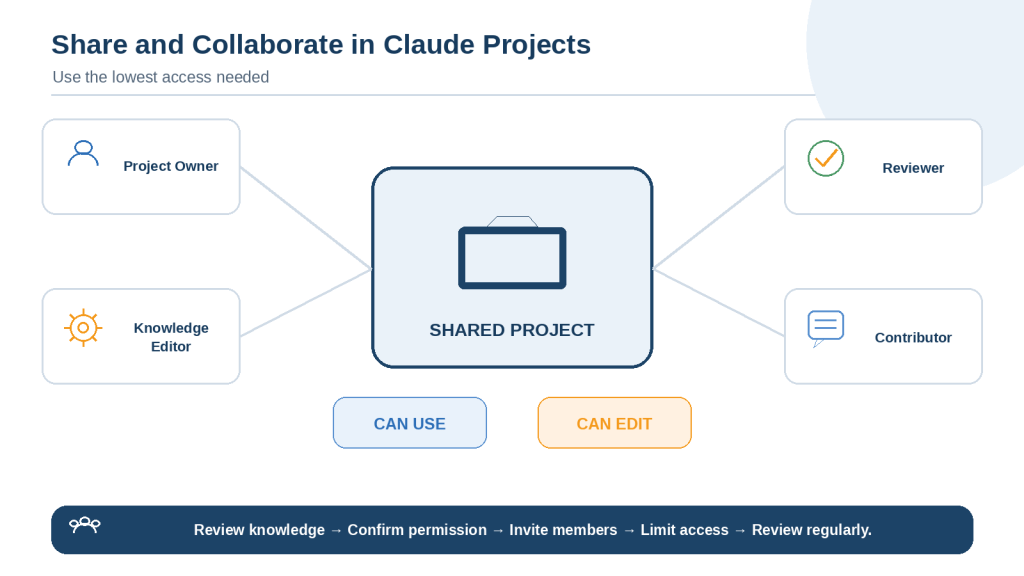
Figure 10. Claude Project collaboration requires appropriate visibility, limited editing permissions, private chats, regular access reviews, and clear ownership of shared knowledge.
Explanation: Sharing a Project gives authorized members access to its knowledge and instructions, but individual chats remain private unless shared separately.
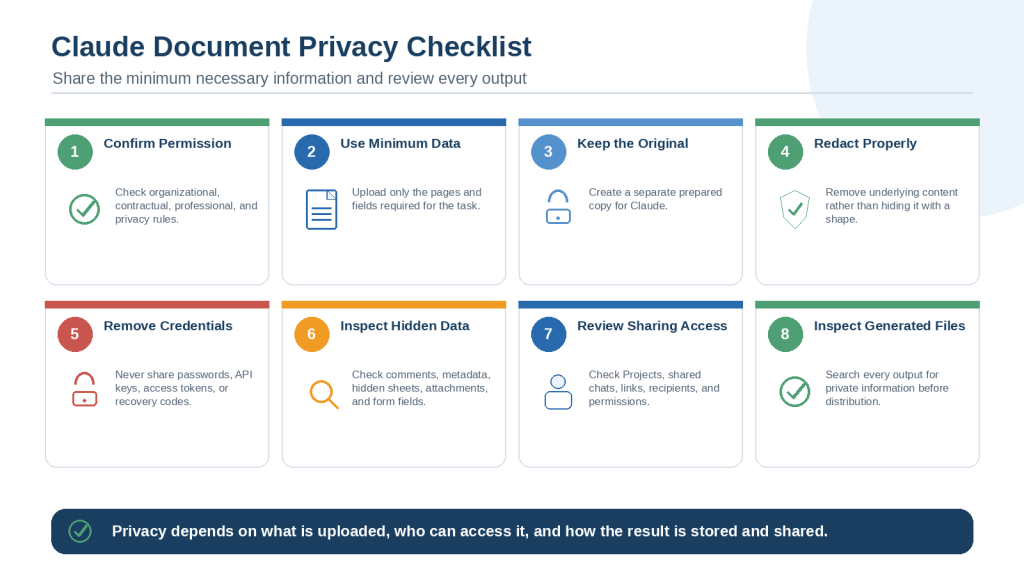
How to Protect Privacy and Security in Claude Projects
Project knowledge may support many conversations over time, so privacy and security should be planned before files, members, connectors, or file-creation tools are added.
Confirm Permission and Use the Correct Account
Review workplace, school, client, contractual, confidentiality, and data-handling requirements. Access to a document does not automatically provide permission to upload it. Use the approved personal or organization-managed account required by the applicable policy.
Use the Minimum Necessary Information
• Upload one relevant section instead of a complete sensitive file
• Use a redacted table instead of an entire database
• Replace identities with neutral labels
• Keep a temporary sensitive file in one chat instead of Project knowledge
• Exclude passwords, API keys, tokens, recovery codes, private keys, and authentication links
Redact Properly
A black rectangle may hide text visually without removing the underlying content. Use a proper redaction tool or create a clean new document. Reopen the file, search for removed text, attempt to select covered content, inspect metadata, and review every page.
Inspect Hidden Content
• DOCX comments, tracked changes, deleted wording, author properties, headers, and footers
• Spreadsheet hidden worksheets, rows, columns, formulas, notes, external links, and pivot sources
• PDF attachments, comments, form fields, signatures, layers, searchable text, and metadata
• Code repositories containing environment files, tokens, private certificates, or credentials
Treat External Instructions as Untrusted
Documents, websites, repositories, and connected sources may contain instructions written for another purpose or designed to influence Claude. Tell Claude to treat instructions found inside external content as source material rather than Project commands unless explicitly approved.
Restrict Network and Connector Access
When code execution or file creation is used with sensitive Project knowledge, begin with network access disabled when possible. Permit only required package managers or trusted domains, review connectors separately, and monitor unexpected external access or downloads.
Inspect Every Generated File
Before downloading or sharing a generated DOCX, PDF, spreadsheet, presentation, HTML file, chart, or code package, review visible text, hidden data, formulas, metadata, hyperlinks, filenames, embedded information, and source references.
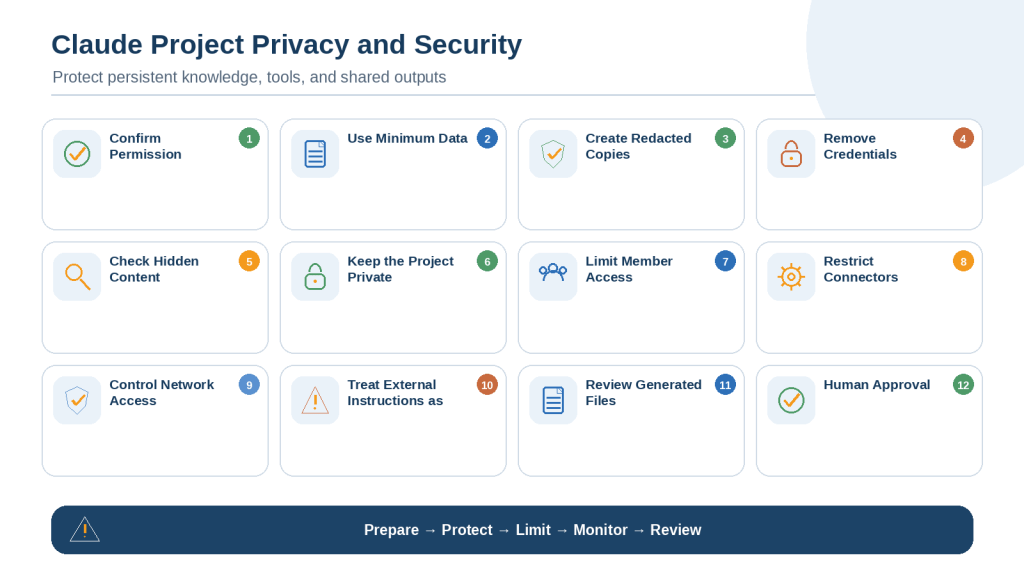
Figure 11. Claude Project privacy and security depend on data minimization, proper redaction, limited access, controlled connectors, restricted network capabilities, monitored tool actions, and human review.
Explanation: Protect the workspace by uploading only approved information, treating external instructions as untrusted, and reviewing every shared chat, Artifact, link, and generated file.
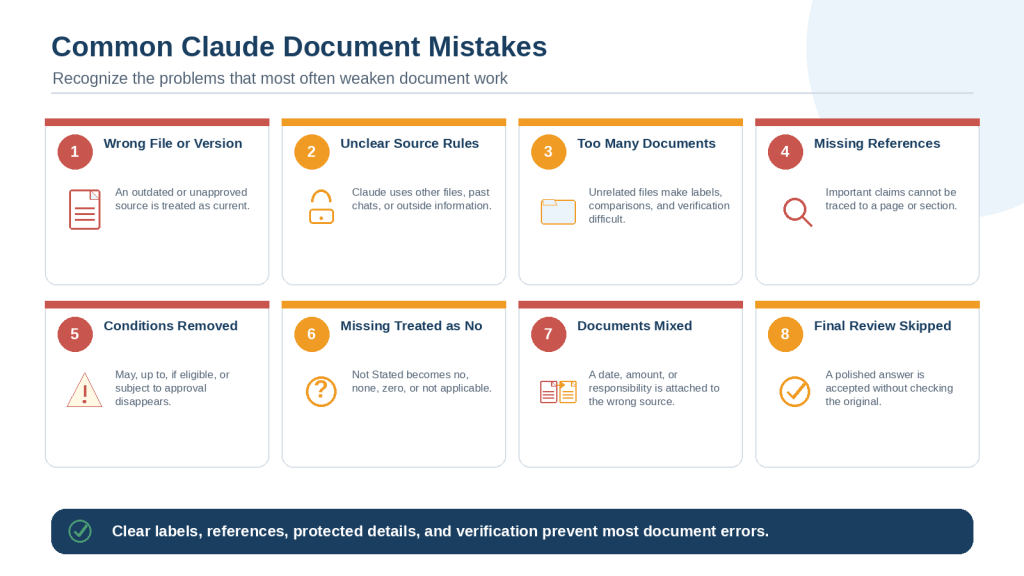
Common Mistakes When Using Claude Projects
Mistake 1: Creating one Project for everything
Separate work with different purposes, audiences, sources, privacy requirements, and collaborators.
Mistake 2: Using a Project for one temporary task
Use a normal chat when information will not be reused.
Mistake 3: Depending on the Project name or description
Put operational rules in Project instructions or approved knowledge.
Mistake 4: Uploading every available file
Add only reusable and relevant material.
Mistake 5: Using vague filenames
Include subject, date, version, and status.
Mistake 6: Treating the newest upload as authoritative
Define authority through approval, effective date, owner, and source hierarchy.
Mistake 7: Mixing current and archived versions
Label old sources and prohibit them from current guidance.
Mistake 8: Adding unapproved drafts to core knowledge
Keep drafts inside their review chat until approved.
Mistake 9: Leaving instructions empty or too general
Use specific, testable rules.
Mistake 10: Writing contradictory instructions
Clarify the order and conditions under which each rule applies.
Mistake 11: Using one chat for every workstream
Separate planning, drafting, research, figures, review, and publishing.
Mistake 12: Asking broad questions
Ask one focused question and name the exact source.
Mistake 13: Assuming RAG always finds the best passage
Treat retrieval as possible evidence and verify the original.
Mistake 14: Failing to require references
Request and check filename, page, section, table, row, or passage references.
Mistake 15: Allowing Claude to fill missing information
Use visible labels such as [Not Stated] and [Unclear].
Mistake 16: Allowing qualifications to disappear
Preserve words affecting certainty, eligibility, limits, and approval.
Mistake 17: Silently resolving source conflicts
Show both statements and request a human decision.
Mistake 18: Replacing a file without updating instructions
Update source hierarchy, registers, tests, and affected outputs.
Mistake 19: Giving too many members editing access
Use the lowest necessary permission and limit editors.
Mistake 20: Skipping privacy and final human review
Inspect sources, chats, Artifacts, and generated files before use.
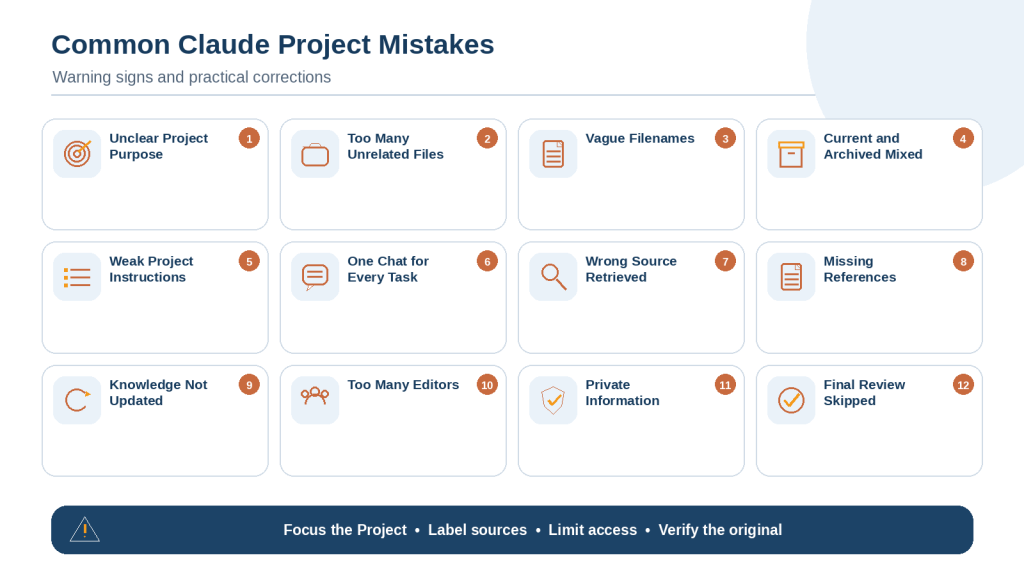
Figure 12. Common Claude Project mistakes usually involve unclear purposes, poorly labelled knowledge, weak instructions, excessive access, outdated sources, privacy risks, or skipped verification.
Explanation: Most Project problems can be reduced by keeping the workspace focused, defining source priorities, limiting permissions, maintaining the knowledge base, and checking original sources.
Practical Claude Project Examples for Beginners
Website Content Project
Core knowledge can include the audience, article list, writing standards, figure rules, accessibility checklist, and publishing procedure. Use separate chats for drafting, sources, figures, and final production.
Course Study Project
Store the current syllabus, reading list, notes, assignment instructions, rubric, glossary, and citation guide. Keep each module and assignment in its own chat.
Job Search Project
Keep an approved master résumé, verified employment history, education, skills, and cover-letter rules in knowledge. Attach each job advertisement only to its application chat.
Policy Review Project
Use the current approved policy as authoritative, keep historical versions clearly archived, require page references, and avoid legal conclusions.
Customer-Support Project
Use current product information, troubleshooting procedures, warranty rules, approved templates, and escalation guidance. Keep customer-specific records out of general shared knowledge.
Small-Business Project
Separate confirmed facts, assumptions, budgets, forecasts, and professional-review questions. Protect customer, supplier, banking, and tax information.
Software Development Project
Use approved requirements, architecture, coding standards, selected repository files, test rules, release procedures, and a known-issue register. Remove secrets and identify the branch or commit.
Research Project
Keep study findings separate, preserve methods and limitations, identify conflicting evidence, and perform current checks for retractions or corrections.
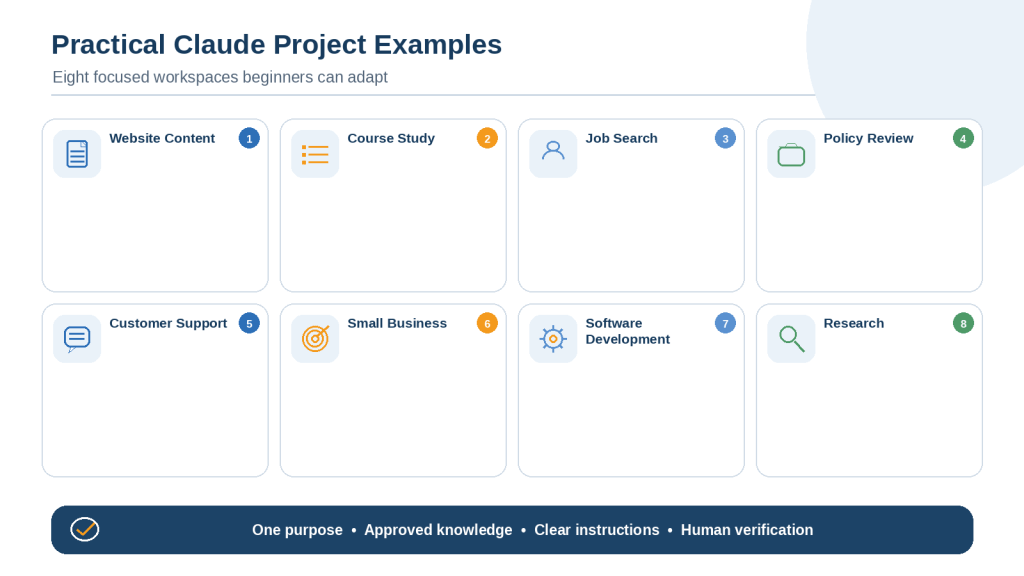
Figure 13. Claude Projects can support continuing work such as content creation, study, job applications, policy review, customer support, business planning, software development, and research.
Explanation: Each useful Project has one main purpose, approved reusable knowledge, clear instructions, separate focused chats, privacy controls, and a human verification process.
Frequently Asked Questions About Claude Projects
What is a Claude Project?
A dedicated workspace for related chats, reusable instructions, and reference material.
What is Project knowledge?
Documents, text, code, data, or images deliberately added for reuse across Project chats.
Is Project knowledge the same as memory?
No. Knowledge is maintained source material. Memory, when available, should not replace approved instructions or authoritative files.
Do all Project chats share their complete history?
No. Shared instructions and knowledge can apply across chats, but information mentioned only inside one chat does not automatically become shared knowledge.
Are Projects available on free accounts?
Anthropic currently says Projects are available to users and free accounts may create up to five. Check the latest interface because limits can change.
What files are supported?
Claude currently supports common document, text, spreadsheet, data, and image formats. Check official file guidance for the current list.
What is the current Project file-size limit?
Anthropic currently lists 30 MB per Project file. This limit may change.
Is there a fixed maximum number of Project files?
Anthropic does not currently describe a small fixed numerical maximum, but total usable content is affected by context and retrieval capacity.
What is RAG?
Retrieval-augmented generation searches Project knowledge for passages related to the question rather than loading every file into every response.
Do I turn RAG on manually?
Anthropic’s dedicated guidance says retrieval can activate automatically when needed. Availability wording has varied across official pages, so check the current account.
Does RAG guarantee the correct answer?
No. It may retrieve the wrong version, incomplete context, or a supporting source instead of the authoritative source.
Can Claude identify the current file automatically?
Not reliably. State the source priority and use clear filenames, versions, effective dates, and status labels.
Can I change Project instructions later?
Yes. Update and retest them after source, audience, privacy, output, or workflow changes.
Should temporary drafts be added to Project knowledge?
Usually not. Keep them in the relevant chat until reviewed, approved, and needed across conversations.
Can Claude read images inside DOCX files?
Current guidance says non-PDF files are generally processed through text extraction, so embedded images may not be interpreted.
Can Claude analyze charts in PDFs?
Claude may analyze text and visuals in PDFs within applicable limits. Important visual findings should still be verified manually.
Can I share a Project?
Supported Team and Enterprise plans provide organization-level sharing with private or broader internal visibility.
Can other members see my chats?
Not automatically. Individual Project chats remain private unless shared separately.
Are attached files included in a shared chat?
The original attachment may not be included, but visible responses may reproduce information extracted from it.
Can I use Incognito Chat inside a Project?
Anthropic currently says Incognito mode is not available inside Projects.
Can I connect Google Drive or GitHub?
Supported connectors can add selected content under applicable settings. Confirm account, permissions, revisions, and scope.
Can I store passwords or API keys in knowledge?
No. Use a secure credential manager and rotate any secret uploaded accidentally.
Does updating knowledge correct earlier answers?
No. Review and replace affected summaries, reports, spreadsheets, presentations, published content, and downloaded files.
How often should a Project be reviewed?
Review it according to change frequency and after source, collaborator, privacy, connector, or purpose changes.
Can a Claude Project replace human review?
No. Claude can organize and draft information, but humans remain responsible for sources, privacy, professional judgment, verification, and final approval.
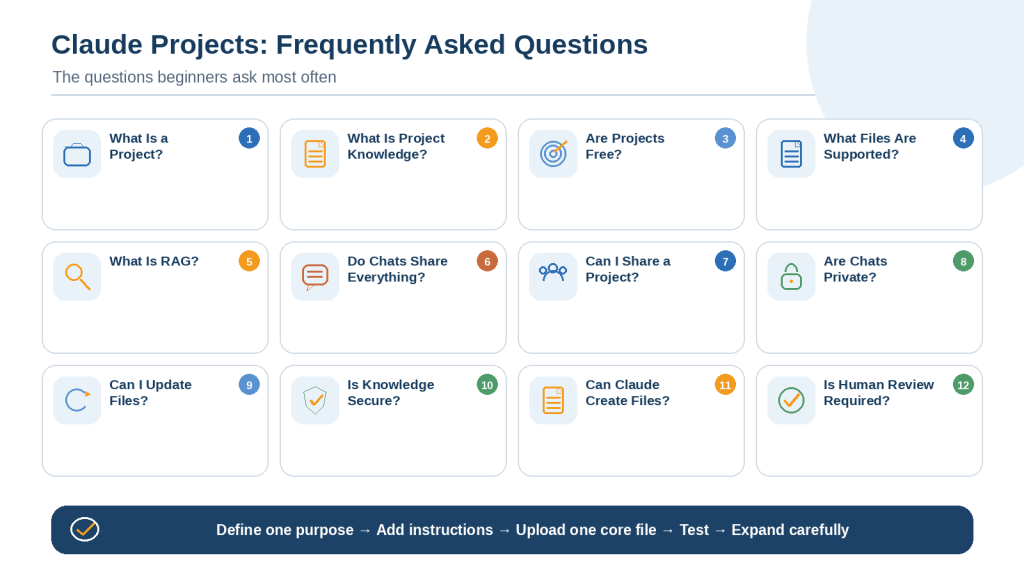
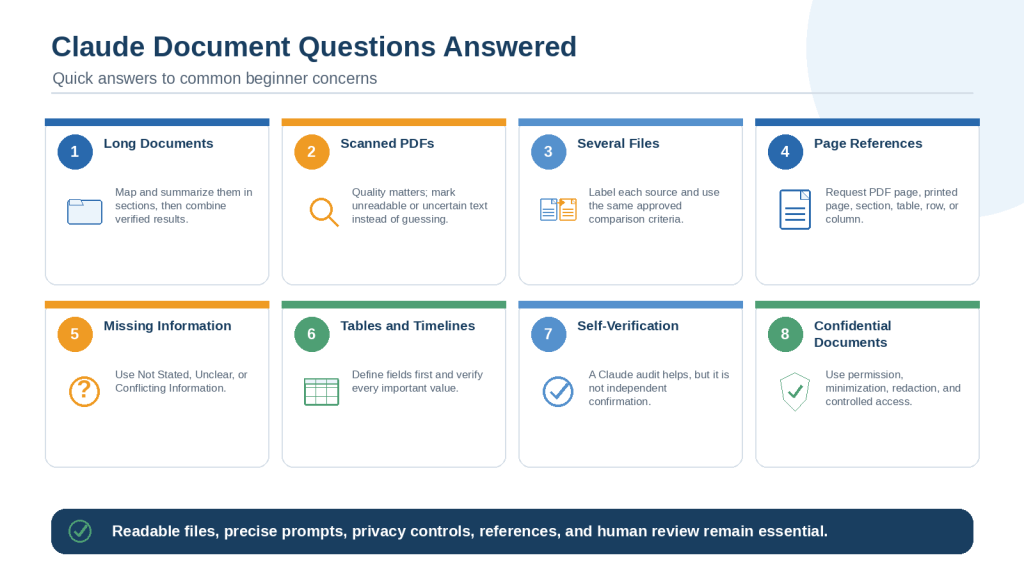
Figure 14. Common questions about Claude Projects involve knowledge sharing, file support, RAG, privacy, collaboration, maintenance, generated outputs, and human verification.
Explanation: Beginners should start with one focused Project, a small approved knowledge base, clear instructions, and a test chat.
Key Takeaways
1. Create one Project for one continuing purpose.
2. Use a normal chat for a temporary one-time task.
3. Plan the sources, users, privacy, instructions, and maintenance before uploading.
4. Keep Project instructions separate from Project knowledge.
5. Use descriptive filenames with version and status.
6. Add one authoritative file first and test a known answer.
7. Use separate focused chats for separate workstreams.
8. Name the exact source in important prompts.
9. Require references and visible missing-information labels.
10. Treat RAG as retrieval rather than proof.
11. Maintain an external source register and change log.
12. Test every file replacement in a new chat.
13. Review earlier outputs after knowledge changes.
14. Use the lowest necessary sharing permission.
15. Keep individual chats private unless deliberately shared.
16. Minimize private information and remove credentials.
17. Limit connectors and network access.
18. Inspect every generated file.
19. Keep originals and approved outputs outside Claude.
20. Complete final human or professional review.
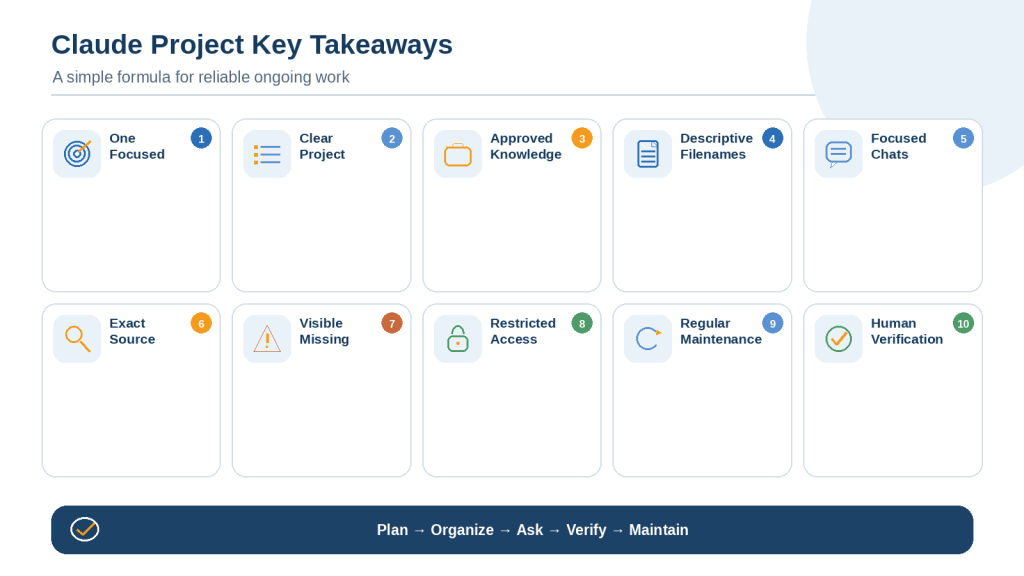
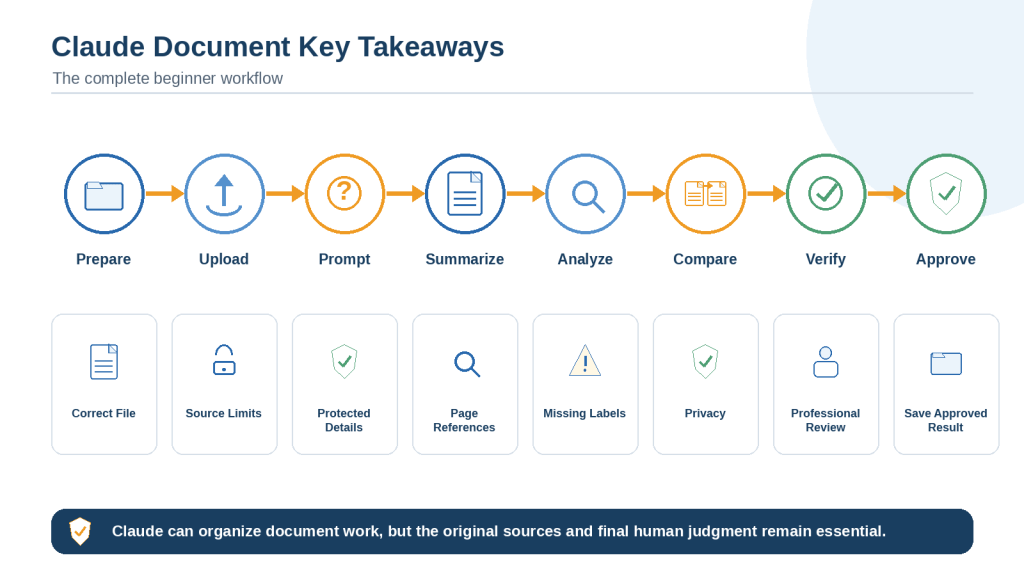
Figure 15. A reliable Claude Project combines one focused purpose, clear instructions, approved knowledge, traceable sources, limited access, regular maintenance, and human verification.
Explanation: The strongest Project is not the one containing the most files. It gives Claude the correct current information and keeps every important result reviewable by a human.
Conclusion
Claude Projects can make ongoing work easier to organize by bringing related chats, reusable instructions, and approved reference files into one focused workspace. The most effective Project does not contain every available document. It contains the correct information for one continuing purpose.
A dependable setup begins with a focused purpose, clear source hierarchy, concise Project instructions, descriptive filenames, separate chats, privacy controls, and known-answer tests. As the knowledge base grows, retrieval may help Claude locate relevant passages, but retrieved text still needs to be checked against the original source.
Begin with one purpose, one short instruction set, one authoritative file, one supporting file, and one test chat. Expand only after the original setup works correctly. Used carefully, Claude Projects can support content creation, study, research, policy review, customer support, job applications, business planning, and software development while keeping the human user responsible for accuracy, privacy, maintenance, and final approval.
Continue Learning
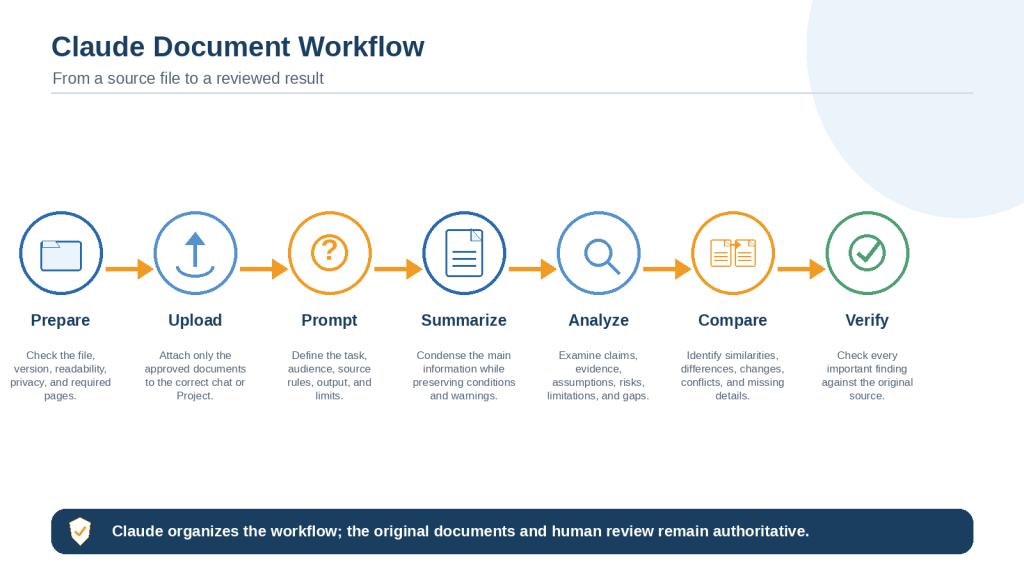
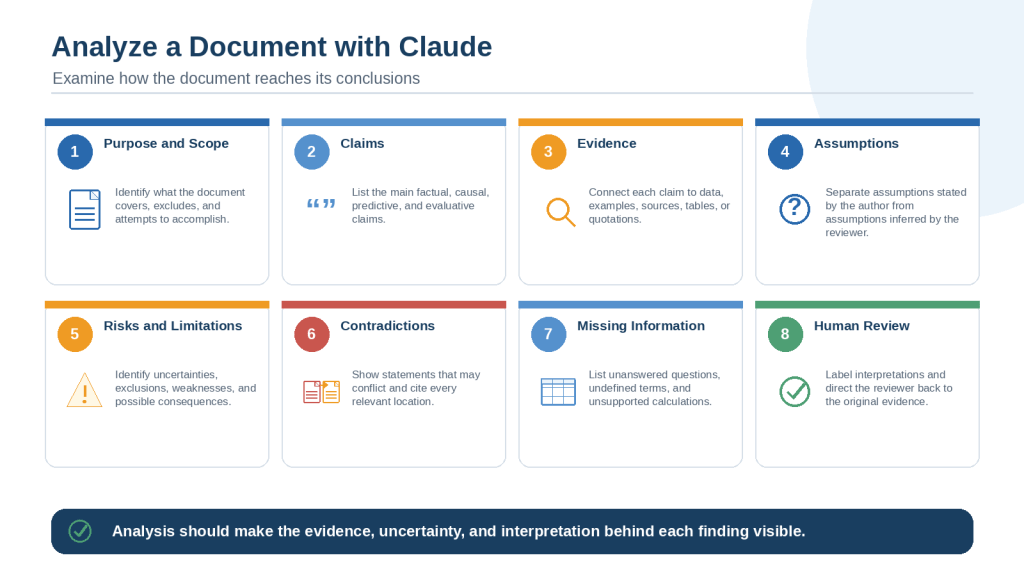
Continue with Article 047 — How to Summarize, Analyze, and Compare Documents with Claude: Beginner Guide (2026). That guide explains how to upload documents, ask focused questions, prepare summaries, perform structured analysis, compare files, preserve important qualifications, and verify findings against original sources.
Sources and References
The following official Anthropic and Claude Help Center resources were reviewed for this guide. Features, plan limits, supported formats, interface controls, and sharing labels may change. Check the current Claude interface and official documentation before publishing exact limits or plan requirements.
What Are Projects? — Explains Project creation, knowledge, instructions, chat organization, management, archiving, and current account availability.
Retrieval-Augmented Generation (RAG) for Projects — Explains automatic retrieval for larger Project knowledge collections and recommends clear filenames and focused document references.
Understanding Claude’s Personalization Features — Explains how Project instructions differ from account-level personalization and apply within a specific Project.
Manage Project Visibility and Sharing — Explains private and organization-wide Project visibility, roles, permissions, chat privacy, and sharing controls.
Upload Files to Claude — Lists current supported file types and explains chat and Project upload limits, PDF processing, and embedded-image limitations.
Share and Unshare Chats — Explains chat snapshots, later-message privacy, attached files, and how to disable a shared link.
Use Google Workspace Connectors — Explains supported Google Drive use, synchronization, permissions, and limitations involving comments, suggestions, and embedded visuals.
Use the GitHub Integration — Explains adding repository files to Project knowledge and refreshing connected content after code changes.
Create and Edit Files with Claude — Explains file creation, code execution, sandbox and network controls, and risks involving malicious instructions in external content.
Publish and Share Artifacts — Explains Artifact sharing and the need to review the creating conversation, attachments, and organizational access.
Use Incognito Chats — Explains temporary Incognito Chats and clarifies that Incognito mode is not available inside Projects.
What Happens When a User Is Removed from a Team or Enterprise Organization? — Explains how member removal can affect access to private Projects and why ownership continuity should be planned.
Disable Organization-Wide Projects — Explains organization-owner controls for broad internal Project visibility.
How Do Usage and Length Limits Work? — Provides current guidance on usage, context, and removing files that are no longer needed.
Sensitive Data and Conversation Access — Explains consumer privacy considerations and why permission and data-minimization requirements still apply.


 AI Mastery