
Estimated reading time: 29 minutes
Last updated: August 5, 2026
Featured image. Connecting approved apps allows Claude to work with relevant information while the user retains control.
Explanation: The featured image introduces the article’s central idea: connecting Claude to everyday services through reviewed permissions.
Introduction
Claude becomes much more useful when it can work with information stored in the apps you already use. Instead of repeatedly copying emails, calendar details, or documents into a chat, you can connect supported services and ask Claude to retrieve relevant information or complete approved actions.
These connections are called connectors. Anthropic currently offers Google Workspace connectors for Gmail, Google Calendar, and Google Drive. Claude also supports other workplace services, pre-built integrations, and custom connectors based on the Model Context Protocol, commonly called MCP.
This beginner guide explains how to connect apps, use them safely, control permissions, troubleshoot problems, and disconnect access when the work is finished. The examples use the Claude interface available in August 2026. Button names and menu locations may change as Claude is updated.
What You Will Learn
• What Claude connectors are and how they differ from file uploads
• How to connect Gmail, Google Calendar, and Google Drive
• How to use each Google Workspace connector safely
• How to connect Microsoft 365, GitHub, Claude Tag in Slack, and other services
• How permissions, approvals, and administrator controls work
• How to protect private and business information
• How to disable, disconnect, or revoke a connector
• How to fix common connector problems
• How to write clear connector prompts and combine several apps
What Are Claude Connectors?
A connector is an authorized link between Claude and another app or service. Depending on the connector, Claude may be able to search existing information, read content, create drafts, update records, upload files, or perform other supported actions.
Claude inherits your permissions from the connected service. If your account cannot open a particular file, channel, calendar, repository, or record in the original app, Claude cannot use the connector to bypass that restriction.
How a Connector Works
1. You select a supported app from Claude’s connectors directory.
2. You sign in to the external service and review the requested permissions.
3. You enable the connector for the conversation where it is needed.
4. Claude uses the connector when your prompt requires it.
5. You review source citations and approve any action that needs authorization.
Connectors Compared with File Uploads
| Method | What Claude Receives | Best Use |
| File upload | One selected copy of a file | A focused, temporary document task |
| Connector | Controlled access to the original service | Searching current information or performing supported actions |
| Copied text | Only the text you paste | A small, low-risk question |
Connectors can reduce repetitive work, but they also create continuing access until you disable or disconnect them. That makes permission management essential.
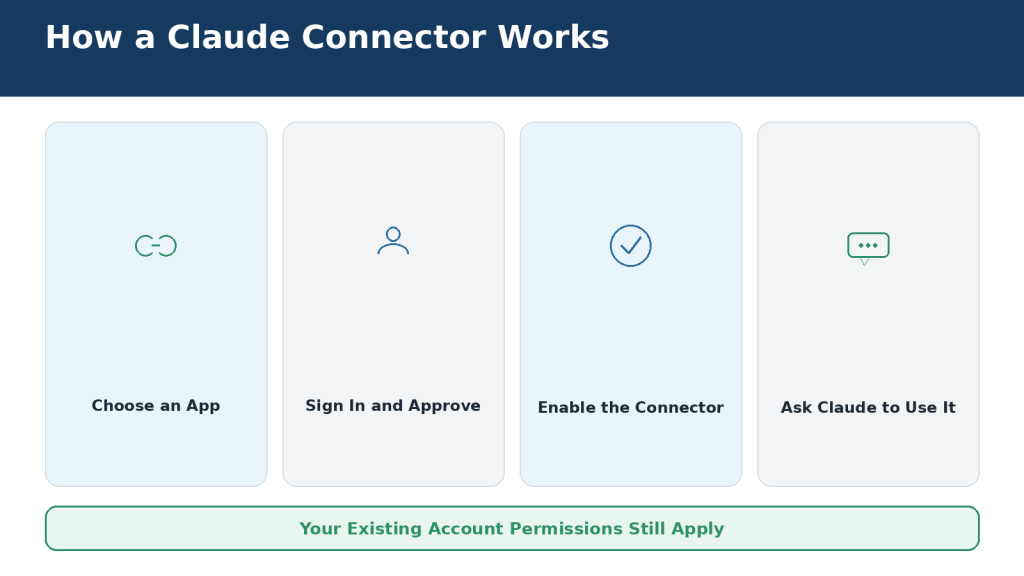
Figure 1. How an authorized connector allows Claude to communicate with a supported app or service.
Explanation: The user authorizes the connection. Claude can then retrieve information or propose supported actions while remaining limited by the account’s existing permissions.
Which Google Workspace Apps Can Connect to Claude?
Anthropic’s Google Workspace integration includes Gmail, Google Calendar, and Google Drive. The connectors are available to all Claude users on Claude and Claude Desktop. On Team and Enterprise plans, an Owner or Primary Owner must first enable them for the organization.
Gmail
• Search and read messages using natural-language requests
• Summarize messages and long threads
• Create formatted drafts in Gmail
• List saved drafts
• Work with supported labels and threads
• View attachment metadata such as filenames and file types
Claude cannot send a Gmail message for you. It can create a draft, but you must open Gmail, review the recipient and wording, add attachments, and press Send yourself. Claude can see attachment metadata through Gmail, but not the attachment’s contents.
Google Calendar
• View events and shared calendars available to your account
• Check your availability and find mutual availability
• Create, update, and delete events
• Manage attendees and respond to invitations
• Create recurring meetings
Google Drive
• Search and retrieve Google Docs
• Read Sheets, Slides, PDFs, images, and supported Microsoft Office files
• Upload files and optionally convert them to Google formats
• Create folders and view file permissions
• Add Google Docs directly to chats and private Claude projects
• Save Claude-generated files to Drive when file creation is enabled
Claude extracts text from Drive files. Images embedded inside documents are not processed as part of that text extraction. Google Docs comments and suggested edits may also require separate review in the original document.
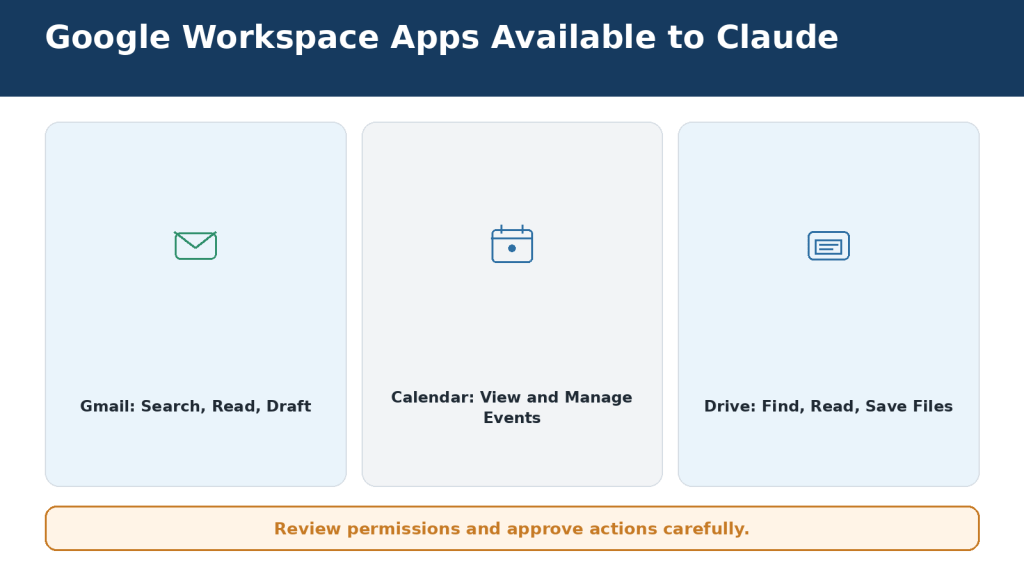
Figure 2. Gmail, Google Calendar, and Google Drive provide different information and actions through Claude.
Explanation: Gmail works with messages, Calendar works with schedules, and Drive works with documents and files. Connect only the services needed for the task.
What You Need Before Connecting Google Workspace
• An active Claude account
• Access to the correct Google account
• Your Google password and two-step verification method
• Claude organization approval when using Team or Enterprise
• Google Workspace administrator approval when third-party apps are restricted
• A trusted device and stable internet connection
• A clear decision about which Google services you actually need
Choose the Correct Account
Many people remain signed in to several Google accounts. Check the complete email address during authorization. Connecting a personal account instead of a workplace account, or the reverse, can cause Claude to search the wrong mailbox, calendar, or Drive storage.
Read the Permission Screen
Google shows the permissions requested by the connector. Read the entire screen. Do not approve automatically. Confirm that the service, account, and requested capabilities match the work you intend to do.
Use a Low-Risk First Test
Begin with an ordinary email, a harmless calendar event, or a non-sensitive test document. Do not start with confidential contracts, medical information, financial records, or private customer data.
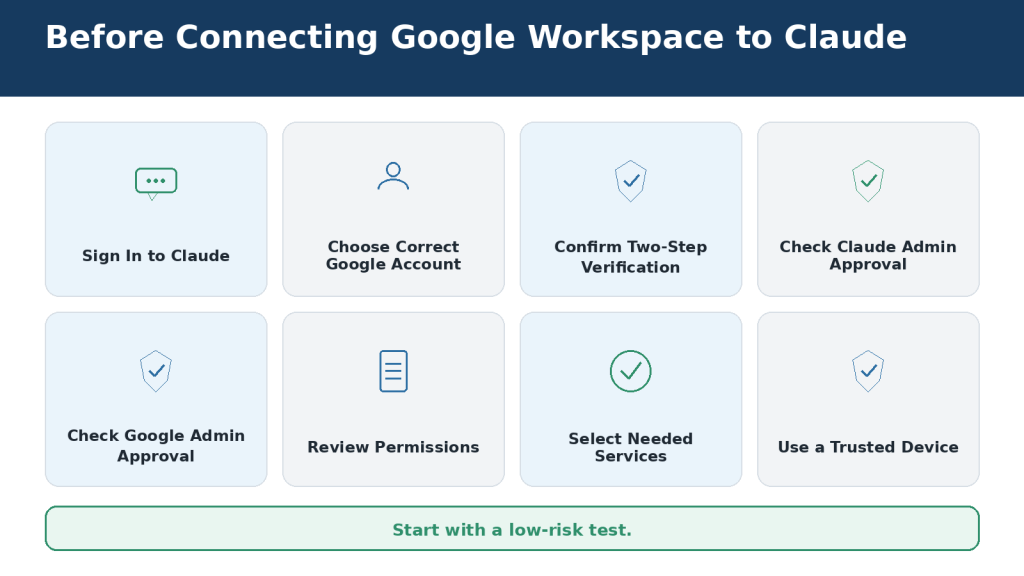
Figure 3. Check your accounts, permissions, administrator approval, and device security before connecting Google Workspace to Claude.
Explanation: Preparation prevents failed authorizations and accidental connection to the wrong mailbox, calendar, or Drive account.
How to Connect Google Workspace to Claude
The interface may change, but the current connection path begins in Claude’s Customize area or the Connectors menu inside a conversation.
Step-by-Step Instructions
1. Sign in to the Claude account where you want to use Google Workspace.
2. Open Customize in the sidebar and select Connectors. You can also open the plus menu beside the chat box, select Connectors, and choose Manage connectors.
3. Find Gmail, Google Calendar, or Google Drive.
4. Open the connector page and review its read-and-write capabilities.
5. Select Connect.
6. Choose the correct Google account.
7. Complete Google’s sign-in and two-step verification.
8. Read the permission request and approve only when it is appropriate.
9. Return to Claude and confirm that the service appears under Customize > Connectors.
10. Open a new conversation, enable the connector, and run a read-only test.
Simple Test Prompts
Gmail: Find the most recent email I sent to myself. Show only its subject and date.
Calendar: Show my next event and confirm its date, start time, and time zone.
Drive: Find a recent document with “test” in its title. Show only the filename and modification date.
If the Connect button is missing, the connector may not be enabled for your Claude organization, or the external administrator may block third-party access. Do not bypass an organization’s restriction with an unauthorized personal account.
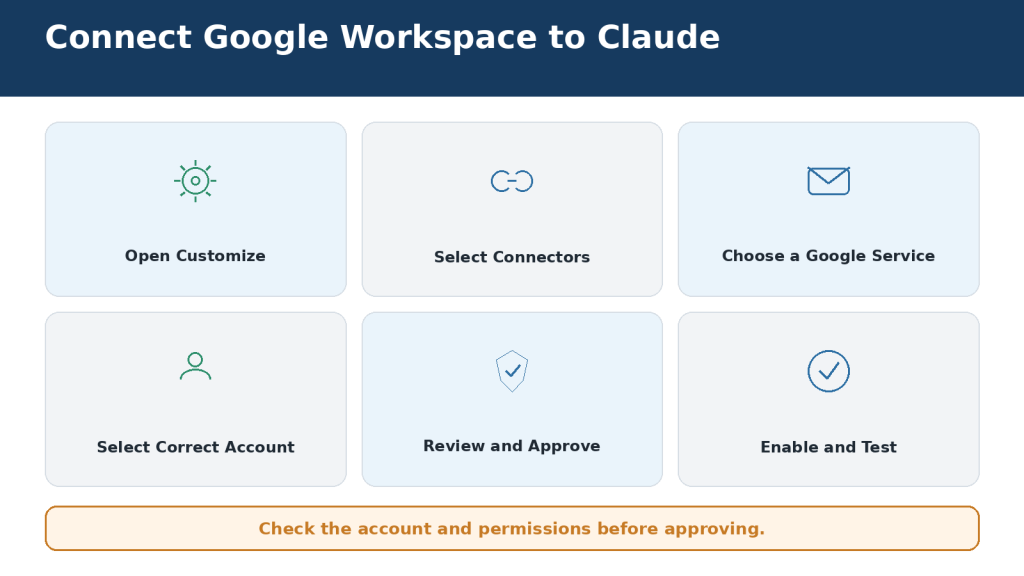
Figure 4. The basic process for selecting, authorizing, and enabling a Google Workspace connector in Claude.
Explanation: The connection begins in Claude, continues through Google’s account and permission screens, and returns to Claude for testing.
How to Use Gmail with Claude
Search for Messages
Describe the sender, subject, date range, or exact phrase. A narrow search produces more reliable results than a request such as “check my email.”
Search Gmail for messages from the website host received between July 1 and August 5, 2026. Show the five most recent results with sender, subject, and date. Do not change any messages.
Summarize a Thread
Read the complete thread and prepare a chronological summary. Identify confirmed decisions, changed decisions, deadlines, promised actions, and unanswered questions. Cite the original messages.
Create a Gmail Draft
Using the latest approved information, create a professional Gmail draft confirming the agreed changes. Do not send it and do not make any new promises.
Open Gmail after Claude creates the draft. Verify the recipient, subject, dates, amounts, commitments, privacy, and attachments. Claude cannot send the Gmail message for you.
Attachment Limitation
The Gmail connector can identify an attachment’s filename and type, but it cannot read the file’s contents. Download and upload the attachment directly, or save it to Drive and use the Drive connector.
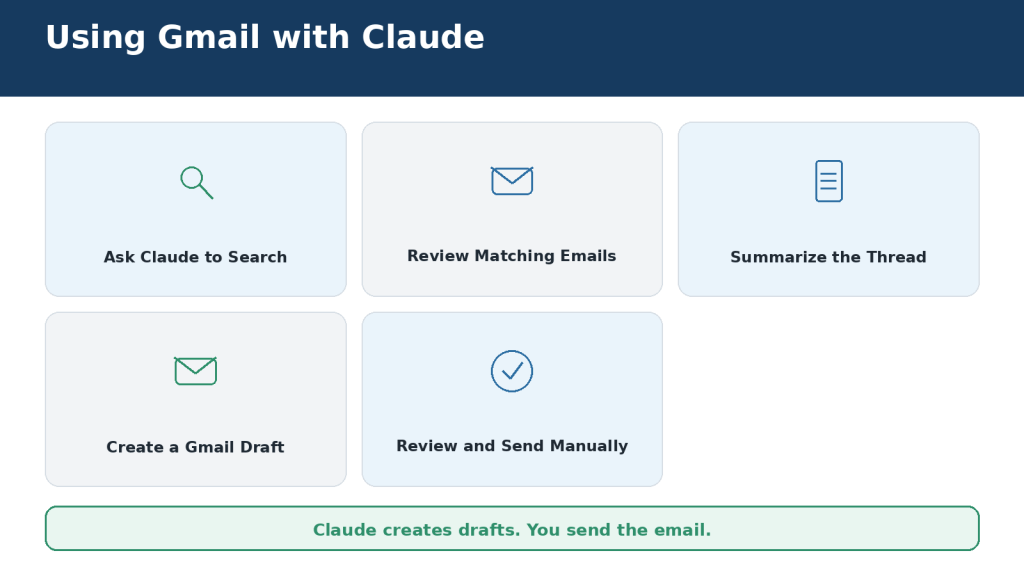
Figure 5. Claude can search Gmail, summarize messages, and create drafts, but the user must review and send every email manually.
Explanation: The user remains responsible for verifying source messages, adding attachments, and sending the finished email from Gmail.
How to Use Google Calendar with Claude
Review Your Schedule
Show my Google Calendar events for August 10, 2026, in chronological order. Include title, start time, end time, calendar, location, and attendees. Use the America/Toronto time zone. Do not change anything.
Find Available Time
Find three available 45-minute periods next Wednesday between 10:00 a.m. and 4:00 p.m. in the America/Toronto time zone. Do not create an event or invite anyone.
Create or Update an Event
First ask Claude to show the proposed event. Check the calendar, date, start and end times, time zone, attendees, location, description, notifications, and recurrence. Calendar changes may notify other people.
Prepare a calendar event titled “AI Mastery Planning” for August 12, 2026, from 2:00 p.m. to 3:00 p.m. in America/Toronto. Do not add attendees. Show the complete proposal before creating it.
Recurring Events and Deletion
When changing or deleting a recurring event, specify whether the action applies to one occurrence, future occurrences, or the complete series. Never approve a broad deletion without reviewing every affected event.
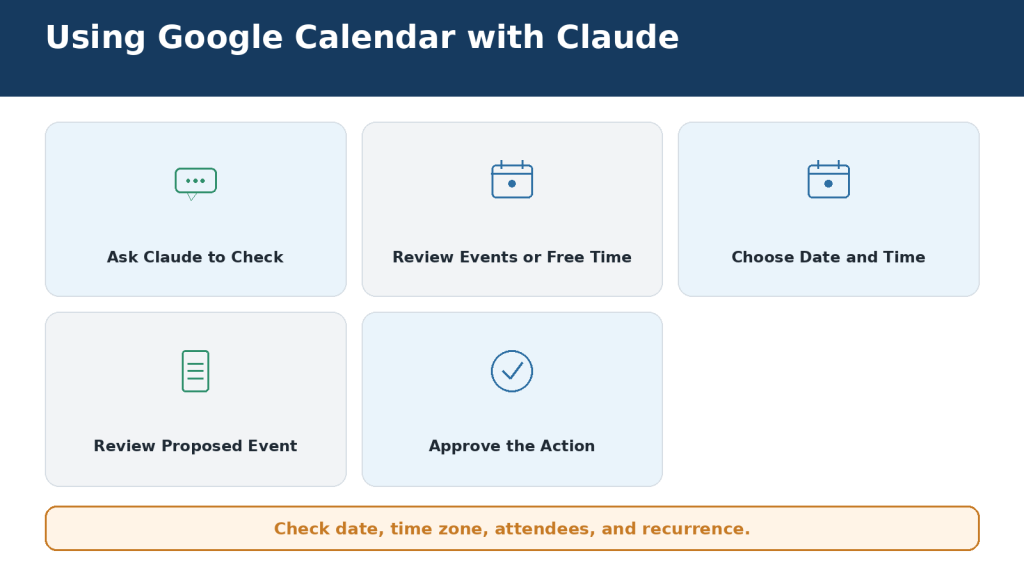
Figure 6. Claude can review schedules, find available times, and prepare calendar changes for the user’s approval.
Explanation: A safe calendar workflow separates searching from acting and requires careful review of dates, time zones, attendees, and recurrence.
How to Use Google Drive with Claude
Find the Correct File
Search Google Drive inside the “AI Mastery Articles” folder for files containing “Article 053.” List the filename, owner, file type, folder, and modification date. Do not analyze or change anything yet.
Drive folders often contain similarly named drafts. Confirm the owner, folder, file type, and modification date before asking Claude to analyze a file. The most recently modified file is not automatically the approved version.
Add a File Directly
1. Select the plus sign beside the chat box.
2. Choose Add from Google Drive.
3. Select a recent document or paste its Drive address.
4. Enter your request and send the message.
You can add several Drive files when their combined content fits within the conversation’s context window. Google Docs added through Drive stay synchronized with the latest Drive version.
Analyze or Compare Files
Compare the selected proposals by price, included services, exclusions, completion date, support period, and payment terms. Cite the source file for every entry. Write “Not stated” when information is missing.
Save or Upload Files
Before approving a save or upload, check the account, destination folder, filename, file type, conversion option, and sharing permissions. Open the generated file and review it before treating it as final.
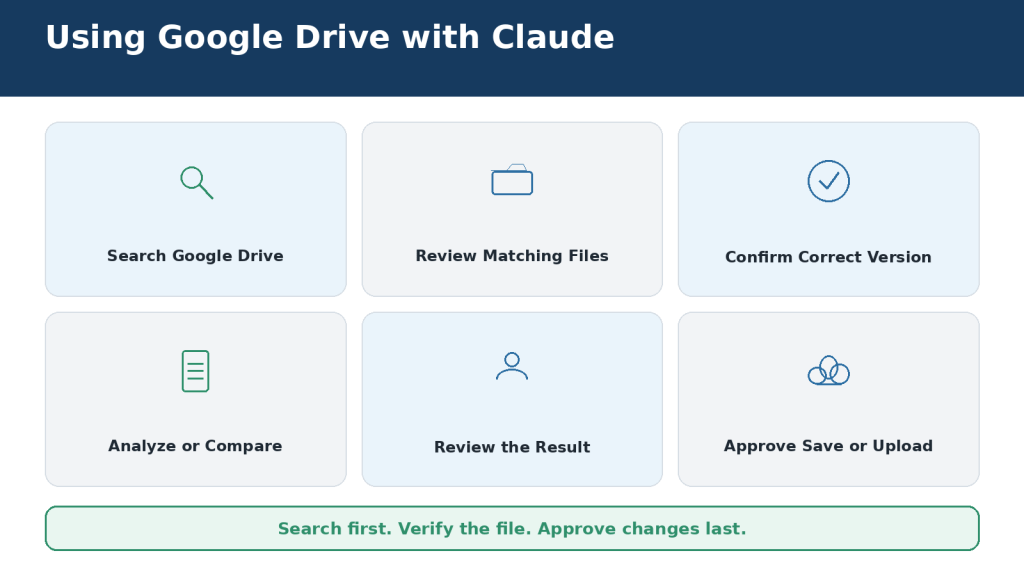
Figure 7. A safe Google Drive workflow begins by locating and verifying the correct file before Claude analyzes, compares, uploads, or saves anything.
Explanation: Confirming the filename and version prevents Claude from using an outdated source or saving a file in the wrong folder.
How to Connect Other Apps to Claude
Claude’s directory includes pre-built connectors and integrations for additional workplace tools. Availability and capabilities can change, so check the connector page before relying on a feature.
Microsoft 365
The Microsoft 365 connector can search SharePoint, OneDrive, Outlook, and Teams. It is available across Claude plans, but it requires a Microsoft Entra tenant tied to a Microsoft Business plan. Personal Outlook.com and Hotmail accounts cannot use this workplace connector. A Microsoft Entra Global Administrator must grant tenant consent. Organizations can optionally enable write tools for email, calendar, and file actions.
GitHub
The GitHub integration can add permitted repositories to Claude for software-development context. Repository access still depends on the connected GitHub account, installed app permissions, organization policies, and any single sign-on requirements.
Claude Tag in Slack
On August 3, 2026, Anthropic replaced the earlier Claude in Slack experience with Claude Tag. Claude Tag is available in beta for Team and Enterprise. In Slack channels, an organization Owner or Primary Owner provisions Claude’s identity, tools, repositories, and channel access. Direct messages use the capabilities enabled on the individual Claude account, while channel work uses organization-managed access.
Interactive Connectors, Plugins, and Custom MCP Connectors
Interactive connectors can show an application interface inside Claude. Plugins can bundle skills, connectors, and workflow instructions. Custom connectors can connect Claude to remote MCP servers, including services Anthropic has not verified. Connect custom servers only when you trust the operator, understand the permissions, and know how to revoke access.
Safe Connection Process for Any App
1. Open Customize > Connectors and find the app.
2. Verify the provider and purpose.
3. Review read, write, and delete capabilities.
4. Sign in to the correct external account or workspace.
5. Complete administrator approval when required.
6. Run a read-only test before allowing changes.
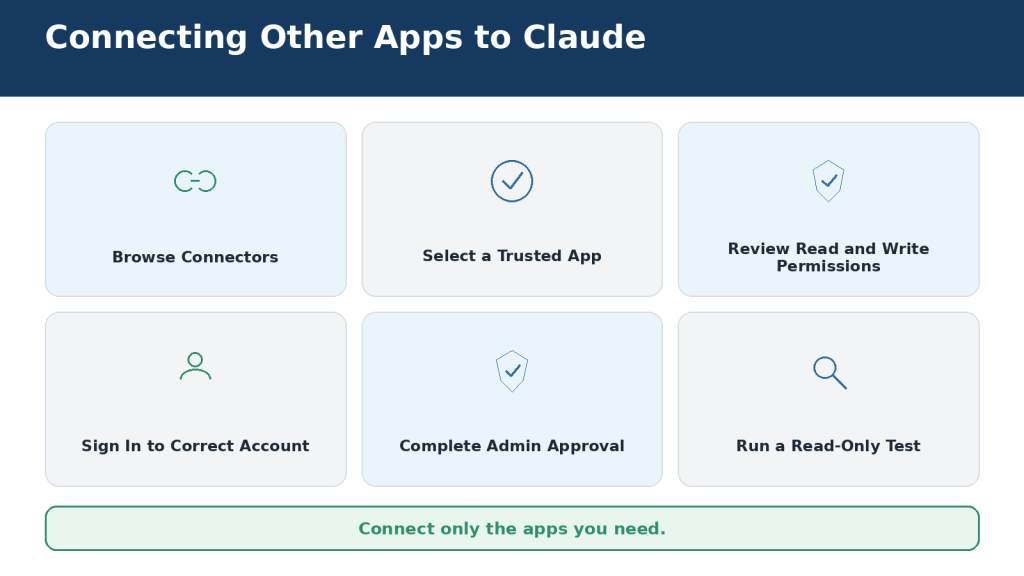
Figure 8. Other cloud services can be connected after their provider, permissions, account, and administrator requirements are reviewed.
Explanation: The safest setup uses a verified connector, the correct account, and a read-only test before write actions are enabled.
How Permissions and Approval Requests Work
Five Permission Layers
1. Your existing permissions in the external app
2. The access approved during connection
3. Claude’s individual connector-tool permissions
4. Organization and role-based administrator controls
5. The connectors enabled for the current conversation
Each layer can restrict access. A Claude setting cannot override a restriction in Google, Microsoft 365, Slack, GitHub, or another source system.
Read and Write Permissions
Read permissions may expose confidential information even when they cannot change it. Write permissions can create, update, send, move, share, or delete information and therefore require greater caution.
Always Allow, Needs Approval, and Blocked
| Setting | Meaning | Recommended Use |
| Always Allow | Claude may use the tool without asking each time | Only for trusted, low-risk tools after testing |
| Needs Approval | Claude proposes the tool call and waits for you | Best default for private reads and almost all write actions |
| Blocked | Claude cannot use the tool | High-risk, unnecessary, or untrusted tools |
Check Every Approval Request
• The connector and connected account
• The exact action
• The target file, message, event, task, or record
• The number of affected items
• The proposed content
• Whether someone will be notified
• Whether the action can be reversed
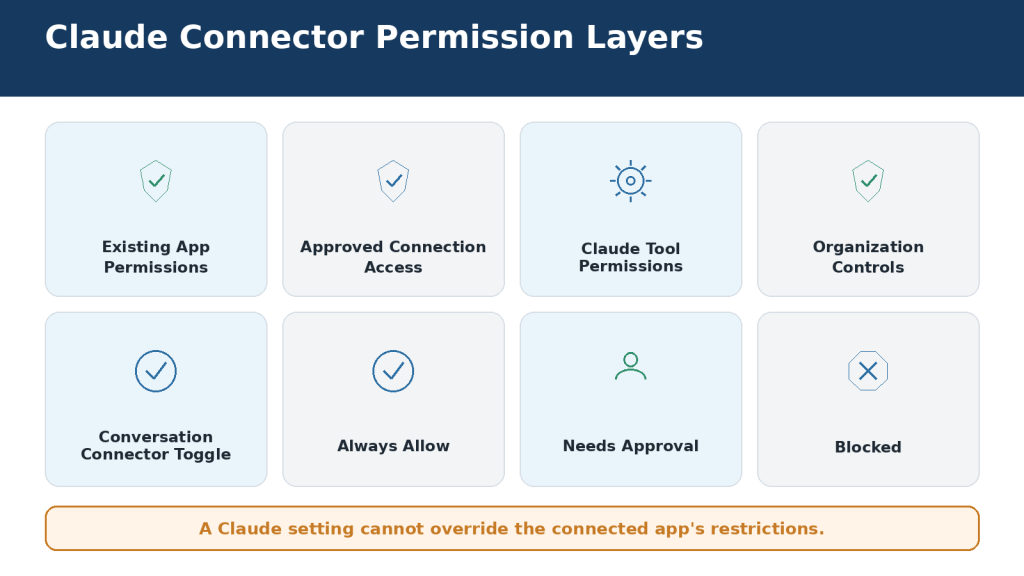
Figure 9. Claude connector access is controlled by several permission layers rather than one unrestricted authorization.
Explanation: The source account, connection scopes, Claude tool settings, administrator policies, and conversation controls all restrict what Claude can do.
How to Protect Your Privacy and Data
Connect only what you need, enable it only when required, and approve only actions you have reviewed.
Use Minimum Access
• Connect only the apps required for current work
• Enable only the needed connectors in each conversation
• Use narrow date ranges, folders, channels, and search terms
• Begin with read-only access
• Keep write and delete actions approval-based
• Use organization-managed accounts for workplace data when required
Avoid Highly Sensitive Information Unless Authorized
Do not place passwords, one-time codes, recovery codes, private keys, full payment-card details, or other authentication secrets in a Claude conversation. Use additional caution with medical records, children’s information, government identifiers, employee data, customer records, confidential contracts, and trade secrets.
Understand Data Handling
Anthropic states that Google Workspace connector data is stored with the associated Claude chat and can be deleted by deleting that chat. Anthropic also states that it does not train its models directly on Gmail, Drive, or Calendar connector data. Consumer model-improvement settings and commercial-product policies still matter, so review the current privacy controls for your account type.
Watch for Prompt Injection and Unexpected Behaviour
A connected file, message, website, or custom MCP server can contain misleading instructions intended to make Claude reveal information or perform an unintended action. Keep unrelated connectors disabled, review every write action, and disconnect any connector that requests unexpected permissions or behaves differently after an update.
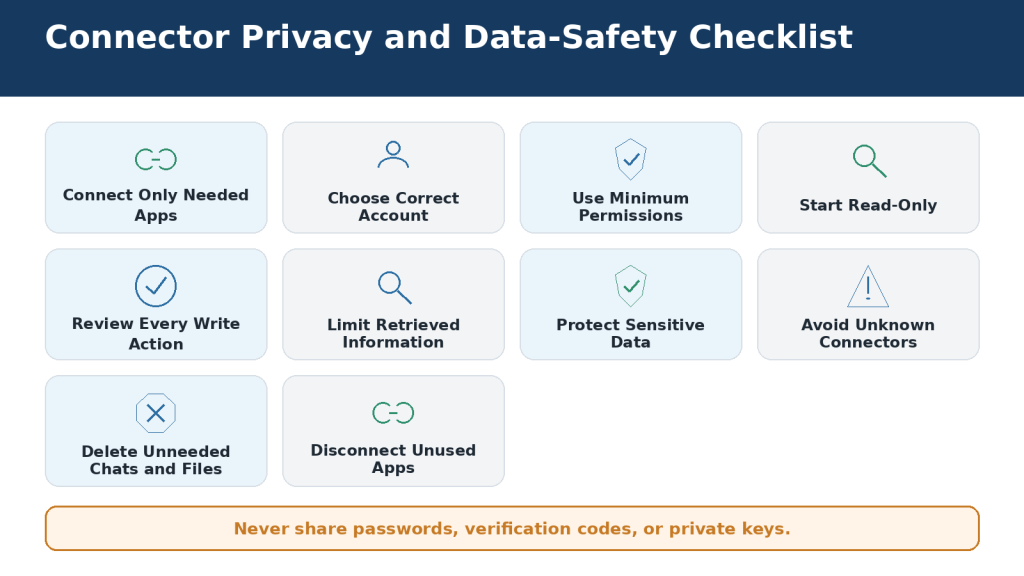
Figure 10. Safe connector use requires limited access, careful approvals, trusted services, secure data handling, and regular permission reviews.
Explanation: Treat every connector as continuing access to an external account. Limit permissions and remove access when it no longer serves a clear purpose.
How to Disable or Disconnect an App
| Control | What It Does | Use It When |
| Disable for one conversation | Stops Claude using the connector in that chat | The app may be useful later, but not now |
| Limit tool access | Allows selected functions and blocks others | You want search but not create, send, or delete |
| Disconnect from Claude | Removes the account-level connection | The project ended or the wrong account was connected |
| Revoke through the provider | Cancels authorization in the external service | You need complete removal or suspect a security issue |
| Administrator disablement | Removes or restricts access for an organization | Company policy or incident response requires it |
Disconnect from Claude
1. Open Customize.
2. Select Connectors.
3. Choose the connected service.
4. Select Disconnect or Remove.
5. Confirm the removal.
Verify Removal
• Start a new Claude chat and confirm the connector is unavailable
• Check the external service’s connected-app or OAuth settings
• Revoke any remaining authorization
• Review and delete old Claude chats that contain retrieved information
• Remove unnecessary downloaded or generated files
Disconnecting stops future access. It does not automatically delete previous chats, summaries, exported files, or copies saved elsewhere.
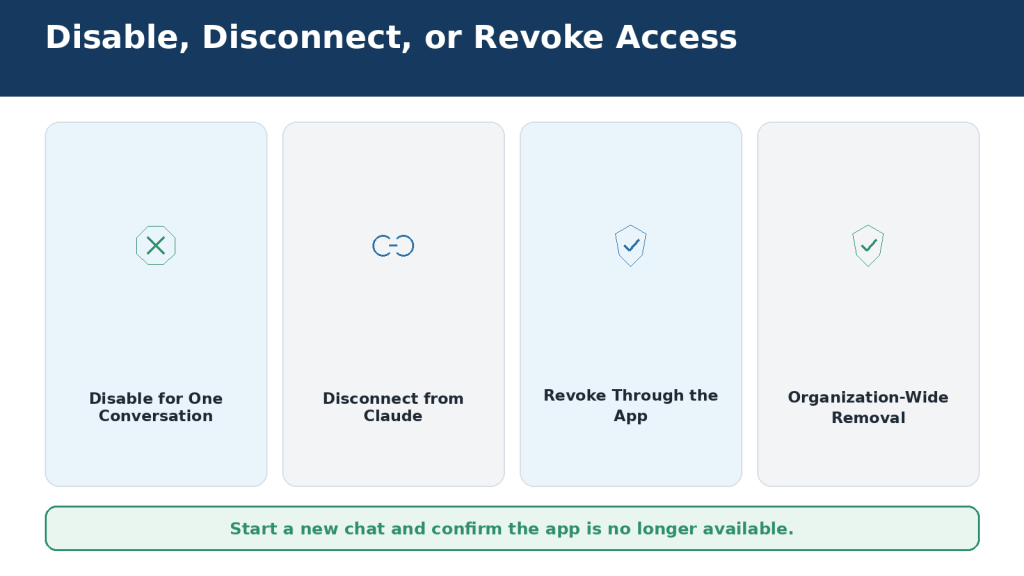
Figure 11. Disabling, disconnecting, and revoking authorization provide different levels of control over a Claude connector.
Explanation: Disabling is temporary for one chat. Disconnecting removes the Claude account connection. Revoking through the provider adds an extra security step.
Common Connector Problems and How to Fix Them
Troubleshooting Order
1. Confirm that Claude and the external service are online.
2. Check that the connector appears under Customize > Connectors.
3. Enable it in the current conversation.
4. Verify the connected account or workspace.
5. Run a narrow read-only test.
6. Confirm that you can open the source directly in the original app.
7. Review tool permissions and administrator restrictions.
8. Disconnect and reconnect the account.
9. Check Claude’s service-status page.
10. Contact support with the exact error and steps already attempted.
Frequent Problems
| Problem | Likely Cause | Practical Fix |
| Connector is missing | Organization or role has not enabled it | Ask the Claude owner or administrator |
| Claude does not use it | Connector is disabled in the chat | Enable it from the plus-menu connector controls |
| Wrong files or messages appear | Wrong account or workspace | Disconnect and reconnect the correct identity |
| Google says access is blocked | Workspace administrator restriction | Request approved third-party access |
| Gmail attachment cannot be read | Gmail exposes metadata only | Upload the attachment or save it to Drive |
| Drive file is missing | Permission, filename, folder, or indexing problem | Confirm direct access and search exact metadata |
| Microsoft 365 cannot connect | Personal account or missing tenant consent | Use an Entra business account and obtain admin consent |
| Action timed out | External service delay or quota | Check the original app before repeating the action |
When reporting a problem, never include passwords, verification codes, private keys, or complete confidential documents. Redact sensitive information from screenshots.

Figure 12. A structured troubleshooting process helps identify whether a problem comes from the conversation, account, authorization, permissions, network, or external service.
Explanation: Start with simple checks before changing organization-wide permissions. Record the exact error before contacting support.
Practical Ways to Use Several Connected Apps Together
The strongest connector workflows combine a small number of approved sources for one clearly defined task. Do not enable every connected service simply because it might contain useful information.
Prepare for a Meeting
Use Google Calendar to find my next “Website Planning” meeting. Search Gmail for related messages from the last 30 days and Google Drive for the latest approved planning document. Prepare a cited meeting brief with confirmed decisions, deadlines, unresolved questions, and documents to review. Do not change any service.
Create a Weekly Catch-Up Report
Search the approved email, document, and team-chat sources for developments related to the website project between August 1 and August 5, 2026. Prepare sections for Decisions, Completed Work, Blockers, Deadlines, and Items Requiring My Response. Cite every source and identify any connector that failed.
Compare a Renewal Email with a Contract
Find the latest renewal email and the current signed agreement. Compare price, renewal date, cancellation deadline, included services, and payment terms. Show differences with citations. Do not create a reply.
Safe Multi-App Sequence
1. Choose the required apps.
2. Enable only those connectors.
3. Search without making changes.
4. Review and approve the source list.
5. Analyze only approved information.
6. Open important citations.
7. Request one external action separately.
8. Confirm the result in the original app.
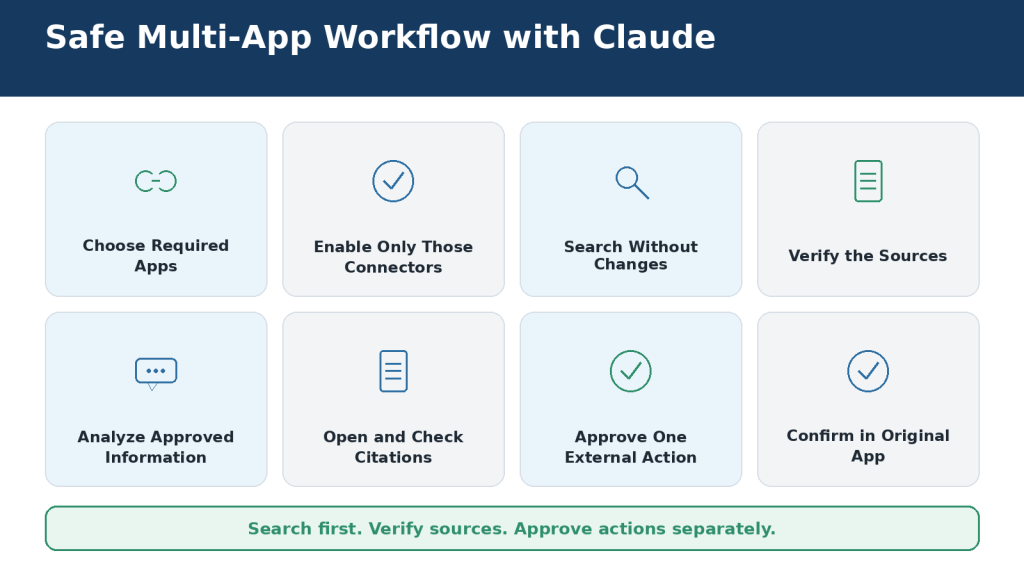
Figure 13. A safe cross-app workflow separates source selection, retrieval, verification, analysis, approval, and final confirmation.
Explanation: This staged approach reduces outdated information, incorrect matches, and unintended changes.
Best Prompt Examples for Claude Connectors
General Prompt Formula
Use [connector] to find [specific information] about [subject] between [start date] and [end date]. Search only [folder, mailbox, channel, calendar, repository, workspace, or site]. Return [output]. Cite the original sources. Write “Not stated” when information is missing. Do not [prohibited actions].
Gmail
Search Gmail for emails from [sender] received during [date range] containing “[exact phrase].” Show sender, subject, date, and a one-sentence description. Do not create drafts or change messages.
Calendar
Find three available 60-minute periods between [dates] and [working hours] in [time zone]. Do not create an event or invite anyone.
Drive
Search Google Drive inside [folder] for [file type] files containing “[phrase].” List filename, owner, location, and modification date. Do not open or change the files until I select one.
Microsoft 365
Search only [SharePoint site and library] for files modified during [date range]. Return filename, owner, location, file type, and date. Do not send email, modify files, or change calendar events.
GitHub
Review open issues labelled [label] in [repository]. Create a table with issue number, title, status, related pull request, and recommended review order. Do not edit, close, or assign anything.
Safety Add-On
Show me exactly what you intend to do, including the connector, account, target item, proposed change, affected people, and possible notifications. Do not perform the action yet.
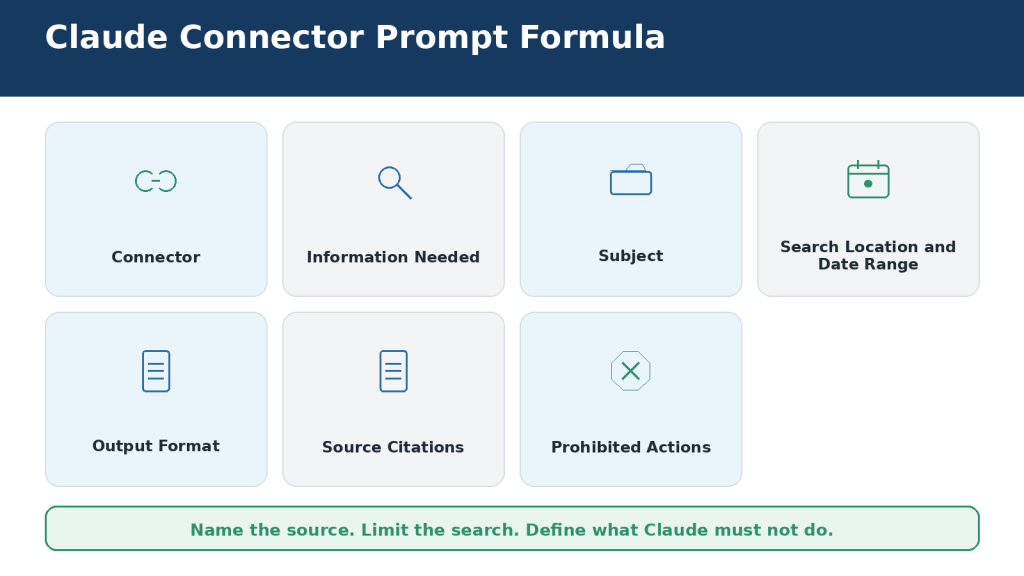
Figure 14. A strong connector prompt identifies the app, information, search scope, output, source requirements, and prohibited actions.
Explanation: Exact dates, locations, source citations, and safety boundaries make connector results easier to verify.
Common Mistakes to Avoid
• Connecting every available app instead of only useful services
• Authorizing the wrong personal or workplace account
• Approving permissions without reading them
• Using Always Allow for high-impact actions
• Writing vague prompts such as “organize my calendar”
• Asking Claude to search and act in one broad request
• Trusting summaries without opening cited sources
• Assuming the newest file is the approved file
• Assuming Claude read a Gmail attachment
• Repeating an action after a timeout without checking the original app
• Connecting an unknown custom MCP server
• Leaving unused connectors active indefinitely
• Assuming disconnection deletes previous chats or downloaded files
• Mixing unrelated personal and workplace connector tasks in one conversation
Better Practice
Search first, verify second, analyze third, and approve actions last.
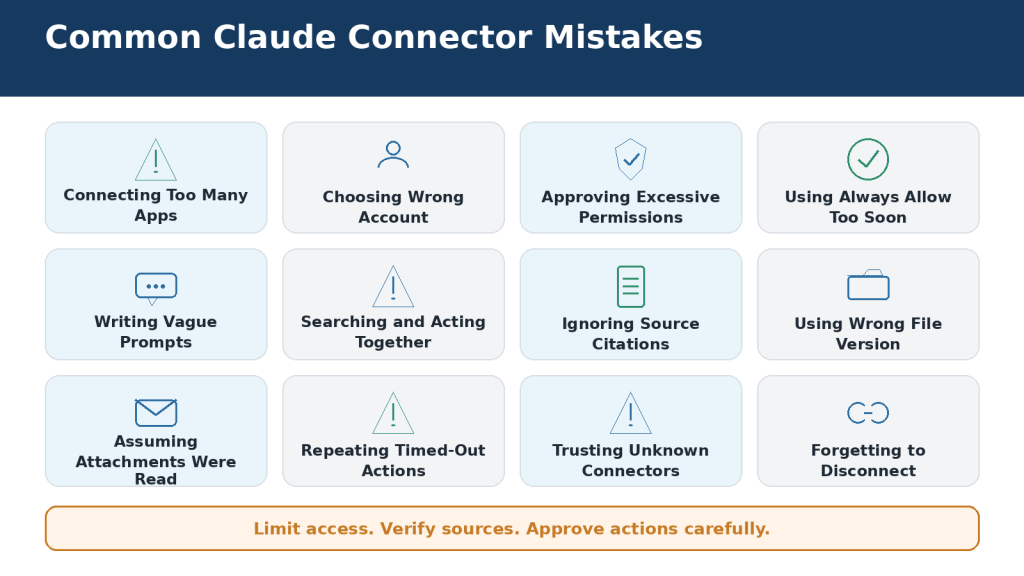
Figure 15. Most Claude connector problems can be prevented by limiting access, writing precise prompts, checking sources, and reviewing every important action.
Explanation: Connector mistakes usually result from excessive access, incorrect account selection, vague instructions, or unverified actions.
Limitations of Claude Connectors
| Limitation | Practical Response |
| Not every app has a connector | Upload, export, or use an approved alternative |
| Existing permissions still apply | Confirm access in the original app |
| Administrators may block access | Request narrow authorized access |
| Connector capabilities differ | Review the connector page and available tools |
| Gmail attachments are not read | Upload the attachment separately |
| Embedded Drive visuals may be missed | Provide images or export the document |
| Many connectors use conversation space | Use Auto or On demand and disable unused tools |
| Large source sets may exceed the context window | Divide work into smaller stages |
| External services impose quotas and outages | Narrow requests and check provider status |
| Search results can be incomplete | Specify exact source, location, dates, and limits |
| Newest does not mean approved | Verify status and source priority |
| Citations do not guarantee interpretation | Open and read important sources |
| Multi-app workflows can fail partly | Require a connector success-and-failure report |
| Remote connectors cannot reach every local resource | Use uploads or desktop extensions |
| Custom connectors may be unverified | Use only trusted, approved providers |
| Claude does not replace professional judgment | Require qualified human review |
Connector features, menu locations, plan availability, and external-service permissions can change. Check current official documentation before relying on instructions for sensitive or high-impact work.
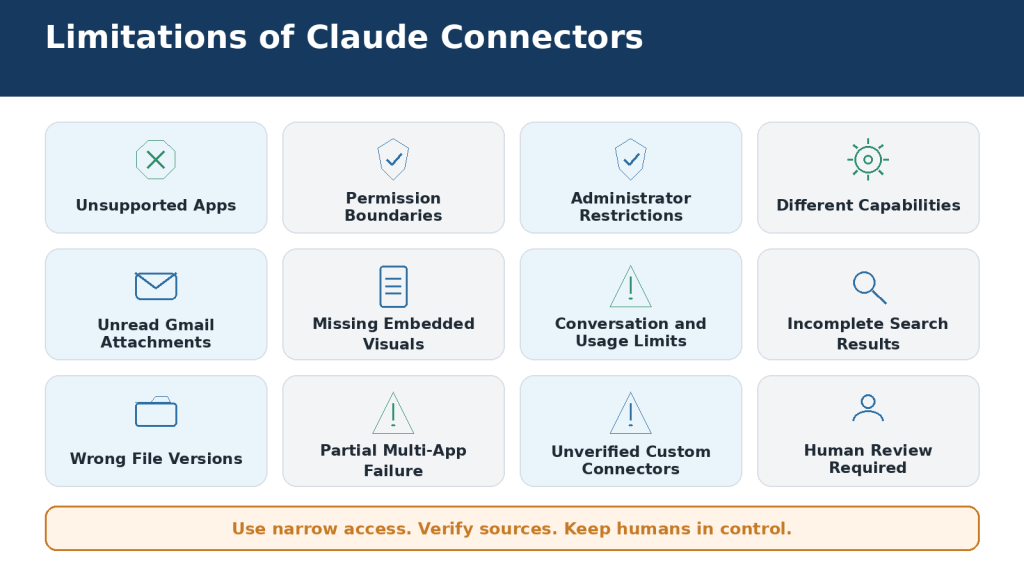
Figure 16. Claude connectors remain limited by app availability, account permissions, document formats, working capacity, administrator controls, and the need for human review.
Explanation: Smaller verified workflows produce more dependable results than broad requests across many services.
Frequently Asked Questions
Do I need a paid plan for Google Workspace connectors?
Anthropic currently says Gmail, Google Calendar, and Google Drive connectors are available to all Claude users on Claude and Claude Desktop. Team and Enterprise owners must enable them at the organization level.
Can Claude send a Gmail message?
No. Claude can create a Gmail draft, but you must review and send it manually.
Can Claude read Gmail attachments?
It can see attachment metadata, not the file contents. Upload the file or save it to Drive.
Can Claude create calendar events?
Yes, when the Calendar connector and permissions allow it. Review the complete event before approval.
Can Claude read every part of a Google Doc?
Claude extracts text, but embedded images are not processed through the Drive connector. Review comments and suggested edits separately.
Can several apps be used together?
Yes, when the connectors are enabled and the information fits the task. Use a staged, read-only-first workflow.
What is MCP?
The Model Context Protocol is an open standard for connecting AI applications to external tools and data.
Are custom connectors safe?
Safety depends on the operator, permissions, data practices, and tools. Use only trusted servers and keep actions approval-based.
What are Auto, Always Available, and On Demand?
They control how connectors are loaded into a conversation. Auto is the default, Always Available suits a small frequently used set, and On Demand helps with larger connector libraries.
Does disconnecting remove old chats?
No. Disconnecting stops future access. Delete old chats and files separately when they are no longer needed.
Can my employer control connectors?
Yes. Team and Enterprise organizations can enable, restrict, or block connectors and individual tools.
What is the safest way to start?
Connect one trusted app and run a narrow, harmless, read-only test.
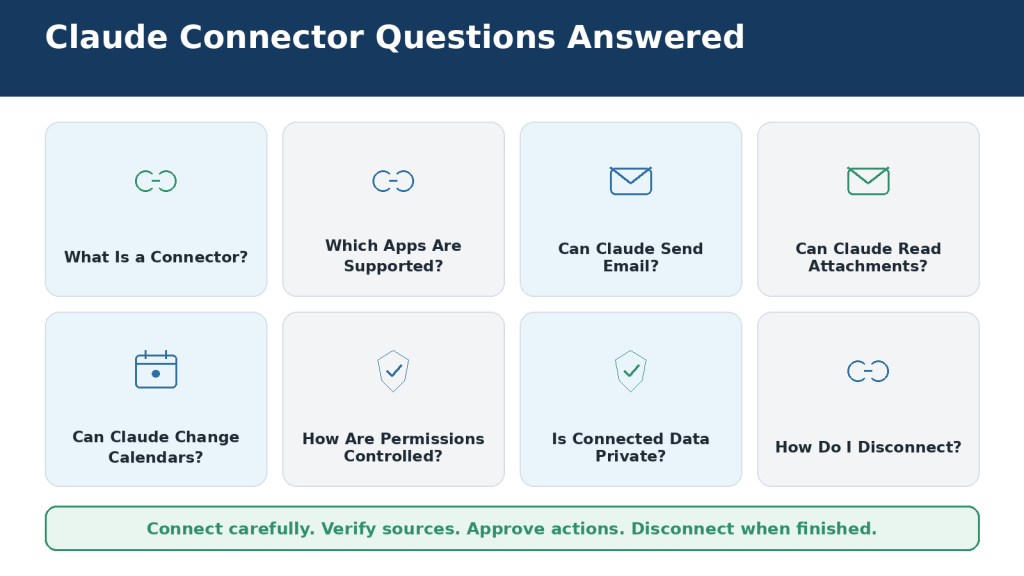
Figure 17. Claude connectors can search and work with approved services, but their capabilities remain controlled by account access, tool permissions, administrator policies, and user approval.
Explanation: The safest approach is to start with one trusted connector and a limited read-only task.
Best Practices for Safe and Efficient Connector Use
1. Connect only apps with a clear purpose.
2. Use a separate conversation for each major task.
3. Enable only the connectors needed for that conversation.
4. Start with a read-only test.
5. Confirm the complete account, workspace, tenant, or organization.
6. Use the minimum necessary permissions.
7. Keep write and delete actions under human approval.
8. Avoid Always Allow for high-impact tools.
9. Write prompts with exact sources, dates, locations, outputs, and prohibited actions.
10. Separate retrieval, verification, analysis, and action.
11. Require source citations and open important originals.
12. Define which source has priority when records conflict.
13. Tell Claude to write “Not stated” instead of guessing.
14. Use Auto or On Demand when many connectors are installed.
15. Confirm every completed action in the original app.
16. Review connected apps regularly and remove unused access.

Figure 18. A safe and efficient Claude connector workflow uses limited access, narrow searches, verified sources, approval-based actions, and final confirmation in the original app.
Explanation: Connector efficiency does not require broad permanent access. Good account management and careful review produce better results.
Key Takeaways
• Claude connectors link the assistant to supported external apps and services.
• Gmail, Google Calendar, and Google Drive are the main Google Workspace connectors.
• Gmail drafts must be reviewed and sent manually.
• Gmail attachment contents are not available through the Gmail connector.
• Drive can search and read supported files, but embedded images may be missed.
• Other options include Microsoft 365, GitHub, Claude Tag in Slack, plugins, interactive connectors, and custom MCP connectors.
• Claude follows the permissions of the account you connect.
• Read access can still expose confidential information.
• Write actions should normally remain approval-based.
• Use narrow prompts and verify original sources.
• Check the original app after every important action.
• Disable or disconnect apps when they are no longer required.
Conclusion
Claude connectors can turn a standalone chat assistant into a practical working assistant that searches approved emails, schedules, documents, repositories, and workplace systems. The benefit is real: less copying, less switching between apps, and faster preparation of summaries, drafts, comparisons, and plans.
The responsibility remains with the user. Connect only trusted services, select the correct account, approve the minimum permissions, verify important sources, and keep high-impact actions under human control.
The sound rule is simple: let Claude reduce repetitive work, but never surrender control of your accounts, information, or decisions.
Sources and References
The following official resources were used to verify this article. Connector features and menus can change, so check current documentation before using sensitive or high-impact actions.
1. Use Google Workspace connectors — Anthropic Help Center
2. Use connectors to extend Claude’s capabilities — Anthropic Help Center
3. Manage Claude’s tool access — Anthropic Help Center
4. When to use desktop and web connectors — Anthropic Help Center
5. Get started with custom connectors using remote MCP — Anthropic Help Center
6. Set up the Microsoft 365 connector — Anthropic Help Center
7. Microsoft 365 connector security guide — Anthropic Help Center
8. Use the GitHub integration — Anthropic Help Center
9. What is Claude Tag? — Anthropic Help Center
10. Use Enterprise Search — Anthropic Help Center
11. Use interactive connectors in Claude — Anthropic Help Center
12. Use plugins in Claude — Anthropic Help Center
13. Restrict verified-domain connectors to your Enterprise — Anthropic Help Center
14. Authorize MCP connectors for your entire organization — Anthropic Help Center
15. Is my data used for model training? — Consumer products — Anthropic Privacy Center
16. Is my data used for model training? — Commercial products — Anthropic Privacy Center
17. How to get support — Anthropic Help Center
18. Claude service status — Anthropic
Accessed: August 5, 2026

