
Estimated reading time: 25–30 minutes
Last updated: August 16, 2026
Introduction
A website is much easier to build when you know what it is supposed to do before you start changing colors, moving blocks, creating menus, or buying extra tools. Website planning means deciding the purpose, audience, structure, content, navigation, visual direction, and practical responsibilities before detailed construction begins.
For a complete beginner, planning does not need to become a large technical document. A one-page plan can be enough to prevent many common problems: too many menu items, duplicate pages, unclear content, inconsistent design, forgotten accessibility needs, and repeated rebuilding because the original goal was never written down.
AI tools such as ChatGPT can help you organize ideas, compare options, turn notes into a page list, suggest questions to consider, and review a draft plan. They can also make mistakes, invent details, or recommend features that are unnecessary for your situation. Use AI as a planning assistant, not as the person responsible for the final decisions.
This guide uses WordPress.com examples because many AI Mastery readers are beginners working in WordPress. The planning principles also apply to many other website builders. WordPress.com currently uses the Site Editor for block-theme design, including templates, navigation, and pages, but exact labels and available features can change with themes, plans, and product updates.
What You’ll Learn
By the end of this guide, you will be able to:
- write a simple purpose statement for a website
- identify the main audience and the value the site should provide
- separate core pages from ongoing posts
- plan a small navigation menu and basic site map
- sketch a homepage before styling it
- create a simple content plan for important pages
- choose a basic visual direction without overdesigning
- include accessibility in the plan from the beginning
- consider privacy, security, and responsible data collection
- check copyright and licensing before reusing assets
- record basic SEO decisions without expecting guaranteed rankings
- use AI prompts to organize and review a website plan
- create a one-page plan you can follow while building
- recognize common planning mistakes and myths
Before Learning
You do not need coding knowledge for this article. You should be comfortable using a browser, creating simple text documents, and navigating a WordPress dashboard or another website builder. If you already have a website, do not make major live-site changes while experimenting with a new plan unless you have a backup or a safe way to restore the previous version.
- Use fictional or non-sensitive information when practising AI prompts.
- Do not paste passwords, API keys, customer records, unpublished financial information, or confidential business plans into an AI conversation.
- Keep copies of your approved text, original images, licences, permissions, and important website settings.
- Treat the examples as general education, not legal, cybersecurity, financial, or professional advice.
What Website Planning Means
Website planning is the process of deciding what the website should accomplish and how visitors will move through it before you build every page. It sits between the initial idea and the detailed design or publishing work.
A practical beginner plan usually answers eight questions: What is the purpose? Who is the audience? Which pages are needed? What belongs in the navigation? What content must each page provide? What visual rules will keep the design consistent? What accessibility, privacy, security, and licensing issues should be considered? What will happen after launch?
Planning is not about predicting every future decision. It is about making the important early decisions visible so that later work has a direction.
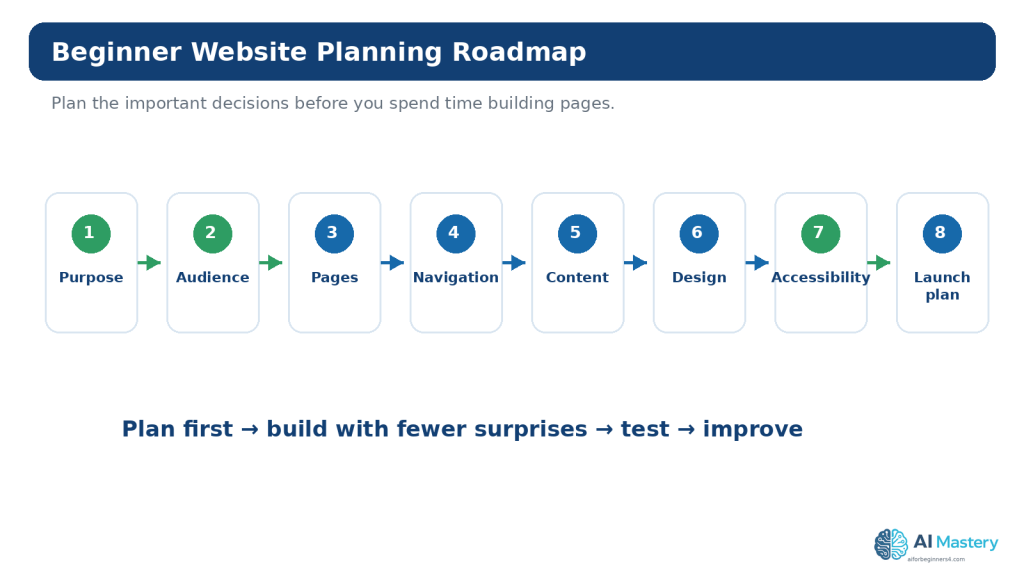
Figure 1. A beginner website plan moves from purpose and audience to pages, navigation, content, design, accessibility, and launch preparation.
Explanation: Planning does not need to be complicated. A short written plan helps you make related decisions in a sensible order before you begin changing layouts and publishing content.
Start with One Main Website Purpose
Before choosing a theme or asking AI to generate a homepage, write one sentence describing the website’s main purpose. A useful purpose statement explains what the site helps visitors do.
Examples include: “Help complete beginners learn practical AI tools through step-by-step tutorials.” “Show local customers the services a small landscaping business offers and how to request a quote.” “Provide parents with clear information about a community sports program and how to register.”
Avoid purpose statements that are only about appearance, such as “make a modern professional website.” Modern styling can support a goal, but it is not the goal itself.
Use a Simple Purpose Formula
This website helps [audience] do [useful outcome] by providing [main content or service].
You can ask ChatGPT to improve the wording, but make sure the final statement reflects the real website rather than a generic marketing claim.
Identify the Primary Audience
A website can serve several groups, but beginners should identify one primary audience first. This helps you decide which explanations, terminology, pages, examples, and calls to action deserve the most attention.
For example, a website teaching AI to complete beginners should not assume that every visitor understands terms such as API, model, prompt engineering, or context window. The audience decision affects the writing style as much as the design.
Ask Audience Questions
- What does the visitor already know?
- What problem are they trying to solve?
- What information do they need before they can take the next step?
- What concerns or barriers could stop them?
- Are they likely to visit on a phone, desktop computer, or both?
- Do they need large readable text, captions, keyboard access, or other accessibility support?
Do not invent personal details or stereotypes just to create a detailed “persona.” Use information you actually know or label assumptions clearly so you can test them later.
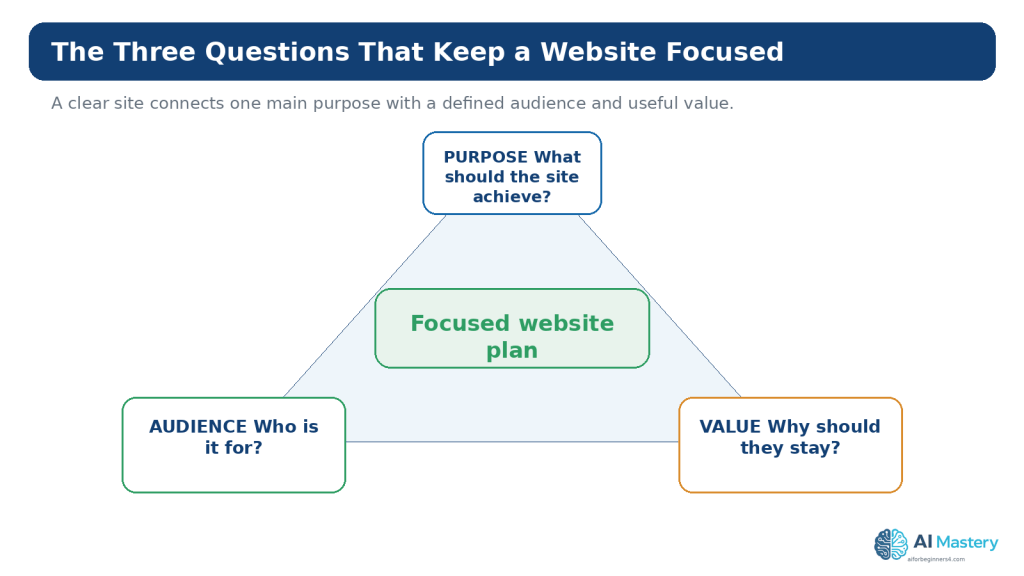
Figure 2. A focused website plan connects what the site should achieve, who it serves, and what useful value visitors should receive.
Explanation: If any of these three questions is vague, the site can become cluttered. Define them in plain language before deciding on page layouts or decorative features.
Define the Value the Website Provides
The website should give visitors a reason to stay. That value may be education, a service, a product, a portfolio, entertainment, community information, or another useful outcome.
A beginner mistake is trying to serve everyone with everything. A clearer approach is to choose a small set of promises you can actually support. For an educational site, that might mean beginner-friendly explanations, practical examples, current sources, and a logical learning order.
Avoid claims you cannot support. AI-generated marketing language can easily become exaggerated. Remove phrases such as “guaranteed results,” “the best,” or “perfect for everyone” unless you have a defensible basis for them.
Decide What Should Be a Page and What Should Be a Post
WordPress currently distinguishes pages, posts, and templates. Pages are generally used for relatively static content such as About or Contact information. Posts are time-based entries used for ongoing articles, news, and blog content. Templates control how those content types are displayed.
A beginner educational website might use pages for Home, Tutorials, AI Tools, AI News, About, and Contact, while individual tutorials and educational articles are published as posts. This makes the top-level navigation predictable while allowing the article library to grow.
Do not create a new page for every article simply because pages feel easier to find. Decide the content type based on its role in the site.
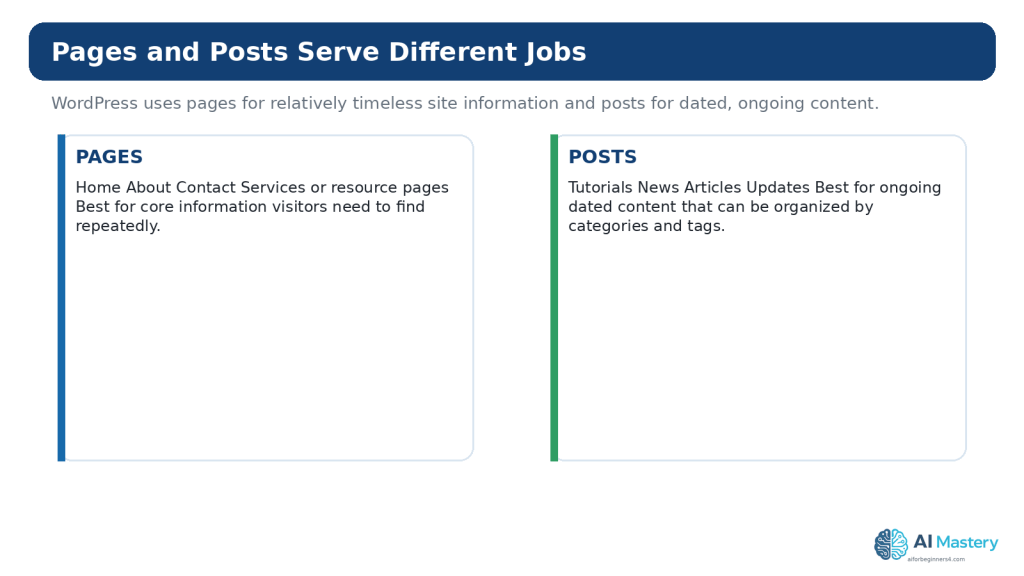
Figure 3. WordPress pages and posts are different content types, so planning which information belongs in each helps keep a site organized.
Explanation: Core site information usually belongs on pages, while tutorials, news, and ongoing articles usually belong in posts. Exact needs vary by site, but the distinction is useful for beginner planning.
Plan the Core Pages
List only the pages the website needs at launch or in the near term. A small site may need fewer pages than you expect.
Common Core Pages
- Home — explains what the site is and directs visitors to important areas.
- Tutorials or Resources — helps visitors browse learning material or services.
- About — explains the purpose, organization, author, or business where appropriate.
- Contact — provides a suitable way to get in touch.
- Privacy information — may be necessary depending on the data the site collects, applicable law, platform features, analytics, advertising, forms, and other services.
Some websites also need service pages, product pages, policies, portfolio pages, booking information, FAQs, or other specialized content. Do not add these automatically; add them because the site purpose requires them.
Plan the Navigation Before Building It
Navigation is the visitor’s map. A main menu should use labels people can understand without guessing. WordPress.com currently uses the Navigation block for menus on block-theme sites, typically accessed through Appearance → Editor.
Write the proposed menu as plain text before creating it. For example: Home | Tutorials | AI Tools | AI News | About | Contact. Then ask whether each item is necessary, whether two items overlap, and whether a new visitor can predict what each label means.
Avoid These Navigation Problems
- too many top-level choices
- clever labels that hide the destination
- duplicate links leading to nearly identical pages
- important pages buried several levels deep
- menus that work on desktop but become confusing on mobile
Navigation wording and controls can vary by WordPress theme and updates, so treat current menu instructions as platform-specific rather than permanent rules.
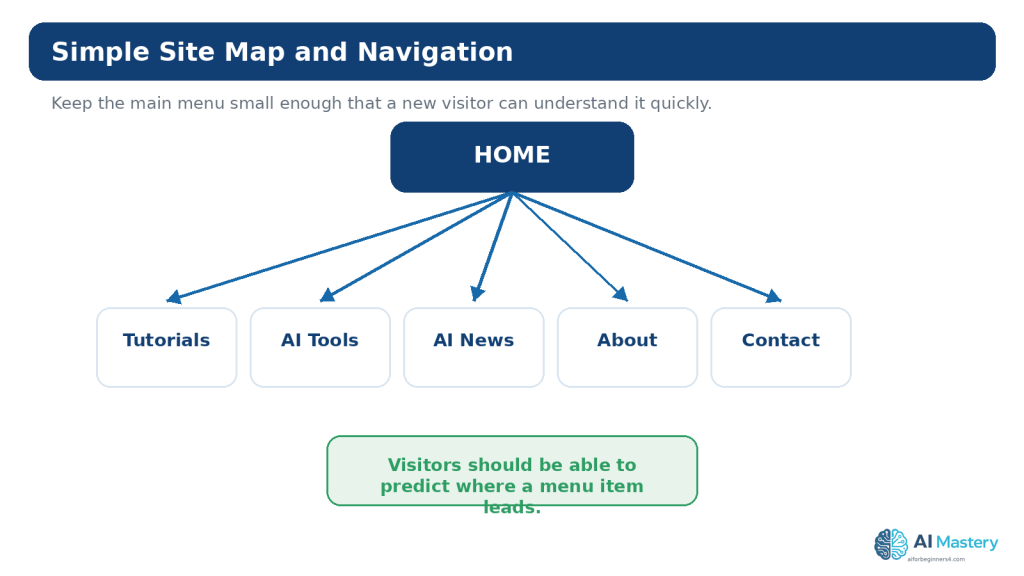
Figure 4. A simple site map shows the main pages and helps you plan a navigation menu before building it.
Explanation: A beginner menu should use clear labels and avoid unnecessary choices. WordPress.com currently manages block-theme menus through the Navigation block in the Site Editor.
Sketch the Homepage Before Choosing Detailed Styling
A homepage does not need to explain everything. Its job is usually to confirm that the visitor is in the right place and make the next useful step obvious.
A beginner homepage plan might contain a clear headline, one or two sentences explaining the site, a primary action such as “Browse Tutorials,” a few key topic sections, a short trust or About section, and a final next-step prompt.
Use boxes on paper or in a simple document. Do not worry about exact colors, fonts, or images yet. First check the order of information.
Ask One Question for Every Homepage Section
If you cannot explain why a section exists, it may not belong on the homepage. Decorative content can make the page longer without helping the visitor.
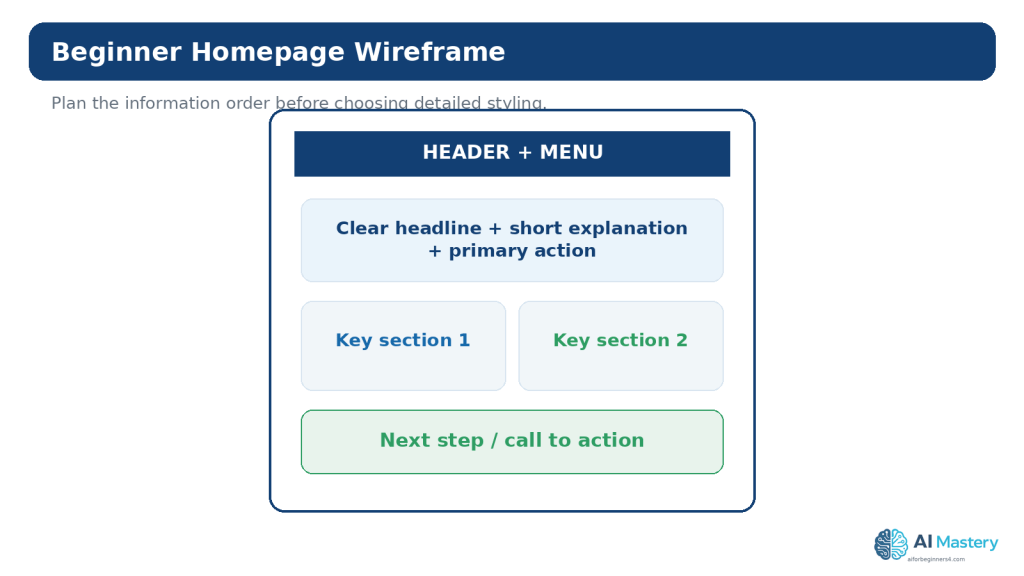
Figure 5. A homepage wireframe helps you decide what visitors should see first, next, and last before you spend time on visual styling.
Explanation: Wireframes are planning tools, not final designs. Use simple boxes and labels to check information order, clarity, and the main visitor action.
Plan Content Before Design
Design works better when it has real content to support. If every page still contains placeholder text, it is difficult to know how much space headings, paragraphs, screenshots, examples, and calls to action will require.
Create a small table with four columns: Page, visitor question, main content, and next step. This is enough to reveal whether pages overlap or whether an important visitor question has no destination.
Example
- Home — “Am I in the right place?” — purpose and main topics — browse tutorials.
- About — “Who is behind this?” — mission and background — explore the site.
- Tutorials — “What can I learn?” — organized learning topics — open a guide.
- Contact — “How can I reach you?” — contact method and expectations — send a message.
Keep the plan focused on useful information. Google’s current people-first guidance also emphasizes content created primarily to help people rather than content produced mainly to manipulate search rankings.
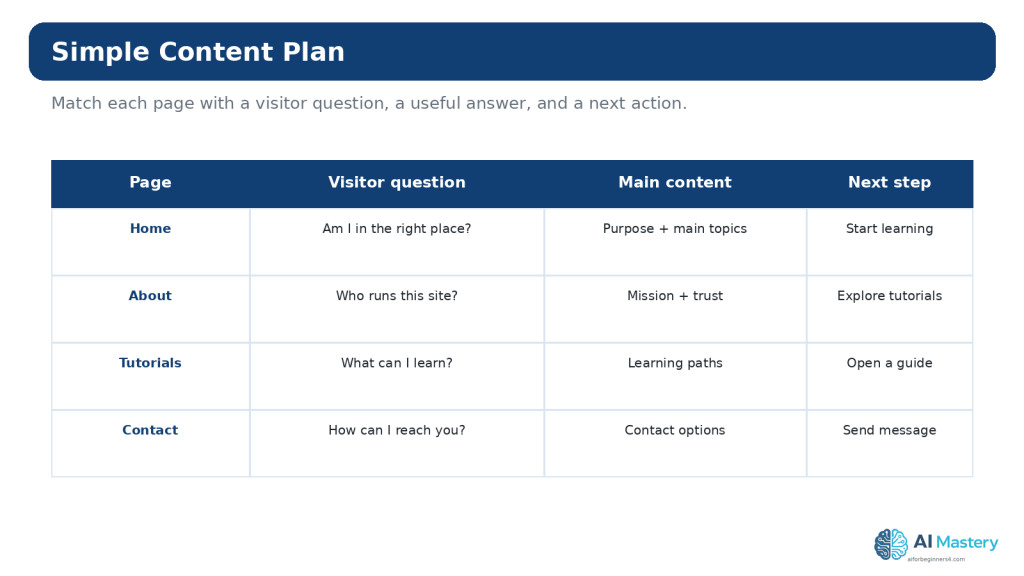
Figure 6. A useful content plan gives every important page a clear visitor question, main answer, and next step.
Explanation: This approach prevents pages from becoming collections of unrelated text. Plan what each page needs to accomplish before you begin writing or designing it.
Plan the Site Title, Tagline, and Domain Carefully
Your site title identifies the website. WordPress.com currently treats the Site Title as part of the site’s identity, and the tagline can help explain what the site is about. Keep both understandable and consistent with the purpose statement.
A domain name is the address visitors use to reach the site. A custom domain can make an address more memorable, but domain availability, pricing, plan conditions, renewal costs, and provider policies can change. Check current official information before purchasing or transferring a domain.
Beginner Domain Considerations
- easy to spell and remember
- not easily confused with another brand
- appropriate for the long-term topic
- does not depend on a temporary trend unless that is intentional
- checked for relevant trademark or naming conflicts where appropriate
- renewal and ownership details are understood before purchase
This article provides general educational guidance only. Trademark and naming questions can require professional legal advice.
Plan a Small Visual Style System
Beginners often spend too much time choosing dozens of colors and fonts. A small visual system is easier to use consistently.
Choose a primary color, one supporting color, neutral backgrounds, readable body text, clear heading sizes, a consistent image style, and repeatable spacing. You can refine the details later.
Do not use visual style to replace structure. A paragraph made large and bold is still a paragraph; use the correct heading structure in the page content and style it appropriately.
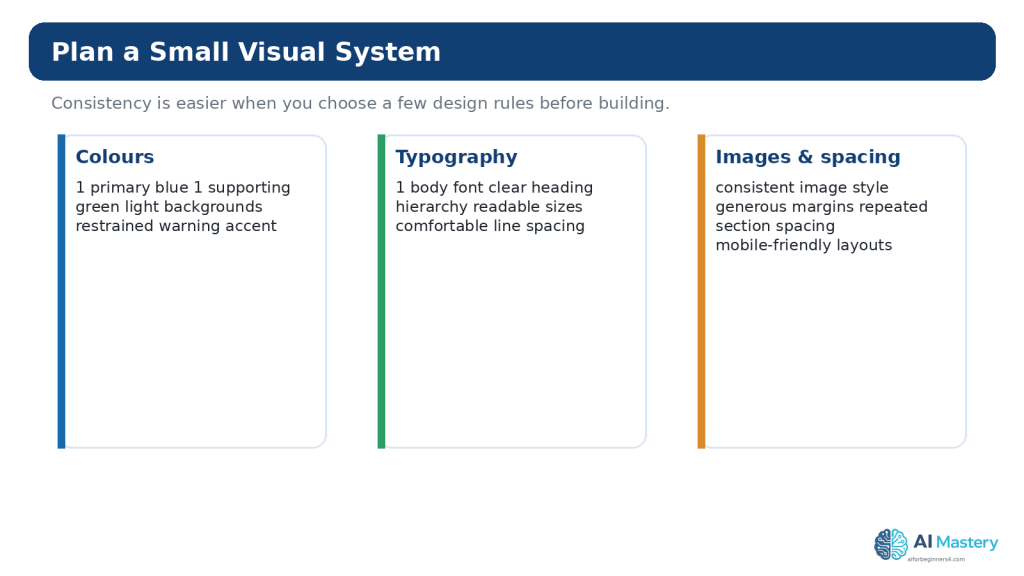
Figure 7. A small visual system helps beginners keep colours, typography, images, and spacing consistent across the site.
Explanation: You do not need a complicated design system. A few repeatable choices make the site easier to build, easier to maintain, and more recognizable.
Plan Accessibility from the Beginning
Accessibility means making web content usable by people with disabilities. W3C’s WCAG guidance covers text alternatives, structure, keyboard access, color contrast, reflow, captions, and many other requirements.
A beginner plan should at least record that headings will follow a meaningful hierarchy, text and backgrounds will have adequate contrast, informative images will receive appropriate alternative text, link text will describe its purpose, interactive controls will be keyboard usable, layouts will adapt to different widths, and audio or video will include appropriate accessible alternatives where required.
Do not treat an automated checker or an AI review as proof of WCAG conformance. Accessibility evaluation also requires human judgment and appropriate testing.
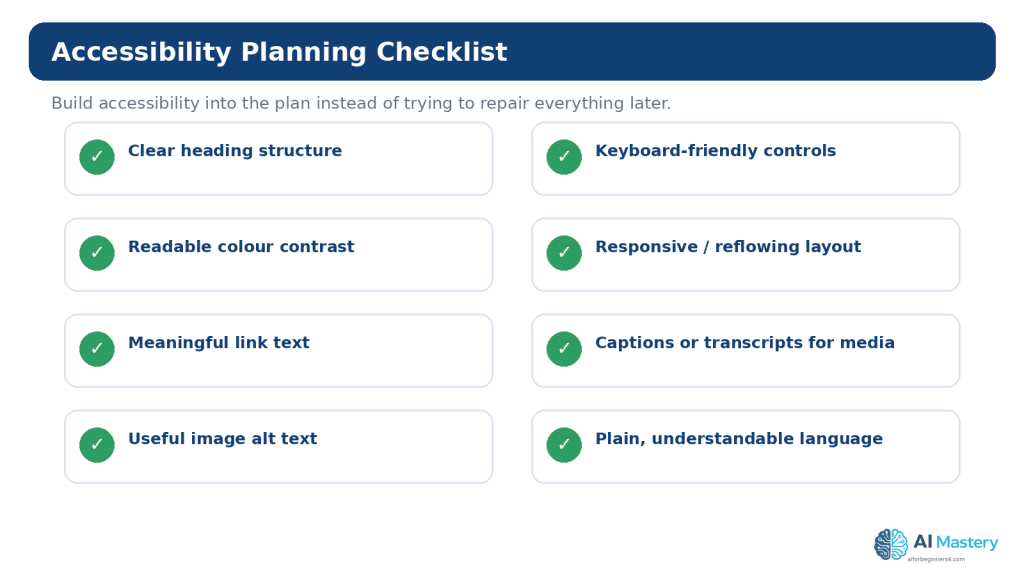
Figure 8. Accessibility planning includes structure, contrast, text alternatives, keyboard use, responsive layouts, and clear content from the beginning.
Explanation: WCAG 2.2 contains detailed requirements, so this checklist is only a beginner starting point. Planning accessibility early usually reduces later rework.
Plan Privacy, Security, and Responsible Data Collection
The planning stage is the best time to ask whether the website needs to collect information at all. A simple educational site with no accounts or payments has different risks from a site that handles customer records, health information, financial data, account credentials, or payments.
If you plan a contact form, newsletter, analytics, advertising, comments, user accounts, or other data collection, identify what information is collected, why it is needed, where it goes, who can access it, how long it may be retained, and what notices or consent mechanisms may be required in the jurisdictions that apply.
Do not place passwords, API keys, authentication tokens, or other secrets in public page content or in AI prompts. Use placeholders when asking an AI tool for help with a form or integration.
Use Site Visibility While Building
WordPress.com currently provides Coming Soon, Public, and Private site-visibility options under Settings → Reading. These options can be useful while preparing a site, but they are not a substitute for proper security controls for confidential systems.
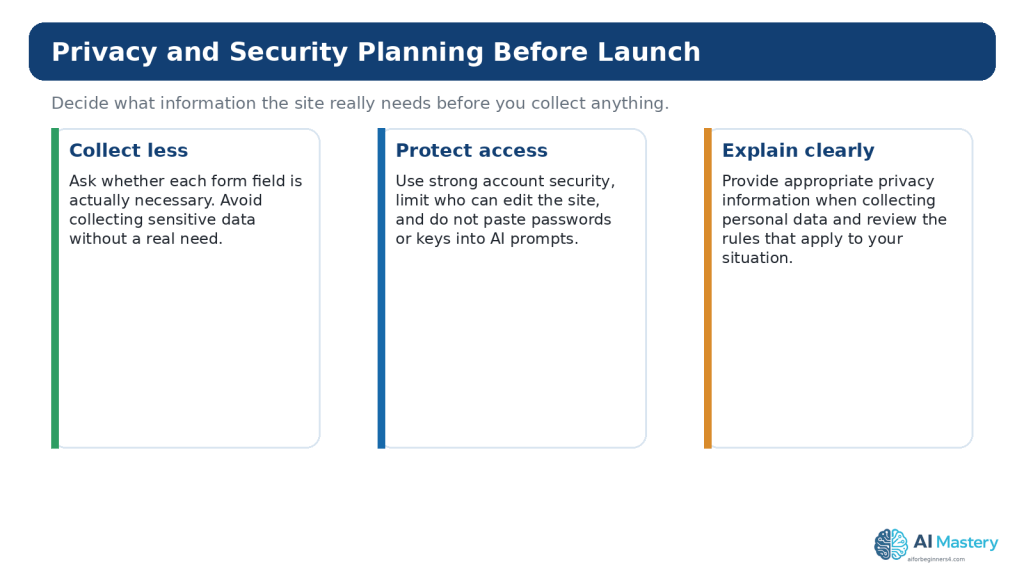
Figure 9. Website privacy and security planning starts with collecting only what you need, protecting access, and explaining data practices appropriately.
Explanation: A simple brochure-style site has different risks from a site that collects accounts, payments, or health information. More sensitive projects may require professional legal or security advice.
Plan Copyright and Licensing Before You Collect Assets
A website can include photographs, illustrations, logos, icons, fonts, templates, music, video, code, and other material. Copyright and licence conditions can apply even when an asset is easy to download or appears in a search result.
Before reusing third-party material, identify the original source, check the applicable licence or permission, confirm that your intended use is allowed, note any attribution requirements, and keep a record. Creative Commons licences grant specified permissions under copyright, but the conditions differ by licence.
AI generation does not automatically remove copyright, trademark, privacy, publicity, or licensing concerns. If viewers could reasonably mistake realistic synthetic content for a real event or real person, consider clear disclosure and any applicable platform rules.
This is general educational information, not legal advice. Important commercial uses, real-person likenesses, disputed ownership, or unclear licence terms may require professional advice.
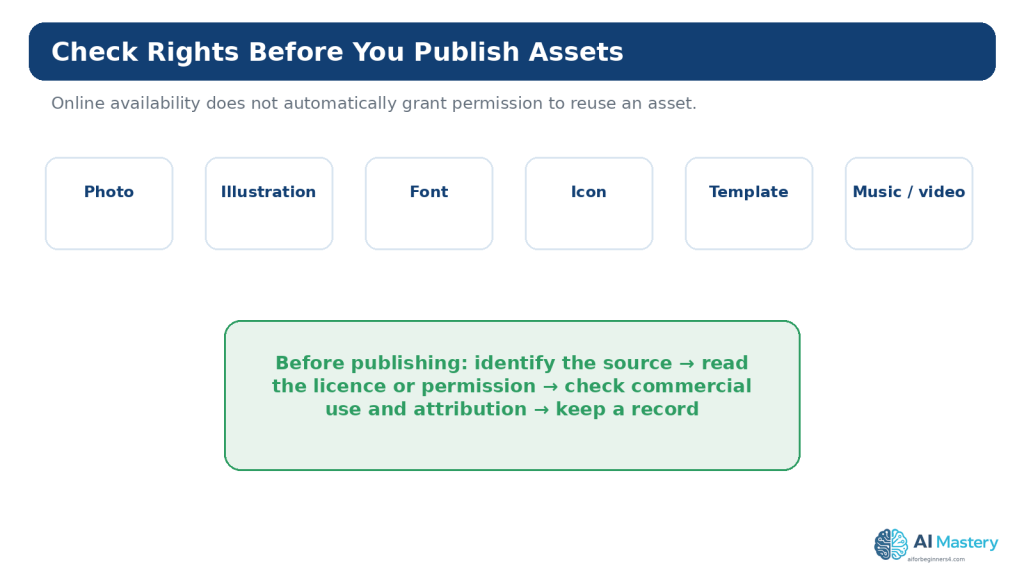
Figure 10. Images, fonts, icons, templates, audio, video, and other website assets can have different copyright and licence conditions.
Explanation: Do not assume that an asset is commercially usable or copyright-free because it is free of charge, visible online, or suggested by an AI tool. Verify the original source and current terms.
Plan Basic SEO Without Chasing Guarantees
Search engine optimization, or SEO, is the practice of improving a site so search systems and users can understand and discover useful content. Google’s Search Essentials and SEO Starter Guide provide current official guidance, but Google does not guarantee that a particular site will be crawled, indexed, or ranked.
For a beginner plan, focus on useful page topics, accurate descriptive titles, readable URLs, sensible internal links, clear headings, accessible content, and original information that serves the audience. Do not design the whole website around keyword repetition or automated content volume.
Record a Search Intent for Important Pages
For each important page, write one sentence describing what a visitor is trying to find. This helps you keep the page focused and reduces duplication between pages.
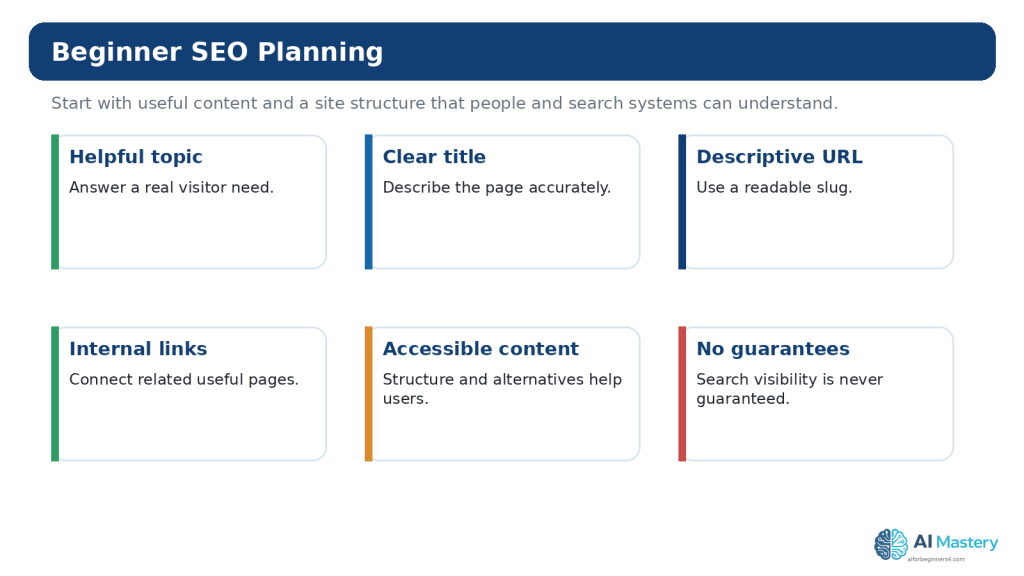
Figure 11. Beginner SEO planning starts with useful content, clear titles and URLs, sensible internal links, and a site people can navigate and understand.
Explanation: Google’s current guidance emphasizes helpful, people-first content and states that following Search Essentials does not guarantee indexing or ranking. Avoid promises of guaranteed search results.
Use AI as a Website Planning Assistant
AI can be useful when your notes are scattered or you are unsure how to organize them. It can suggest page structures, compare menu options, turn a purpose statement into a draft site map, produce questions for an About page, or review a content plan for duplication.
The important part is to provide context and constraints. A vague prompt such as “plan my website” encourages generic output. A better prompt explains the audience, purpose, platform, pages you already know you need, and what you do not want.
Example Planning Prompt
I am planning a beginner educational WordPress website. The main audience is complete beginners. The site should help visitors learn practical AI topics through clear tutorials. I want a small top menu and simple page structure. Suggest a draft page list and navigation order. Explain why each page is needed. Do not invent business services, prices, testimonials, or legal claims.
Review the result. Remove unnecessary pages. Check platform details against current WordPress documentation. Verify factual, legal, licensing, privacy, and accessibility claims with appropriate authoritative sources.
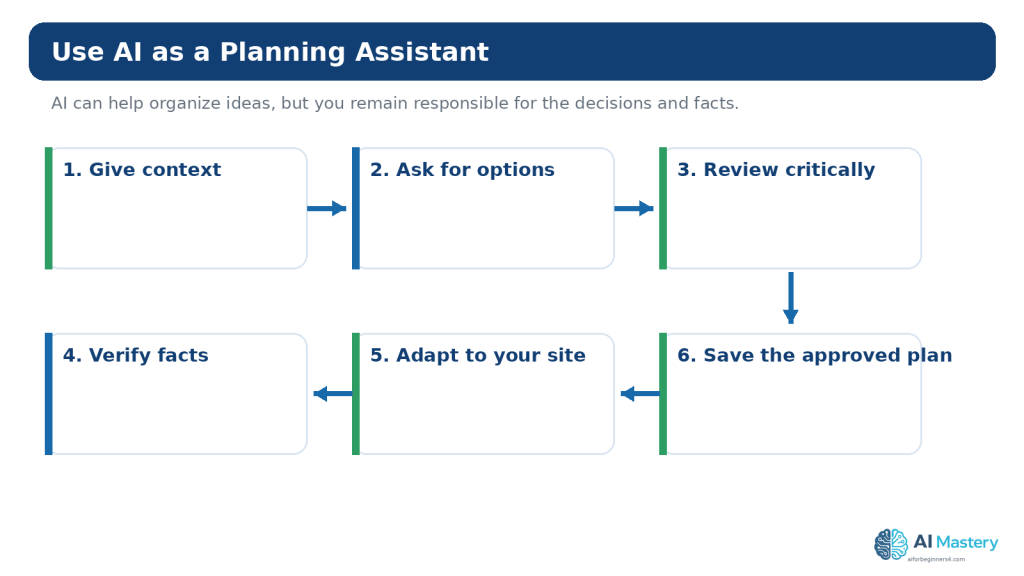
Figure 12. AI is most useful for website planning when you give relevant context, review the suggestions, verify important facts, and adapt the result to your real goals.
Explanation: Do not treat an AI-generated plan as automatically correct. It may invent details, overlook constraints, or recommend features that do not fit your audience, budget, platform, or legal obligations.
Protect Private Information When Using AI for Planning
Planning documents sometimes contain information that should not be shared widely, such as customer names, unpublished products, private budgets, credentials, internal URLs, or confidential business plans. Replace unnecessary details with neutral placeholders before pasting a plan into an AI service.
OpenAI currently provides Data Controls for personal ChatGPT accounts, and Temporary Chats are not used to train models, do not appear in normal chat history, do not create memories, and are deleted from OpenAI systems after 30 days, although they may be reviewed for abuse. These controls can change, and they do not make it appropriate to paste passwords or secrets into a conversation.
Check current official privacy and data-control information when first using a feature, changing settings or plans, receiving a policy notice, or periodically reviewing your workflow.
Build a One-Page Website Plan
Now combine the decisions into one page. This becomes the reference you follow while building the site.
1. Purpose
Write one sentence explaining what the website helps visitors do.
2. Primary Audience
Describe the main visitor in practical terms: what they know, what they need, and what action they should be able to take.
3. Core Pages
List only the pages needed for the first useful version of the site.
4. Navigation
Write the menu in order exactly as a visitor should see it.
5. Homepage
List the headline, short explanation, main sections, and primary action.
6. Content Responsibilities
Write what question each important page must answer and what next step it should provide.
7. Visual Direction
Record primary colors, font direction, image style, and spacing approach.
8. Risk and Quality Checks
Record accessibility, privacy, security, licensing, factual accuracy, disclosure, and basic SEO checks that apply to the site.
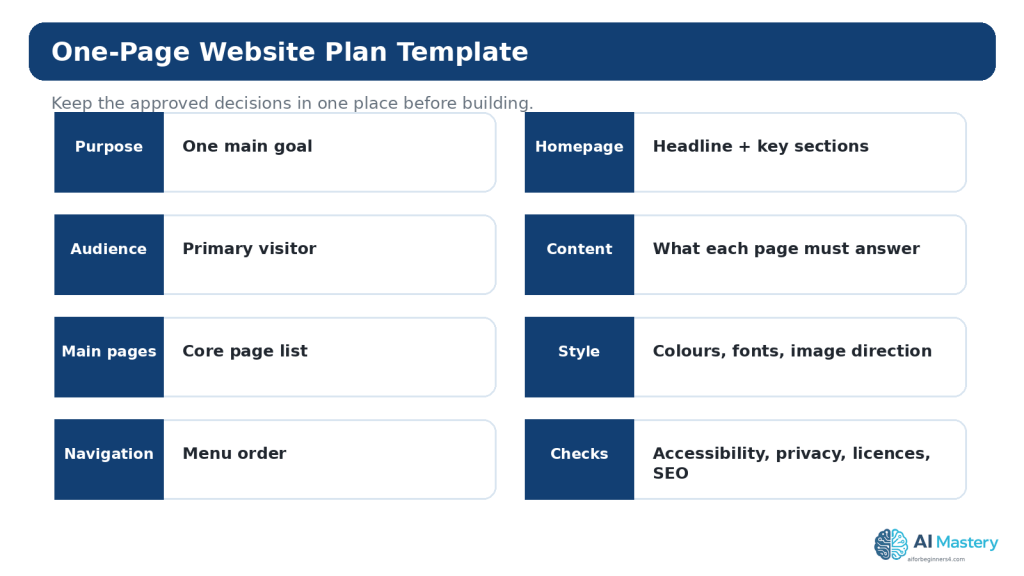
Figure 13. A one-page website plan keeps the most important decisions together so you can build consistently and avoid repeatedly changing direction.
Explanation: The plan should be short enough to use. Update it when a real requirement changes, but avoid redesigning the entire site every time you have a new idea.
Step-by-Step Beginner Planning Workflow
1. Write the one-sentence purpose.
2. Identify the primary audience.
3. List the three to five most important visitor questions.
4. Choose the minimum core pages that answer those questions.
5. Decide which ongoing content belongs in posts rather than pages.
6. Write the proposed main navigation.
7. Sketch the homepage with boxes.
8. Create the page-content table.
9. Choose a small visual style system.
10. Add accessibility requirements to the plan.
11. Review privacy, security, and data-collection needs.
12. Check copyright and licensing requirements for planned assets.
13. Write basic SEO intent for important pages.
14. Use AI to review the plan for duplication, missing information, and unclear wording.
15. Verify important platform, legal, privacy, accessibility, and licensing details with current authoritative sources.
16. Save the approved one-page plan before detailed building begins.
This sequence is intentionally simple. More complex commercial, government, healthcare, financial, membership, e-commerce, or regulated sites can require additional research and professional input.
Common Beginner Planning Mistakes
Mistake 1: Choosing a Theme Before Defining the Goal
A visually attractive theme cannot decide what the website should communicate. Define the purpose first so you can judge whether a design supports it.
Mistake 2: Creating Too Many Pages
A long menu can make a small site harder to understand. Start with the pages that serve real visitor needs and add more when there is a clear reason.
Mistake 3: Designing with Placeholder Content for Too Long
Real content affects page length, headings, screenshots, calls to action, and accessibility. Draft the important content early.
Mistake 4: Treating AI Suggestions as Requirements
AI may propose testimonials, pricing tables, chatbots, booking systems, pop-ups, or advanced integrations simply because those patterns are common. Use only features that support the actual purpose.
Mistake 5: Ignoring Mobile and Accessibility Until the End
A layout that looks good on one desktop monitor may fail at narrow widths or with keyboard navigation. Include flexible layout and accessibility checks from the start.
Mistake 6: Collecting More Personal Information Than Needed
Every additional form field can create a data-handling responsibility. Ask why the information is necessary before collecting it.
Mistake 7: Assuming Free Assets Are Free of Conditions
Free of charge does not mean unrestricted use. Check licences for photos, icons, fonts, templates, video, music, and code.
Mistake 8: Expecting SEO to Guarantee Traffic
Search guidance can improve clarity and discoverability, but no planning method can guarantee rankings or traffic.
Mistake 9: Replanning the Entire Website After Every New Idea
Keep an idea list. Change the approved plan only when the new idea materially improves the website’s purpose or visitor experience.
Mistake 10: Forgetting Who Will Maintain the Site
Plan who will update content, check links, renew domains and services, review policy changes, back up important material, and respond when something breaks.
Benefits and Limitations of Using AI for Website Planning
Benefits
- turn rough notes into a clearer outline
- suggest alternative page structures
- identify duplicate or overlapping sections
- generate questions for audience research
- help simplify technical language
- produce checklists and comparison tables
- help create a first draft of a content plan
Limitations
- may invent facts or platform features
- may recommend unnecessary tools or services
- does not know your audience as well as real user research can
- cannot guarantee accessibility compliance
- cannot determine legal obligations for every jurisdiction
- may overlook licensing or privacy conditions
- can produce generic plans that look polished but are not useful
How to Reduce These Limitations: give the AI clear context, request explanations, verify important facts, test the plan against real visitor needs, and keep human responsibility for final decisions.
Common Myths About Website Planning with AI
Myth 1: AI Can Plan the Whole Website Without My Input
Reality: AI can organize ideas, but it needs accurate context and cannot decide your real goals, audience, legal obligations, or priorities for you.
Myth 2: More Pages Make a Website Look More Professional
Reality: unnecessary pages can make navigation harder and increase maintenance work.
Myth 3: A Beautiful Homepage Is the Main Measure of Success
Reality: visitors also need useful content, understandable navigation, accessibility, trust, and clear next steps.
Myth 4: SEO Planning Means Adding as Many Keywords as Possible
Reality: modern search guidance emphasizes helpful, understandable, people-first content rather than mechanical keyword repetition.
Myth 5: I Can Fix Accessibility After Launch
Reality: accessibility is easier to support when structure, contrast, link wording, media alternatives, and interaction are considered during planning and creation.
Myth 6: Anything AI Generates Is Safe to Publish
Reality: AI output still requires factual, privacy, copyright, licensing, accessibility, and responsible-use review.
Frequently Asked Questions
Do I need a complete business plan before making a website?
No. A small educational or personal website can begin with a short website plan. A business website may need additional business, legal, financial, marketing, and operational planning depending on what it does.
How many pages should a beginner website have?
There is no universal number. Use the minimum set of pages needed to answer important visitor questions and support the site purpose.
Should I plan my menu before creating pages?
Yes, at least as a draft. The menu helps reveal whether the proposed pages are clear and whether important information has a logical home.
Should every article be a page in WordPress?
No. WordPress posts are generally a better fit for ongoing dated content such as tutorials, articles, and news, while pages are typically used for more permanent site information.
Can ChatGPT choose my website colors?
It can suggest palettes, but you should review readability, contrast, branding fit, and consistency yourself. Important accessibility checks should not rely only on AI.
Can AI write all of the website content?
It can assist with drafts, but the content still needs factual review, original judgment, appropriate sourcing, privacy checks, accessibility, and responsible editing. Avoid publishing large amounts of generic AI text simply to fill pages.
Do I need SEO before launching?
You should plan basic titles, page topics, readable URLs, internal links, and useful content. Advanced SEO can be added later. There is no guarantee of indexing or ranking.
Should I buy a domain before I plan the site?
You can, but planning the purpose and long-term topic first can help you choose a more suitable name. Domain availability, prices, and plan conditions can change, so check the provider’s current terms.
What should I save while planning?
Keep the approved plan, original source material, prompts that materially shaped the project, permissions, licences, brand assets, master images, and important publication records where relevant.
When should I check platform policies again?
You do not need to reread every policy before every edit. Check current official information when first using a tool, changing plans or important features, receiving a policy-update notice, beginning a sensitive or commercial workflow, or periodically reviewing the site.
Pre-Build Planning Checklist
Before detailed construction begins, confirm the following items:
- the website purpose is written in one sentence
- the primary audience is identified
- the core page list is reasonable
- the main navigation order is drafted
- the homepage information order is sketched
- each important page has a content responsibility
- basic visual rules are recorded
- accessibility is included in the plan
- privacy and security risks have been reviewed
- third-party asset licences will be checked
- basic SEO intent is recorded
- maintenance and ownership responsibilities are understood
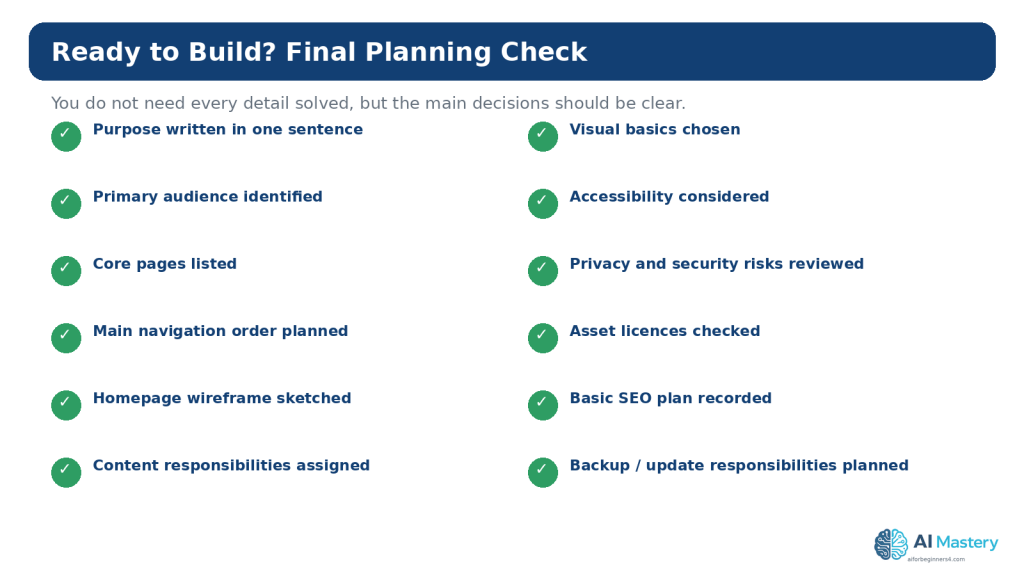
Figure 14. A short pre-build checklist helps confirm that the website has a clear direction before you begin detailed construction.
Explanation: You can still refine the site after building starts. The point is to reduce avoidable confusion by agreeing on the main purpose, structure, content responsibilities, and risk checks first.
Key Takeaways
- Plan the purpose before choosing detailed design.
- Identify one primary audience so explanations and navigation stay focused.
- Use pages for core site information and posts for ongoing article-style content where appropriate.
- Sketch navigation and the homepage before building them.
- Plan content around visitor questions and next steps.
- Use a small consistent visual system rather than many unrelated styles.
- Include accessibility, privacy, security, licensing, factual accuracy, and disclosure in the planning stage.
- Use AI to organize and review ideas, not to replace judgment or verification.
- Keep one approved website plan so the project does not change direction every day.
- Check current official sources when platform features, policies, search guidance, privacy controls, or licensing conditions matter.
Final Tip
Do not wait for a perfect plan. A useful beginner plan is short, specific, and practical. If you can explain the site’s purpose, audience, core pages, navigation, homepage order, content responsibilities, visual direction, and main risk checks, you are ready to begin building.
The strongest habit is to make one important decision at a time, write it down, and use it to judge the next decision. That keeps AI suggestions, design ideas, and new features from pulling the project in unrelated directions.
Continue Learning
Article 091 begins the AI Mastery Website Planning series. The next articles can build on this plan by focusing more deeply on choosing a website topic and audience, planning pages and navigation, creating a content plan, preparing beginner SEO, and organizing updates and maintenance.
Article 092 — How to Choose a Website Topic and Audience with AI (2026)
Article 093 — How to Plan Website Pages and Navigation with AI (2026)
Article 094 — How to Create a Website Content Plan with AI (2026)
Article 095 — How to Plan Beginner SEO Content with AI (2026)
Article 096 — How to Review and Maintain an AI-Assisted Website (2026)
Sources and References
The following official and authoritative sources were reviewed for the WordPress, accessibility, privacy, SEO, copyright, and licensing guidance in this article. Information was checked on August 16, 2026. Platform features, standards, policies, prices, plans, and licence conditions can change, so readers should check current official information when it matters to their project.
1. WordPress.com — Create your website on WordPress.com. Official source — Current beginner course covering theme setup, homepage design, header and footer, colors and fonts, and publishing.
2. WordPress.com — Understand pages, posts, and templates. Official source — Explains the current distinction between relatively static pages, time-based posts, and templates.
3. WordPress.com — Use the Site Editor. Official source — Current instructions for using Appearance → Editor to manage site design, templates, navigation, and pages on block themes.
4. WordPress.com — Navigation block. Official source — Current guidance for creating and editing navigation menus with the Navigation block.
5. WordPress.com — Set up your homepage. Official source — Current guidance for editing a block-theme homepage and selecting a static homepage where applicable.
6. WordPress.com — Edit your site title. Official source — Explains site-title editing and the role of the site title in website identity.
7. WordPress.com — Edit your site tagline. Official source — Explains how the site tagline can summarize what the website is about.
8. WordPress.com — Control your site visibility. Official source — Current Coming Soon, Public, and Private visibility options under Settings → Reading.
9. WordPress.com — Manage domains. Official source — Current WordPress.com domain-management information.
10. W3C WAI — WCAG 2 Overview. Official source — Authoritative overview of the Web Content Accessibility Guidelines.
11. W3C — Web Content Accessibility Guidelines (WCAG) 2.2. Official source — Current W3C Recommendation used for accessibility planning guidance.
12. Google Search Central — SEO Starter Guide. Official source — Official beginner SEO guidance and the relationship to Search Essentials.
13. Google Search Central — Creating helpful, reliable, people-first content. Official source — Official guidance emphasizing useful content created primarily for people.
14. OpenAI — Data Controls FAQ. Official source — Current information about training controls and Temporary Chat behavior.
15. WIPO — Copyright. Official source — Authoritative general copyright information, including protection of creative works.
16. Creative Commons — Licenses List. Official source — Official list of Creative Commons licences and tools for sharing works under specified terms.
Important Note: This article provides general educational information about website planning, accessibility, privacy, security, copyright, licensing, and search visibility. It is not legal, cybersecurity, financial, or other professional advice.

