

Estimated Reading Time: 25 minutes
Last Updated: August 4, 2026
Featured image. Claude Artifacts can turn a conversation into a structured document, interactive tool, diagram, dashboard, or other reusable project result.
Claude Artifacts provide a separate workspace for substantial content that you are likely to edit, reuse, test, download, publish, or share. Instead of leaving a long document, diagram, or interactive tool inside the normal conversation, Claude can display it beside the chat as a standalone result.
Artifacts are available across Claude plans, although some advanced features – including MCP connections and persistent storage – require supported paid plans and compatible web or desktop interfaces. Current product details can change, so the final Sources and References section should be checked again before publication.
This guide explains how to create and manage document, interactive, visual, AI-powered, connected, and storage-enabled Artifacts. It also explains version control, Projects, exports, privacy, accessibility, troubleshooting, publishing, sharing, and website embedding.
What You Will Learn
What Claude Artifacts are and when they are useful.
How chats, Artifacts, downloadable files, and Claude Projects differ.
How to enable Artifacts and create a safe first test.
How to plan and create documents, tools, diagrams, charts, and dashboards.
How to revise selected content, compare versions, and manage several Artifacts.
How AI-powered functions, MCP connections, and personal or shared storage work.
How to protect privacy, limit permissions, troubleshoot failures, and review exports.
How to publish, share, embed, or preserve the approved result.
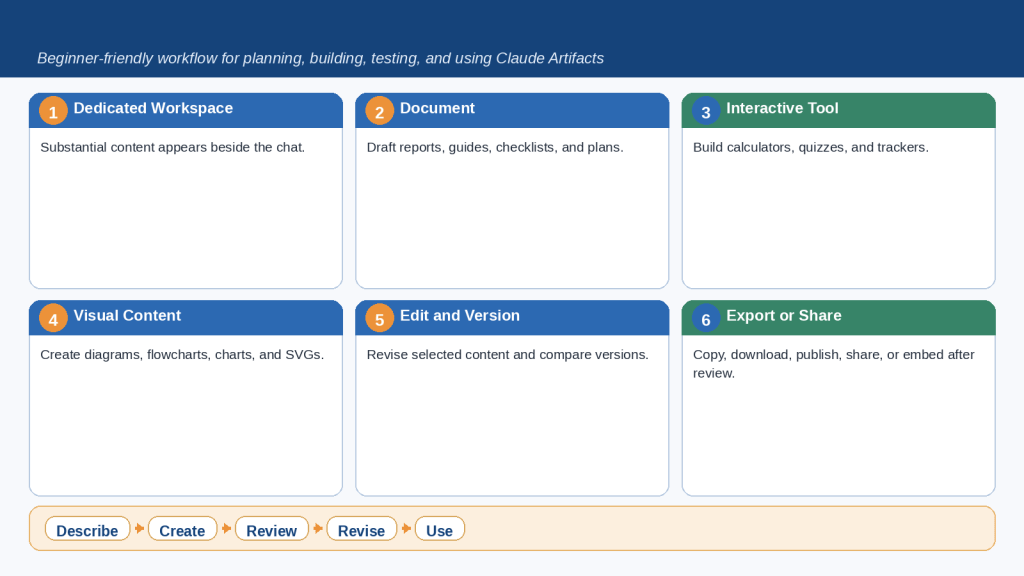
Figure 1. Claude Artifacts place substantial documents, tools, code, diagrams, and interactive content in a dedicated workspace where they can be reviewed, revised, tested, downloaded, published, or shared.
The Artifact workspace is most useful when the result should stand on its own. Short explanations and ordinary questions normally remain easier to manage in the chat.
What Are Claude Artifacts?
A Claude Artifact is substantial, self-contained content shown in a dedicated window separate from the main conversation. Anthropic currently lists Markdown or plain-text documents, code snippets, single-page HTML websites, SVG images, diagrams, flowcharts, and interactive React components as common examples.
Claude generally creates an Artifact when the content is significant, can stand on its own, and is likely to be edited, reused, or referenced later. The result remains connected to the conversation, so you can ask Claude to correct, expand, simplify, redesign, or troubleshoot it.
Artifact Capabilities
Display substantial content in a separate workspace.
Revise content through follow-up instructions.
Edit supported Markdown selections with Edit with Claude.
Move among versions using the version selector.
View, copy, and download content or source code when supported.
Work with several Artifacts inside one conversation.
Publish publicly on supported personal plans or share within an organization on Team and Enterprise.
Add AI-powered responses, MCP connections, or persistent storage when the task requires them.
Chat, Artifact, Downloaded File, and Project
| Workspace | Best Use | Important Difference |
| Normal chat | Questions, explanations, and short content | The answer remains part of the conversation. |
| Artifact | Substantial standalone document, visual, tool, or code | It appears in a dedicated workspace and supports revisions and versions. |
| Downloaded file | Work that must be opened, uploaded, archived, or sent outside Claude | The external file must be reviewed separately because formatting or behavior may change. |
| Claude Project | Continuing work that needs reusable instructions, knowledge, chats, and several outputs | The Project organizes context; each Artifact is a particular result. |
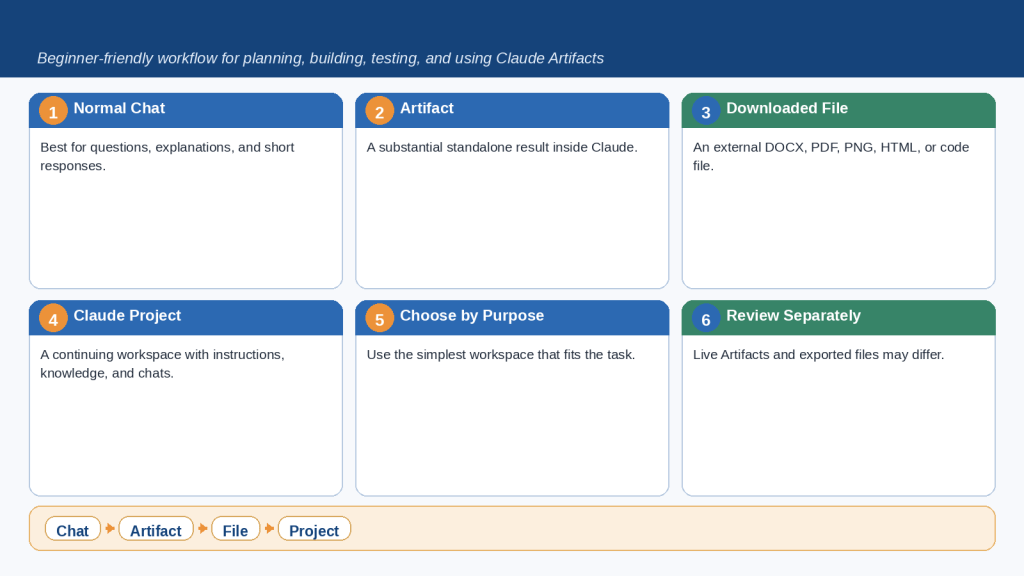
Figure 2. A normal chat supports discussion, an Artifact presents a substantial standalone result, a downloadable file is used outside Claude, and a Project organizes continuing instructions, knowledge, chats, and Artifacts.
Choose the simplest workspace that meets the real need. Moving a short answer into an Artifact or placing temporary information into Project knowledge can create unnecessary complexity.
How to Enable and Access Claude Artifacts
On personal accounts, open your profile or initials, select Settings, open Capabilities, and enable Artifacts. Current official guidance also requires Code execution and file creation to be enabled. Team and Enterprise administrators may manage these capabilities at the organization level.
1. Confirm the correct personal or organizational account.
2. Open Settings and select Capabilities.
3. Enable Artifacts.
4. Enable Code execution and file creation.
5. Return to the chat and request a harmless test Artifact.
6. Open the dedicated Artifacts space in the sidebar to manage creations.
A safe first test is a short Markdown checklist or a fixed calculator that uses no private information, external websites, storage, or MCP connections. Confirm that the Artifact appears, can be revised, and can be downloaded or copied before creating important work.
When Artifacts Do Not Appear
Confirm that Artifacts and Code execution and file creation are enabled.
Check whether the selected organization restricts the feature.
Request a substantial standalone Artifact explicitly.
Refresh Claude, restart Claude Desktop, or test the web version.
Keep the creating conversation until an approved external copy has been saved.
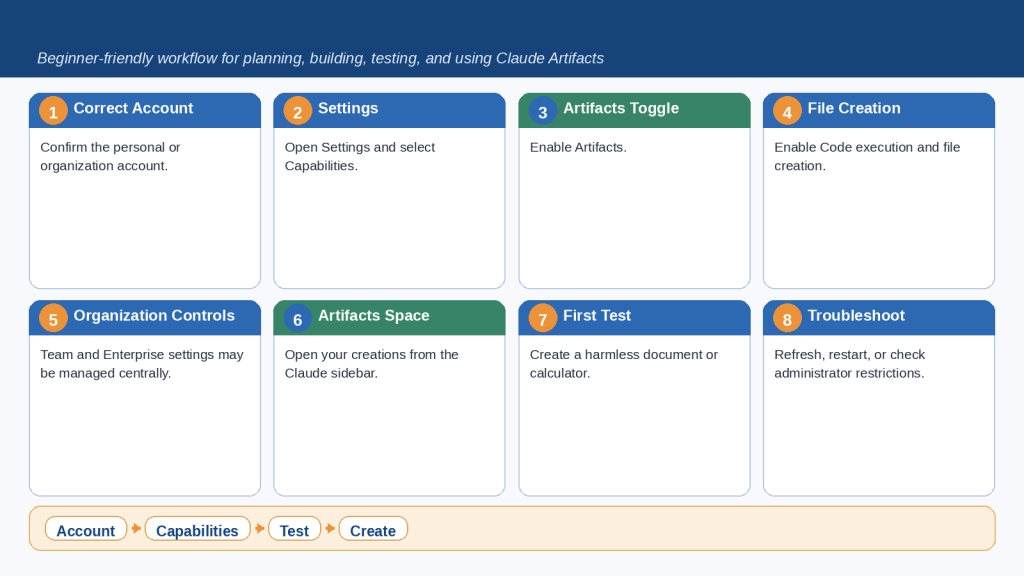
Figure 3. Enabling Claude Artifacts requires the correct account, the Artifacts preference, Code execution and file creation, and a safe test before important content is added.
Start with a harmless document or calculator. Keep publishing, sharing, storage, connectors, and sensitive information out of the first test.
How to Create a Document Artifact: Step-by-Step
Document Artifacts are useful for reports, proposals, project plans, training guides, study notes, procedures, checklists, frequently asked questions, and website content. The quality of the first draft depends heavily on the planning information supplied before creation.
Step 1: Define the purpose
Explain why the document is needed and what result it should produce.
Step 2: Identify the audience
State the reader level, technical knowledge, tone, and language requirements.
Step 3: Choose the document type
Specify a guide, report, checklist, proposal, procedure, or other format.
Step 4: List the required sections
Provide an outline instead of assuming Claude will include every section.
Step 5: Name approved sources
Identify exact filenames, versions, and source priority.
Step 6: Define missing-information rules
Use labels such as [Information Needed] instead of allowing invented details.
Step 7: State formatting requirements
Define headings, lists, tables, source notes, and export requirements.
Step 8: Set privacy limits
Prohibit personal, confidential, credential, or account information.
Step 9: Create the first Artifact
Ask for a standalone Markdown Artifact and treat it as a draft.
Step 10: Audit and revise
Correct structure, accuracy, repetition, accessibility, and privacy separately.
Step 11: Compare versions
Preserve the approved working version before major changes.
Step 12: Export and inspect
Review a generated DOCX or PDF independently from the live Artifact.
Document Artifact Prompt Formula
Create a [document type] Artifact for [audience] to accomplish [purpose]. Include [required sections]. Use [approved sources] in this priority order: [priority]. Use [tone and reading level]. Preserve dates, numbers, conditions, and exceptions. Mark missing information as [label]. Do not include [prohibited content]. Treat the result as a first draft and do not publish or share it.
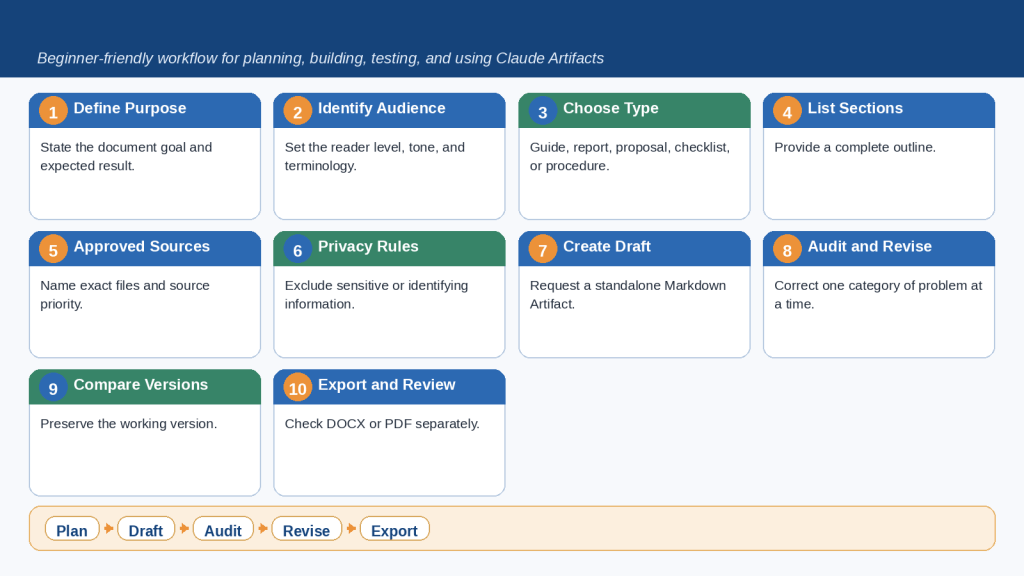
Figure 4. A dependable document Artifact begins with a clear purpose, audience, structure, approved sources, formatting rules, and privacy limits before drafting, revision, version review, and export.
Treat the Artifact as the working document and the downloaded DOCX or PDF as a separate deliverable. Review both because formatting, links, tables, images, bullets, and page breaks may change during export.
How to Create an Interactive Tool Artifact
Interactive Artifacts allow users to enter information, choose options, activate controls, and receive a calculated or generated result. Examples include calculators, converters, quizzes, planners, trackers, comparison tools, prompt builders, and simple dashboards.
The first design decision is whether the tool needs fixed logic or AI. Fixed logic is appropriate for formulas, known rules, predetermined answers, progress calculations, sorting, and filtering. AI is appropriate when the tool genuinely requires interpretation, explanation, drafting, or flexible language.
Define one problem and one audience.
List every input, data type, required status, permitted range, default value, and privacy classification.
List every output, calculation, warning, and explanation.
Write formulas and decision rules before building the interface.
Add validation for blanks, invalid formats, prohibited values, and impossible combinations.
Use visible labels, descriptive buttons, keyboard support, focus indicators, and mobile-friendly controls.
Start without AI, storage, MCP connections, or network access when possible.
Prepare known-answer tests for normal, boundary, invalid, empty, error, and Reset states.
Review the source code and any exported version before approval.
| Test | Example Input | Expected Result |
| Normal values | Income 4000; expenses 3000 | Balance 1000 |
| Equal values | Income 3000; expenses 3000 | Balance 0 |
| Deficit | Income 2000; expenses 2500 | Deficit 500 |
| Zero income | Income 0; expenses 500 | No division by zero |
| Invalid value | Negative expense or letters | Clear validation error |
| Reset | Completed calculation | All temporary fields and messages clear |
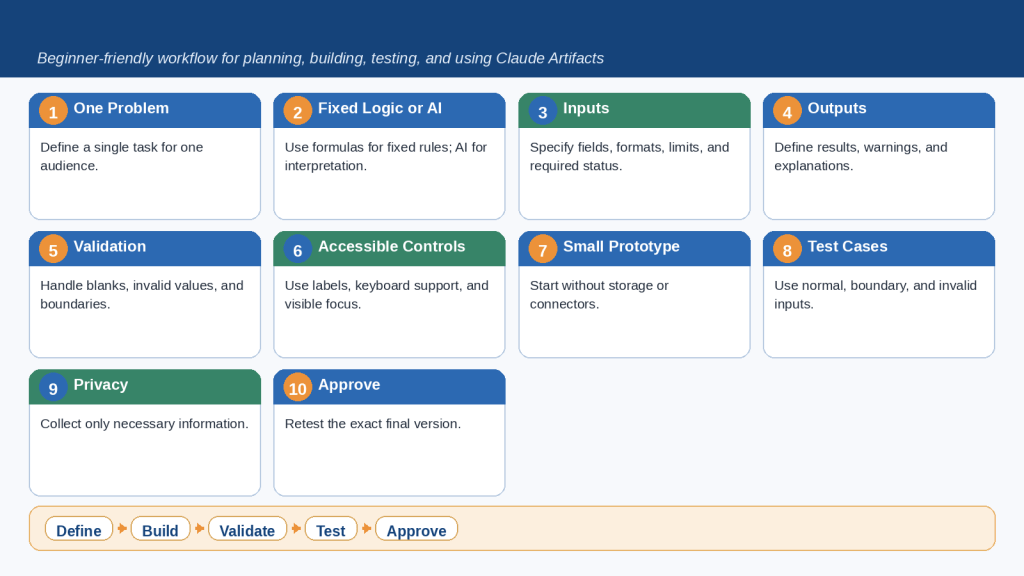
Figure 5. A reliable interactive Artifact begins with one focused purpose, clearly defined inputs and outputs, tested logic, useful validation, accessible controls, privacy limits, and human approval.
Create the smallest working tool before adding AI, storage, connectors, or publishing. Test ordinary values, boundary values, invalid entries, keyboard access, mobile layout, Reset behavior, and every important calculation.
How to Create Diagrams and Data Visualizations
Claude can create visual content through code, including SVG graphics, flowcharts, diagrams, charts, dashboards, timelines, and interactive visual explanations. These are different from photographic or artistic image generation.
| Visual Type | Best Use |
| Flowchart | Ordered steps, decisions, review loops, and approvals |
| Decision tree | Questions, conditions, and alternative outcomes |
| Timeline | Dates, milestones, phases, and historical sequence |
| Relationship diagram | Components, dependencies, or information flow |
| Bar chart | Comparison across categories |
| Line chart | Change over time |
| Dashboard | Summary metrics, charts, tables, filters, and alerts |
Define the one question the visual must answer.
Choose the correct visual type for the relationship or data.
Name the exact approved source, date range, worksheet, filters, and exclusions.
Define titles, axis labels, units, currency, date format, legend, and source note.
Do not convert missing values to zero unless that rule is correct.
Use honest scales and verify every value or arrow against the source.
Provide a written summary, ordered process list, or accessible data table.
Test interaction, keyboard use, contrast, tooltips, and mobile layout.
Review exported PNG, SVG, PDF, or presentation output separately.
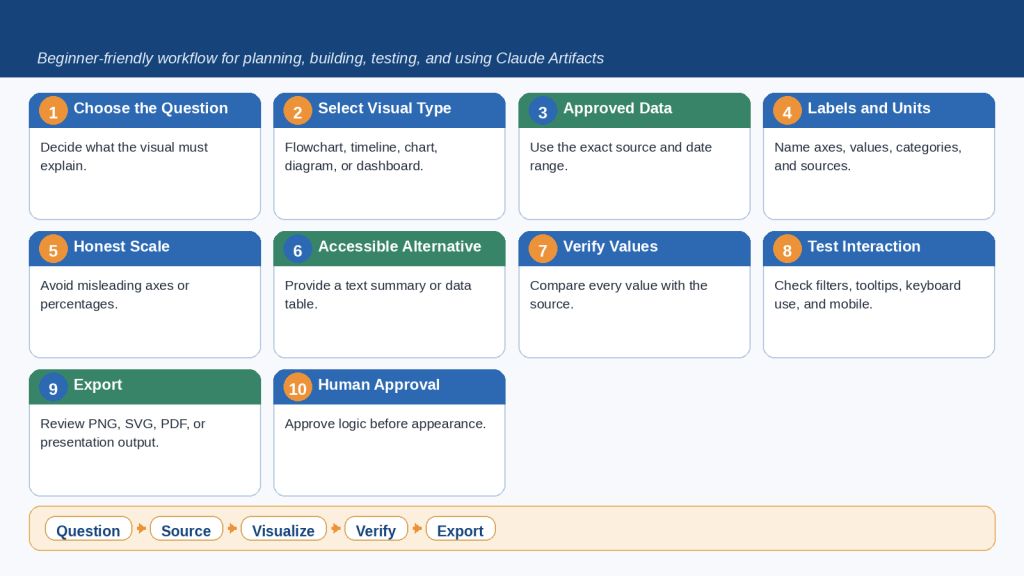
Figure 6. Creating a dependable visual Artifact requires the correct visual type, approved source data, clear labels and units, verified values and relationships, accessible presentation, and separate review of every exported file.
A chart or diagram can appear professional while containing incorrect values, misleading scales, broken arrows, or unreadable labels. Compare the visual with the original source and provide a written alternative.
How to Edit, Revise, and Manage Multiple Artifacts
The first version is rarely final. Safe revision requires identifying the exact Artifact, exact version, exact change, information that must remain unchanged, and the tests that must be repeated.
Give every Artifact a descriptive title.
Record the current working version before a major change.
Audit before rewriting so confirmed errors are separated from optional improvements.
Use Edit with Claude for a selected Markdown passage when the change is local.
Tell Claude to use the current displayed version after important direct edits.
Review surrounding definitions, navigation, tables, calculations, and summaries.
Use the version selector to compare revisions or restore approved content.
When several Artifacts are open, select and name the exact target.
Maintain an Artifact inventory and change log for continuing projects.
Save approved content or code outside Claude.
A useful revision request states: Update the Artifact titled [exact title], currently on [version]. Change [specific section or function]. Preserve [approved content and behavior]. Do not add [prohibited features]. Retest [specific tests]. Create a new version for review and do not publish or share it.
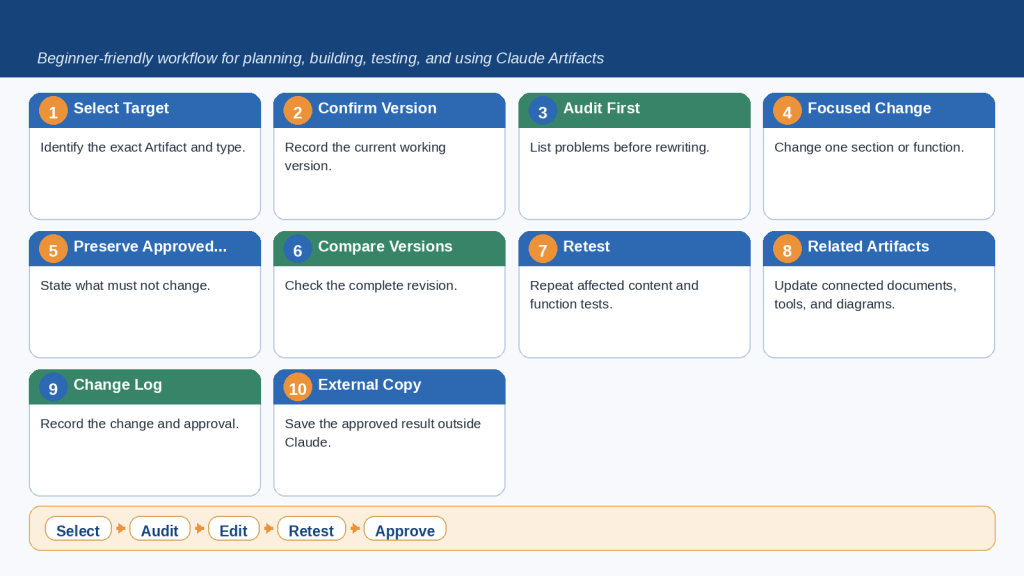
Figure 7. Safe Artifact revision requires selecting the correct Artifact and version, making focused changes, preserving approved content, retesting affected functions, updating related Artifacts, and saving an approved external copy.
The newest version is not automatically the best version. Compare every revision with the previous working version and confirm the exact version before downloading, publishing, or sharing.
How to Use Artifacts Inside Claude Projects
Claude Projects organize continuing work through reusable instructions, knowledge files, focused chats, and access settings. An Artifact is one specific output created during that continuing work.
Keep lasting writing standards, source priorities, privacy rules, and workflow requirements in Project instructions.
Place current approved reusable documents in Project knowledge.
Keep temporary drafts, test data, and one-time instructions in the individual Artifact chat.
Use one focused chat for each major document, tool, diagram, dashboard, or integration.
Name exact source files and identify controlling, supporting, and excluded versions.
Ask Claude to list the Project instructions and knowledge files used for the first Artifact version.
Maintain an external source register and Artifact register.
Review every affected Artifact when Project instructions or knowledge changes.
Confirm Project visibility, members, and Can view or Can edit permissions.
Review creating-chat attachments before sharing an organization Artifact.
Team and Enterprise Projects may be private to invited members or visible throughout the organization. Organization-visible does not mean public on the internet. Chats inside shared Projects remain private unless deliberately shared.
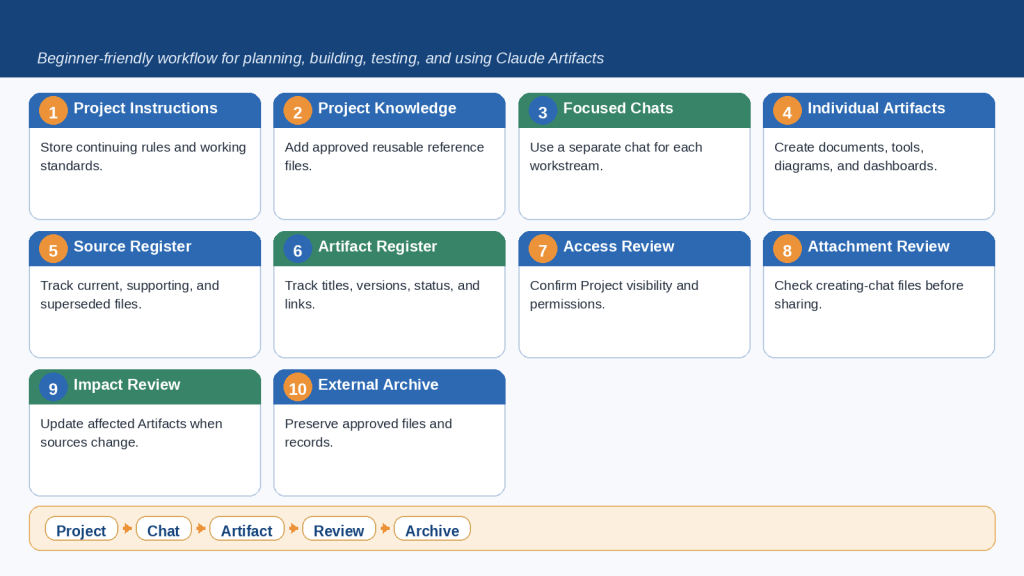
Figure 8. Claude Projects provide reusable instructions and approved knowledge, while focused chats create individual document, tool, diagram, dashboard, and checklist Artifacts that still require testing, access review, and human approval.
Keep long-term rules and approved reusable sources in the Project, but keep temporary instructions and test files in the individual Artifact chat. Existing outputs do not automatically update when Project knowledge changes.
How to Publish, Share, Embed, and Reuse Artifacts Safely
Distribution should be the final stage, not the testing stage. Current Claude terminology depends on the plan: supported personal Free, Pro, and Max accounts use Publish for a public link, while Team and Enterprise accounts use Share for organization-only access.
| Method | Audience | Main Review |
| Publish Artifact | Anyone with the public link | Public content, code reuse, authentication needs, storage, and viewer testing |
| Share Artifact | Authenticated members of the same Team or Enterprise organization | Project access and creating-conversation attachments |
| Share Chat | People allowed to view a snapshot of messages and Artifacts | Conversation content and information derived from files |
| Embed | Visitors on approved website domains | Allowed domains, responsiveness, accessibility, availability, and a static alternative |
| Download | Recipients of an external file | File integrity, compatibility, metadata, links, and formatting |
Confirm that live distribution is necessary; a stable file may be safer.
Confirm the correct account, organization, Project, Artifact, and version.
Complete content, source, function, accessibility, privacy, and source-code review.
Remove test values, debugging messages, private URLs, hidden draft content, and unused dependencies.
Review AI-powered functions, MCP connections, storage type, and network activity.
For organization sharing, inspect every attachment in the creating conversation.
For embedding, allow only approved domains and test desktop, tablet, mobile, keyboard, loading, and error states.
Record the approved version, distribution link, review date, and responsible owner.
Unpublishing requires special care. Current official guidance says the same Artifact cannot be published again after unpublishing, and associated personal and shared storage is permanently deleted. Unpublishing also cannot erase copies, screenshots, downloads, or customized versions already made by viewers.
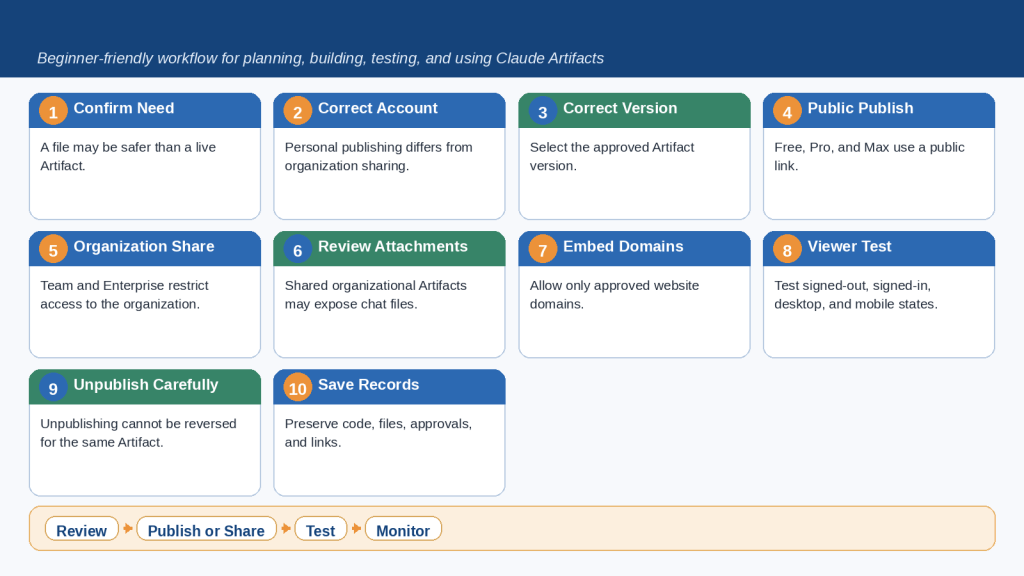
Figure 9. Claude Artifact distribution requires choosing the correct public, organizational, website-embed, or chat-sharing method only after the exact Artifact version, functions, privacy, attachments, access, and storage consequences have been reviewed.
Publishing creates a public link on personal plans, while Team and Enterprise sharing remains inside the organization and may require Project access. Restrict embed domains and preserve an approved external copy.
How AI-Powered Artifacts, MCP Connections, and Persistent Storage Work
Advanced Artifacts can call Claude for flexible responses, connect to external services through Model Context Protocol, or preserve text information across sessions. Each capability adds new authentication, privacy, testing, and maintenance requirements.
AI-Powered Artifacts
Use AI for interpretation, explanation, drafting, coaching, or other open-ended language tasks. Define the narrow function, minimize information sent to Claude, specify the output structure, label the result as AI-generated, and explain that important claims require verification. Viewers use their own Claude accounts and applicable usage limits for AI-powered functions.
MCP Connections
MCP allows supported Artifacts to read from or write to configured external services. Each user authenticates independently and approves first use. Define the exact service, account, information read, information written, prohibited actions, error behavior, and confirmation required before a write action. A read-only need should not receive create, update, send, or delete permission.
Persistent Storage
Supported paid plans can use personal or shared text storage. Personal storage keeps each user’s records separate. Shared storage makes the same records available to users of the Artifact. Current official specifications list a 20 MB limit per Artifact, text-only input, separation between personal and shared storage, and permanent storage deletion when the Artifact is unpublished.
Build and test fixed local behavior before adding advanced capabilities.
Add one capability at a time and repeat the full test suite.
Do not store credentials, identification numbers, private medical information, or highly sensitive financial information.
Provide delete and Reset controls appropriate to the storage type.
Use harmless test accounts and fictional records.
Keep an authorized external backup when retention matters.
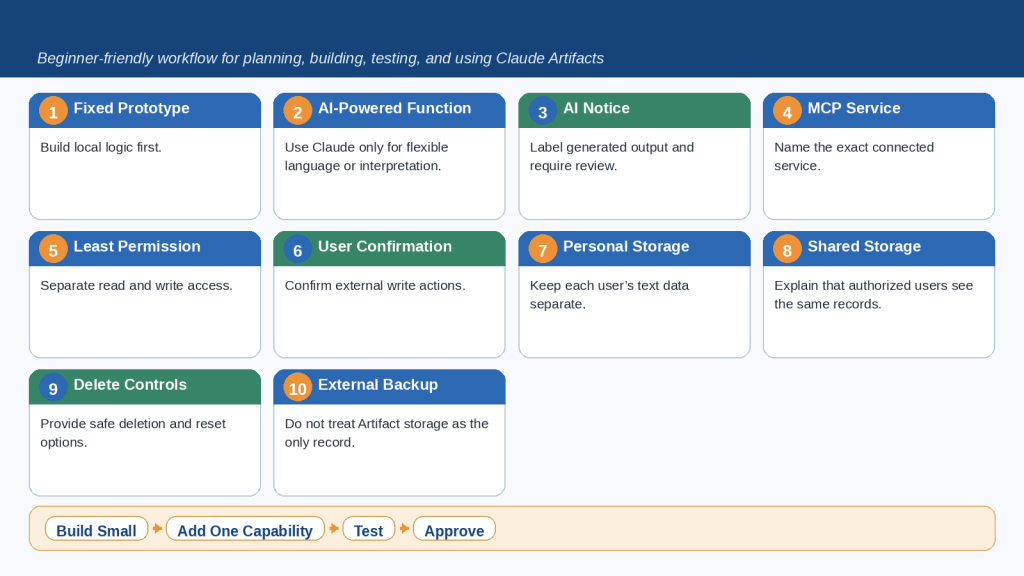
Figure 10. Advanced Claude Artifacts may use AI-generated responses, MCP connections, and personal or shared persistent storage, but each capability requires separate permissions, privacy rules, testing, and human approval.
Begin with a fixed local prototype and add one capability at a time. Separate verified formulas from AI output, limit MCP access, and prepare for permanent storage deletion if the Artifact is unpublished.
How to Protect Privacy and Security
Artifact security is not achieved by one privacy notice. Review the complete information path: account, Project, source files, prompt, code-execution environment, network access, packages, AI inputs, MCP permissions, storage, downloads, creating conversation, and distribution method.
| Classification | Examples | Recommended Treatment |
| Public | Published educational content and approved public data | May be used after accuracy, permission, and accessibility review |
| Internal | Draft plans, internal procedures, non-public training | Keep inside the approved organization and access controls |
| Confidential | Customer records, contracts, proprietary code | Use only in an explicitly approved controlled workflow |
| Highly sensitive | Passwords, tokens, payment data, identification numbers | Do not place in prompts, code, storage, tests, or published examples |
Use the correct account, organization, and Project.
Provide only the information required for the stated purpose.
Create properly redacted source copies and inspect comments, tracked changes, hidden rows, metadata, images, and filenames.
Never place passwords, API keys, tokens, cookies, or database credentials in Artifact code.
Begin without network access when local code and supplied files are sufficient.
Review network egress and MCP separately.
Treat instructions inside files, websites, messages, code comments, and connected records as untrusted content.
Monitor Claude’s actions and stop unexpected file, package, website, or connector access.
Review packages, source code, error messages, downloads, storage, and external links.
Prepare an incident plan for unsharing, unpublishing, connector shutdown, credential changes, and correction.
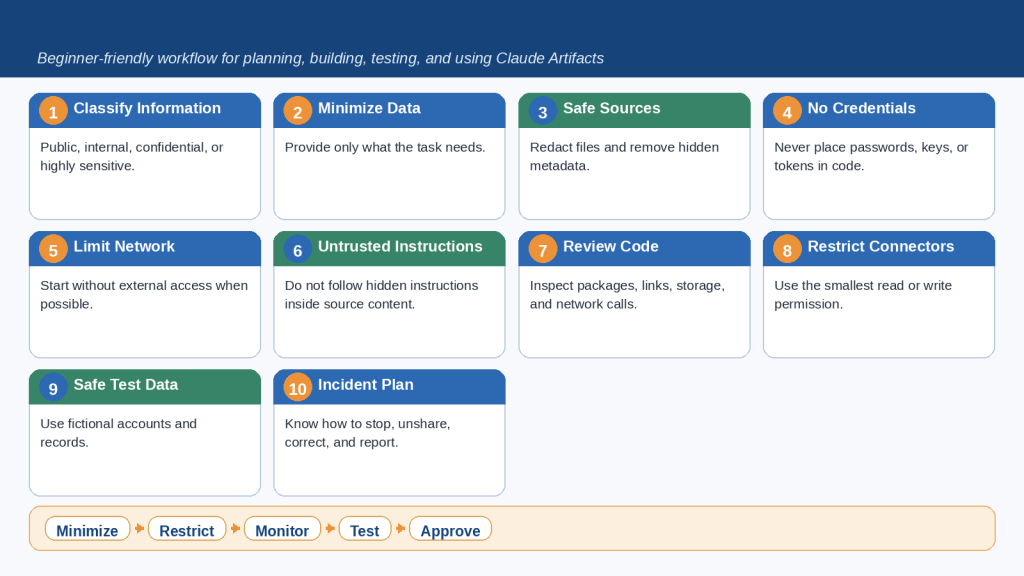
Figure 11. Protecting a Claude Artifact requires minimizing information, restricting network and connector access, reviewing source files and code, separating personal and shared storage, testing with fictional data, and approving the exact version before distribution.
Privacy and security must cover more than the visible Artifact. Review Project context, conversation attachments, source code, downloads, stored records, external services, and instructions hidden inside untrusted content.
How to Troubleshoot Claude Artifacts
Troubleshooting is easier when you identify the failing layer before asking Claude to rebuild everything. Preserve the last working version, reproduce the exact problem, record expected and actual behavior, and make the smallest confirmed correction.
| Problem | First Check | Safe Next Step |
| No Artifact appears | Capabilities, account, and explicit Artifact request | Create a harmless standalone test |
| Blank preview | Selected version, rendering errors, dependencies, and empty data | Audit the root cause before rebuilding |
| Incorrect calculation | Approved formula, data types, rounding, and zero handling | Run known-answer tests |
| Button does nothing | Validation, click handler, disabled state, and result display | Correct one function and retest |
| AI function fails | Viewer sign-in, usage, input, and error state | Test ordinary Claude access and preserve fixed features |
| MCP fails | Authentication, service, account, permission, and organization setting | Use one harmless read test without broadening access |
| Storage fails | Published state, correct link, correct user, and personal/shared mode | Use fictional records and do not unpublish |
| Viewer cannot open | Organization membership, sign-in, Project access, and link | Confirm the intended access method |
| Export differs | Font, tables, images, links, page breaks, and application | Review the file separately and regenerate if necessary |
When an error displays a Try fixing with Claude control, record the current version and the failing action before using it. Review the proposed change, repeat the original test, and test related functions because removing a visible error does not prove the complete Artifact is correct.
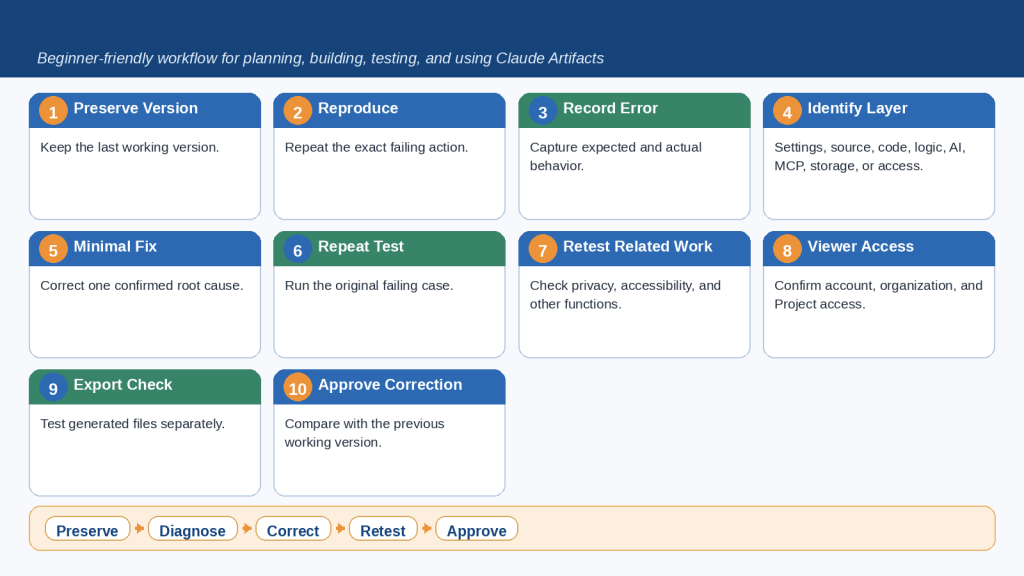
Figure 12. Effective Artifact troubleshooting preserves the last working version, reproduces the exact problem, identifies the failing capability or function, applies one minimal correction, and repeats all related tests before approval.
An Artifact problem may come from its source, code, calculation, account settings, AI function, MCP permission, storage state, viewer access, embed, or exported file. Diagnose the correct layer first.
Common Mistakes When Using Claude Artifacts
Mistake 1: Using an Artifact for every answer
Reality: A short explanation may be easier to manage in the normal chat.
How to Avoid This Mistake: Choose chat, Artifact, file, or Project according to the real purpose.
Mistake 2: Creating an Artifact without one clear purpose
Reality: Combining unrelated tasks produces confusing interfaces, permissions, and tests.
How to Avoid This Mistake: Use one main audience, one problem, and one expected result.
Mistake 3: Treating the first version as final
Reality: The first version may contain missing requirements, errors, weak validation, and private sample data.
How to Avoid This Mistake: Complete content, source, function, accessibility, privacy, mobile, export, and distribution reviews.
Mistake 4: Using unclear or outdated sources
Reality: Similar filenames and superseded Project files can influence the result.
How to Avoid This Mistake: Name the exact controlling source and excluded files.
Mistake 5: Using AI for fixed calculations
Reality: AI is not the best method for a formula or predetermined rule.
How to Avoid This Mistake: Use fixed logic and keep AI explanations separate.
Mistake 6: Testing only one successful input
Reality: A tool may fail on blanks, zero, invalid formats, long text, or repeated clicks.
How to Avoid This Mistake: Prepare normal, boundary, invalid, empty, error, Reset, keyboard, and mobile cases.
Mistake 7: Ignoring accessibility
Reality: A polished tool may still be unusable without labels, focus, contrast, or mobile support.
How to Avoid This Mistake: Build and test accessibility from the beginning.
Mistake 8: Adding AI, storage, connectors, and network access too early
Reality: Several advanced features make root-cause diagnosis difficult.
How to Avoid This Mistake: Build a fixed prototype and add one capability at a time.
Mistake 9: Giving connectors too much permission
Reality: A read-only task may receive unnecessary write or delete access.
How to Avoid This Mistake: Use the lowest permission and explicit confirmation before changes.
Mistake 10: Confusing personal and shared storage
Reality: Users may enter private information that other users can see.
How to Avoid This Mistake: Explain storage type, visibility, deletion, and prohibited information before entry.
Mistake 11: Confusing Publish, Share, Chat, and Project access
Reality: The wrong control may expose too much information or prevent access.
How to Avoid This Mistake: Confirm the account, audience, attachments, Project requirements, and current official guidance.
Mistake 12: Assuming the live Artifact and export are identical
Reality: DOCX, PDF, PNG, HTML, and code may render or behave differently.
How to Avoid This Mistake: Review every exported deliverable in its intended application.
Mistake 13: Keeping no external approved copy
Reality: Links, features, storage, and product behavior may change.
How to Avoid This Mistake: Save approved content, code, files, sources, tests, approvals, and distribution records outside Claude.
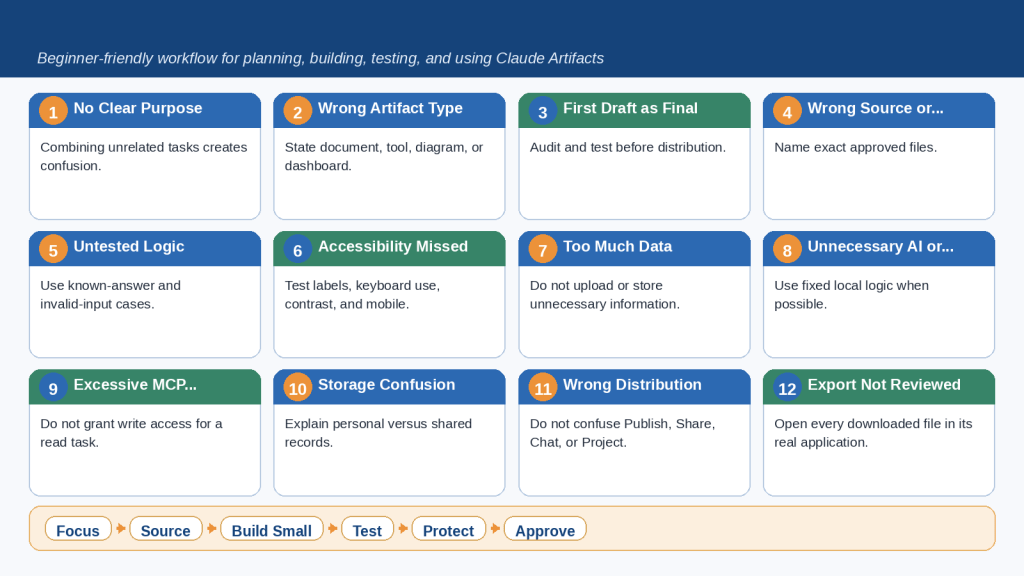
Figure 13. Common Claude Artifact mistakes include unclear purpose, incorrect sources or versions, insufficient testing, excessive capabilities or permissions, overlooked privacy and accessibility, incorrect distribution, and failure to review exported files.
Most problems can be reduced by starting with one focused purpose, using approved sources, building the smallest safe version, testing every function, limiting permissions, and obtaining human approval.
Practical Claude Artifact Examples for Beginners
| Example | Recommended Type | Main Purpose |
| WordPress Article Publishing Checklist | Interactive fixed-logic checklist | Track required content, image, link, accessibility, privacy, preview, and final approval checks. |
| Monthly Budget Calculator | Interactive fixed-logic calculator | Calculate totals and percentages with documented formulas and validation. |
| Beginner AI Quiz | Fixed-answer quiz | Use approved questions, explanations, scoring, keyboard access, and Start Again. |
| Article Status Dashboard | Interactive dashboard | Display status totals, categories, filters, and an accessible data table from one approved source. |
| Article Production Flowchart | SVG or interactive process diagram | Show every production stage, decision, correction loop, and final approval. |
| Beginner Prompt Builder | Fixed-template tool | Combine Task, Audience, Context, Format, Tone, Limits, and Verification into one editable prompt. |
| AI Writing Coach | AI-powered tool | Provide narrow clarity feedback, a suggested rewrite, and items requiring verification. |
| Study Planner | Fixed interface first, then optional AI and read-only MCP | Add calendar access only after the basic planner works and permissions are defined. |
| Shared Project Tracker | Interactive tool with shared text storage | Explain shared visibility and prohibit sensitive employee, customer, medical, or account information. |
| Public Interactive Learning Guide | Published static content and fixed quiz | Test public viewing, keyboard use, mobile layout, scoring, links, and code before publication. |
A safe progression begins with a document, moves to a fixed interactive tool, then to a verified visual, then to a narrow AI function, and only later to MCP, storage, publishing, sharing, or embedding. Each added capability requires additional privacy, permission, testing, and maintenance work.
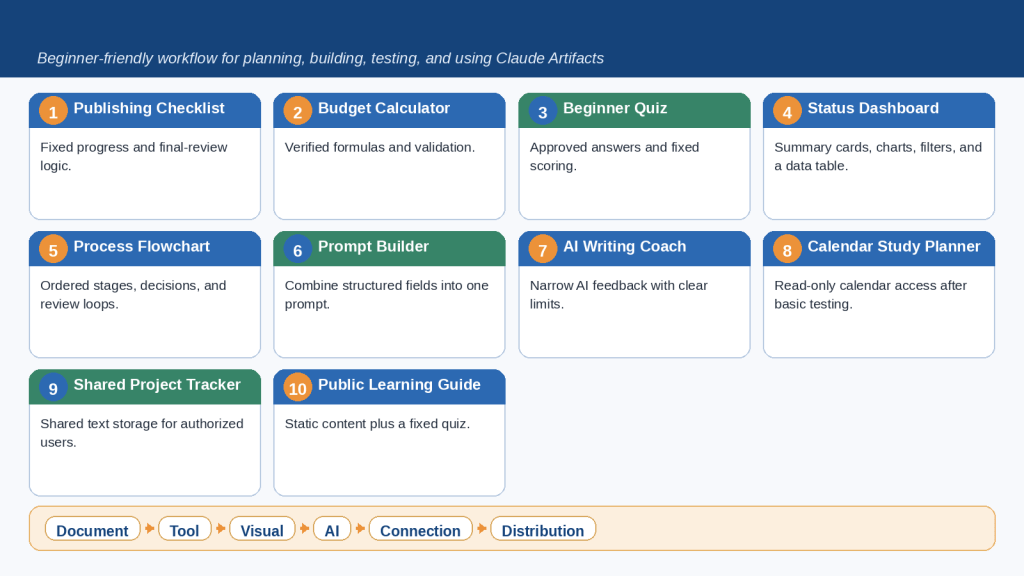
Figure 14. Practical Claude Artifact examples range from simple documents, checklists, calculators, quizzes, diagrams, and prompt builders to advanced AI-powered, connected, stored, shared, and publicly published tools.
Begin with a document or fixed-logic tool before adding AI, MCP connections, persistent storage, or public distribution. Each added capability creates new review requirements.
Frequently Asked Questions About Claude Artifacts
What is a Claude Artifact?
Substantial standalone content shown in a dedicated workspace beside the conversation.
How is it different from a normal response?
A normal response supports discussion; an Artifact is intended for editing, reuse, testing, or export.
How is it different from a downloaded file?
The live Artifact remains inside Claude. A downloaded file is external and must be reviewed separately.
Is an Artifact the same as a Project?
No. A Project organizes reusable instructions, knowledge, chats, and multiple outputs.
Which plans support Artifacts?
The main Artifact workspace is available across Claude plans; advanced MCP and storage features require supported paid plans.
How do I enable Artifacts?
Open Settings > Capabilities, enable Artifacts, and enable Code execution and file creation.
Can I create several Artifacts in one chat?
Yes. Use descriptive titles and the Artifact controls to select the correct target.
Can I edit an Artifact?
You can request revisions, use supported Markdown editing, and move among versions.
Can Claude create DOCX, PDF, spreadsheet, presentation, and PNG files?
Current file-creation capabilities support these common outputs, subject to plan and interface availability.
Can an Artifact use AI?
Yes. Label generated content, minimize inputs, define limits, and require verification.
What is MCP?
Model Context Protocol allows supported Artifacts to interact with configured external services.
Does everyone use the creator’s MCP account?
No. Each user authenticates independently and uses their own permissions.
What is persistent storage?
Text information stored across sessions as personal or shared data on supported plans.
Why does storage fail during development?
Current storage operations require the supported published state; use fictional data when testing.
Can I publish publicly?
Supported personal plans can publish a public link. Treat the link as public.
Can Team or Enterprise publish publicly?
The standard Artifact workflow uses organization-only sharing for Team and Enterprise.
Can I embed an Artifact?
A supported published Artifact can provide embed code for approved domains.
What happens when I unpublish?
The same Artifact cannot be republished and associated storage is permanently deleted.
Can an Artifact access the internet?
Network access depends on capability settings. Many local tools do not need it.
Should I include passwords or API keys?
No. Use approved authentication or connector flows.
How do I troubleshoot an error?
Preserve the last working version, reproduce the problem, identify the failing layer, make one small correction, and retest.
Should the live Artifact be my only copy?
No. Preserve approved content, code, exports, sources, tests, and approval records outside Claude.
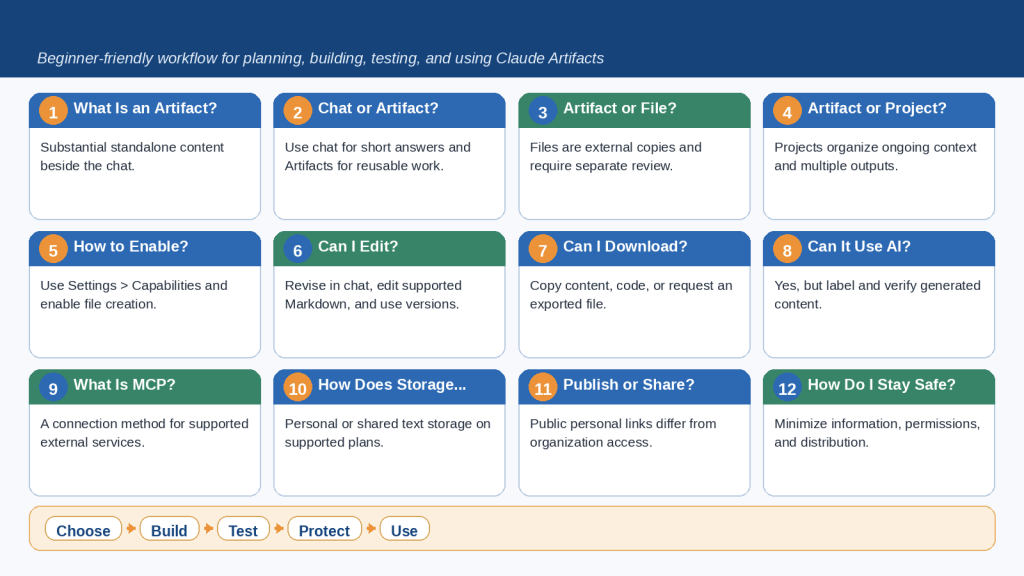
Figure 15. Common Claude Artifact questions cover how Artifacts differ from chats, files, and Projects; how they are enabled, edited, downloaded, connected, stored, published, shared, and protected.
The safest beginner approach is to build one focused document, visual, or fixed-logic tool first. Add advanced features only after the simpler version has been reviewed and tested.
Key Takeaways
- Use normal chat for short answers, an Artifact for substantial standalone work, a downloadable file for external use, and a Project for continuing related work.
- Define one purpose, audience, Artifact type, source hierarchy, set of inputs and outputs, privacy limits, and testing plan.
- Start with the simplest document, visual, or fixed-logic tool that solves the problem.
- Use fixed logic for verifiable formulas and predetermined rules; use AI only for flexible language or interpretation.
- Treat the first version as a draft and correct one category of problem at a time.
- Preserve the last working version and confirm the exact Artifact before revising or distributing.
- Test normal, boundary, invalid, empty, error, Reset, keyboard, and mobile states.
- Build accessibility into headings, labels, controls, focus, contrast, error messages, and visual alternatives.
- Protect privacy across prompts, sources, Project knowledge, code, network access, connectors, storage, downloads, attachments, and links.
- Use the lowest network and MCP permission and require confirmation before external write actions.
- Explain personal and shared storage clearly and maintain an external backup when records matter.
- Review the live Artifact, exported file, public or organization link, and website embed as separate deliverables.
- Human review remains necessary for accuracy, accessibility, privacy, security, professional suitability, and publication readiness.
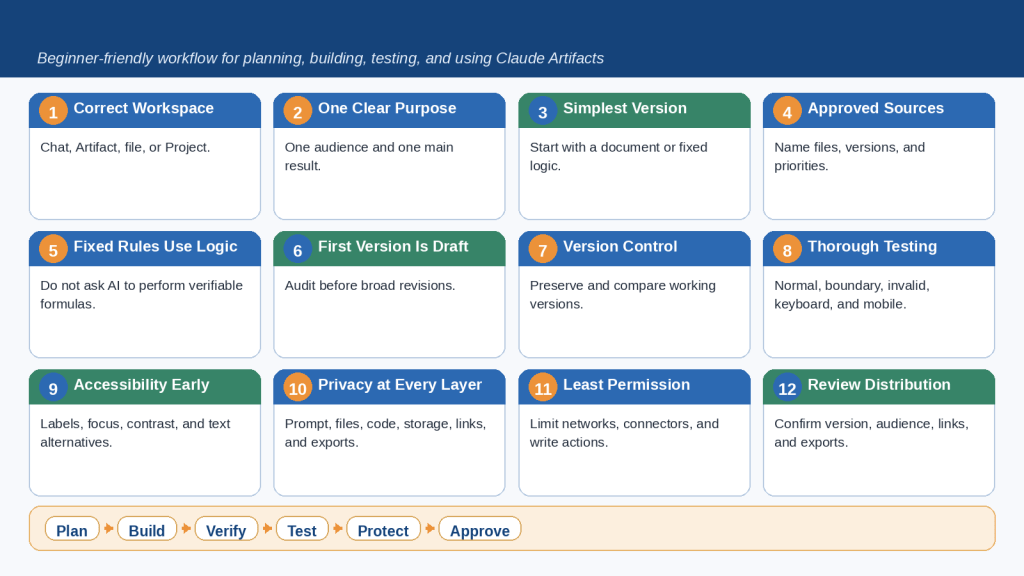
Figure 16. The safest Claude Artifact uses the correct workspace, one clear purpose, approved sources, the simplest suitable design, thorough testing, limited information and permissions, careful version control, and human approval before export or distribution.
The goal is not to create the most complicated Artifact. The goal is to create the smallest dependable document, visual, or interactive tool that solves the real problem.
Conclusion
Claude Artifacts can turn a conversation into a practical working result that is easier to review, revise, test, and reuse. They can support documents, interactive tools, diagrams, dashboards, websites, code, AI-powered assistants, and connected or storage-enabled applications.
The most important decision is not how many features the Artifact can contain. It is whether the Artifact solves one clearly defined problem for its intended user. Begin with approved sources and the simplest suitable design. Add AI, MCP, storage, publishing, sharing, and embedding only when they provide a necessary benefit.
A polished appearance does not prove that content, calculations, privacy, permissions, accessibility, storage, or exported files are correct. Preserve the last working version, test every important state, review every layer, and save an approved copy outside Claude.
The best Artifact is the smallest reliable solution that clearly serves the user, uses only the information and permissions it needs, and has been thoroughly reviewed before use or distribution.
Continue Learning
Review Article 048 – How to Use Projects and Knowledge Bases in Claude (2026) – before building a large collection of connected Artifacts. Projects help organize reusable instructions, knowledge, focused chats, and access settings, while Artifacts provide the individual outputs.
A safe beginner learning path is:
- Understand the difference between chat, Artifact, file, and Project.
- Create a Markdown document Artifact.
- Revise selected content and compare versions.
- Build a fixed-logic checklist, calculator, quiz, or prompt builder.
- Test valid, boundary, invalid, keyboard, and mobile use.
- Create a diagram, flowchart, chart, or dashboard from an approved source.
- Export and inspect a DOCX, PDF, PNG, SVG, or HTML file.
- Add one narrow AI function and label its output.
- Add MCP or storage only when necessary and with the lowest permission.
- Confirm the exact version and access method before distribution.
- Publish, share, or embed only after final human approval.
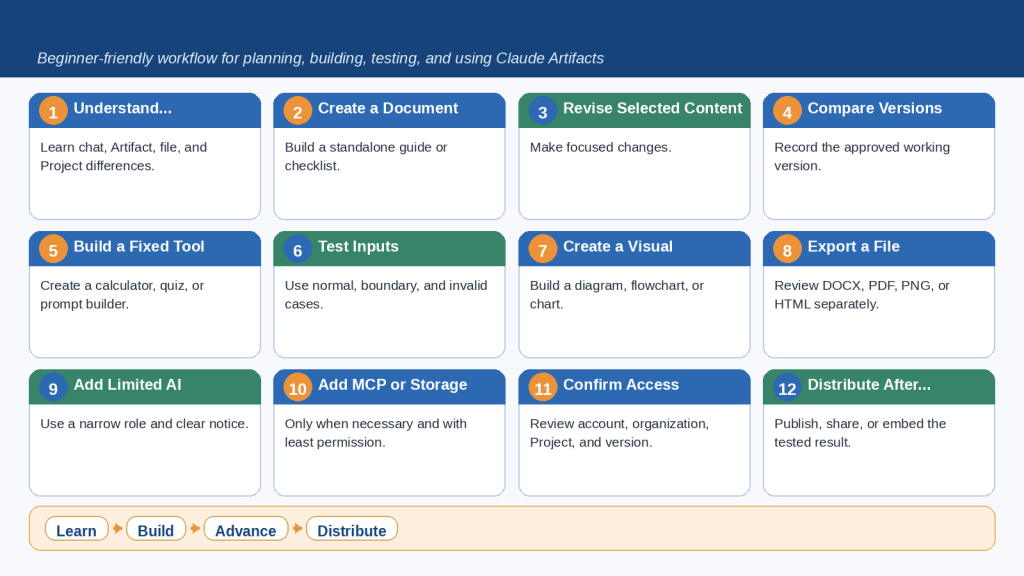
Figure 17. A safe Claude Artifact learning path progresses from documents and fixed-logic tools to visuals, exports, AI, connections, storage, and distribution one carefully tested capability at a time.
Beginners should master simple document and fixed-logic Artifacts before adding AI, MCP connections, persistent storage, public publishing, organization sharing, or website embedding.
Sources and References
The following official Claude Help Center resources were reviewed for this article on August 4, 2026. Product features, plan availability, interface labels, limits, and sharing behavior may change, so verify the current official pages before publication.
What are artifacts and how do I use them?
Create and edit files with Claude

